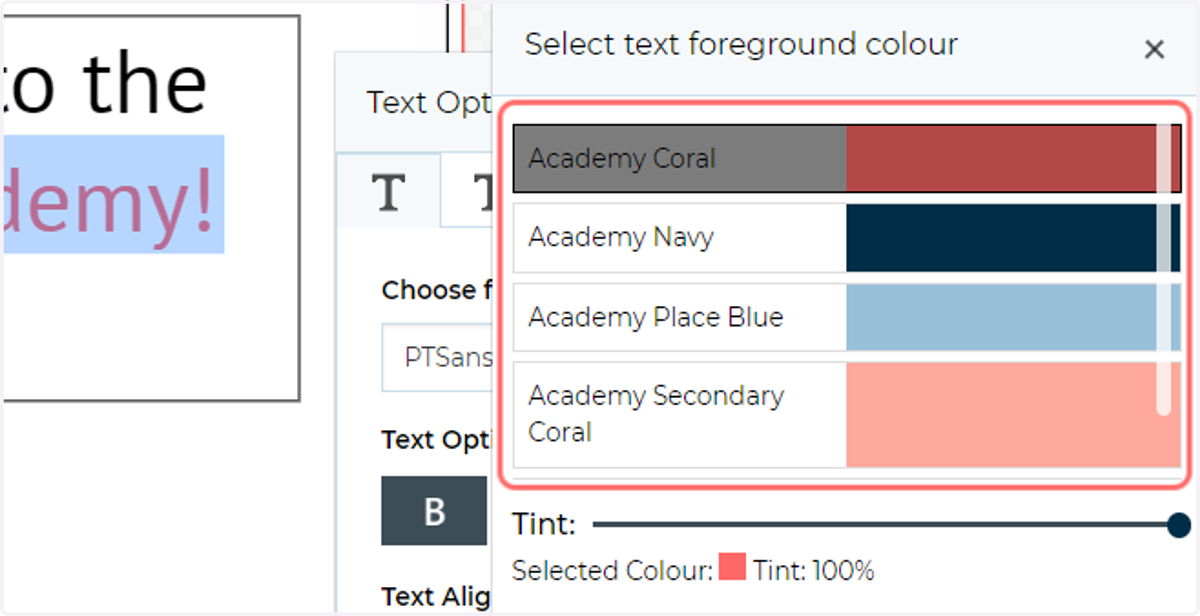
Spot colours in MegaEdit
In this tutorial, we will look at pre-defining and utilising spot colours within our MegaEdit products.
These can be used in various locations within the MegaEdit editor where colours can be specified, such as font text, border colours and drop shadows.
Infigosoftware
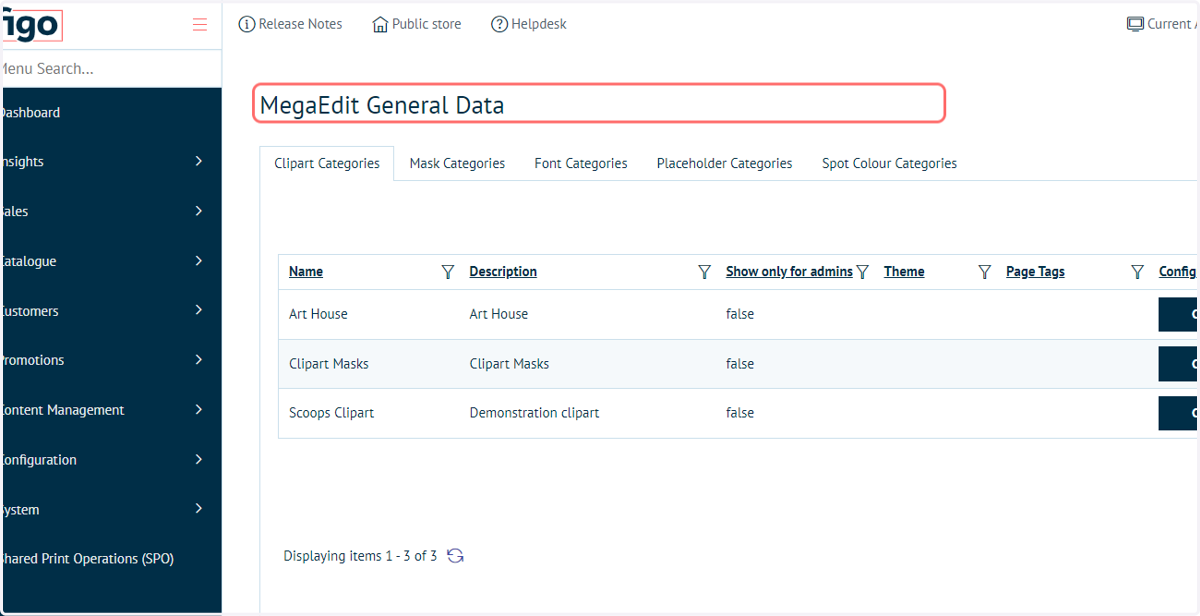
1. Navigate to MegaEdit General Data
To begin, we will create a spot colour catagory in the MegaEdit General Settings.
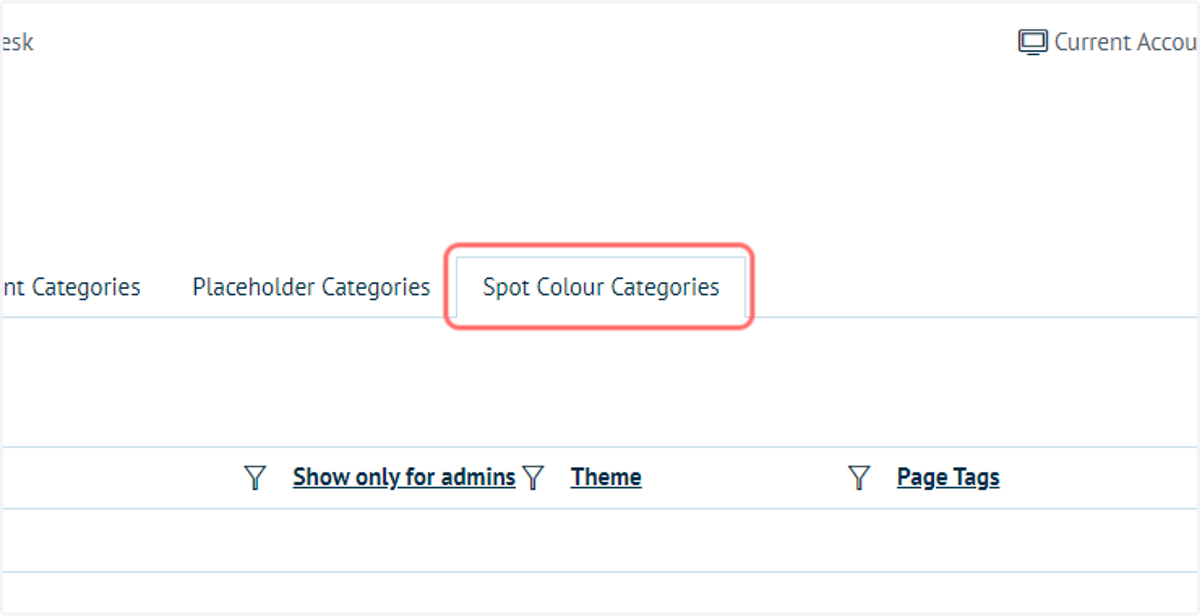
2. Click on Spot Colour Categories
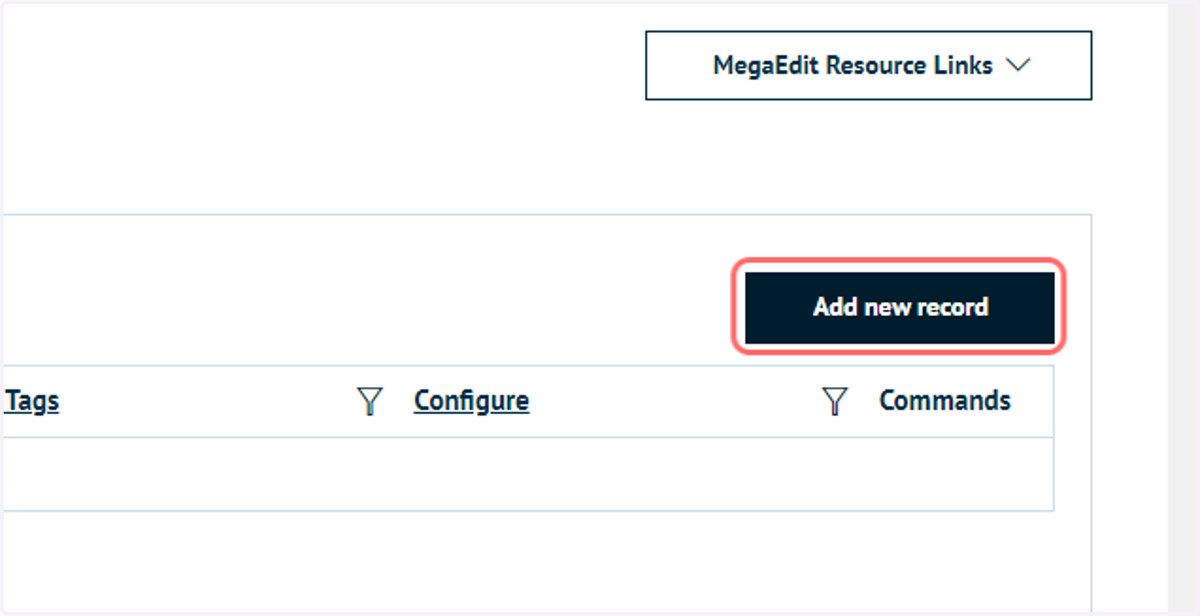
3. Click on Add new record
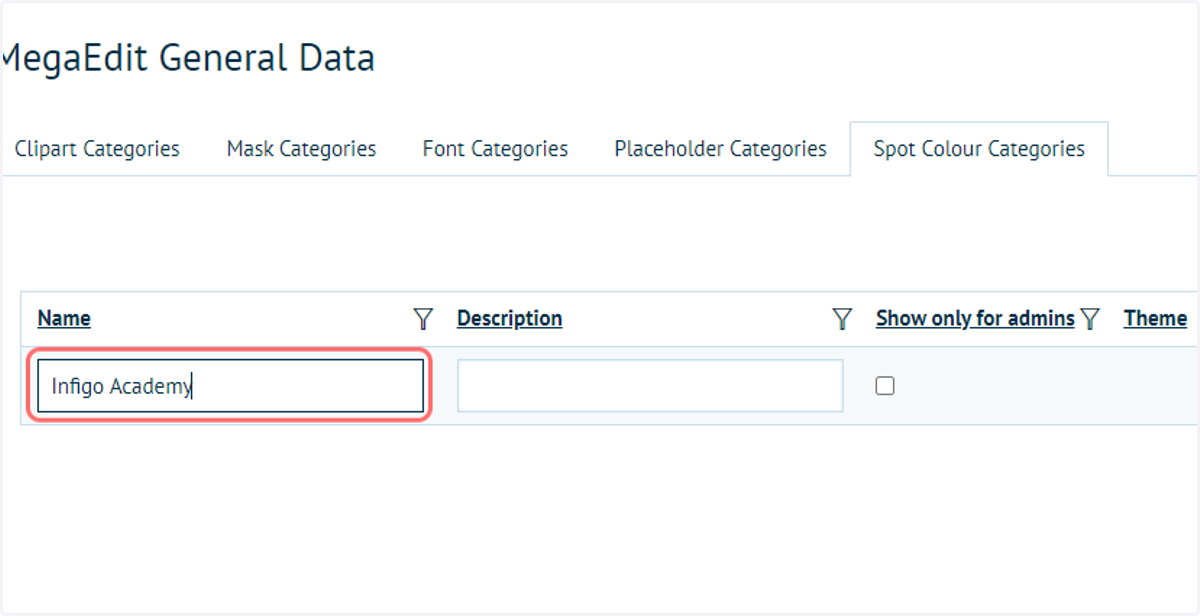
4. Type details for the Spot Colour Category
Here, the administrator can choose whether to make this category only available to administrators, or to both administrators and customers.
"Show only for admins" would be used when pre-defined templates are being configured, for which customers will not need to alter any colours.
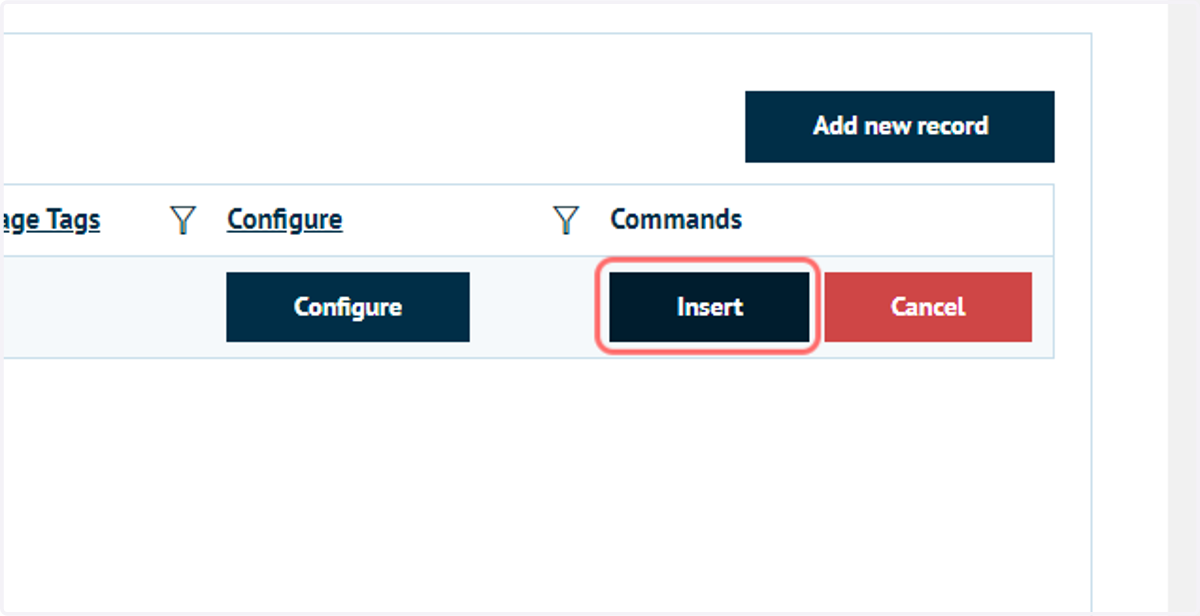
5. Click on Insert
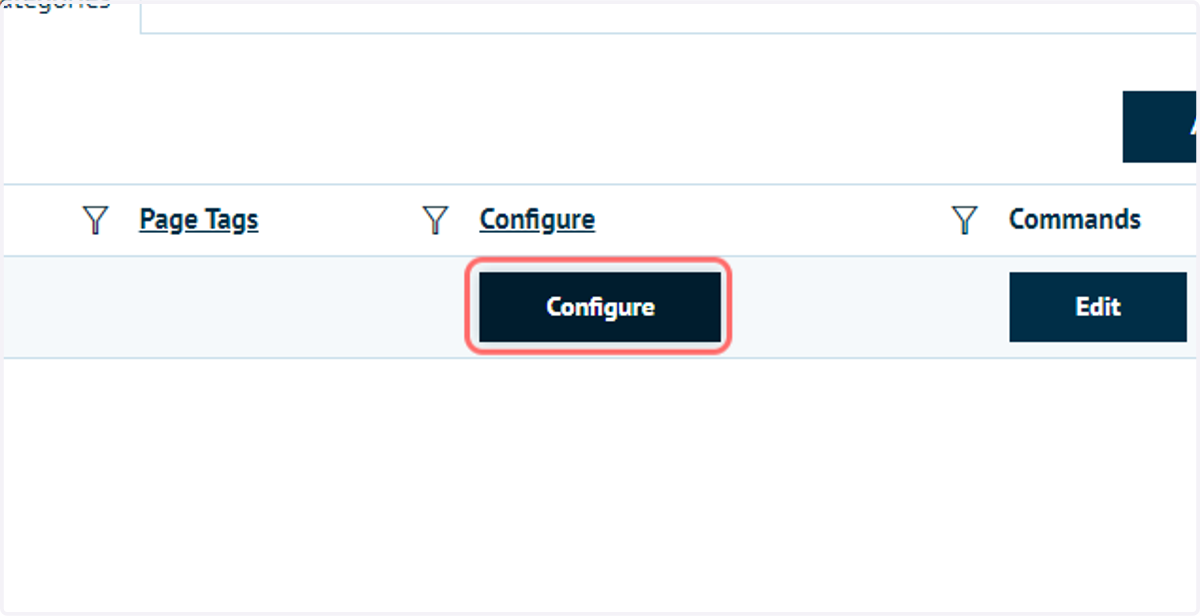
6. Click on Configure
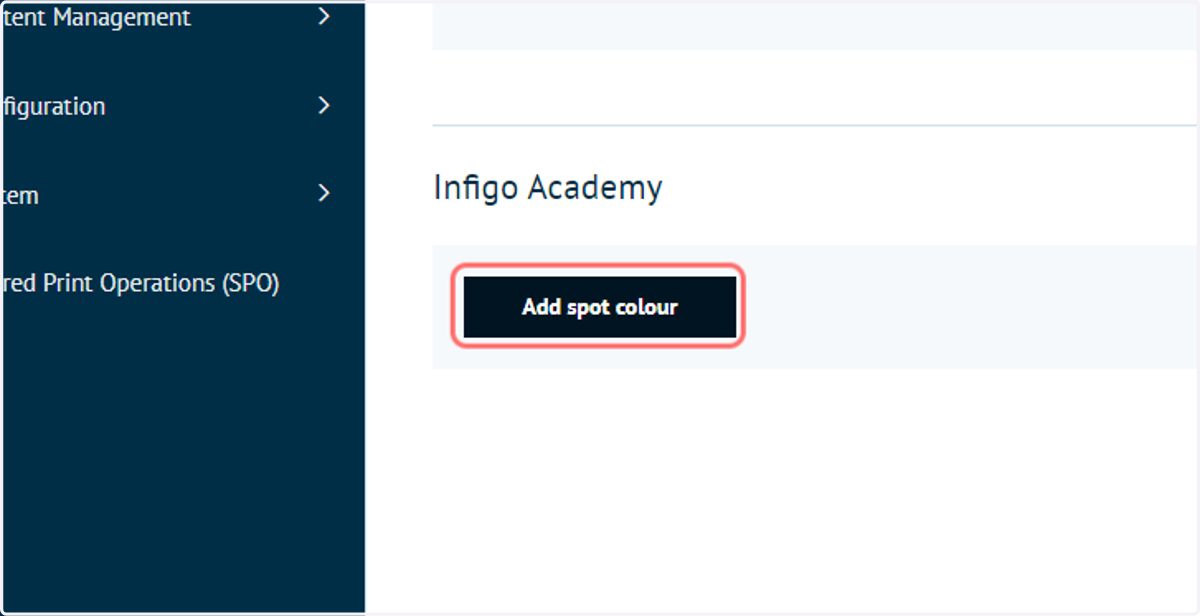
7. Click on Add spot colour
Infigosoftware
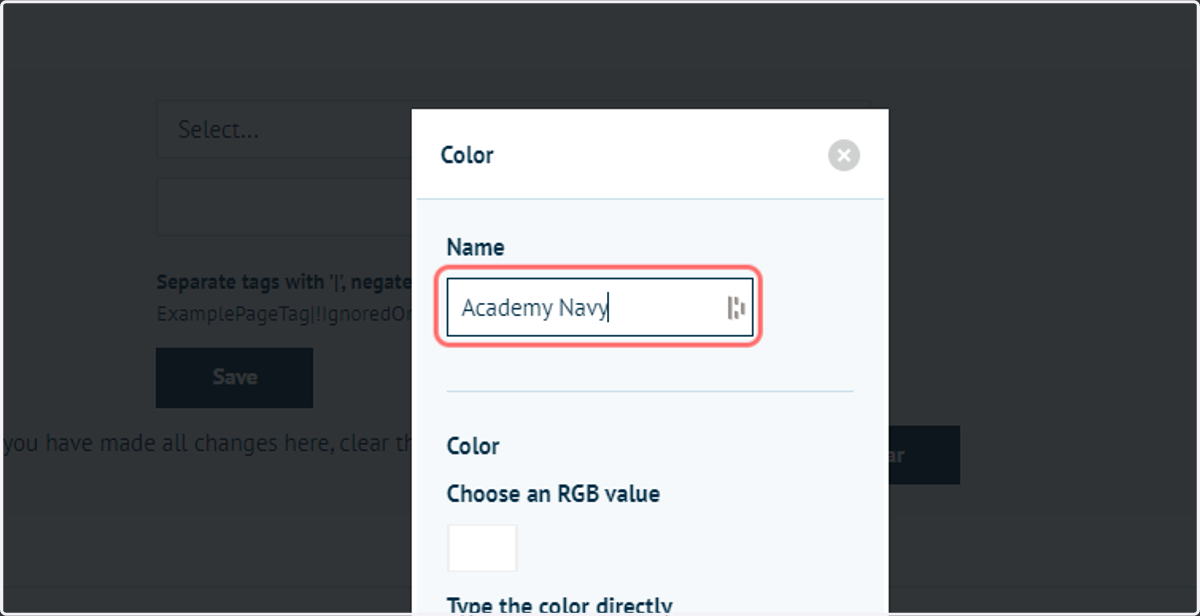
8. Type a custom colour name
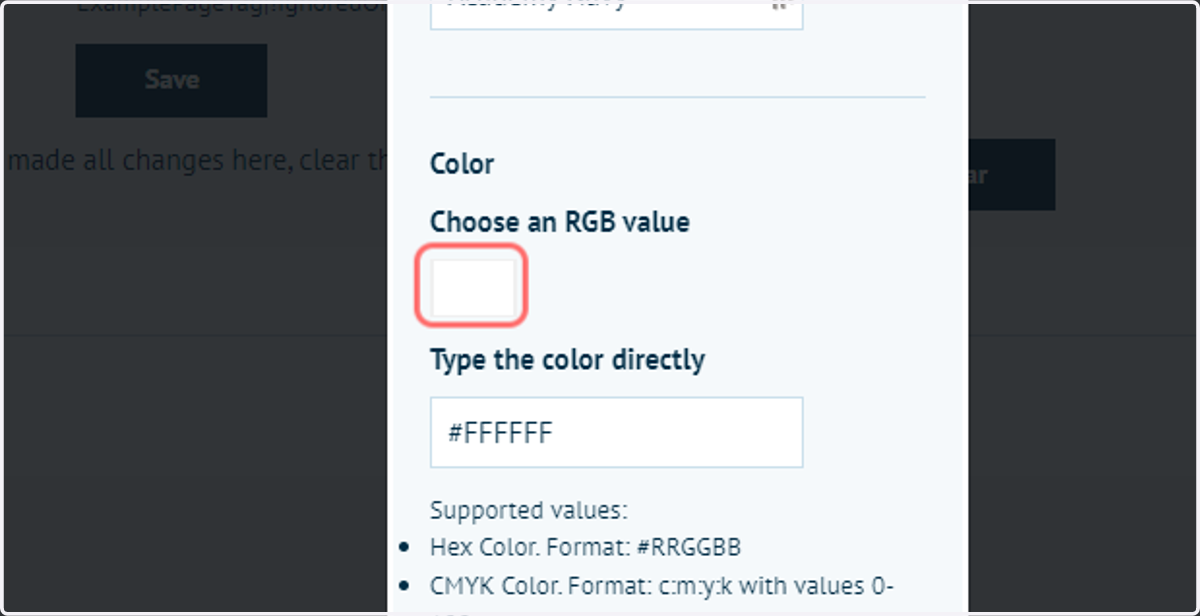
9. Select the colour picker to pick or type a colour
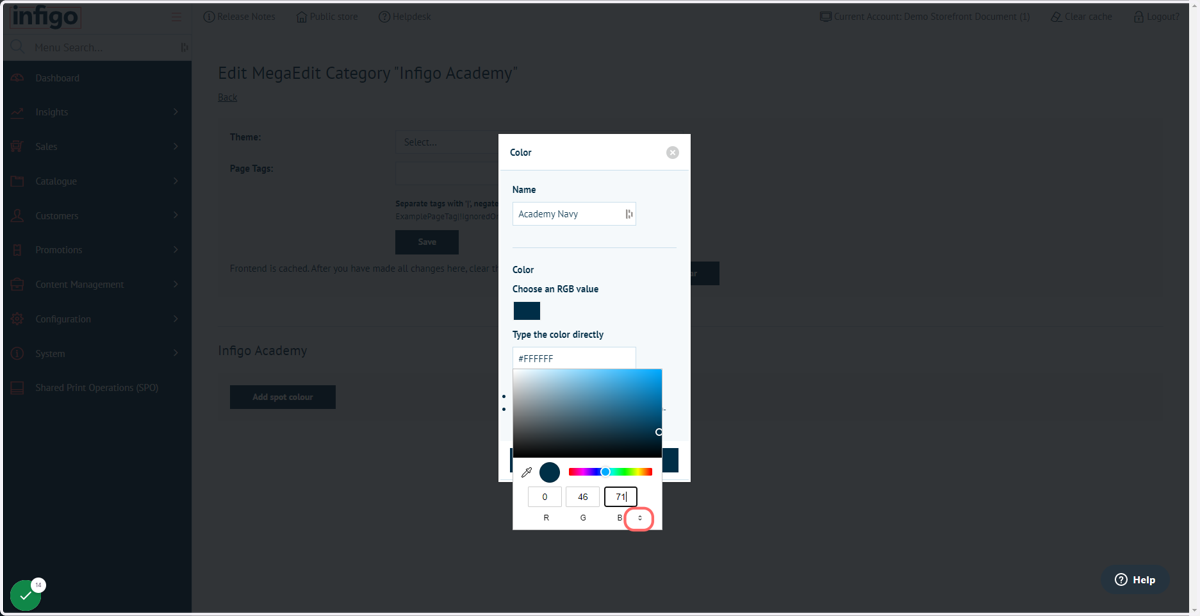
10. Choose colour input type
The highlighted icon allows you to select between input formats for your colour, such as RGB and HEX.
Infigosoftware
11. Click on Ok to add your colour to the Spot Colour Category
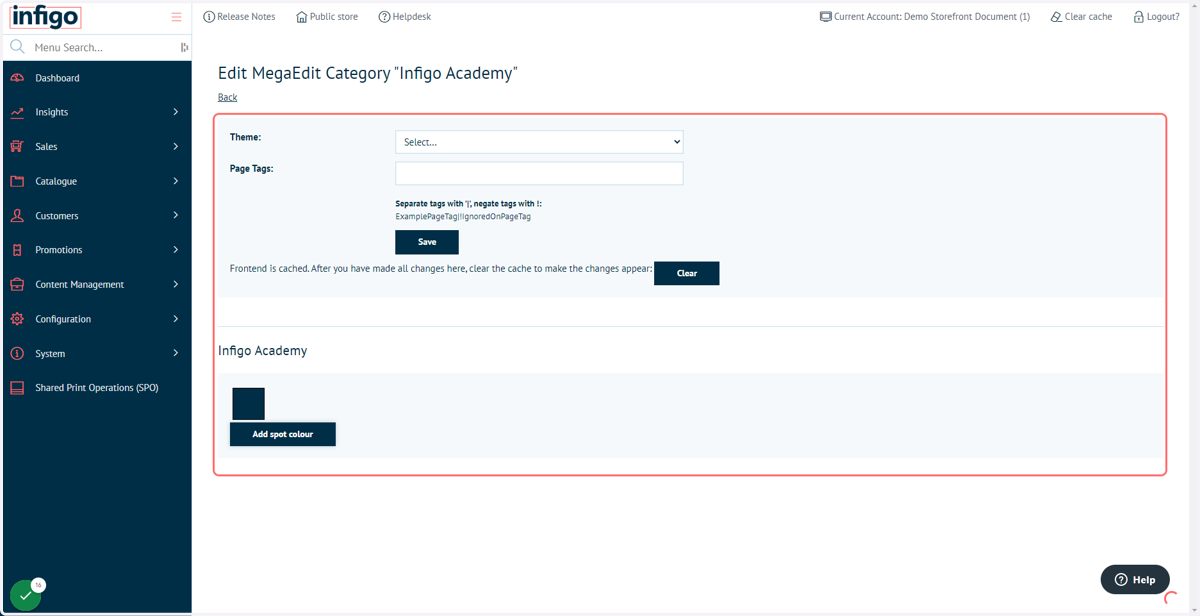
12. Add all required spot colours
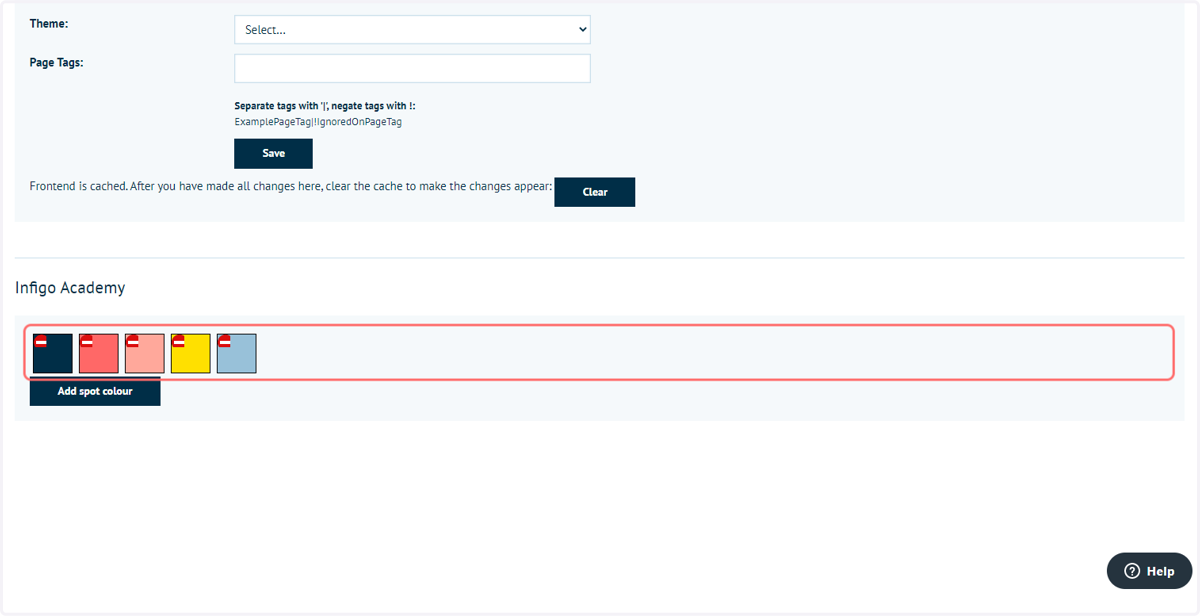
Infigosoftware
13. Click on Catalogue
Next, we need to apply this Spot Colour Category to one of our MegaEdit products.
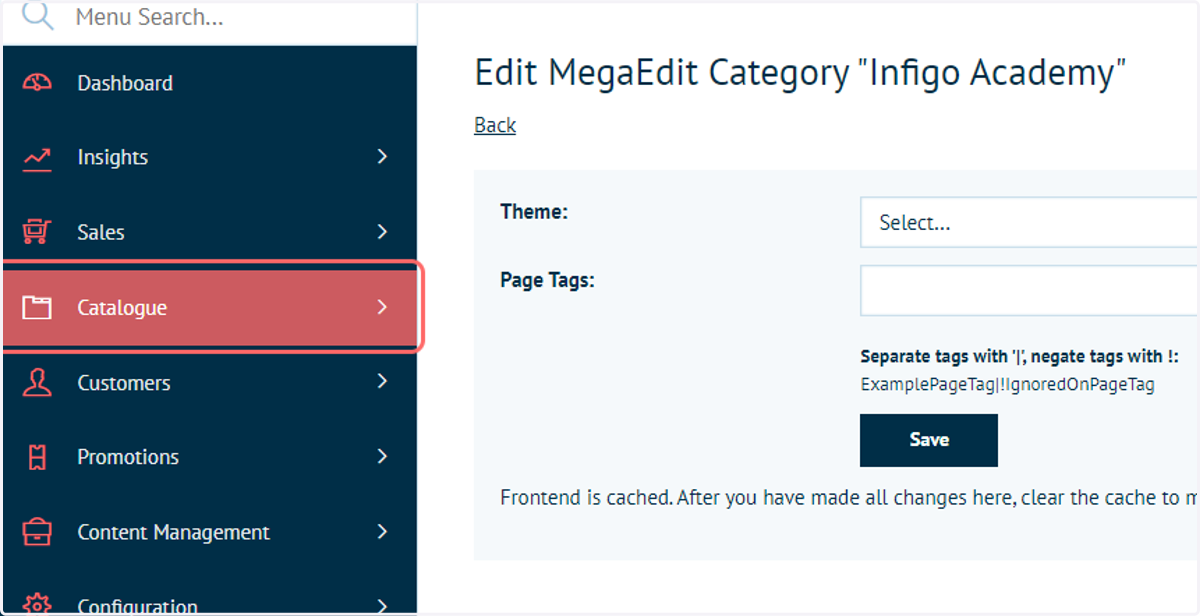
14. Click on Product Types
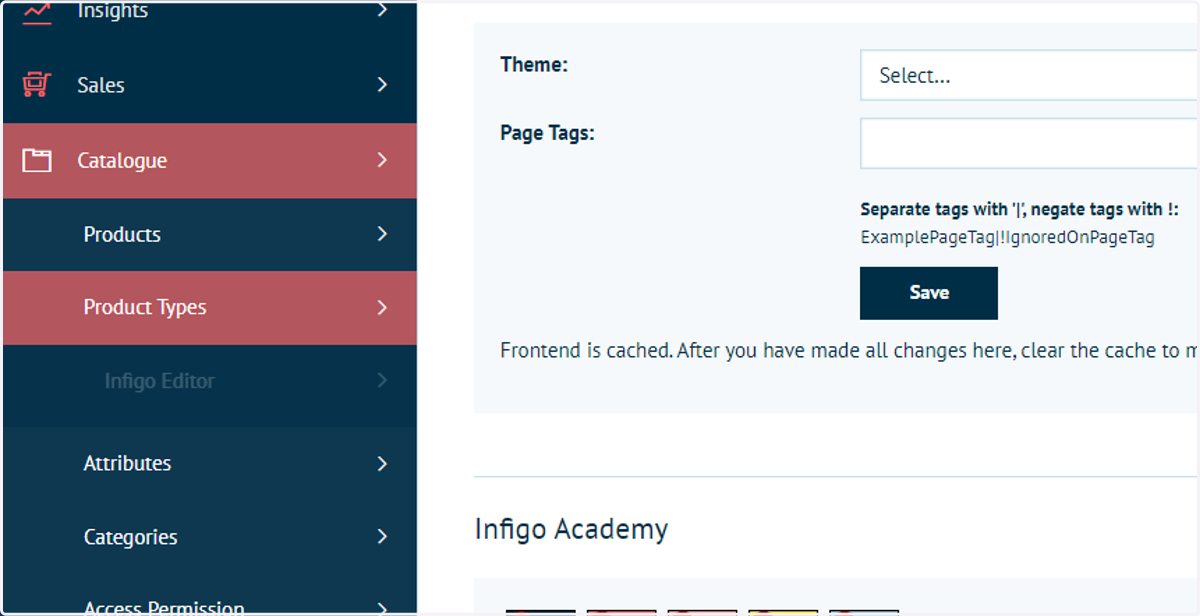
Infigosoftware
15. Click on MegaEdit
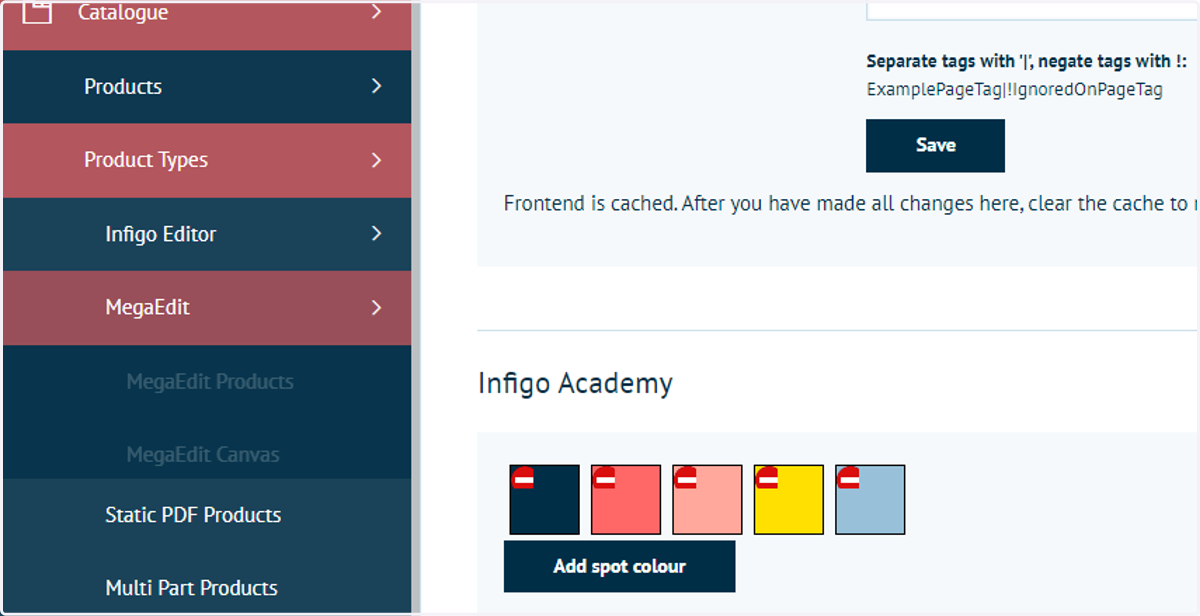
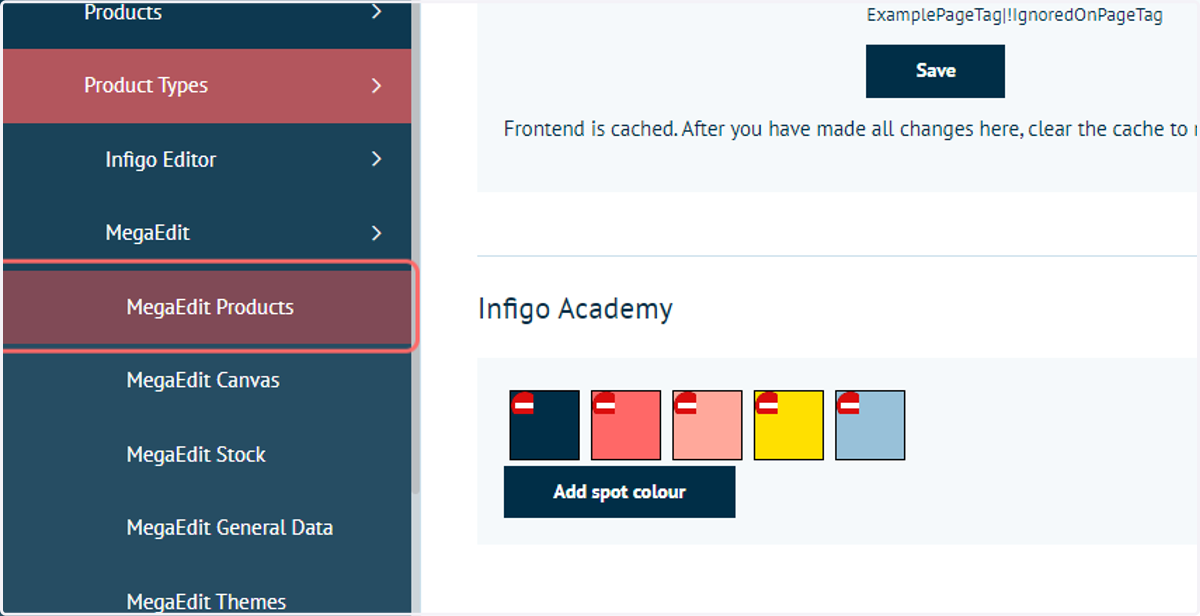
16. Click on MegaEdit Products
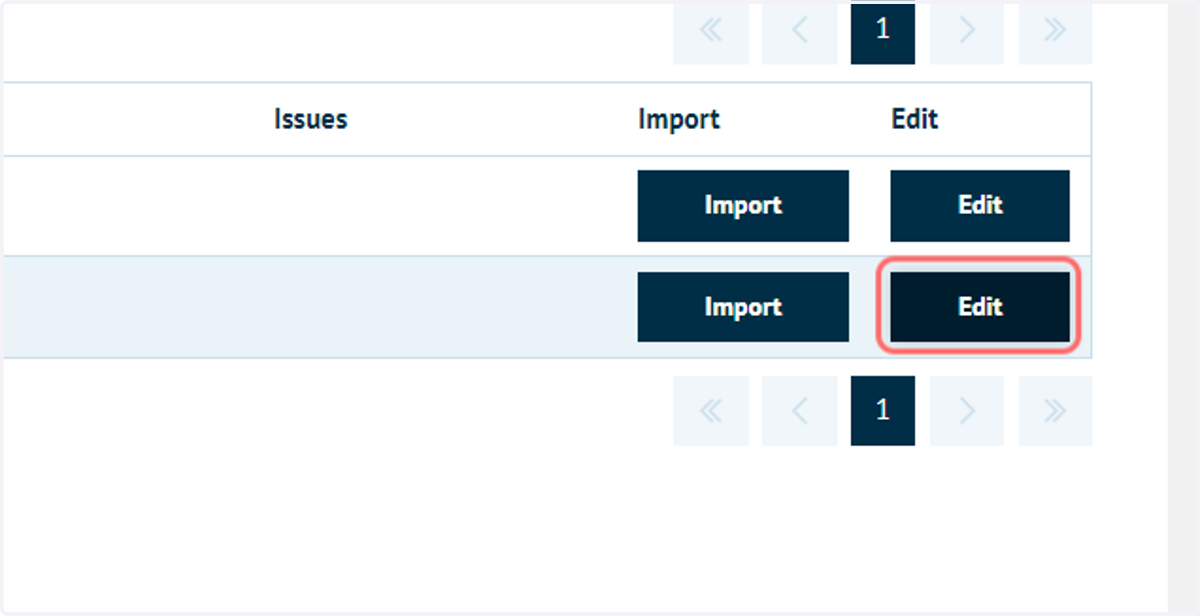
17. Locate the MegaEdit product of interest and click on Edit
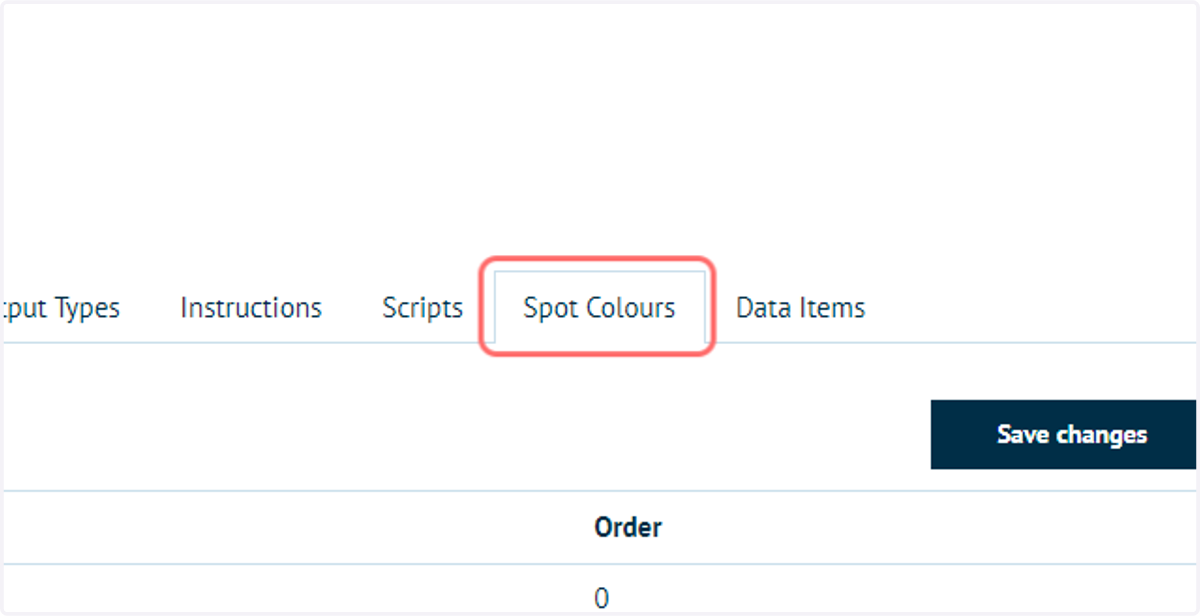
18. Click on Spot Colours
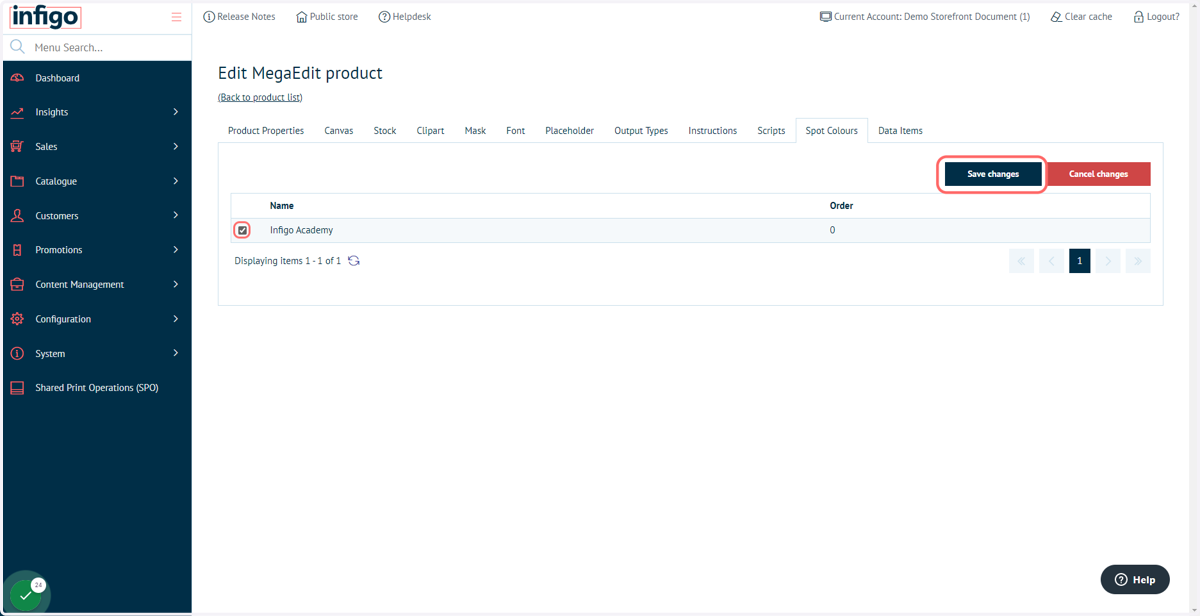
19. Select the checkbox next to the relevant Spot Colour Category and click Save changes
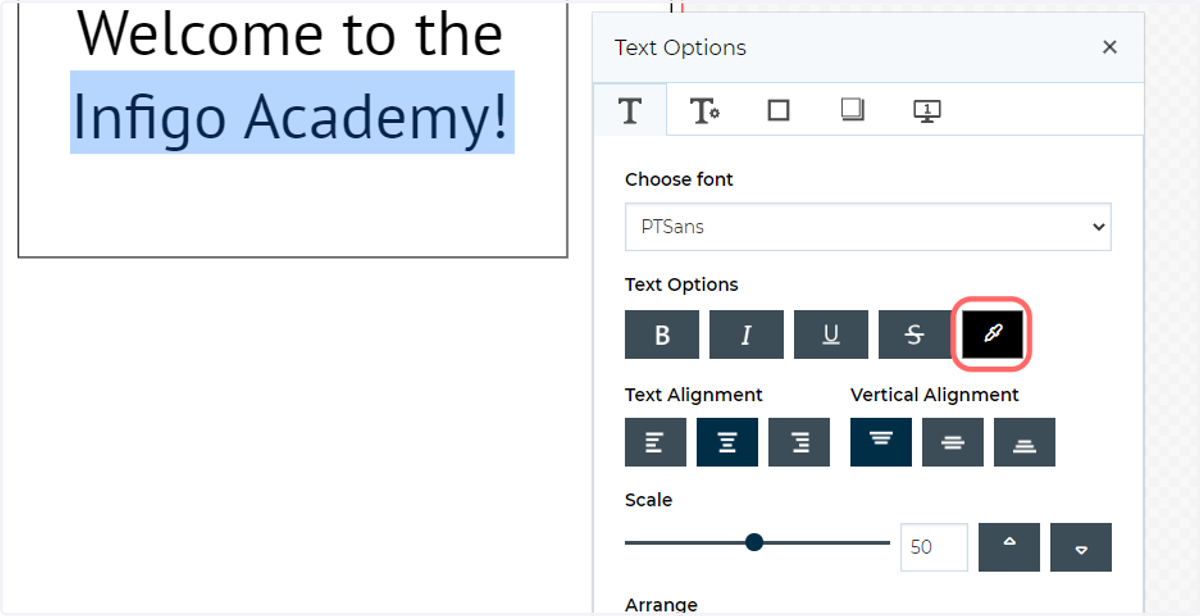
20. Launch your MegaEdit product and add or select a text field.
Select all or some of the text to launch the Text Options pop up.
Click the colour picker under the Text Options to bring up text colour options.
21. Click on Spot
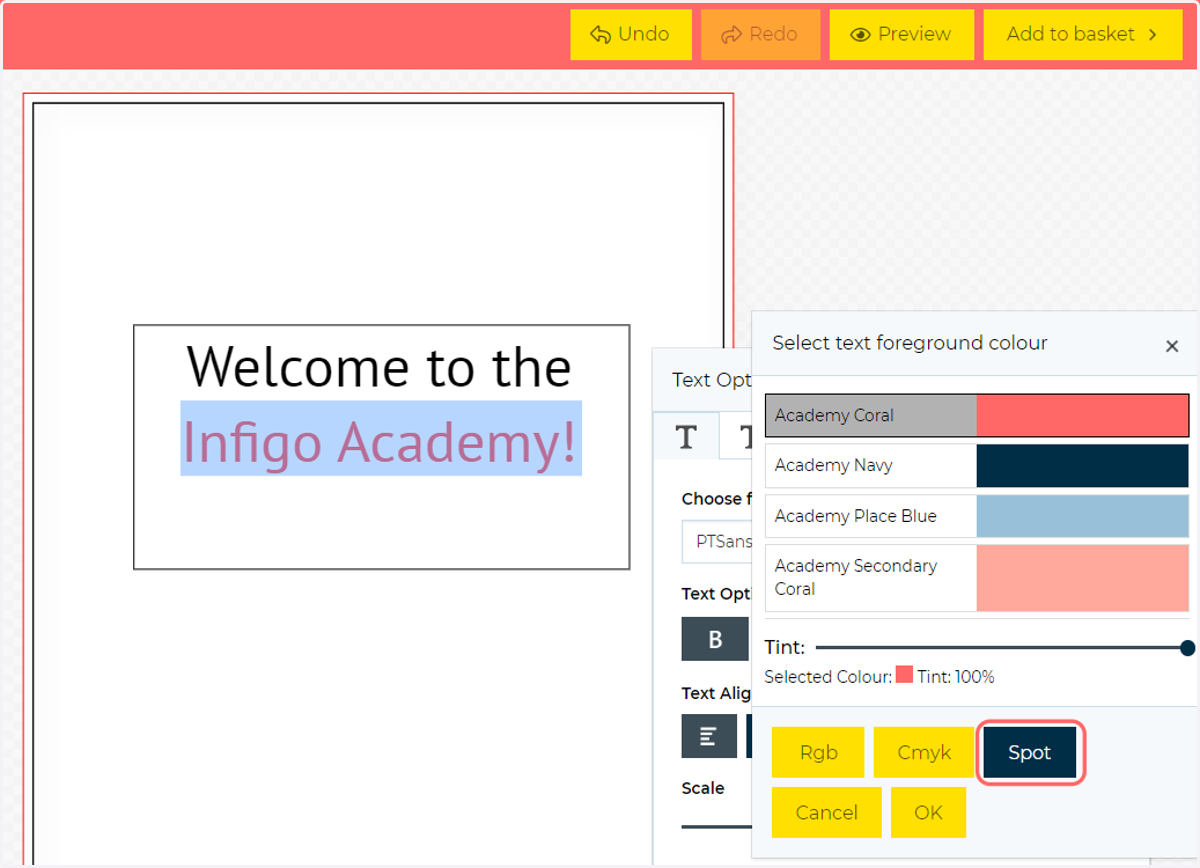
22. Select between your applied spot colours
Spot colours can be applied in various locations of the MegaEdit editor using the same methodology as seen here for selecting text colour.