Stock
In this tutorial, we will learn how to specify stock for use in MegaEdit and how to apply a stock to our products.
Stock in MegaEdit controls the following aspects of a paper:
1. Color
2. Thickness
3. Weight
4. Texture
Infigosoftware
1. Click on Catalogue
First, we will navigate to the MegaEdit Stock area.
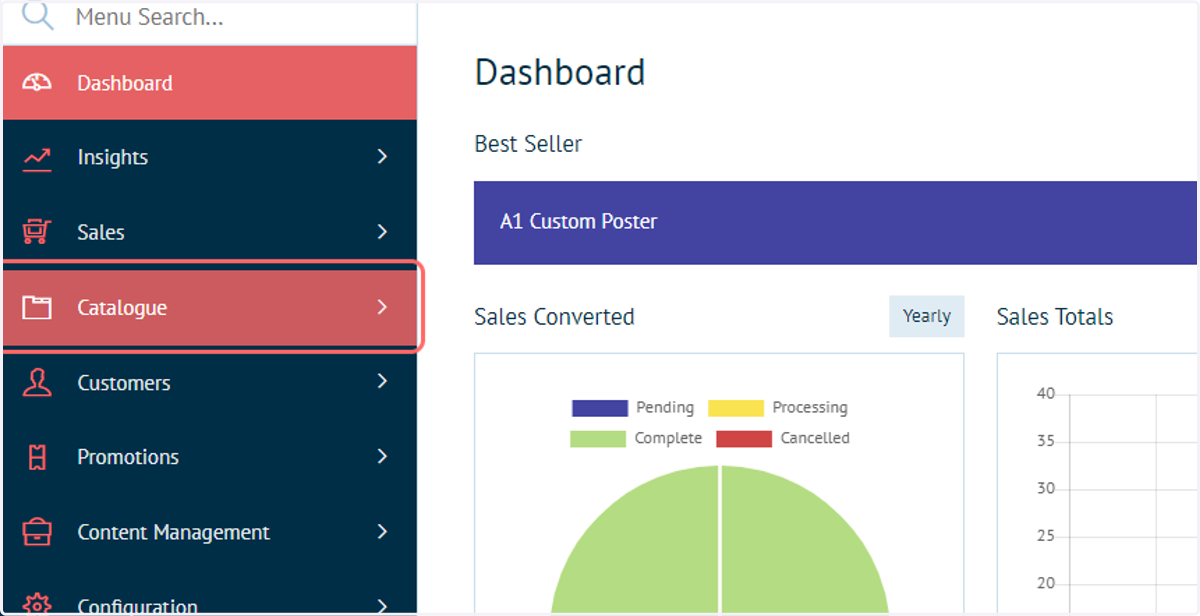
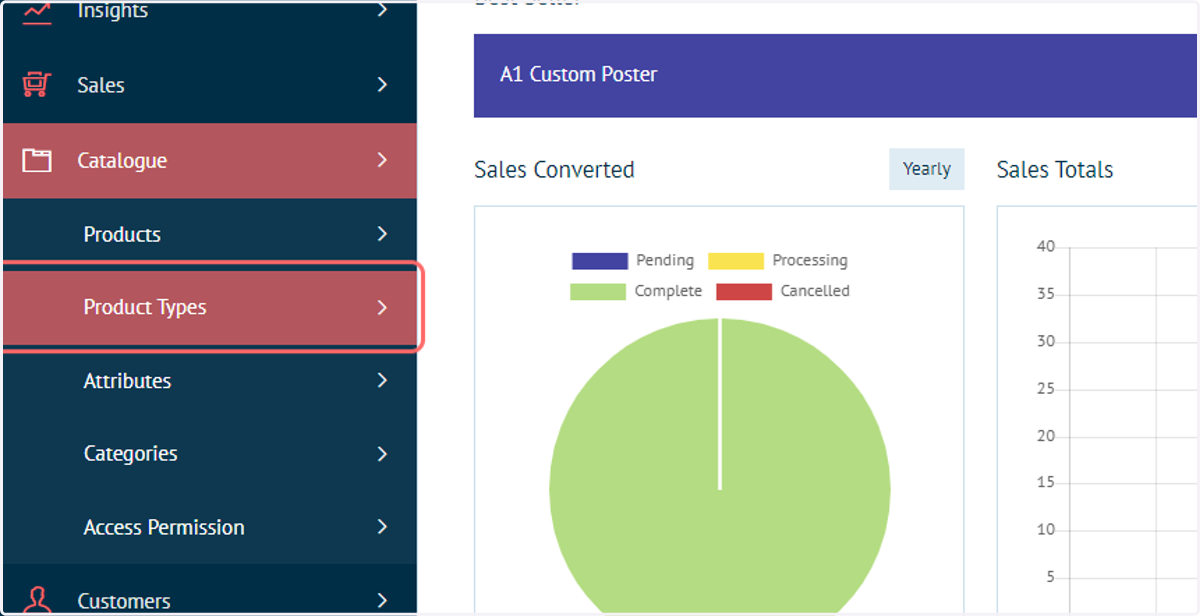
2. Click on Product Types
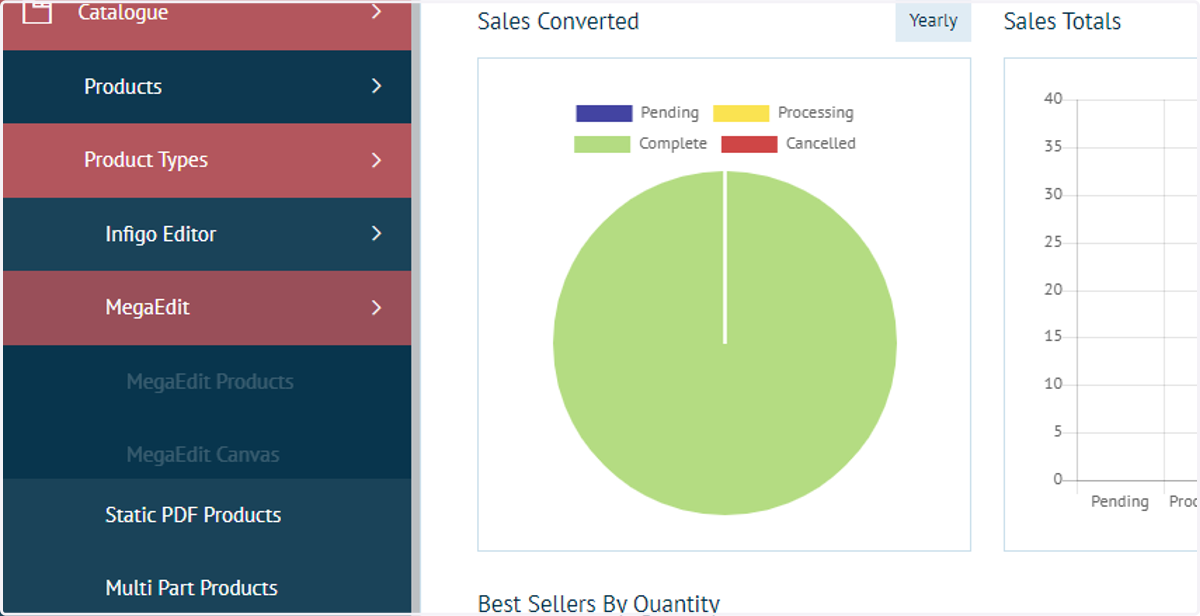
3. Click on MegaEdit
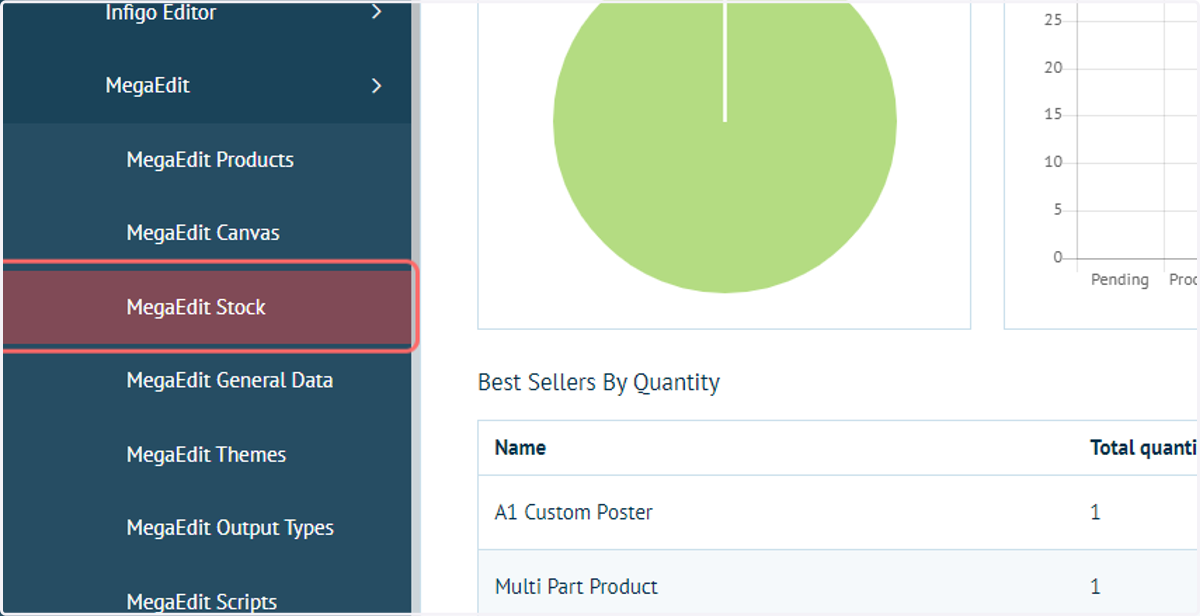
4. Click on MegaEdit Stock
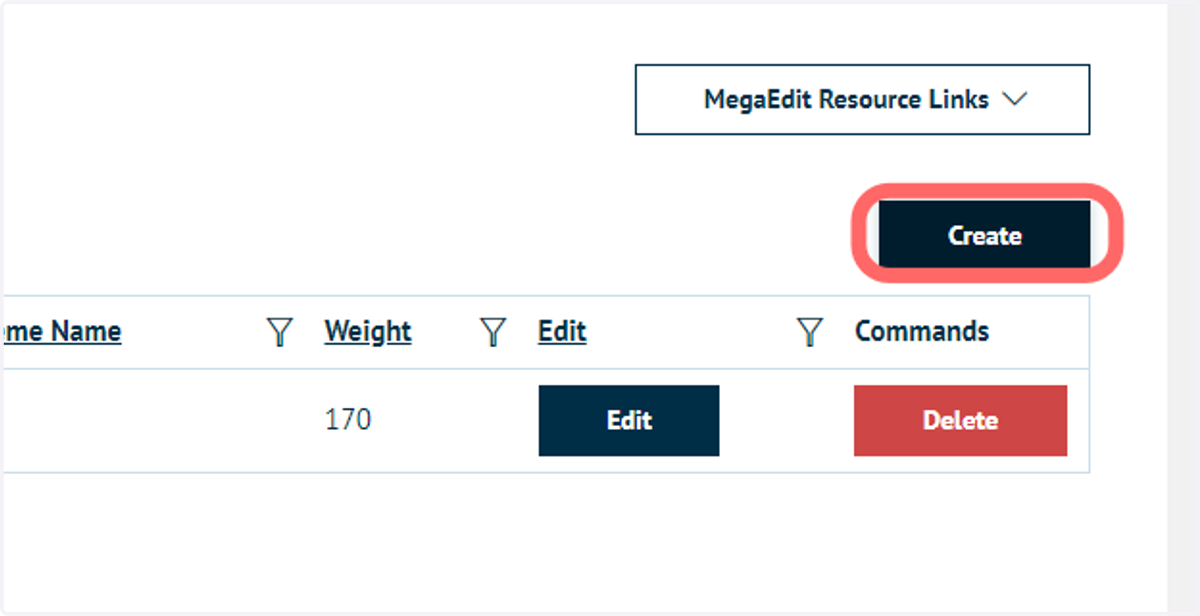
5. Click on Create
We can create a new Stock specification by clicking Create.
6. Complete Stock information
1. Name: Name of the Stock
2. Description: Description of Stock item
3. MicronThickness: Thickness of the paper.
4. Price Adjustment: Each Stock Item can adjust the price based on factors
5. Weight: Weight of the paper
6. Color: Color of the paper. This will not appear in the output PDF but will appear on previews. It is representing the colour of the actual stock itself.
7. Upload a texture: You can upload a texture file to be used in the background. This will not appear in the output PDF but will appear on previews. It is representing the texture of the actual stock itself.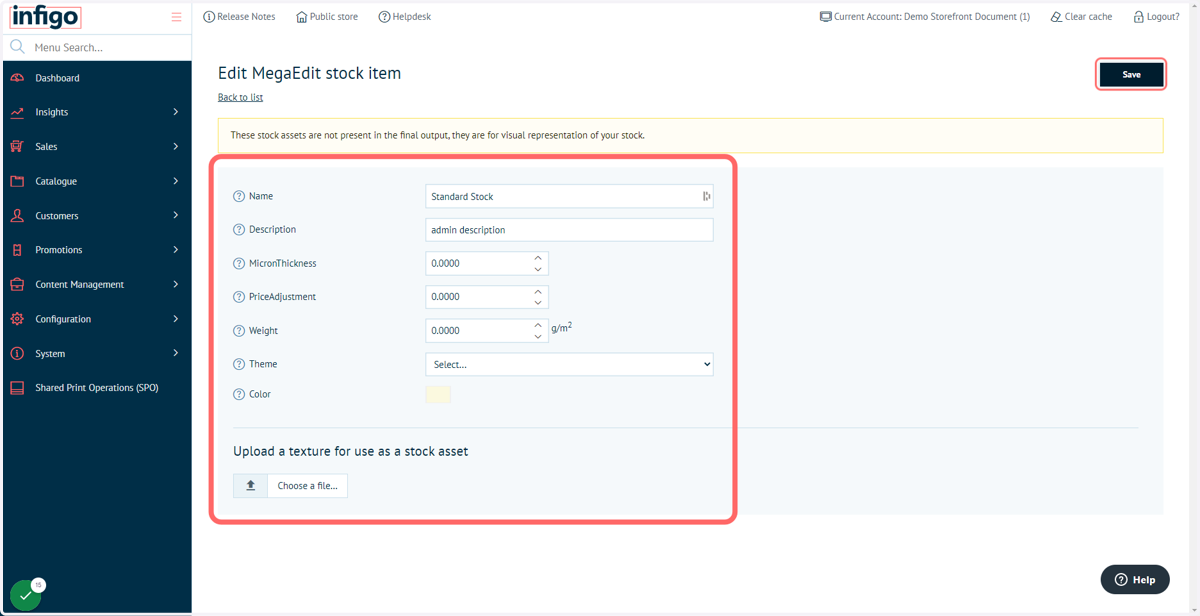
Infigosoftware
7. Click on Catalogue
Next, we will apply our new stock entry to a product.
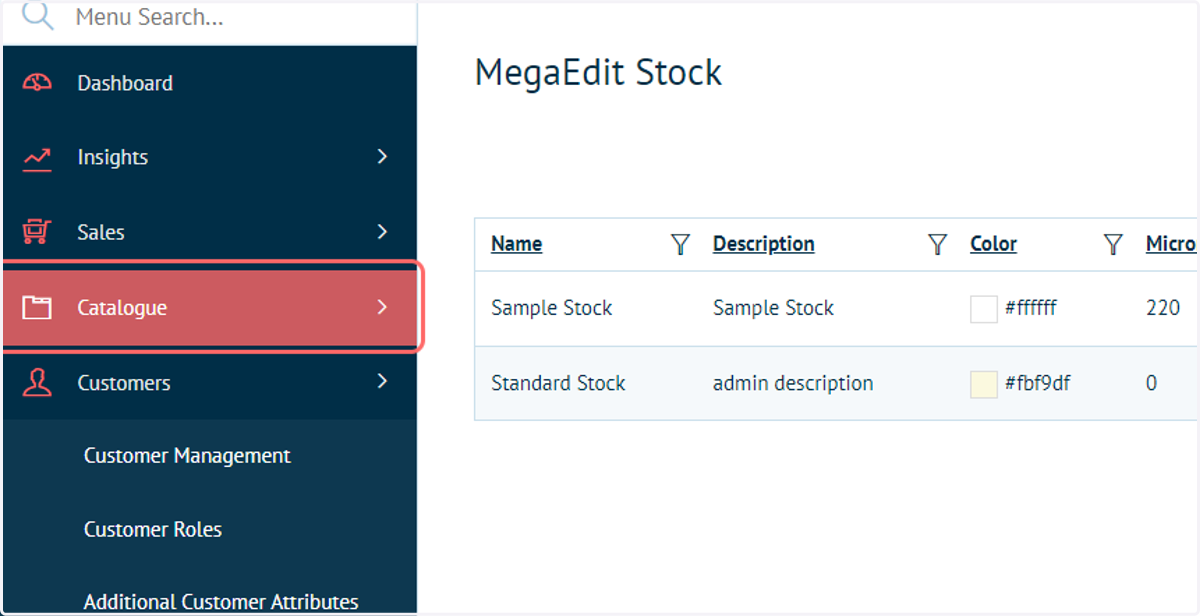
8. Click on Product Types
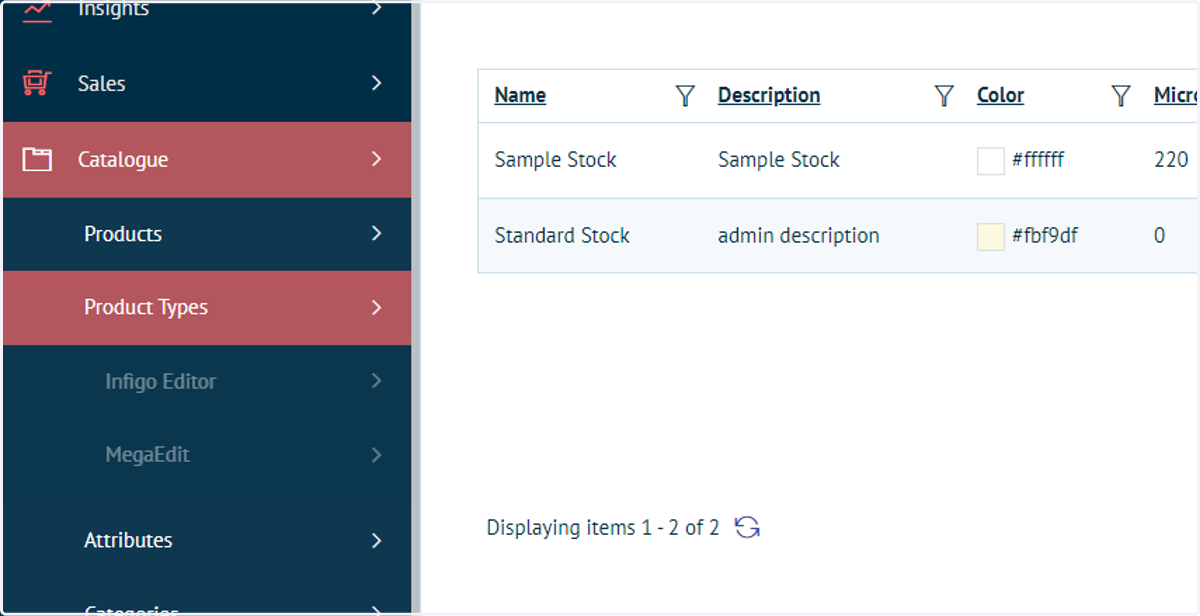
9. Click on MegaEdit
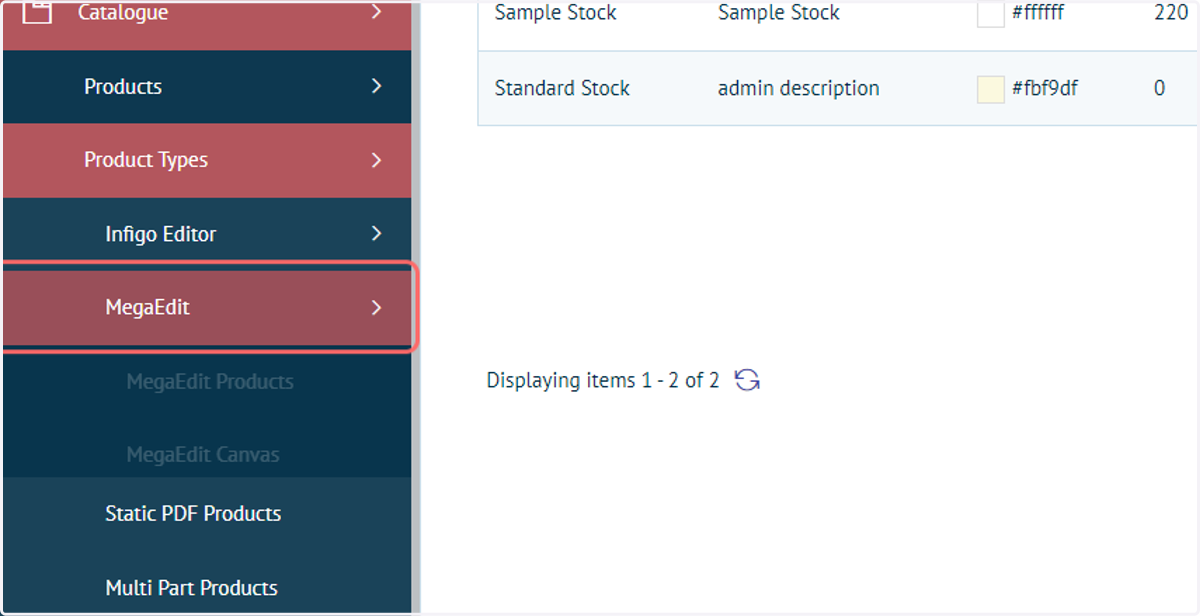
10. Click on MegaEdit Products
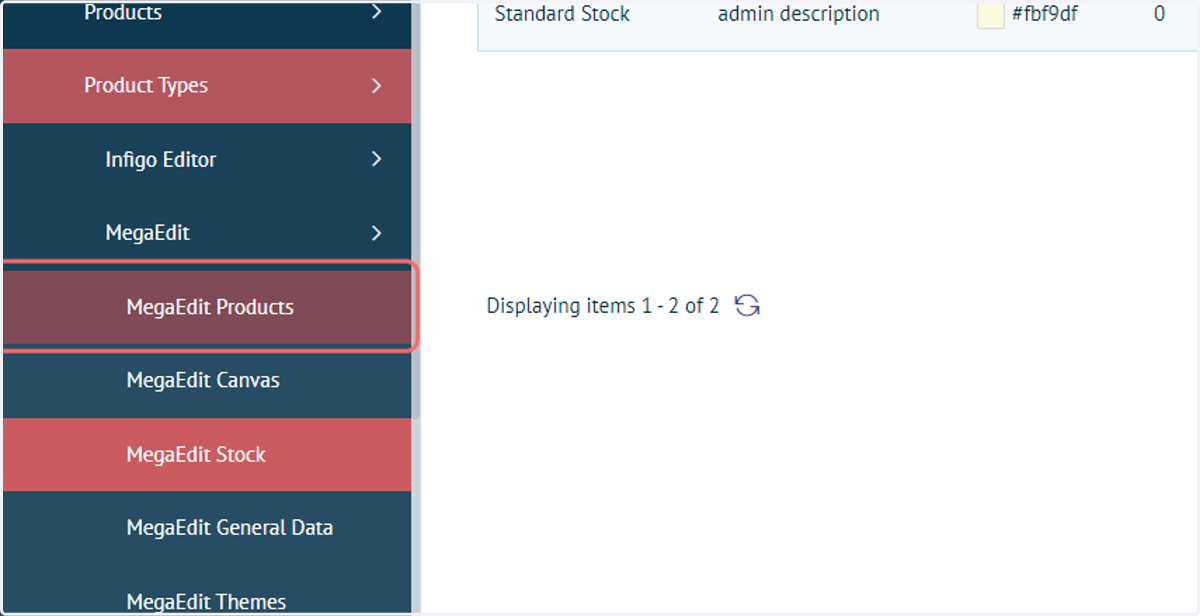
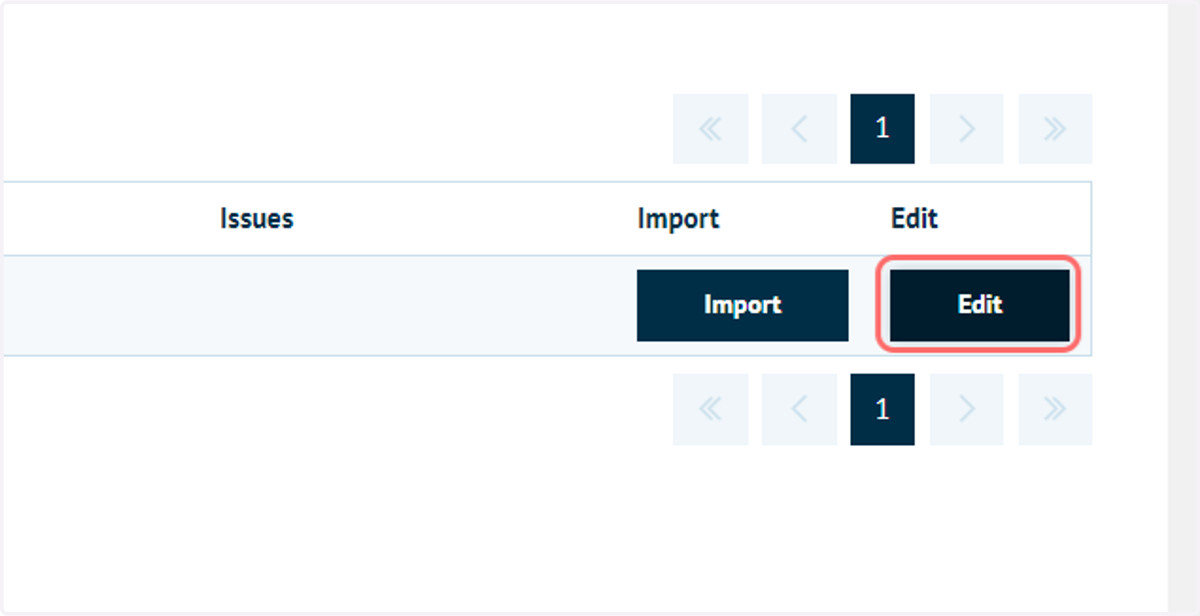
11. Click on Edit
Edit one of your MegaEdit products
12. Click on Stock
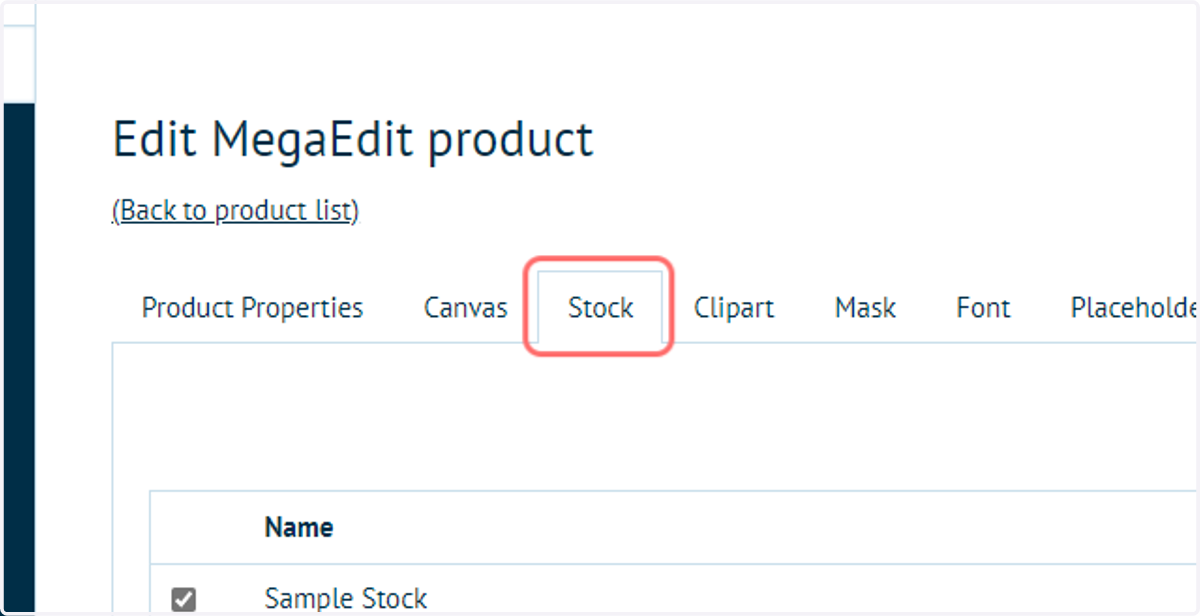
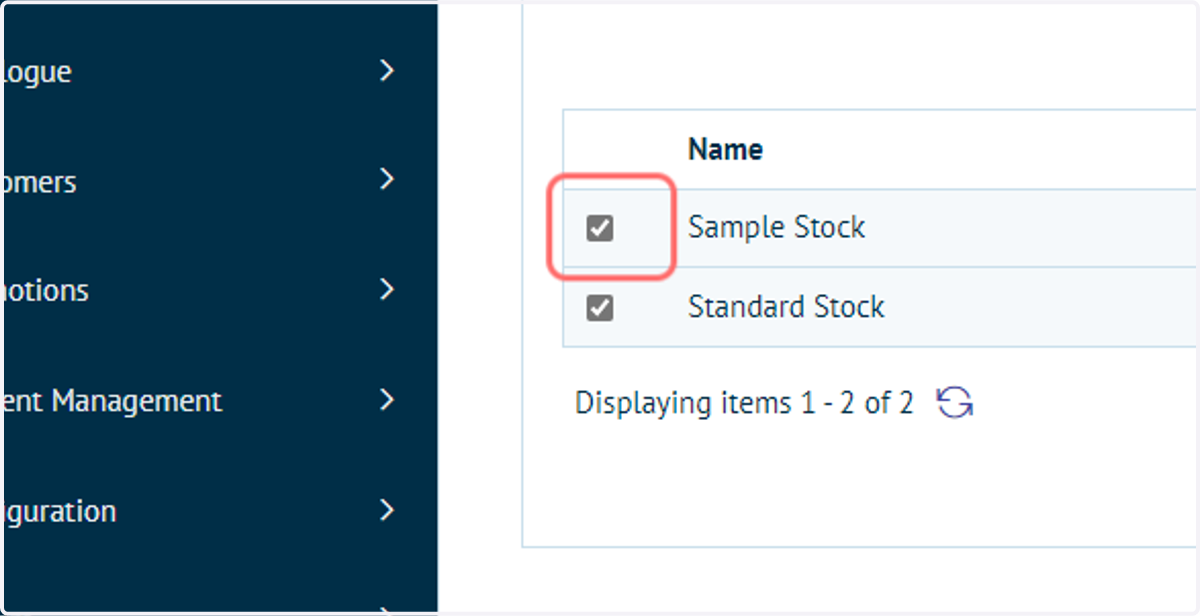
13. Select the appropriate stock for the selected product
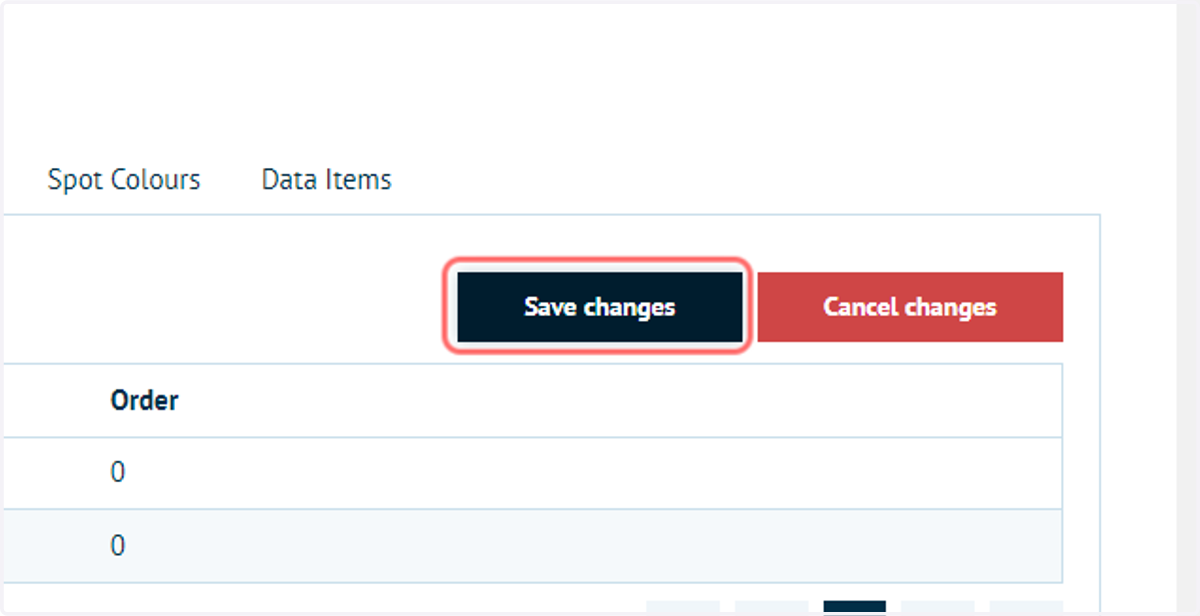
14. Click on Save changes