Step 3: Booking rooms using the Room List Upload method
1. You can download the Room List template using the link in your Block Confirmation email.

2. When filling in your room list template, EACH ROW represents one (1) room. Enter the names of the people who will be in that room. All columns should be filled in as they apply.

3. Second part of template

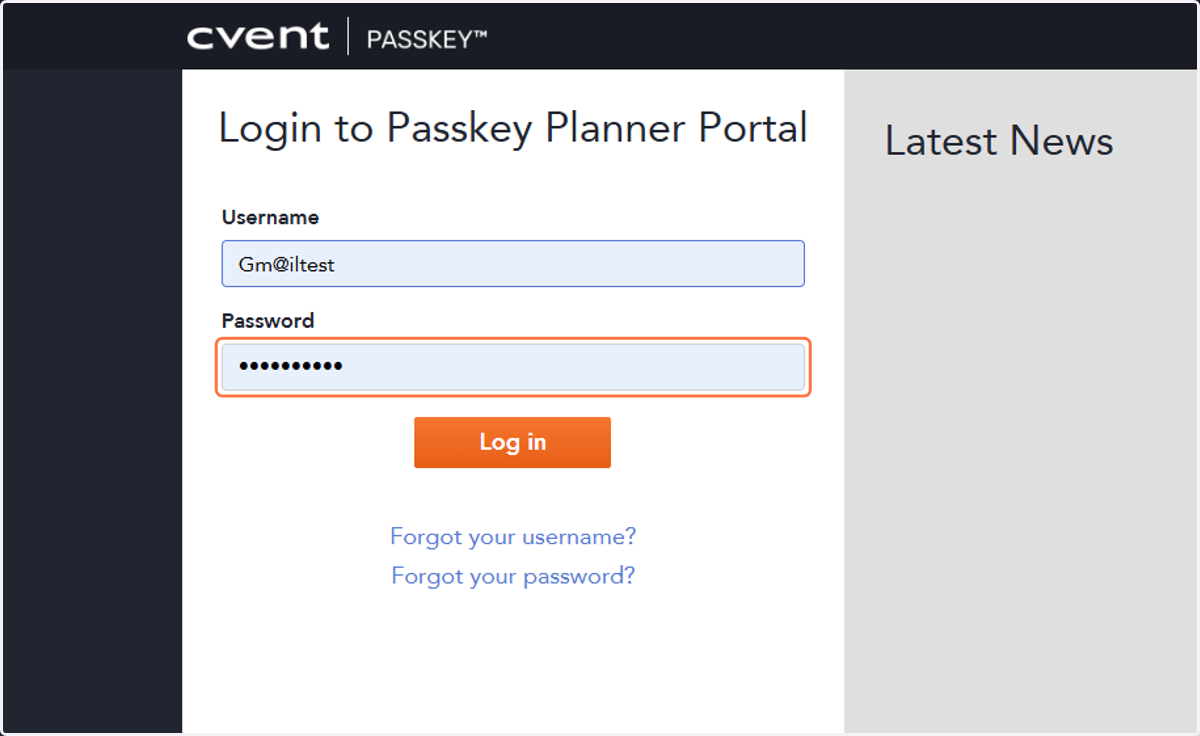
To begin your room list template upload, log in to your Dashboard (Planner Portal).
4. Enter your Username and Password.
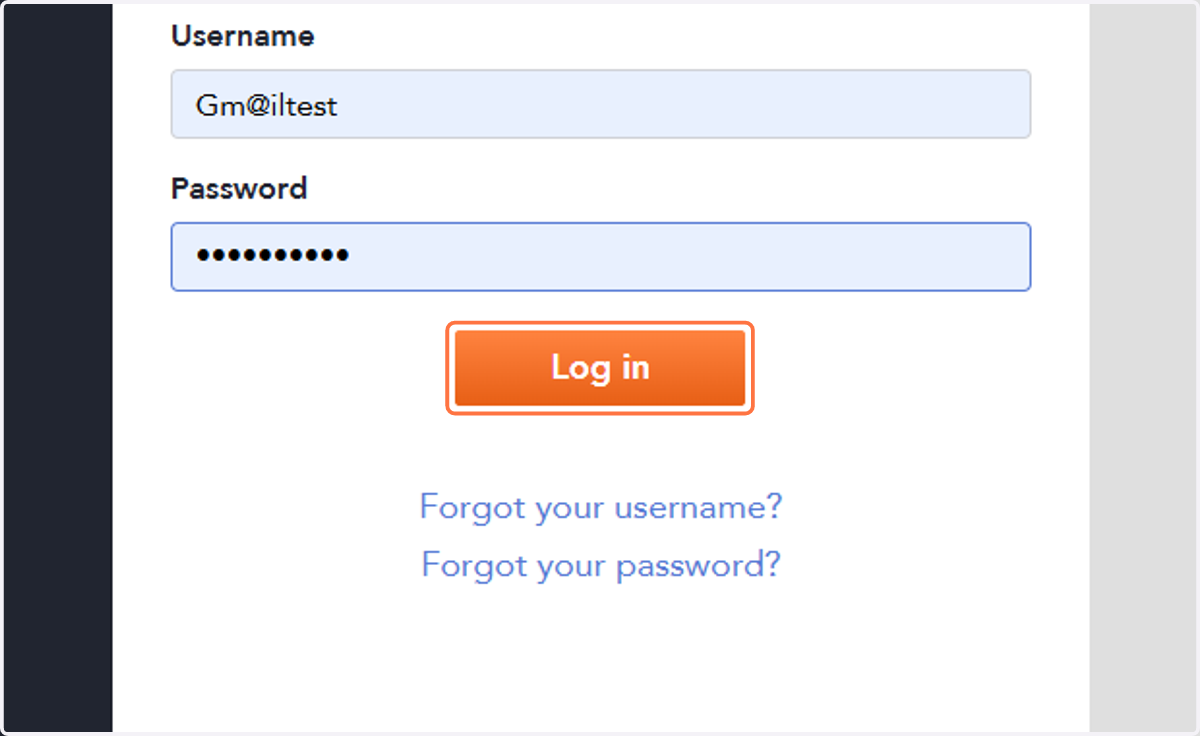
5. Click on Log in.
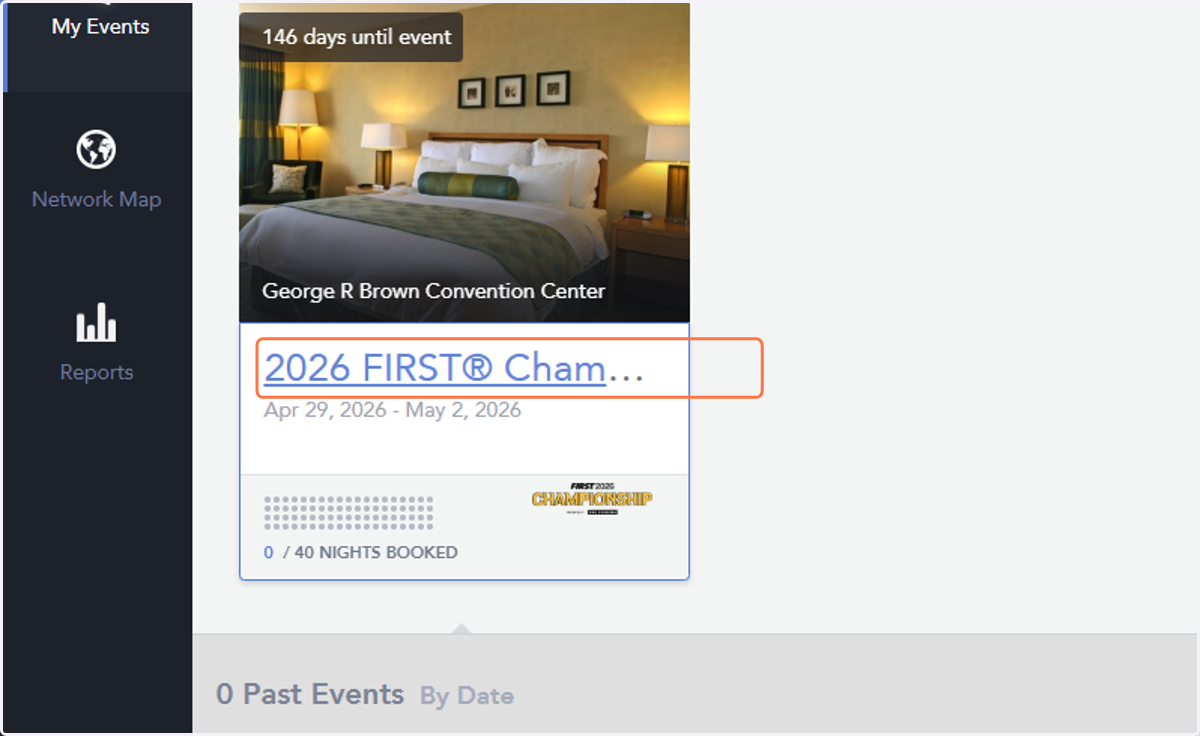
6. Click on 2026 FIRST® Championship.
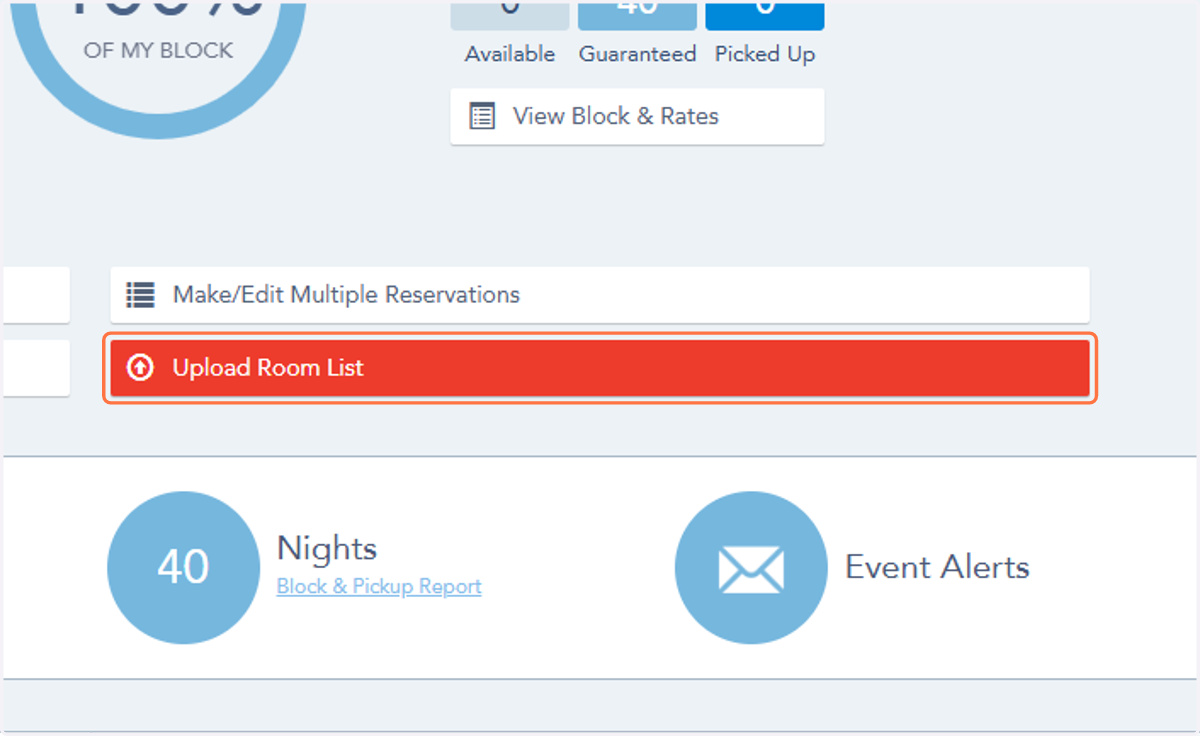
7. Click on Upload Room List.
8. Click on Select File.
The file you are selecting is the Room List Template you filled out. The template should be saved under your Team Number-Team Name.
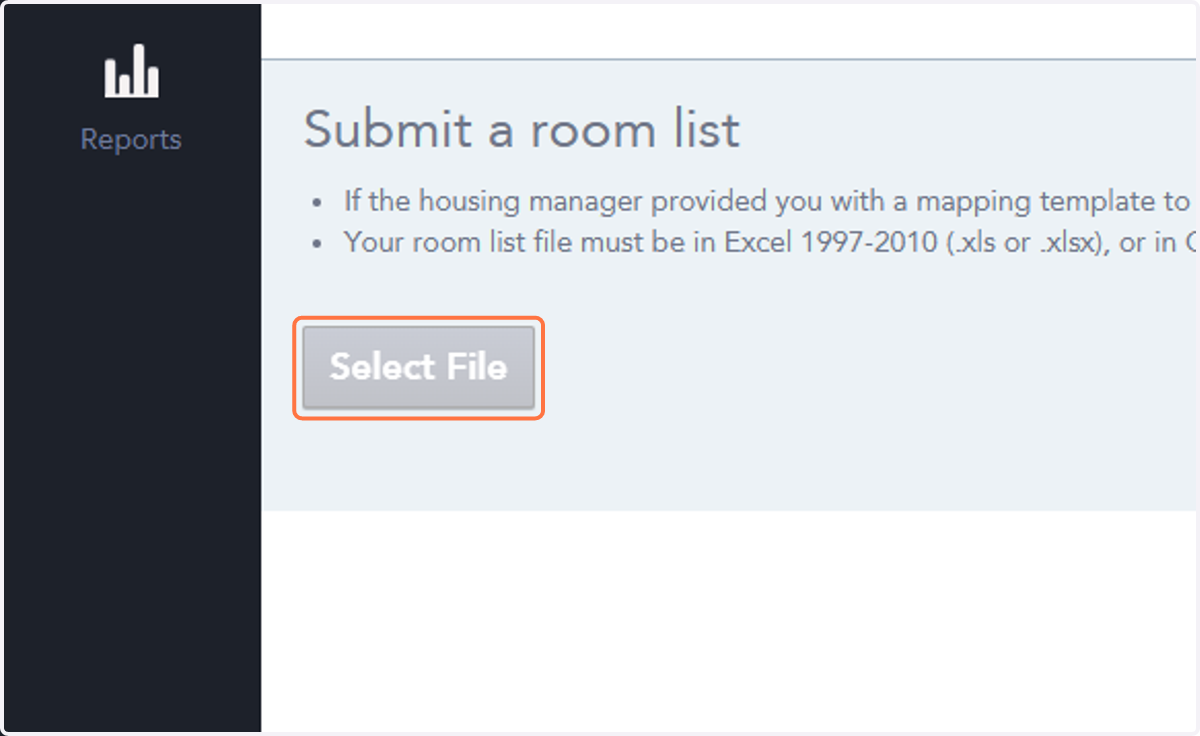
9. The file you are selecting is the Room List Template you filled out. The template should be saved under your Team Number-Team Name.
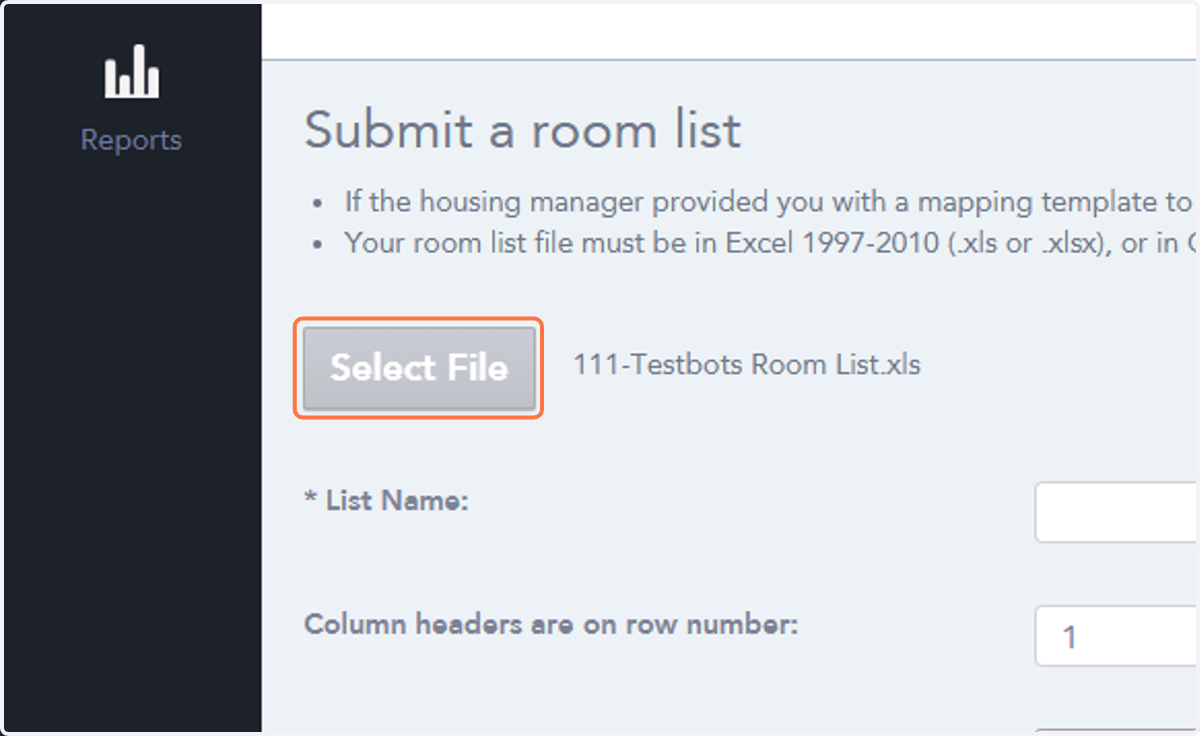
10. Once you select the file you want to upload, enter the List Name (this is the name of your file).
You can leave the other categories as is and skip them.
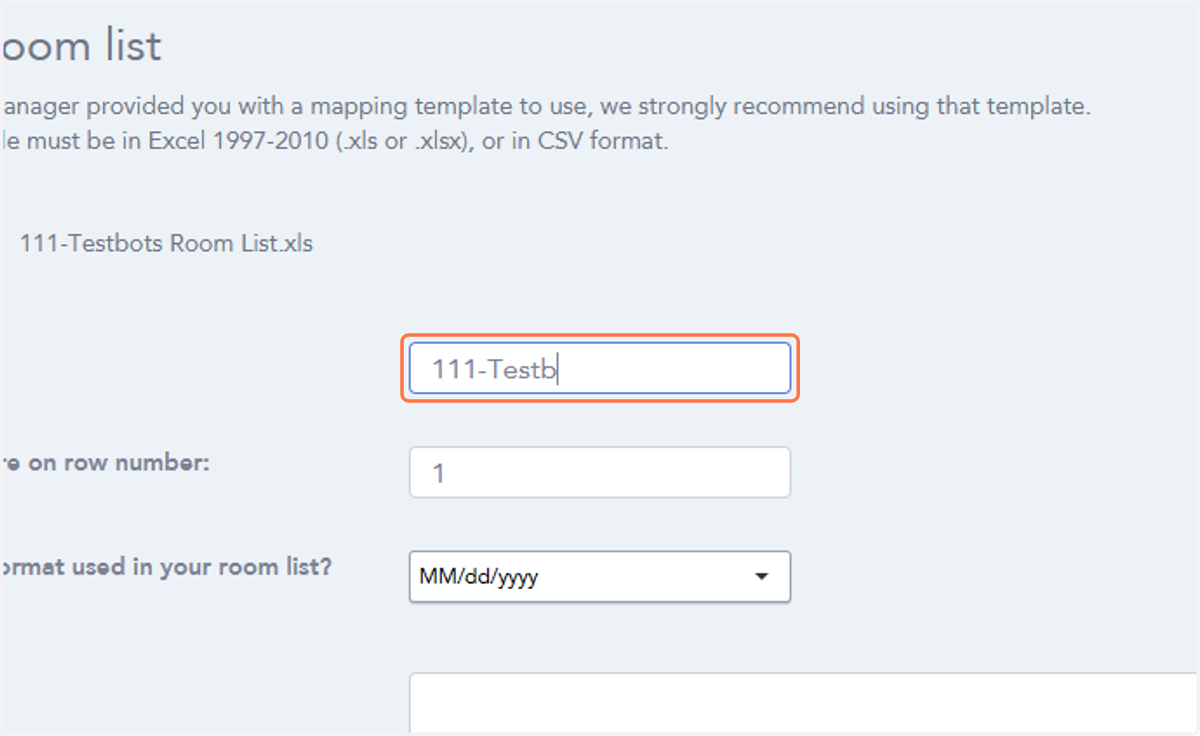
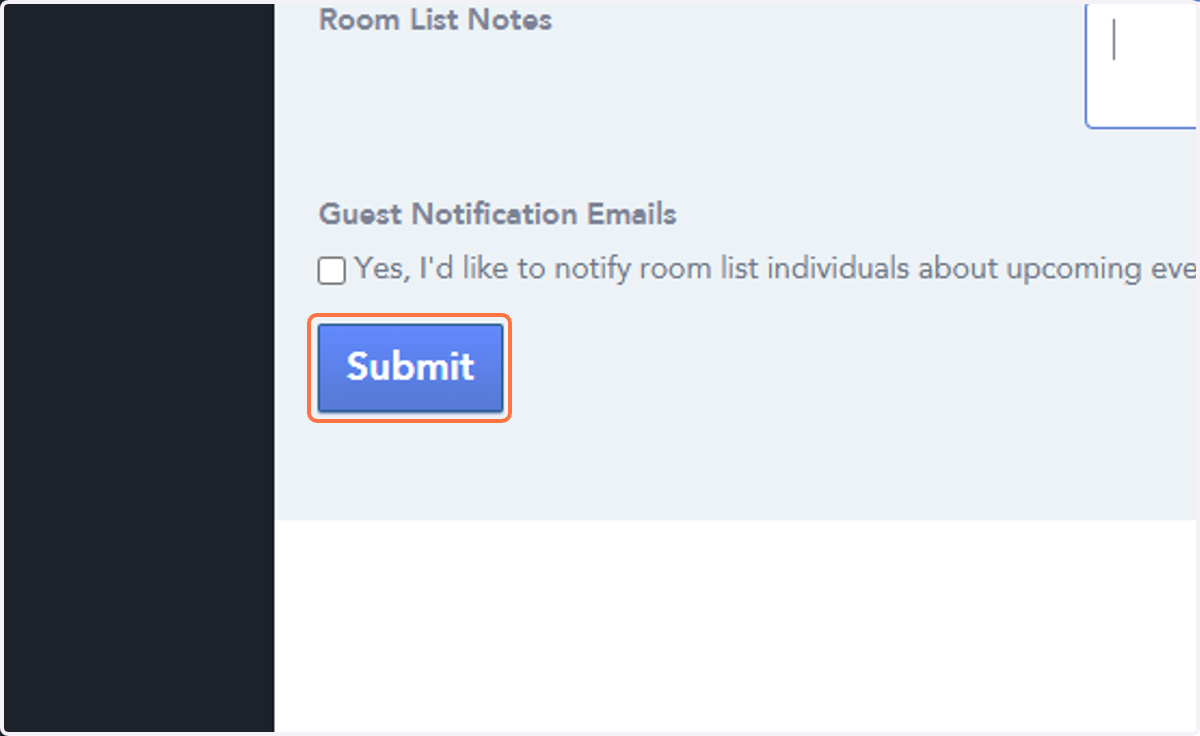
11. Click on Submit.
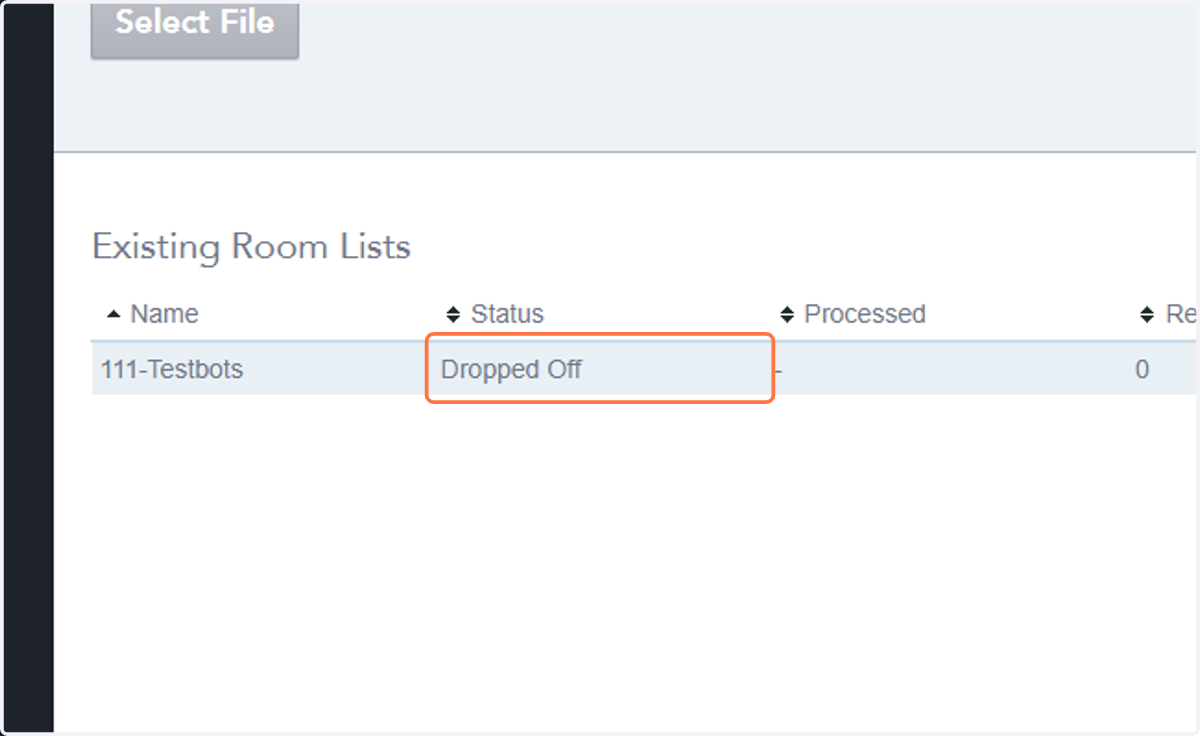
12. Once you submit your list, the screen will show that you have "Dropped Off" your Room List.
This is the only notification you will get that shows you uploaded your room list until the reservations are booked by us. Once you submit your list, we'll see it on our end and we'll process your reservations for you. Processed reservations will receive email acknowledgements.