Setting up a Product for the Form Builder | FB_004
In this tutorial, we'll take a look at how to configure a product for use with the Infigo Form Builder.
This tutorial assumes some prior knowledge in the use of MegaEdit, Infigo's flagship product editor. We'll discuss the need to apply resources to your product, however won't go into detail on how to create those resources. Other MegaEdit resources are available on the Infigo Academy to cover this.
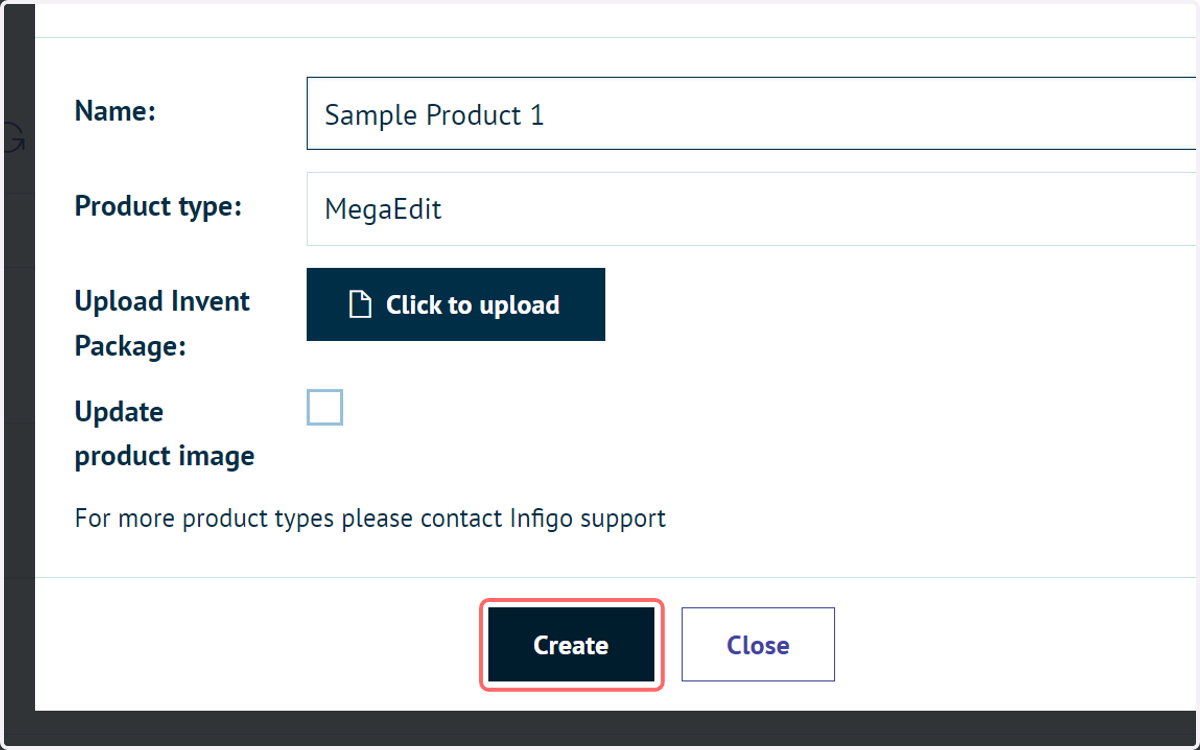
1. Create a new MegaEdit product
In this example, we'll be creating and setting up a MegaEdit product for use with the form builder. Alternatively it is possible to upload a template you have already created using Infigo Invent for InDesign.
You can then disable the Invent script and enable the relevant form builder script (shown later).
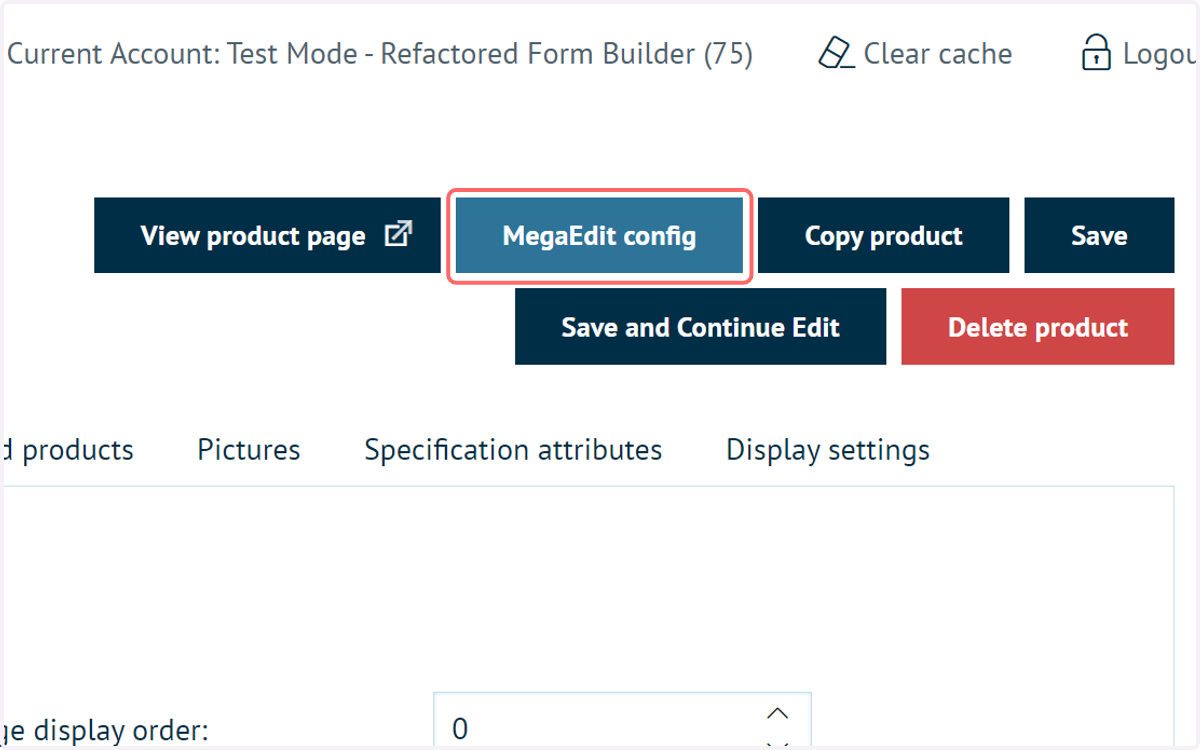
2. Click on MegaEdit config
This takes you to the MegaEdit related configuration for this product.
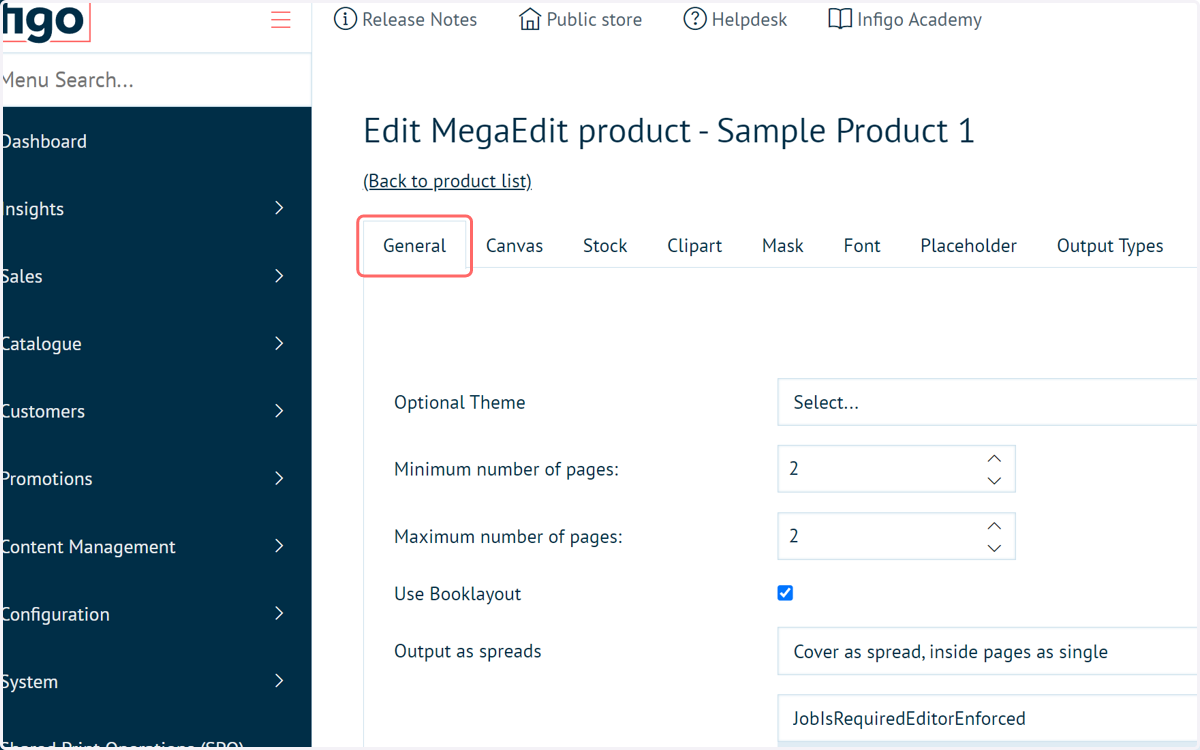
3. Configure your product and assign resources
As with any regular MegaEdit product, your product using the Form Builder will need the appropriate resources assigned to it.
At a minimum, this includes configuring the General tab (information such as page limits, spread behaviour, etc), canvas, stock and output type.
It can also include resources such as: clipart, masks, fonts and more.
If you need to learn what these are for and how to set these up, other resources are available on the Infigo Academy. You can either take a look at the full MegaEdit series (where you can pick and choose your topics), alternatively, we have a 40 minute crash course on the use of MegaEdit.
MegaEdit Series: https://training.infigosoftware.com/academy/c/70/megaedit
MegaEdit Crash Course: https://training.infigosoftware.com/academy/p/454/megaedit-crash-course-iv_intro_002
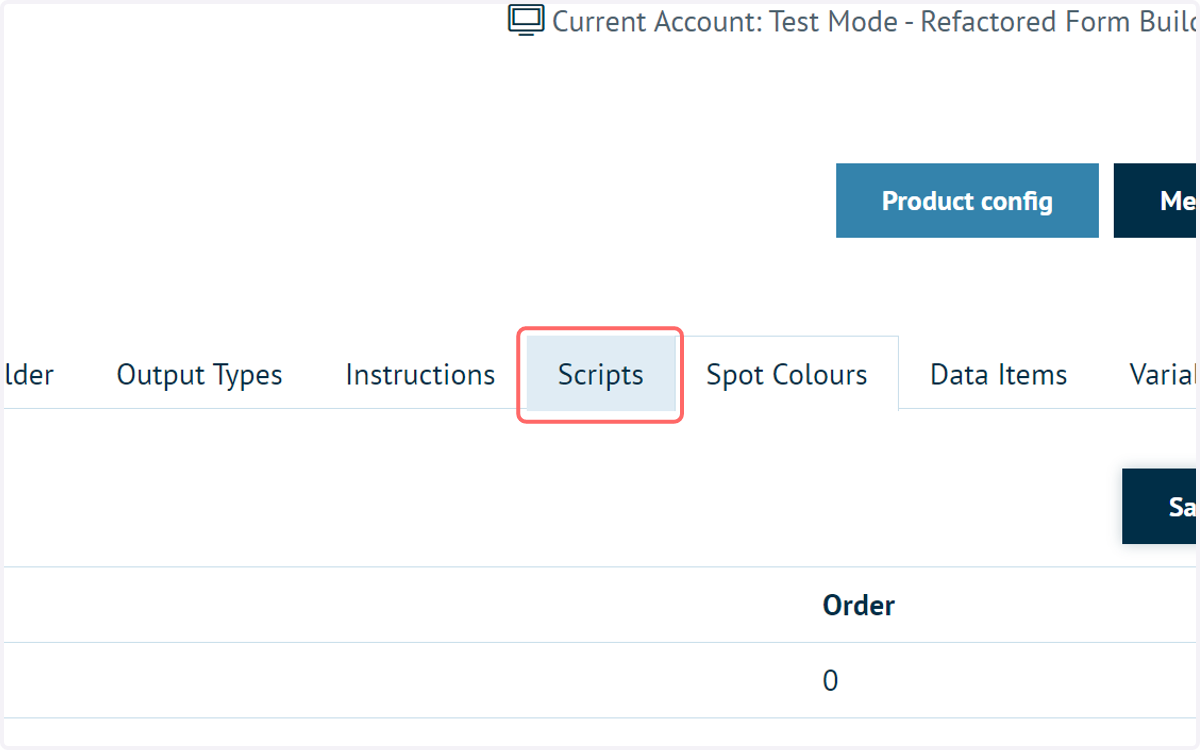
4. Click on Scripts
The form builder won't be enabled on a MegaEdit product by default. It is a script that needs to be activated.
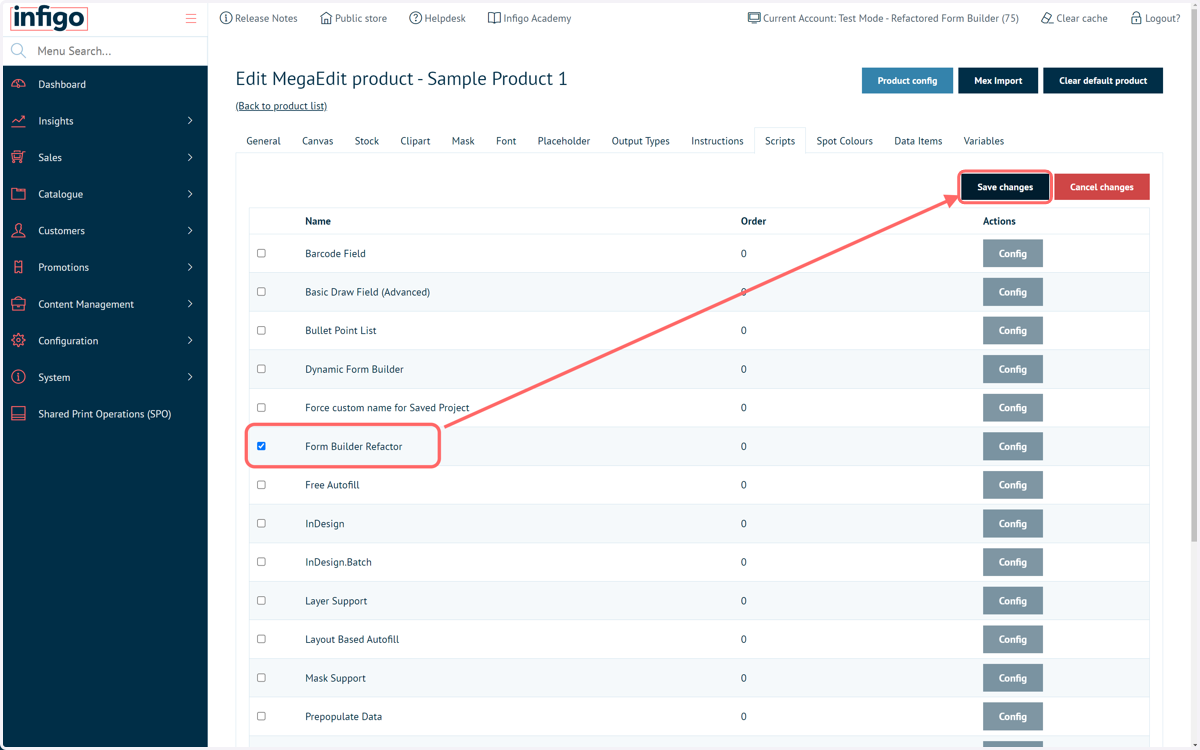
5. Select the Form Builder Refactor script and click Save Changes
The form builder is set to receive a different name in the near future. The script you need to enable may differ, labelled as seen in the name of this tutorial.
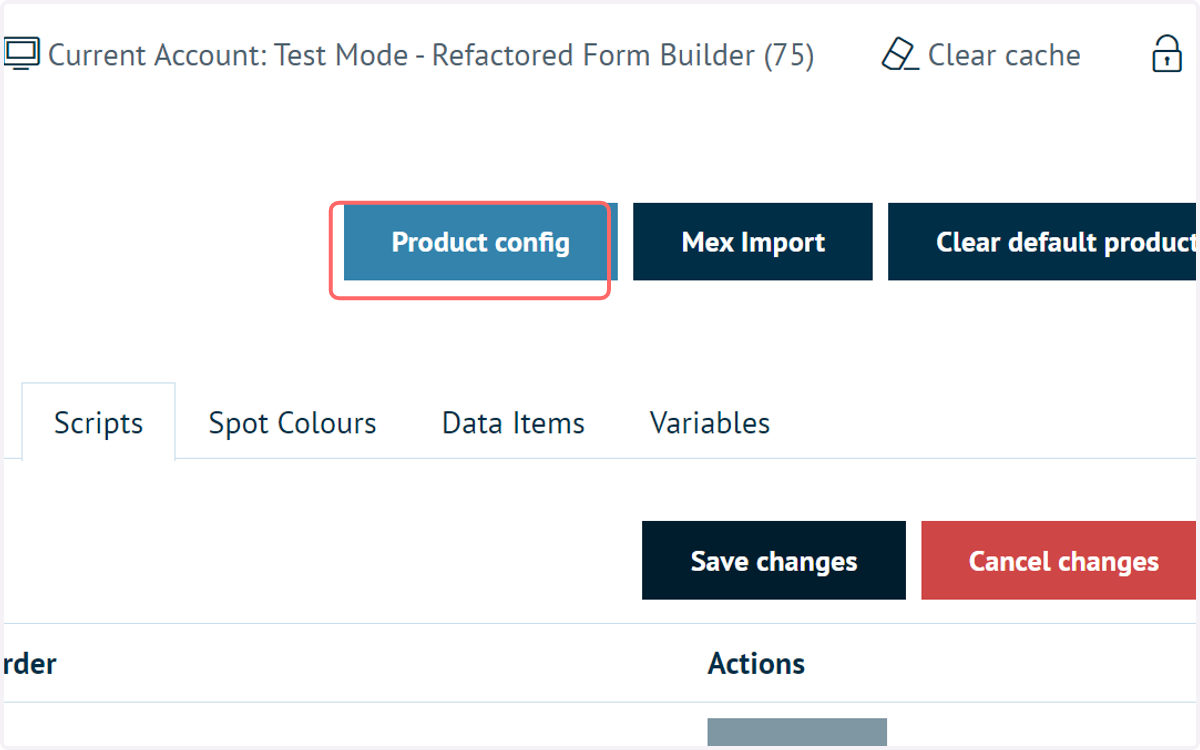
6. Launch the product in MegaEdit
Click Product Config to return to the product details page, view the product on the front end and launch MegaEdit.
All further modifications to the product template will be completed from within MegaEdit itself.
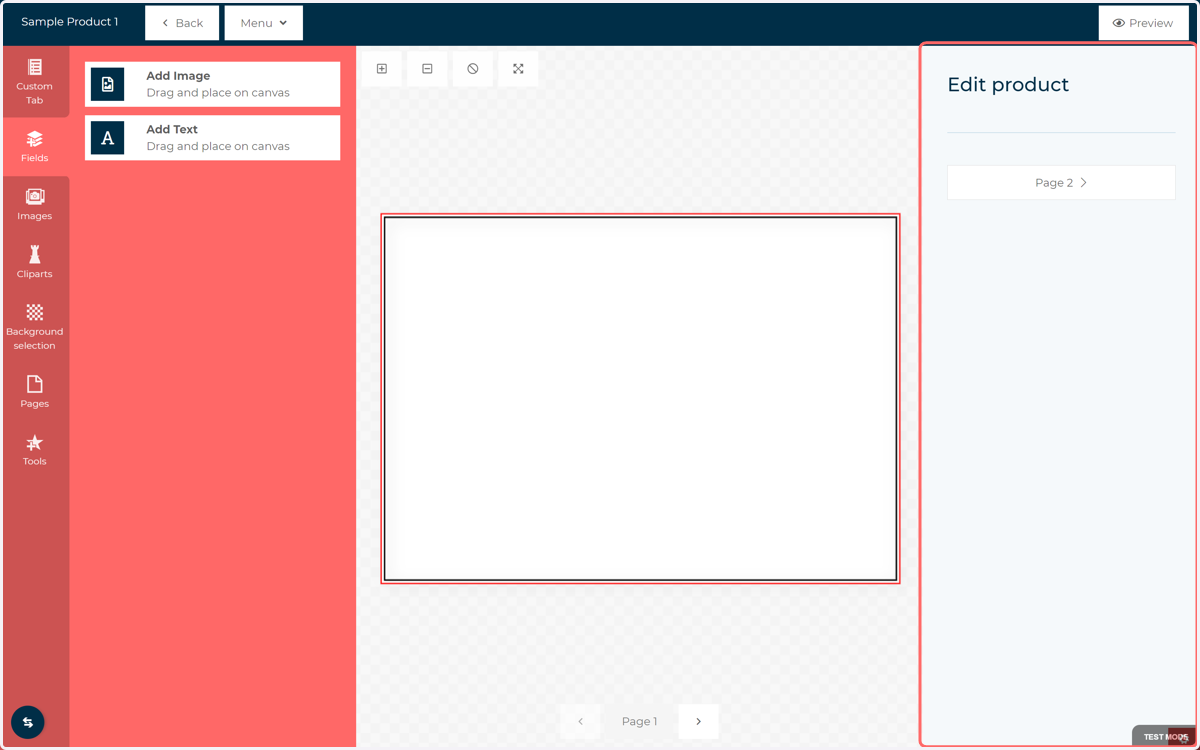
7. Form window
With the form builder script enabled, your newly launched MegaEdit product will show an empty form on the right side of the screen.
By default this is blank, only giving you the option to switch between pages of your product.
8. Click on Custom Tab
A new tab is visible on the left panel when the form builder script is enabled. This is where we configure all of the fields that we wish to appear on our form. We'll cover the use of this tab in later tutorials.
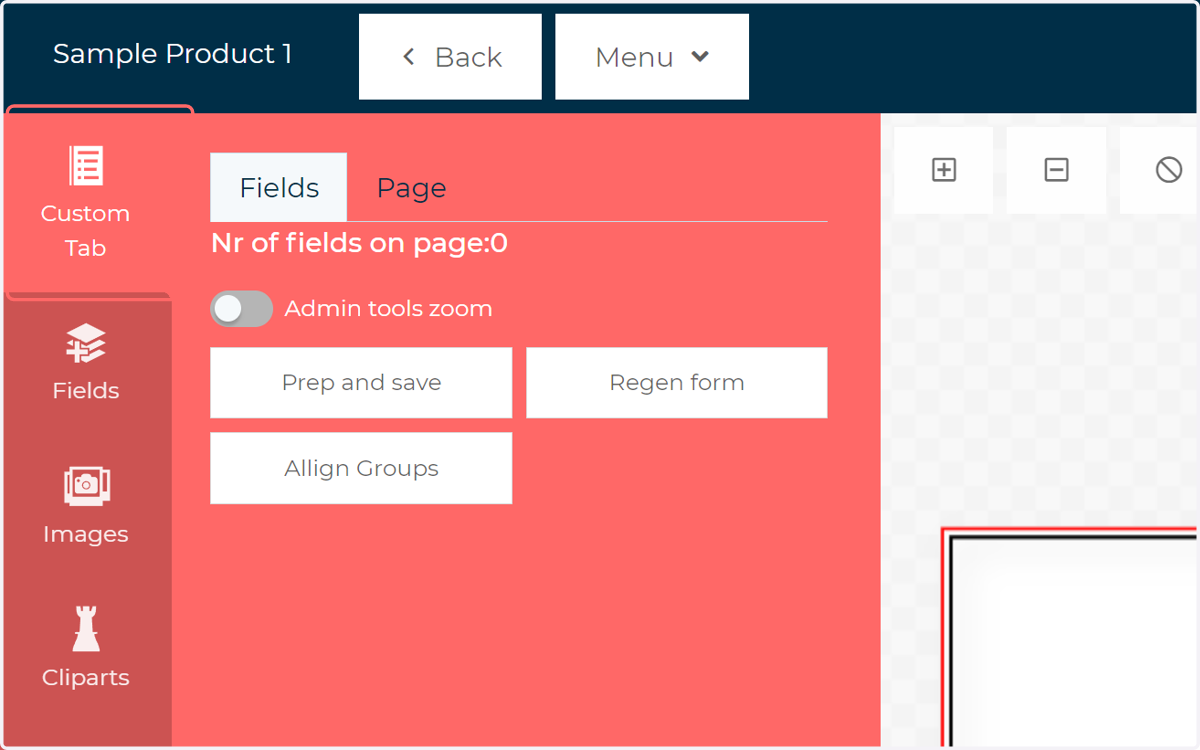
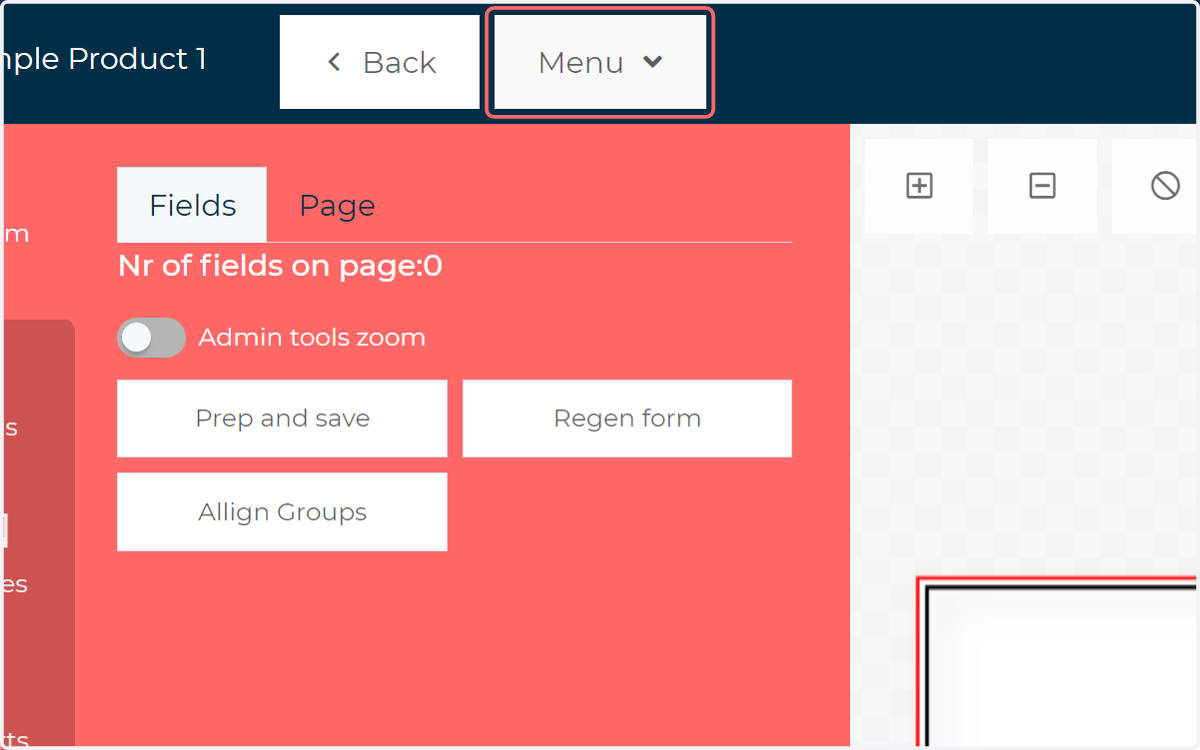
9. Click on the Menu dropdown
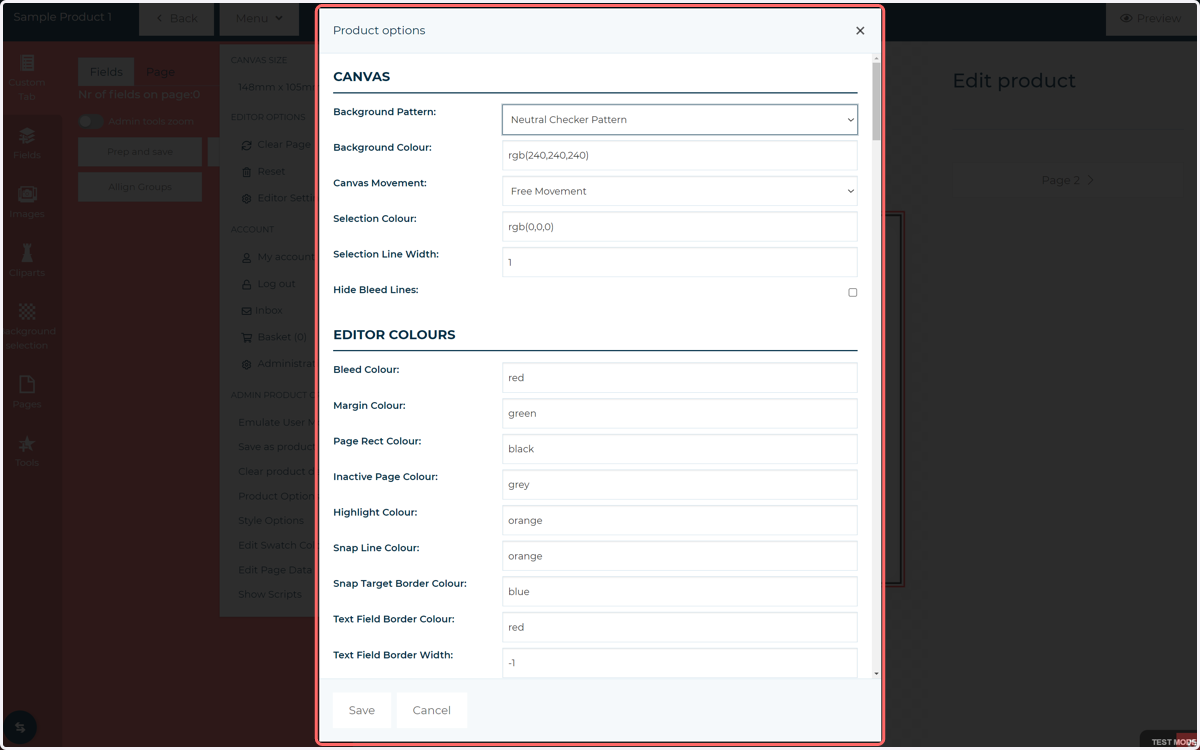
10. Click on Product Options
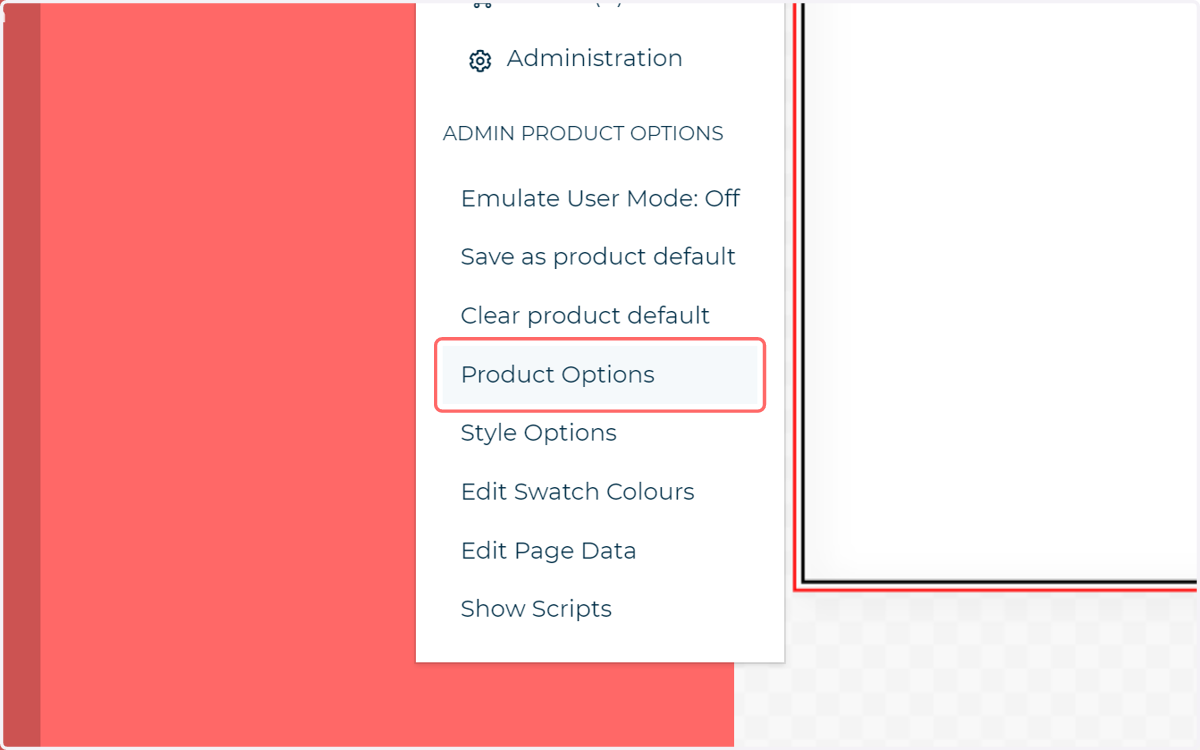
11. Product Options
As with regular MegaEdit products, many configuration options can be controlled from the Product Options menu. If there's any setting you can't find for your MegaEdit product, this is the best place to start looking!