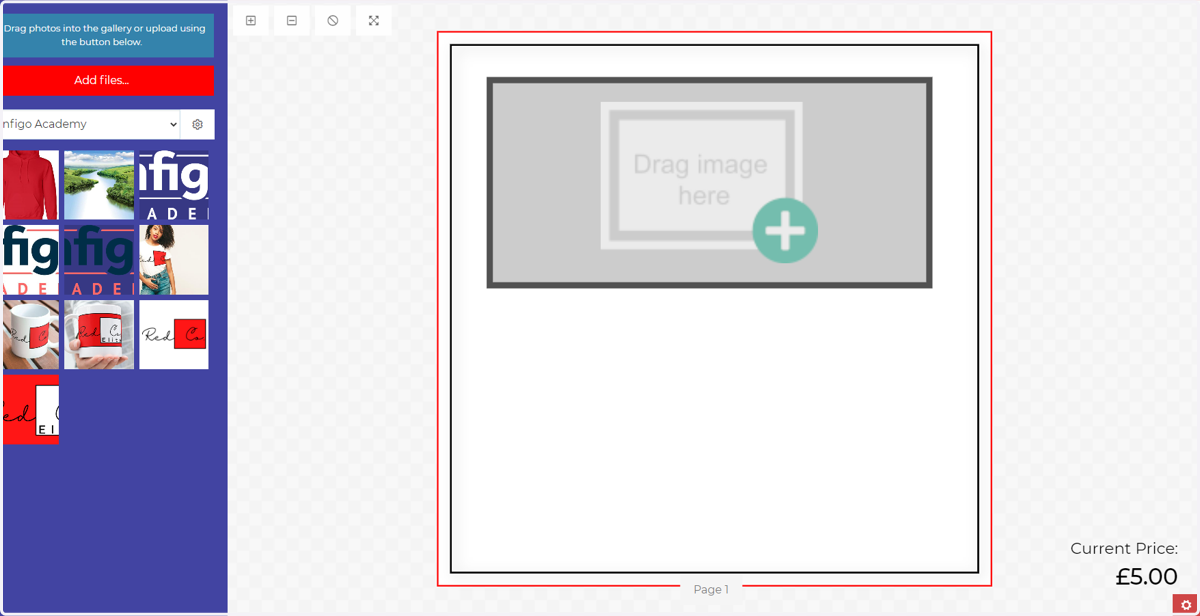
Configuring image frames in MegaEdit
In this tutorial, we will investigate the options available for the image fields.
These are fields where a customer is able to place images on to the canvas area.
The administrator / template designer has full control over the customisation options available to the customer. For example, the customer could be given a fully dynamic frame, with almost as much customisation options as seen by the administrator. Or on the other end of the scale, options available to the end user could be heavily restricted, so they can do little more than place an image into a completely fixed frame.
We will also explore how to review our dynamic template as a customer would, to ensure the desired customisation options are available.
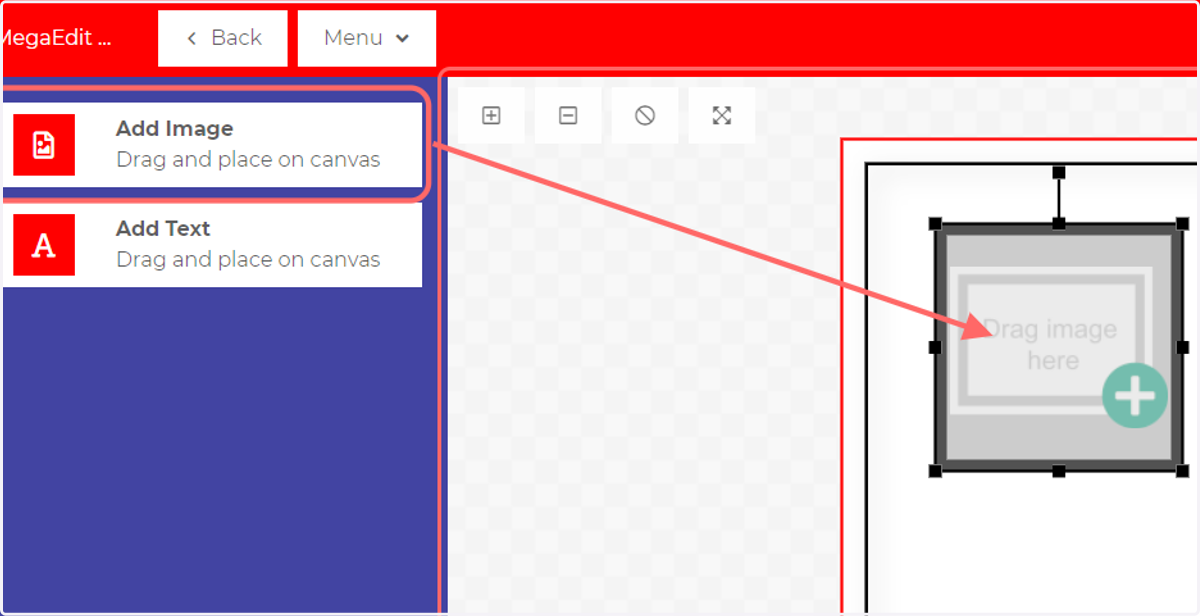
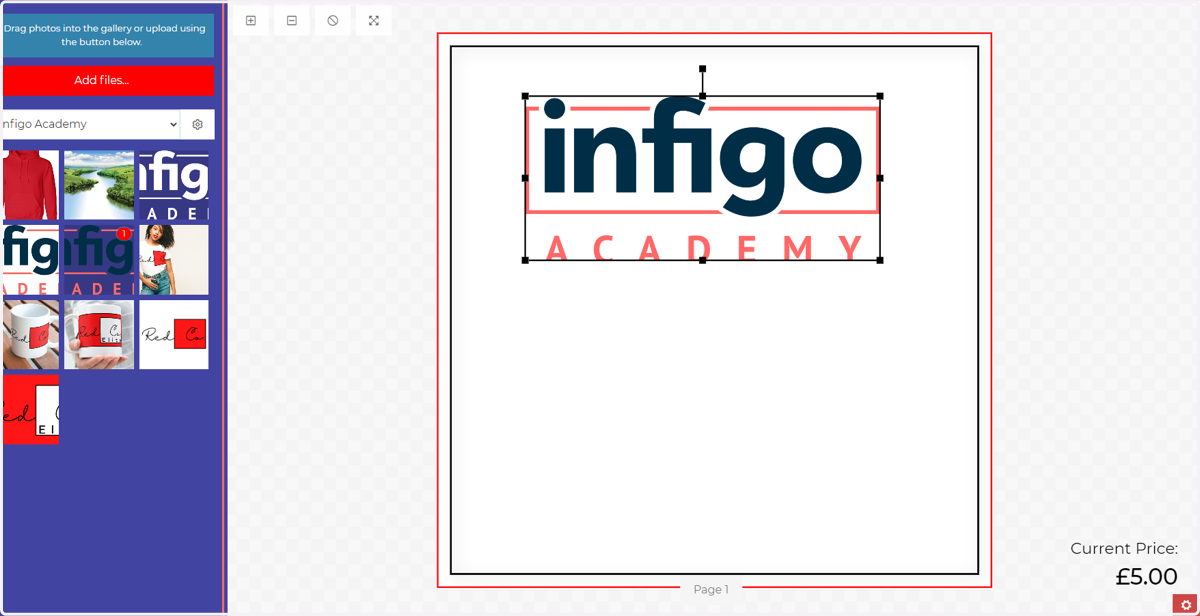
1. Drag an image frame on to the canvas by clicking and dragging from the Add Image button.
2. Transform the image frame
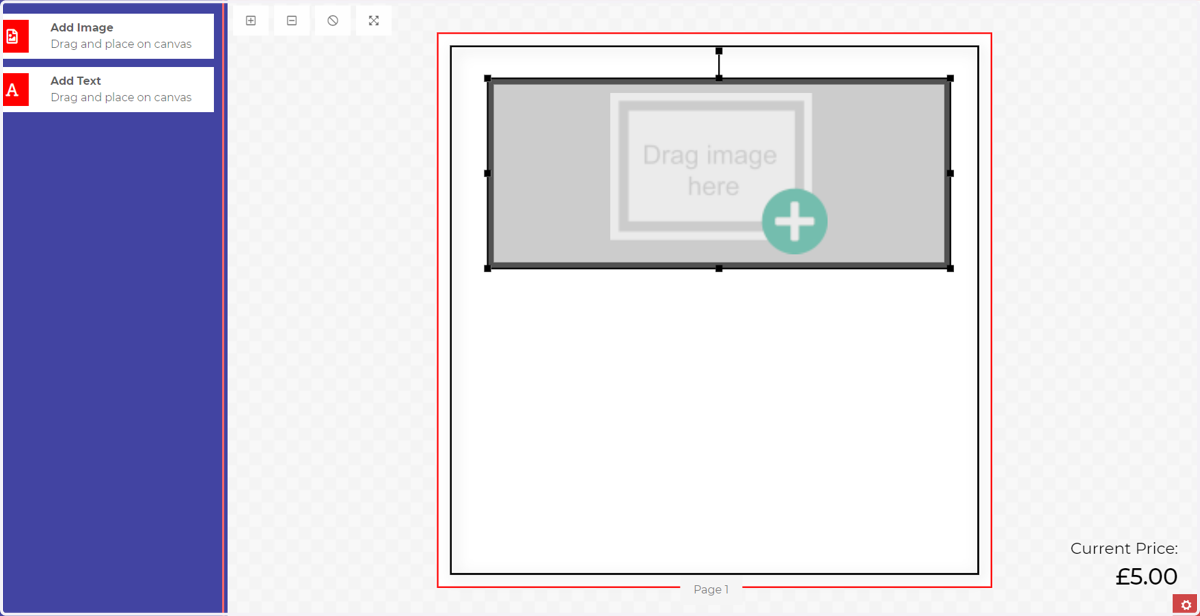
The image frame can be resized, rotated or repositioned from this view.
Resize - Click and drag one of the black boxes around the outside of the frame.
Rotate - Click and drag the black square offset from the centre top of the image frame
Reposition - click and drag the interior of the image frame.
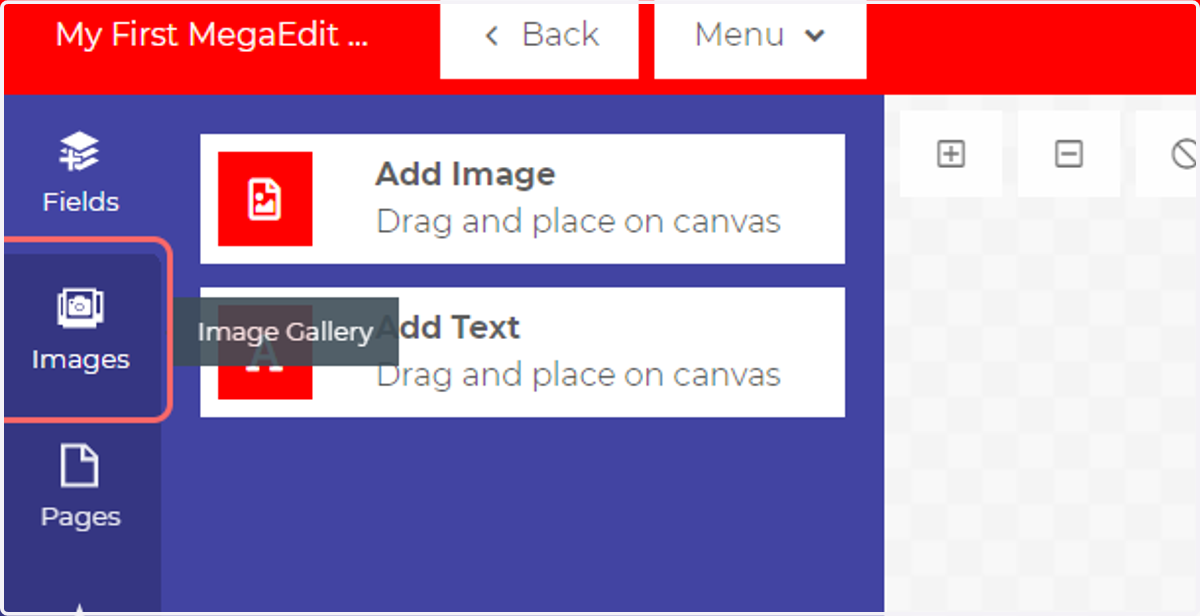
3. Click on Images
Next, we will add an image to our frame. To begin, navigate to our image galleries.
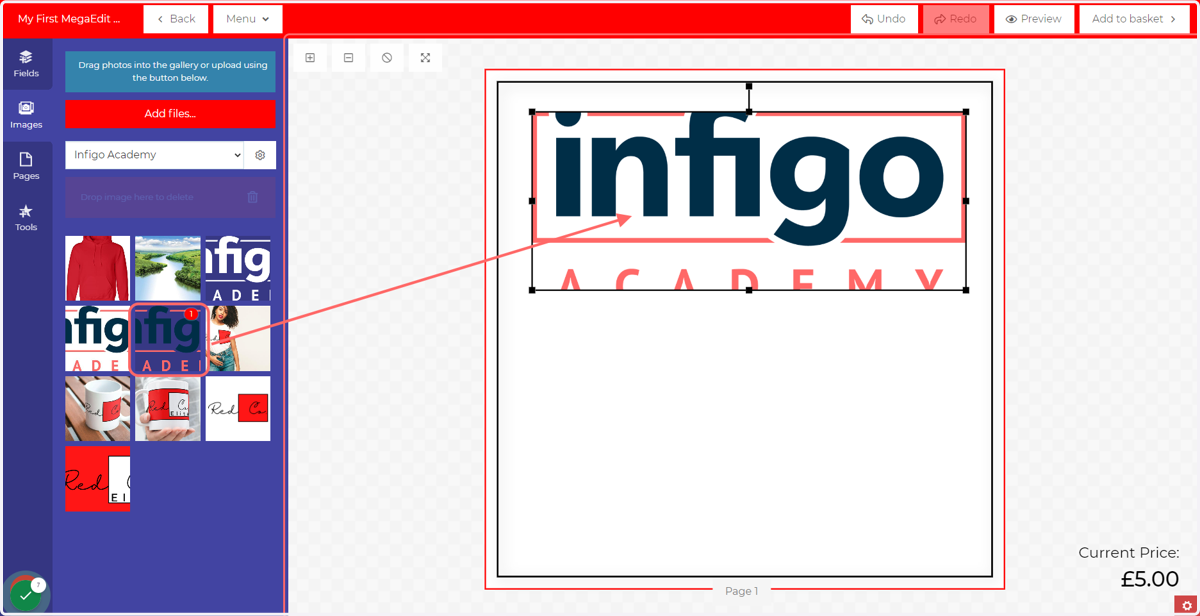
4. Drag an image from the gallery and drop it on to the image frame
The selected image will be placed into your frame. The image will not change the size of the frame, instead rescaling to fill the frame.
5. Image field issues
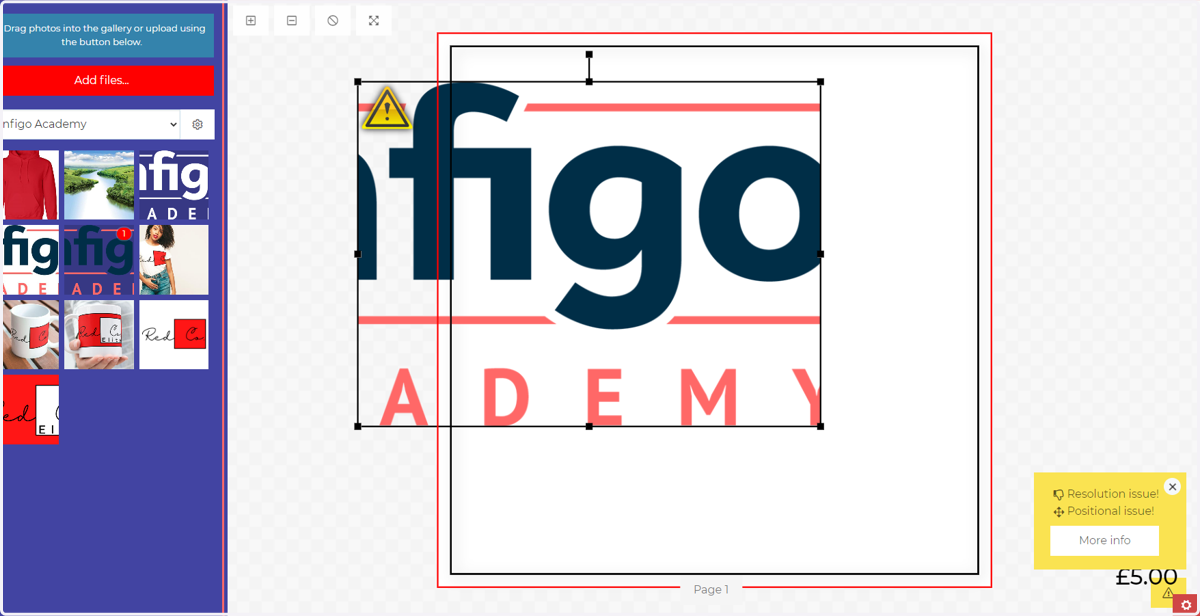
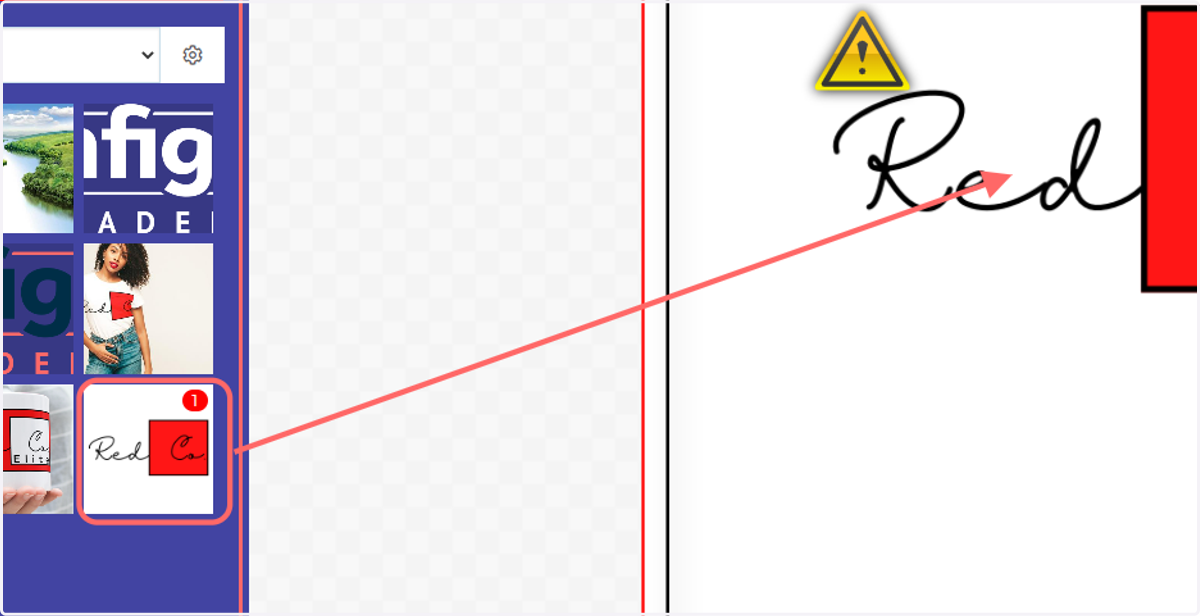
Resize and reposition the frame until the warnings seen below appear.
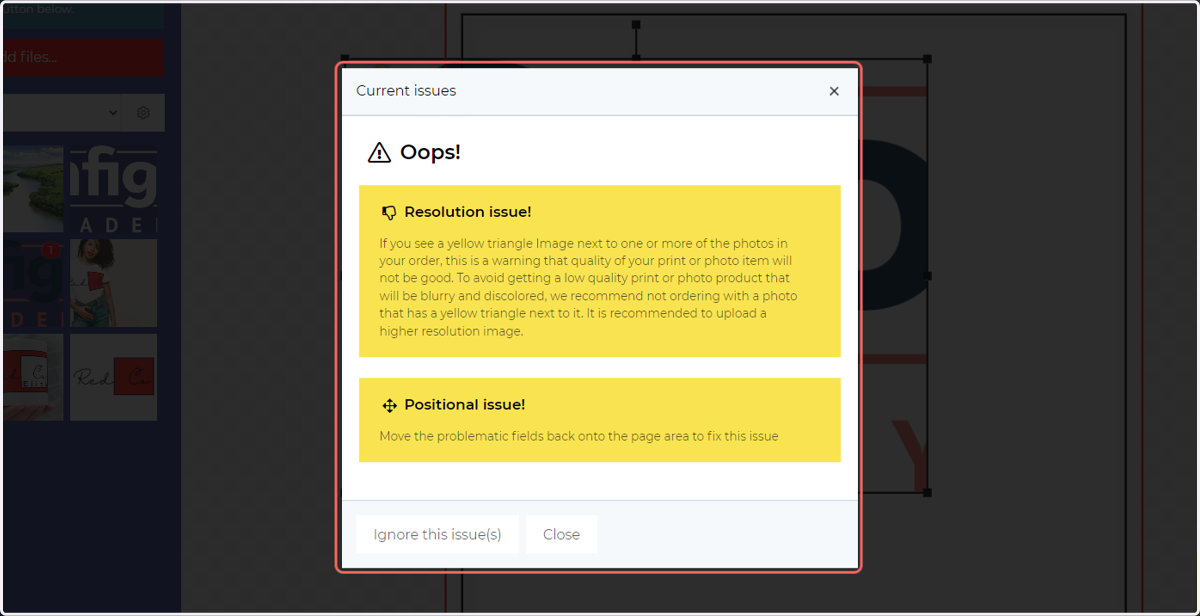
Resolution issues will appear if the chosen image is sized such that a high quality image will not be achievable.
Positional issues will appear if the frame sits outside of the main canvas area.
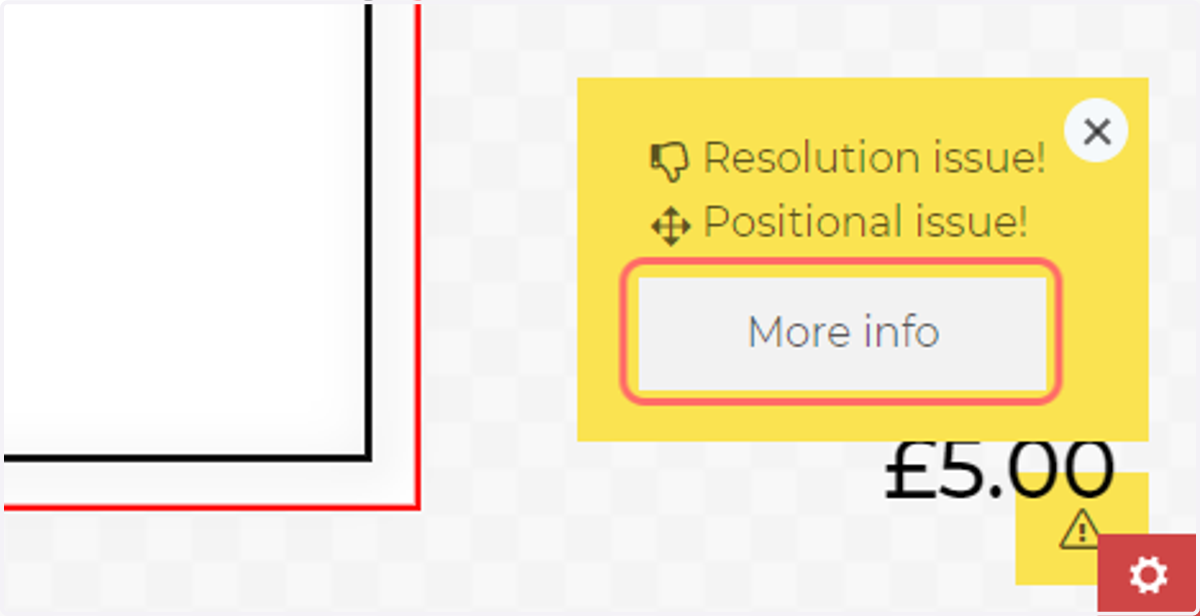
The image causing these issues will show a yellow warning icon, with details of the issues accessible in the bottom right pop up box.
6. Click on More info
7. Review issue details
Description of issues will be displayed on this screen, giving suggestions on how to identify and resolve these issues.
8. Adjust the frame size & position or the chosen image to resolve these issues
9. Replace the image used in the frame
You can replace the image being used in the frame simply by dragging and dropping from a gallery into the frame.
The previously used image will be replaced.
10. Open the image options
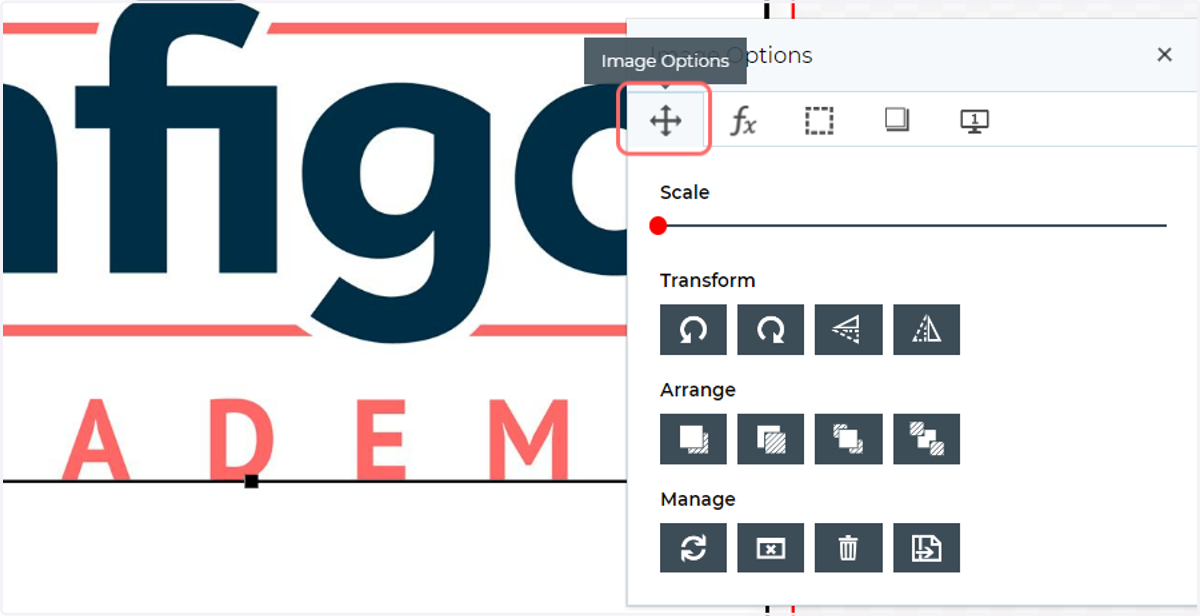
Double click an image frame to open up the Image Options window.
11. Image Options tab
The Image Options tab will allow you to customise your image and/or image frame. On this tab, you can:
Rescale the image placed in the frame
Rotate the image within the frame
Flip the image within the frame
Rearrange the order, moving the frame to forwards or backwards on the canvas
Reset the image frame
Remove the current image from the frame
Delete the image frame
Duplicate the image frame
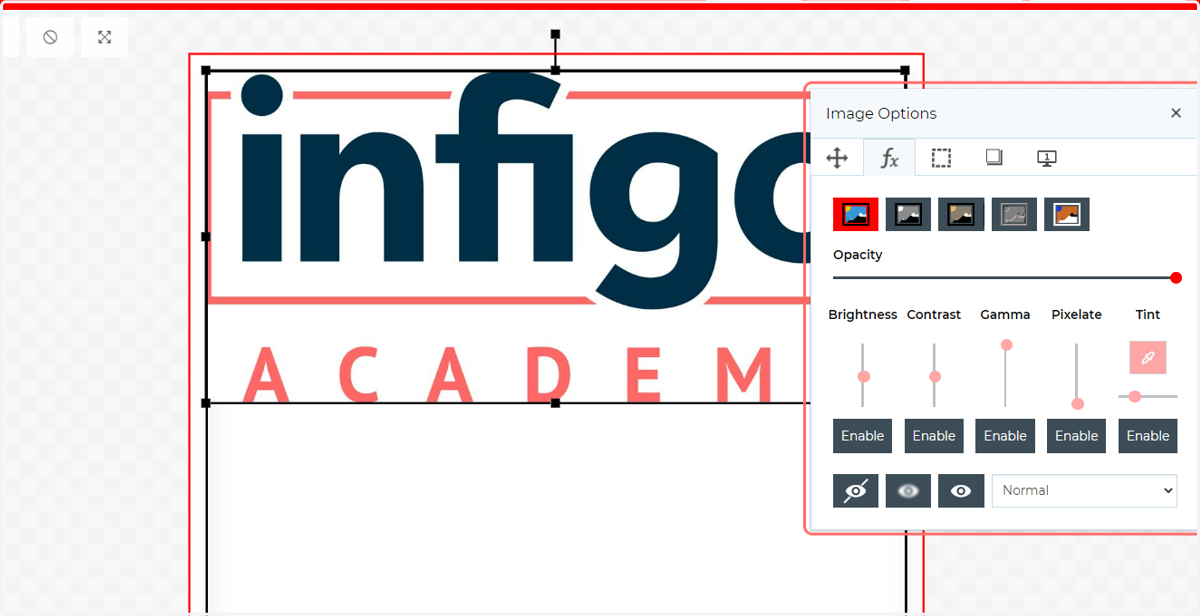
12. Effect Options tab
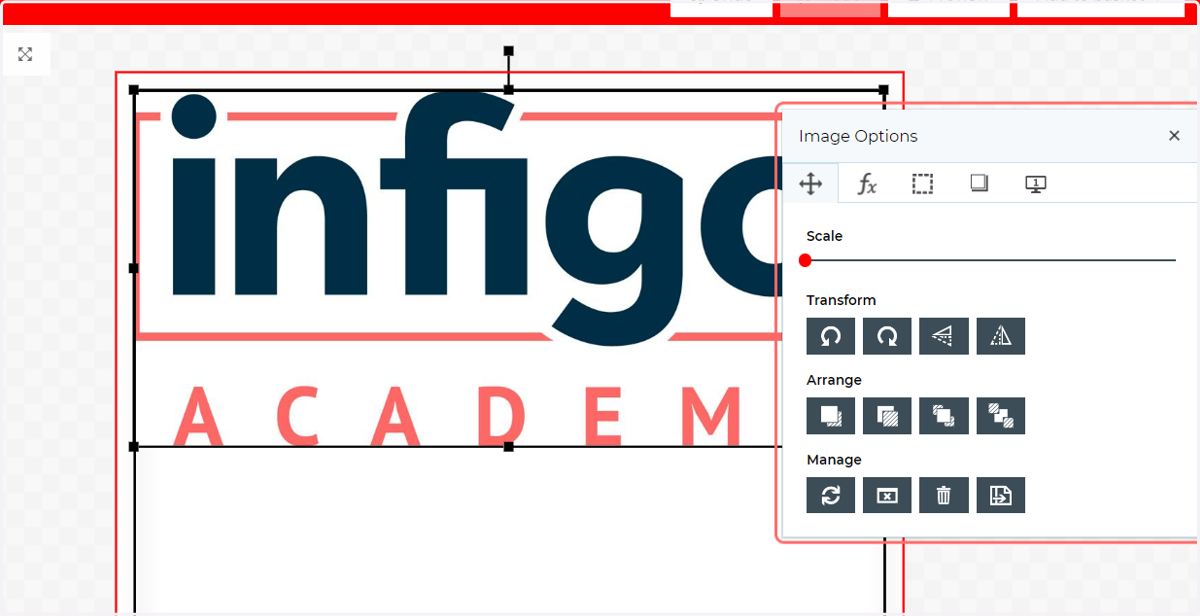
On this tab, you can:
Change the image effect (such as black and white or sepia)
Change the image opacity
Control image edit options such as brightness, contrast or tint
Apply sharpness or blur
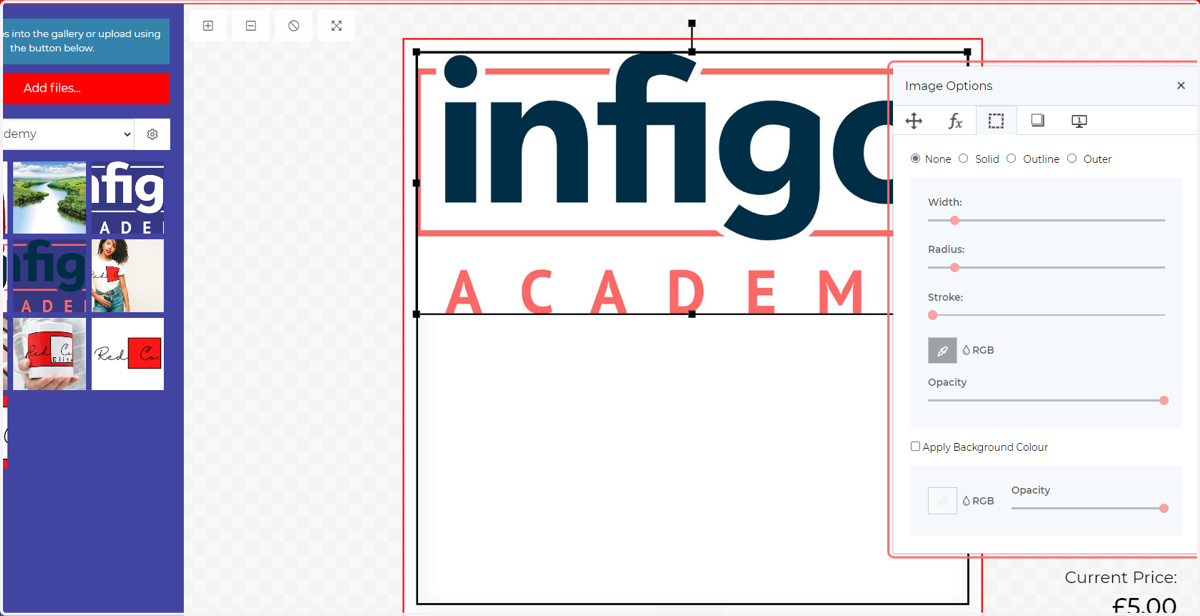
13. Border and Background Options tab
On this tab, you can:
Apply different border styles to your image
Control the design of the border, such as the colour or corner radius
Apply a background colour with opacity control
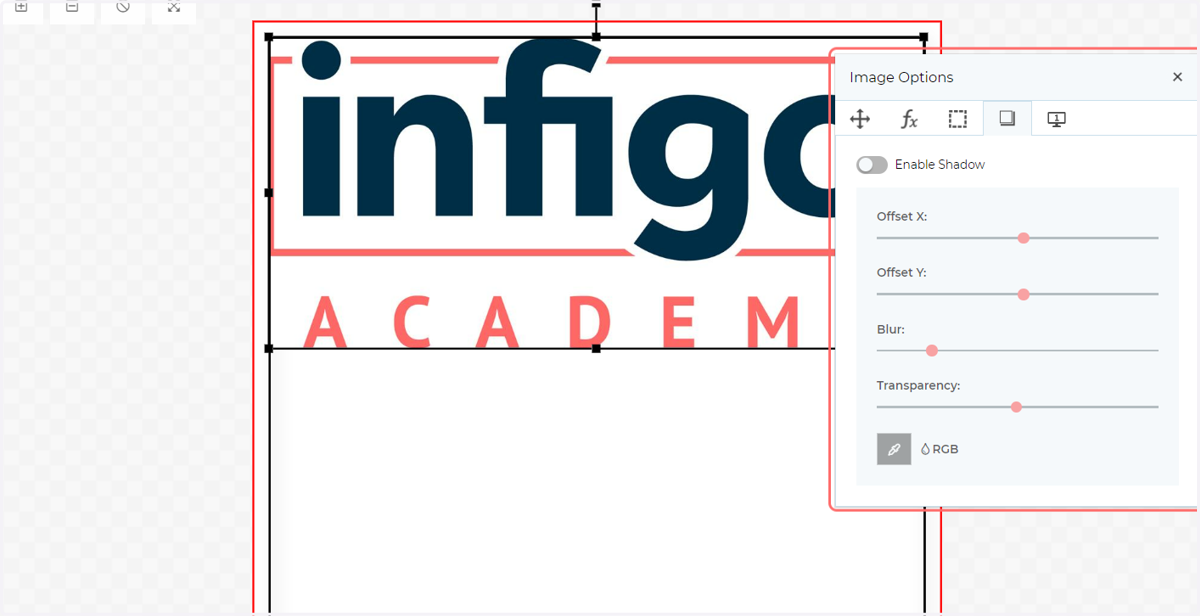
14. Shadow Options tab
On this tab, you can control:
Enable or disable a shadow on the chosen image
Control the position, blur and transparency of the shadow
Control the colour of the shadow
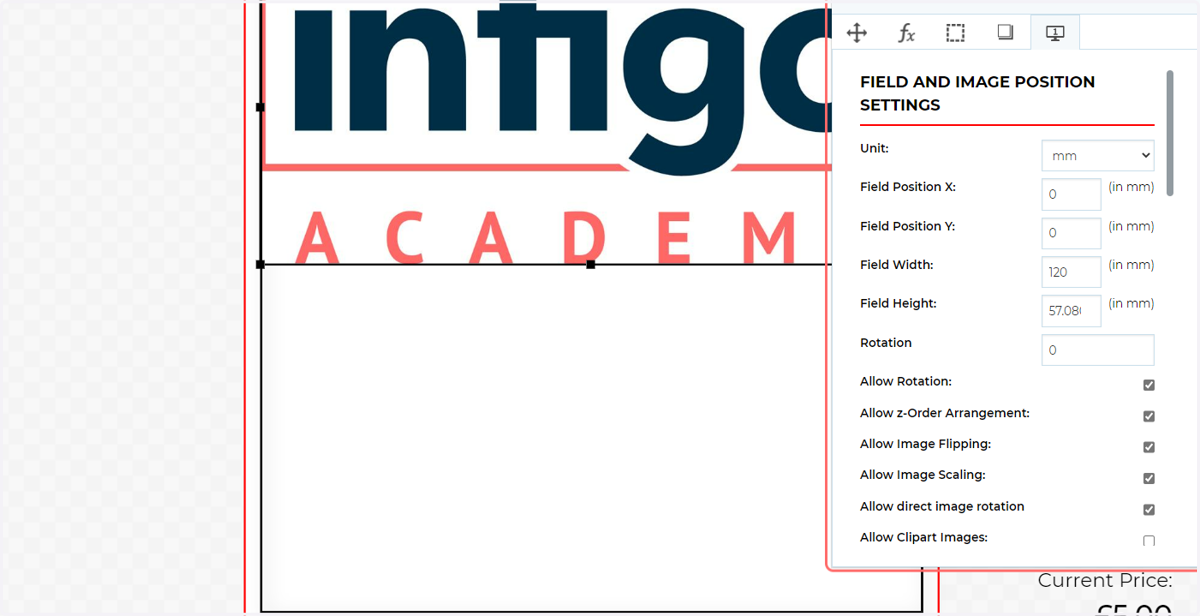
15. Details tab
From an administrator and template designer perspective, the Details tab is the most critical. Within here, you can control the frame / image customisation options that a customer is able to access.
There are many options in this tab, essentially enabling or disabling the individual customisation options discussed in the previous steps.
In addition, a few regularly used options are listed below:
Restrict movement direction to certain axes
Do Not Select - customers cannot select the image frame and therefore cannot access the Image options or transform it
Do Not Delete - Prevents the user from deleting the image frame
Help text - Provide helpful tips to a user
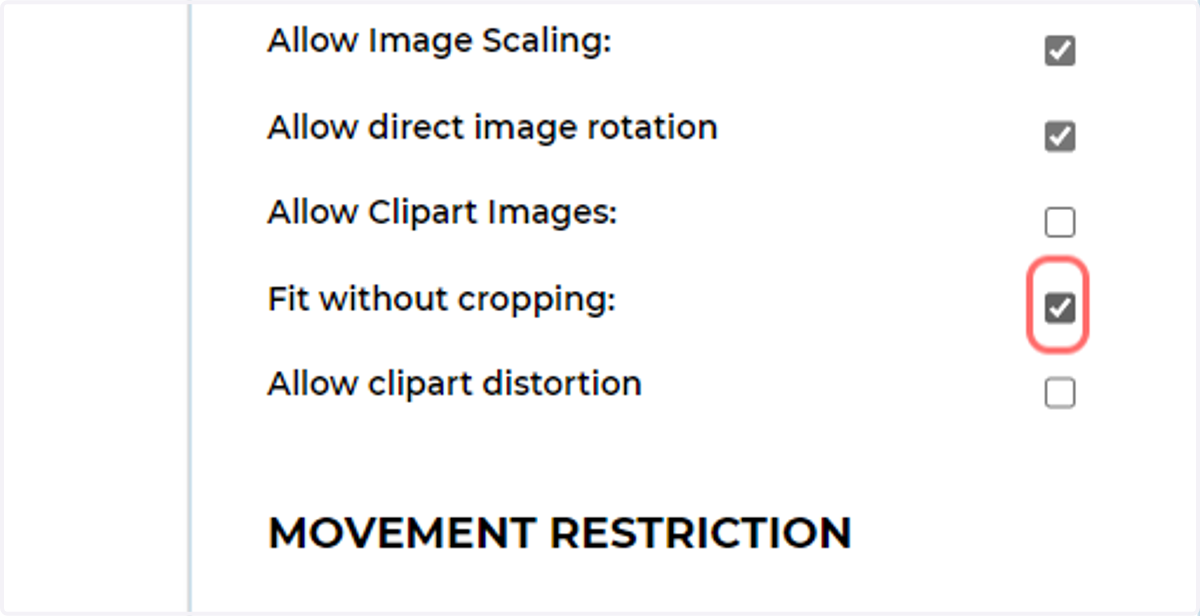
16. Check Fit without cropping
As an example, modify a few settings and see how this looks to our customer.
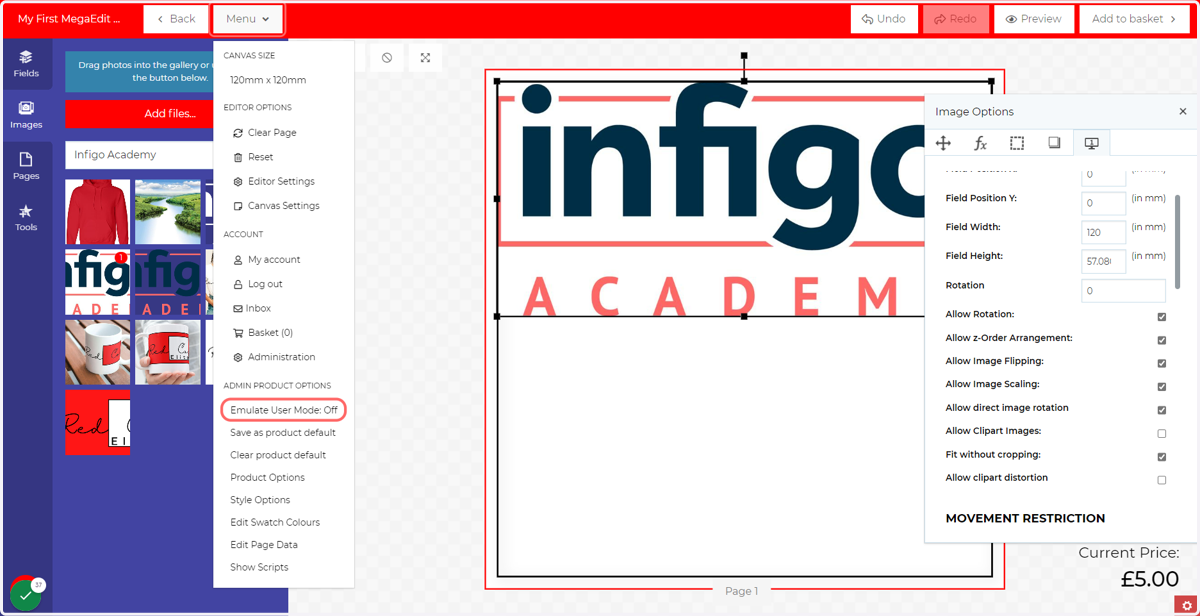
17. Click on Menu, then Emulate User Mode
This option allows you to interact with your template as a customer would, based on your settings.
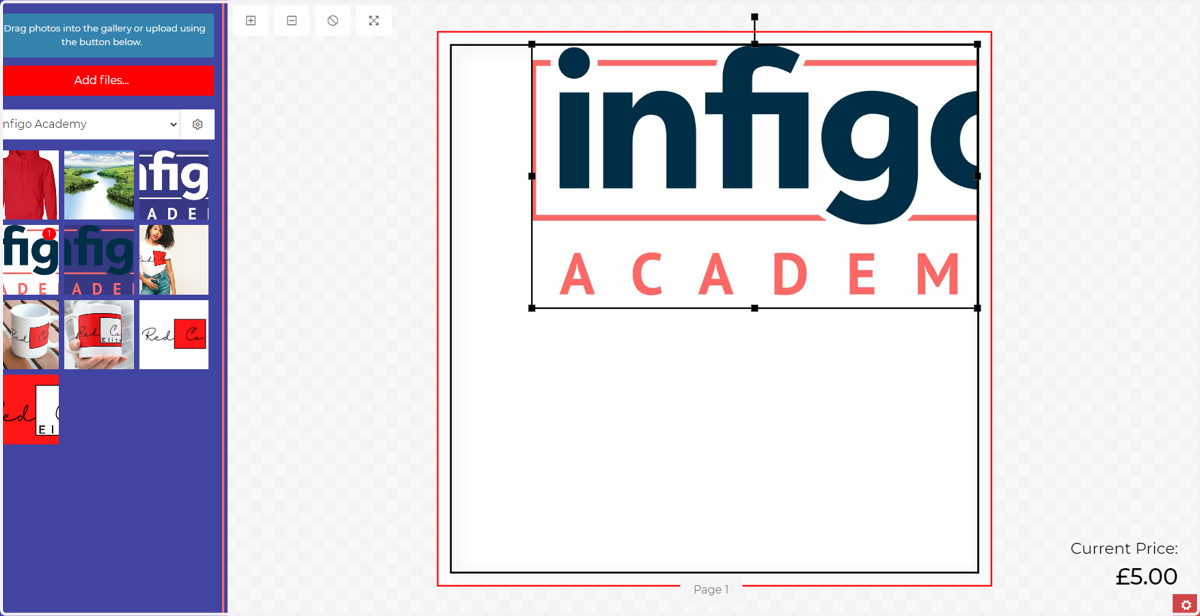
18. Change the frame size
Our image, frame and available options will behave differently based on our settings.
19. Return to administrator mode
Select Emulate User Mode again to switch between user and administrator mode.
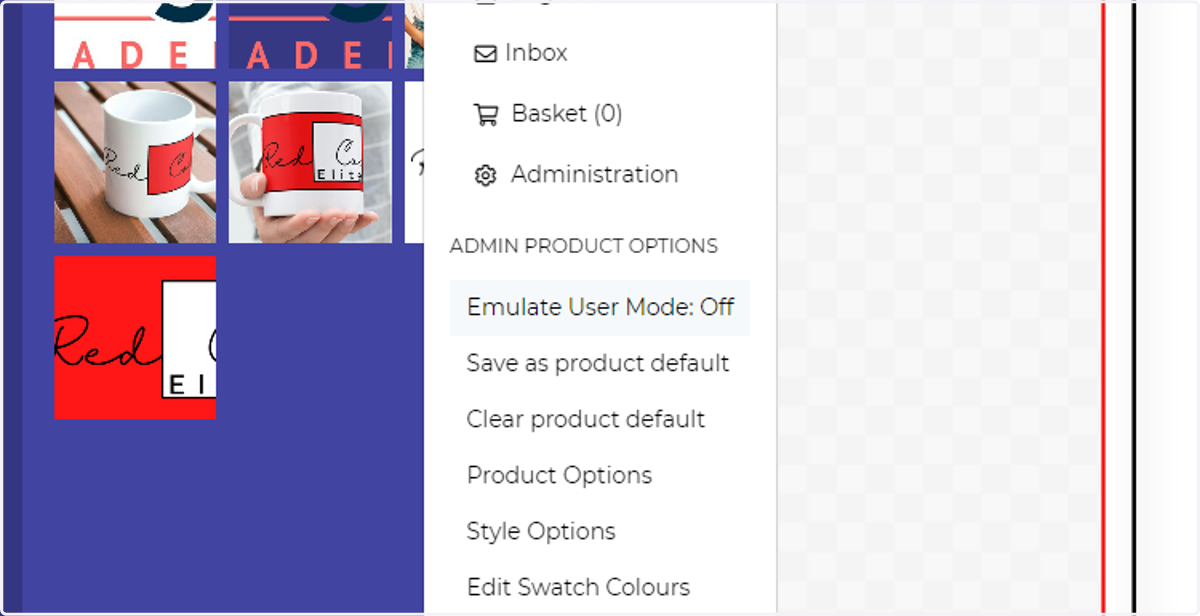
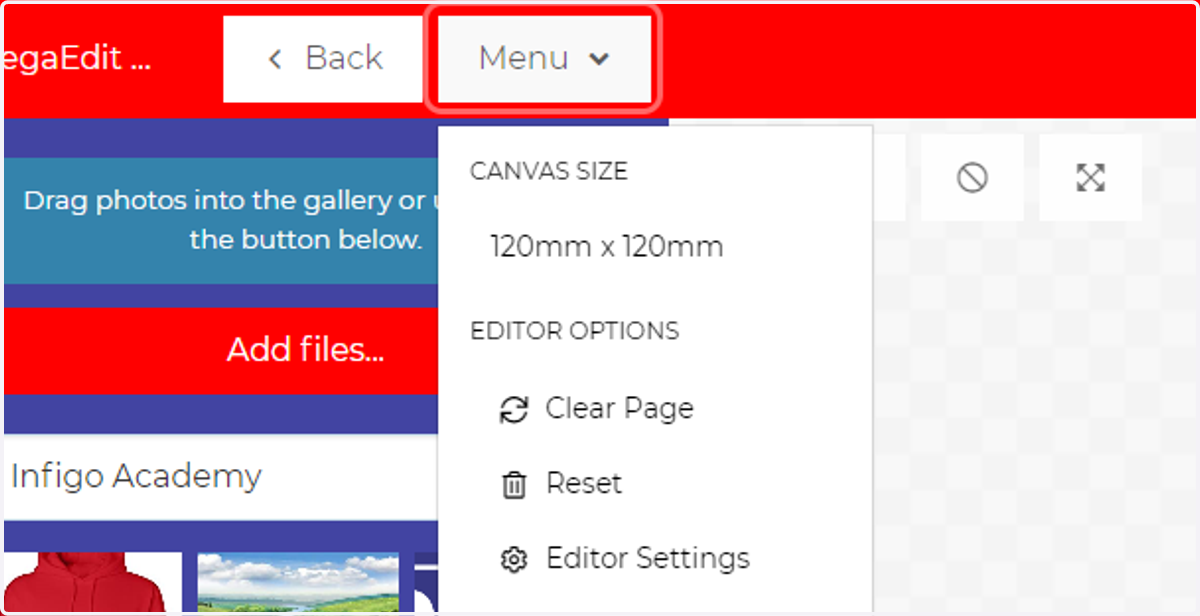
20. Click on Menu
Next, we will save our current layout as the product default.
This is available under the Admin settings within the Menu.
21. Click on Save as product default
The current layout and settings will be saved. This will now become the loaded template when a customer loads the MegaEdit editor for this product.
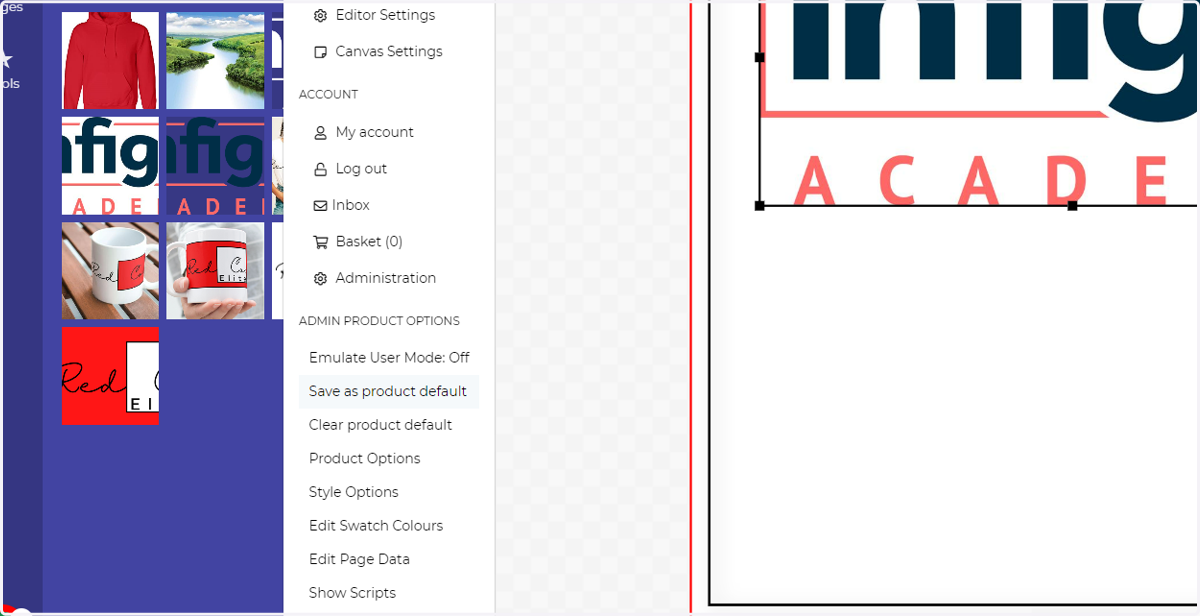
22. Notice that the image will be removed from the frame when the template is saved.
The user would be expected to choose the image for use in the frame, either as an upload or from an existing gallery.