[Salesforce]: How to Create a Dial Report
This guide will show you how to create a basic contacts/lead report for reps to dial down through out SFDC integration. Note: every org will be different when it comes to columns and filters, make sure they're bringing in anything that will be helpful for them as they're dialing. Too many filters can mess with the report, make it simple and digestible for the user.
We currently support these types of reports:
Account and Contact Reports
Lead Reports
Opportunity Reports
Activity Reports with:
Leads
Contacts
Campaign Reports with:
Leads
Contacts
Salesforce
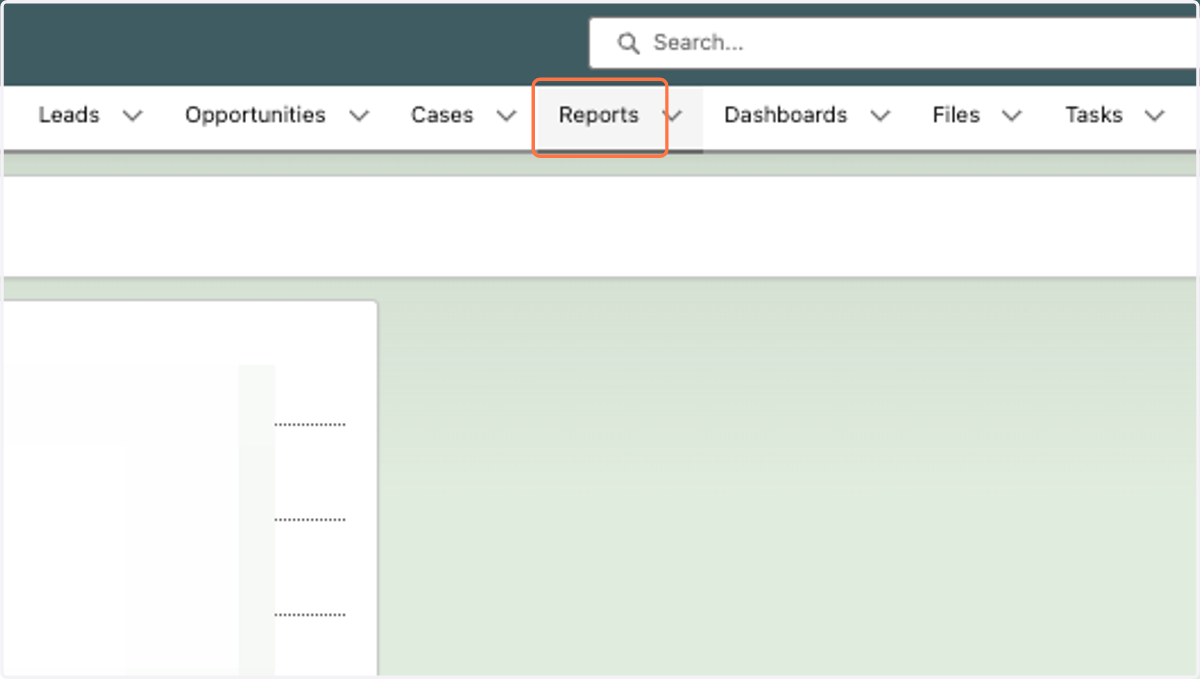
1. Once logged into Salesforce, click on "Reports" in the top header bar
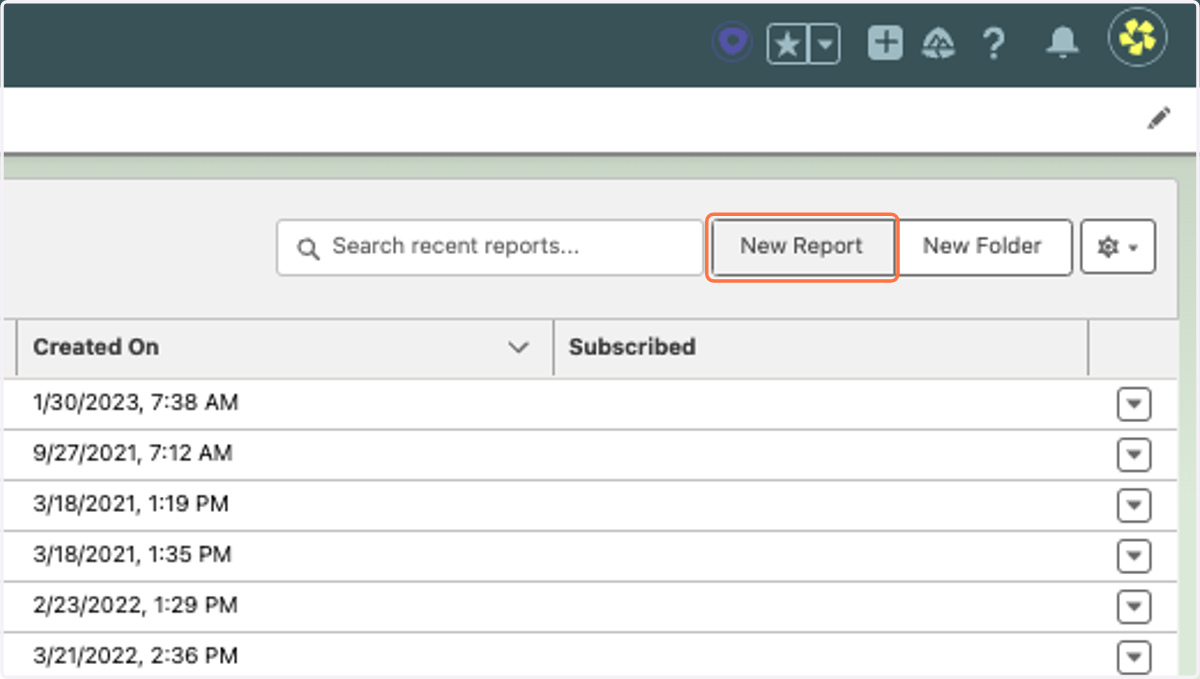
2. Click on "New Report"
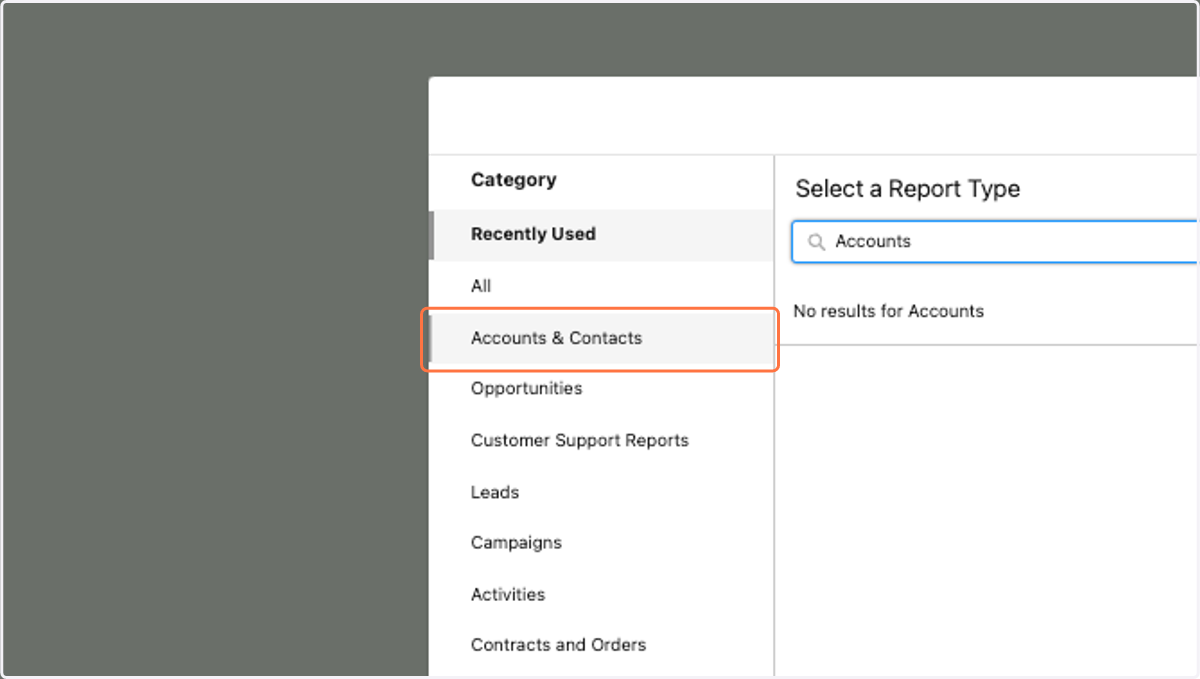
3. Click on "Accounts & Contacts" if using Contacts, or "Leads" if using leads
4. Choose the Contacts & Accounts report (or if you're using leads, choose the leads report)
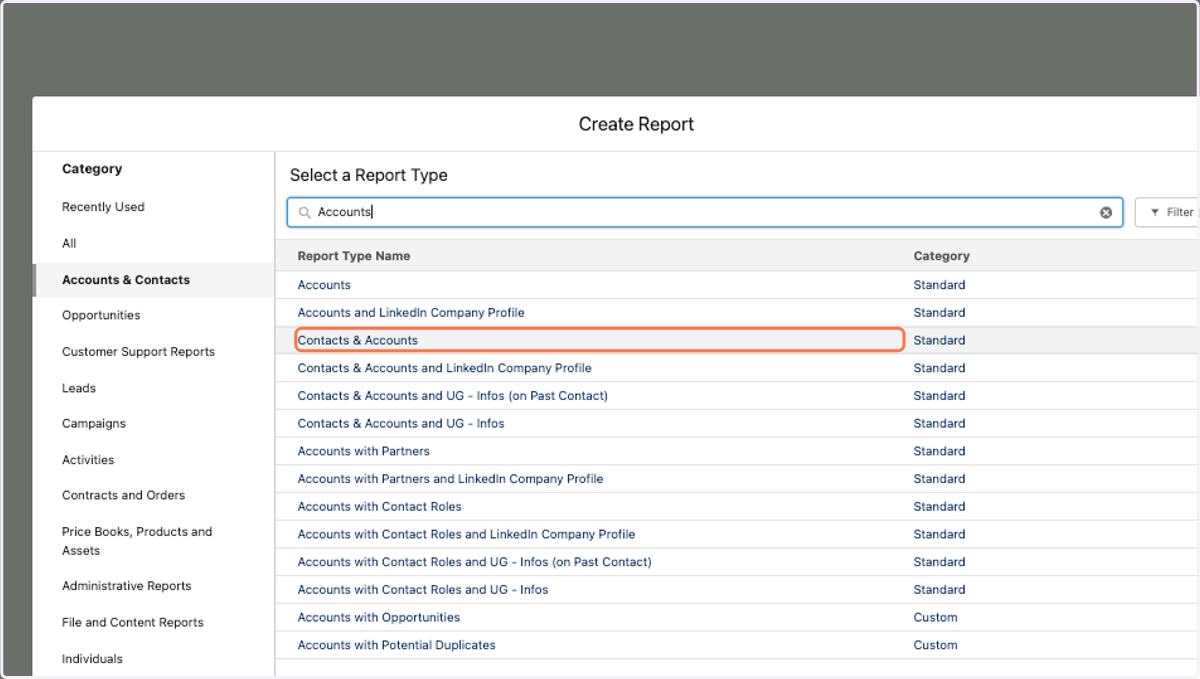
5. Click on "Start Report"
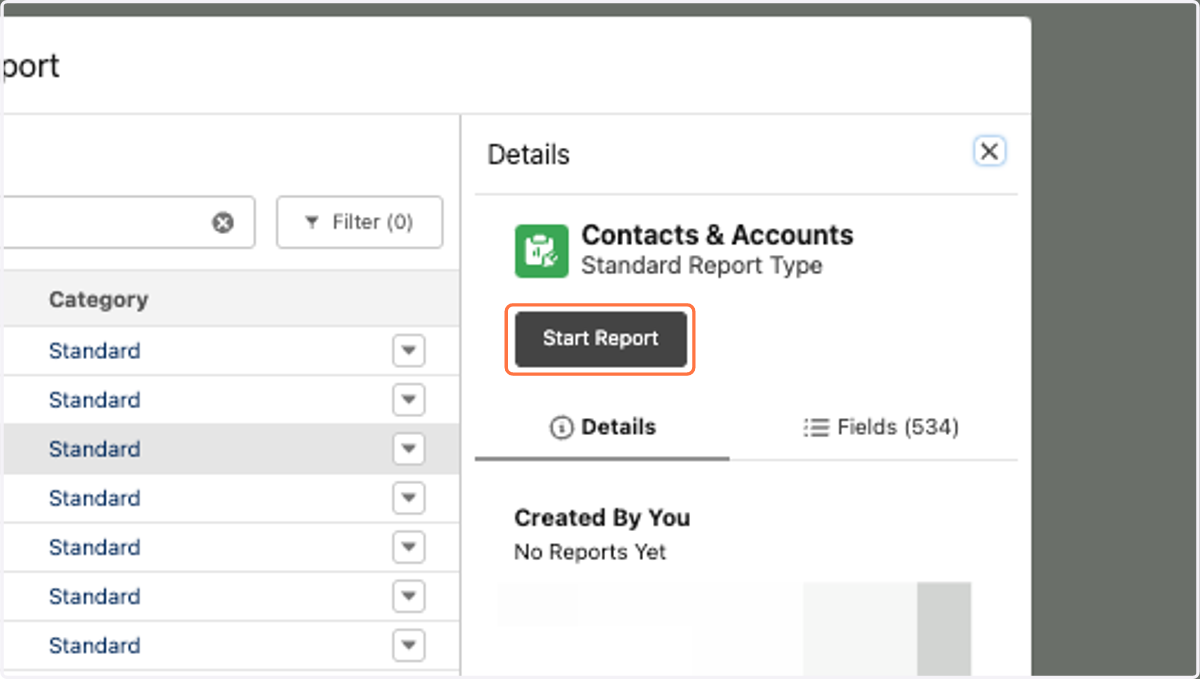
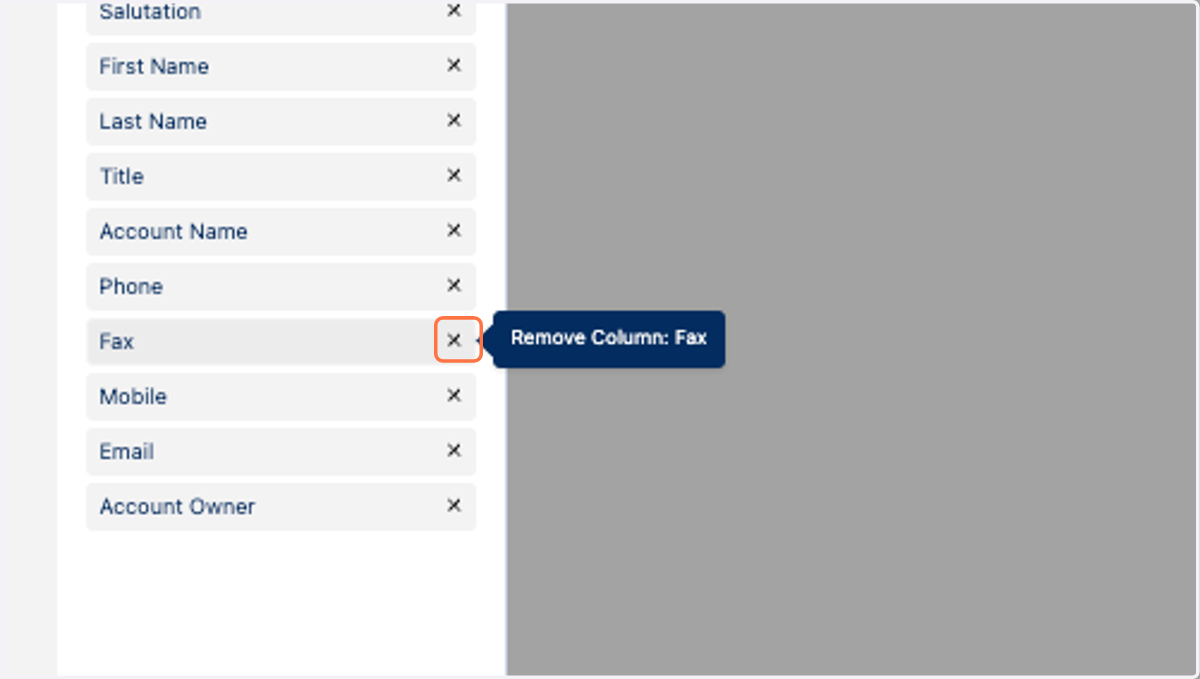
6. Under Columns, remove and/or add any columns with info that you would like to have on your report (Name, Title, Company, Email, Phone etc.) are a common few but some orgs will have other fields they will like to bring in as well
7. Once you have all the columns you want/need, click on the "Filters" tab
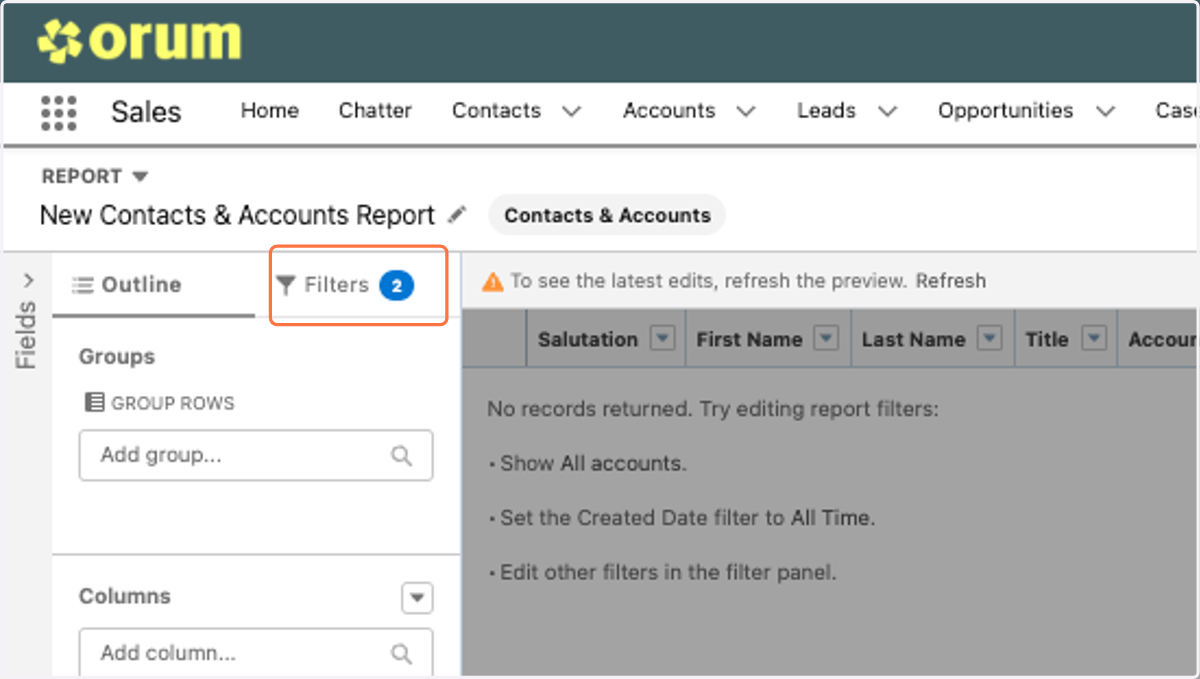
8. Here, feel free to filter your list to how you want it. Make sure under "Show me" it shows your contacts
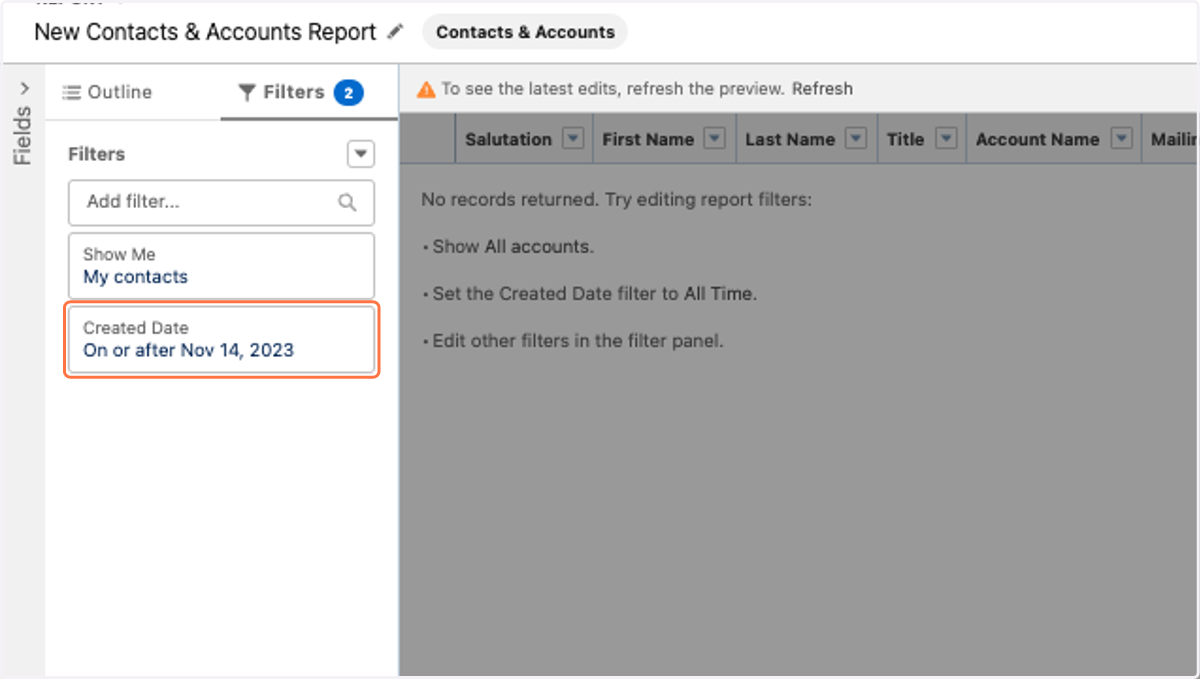
9. Under "Created Date" choose a range you'd like or click on "All Time", this will show contacts/lead associated to you from all time in the SFDC database
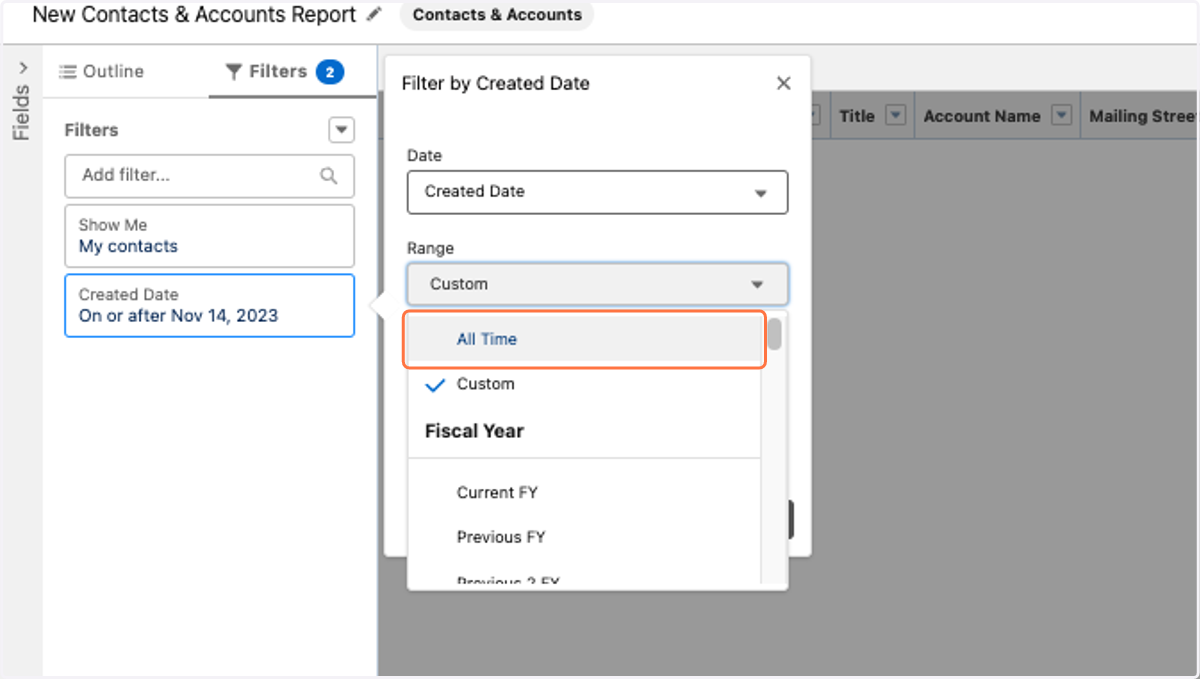
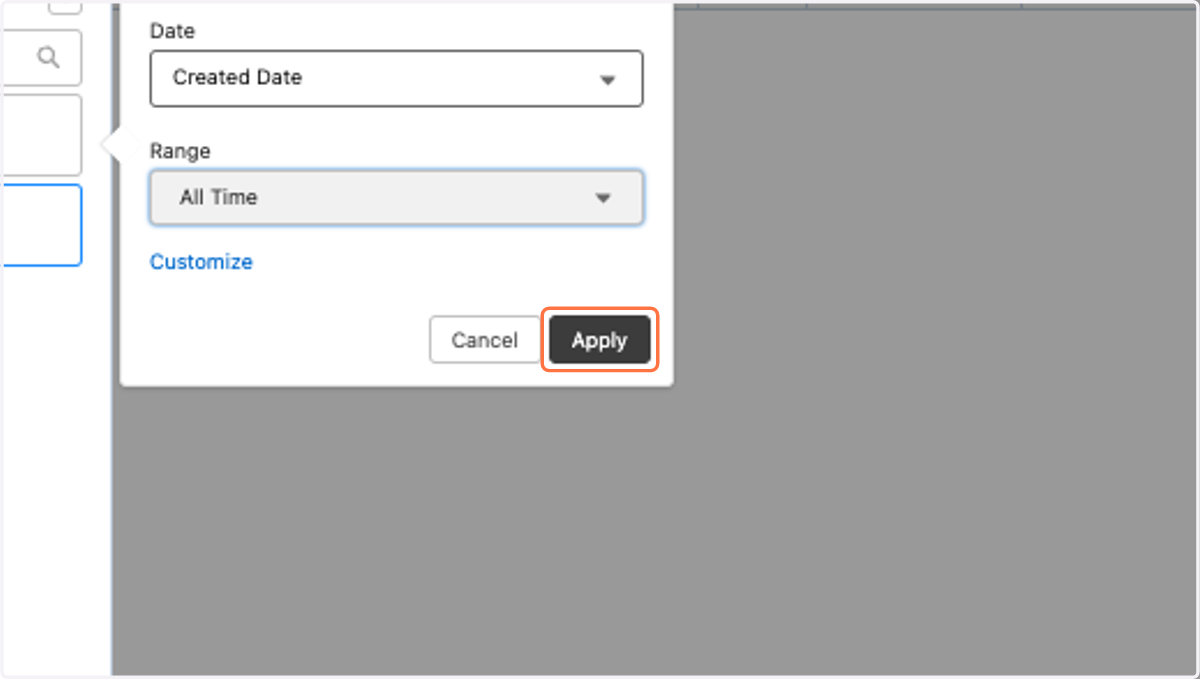
10. Click on Apply"
Click on "Apply"
11. Here is where you will pick and choose what filters are important to you. In this case, I'd like to filter by title
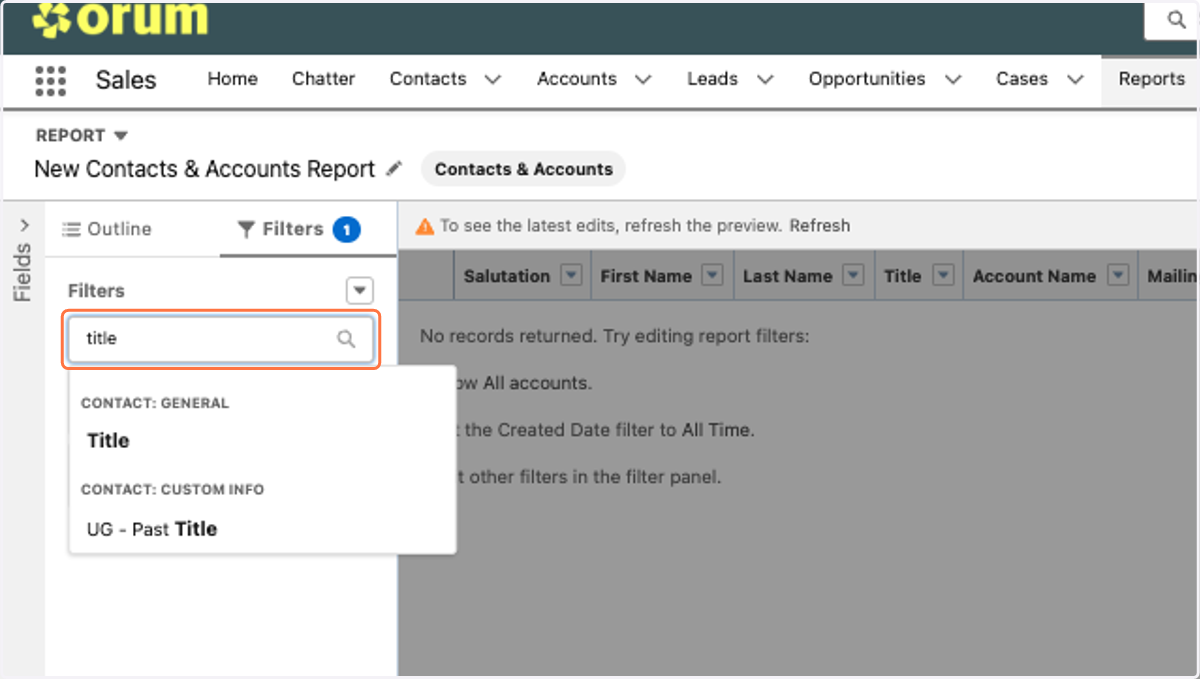
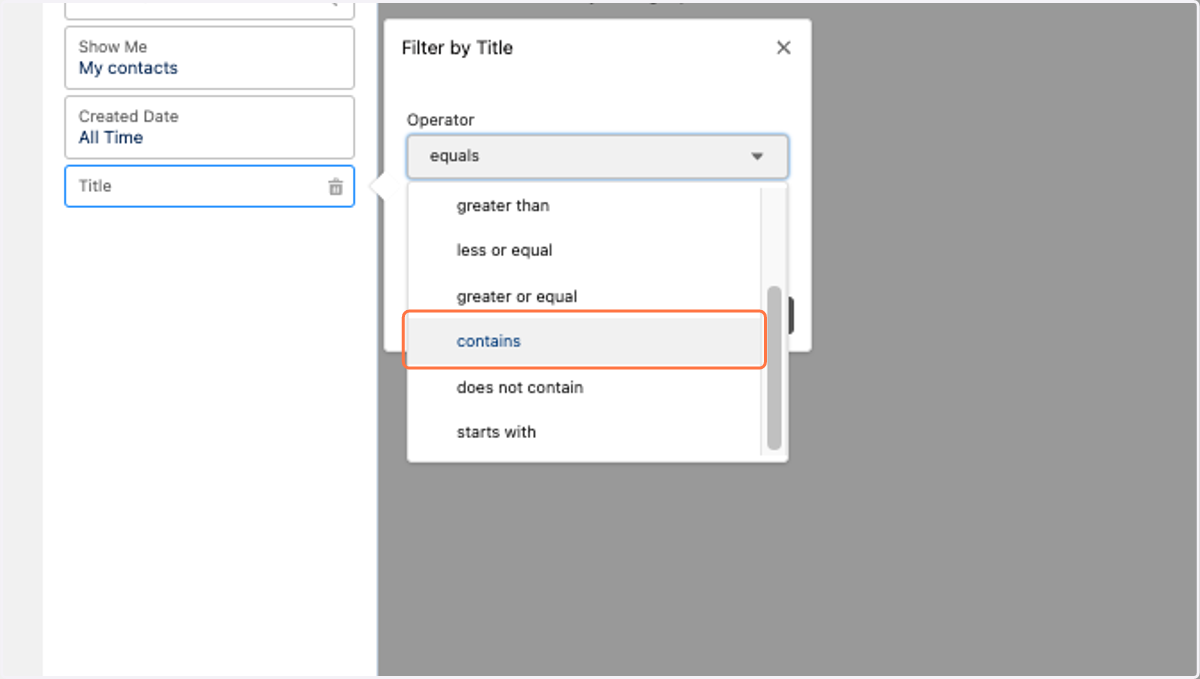
12. Once I select title, change the operator to "Contains" if choosing multiple personas or "equals" if it's just one
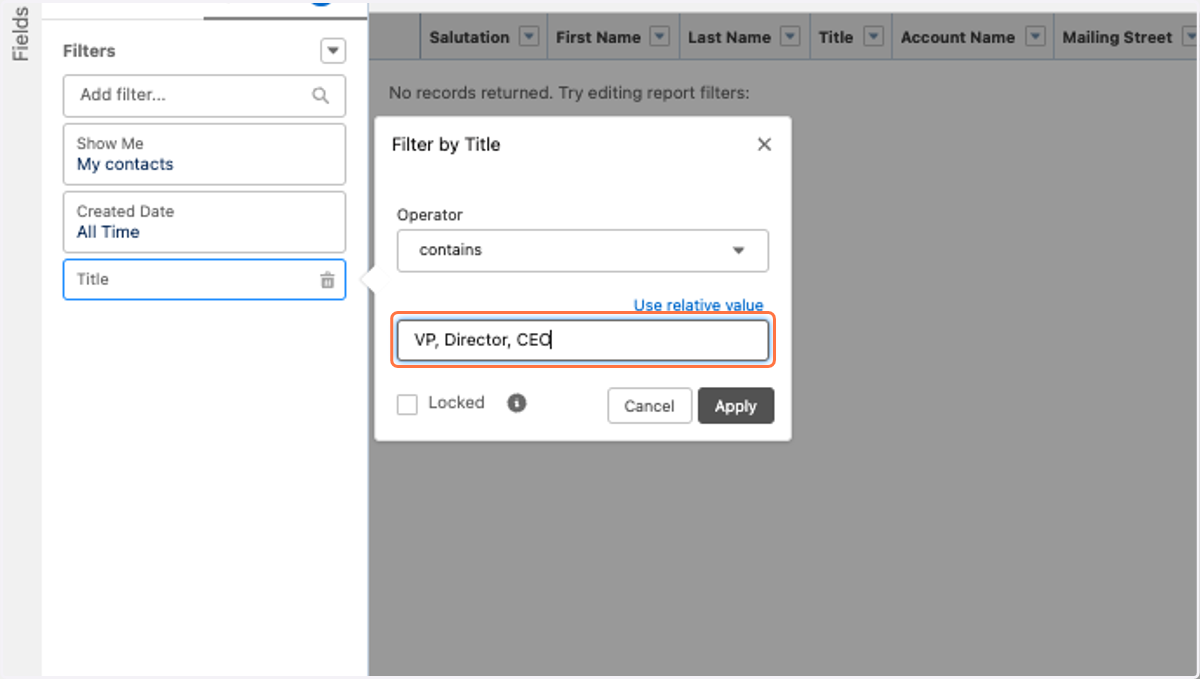
13. Type the appropriate personas here and click "Apply"
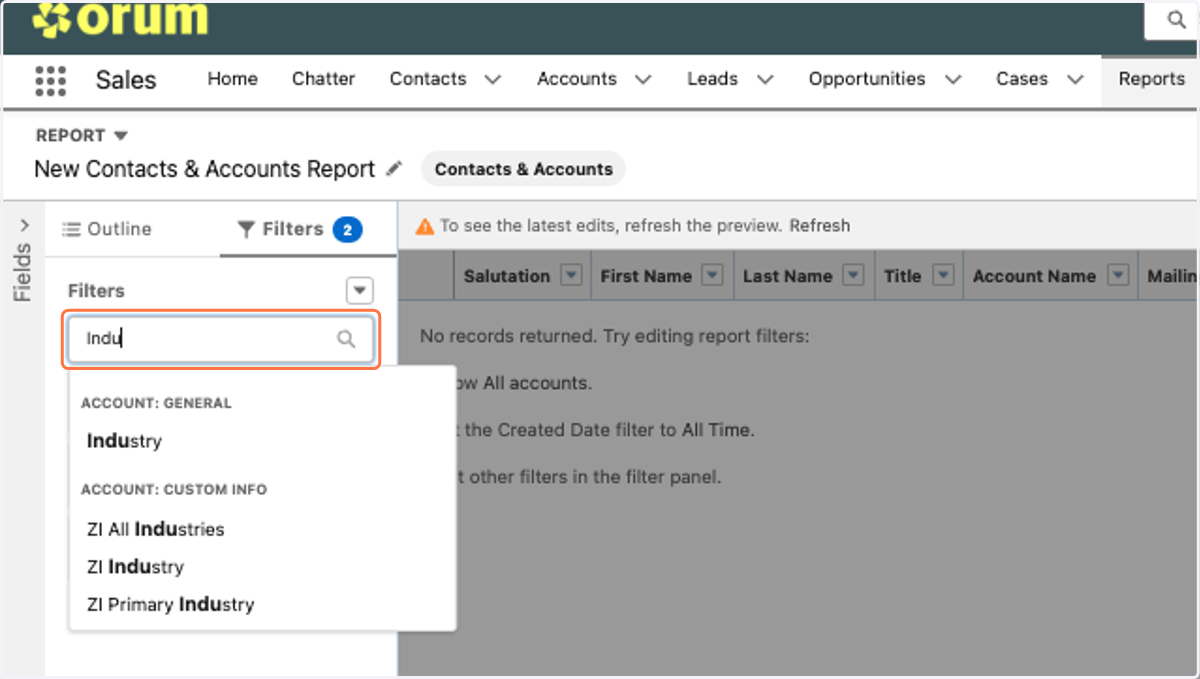
14. Here, I decided to also filter my list by industry, type in "Industry" and select
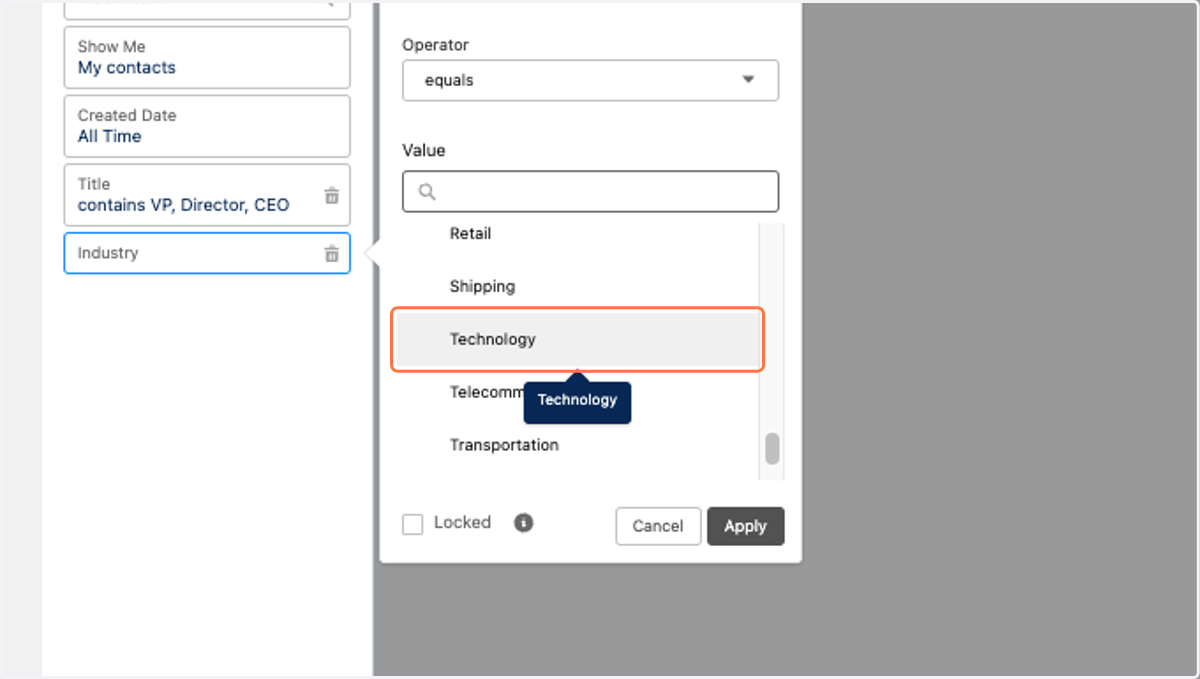
15. Choose whatever industries you would like, in this example, I want to reach out to the technology industry
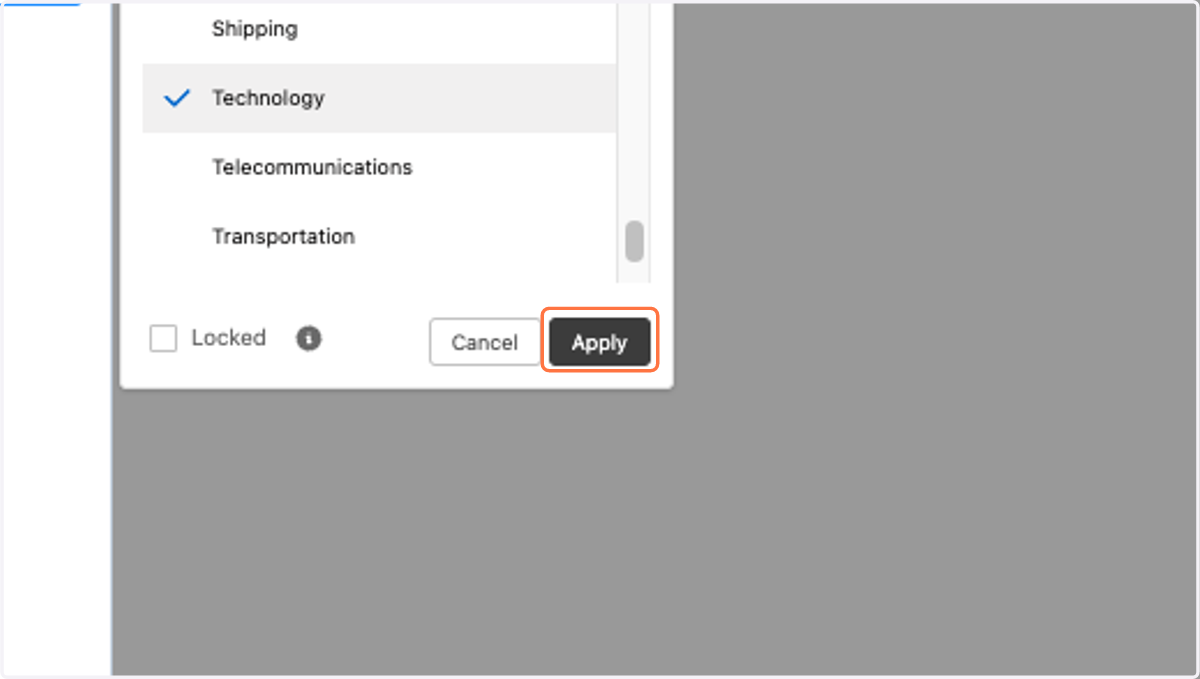
16. Click on "Apply"
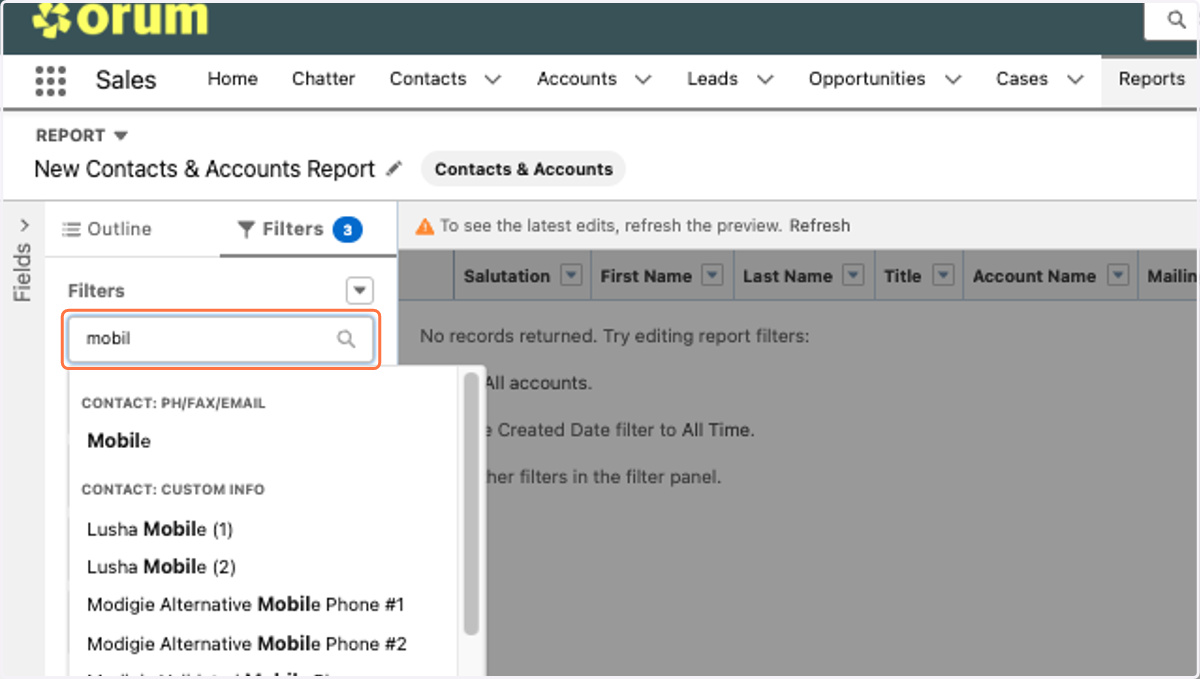
17. If your prospect specifically would like mobile numbers for their report, type in Mobile and select
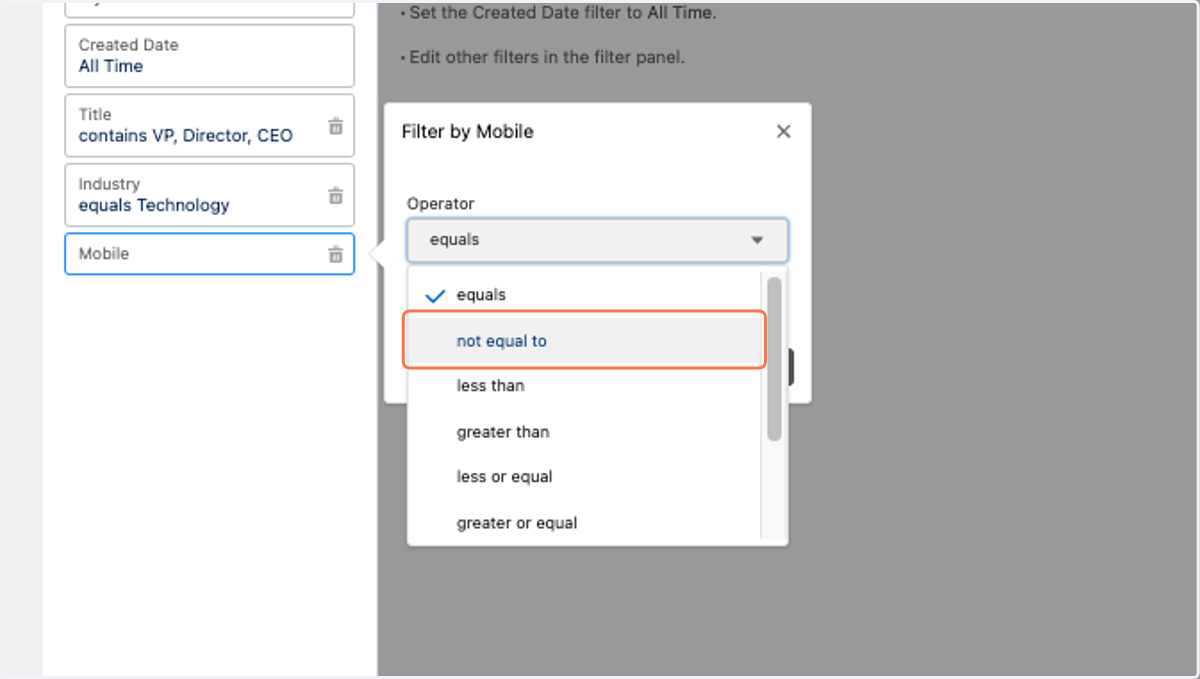
18. Change the operator to "Not Equal to"
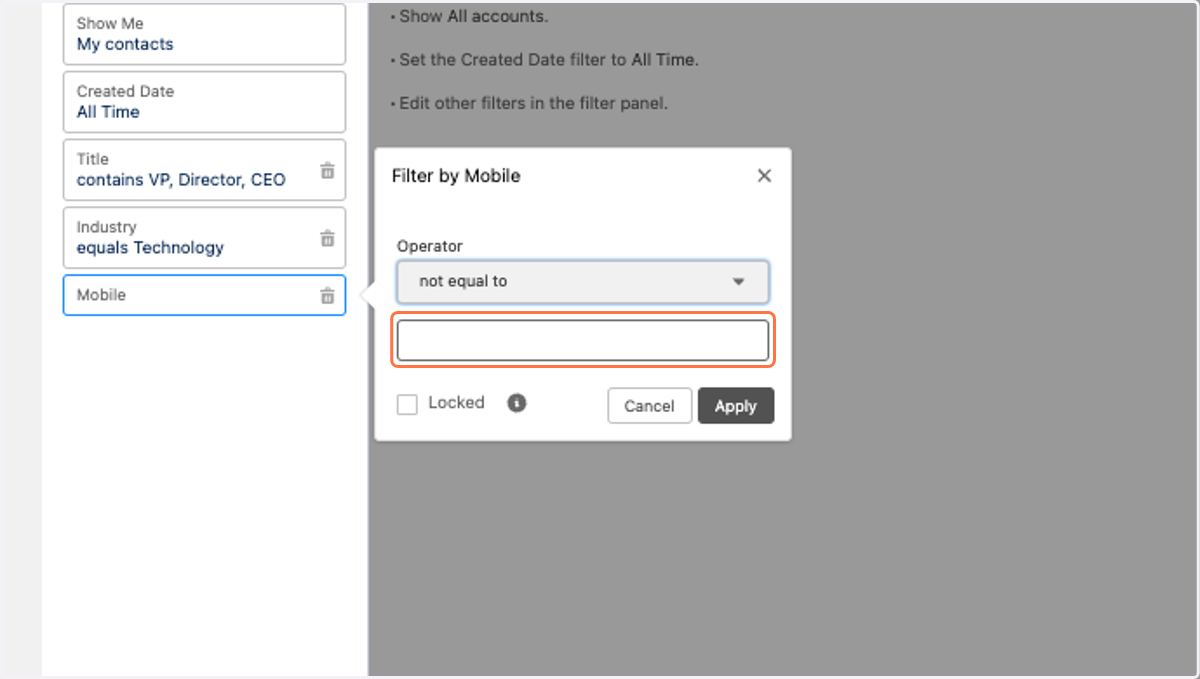
19. Leave the box empty and hit "Apply"
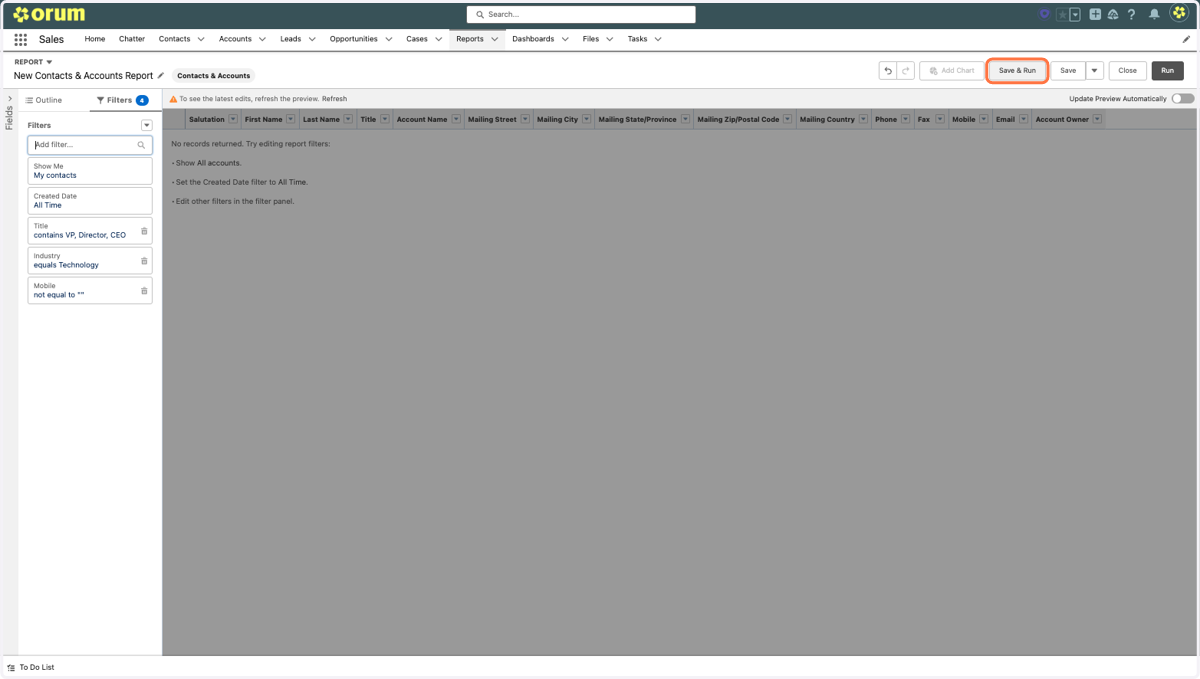
20. Once you feel like you have the appropriate filters for your list, click on "Save and Run"
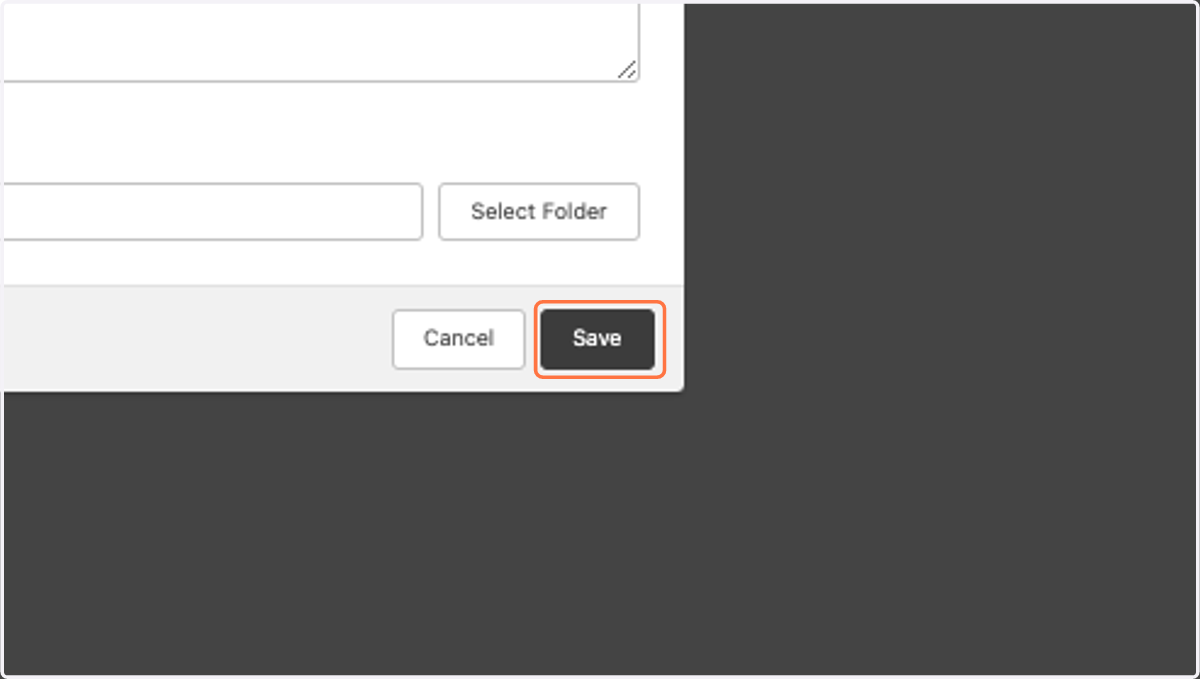
21. Once saved, a popup will appear. Here give your report a name so that it can be easily searched for in Orum
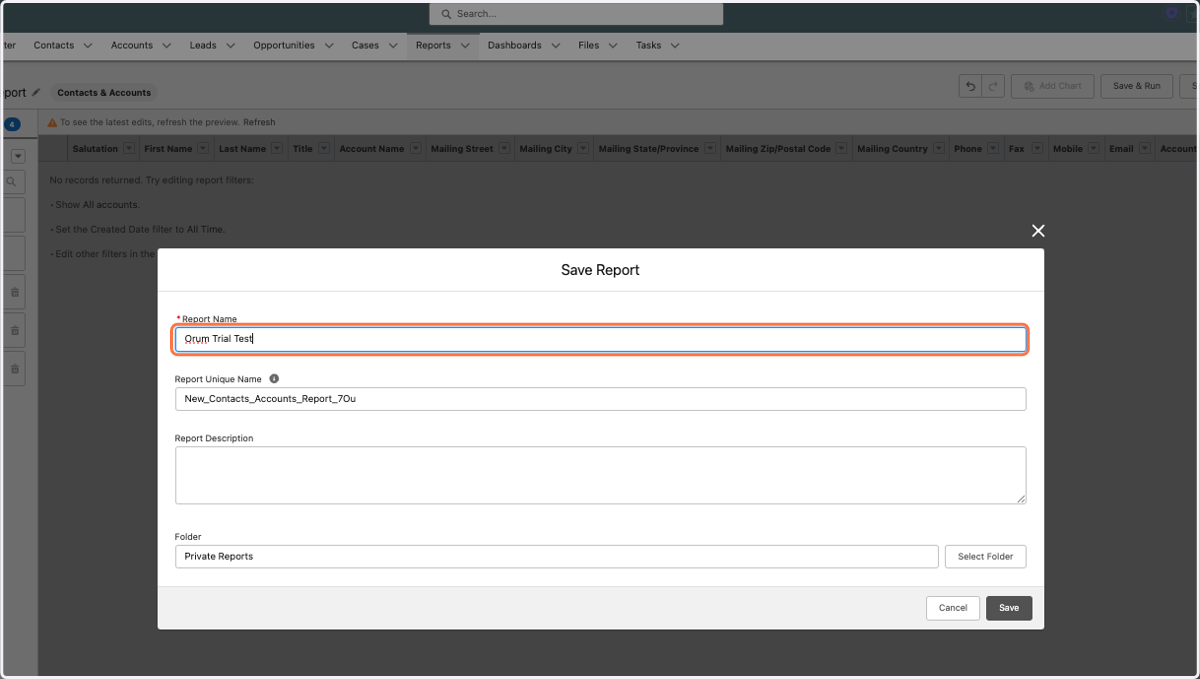
22. Click on "Save", once saved, it should appear in Orum under the search lists bar