[Salesforce]: Creating a Flow to Update Lead Status
Must have Salesforce Admin Access.
Start in Salesforce
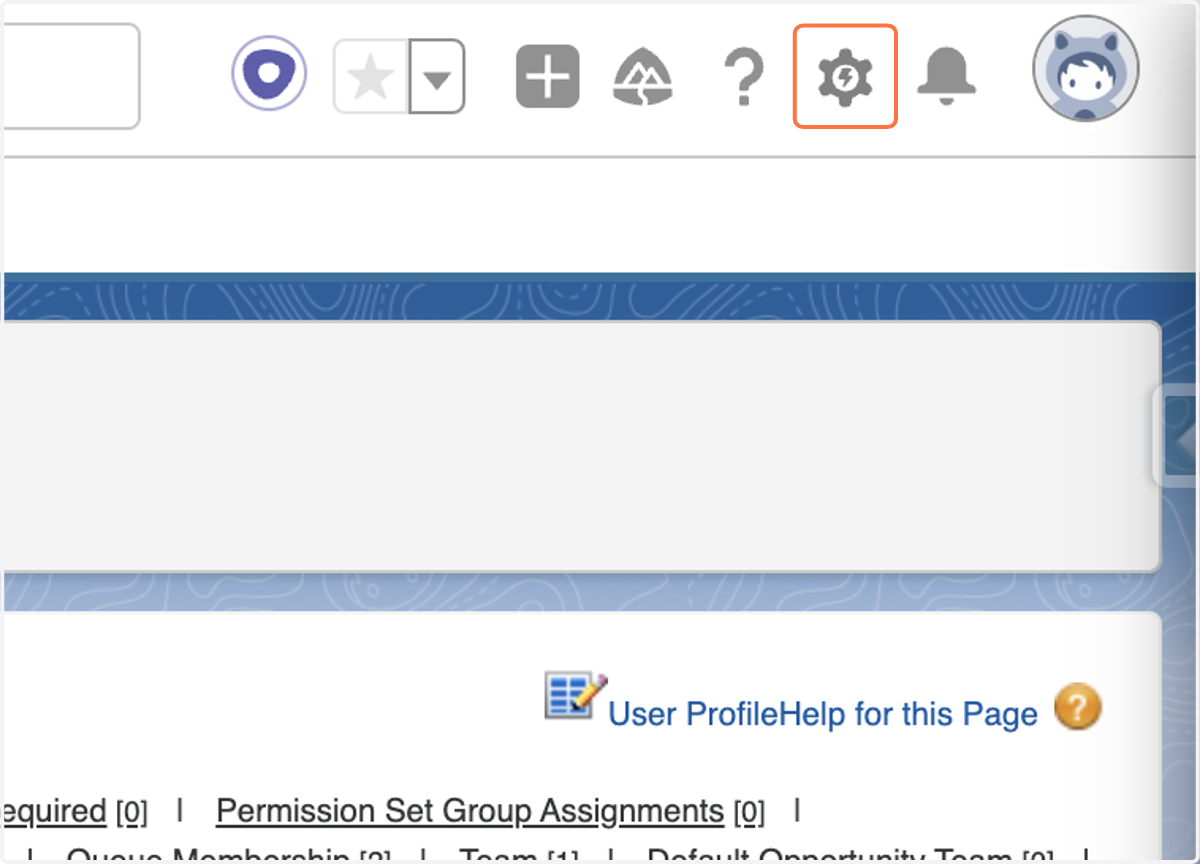
1. Click on Gear Icon
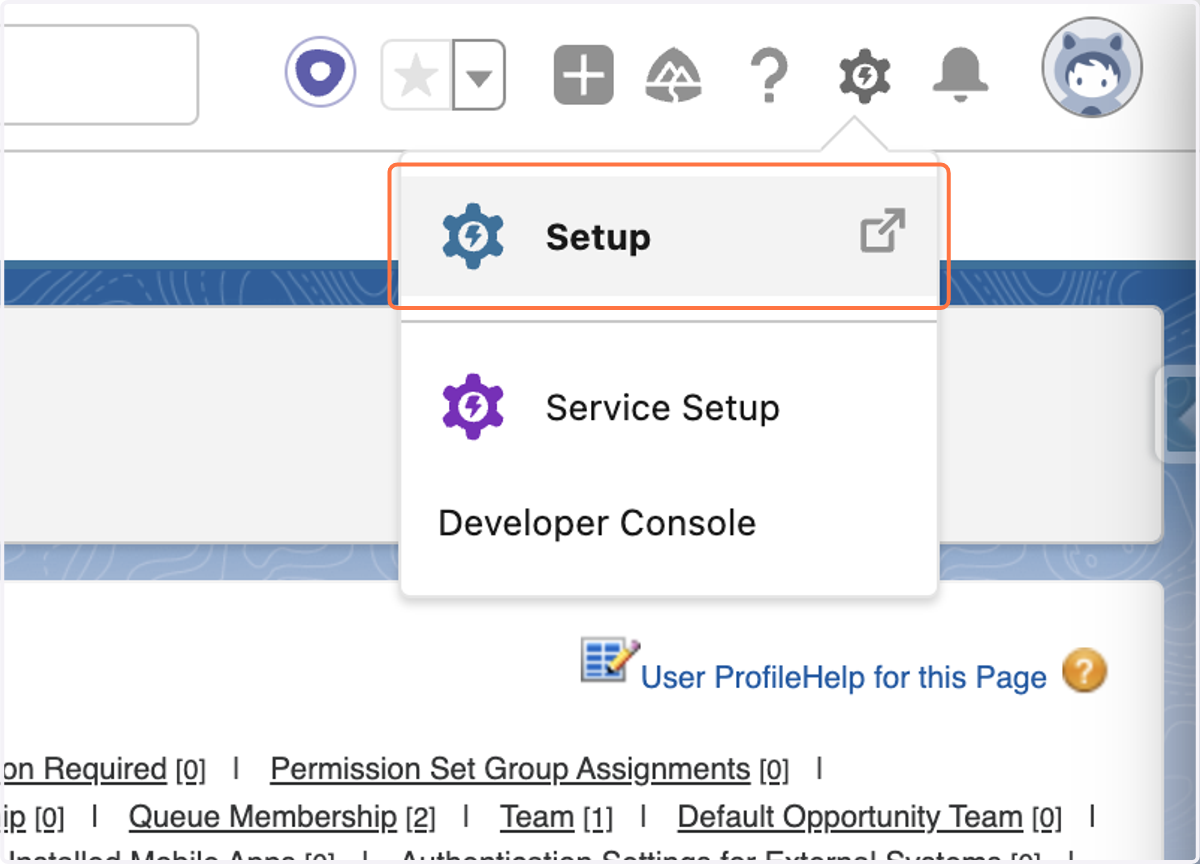
2. Click on Setup
3. Type "flows"
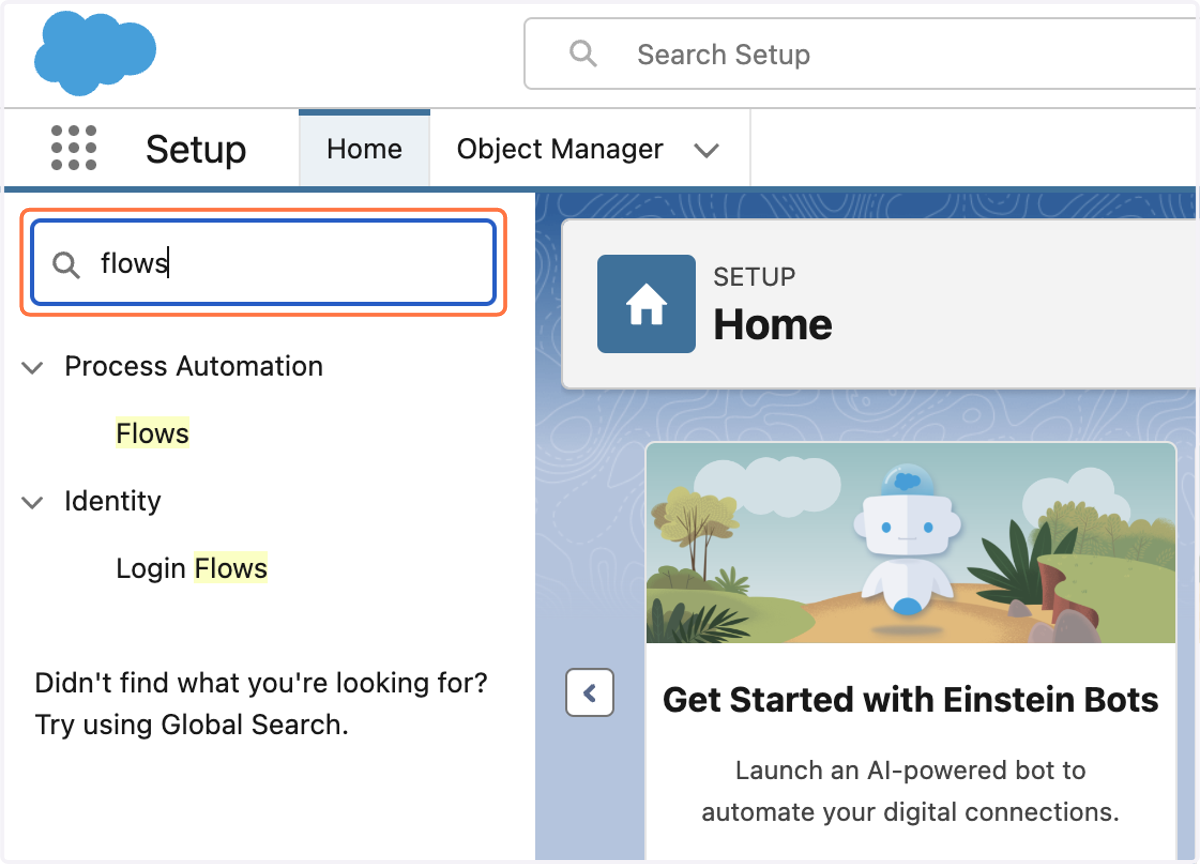
4. Click on Flows
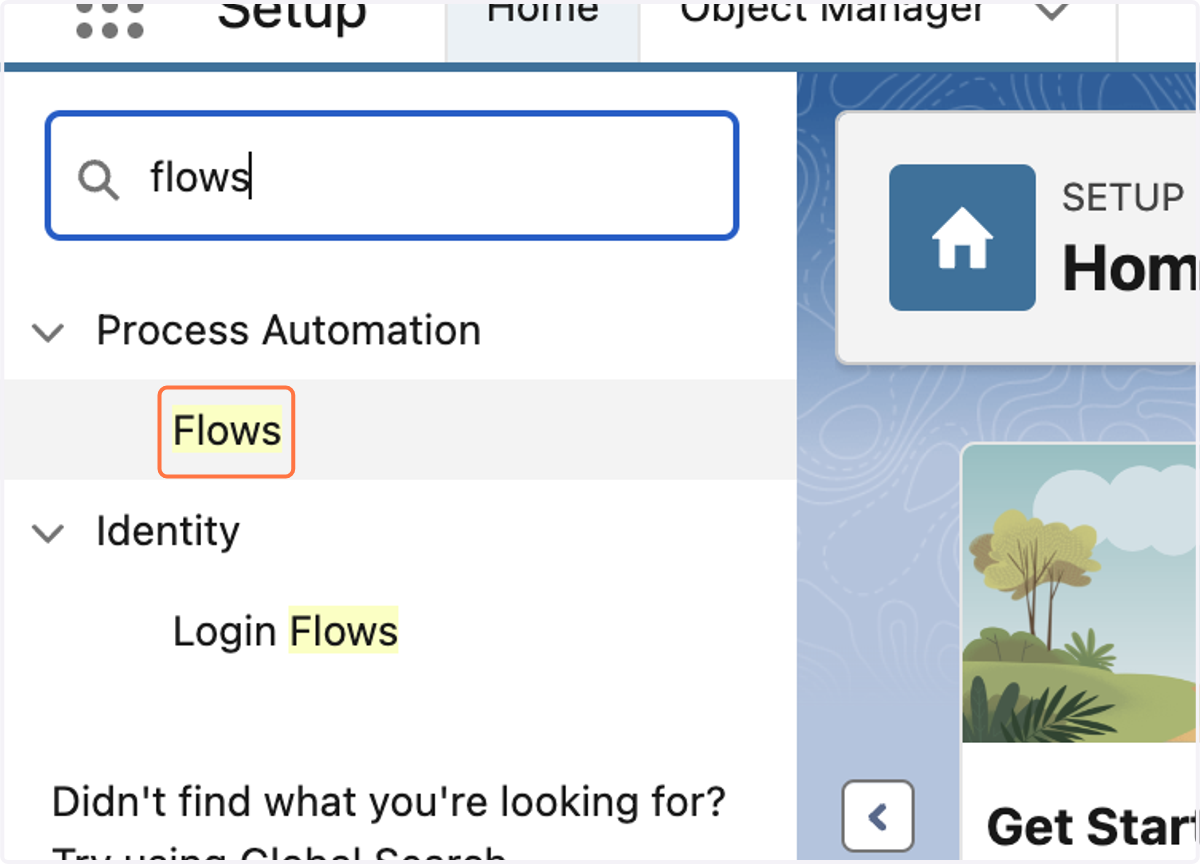
5. Click on New Flow
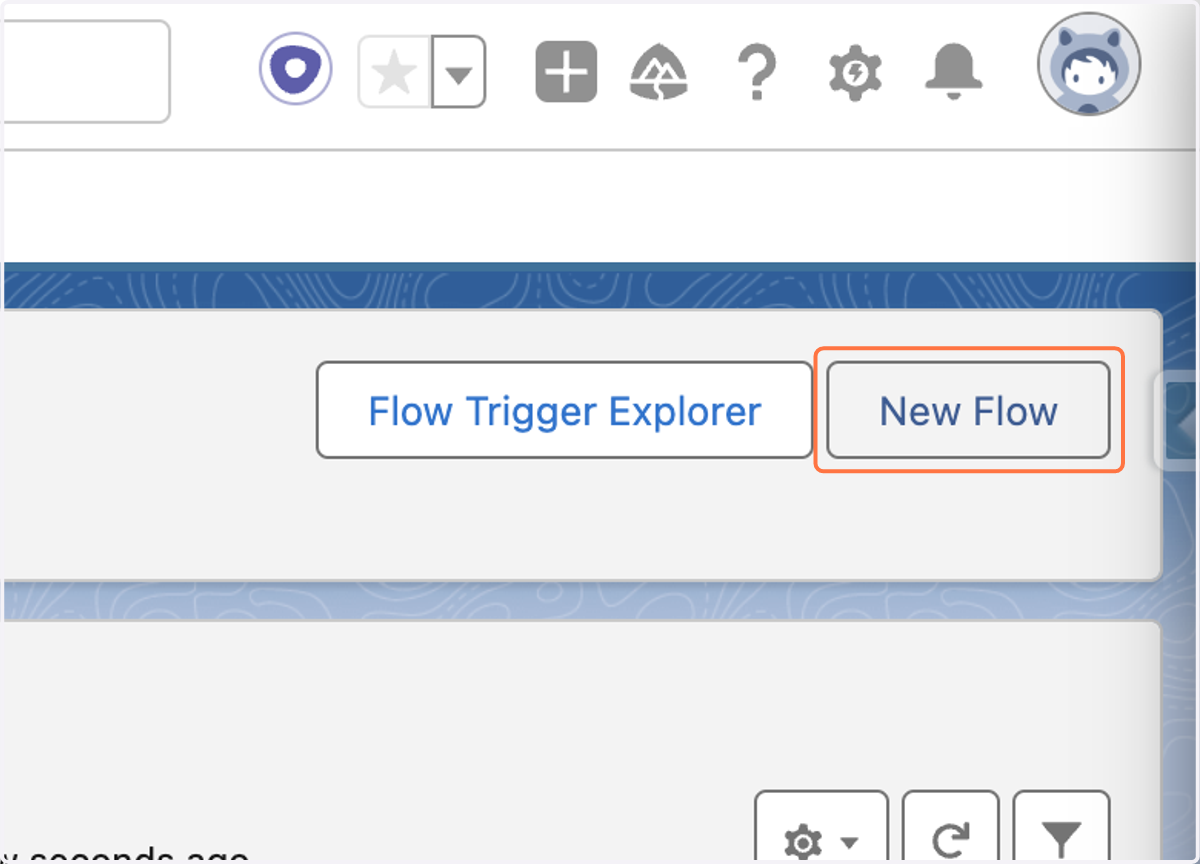
6. Select Record-Triggered Flow…
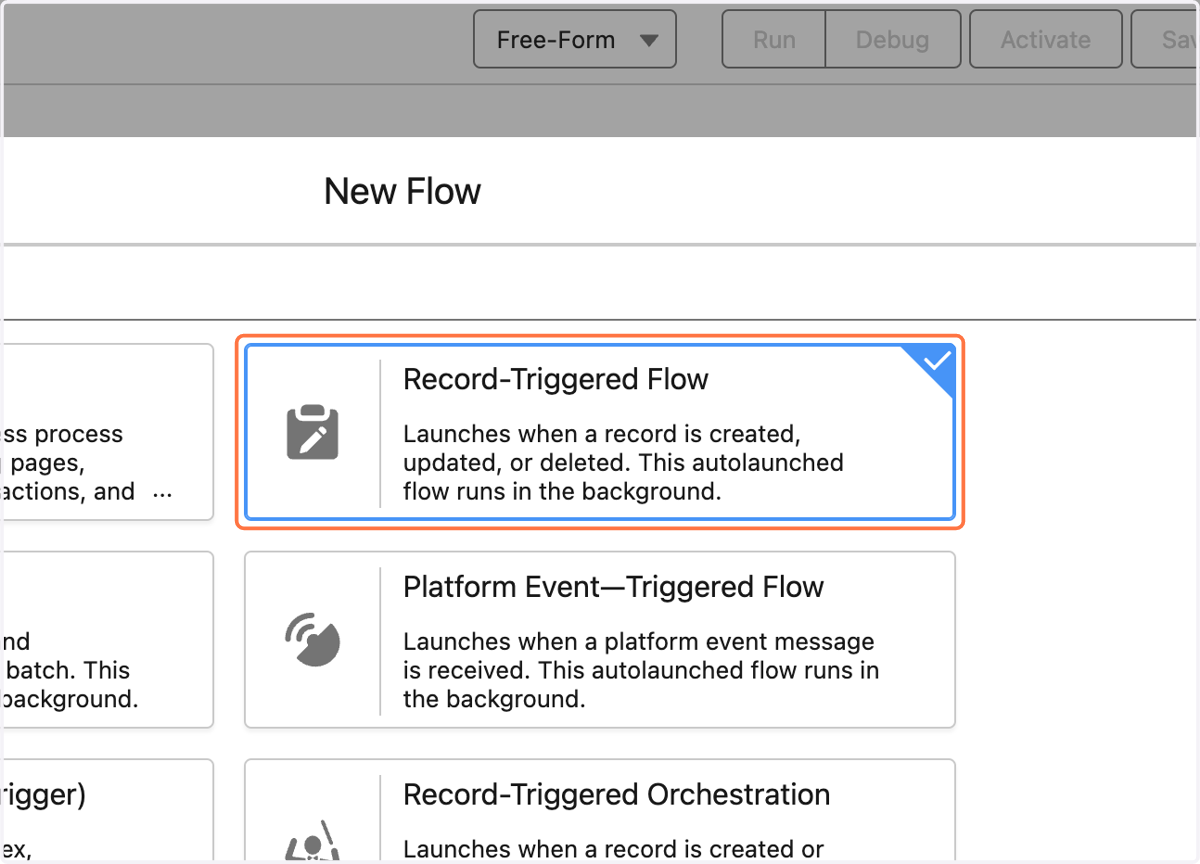
7. Click on Create
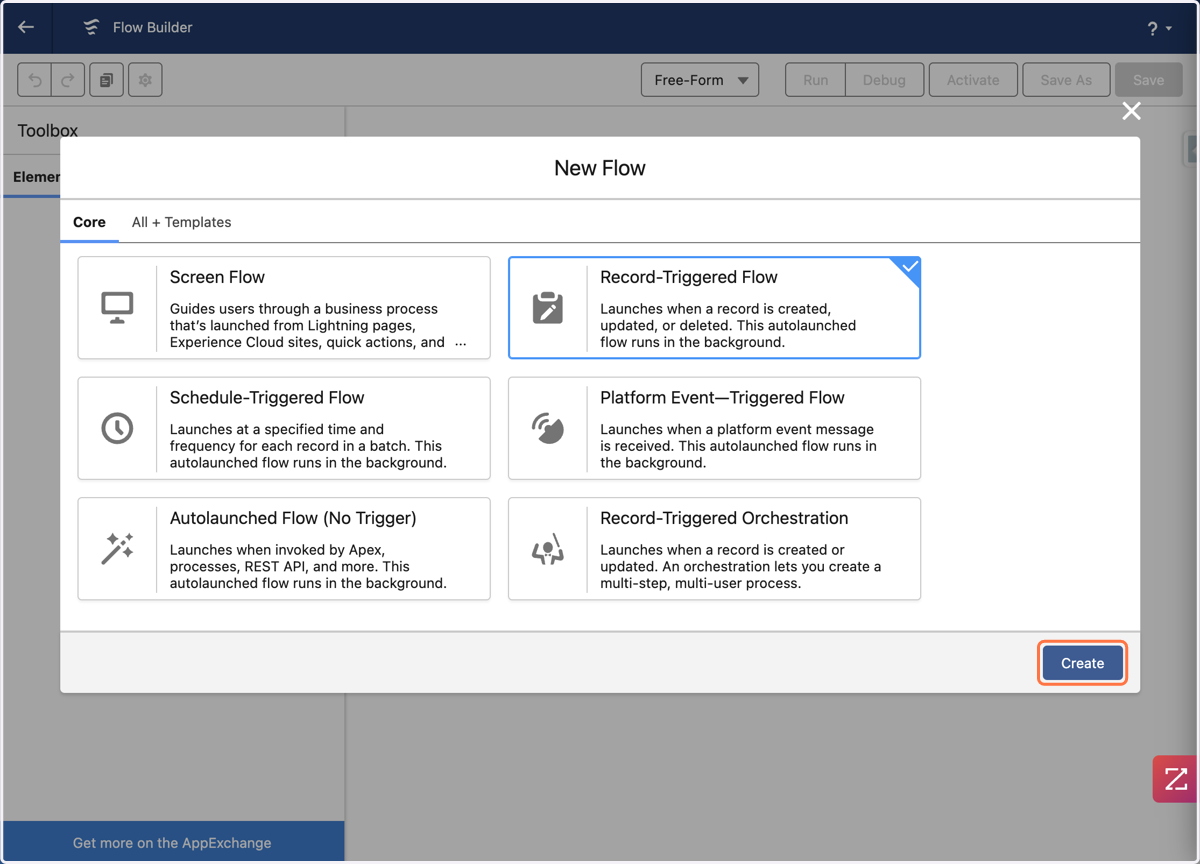
8. Type "Task"
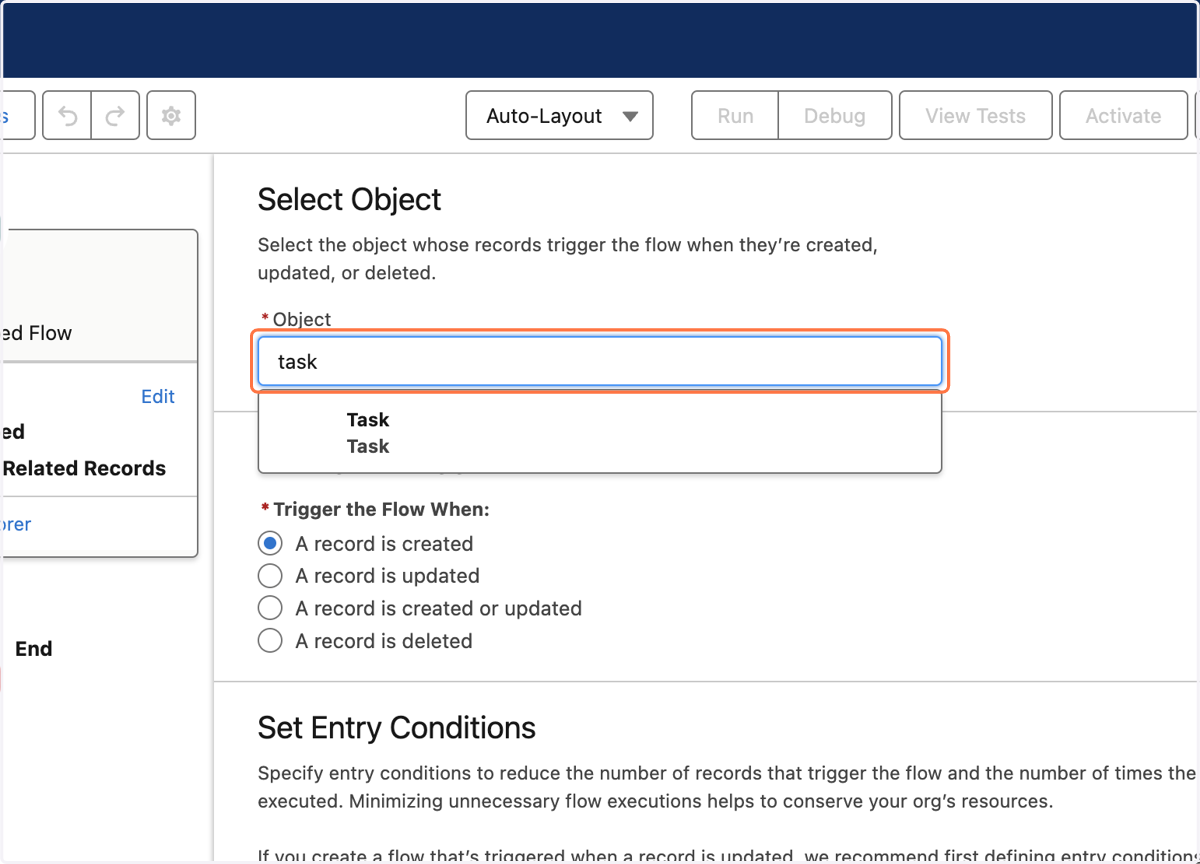
9. Click on Task…
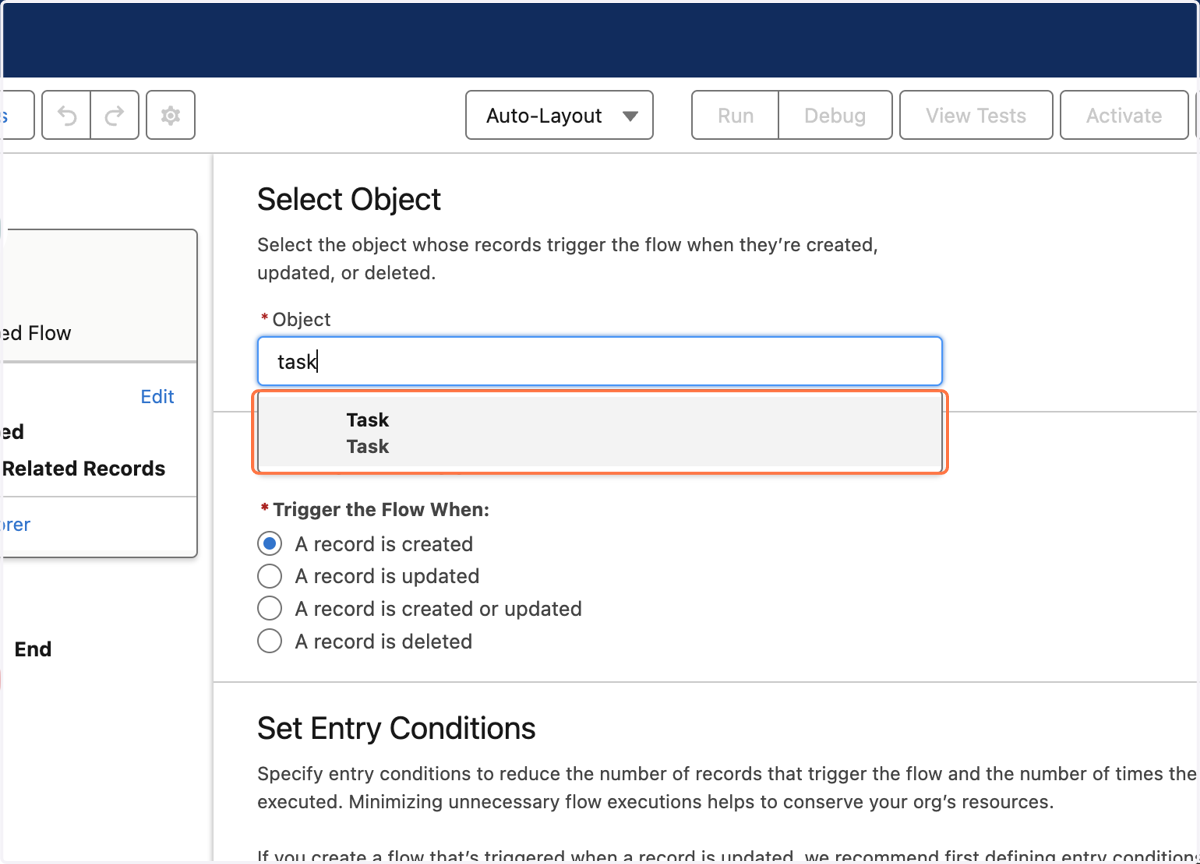
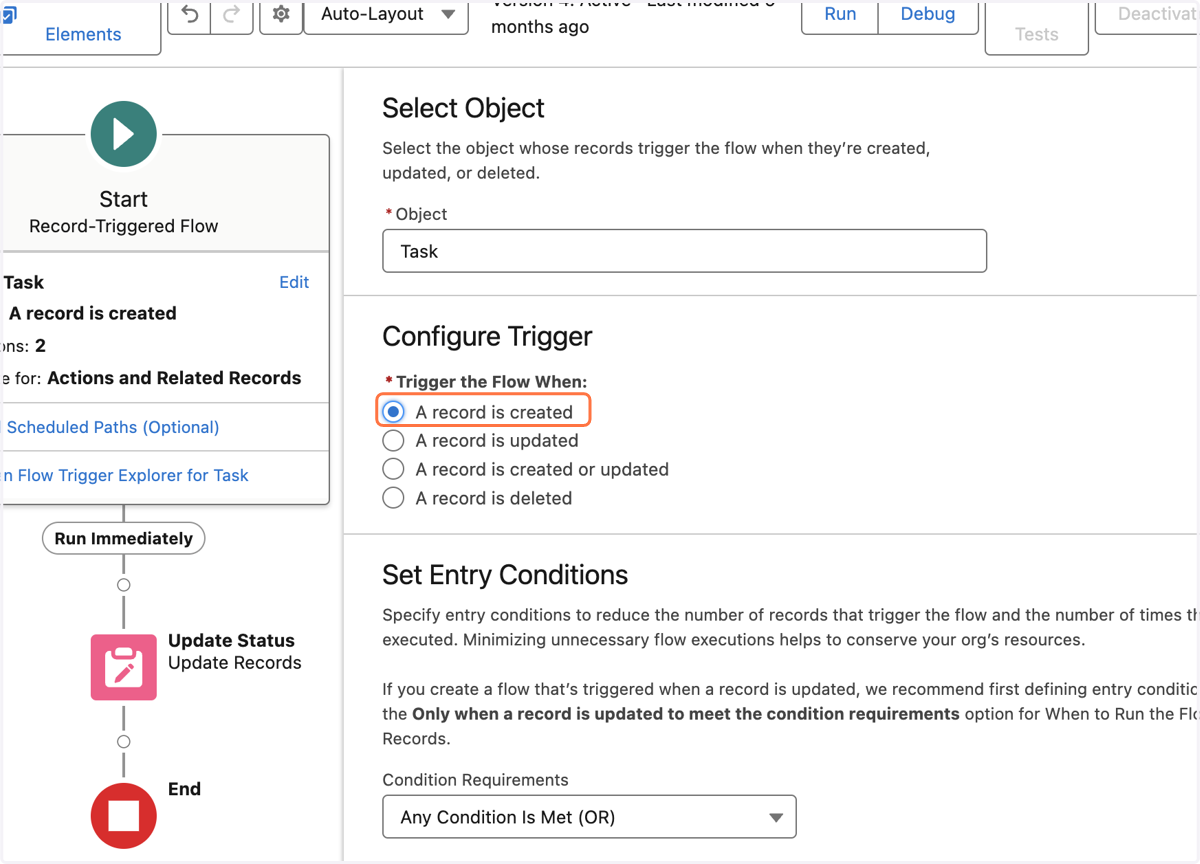
10. Select 'A record is created'
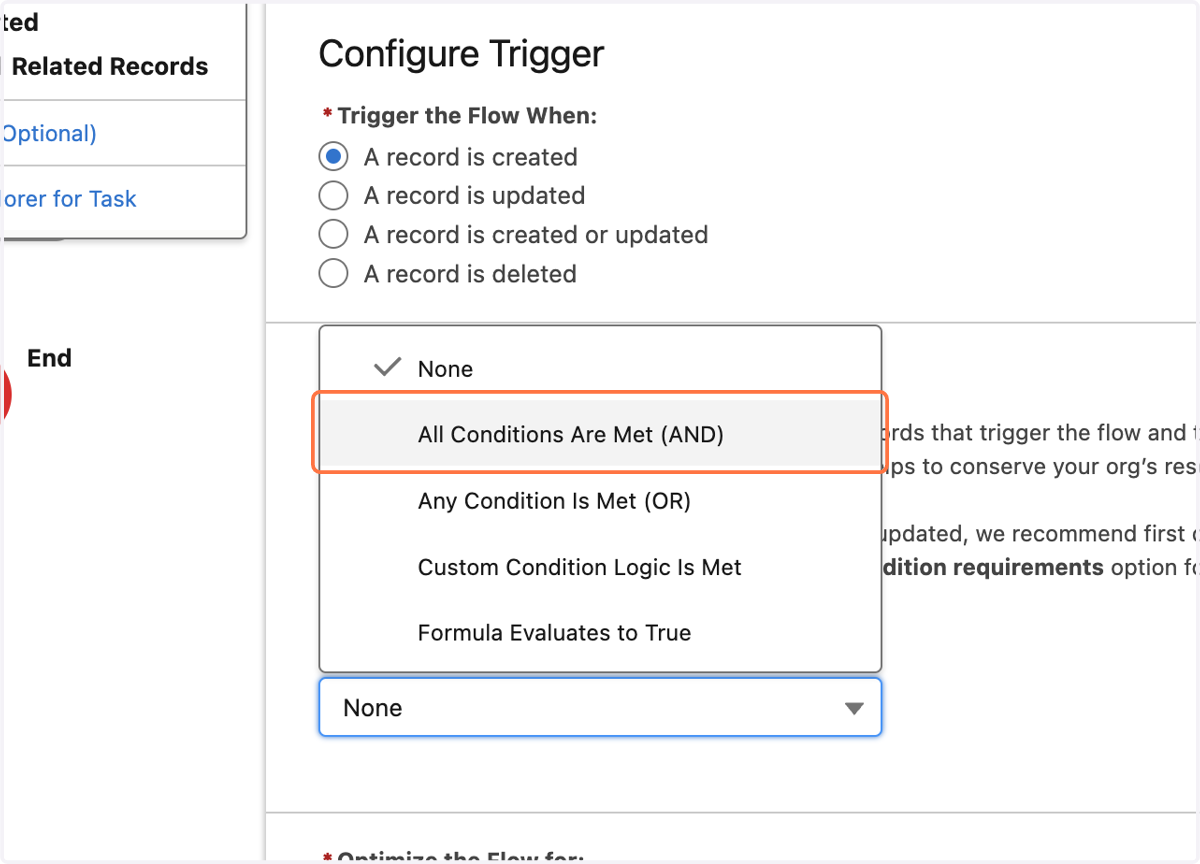
11. Click on Condition Requirements
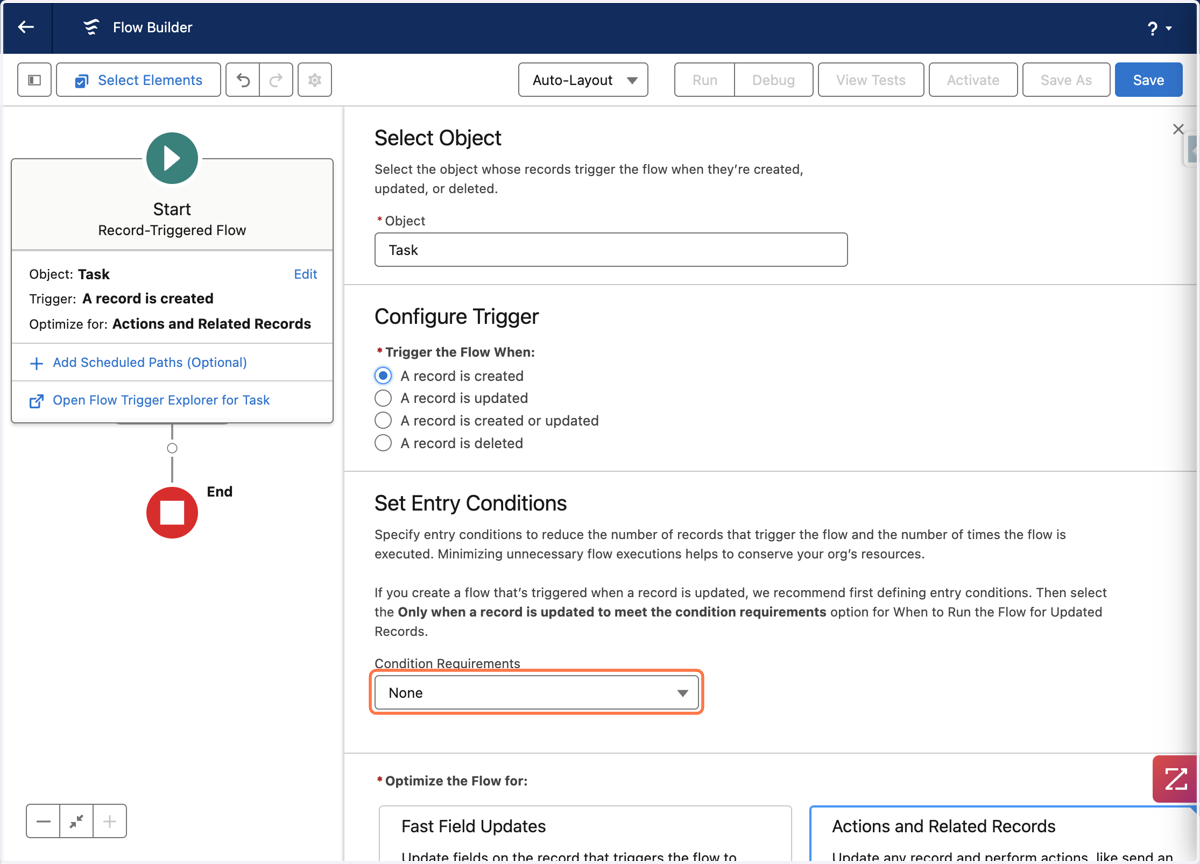
12. Click on All Conditions Are Met (AND)
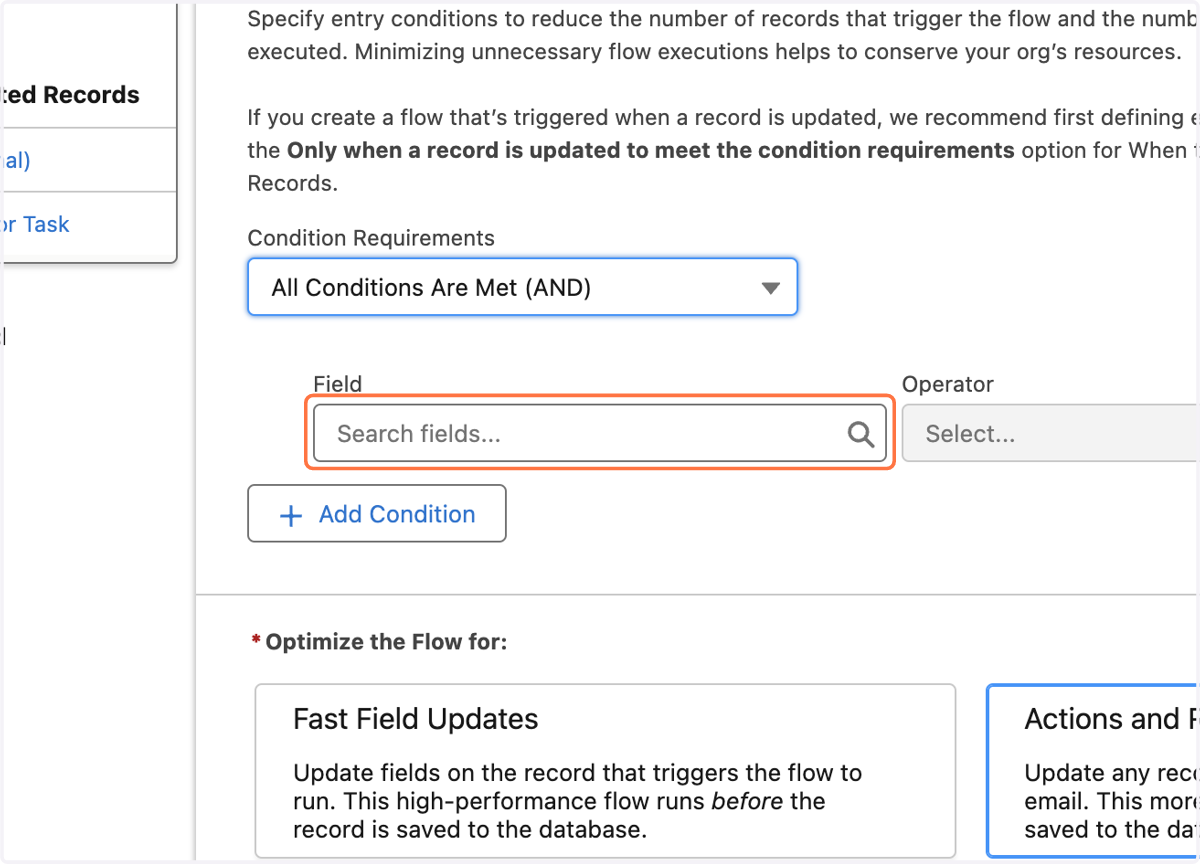
13. Click on Field
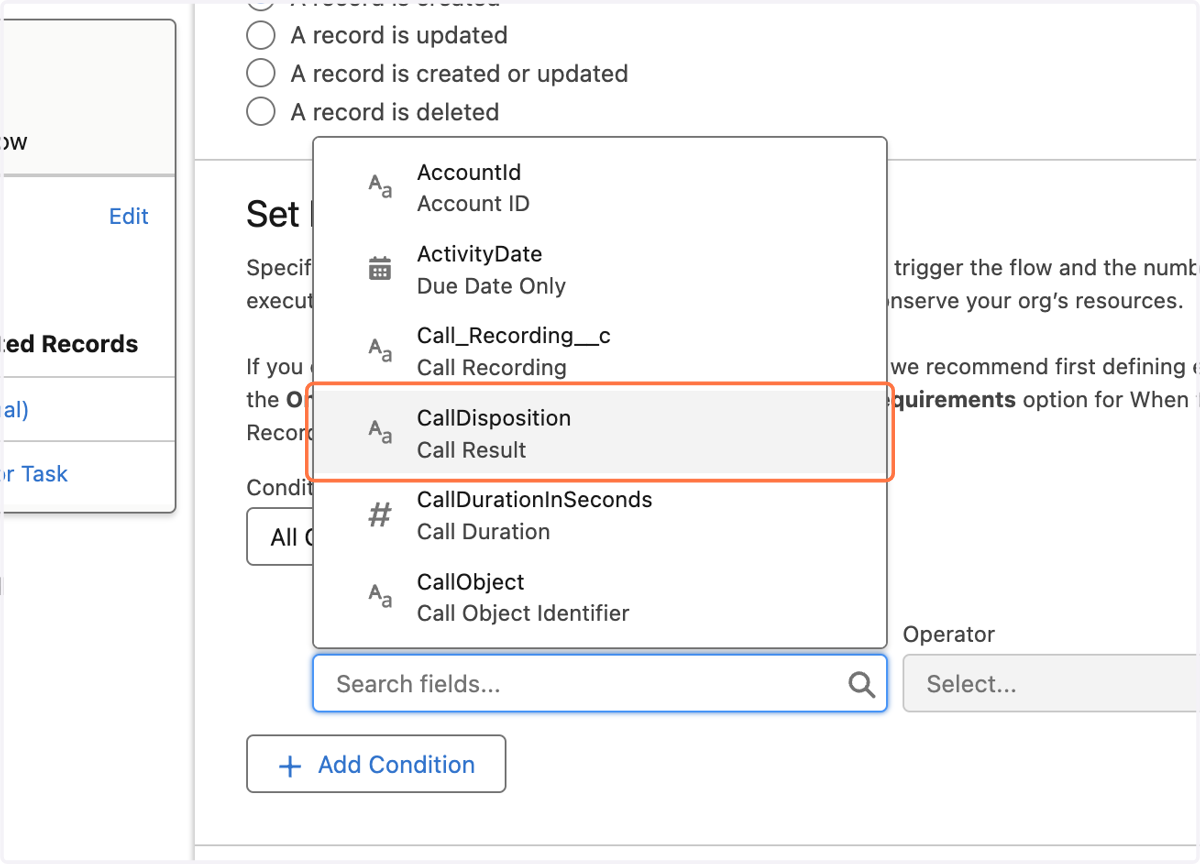
14. Click on Call Result
This is where most orgs sent call dispositions in the task object, if you are using a custom field select that field instead of call result. Please note, Orum can only send dispositions to text type fields.
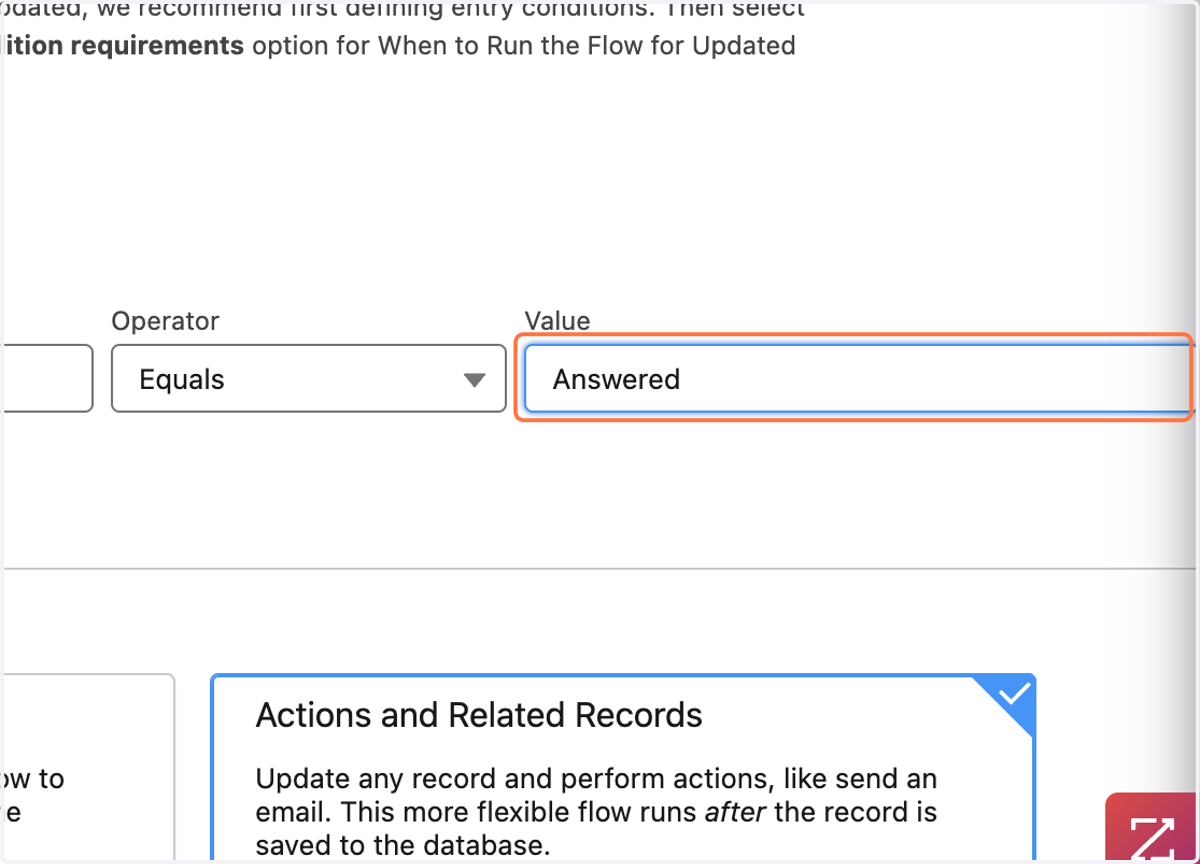
15. Type "Answered" in the Value section
This flow will run for all connected dispositions that begin with 'Answered'. For example: Answered- Booked Meeting , Answered - Follow Up etc. If you use other naming conventions please adjust accordingly.
16. Click on Operator
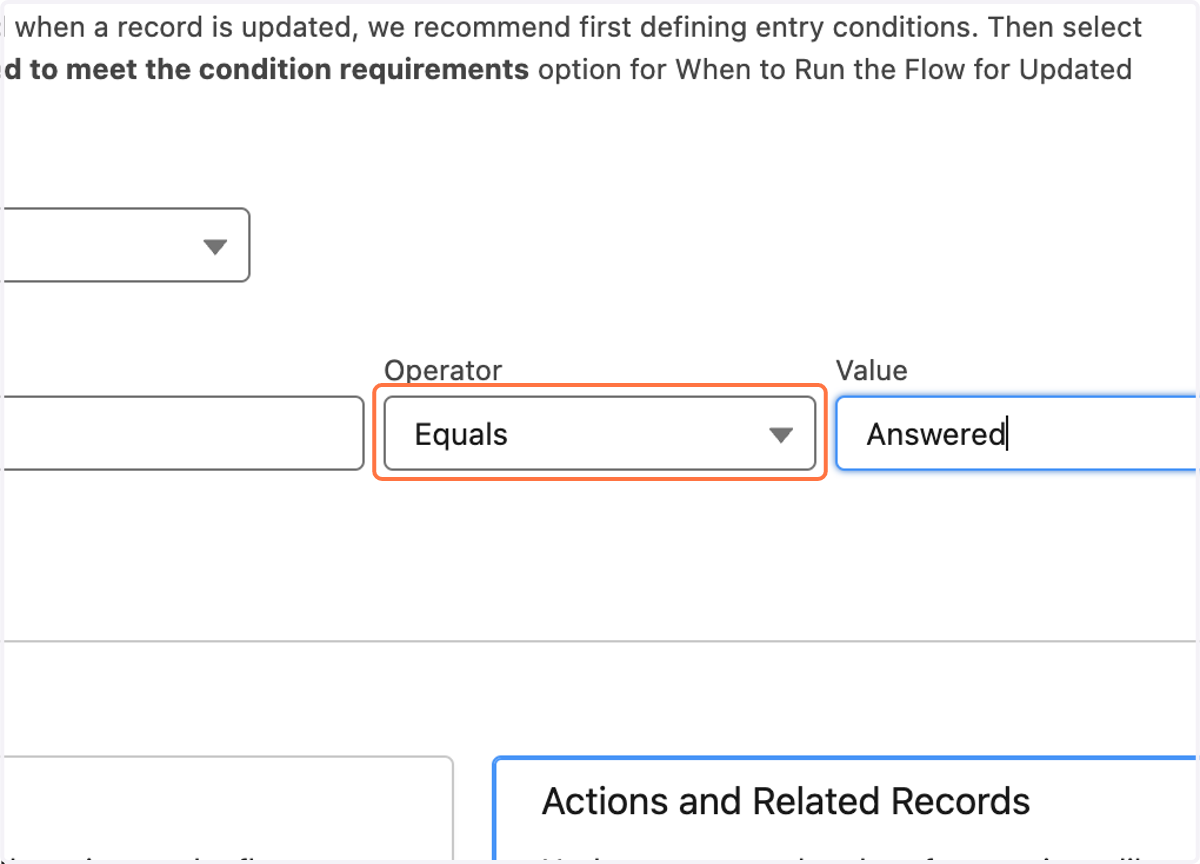
17. Click on Contains
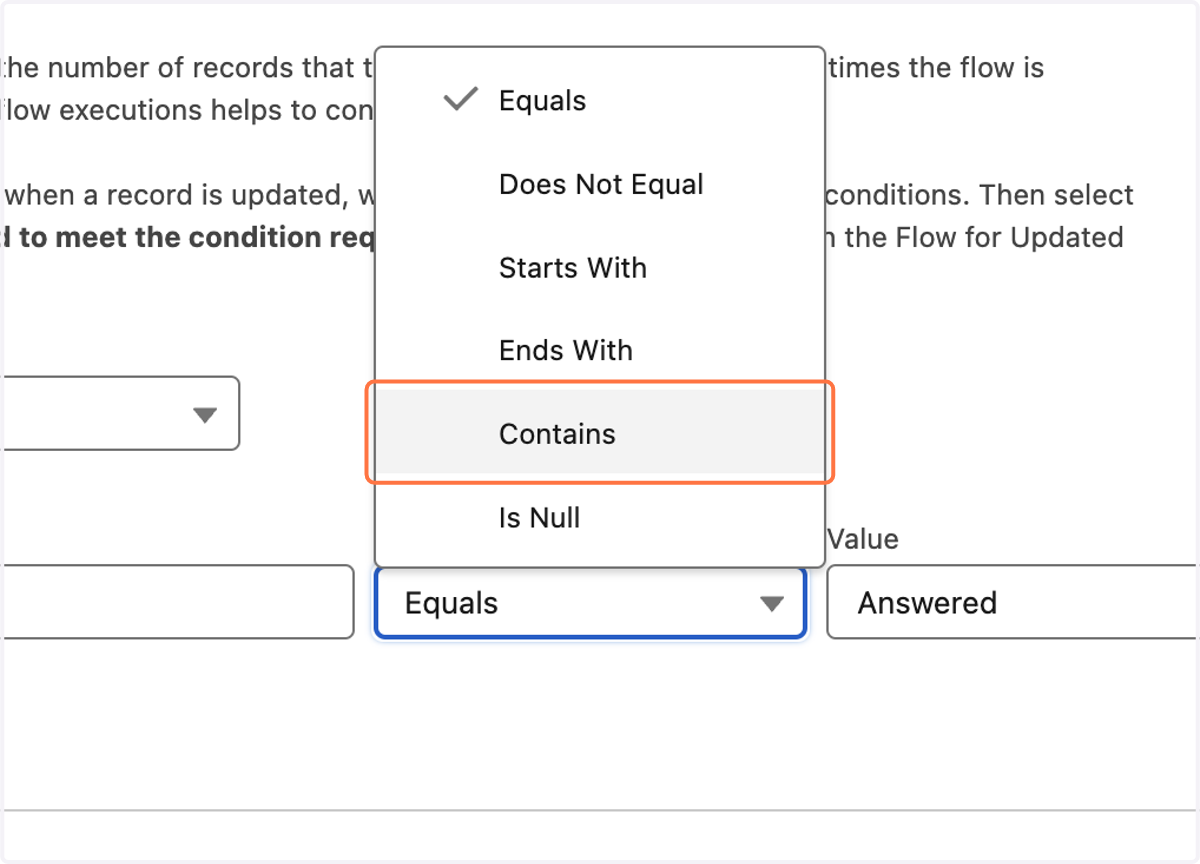
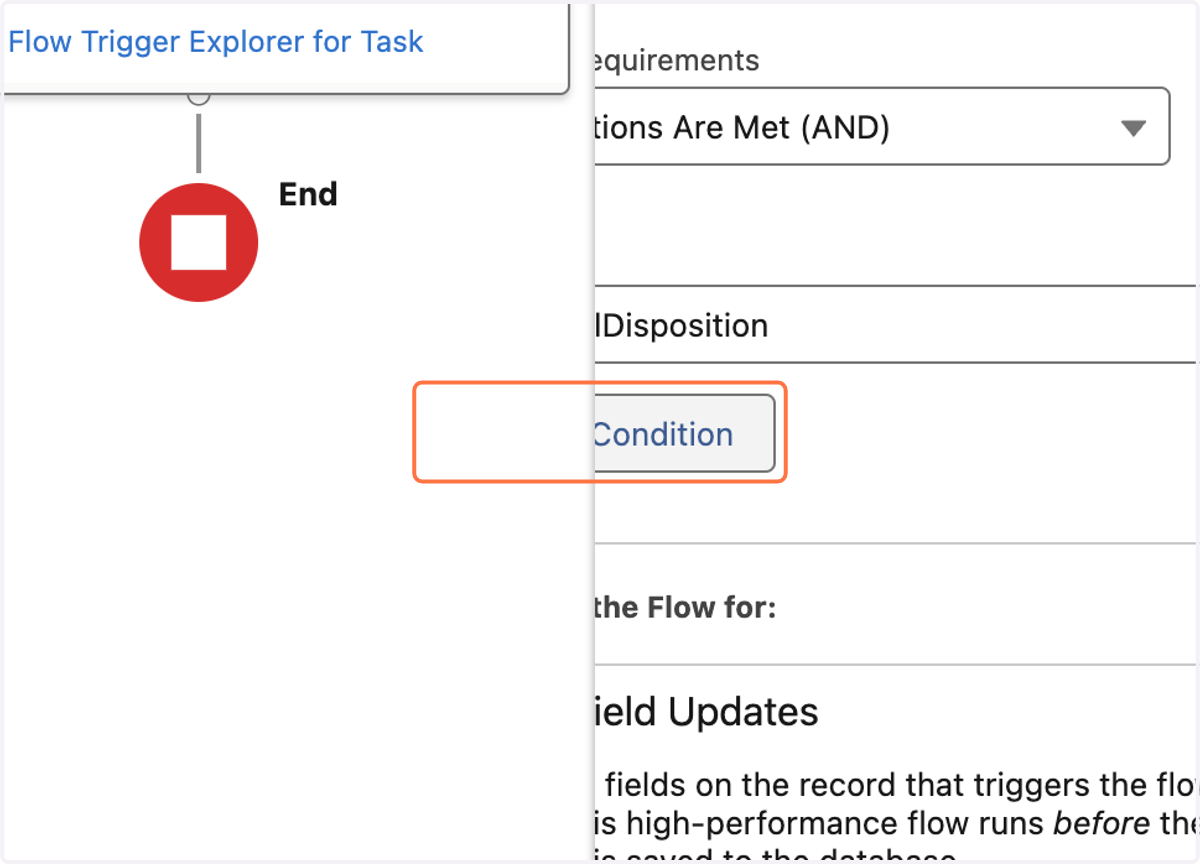
18. Click on Add Condition
19. Add Subject
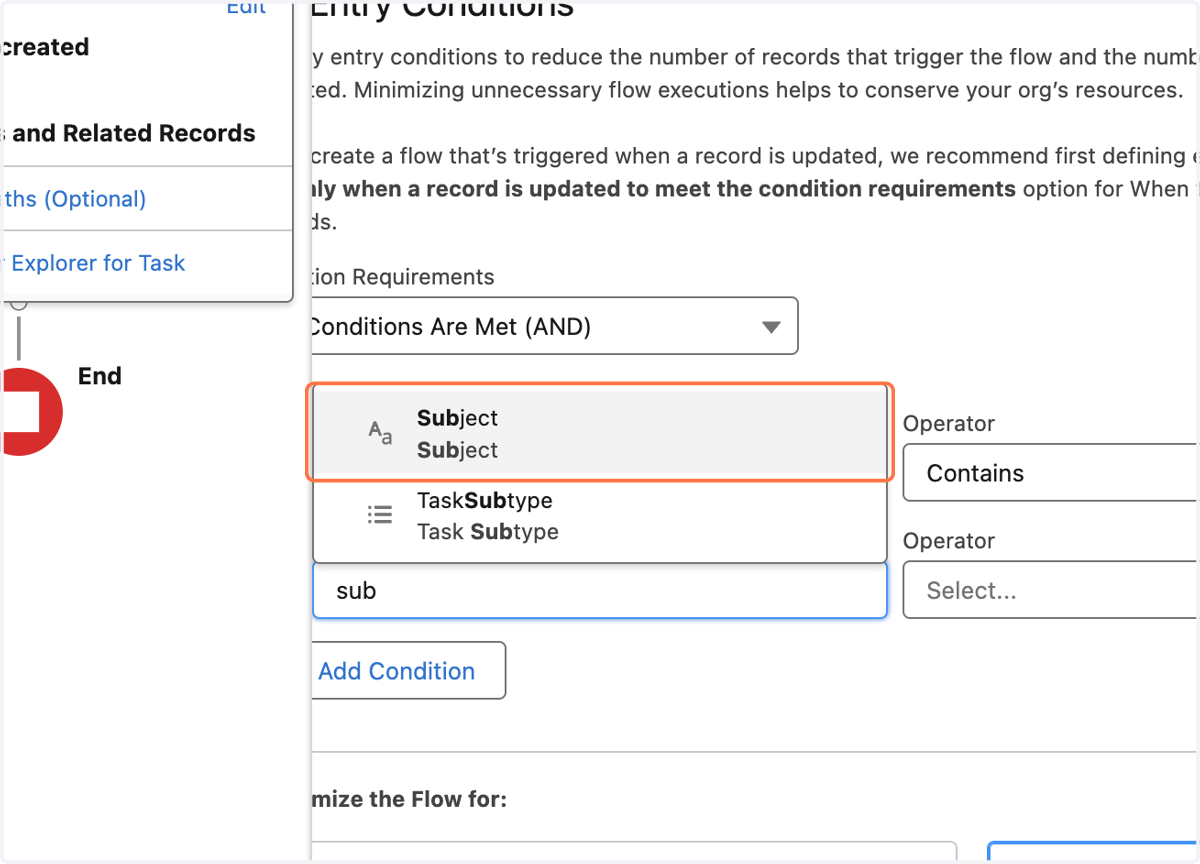
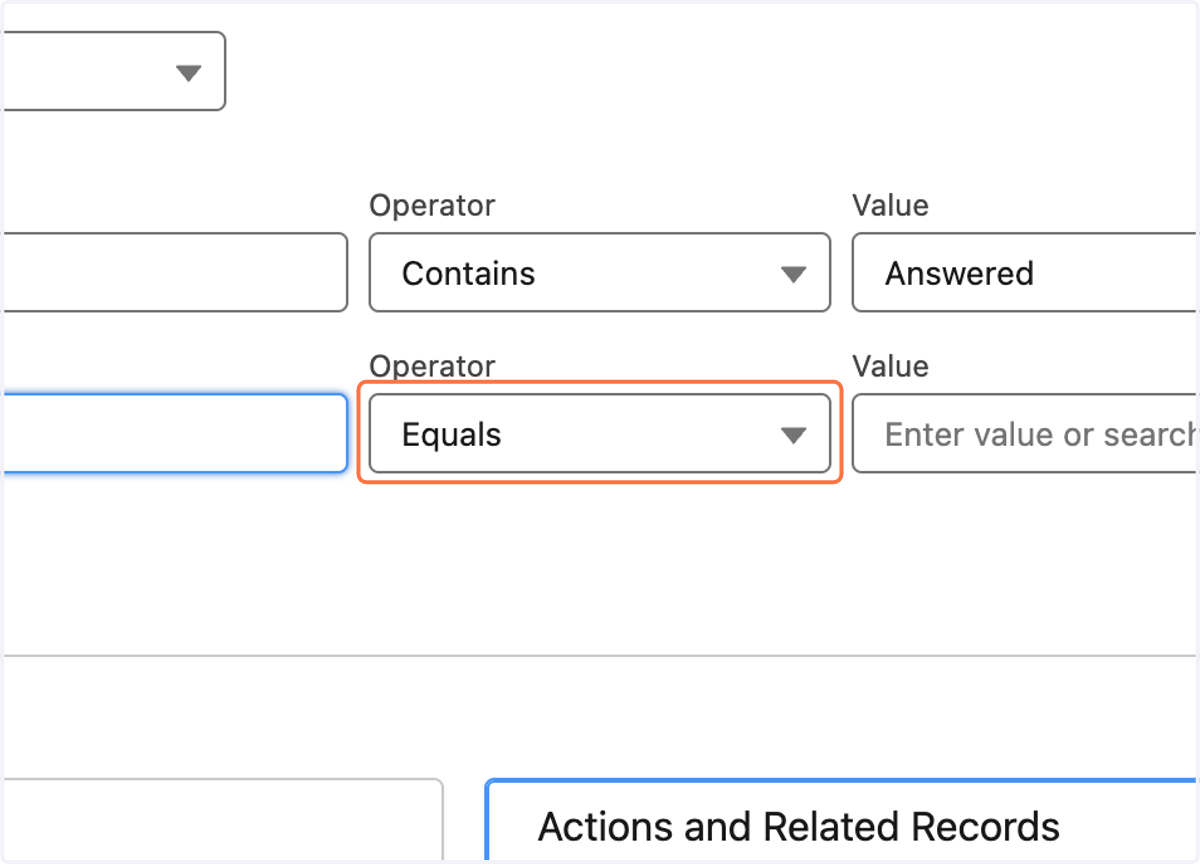
20. Click on Operator
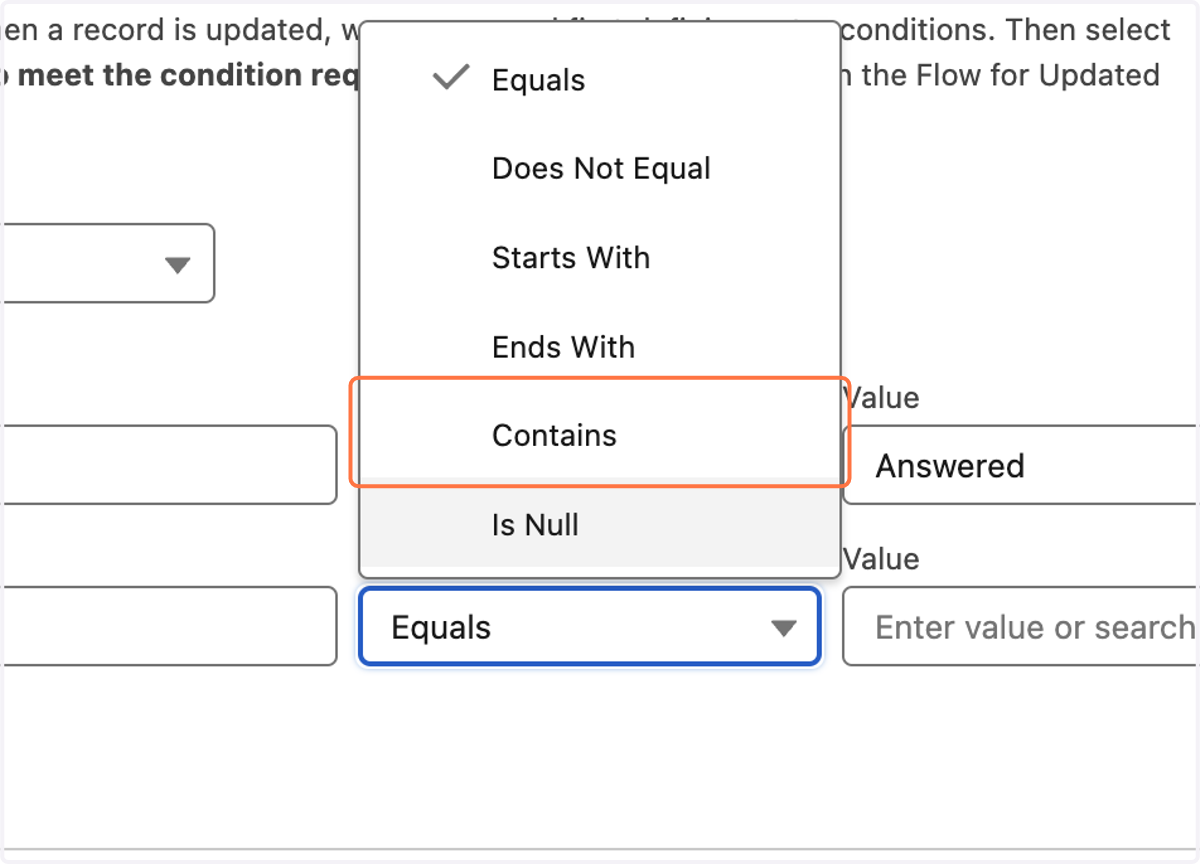
21. Click on Contains
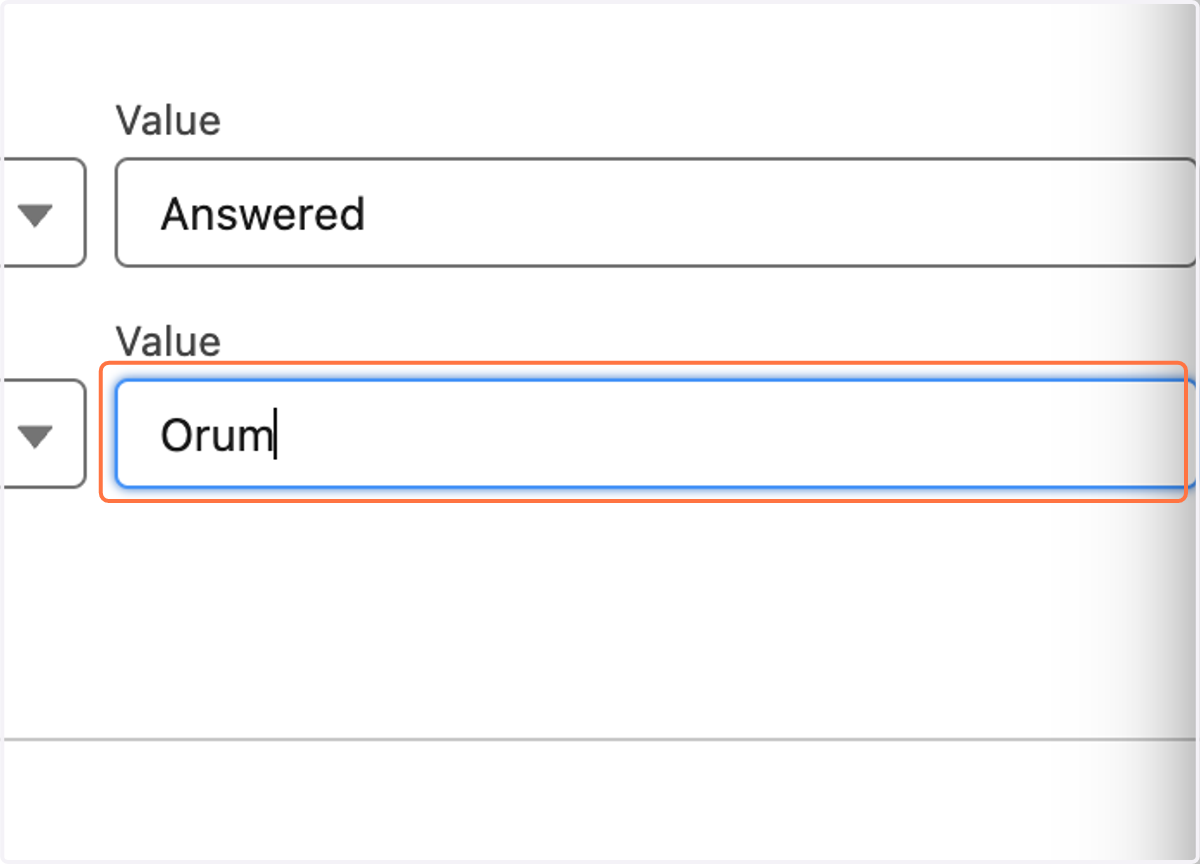
22. Type "Orum"
All Orum made calls will have 'Orum' in the subject line, this isolates this flow to only run for calls made in Orum.
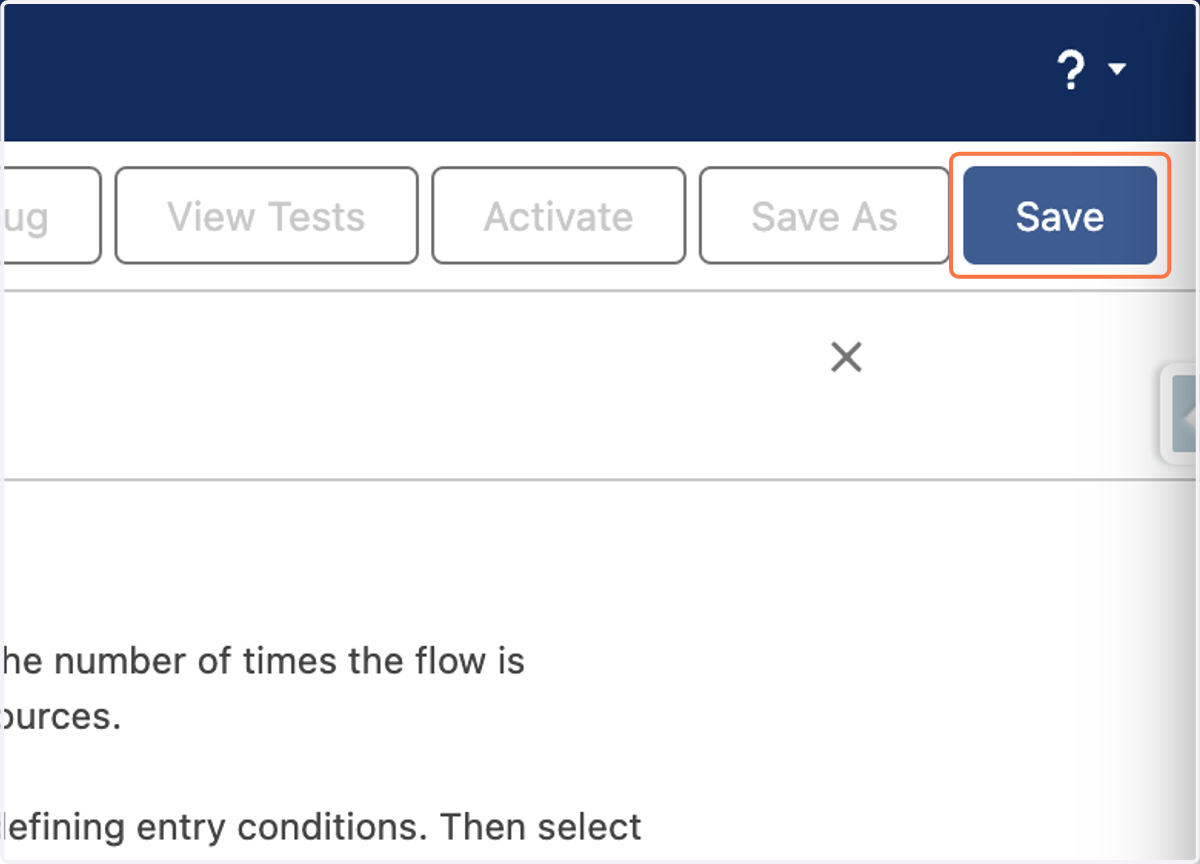
23. Click on Save
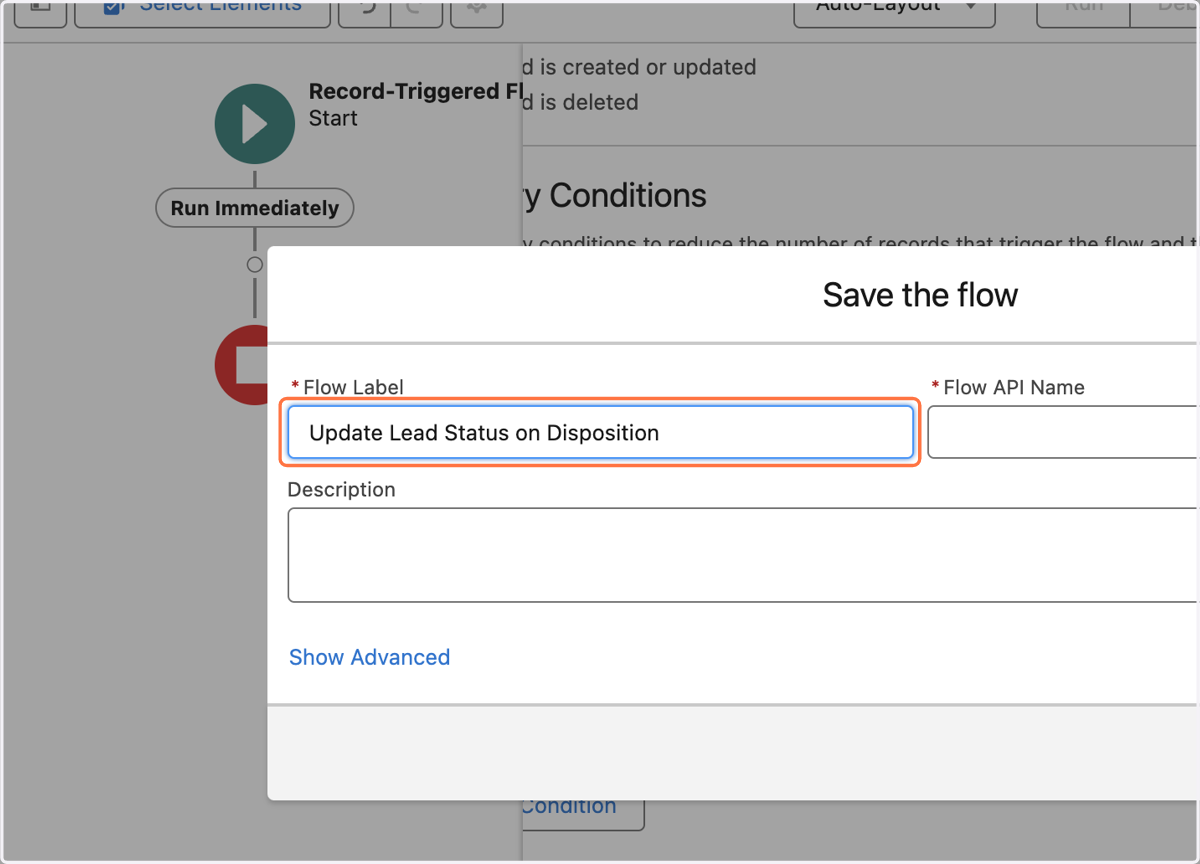
24. Name your flow "Update Lead Status on Disposition"
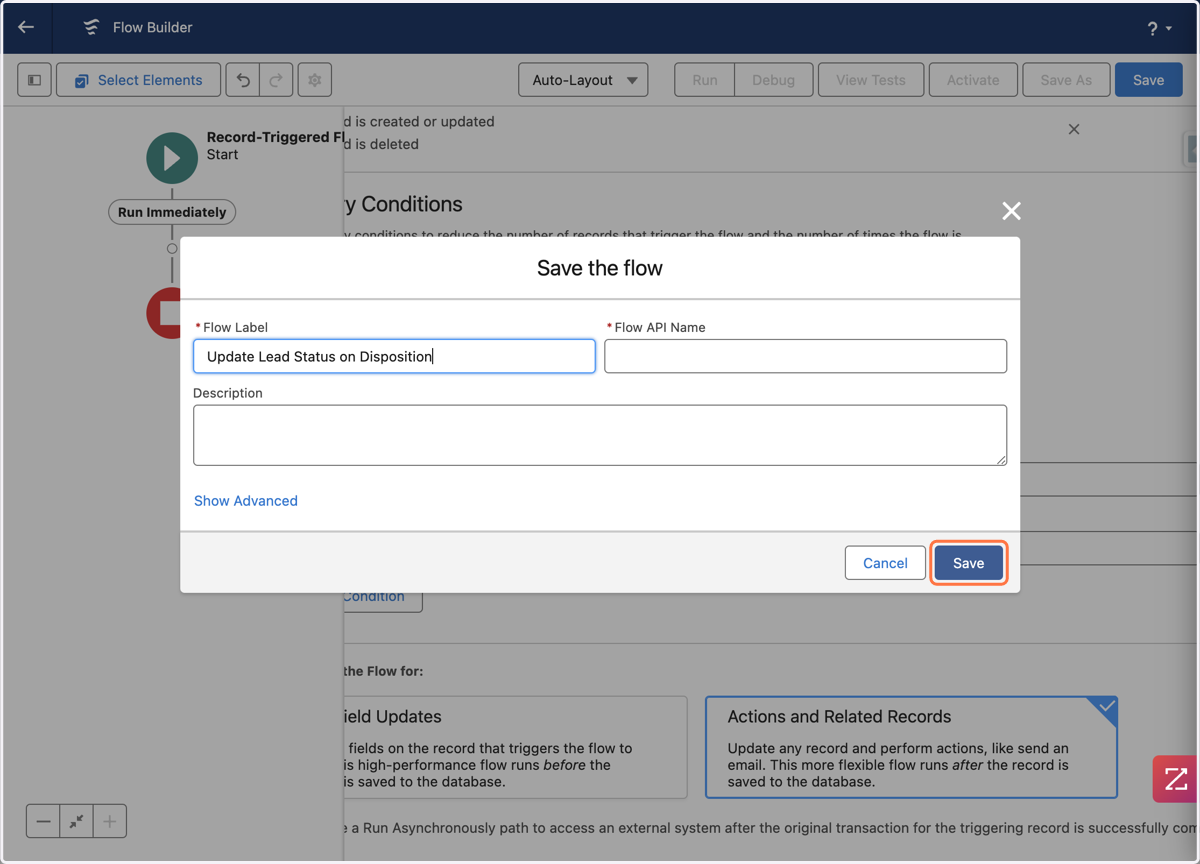
25. Click on Save
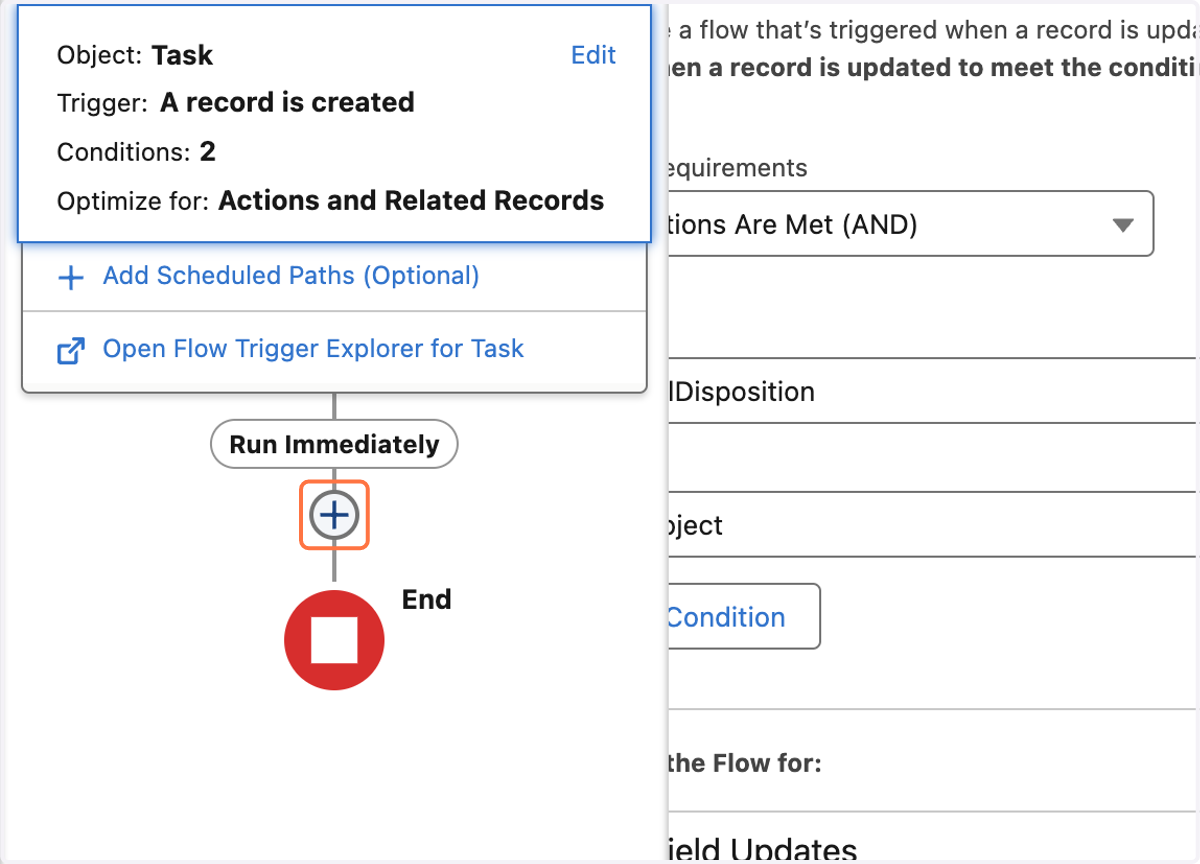
26. Click on Add element
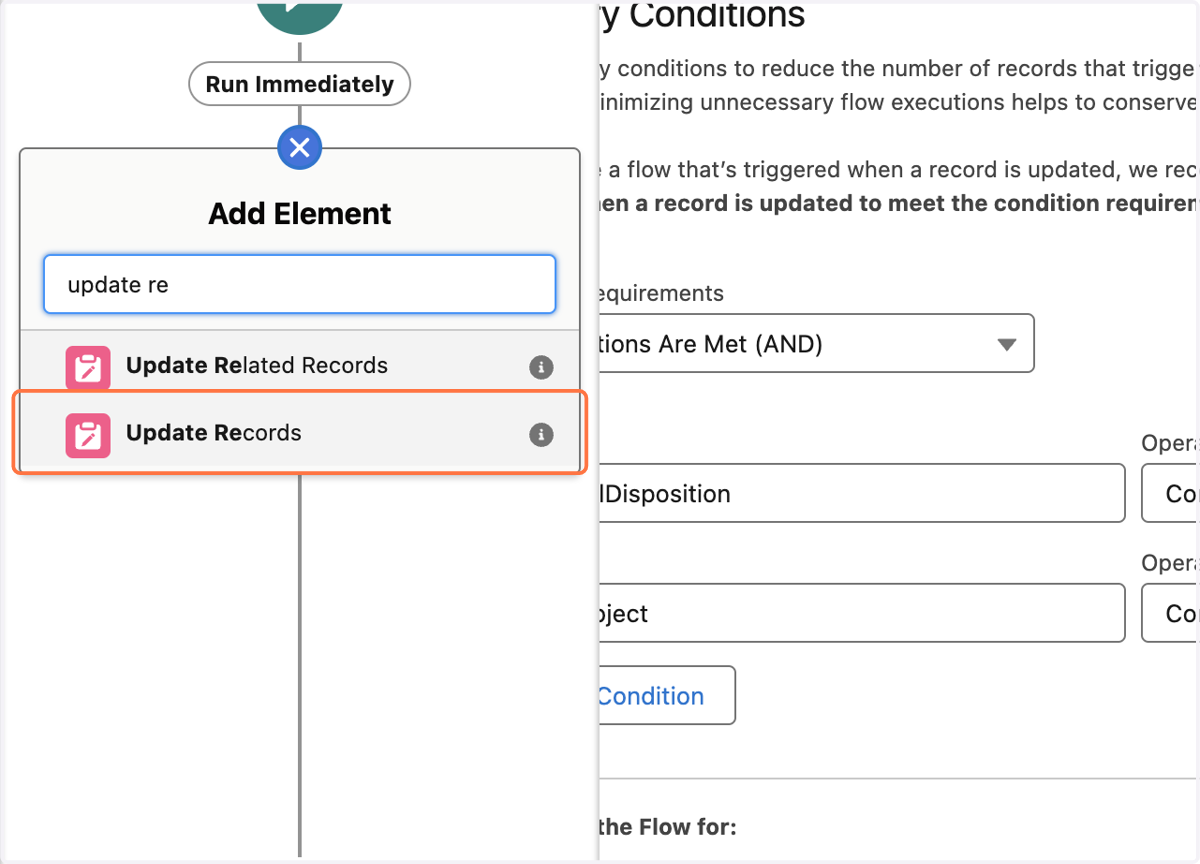
27. Click on Update Records
28. Name this Action "Update Lead Status"
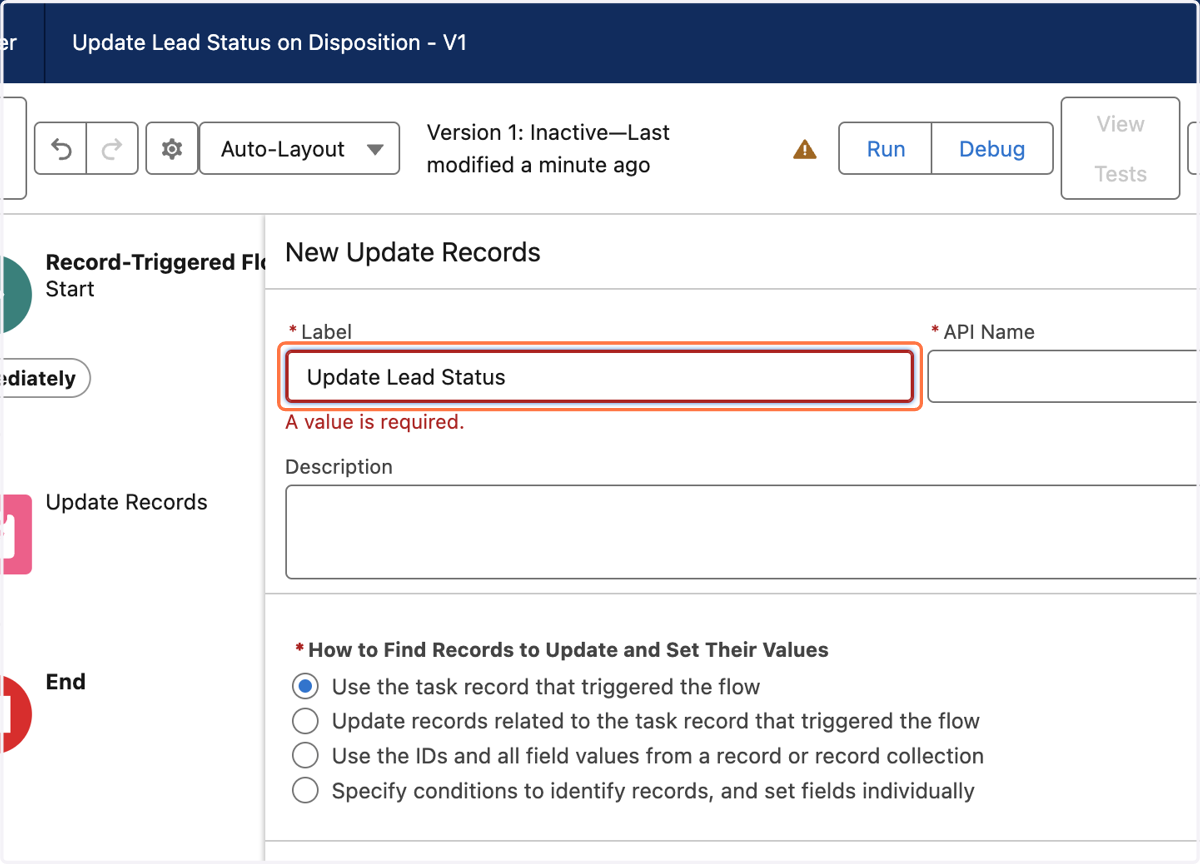
29. Select Specify conditions to identify records, and set fields individually
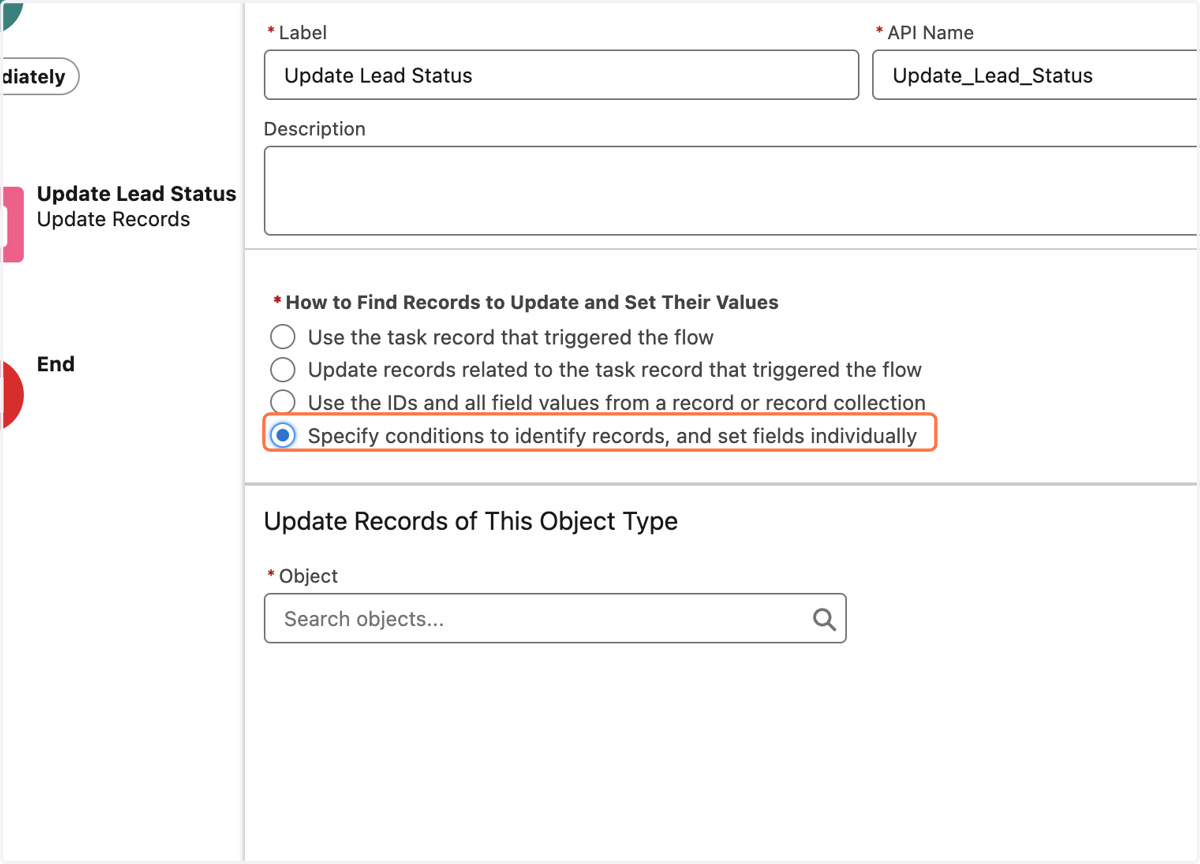
30. Type "lead"
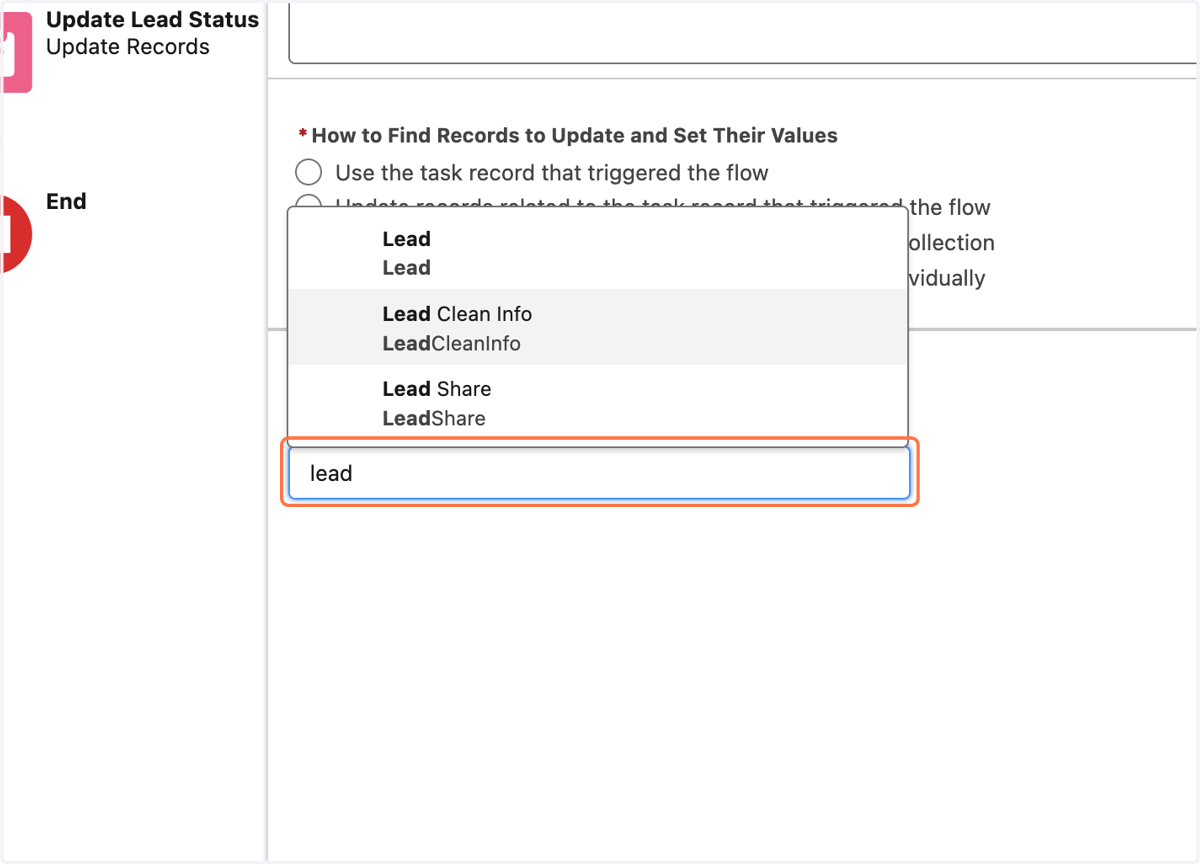
31. Click on Lead…
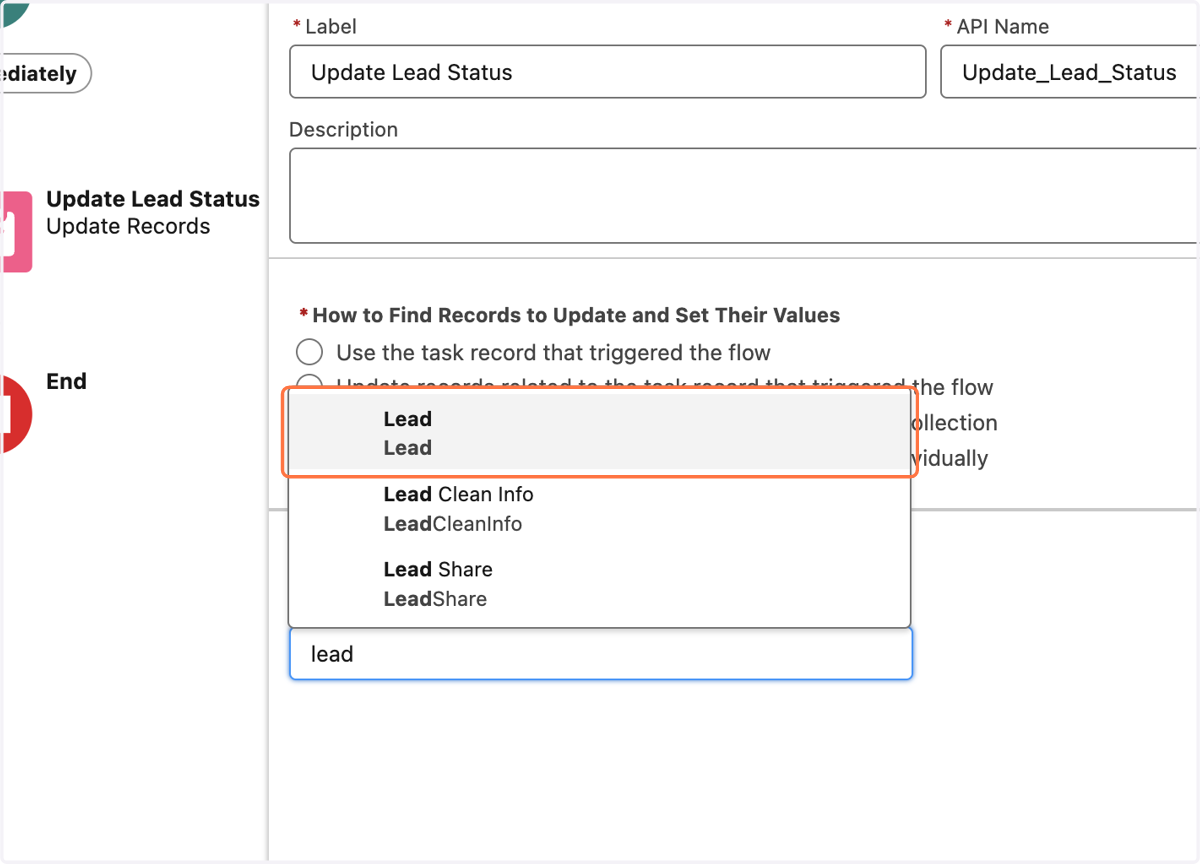
32. Type "id"
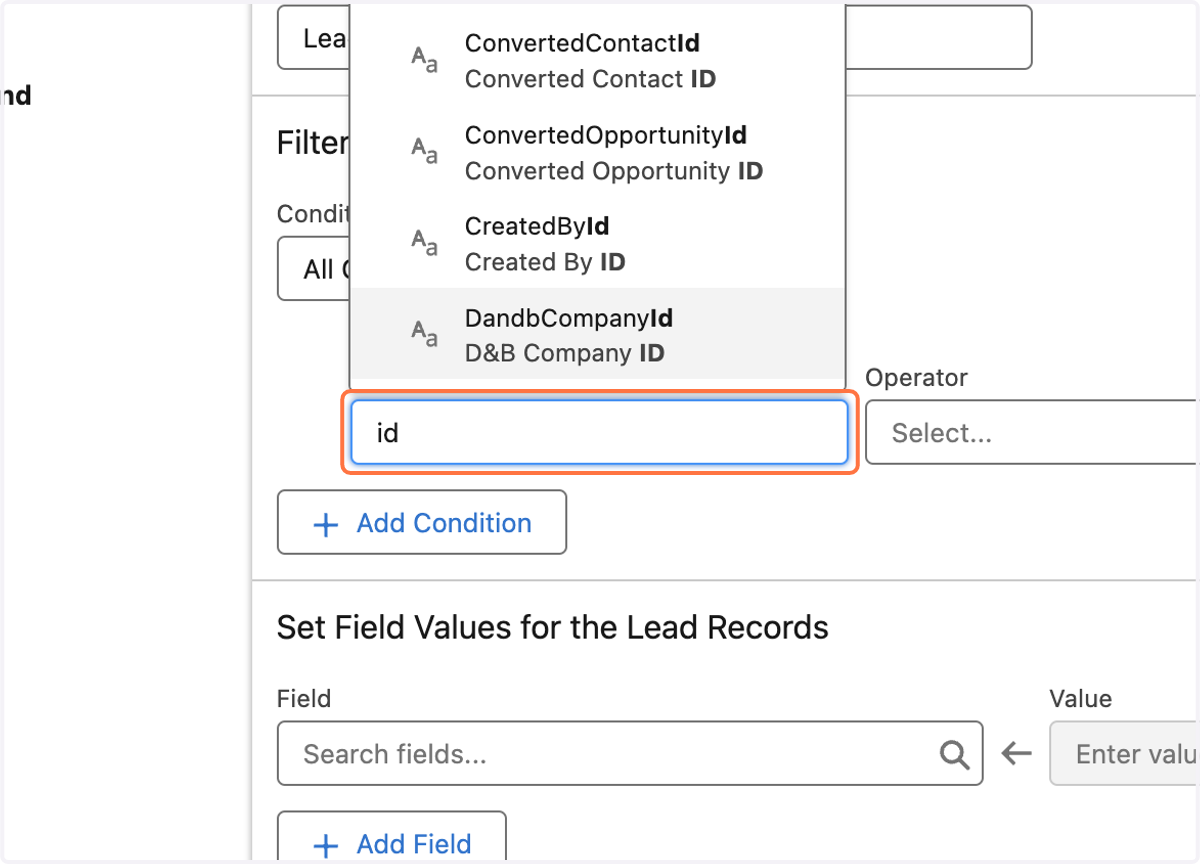
33. Select Lead ID
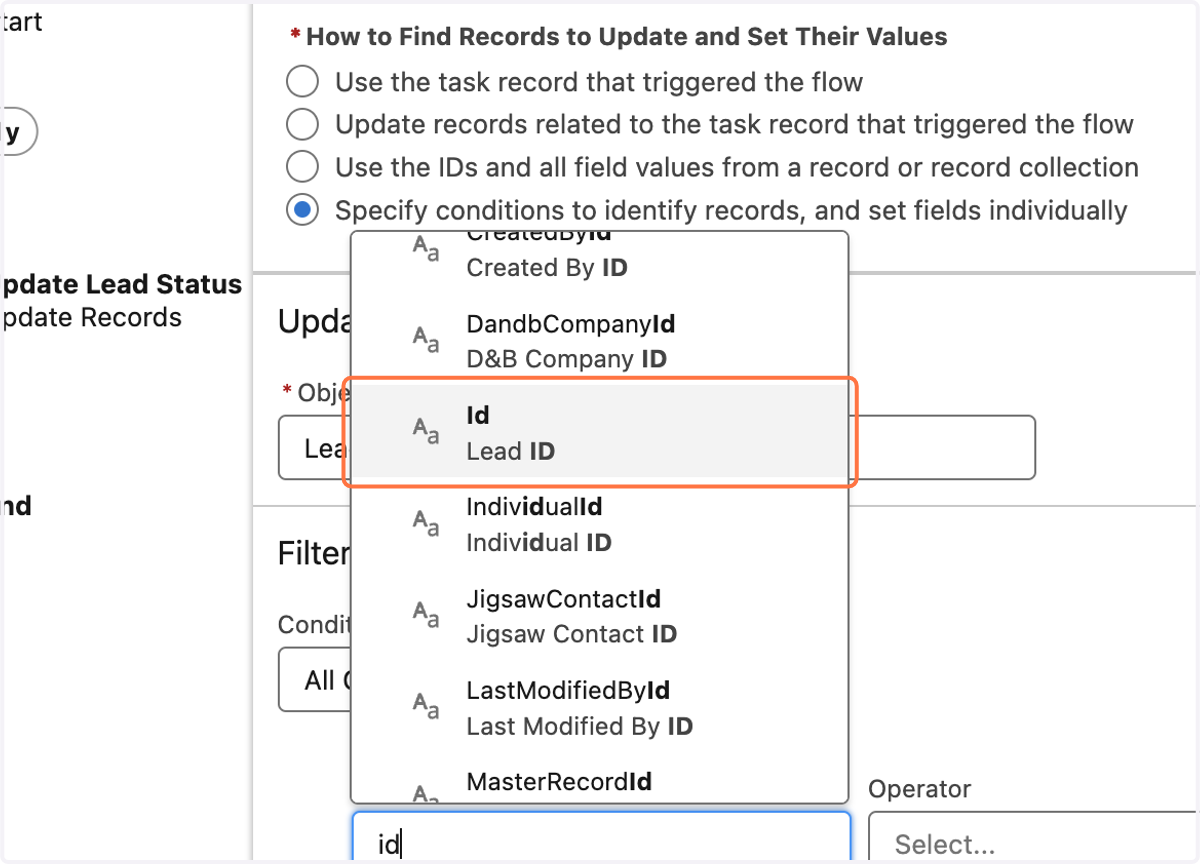
34. Click on Value
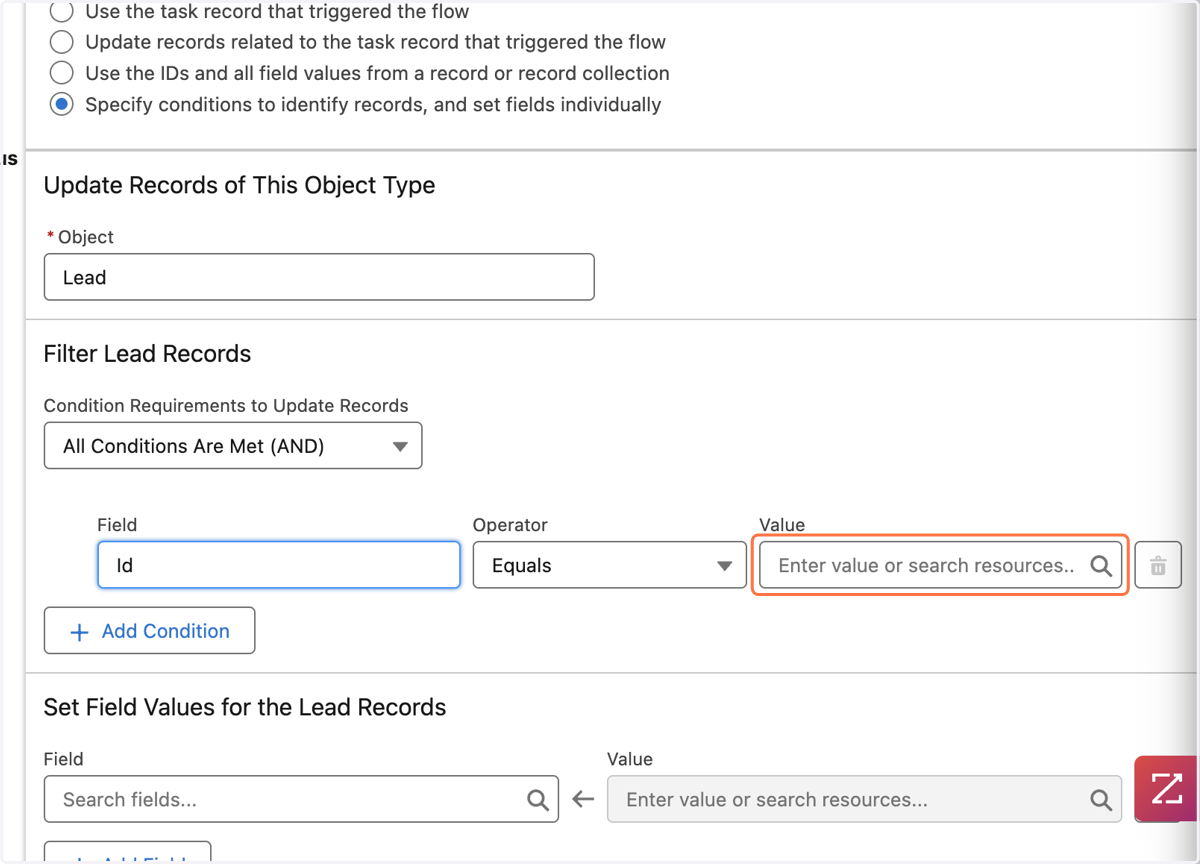
35. Click on $Record
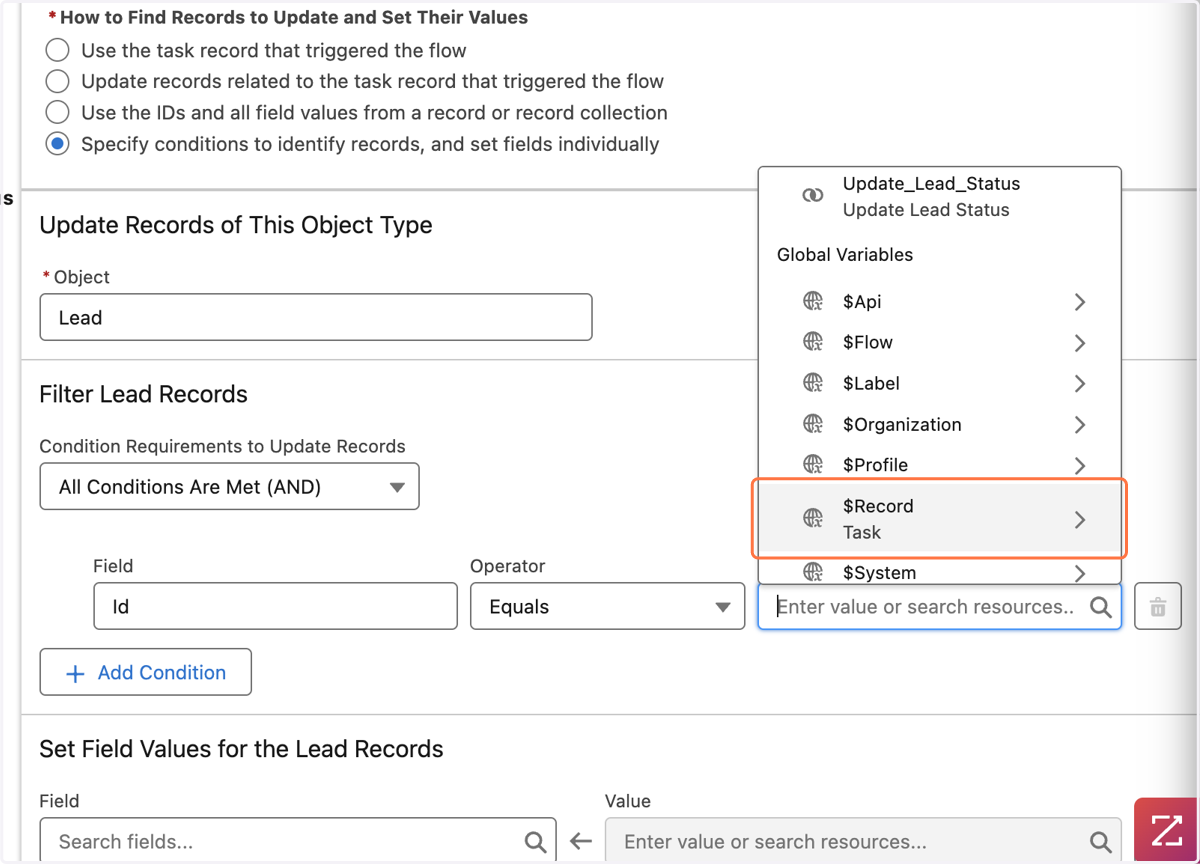
36. select Who ID
This step filters the lead records to only update the lead status for the specific lead that was associated with the initial Task. Think of this as one final check to ensure we are only updating the specific lead status we want.
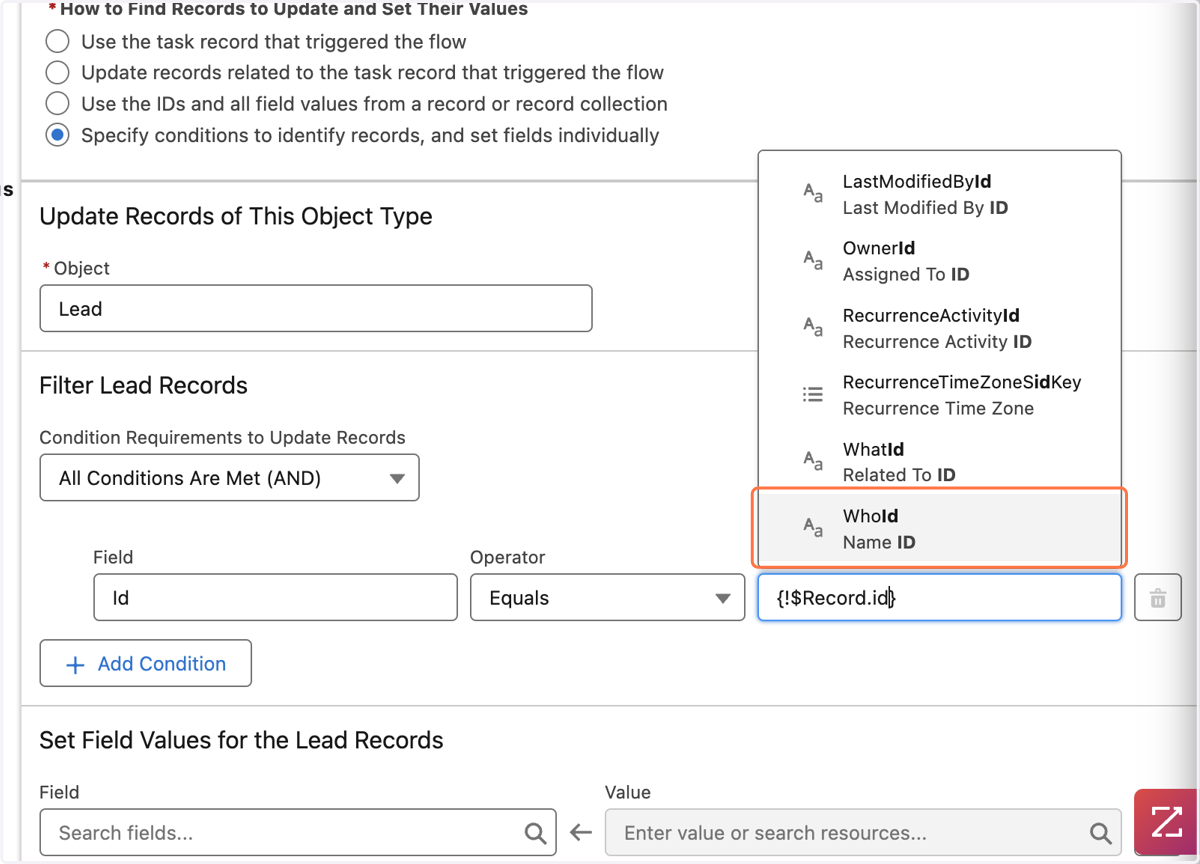
37. Next section for Set Field Values, type Status
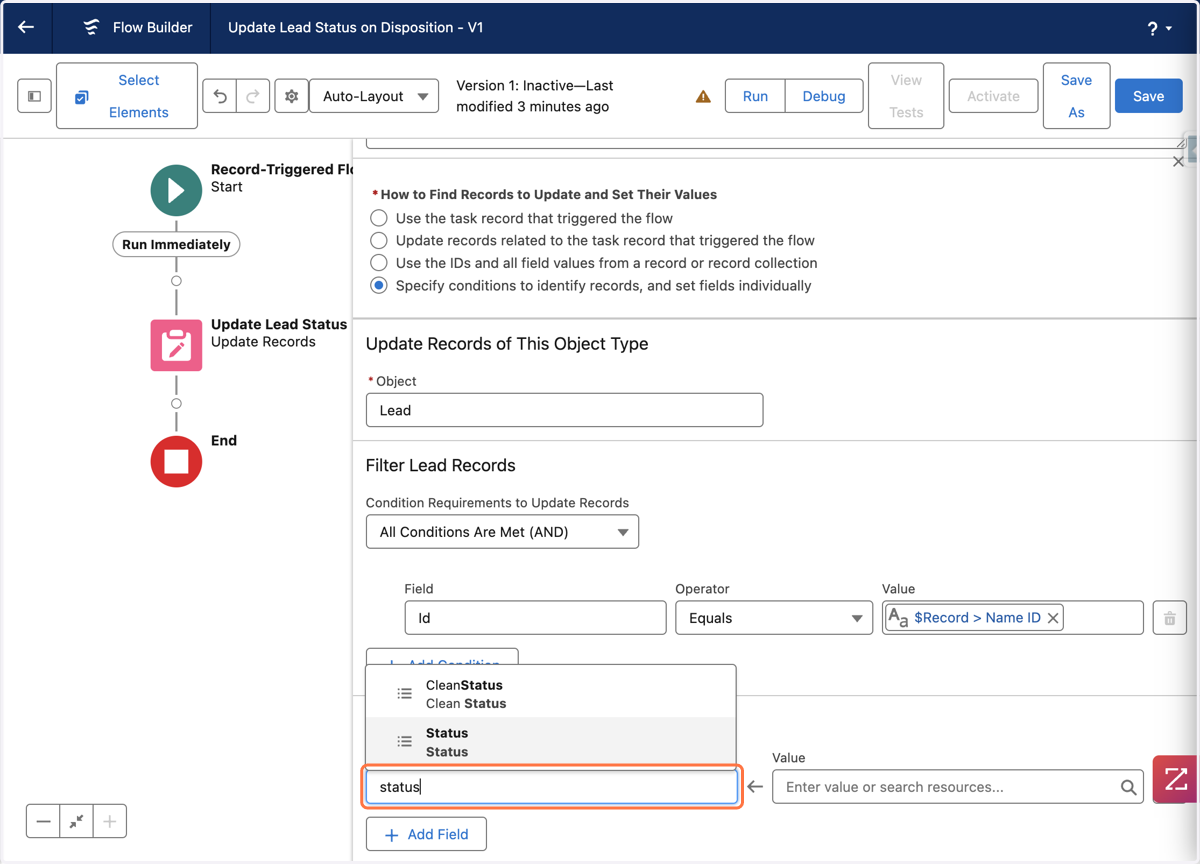
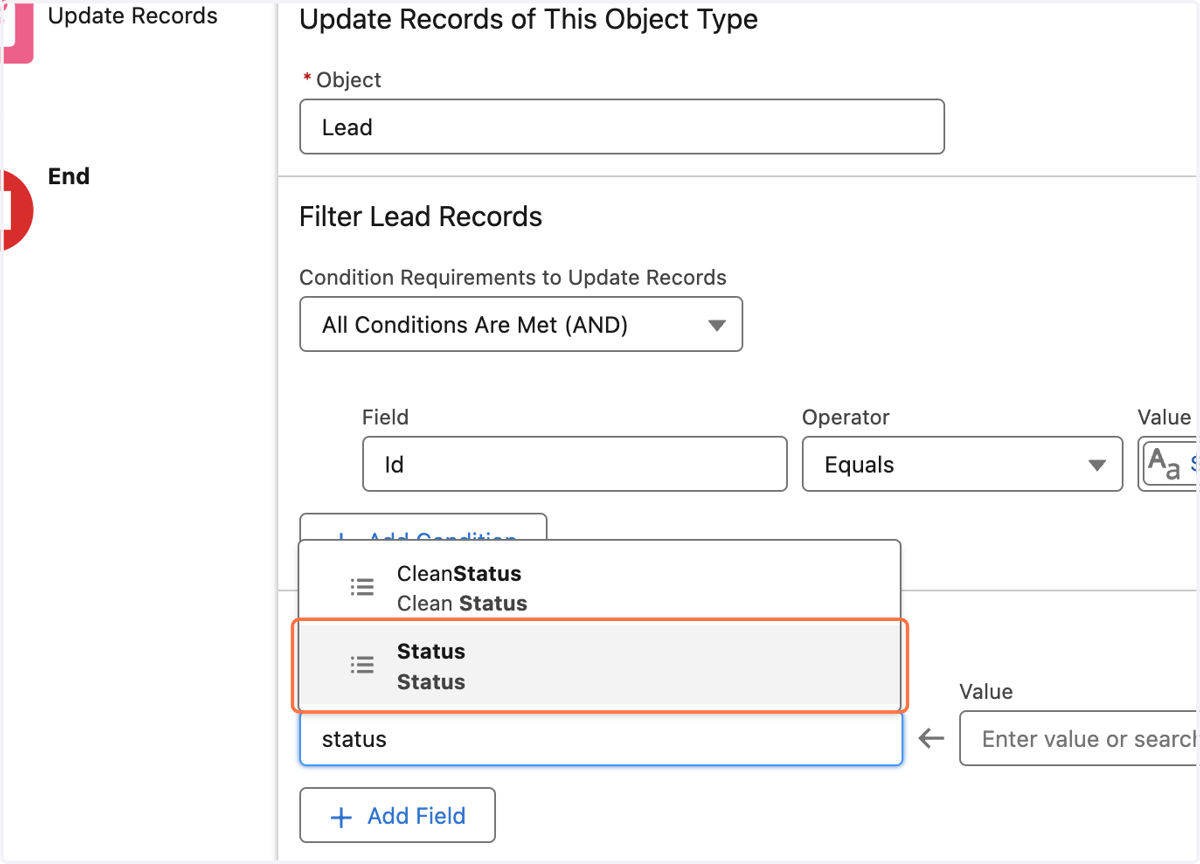
38. Click on Status
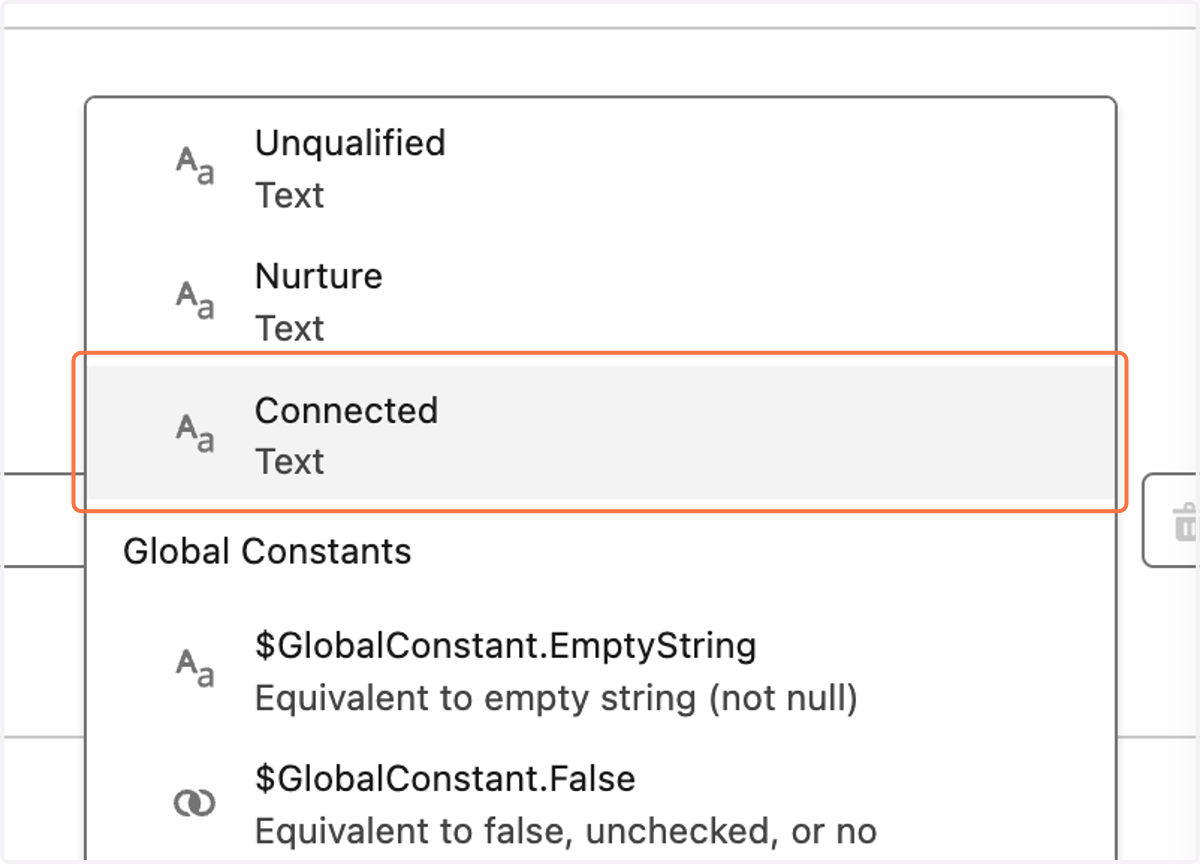
39. Click on Value and select the specific Lead Status you want to update to.
For every Answered call disposition logged it will update the lead status to this value.
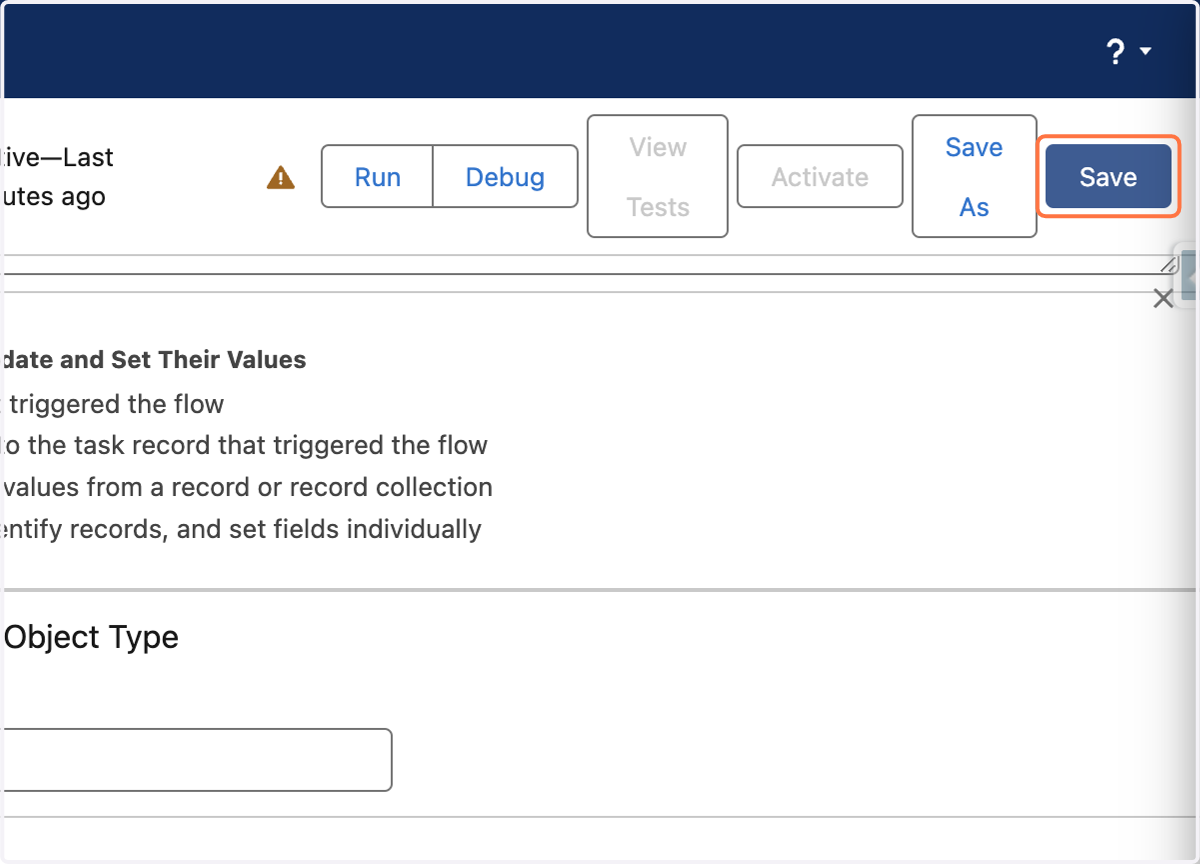
40. Click on Save
41. Click on Activate and you are done! Log a test call to ensure lead statuses are being updated.