[SFDC]: How to Setup a Custom Call Recording Field
Most orgs want their reps call recording URLs to be mapped into the activity on Salesforce. This helps keep records in their CRM and allows reps to go back and listen to their calls.
NOTE: You will need to have admin access in SFDC to set this up.
Salesforce
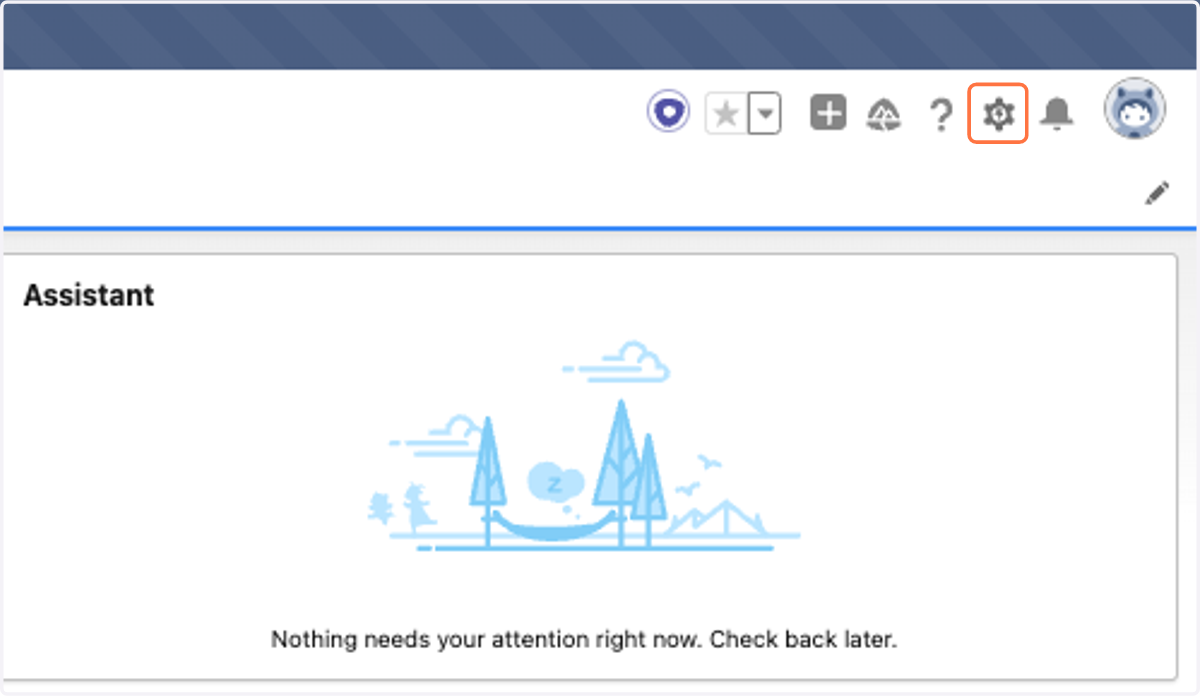
1. Click on the settings gear in the top right corner
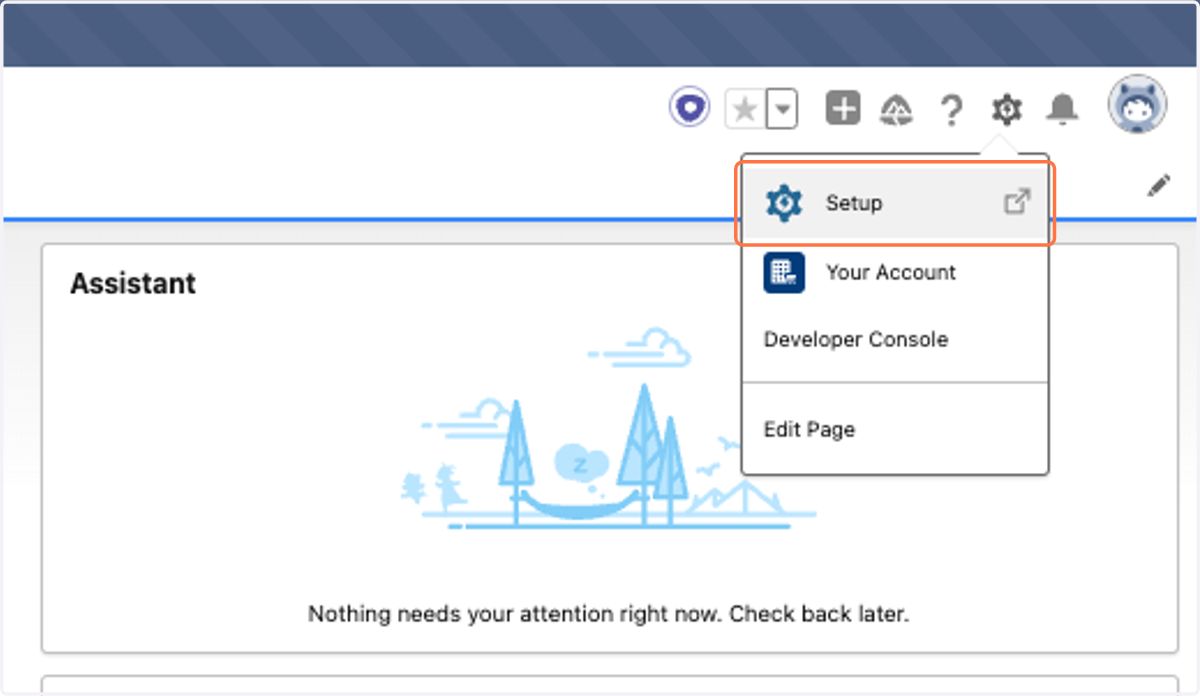
2. Click on Setup
3. In the search bar, type in "Object Manager"
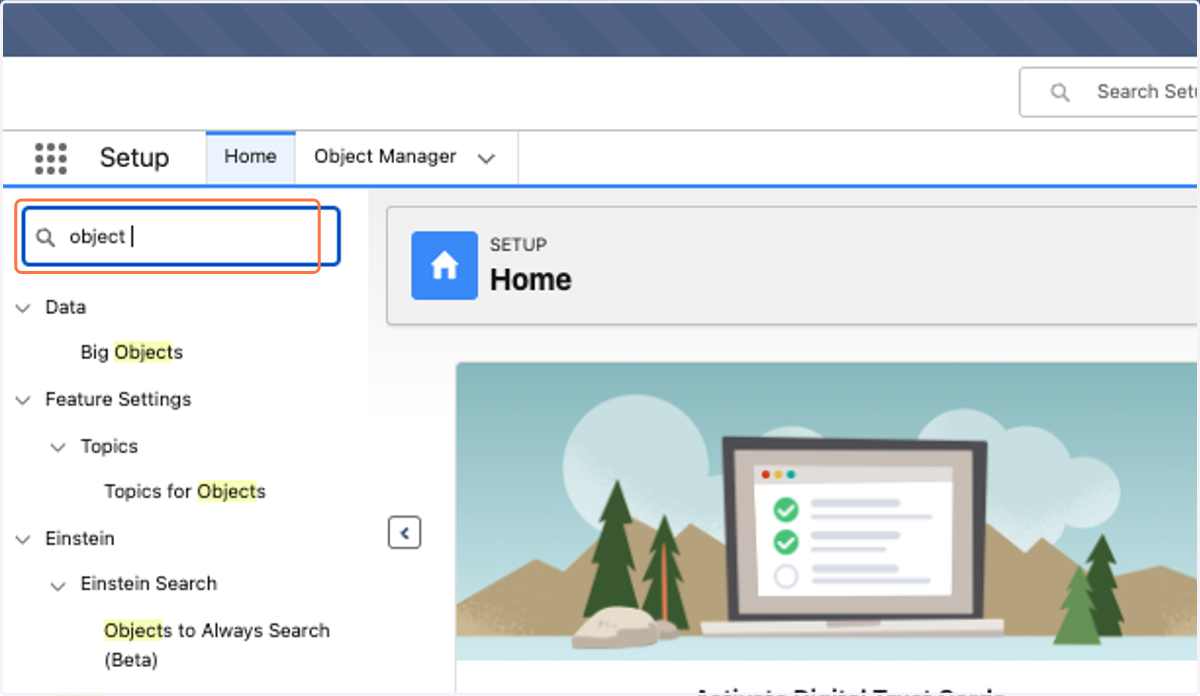
4. Click on "Object Manager"
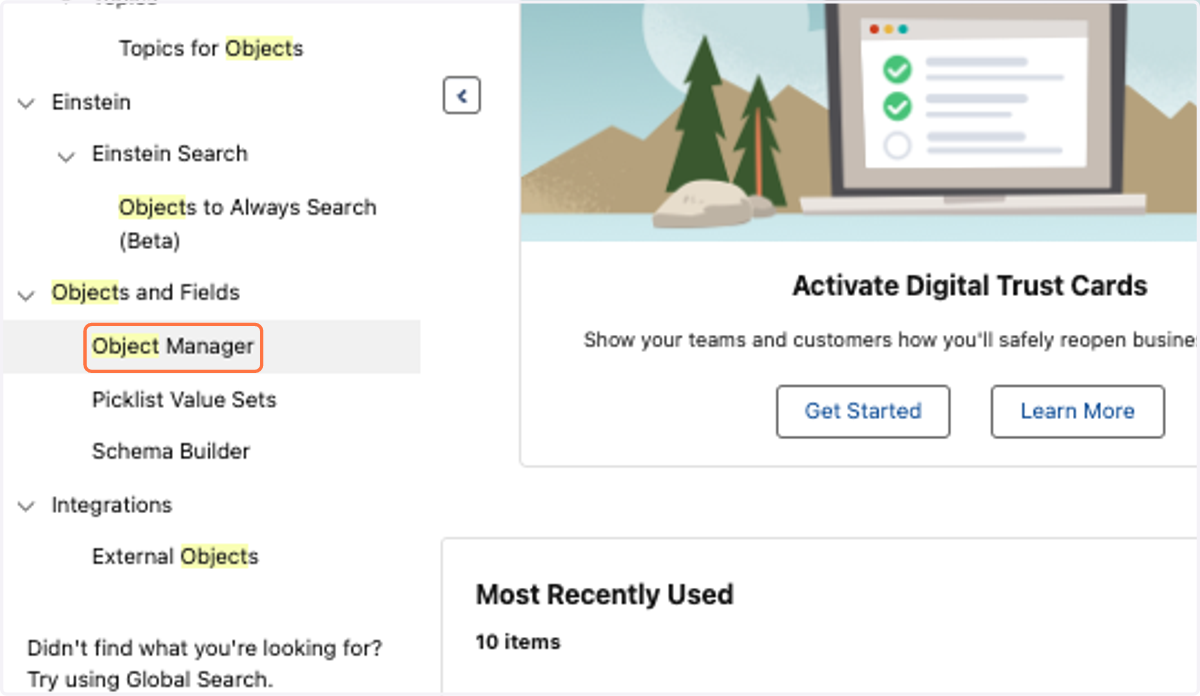
5. Choose the Activity object
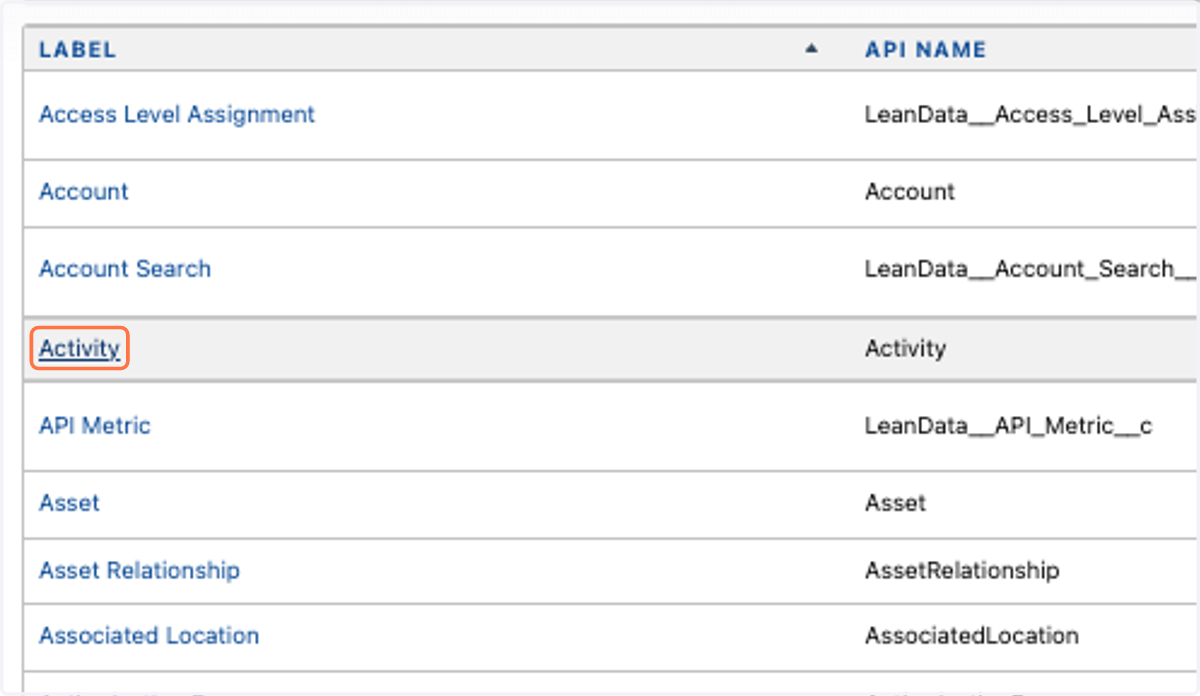
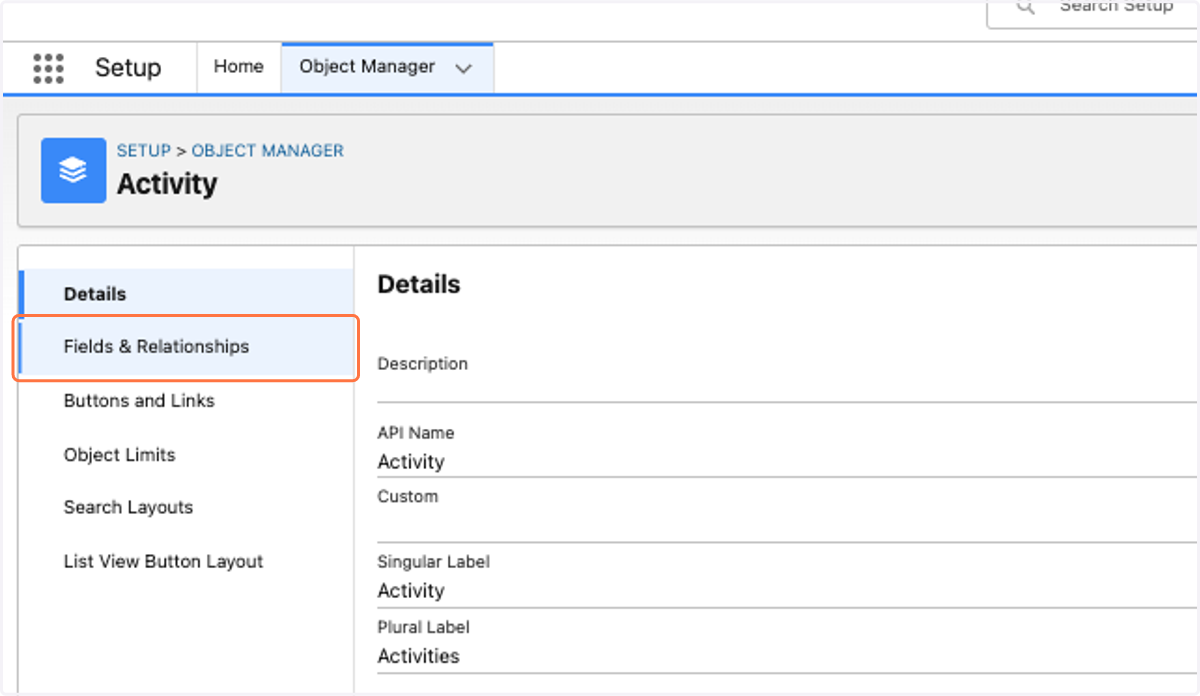
6. Click on "Fields & Relationships"
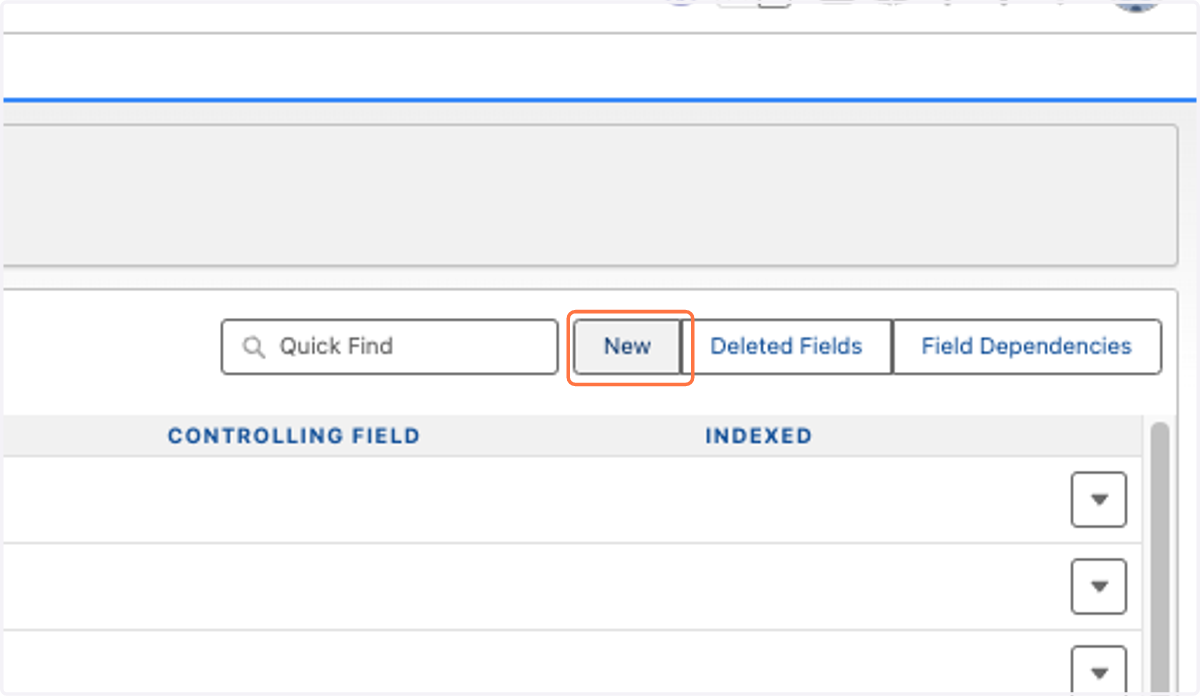
7. Click on "New"
8. Select URL
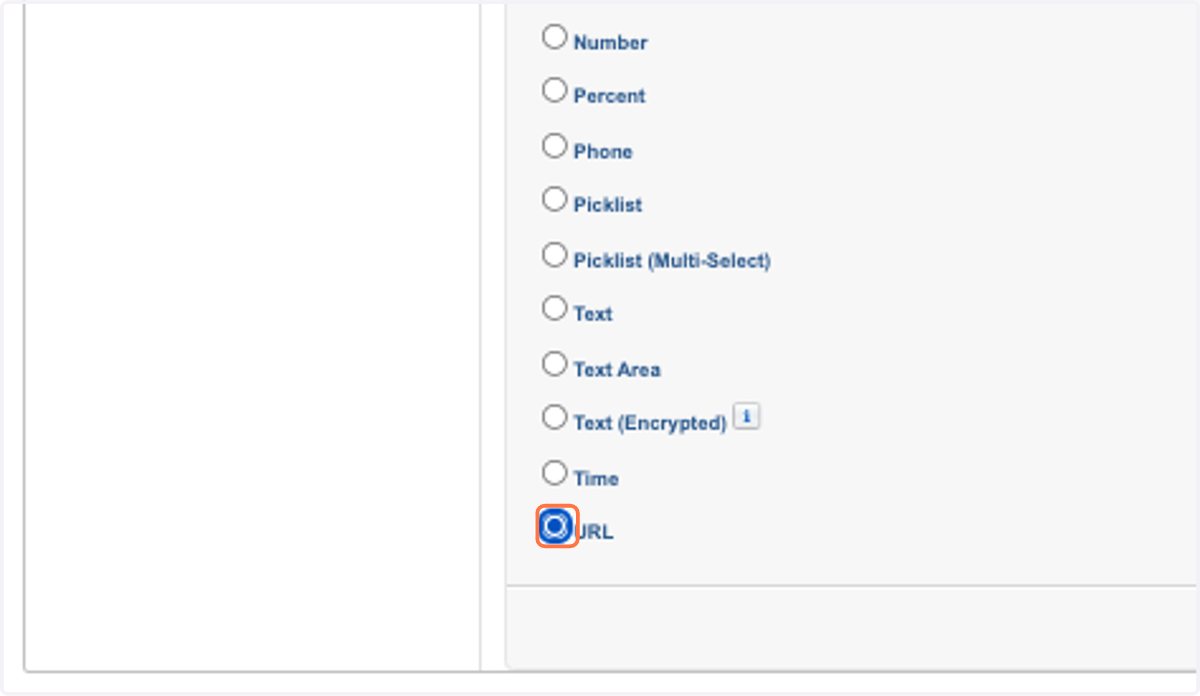
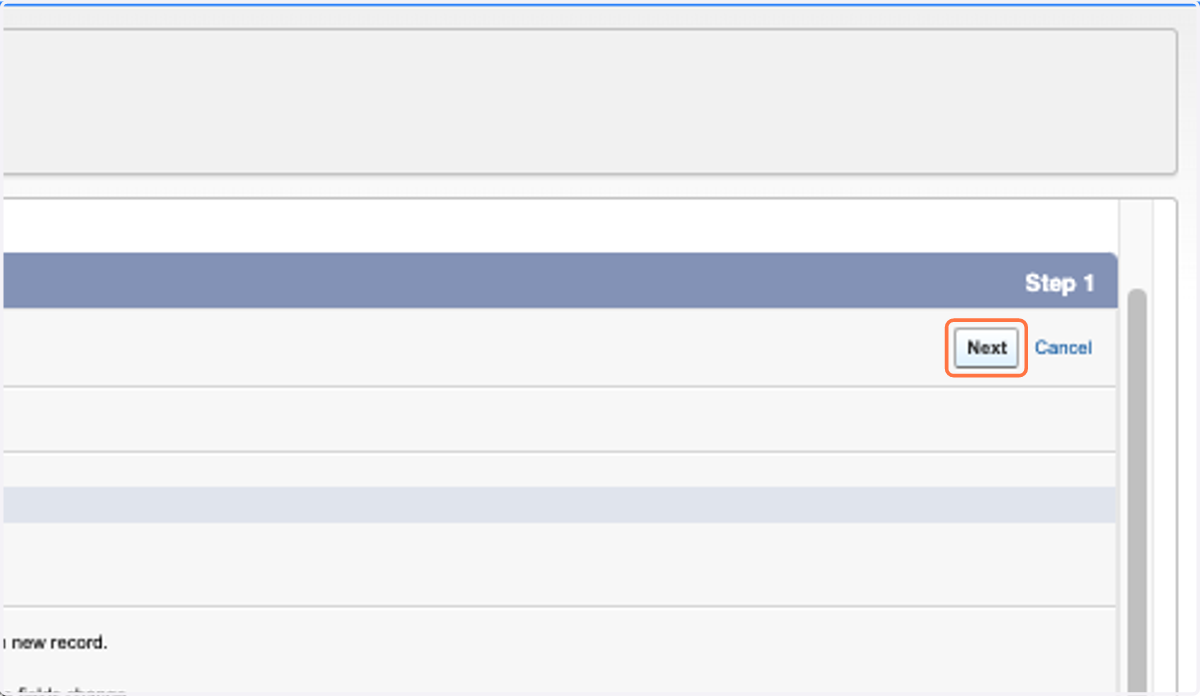
9. Click on "Next"
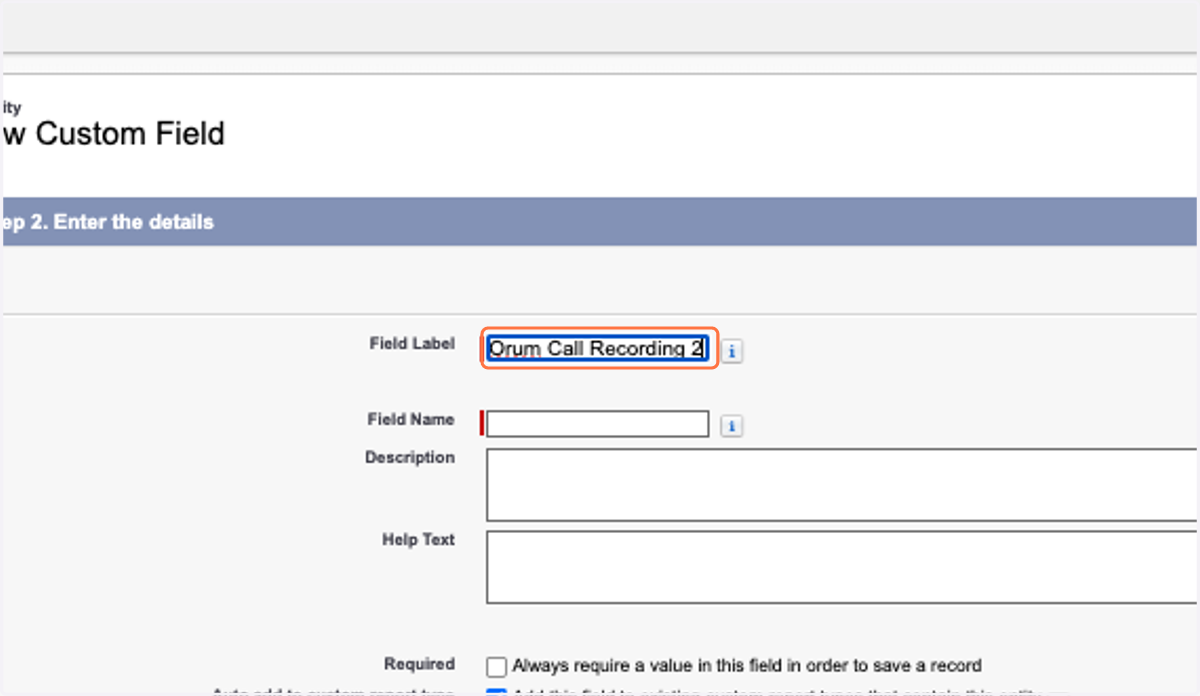
10. Name your new field. In this case I am choosing "Orum Call Recording 2" - name this whatever you want to identify it as a call recording
11. Click on "Next"
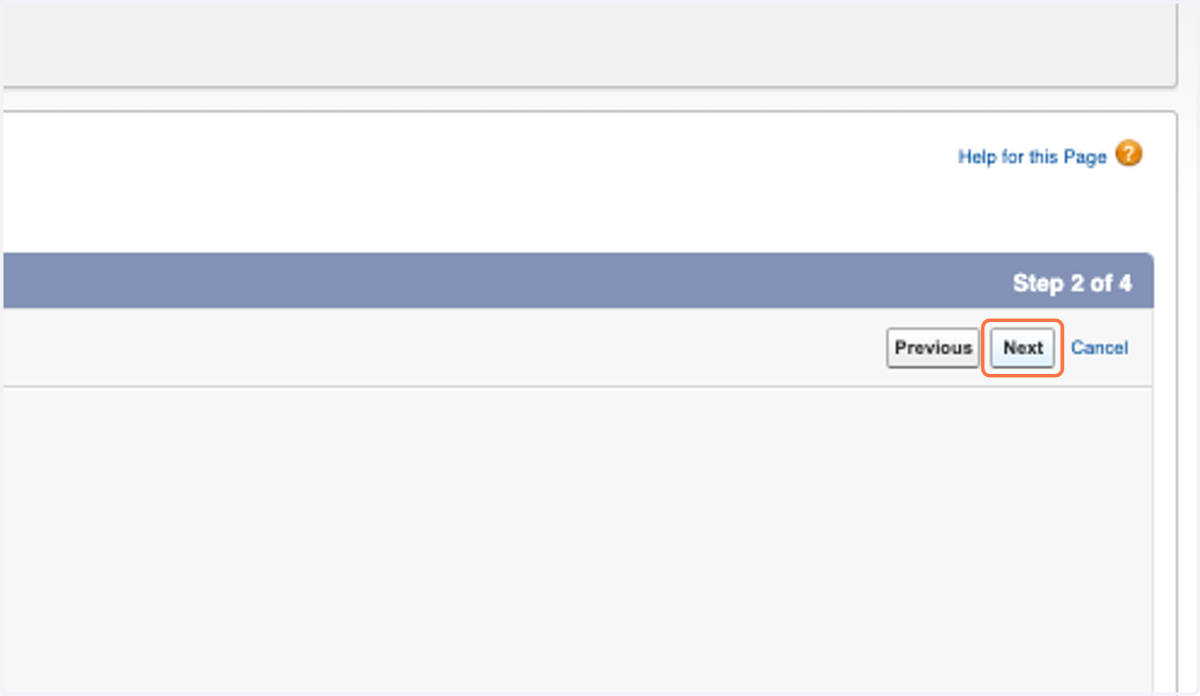
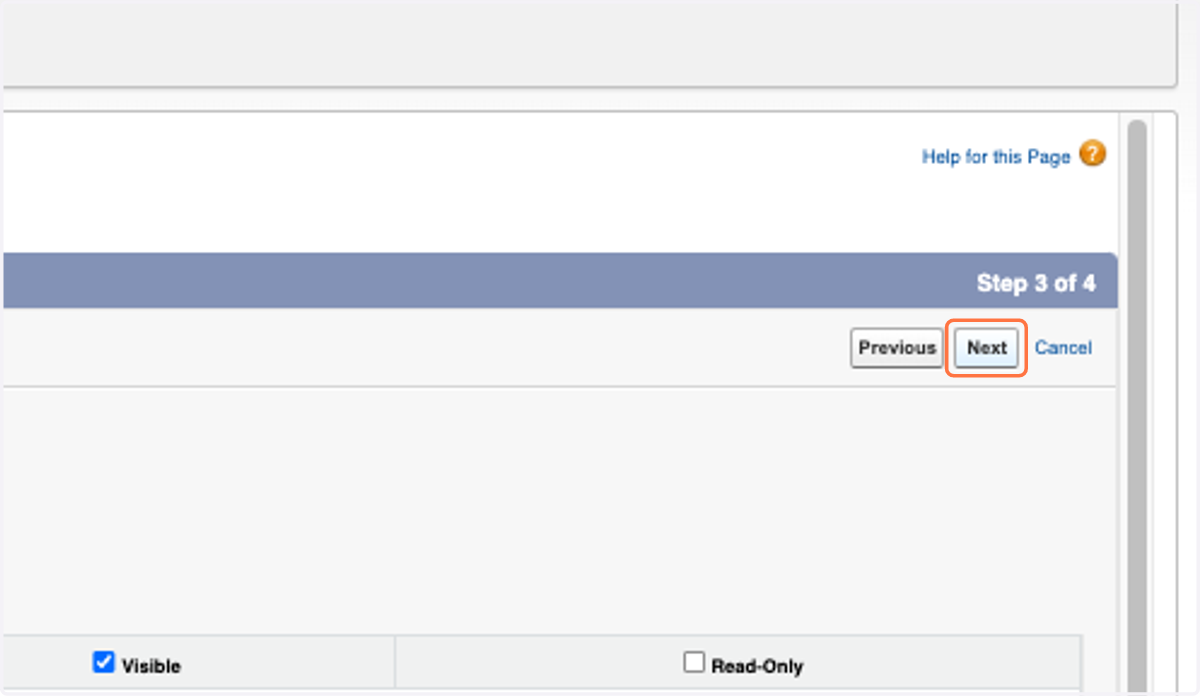
12. Click on "Next" again
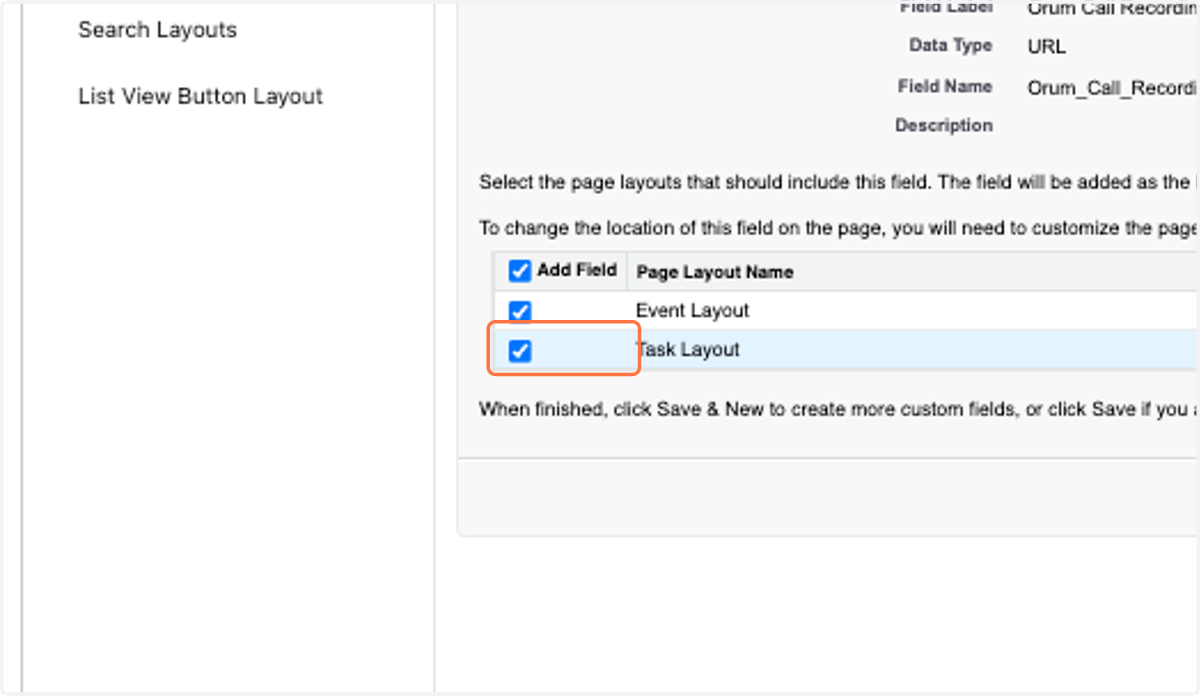
13. Ensure this will be mapped to the Task Layout
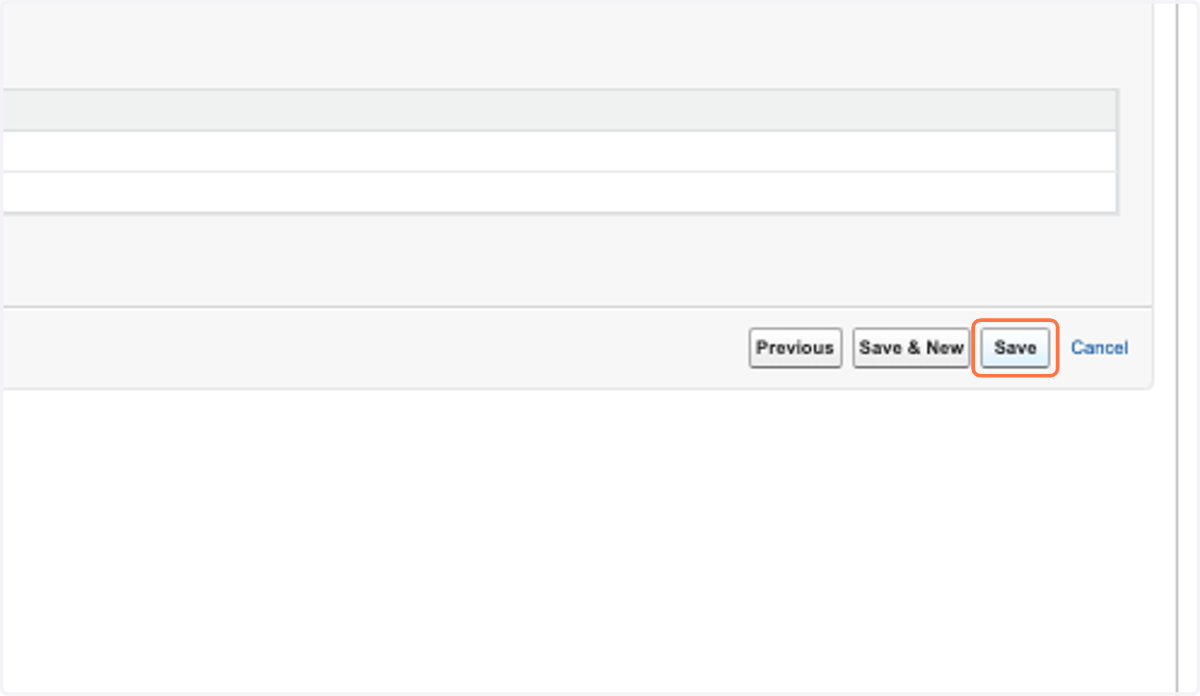
14. Click on "Save"
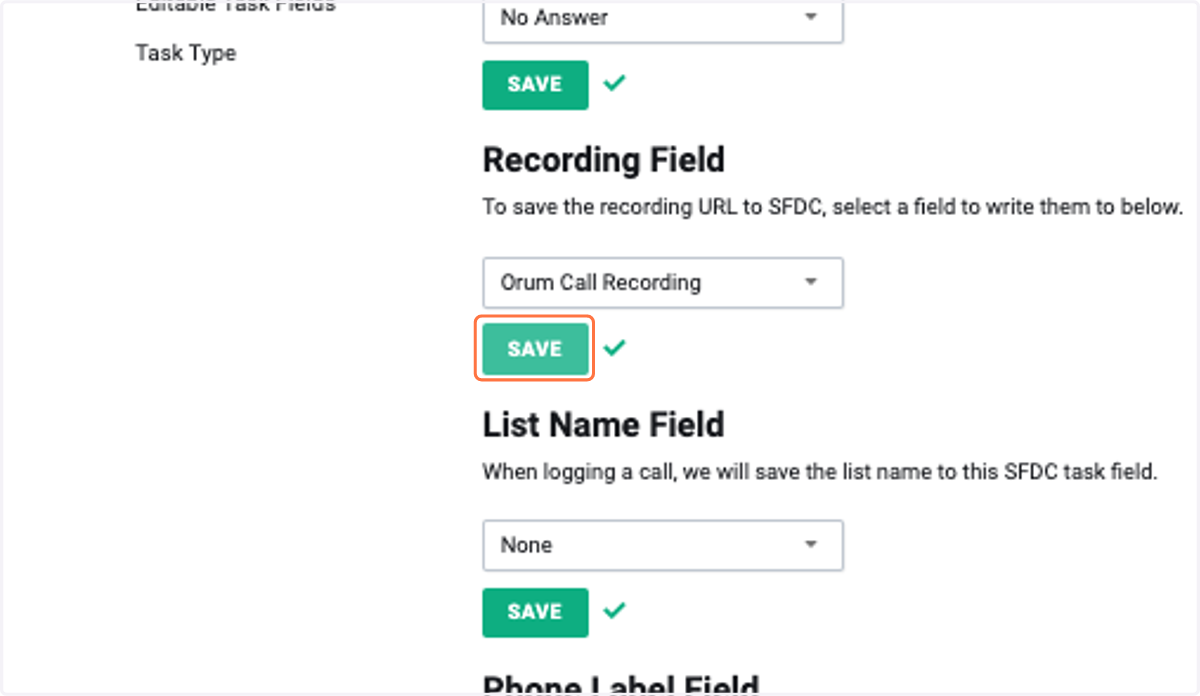
When created and saved, go back into Orum integration settings and scroll down to the Recording Field.
15. Click on Recording Field
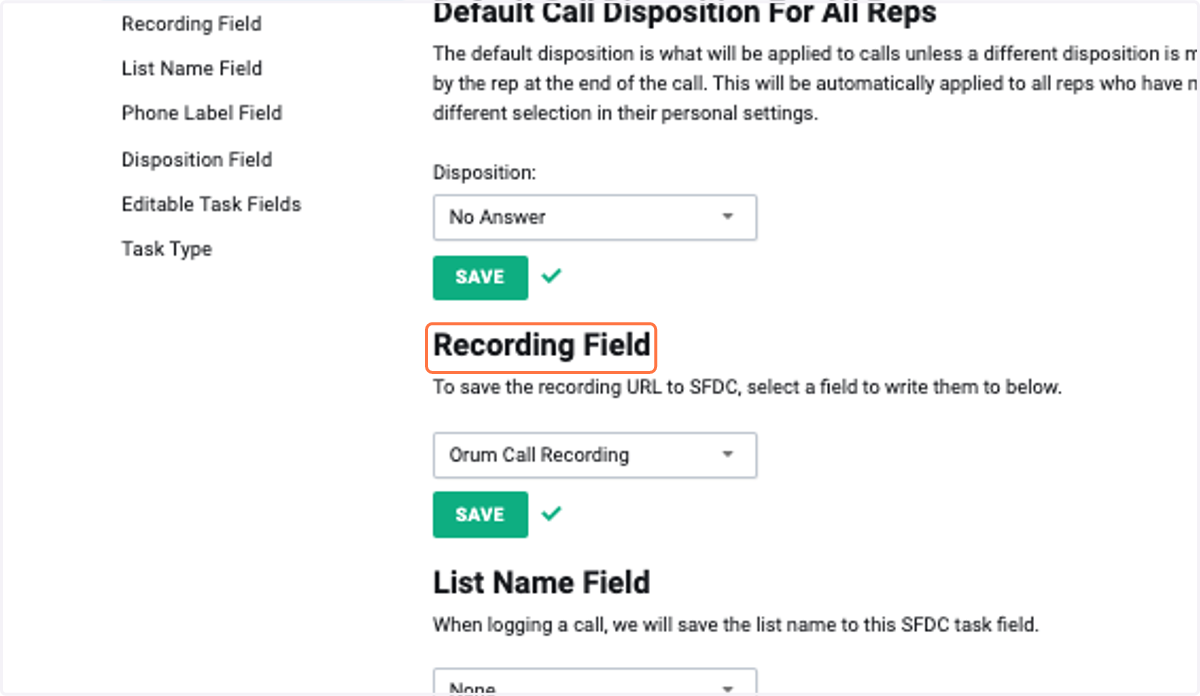
16. Choose the new call recording field here from the dropdown
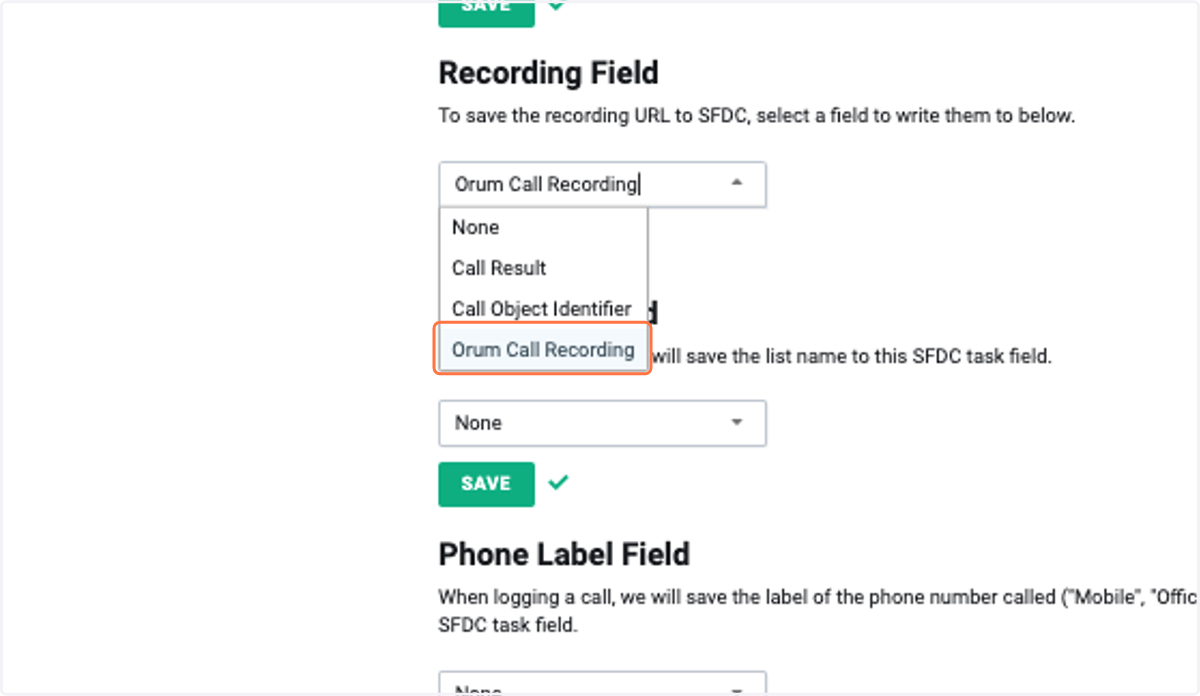
17. Click on "SAVE"