[Merchant Webapp/Voucher] How to Use a Single Voucher or Bulk Vouchers
Wallet
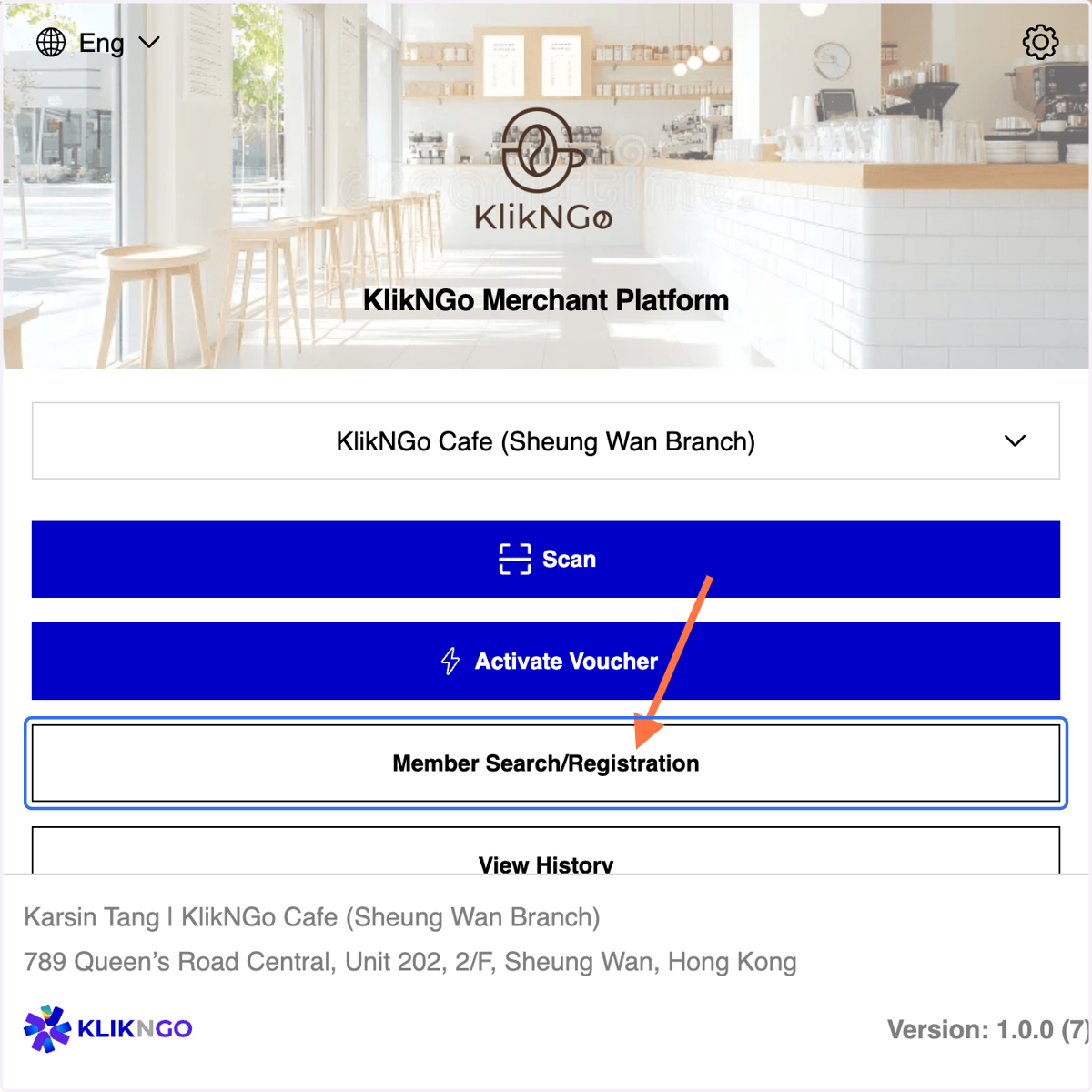
1. Click on Member Search/Registration
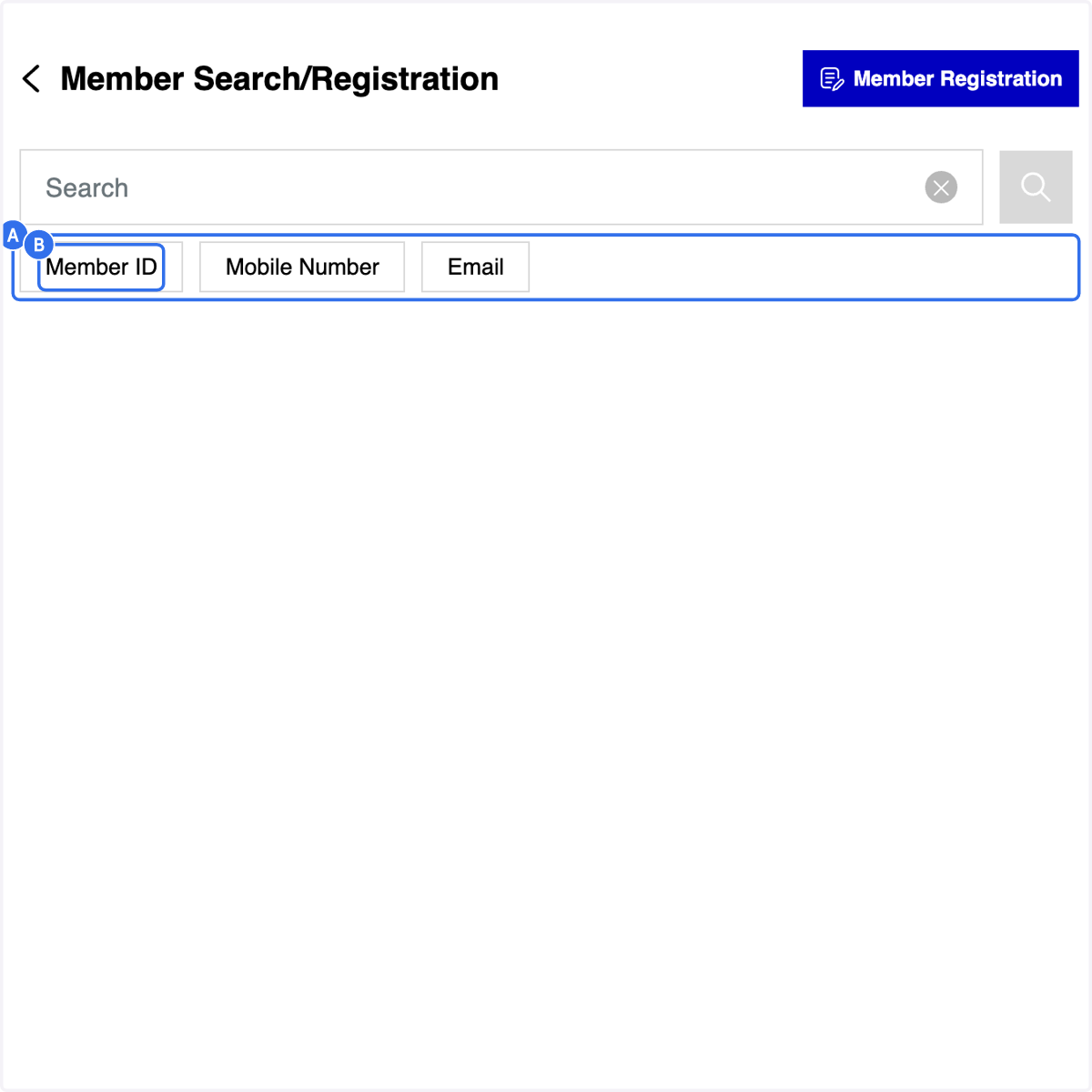
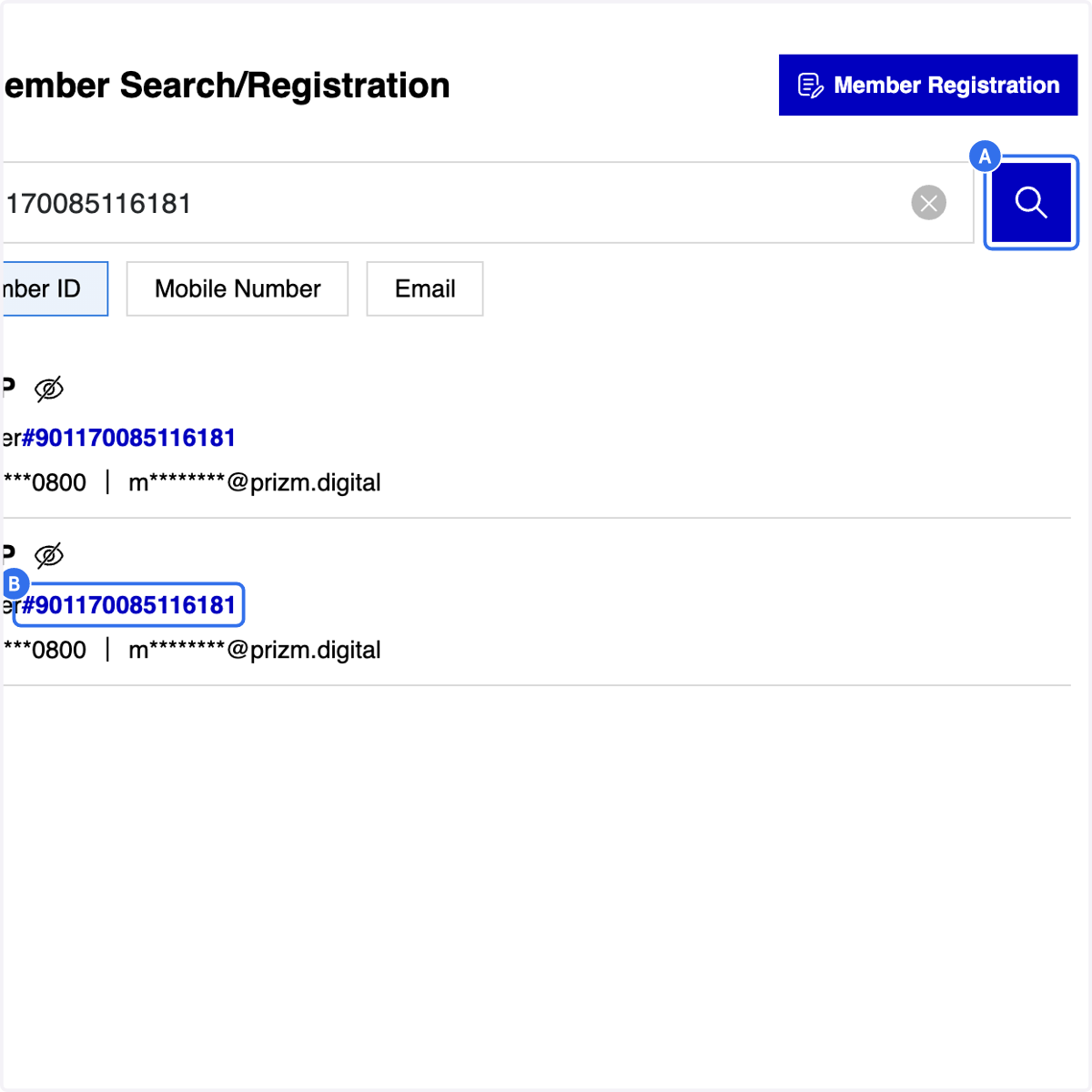
2. A. You may search member via member ID/ mobile number /email
2. B. Click on Member ID tab
3 Methods for Member Search (A)
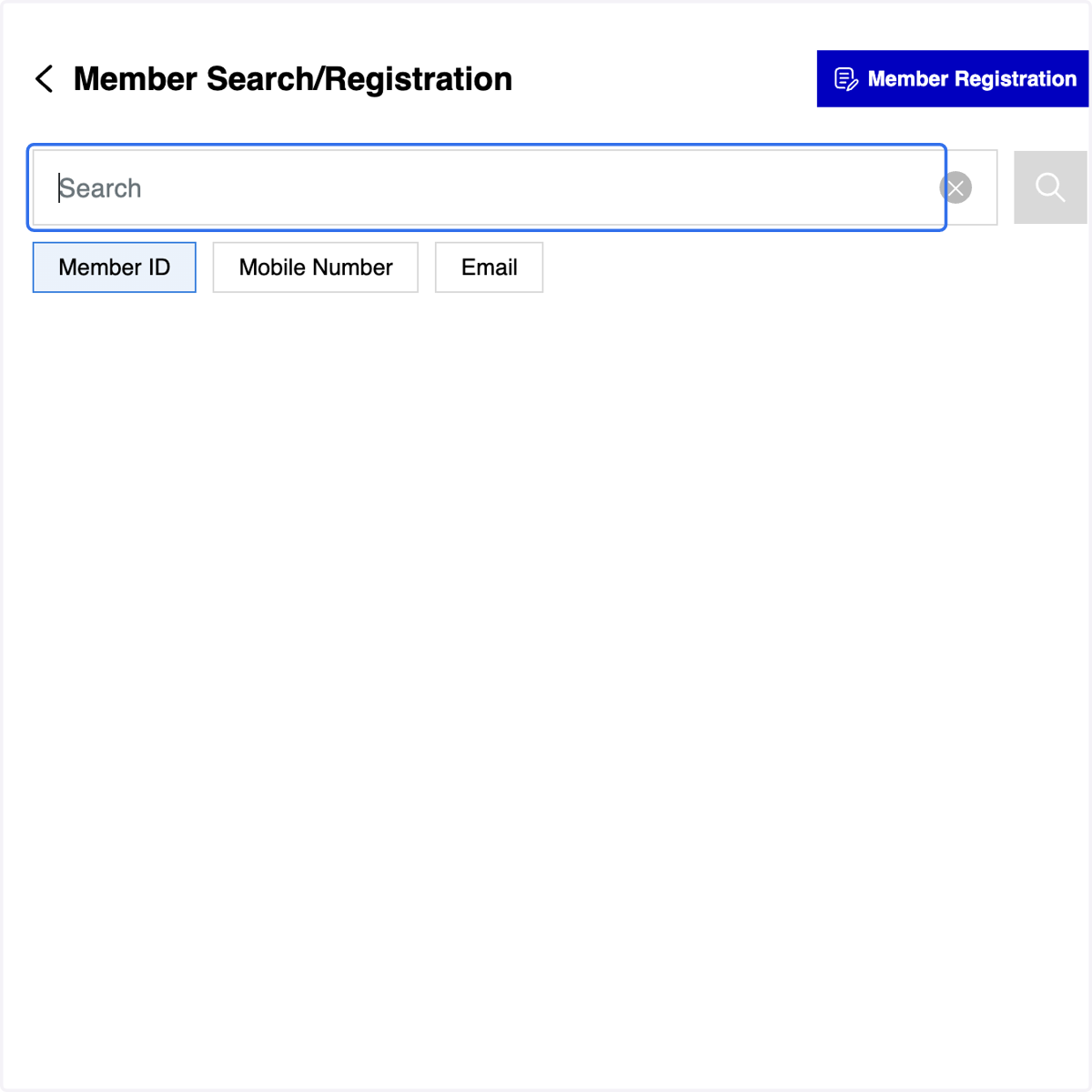
3. Fill in the member ID
4. A. Click on "Search" icon
4. B. Click on the selected member ID
5. After selecting the Member ID, you will be directed to the Member Profile Overview page
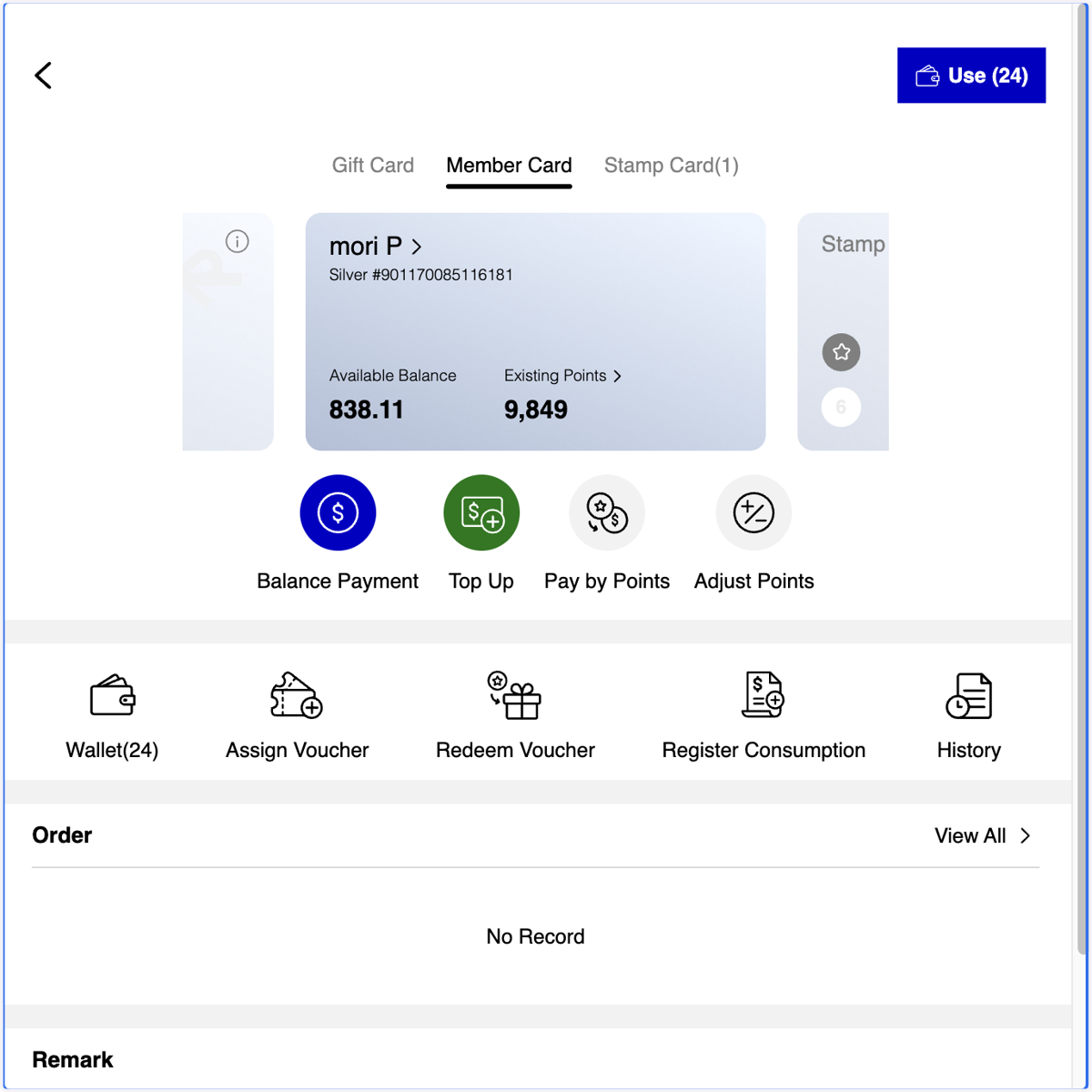
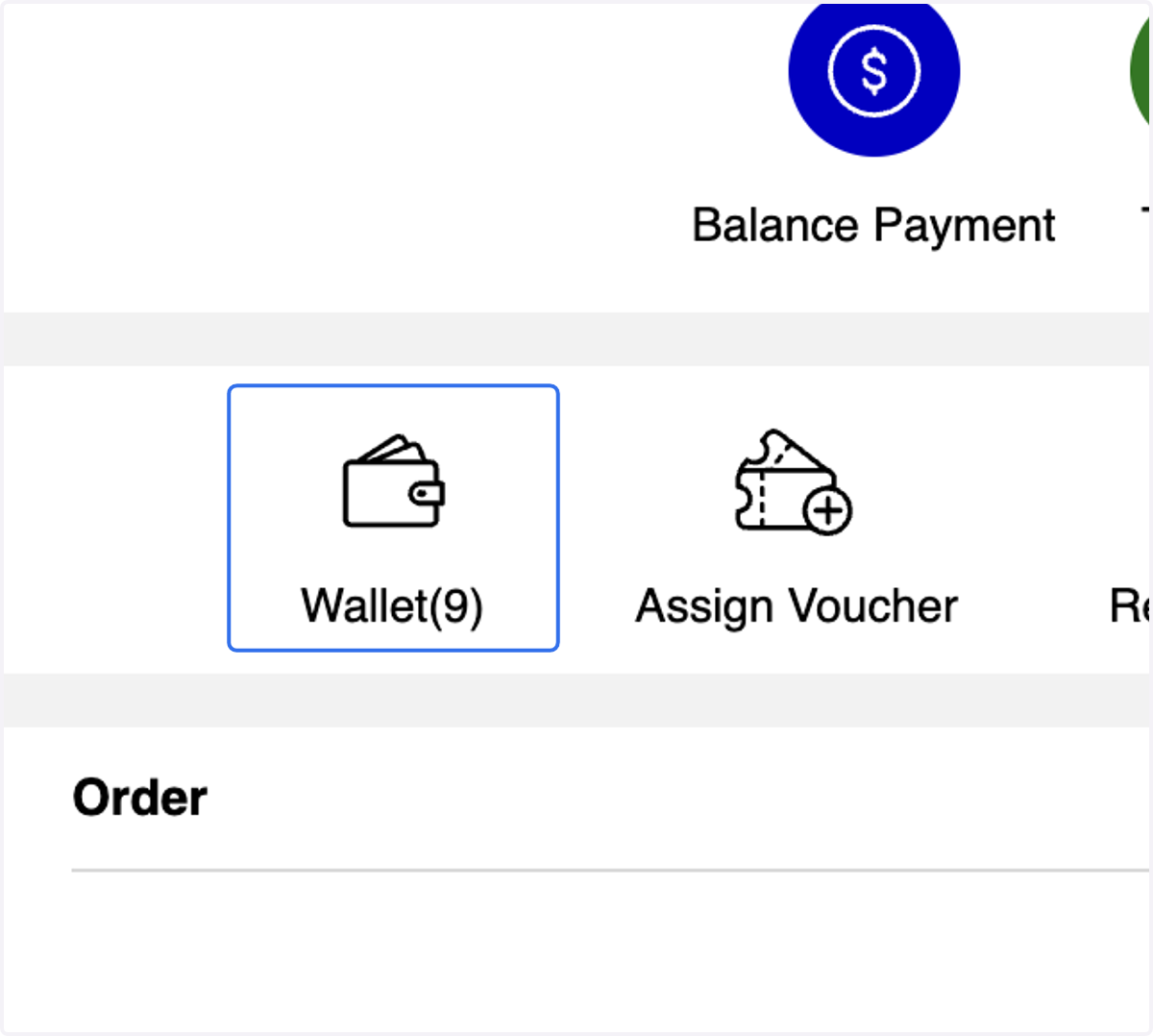
6. Click on Wallet
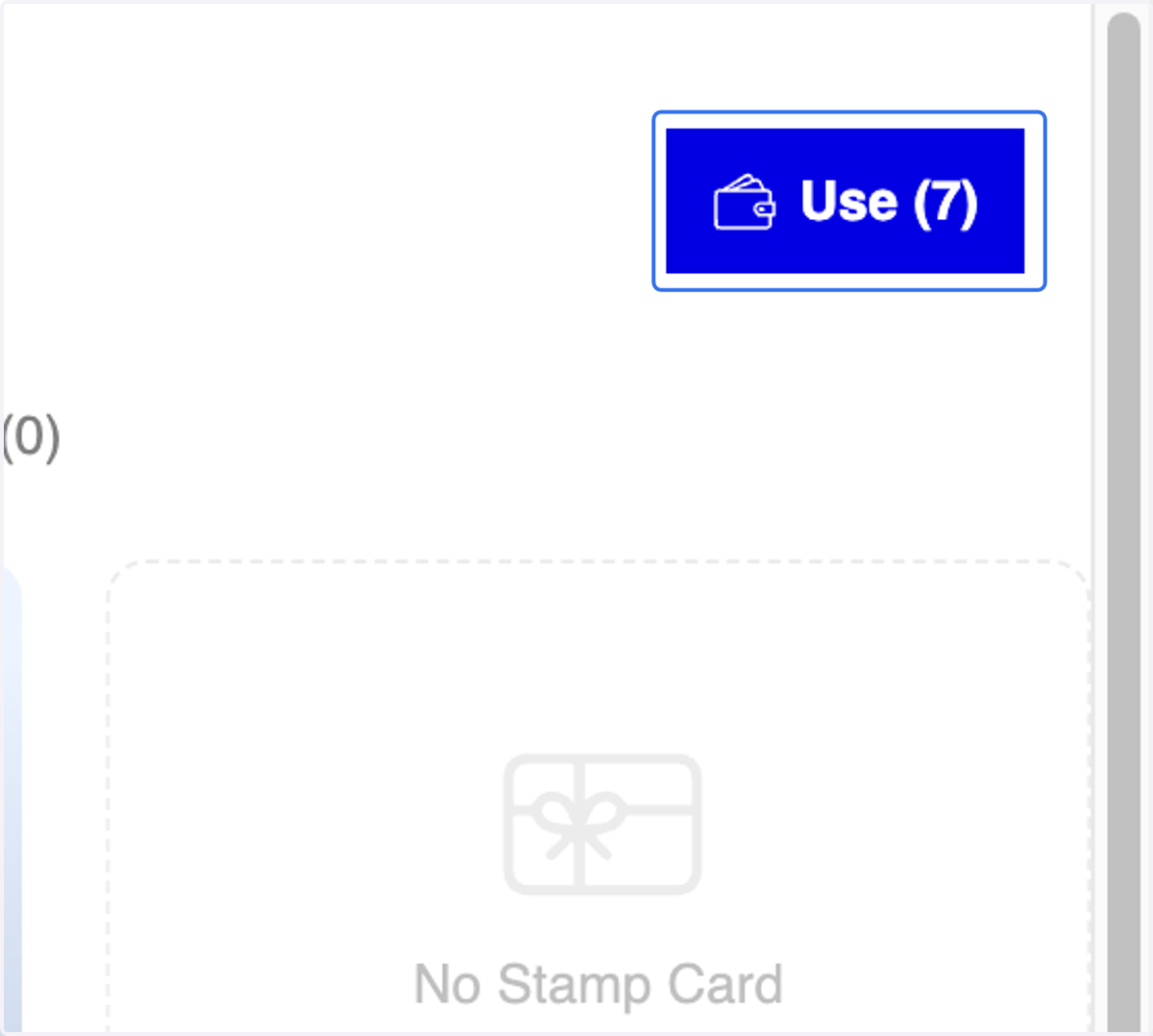
7. Or Click on Use Icon on top right
8. A. Select the Voucher Type that the member wants to use
8. B. Click on Cash Voucher / Gift Voucher
8. C. Add the Voucher Quantity
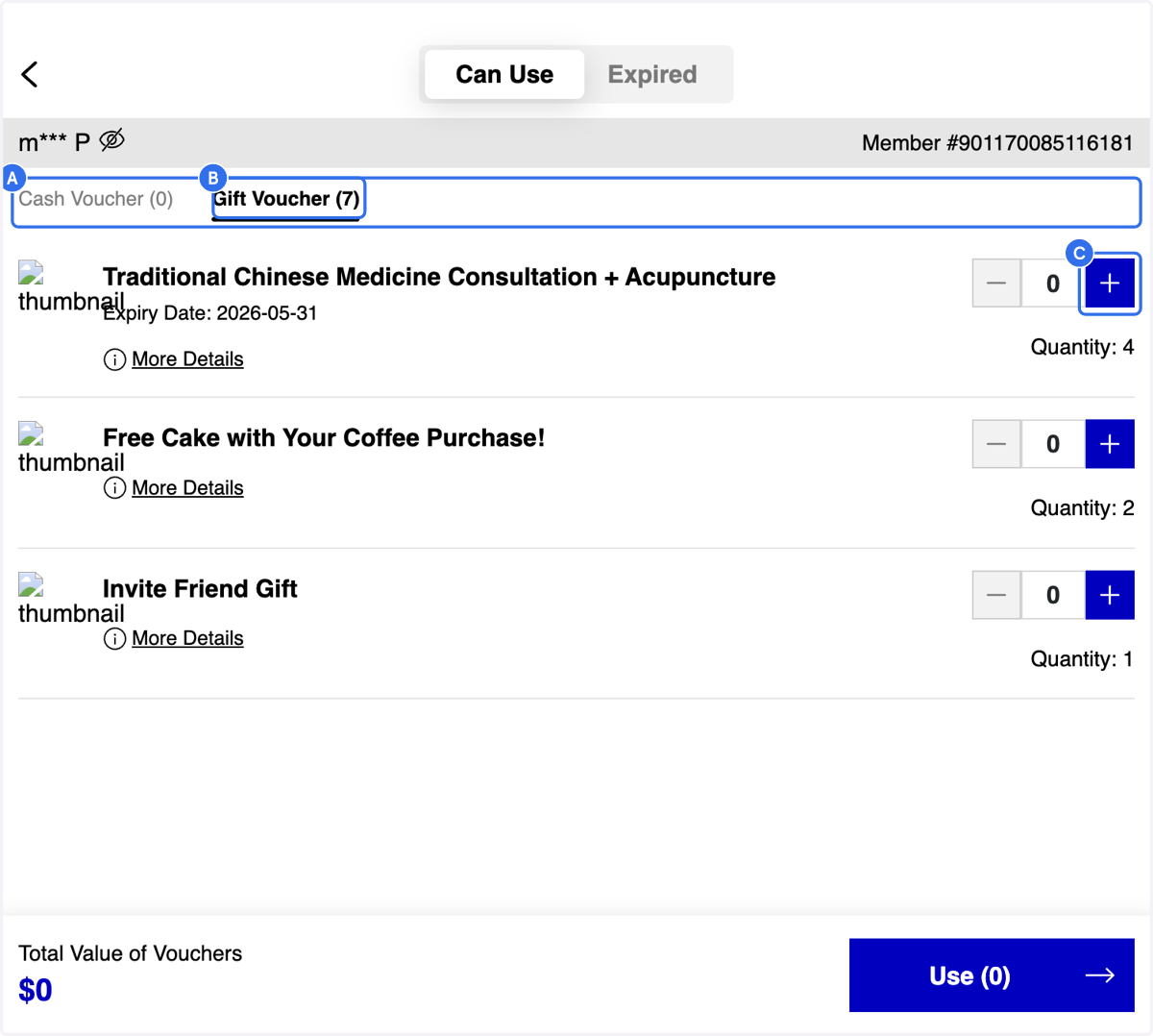
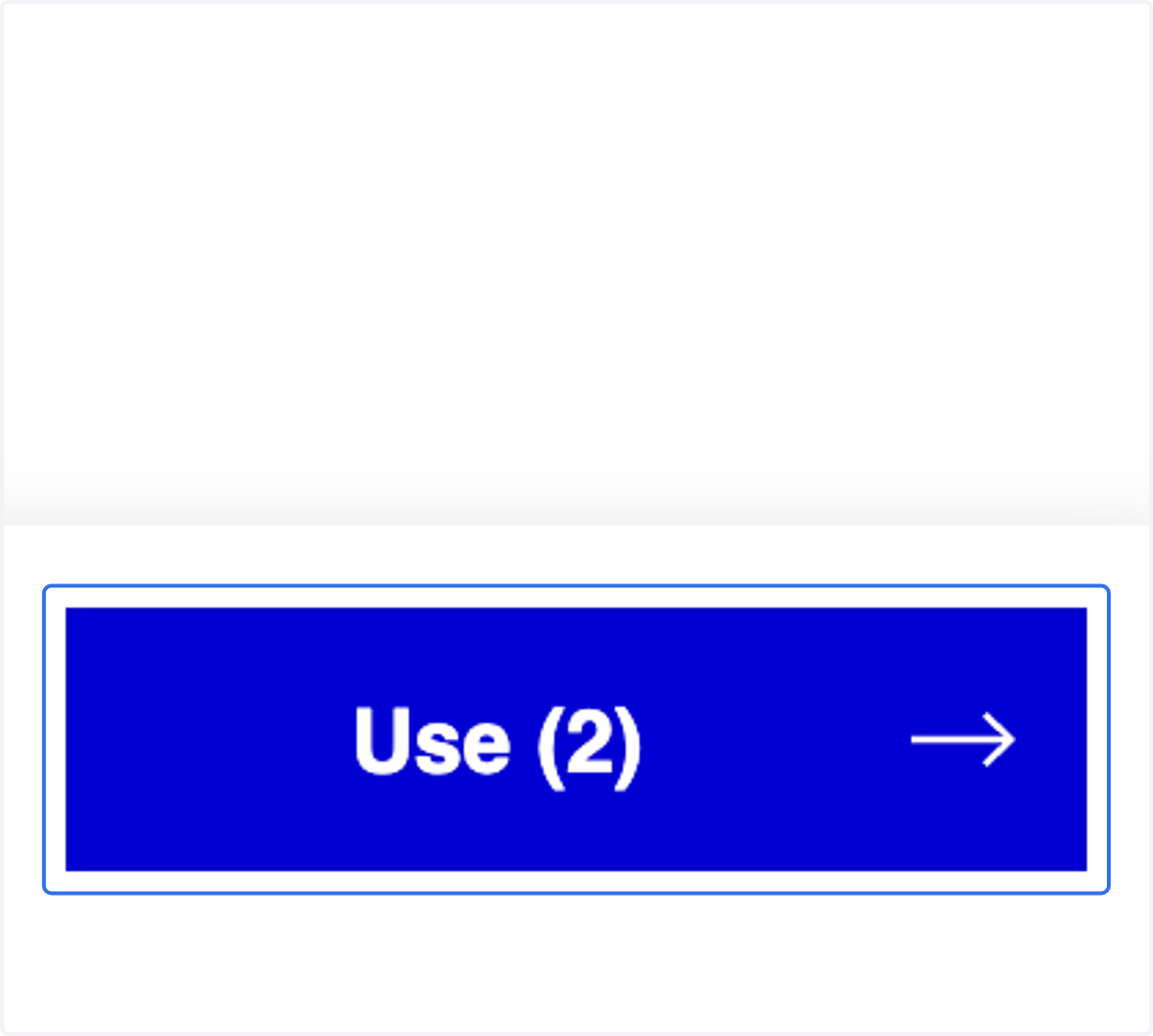
9. Click on Use
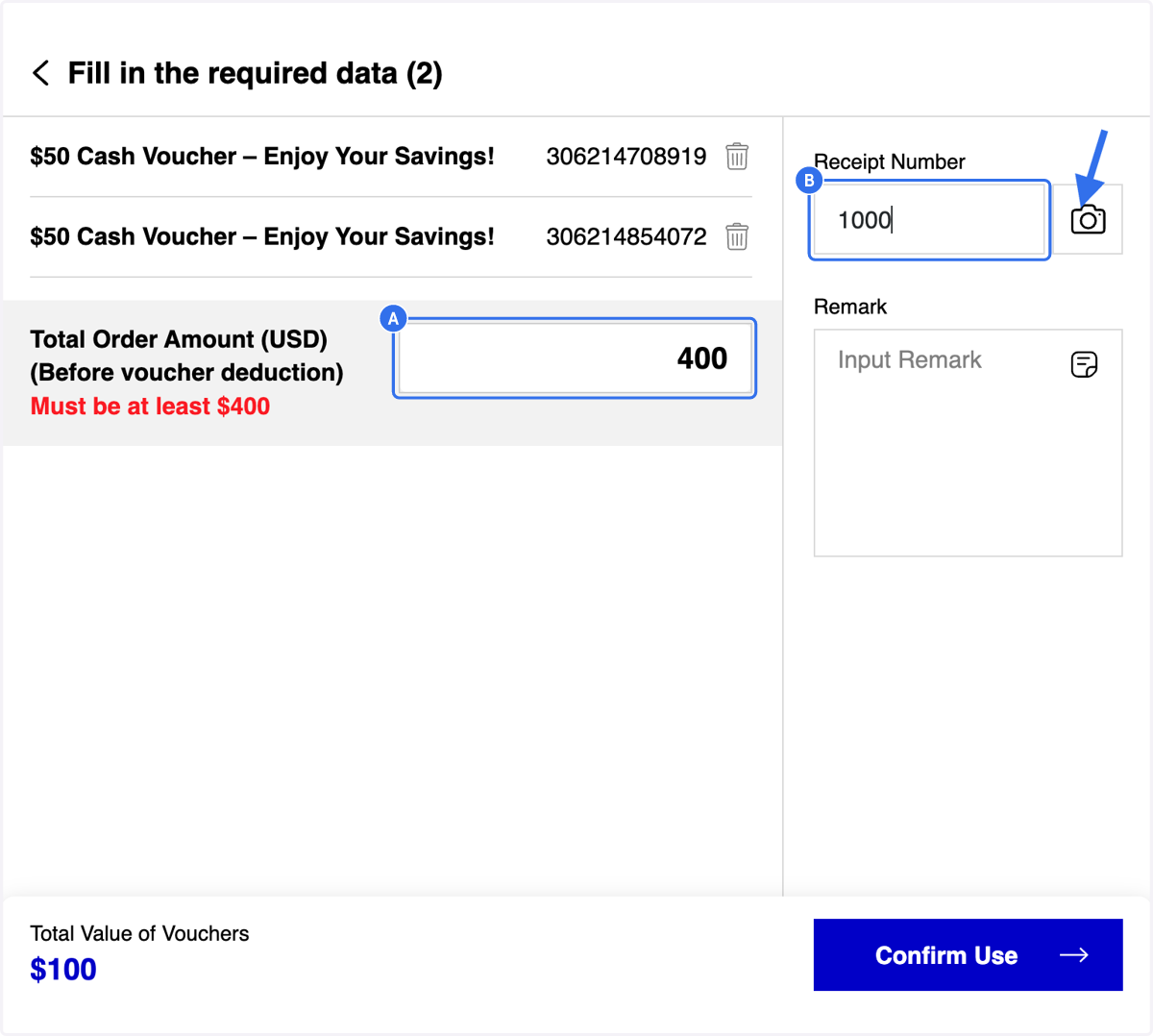
10. A. Input Total Order Amount before Voucher Deduction (only applicable for Cash Voucher)
10. B. Enter the Receipt Number. This field is mandatory. Click on Camera icon to upload the receipt for a record if needed.
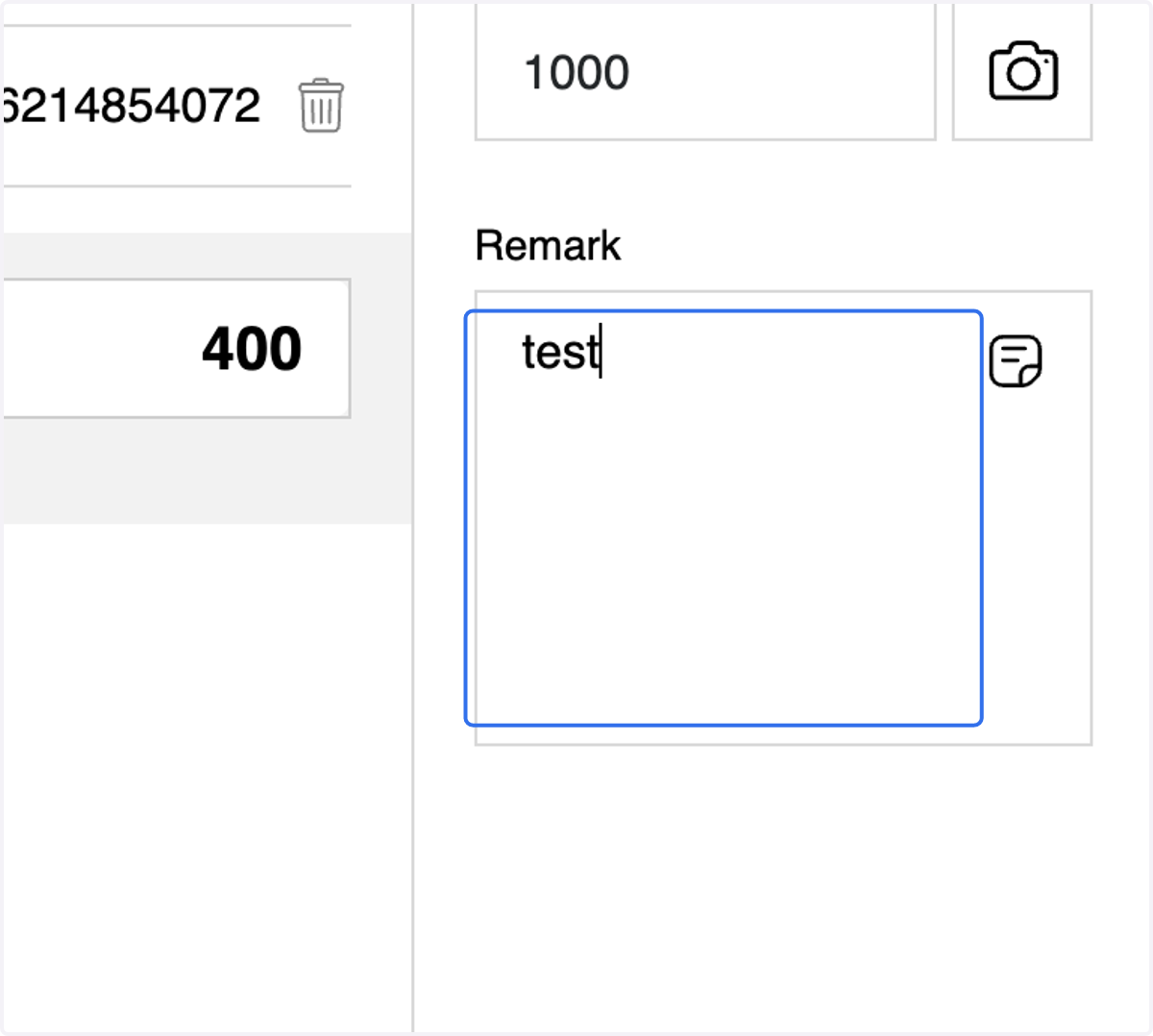
11. Add a Remark if needed
12. Click on Confirm Use
13. Click on Confirm
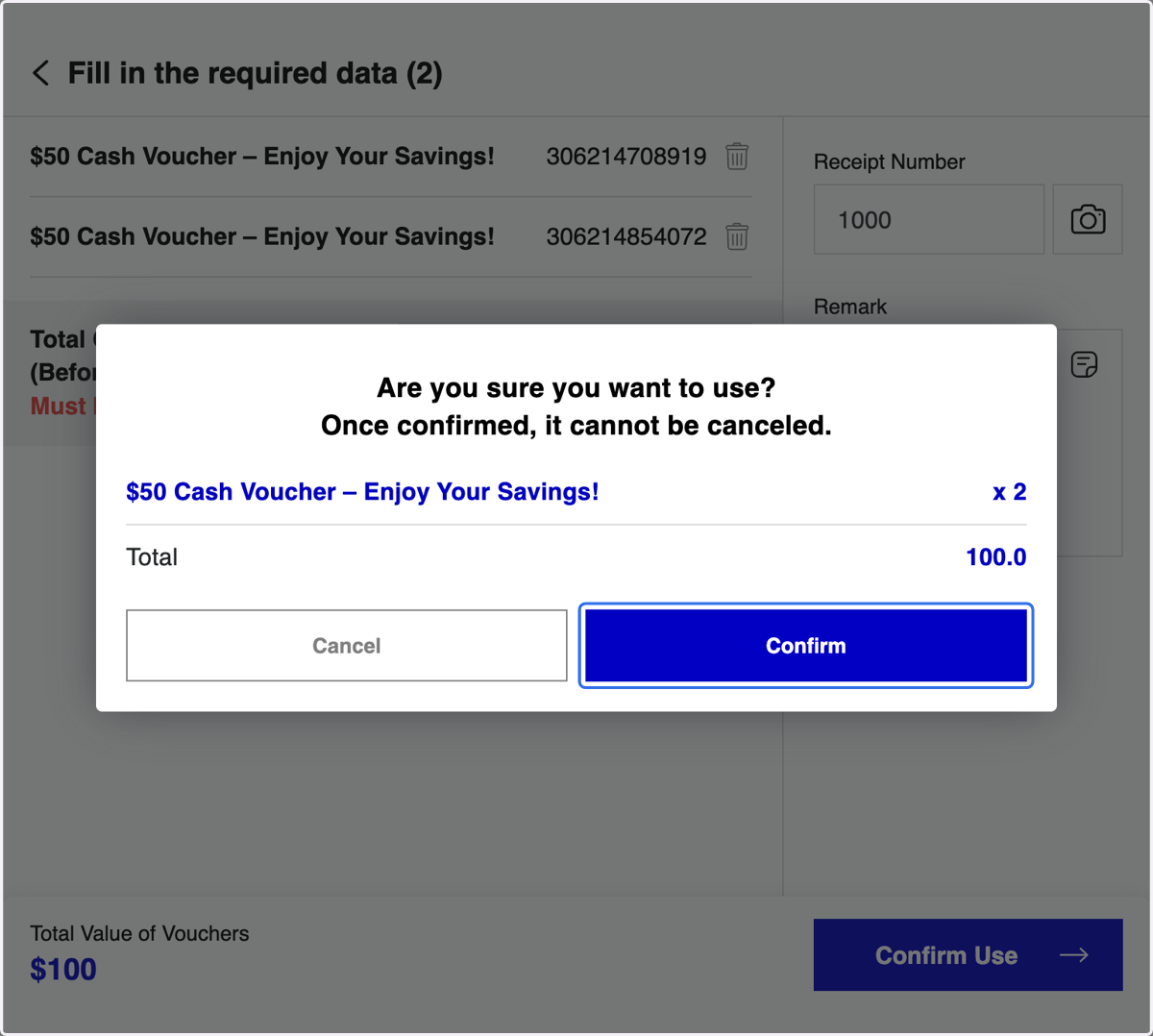
14. Voucher Usage Completed
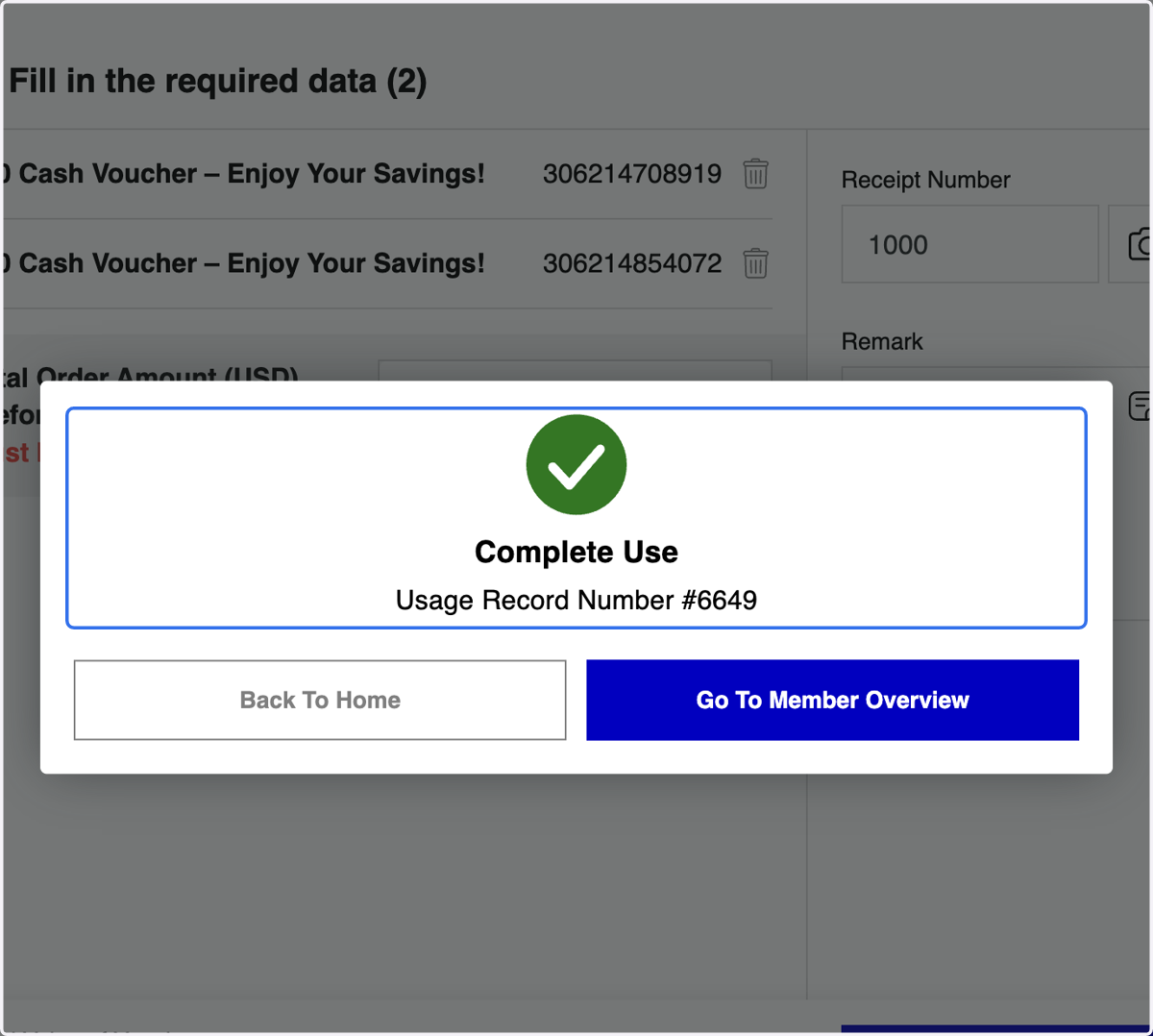
Activate Voucher
15. Click on Activate Voucher
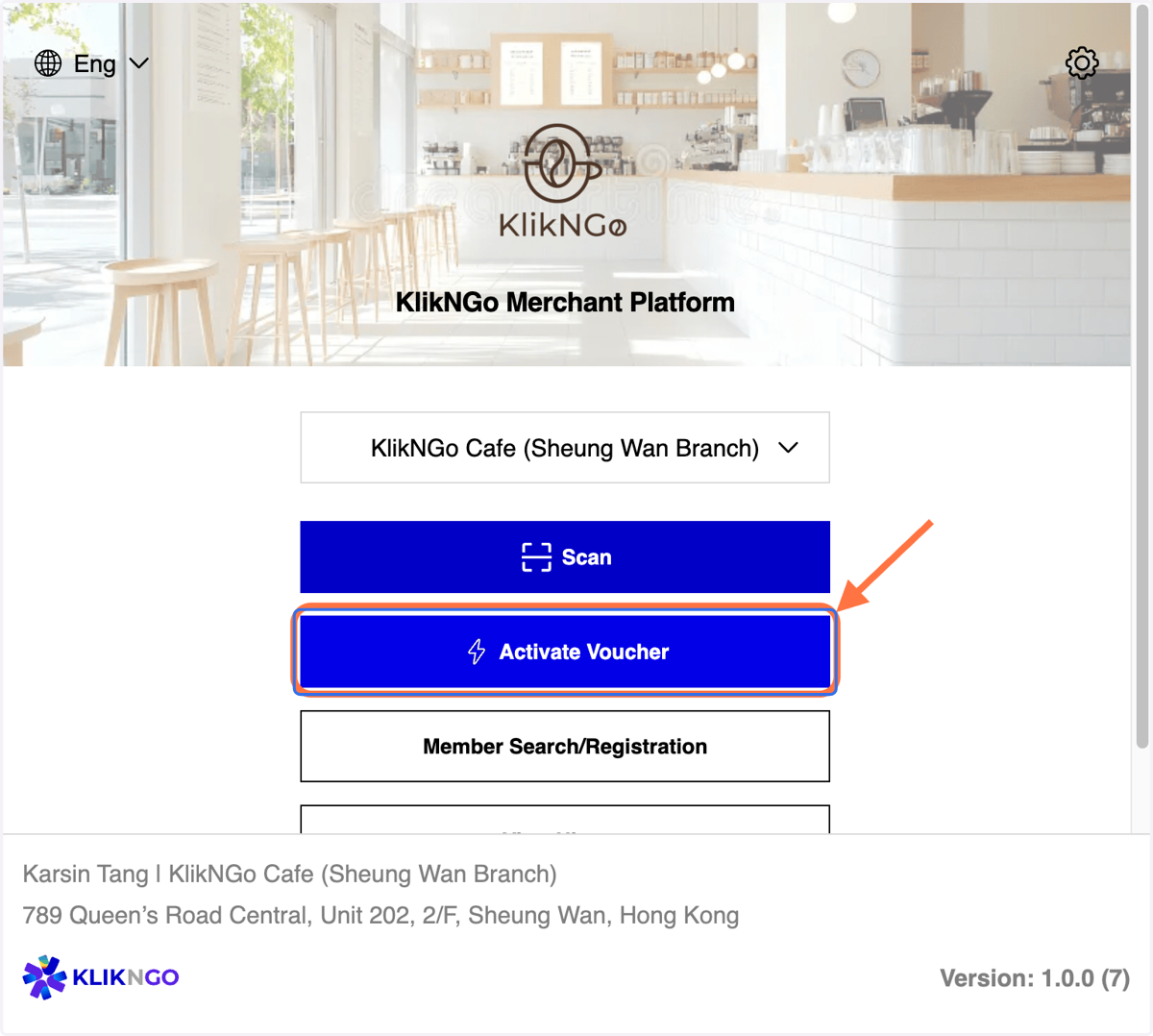
16. A. Select Single for 1 Voucher Search
16. B. or Select Batch for Bulk Voucher Search
16. C. You may activate the voucher by using the [Scan feature] to scan a QR code/ [Insert Code] entering the code directly/ [Image/File] uploading a QR image/file
16. D. [Insert Code] Enter the Member’s Voucher Code if you select Insert Code Feature
16. E. [Insert Code] Click on Confirm
![A. Select Single for 1 Voucher Search B. or Select Batch for Bulk Voucher Search C. You may activate the voucher by using the [Scan feature] to scan a QR code/ [Insert Code] entering the code directly/ [Image/File] uploading a QR image/file D. [Inser](https://images.tango.us/workflows/4047a905-138b-467d-8e46-6b37aa676d14/steps/b21477a0-62cd-476e-afe0-d9970b5be09b/0baffd46-7009-4469-b01a-907e1c0b2579.png?w=1200&c=3270EB&dpr=2.00&1-w=469&1-h=94&1-x=534&1-y=786&2-w=230&2-h=82&2-x=764&2-y=790&3-w=144&3-h=86&3-x=700&3-y=26&4-w=784&4-h=106&4-x=334&4-y=312&5-w=872&5-h=114&5-x=332&5-y=442&fp-x=0.5000&fp-y=0.5000&border=F4F2F7)
17. [Batch/Insert Code] If the member has another voucher (same type) to use, enter the voucher code and click Confirm
![[Batch/Insert Code] If the member has another voucher (same type) to use, enter the voucher code and click Confirm](https://images.tango.us/workflows/4047a905-138b-467d-8e46-6b37aa676d14/steps/a95f3251-42e1-4910-bf94-906e8438782f/71bd6187-3bb8-4c1a-9a97-f743b81f24fc.png?fp-x=0.4902&fp-y=0.2783&fp-z=1.2757&w=1200&border=F4F2F7&bx=332&by=328&bw=842&bh=112&c=3270EB&dpr=2.00)
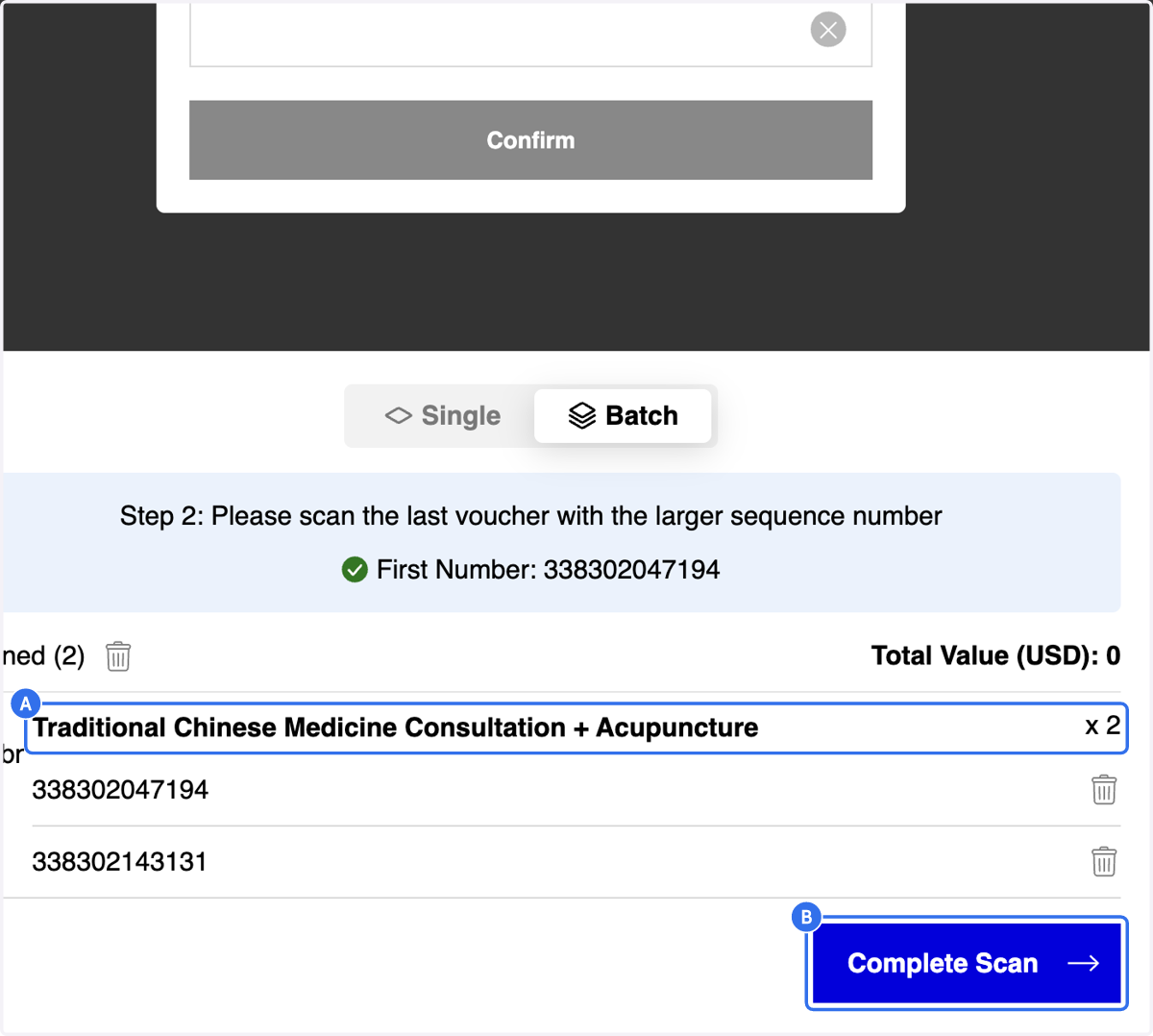
18. A. Check the Voucher Information
18. B. Click on Complete Scan
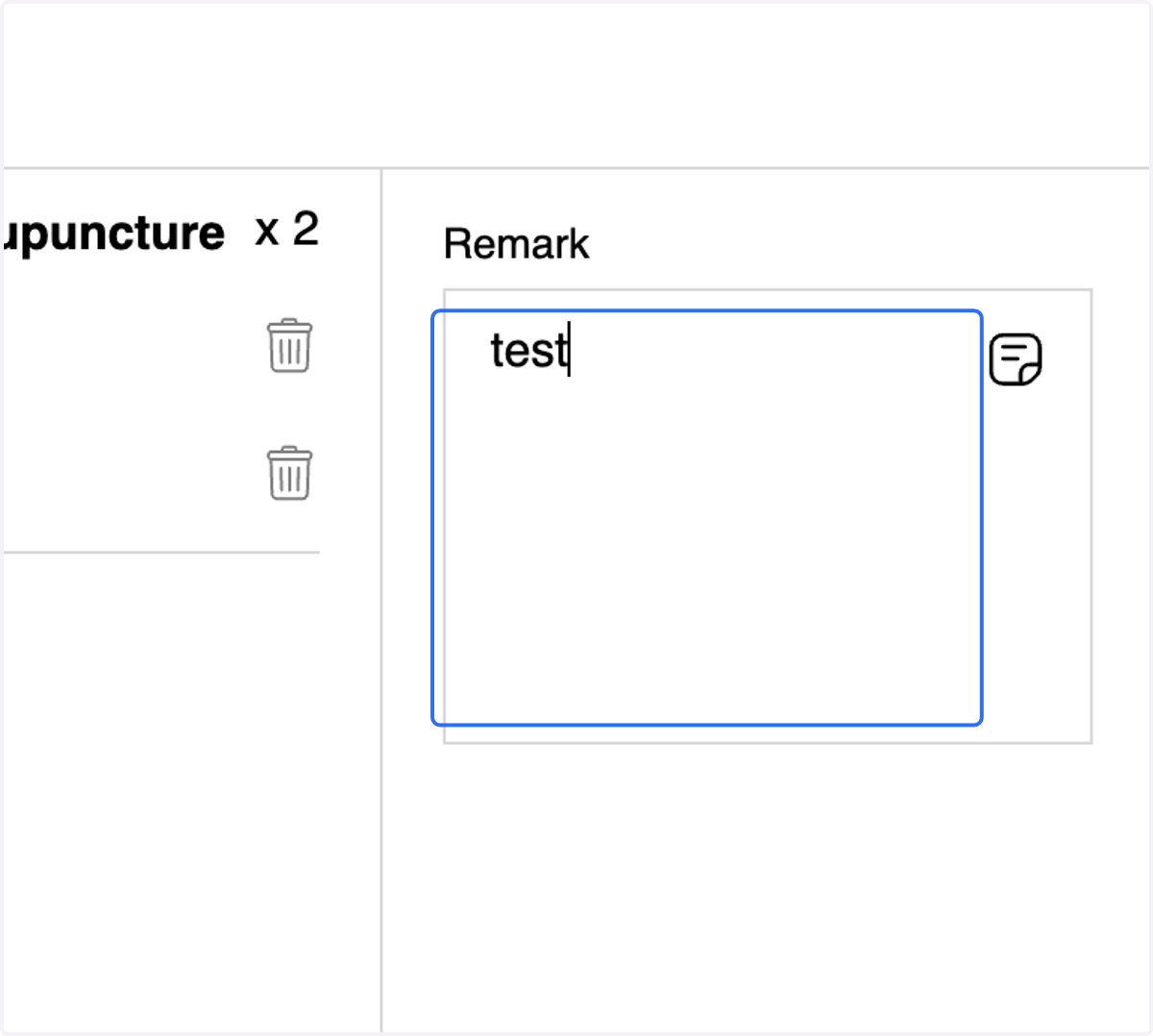
19. Add Remark if required
20. Click on Confirm Activation
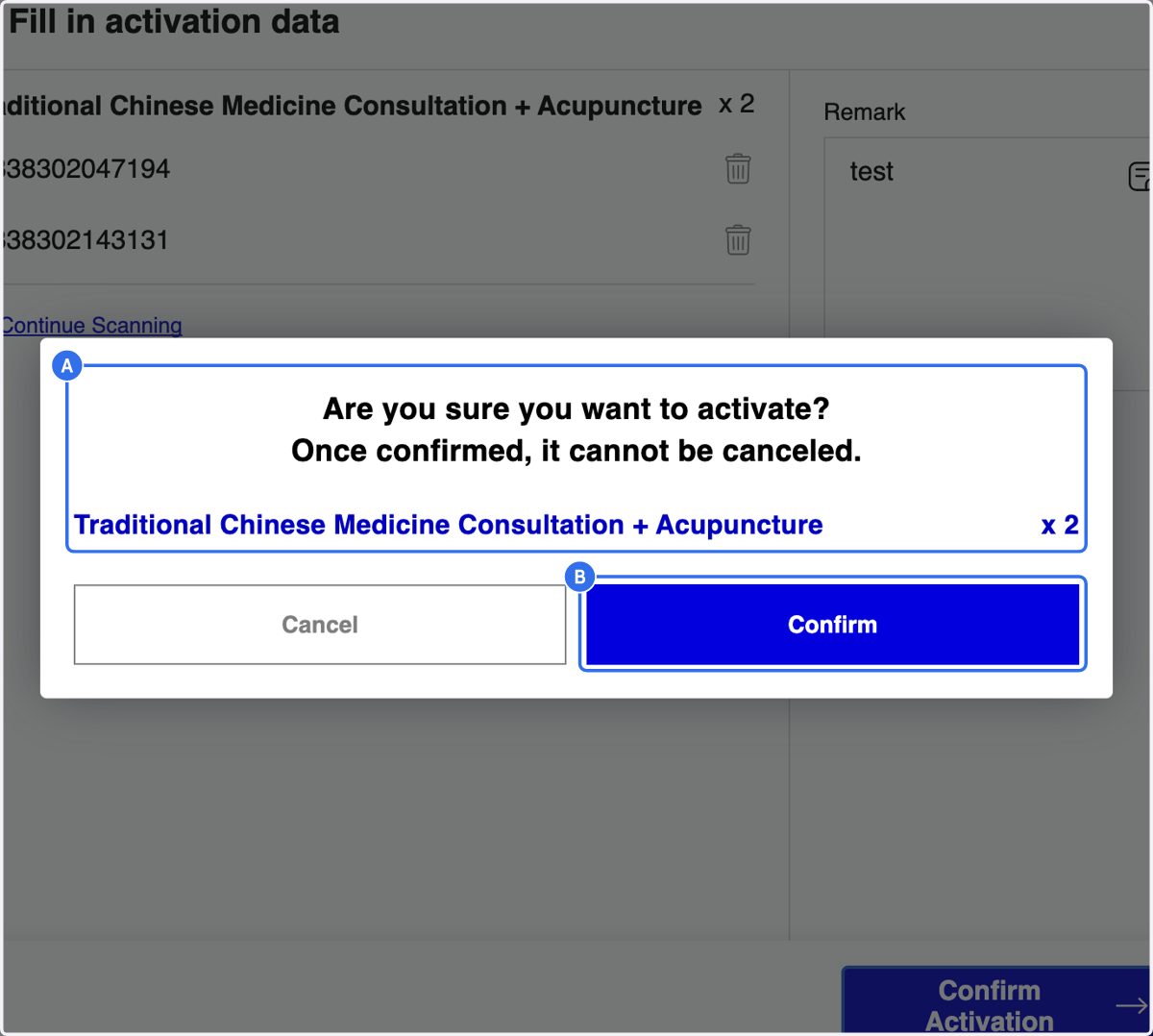
21. A. Check the Information
21. B. Click on Confirm
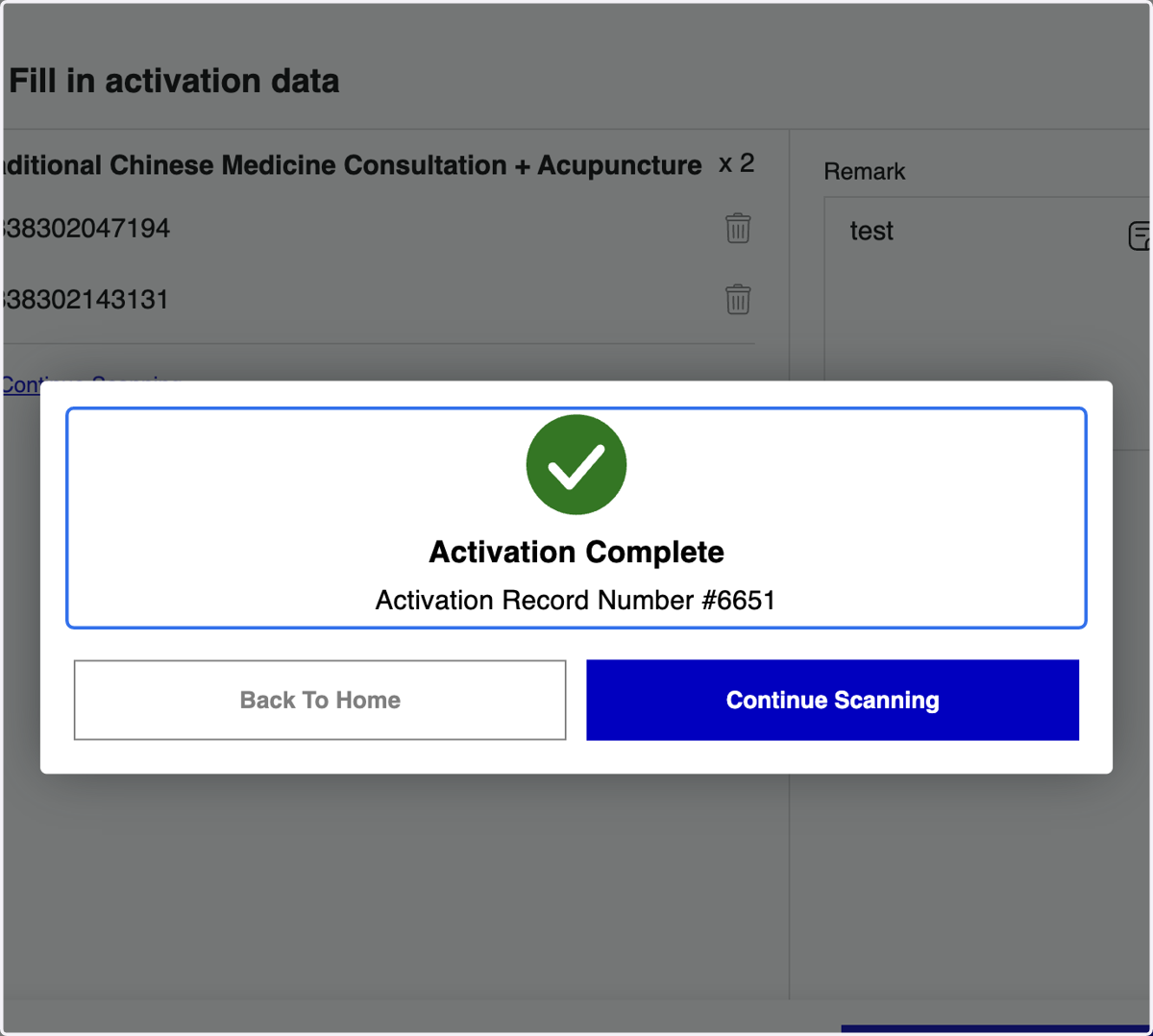
22. Voucher Activation Completed