[Merchant Webapp/Voucher] How To Manually Assign A Voucher
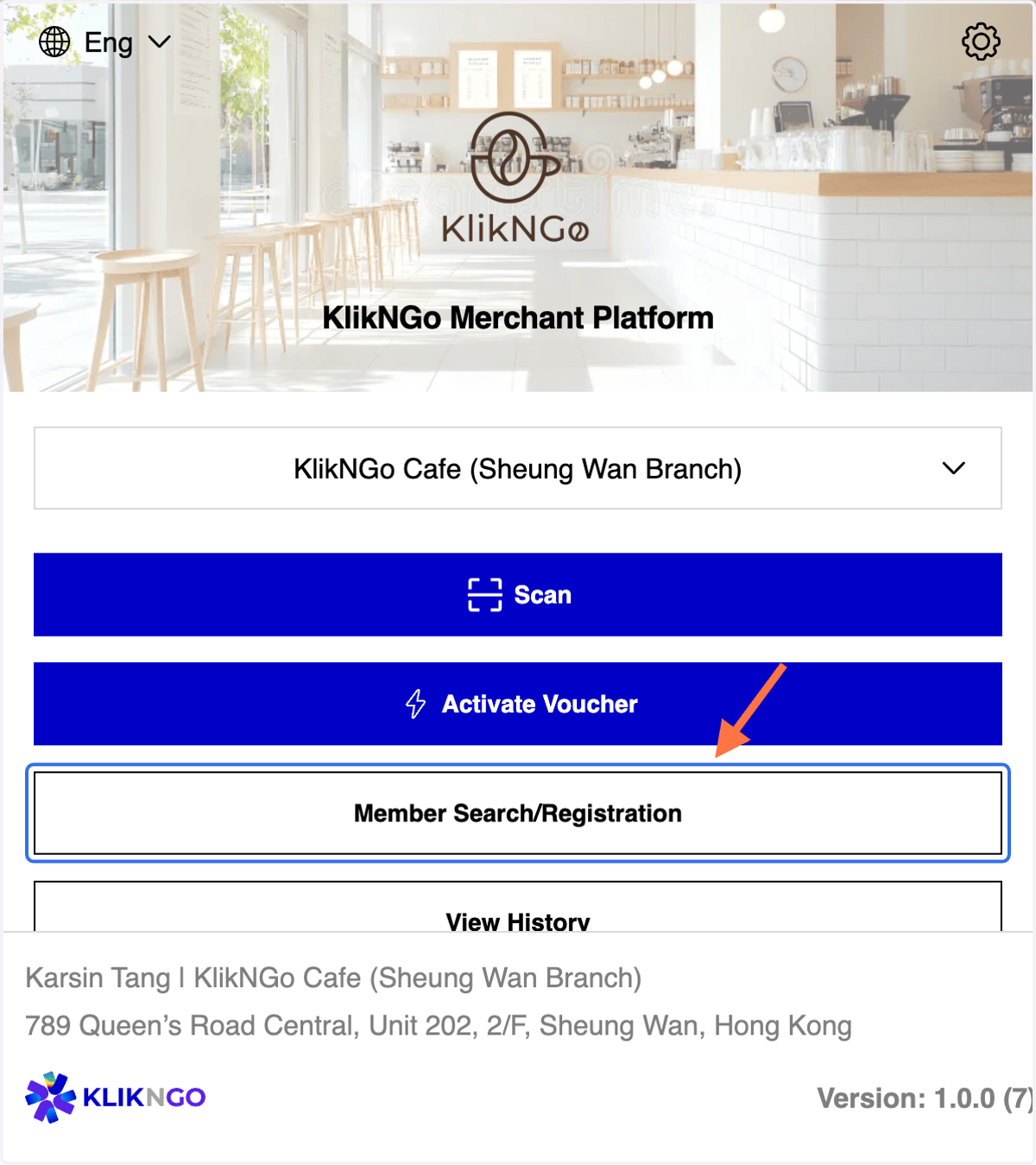
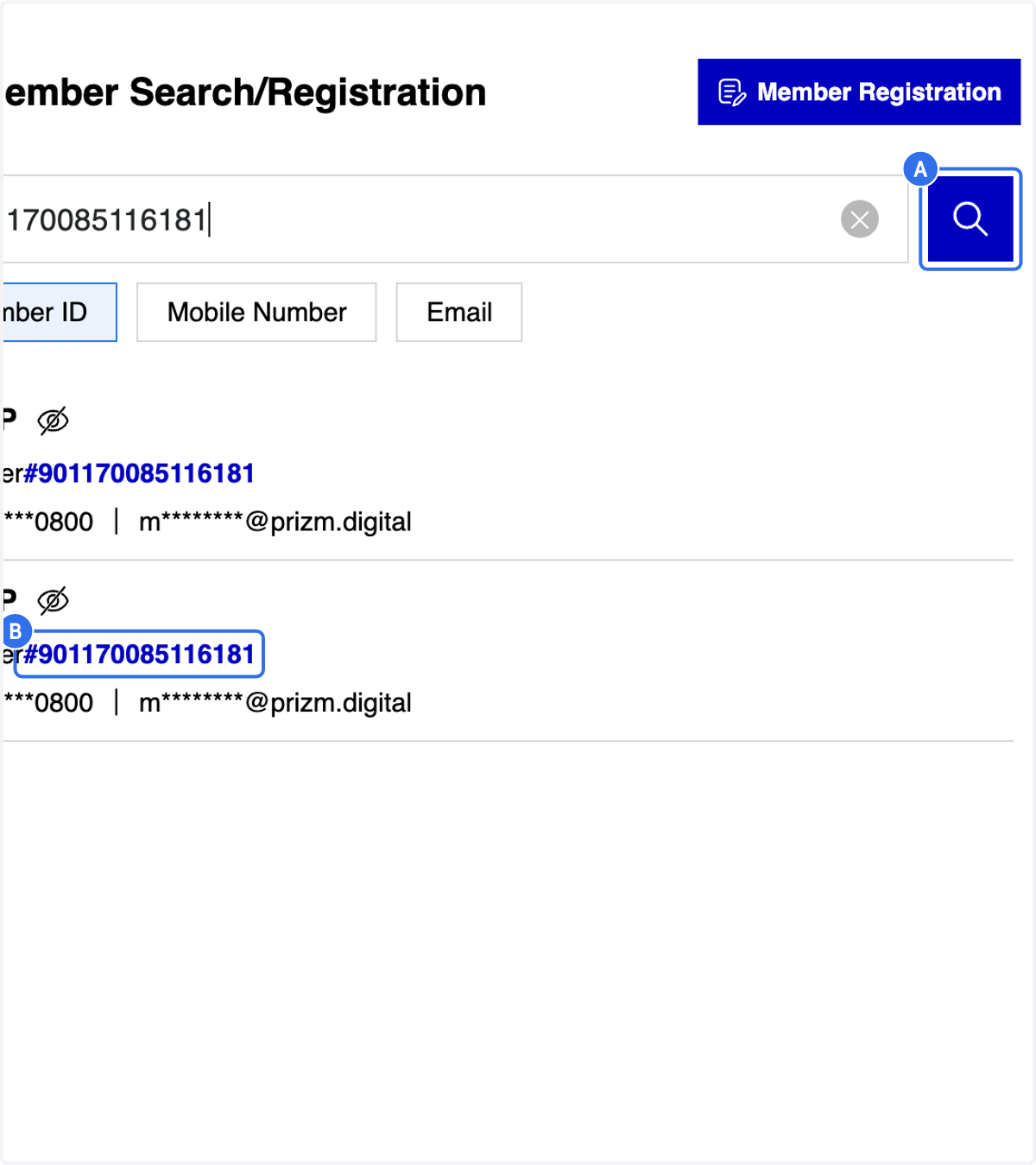
1. Click on Member Search/Registration
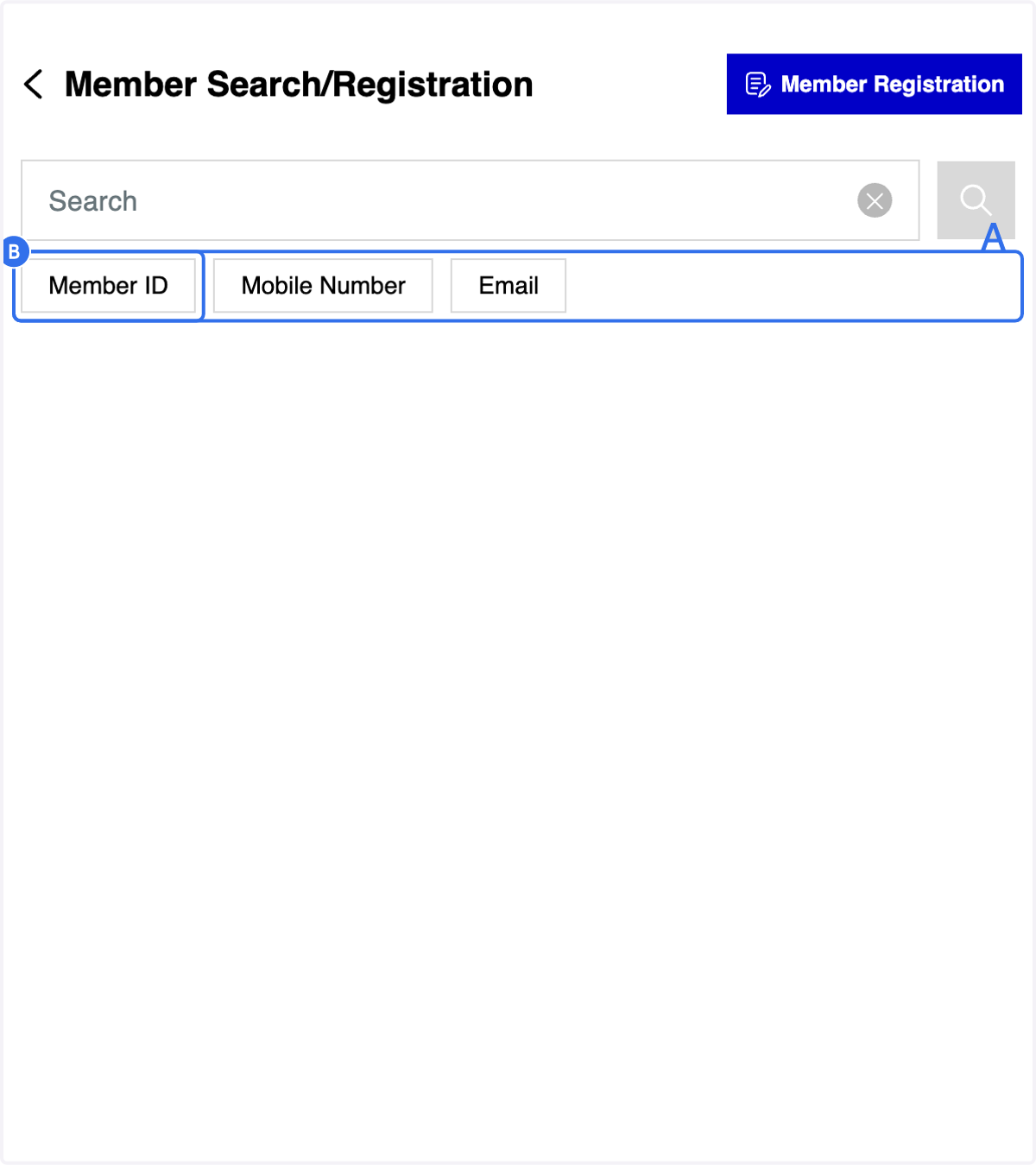
2. A. You may search member via member ID/ mobile number /email
2. B. Click on Member ID tab
3 Methods for Member Search (A)
3. Fill in the member ID
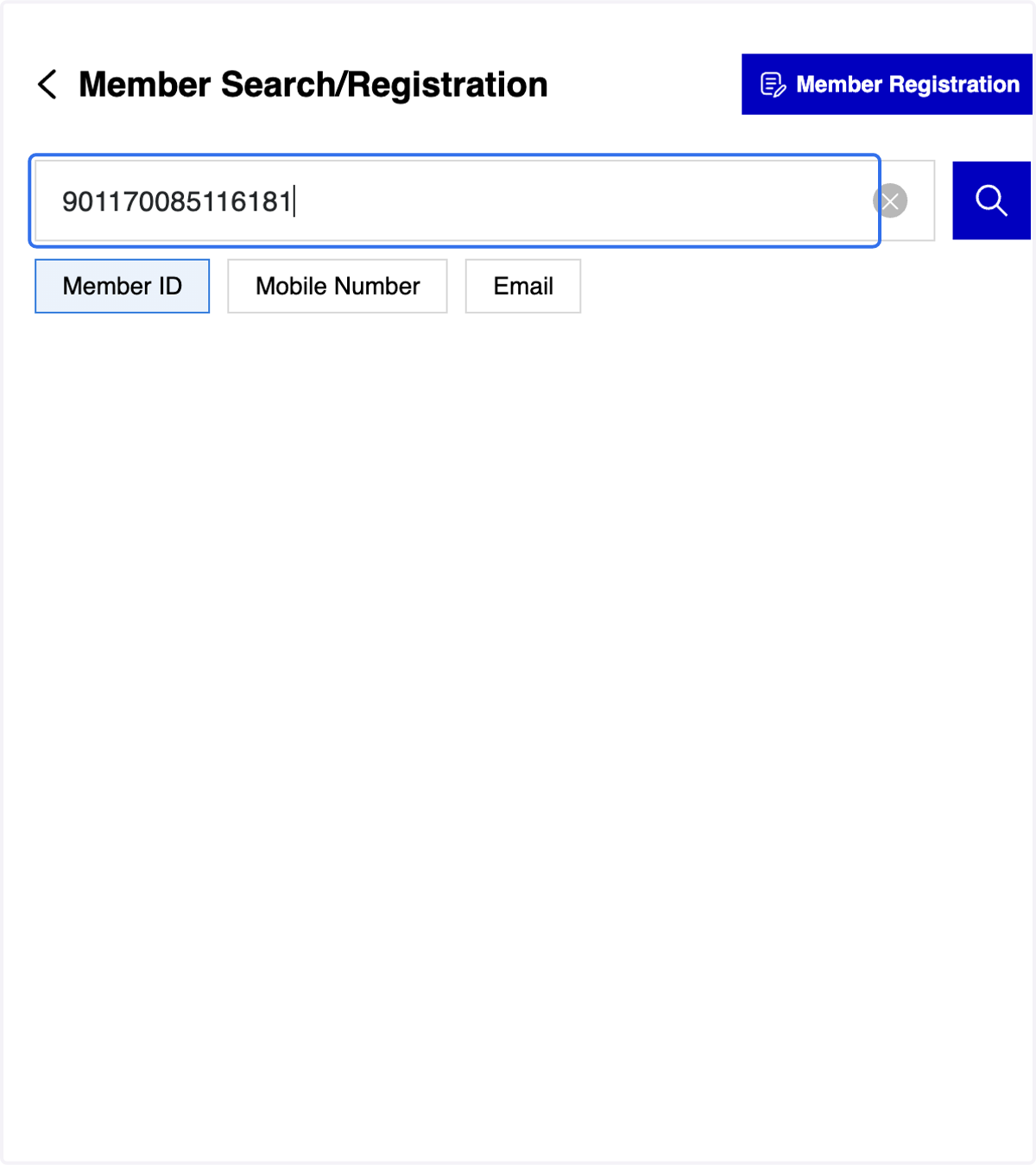
4. A. Click on "Search" icon
4. B. Click on the selected member ID
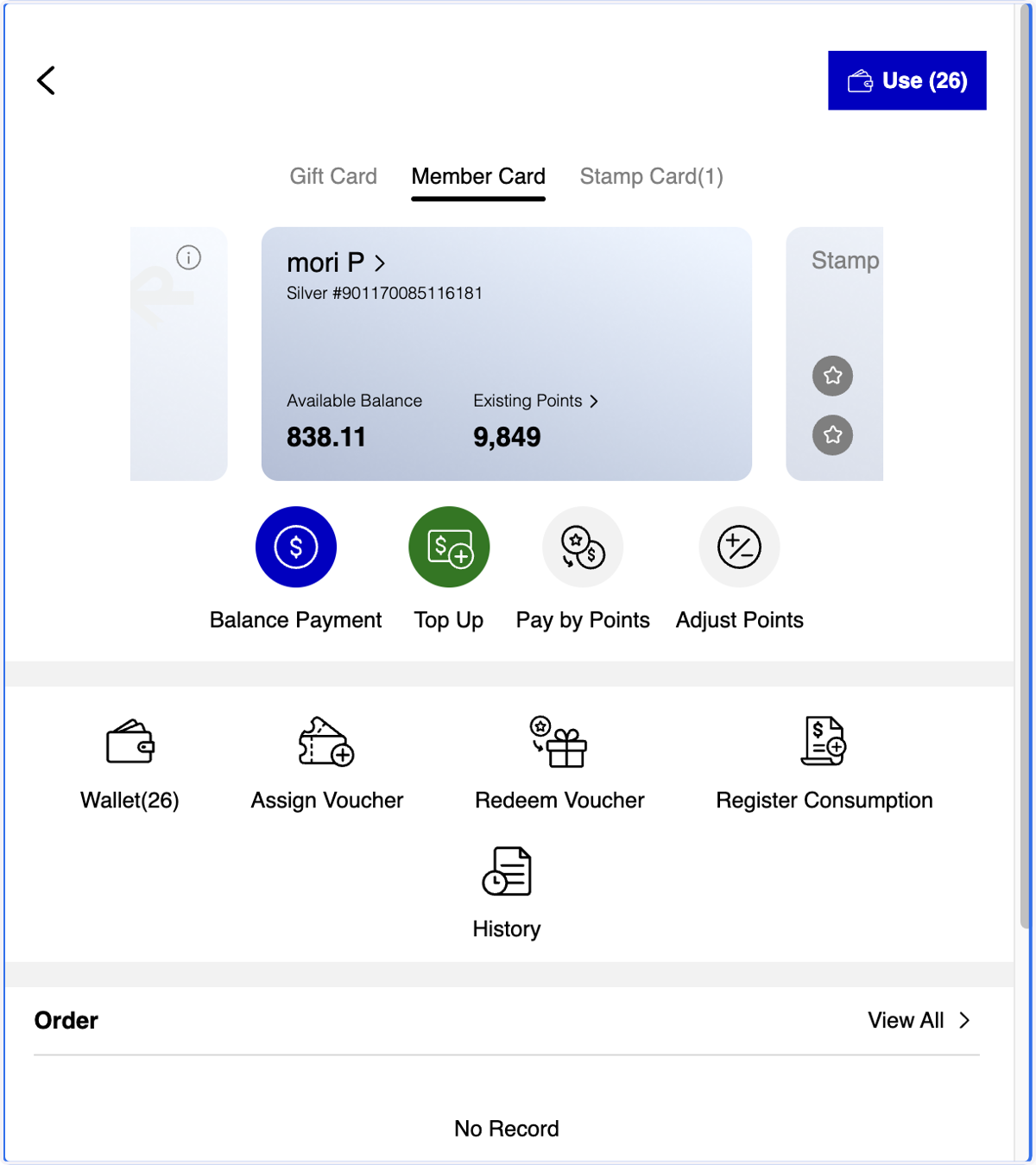
5. After selecting the Member ID, you will be directed to the Member Profile Overview page
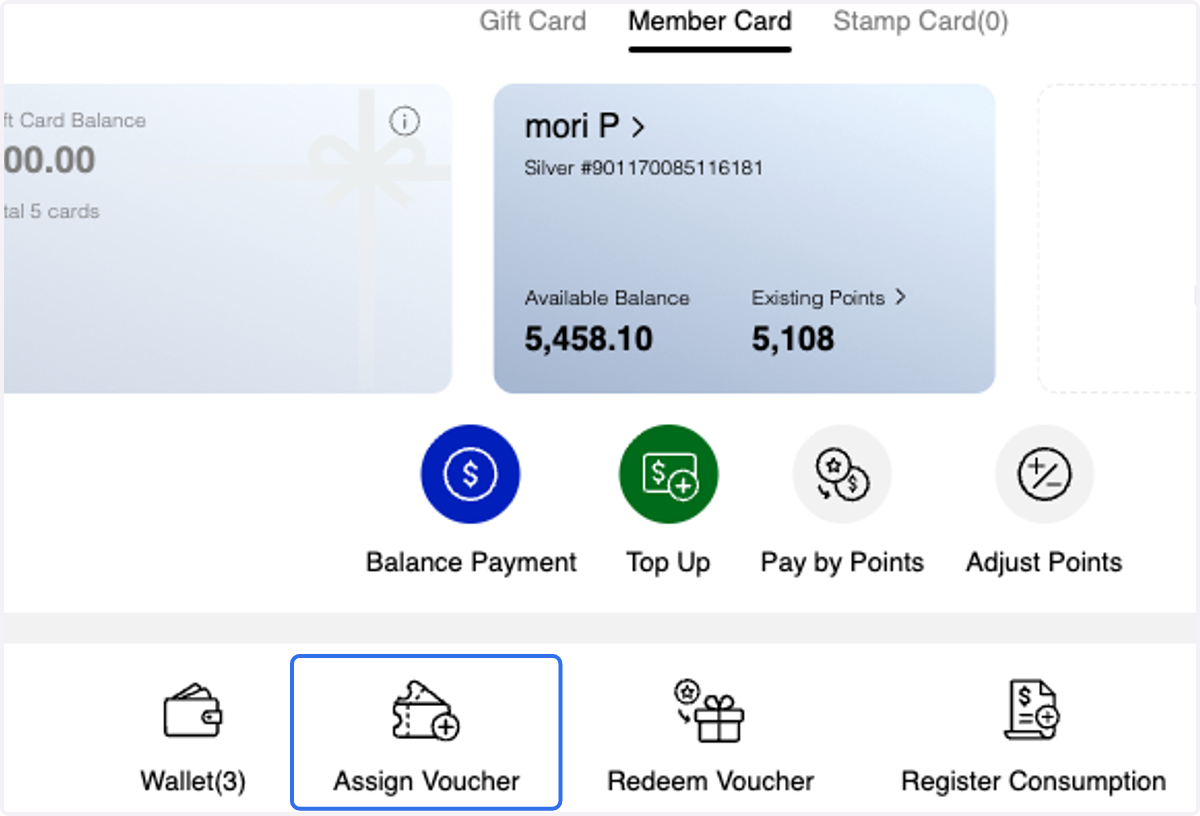
6. Click on Assign Voucher
7. Select the voucher you wish to assign
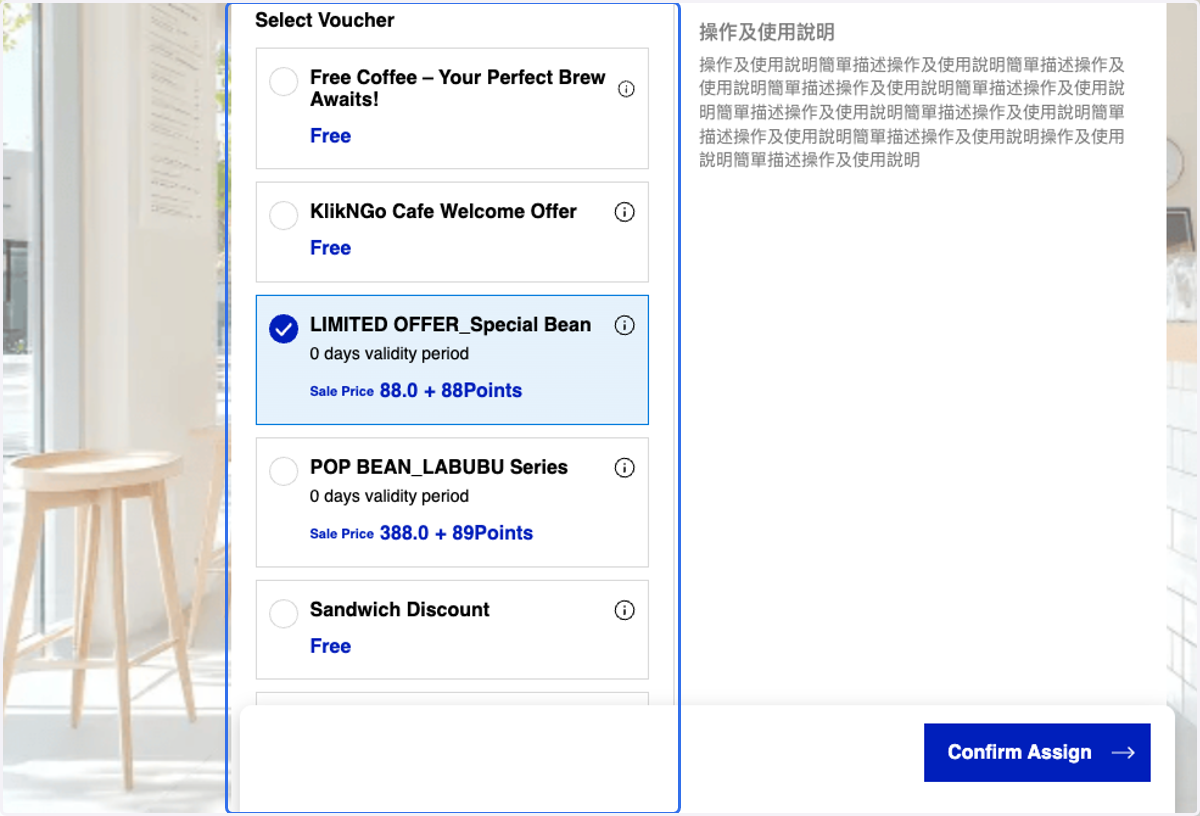
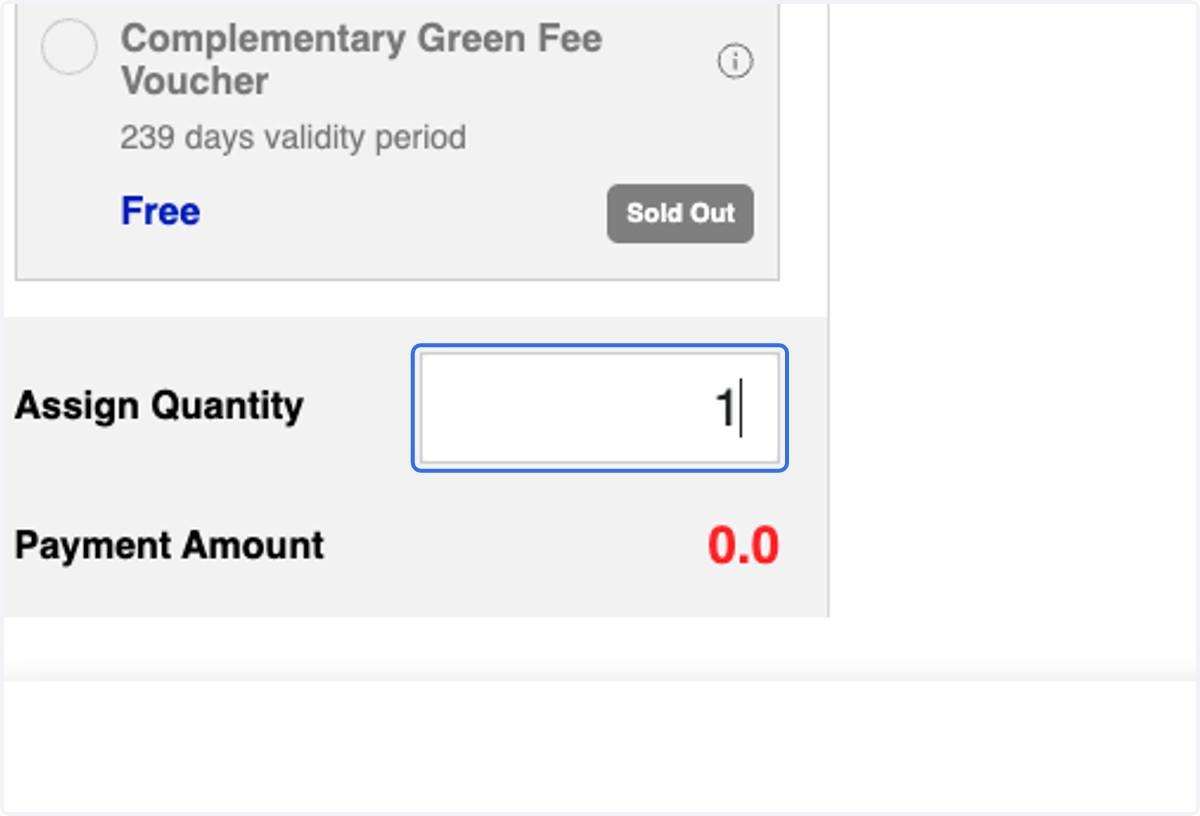
8. Enter the quantity you would like to assign
9. Click on Confirm Assign
10. A. Check the Information
10. B. Click on Confirm

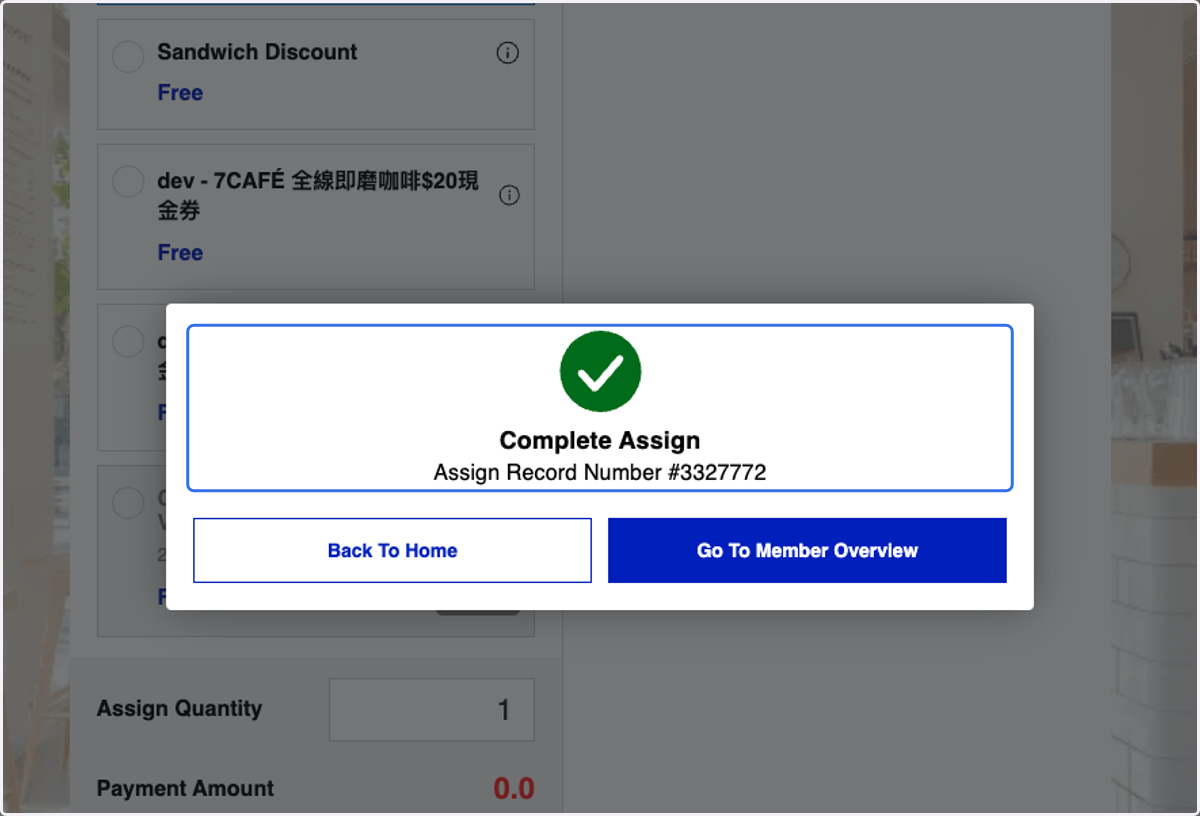
11. Voucher Assignment Completed