[Merchant Webapp/Member Card] How to Pay by Member Card Available Points
Member Search - Payment via Member Card
1. Click on Member Search/Registration
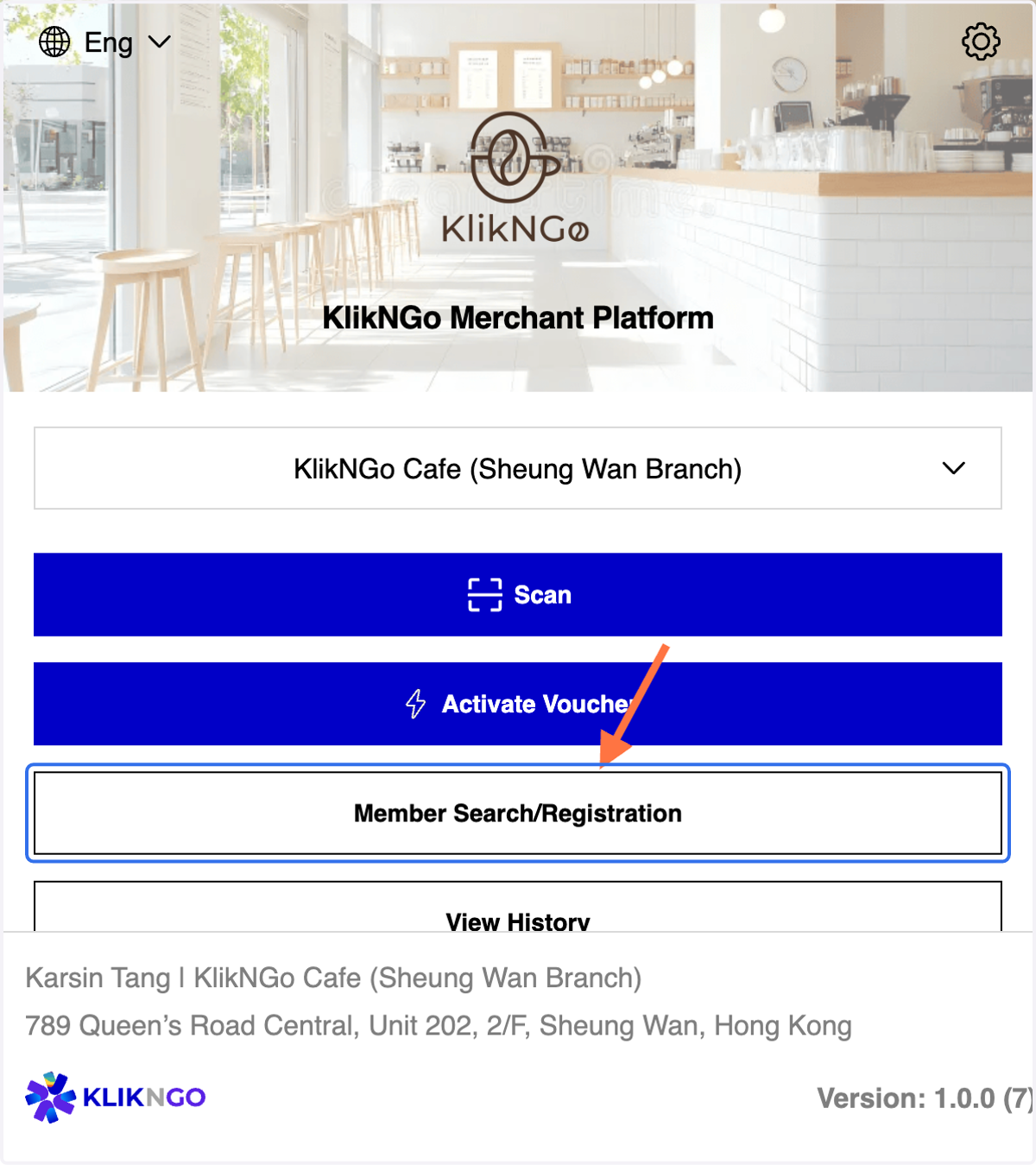
2. A. You may search member via member ID/ mobile number /email
2. B. Click on Member ID tab
3 Methods for Member Search (A)

3. Fill in the member ID
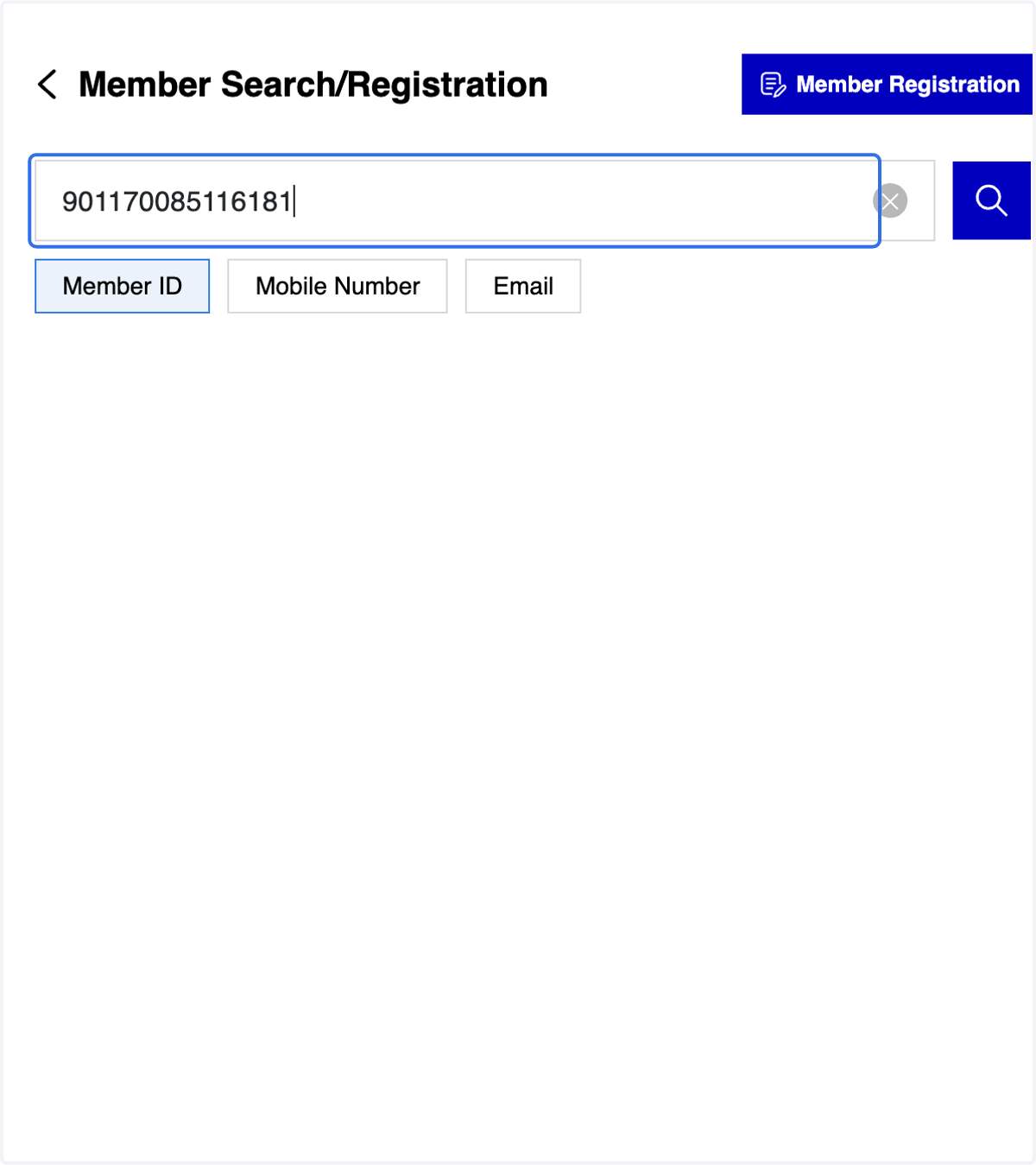
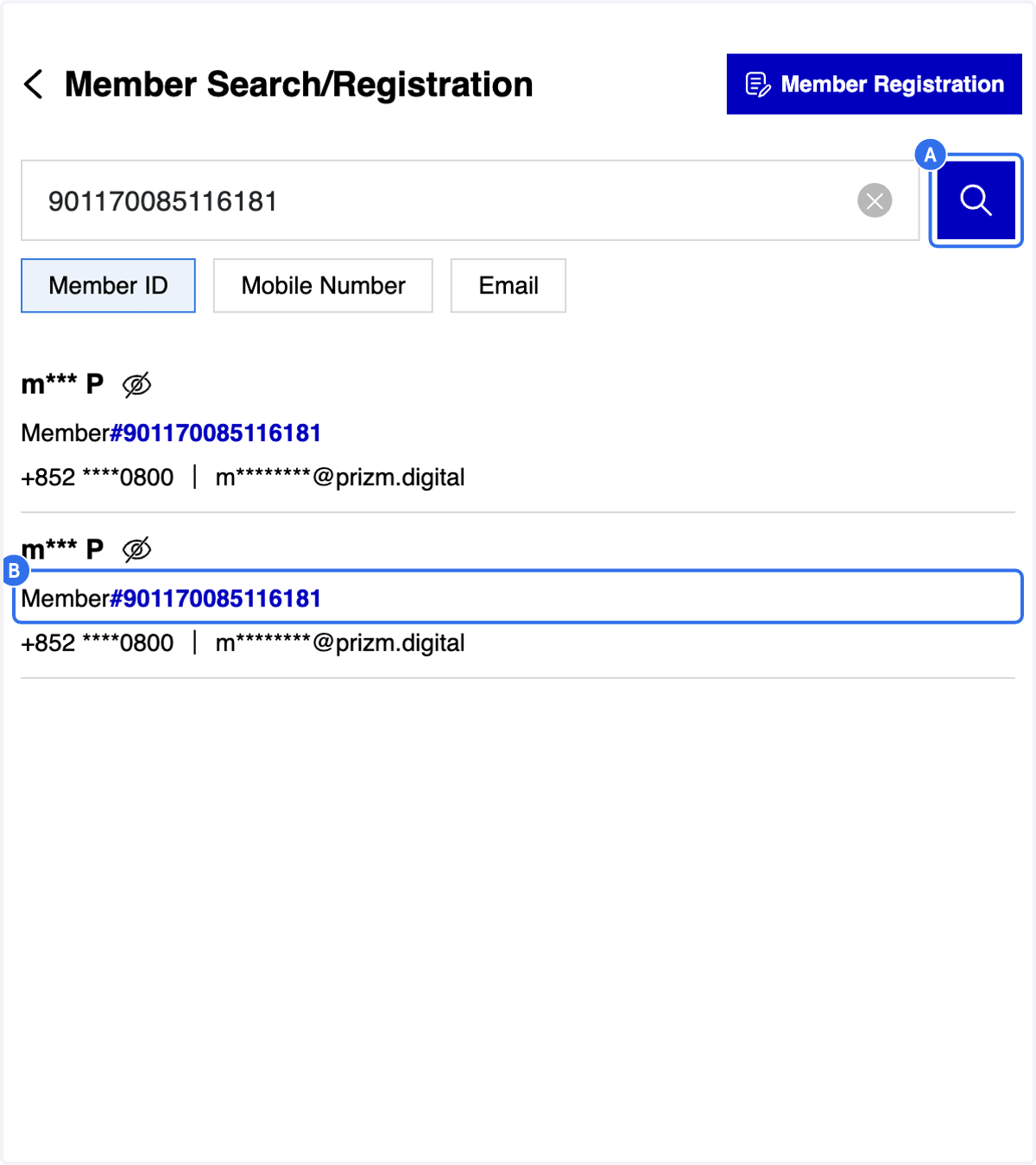
4. A. Click on "Search" icon
4. B. Click on the selected member ID
5. After selecting the Member ID, you will be directed to the Member Profile Overview page
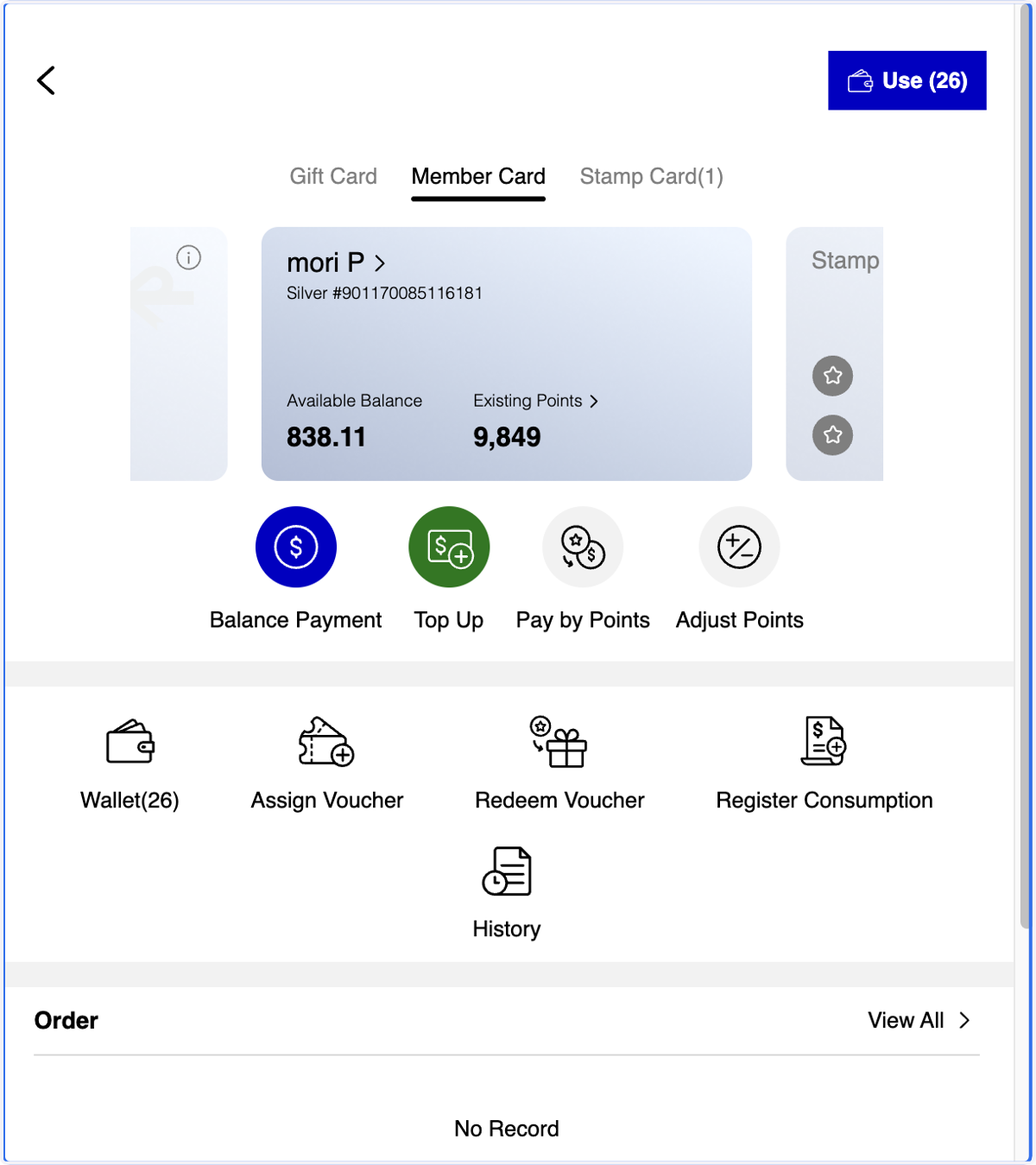
6. A. Click on Member Card
6. B. Click on Balance Payment

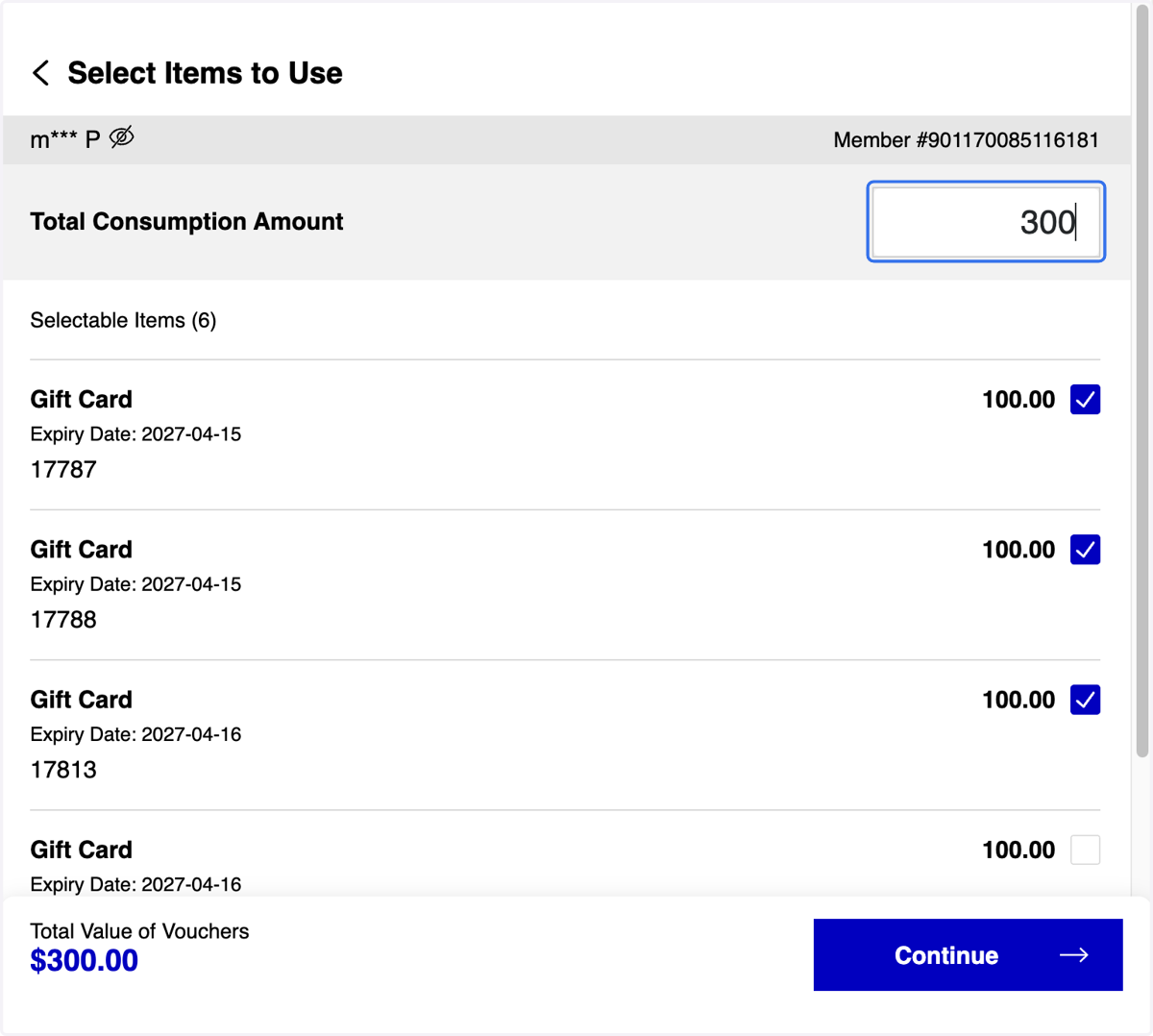
7. Fill in the Total Consumption Amount. The system will automatically select the available Gift Card Balance for deduction.
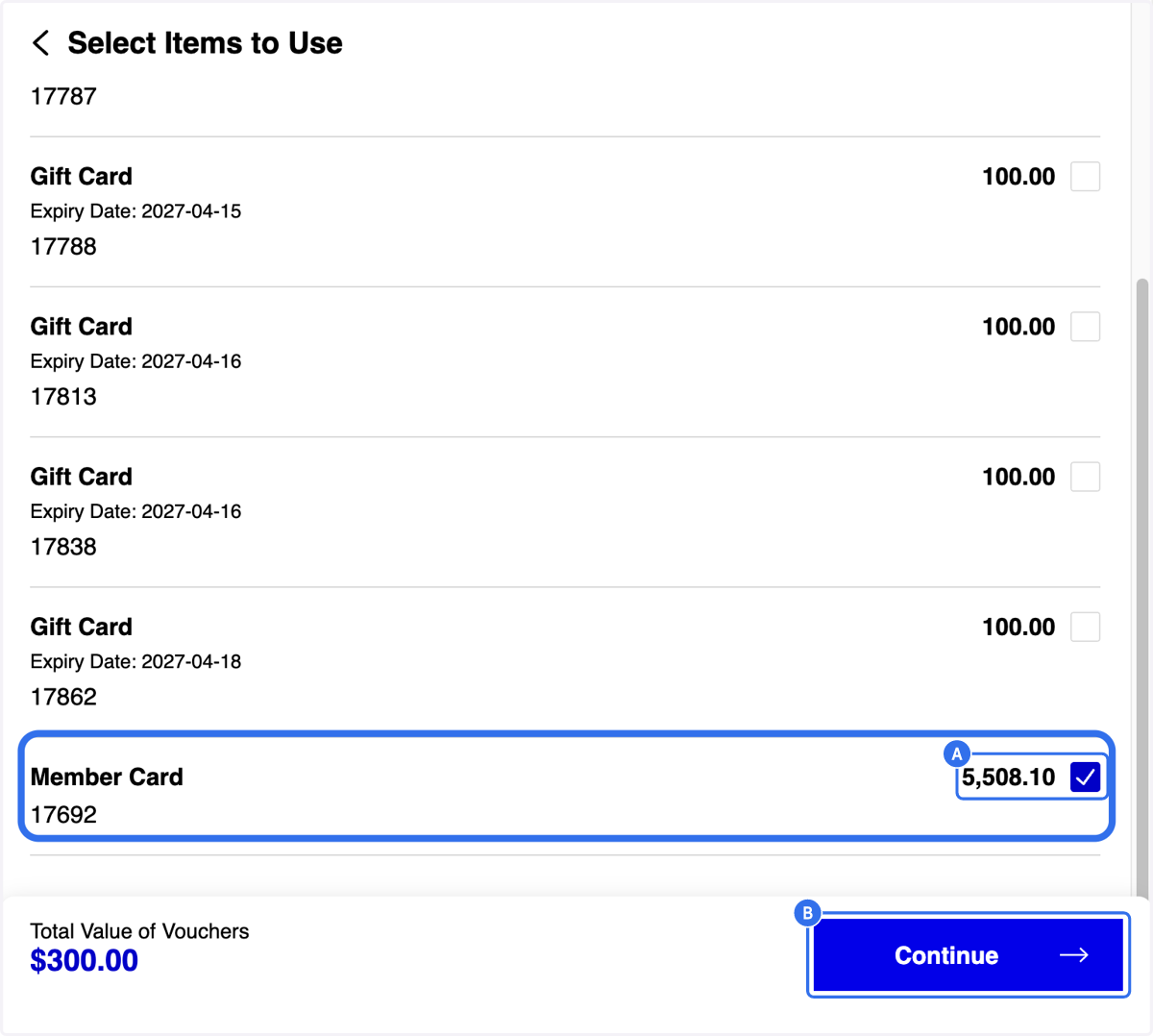
8. A. You can manually select the Member Card for deduction
8. B. Click on Continue
9. A. Enter the Receipt Number. This field is mandatory.
9. B. Add a Remark if needed.
9. C. Click on Camera icon to upload the receipt for a record if needed.

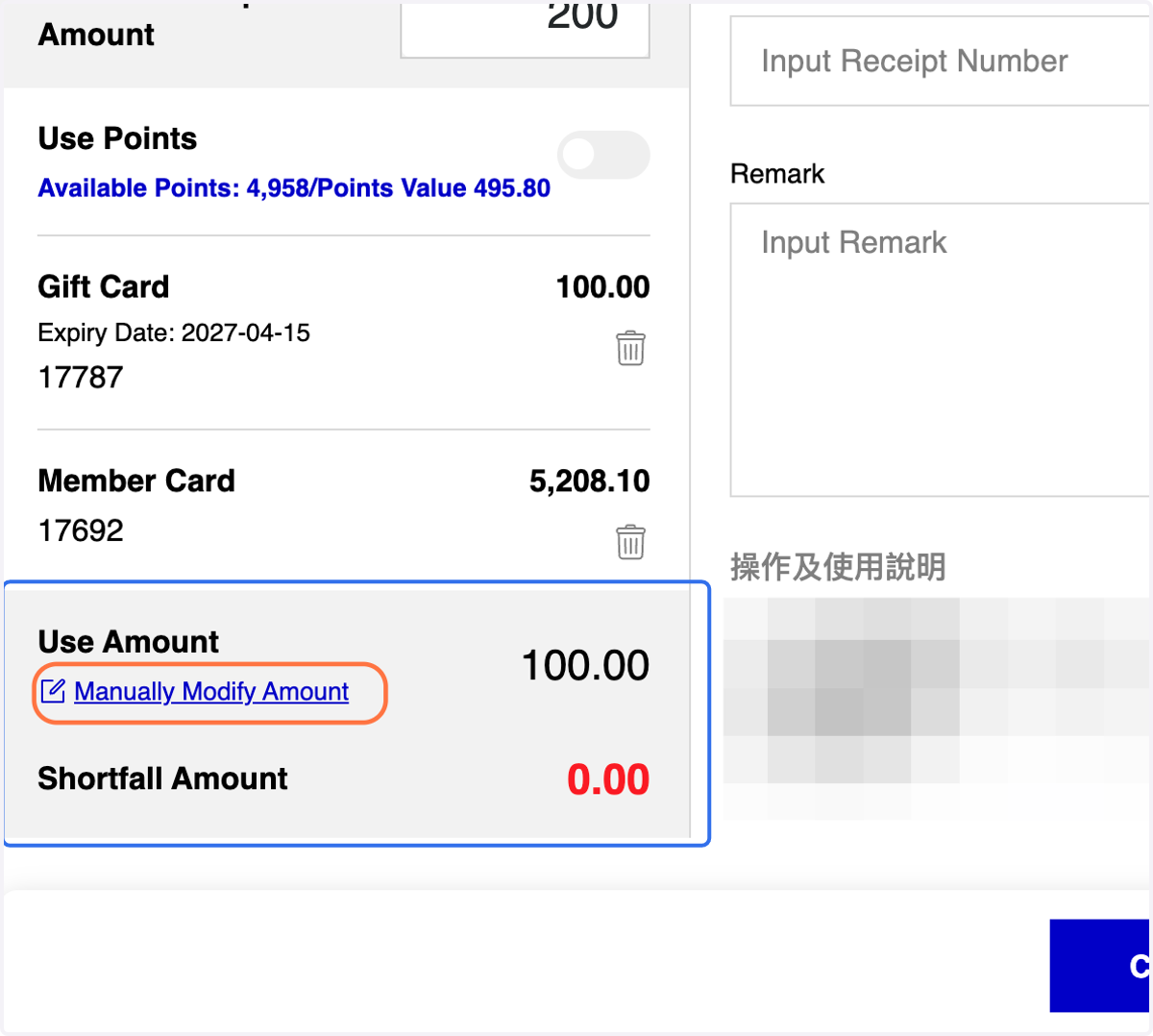
10. Click on Manually Modify Amount & Insert Amount if needed
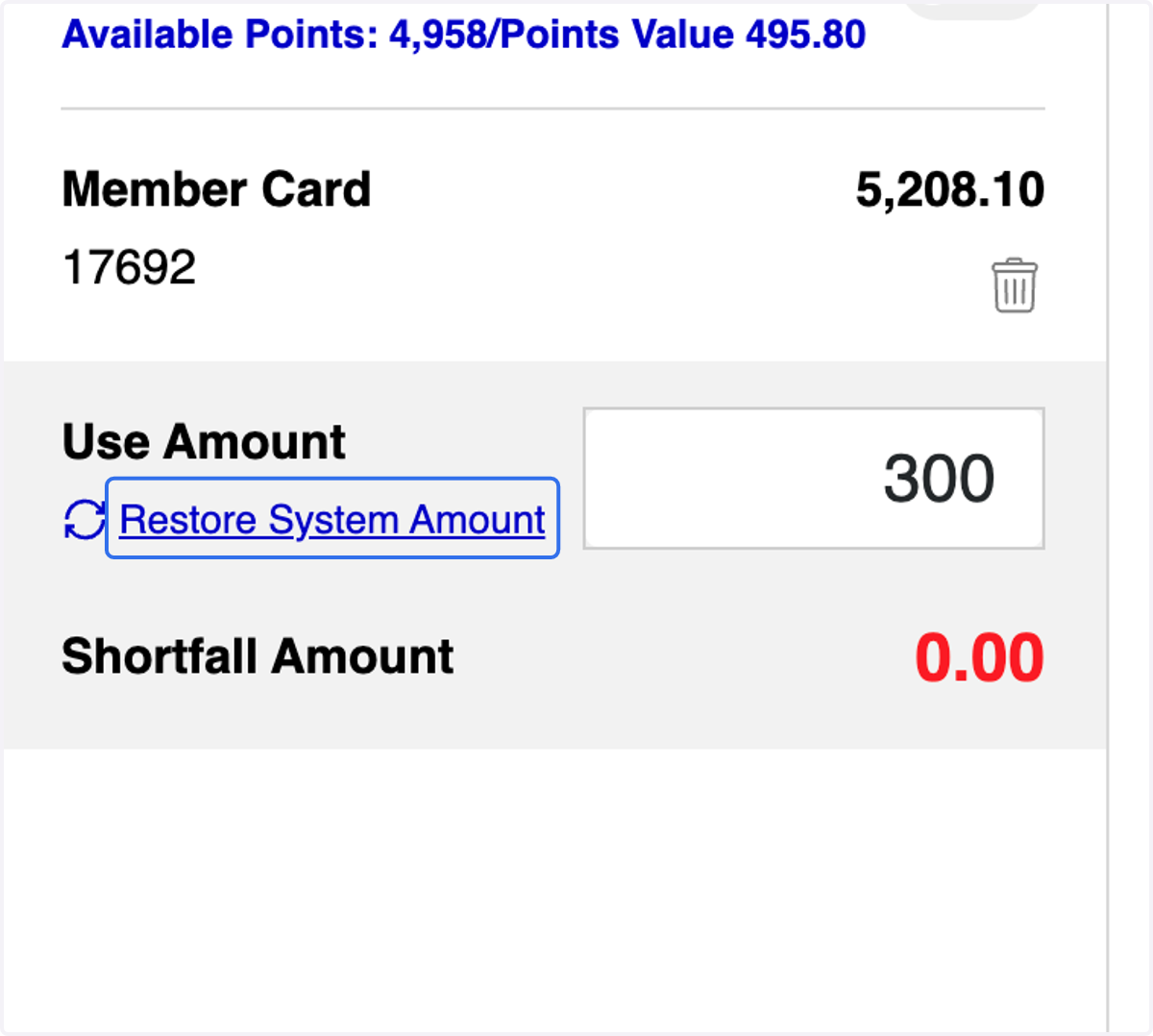
11. or Click on Restore System Amount if you would like to remain unchanged.
12. A. The 'Use Points' feature allows members to use their available points to offset the total consumption amount
12. B. Turn On
12. C. Input Points that you would like to deduct
12. D. Click on Confirm Use
Use Points to deduct total consumption amount

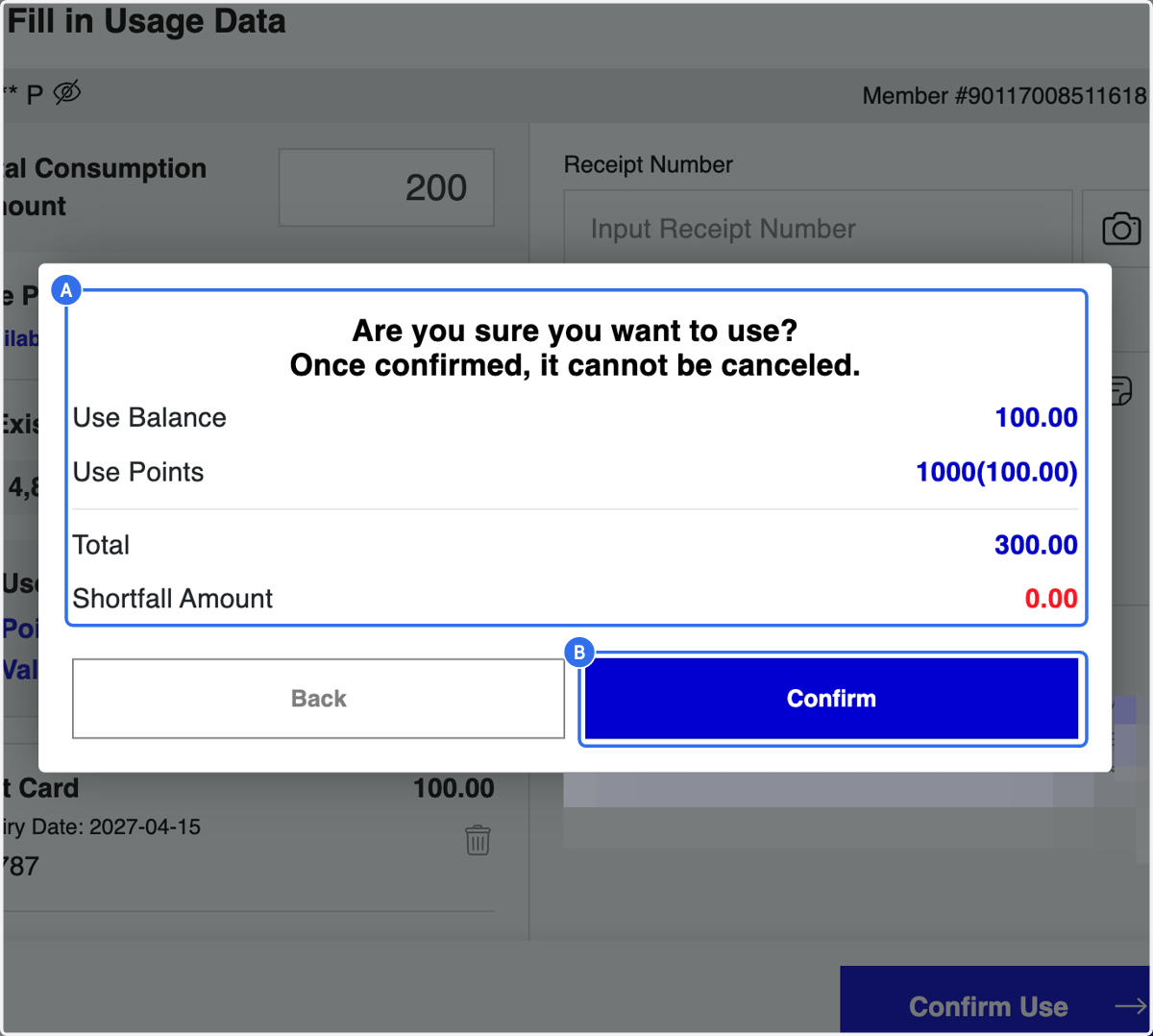
13. A. Check the Information
13. B. Click on Confirm to proceed with payment
Scan - Member Card for Payment
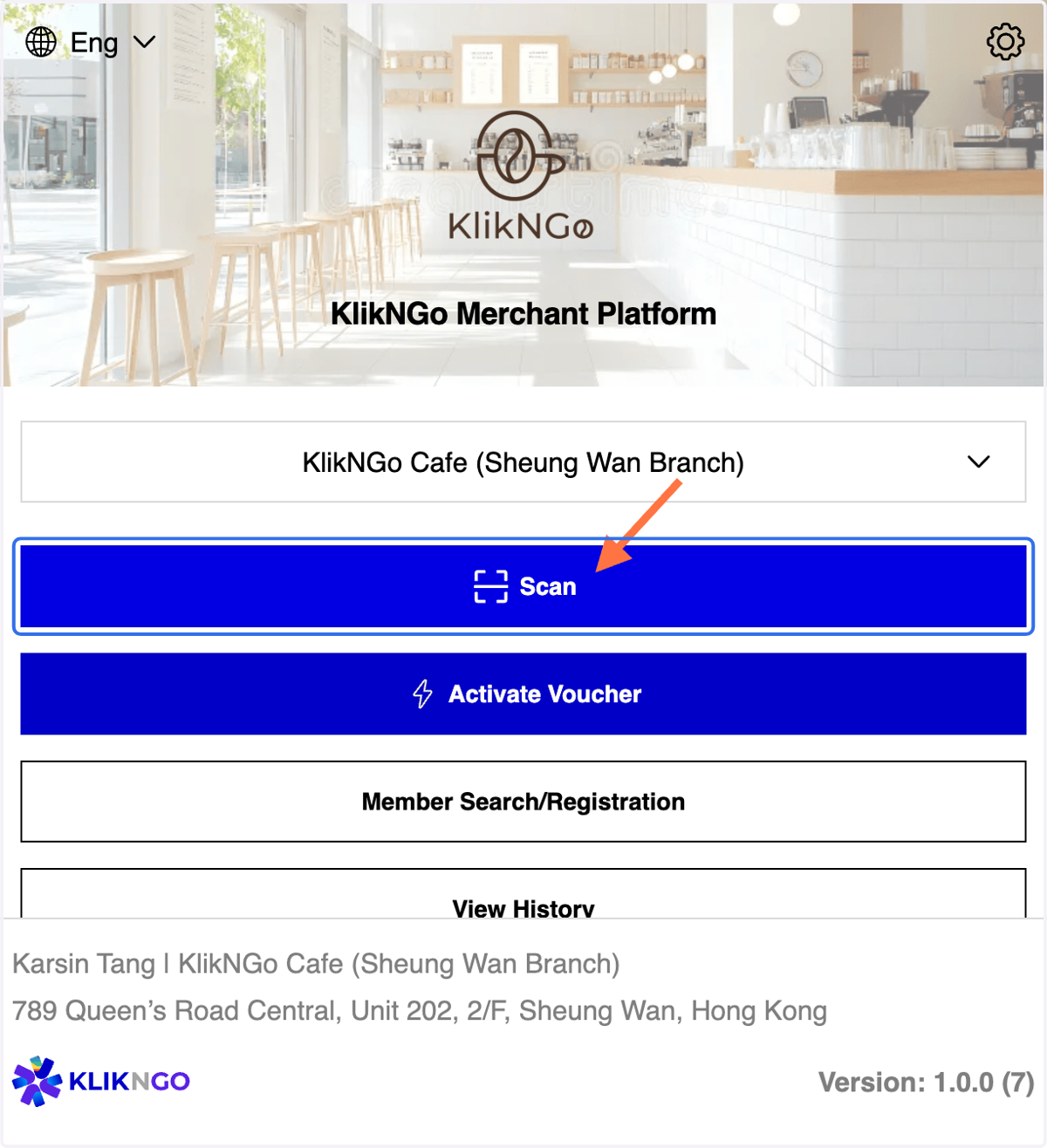
14. Click on Scan
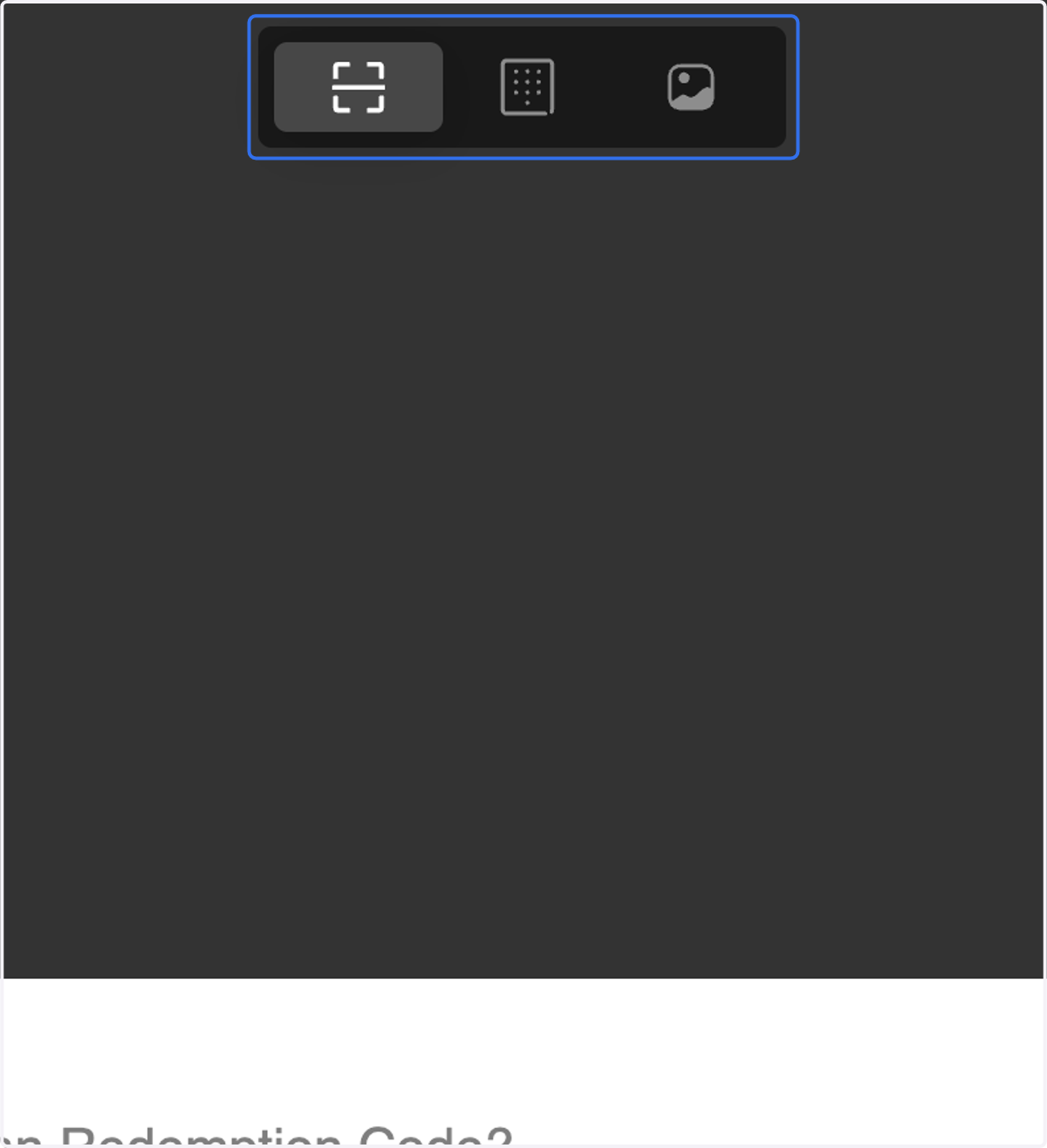
15. 3 Methods: Scan QR/ Insert Code/ Upload Image or File (QR)
16. Proceed with Step 7 till Step 13