[Apollo]: REPS - How to configure Rep settings
If you have not yet logged in to your Apollo Integration, complete this guide first:
Orum - Dashboard
1. Click on Search Lists and select a specific list
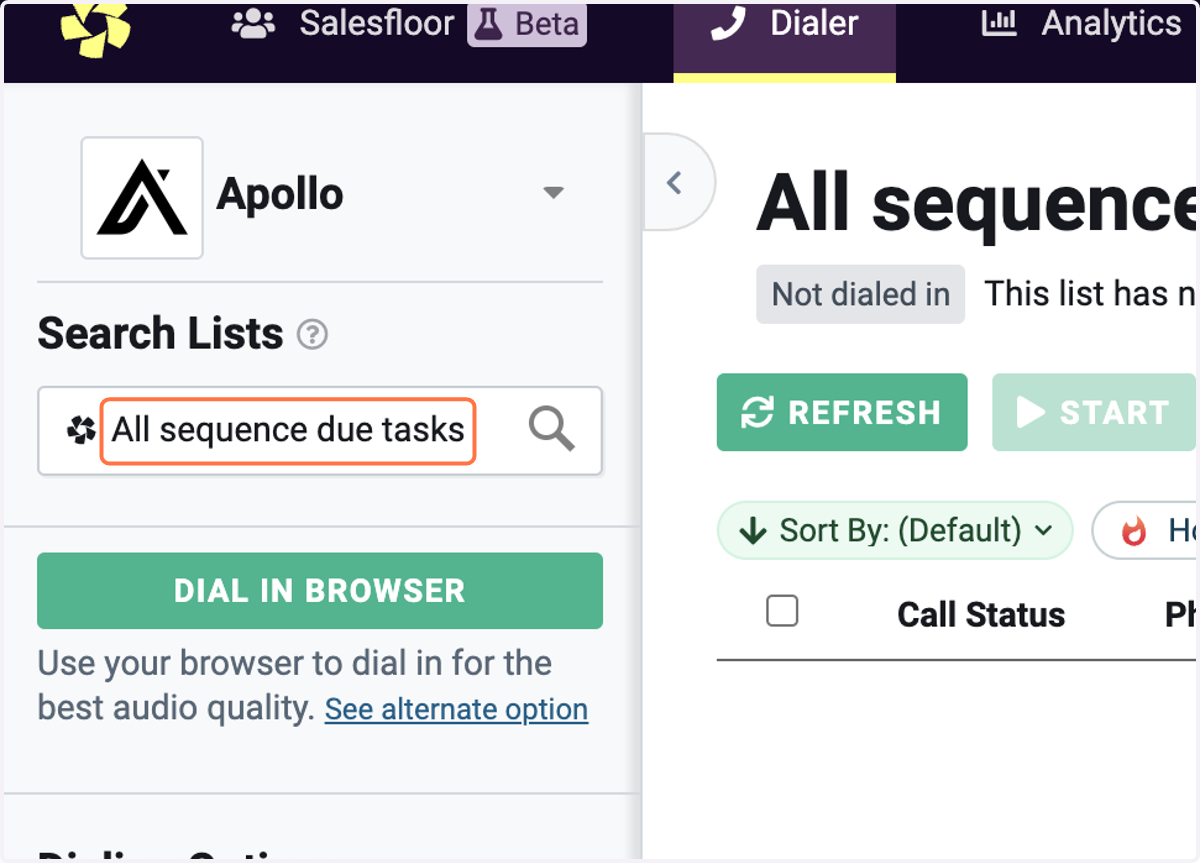
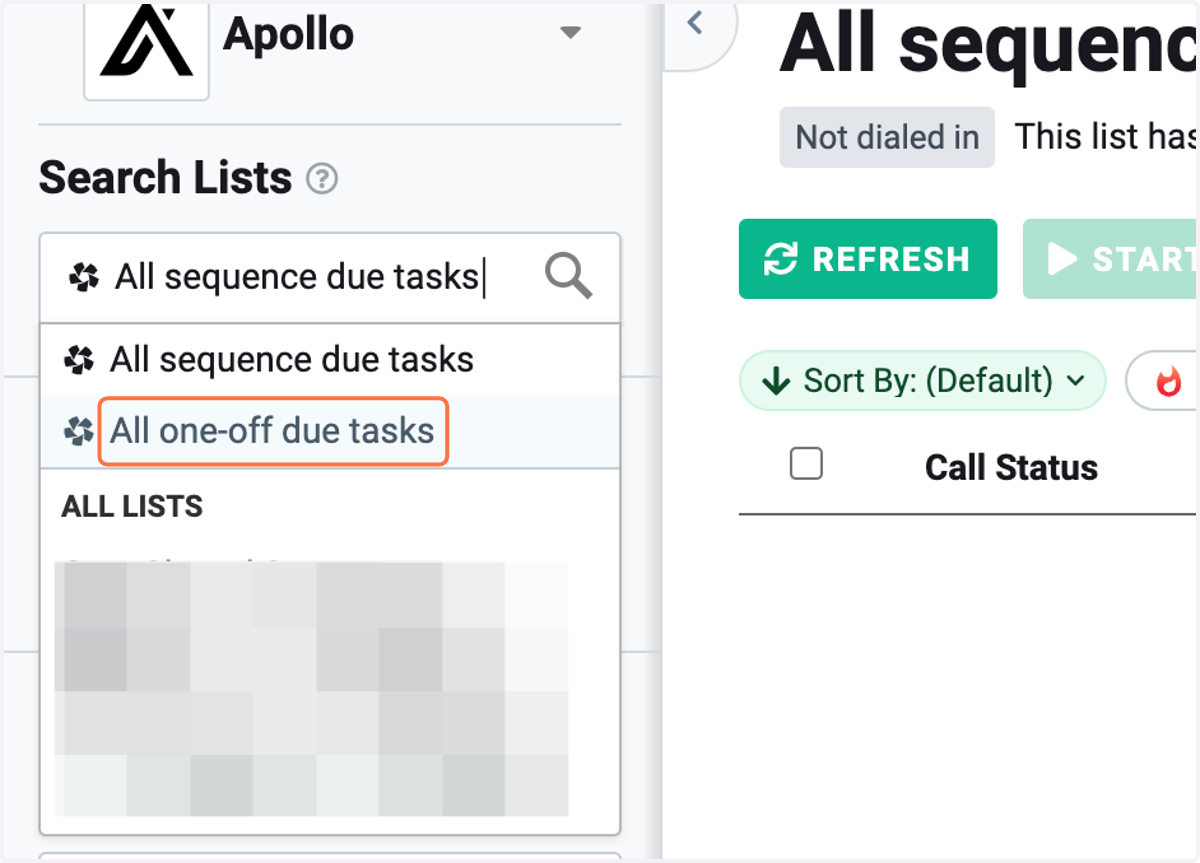
2. For my example I will use All One-Off Due Tasks
3. Scroll down to Phone Fields
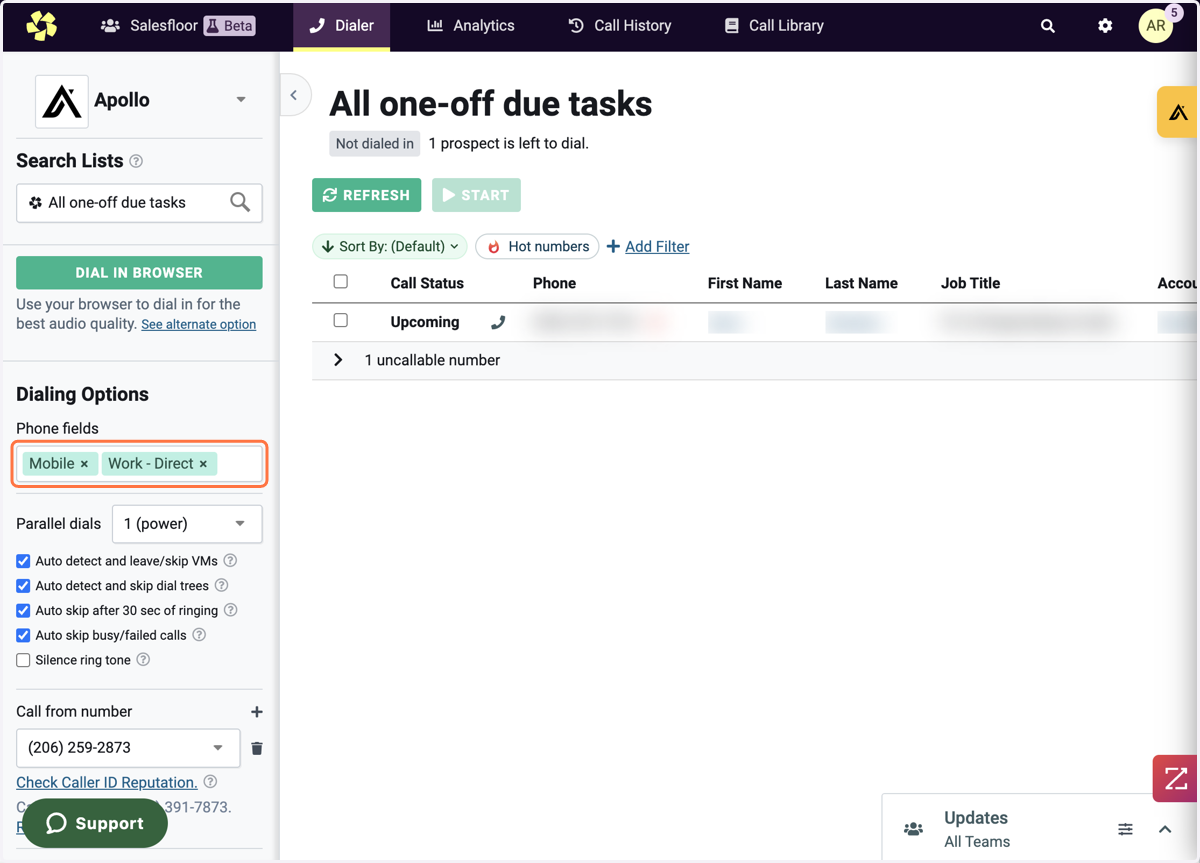
4. Click on the whitespace and add all phone fields that are available from Apollo
The order of the phone fields is what order Orum will dial prospects, we recommend Mobile phone field as the first option.
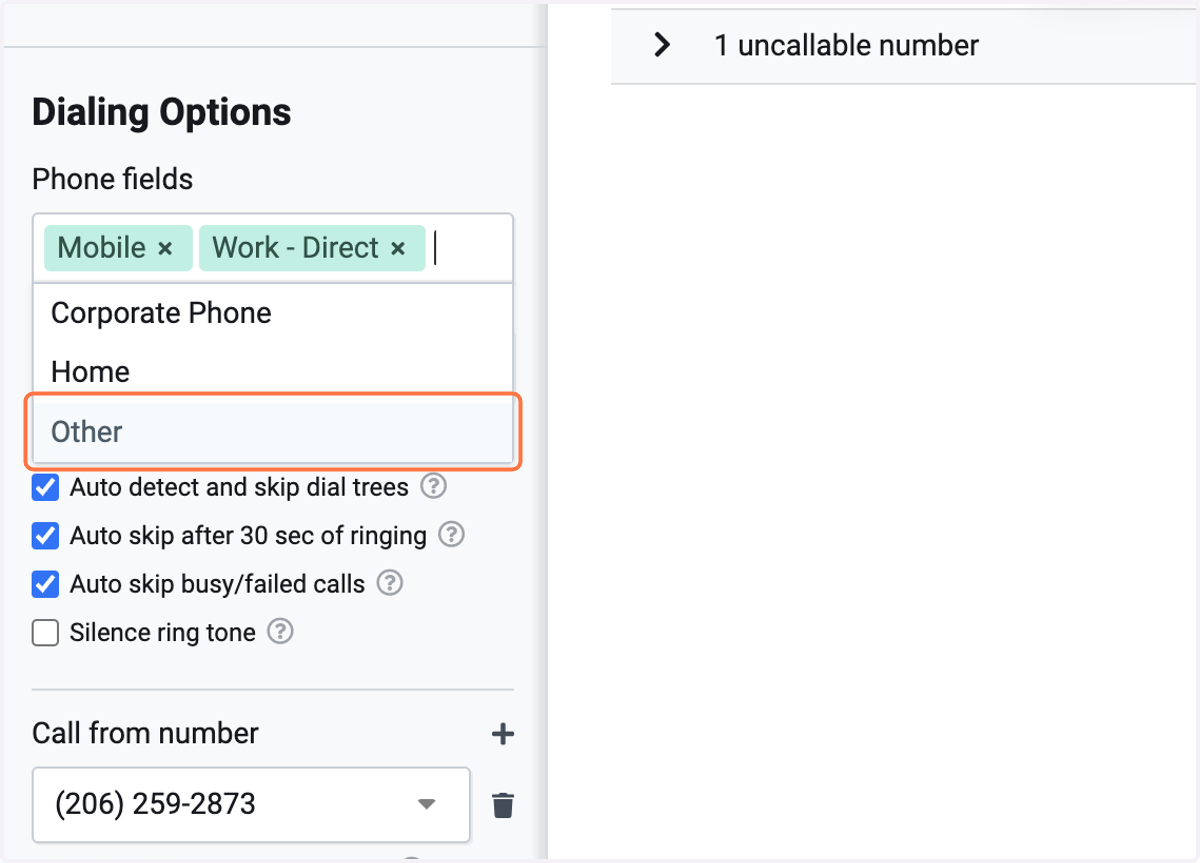
5. Ensure you have Power dialer selected
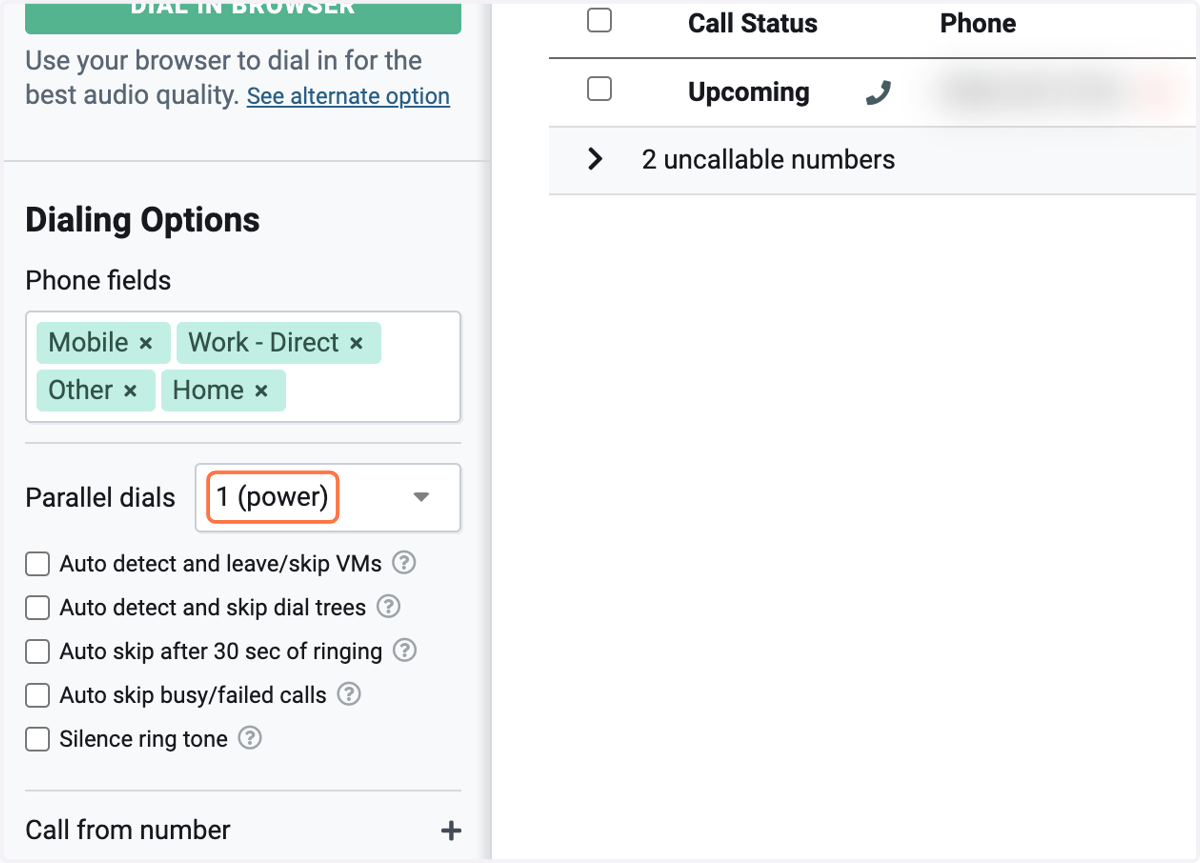
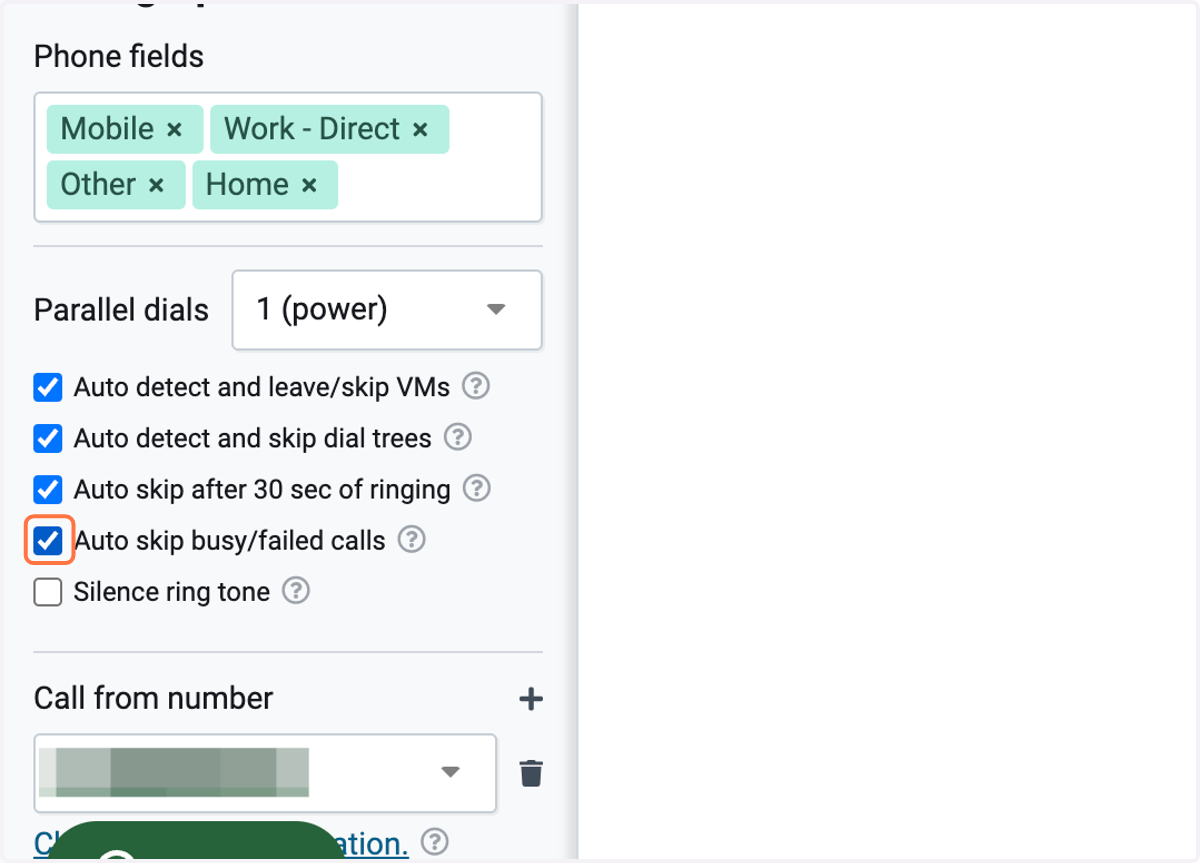
6. Check the automation boxes, I recommend the first 4 with the last one being optional if you would like to hear the phone ringing.
7. Add a new call from Number by click on the + icon
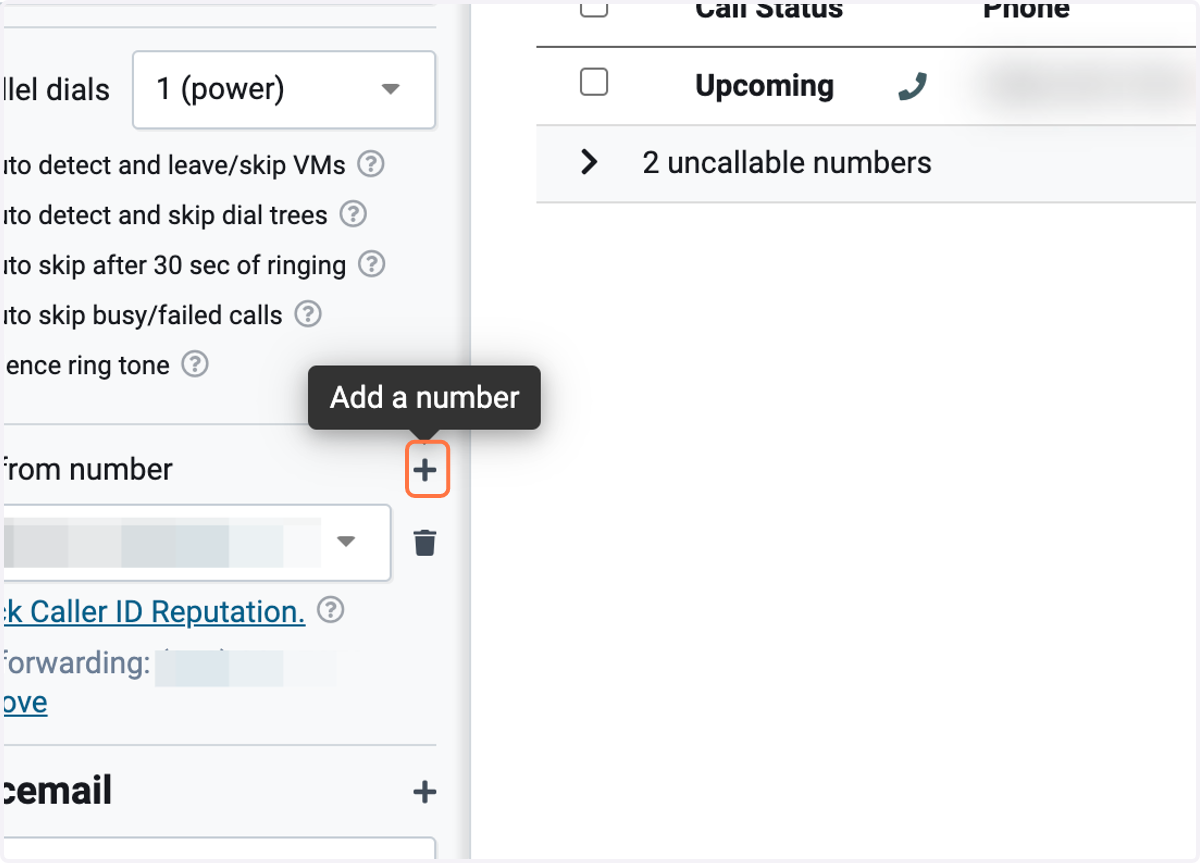
8. Type an area code then hit Search
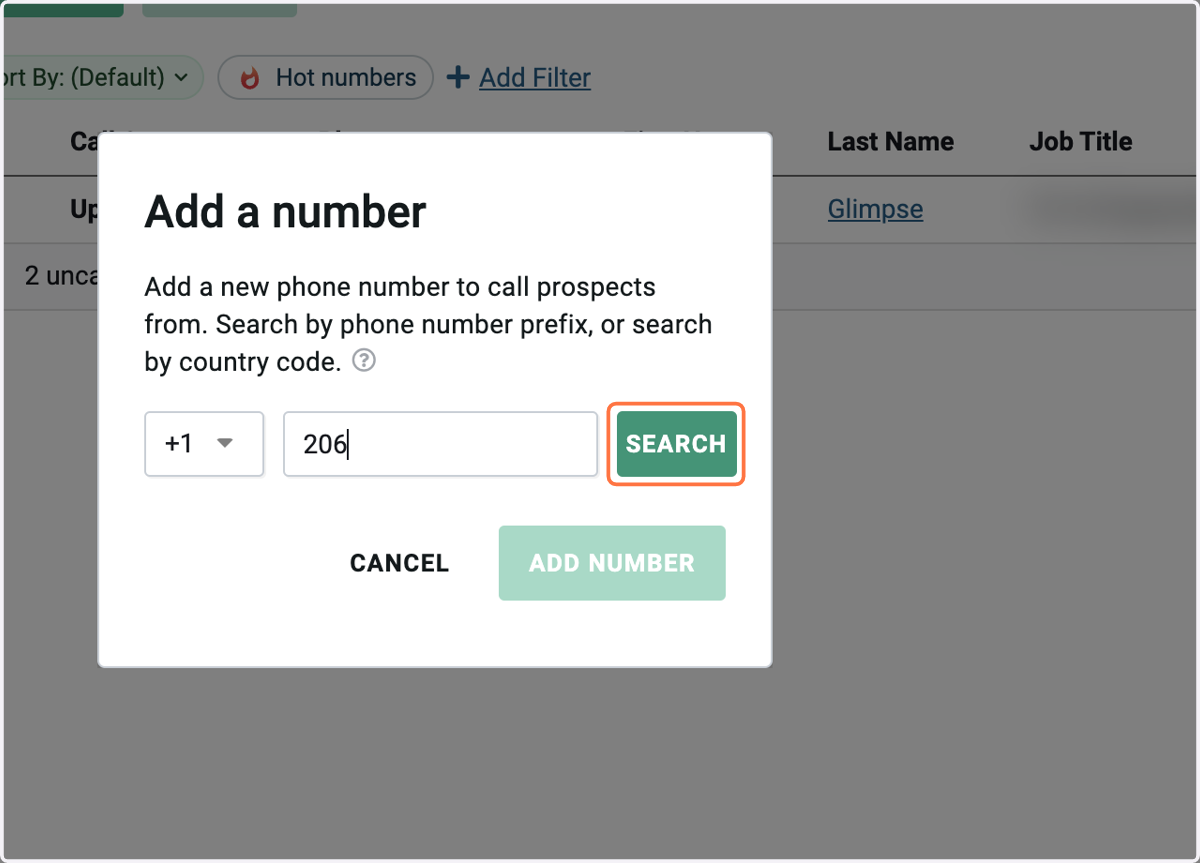
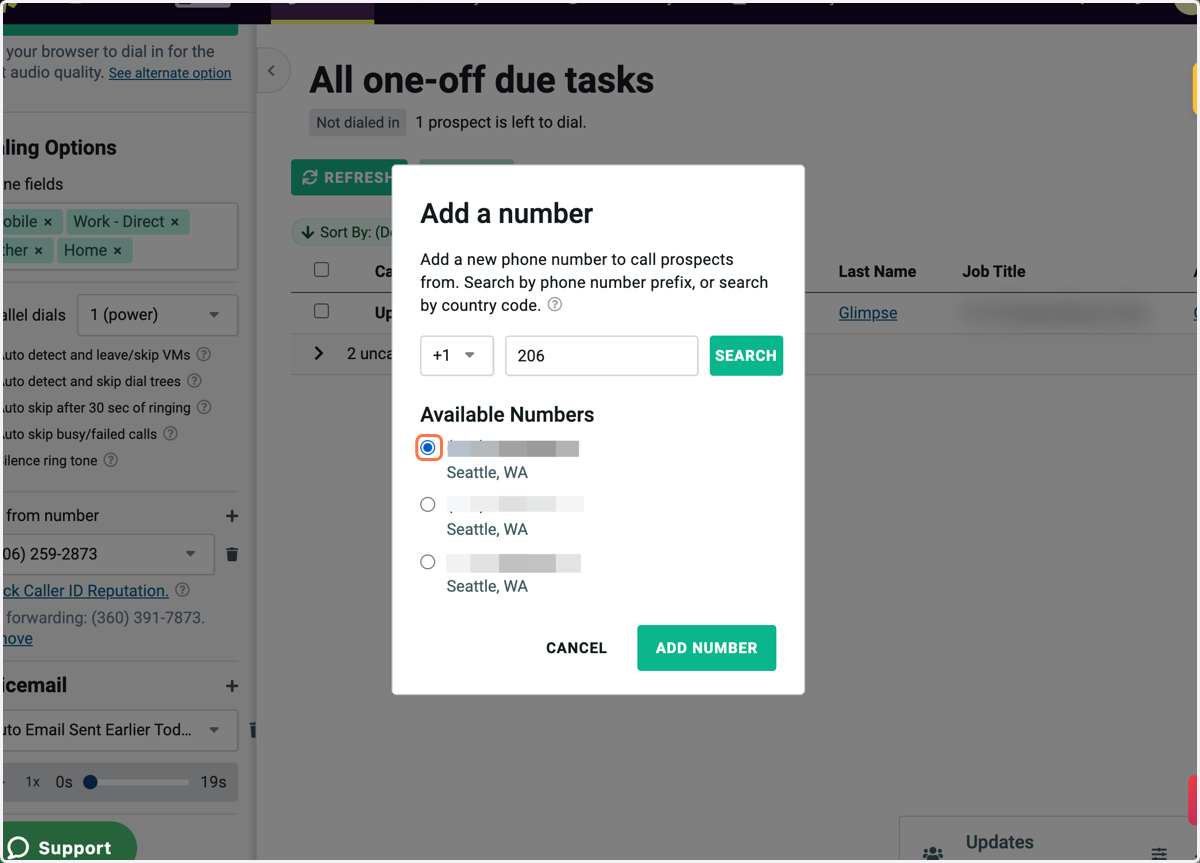
9. Select a specific number
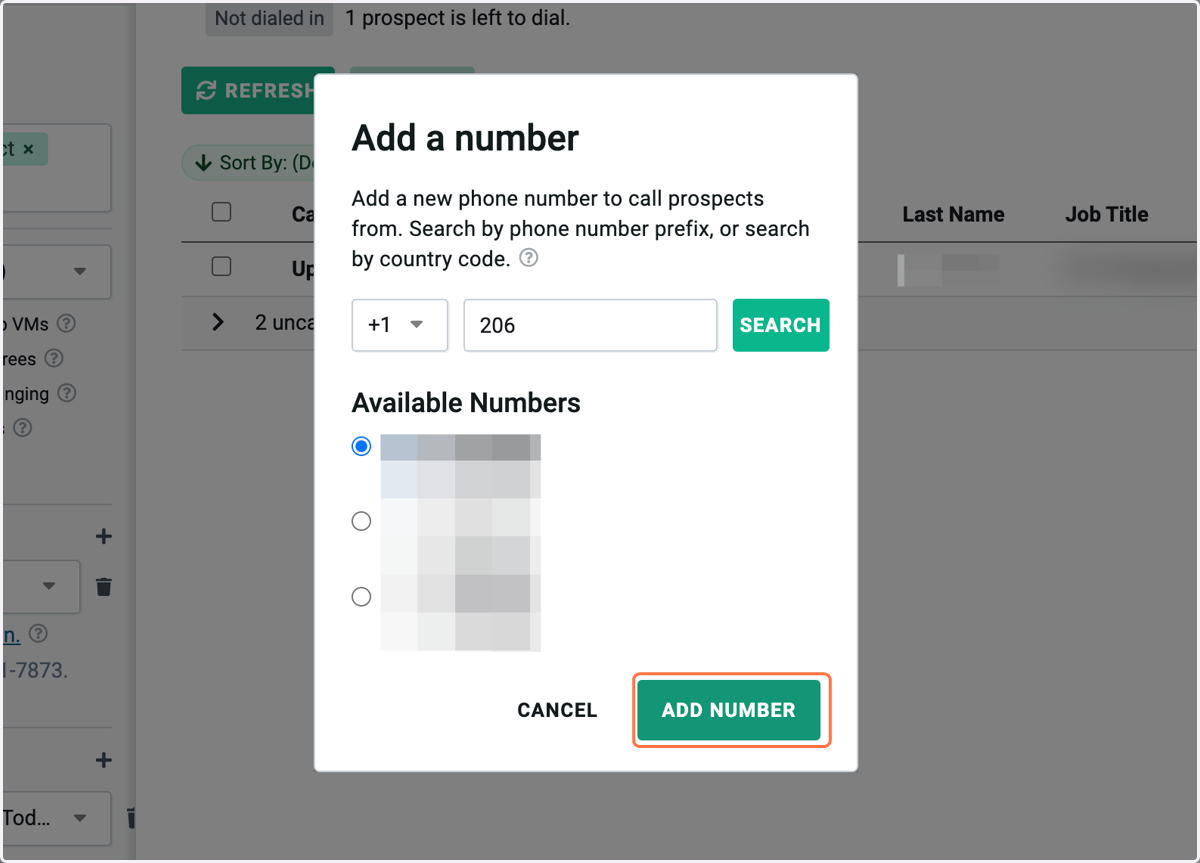
10. Click on ADD NUMBER
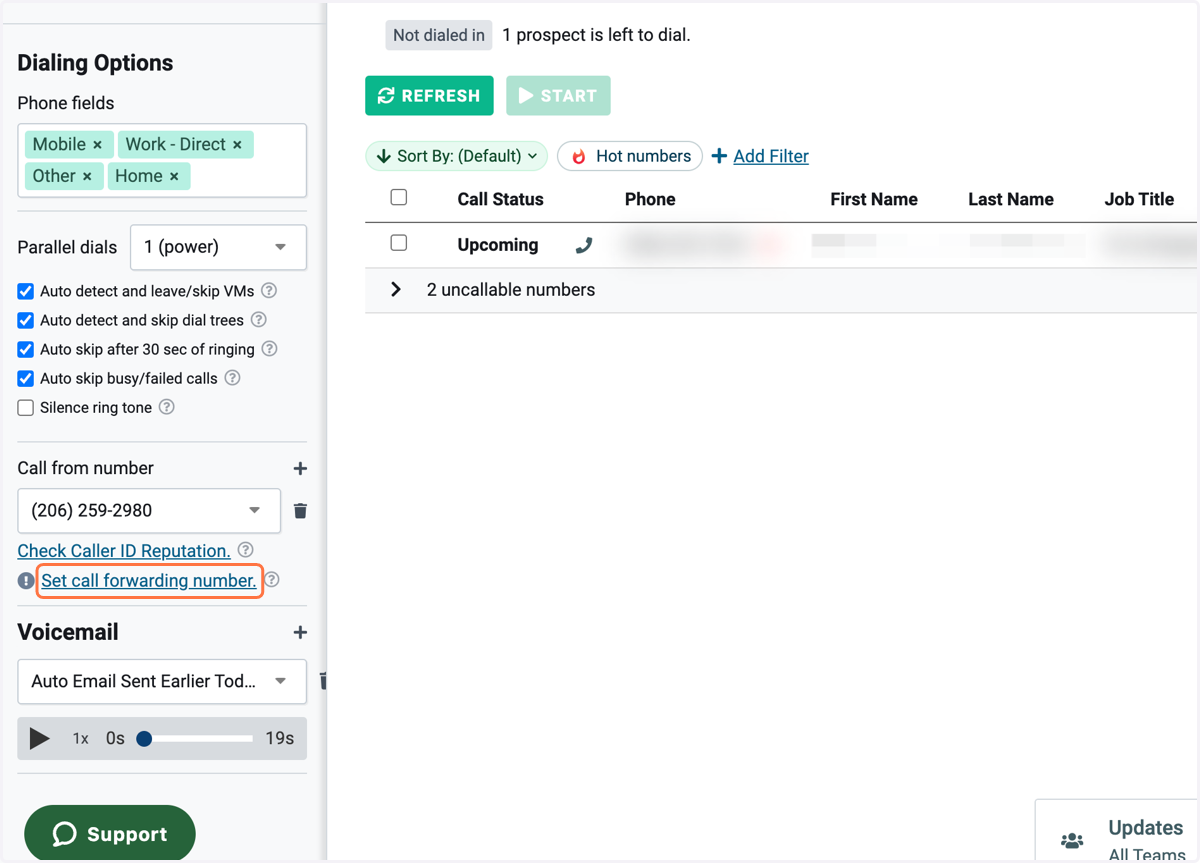
11. Click on Set call forwarding number.
12. Add your call forwarding number
This is where you will receive inbound calls when you are not dialed into Orum.
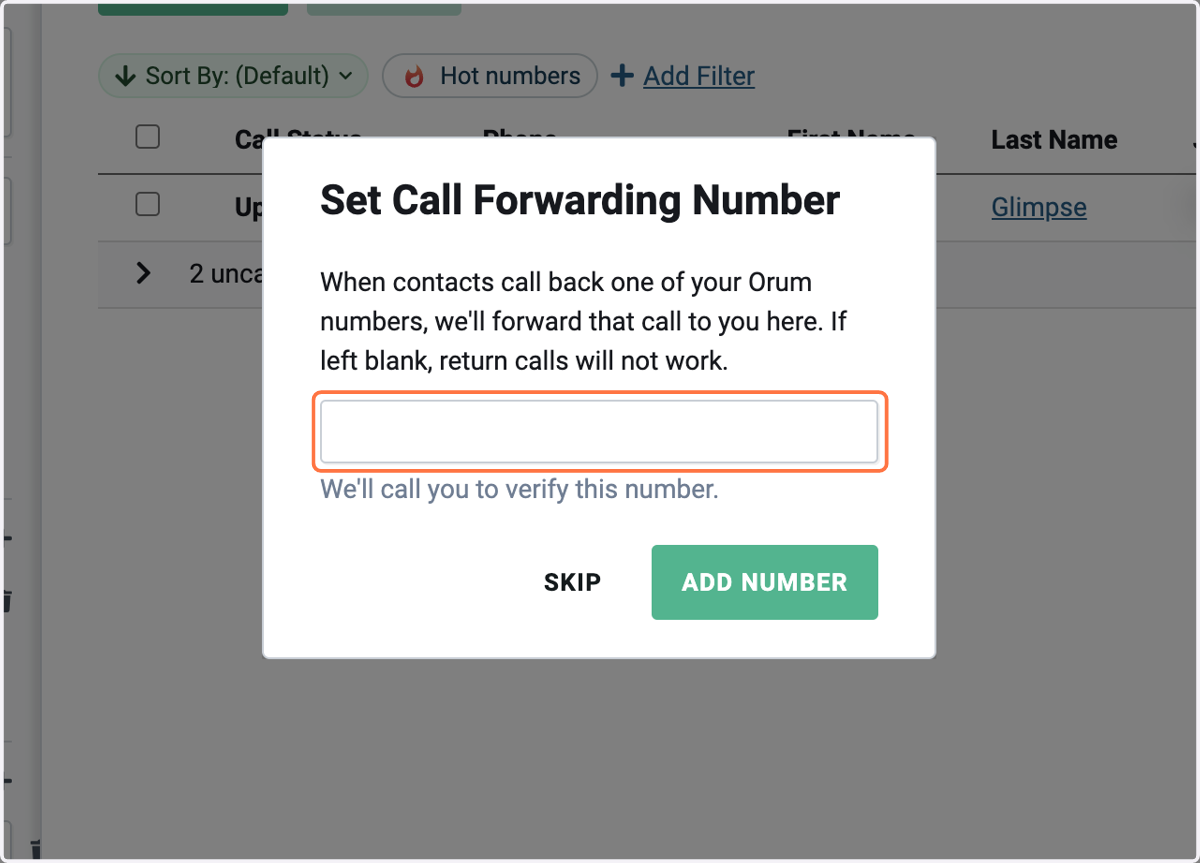
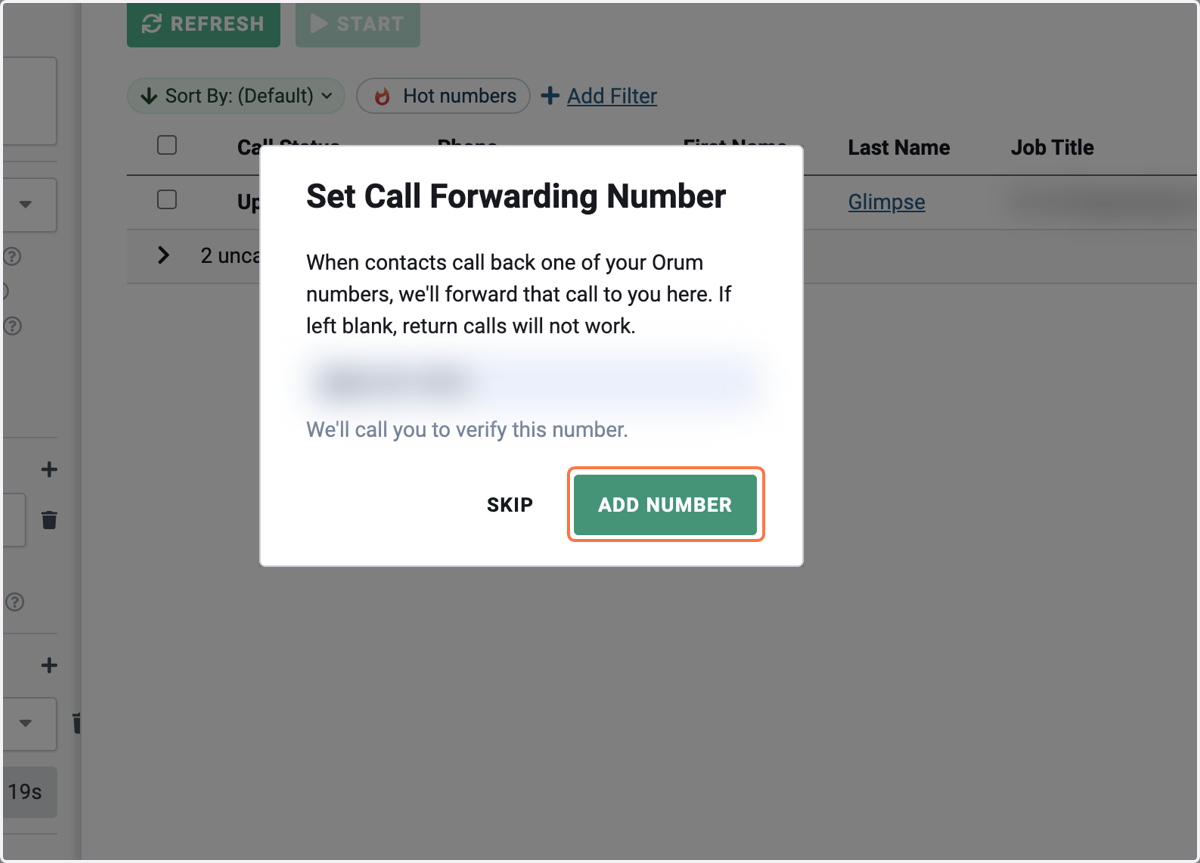
13. Click on ADD NUMBER
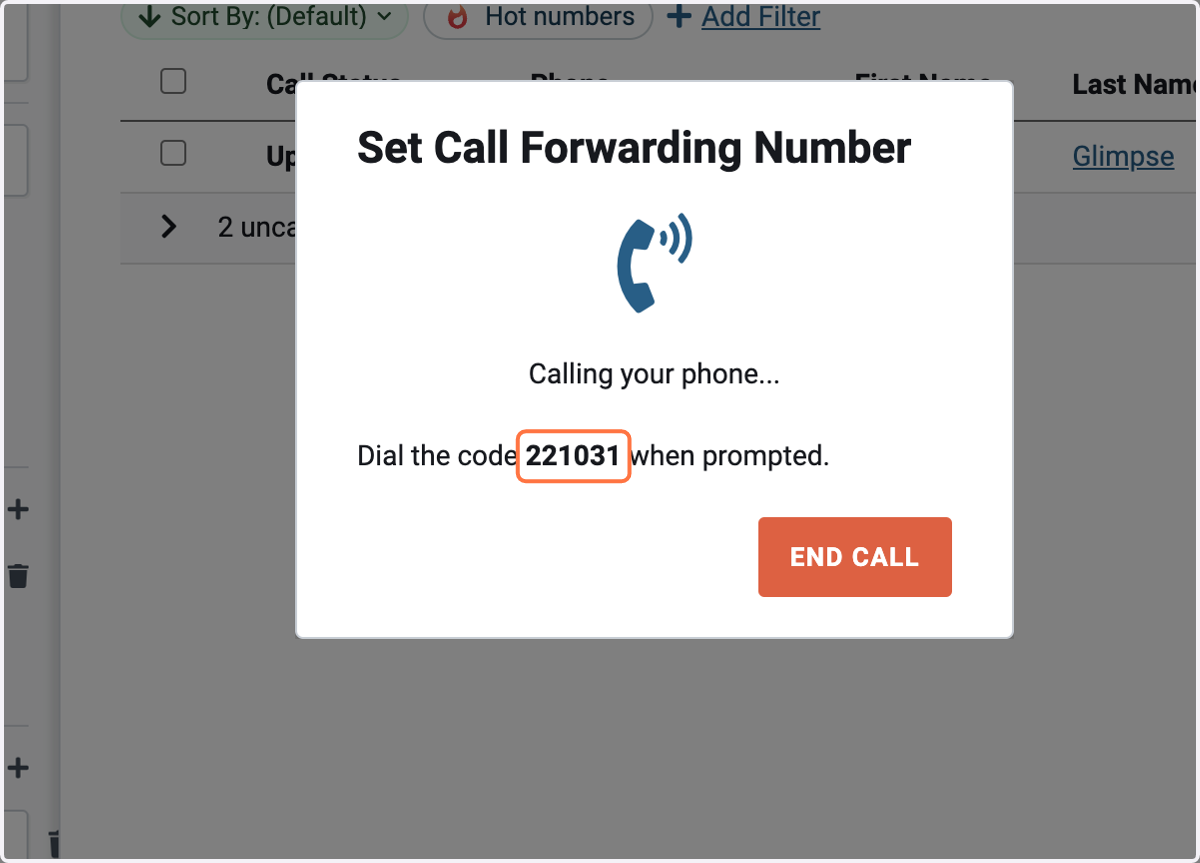
14. Type the code you see on the screen in the dial pad of your call forwarding number
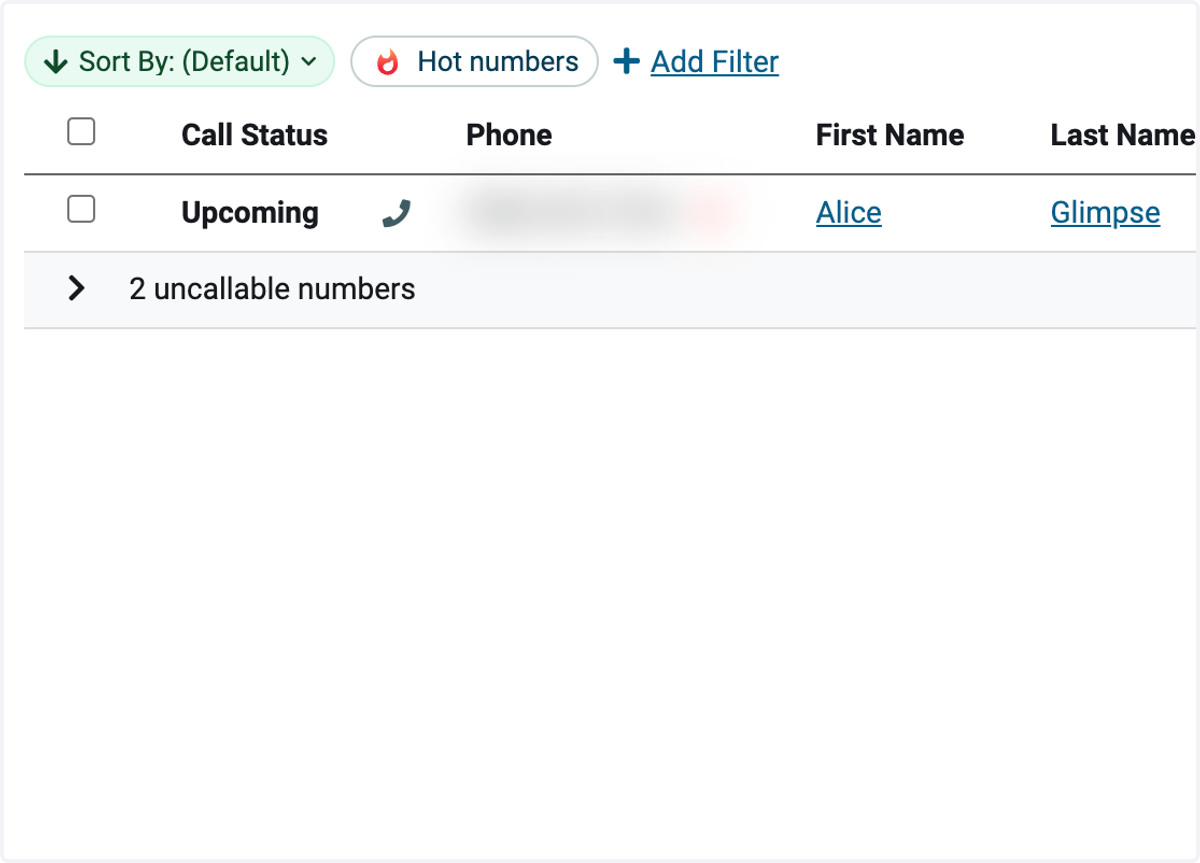
15. Once completed you should see your call forwarding number listed in Orum.
16. To set up VM drop click on the + sign
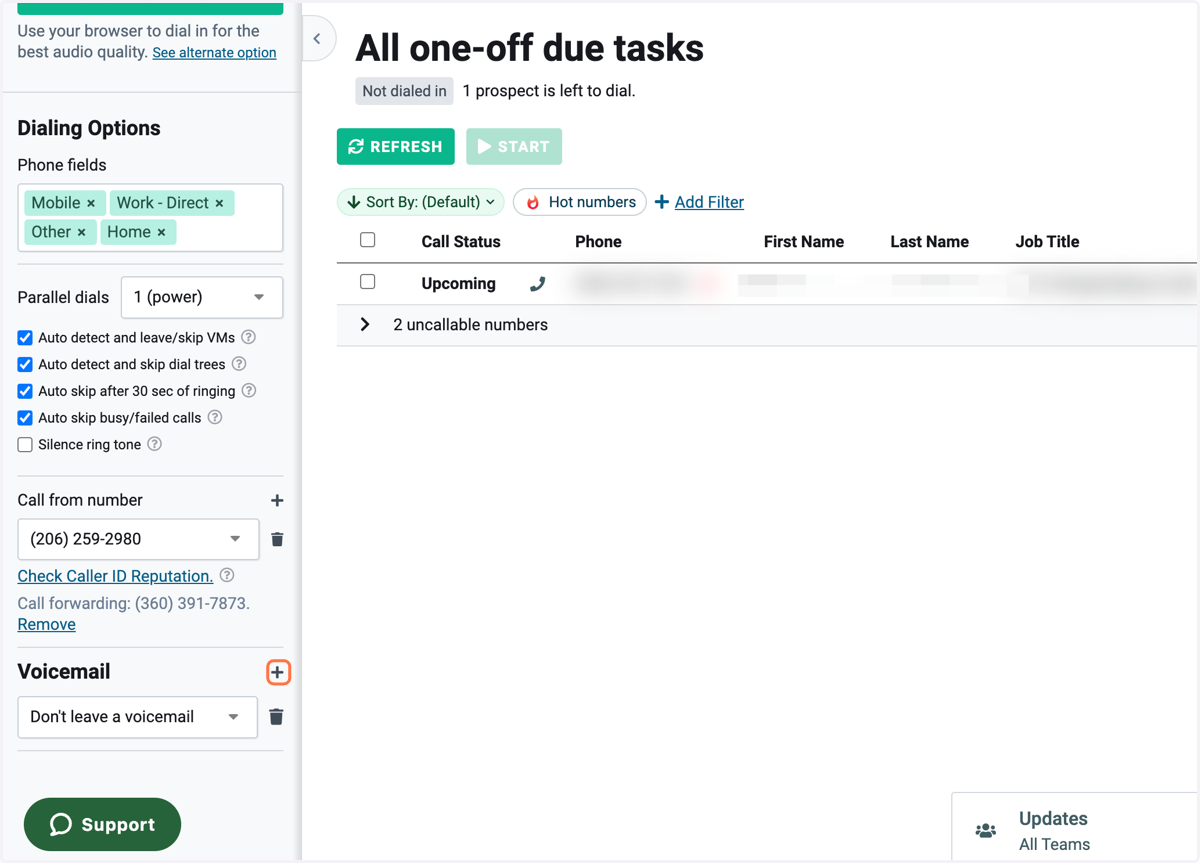
17. Give this voicemail a name
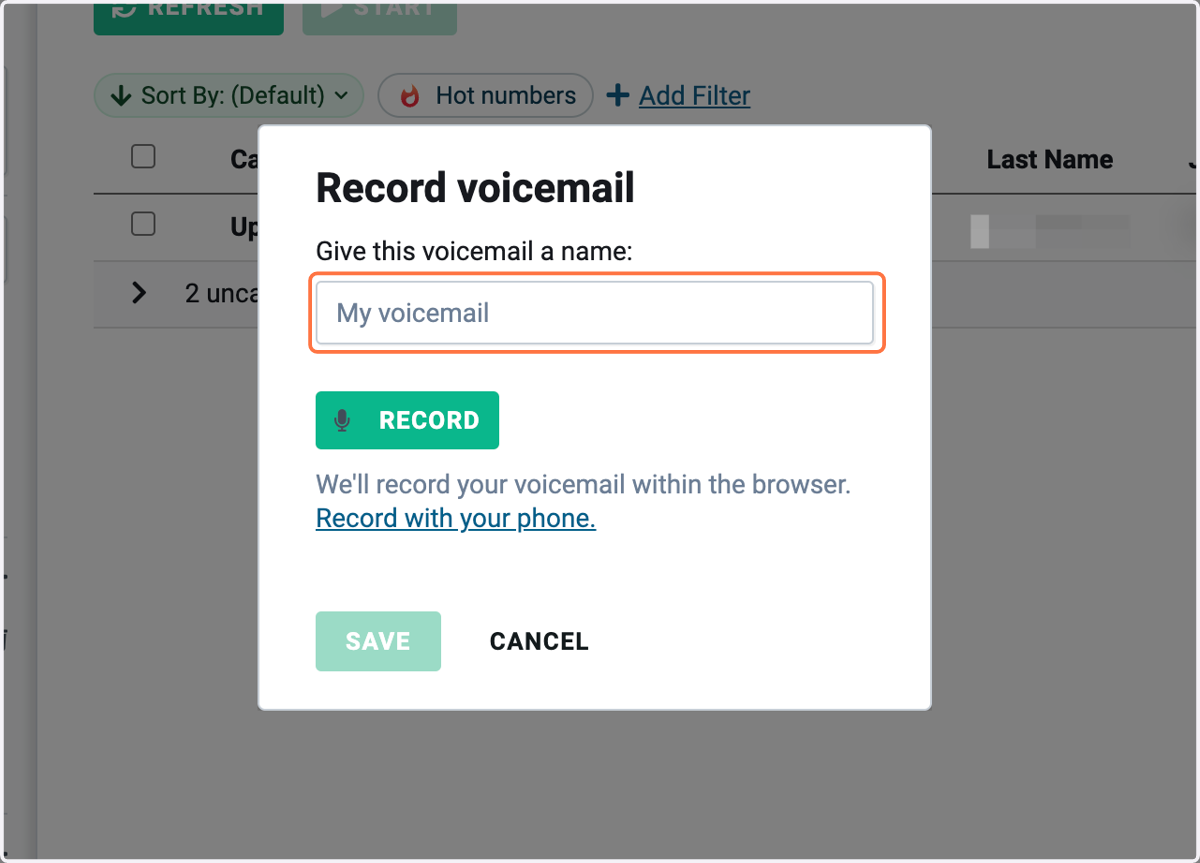
18. Record the audio for your VM then click on Done
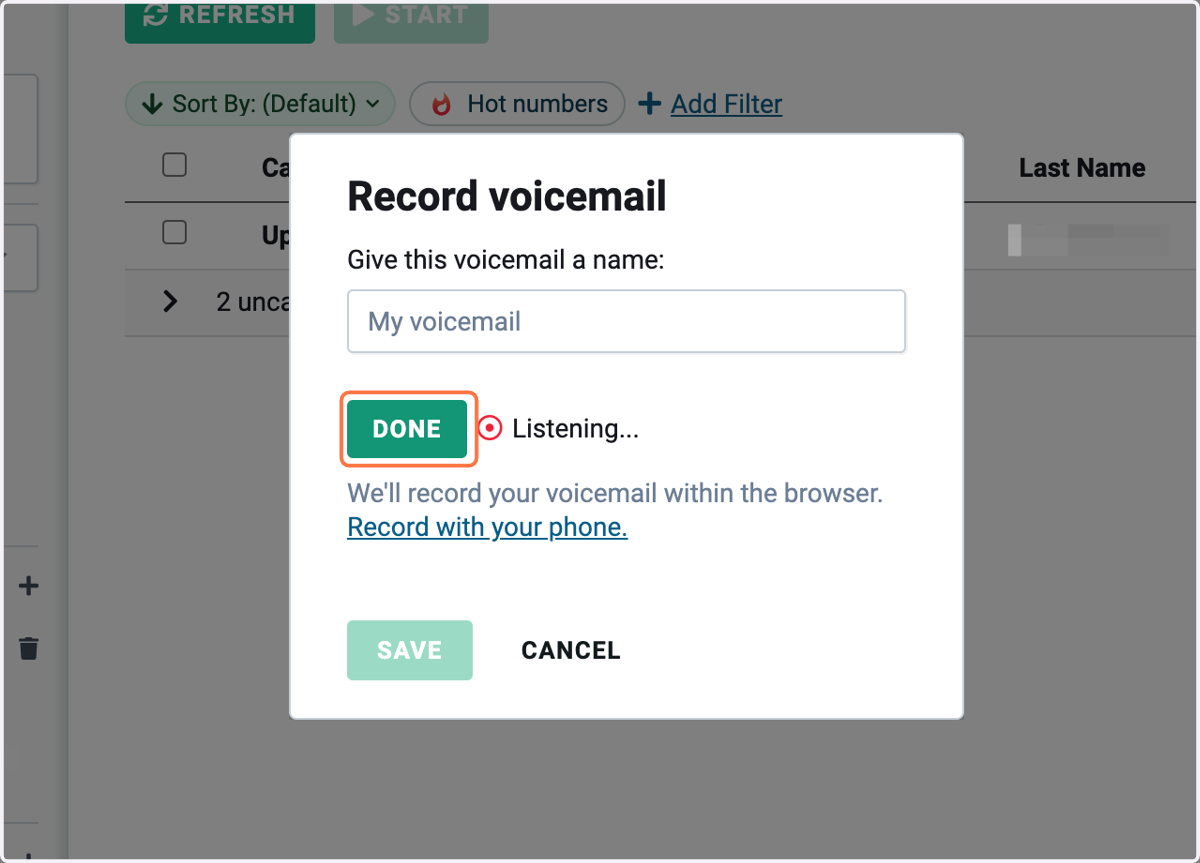
19. Click on SAVE
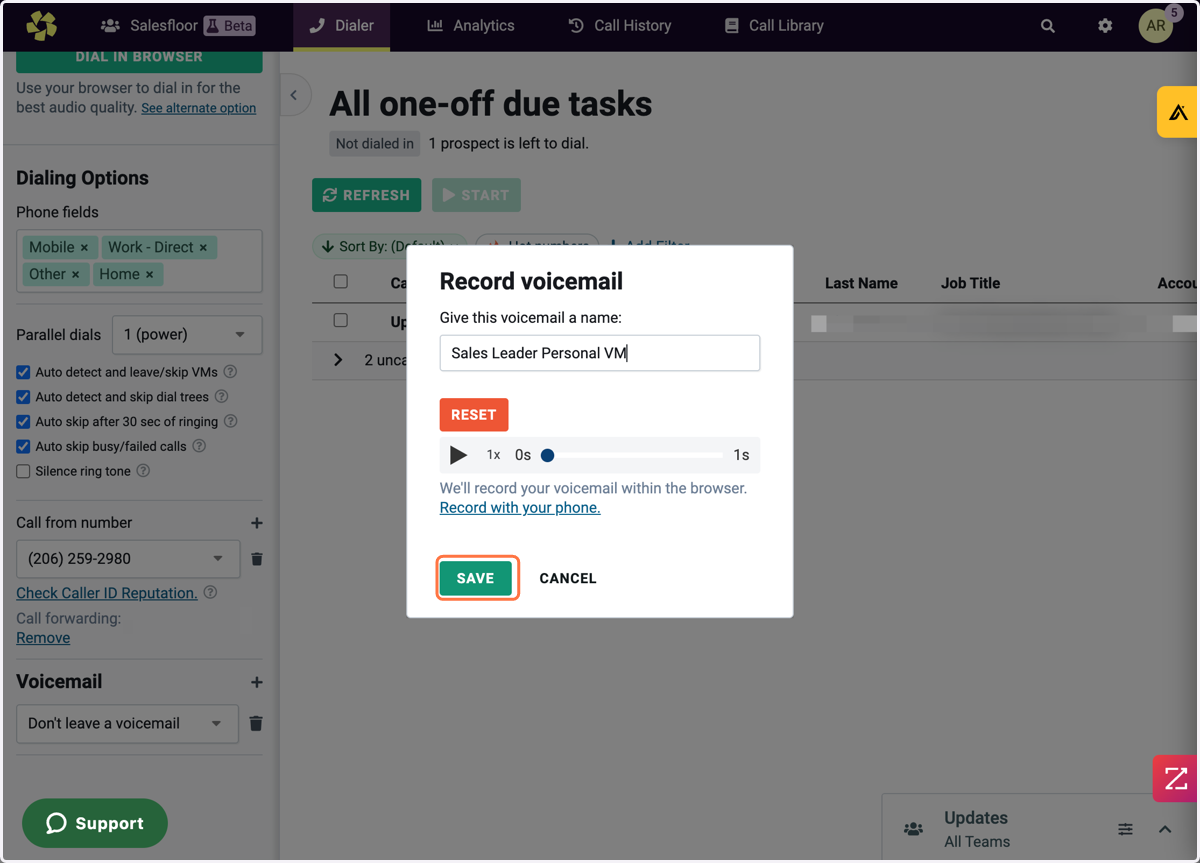
20. Click on initials on top right of screen.
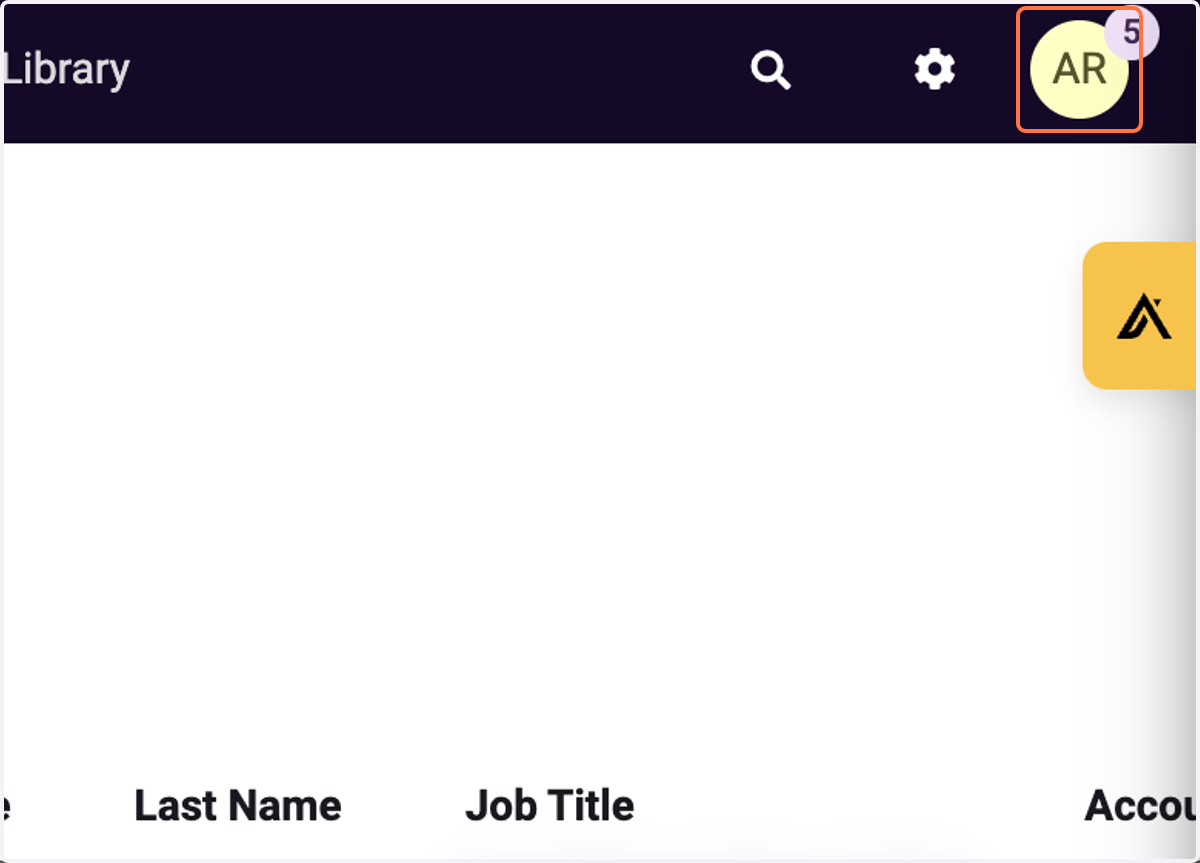
21. Click on Personal Settings
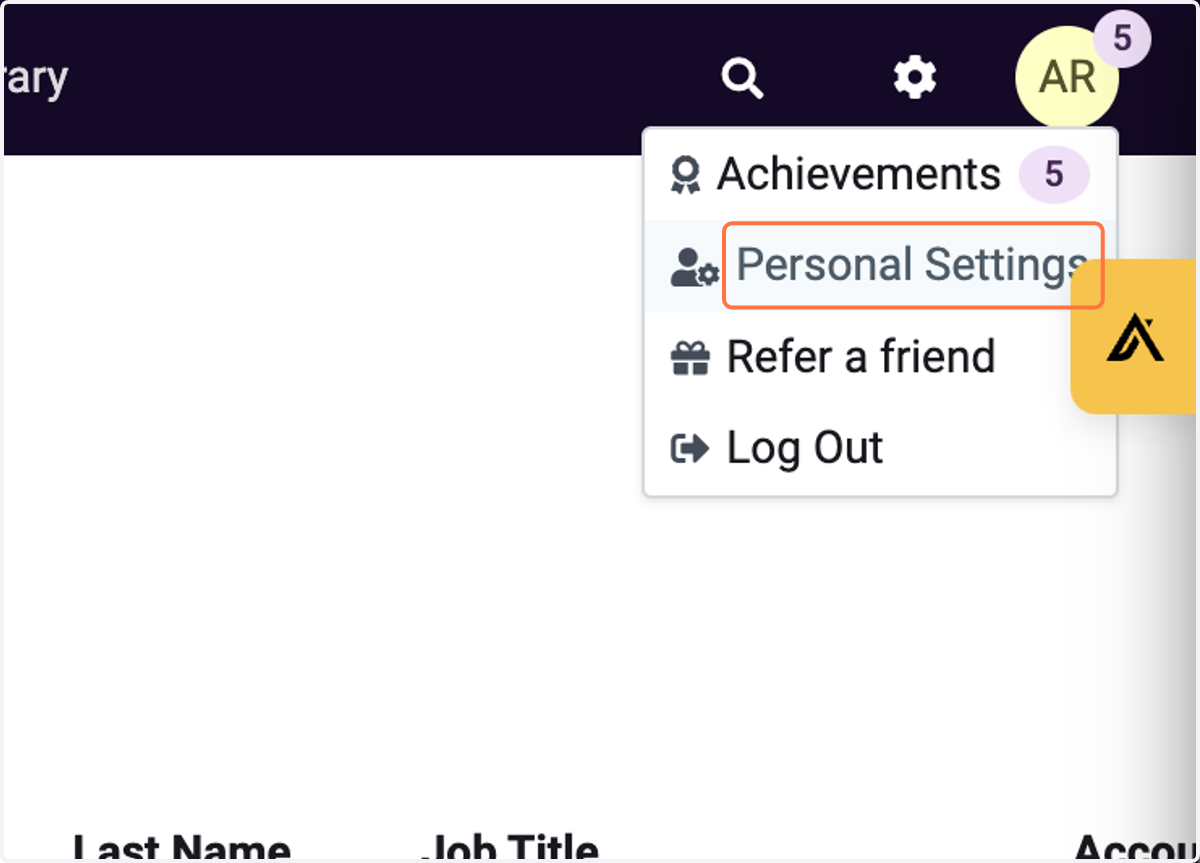
22. Optional: Add a Pre-call notes field to view during parallel dialing
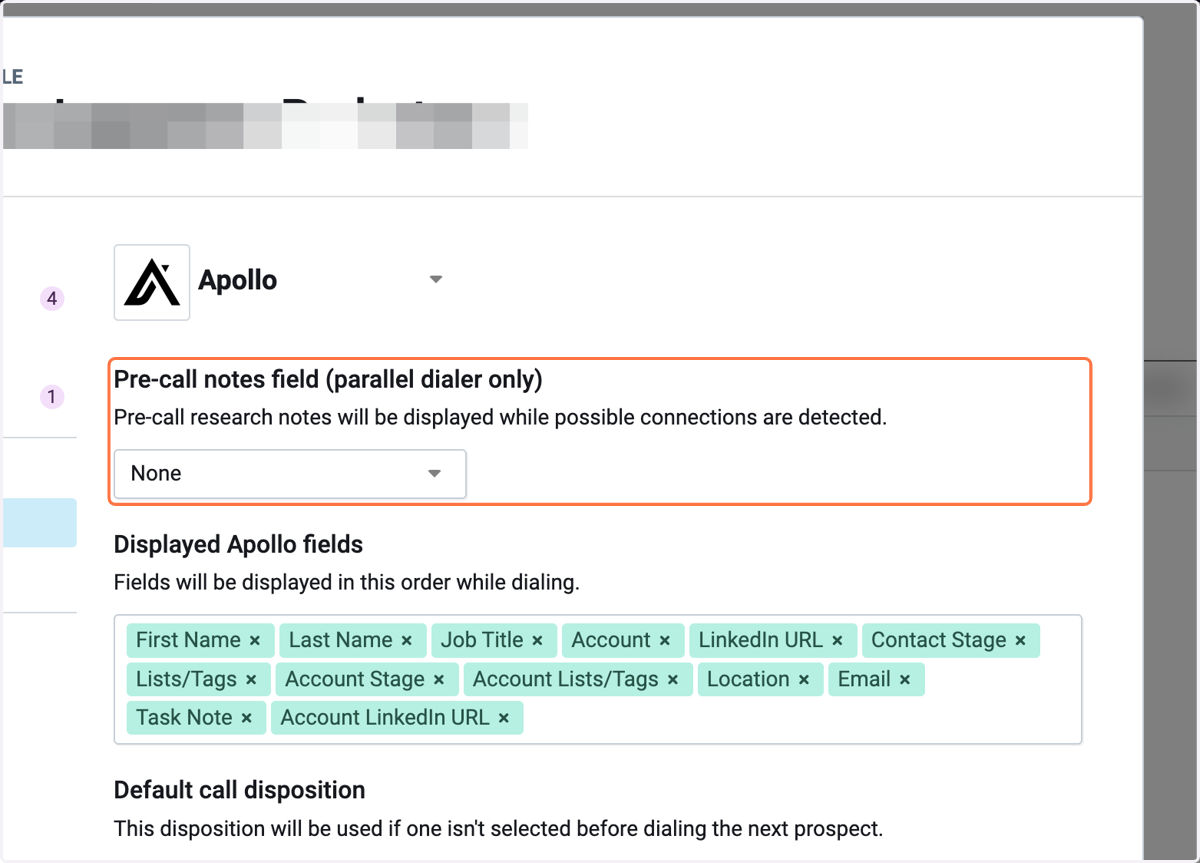
23. Click on whitespace to add new fields to be displayed from Apollo to Orum
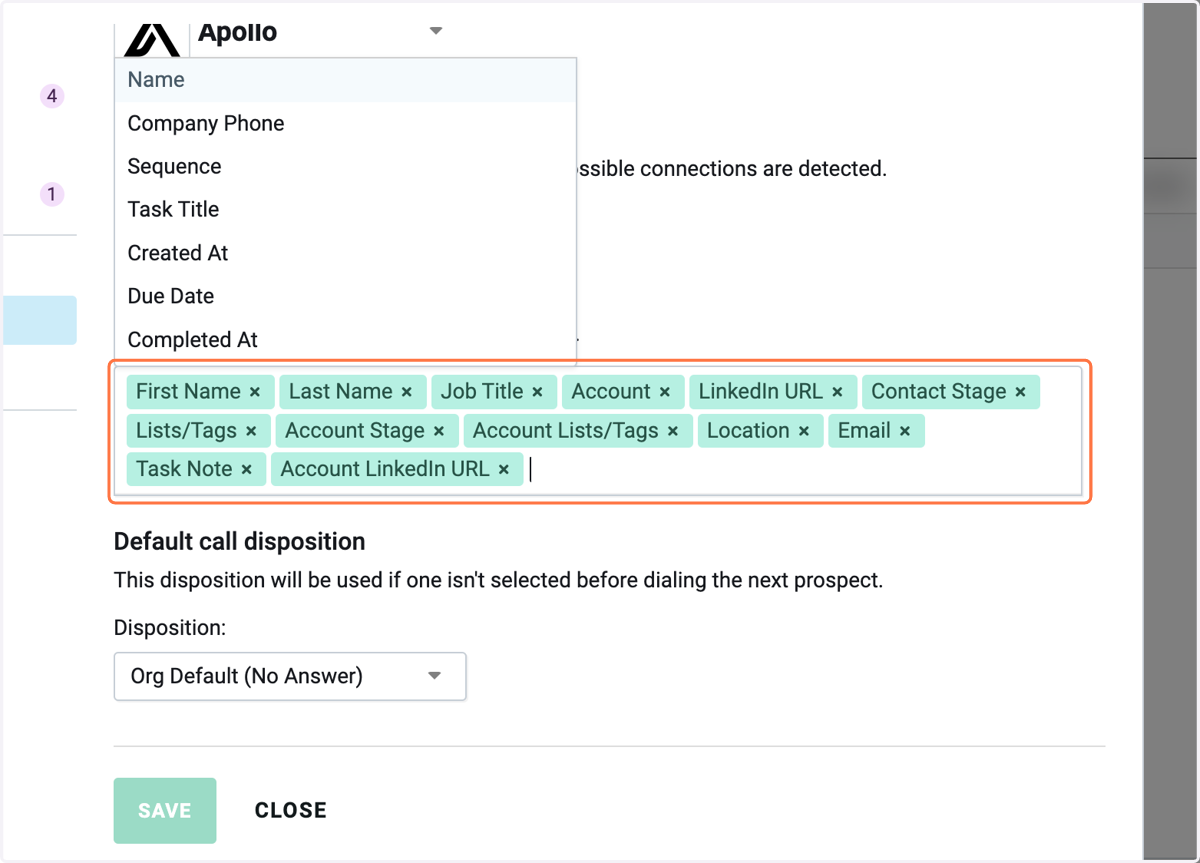
24. Select a specific field
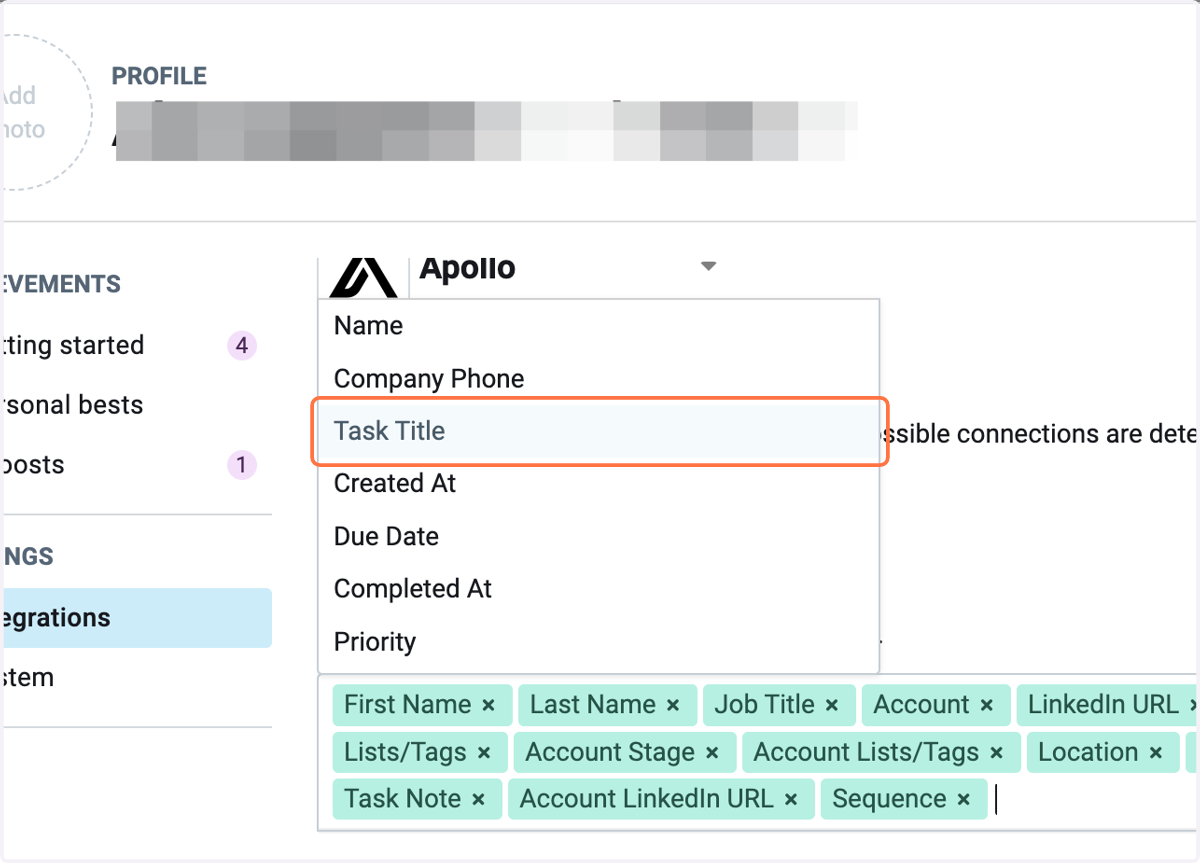
25. Reorganize fields by dragging them over, Orum lists fields from left to right
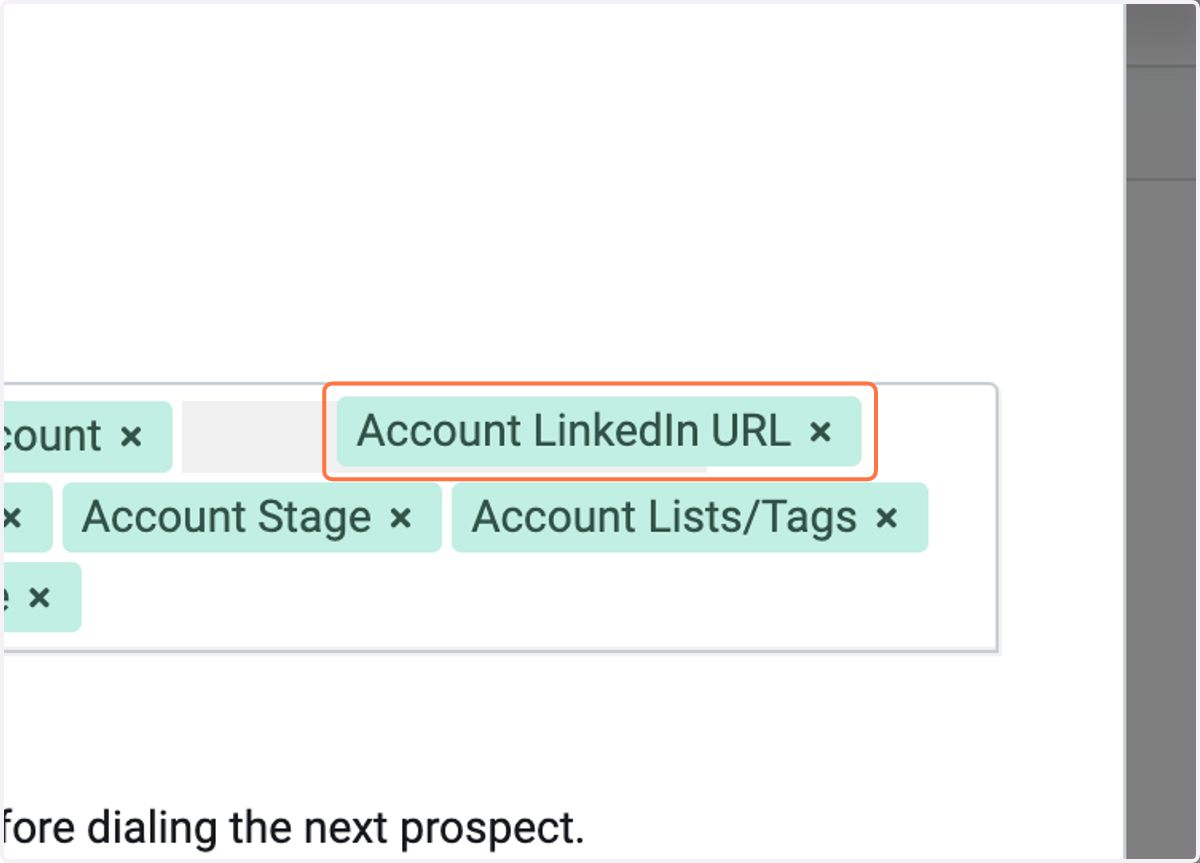
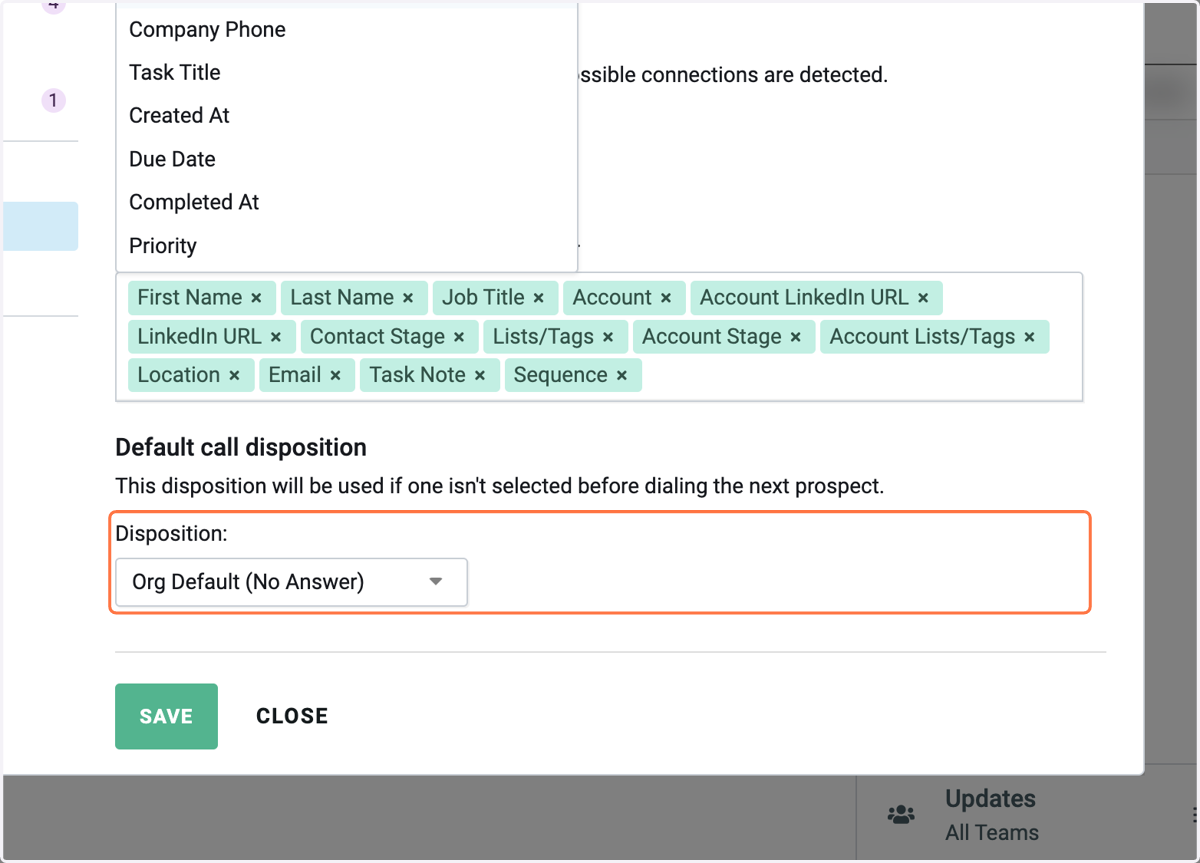
26. Confirm Default call disposition is set to No Answer
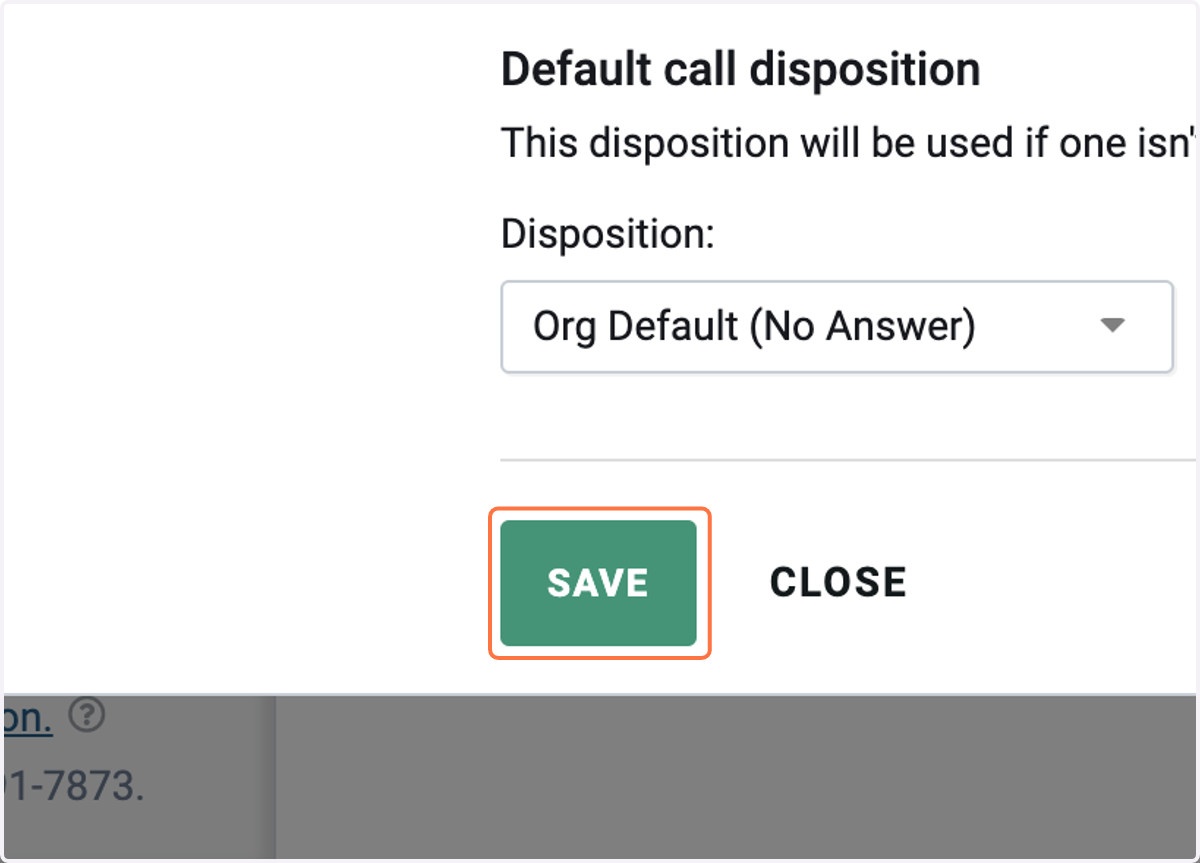
27. Click on SAVE
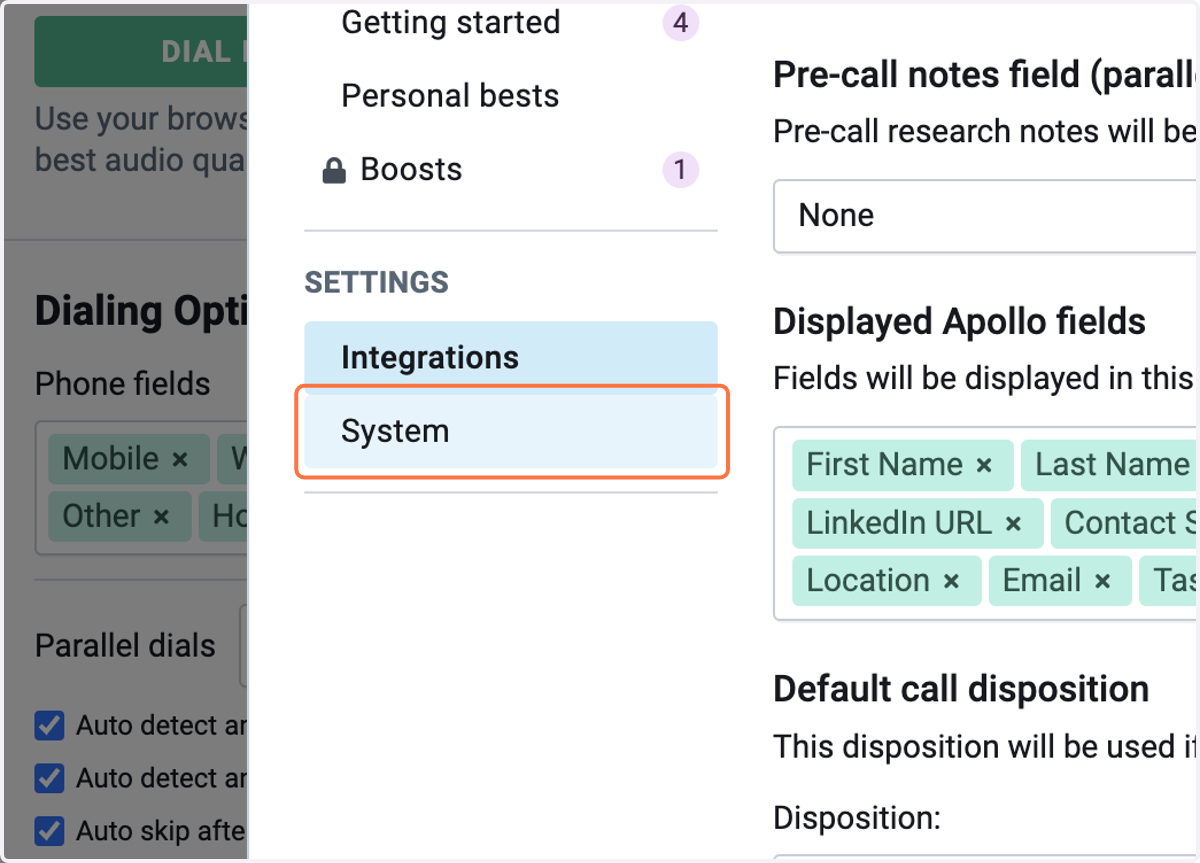
28. Click on System
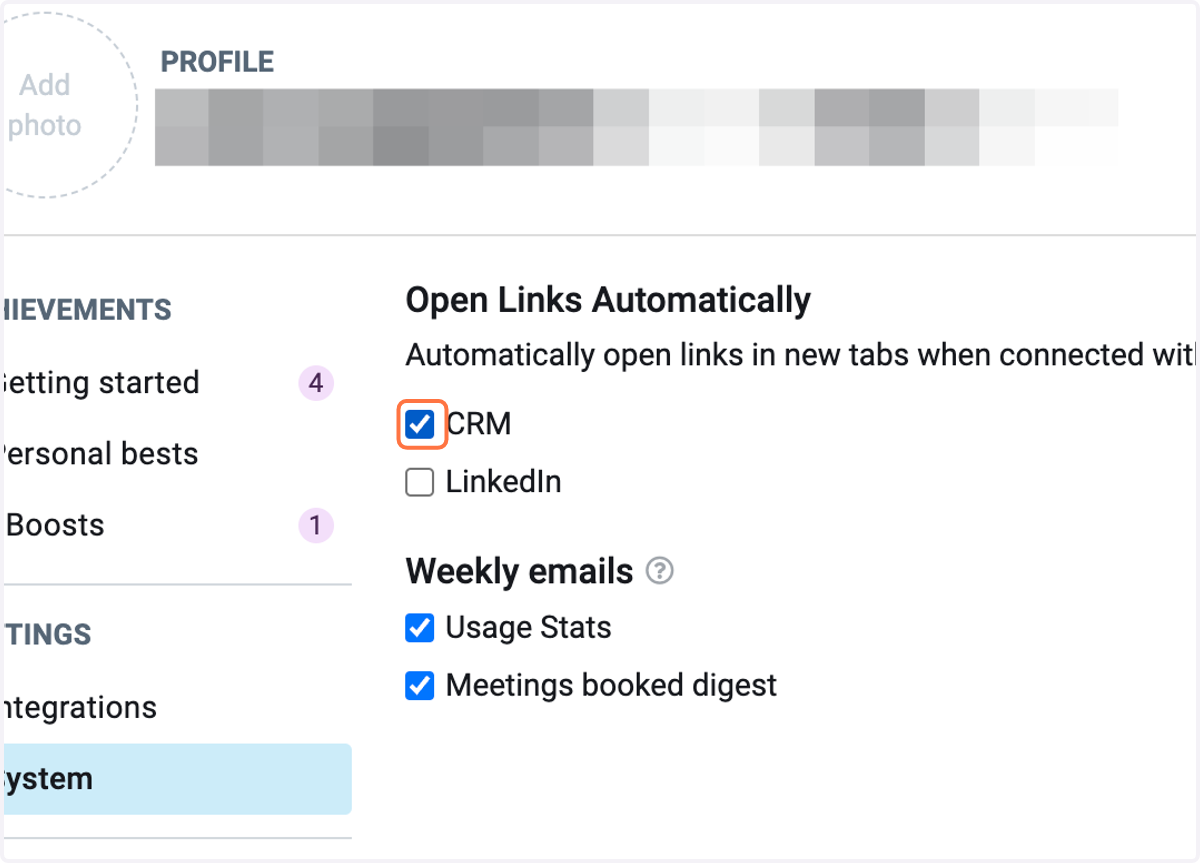
29. Select if you would like Orum to open links automatically CRM = Apollo Linkedin = prospects linkedin profile
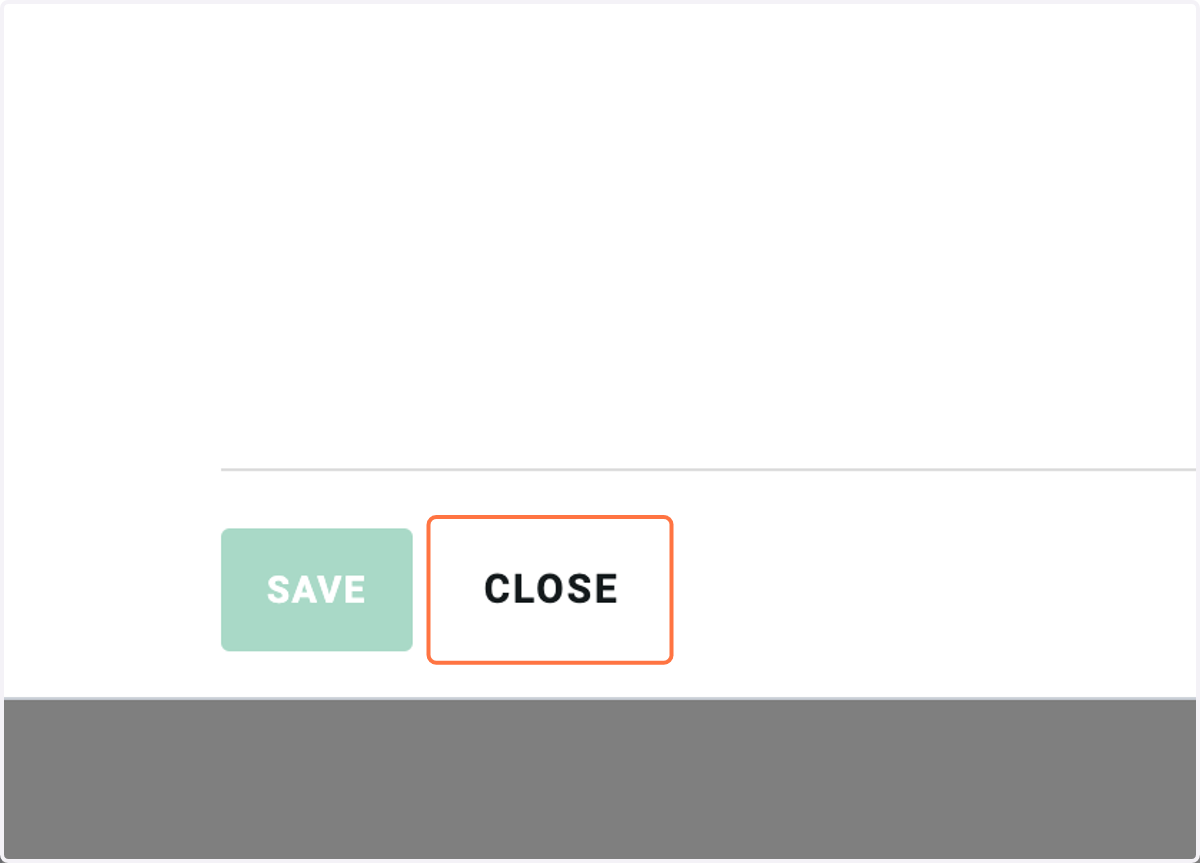
30. Click on Save then Close
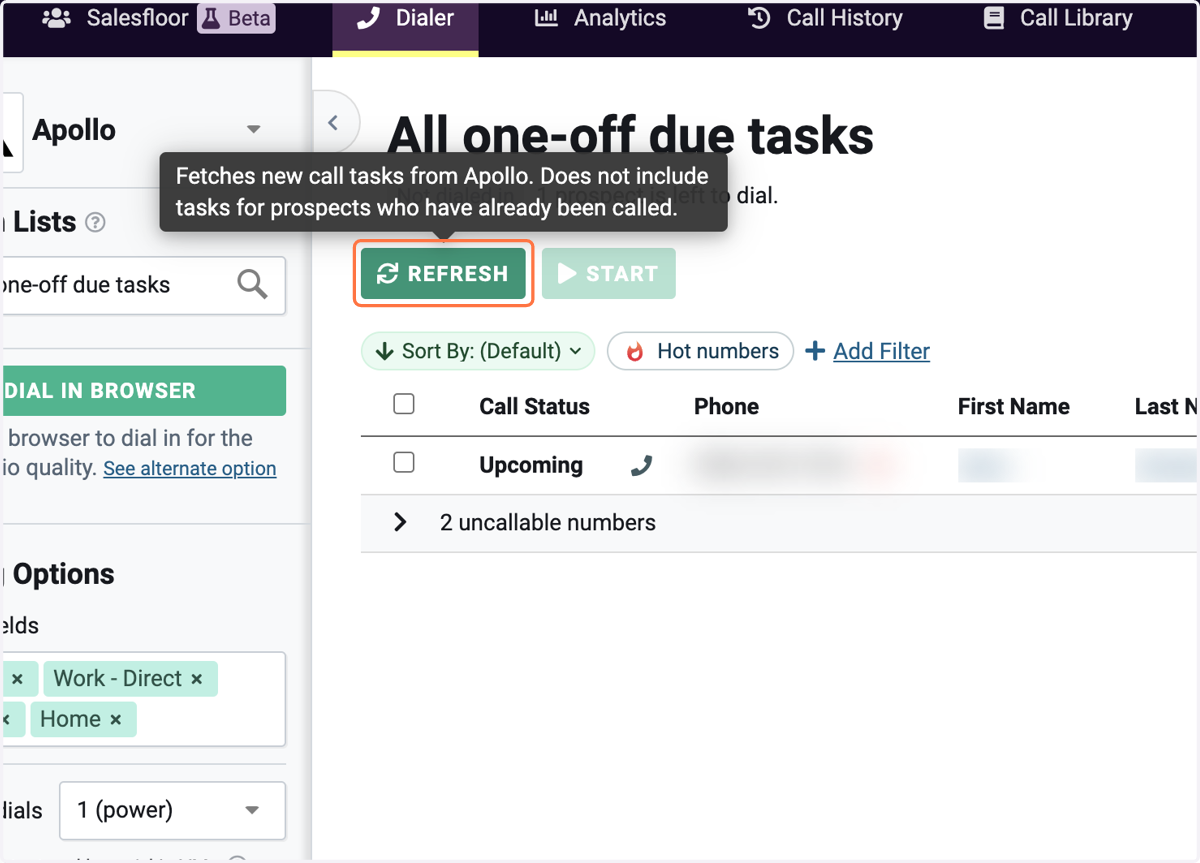
31. Back in the dialer click on the Refresh button to view your field changes
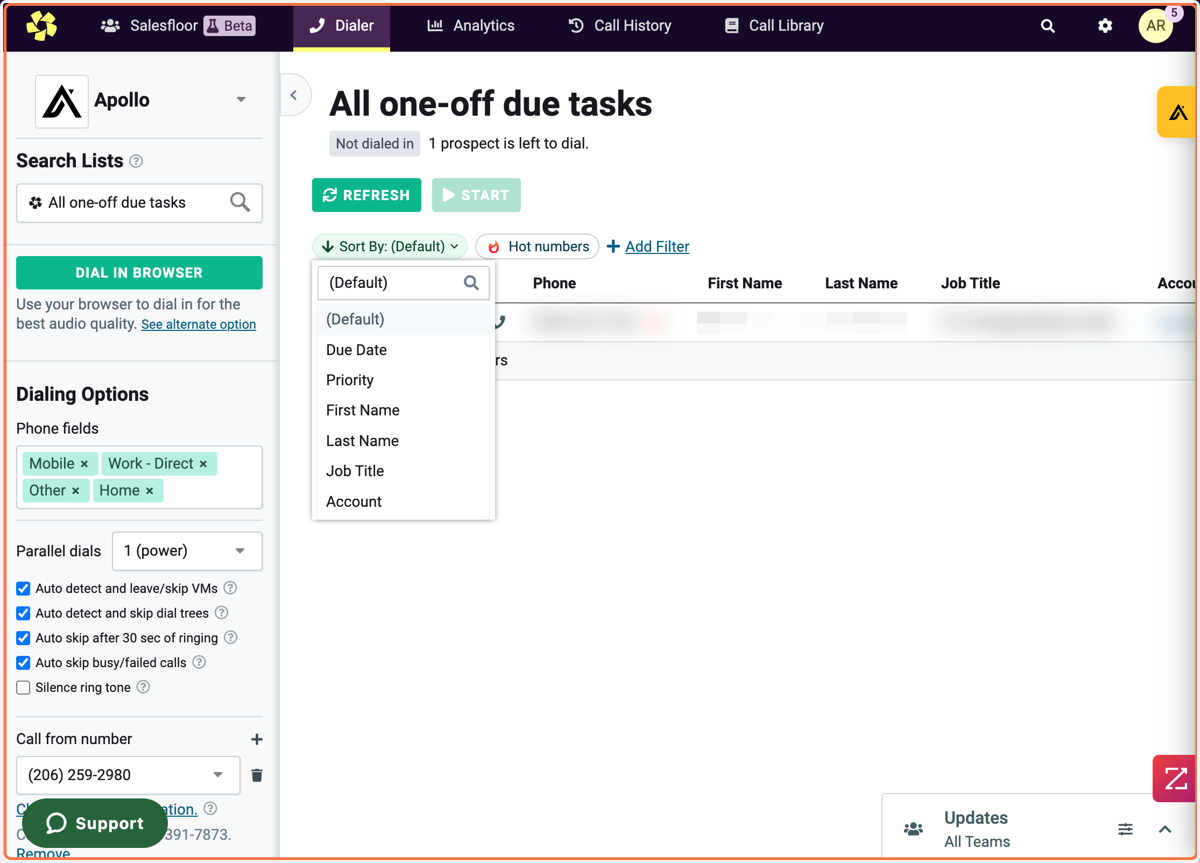
32. Optional: Sort your list by a specific field
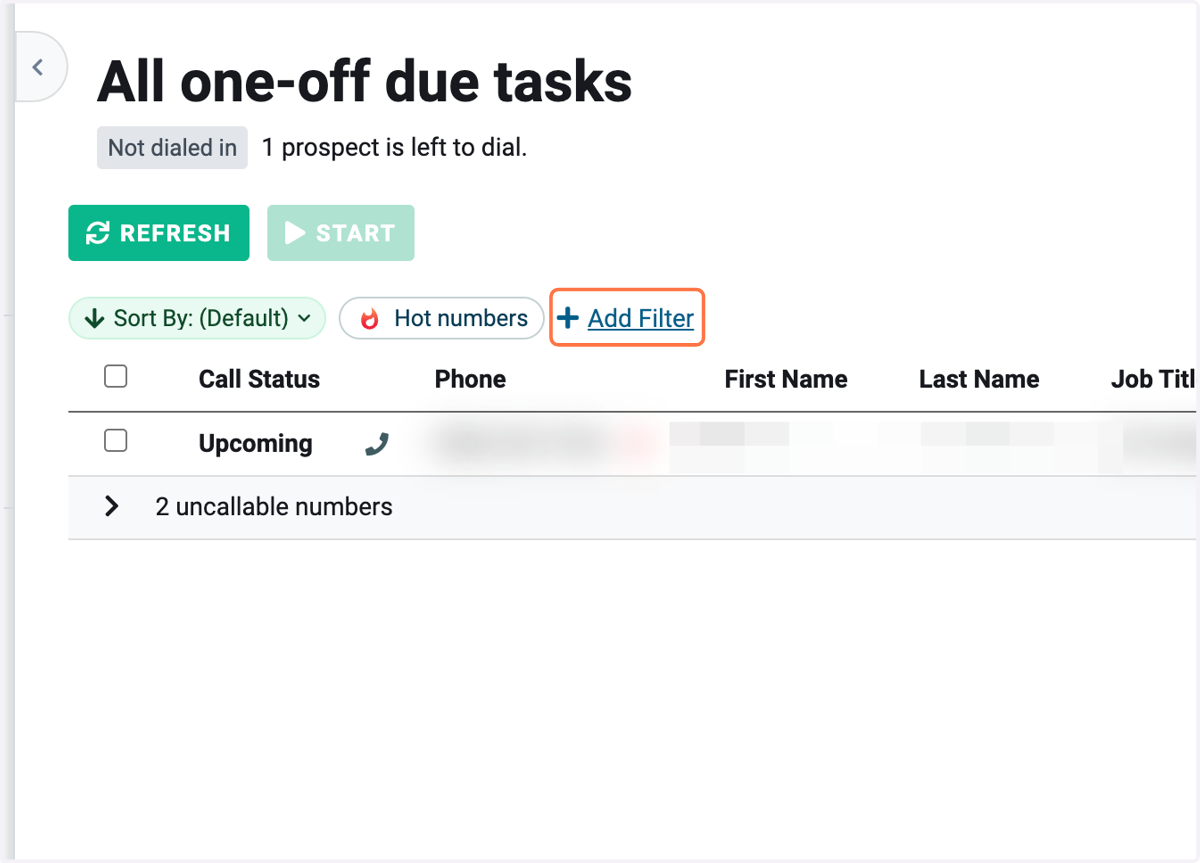
33. Optional: Filter down your list
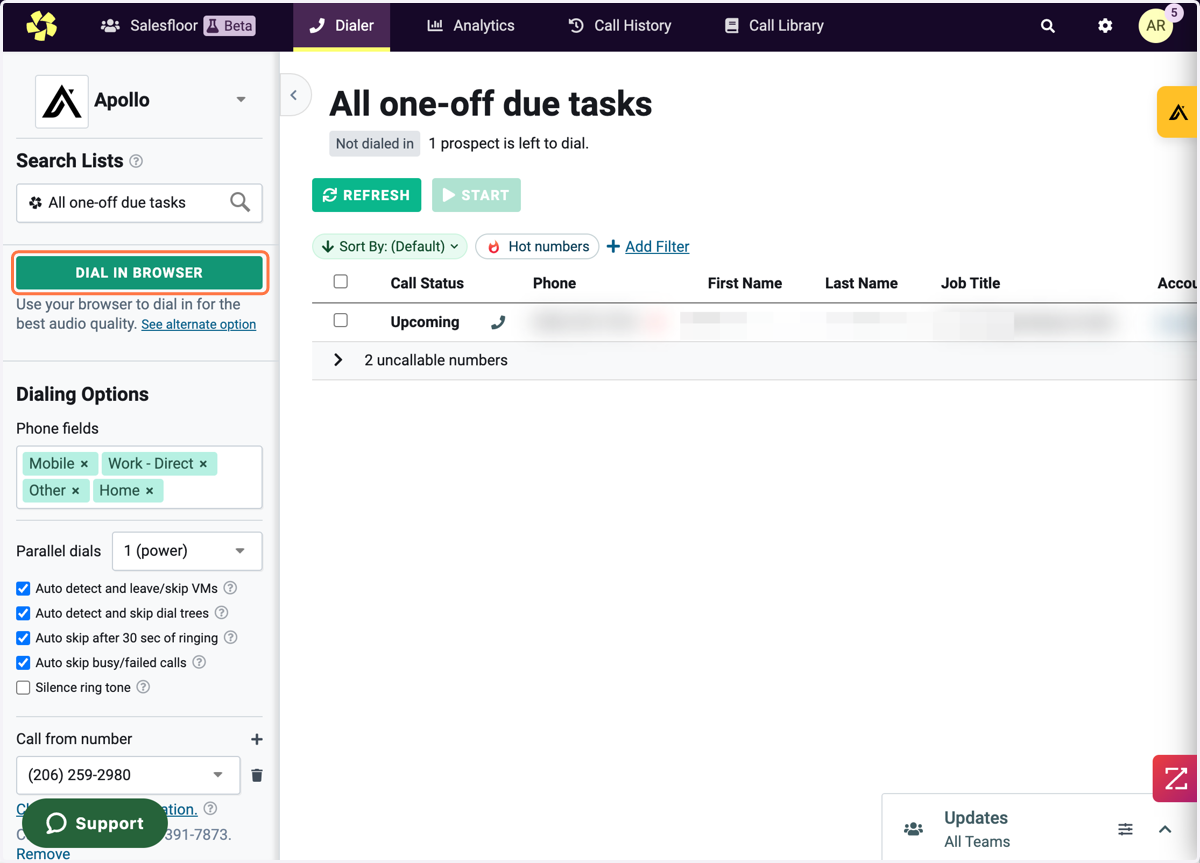
34. Click on DIAL IN BROWSER
35. Confirm audio is being detected by seeing this bar moving up and down.
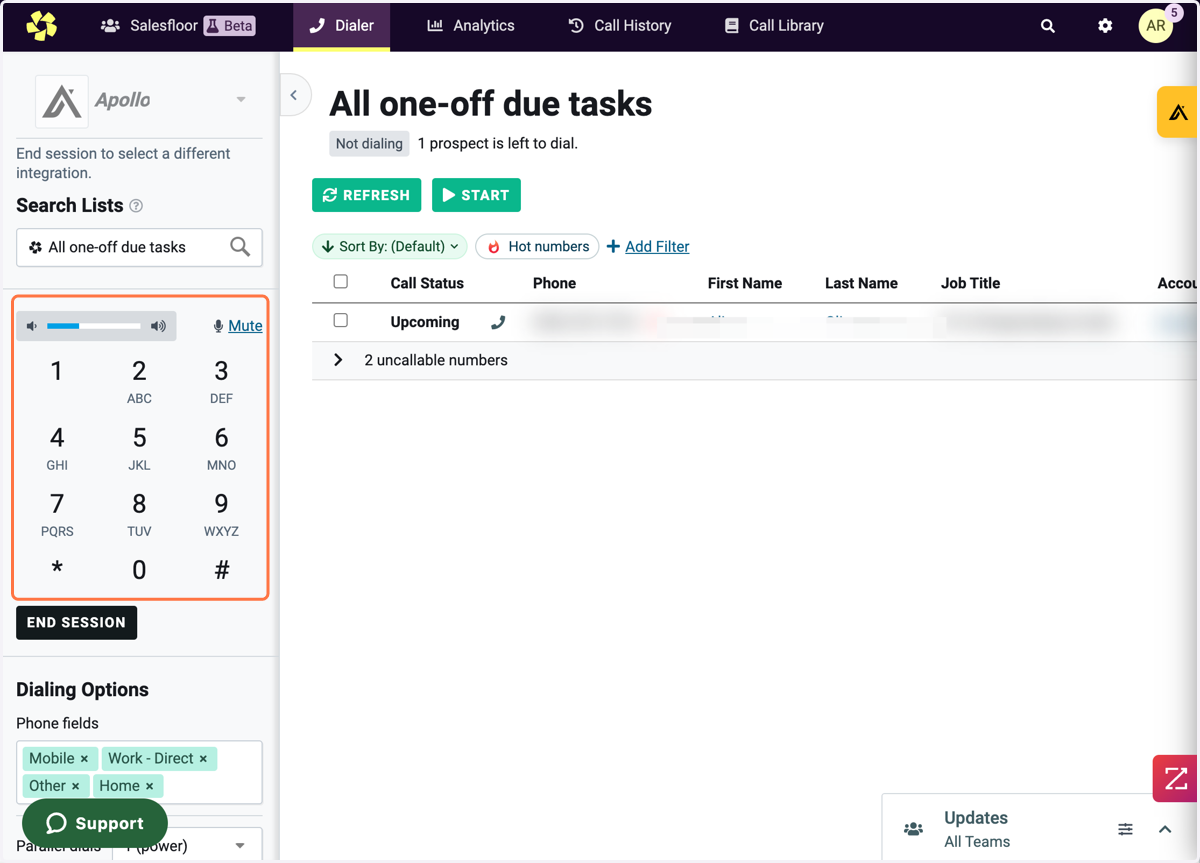
36. Click on START
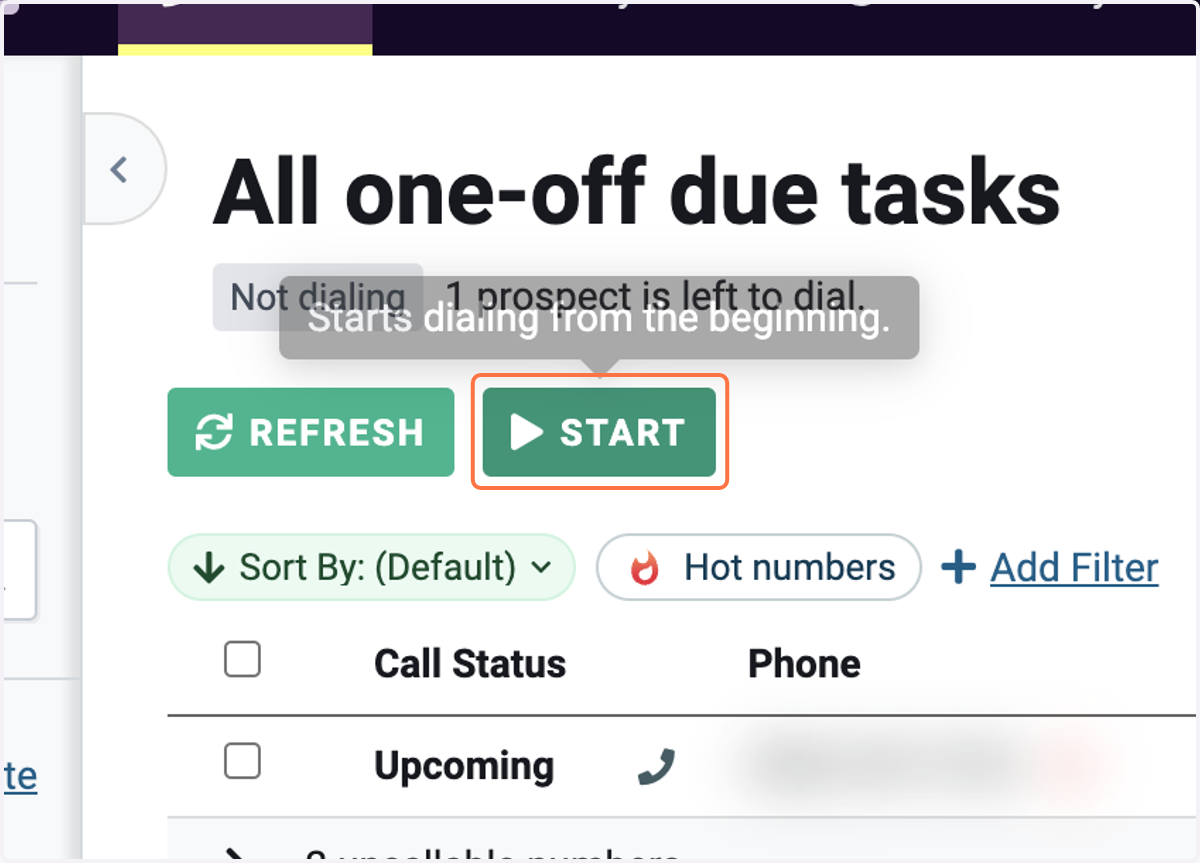
37. View fields and let Orum make the calls for you. Orum will stop once a human answers
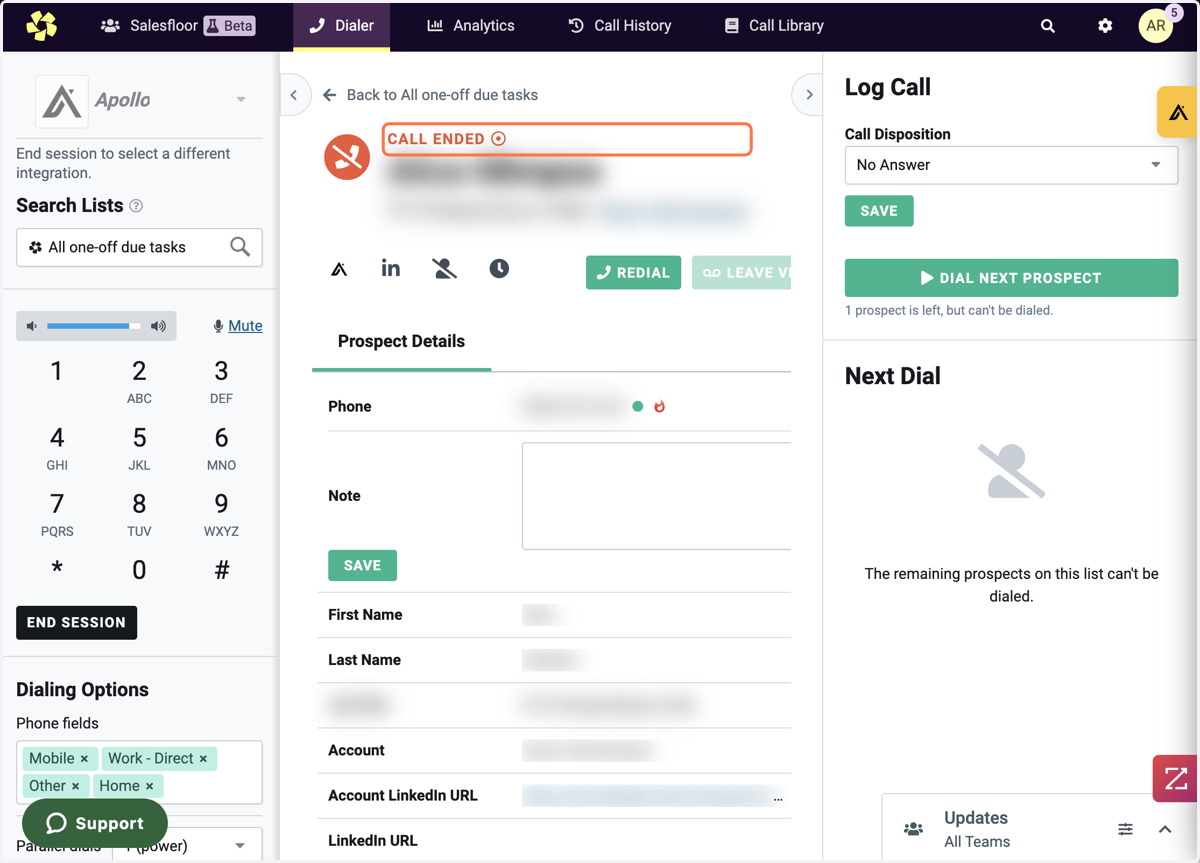
38. After talking with a prospect or gatekeeper, disposition the call appropriately
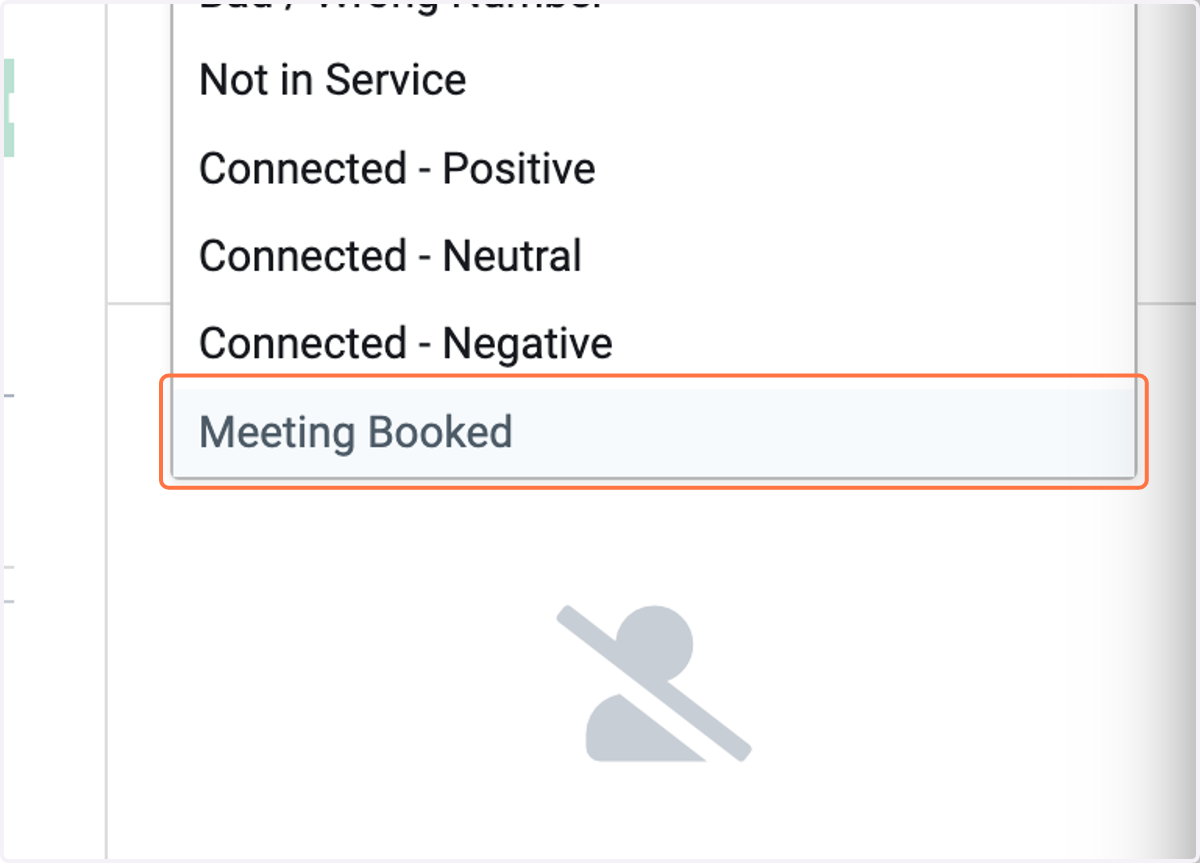
39. Click on SAVE then continue dialing!