🚀 How to Boost a Post on Your Business Facebook Page
Boosting a post on Facebook is a simple and effective way to get your content in front of more people especially when you're promoting something time-sensitive like a new product, a special offer, or updated store hours.
With just a few clicks (and a small budget), your post can reach more local customers who may not already follow your page.
This guide will walk you through how to boost a post the right way.
✅ Tips for Boosting a Post Effectively:
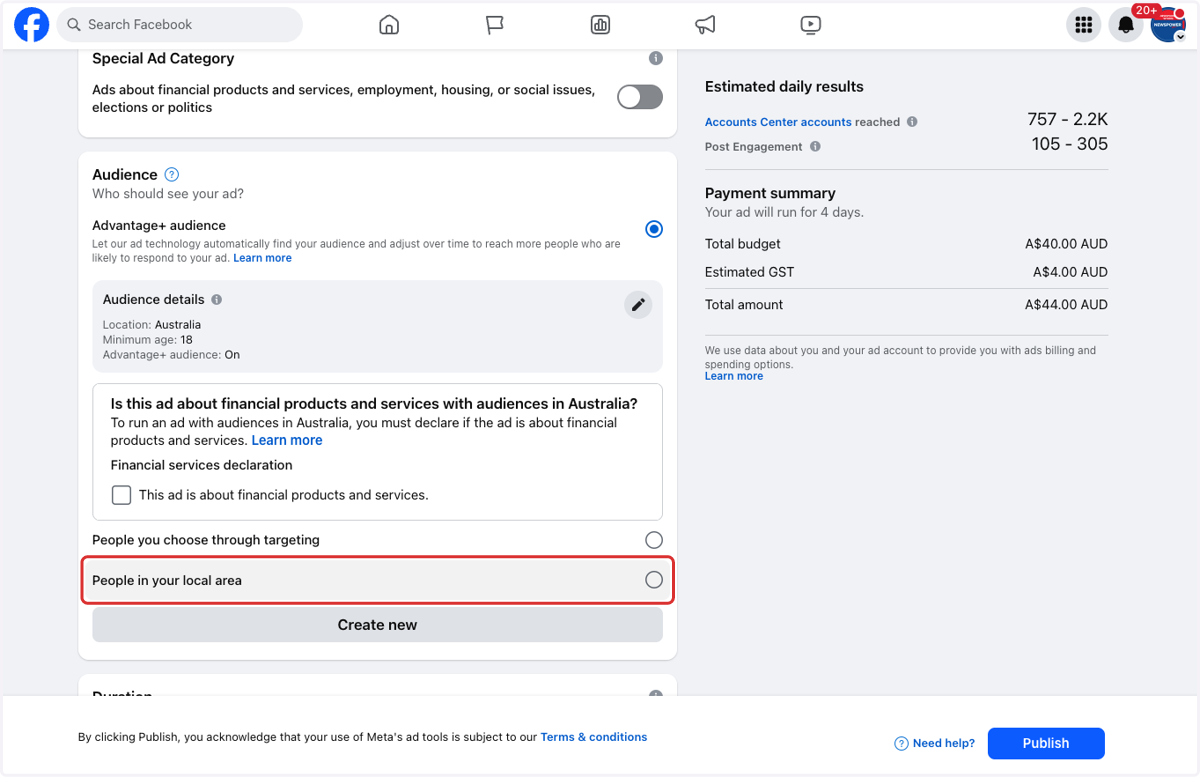
🎯 Target your local area
When setting your audience, make sure to choose “People in your local area”. This is especially important for Newsagents who want to drive foot traffic. Reaching people too far away won’t help get customers into your store.👥 Don’t go too broad
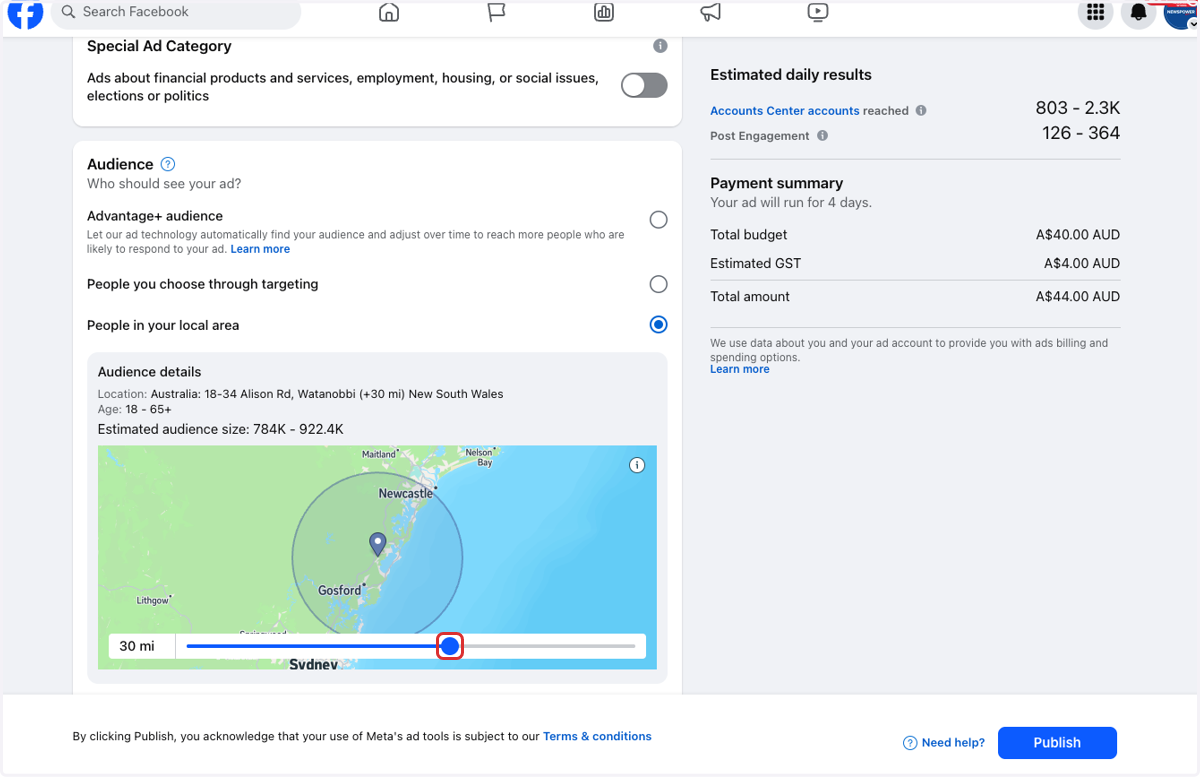
A larger audience might sound better, but it’s not always smarter. Facebook might show your ad to more people, but not the right people. Stick to your local postcode or a small radius around your store.💡 Boost posts with clear offers or calls to action
Posts about catalogues, lotto promotions, gift ideas, or seasonal items (like Christmas cards or diaries) work well especially if they have a strong image and short message.📅 Set a short run time
3–5 days is usually enough to get results without wasting money. You can always extend or repeat the boost if it’s working well.📷 Use high-quality images
Eye-catching visuals perform better especially for products or special displays in-store.
Boosting posts can be a powerful tool when done with the right strategy. Keep it local, keep it relevant, and keep it simple.
Let’s get into the step-by-step process to boost your post.
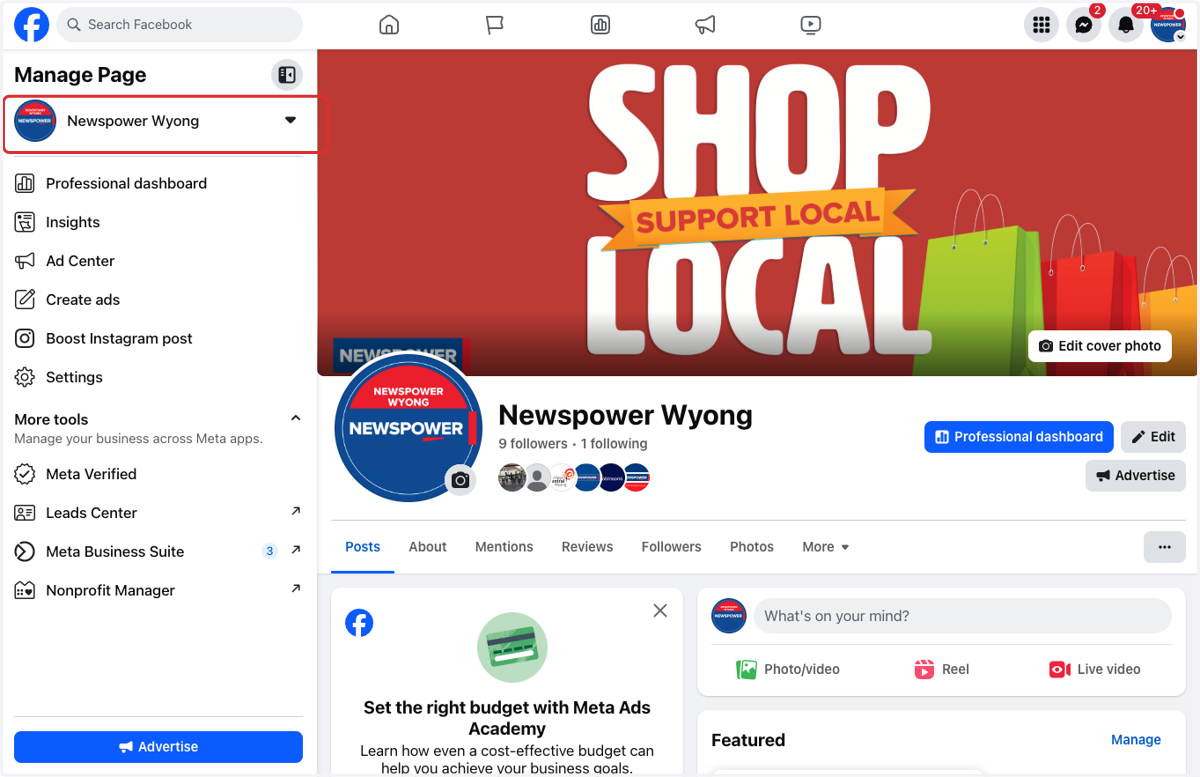
1. Go to your business page
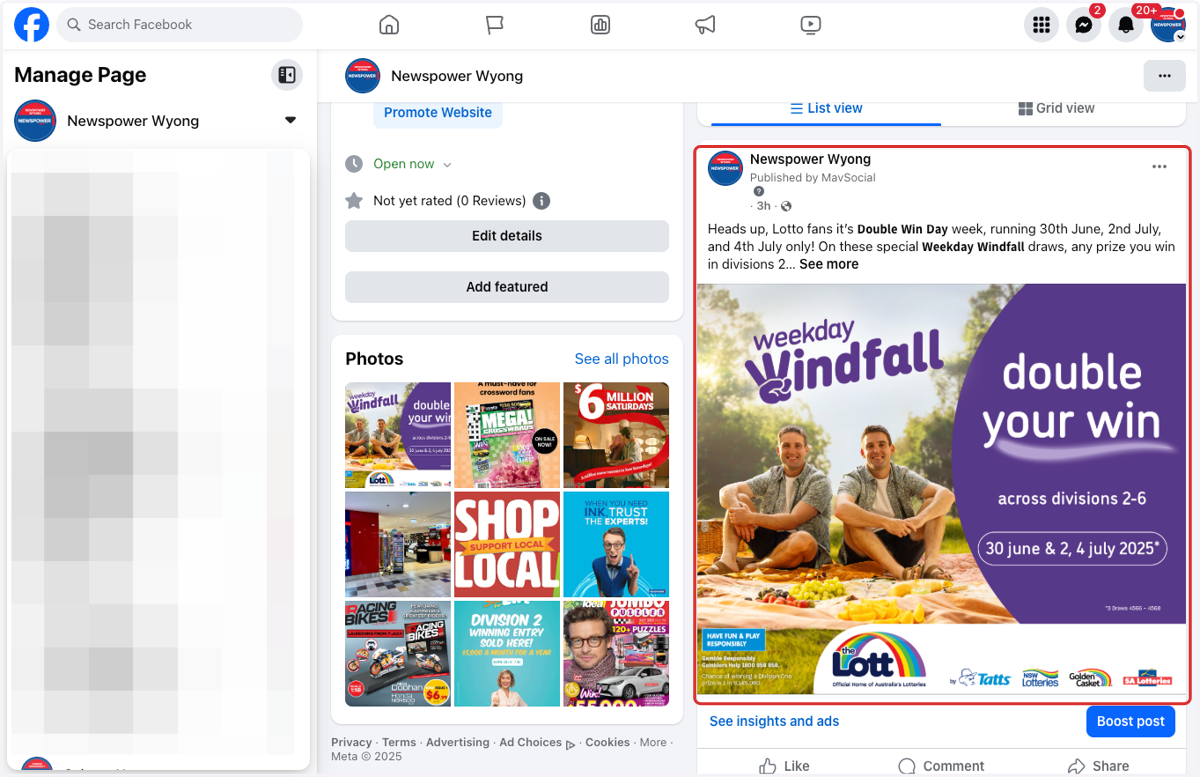
2. Find the post you want to boost
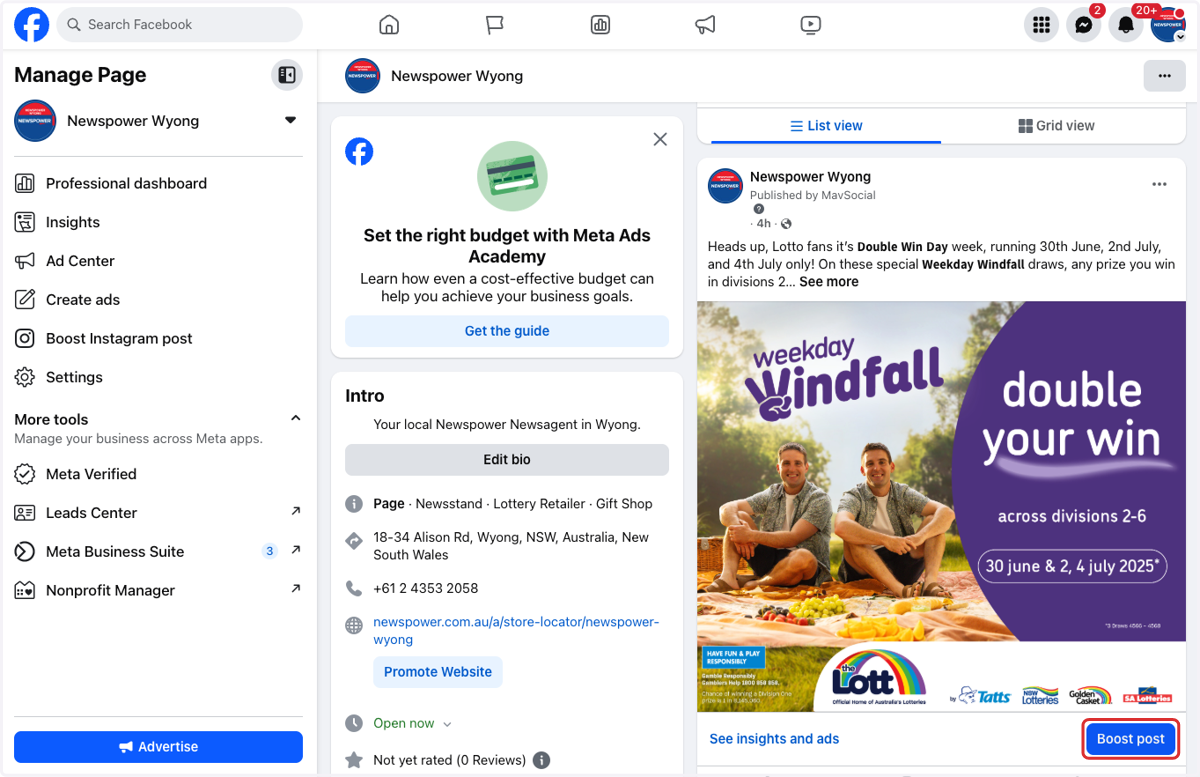
3. Click on Boost post
4. Select the goal you want to get from the boost
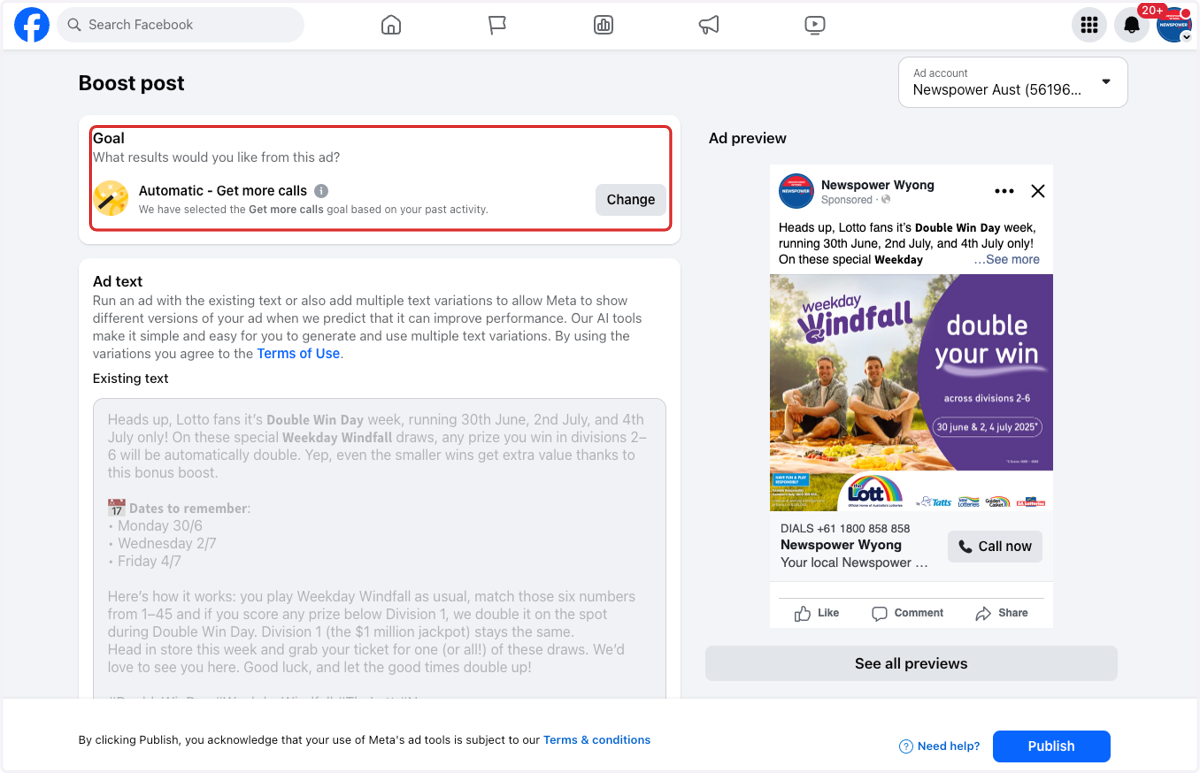
5. Click on Change if you want to get a different result
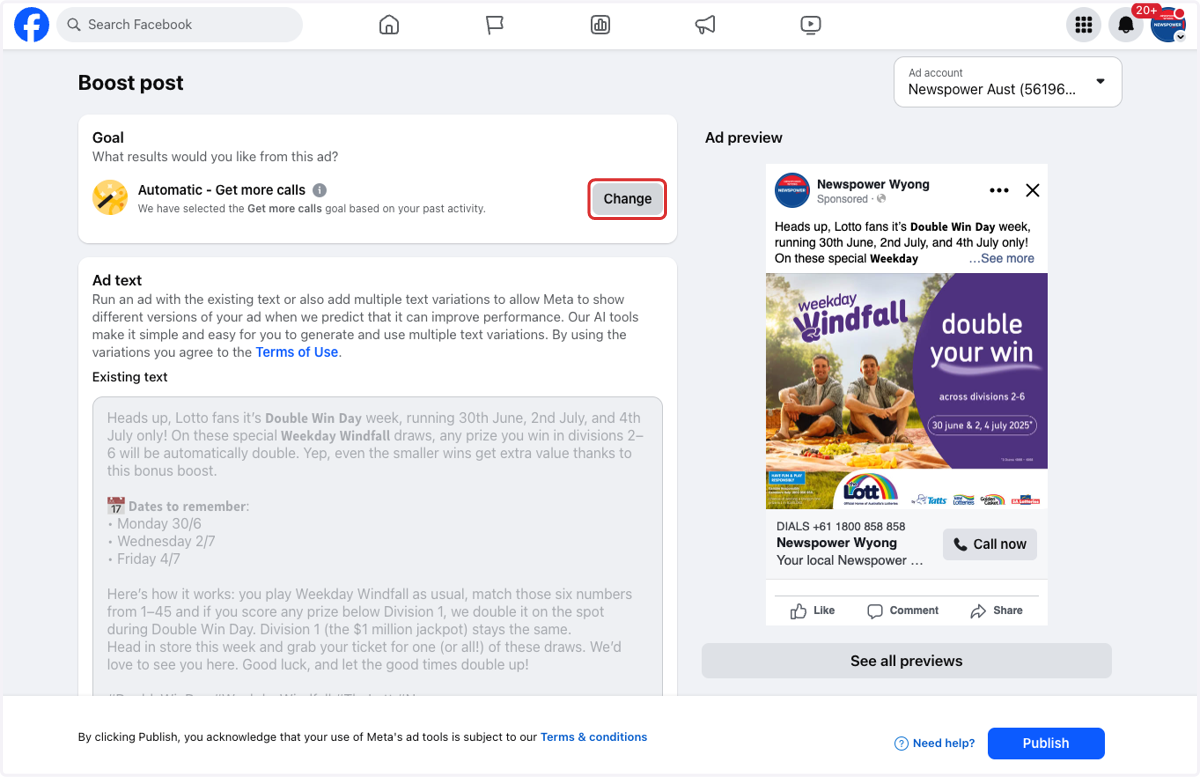
6. Select your new goal
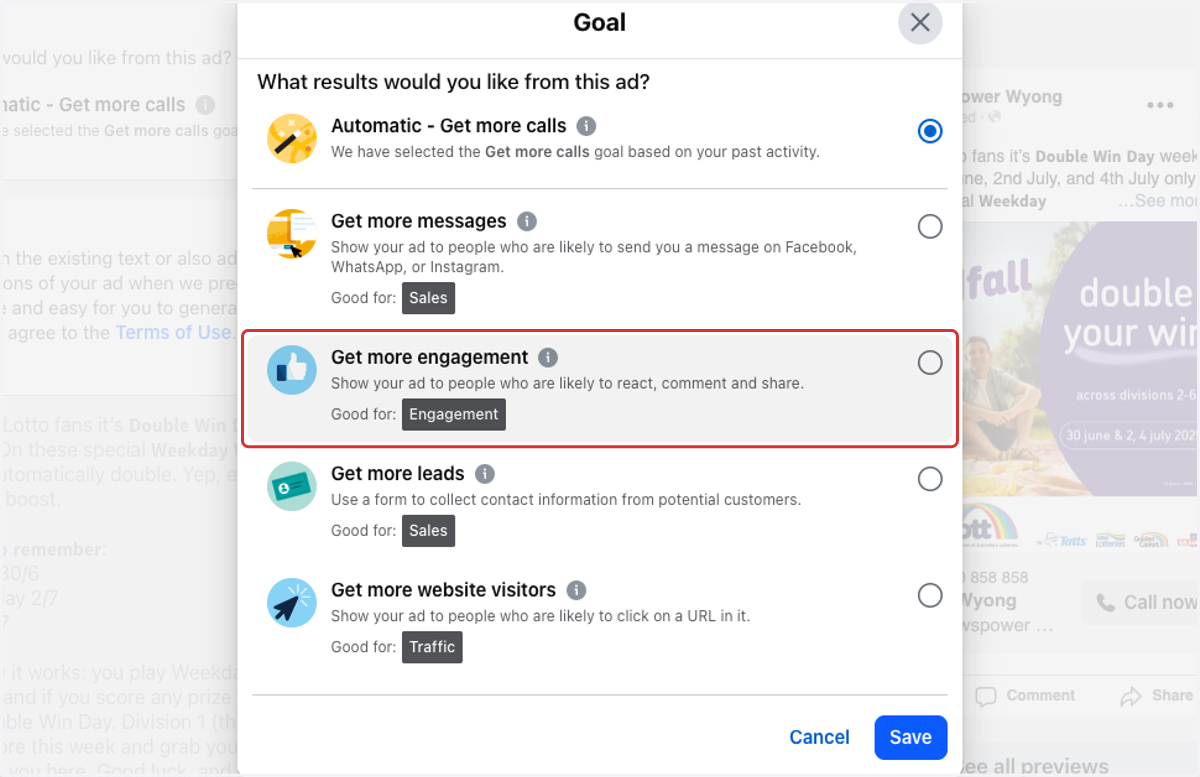
7. Click on Save
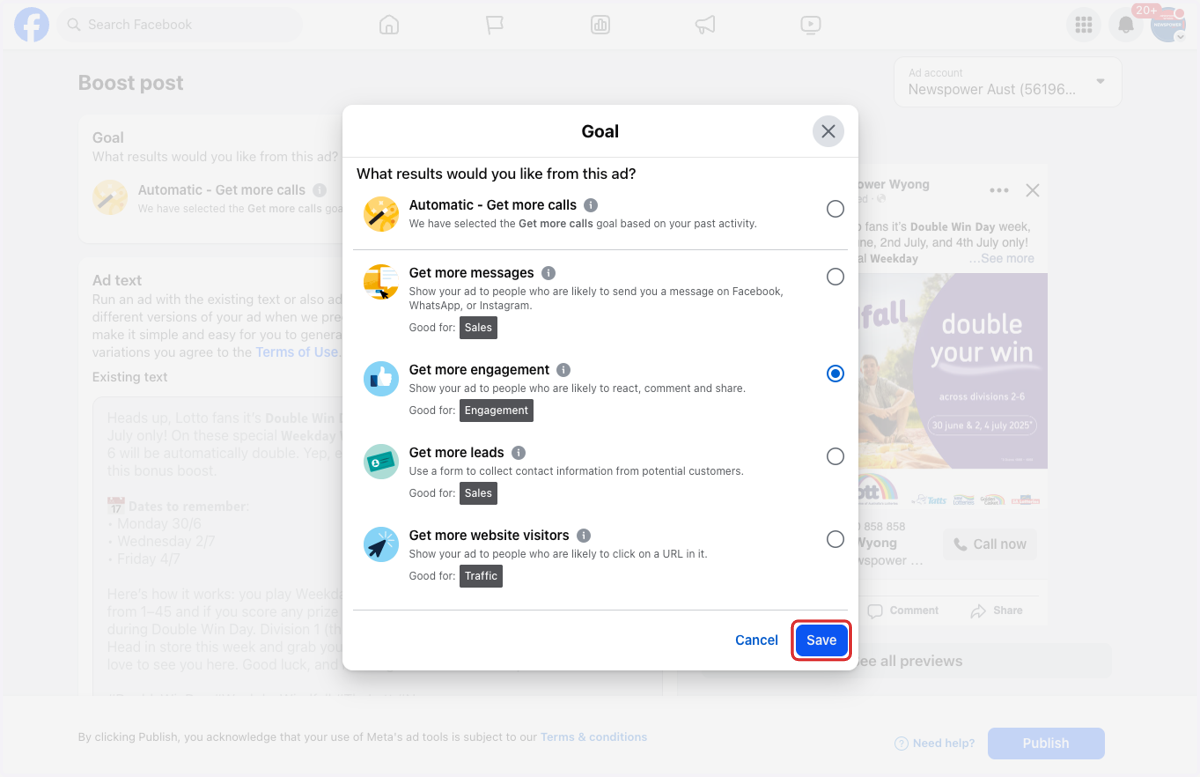
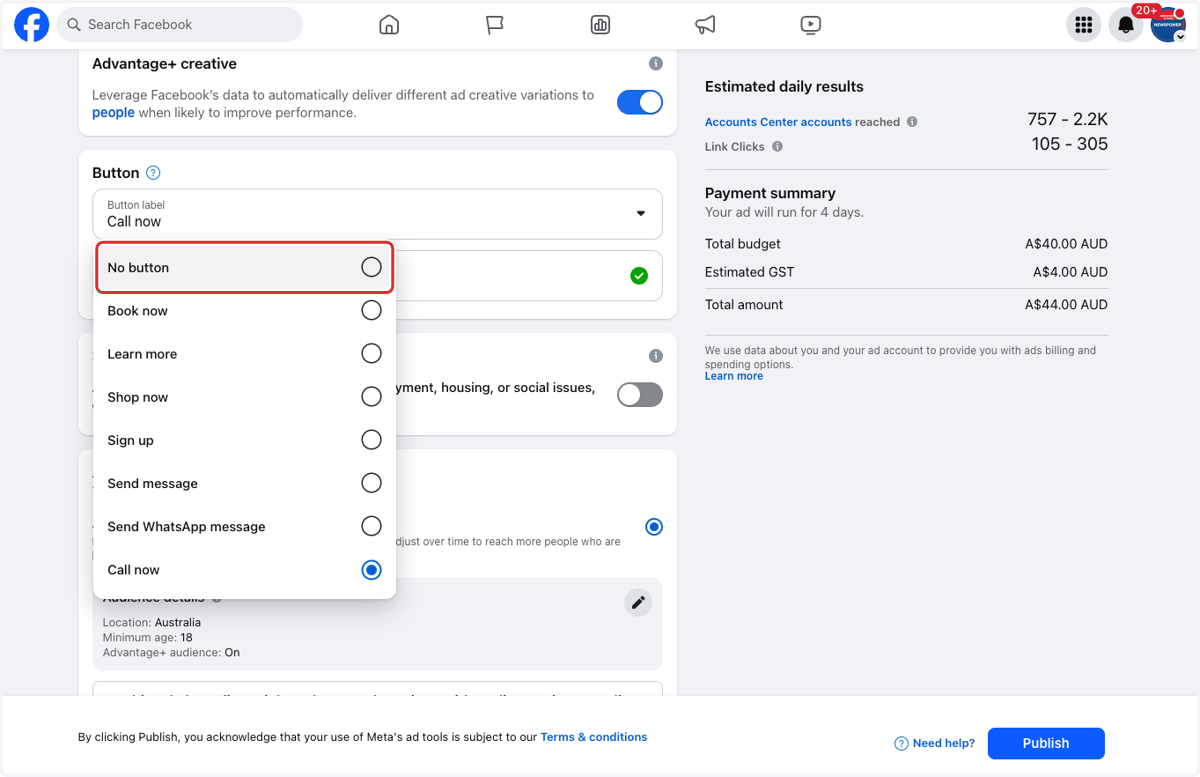
8. Select an action button you want customers to take
9. Select your audience. Click on "People in your local" area to keep advertising around your store
10. Select a radius around your store for the advertising
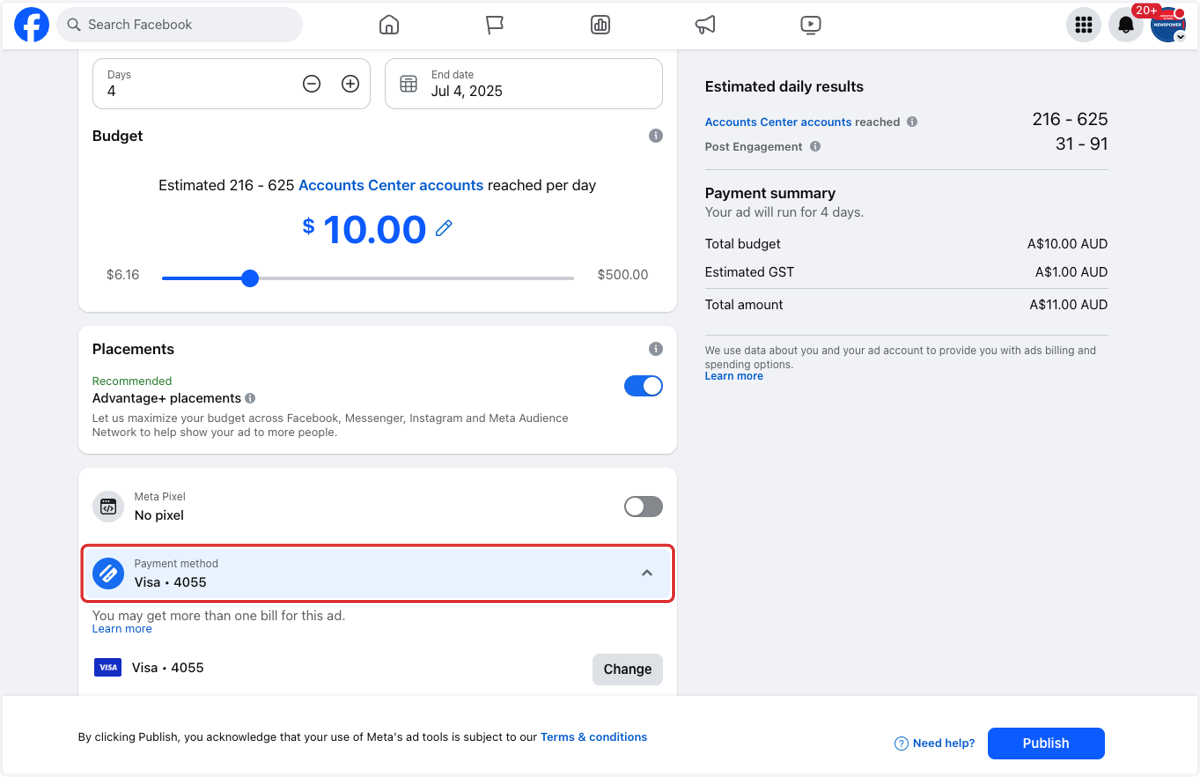
11. Select your budget and duration
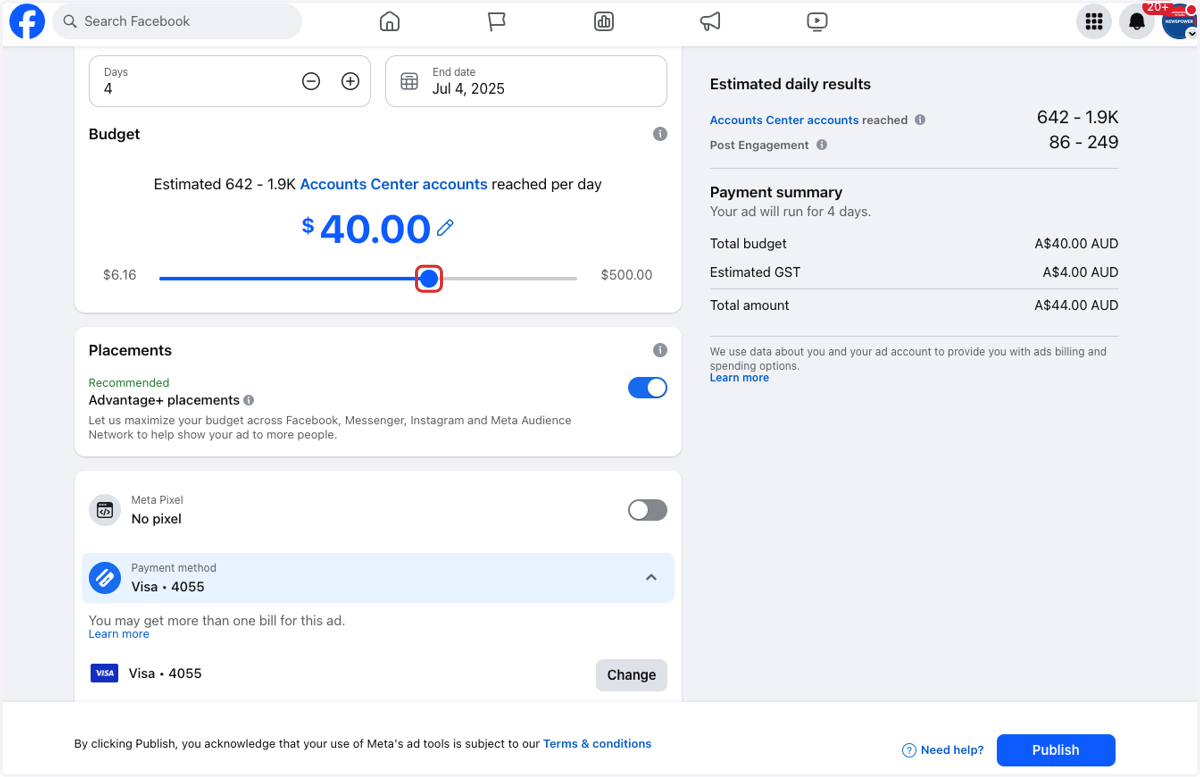
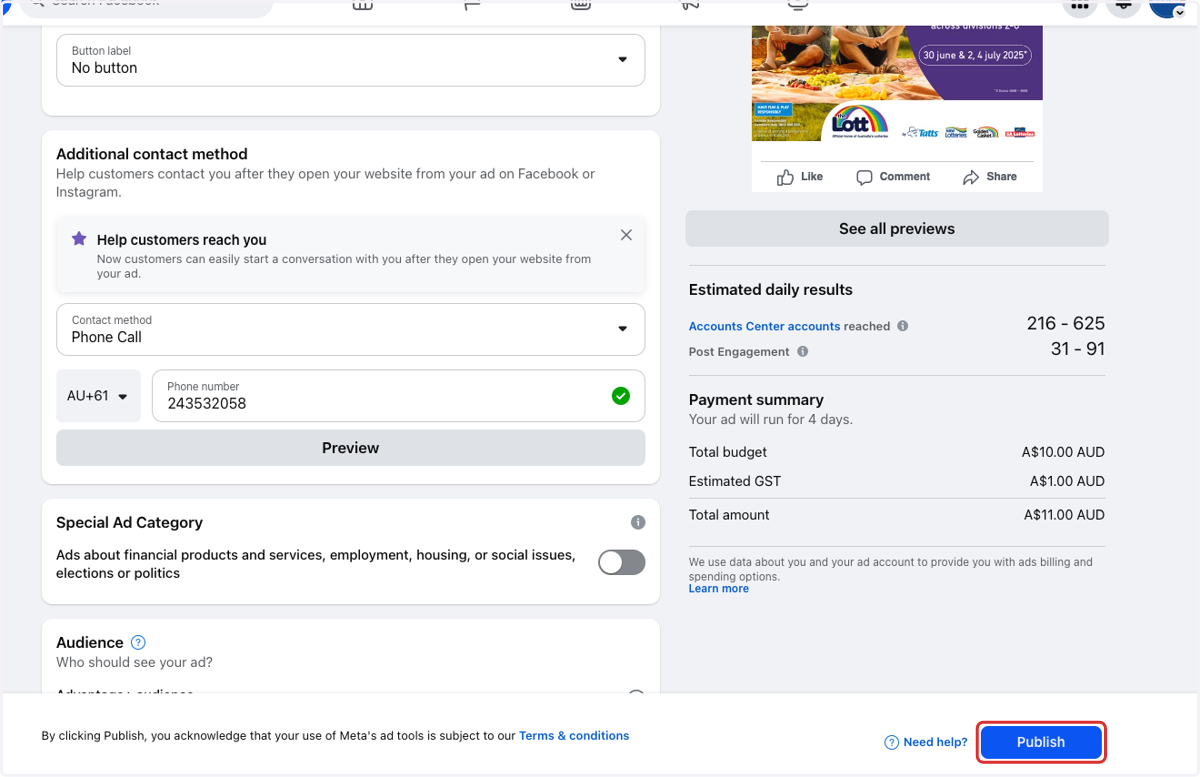
12. Add or check payment method
13. Review estimated results and cost
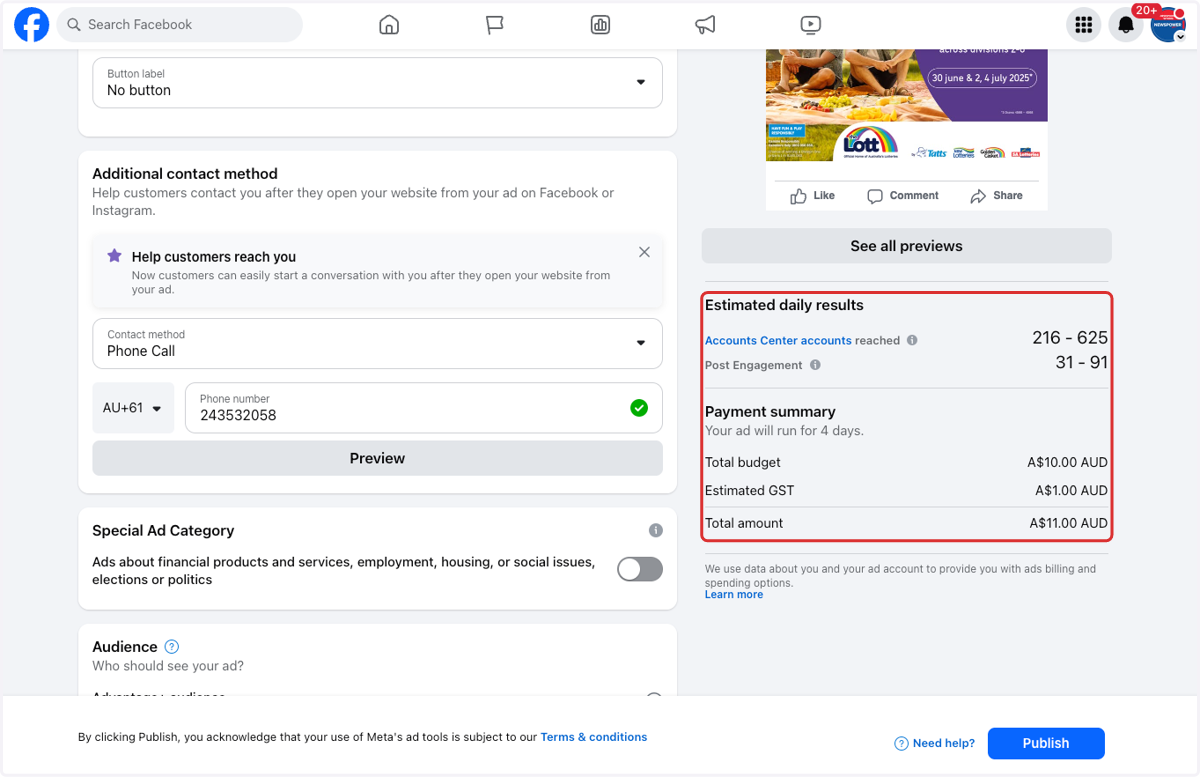
14. Click on Publish