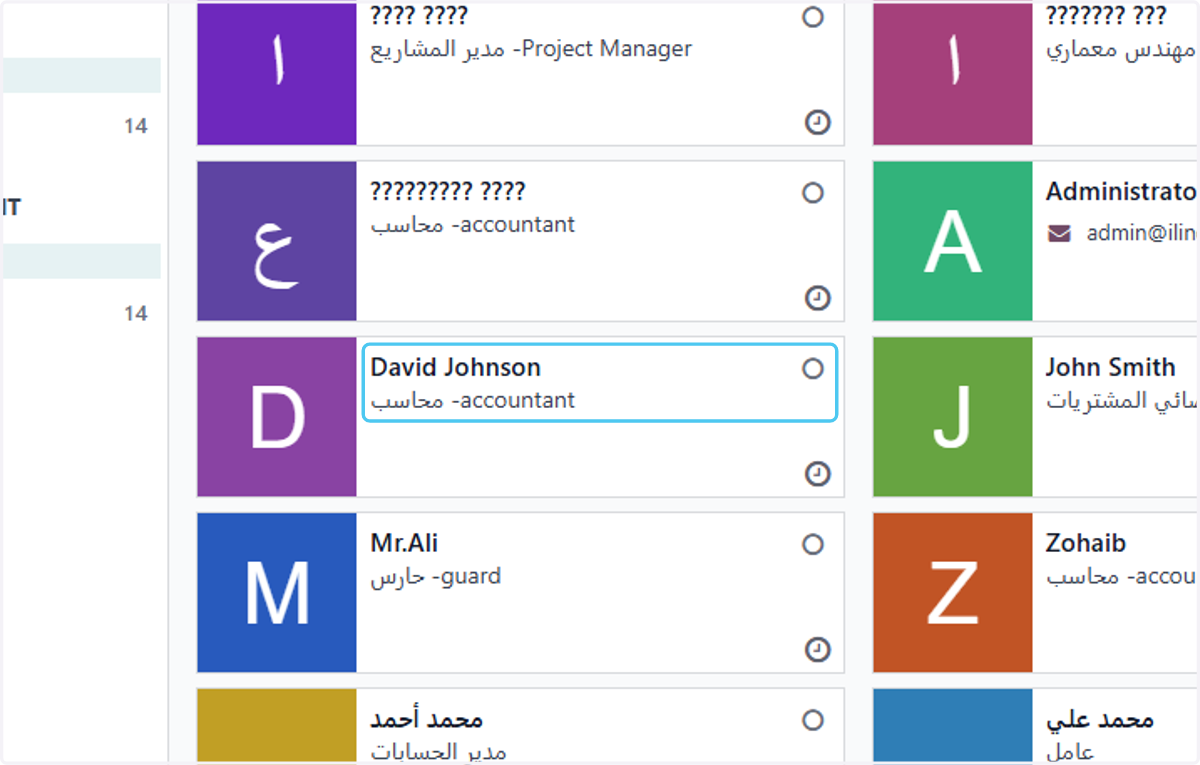
How to Update Employees’ Manager and Department Information in Odoo - iLines HR

Odoo

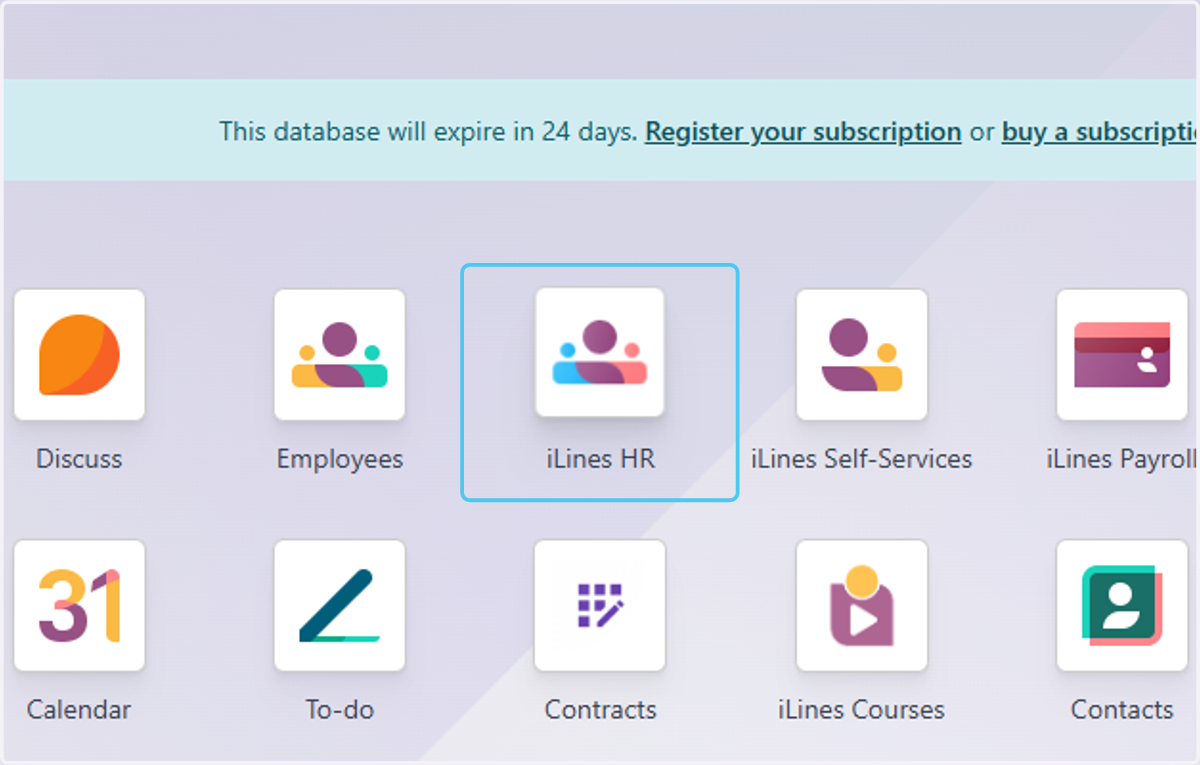
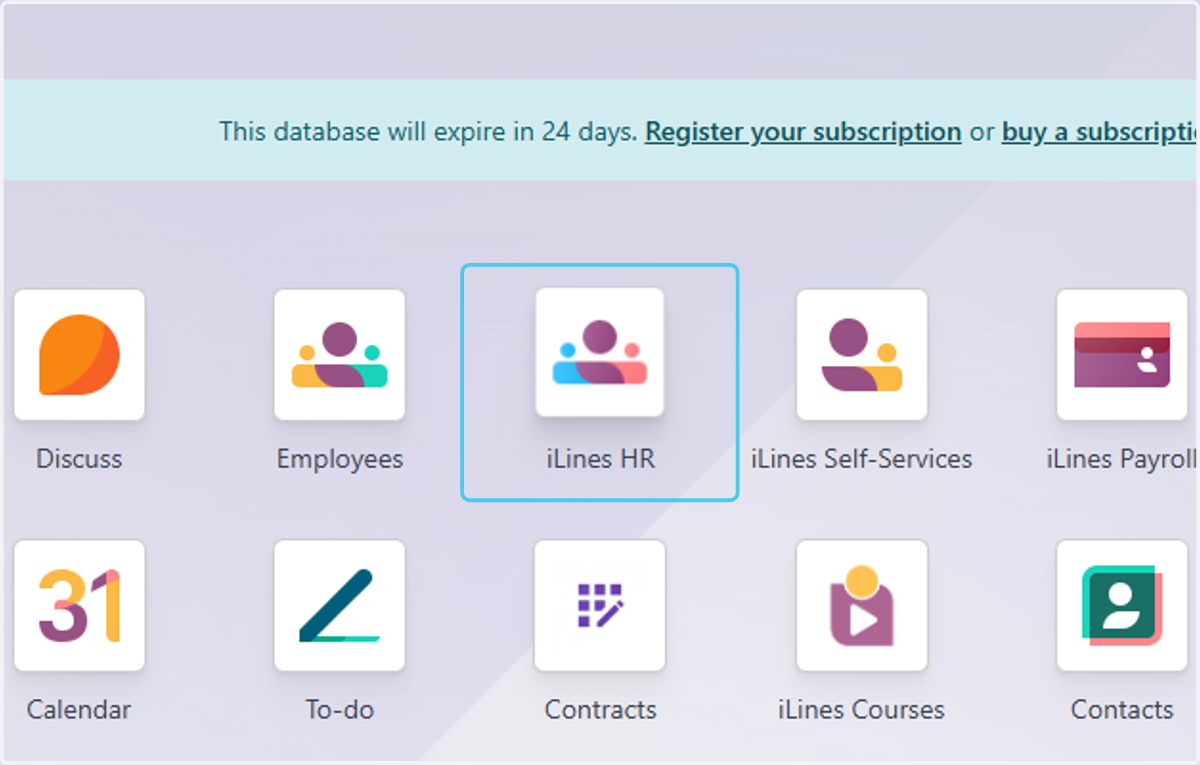
  1. 1. Click on iLines HR

    Click on iLines HR
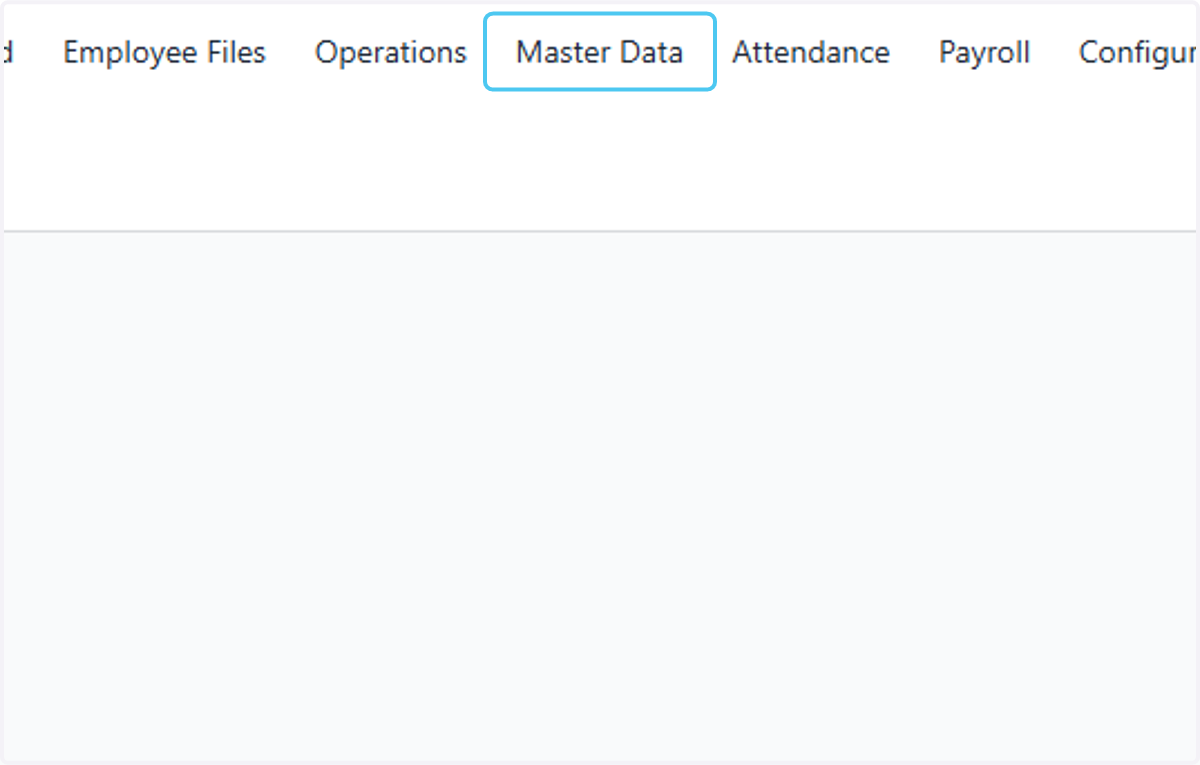
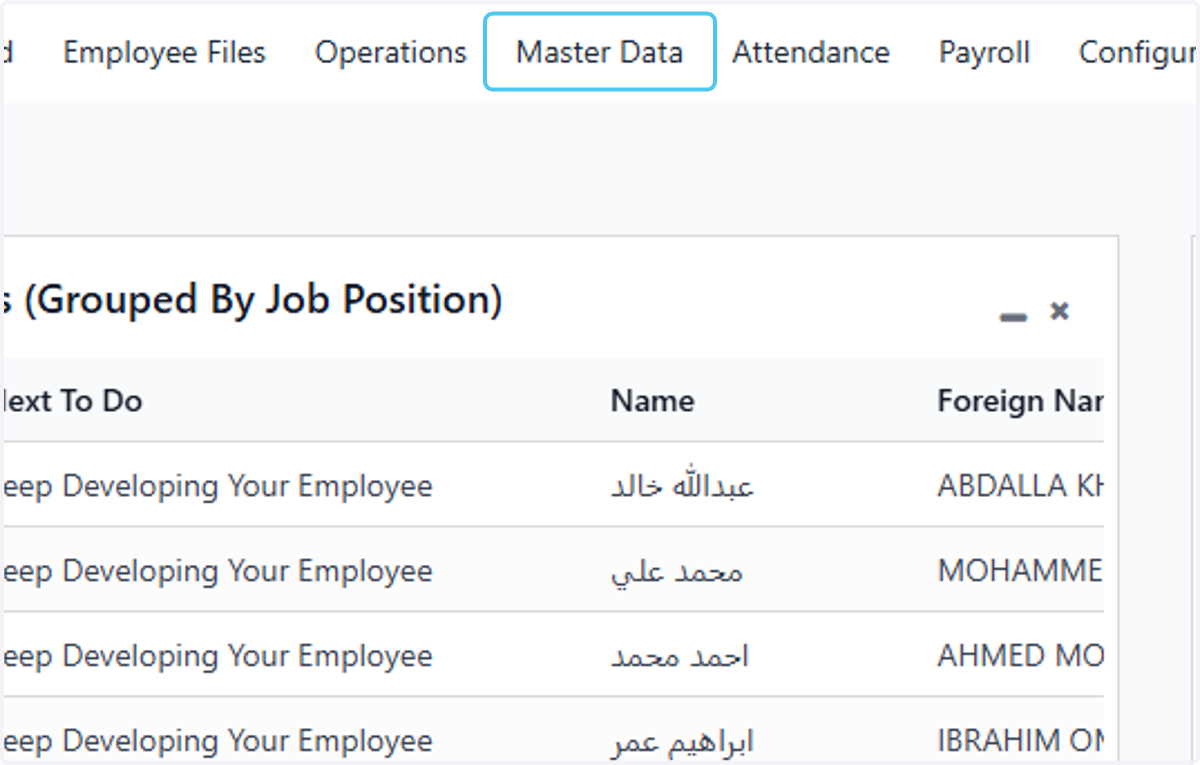
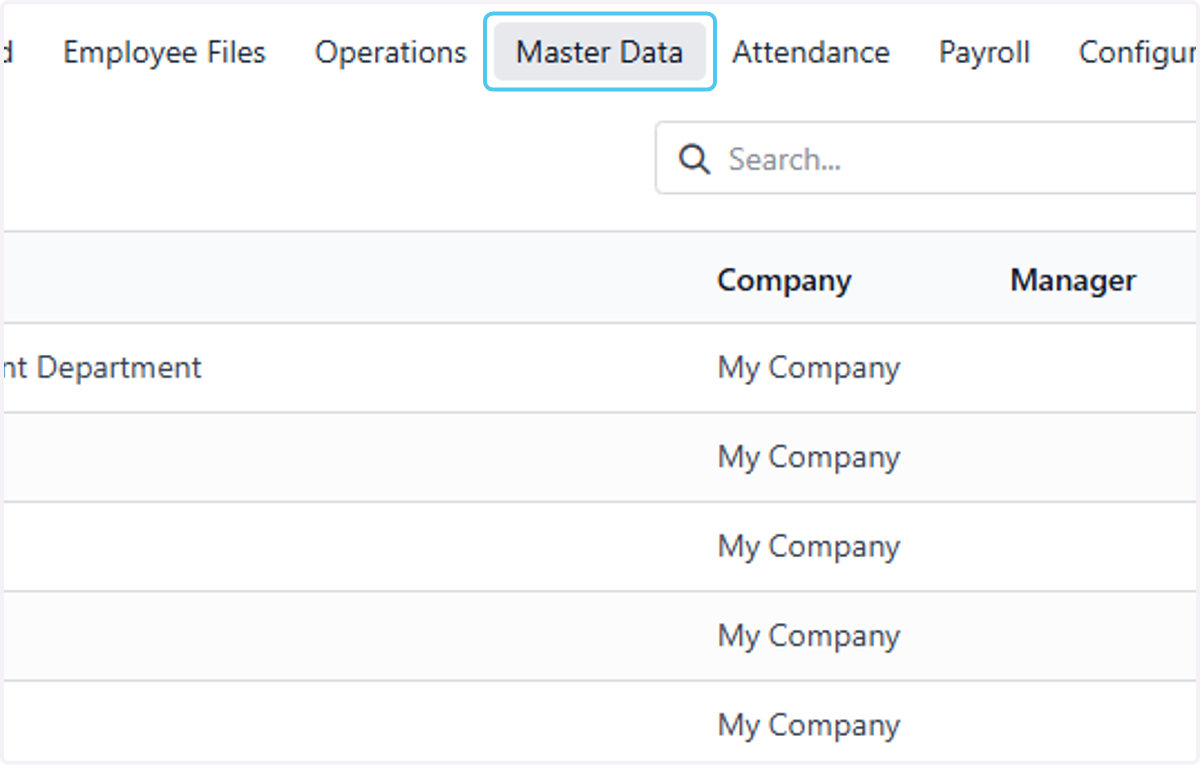
  2. 2. Click on Master Data

    Click on Master Data
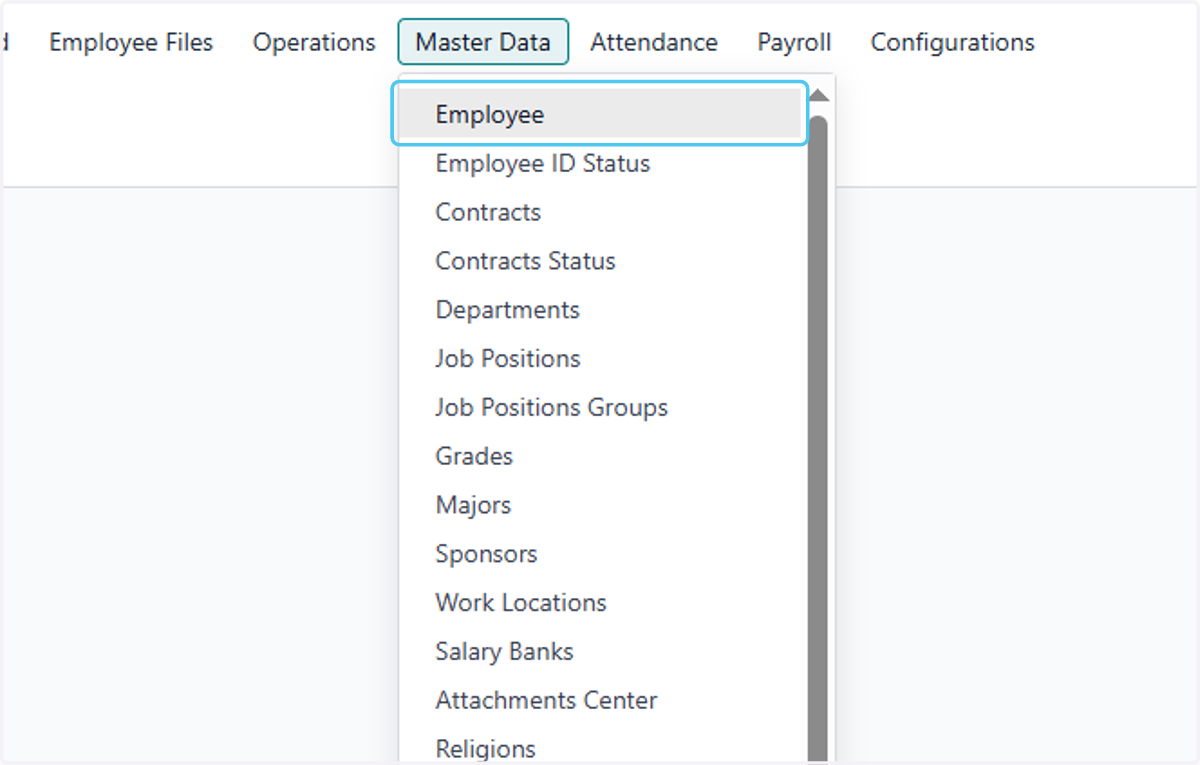
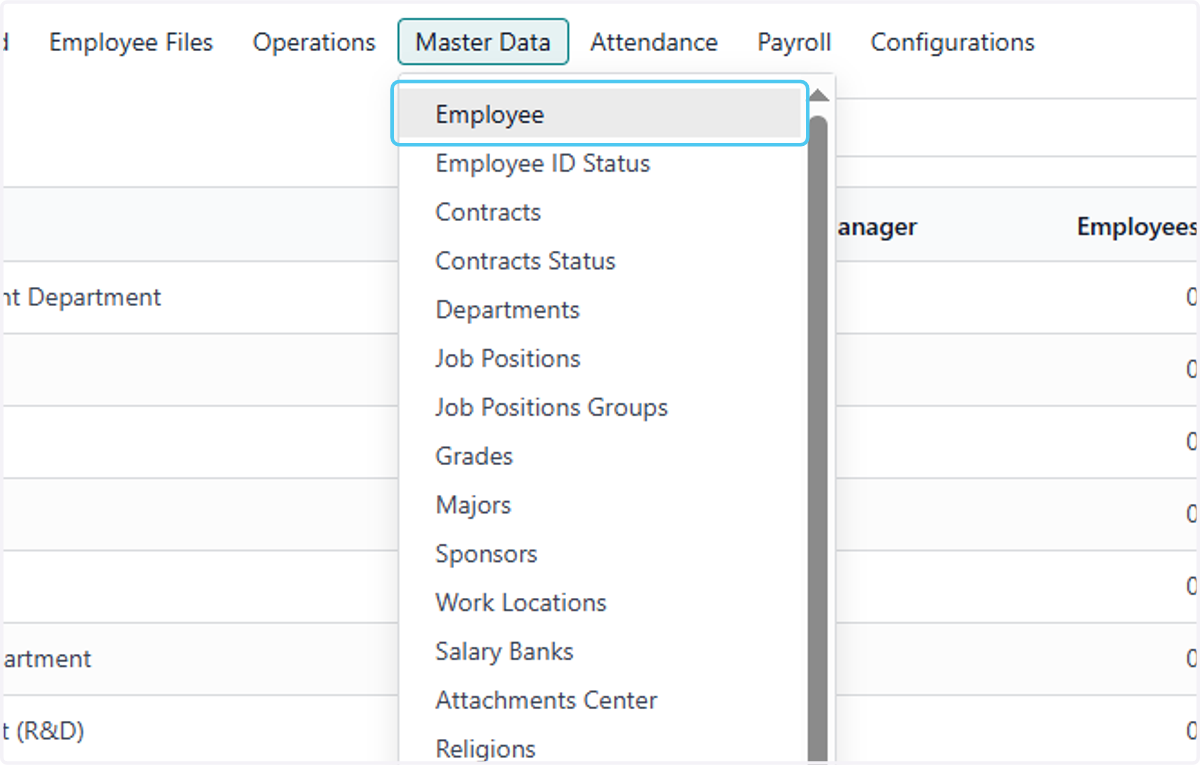
  3. 3. Click on Employee

    Click on Employee
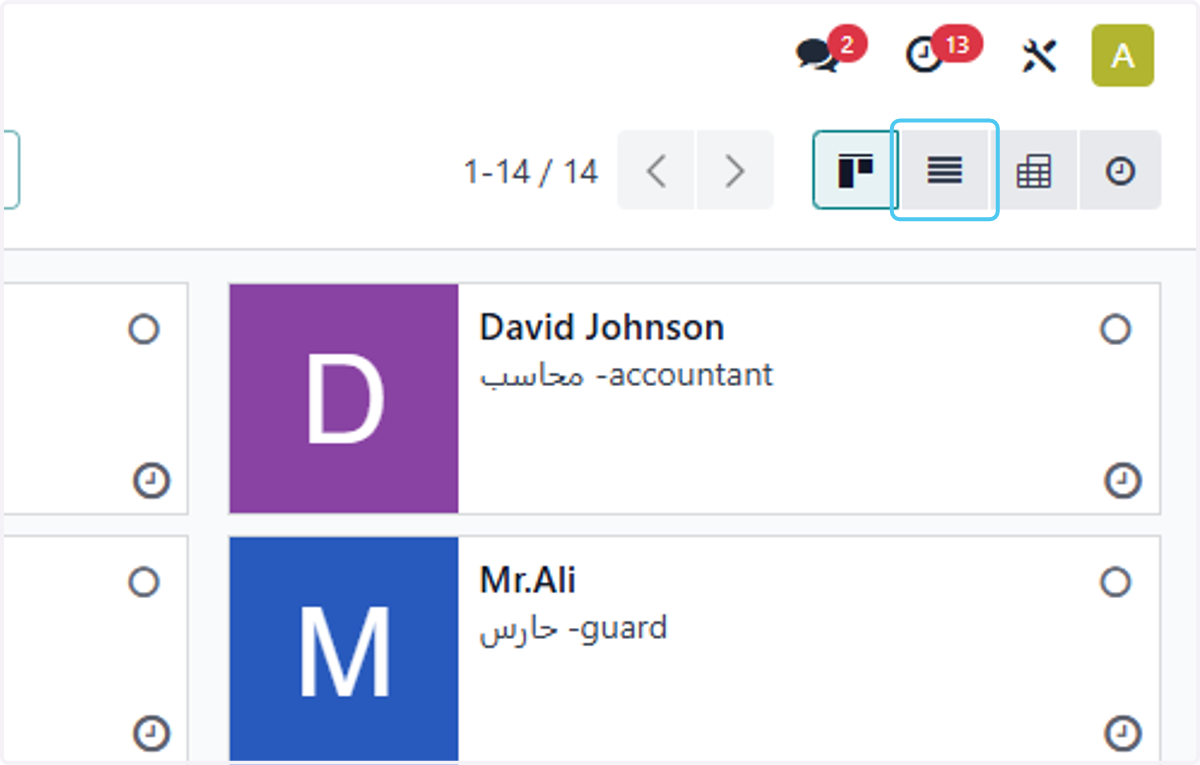
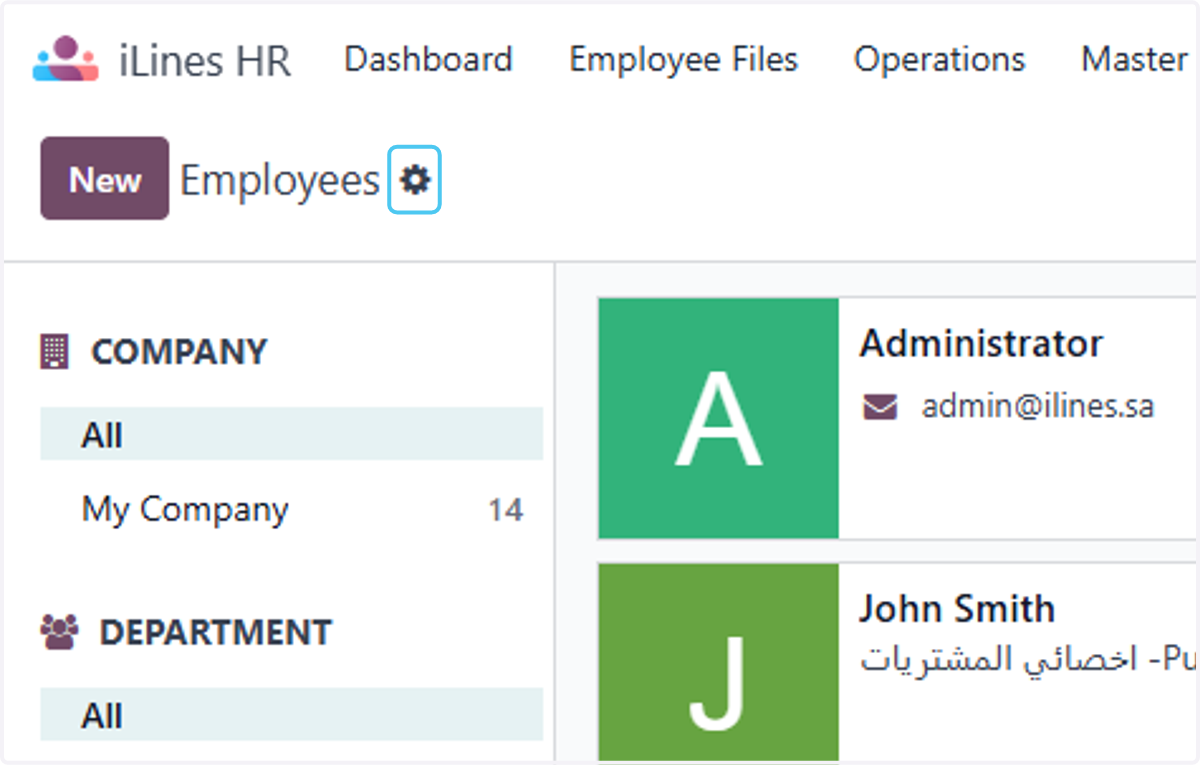
  4. 4. Click on highlight

    Click on highlight
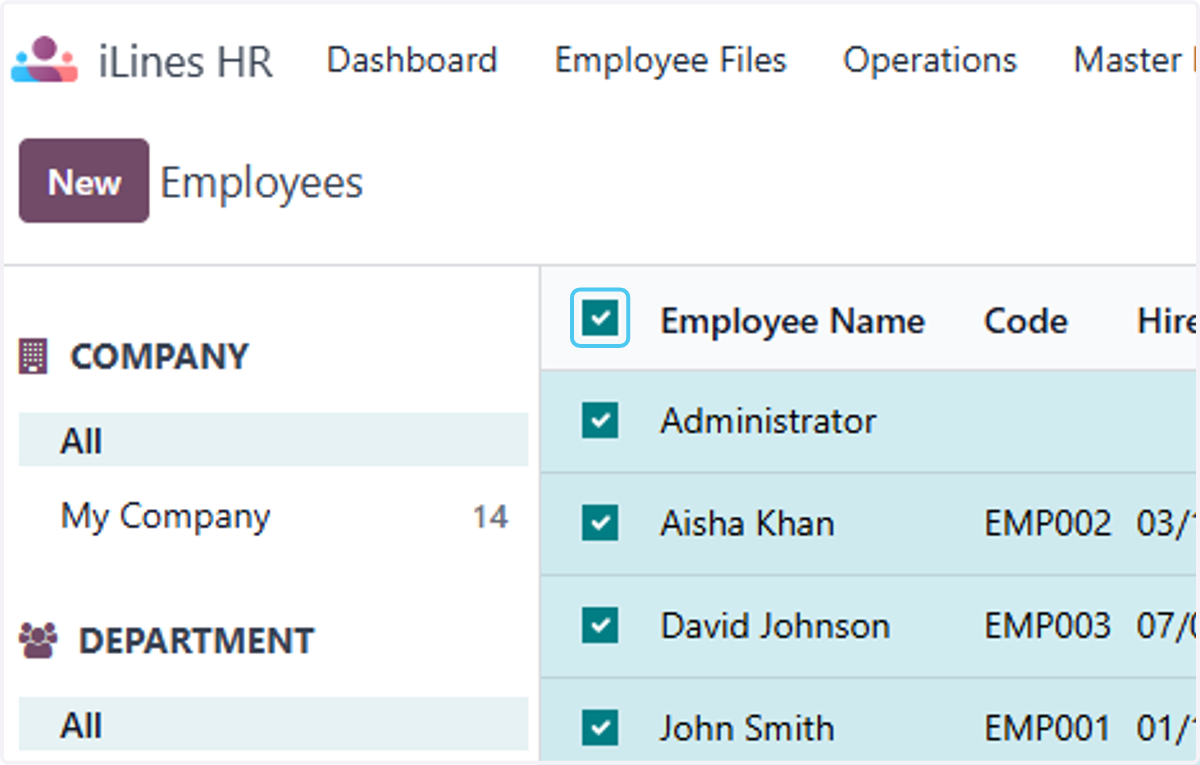
  5. 5. Check on

    Check on
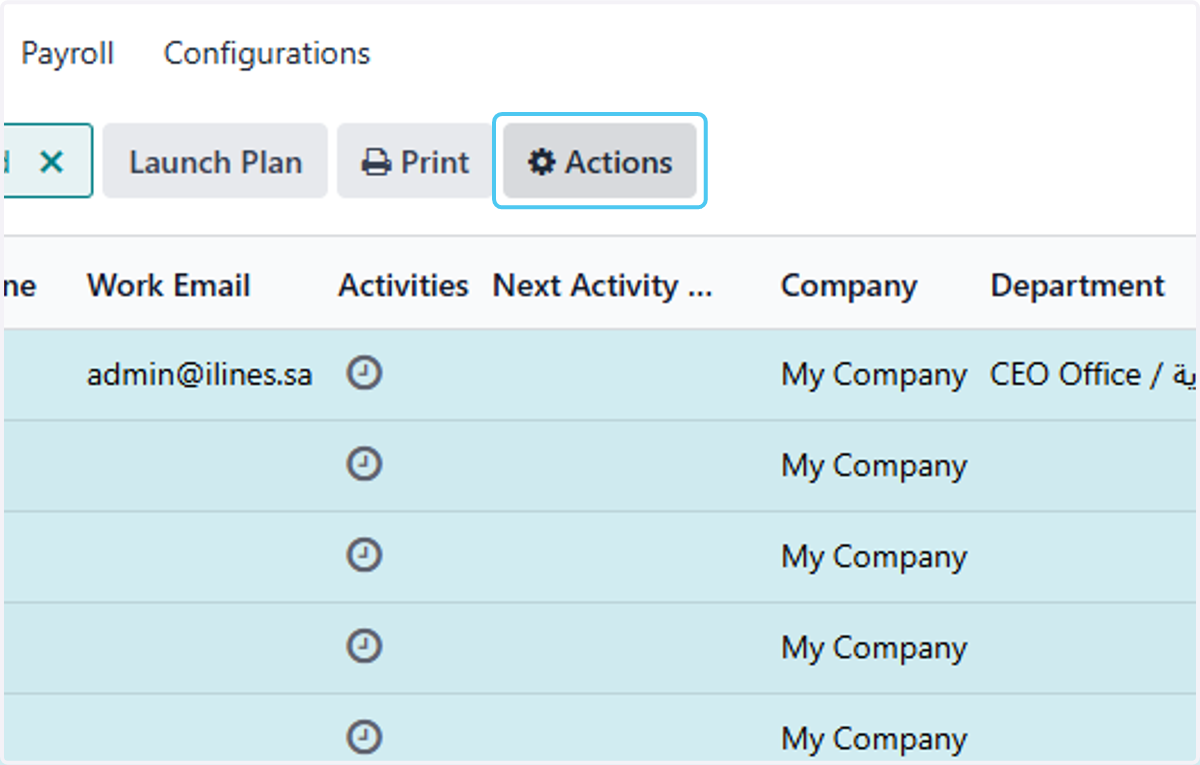
  6. 6. Click on Actions

    Click on Actions
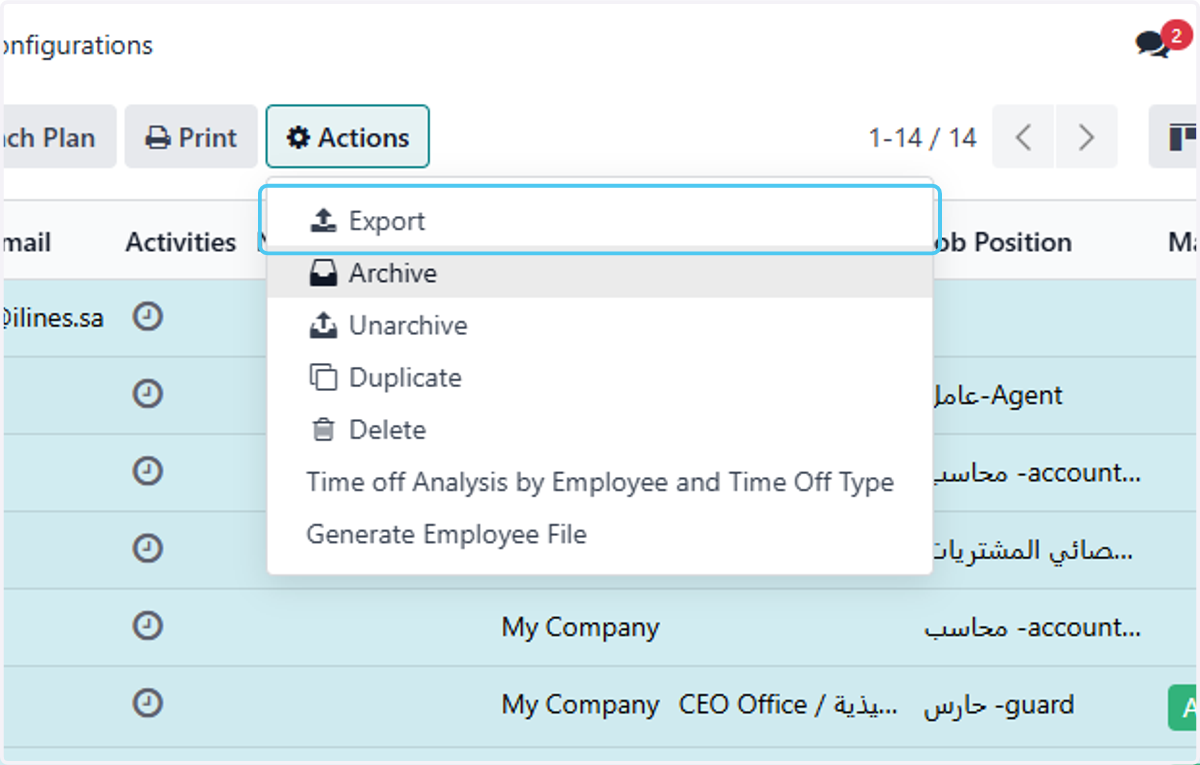
  7. 7. Click on Export

    Click on Export
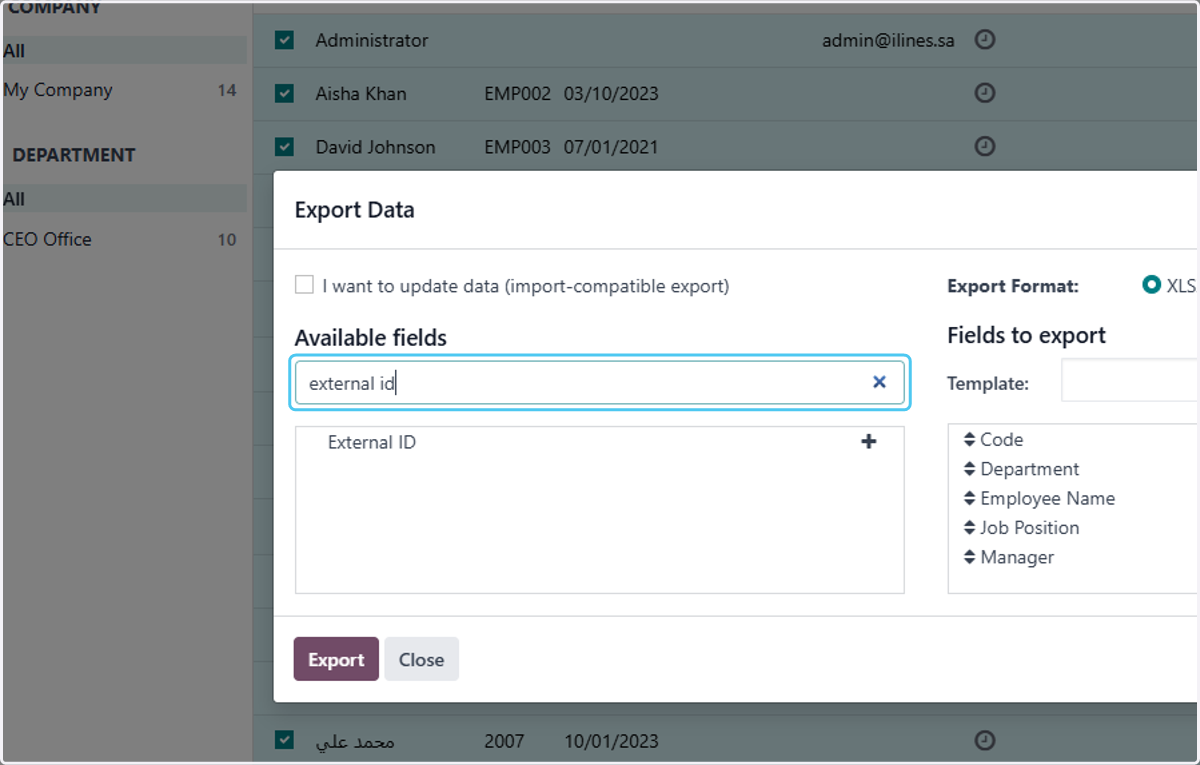
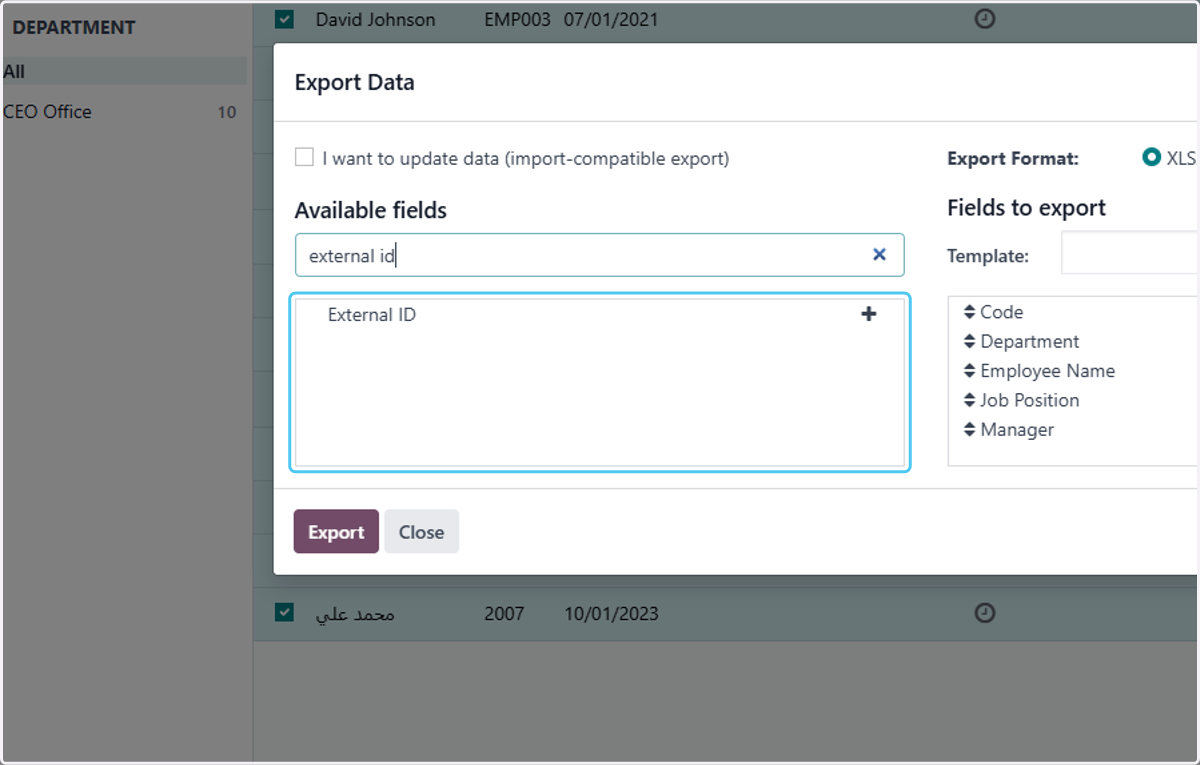
  8. 8. Type "external id"

    Type "external id"
  9. 9. Click on Export Data…

    Click on Export Data…
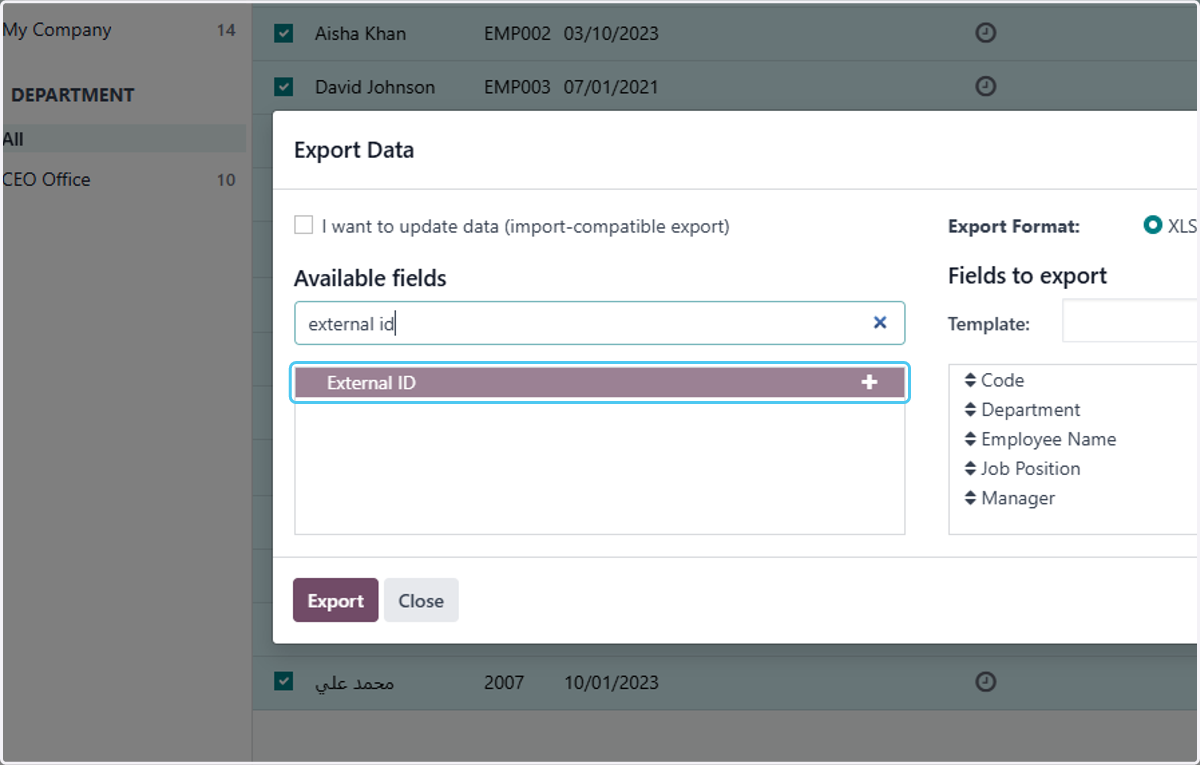
  10. 10. Click on External ID

    Click on External ID
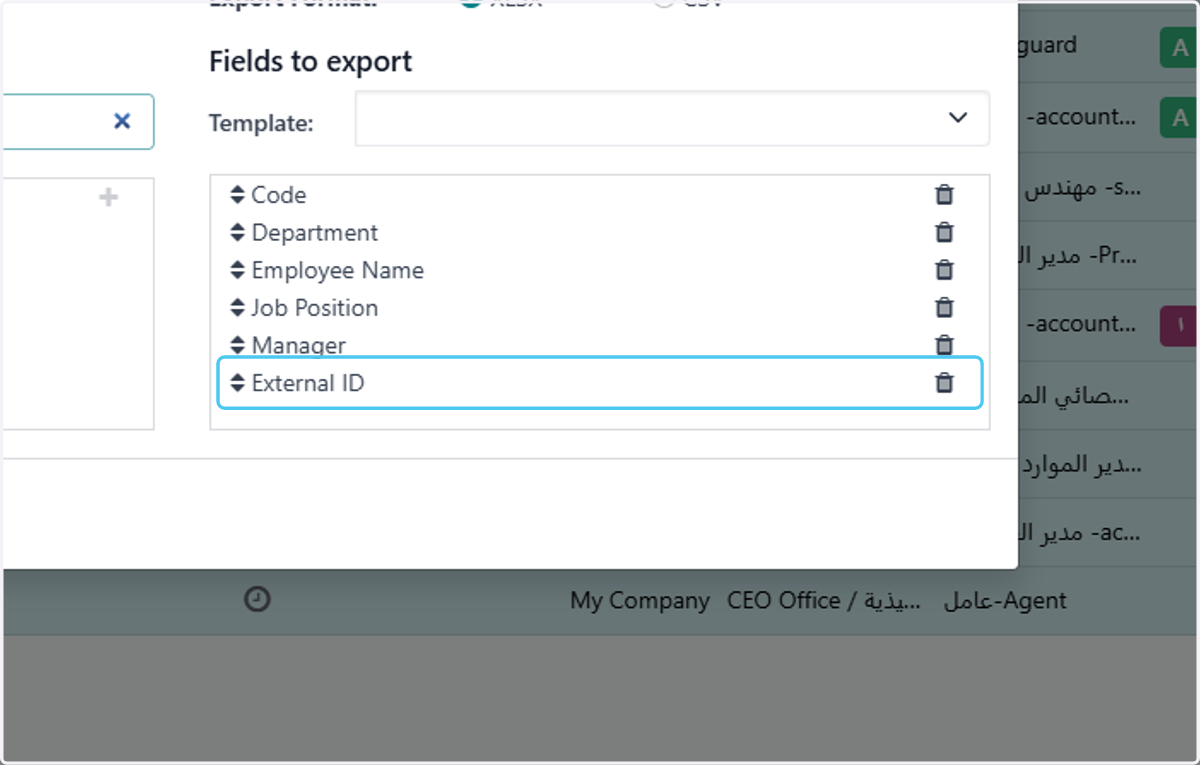
  11. 11. Click on Export Data…

    Click on Export Data…
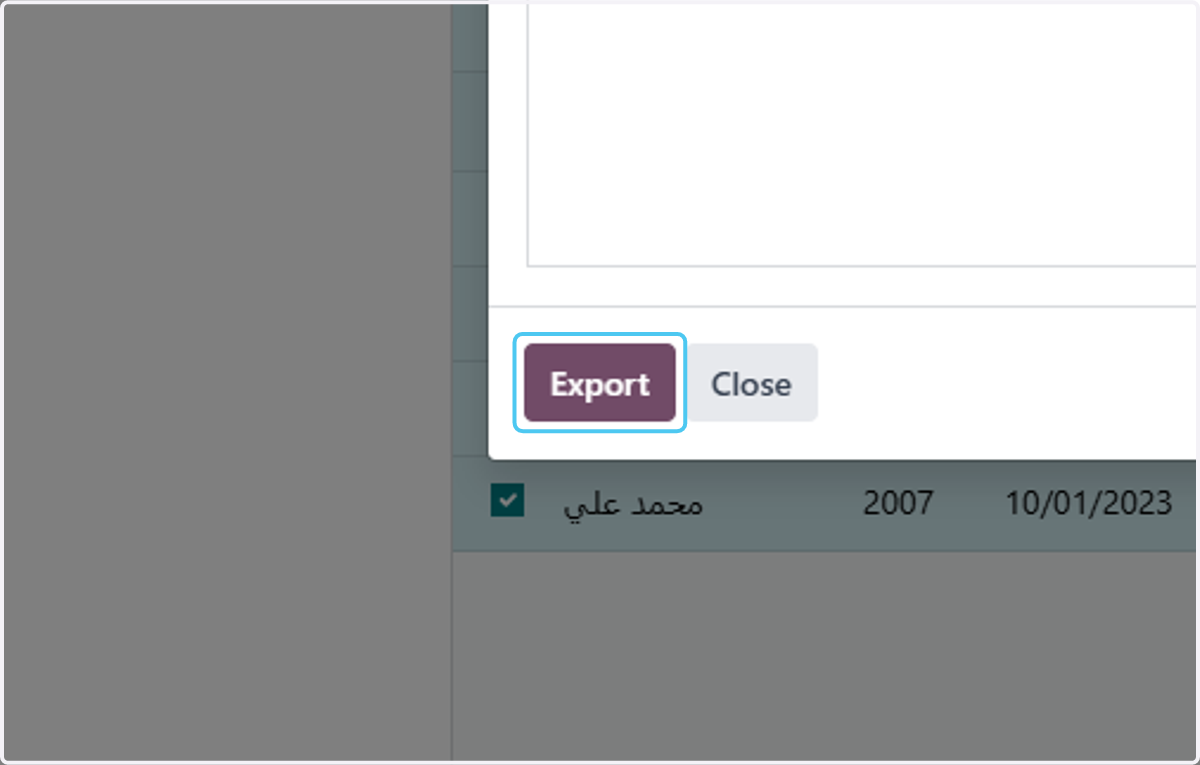
  12. 12. Click on Export

    Click on Export
  13. 13. Click on iLines HR

    Click on iLines HR
  14. 14. Click on Master Data

    Click on Master Data
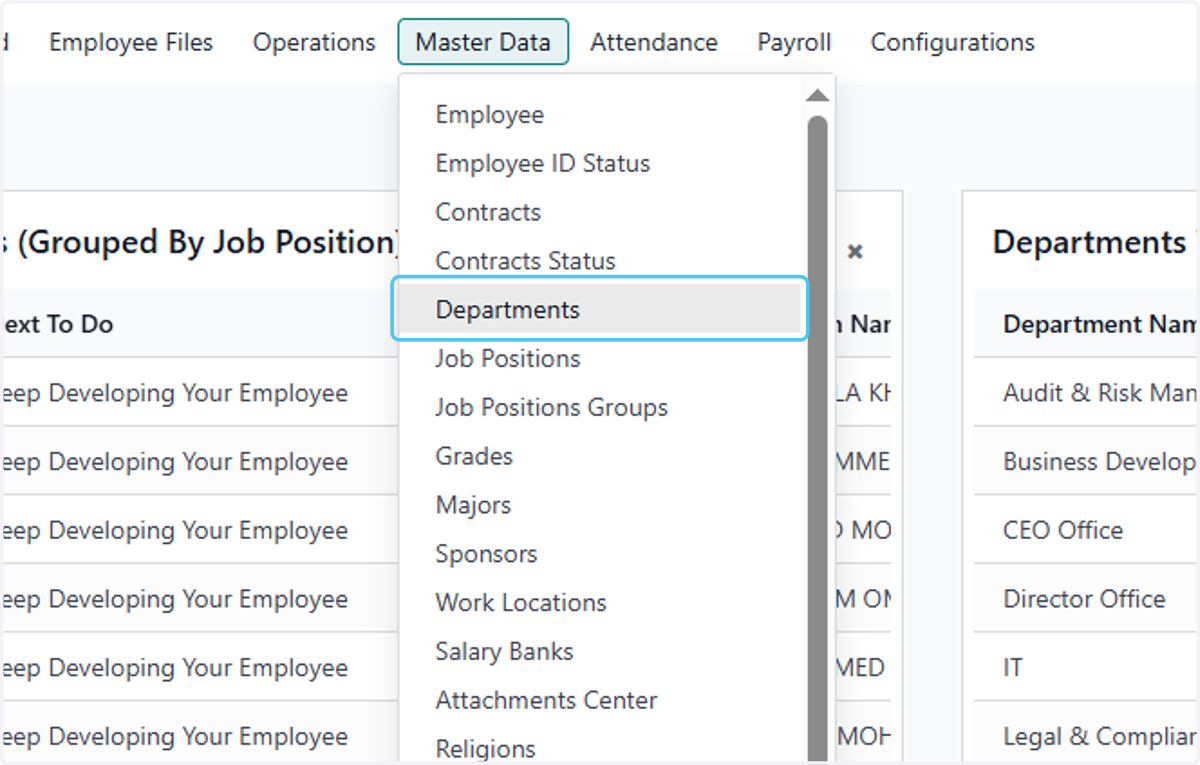
  15. 15. Click on Departments

    Click on Departments
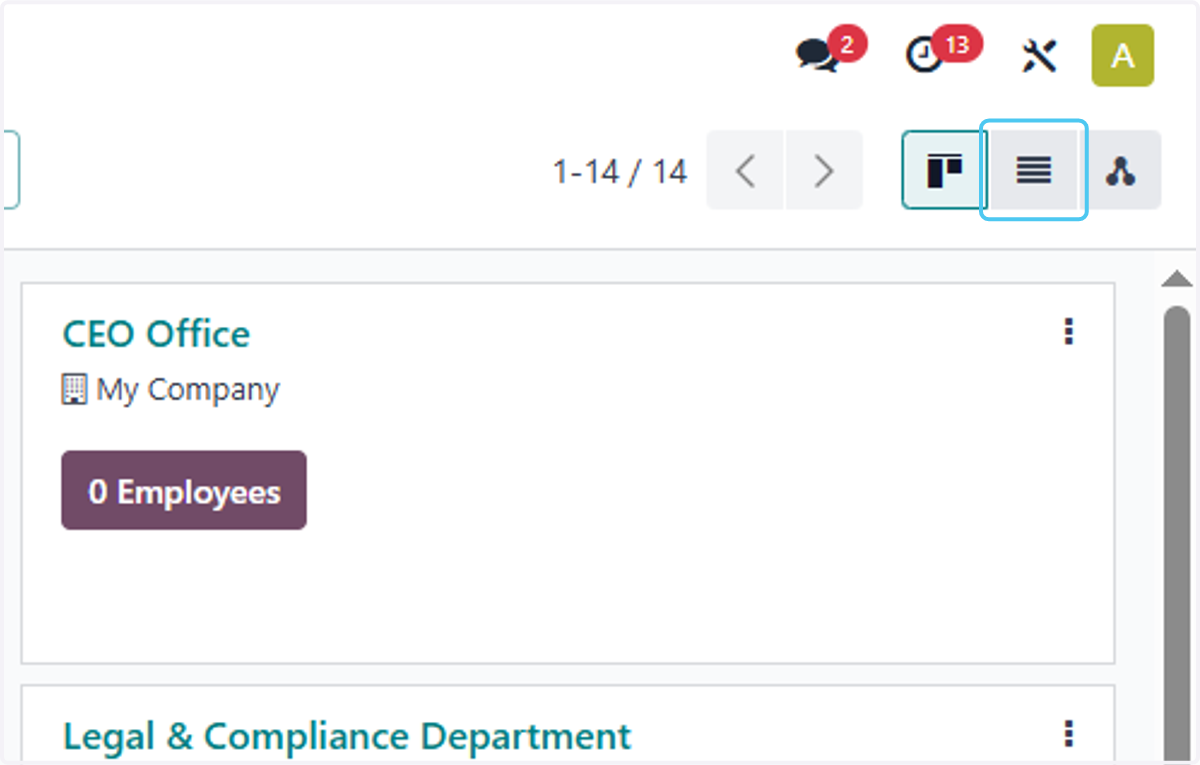
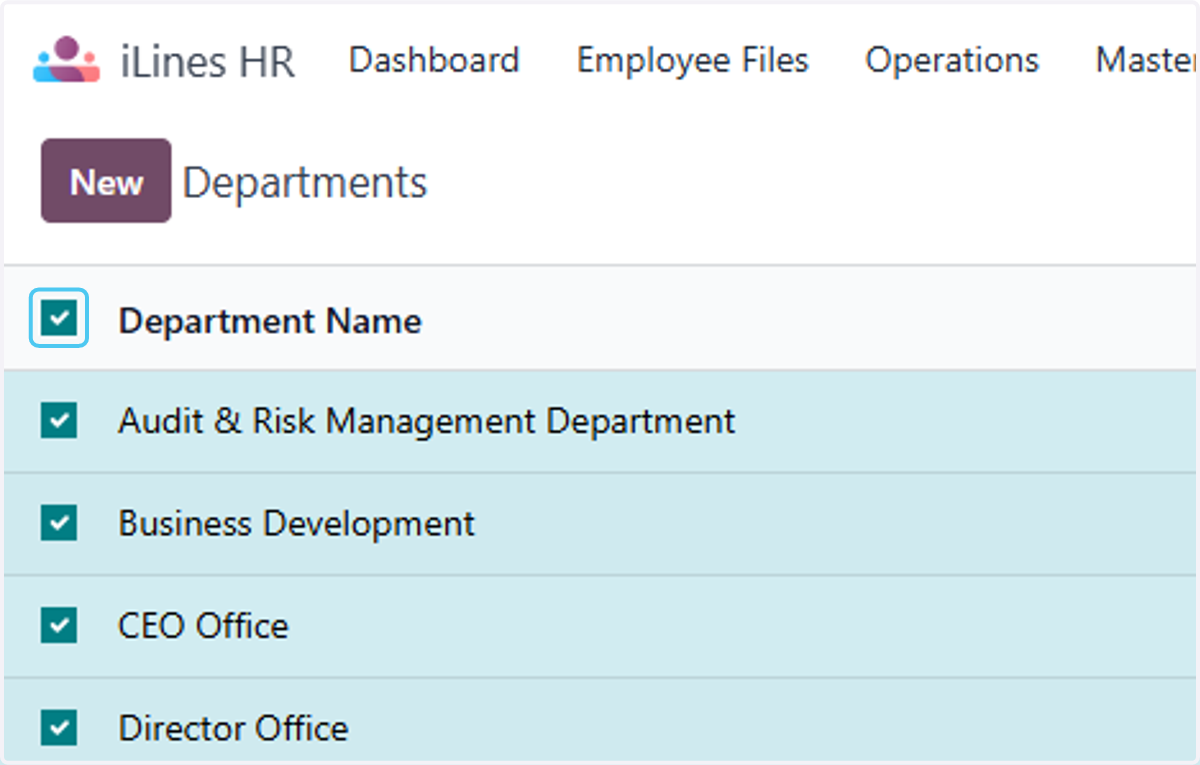
  16. 16. Click on highlight

    Click on highlight
  17. 17. Check on

    Check on
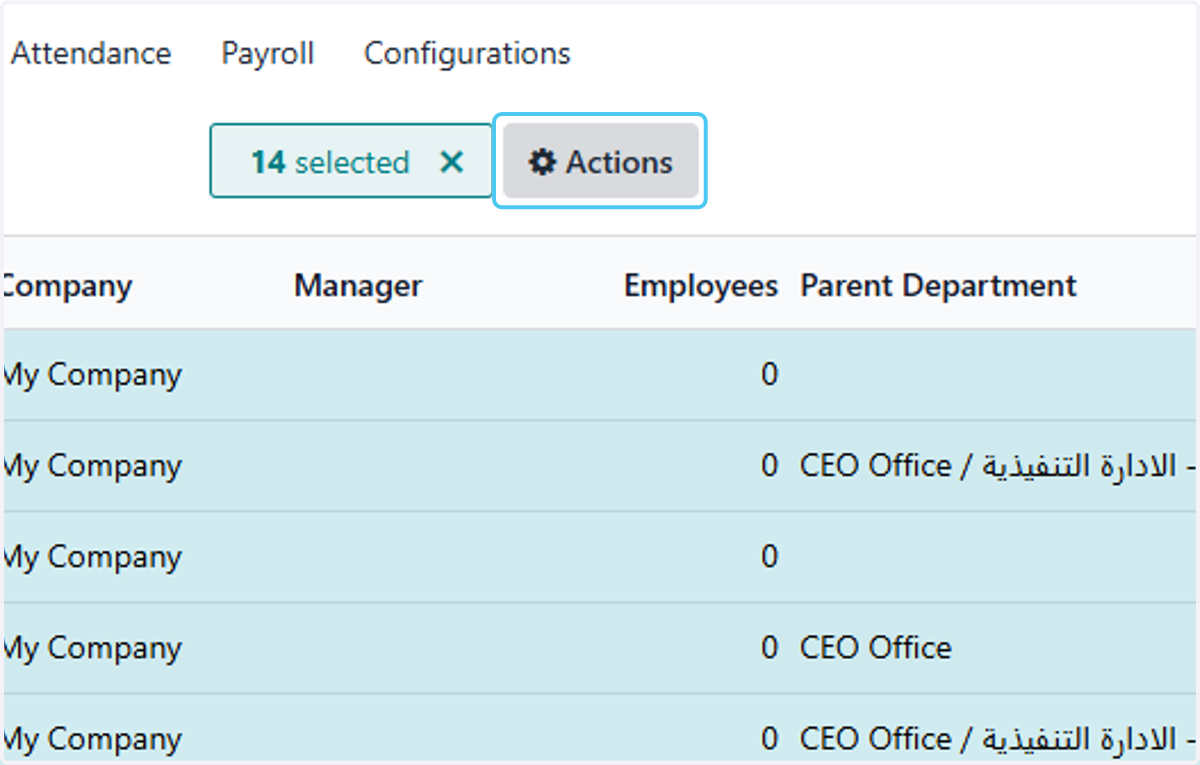
  18. 18. Click on Actions

    Click on Actions
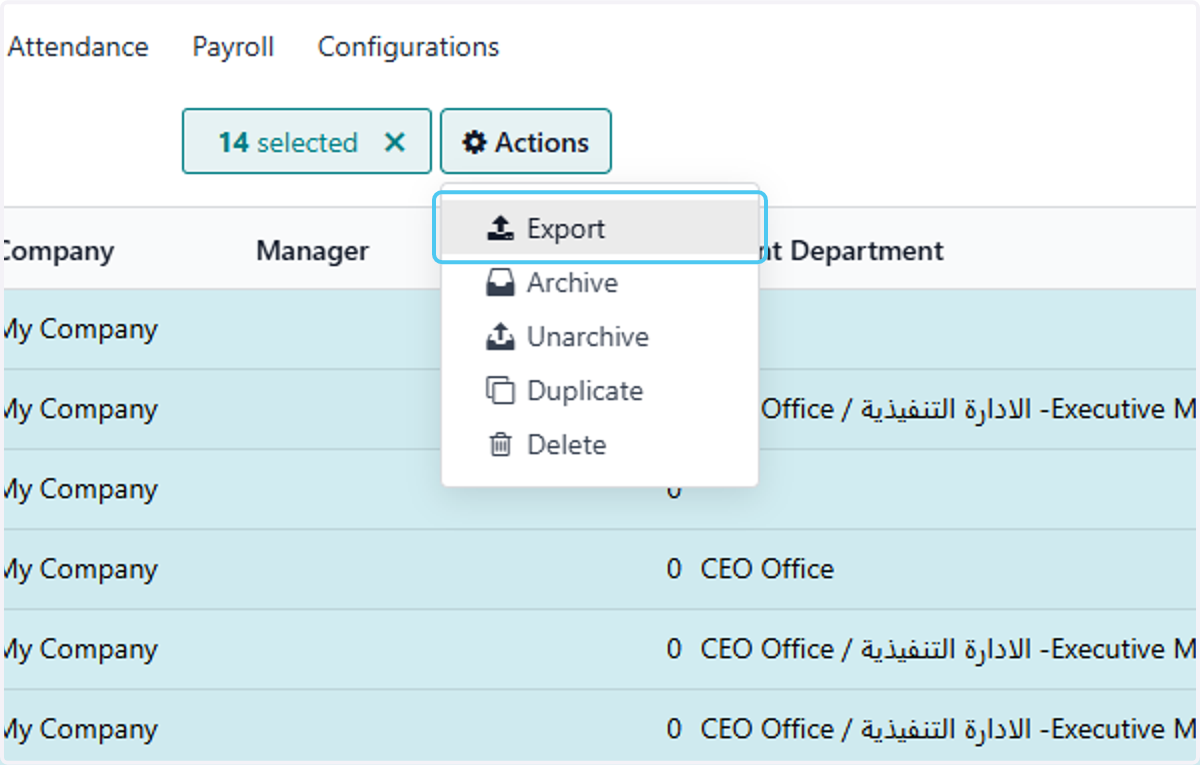
  19. 19. Click on Export

    Click on Export
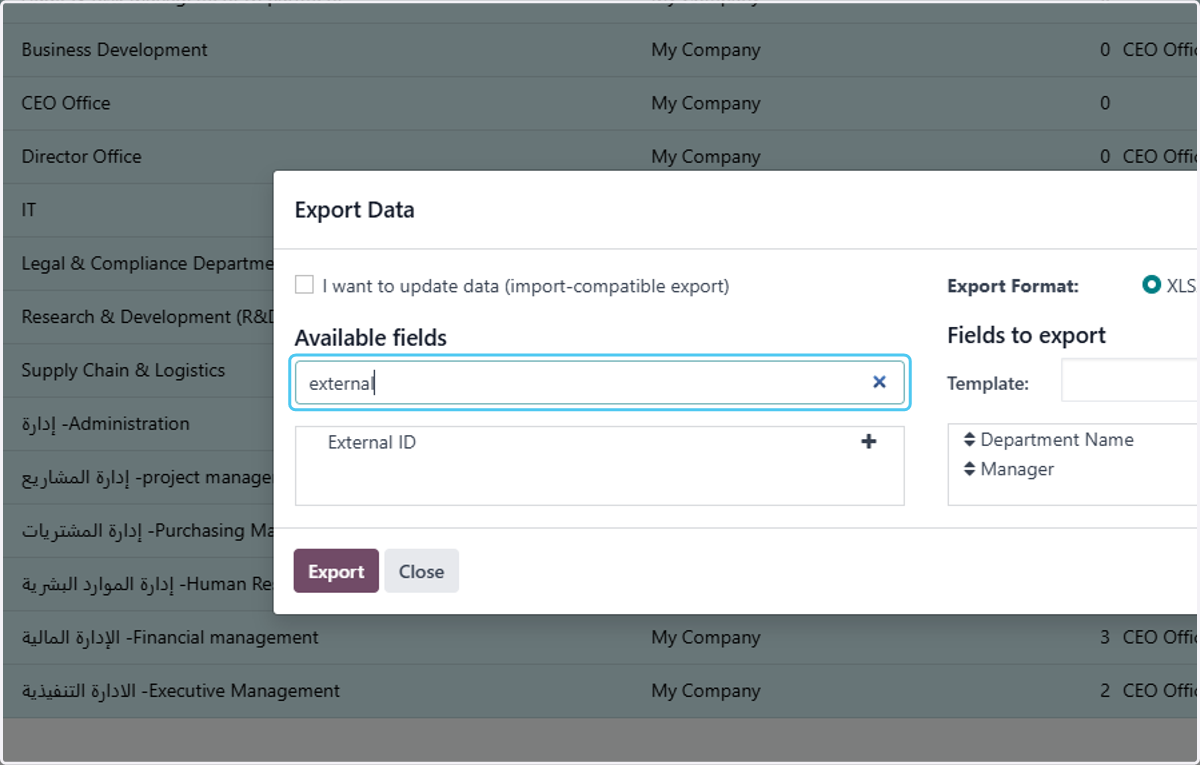
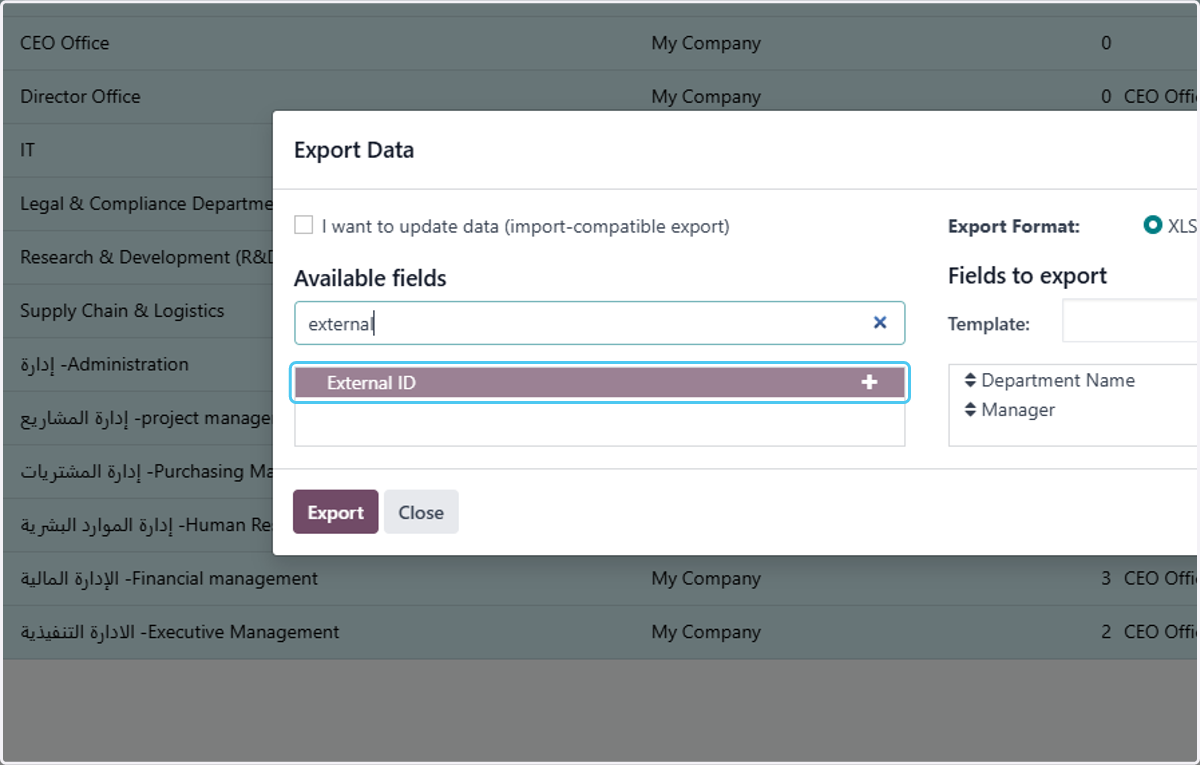
  20. 20. Type "external"

    Type "external"
  21. 21. Click on External ID

    Click on External ID
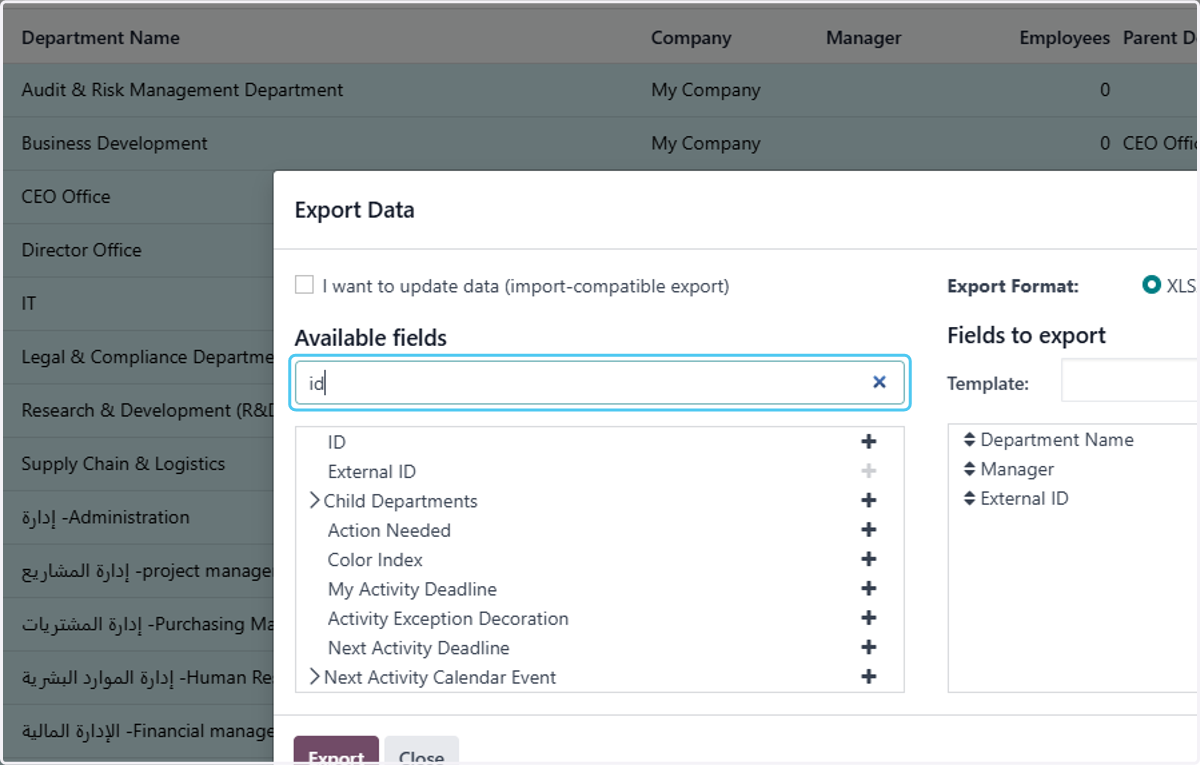
  22. 22. Type "id"

    Type "id"
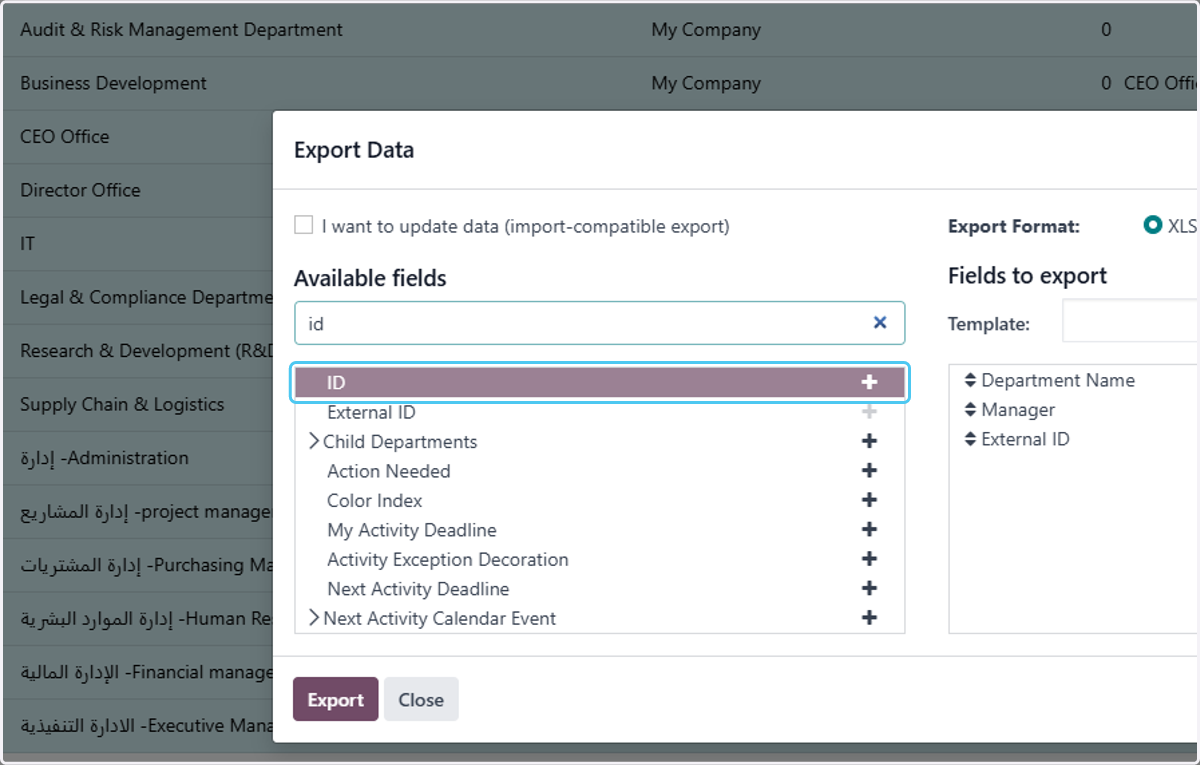
  23. 23. Click on ID

    Click on ID
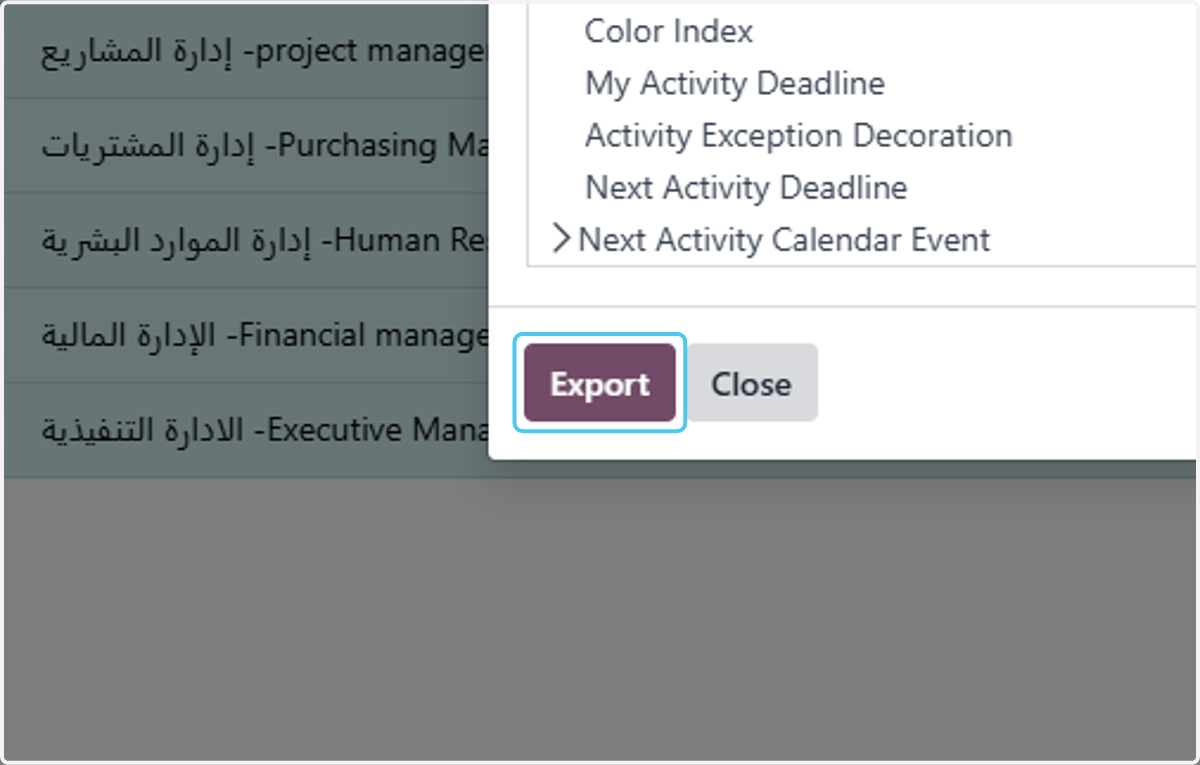
  24. 24. Click on Export

    Click on Export

Google Docs

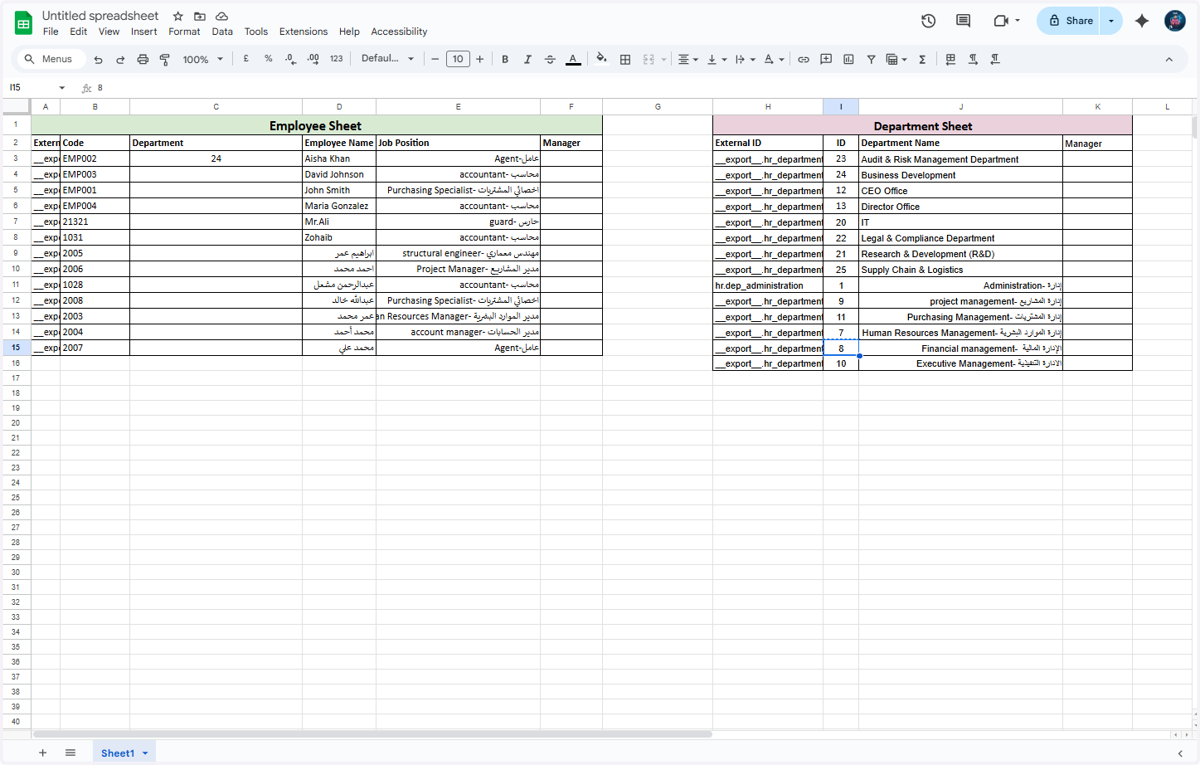
  1. 25. Now open the Employee and Department files that you have exported in the System
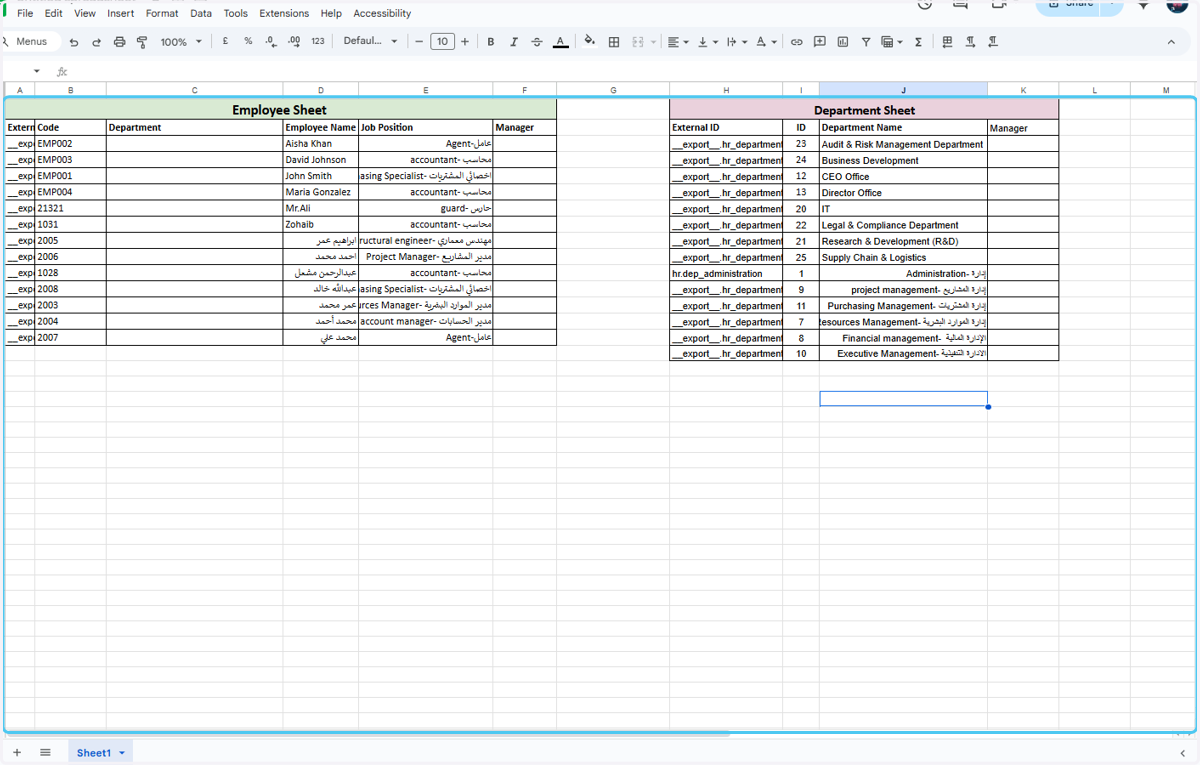
    Now open the Employee and Department files that you have exported in the System
  2. 26. Copy the Department Database ID that you want to update in the Employee file
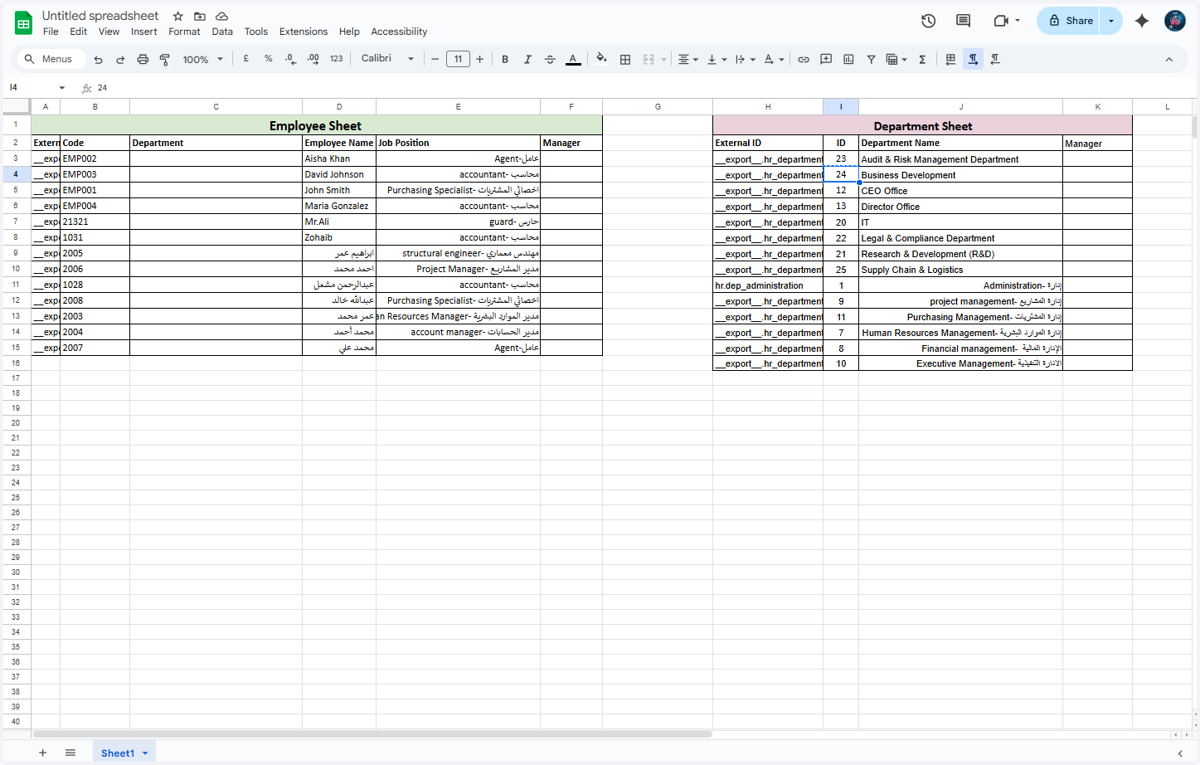
    Copy the Department Database ID that you want to update in the Employee file
  3. 27. Now paste "24" into the element in the employee department section
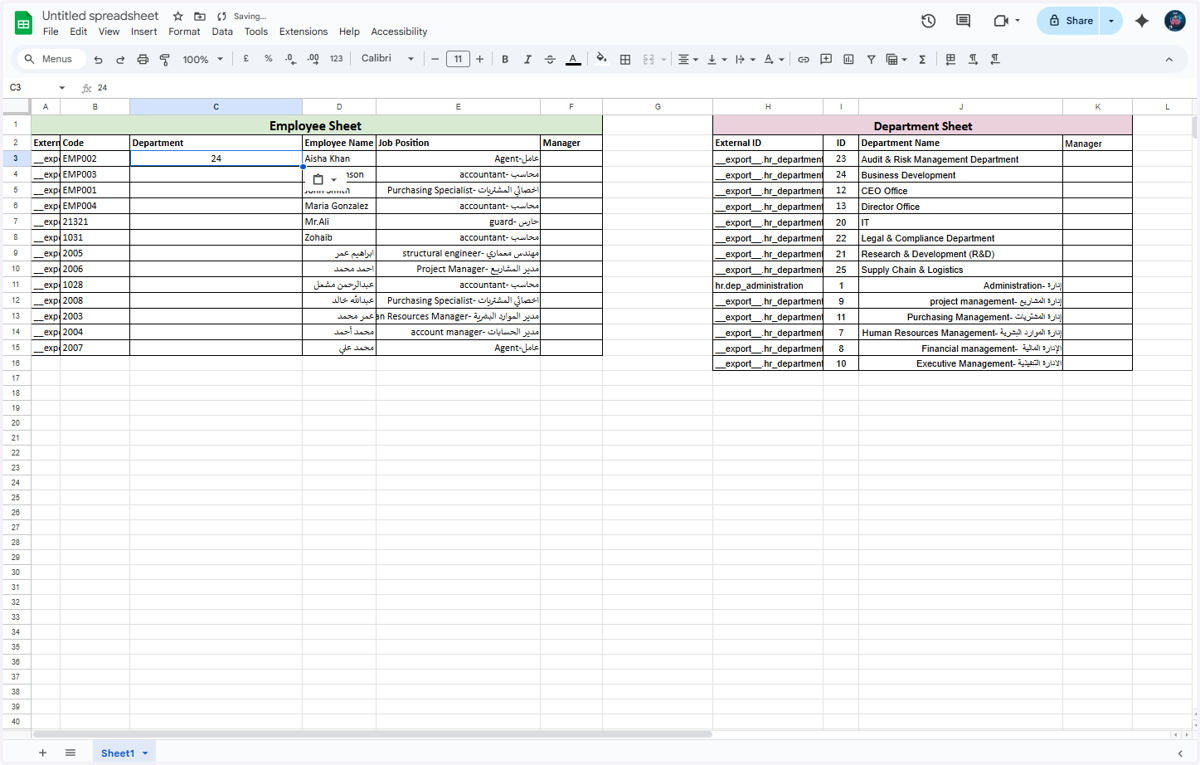
    Now paste "24" into the element in the employee department section
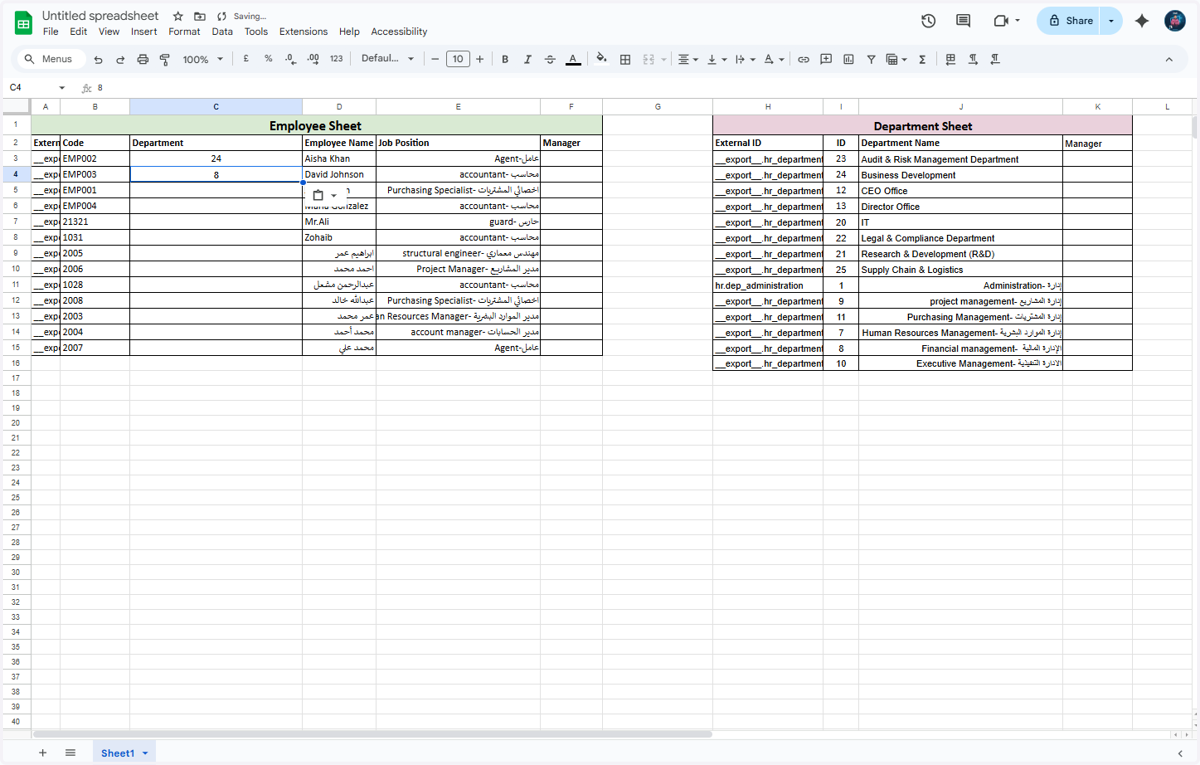
  4. 28. Copy element titled " "

    Copy element titled " "
  5. 29. Paste "8" into element

    Paste "8" into element
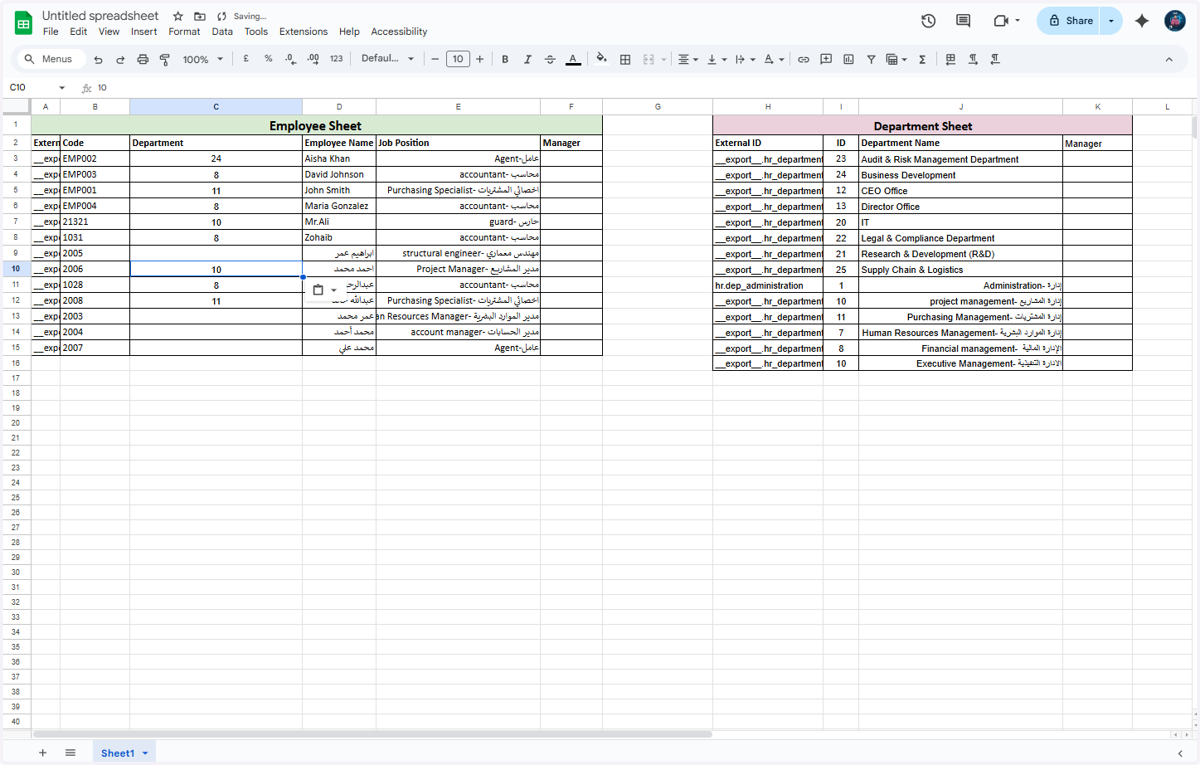
  6. 30. Paste "10" into element

    Paste "10" into element
  7. 31. After enterning the Details Add the Employee manager in the employee file.
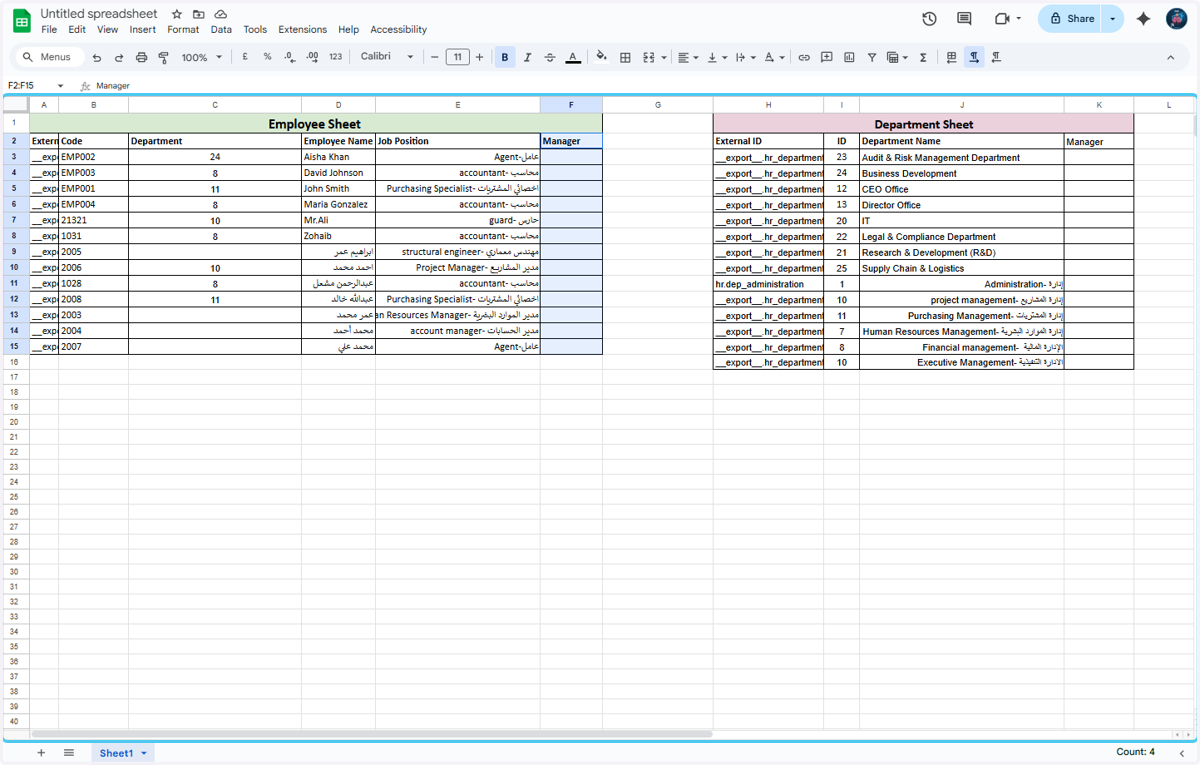
    After enterning the Details Add the Employee manager in the employee file.
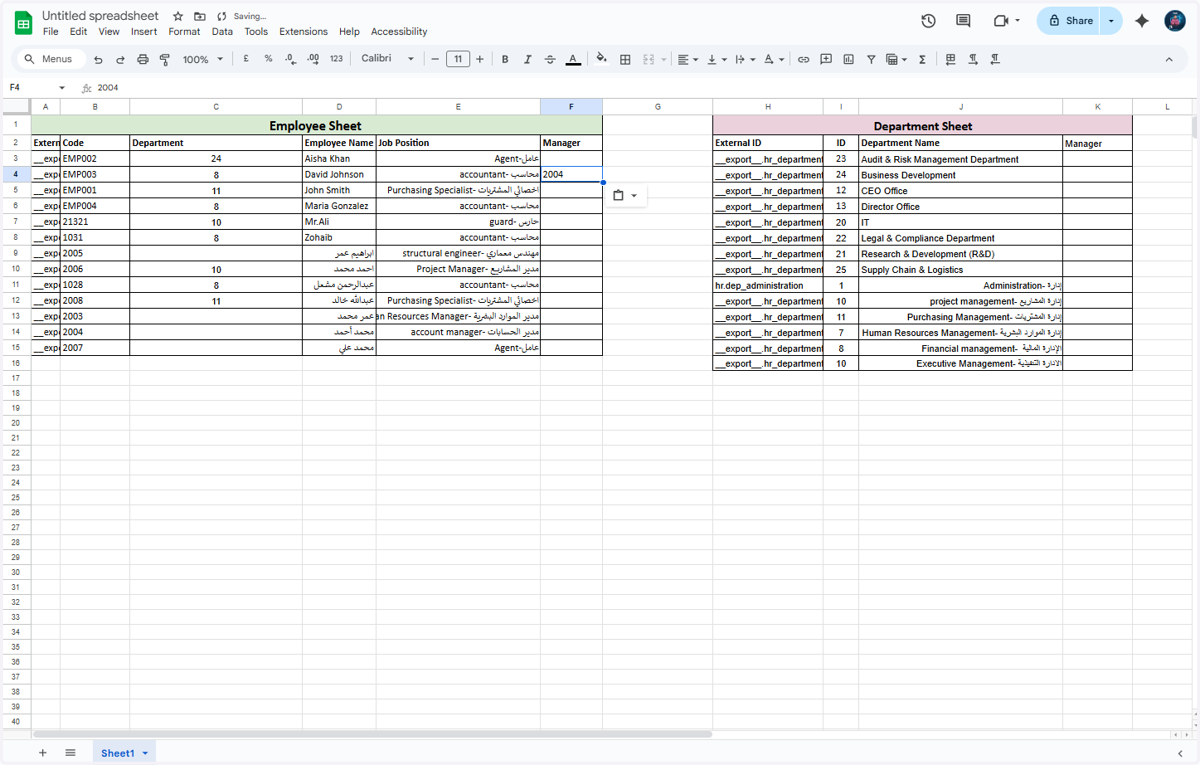
  8. 32. For the Employee manager, you need to copy the employee code and you have to add it in the Manager Column
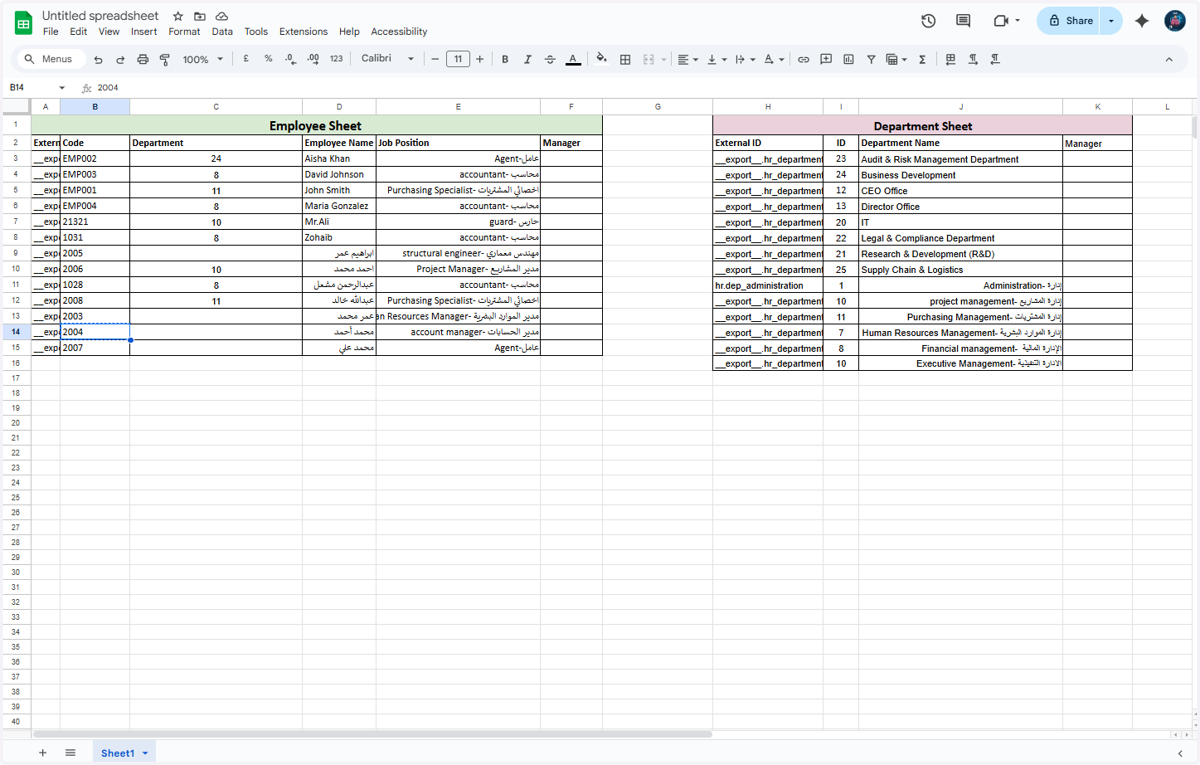
    For the Employee manager, you need to copy the employee code and you have to add it in the Manager Column
  9. 33. Paste "2004" into cell

    Paste "2004" into cell
  10. 34. After updating the Manager Records in the employees form, the next step is to import the data in Odoo
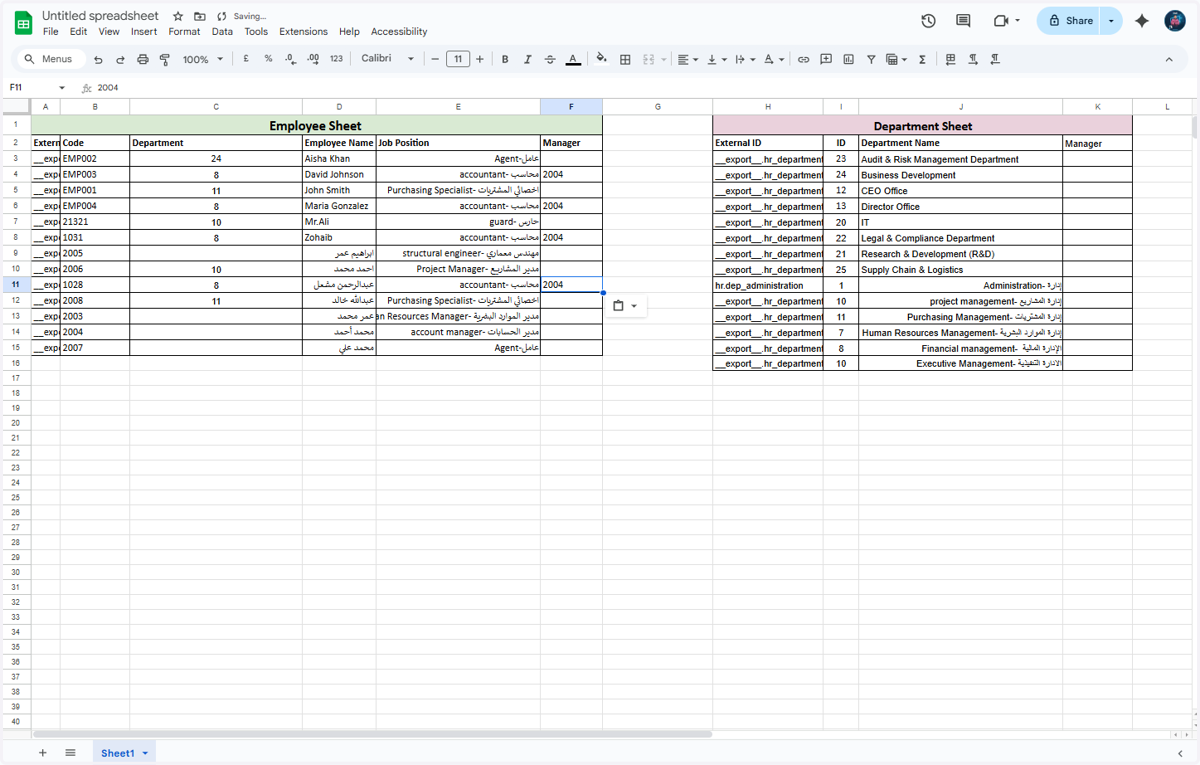
    After updating the Manager Records in the employees form, the next step is to import the data in Odoo
  11. 35. Click on Master Data

    Click on Master Data
  12. 36. Click on Employee

    Click on Employee
  13. 37. Click on highlight

    Click on highlight
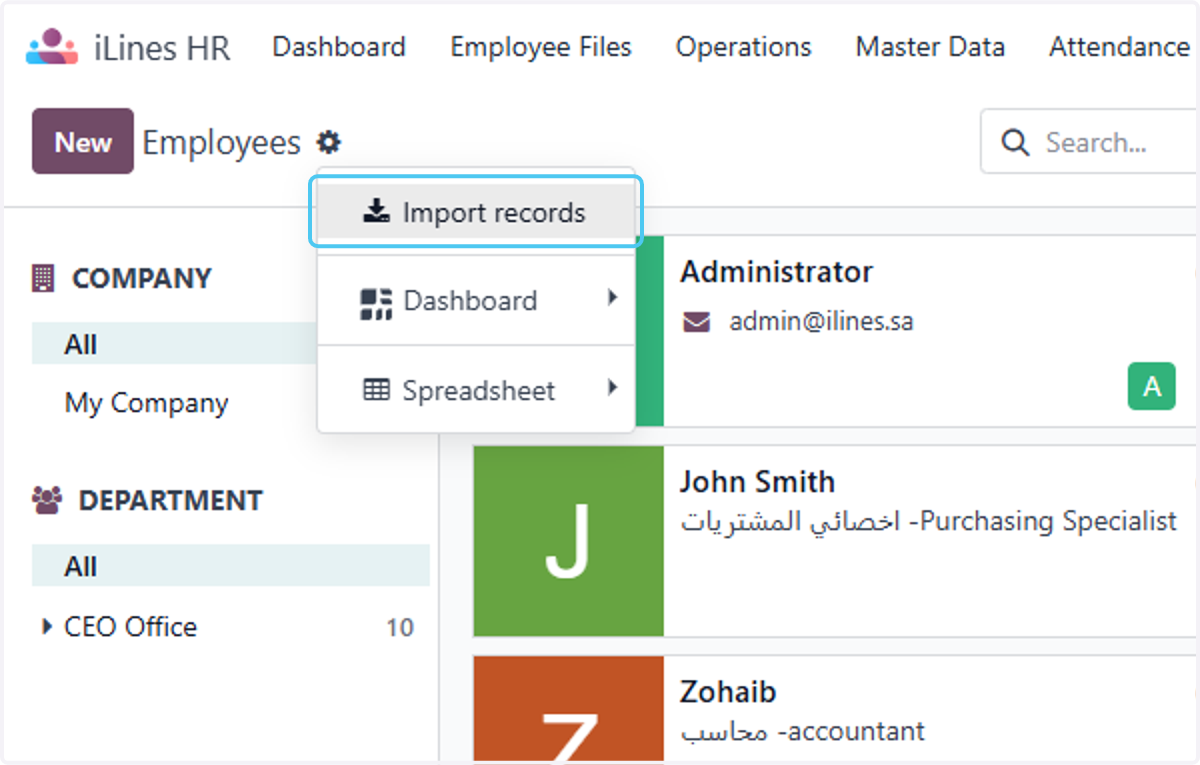
  14. 38. Click on Import records

    Click on Import records
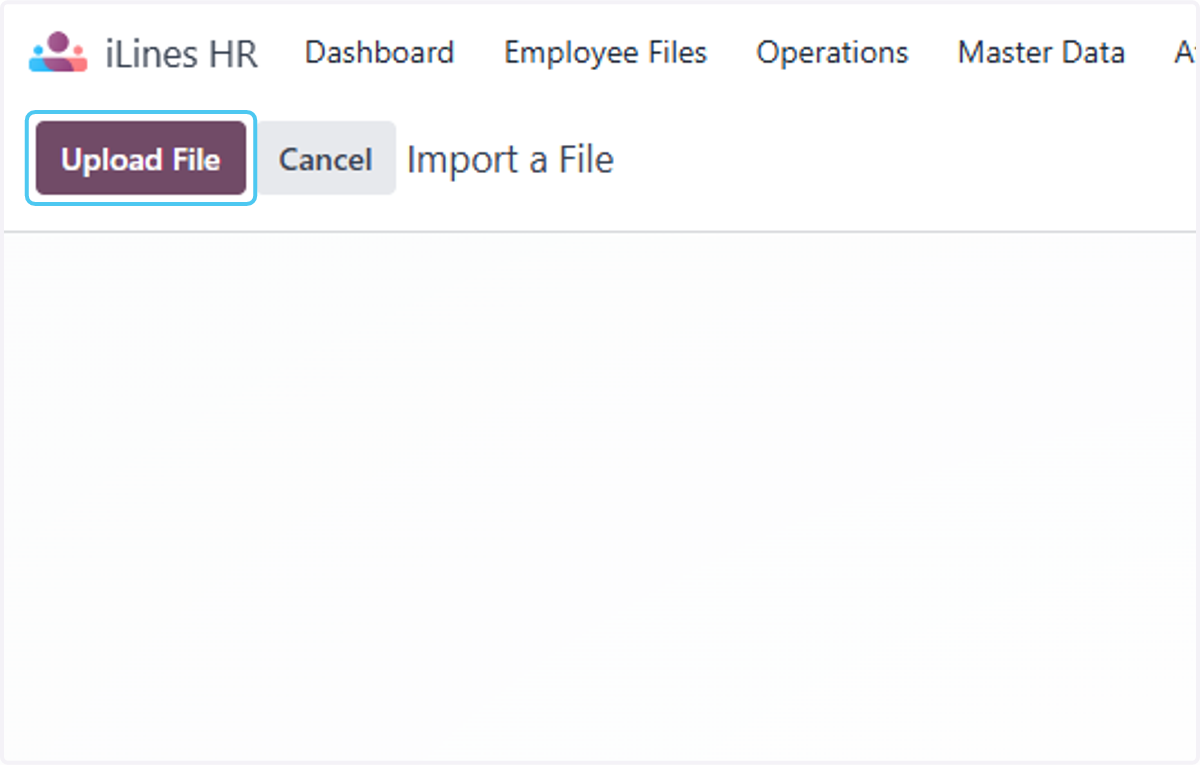
  15. 39. Click on Upload File

    Click on Upload File
  16. 40. Select "Employee (hr.employee) (2).csv" from file upload menu
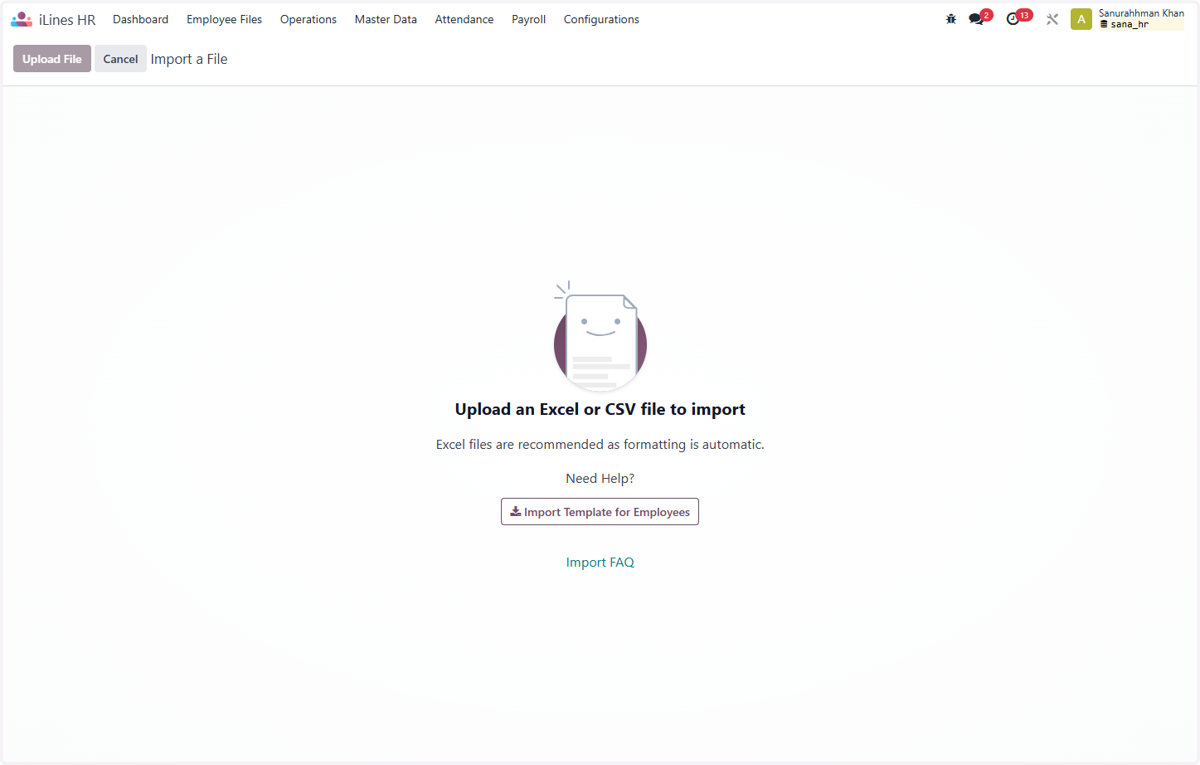
    Select "Employee (hr.employee) (2).csv" from file upload menu
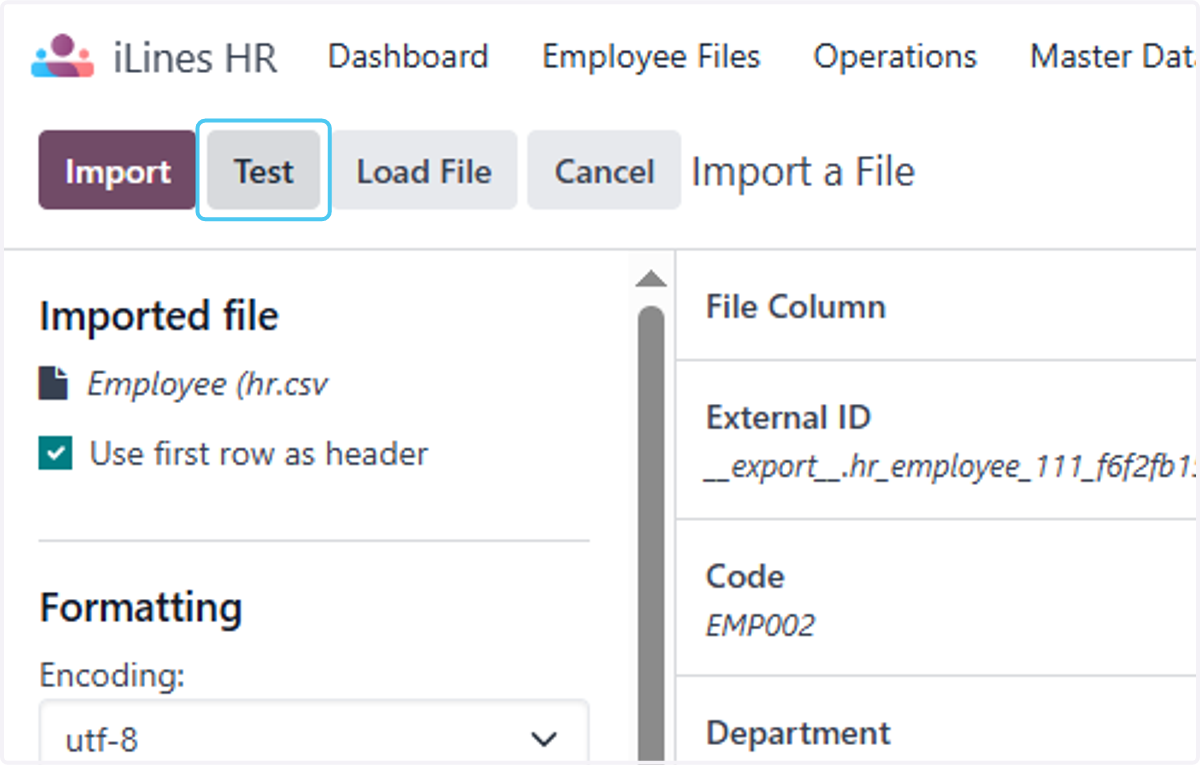
  17. 41. Click on Test

    Click on Test
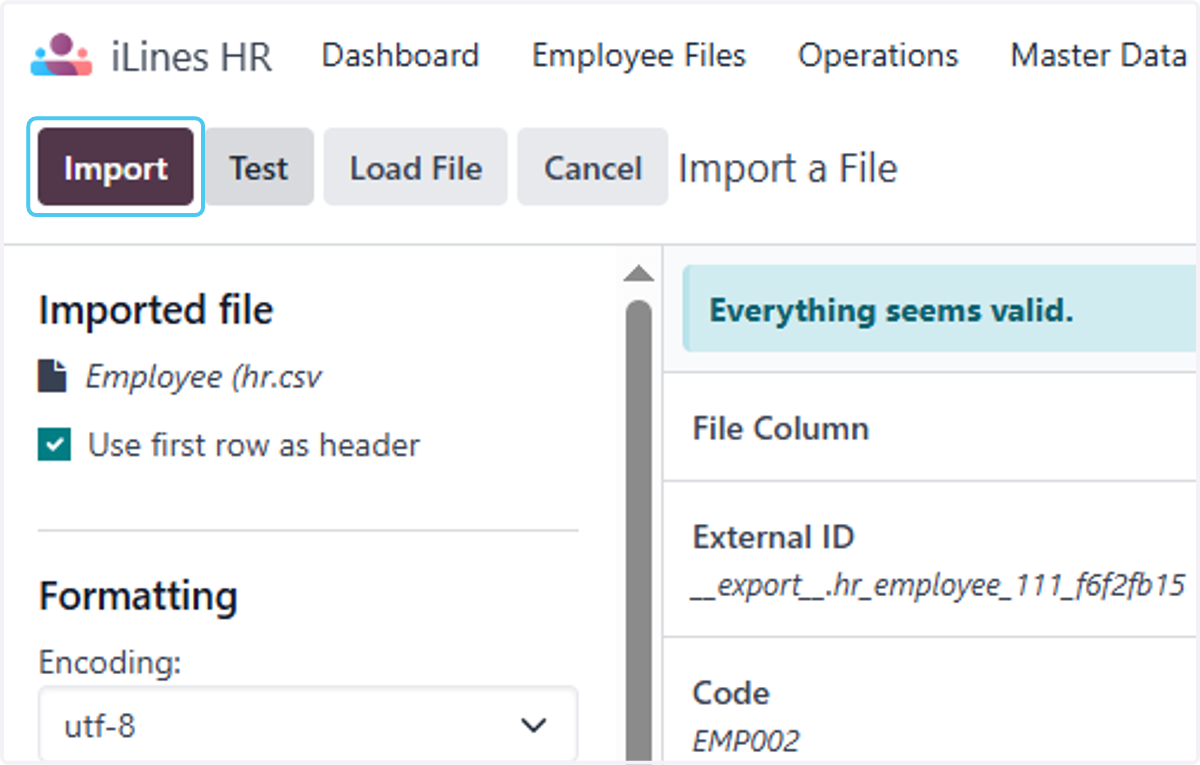
  18. 42. Click on Everything seems valid.…
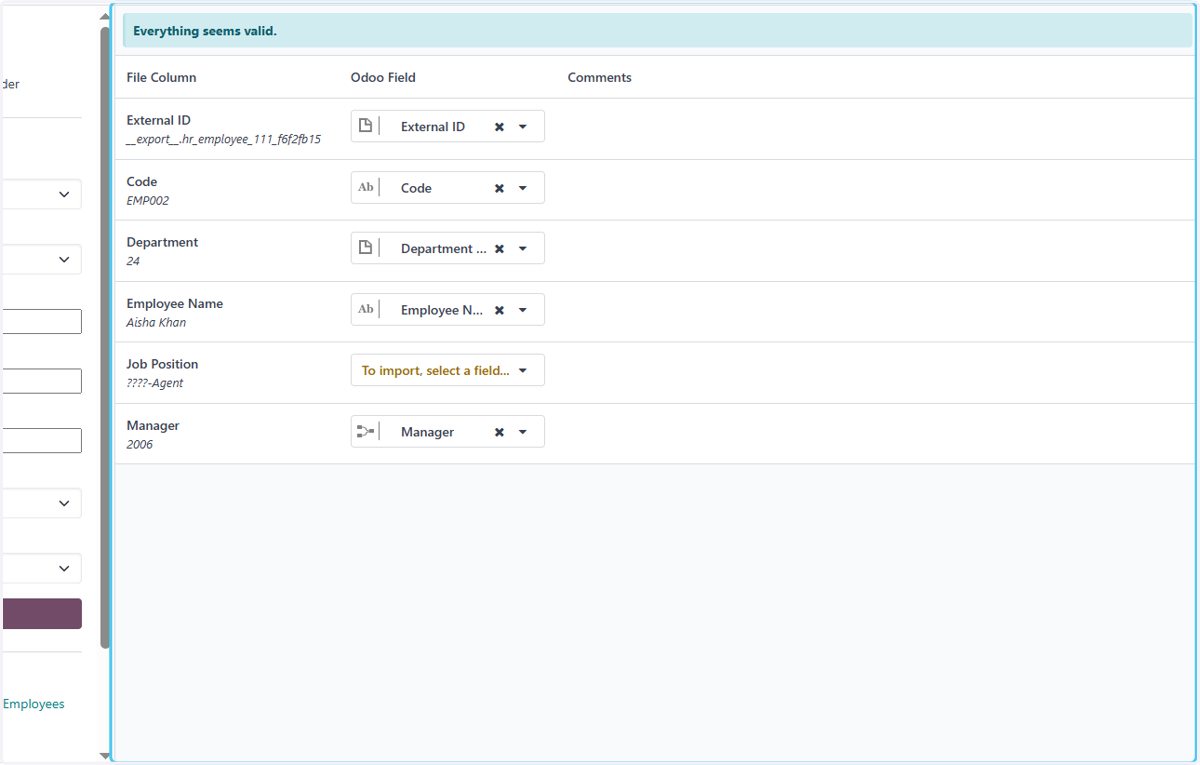
    Click on Everything seems valid.…
  19. 43. Click on Import

    Click on Import
  20. 44. Click on 10 records successfully imported
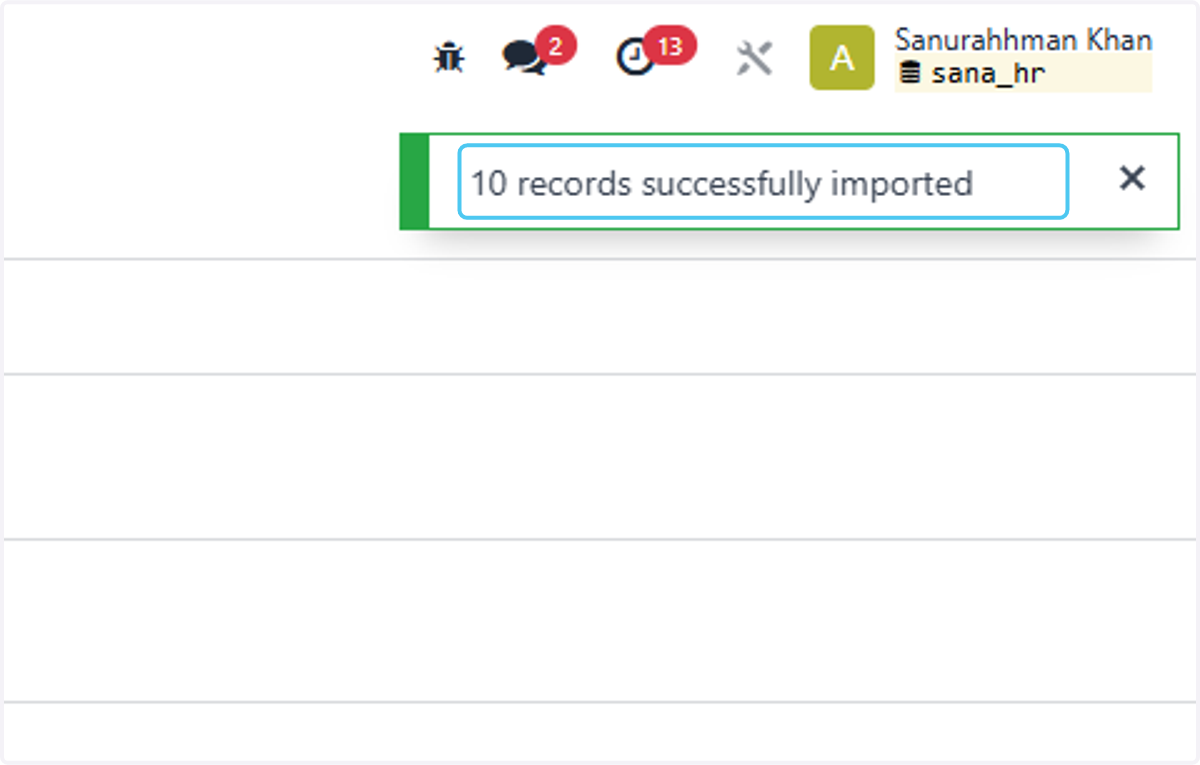
    Click on 10 records successfully imported
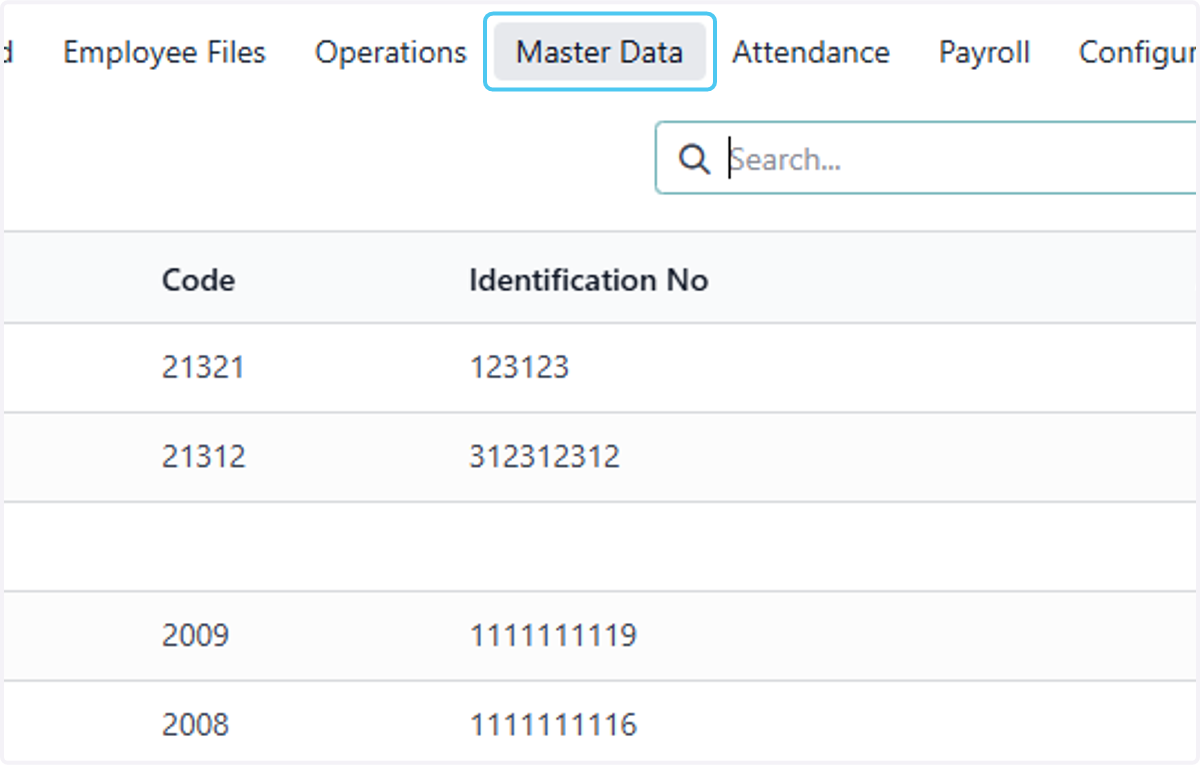
  21. 45. Click on Master Data

    Click on Master Data
  22. 46. Click on Employee to check the records are successfully upadet in Odoo
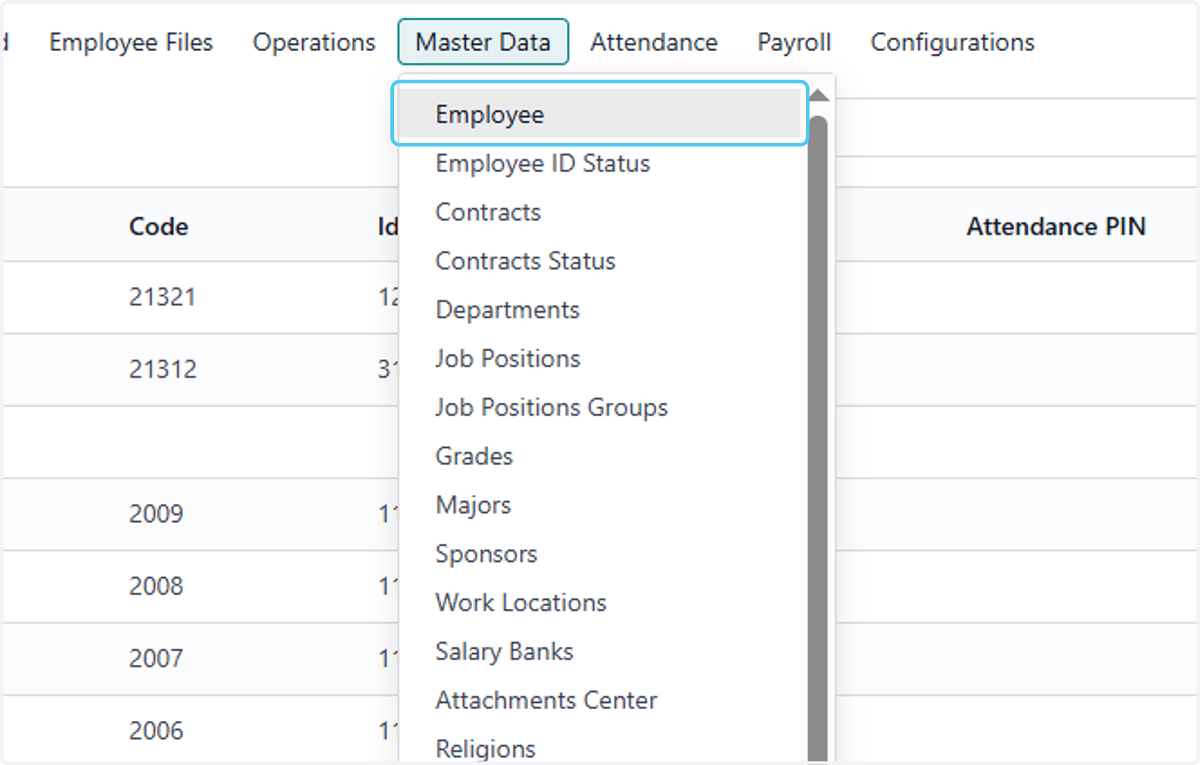
    Click on Employee to check the records are successfully upadet in Odoo
  23. 47. Click on David Johnson…

    Click on David Johnson…
  24. 48. Click on Manager? Now we can see the department and the manager is successfully updated in Odoo
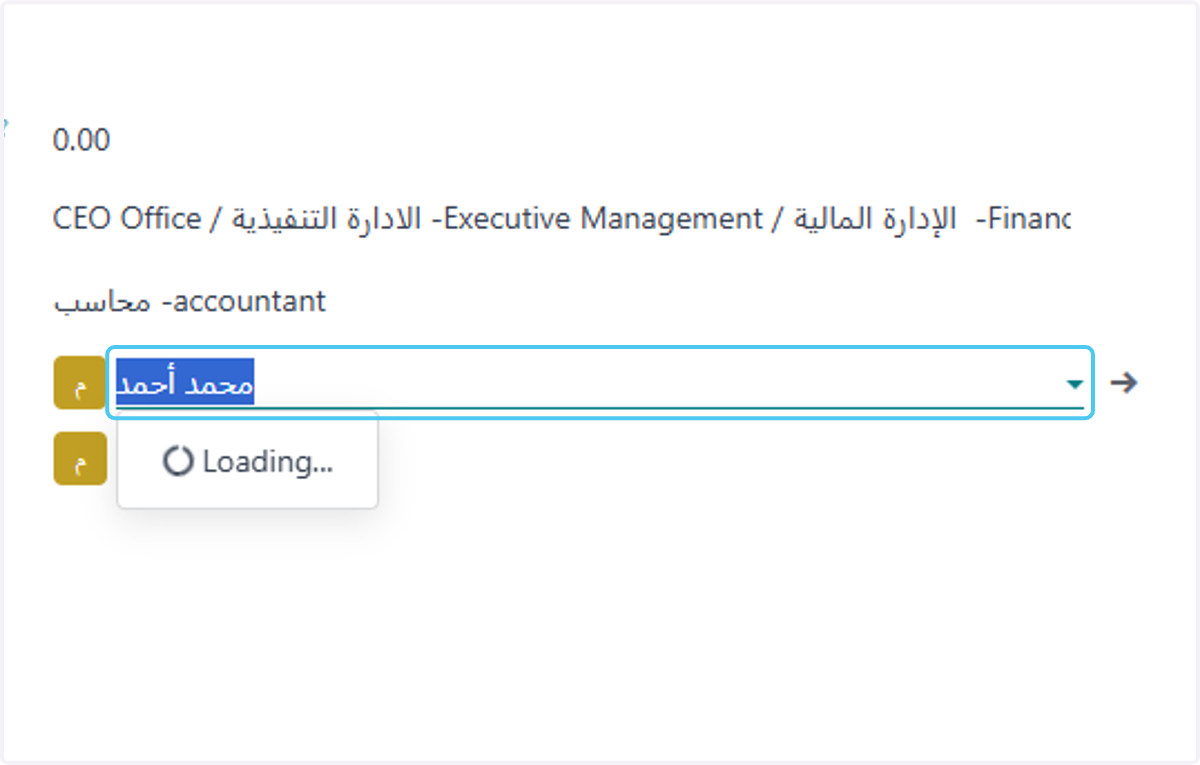
    Click on Manager? Now we can see the department and the manager is successfully updated in Odoo