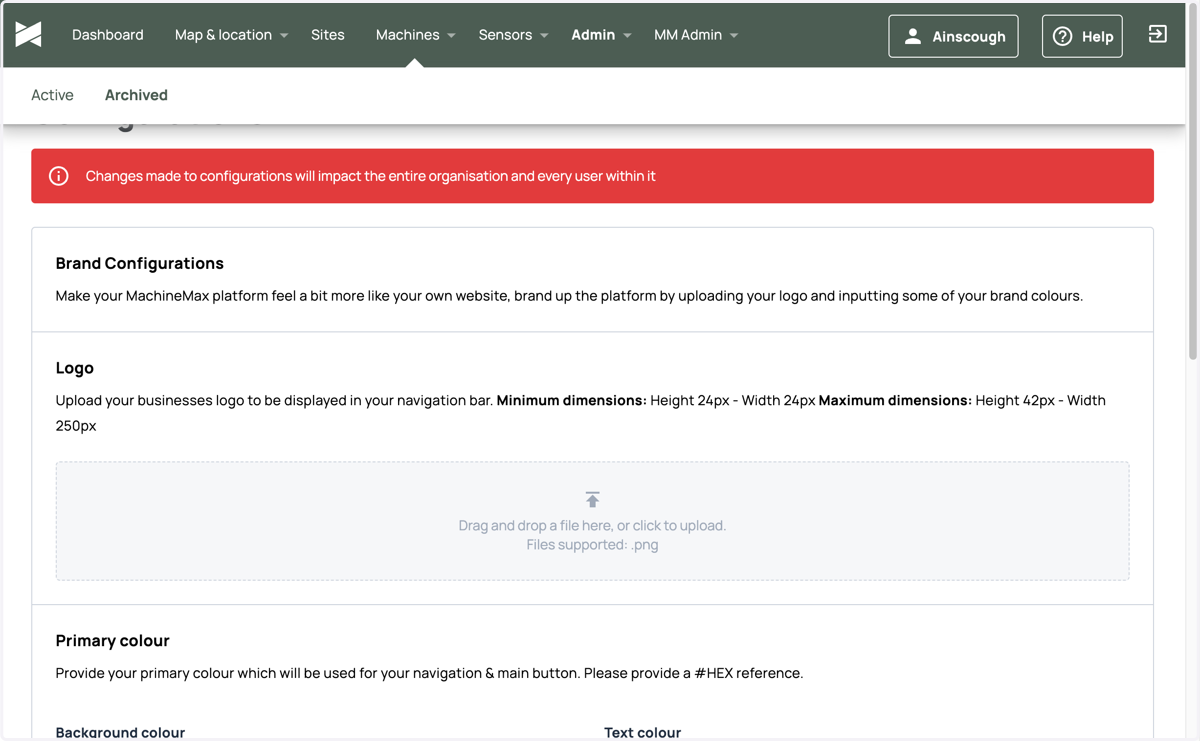
Enabling bespoke branding for your organisation (and your customers)
MachineMax - Revolutionary equipment management platform
Admin users are now able to update the logo and colour scheme used across their organisation's MachineMax platform. For resellers and rentals, this will also be applied to all of their customer organisations.
1. Login to MachineMax
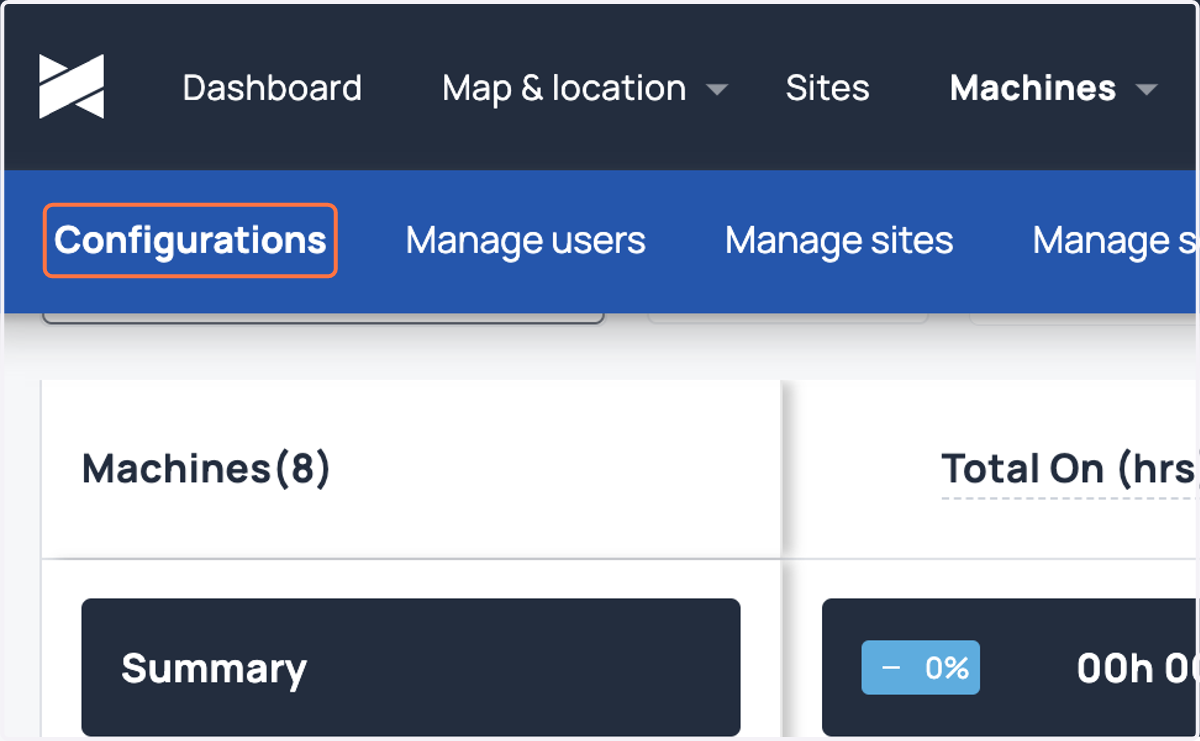
2. Click on Configurations
Navigate to the Admin tab and select Configurations
3. Adding your own logo
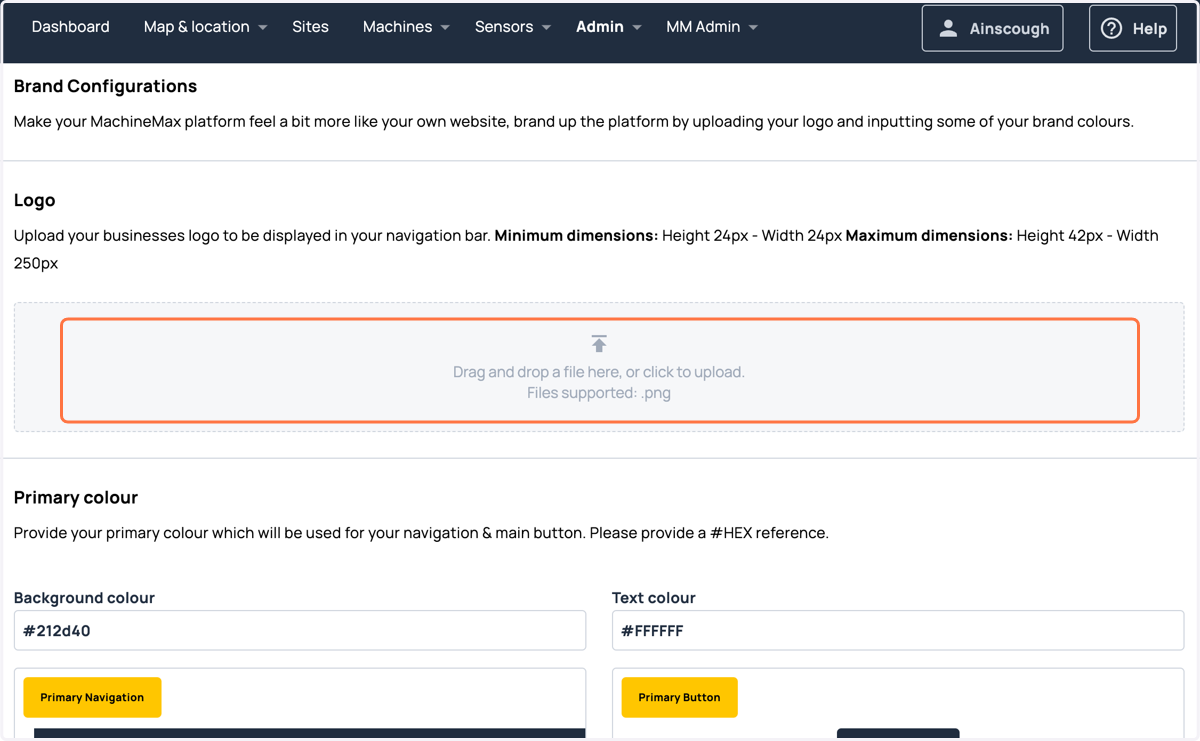
To replace the MachineMax logo with your own, click into the grey box in the Logo section to upload a file. Alternatively, drag a file directly into the box from your file explorer.
4. Updating the colour scheme
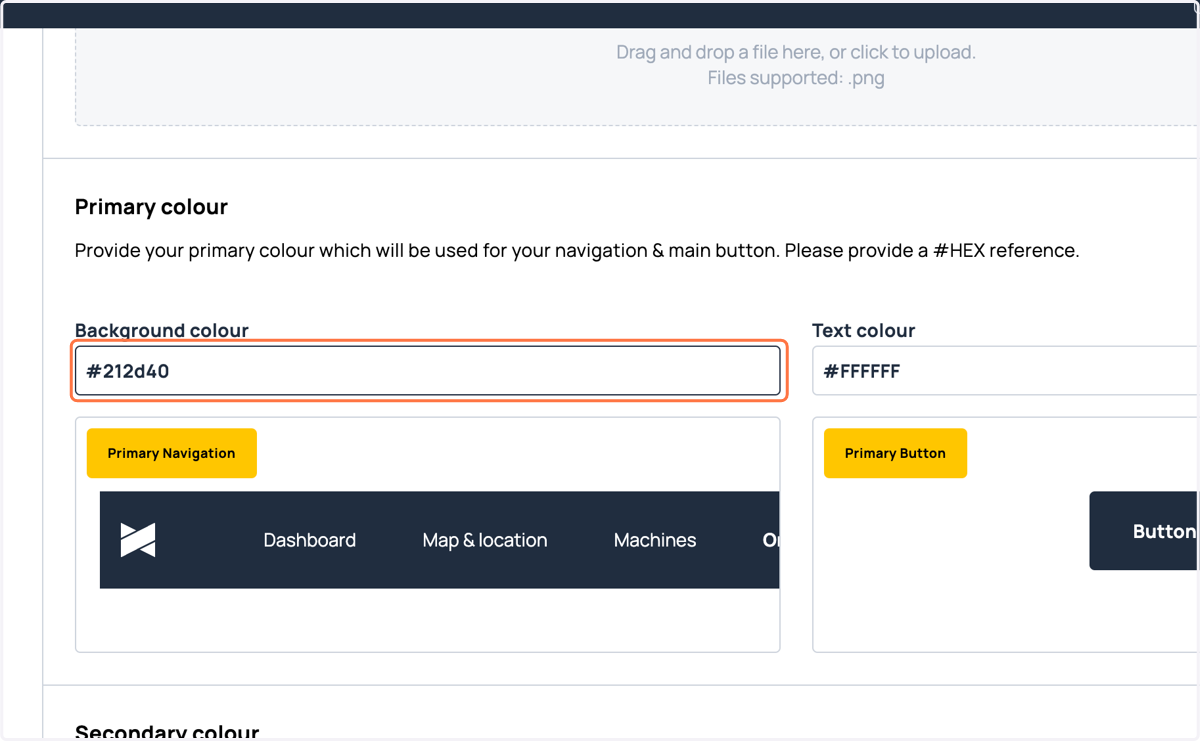
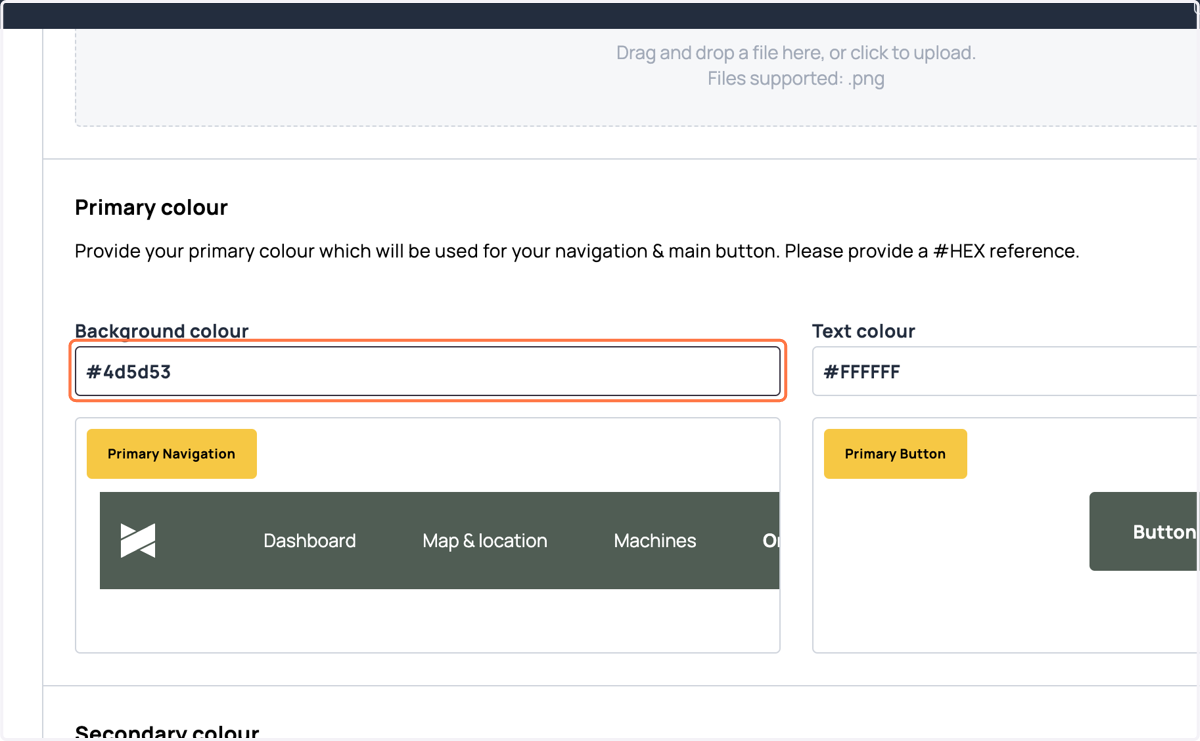
To change the primary colour used across the platform header and main buttons, simply paste your company's main colour's hex code in the background colour input field. Do the same in the field next to it to change the text colour.
Not sure what your colour codes are? Typically this is something your marketing team will have control of, or else your tech team should know. We can also help you look it up by taking a look at your organisation's website if you've not got anyone you can ask.
5. Example: Changing the primary colour to green
Here, we have added a hex code with the aim of changing the main background colour to green while leaving the text colour white. While I've not saved my changes yet, I can see that there is a preview showing me what this will look like.
6. Example: Accessibility
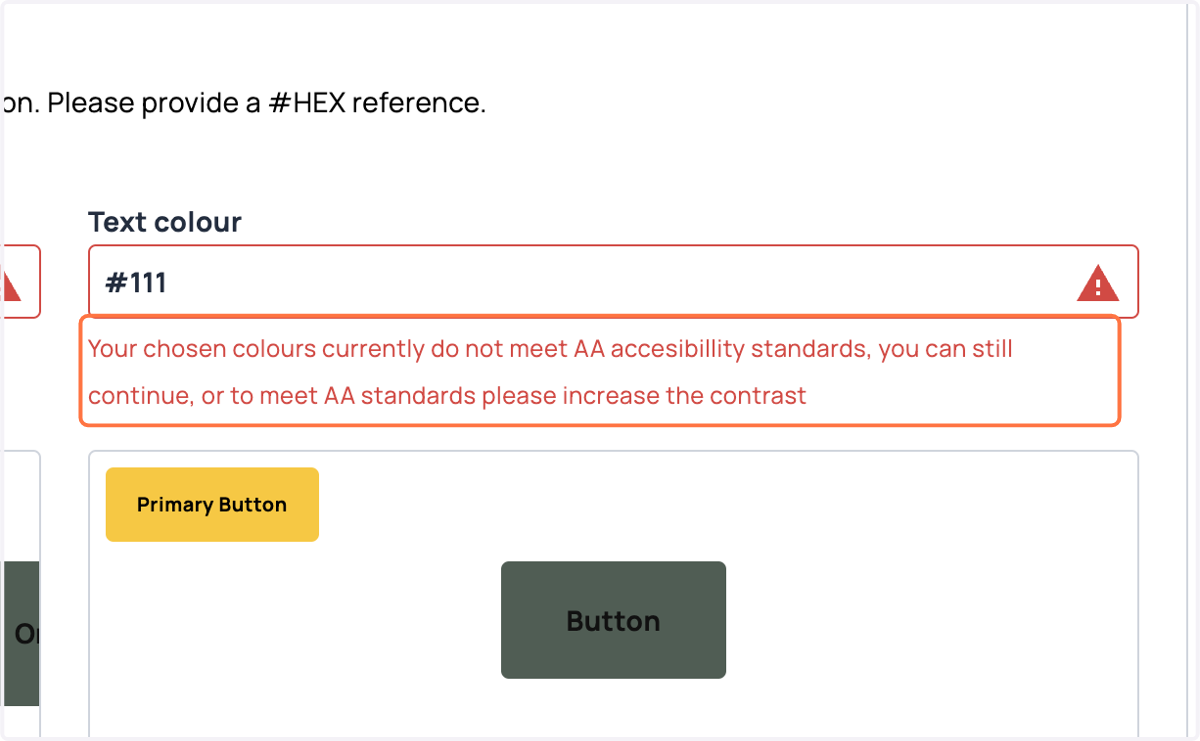
Here we can see that I've tried changing the text colour to black, while leaving the background colour green. The contrast level between the two colours is lower than what is recommended by WCAG, which the platform makes me aware of. I can change to a more accessible, easy to read combination or I can ignore the warning and proceed.
7. Changing the secondary colours
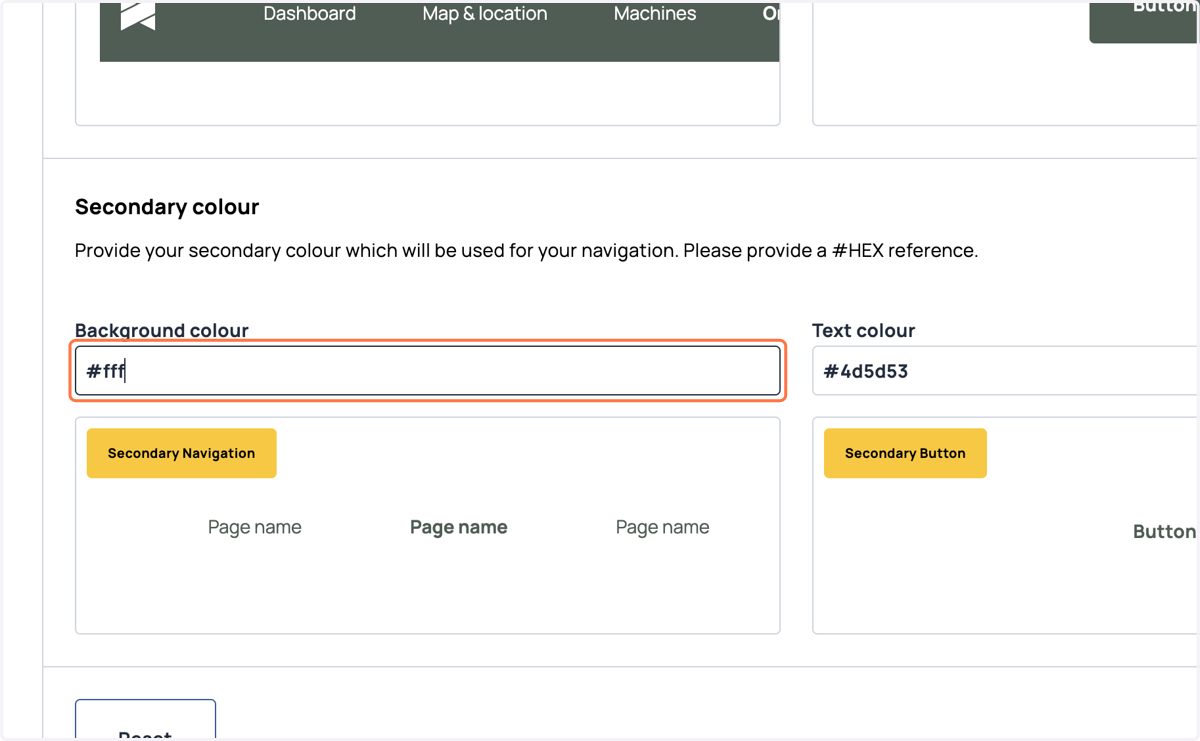
To update the secondary colours, which will affect the sub-navigation bar and any secondary buttons across the platform, simply add your hex codes in the appropriate section.
Here, I've used the same green as my primary background colour as the text colour, and a white background.
8. Click on Save
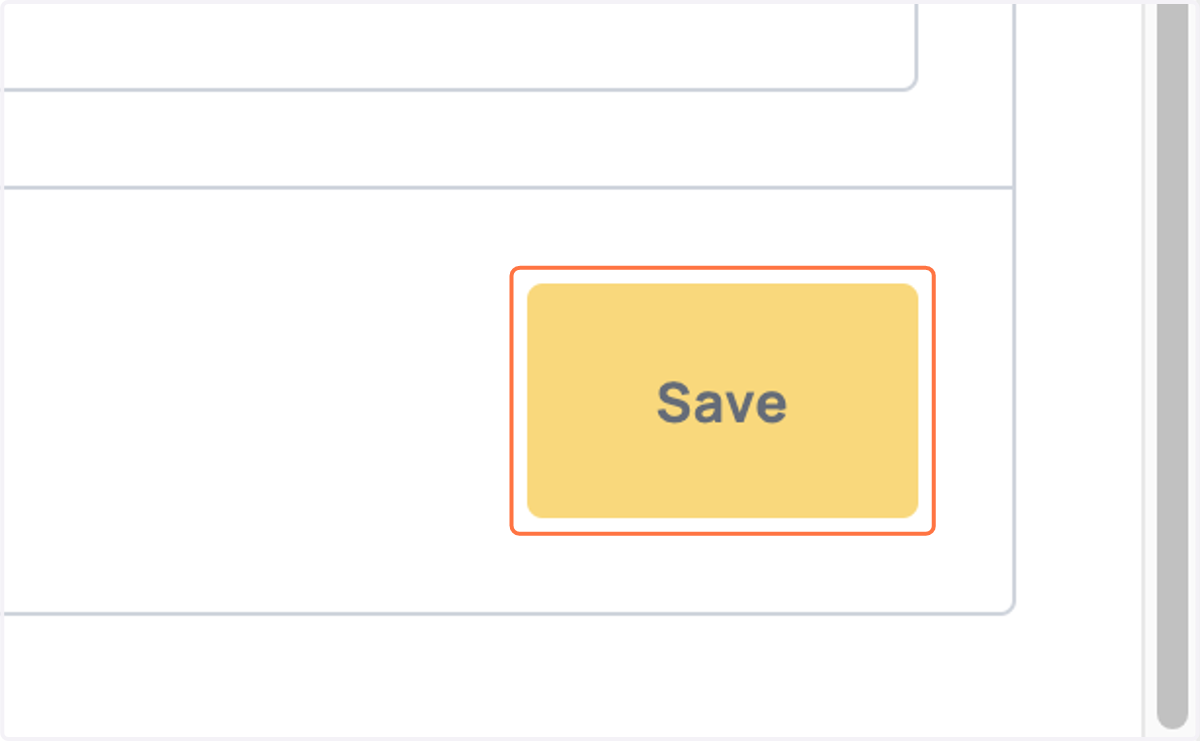
Once you are happy with your changes, click on Save to apply them.
Note: You can always come back and make changes and/or revert to the MachineMax default colours and logo.
9. View your saved changes
Once you've saved, have a look through the various pages on the platform to make sure it all looks as expected. And you're done!