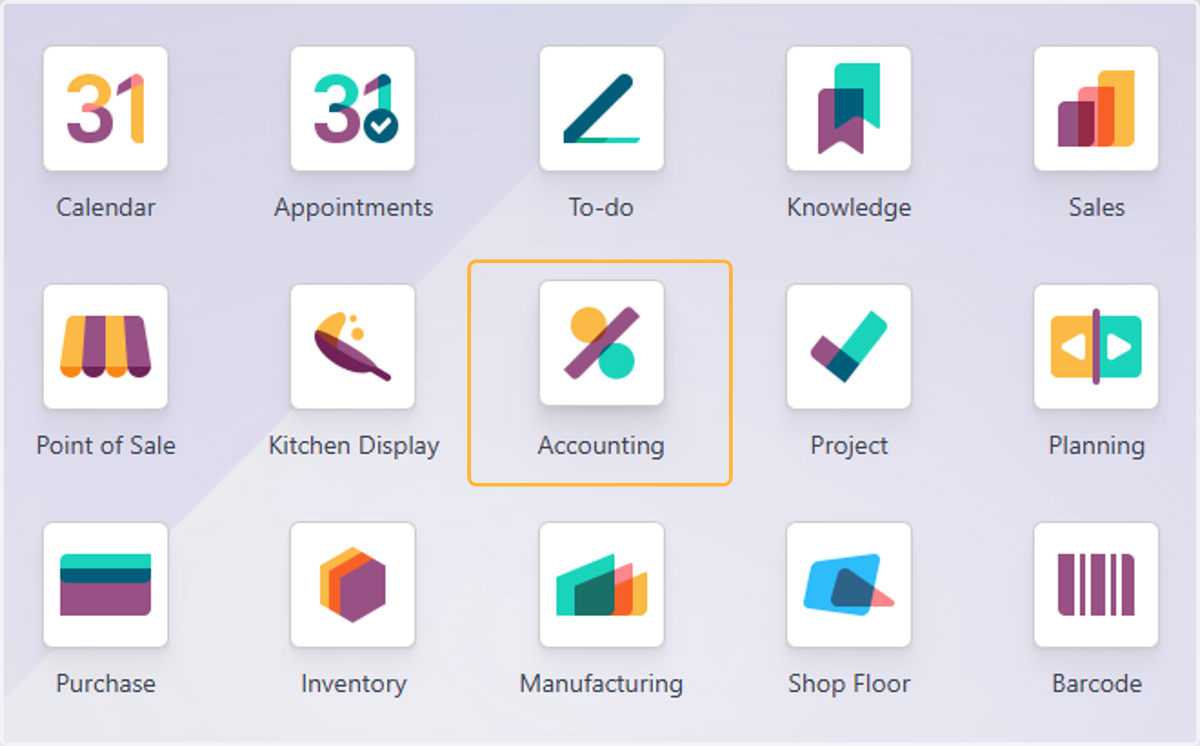
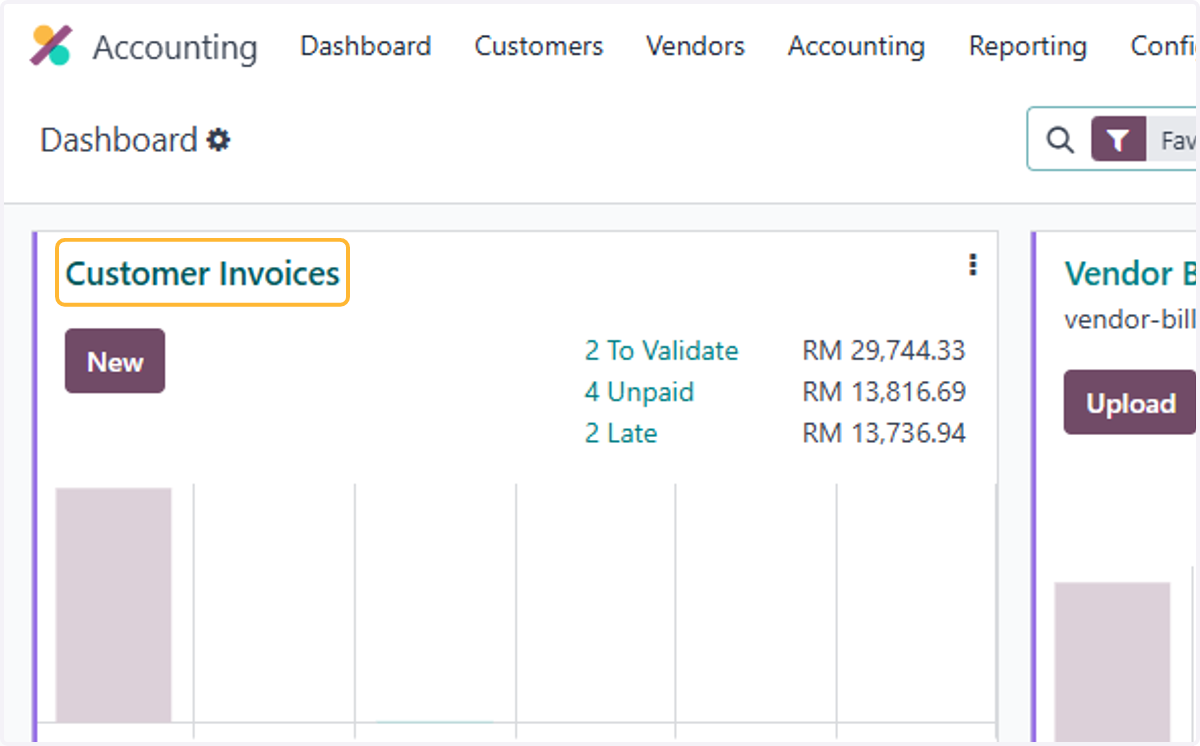
1.3 How to create invoice from sales order

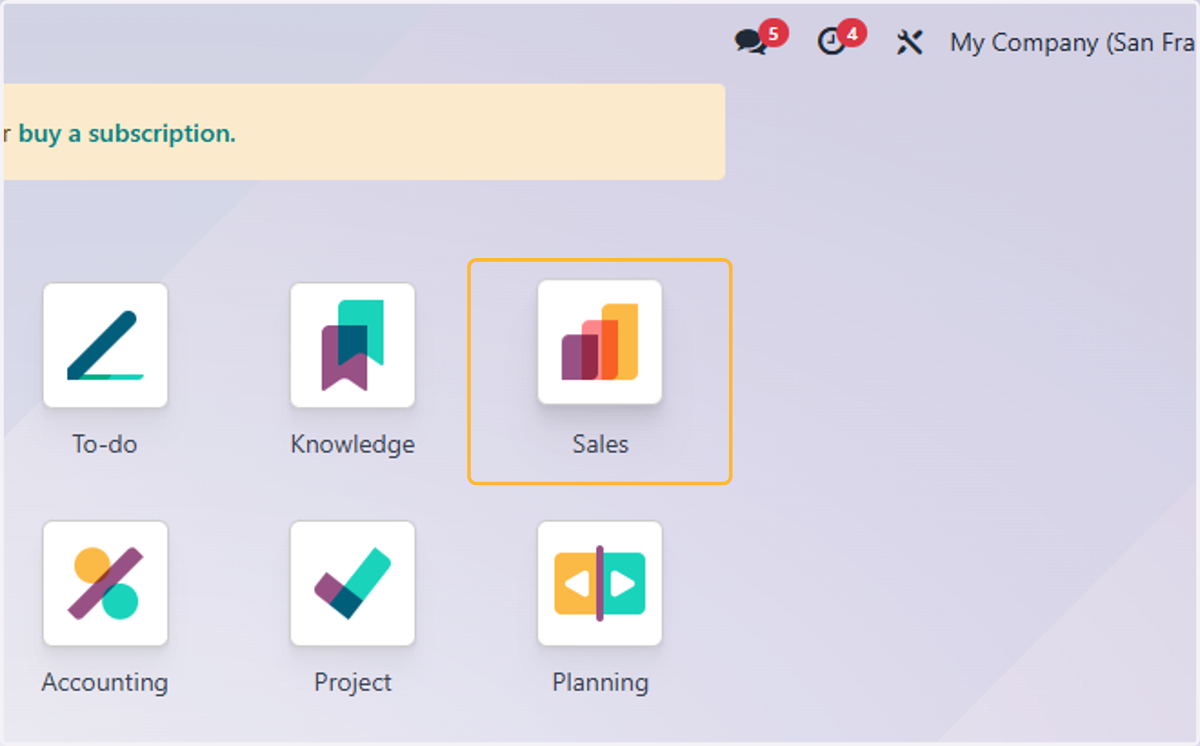
  1. 1. Click on Sales

    Click on Sales
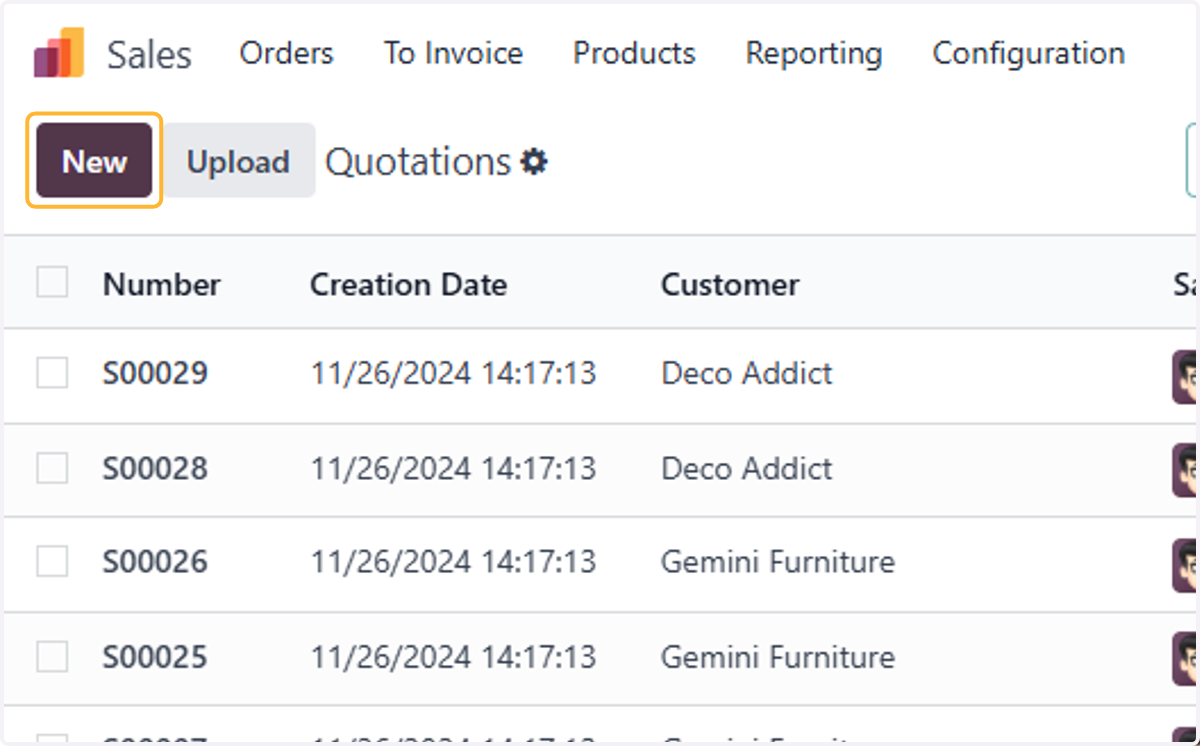
  2. 2. Click on New

    Click on New
  3. 3. Fill in customer's name. For example John Doe
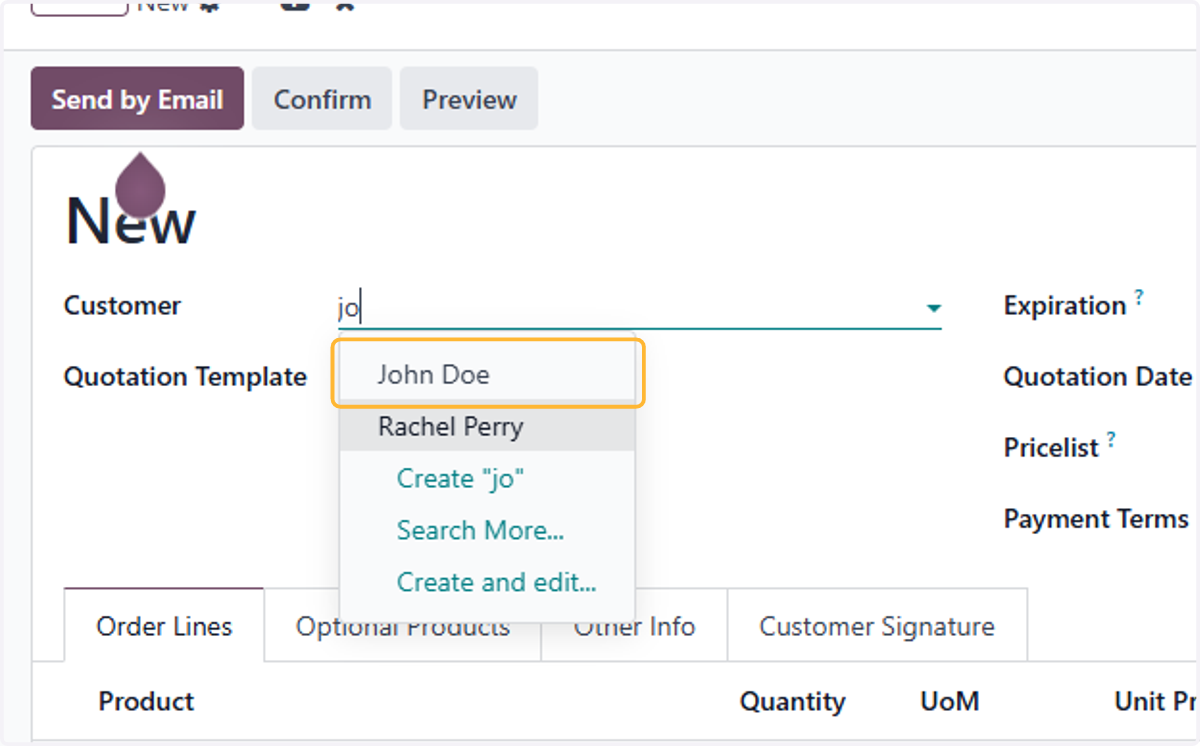
    Fill in customer's name. For example John Doe
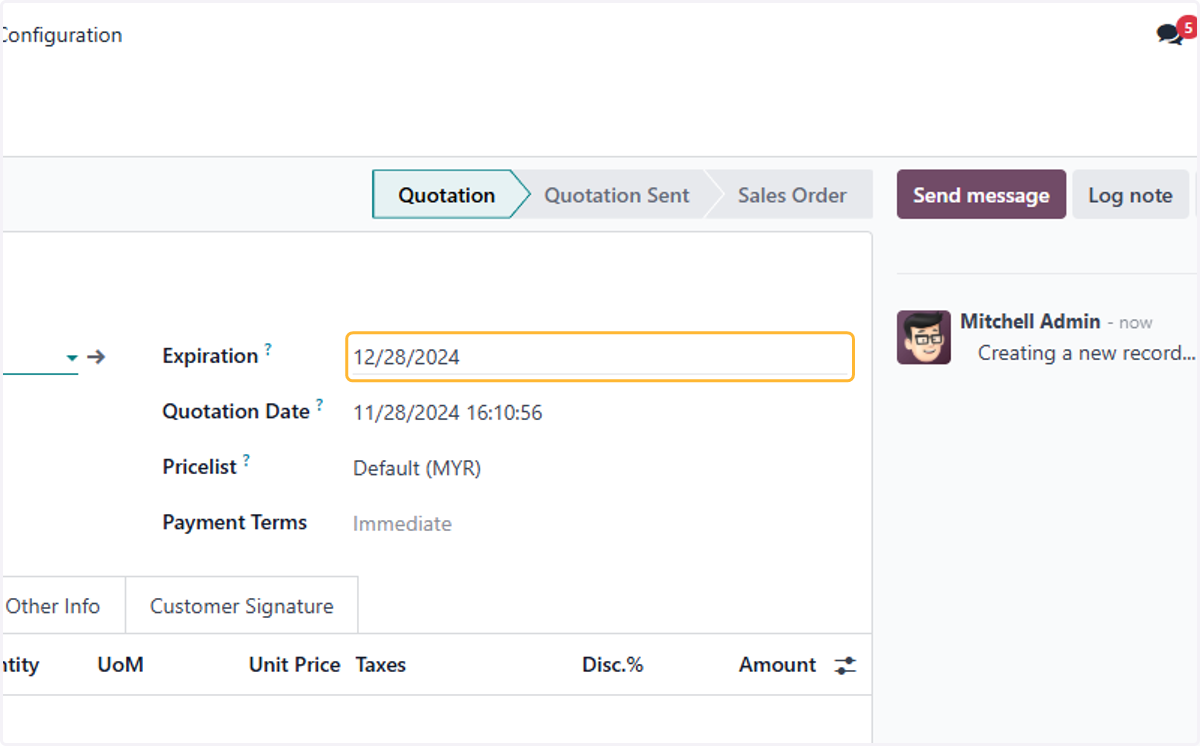
  4. 4. Click on Expiration?

    Click on Expiration?
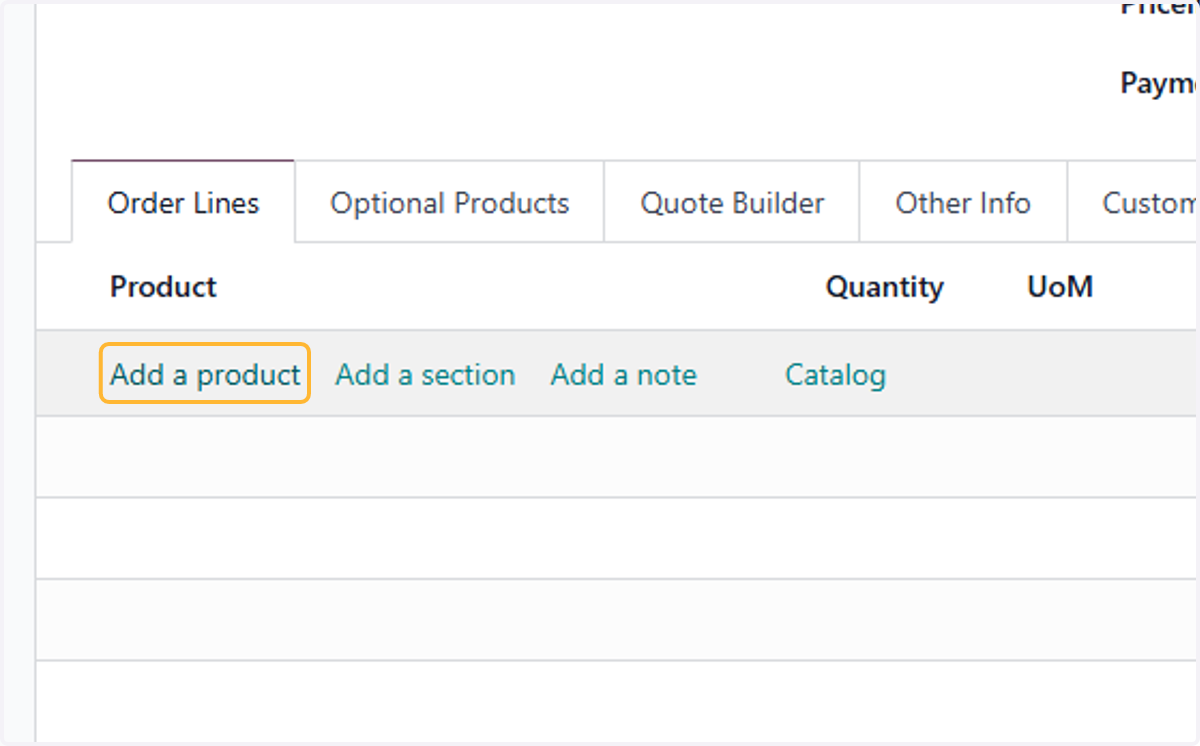
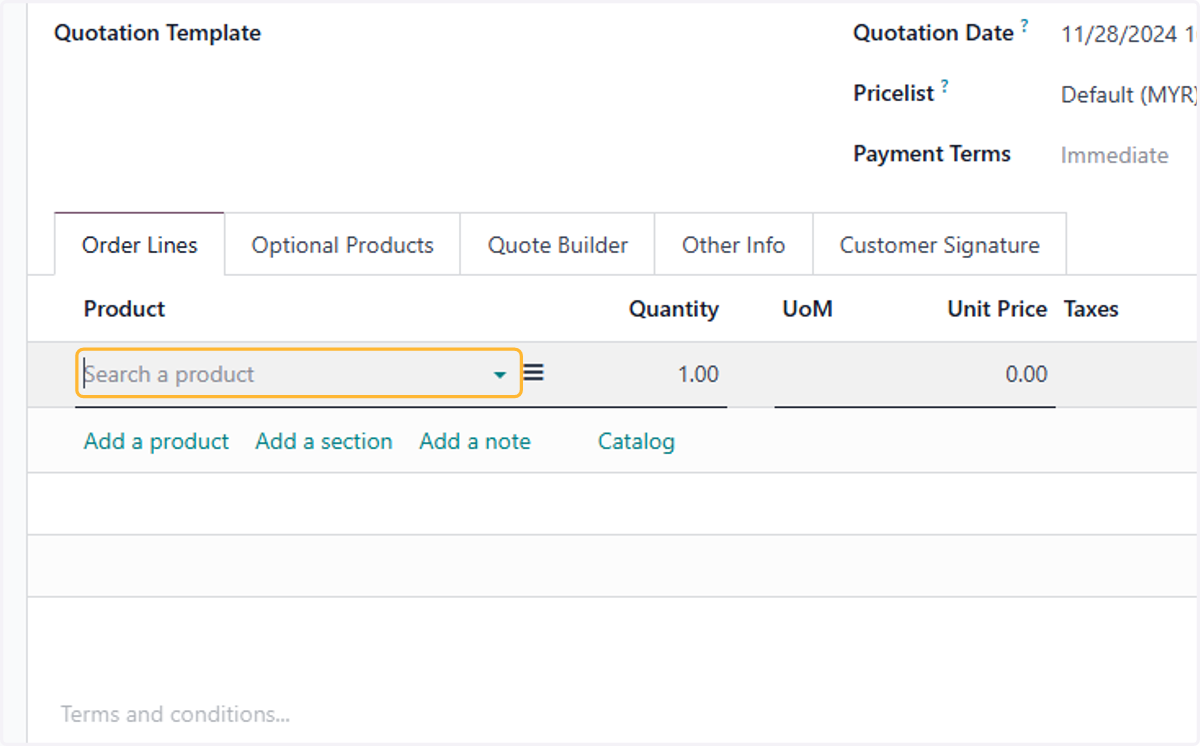
  5. 5. Click on Add a product

    Click on Add a product
  6. 6. Click on dropdown trigger

    Click on dropdown trigger
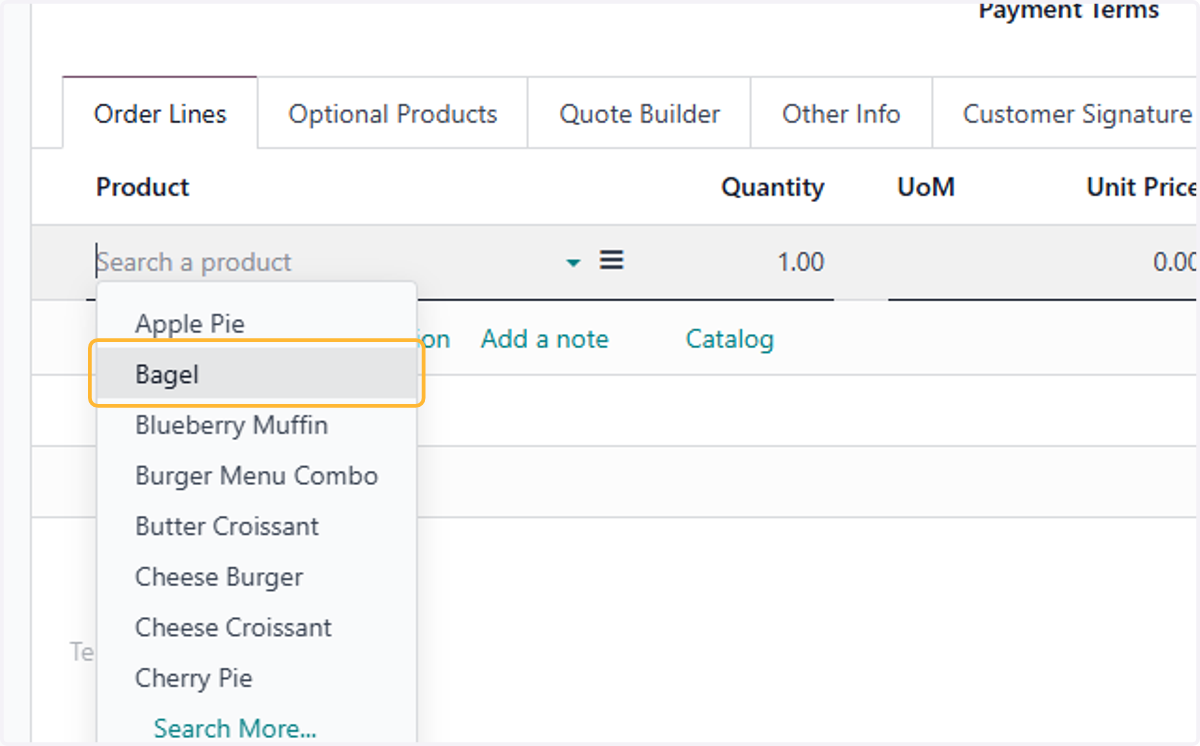
  7. 7. Click on Bagel

    Click on Bagel
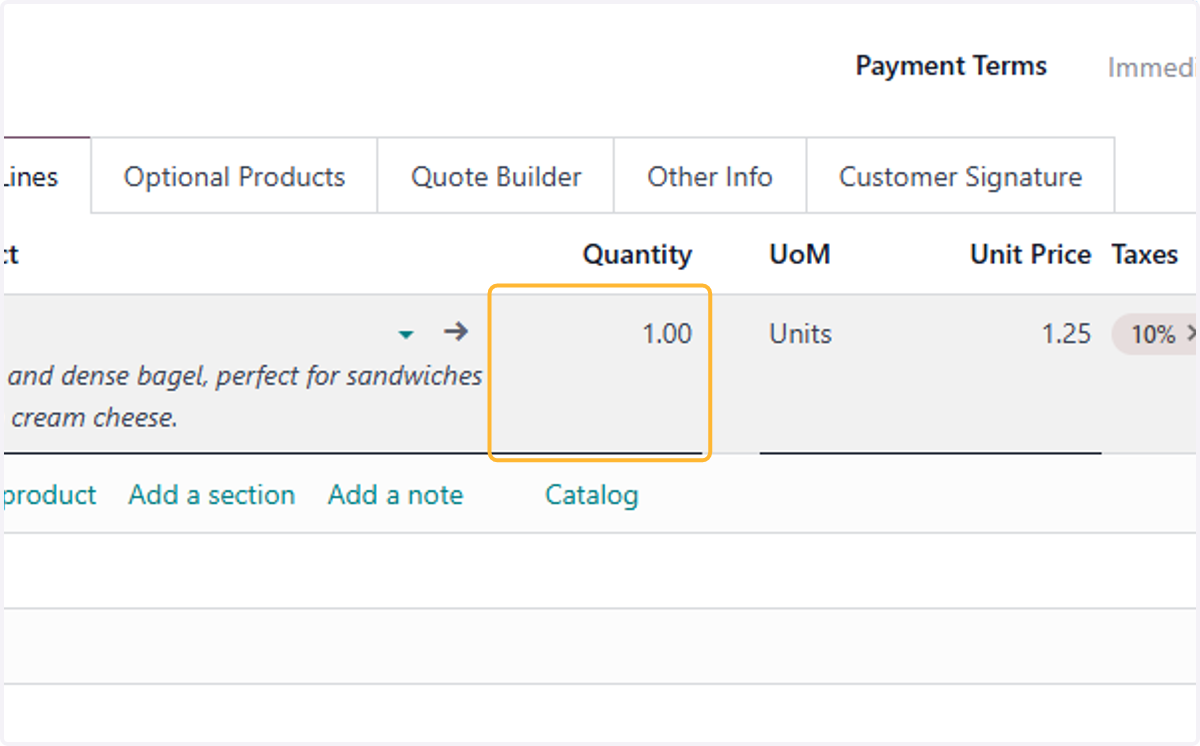
  8. 8. Click on 10%…

    Click on 10%…
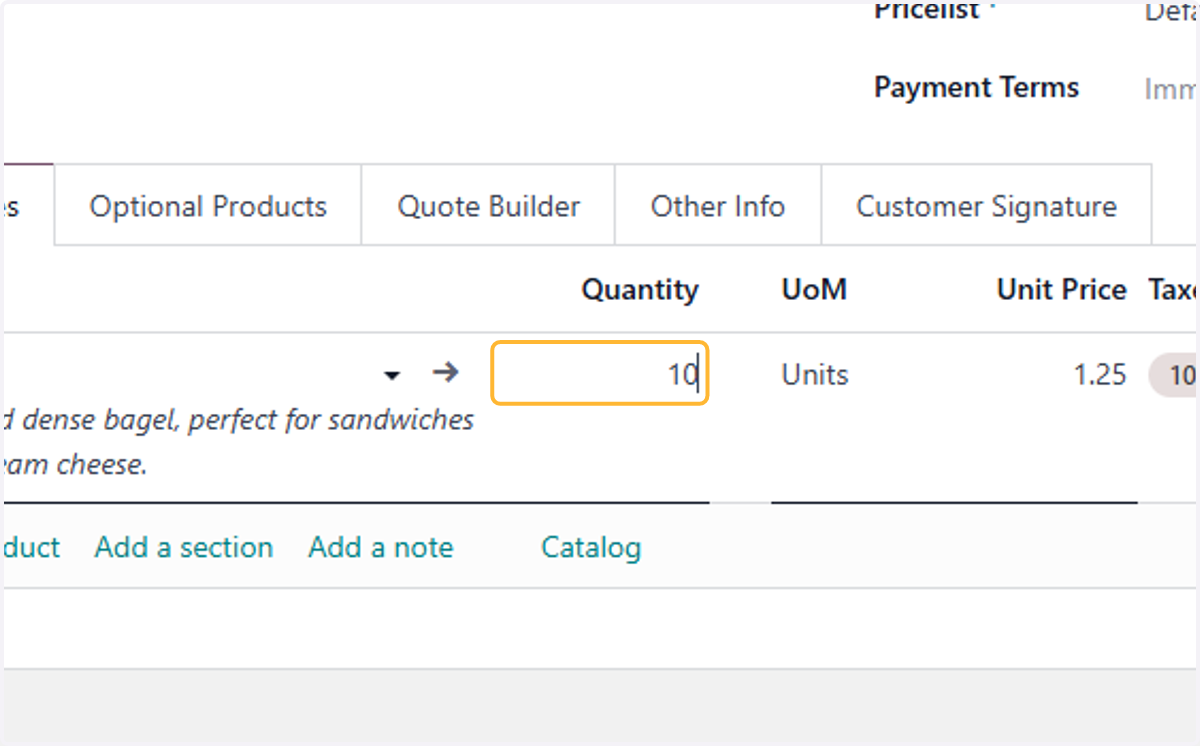
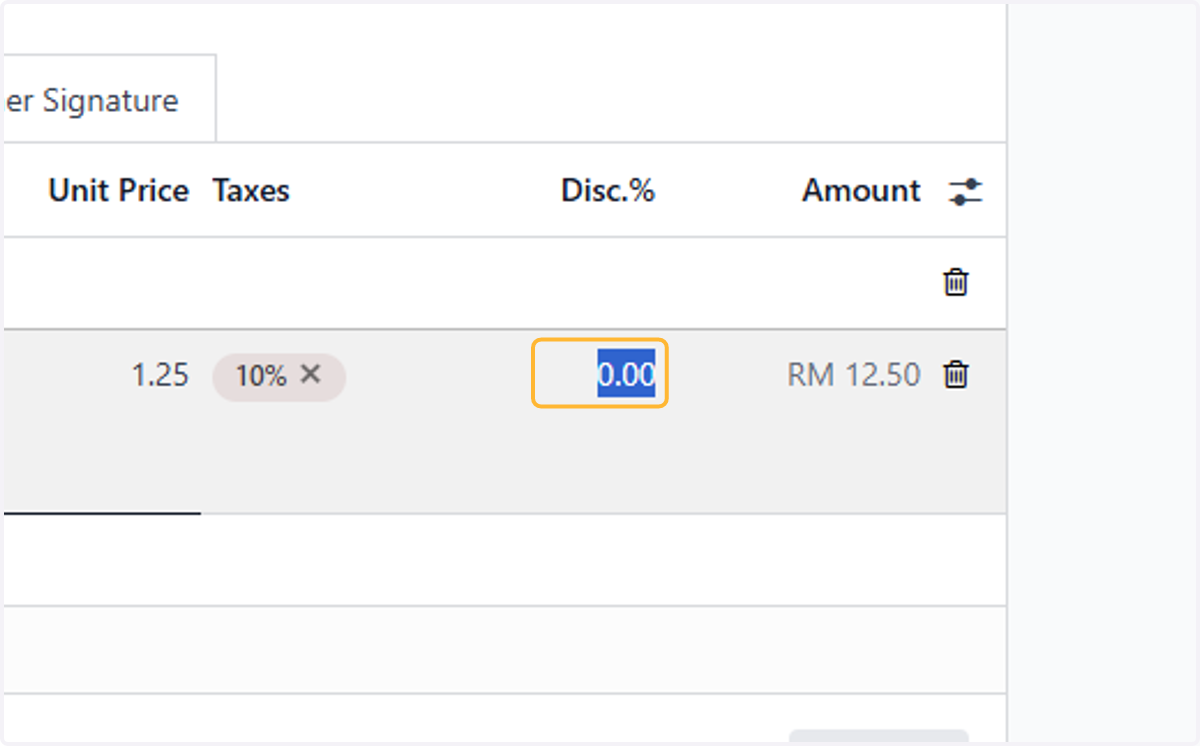
  9. 9. Type "10"

    Type "10"
  10. 10. Fill in any discount or taxes

    Fill in any discount or taxes
  11. 11. Add a Section if needed. Example "Baked Goods"
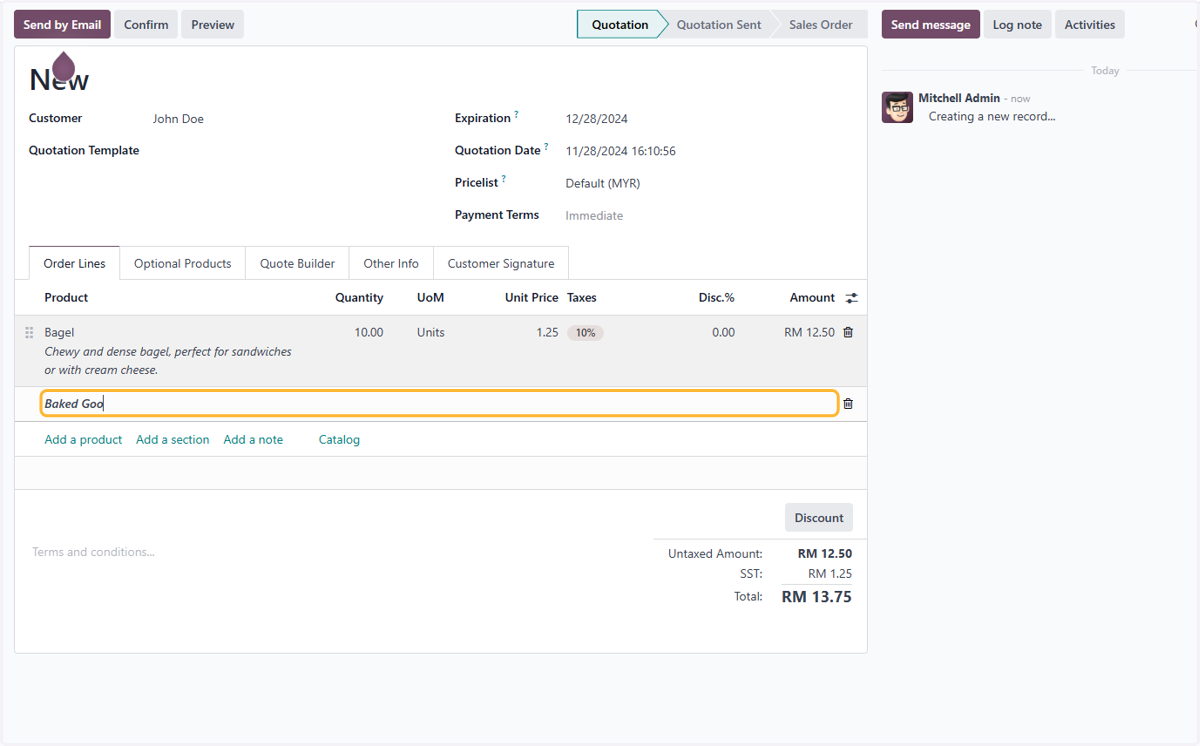
    Add a Section if needed. Example "Baked Goods"
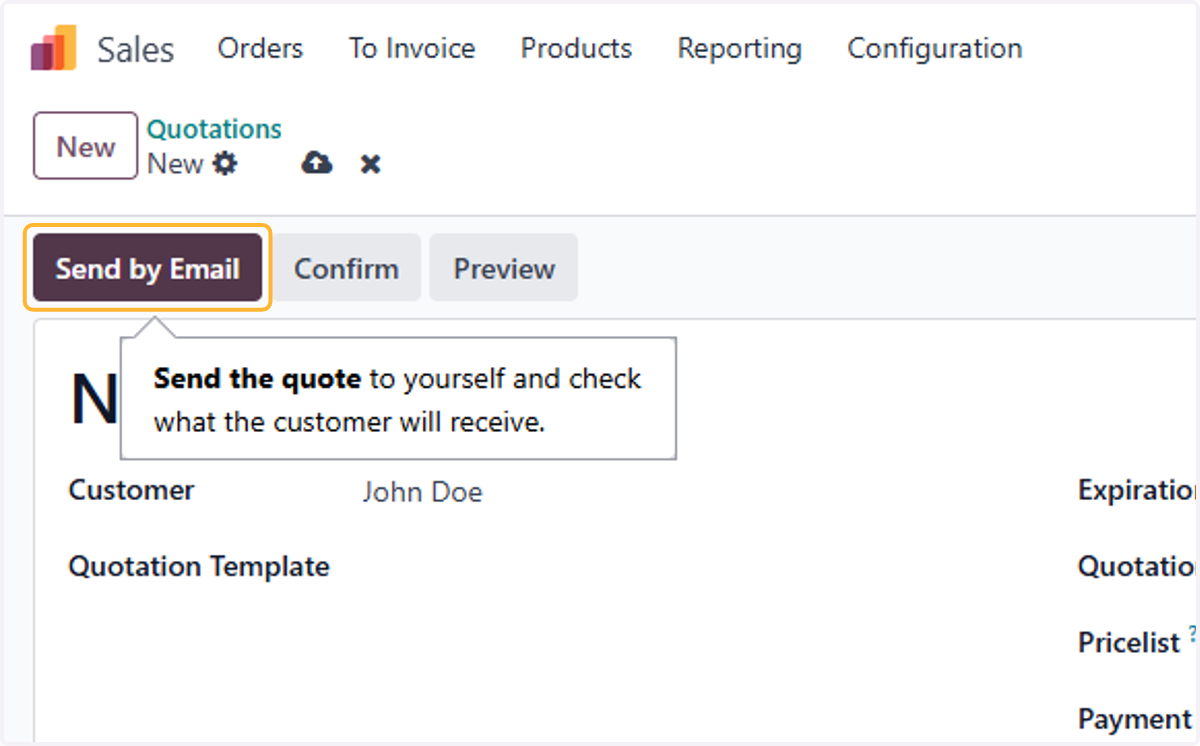
  12. 12. Click on Send by Email

    Click on Send by Email
  13. 13. Email is automatically drafted. Edit any necessary details
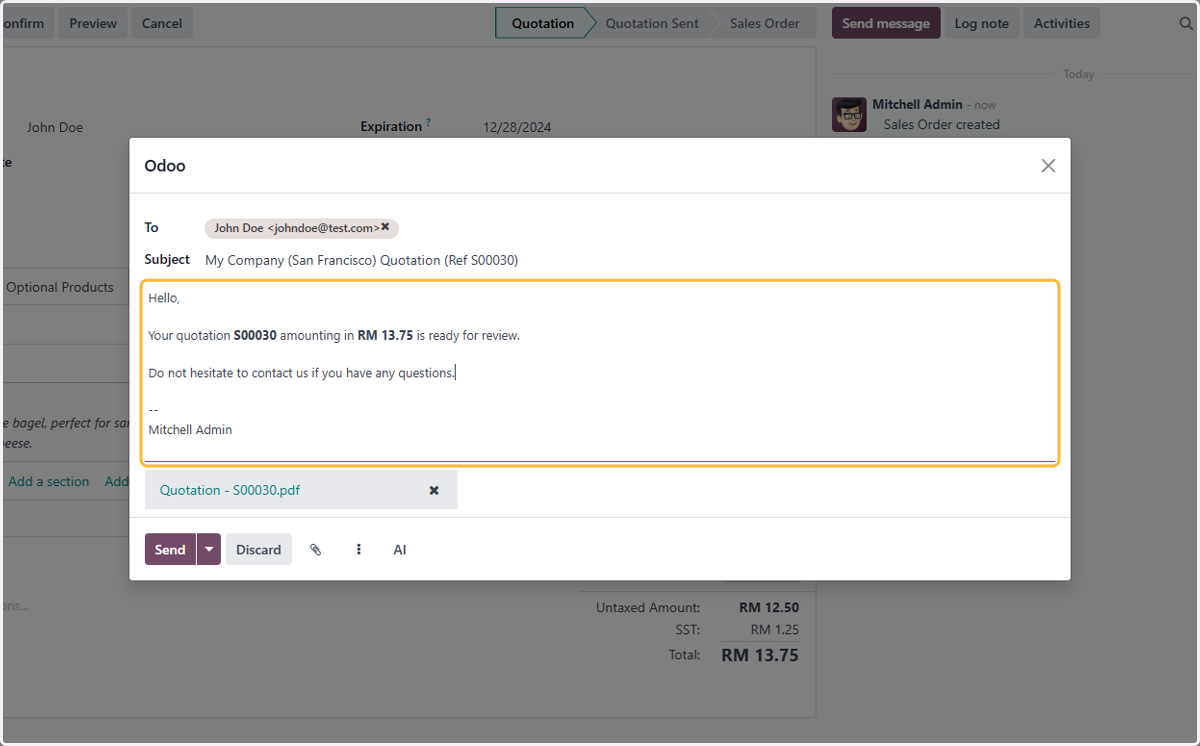
    Email is automatically drafted. Edit any necessary details
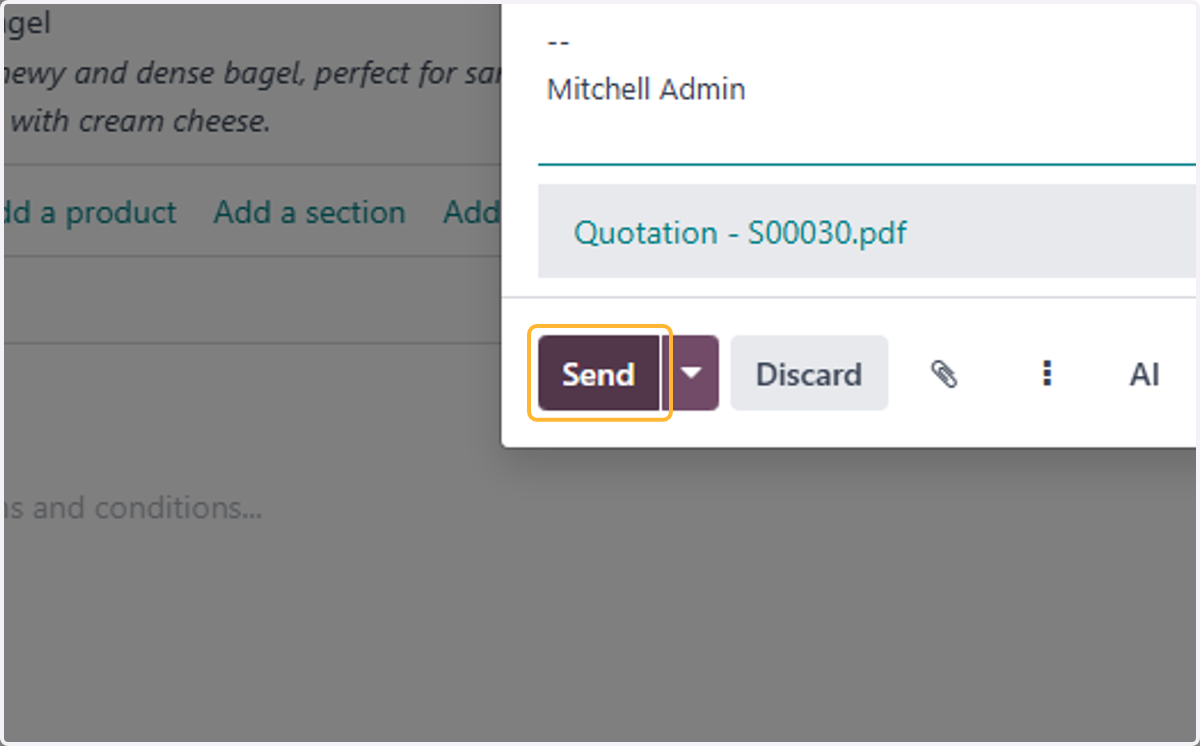
  14. 14. Click on Send

    Click on Send
  15. 15. Log of all activities related to this invoice is shown as highlighted.
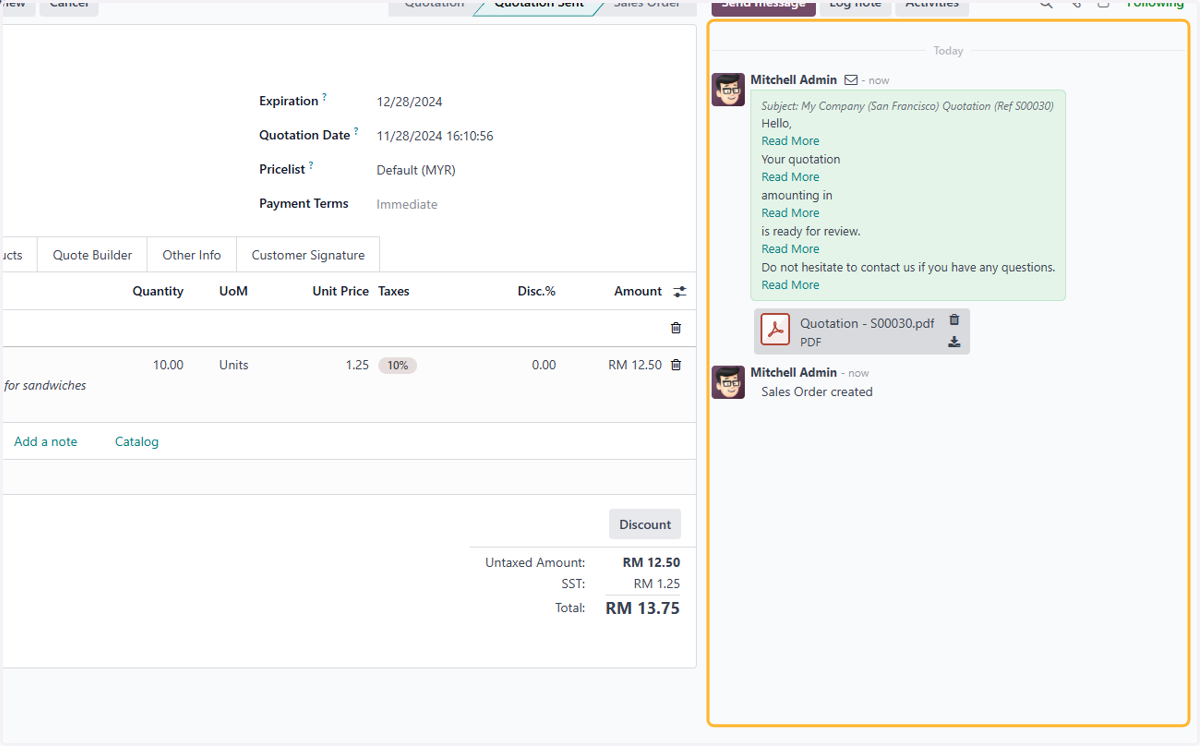
    Log of all activities related to this invoice is shown as highlighted.
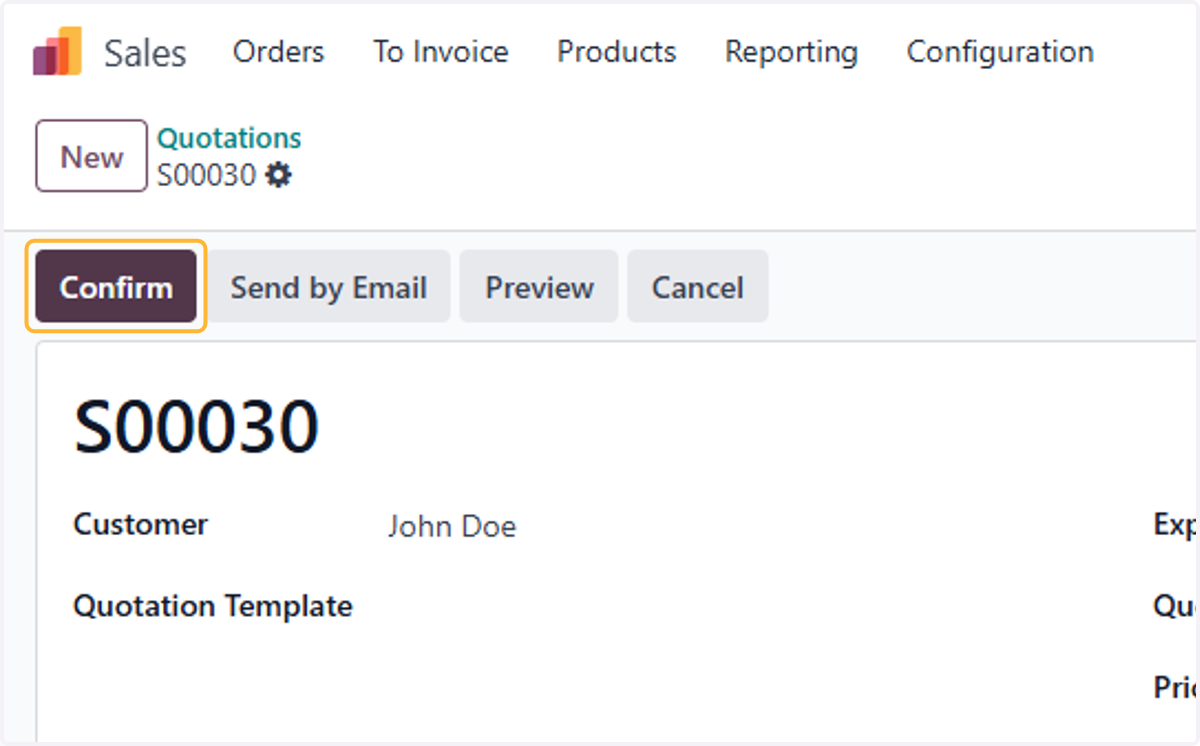
  16. 16. Click on Confirm

    Click on Confirm
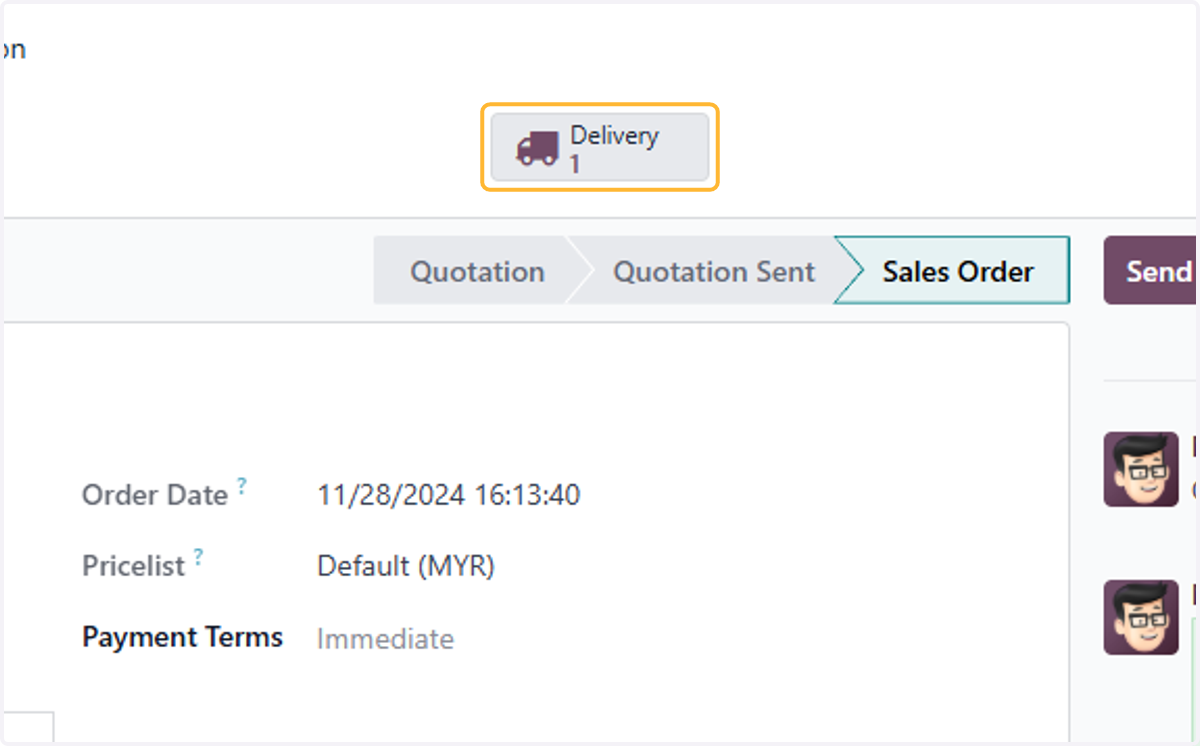
  17. 17. Click on Delivery

    Click on Delivery
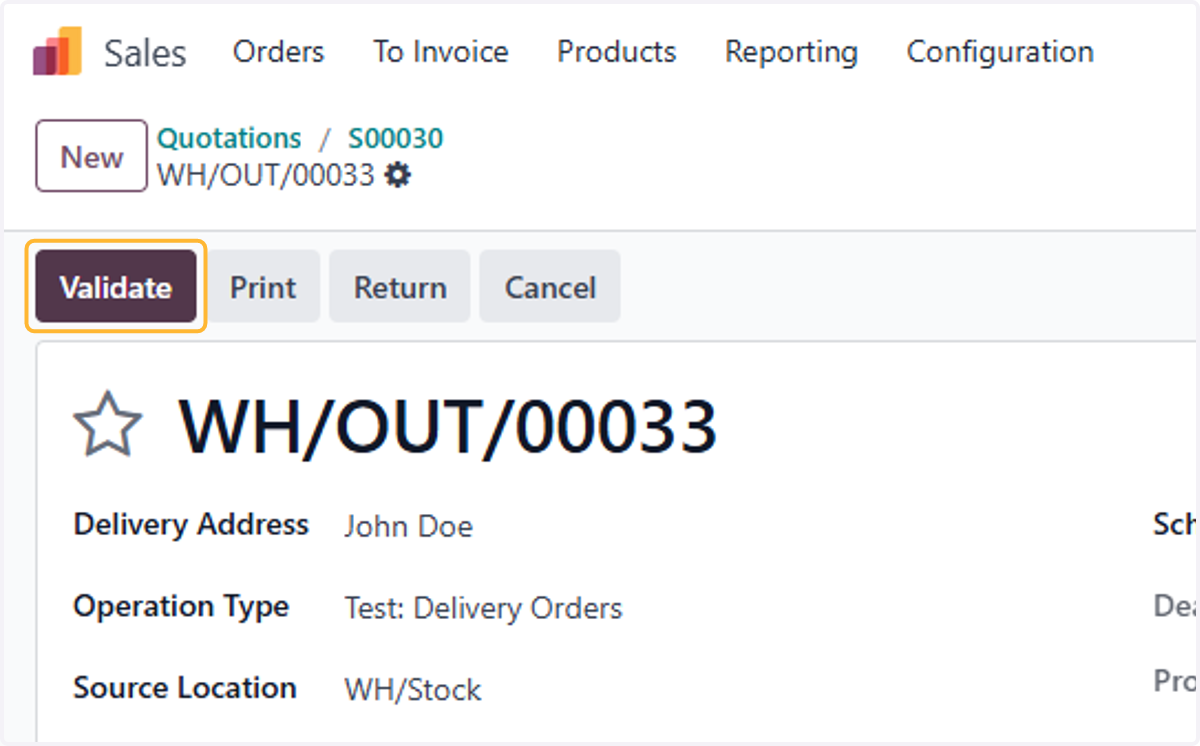
  18. 18. Click on Validate

    Click on Validate
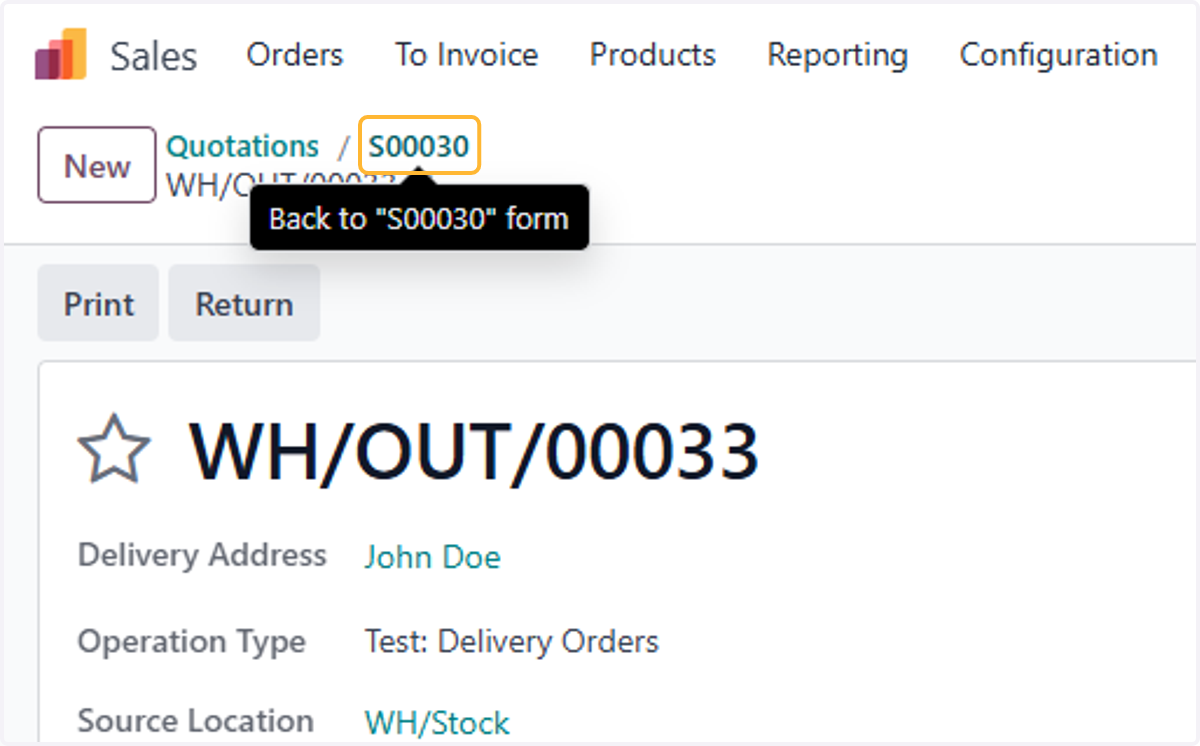
  19. 19. Click on S00030

    Click on S00030
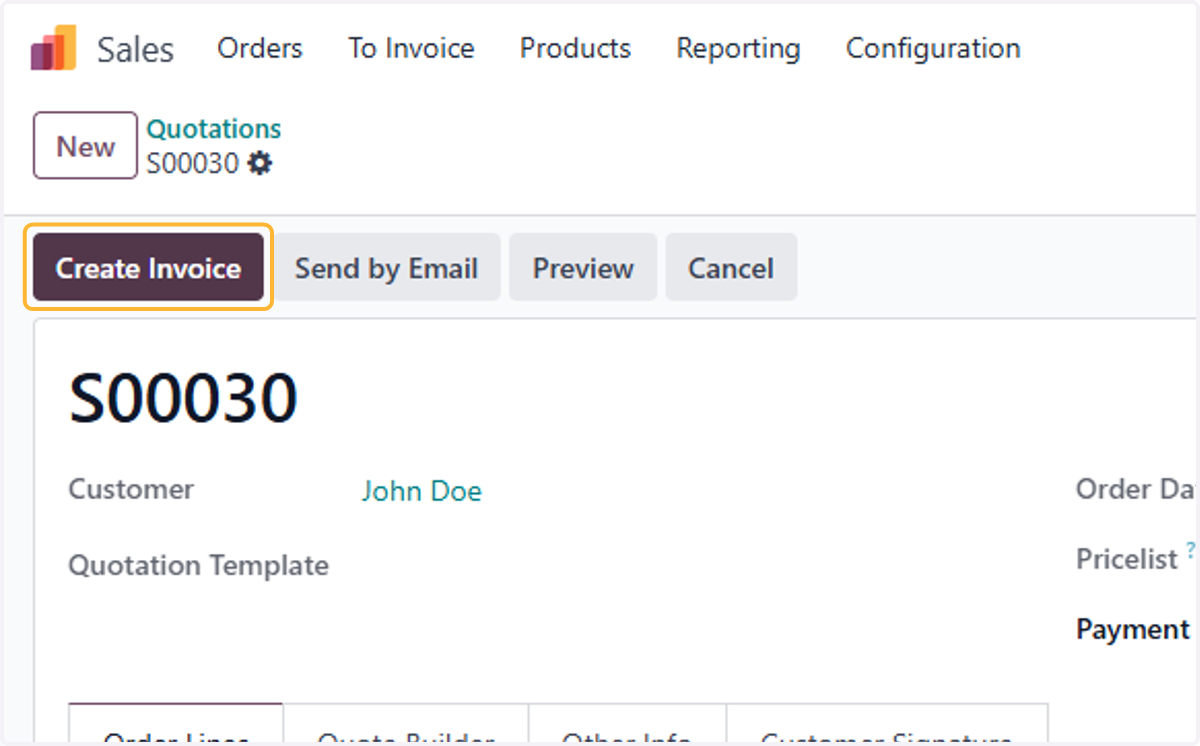
  20. 20. Click on Create Invoice

    Click on Create Invoice
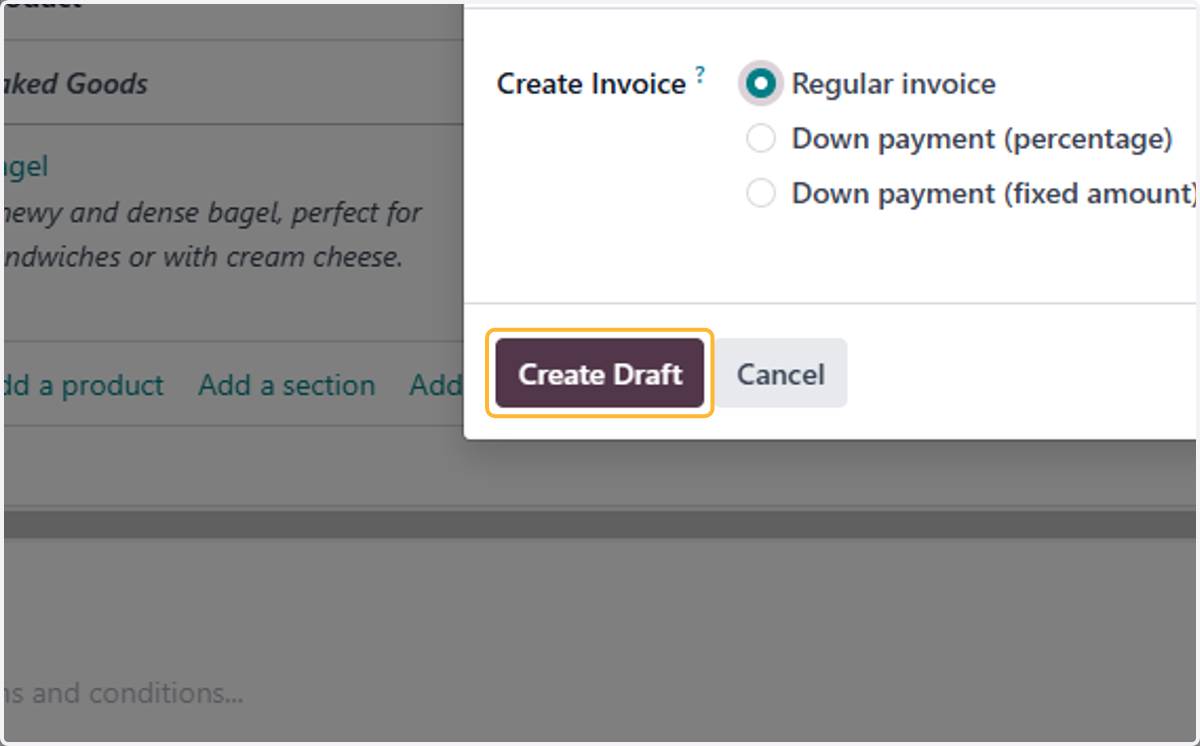
  21. 21. Click on Create Draft

    Click on Create Draft
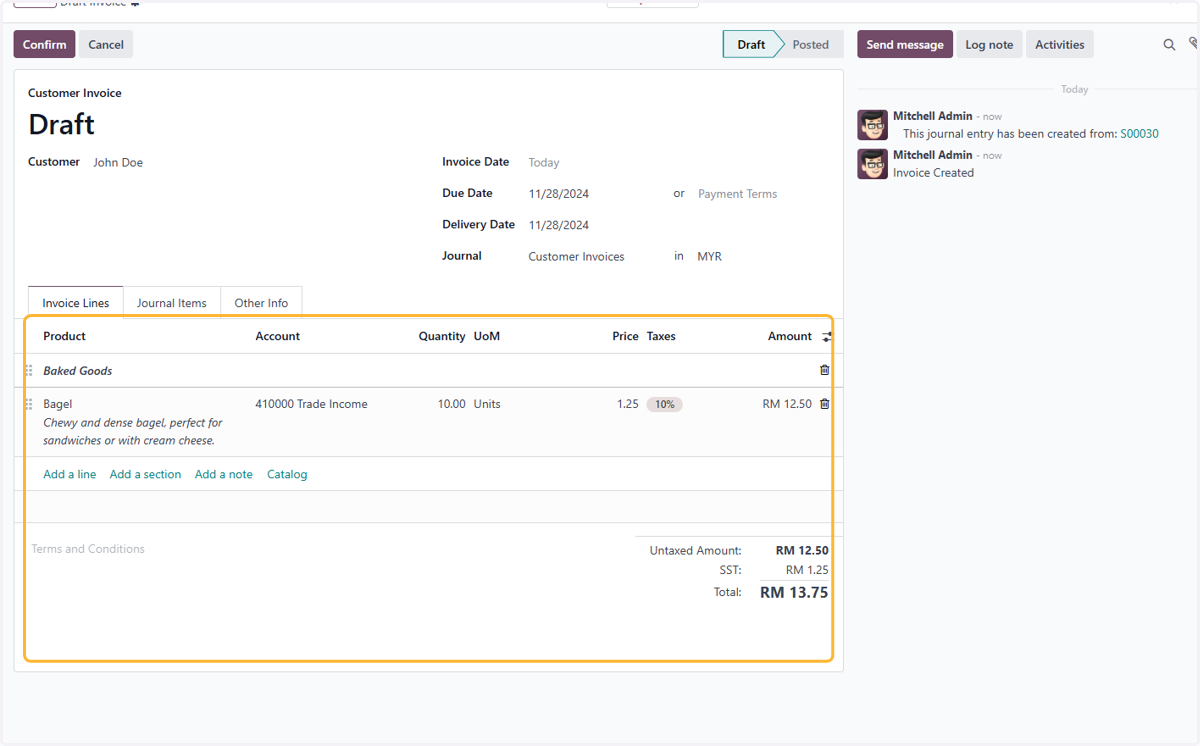
  22. 22. Check details of Invoice

    Check details of Invoice
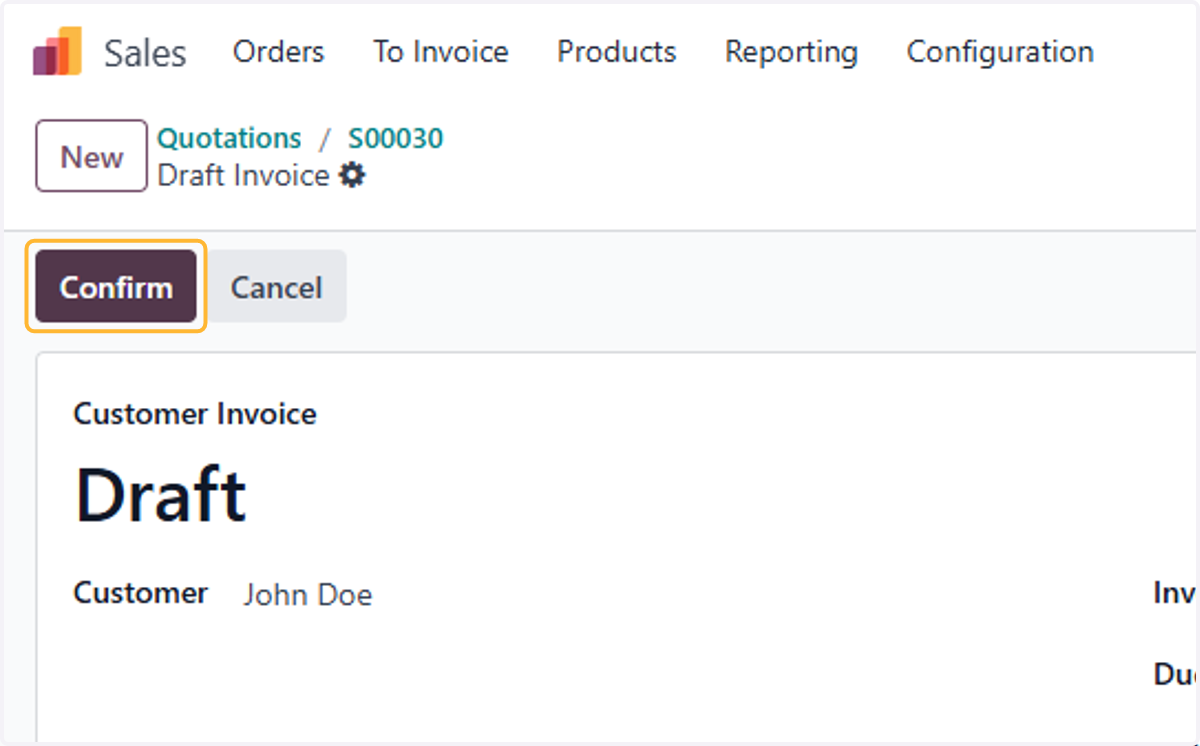
  23. 23. Click on Confirm

    Click on Confirm
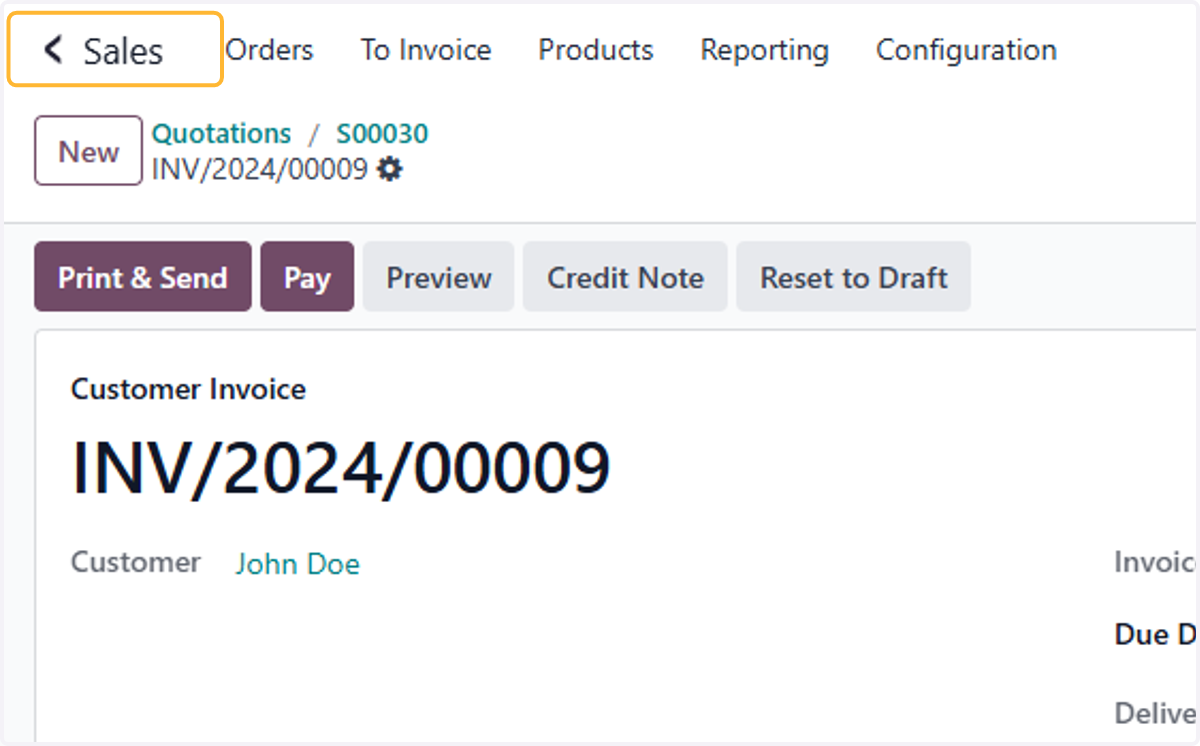
  24. 24. Click on Sales

    Click on Sales
  25. 25. Click on Accounting

    Click on Accounting
  26. 26. Click on Customer Invoices

    Click on Customer Invoices
  27. 27. View created invoice in Accounting
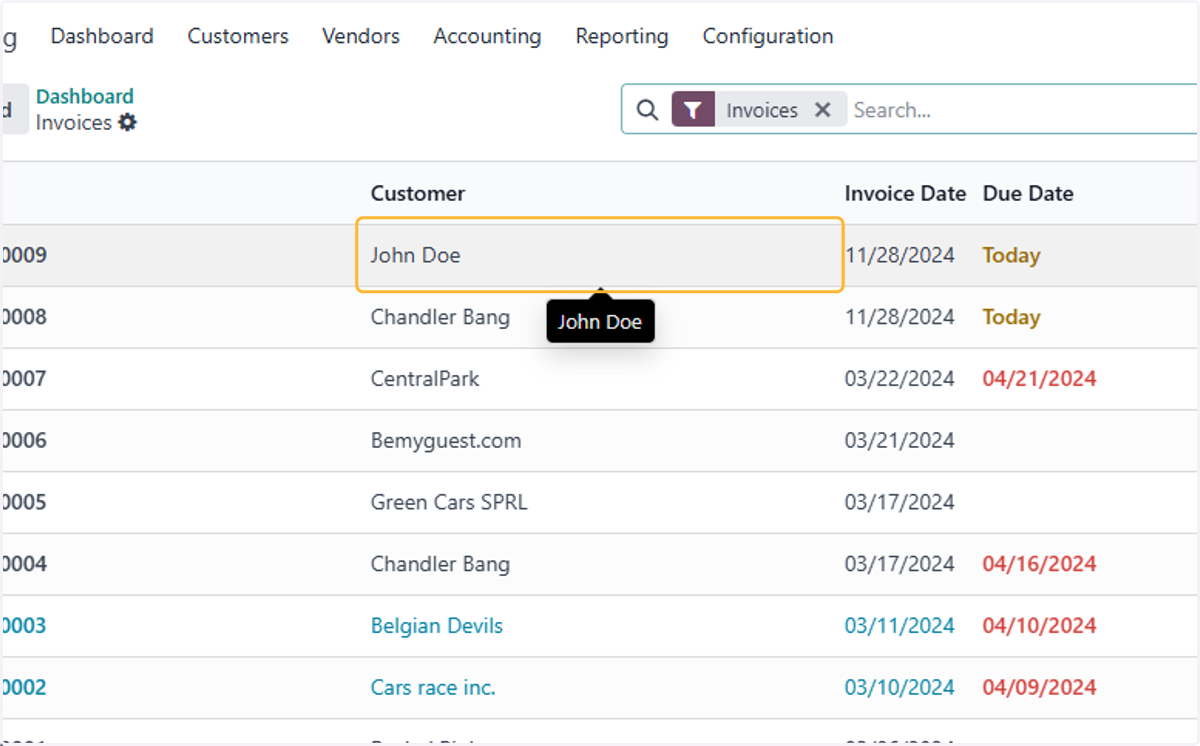
    View created invoice in Accounting