Creating a Custom Notification Template in Harness
1. C
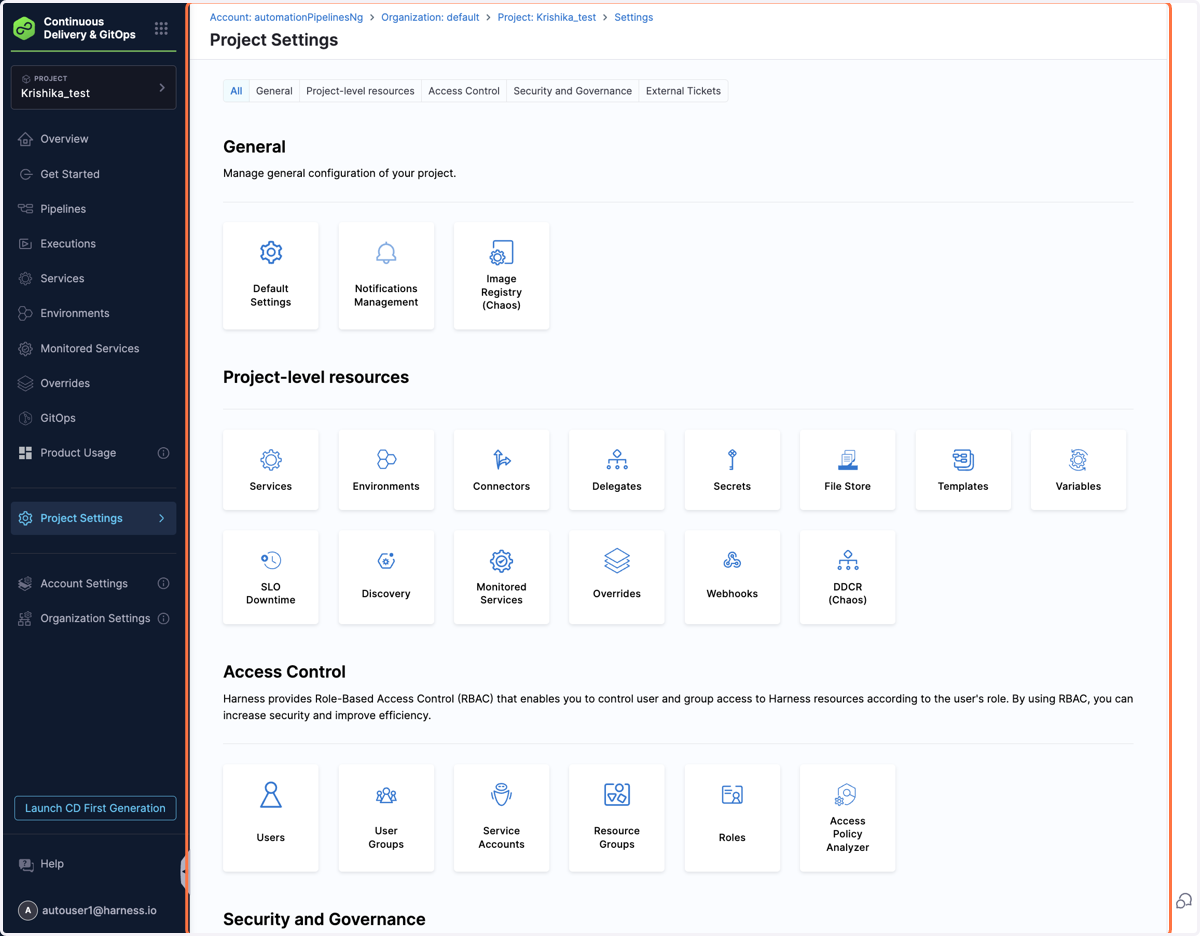
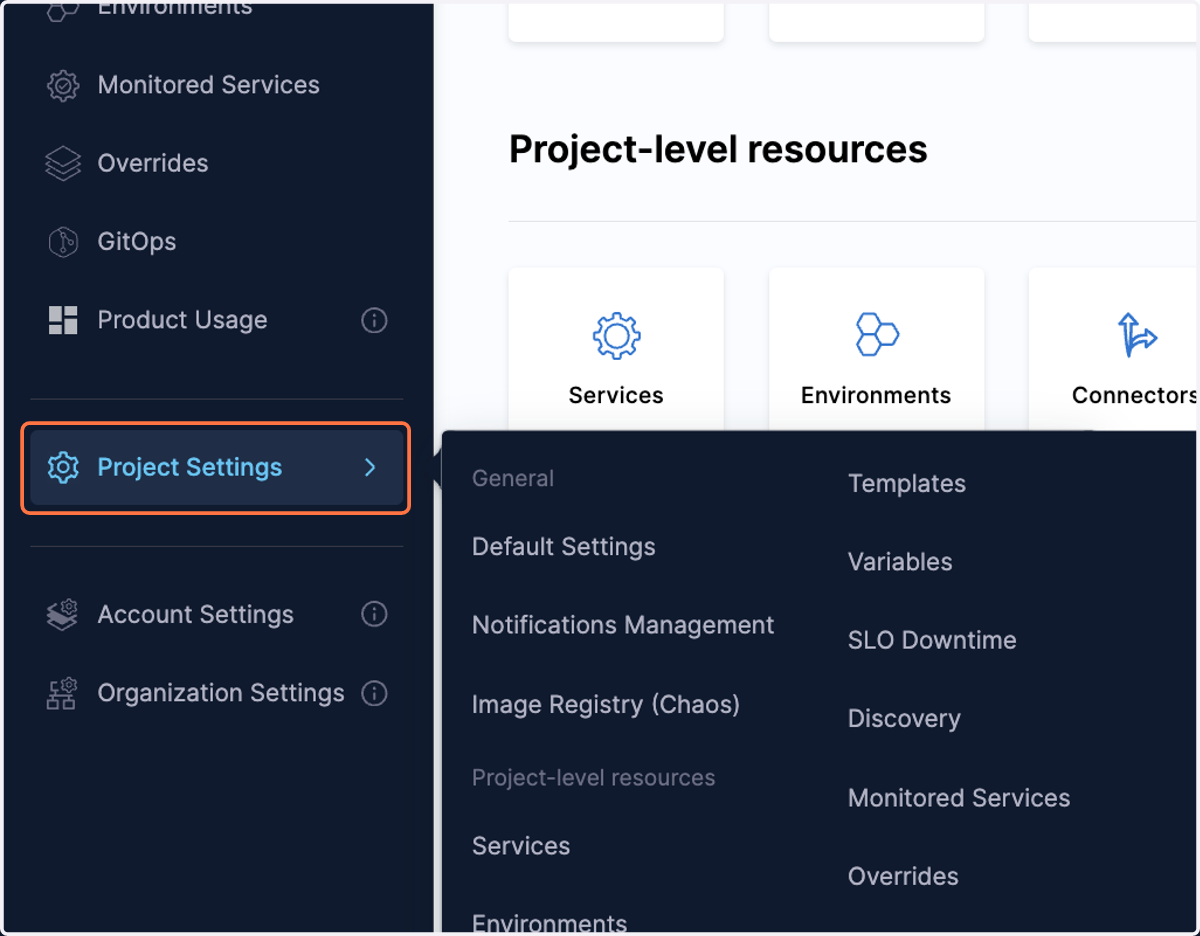
2. Click on Project Settings
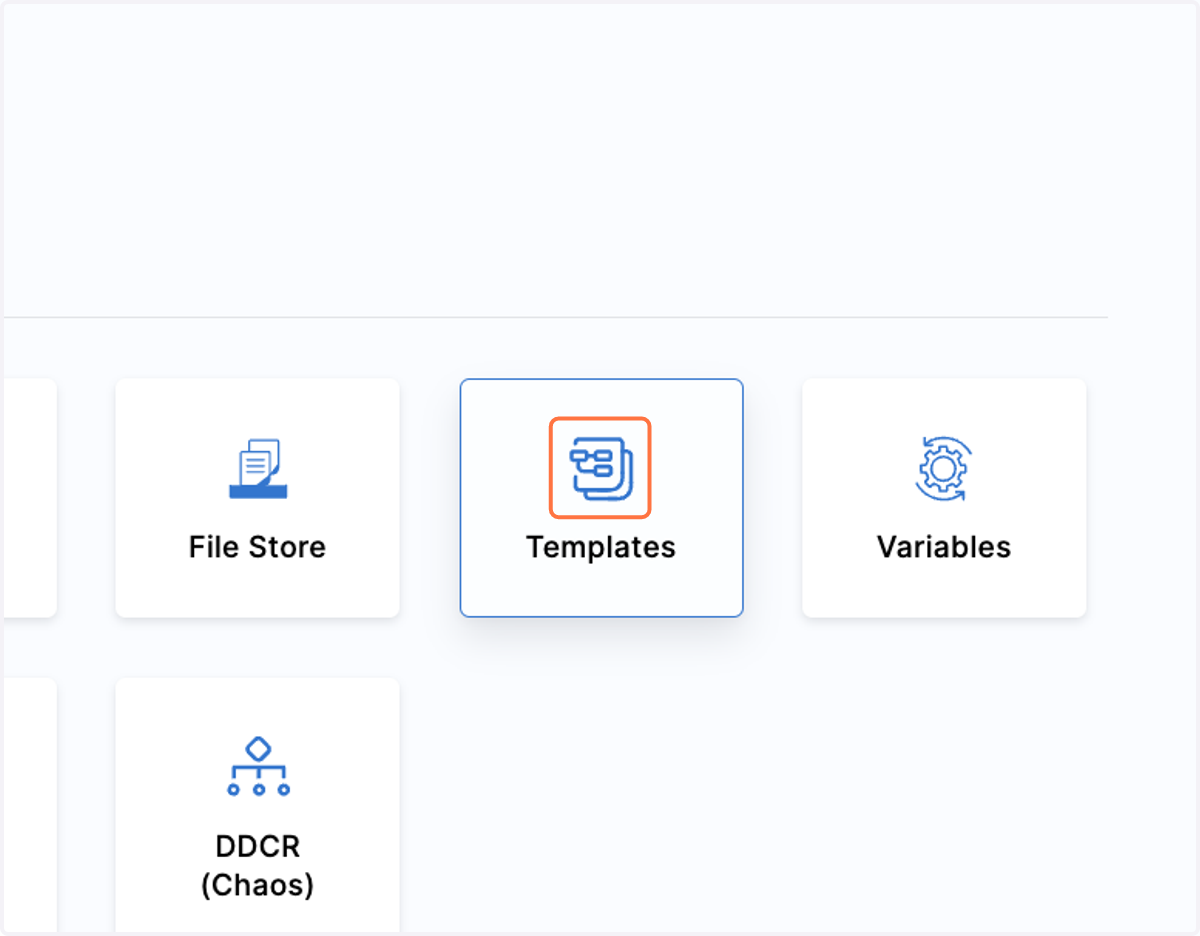
3. Click on Templates
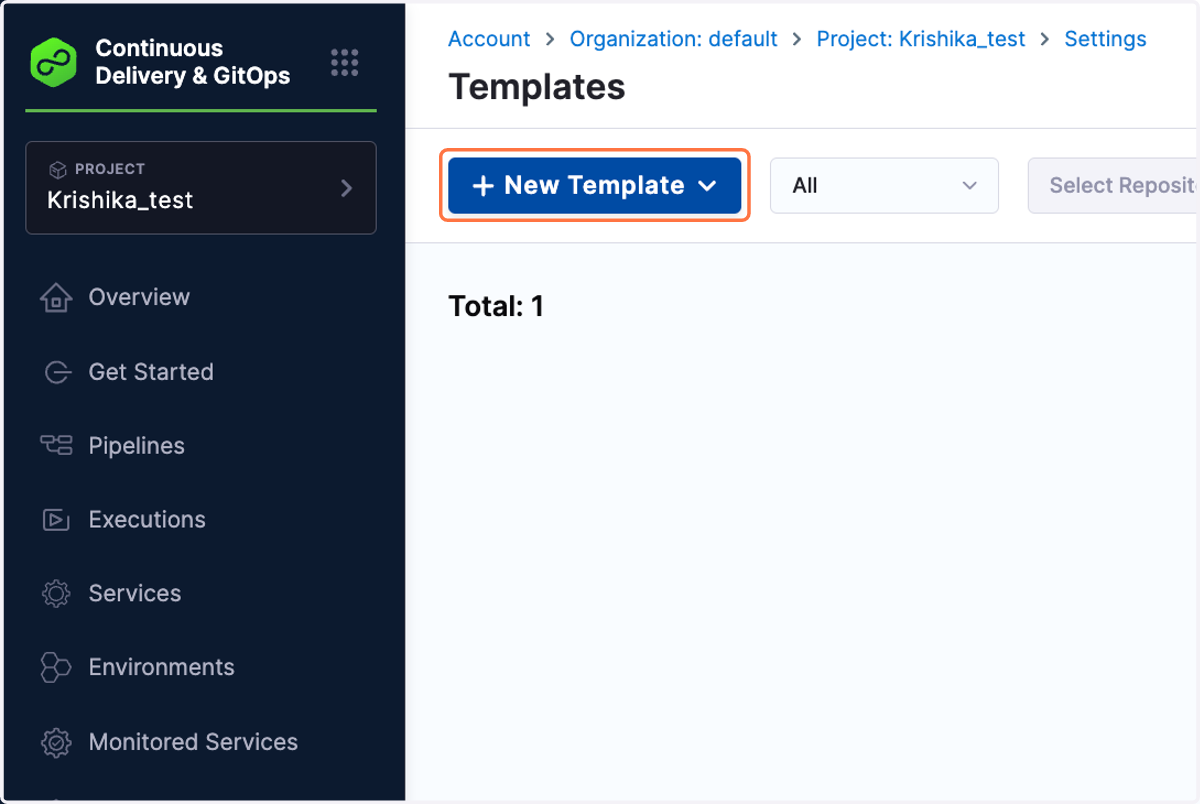
4. Click on New Template
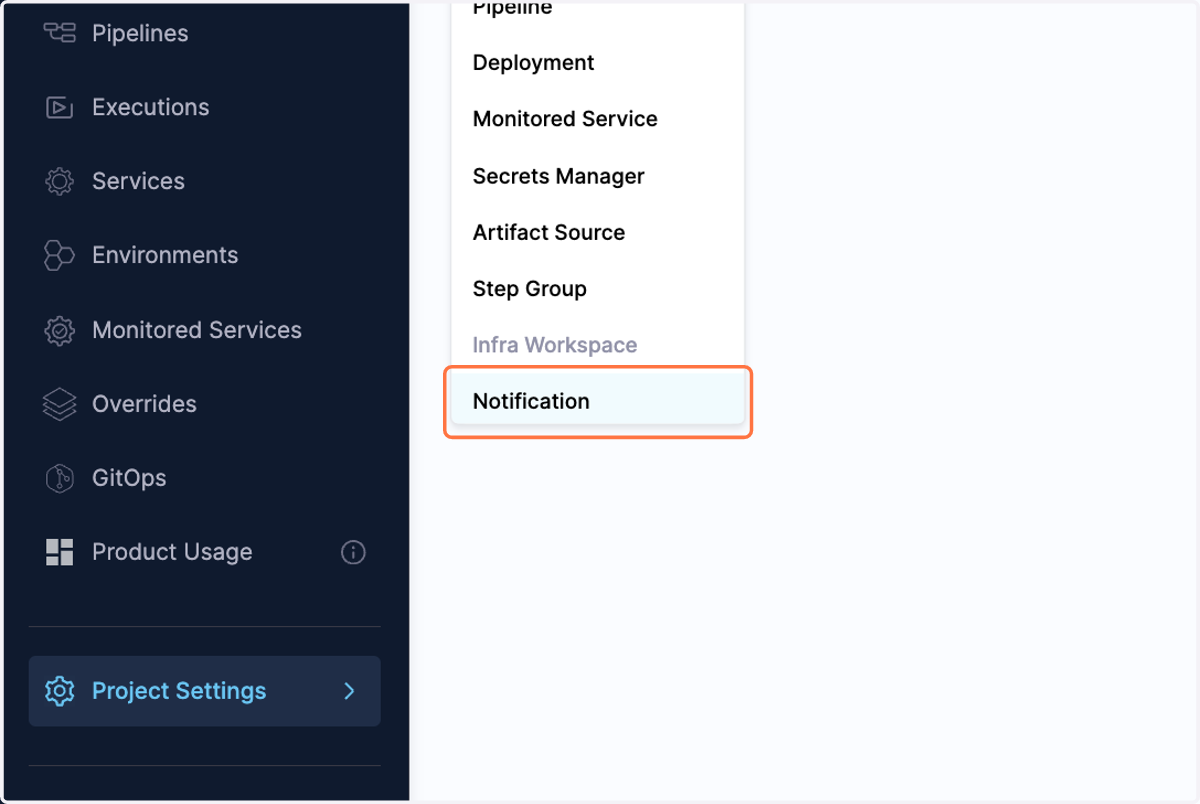
5. Click on Notification
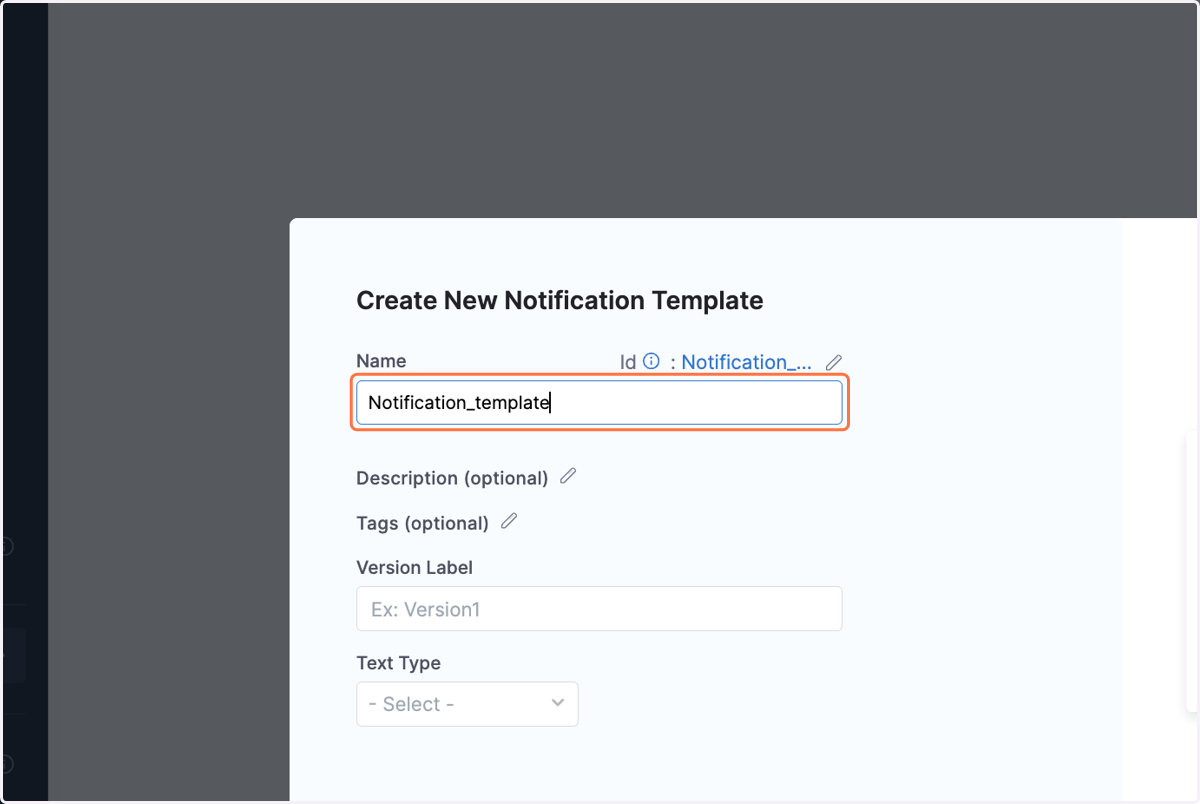
6. Provide name for the notification template
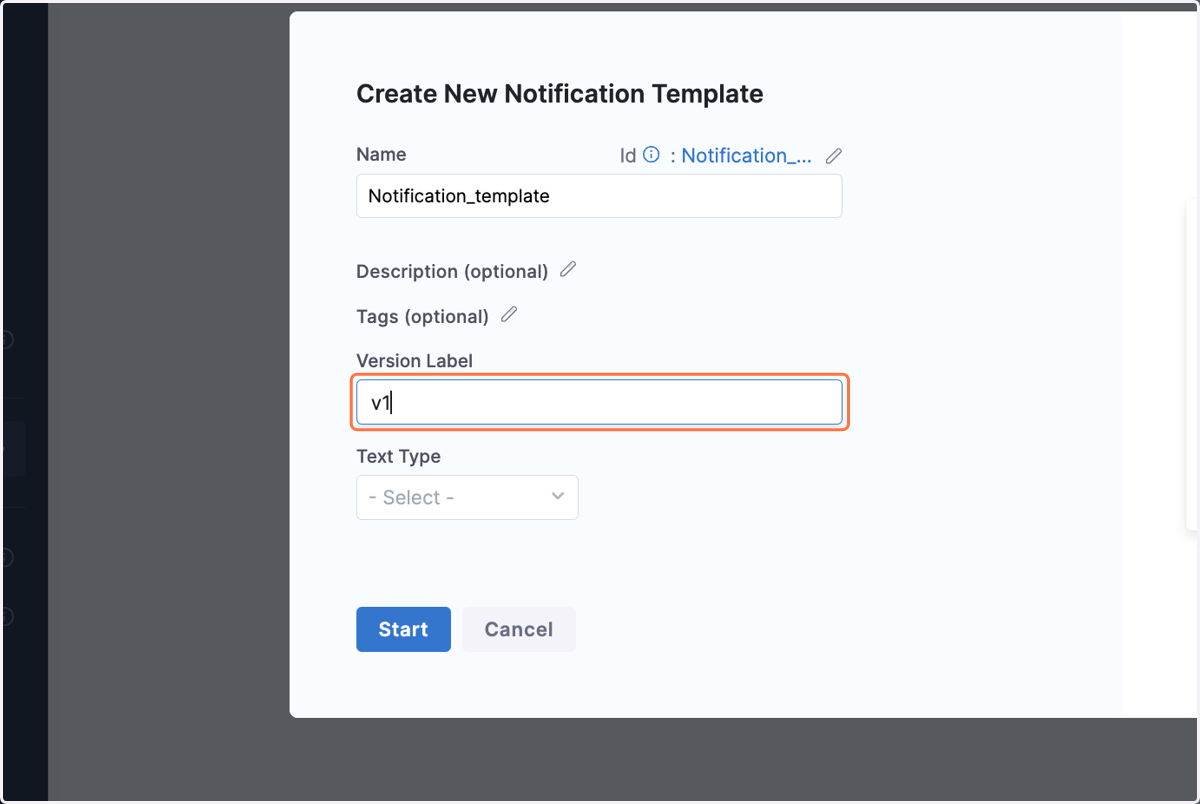
7. Add version label
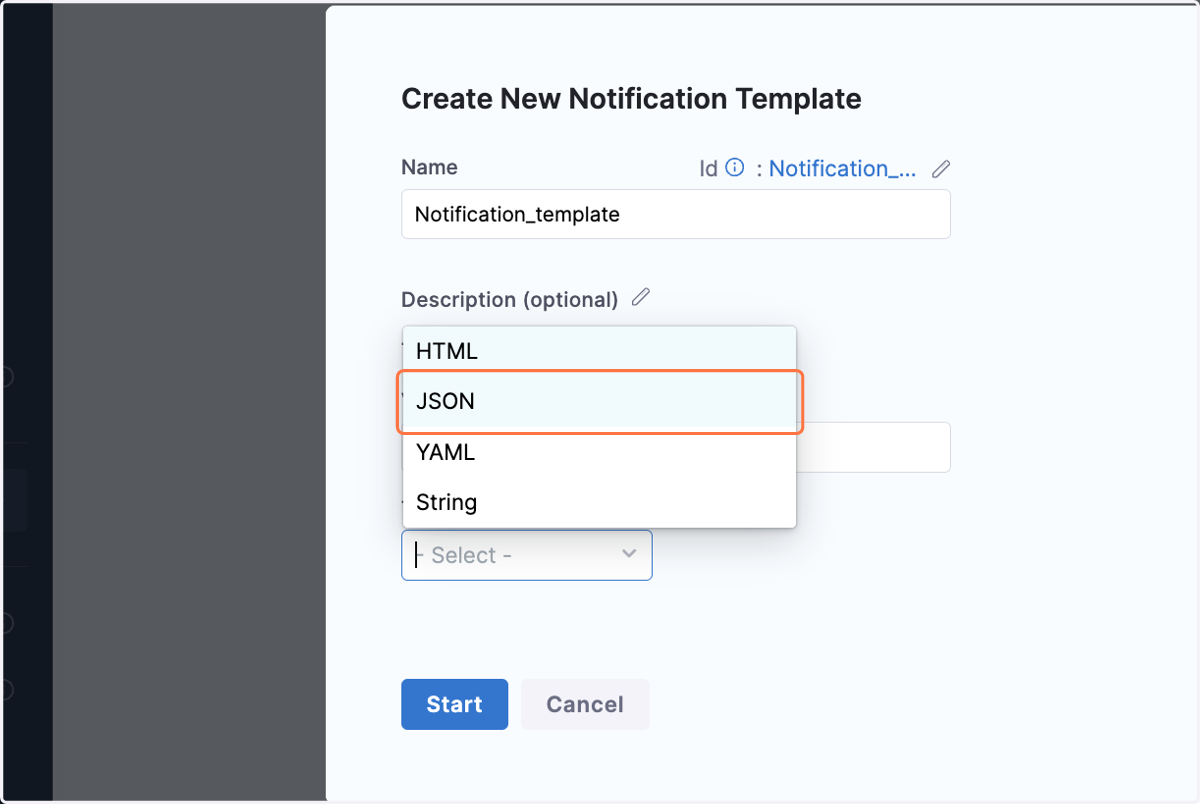
8. Choose text type for Content Body
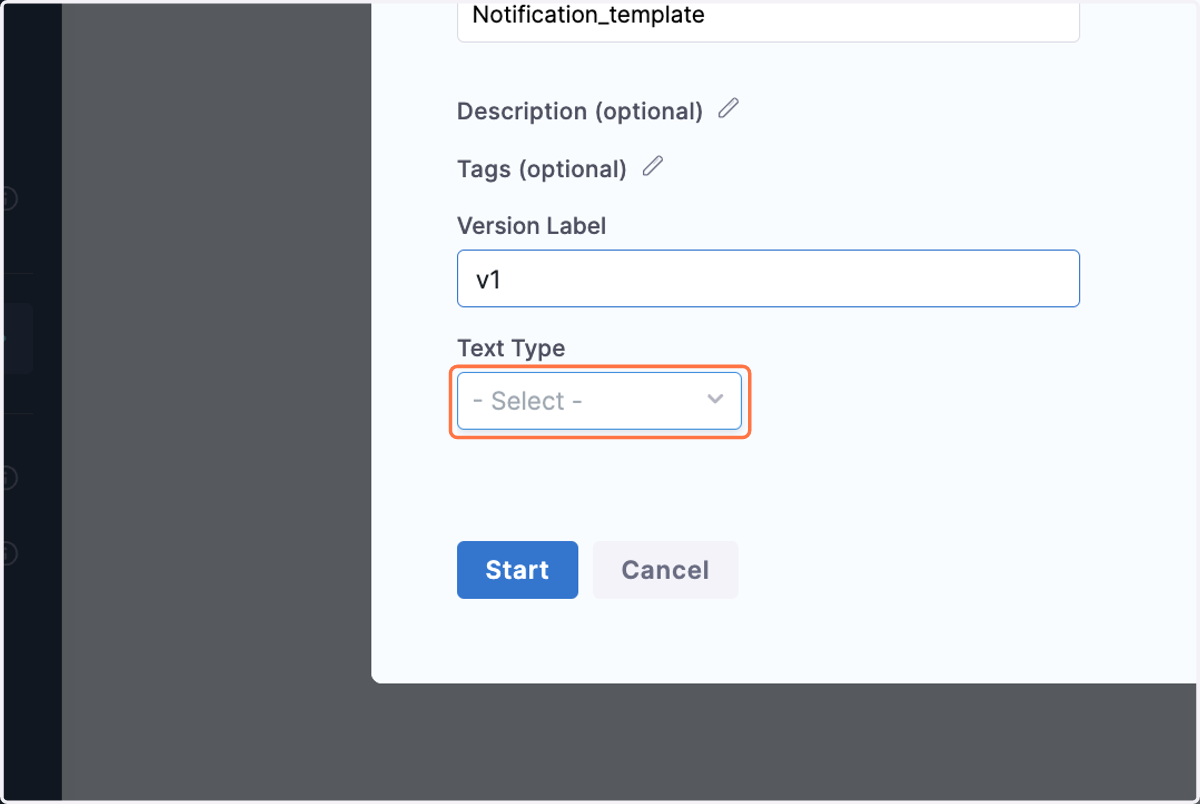
9. In Text Type you can choose text type as HTML, JSON, YAML or String for content body.
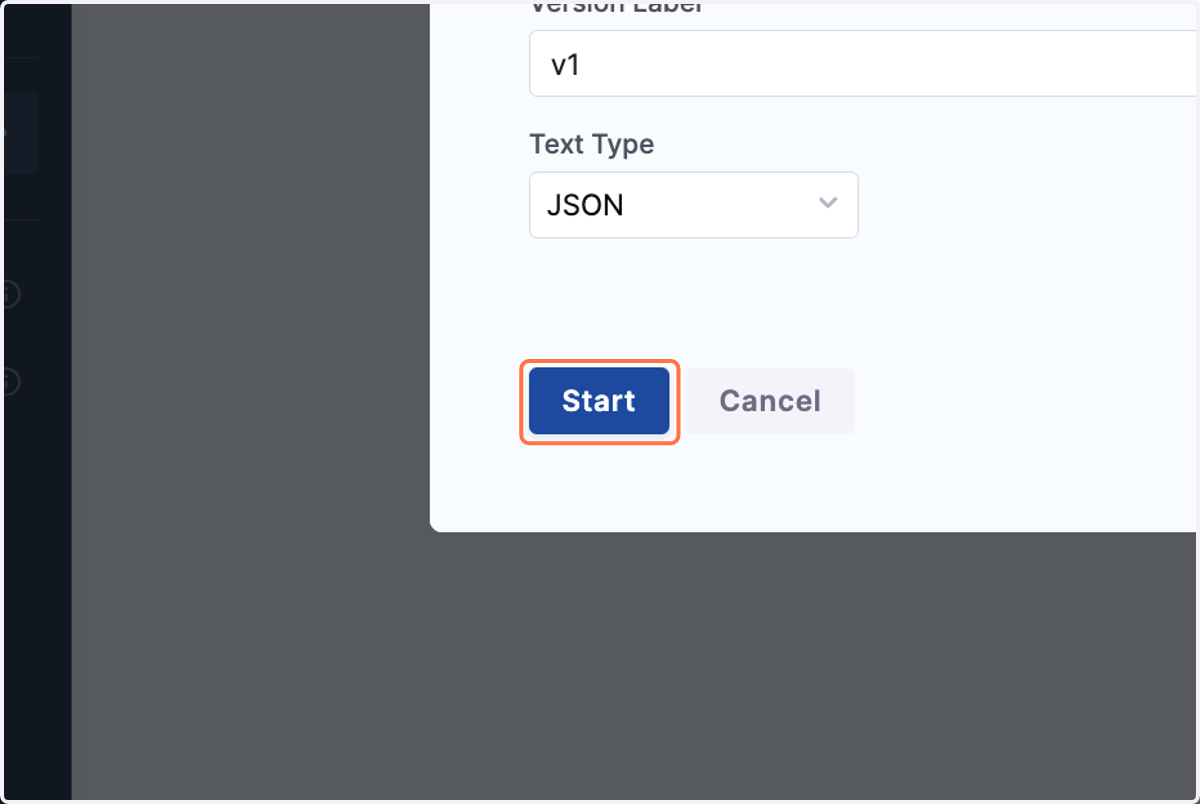
10. Click on Start
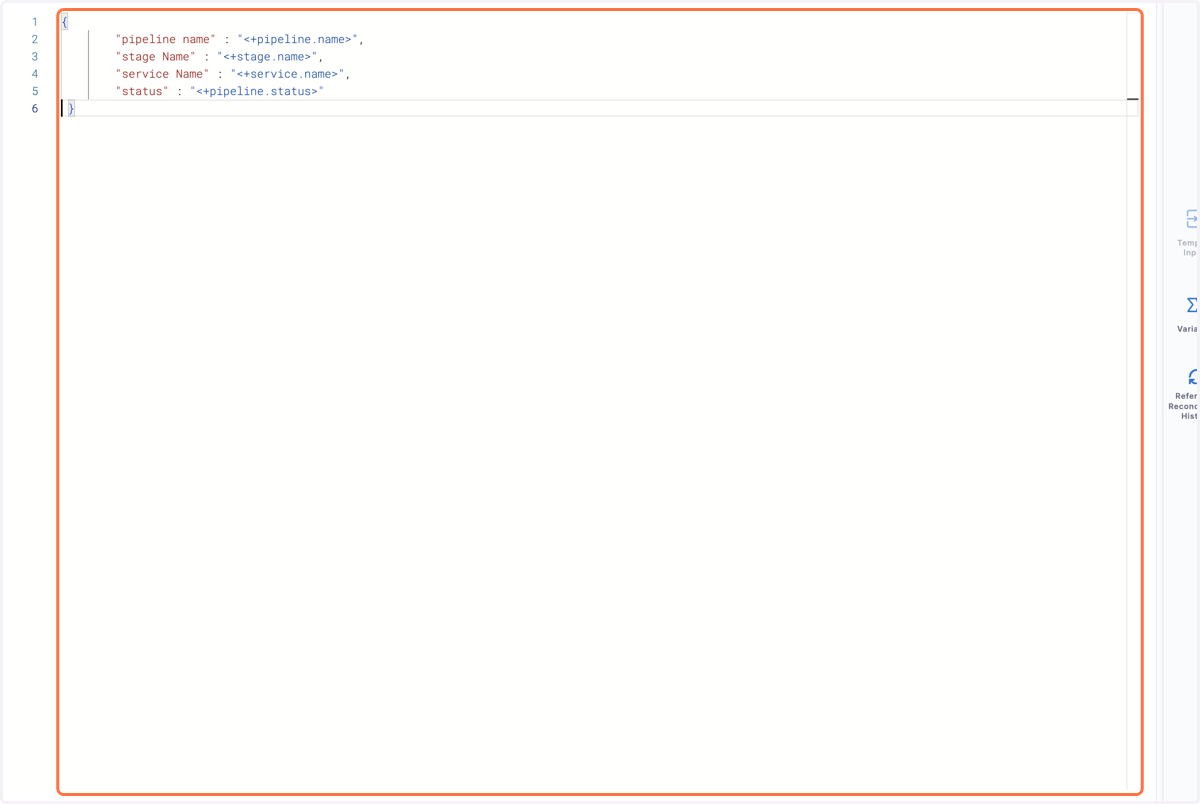
11. Provide content for your template body
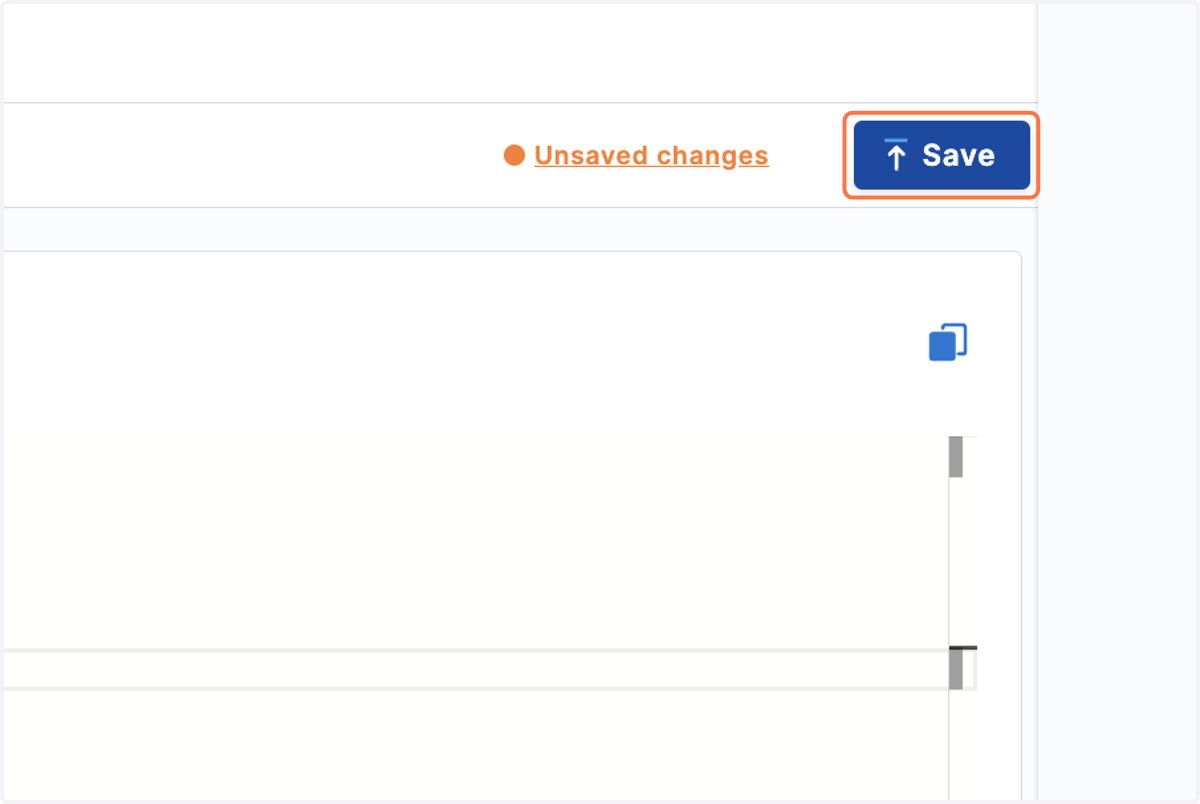
12. Click on Save
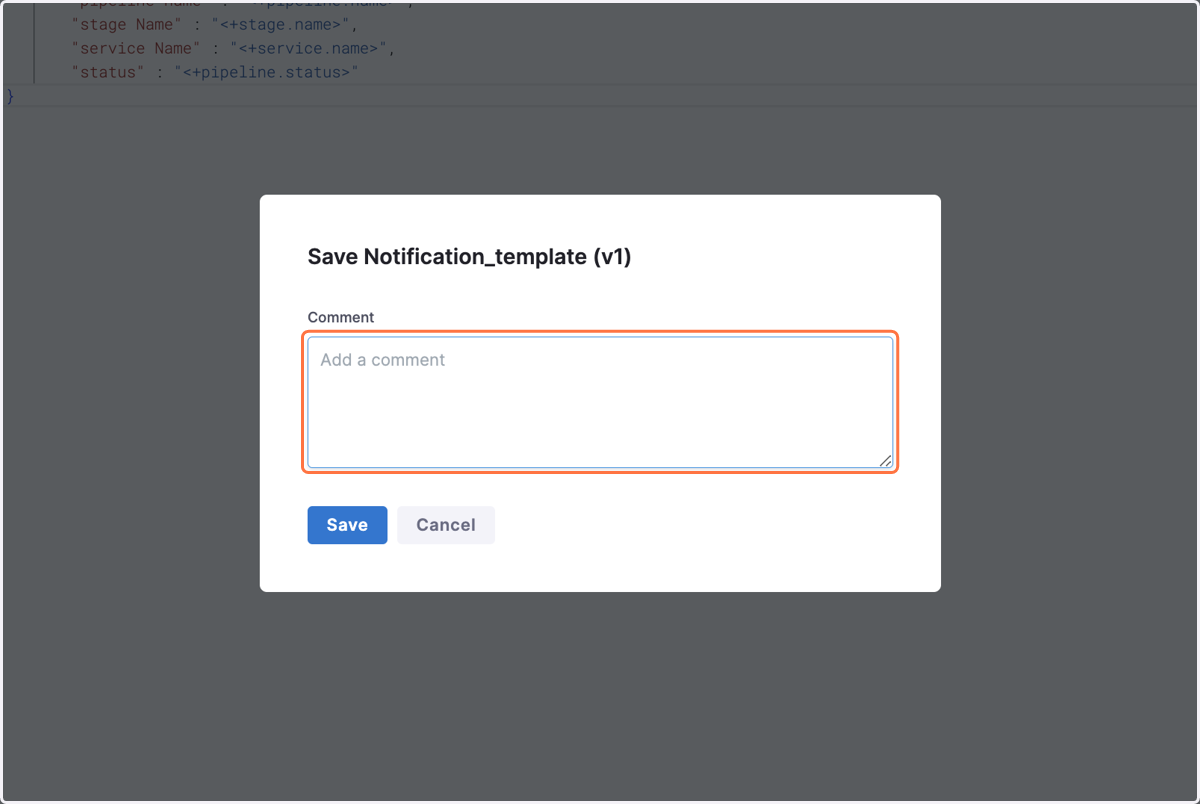
13. You can save your template by providing a comment
14. Click on Save
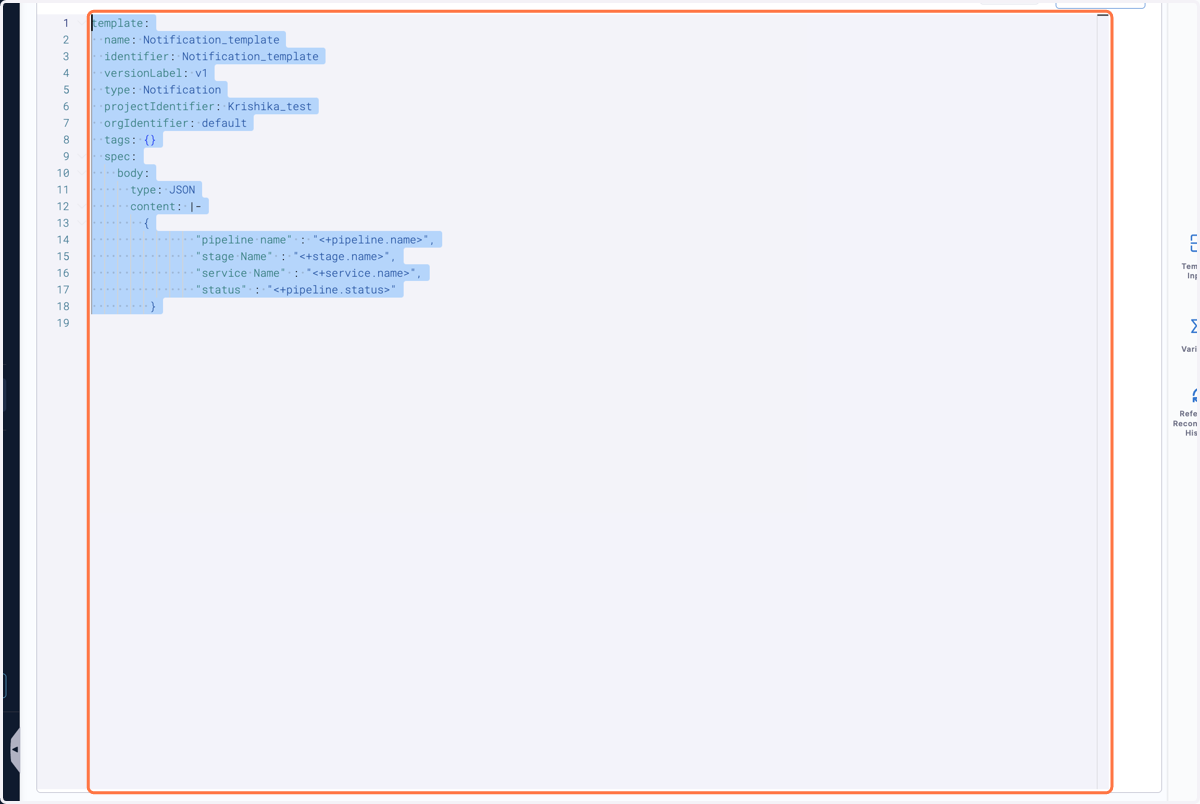
15. Click on YAML
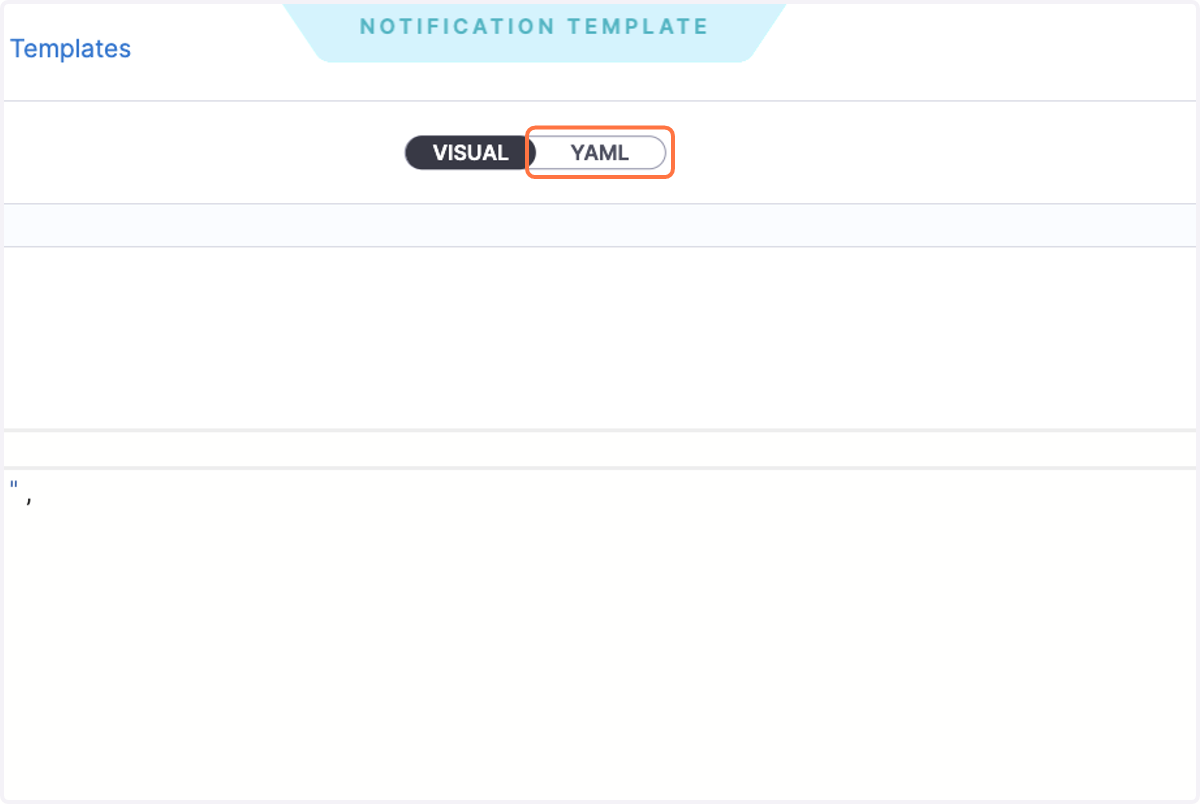
16. You can view YAML for your notification template
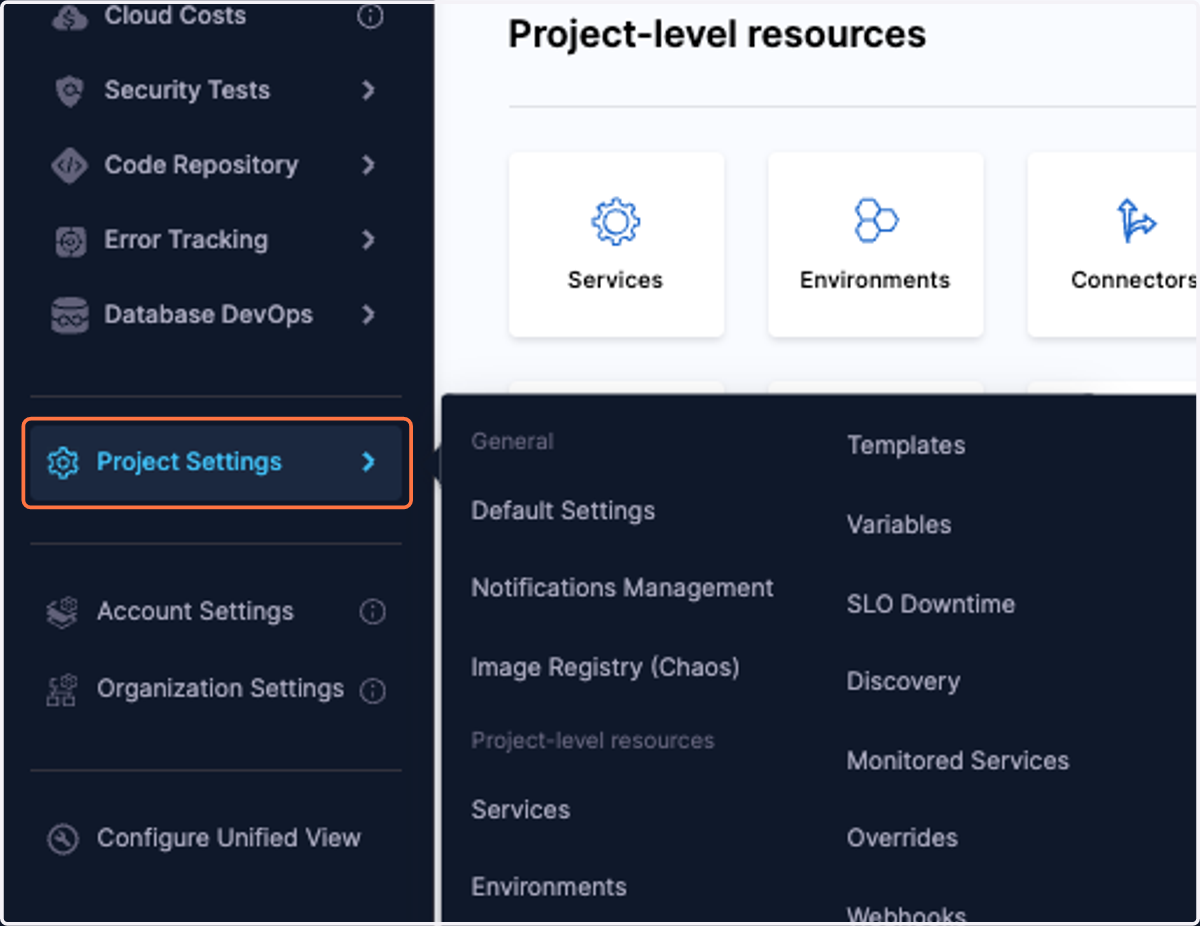
17. Click on Project Settings
In this example, we are creating Notification rule at Project Level but you can create Notification rule across Organization and Account level as well.
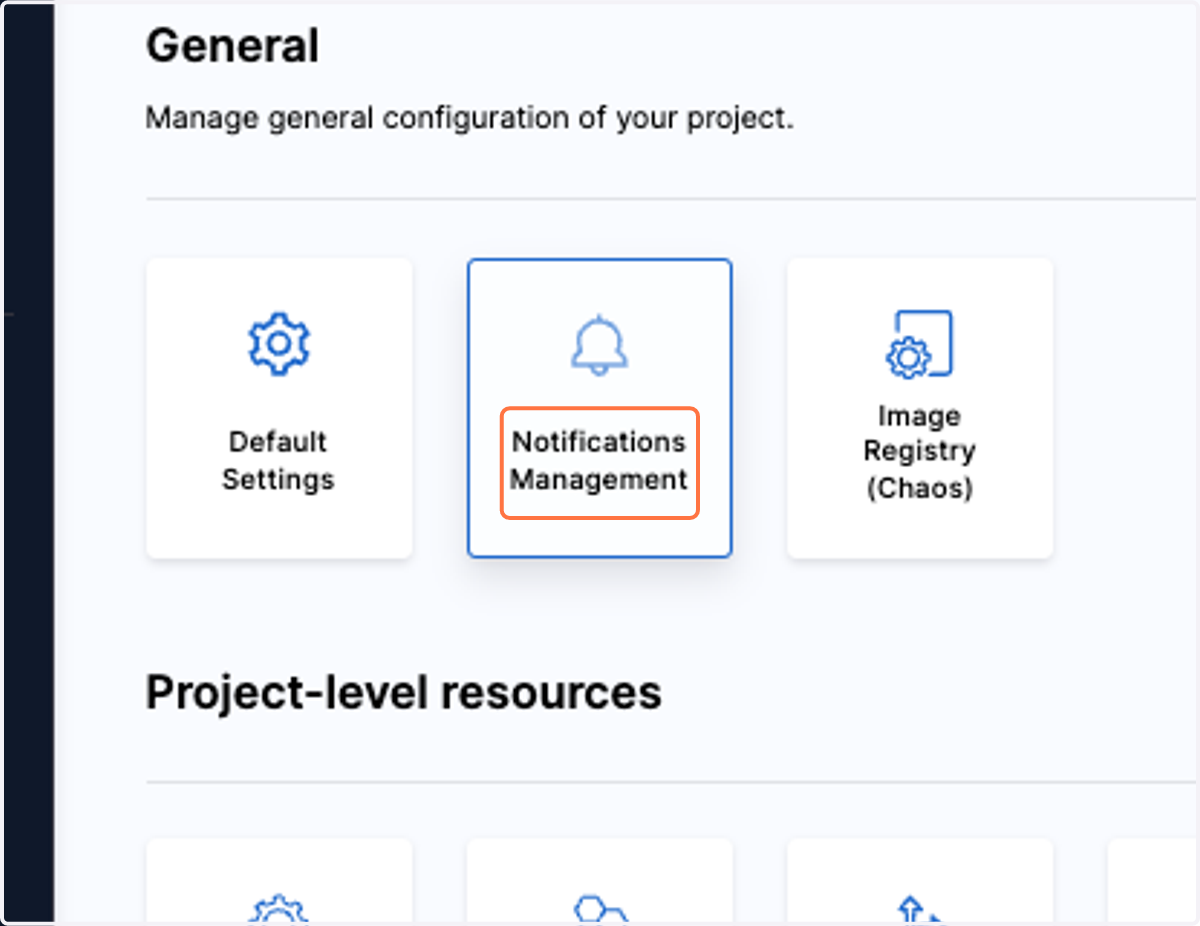
18. Click on Notifications Management
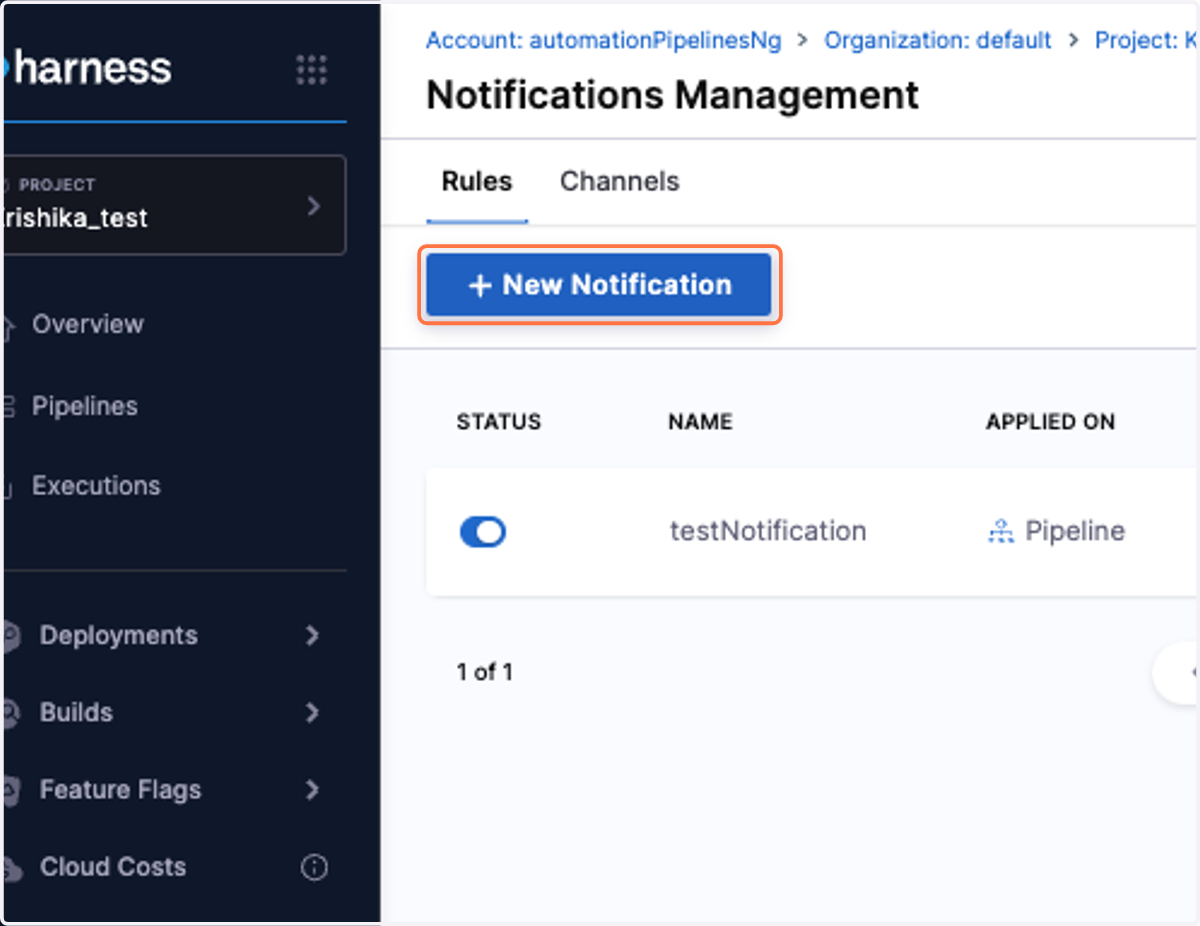
19. Click on New Notification
20. Provide Notification name
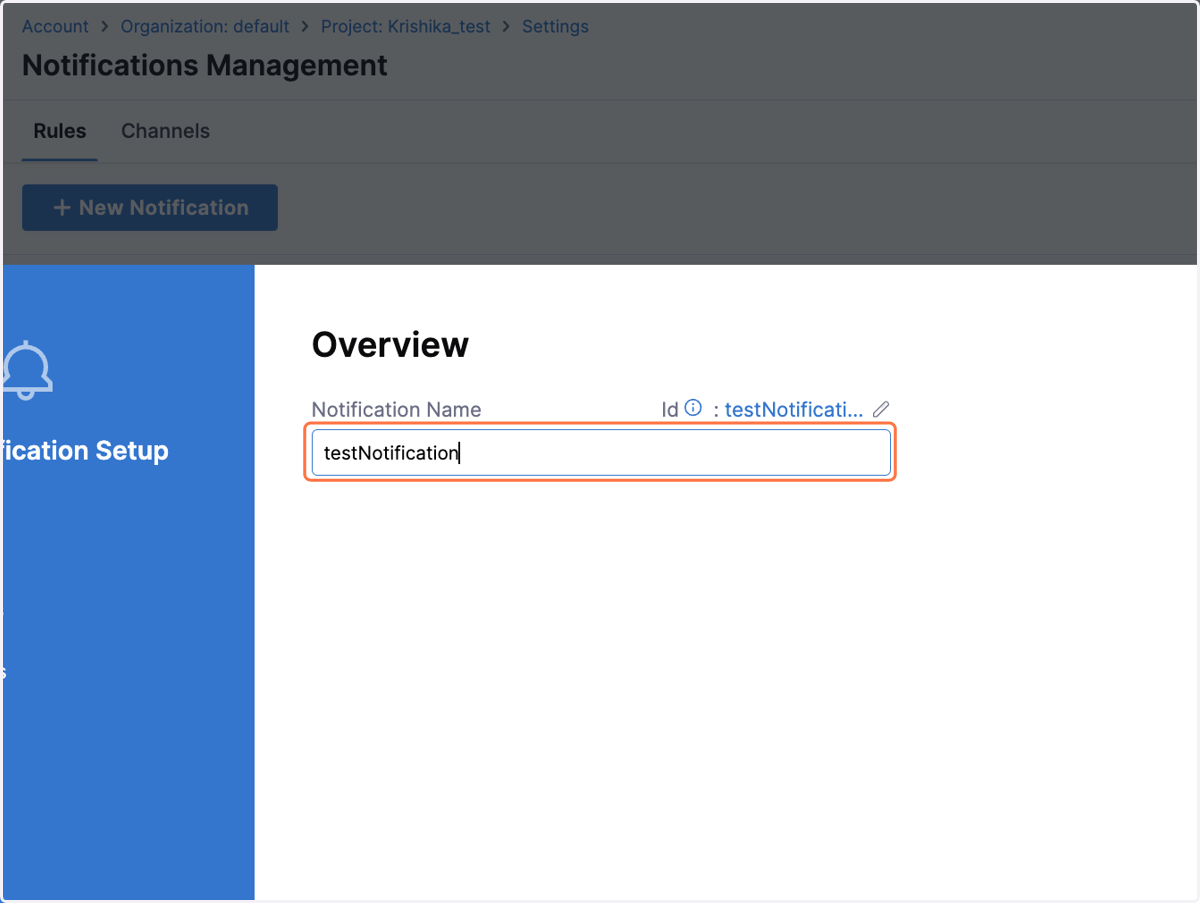
21. Click on Continue
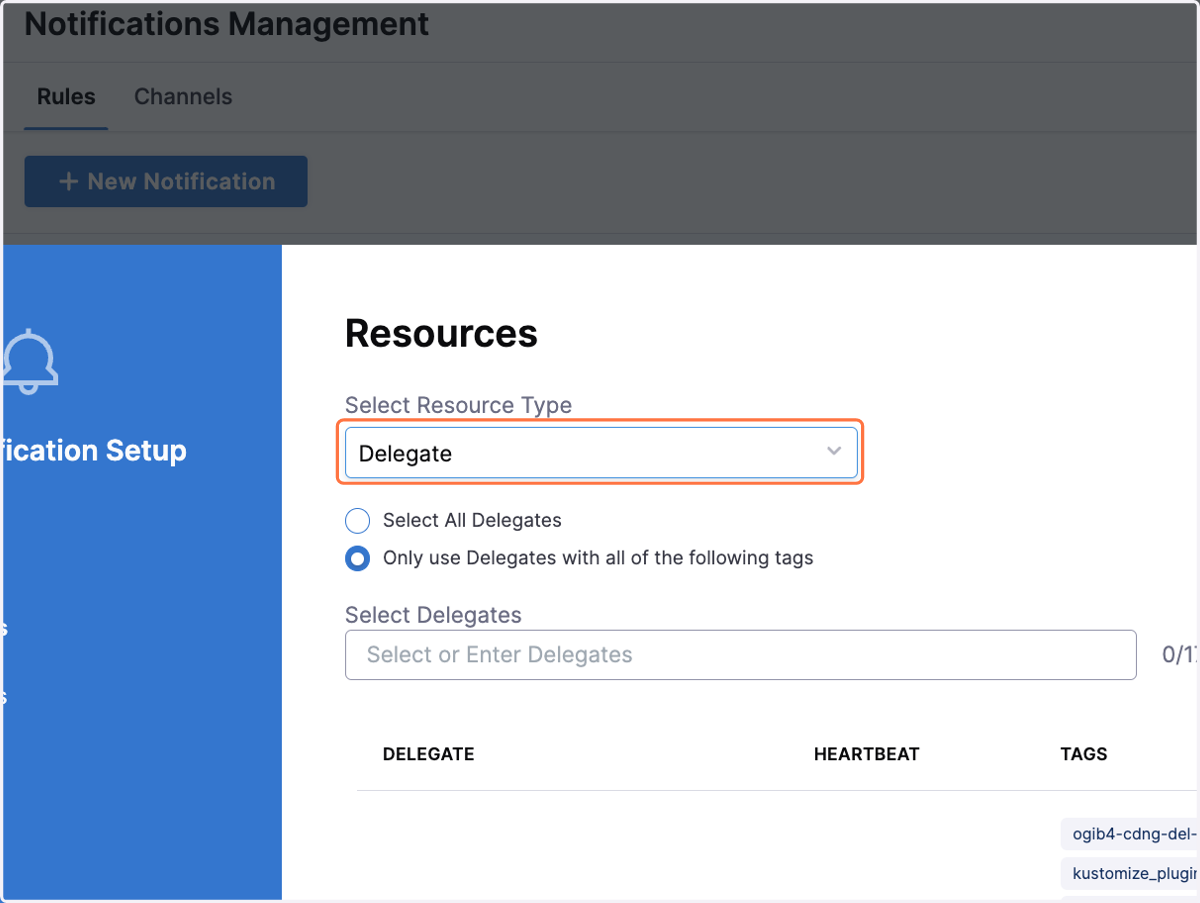
22. Select Resource Type
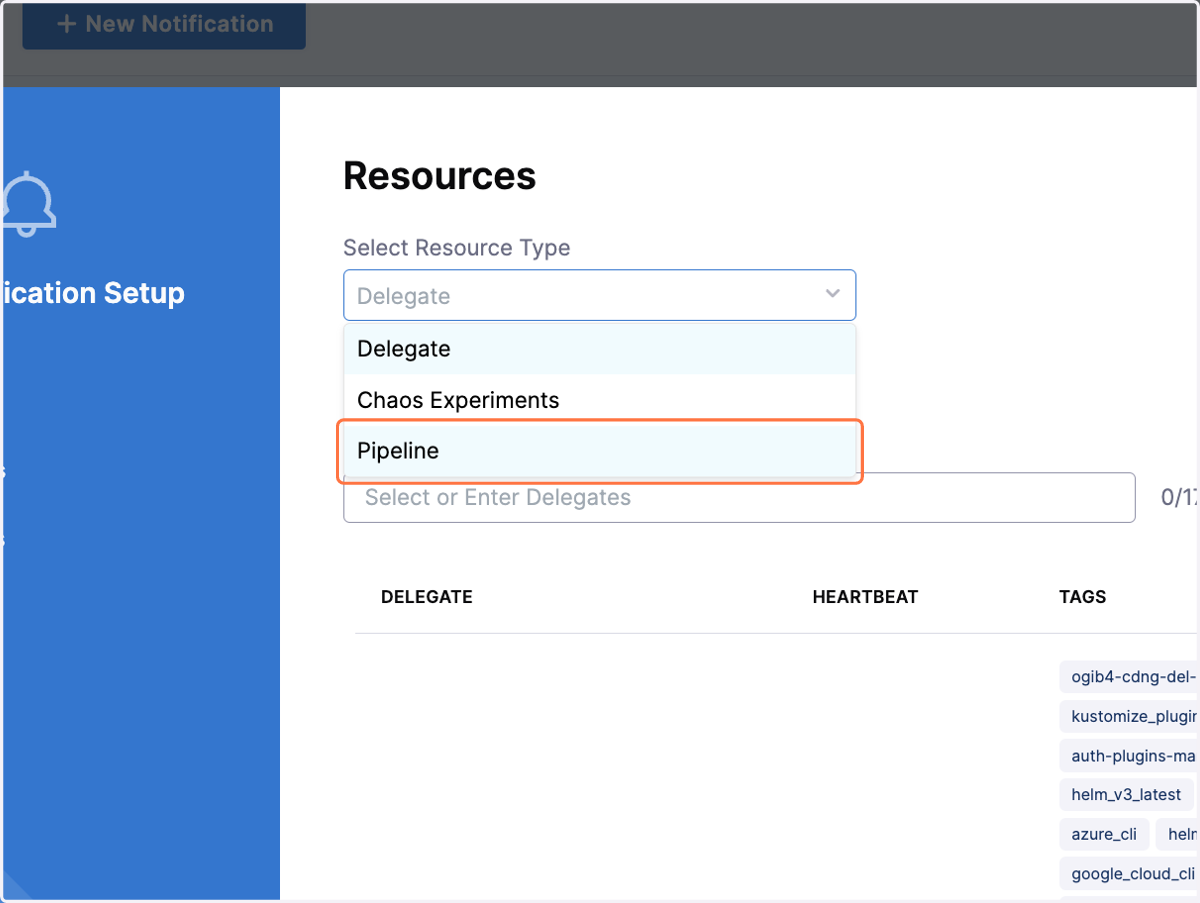
23. Click on Pipeline
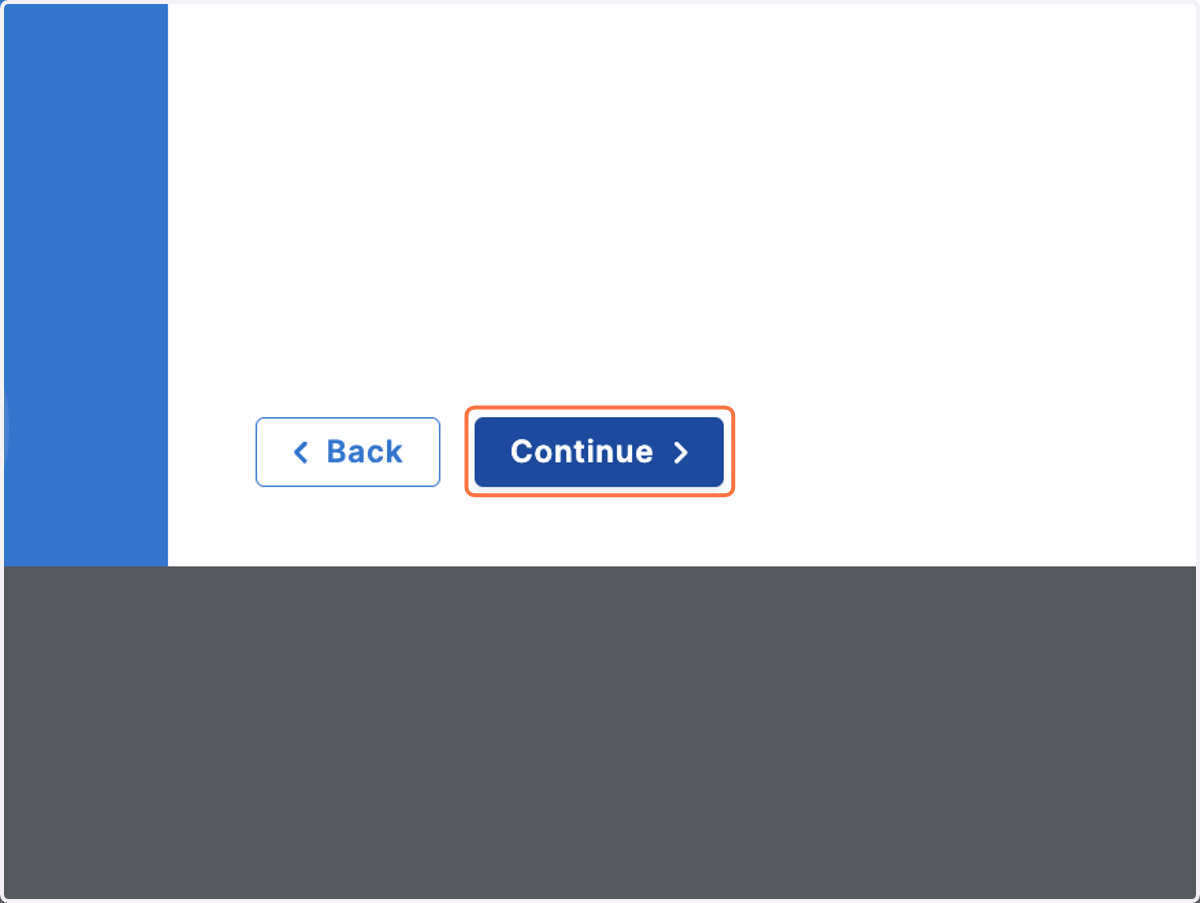
24. Click on Continue
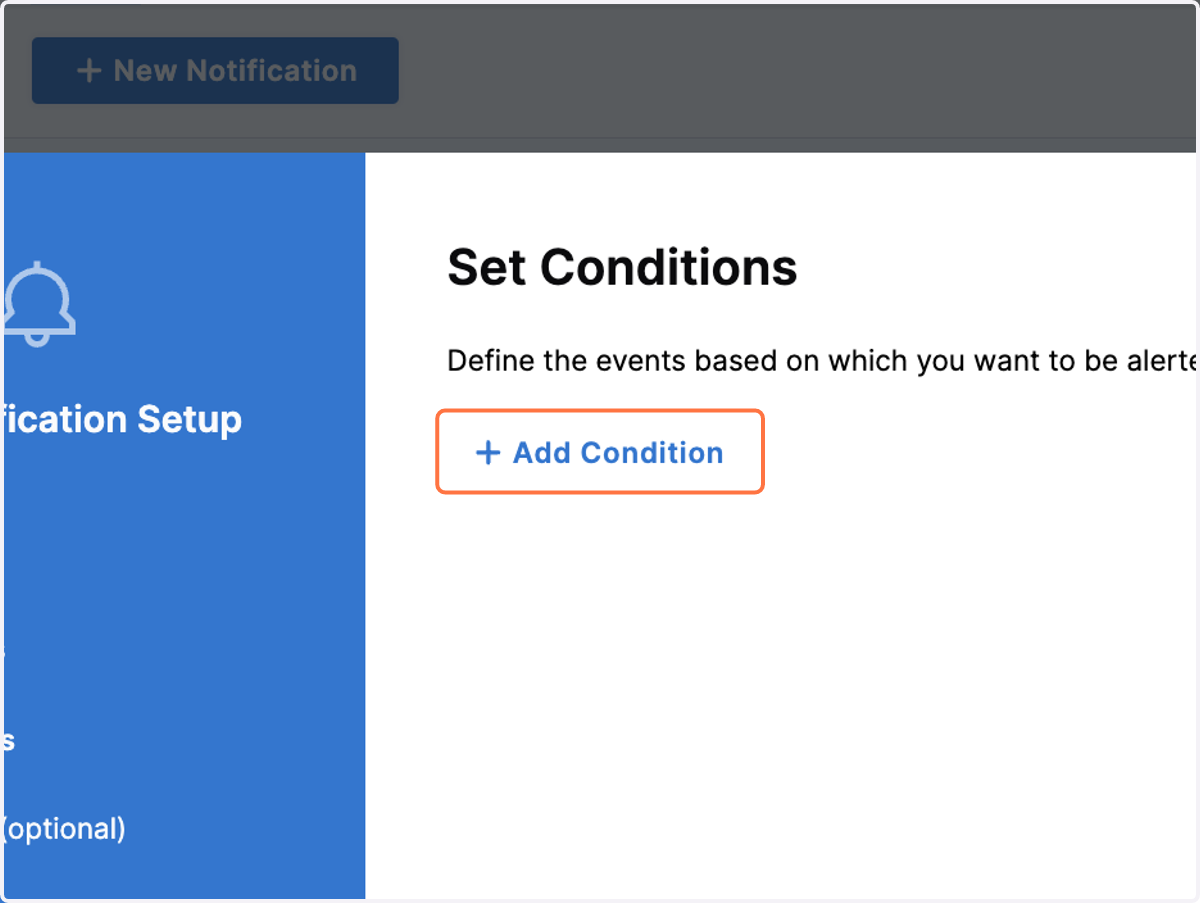
25. Click on Add Condition
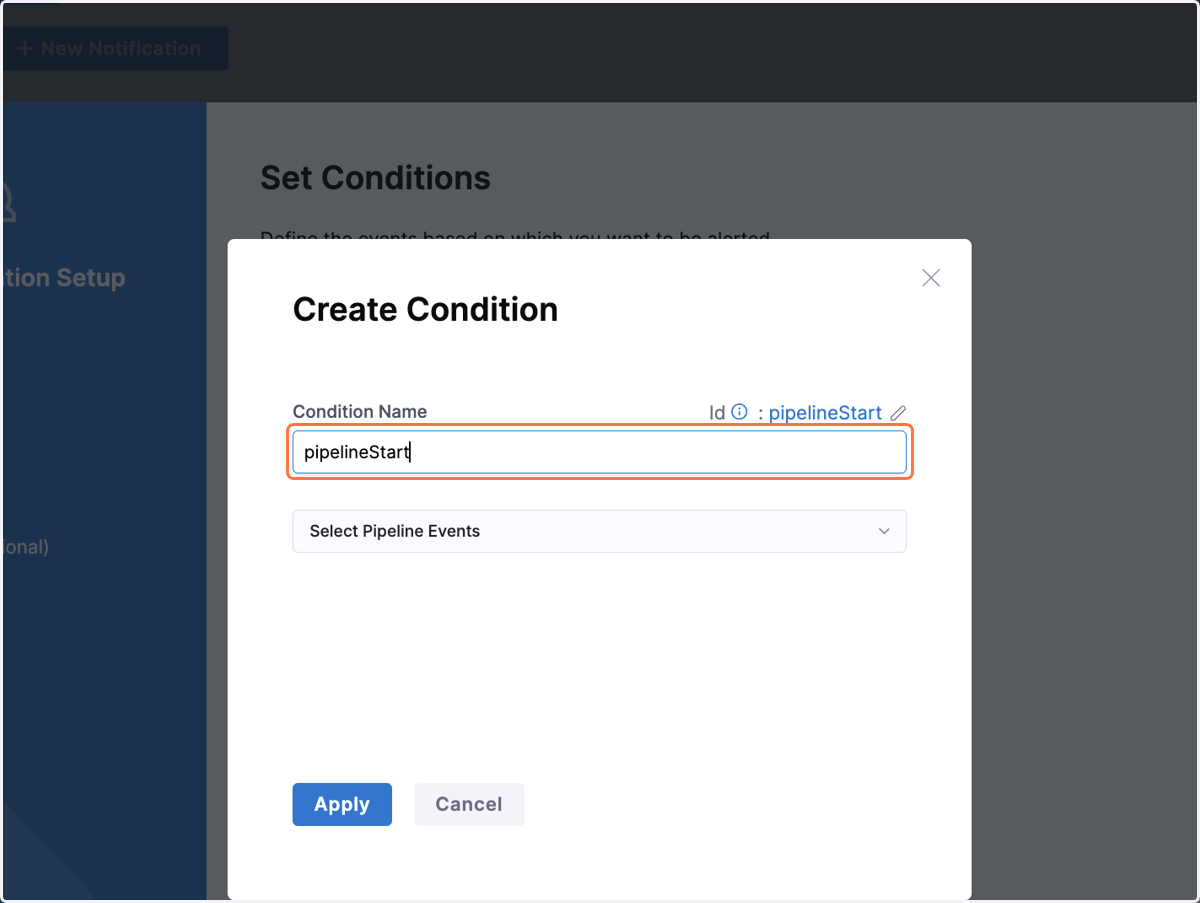
26. Provide Condition Name
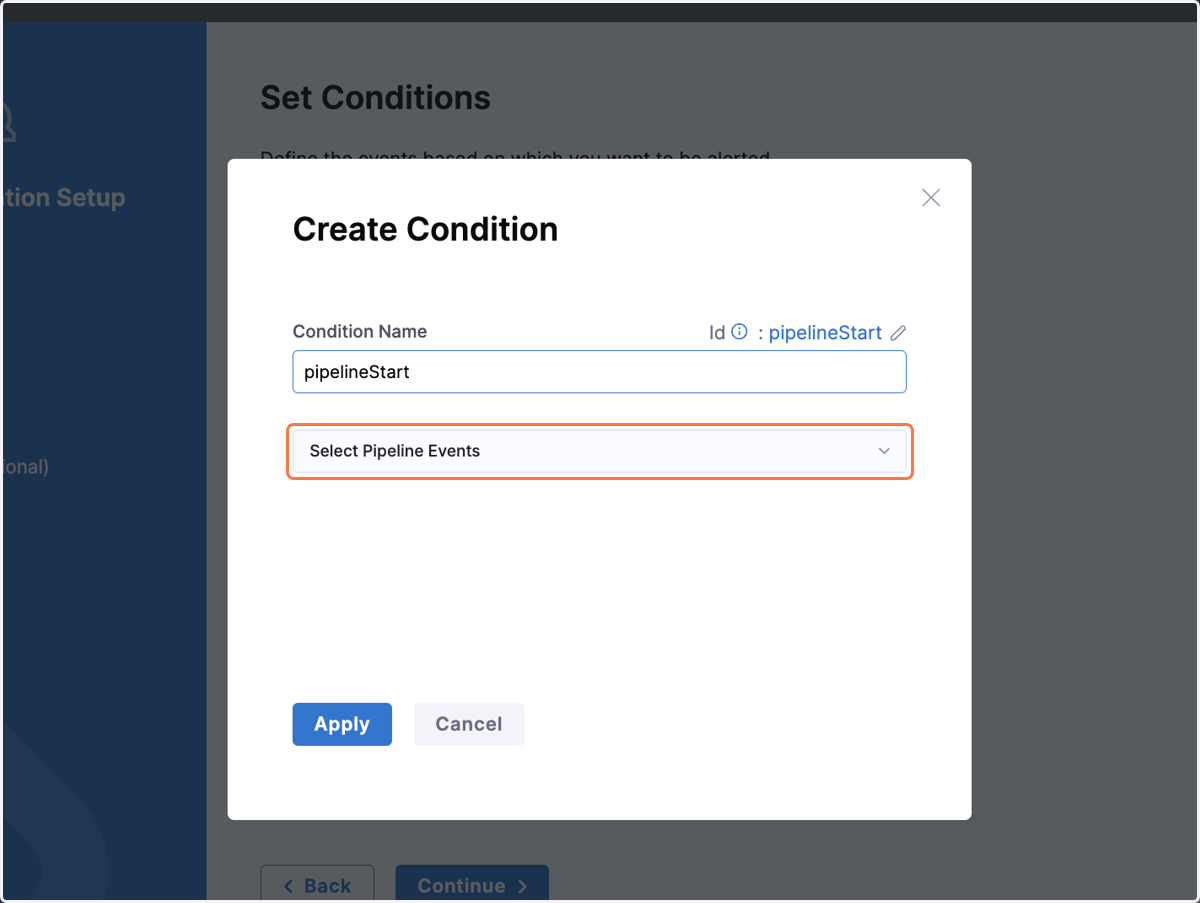
27. Click on Select Pipeline Events
28. Select Pipeline Event
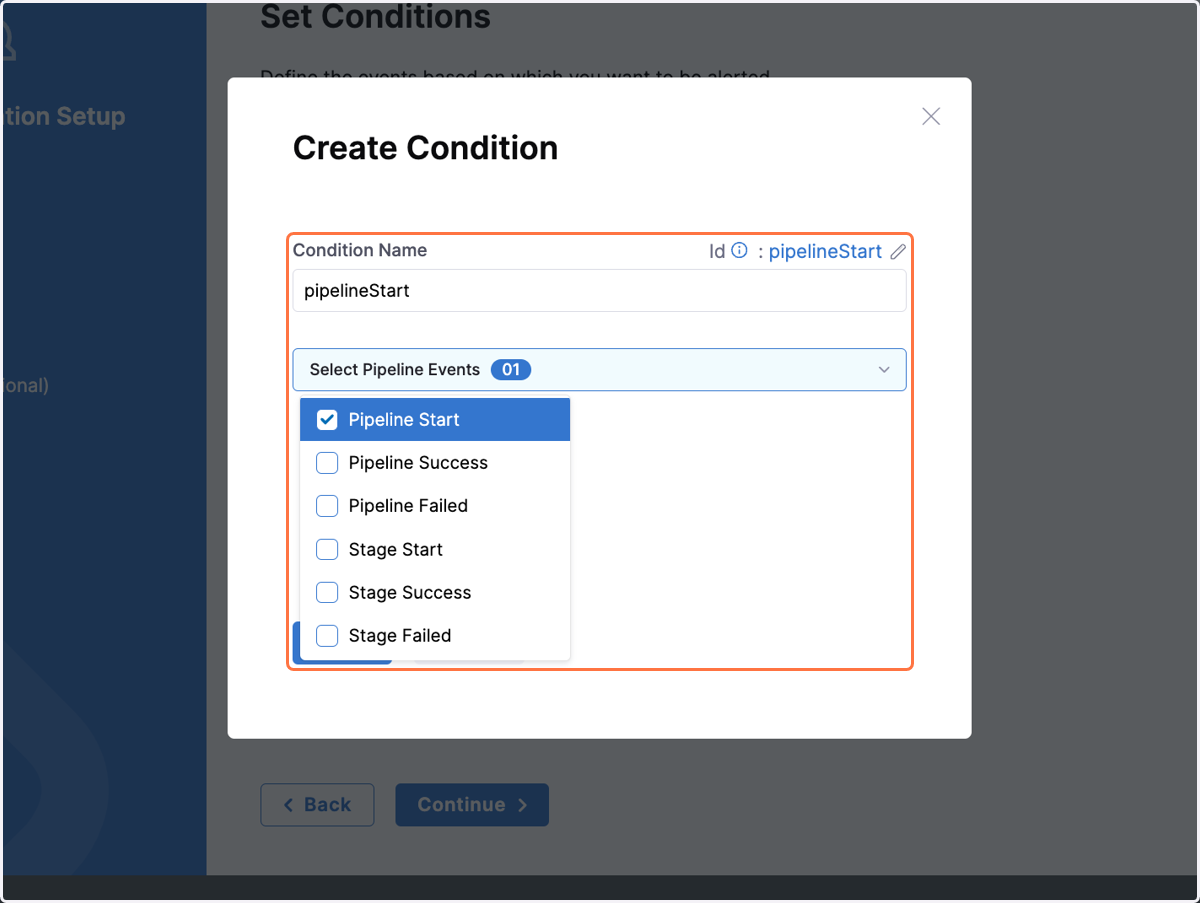
29. Click on Apply
30. Click on Continue
31. Click on Select Template
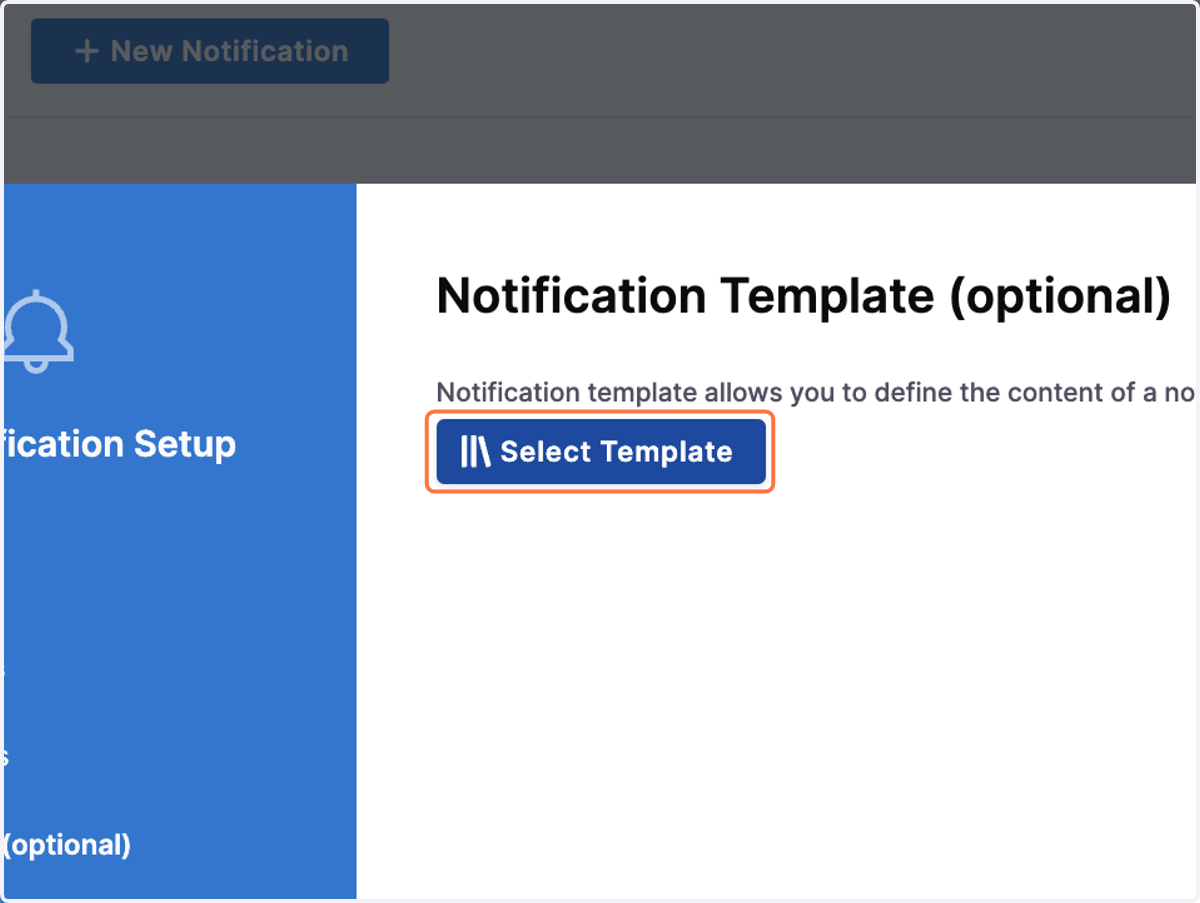
32. Select Notification Template
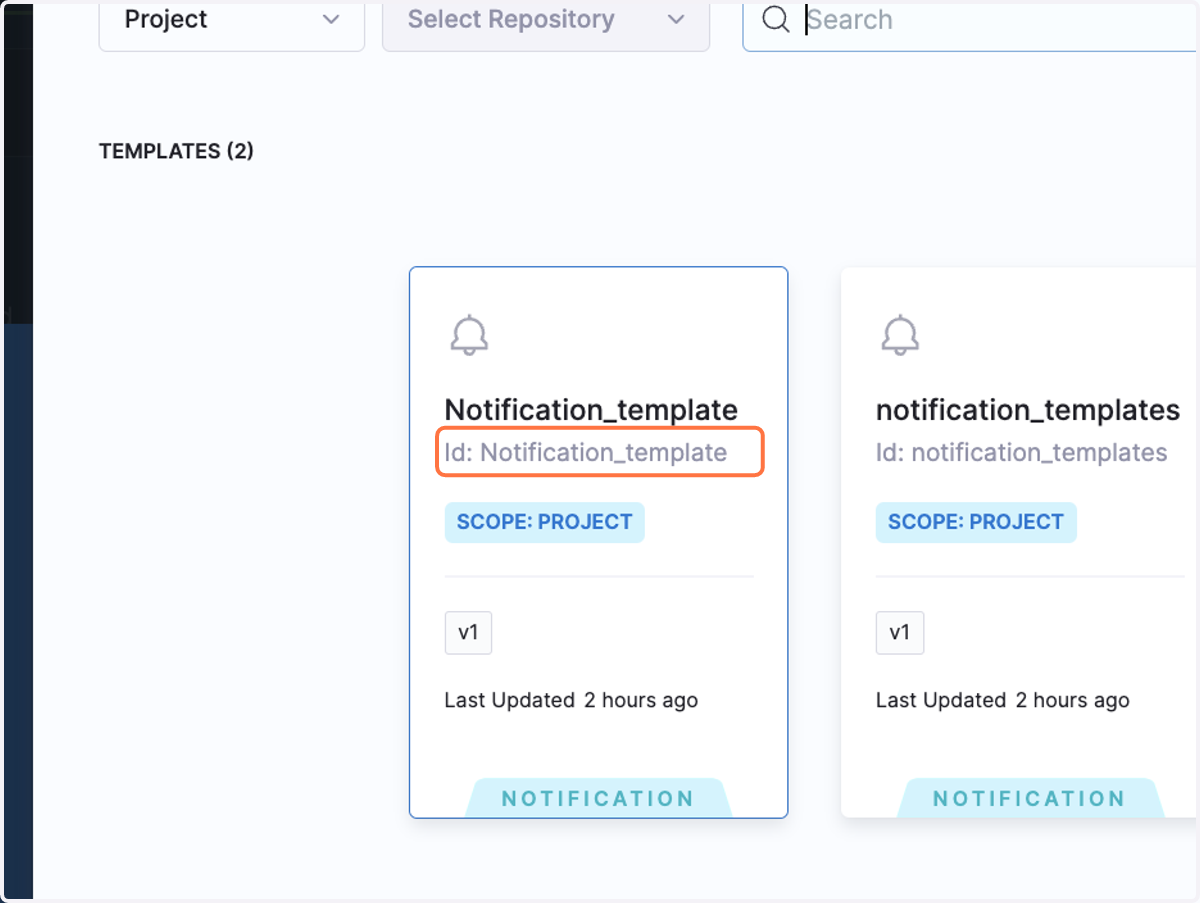
33. Click on Use Template
34. Click on Continue
35. Click on Select Channels
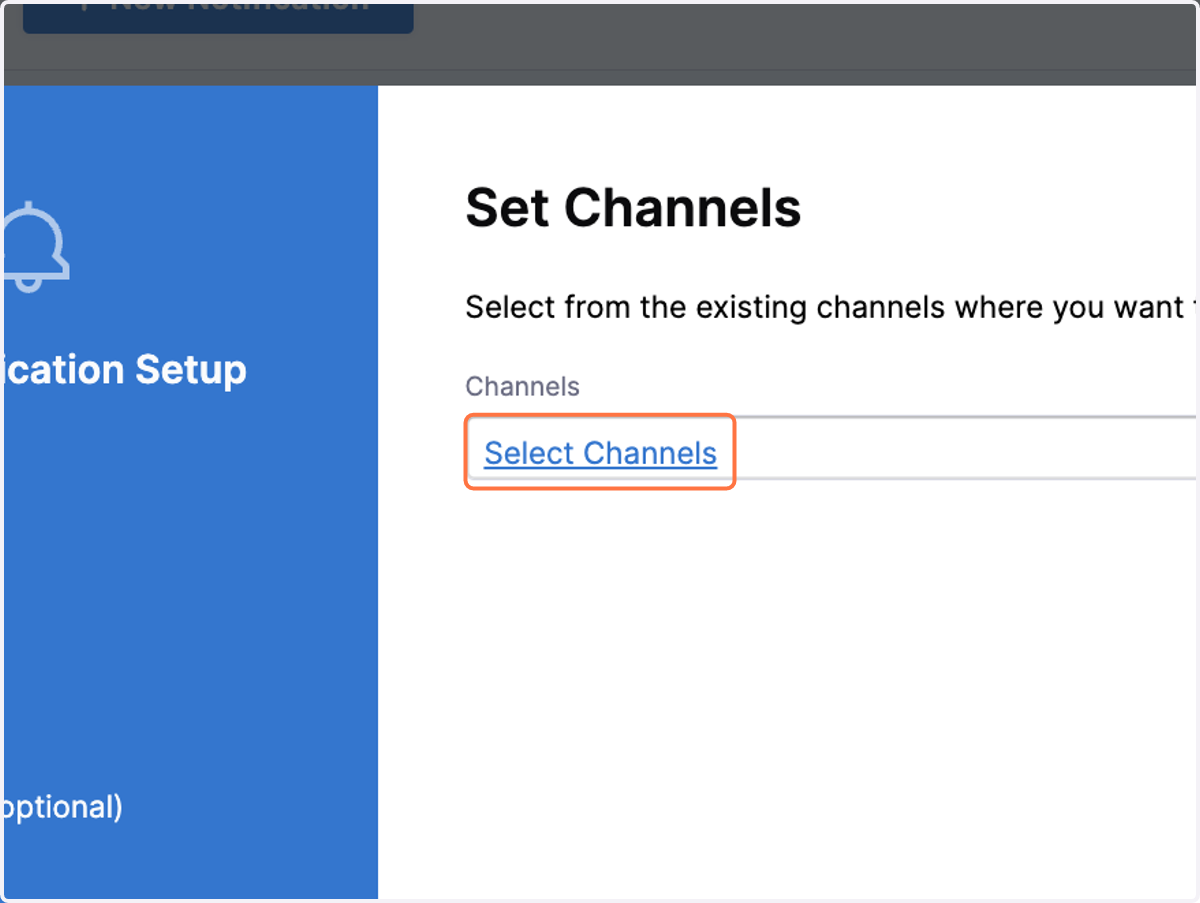
36. Click on Select from the existing channels where you want to be alerted
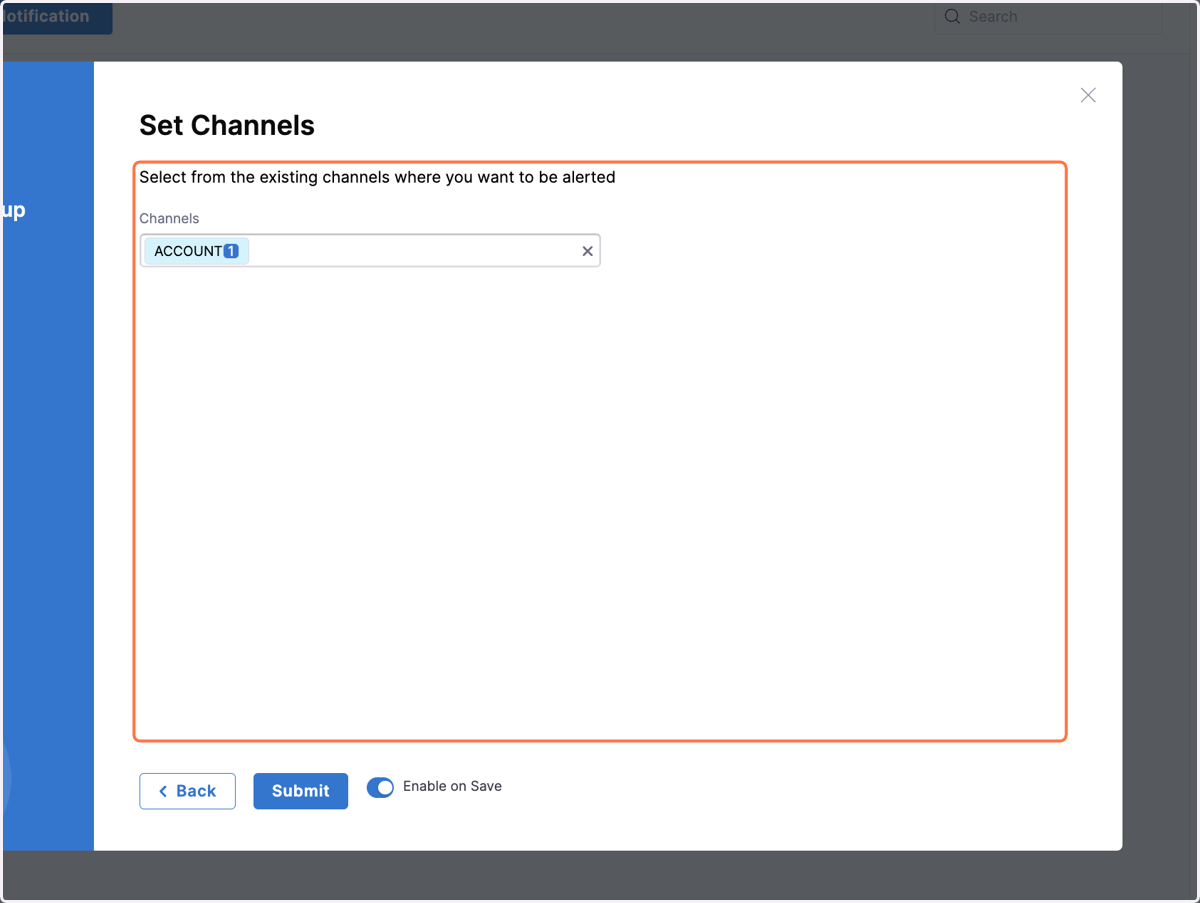
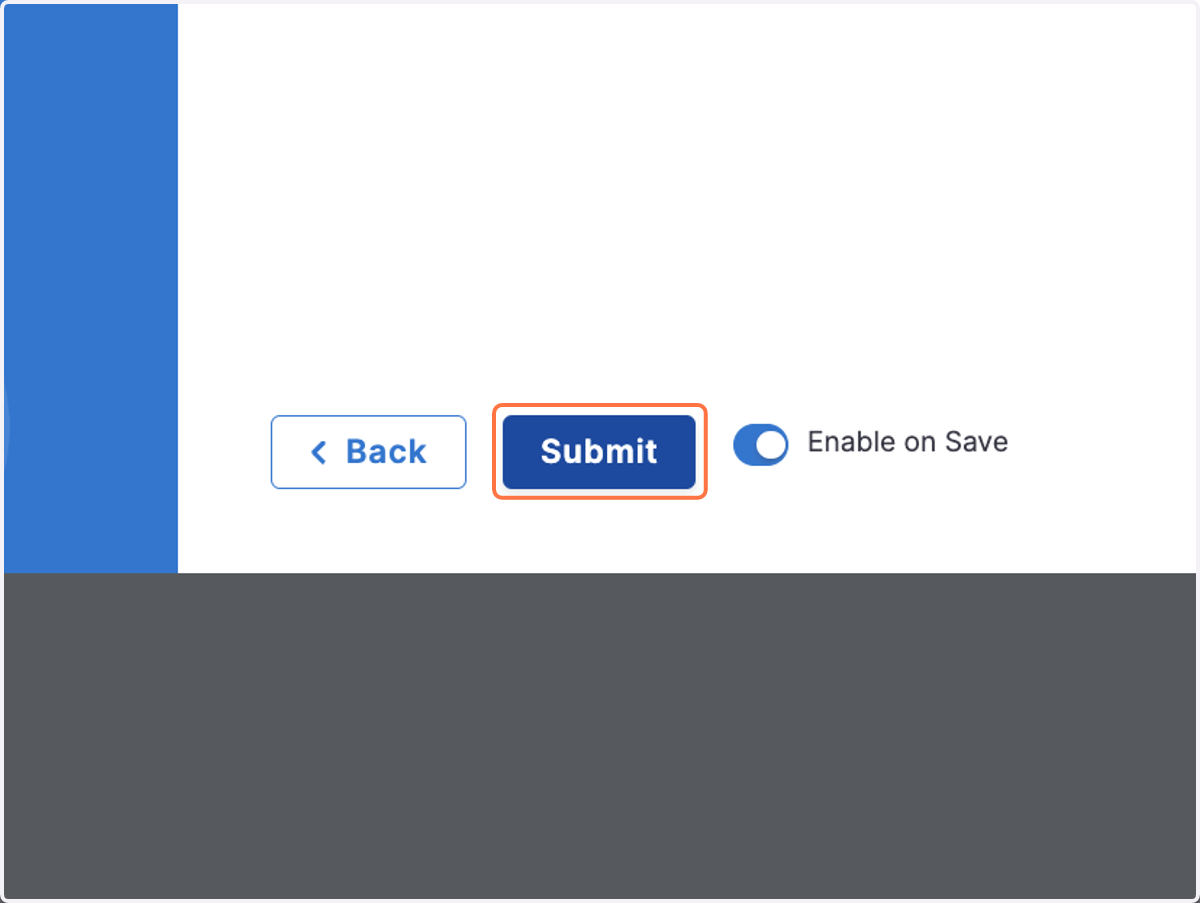
37. Click on Submit
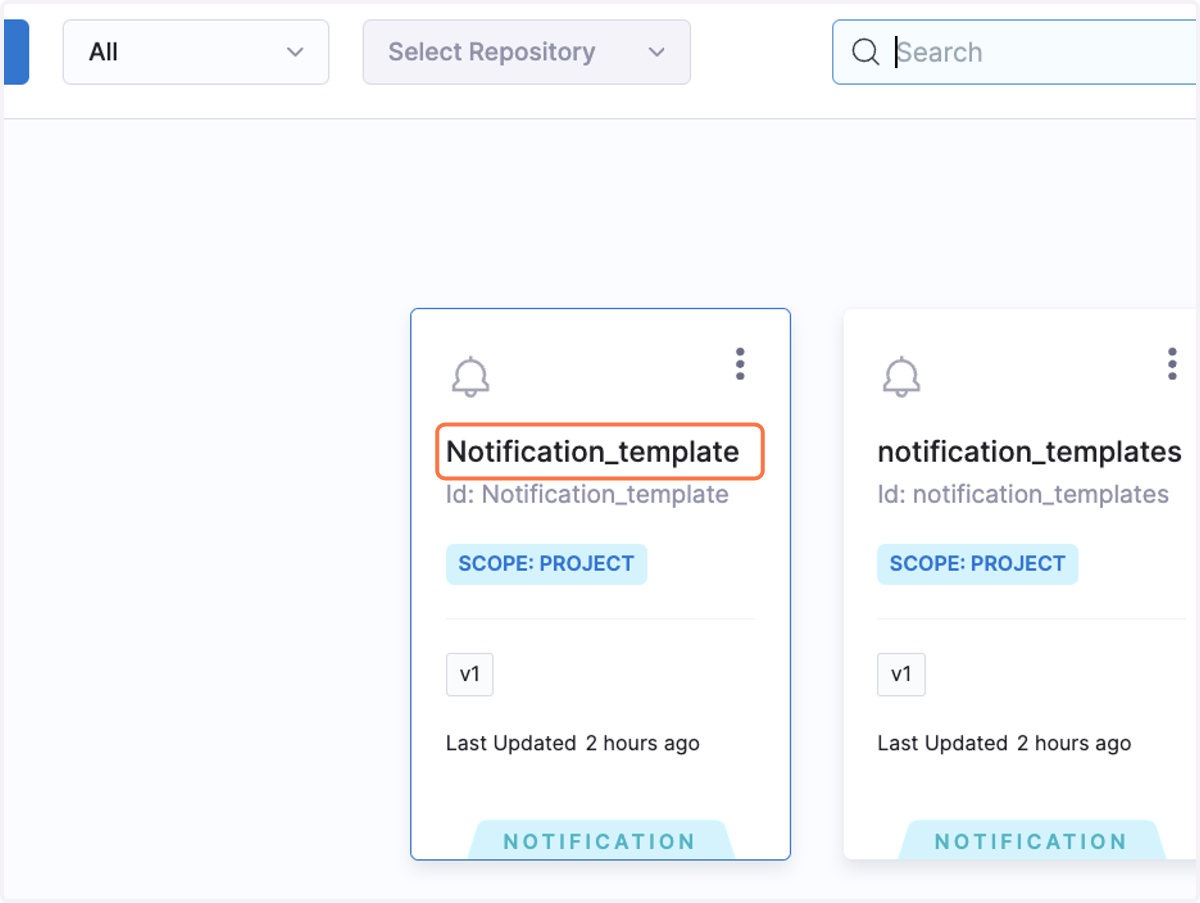
38. Select your notification Template
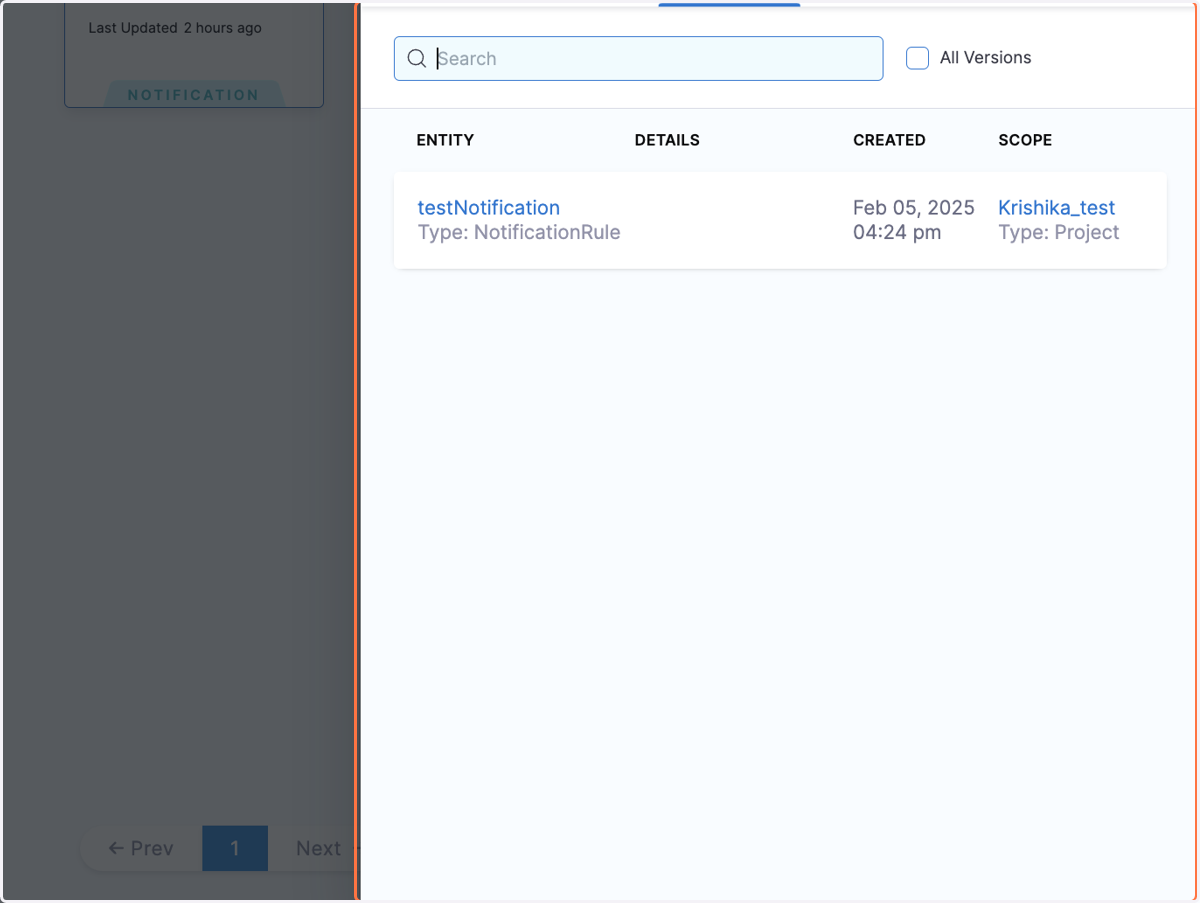
39. You can also view Referenced By in your Notification Template to see notification rule it is attached to.
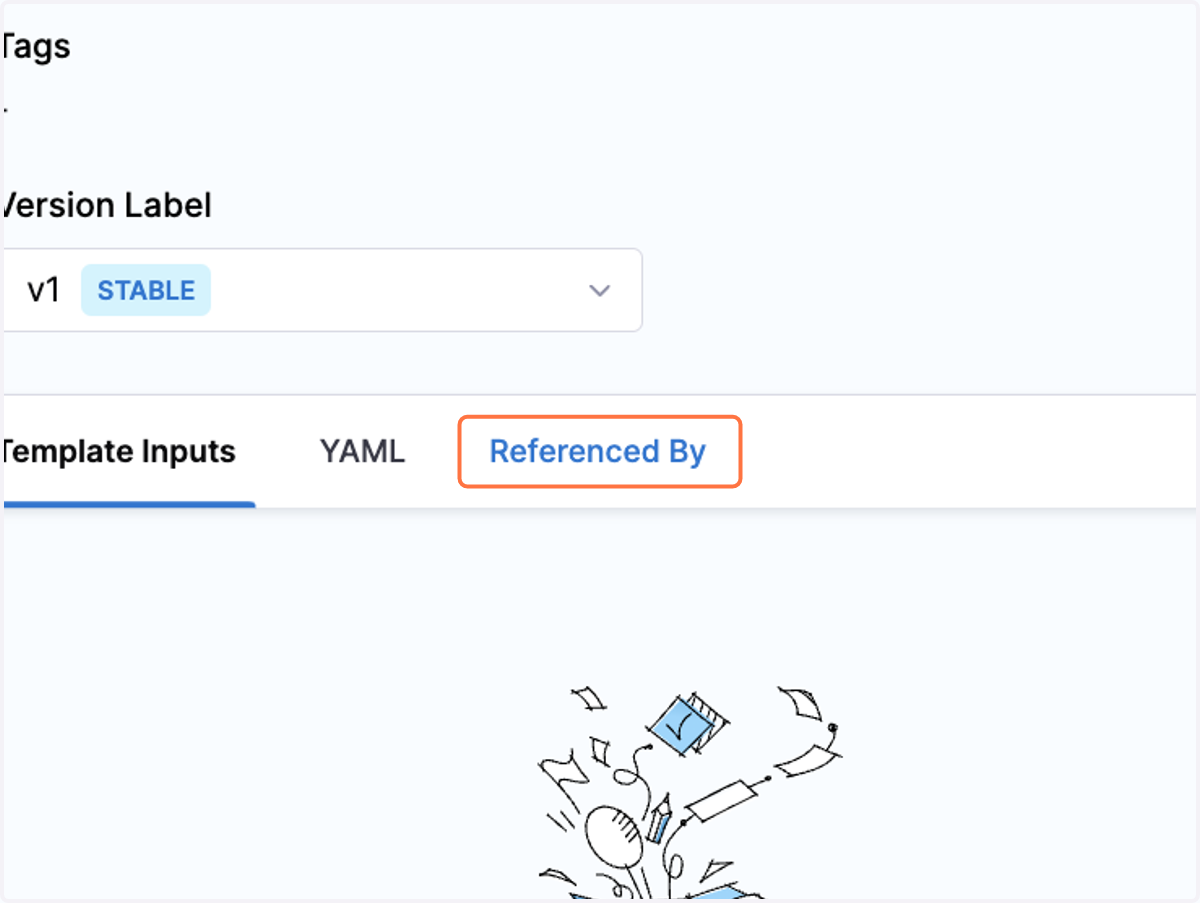
40. Your notification template is referenced by notification rule