Add/import bank transactions manually

Finmo | My Organization

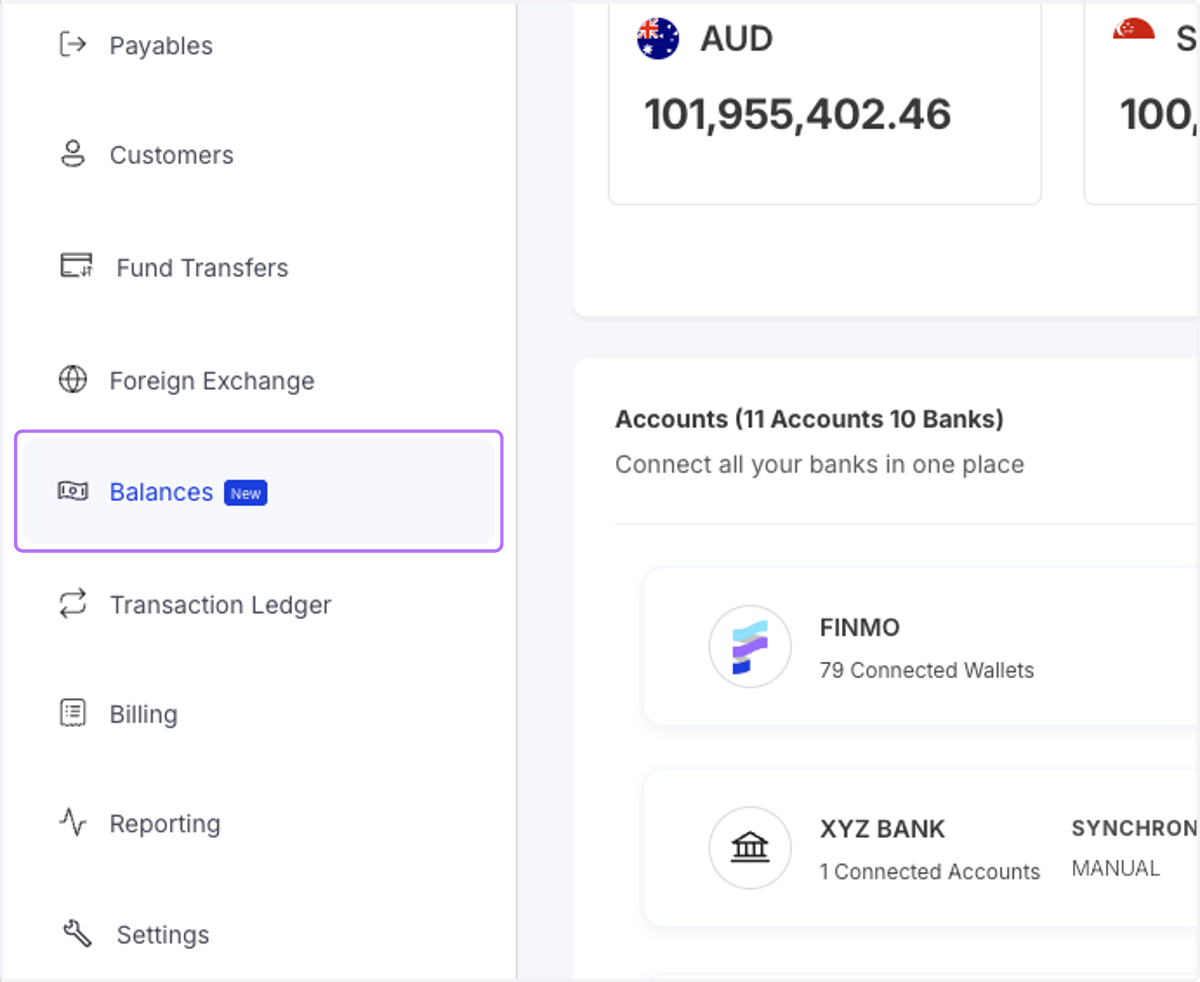
  1. 1. Go to Balances module

    Go to Balances module
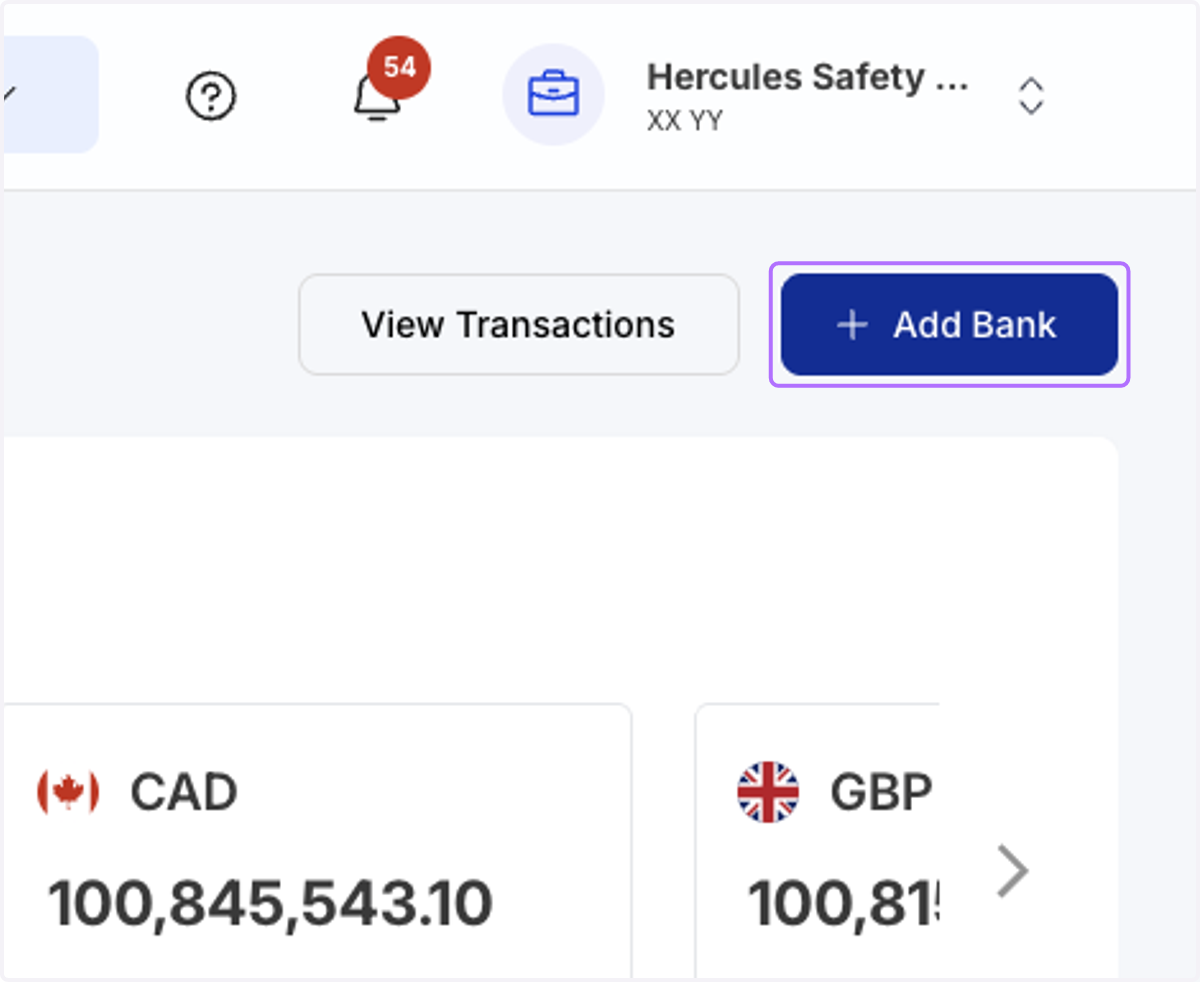
  2. 2. Click on "Add Bank"

    Click on "Add Bank"
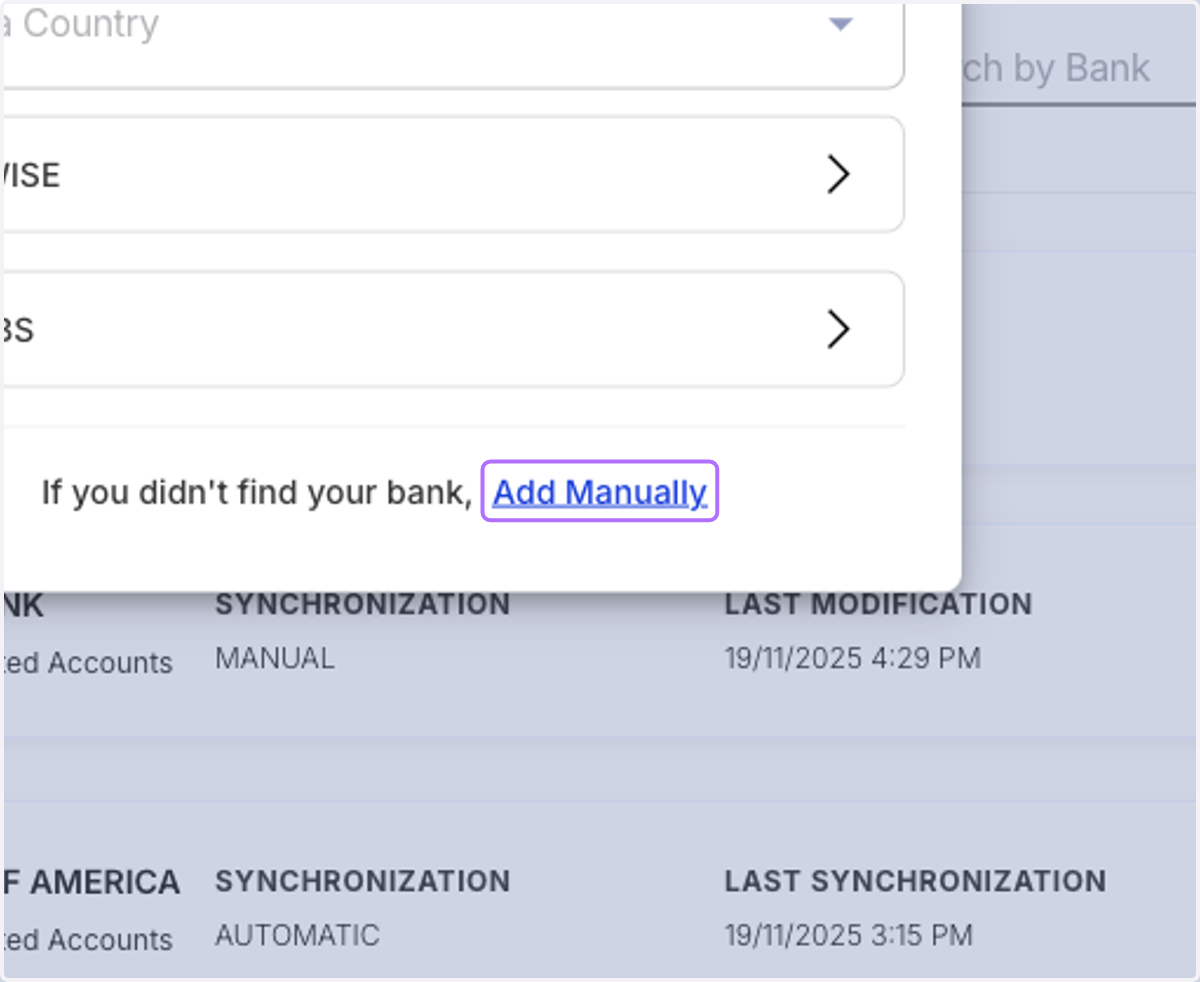
  3. 3. Select "Add Manually"

    Select "Add Manually"
  4. 4. Either upload a PDF statement or fill in details manually
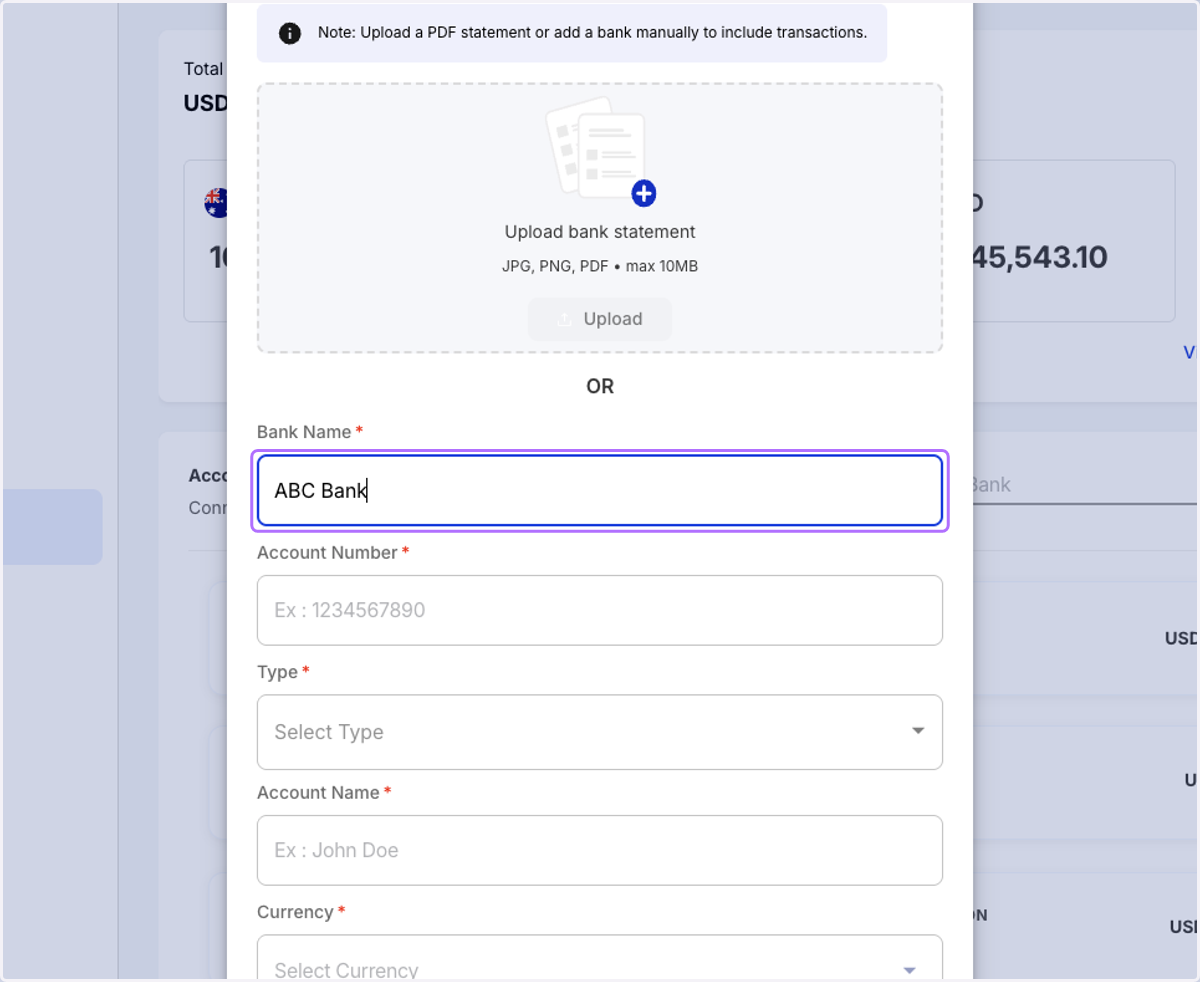
    Either upload a PDF statement or fill in details manually
  5. 5. Once all details are entered, hit "Confirm"
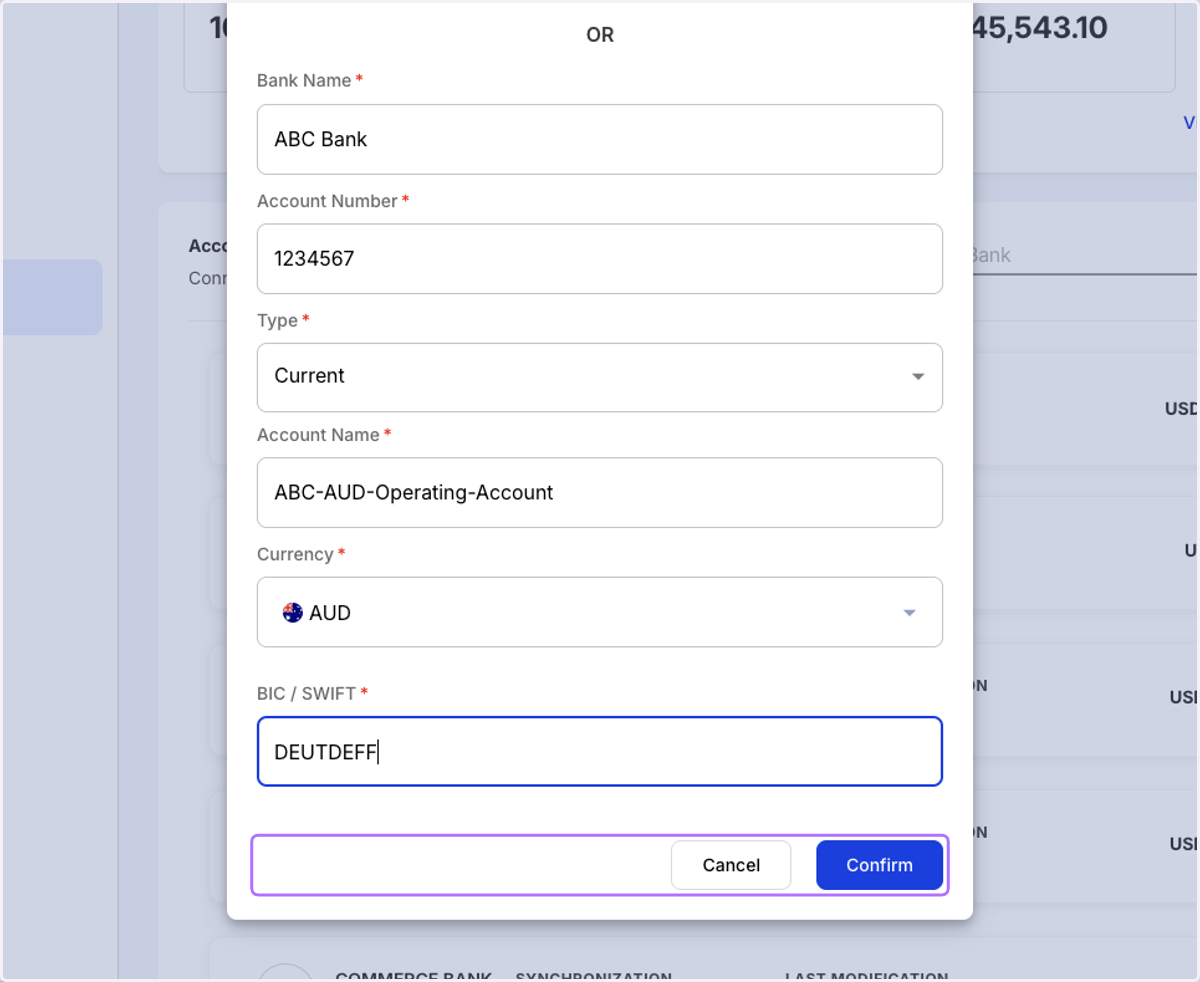
    Once all details are entered, hit "Confirm"
  6. 6. The bank will start appearing. Click on it to show the account(s) added.
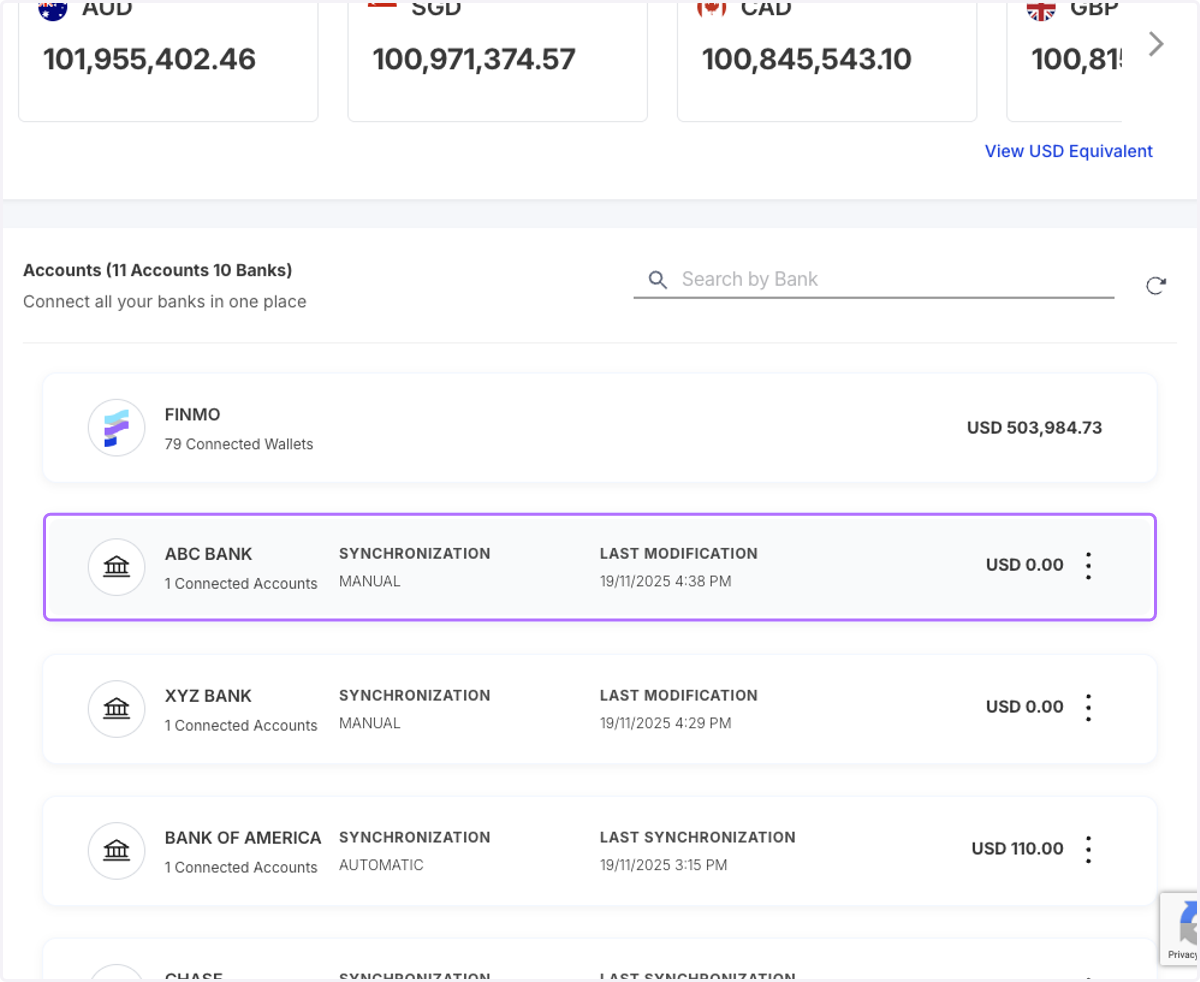
    The bank will start appearing. Click on it to show the account(s) added.
  7. 7. Click on the account for which you wish to add transactions manually
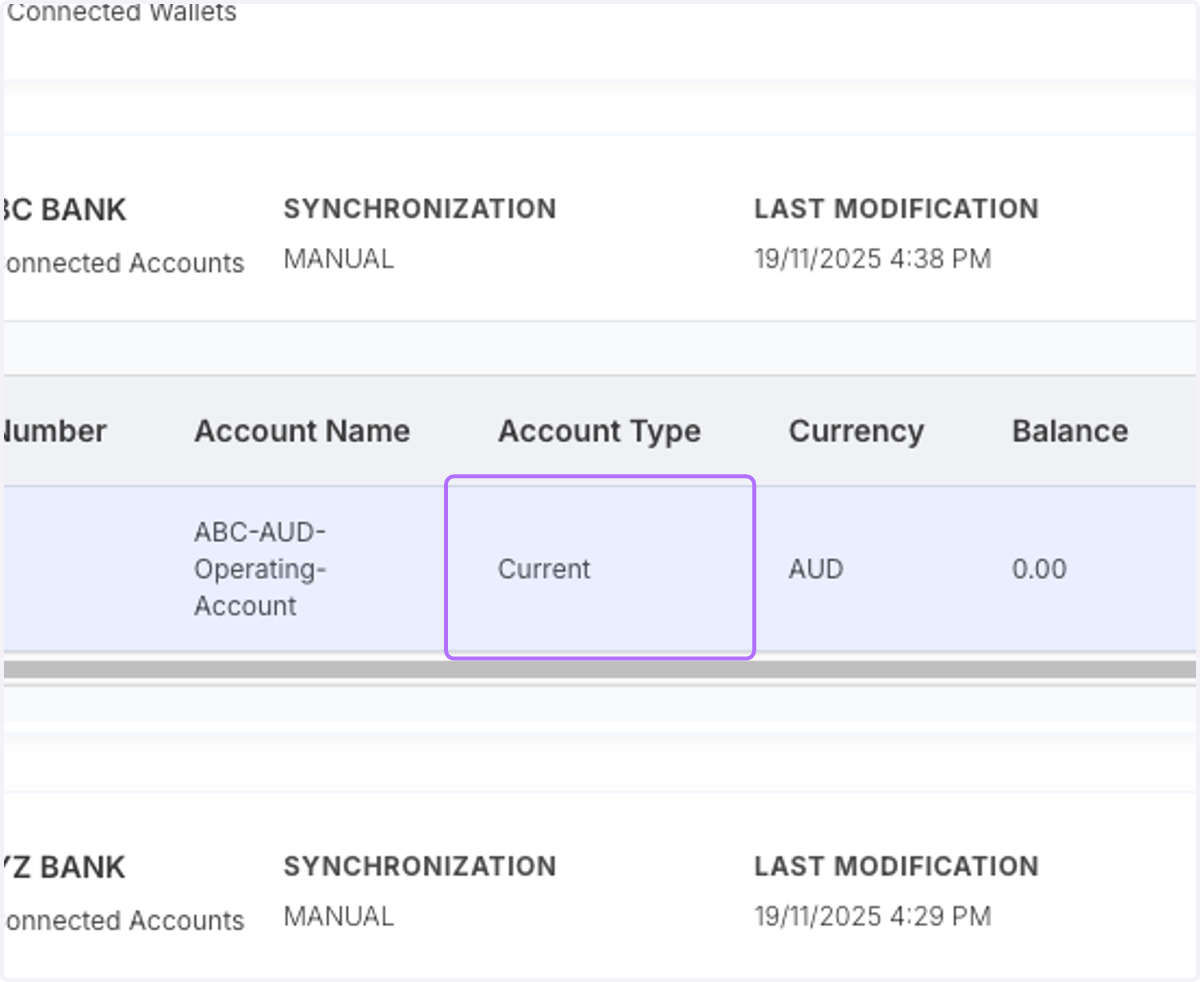
    Click on the account for which you wish to add transactions manually
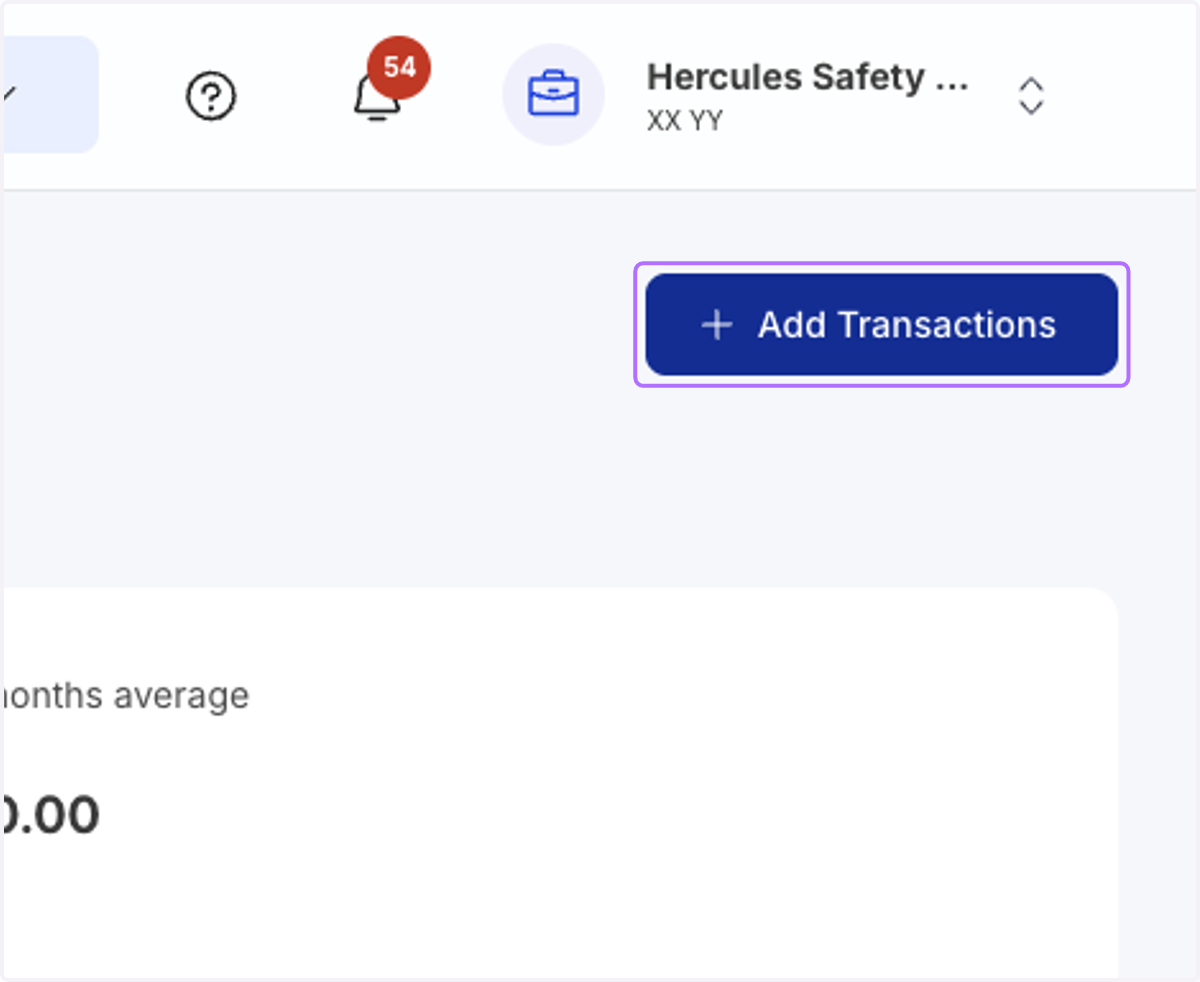
  8. 8. Click on "Add Transactions"

    Click on "Add Transactions"
  9. 9. Select the details pertaining to the account you wish to add transactions
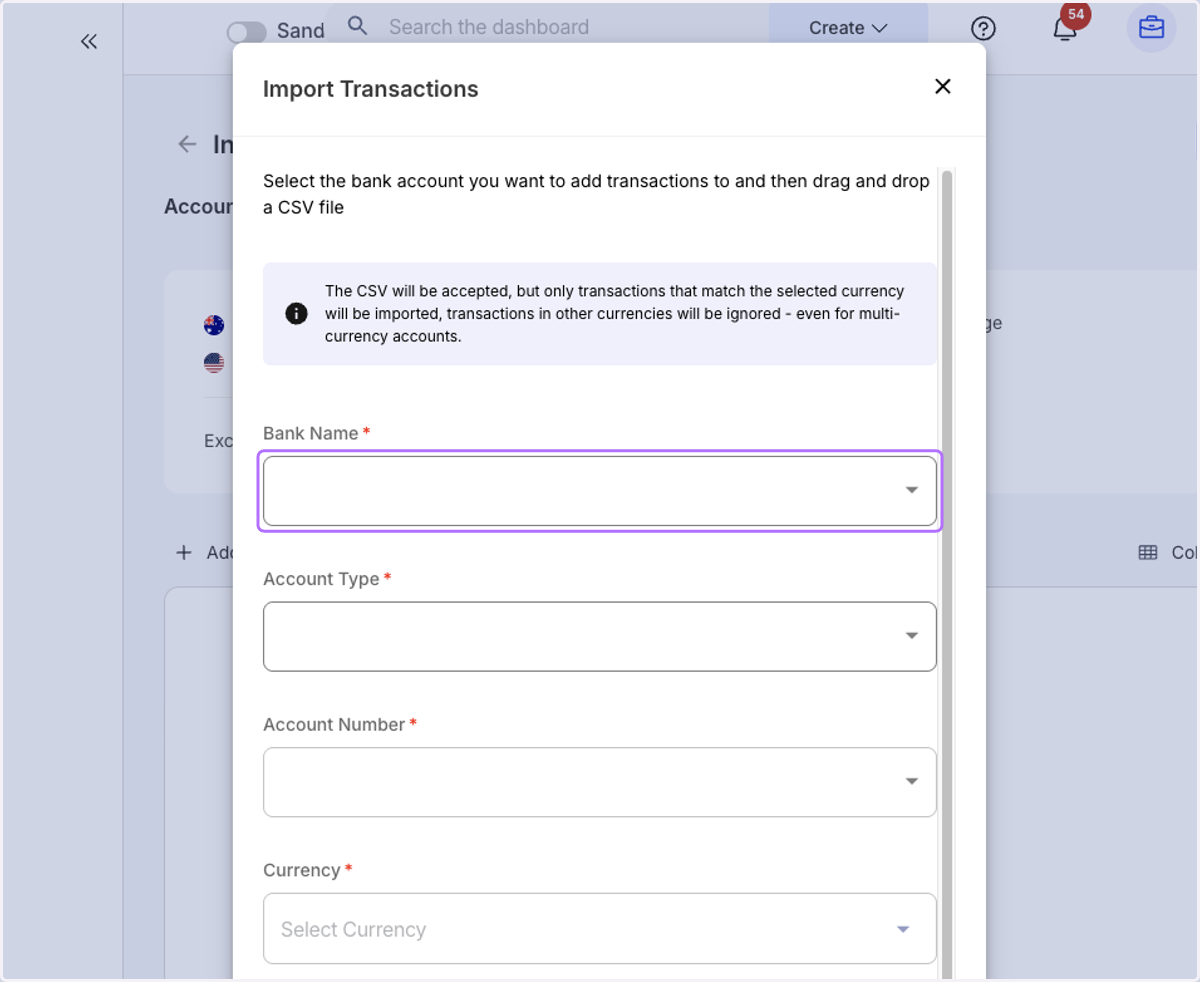
    Select the details pertaining to the account you wish to add transactions
  10. 10. Upload the bank-statement (can be in any format specified)
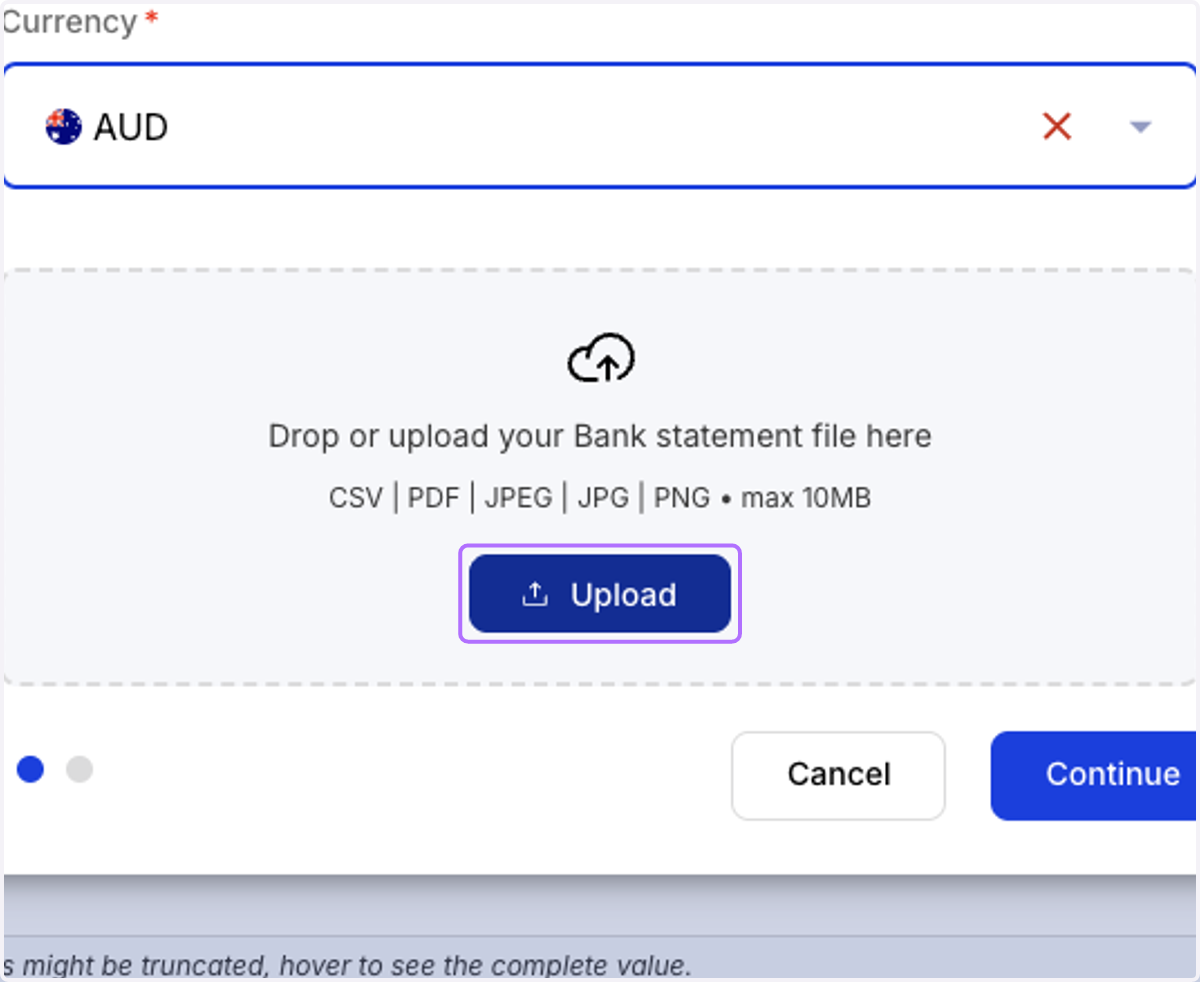
    Upload the bank-statement (can be in any format specified)
  11. 11. If a .csv is uploaded, you will need to map the columns from the file to these fields.
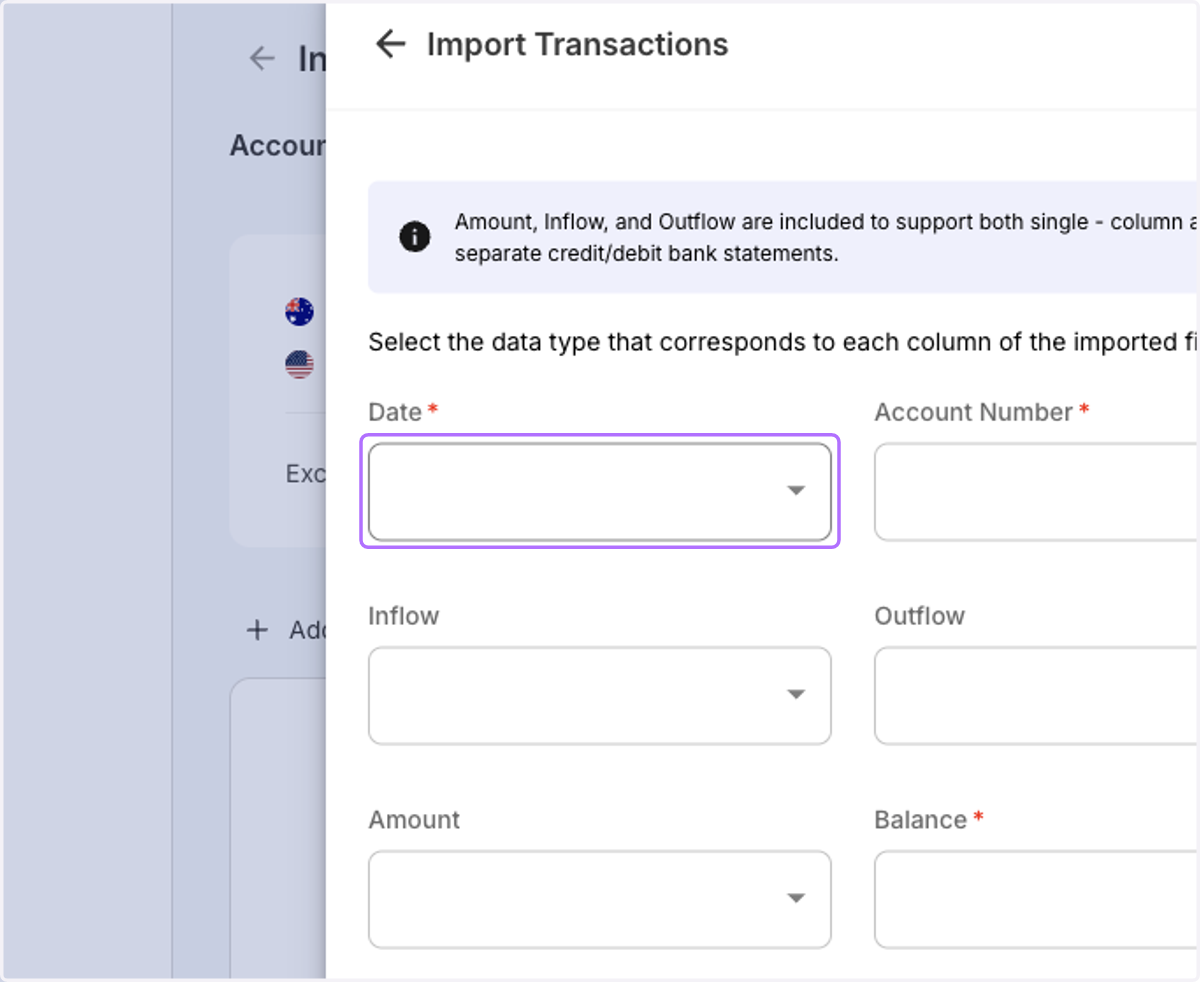
    If a .csv is uploaded, you will need to map the columns from the file to these fields.
  12. 12. Once the data-fields have been mapped to the file columns, hit "Confirm"
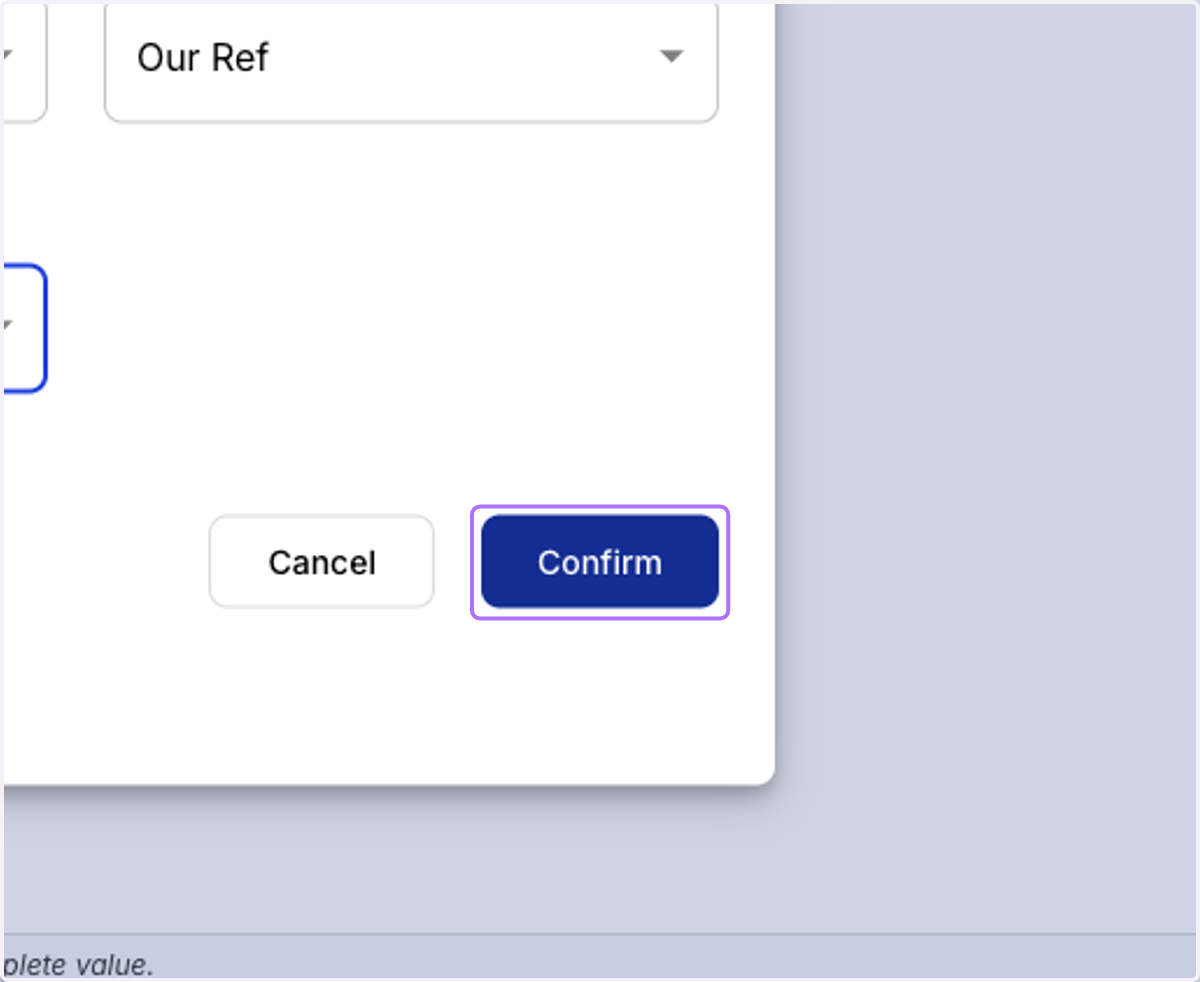
    Once the data-fields have been mapped to the file columns, hit "Confirm"
  13. 13. The transactions added manually will start appearing
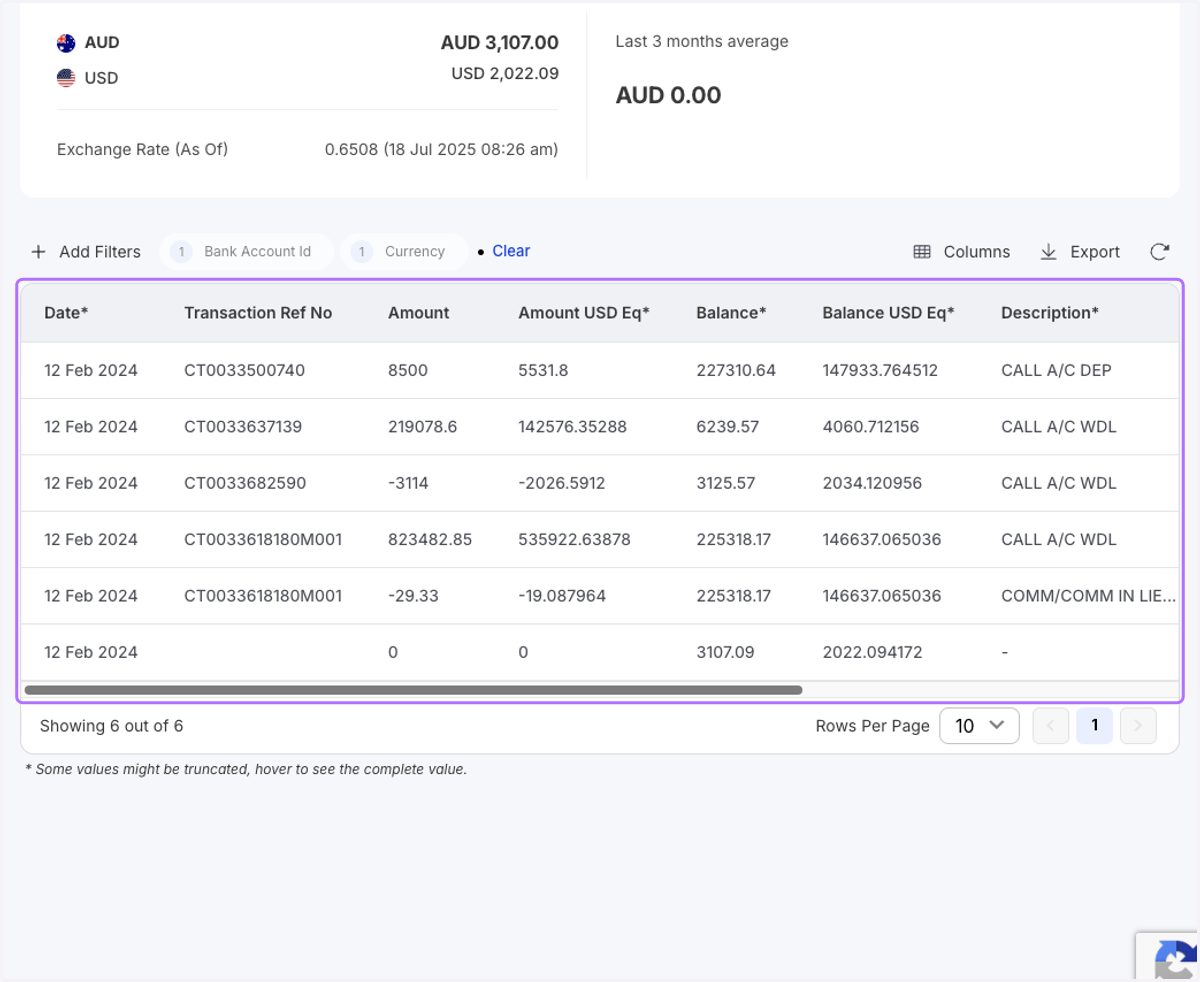
    The transactions added manually will start appearing