G. Adding Required Lehigh Faculty Search Request Forms
Interfolio
1. On this page, you will need to insert details about your search AND add the required Lehigh forms as noted on the Provost's Hiring Page under "Faculty Search: Request Forms"
The "Position ID" is the specific search number given by the Provost Office for your search.
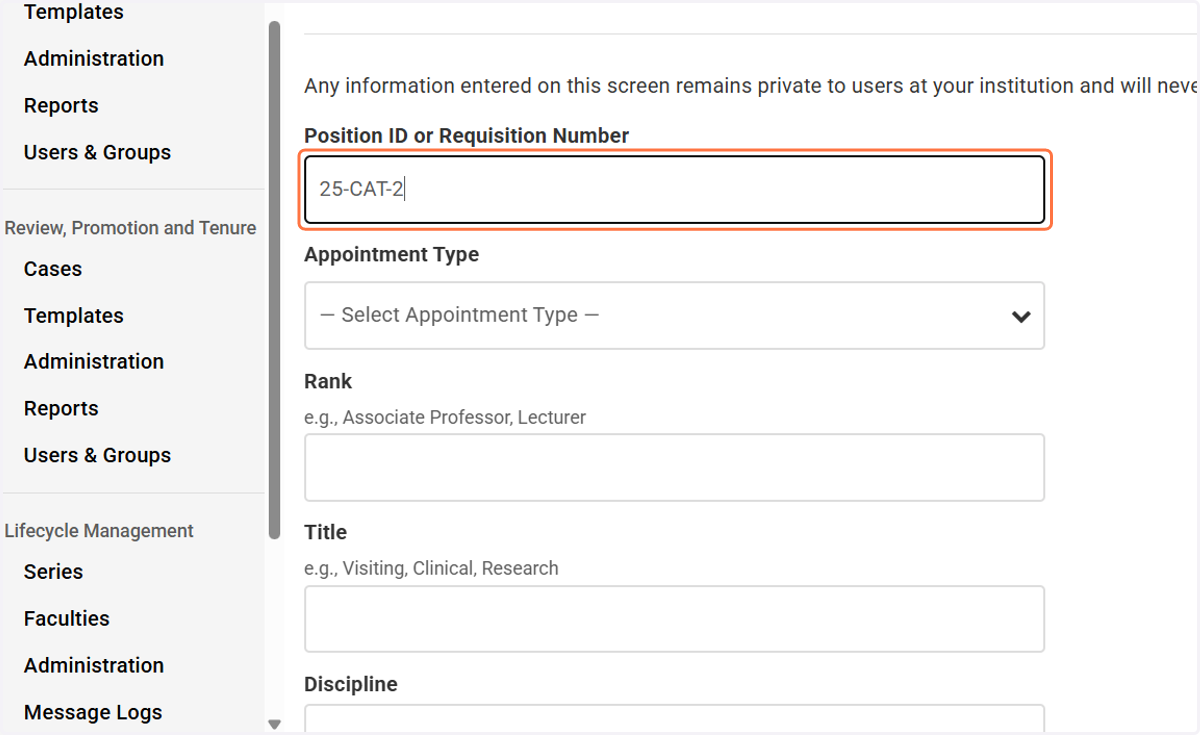
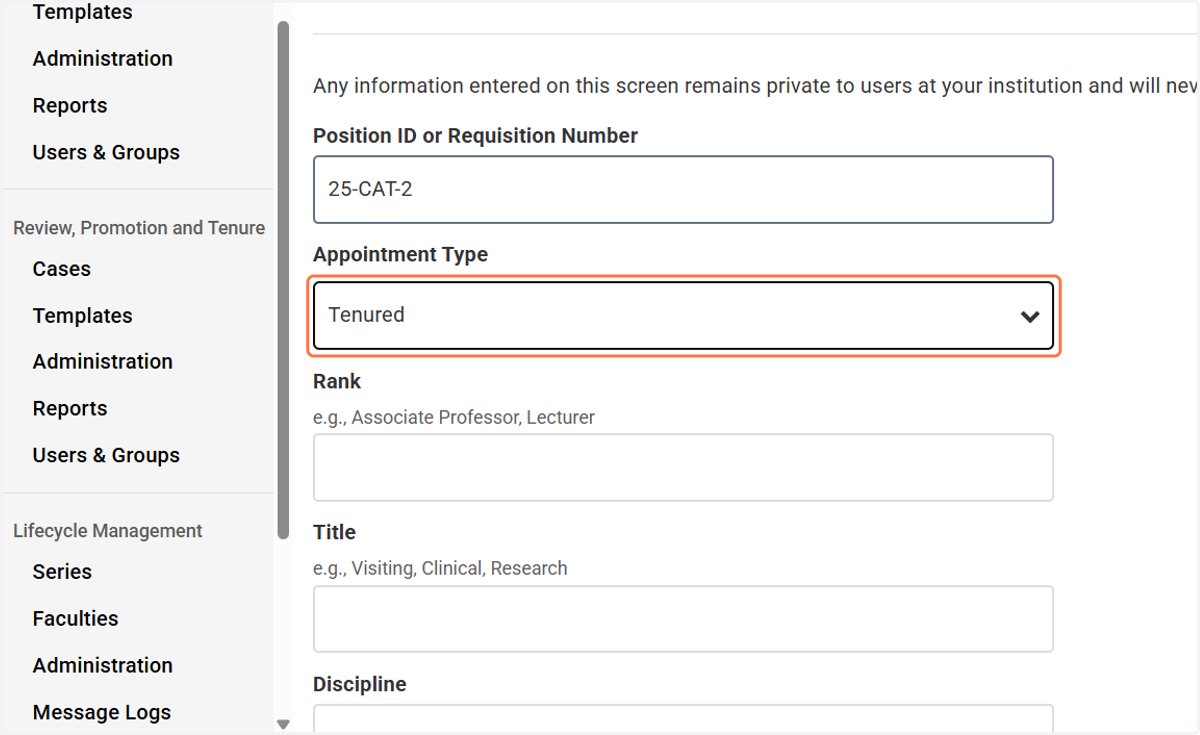
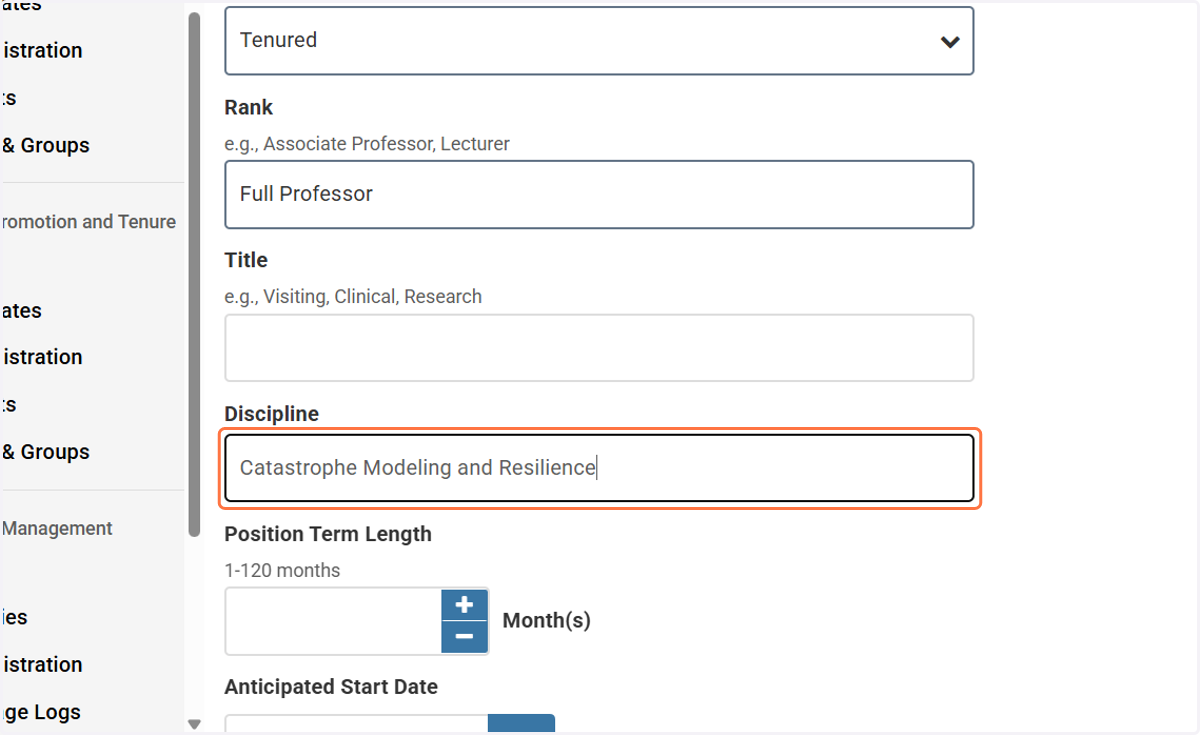
2. Select the appropriate "Appointment Type" based on your search. (example) I chose "Tenured" since I am searching for a Full Professor.
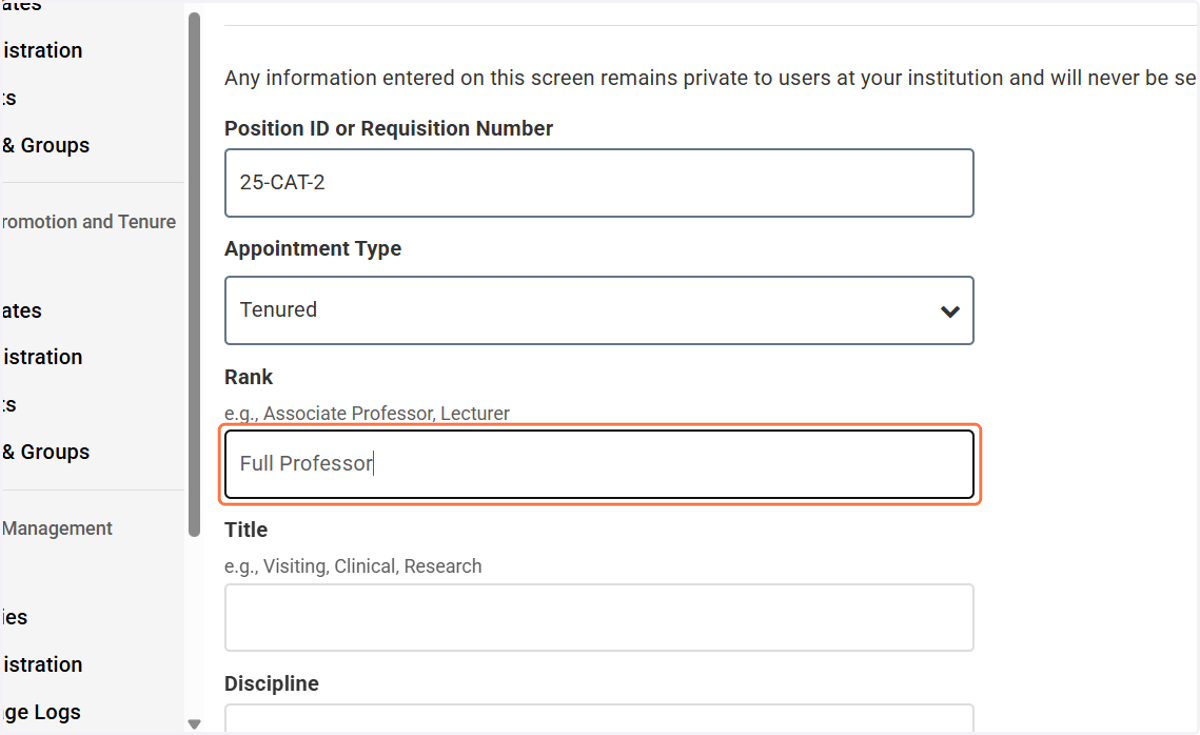
3. Type in the faculty rank to which you are searching. (example) I typed in "Full Professor"
4. Type in your department or discipline for this search. (example) I typed in "Catastrophe Modeling and Resilience" You do not need to populate the "Position Term Length"
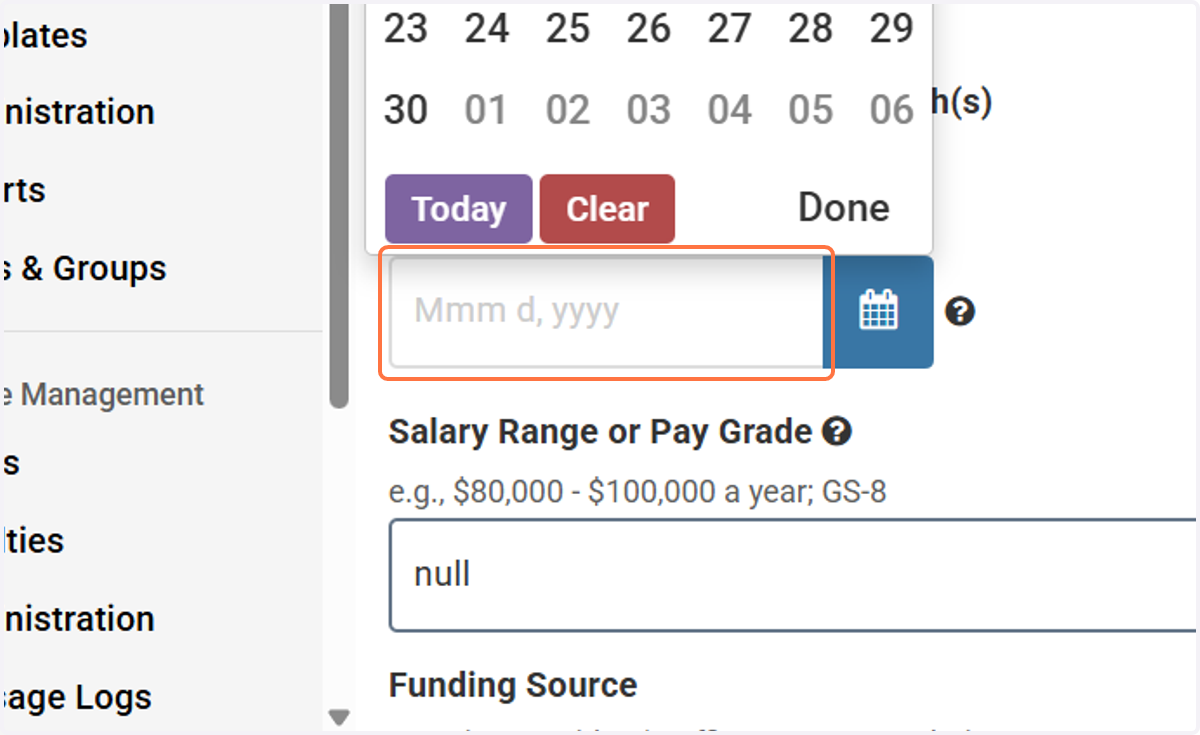
5. Choose the anticipated Start Date. You do not need to populate the salary range.
This date is usually next year's fall semester (ex. July 1, 2026)
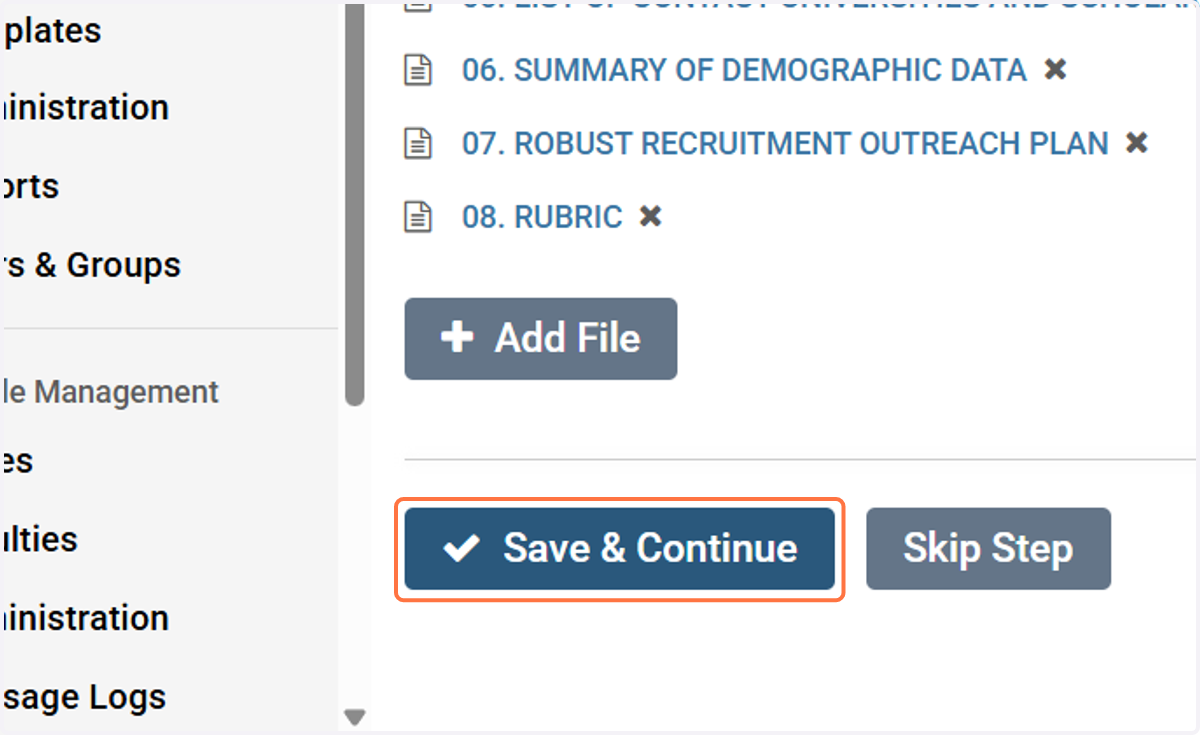
6. IMPORTANT!!! In File Attachments, please upload all required documents associated with the Faculty Employment Request Form and Permission to Advertise. Each document should be named appropriately, and added separately.
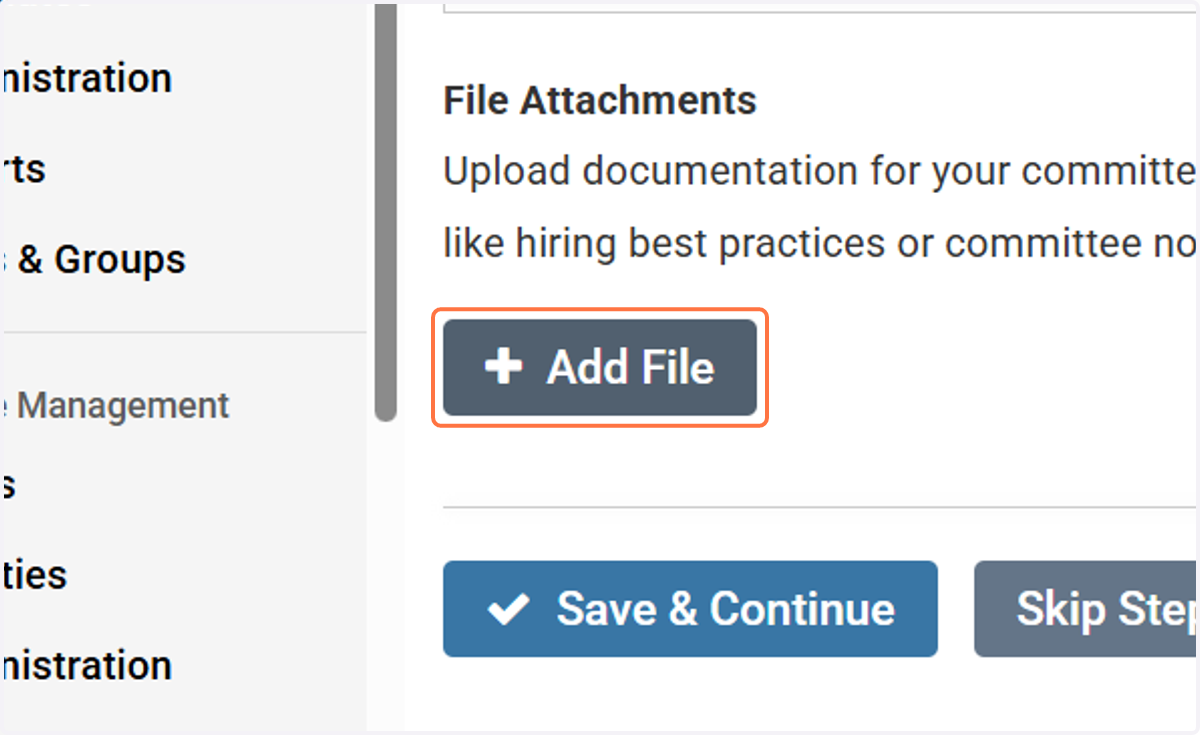
7. Click on Browse To Upload

8. Click on Add File
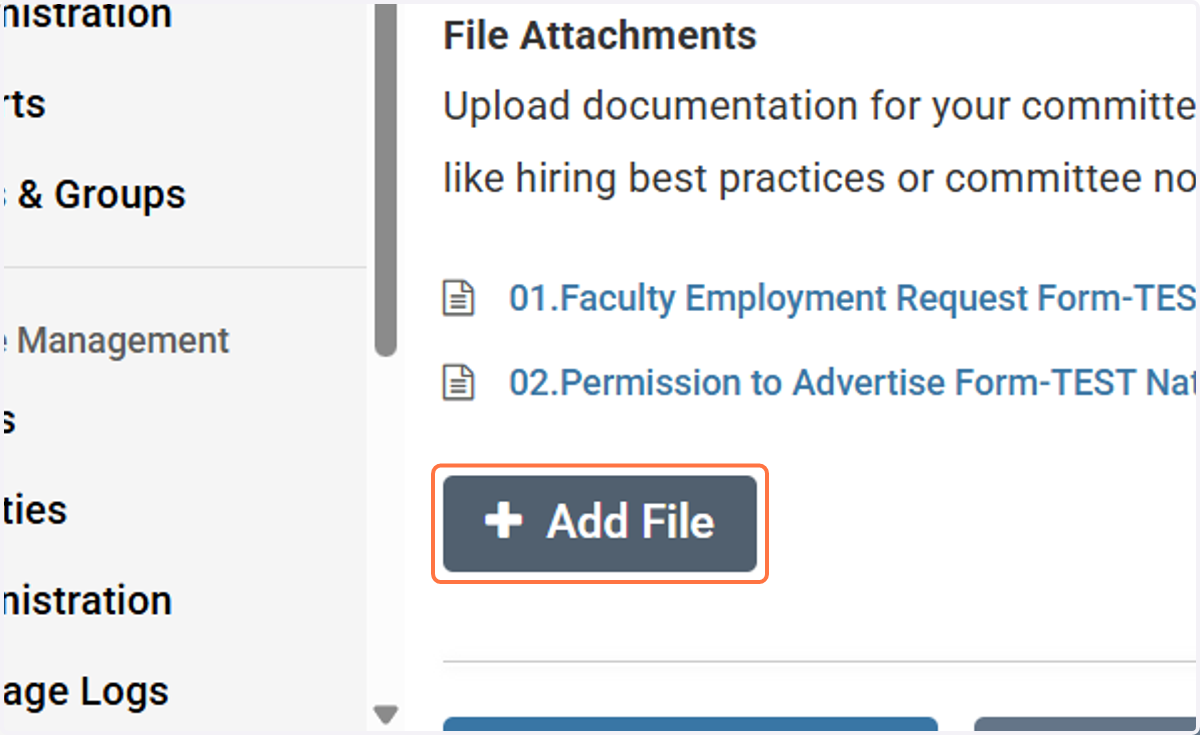
9. Your complete list of attachments should look like the image below: