Swapping Primary and Second Residents (after move-in)
*Manage services will need to be performed for the new Primary and Second residents. Before doing anything, submit a ticket to helpdesk@bvsl.net asking them to unlock the “Second Resident” rate for the apartment. Please provide the date if you are making the swap retroactive. After they unlock the rate, you can proceed through this guide. Once all steps are completed, please reply to the ticket to let the Systems Team know that the rate can be locked again.
Yardi Systems, Inc. - Yardi Voyager
Open Voyager 7 to the Business Office role and select your current primary resident profile
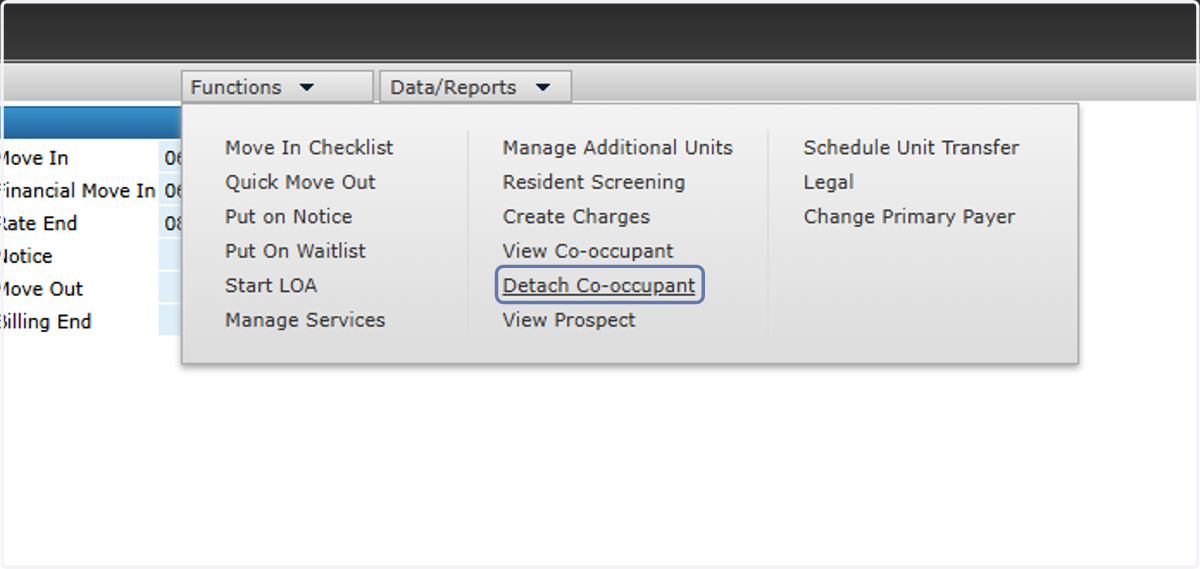
1. On the primary resident profile, click on Functions > Detach Co-occupant
This will yield a message about breaking the link between occupants and needing to move this resident to a new unit. Click Yes
2. Click on Assign Unit

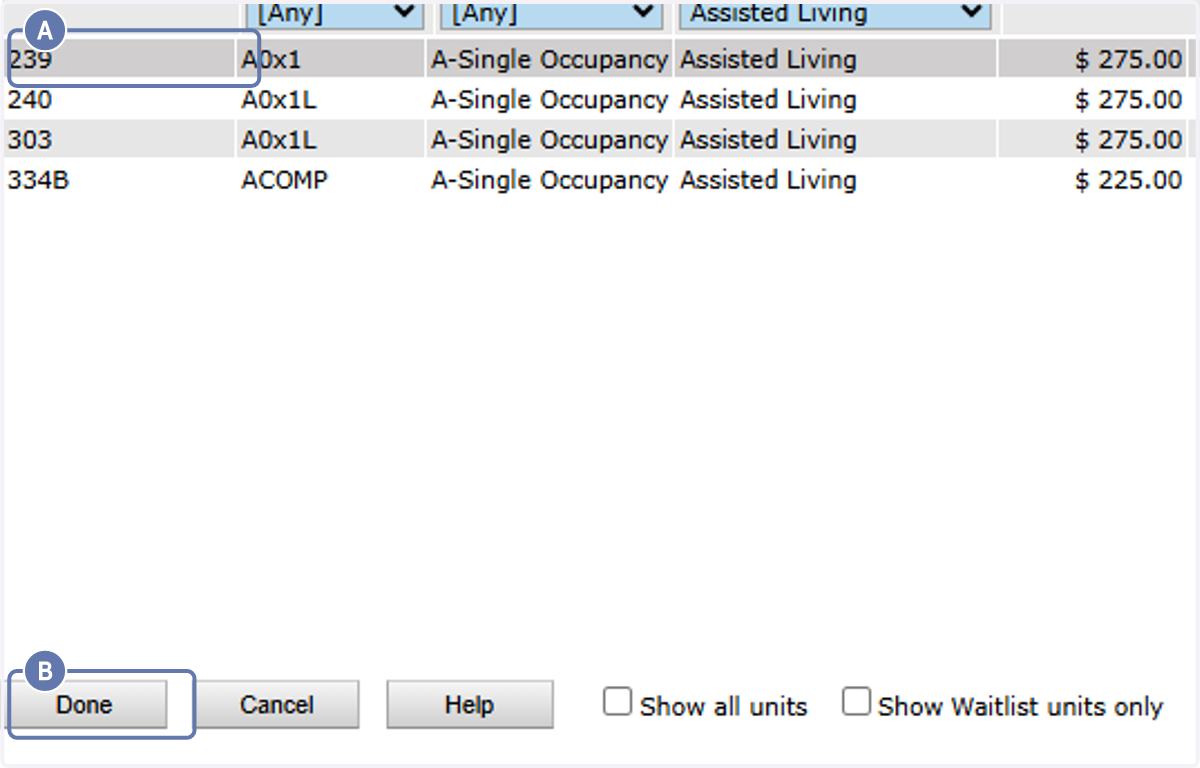
3. A. Select a new unit to temporarily move the resident into (waitlist preferred)
3. B. Click on Done
4. Advance through the rest of Manage Services. Click on Preview

5. Click on Save

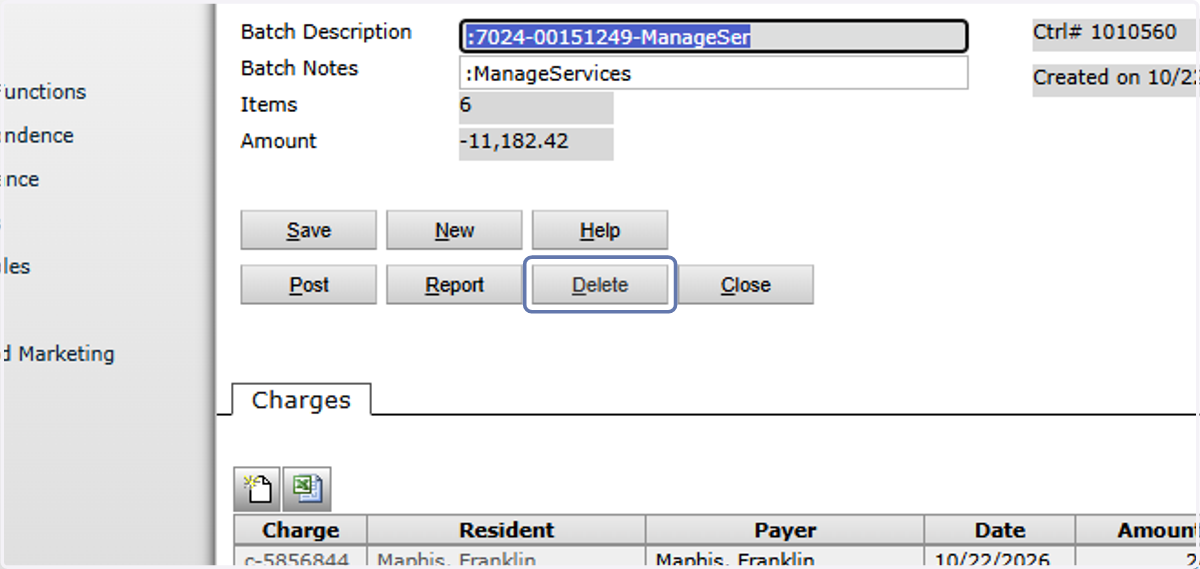
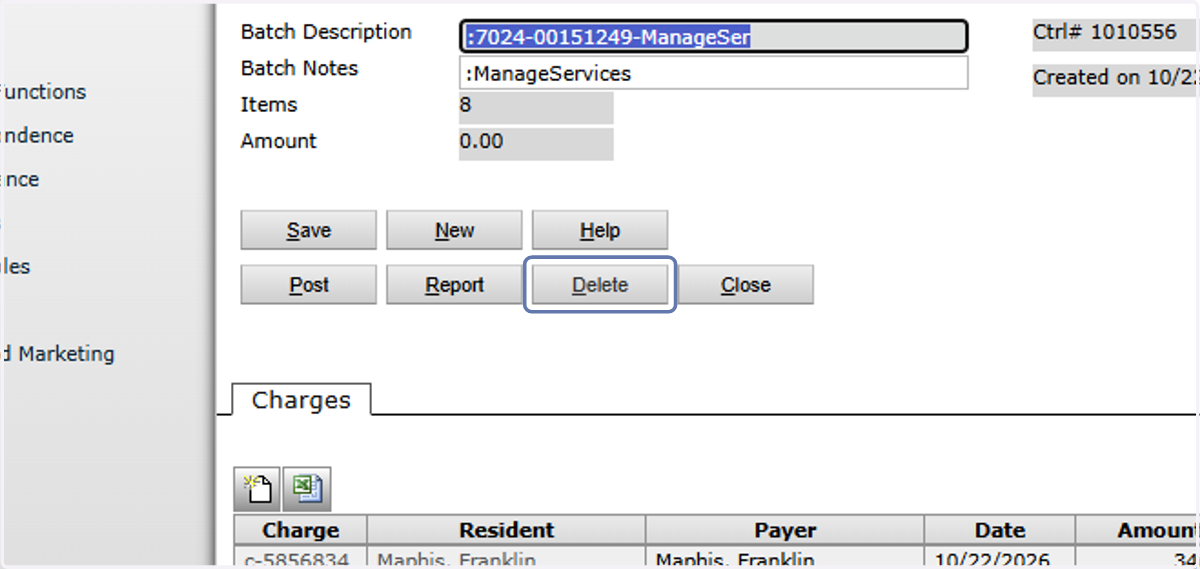
6. Click on View Batch

7. Click on Delete to remove the batch
*There may be unique circumstances where you'll want the batches to be posted if you need to charge the residents for something, but most of the time you'll want to delete them
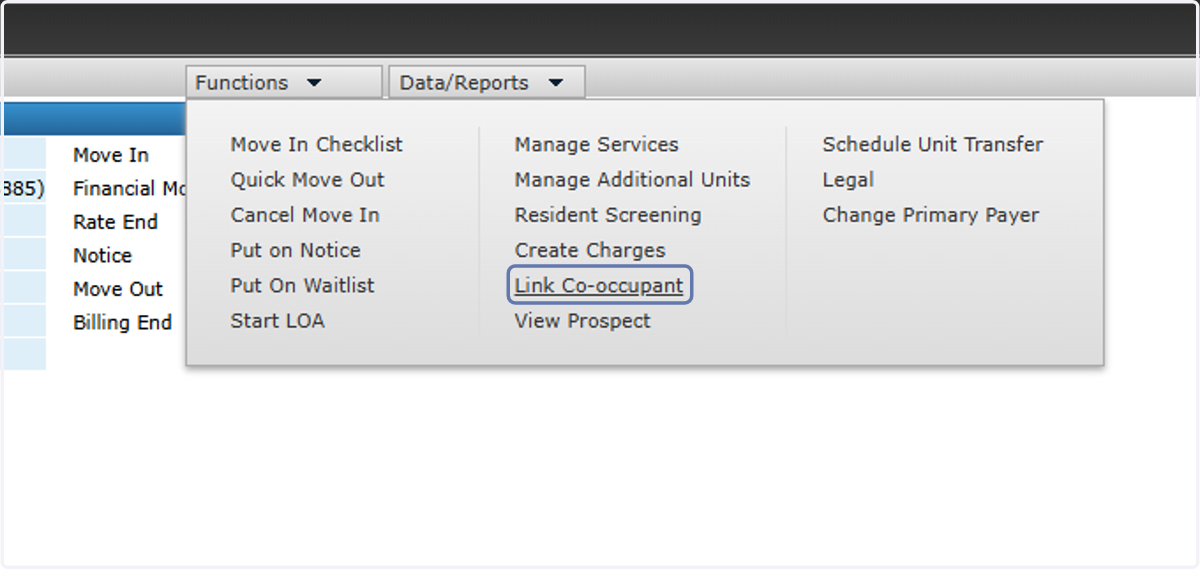
8. Navigate to the former Second Resident profile and click on Link Co-occupant
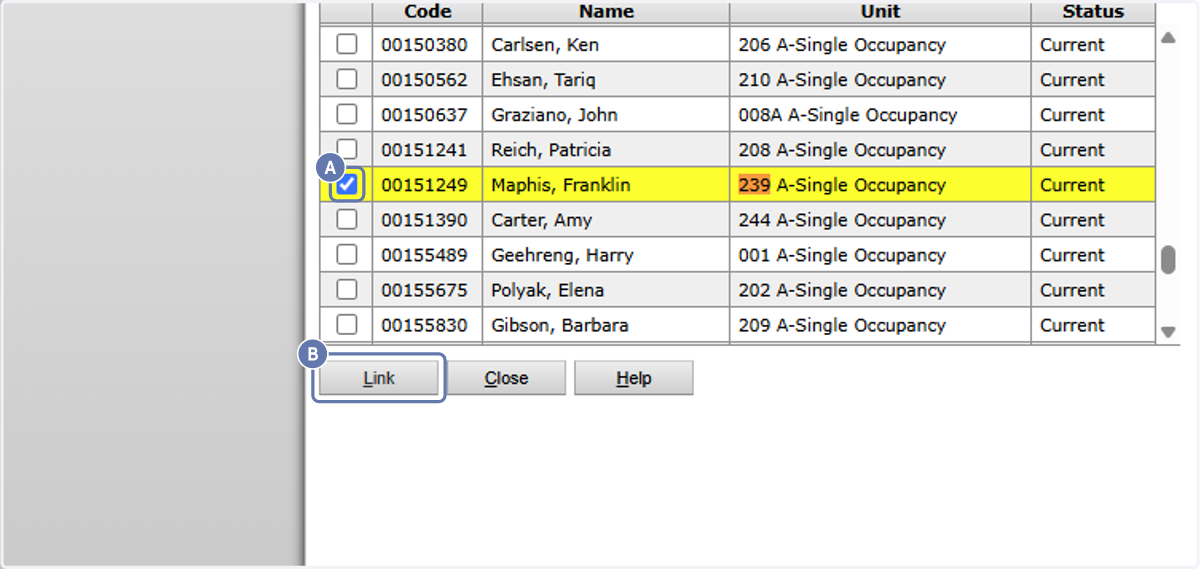
9. A. Locate the previous Primary Resident in their temporary unit and select them
9. B. Click on Link
10. Update any relationships and share the contacts

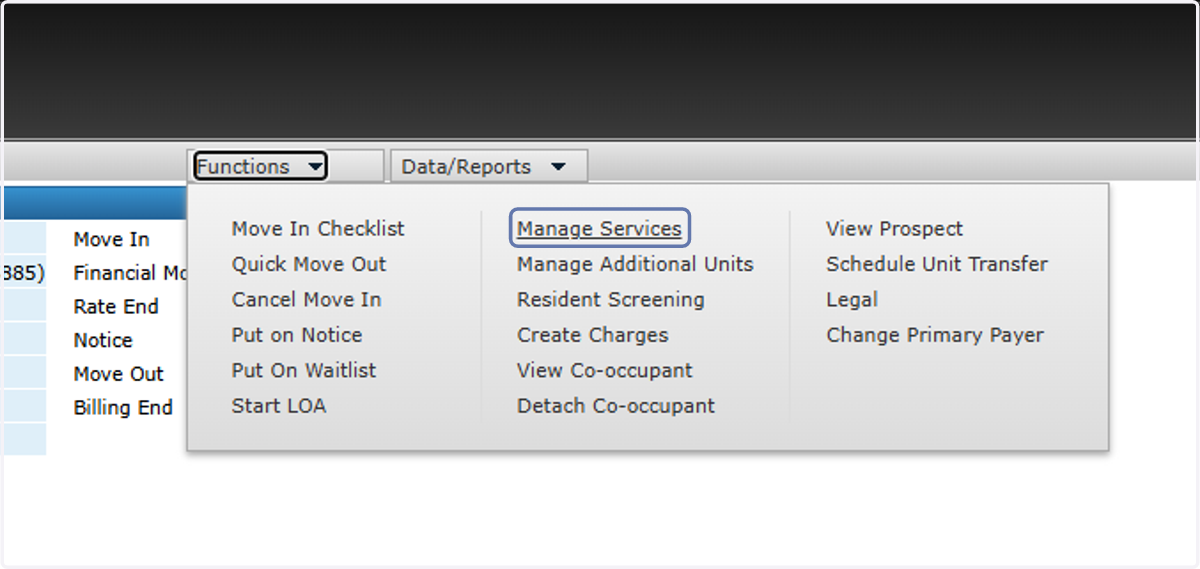
11. On the new Primary Resident, click on Functions > Manage Services
12. Click on Next >

13. Update the accommodation rate
*if this field is greyed out, refer back to the top of this guide and contact the Systems Team about unlocking the rates. Please provide the date if you are making this retroactive.

14. Remove the Second Resident Service from the new Primary Resident profile

15. Review the rest of your services and ensure they're correct, then click on Preview

16. Click on Save

17. Click on View Batch

18. Click on Delete to remove the batch
*There may be unique circumstances where you'll want the batches to be posted if you need to charge the residents for something, but most of the time you'll want to delete them

19. On the new Second Resident profile, click Functions > Manage Services

20. Click on Next >

21. Set the accommodation rate to $0

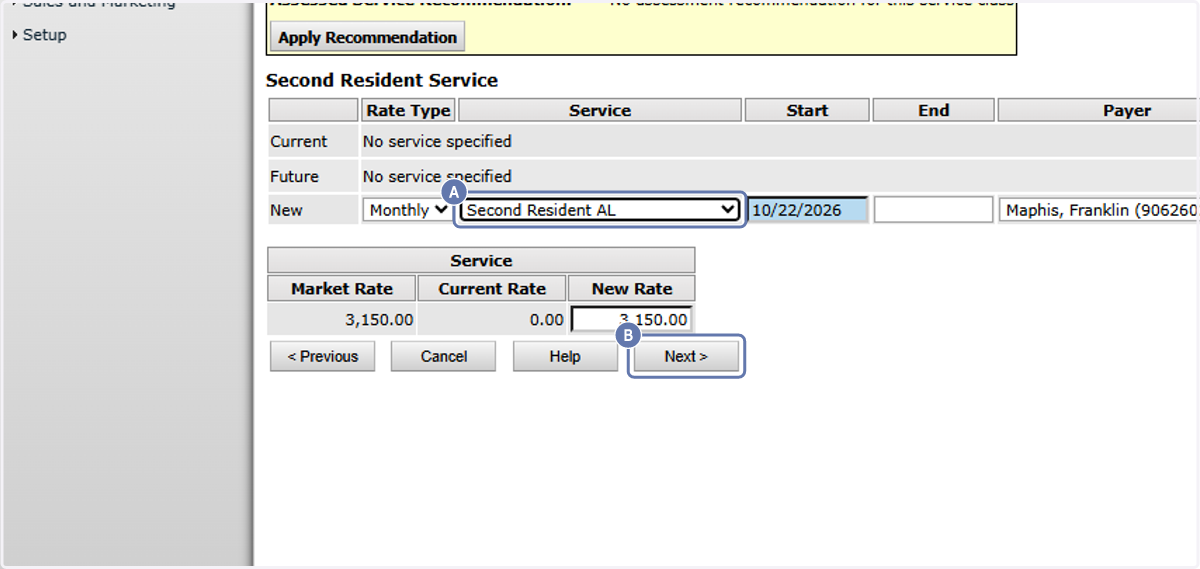
22. A. Add a Second Resident charge
22. B. Confirm the rate is correct and click Next
23. Review the rest of Manage Services and click on Preview

24. Click on Save

25. Click on View Batch

26. Click on Delete to remove the batch
*There may be unique circumstances where you'll want the batches to be posted if you need to charge the residents for something, but most of the time you'll want to delete them