Creating a new Class, selecting a professional focus and inviting teachers to collaborate
Verso
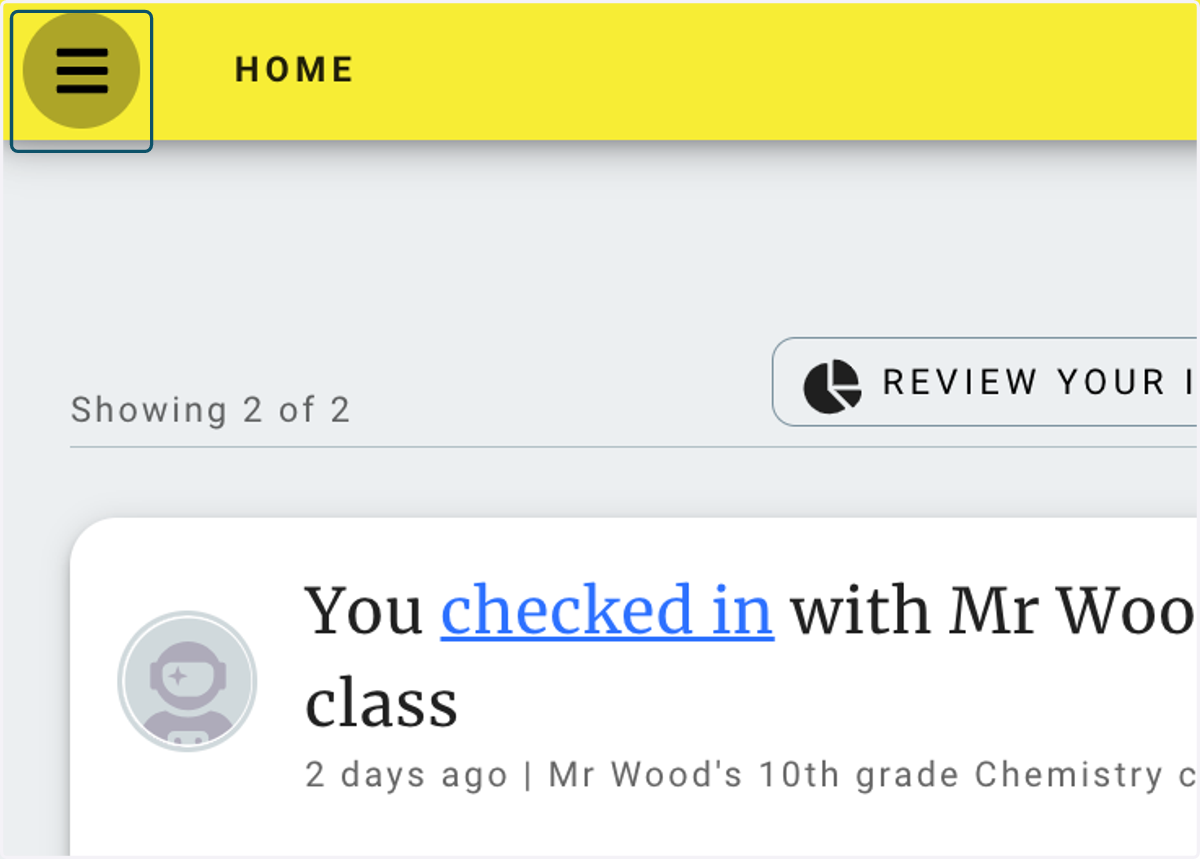
1. Click on Open main menu
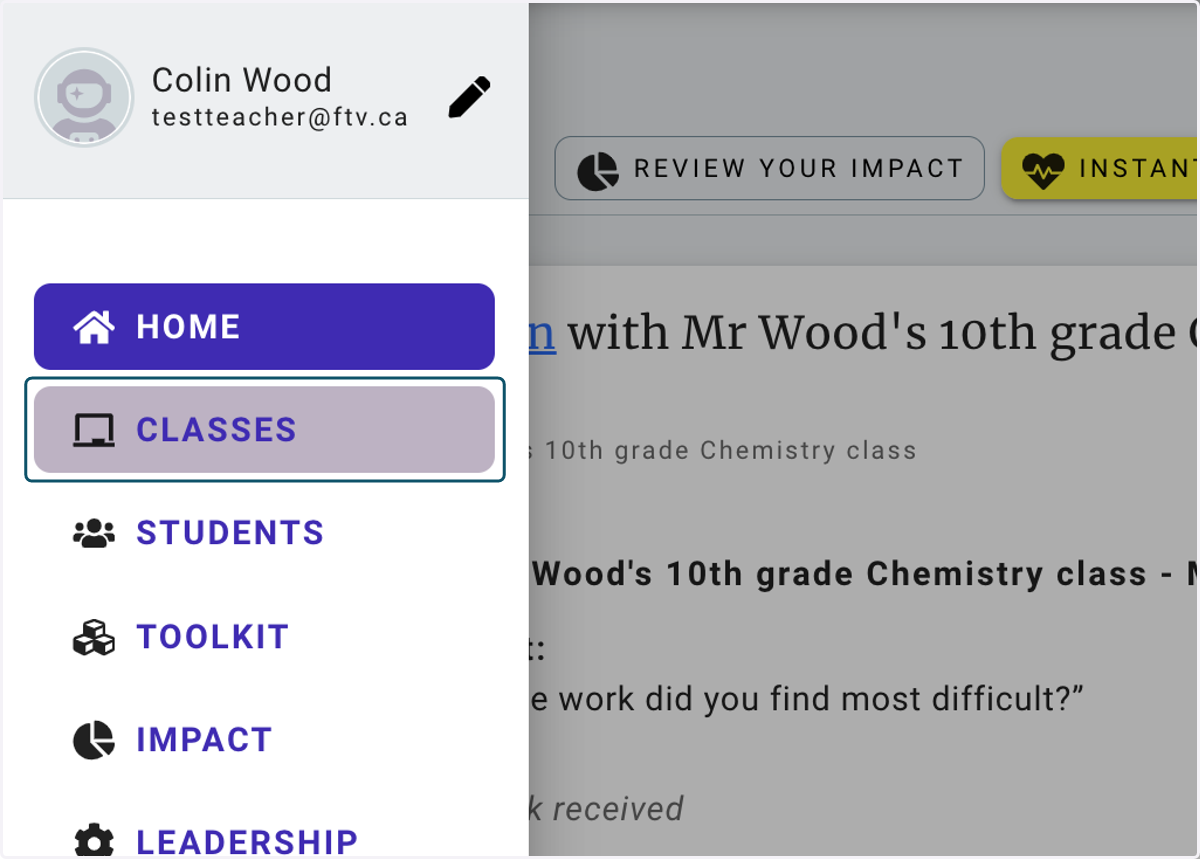
2. Click on CLASSES
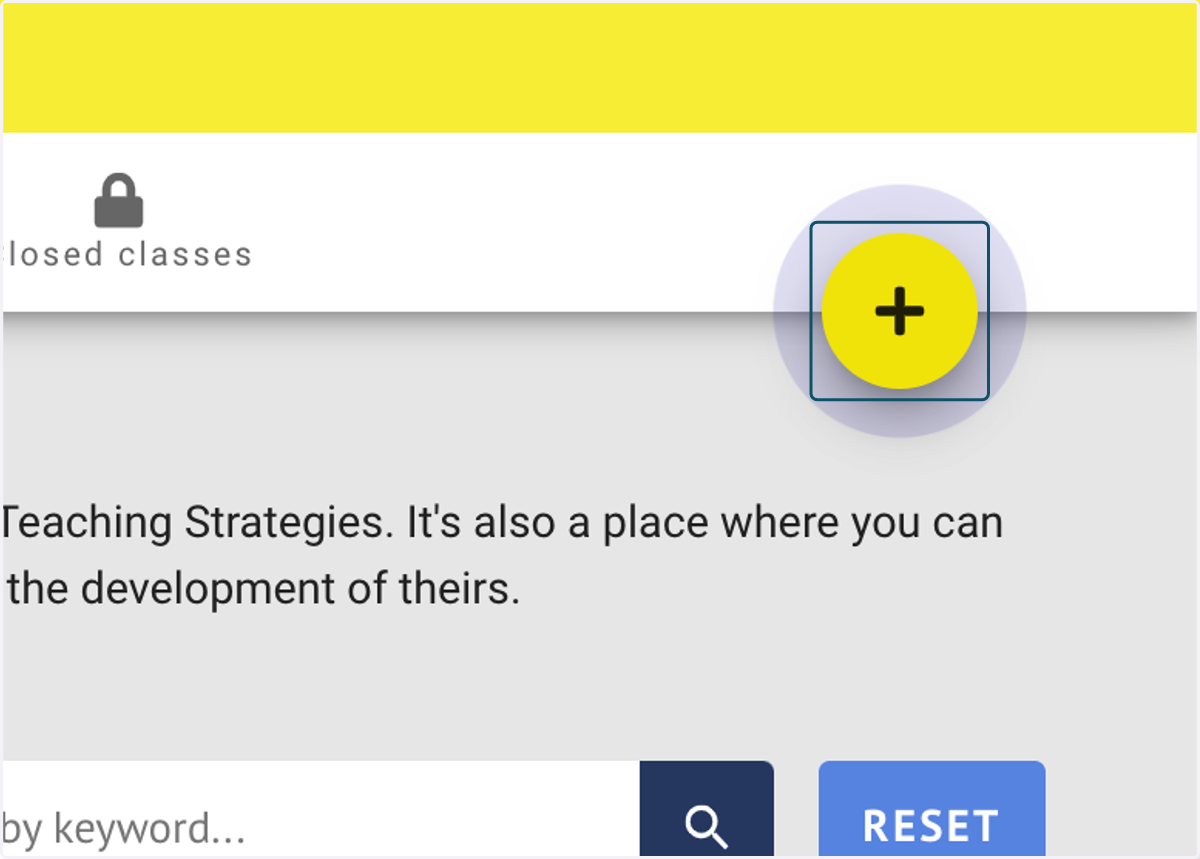
3. Click on the plus (+) button
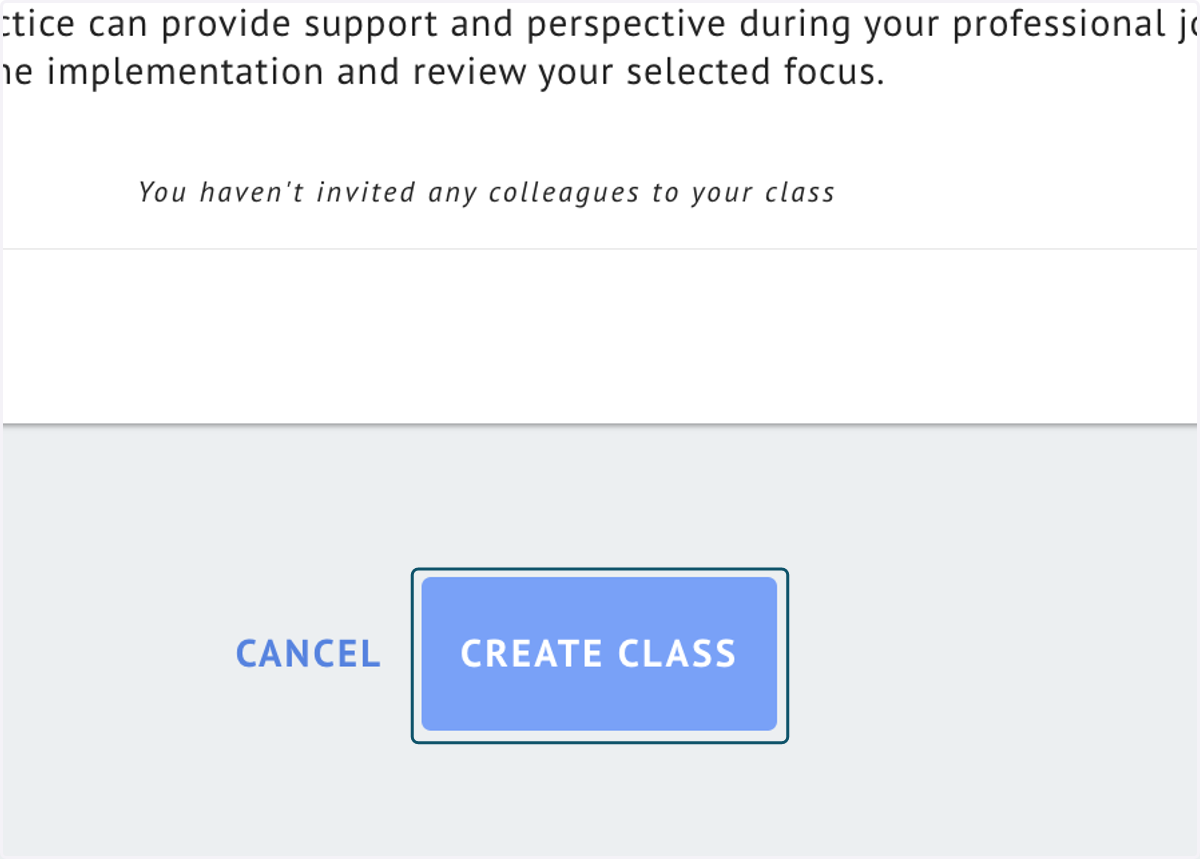
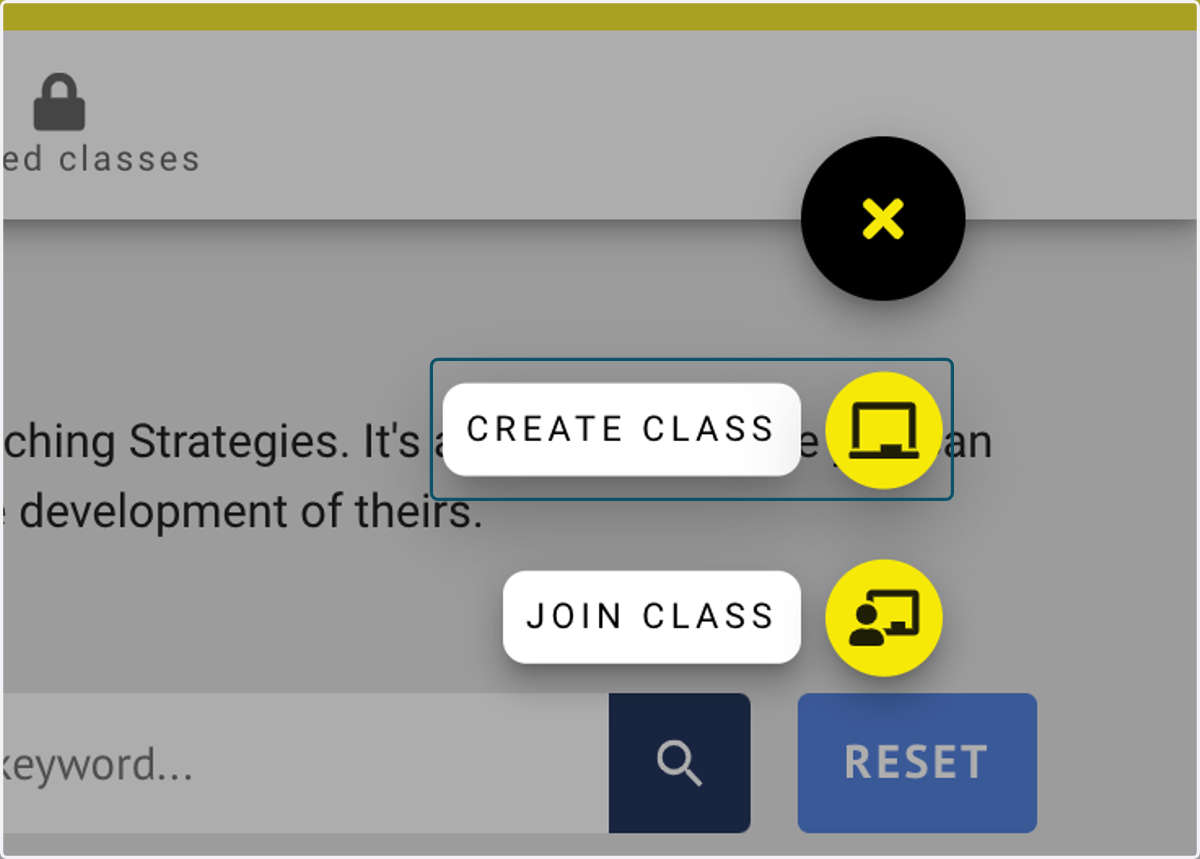
4. Click on CREATE CLASS
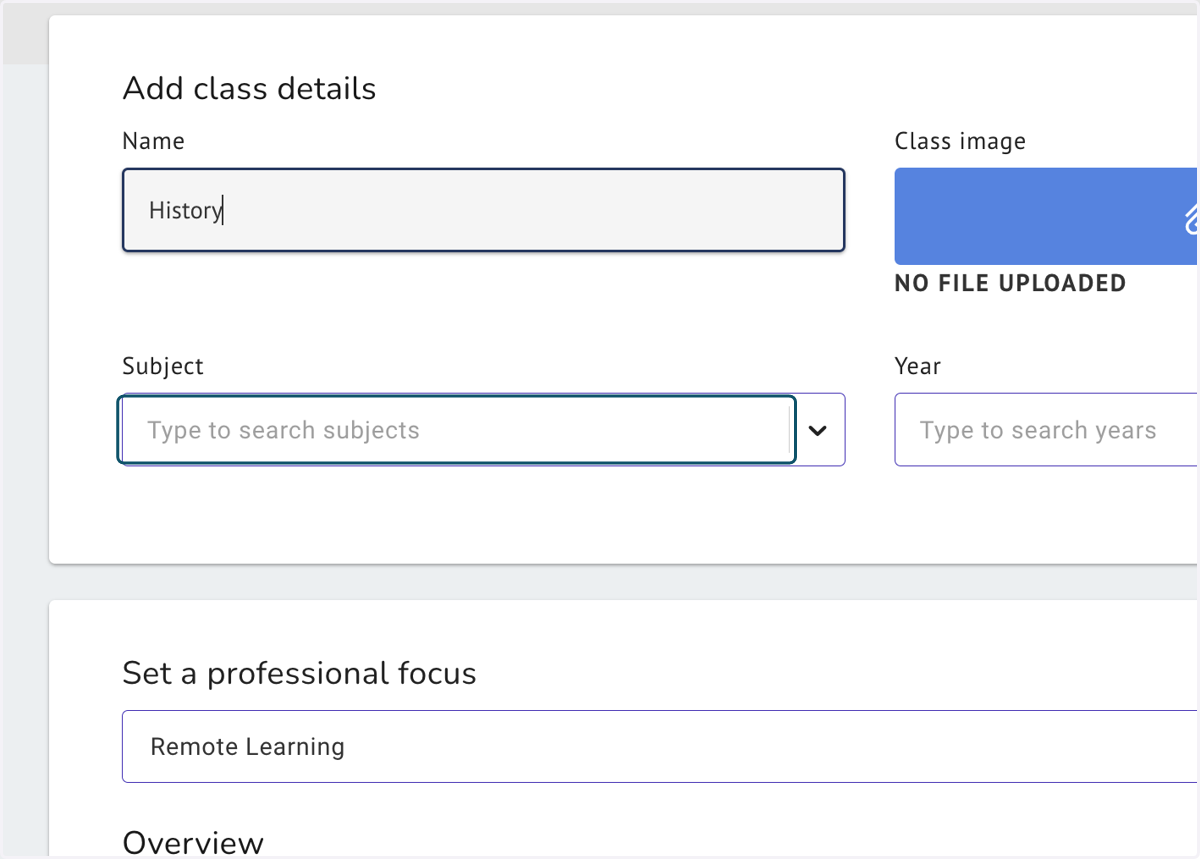
5. Give the class a name and select the subject
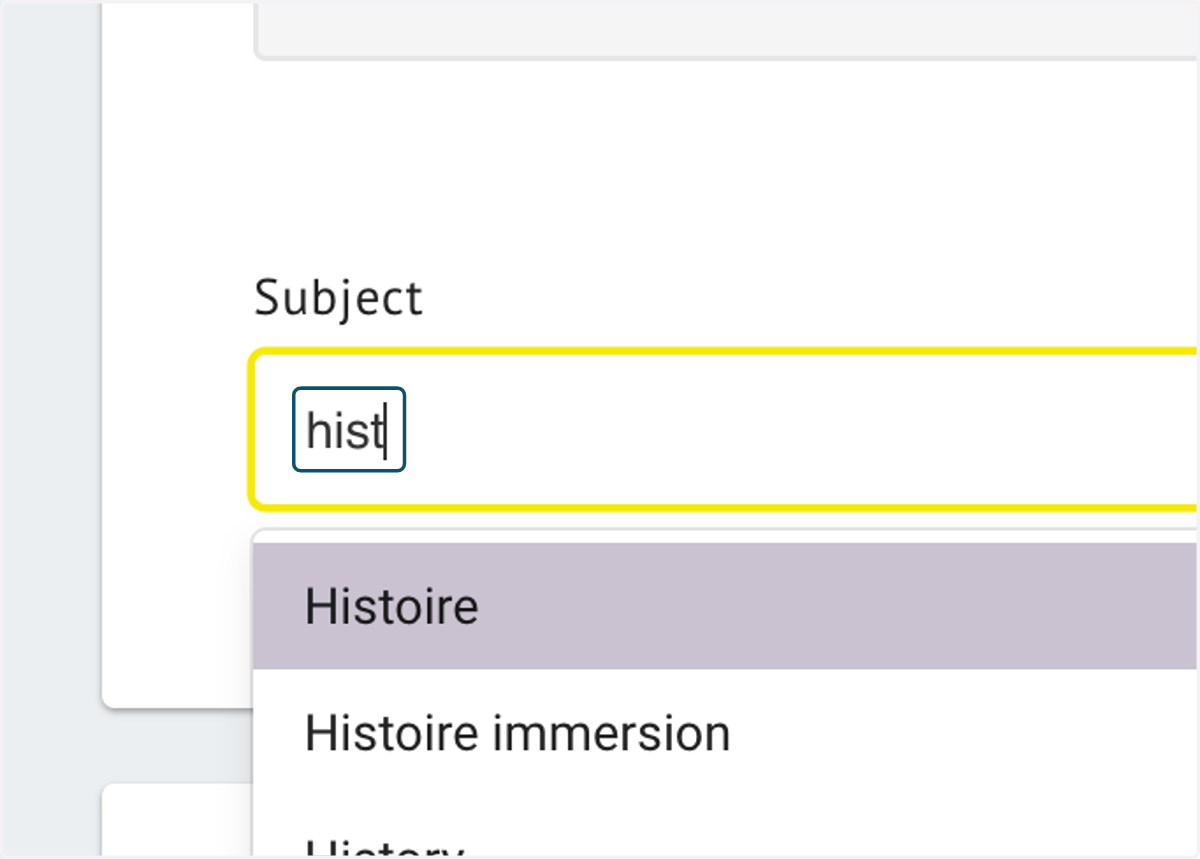
6. Begin typing to search for your subject
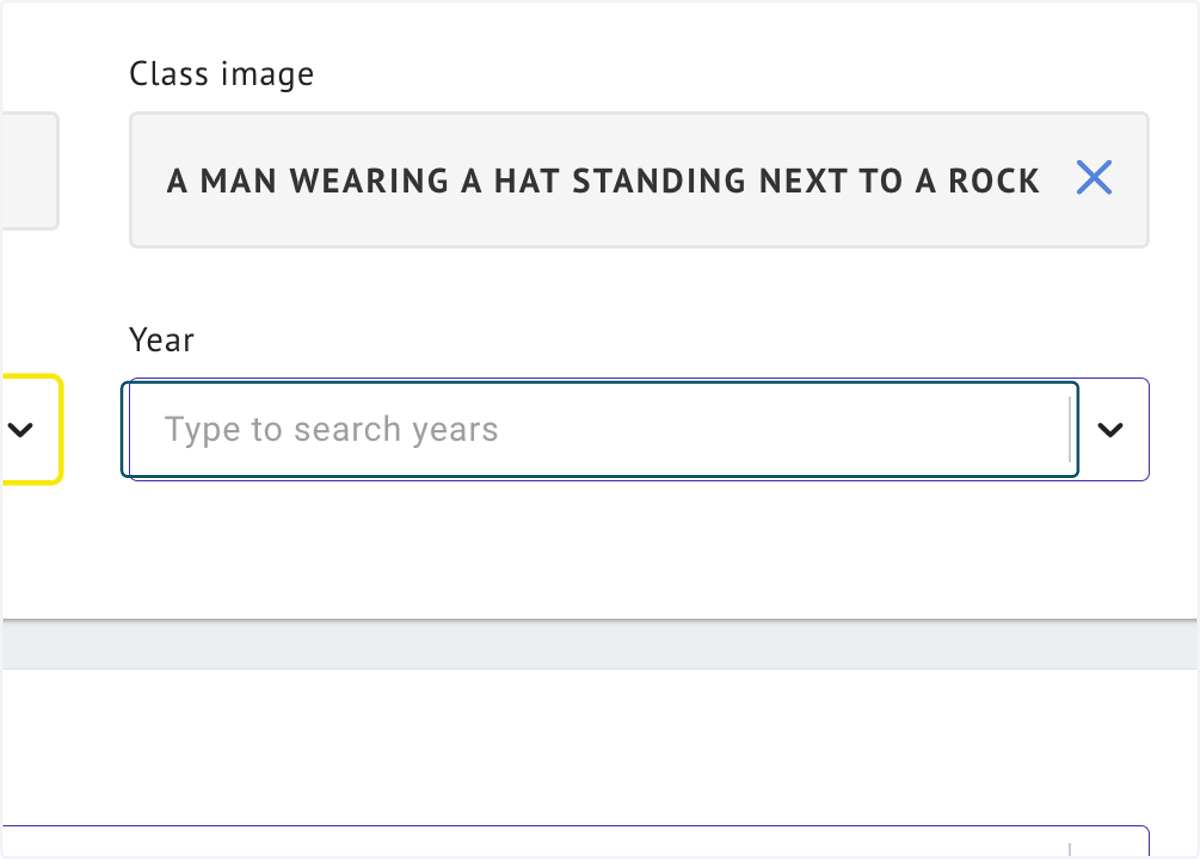
7. Click on the dropdown list or Type to search year level
A class image will automatically be assigned to the class based on the subject selected from the list.
8. Click on the Set a professional focus dropdown list to select a focus area.
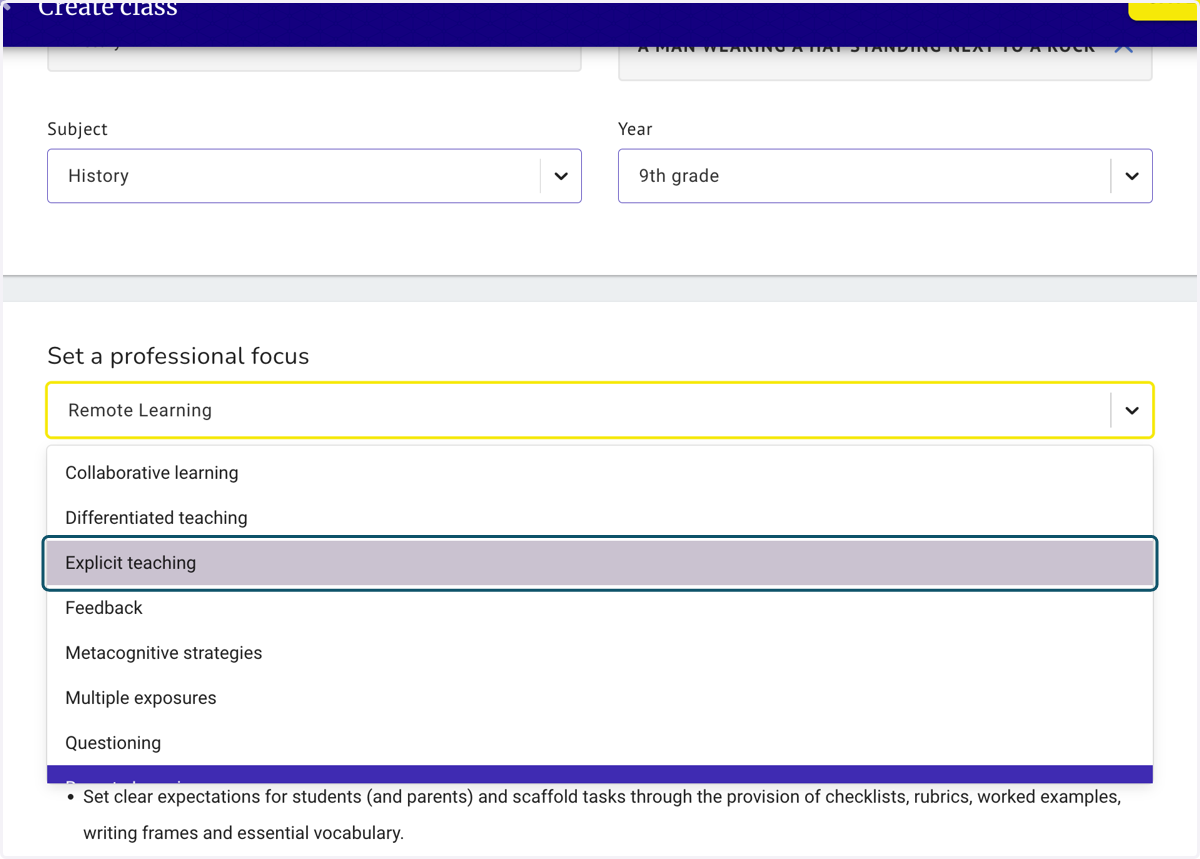
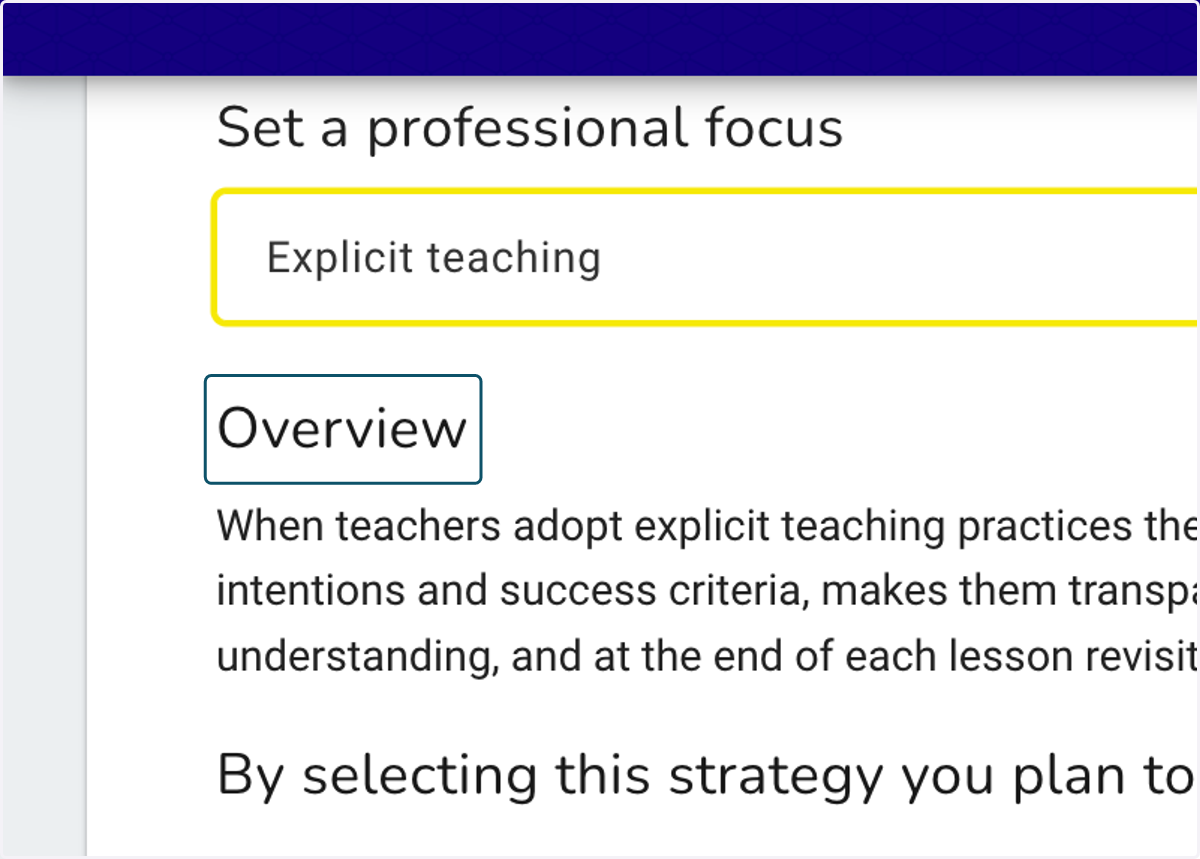
9. Focus Area description
Each focus area has a description and success criteria for what each strategy looks like in the classroom.
10. See the other areas related to your selected focus area
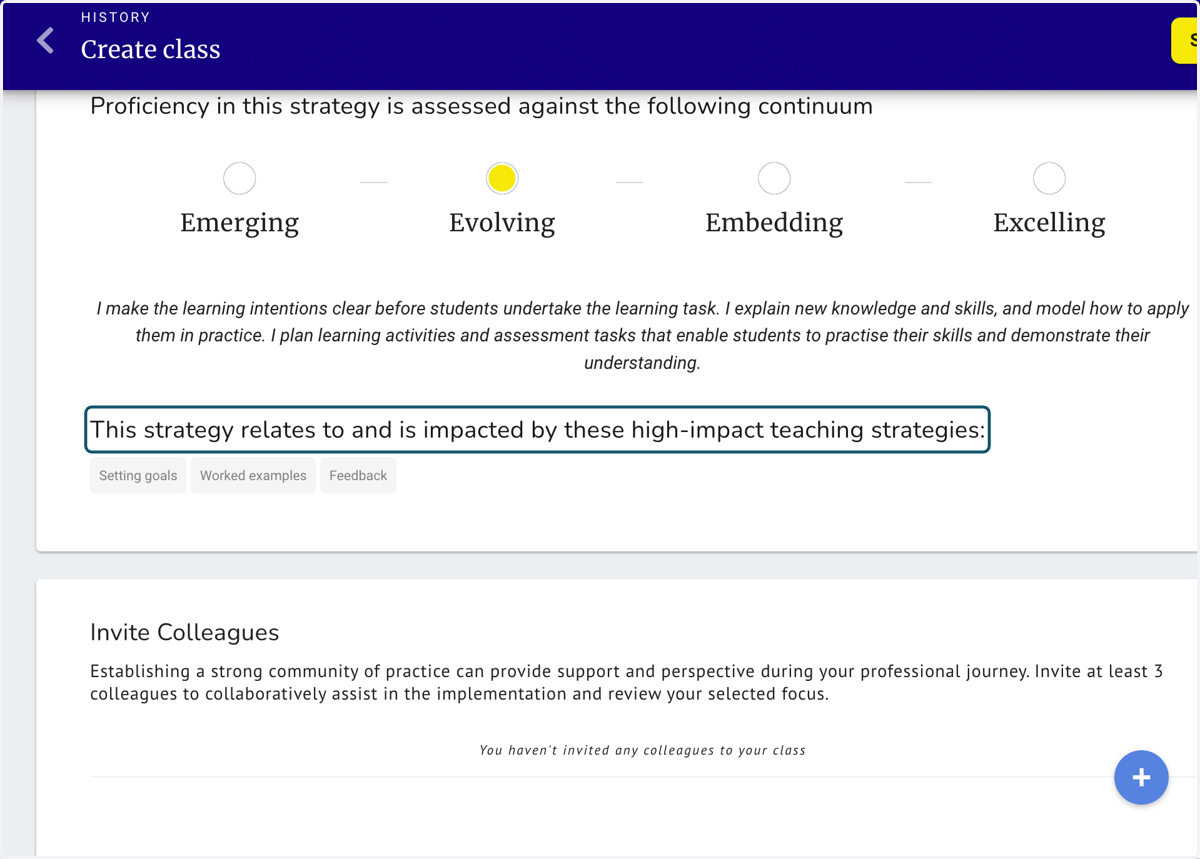
11. Click on the blue plus (+) button to invite colleagues into your class to share data and review practice
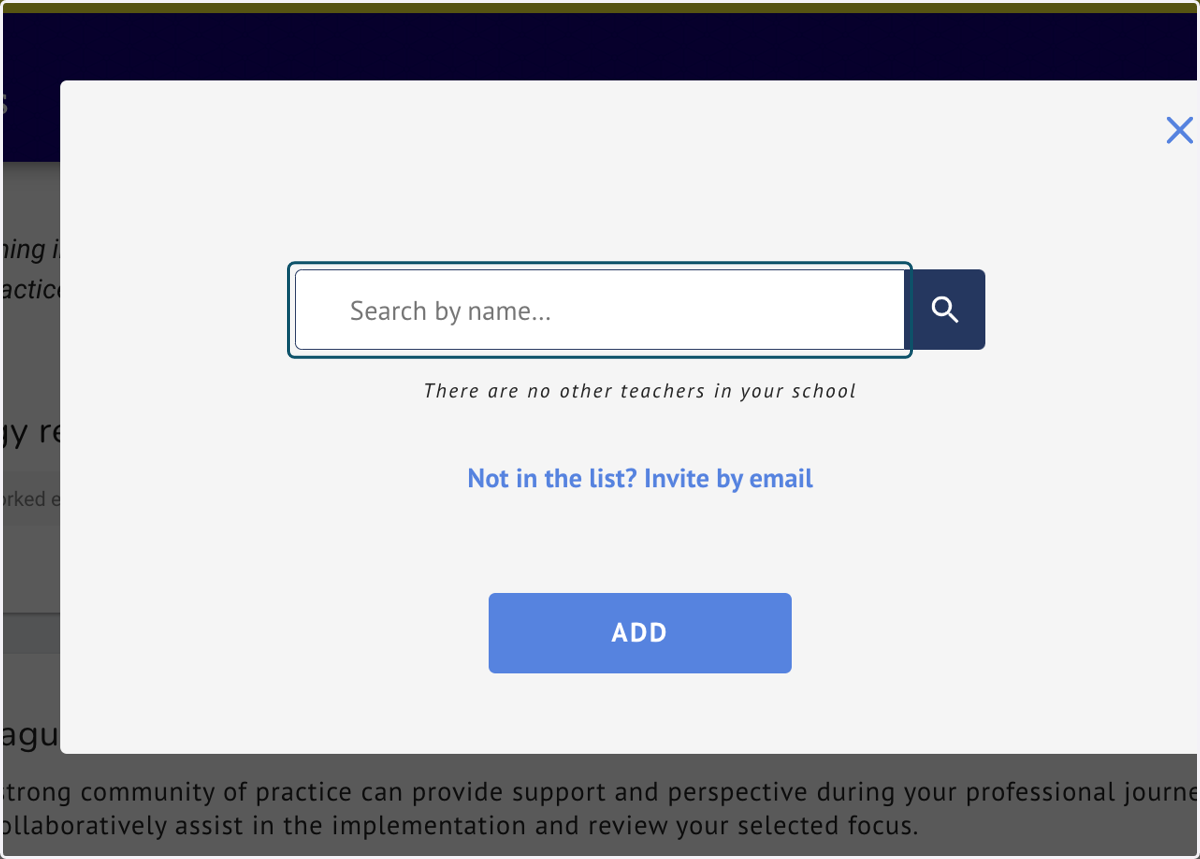
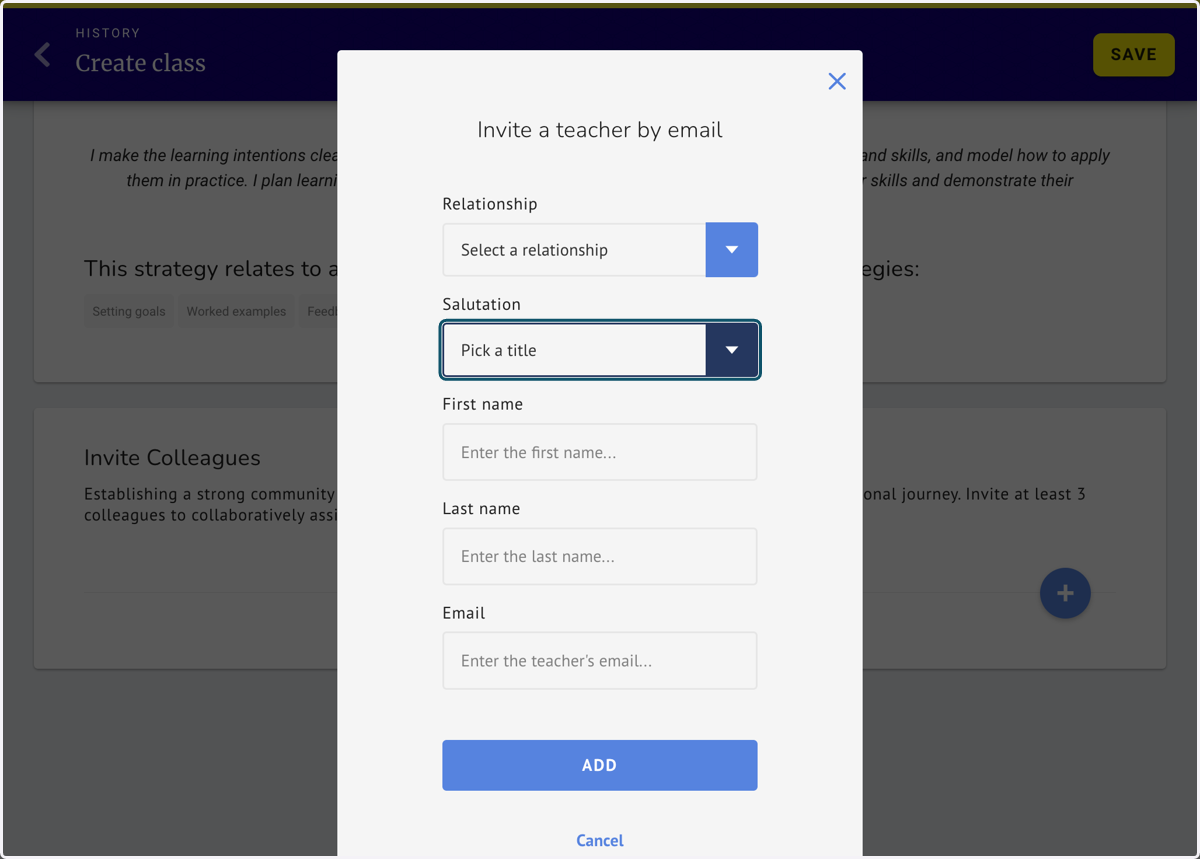
12. Search by name if they are already using the Check-in tool or use the Invite by email link.
13. Complete all boxes on the form and click ADD.
14. When complete click on the CREATE CLASS button
Class details can be edited after the class is created