Introducing Notifications: monitor your machines better with MachineMax' new instant notifications
We are thrilled to introduce the first phase of our new MachineMax offering, allowing you to monitor speeding and excessive idling in real time via Whatsapp and/or email notifications. Whether you wish to be notified for activity across your fleet or just for certain machines, read on to learn how you can easily manage your MachineMax notifications.
MachineMax - Revolutionary equipment management platform
1. Login to MachineMax
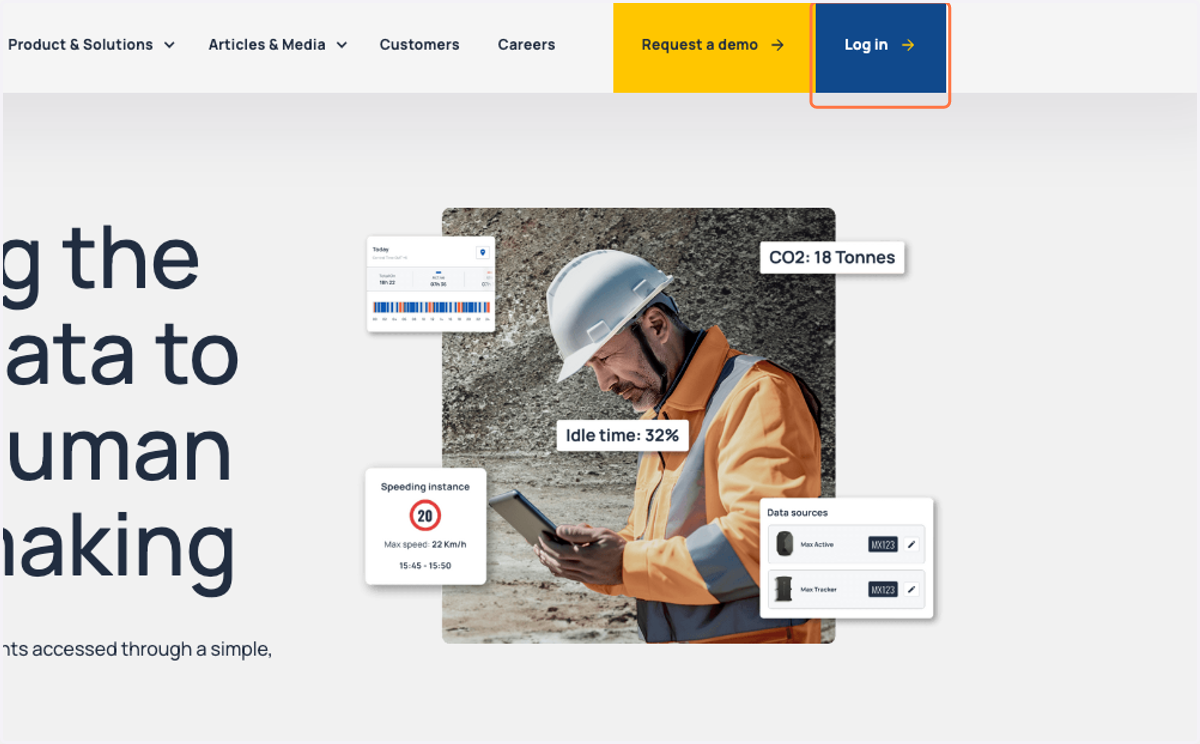
2. Click on Log In
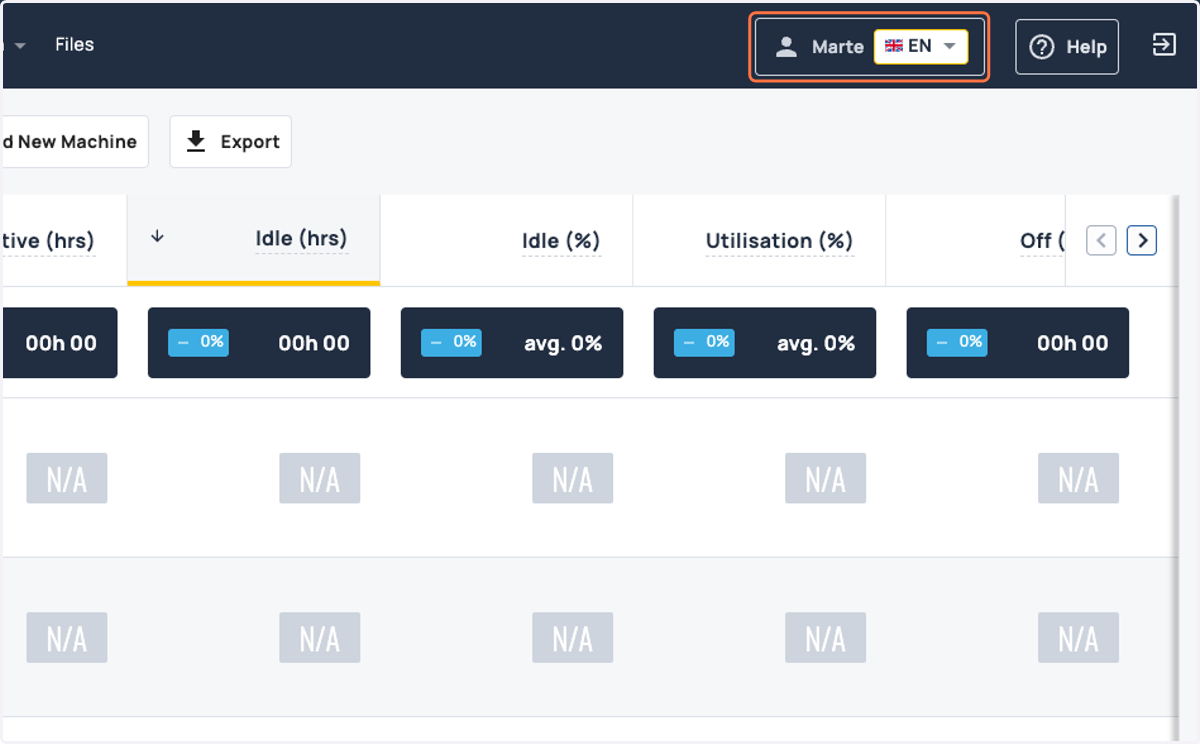
3. Navigate to your Profile by clicking on your name
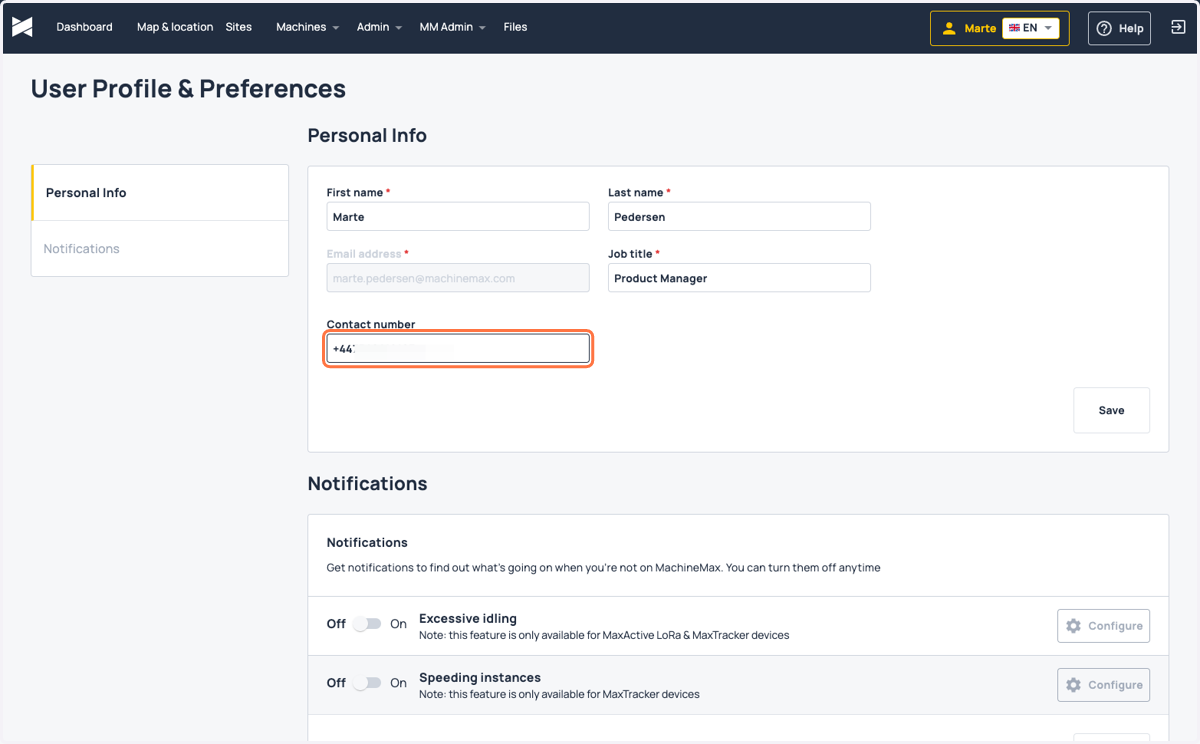
4. Add your mobile number
If you want to receive WhatsApp notifications, please take care to add a valid mobile number here, including the country code. Then click save.
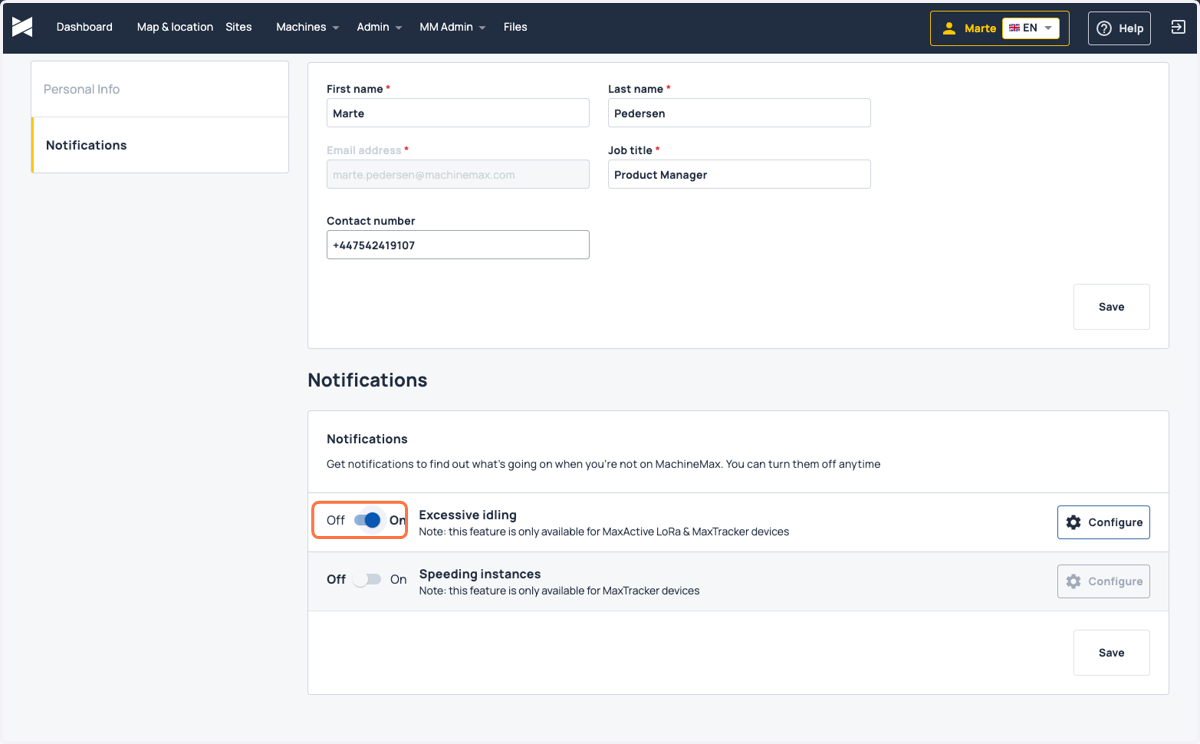
5. Enabling and configuring Excessive Idling notifications
Start by toggling the notification type from Off to On
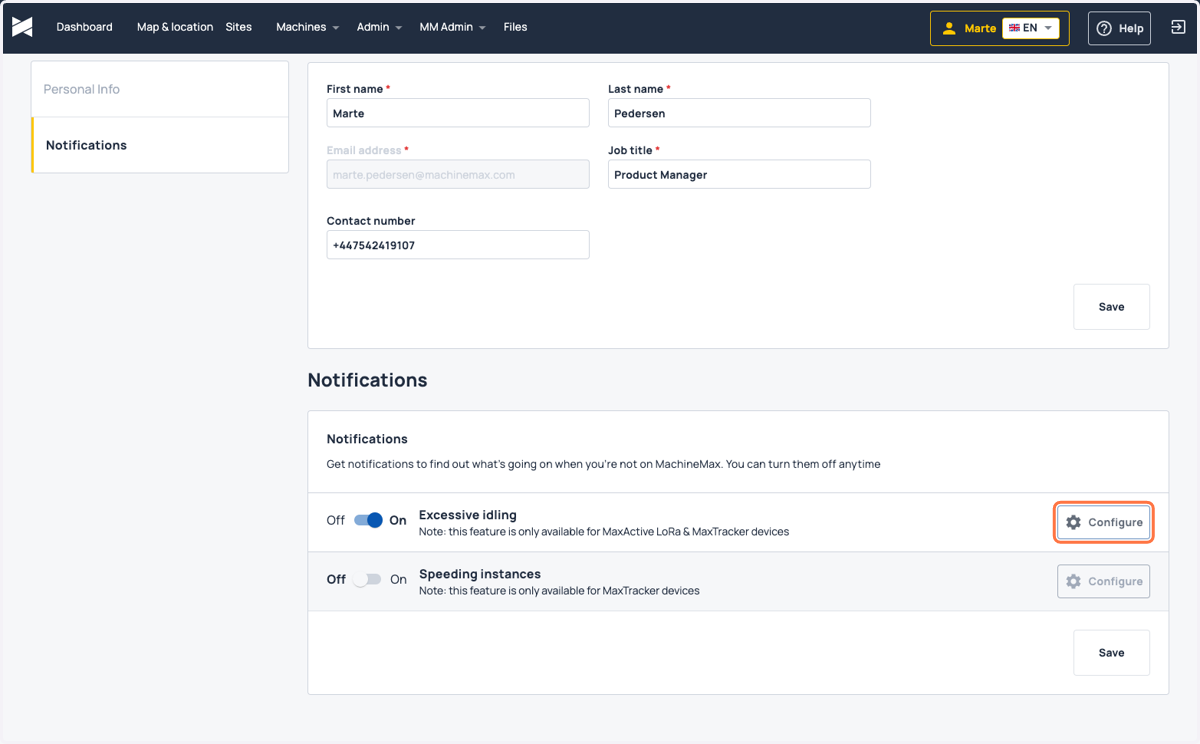
6. Click on Configure
Next, click the Configure button to decide which machines you wish to be notified about, and how.
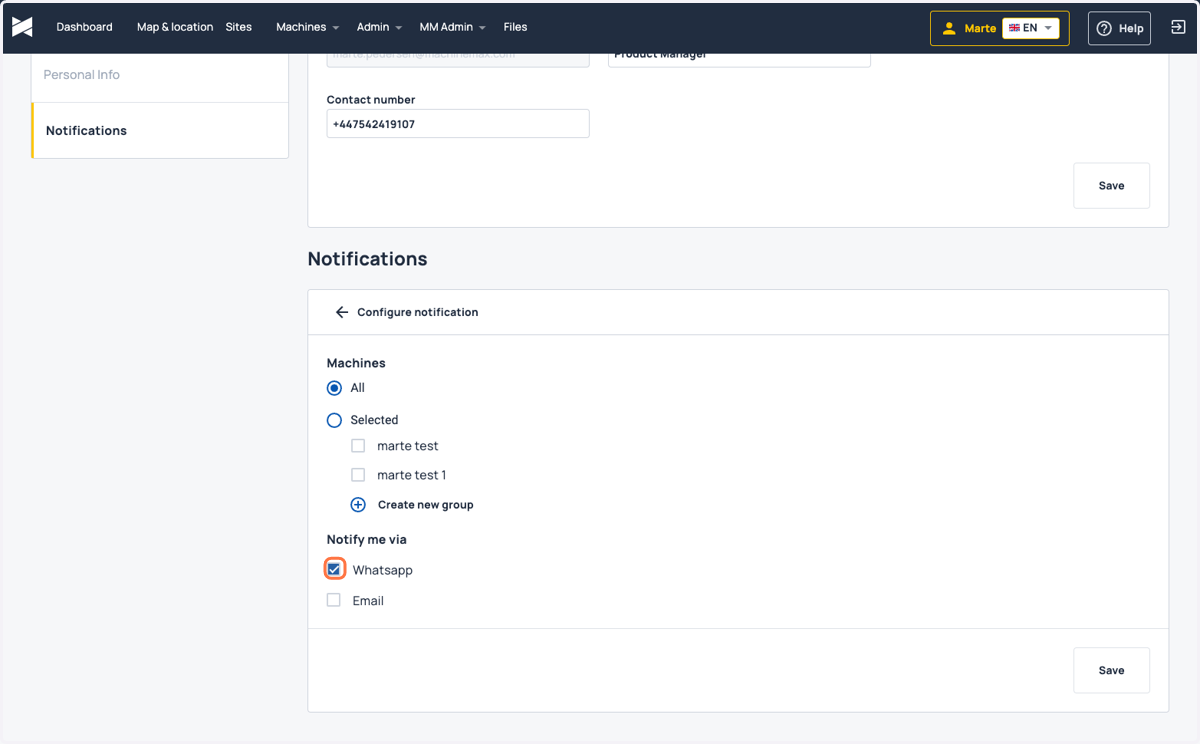
7. Choose between WhatsApp and/or Email
By default, you will receive notifications for all machines meeting the threshold for excessive idling. We will look at how you can change this in the next example.
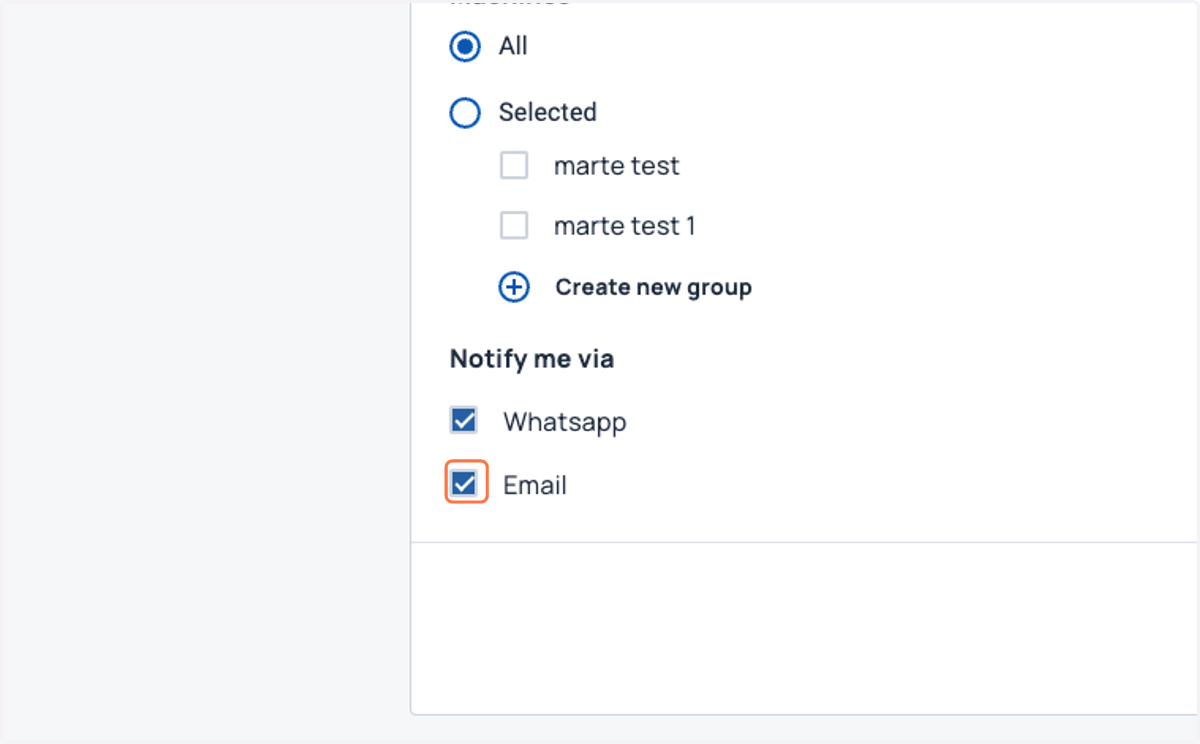
Next, we need to decide whether we want to receive alerts via WhatsApp or Email, or both. Here, we opt to receive both WhatsApp and Email notifications.
Note: selecting 'All' machines lets you receive alerts for all the machines you have access to view on your organisation's MachineMax platform.
8. Click to enable email notifications
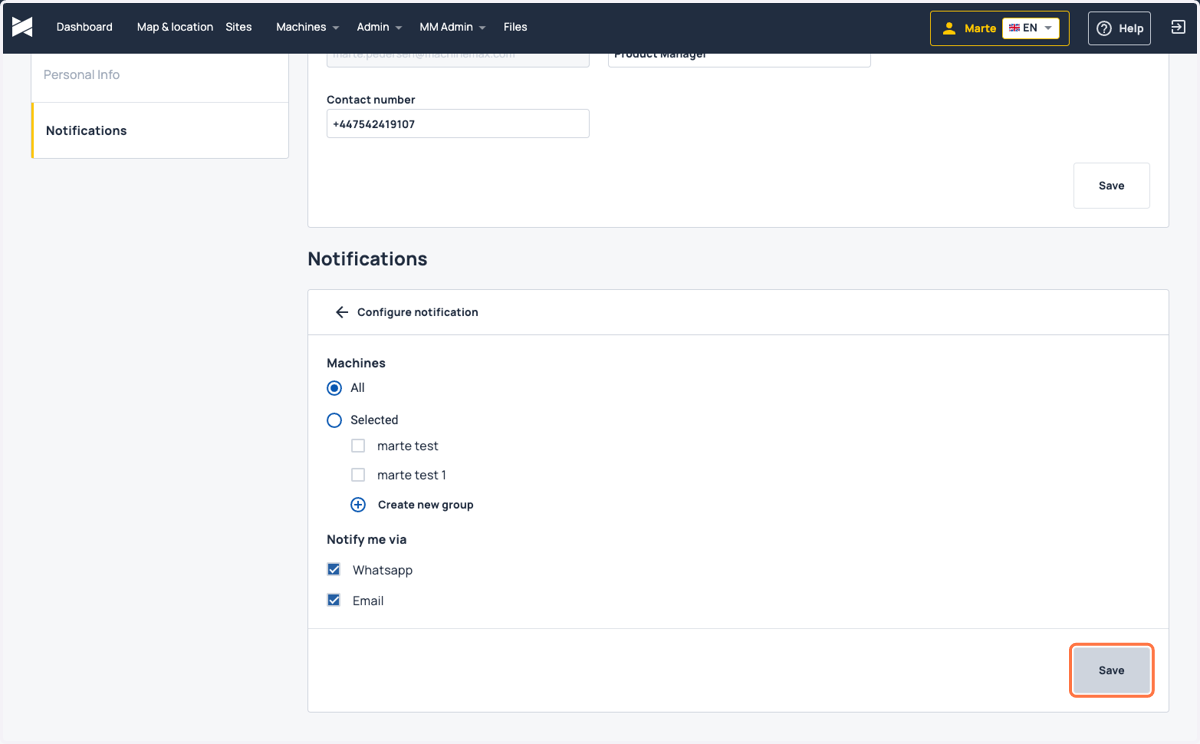
9. Click on Save
You will now start receiving notifications once any of your machines reach the set threshold for excessive idling. The default threshold is 6 minutes. If you would like to discuss raising or lowering the threshold for your organisation, please contact support@machinemax.com
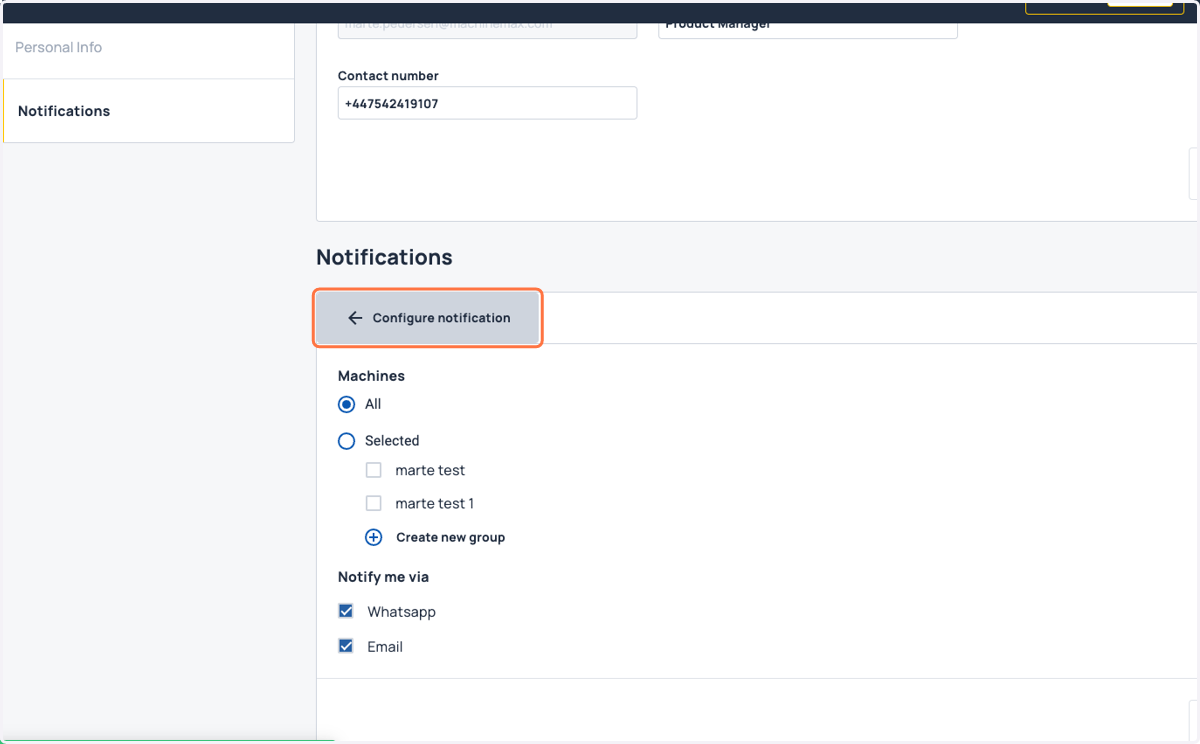
10. Click the arrow to return to the profile page
11. Enabling and configuring Speeding notifications
As previously, toggle the notification from Off to On
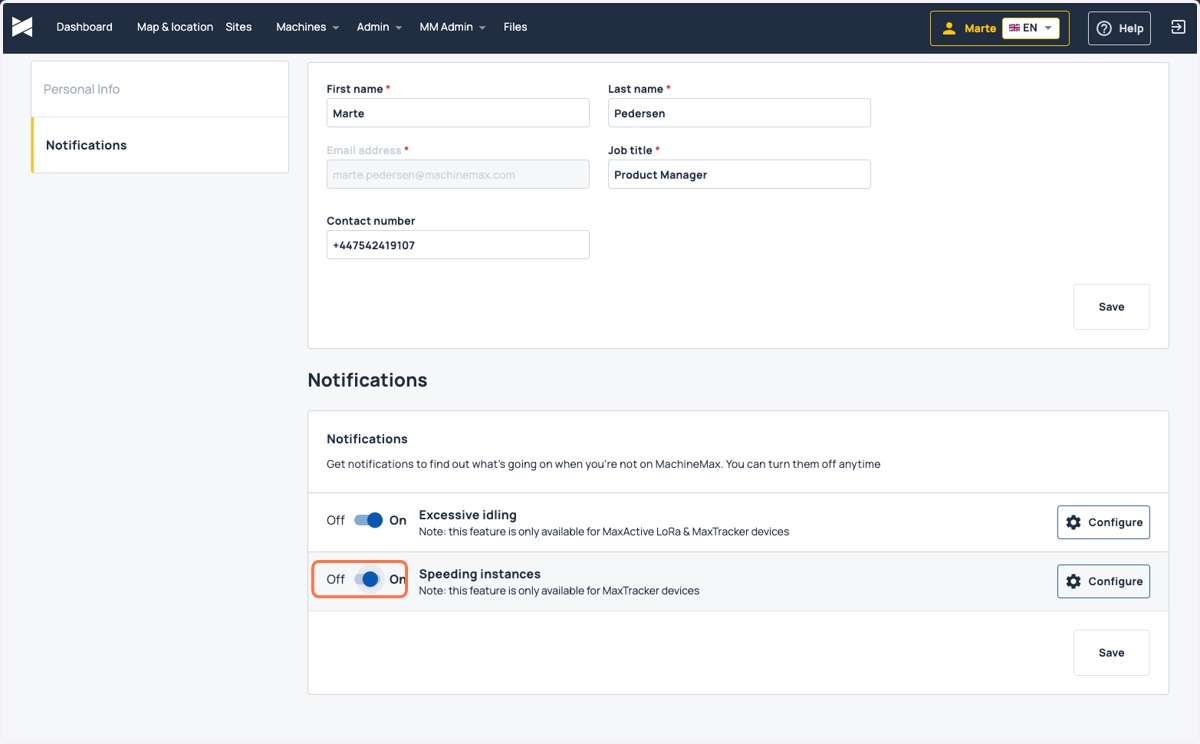
12. Click on Configure
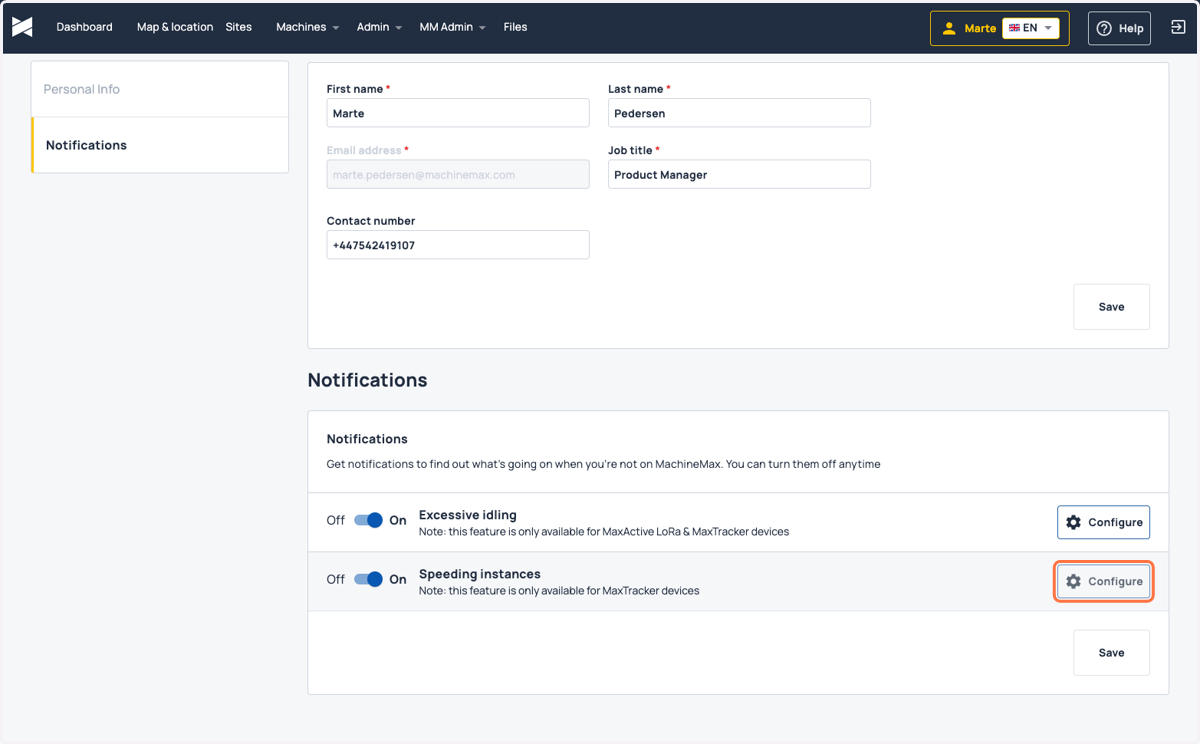
13. Enabling notifications for selected machines
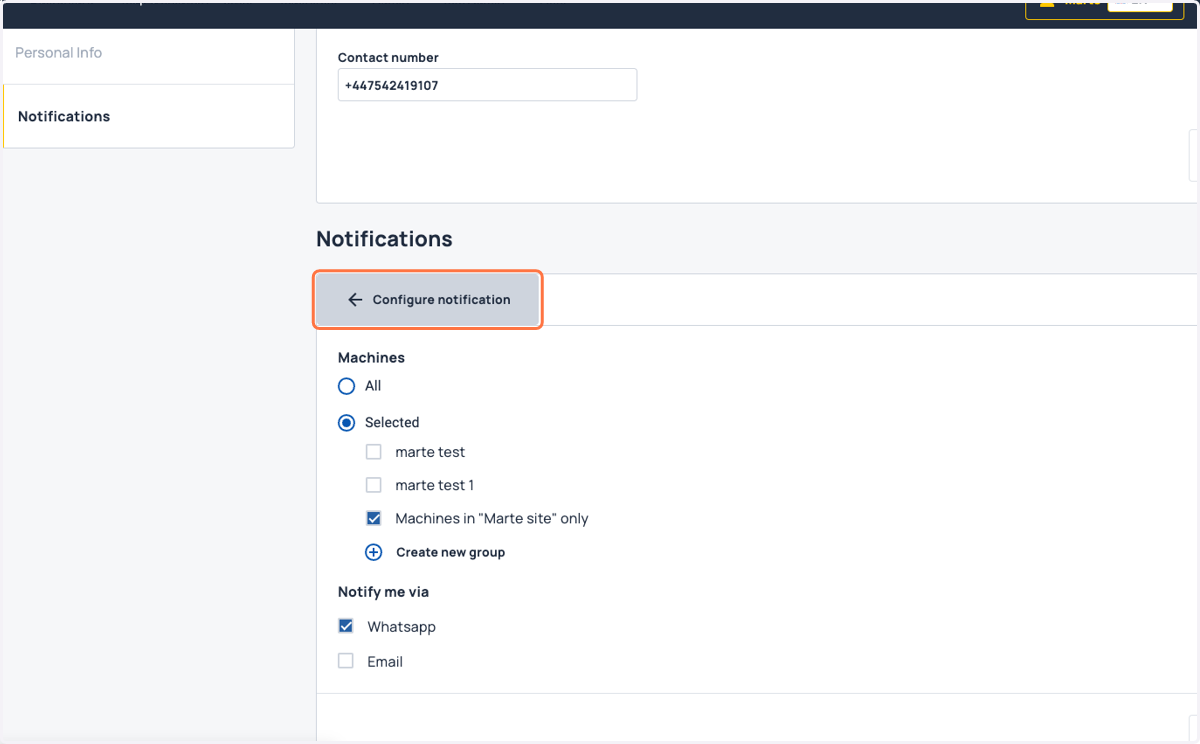
If, rather than being notified for speeding across all of your machines (that you have access to see on MachineMax) you would prefer to only receive notifications on a subset of your machines, you absolutely can. You have two options here: Either select an existing saved filter (most users create and manage these via the Machine List), or create a new one.
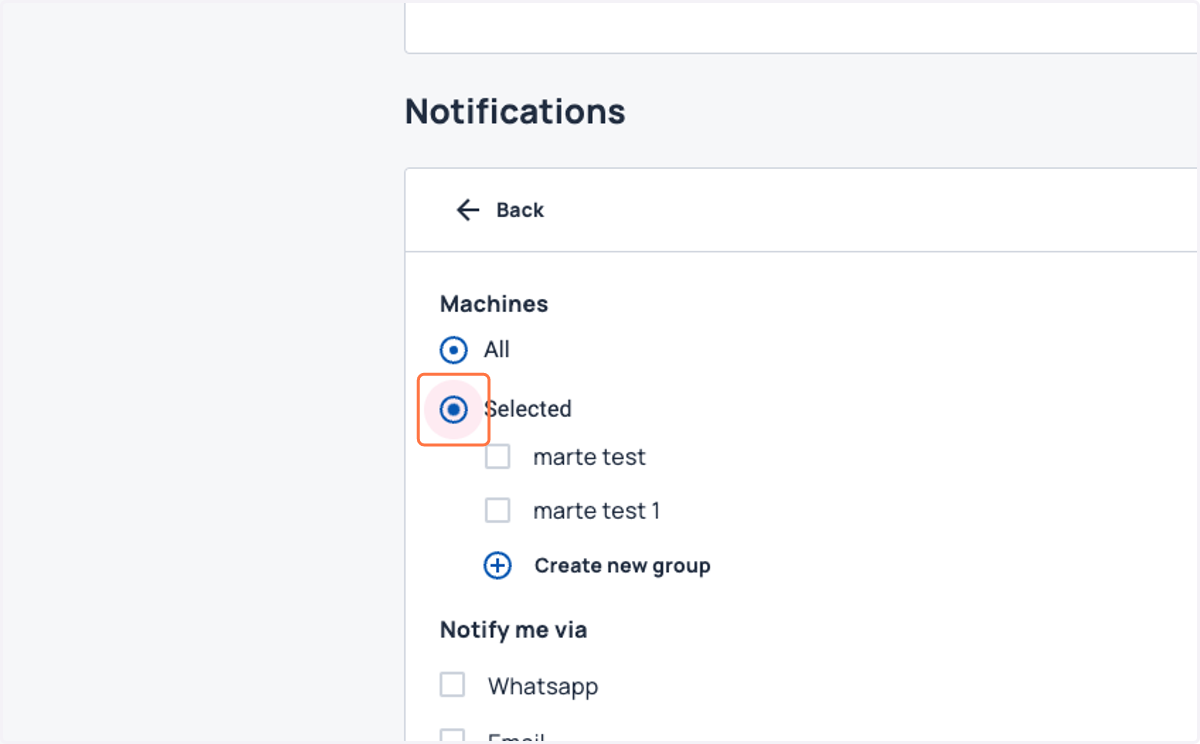
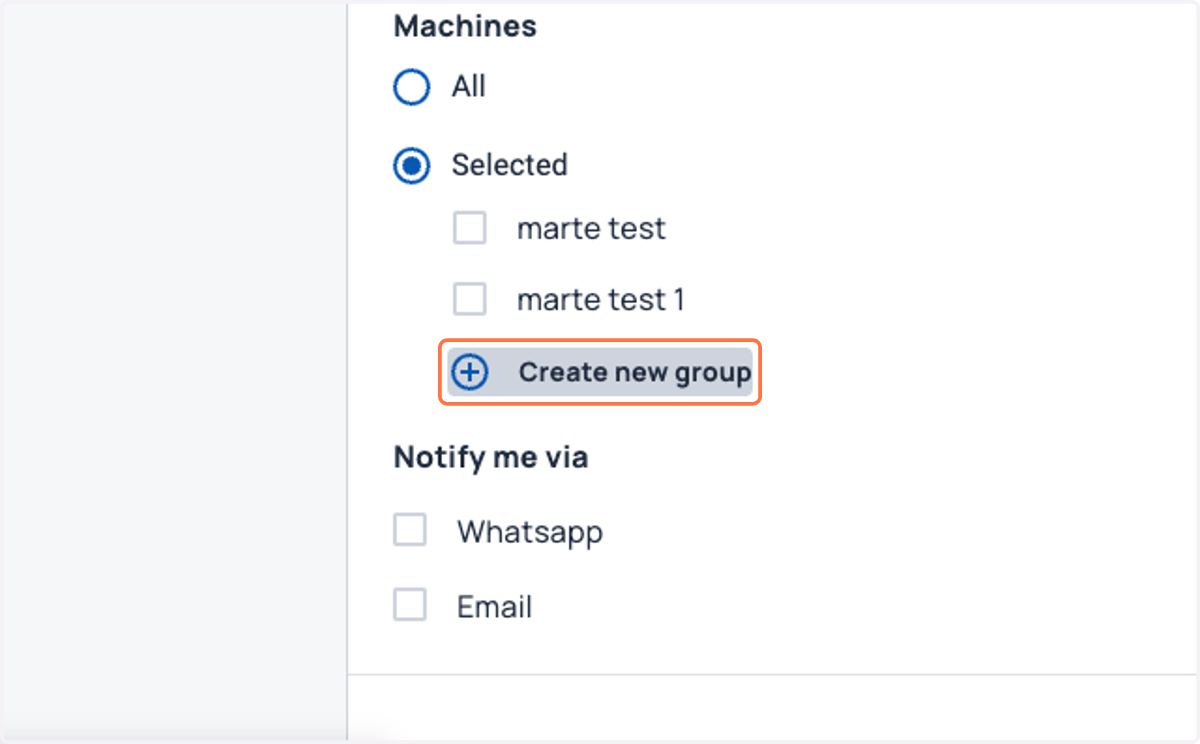
14. Click on Create new group
In this example, we will create a new group of machines. This works just like the saved filters you may have seen across the platform pages, and the group will be saved as a filter so it can be applied for example on the Machine List later on.
15. Apply any filters needed to create a group of machines
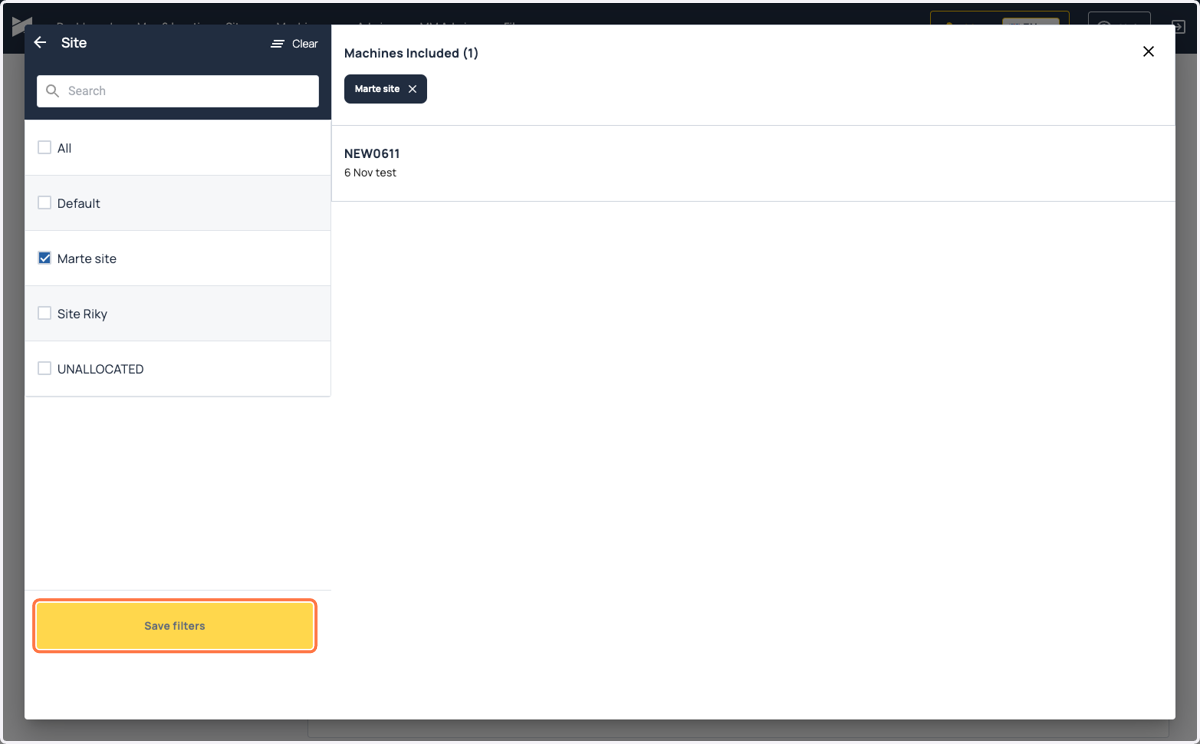
Make use of the filters available to curate a group of machines for which you want to receive notifications.
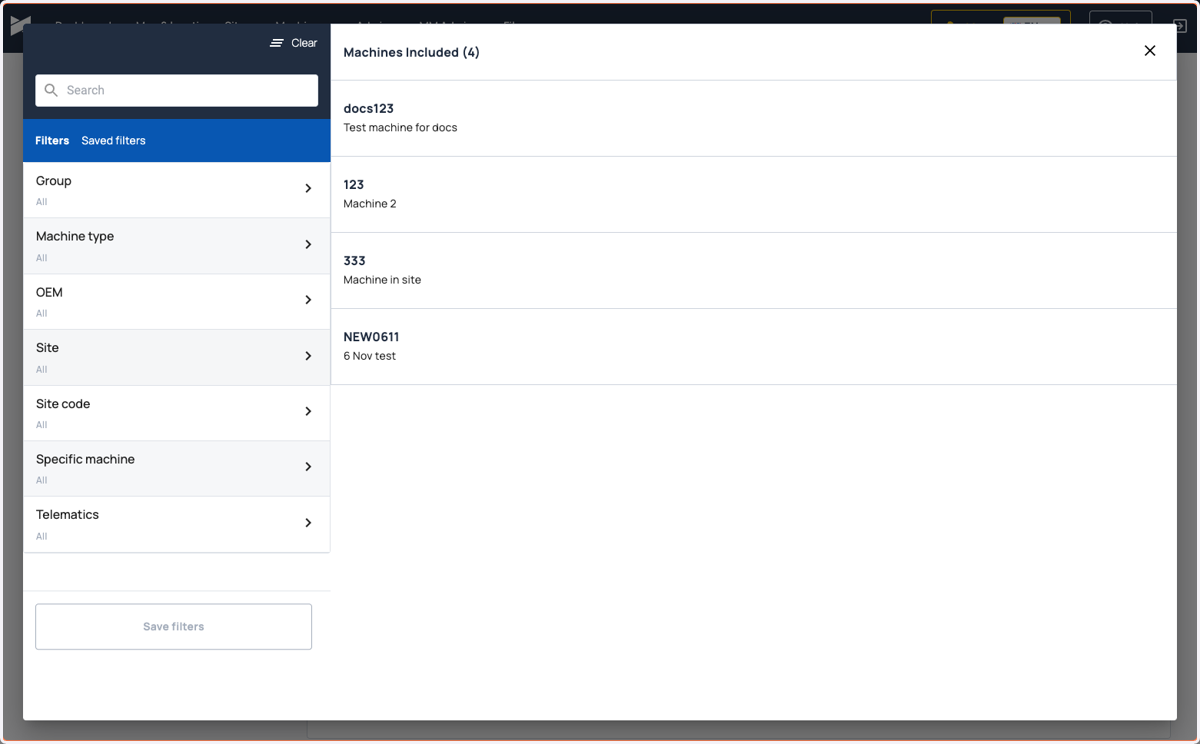
16. Save the selected filters
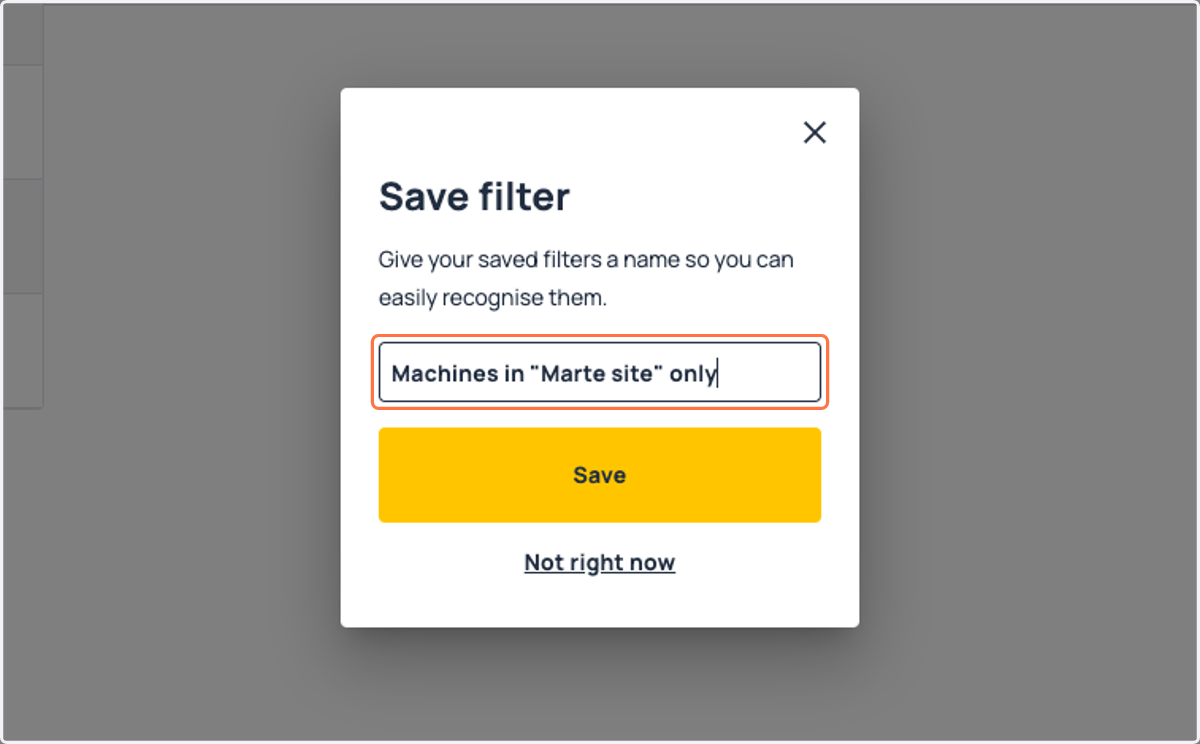
17. Give the filter (group) a descriptive name
This name will appear in your saved filters and in the configuration of any alert types.
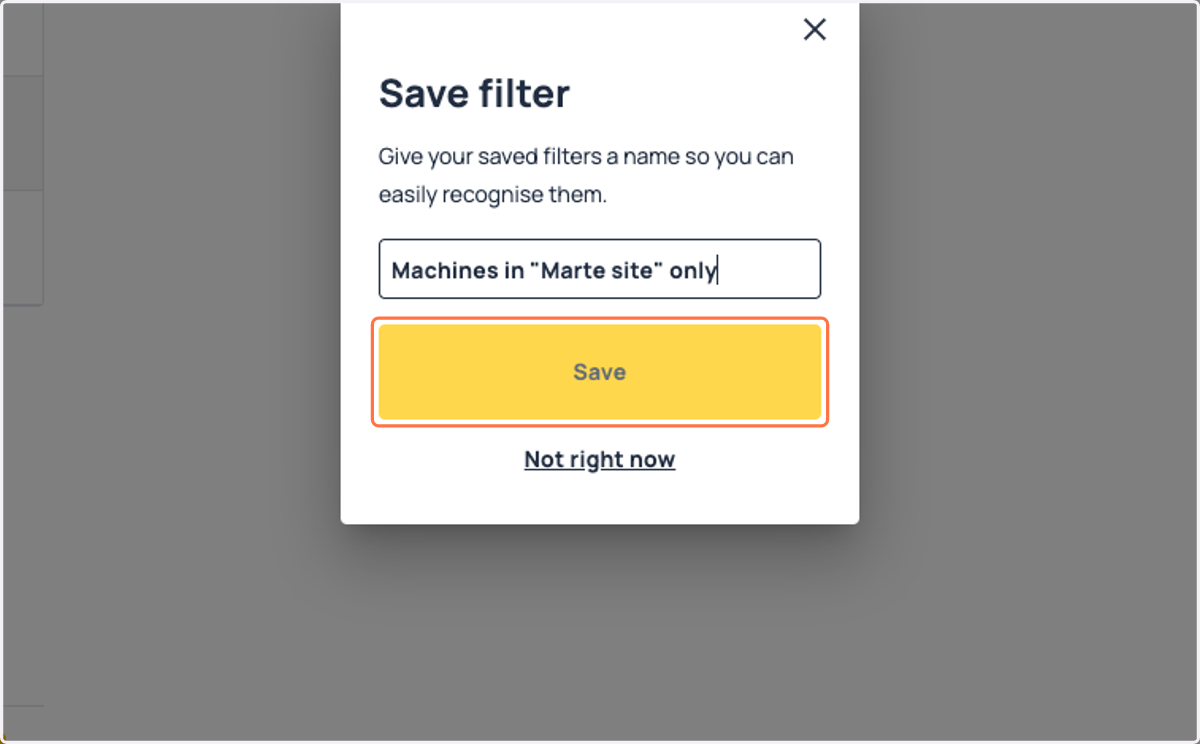
18. Click on Save
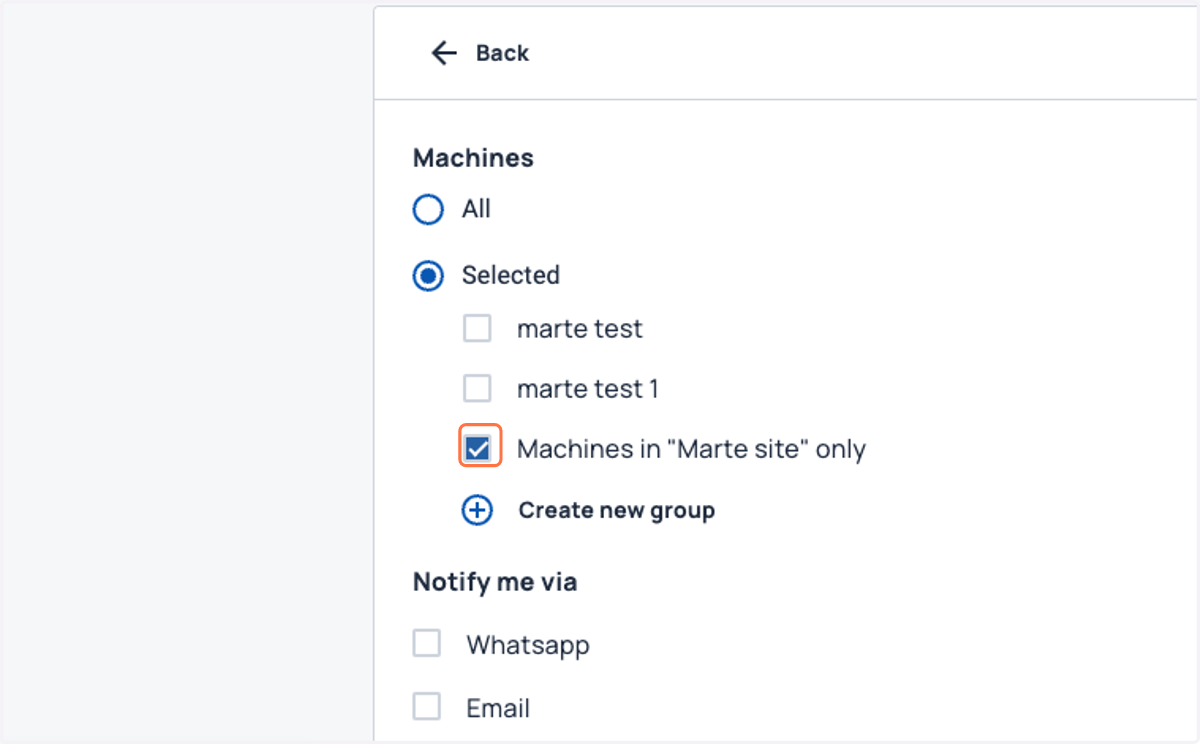
19. Select your newly created group
You can select one or multiple saved filters, making it easy to receive notifications only for the machines you need
20. Confirm how you want to be notified
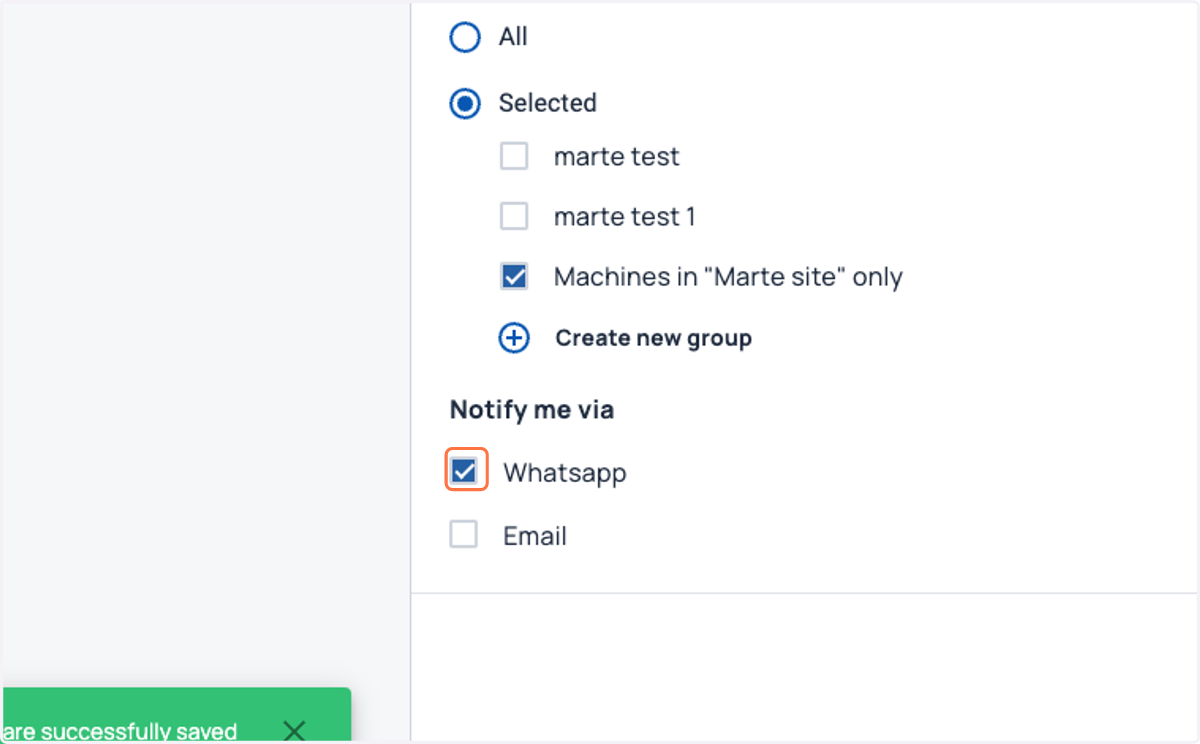
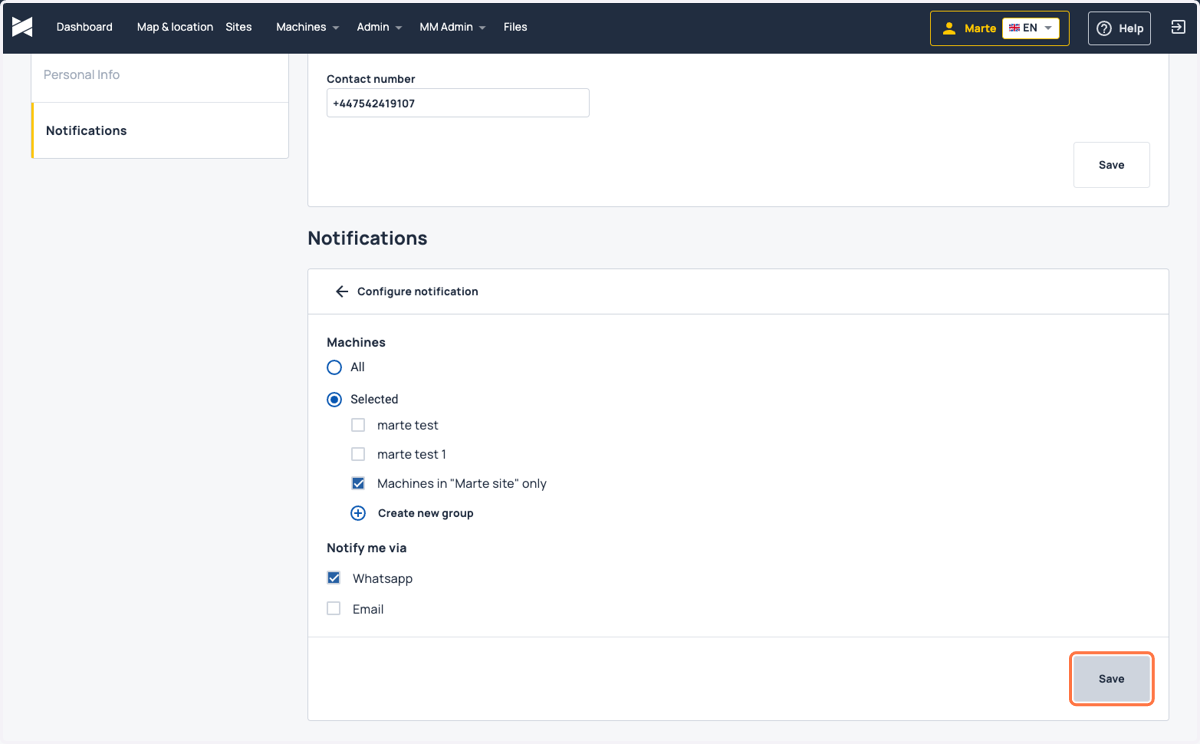
21. Click on Save
You will now start receiving notifications once any of your machines reach the set threshold for speeding. The default threshold is 35 km/h for 15 seconds. If you would like to discuss raising or lowering the threshold for your organisation, please contact support@machinemax.com
22. Return to the profile area
And you're done! You will now start receiving notifications as per your configurations. Note that you can change these as often as you need to. Only you will receive notifications as per the setup in your profile area, and your colleagues can choose to enable them for themselves or leave them switched off.