How do I create a file delivery?
A guide to creating a file delivery in the Media Room. See steps 7 - 9 for a number of special features in our file delivery process.
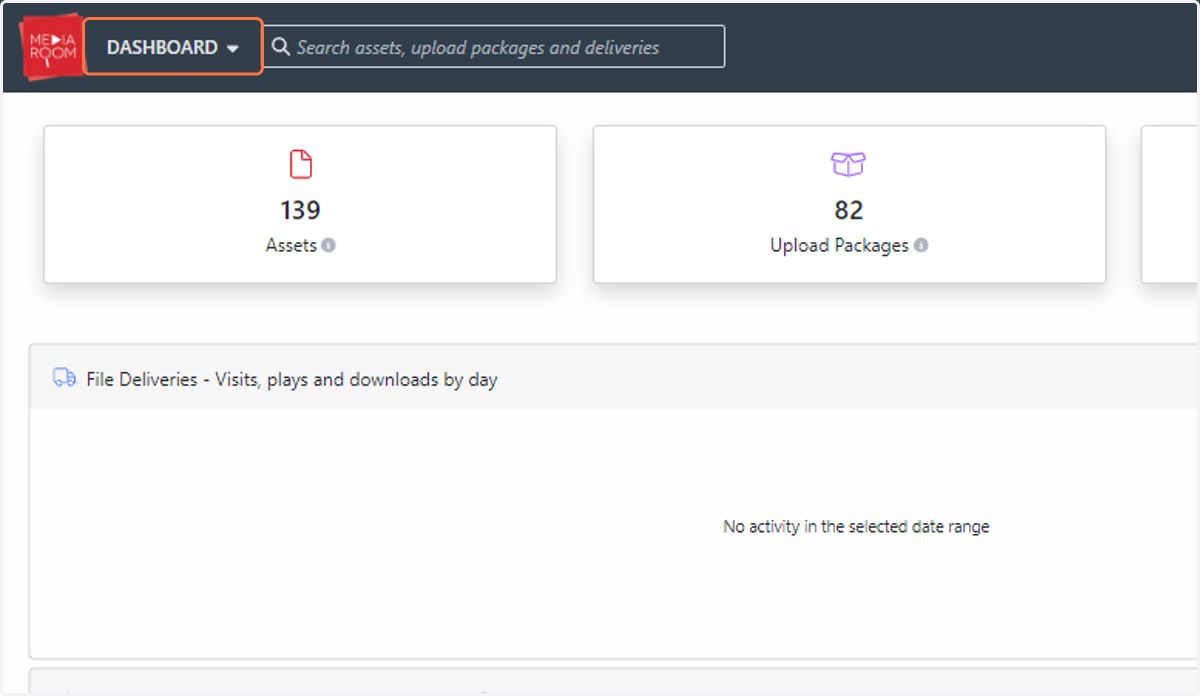
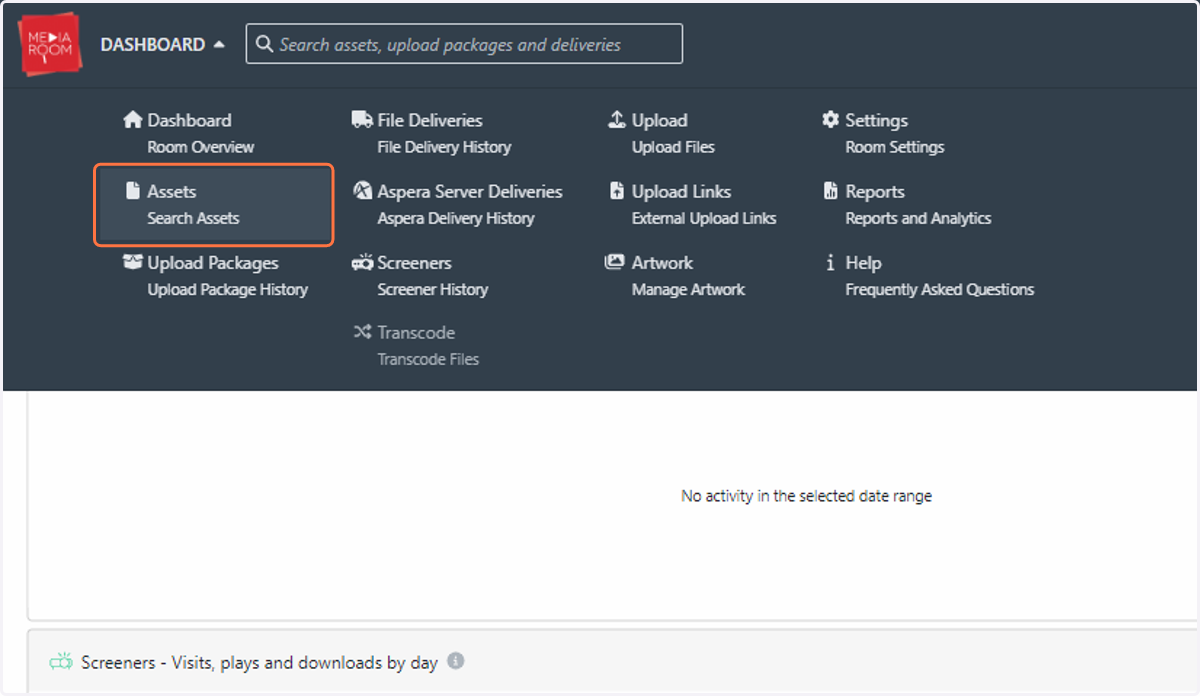
1. Click on DASHBOARD
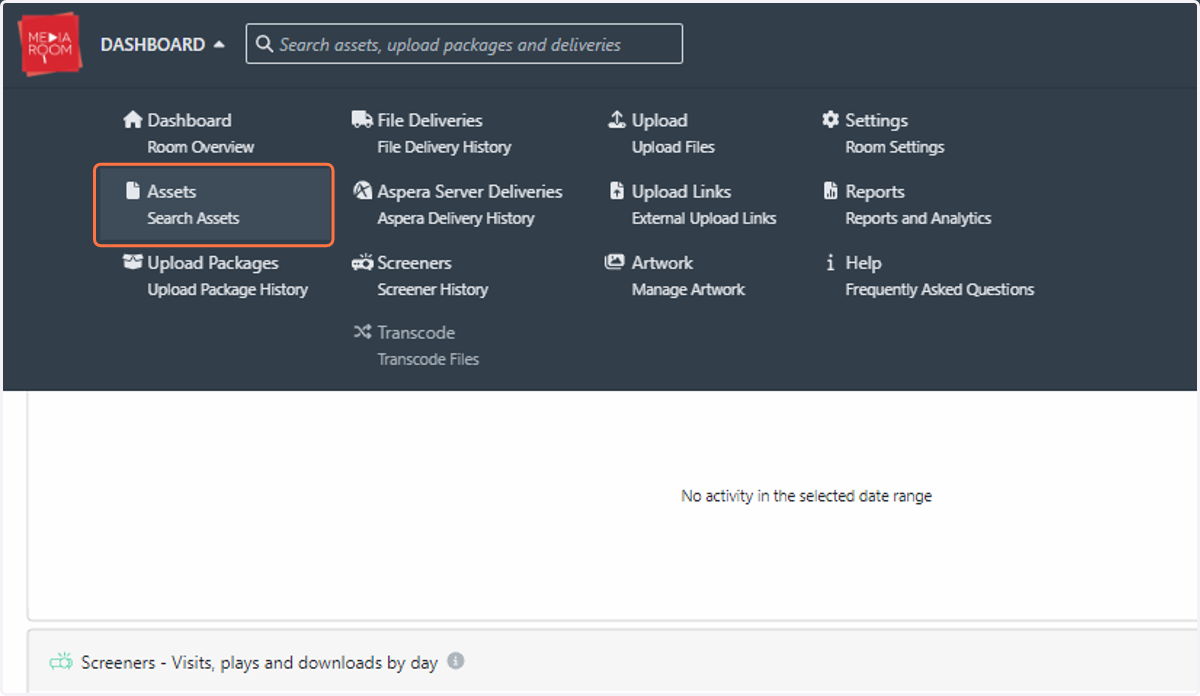
2. Click on Assets…
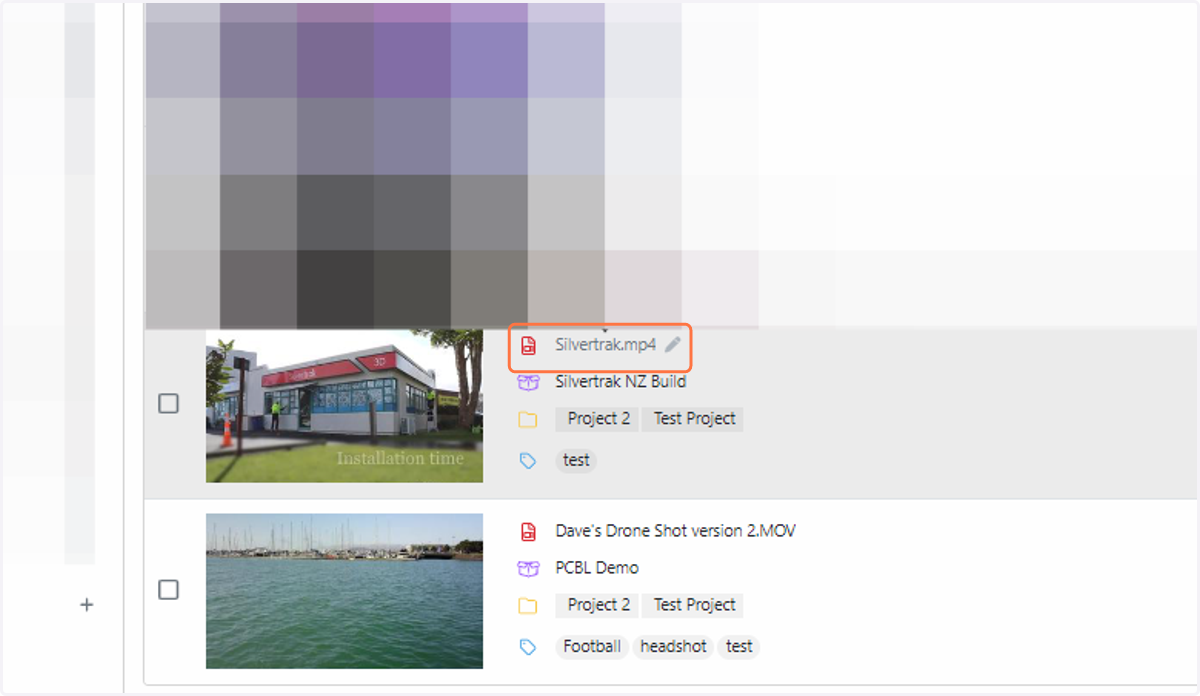
3. Click on the asset for delivery
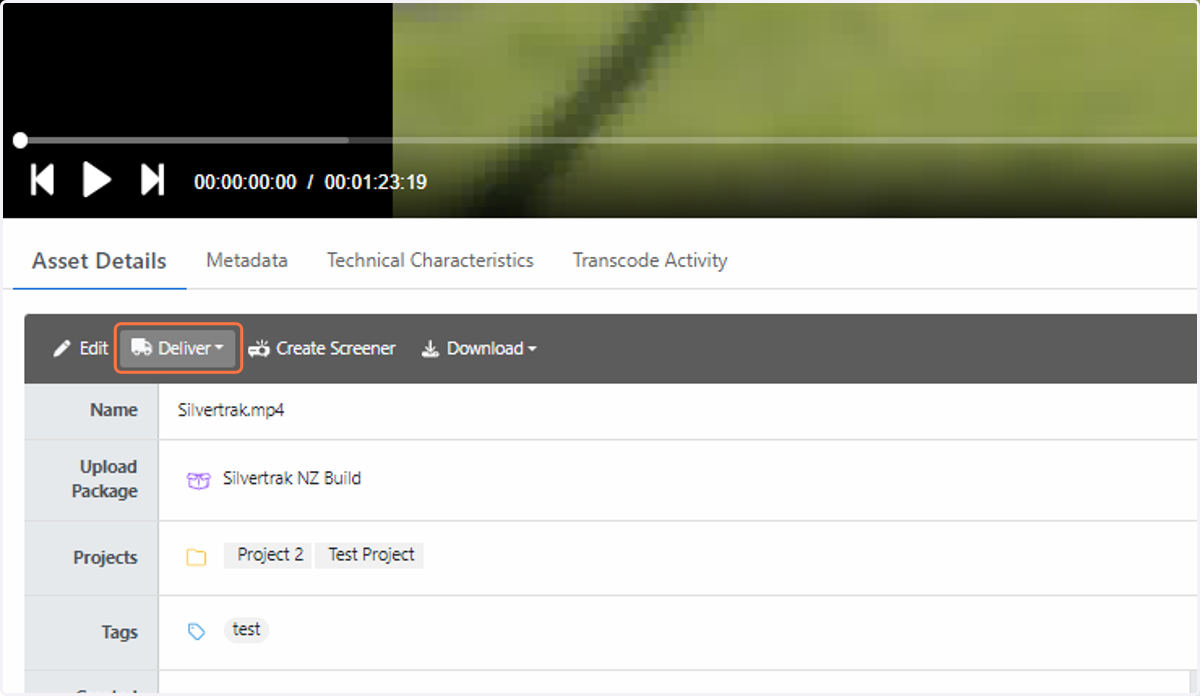
4. You will see a dropdown menu called “Deliver” in the “Asset Details” tab underneath your video
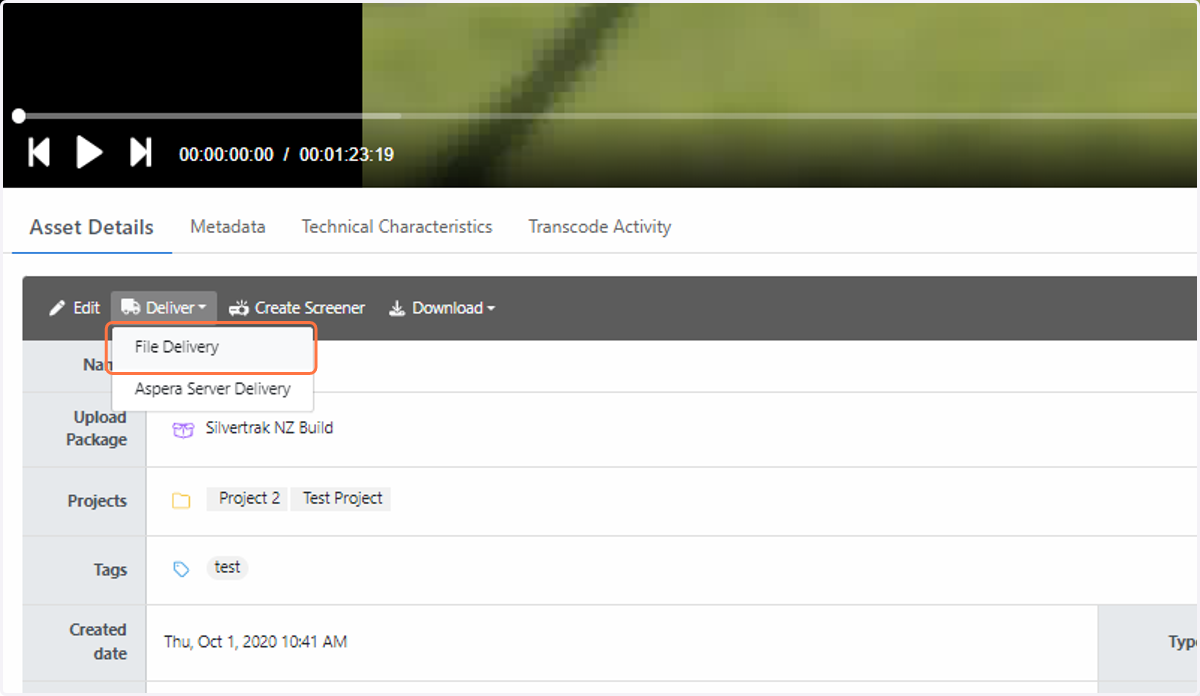
5. Click on File Delivery
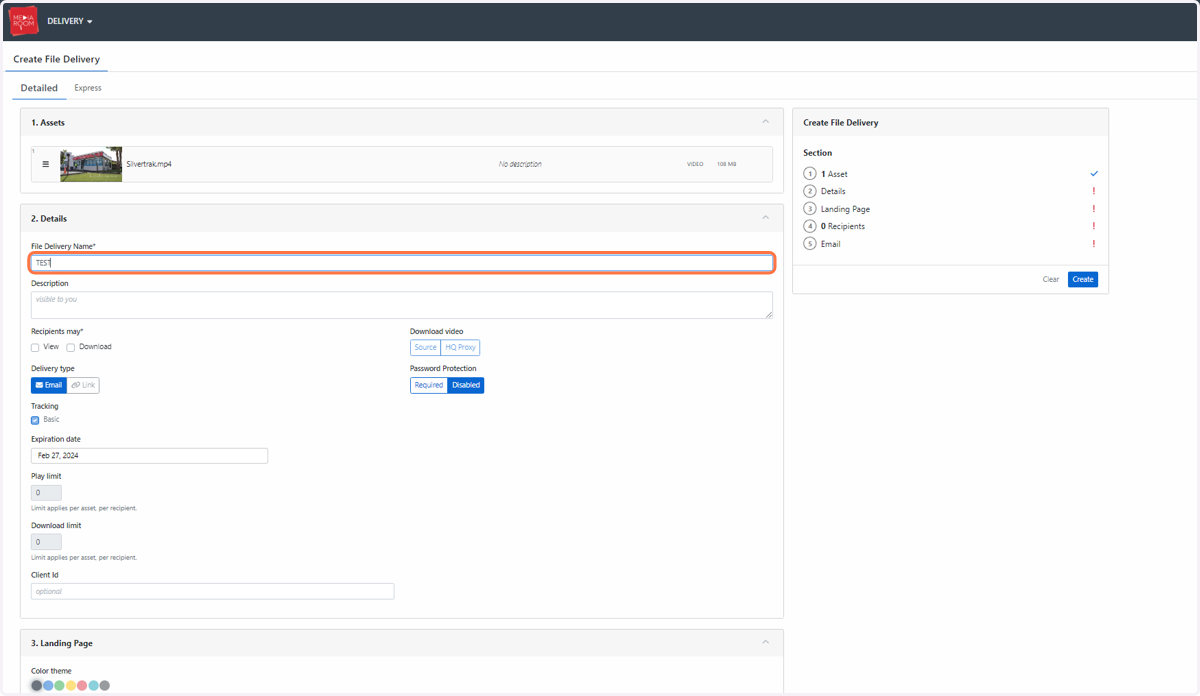
6. Fill in the form with your relevant delivery details and requirements
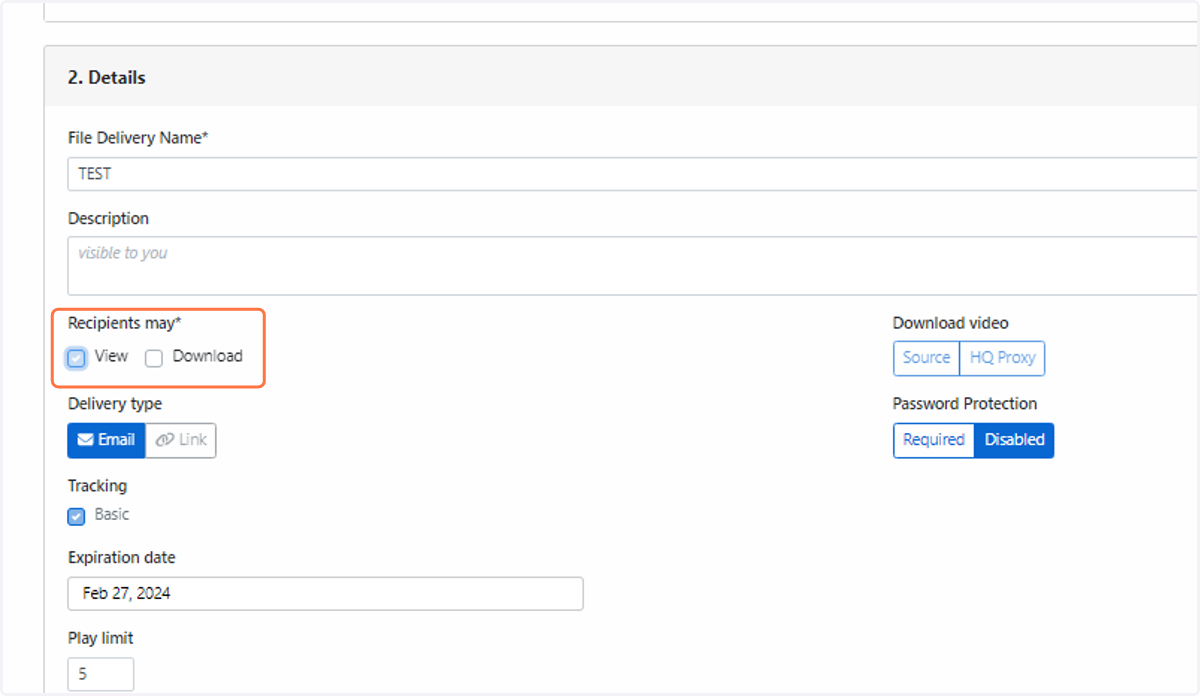
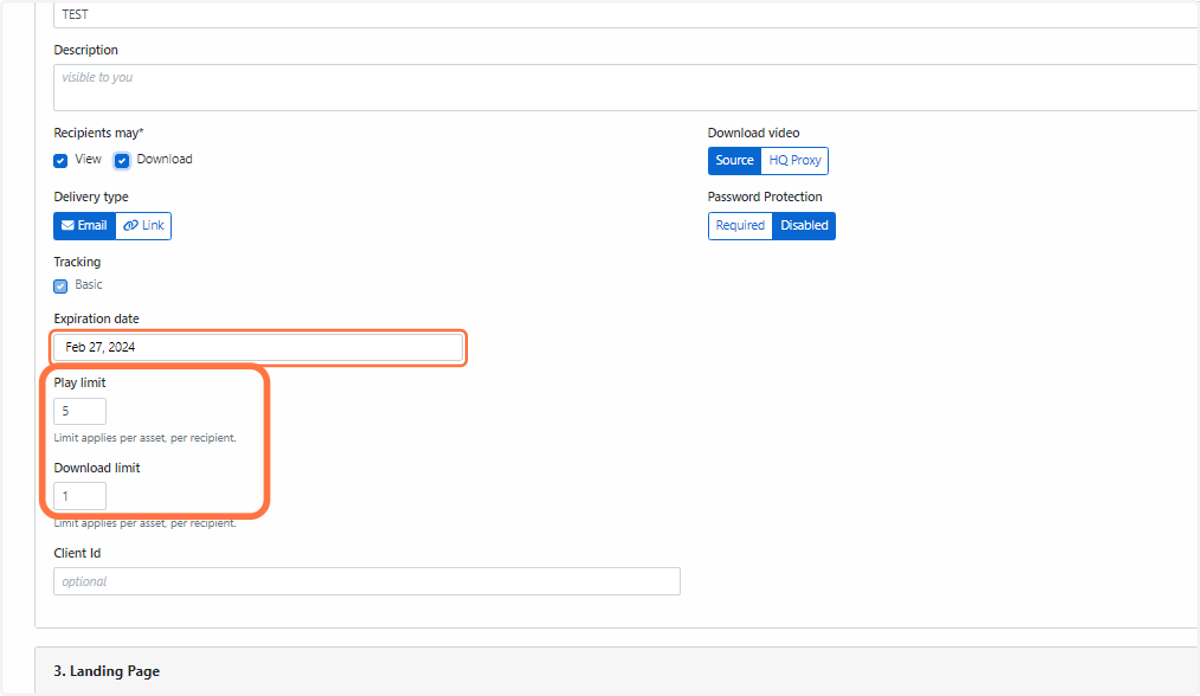
7. You will have the ability to choose what the recipients may receive. This can be a file to view and/or download
8. You have the ability to choose how long recipients can access the content. Simply select a date in the Expiration date section. You can also set a play and download limit on your files
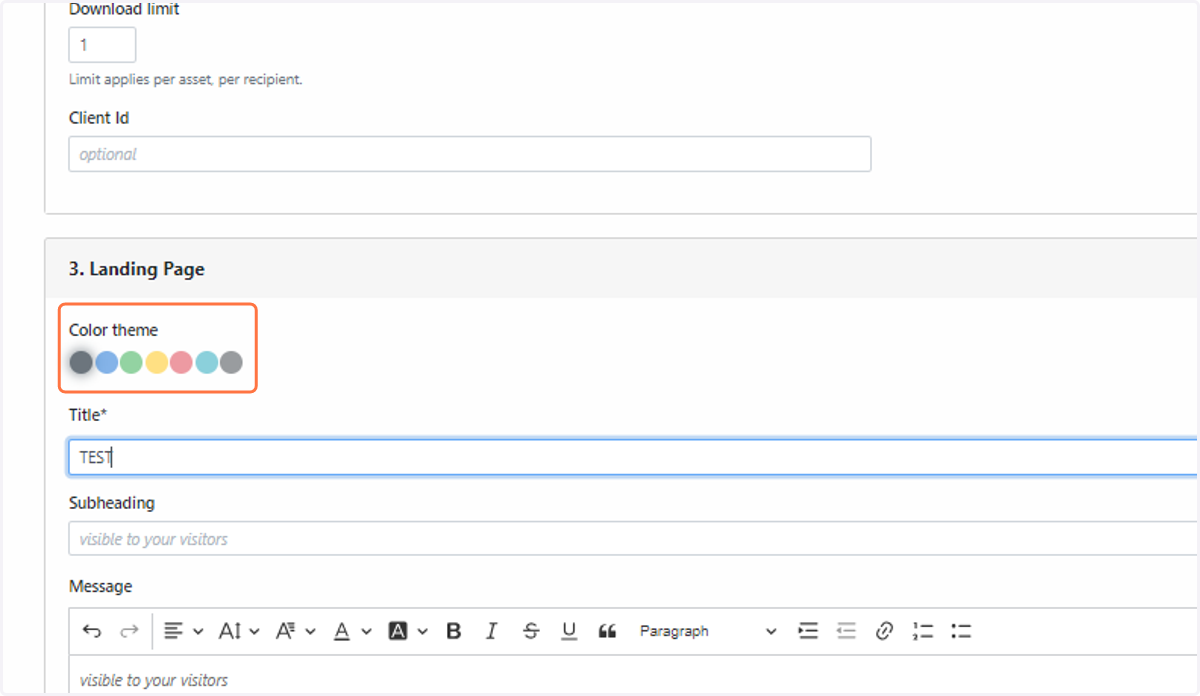
9. You can also select the colour themes and text on your landing and email pages
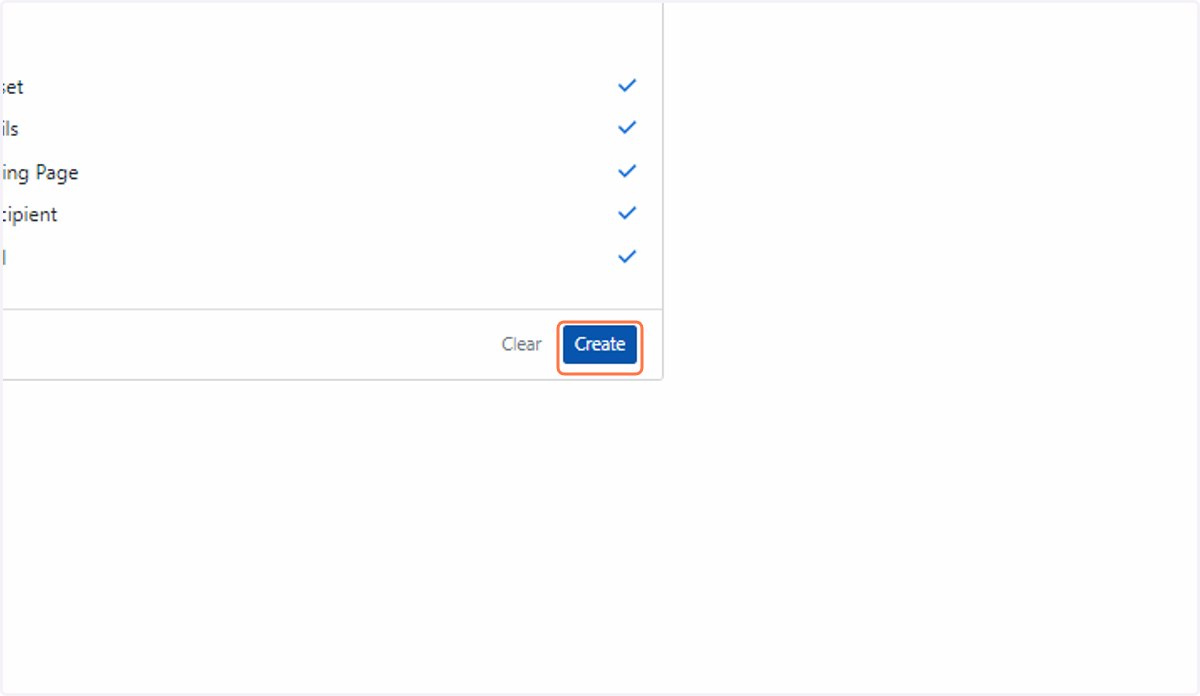
10. Once all required details are filled in, select Create
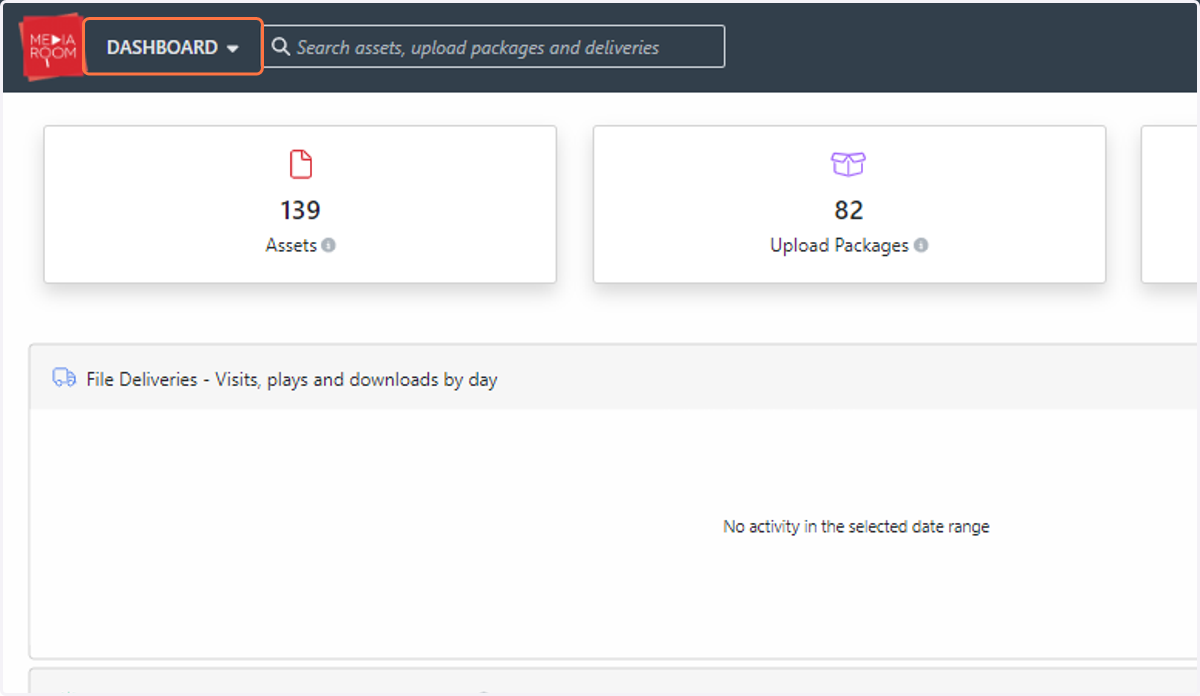
11. To do a bulk delivery of multiple files, Click on DASHBOARD
12. Click on Assets…
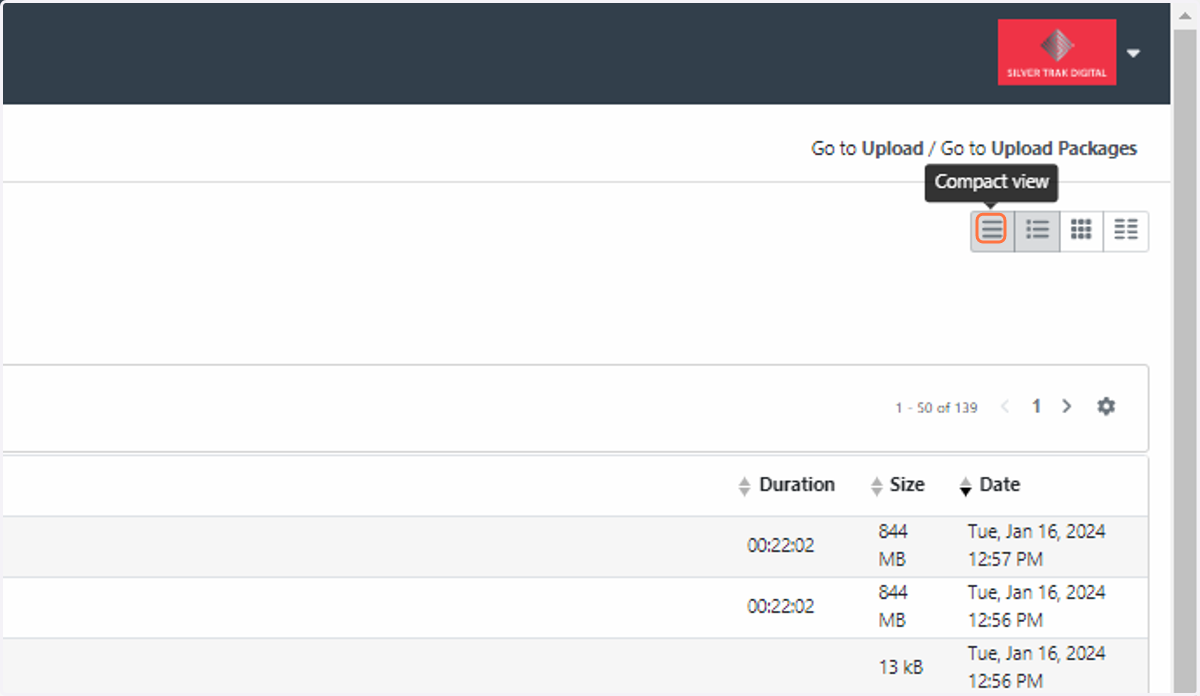
13. The compact view is recommended when performing a delivery of multiple assets. This button is located on the right hand side of your Assets page
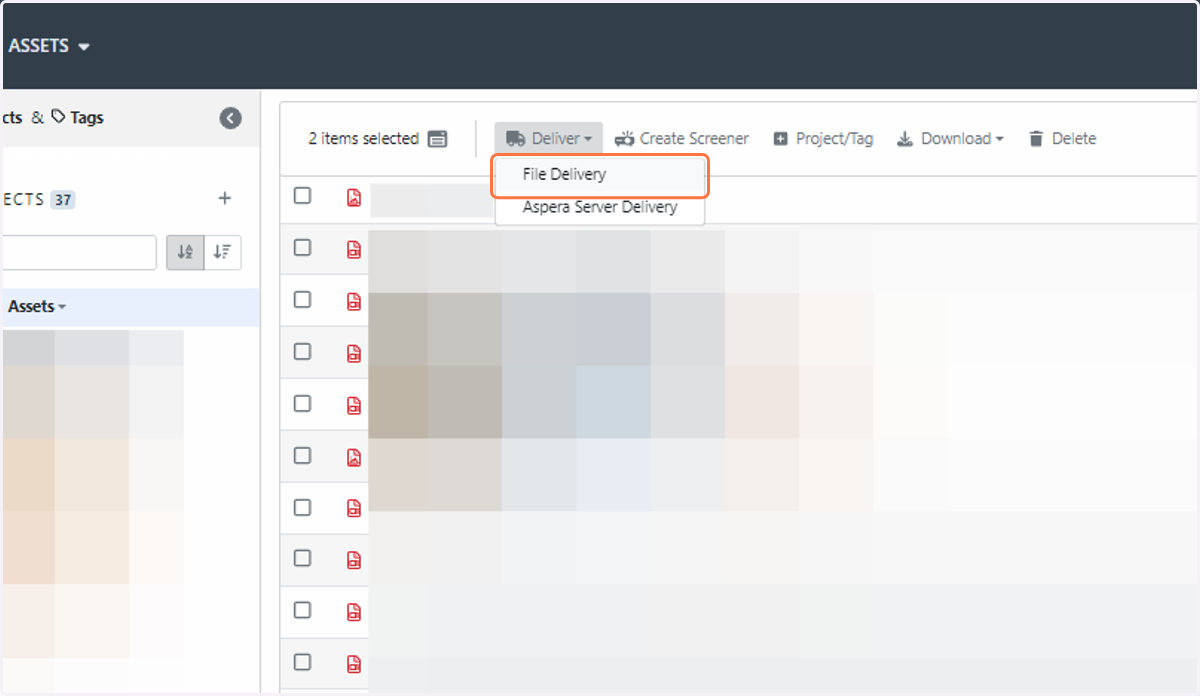
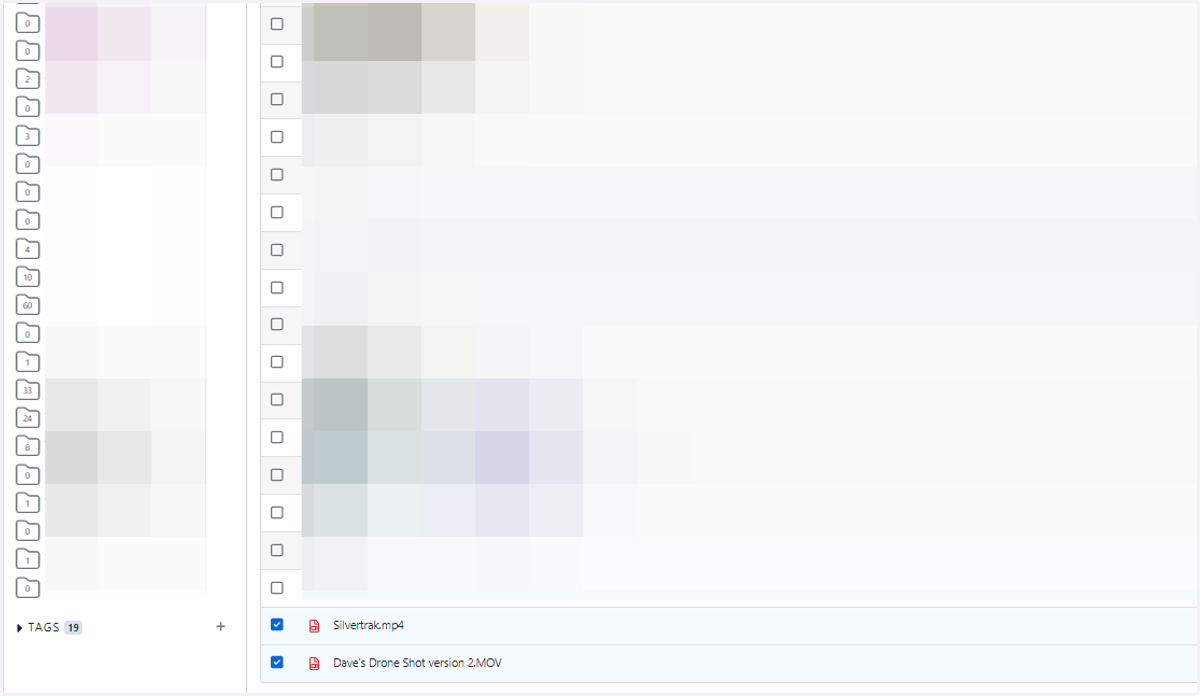
14. Select the required assets for delivery by clicking on the checkbox next to your files
15. You will see a dropdown menu called “Deliver” at the top of your asset list
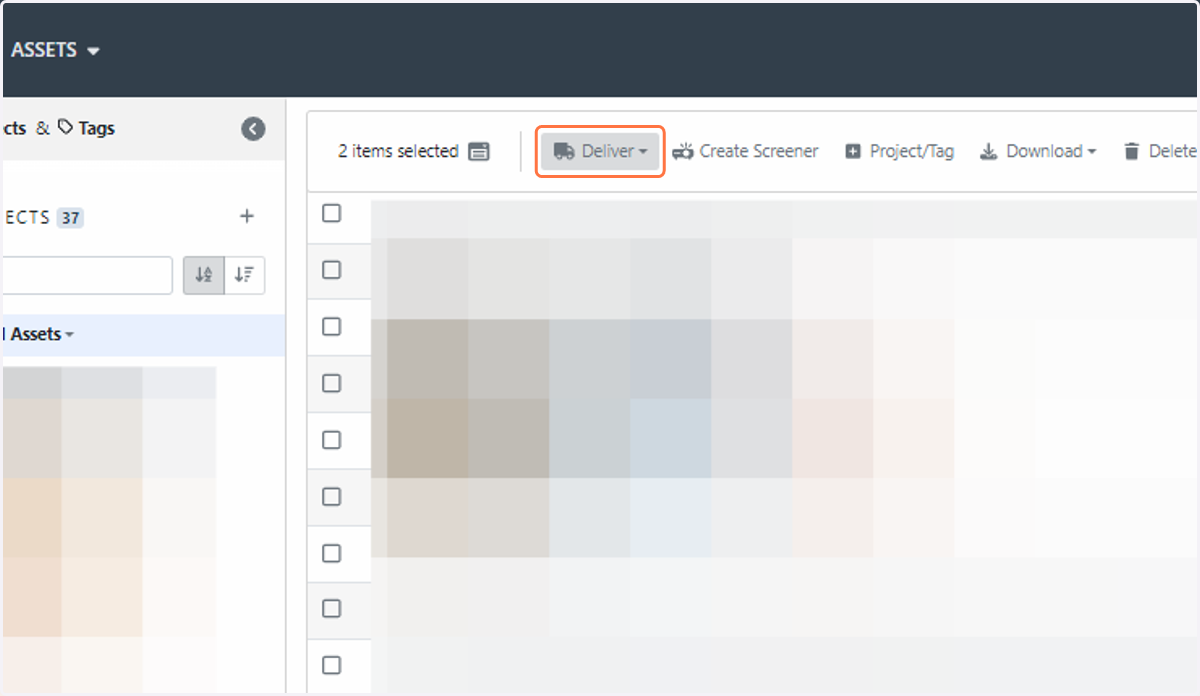
16. Select “File Delivery'' from the delivery options. Fill in the form with all your relevant delivery details and requirements