How to Deserialize a Part Set as Serialized
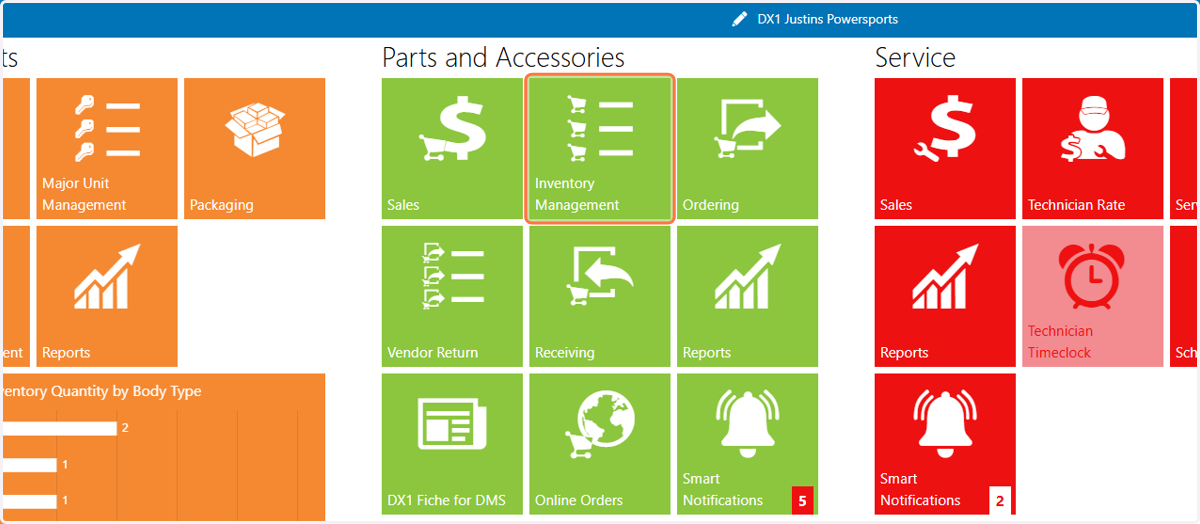
DX1 Dashboard
1. Click on Inventory Management
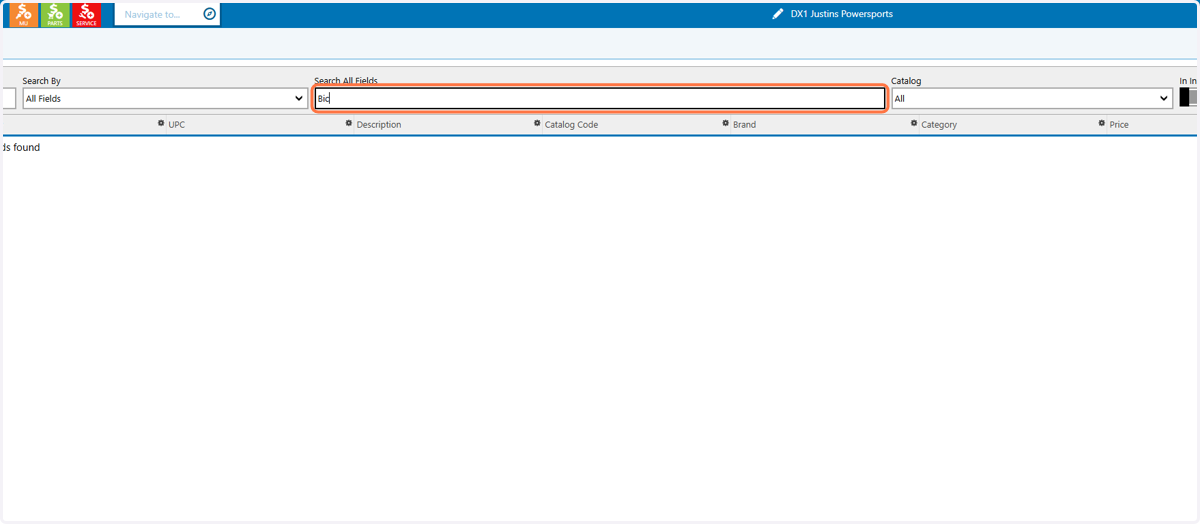
2. Use the search to find the part to deserialize
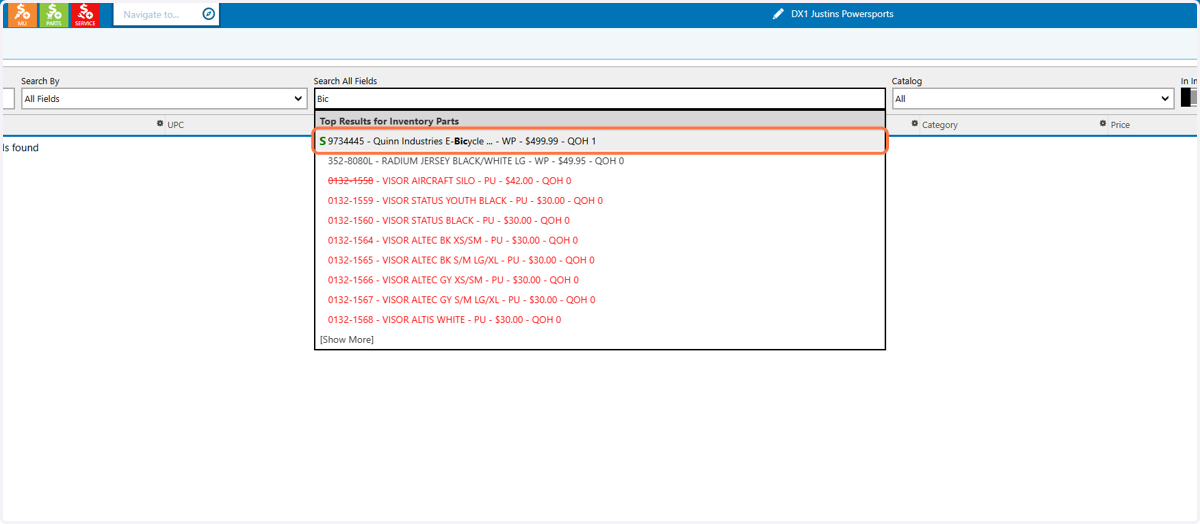
3. Once you find the part you are looking for, click on it to open the part detail
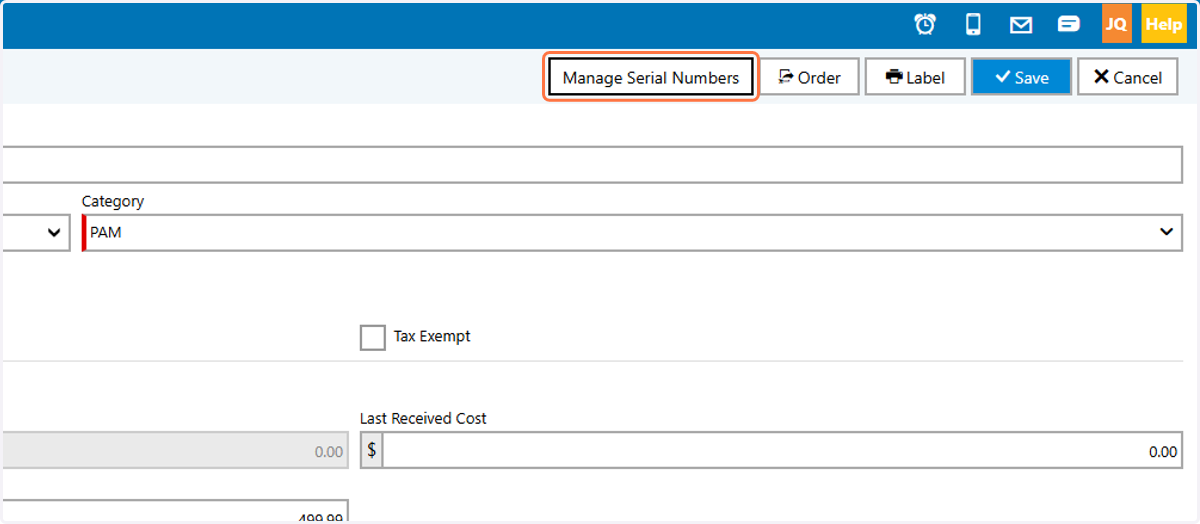
4. Click on Manage Serial Numbers
5. Click on Deserialize
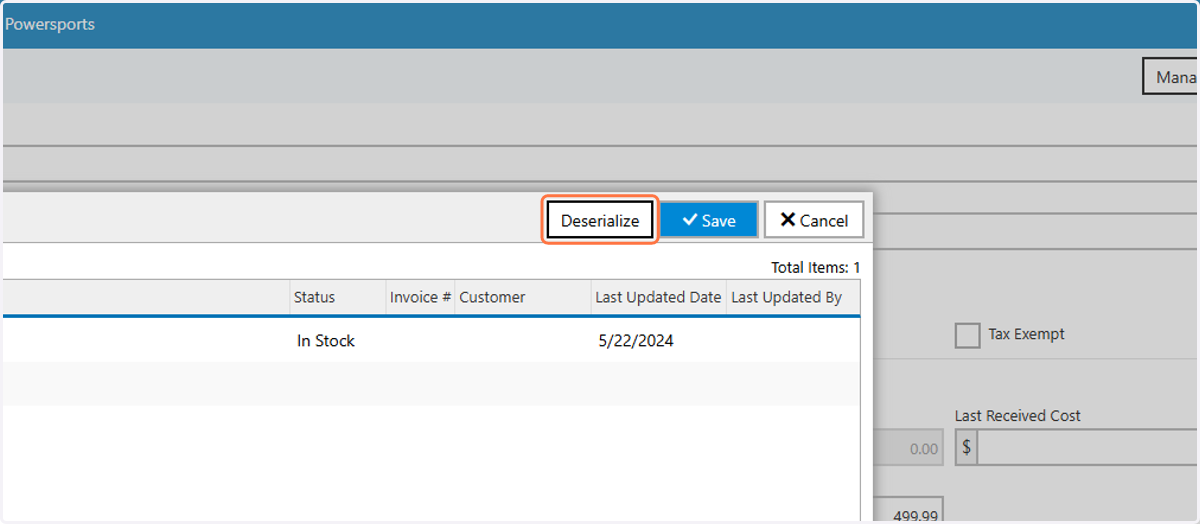
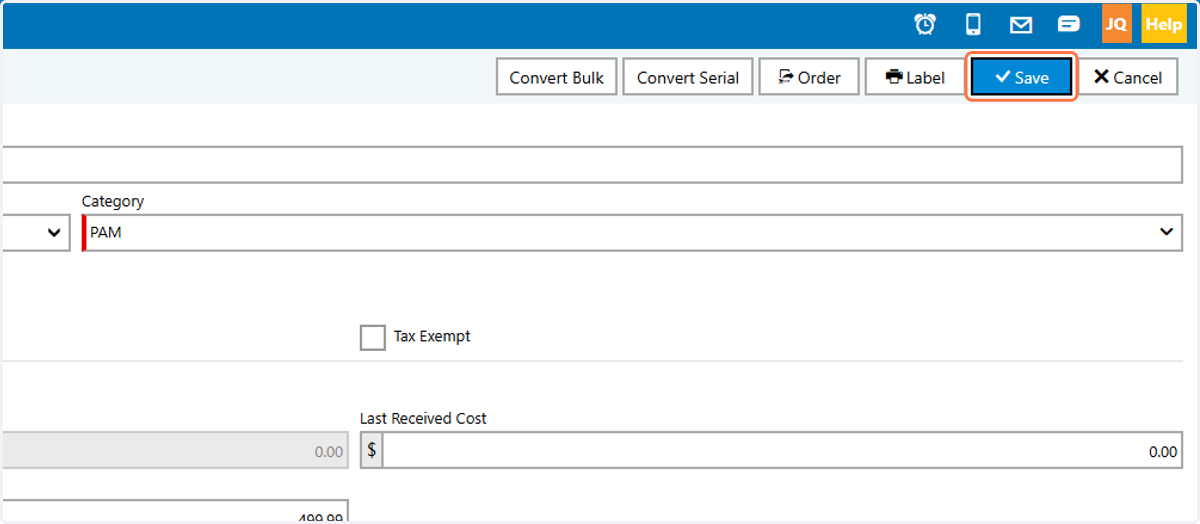
6. Click on Save