Adding a Class and Configuring Pricing

XSBA Home: Powered by Engagifii

  1. 1. Click on Accreditation

    Click on Accreditation
  2. 2. Click on Courses

    Click on Courses
  3. 3. Choose the course you would like to add a class for.

    Choose the course you would like to add a class for.
  4. 4. Click on Classes

    Click on Classes
  5. 5. Click on Add a Class

    Click on Add a Class
  6. 6. Click on Select a Class Type

    Click on Select a Class Type
  7. 7. Click on Select Class Type…

    Click on Select Class Type…
  8. 8. Set the date and time of the class.

    Set the date and time of the class.
  9. 9. Set the time of the class

    Set the time of the class
  10. 10. Click on Select Instructor(s)

    Click on Select Instructor(s)
  11. 11. Click on Save

    Click on Save
  12. 12. Open the class up.

    Open the class up.
  13. 13. Click on Edit

    Click on Edit
  14. 14. Check This class requires registration

    Check This class requires registration
  15. 15. Add a registration limit

    Add a registration limit
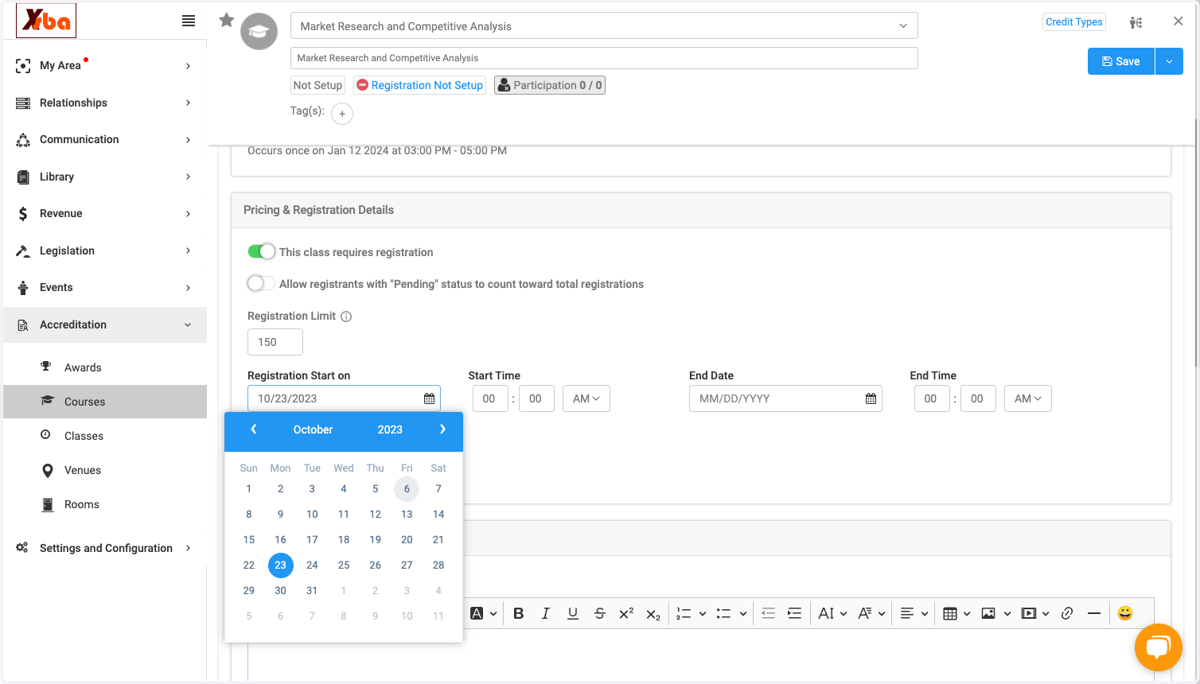
  16. 16. Set your registration period

    Set your registration period
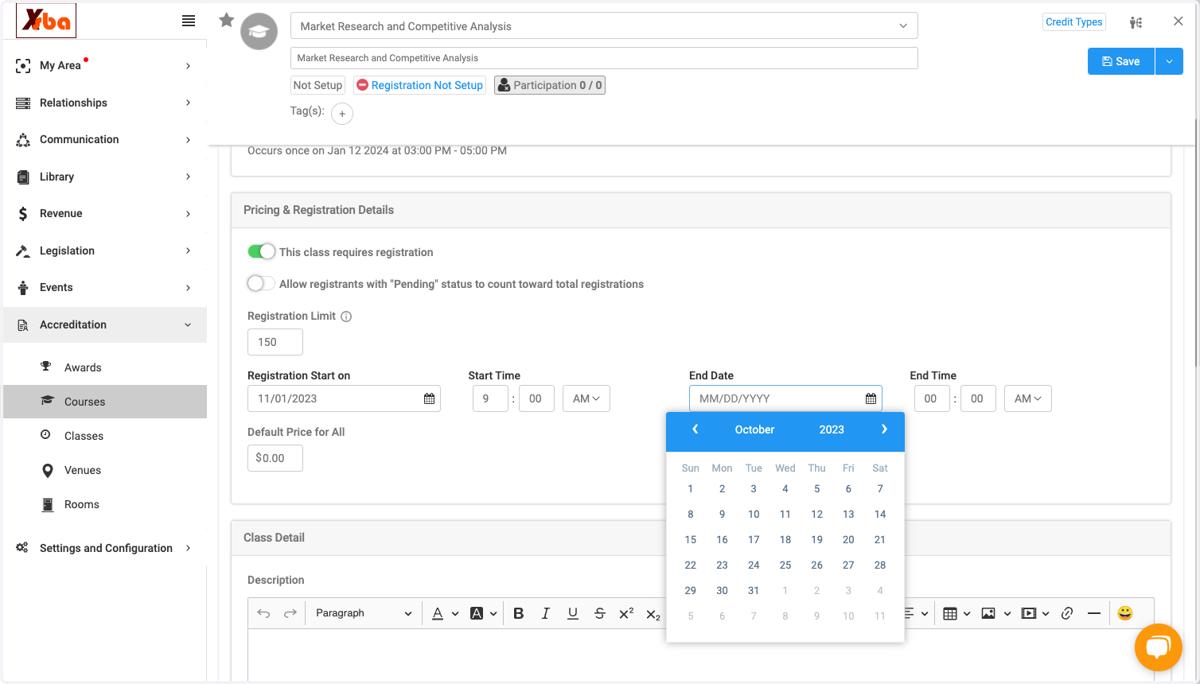
  17. 17. Set your registration period

    Set your registration period
  18. 18. Set your registration period

    Set your registration period
  19. 19. Choose your class format

    Choose your class format
  20. 20. Add joining instruction if an online class

    Add joining instruction if an online class
  21. 21. Add the meeting link

    Add the meeting link
  22. 22. Click on Custom URL

    Click on Custom URL
  23. 23. Add the meeting link

    Add the meeting link
  24. 24. Click on Save

    Click on Save
  25. 25. Click on Registration & Pricing

    Click on Registration & Pricing
  26. 26. Click on Edit

    Click on Edit
  27. 27. I would like to set special pricing for members so I am searching for the "member" person type.

    I would like to set special pricing for members so I am searching for the "member" person type.
  28. 28. I would like to set special pricing for members so I am searching for the "member" person type.

    I would like to set special pricing for members so I am searching for the "member" person type.
  29. 29. Click on Manage

    Click on Manage
  30. 30. I would like to set early and regular pricing for my members. I am labeling this "Early Bird"

    I would like to set early and regular pricing for my members. I am labeling this "Early Bird"
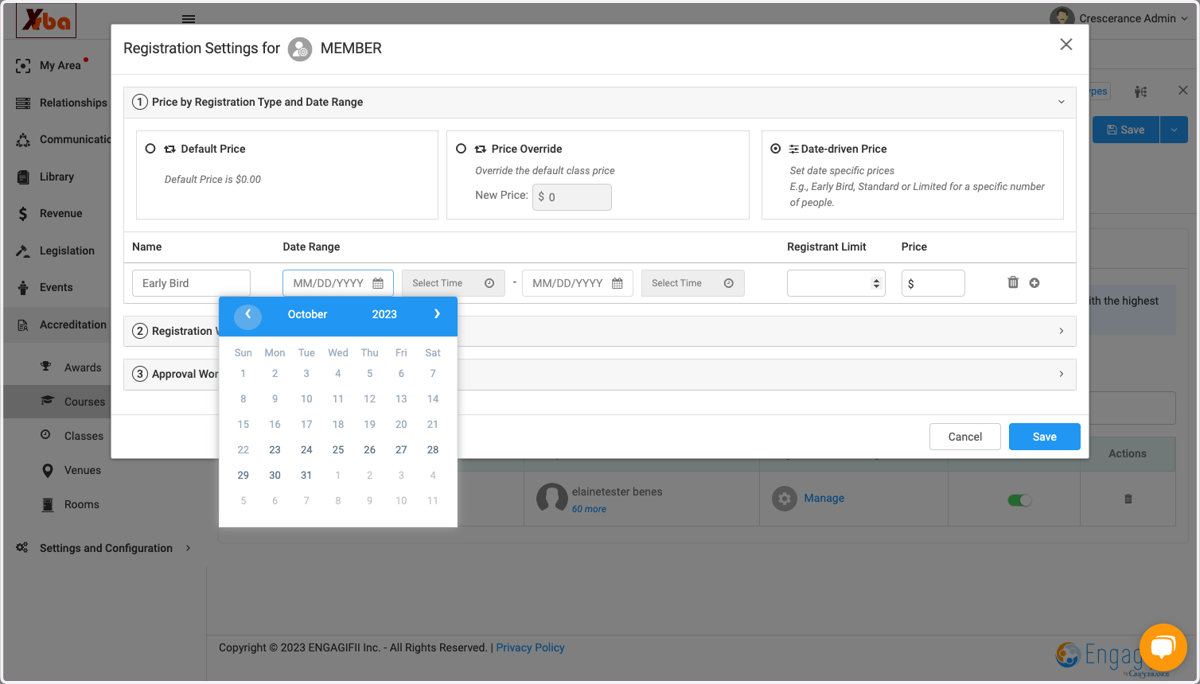
  31. 31. Add your Early Bird range.

    Add your Early Bird range.
  32. 32. Add your Early Bird range.

    Add your Early Bird range.
  33. 33. Add your Early Bird range.

    Add your Early Bird range.
  34. 34. Be sure your times do not overlap

    Be sure your times do not overlap
  35. 35. Click on 9:00 AM

    Click on 9:00 AM
  36. 36. Type "25"

    Type "25"
  37. 37. Set your "Early Bird" price

    Set your "Early Bird" price
  38. 38. I would like to add the Regular Pricing so I am clicking here to add another pricing rule.

    I would like to add the Regular Pricing so I am clicking here to add another pricing rule.
  39. 39. Type "Regular"

    Type "Regular"
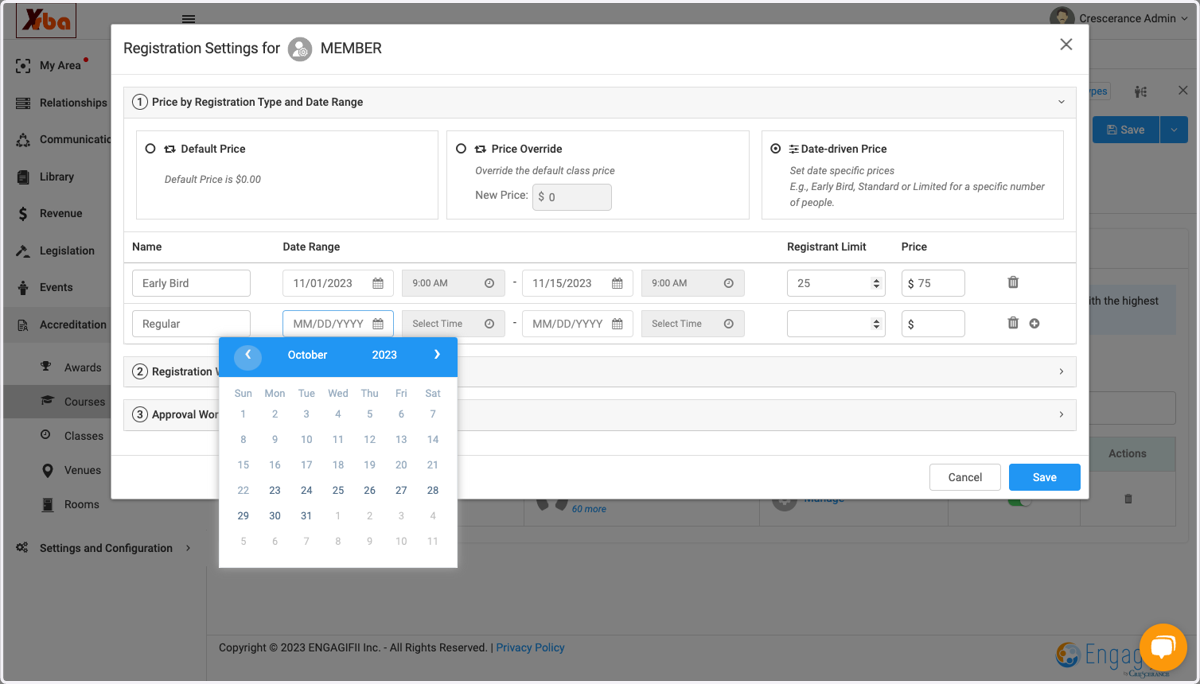
  40. 40. Add range for regular pricing

    Add range for regular pricing
  41. 41. Add range for regular pricing

    Add range for regular pricing
  42. 42. Set your registration limit

    Set your registration limit
  43. 43. Set your regular pricing

    Set your regular pricing
  44. 44. Click on Save

    Click on Save
  45. 45. I would like to add special pricing for staff so I will use this search to find "staff"

    I would like to add special pricing for staff so I will use this search to find "staff"
  46. 46. I would like to add another pricing rule so i will click on Edit.

    I would like to add another pricing rule so i will click on Edit.
  47. 47. I would like to add special pricing for staff so I will use this search to find "staff"

    I would like to add special pricing for staff so I will use this search to find "staff"
  48. 48. I would like to add special pricing for staff so I will use this search to find "staff"

    I would like to add special pricing for staff so I will use this search to find "staff"
  49. 49. Click on STAFF

    Click on STAFF
  50. 50. Click on Manage

    Click on Manage
  51. 51. I am setting the standard price for all staff the entire duration of registration.

    I am setting the standard price for all staff the entire duration of registration.
  52. 52. Click on Save

    Click on Save
  53. 53. I have a guest speaker named Cindy I would like to register but not have to pay. I will set a pricing rule just for her by searching her name through "people."

    I have a guest speaker named Cindy I would like to register but not have to pay. I will set a pricing rule just for her by searching her name through "people."
  54. 54. I have a guest speaker named Cindy I would like to register but not have to pay. I will set a pricing rule just for her by searching her name through "people."

    I have a guest speaker named Cindy I would like to register but not have to pay. I will set a pricing rule just for her by searching her name through "people."
  55. 55. Click on CINDY CARLTON…

    Click on CINDY CARLTON…
  56. 56. Click on Manage

    Click on Manage
  57. 57. Click on Save

    Click on Save
  58. 58. You can order the pricing rules to set seniority effect. Even if Cindy is a member or staff, she won't have to pay because her pricing rule is at the top of the list.

    You can order the pricing rules to set seniority effect. Even if Cindy is a member or staff, she won't have to pay because her pricing rule is at the top of the list.
  59. 59. Click on Save

    Click on Save
  60. 60. Click on Manage

    Click on Manage

XSBA Registration and Pricing: Powered by Engagifii

  1. 61. Click on Manage

    Click on Manage
  2. 62. I have set her price to override to "0"

    I have set her price to override to "0"
  3. 63. Click on Save

    Click on Save
  4. 64. Click on Save

    Click on Save