Setting up Two-Factor Authentication: A Step-by-Step Tutorial
Ocerli
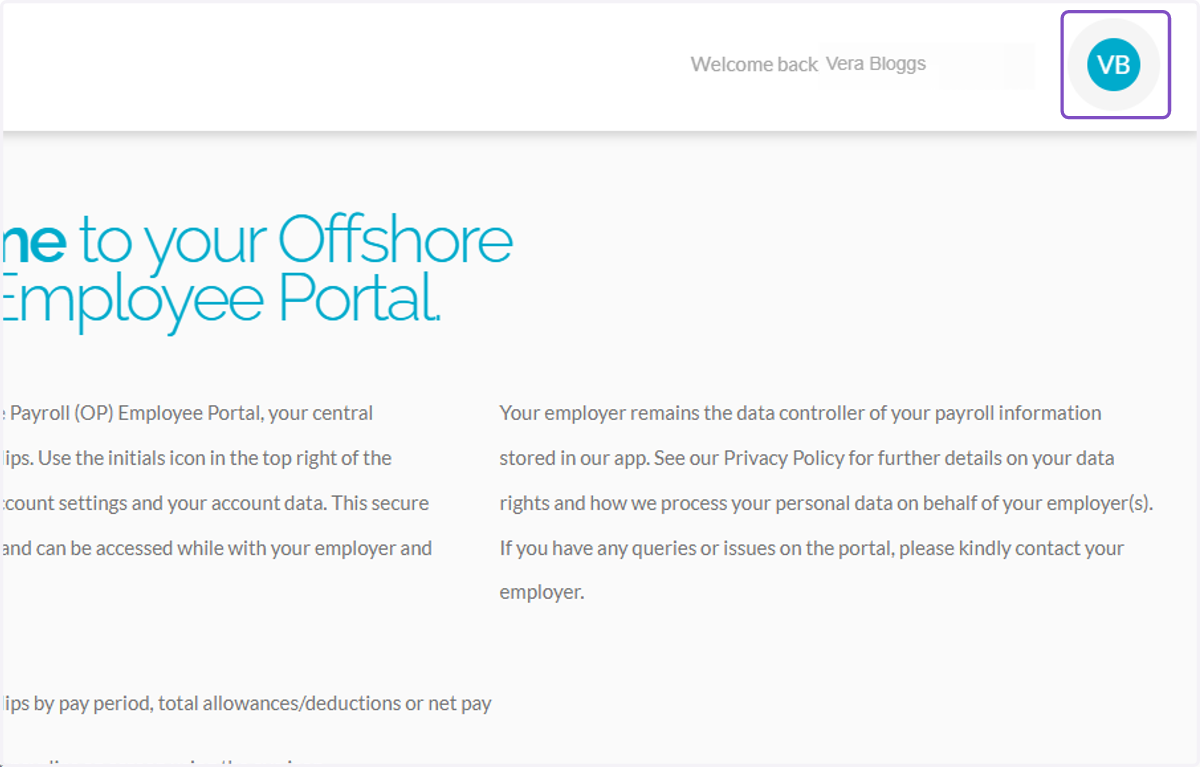
1. In the top right corner of any screen within the app, select the blue initials icon and then the account option on the drop down list.
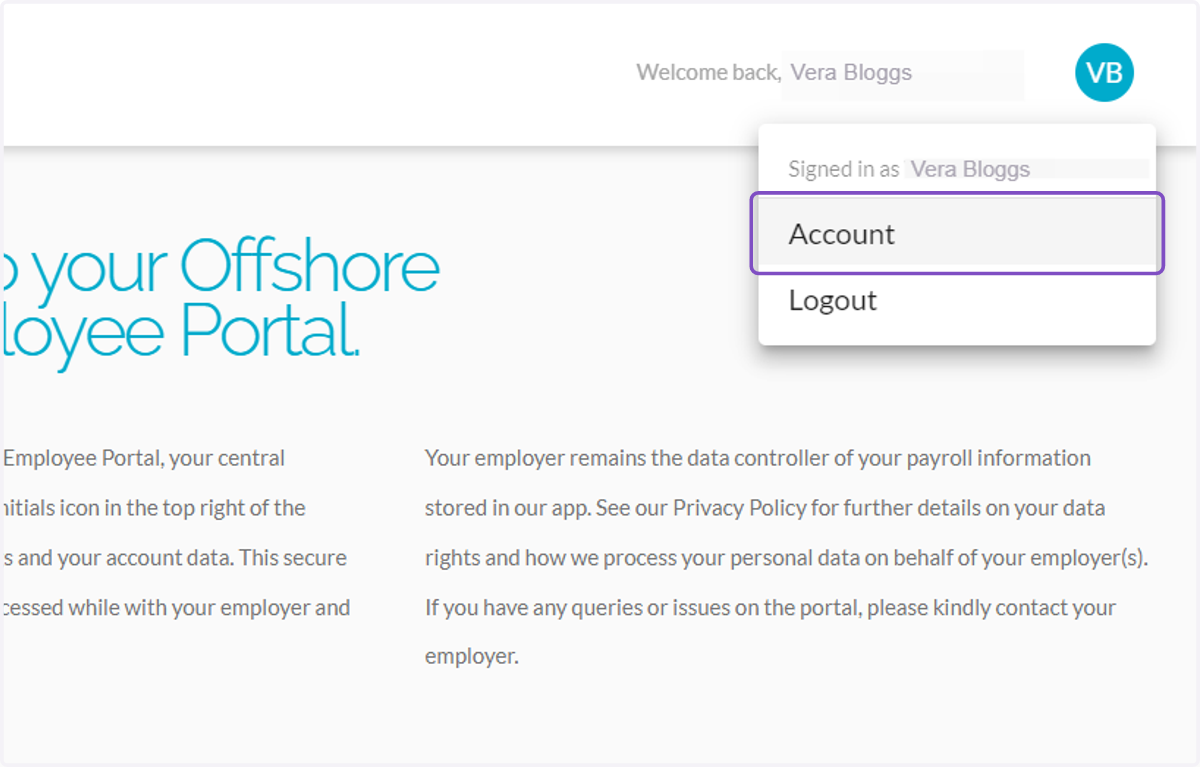
2. Click on Account
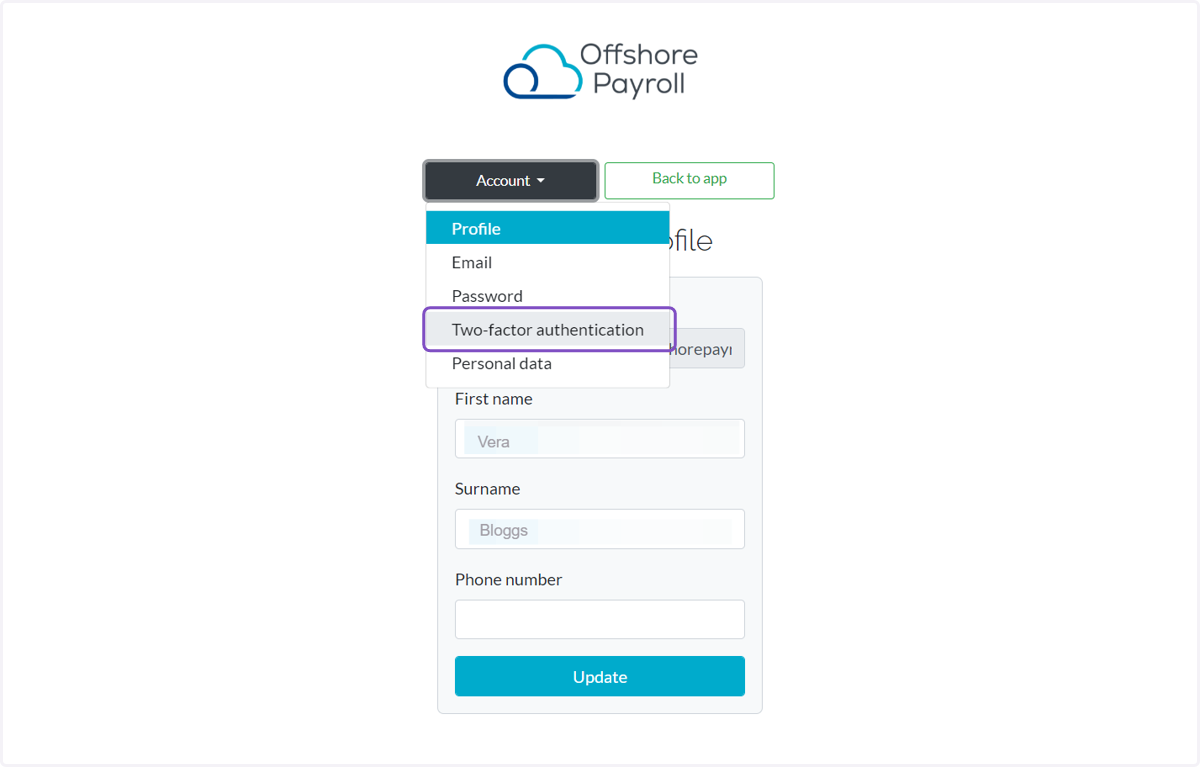
3. Select Two-factor authentication
If you would like all invited users within the account (whether a payroll processor or employee) to enable 2FA, you will need to enforce this as an internal policy.
4. Click on Setup authenticator app
Two-factor authentication: enhance your log in security by switching on two-factor authentication (2FA). 2FA requires two forms of information from you to log in, (1) your password and (2) a code sent to an app in your smart phone. Select setup authenticator app and follow the instructions to link the app with OP.
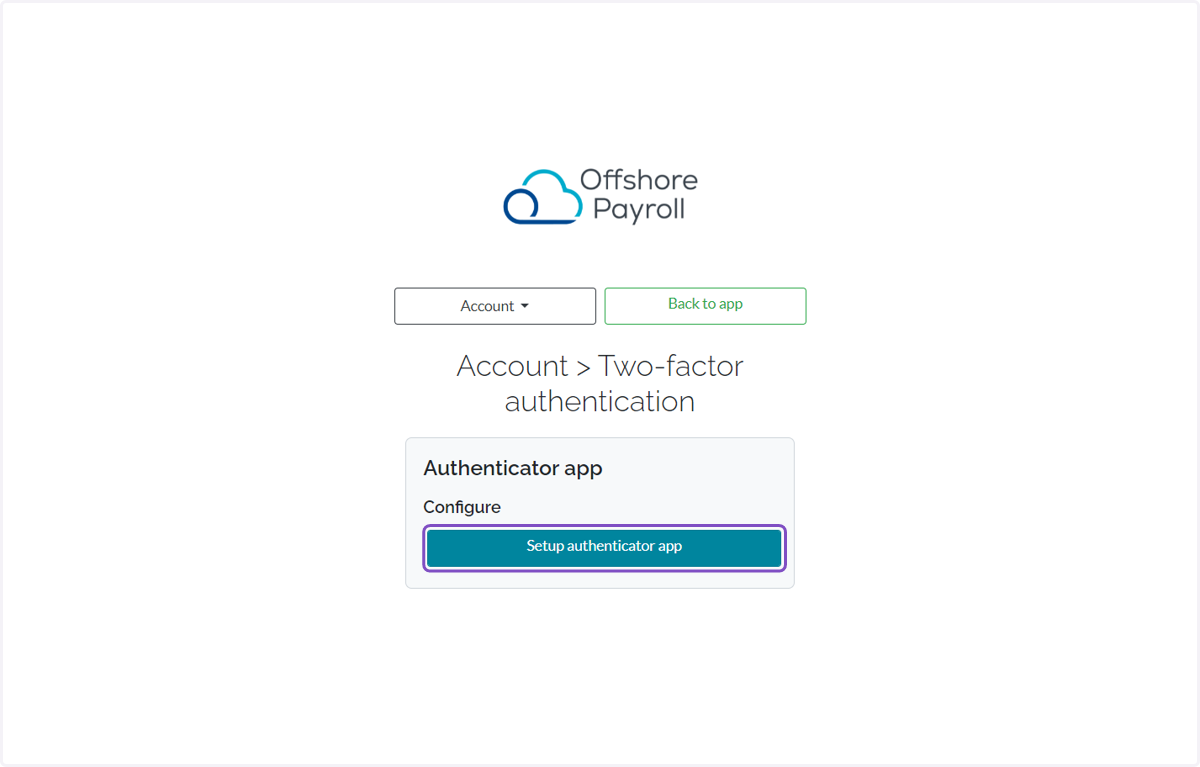
5. Follow the instructions you see on the screen.
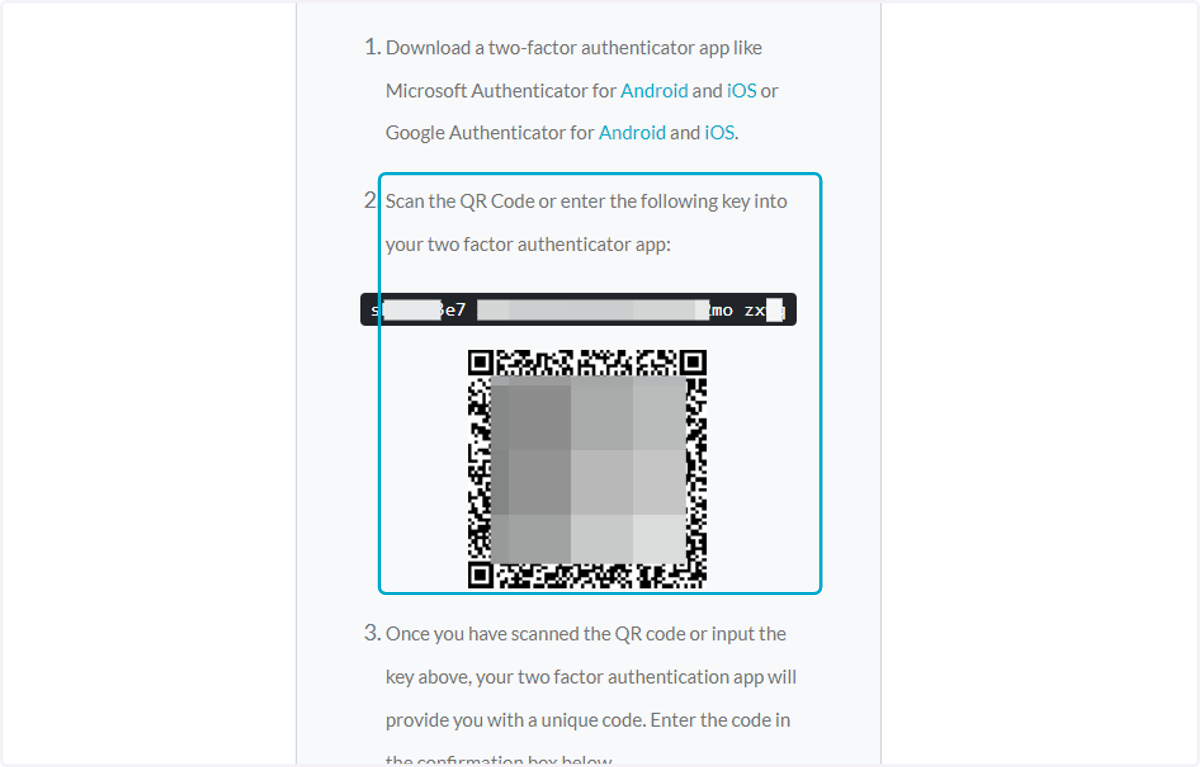
6. Type the one-time code generated in your Authentification app
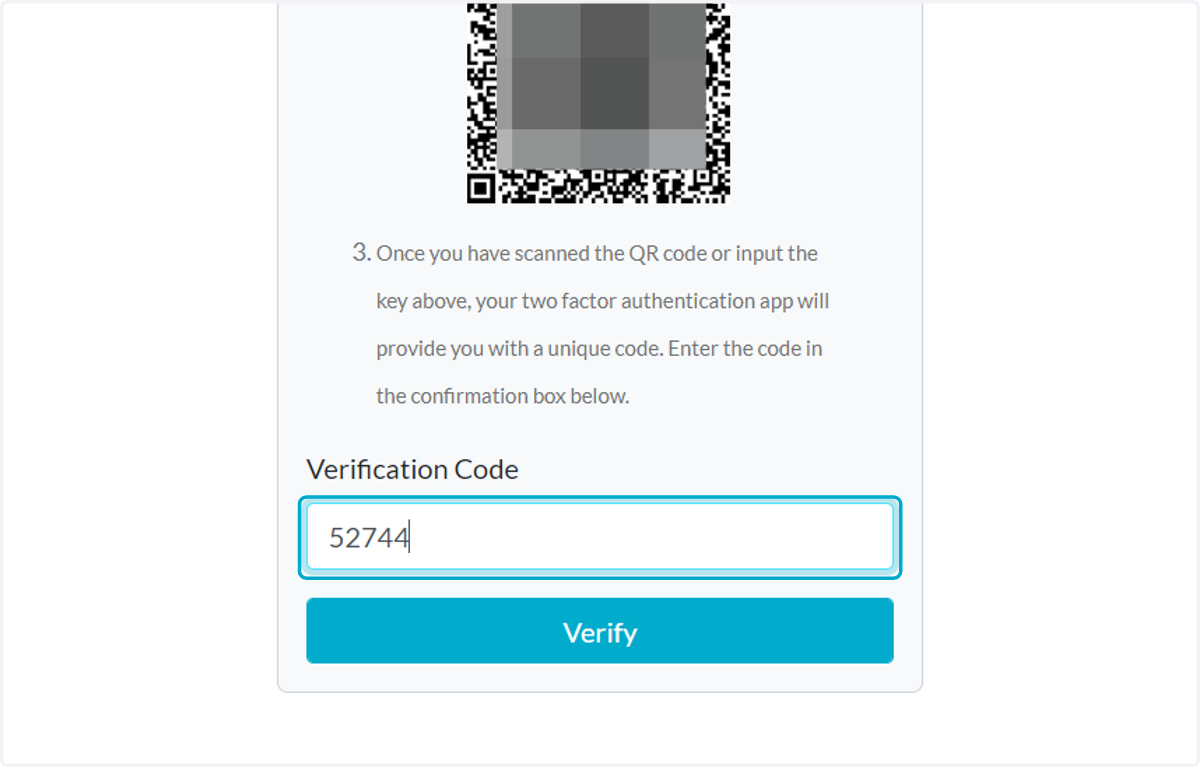
7. Click on Verify
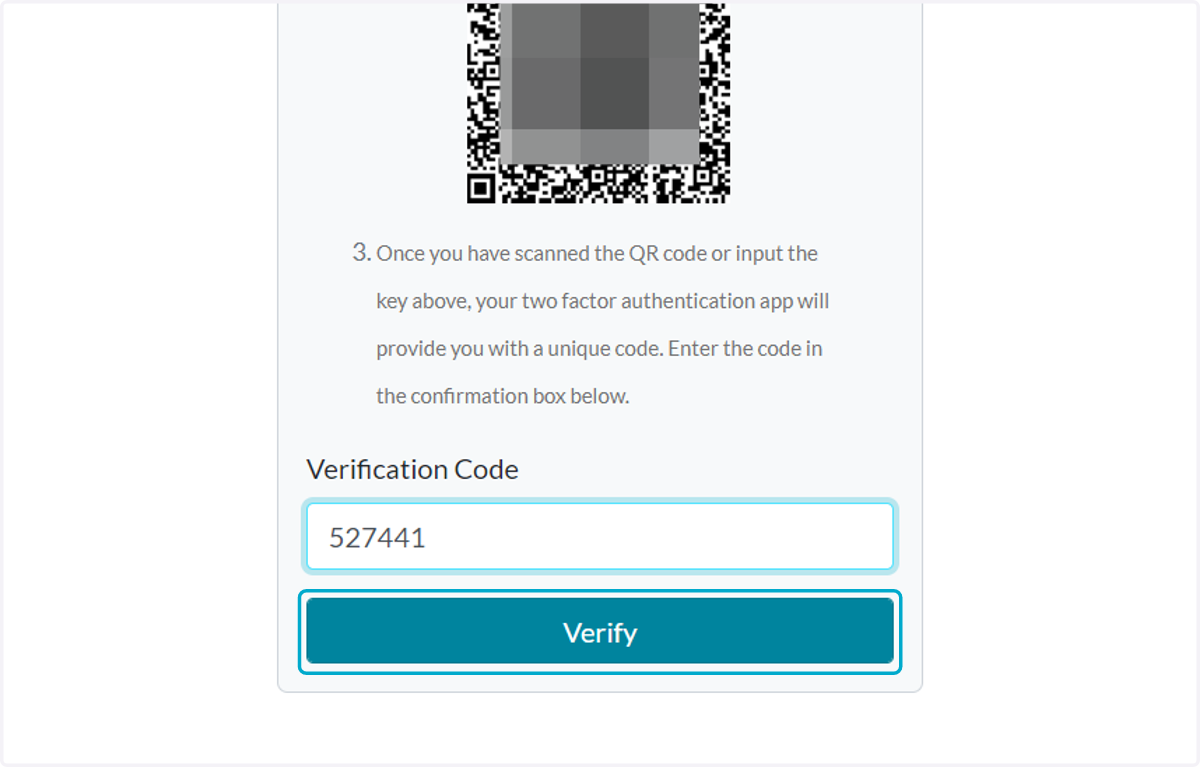
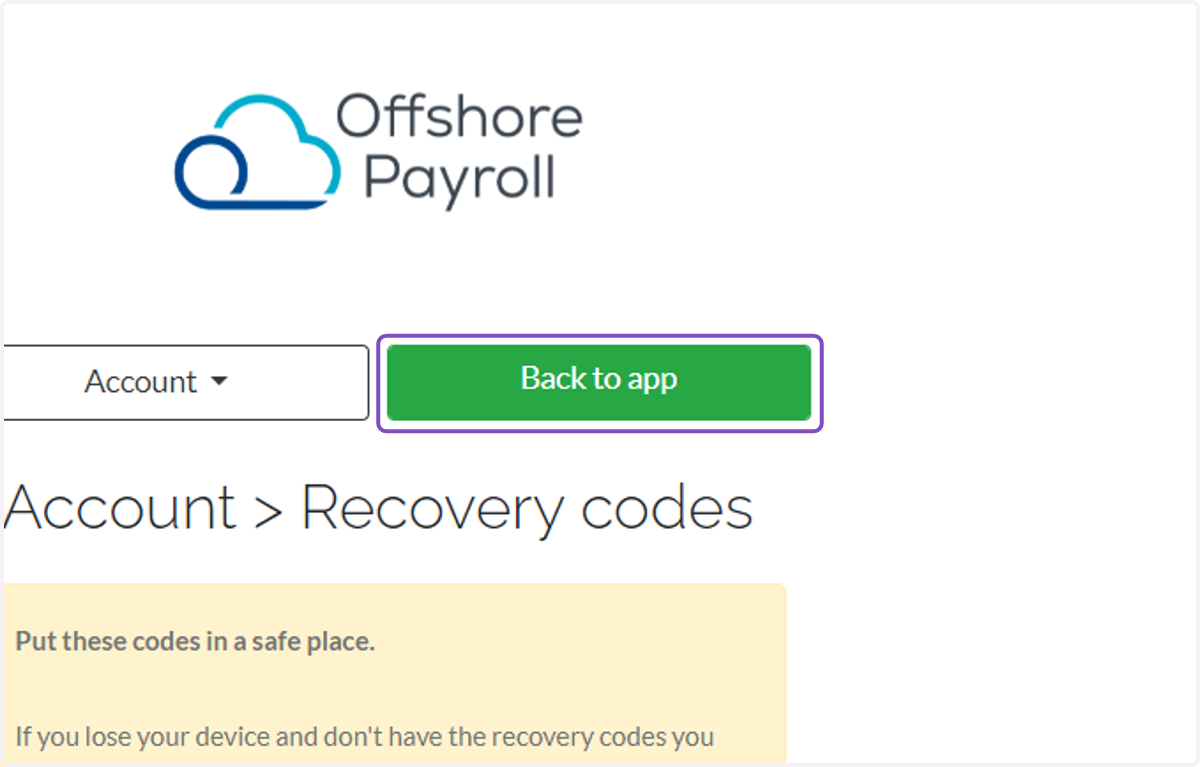
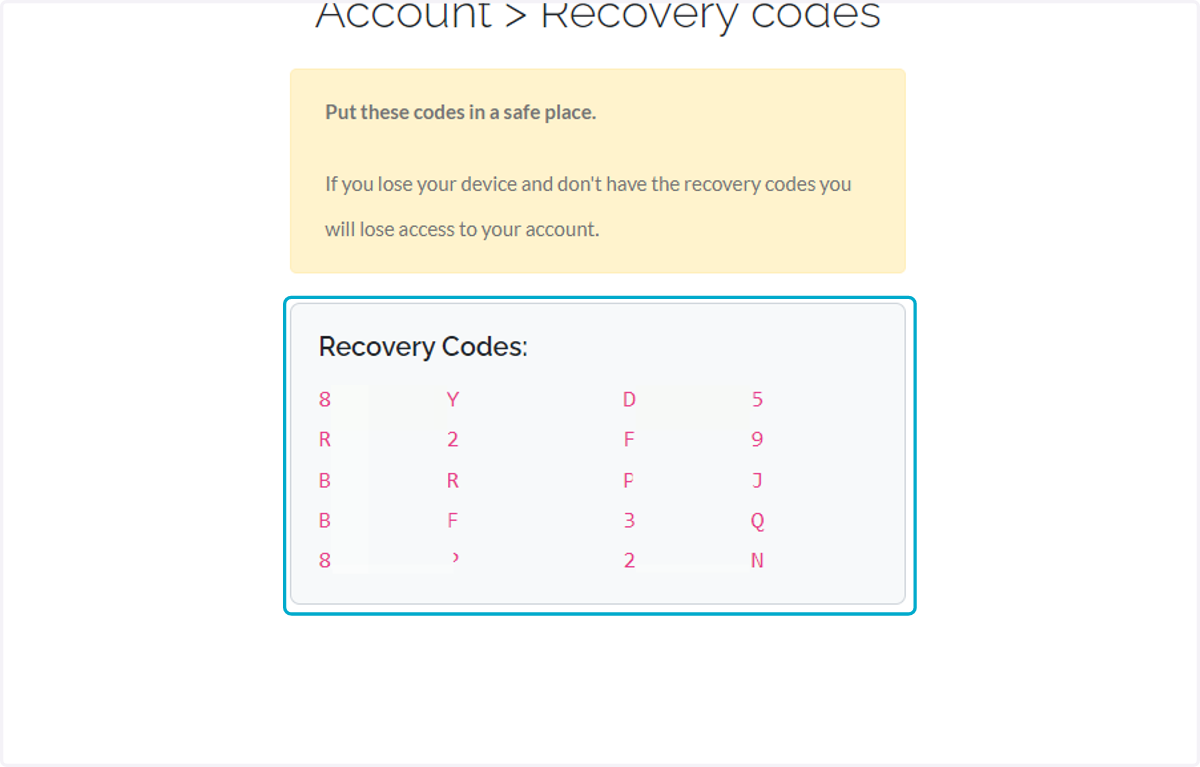
8. Please make sure to copy and store securely the Recovery codes that are only provided once.
The recovery codes will be useful to you if you forgot your phone but want to log into your Offshore Payroll account.
9. Once all the steps are done you can click on Back to app and continue browsing.