How To Recalculate a Single Payslip
This guide takes you through the steps on how to recalculate a single payslip
If your pay run is unlocked you can skip to STEP 7
1. If your pay run is complete, you will firstly need to unlock your pay run
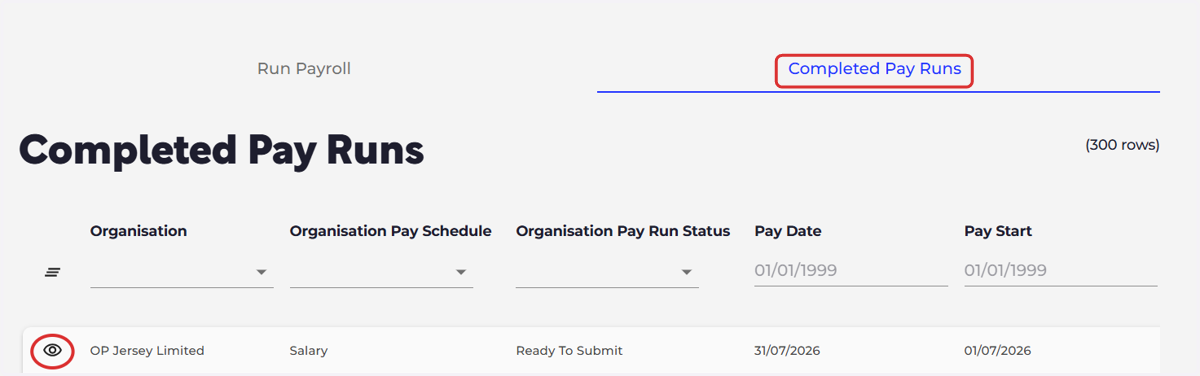
Please navigate to the "Completed Pay Runs" screen
Select the eye icon next to the relevant pay run
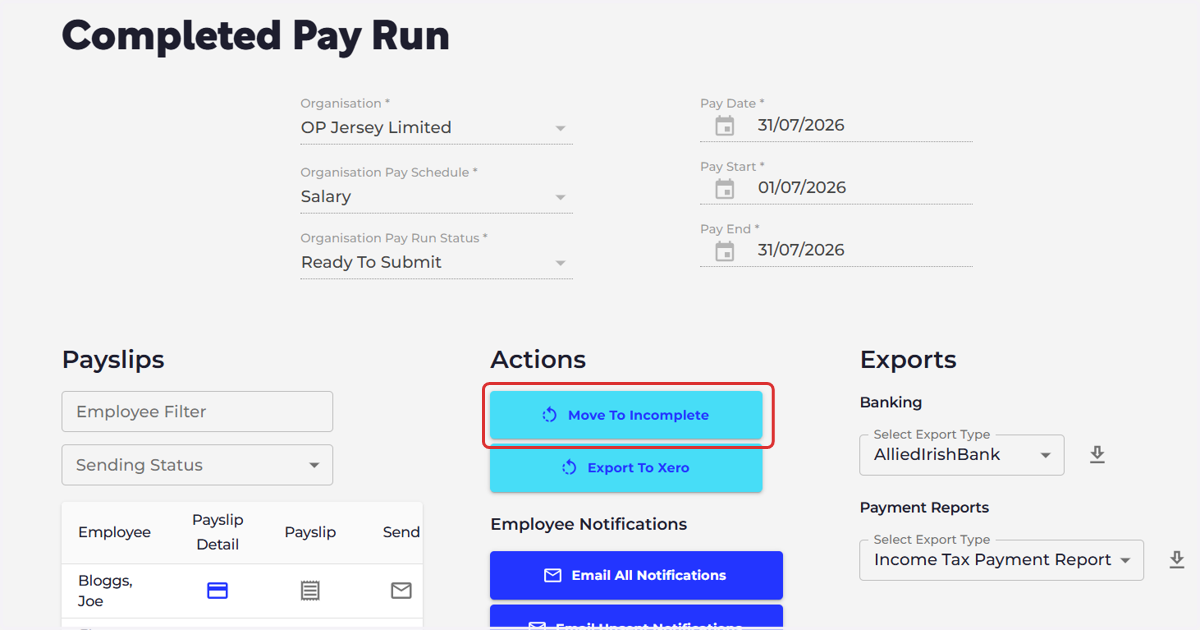
2. Select 'Move To Incomplete'
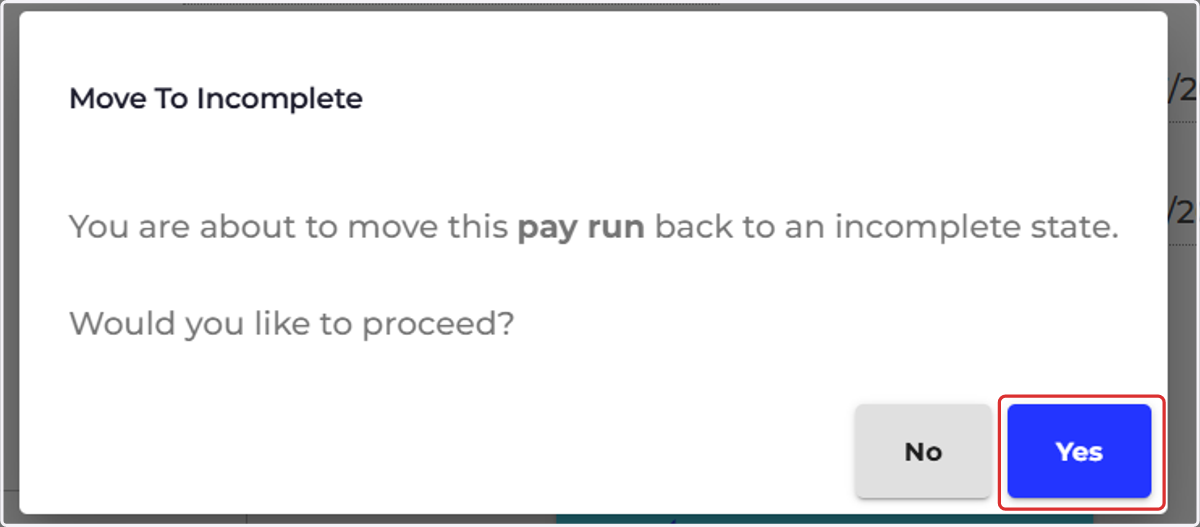
3. Select "Yes"
4. You can either select the link to 'the list of available pay runs' or go back to the payroll screen on the main menu on the left.
You may need to select a different module before selecting Payroll on the main menu on the left
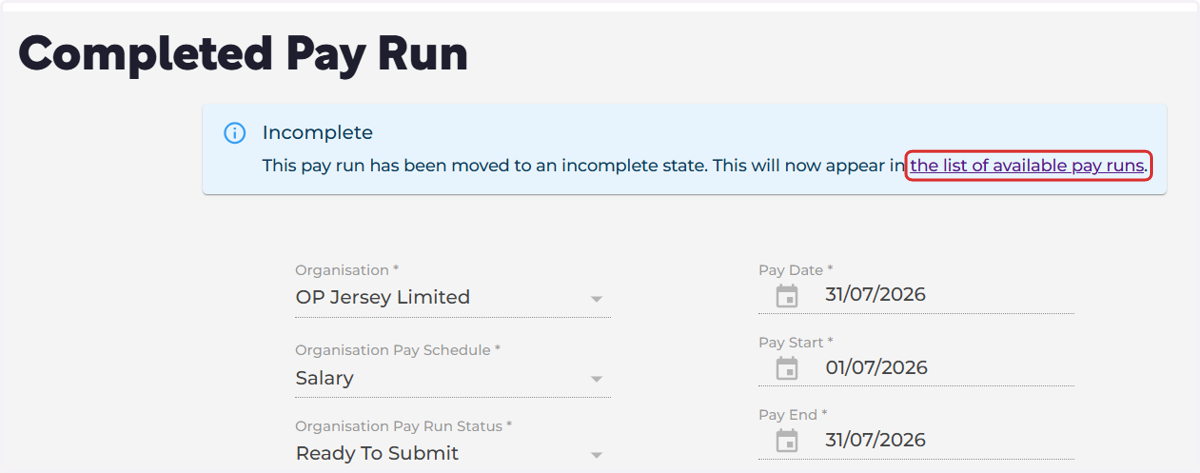
5. Select the 'Run Payroll' icon on the relevant pay run

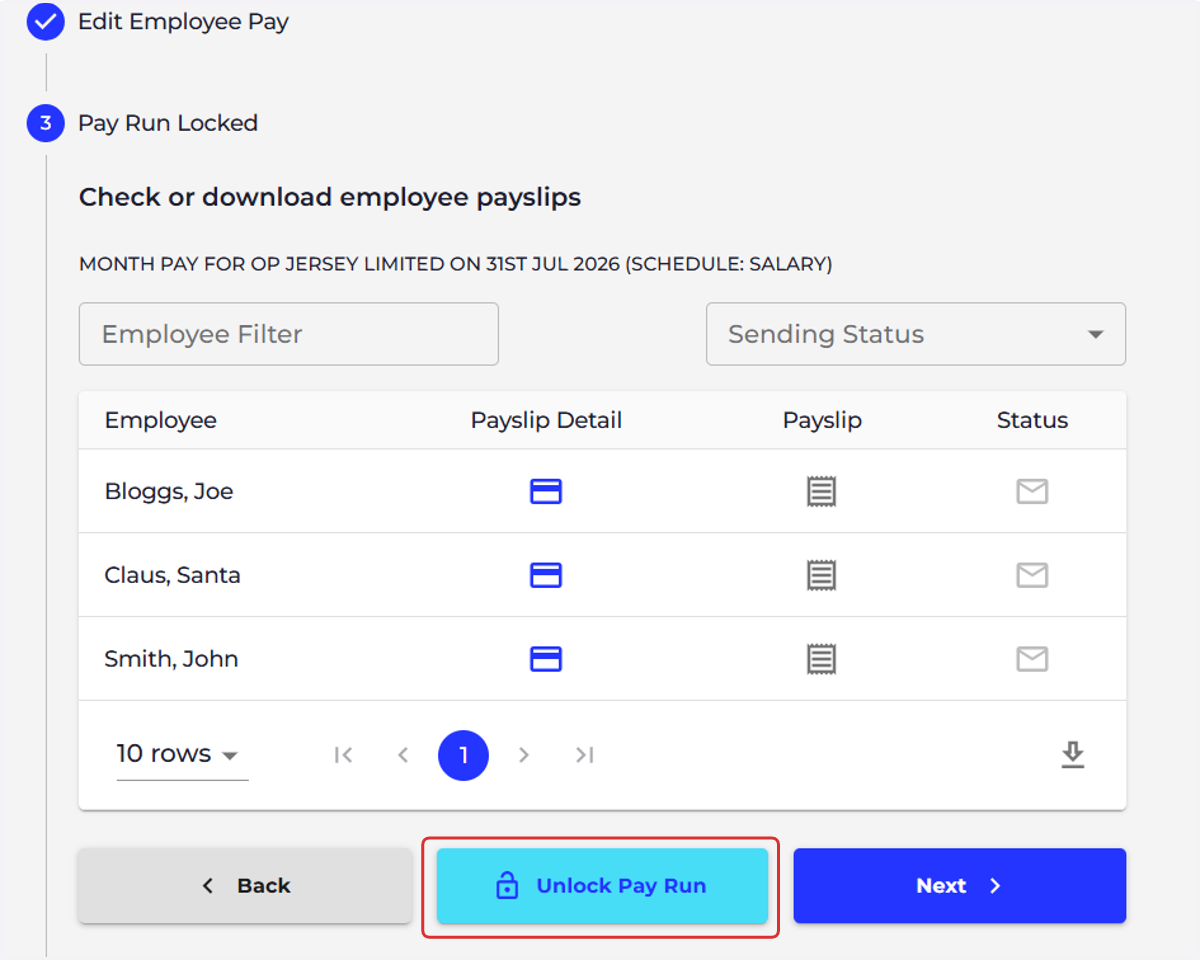
6. Select "Unlock Pay Run"
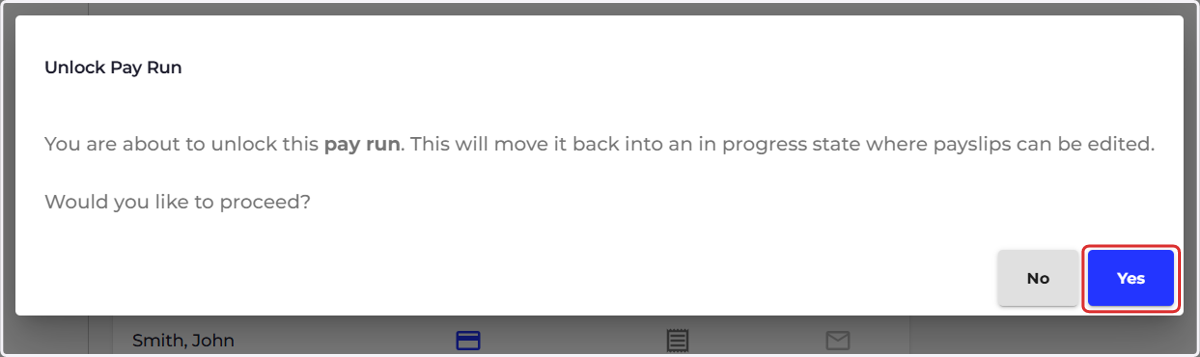
7. Select "Yes"
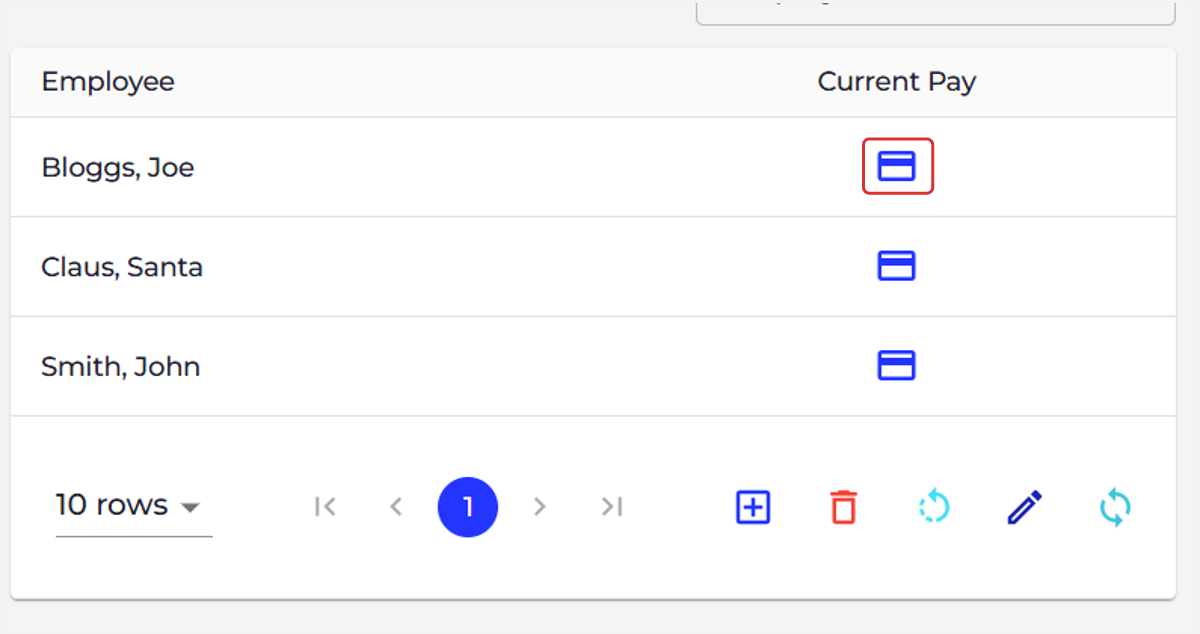
8. Open the employees payslip you wish to recalculate
9. We would suggest downloading the employees payslip before recalculating to ensure no unexpected changes have been made to calculations
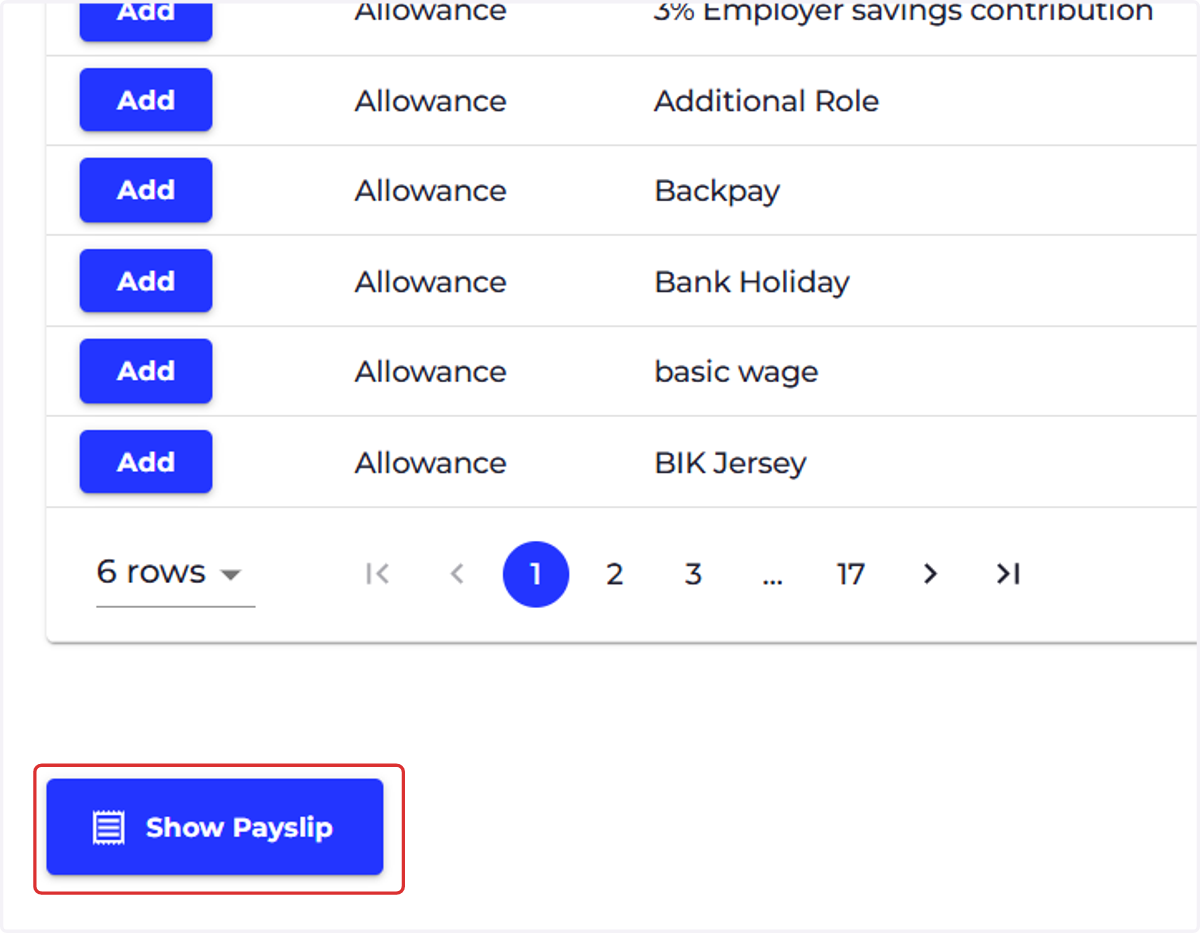
Please scroll down to the bottom left of the payslip and select "Show Payslip"
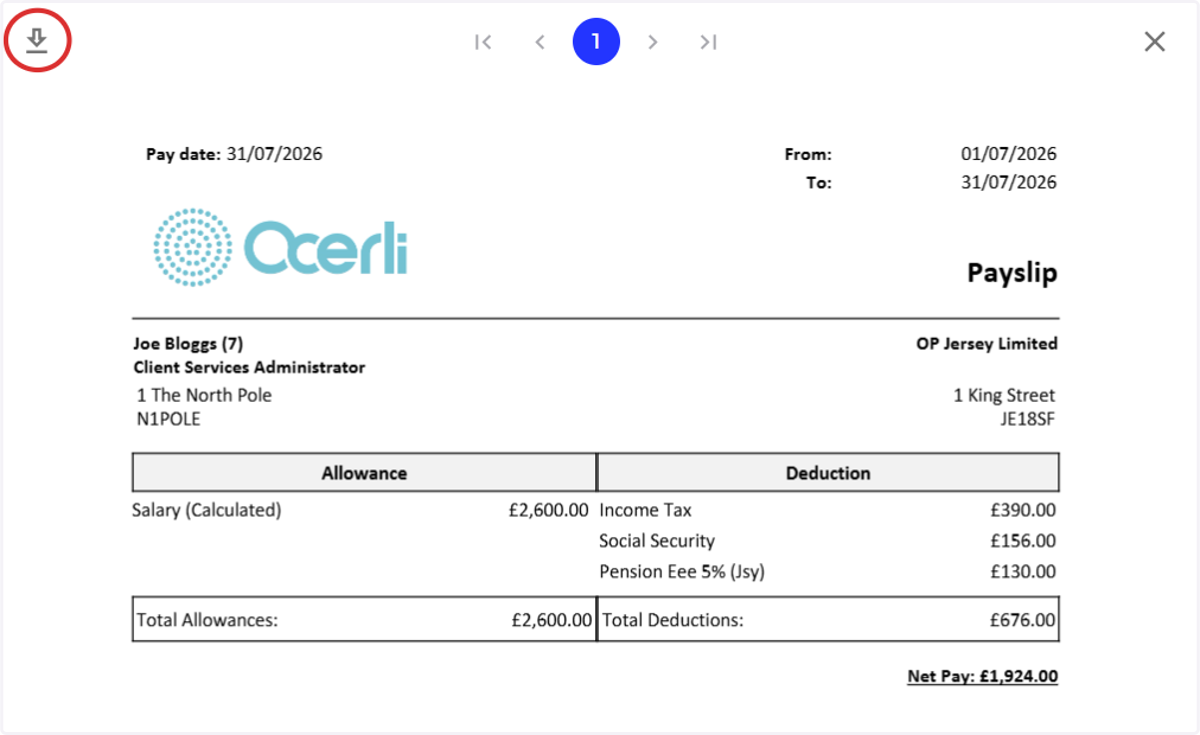
10. Select the Download icon at the top left of the screen
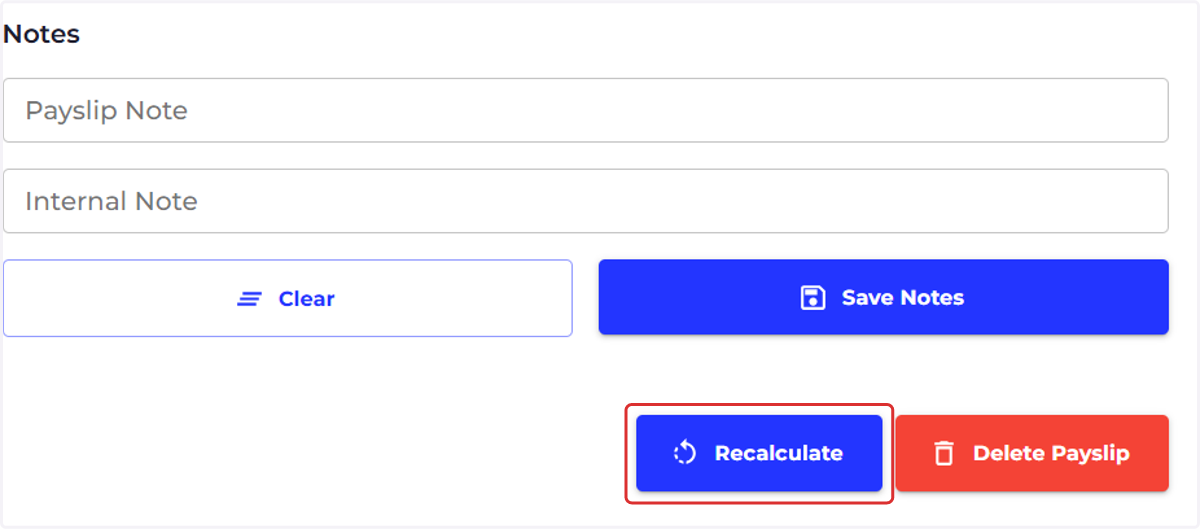
11. Once you're ready, please select "Recalculate" at the bottom right of the payslip