Nov 22 Release Notes - All Notification settings are now company settings for various roles.
The Company admins now have the power to regulate who receives notifications, granting them granular control over notification distribution. With this new feature, they can seamlessly enable or disable notifications for specific roles, ensuring that important information reaches the right audience.
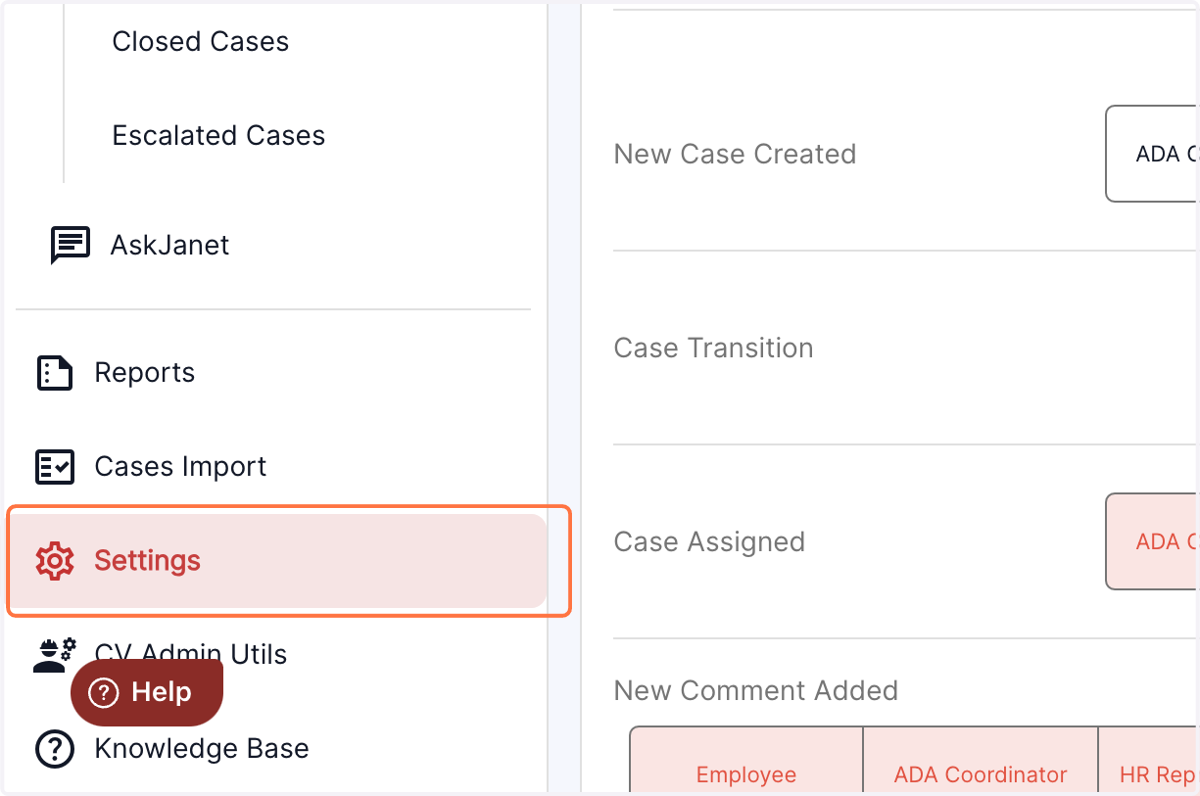
1. Click on settings in the left panel of the dashboard
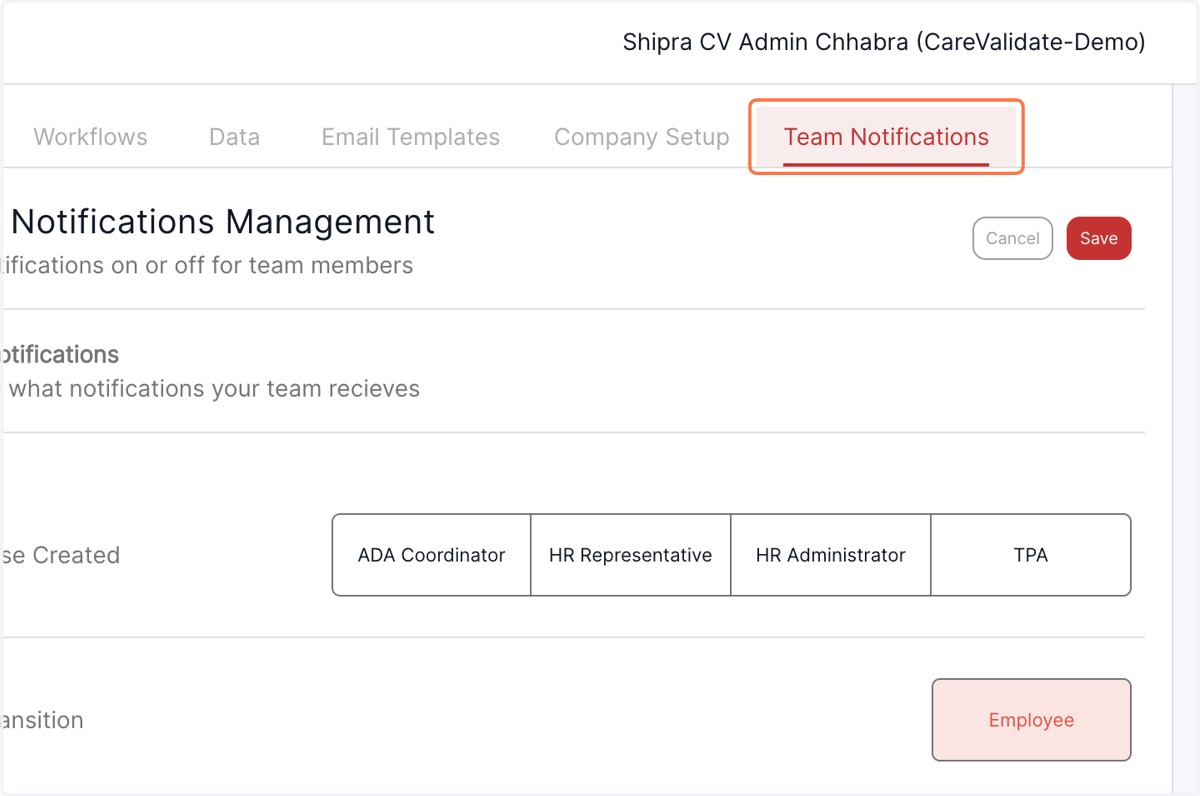
2. Click on Team Notifications from the top menu
3. For various notifications, e.g New Case Created, they can select the role that is going to receive them by clicking on the role name in front. Once they click on the role e.g ADA Coordinator, the tab turns Red , which means the notifications to ADA Coordinator is enabled.
The admins have the flexibility to choose multiple roles at one time for which the notifications needs to be enabled.
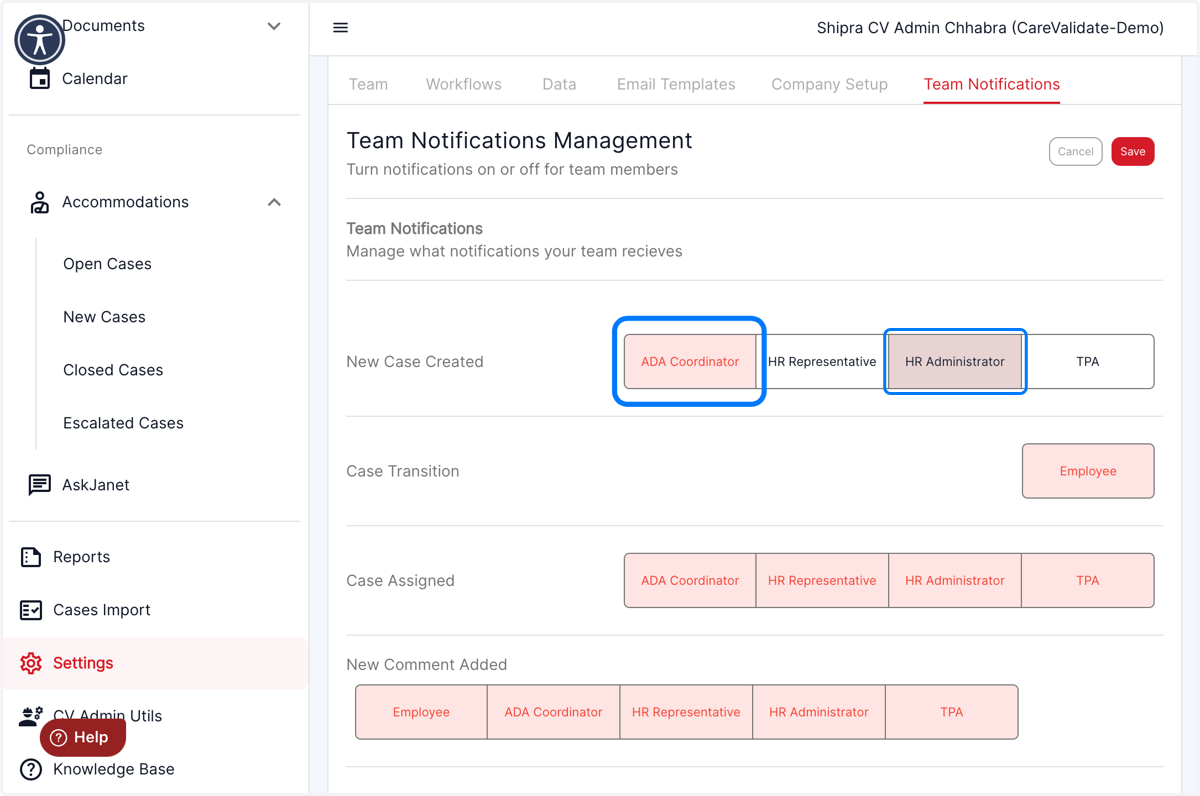
4. After selecting the required roles, press save to save the settings for future use.
