1. There, you will see under the Activity "BV Invoice Approval v.3" and under Task, "GR Reconciliation."
2. Click on the Invoice
3. First, check to ensure the correct "Cost Center" is selected.
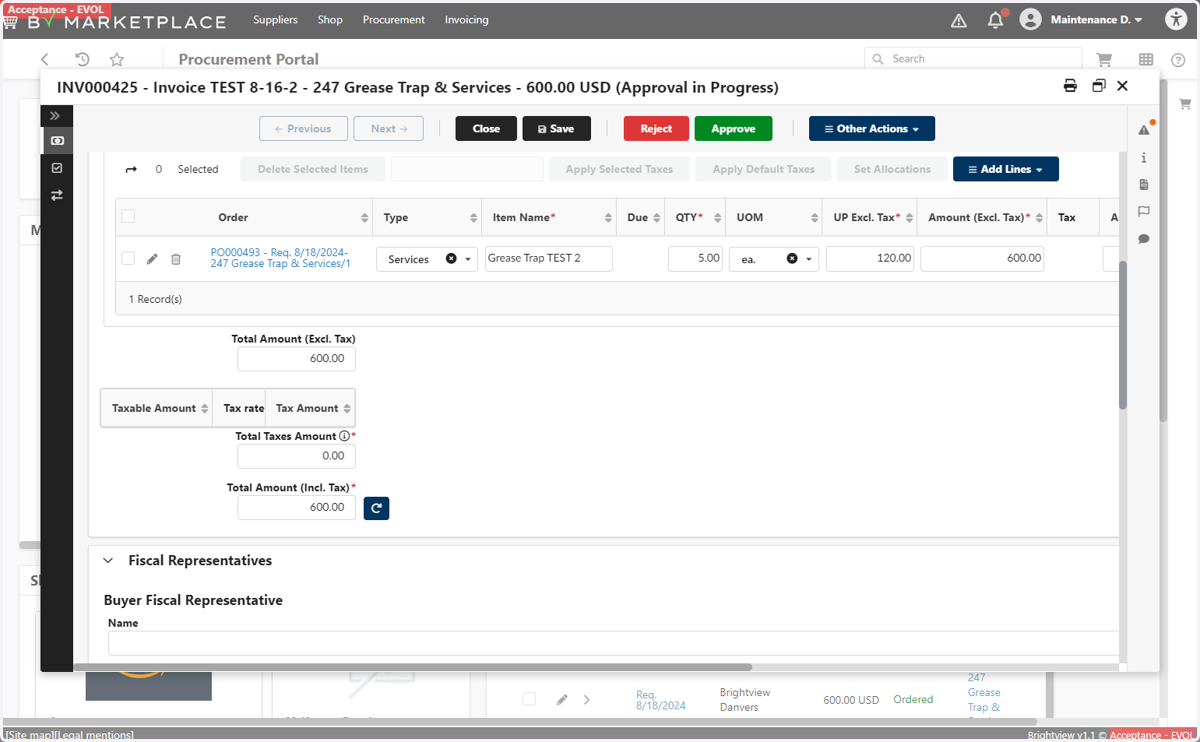
4. Then, scroll down to find the "Total Amount."
5. The invoice will pop to the left. You can click the down arrow to download the invoice.
6. You need to verify if this is the amount you should be invoiced for.
7. You can also click the "New Window" button. This will open the invoice in another tab. Once you have reviewed, you can close the tab to return back to the invoice edit screen.
8. To view the invoice, you can click on the "Preview" icon on the left hand side of the screen.
9. If the invoice is correct, click "Approve" to send the invoice for payment. If the invoice is incorrect, you can click "Reject" and ensure the Supplier will send an updated invoice.
10. After the "Reject" or "Approve" selection, you can click "Close" to return to your BV Marketplace homepage