Organizing Workflows with Folders

Horse Business Manager

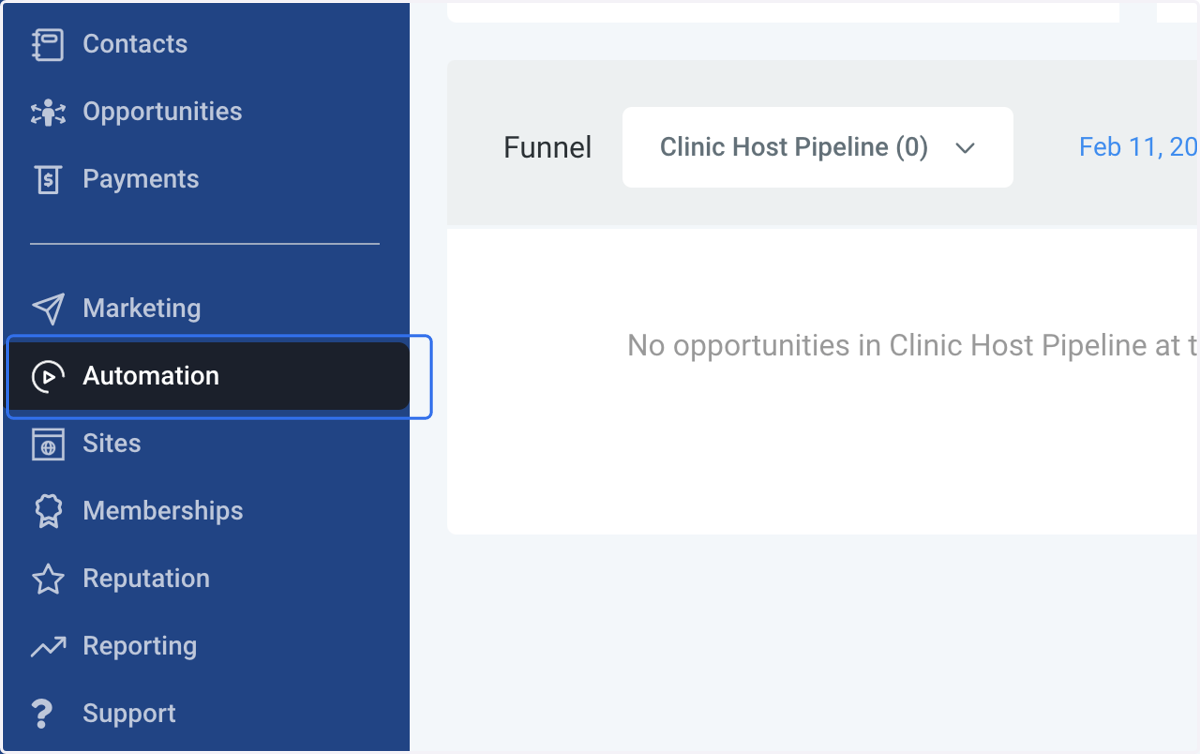
  1. 1. Click on Automation

    Click on Automation
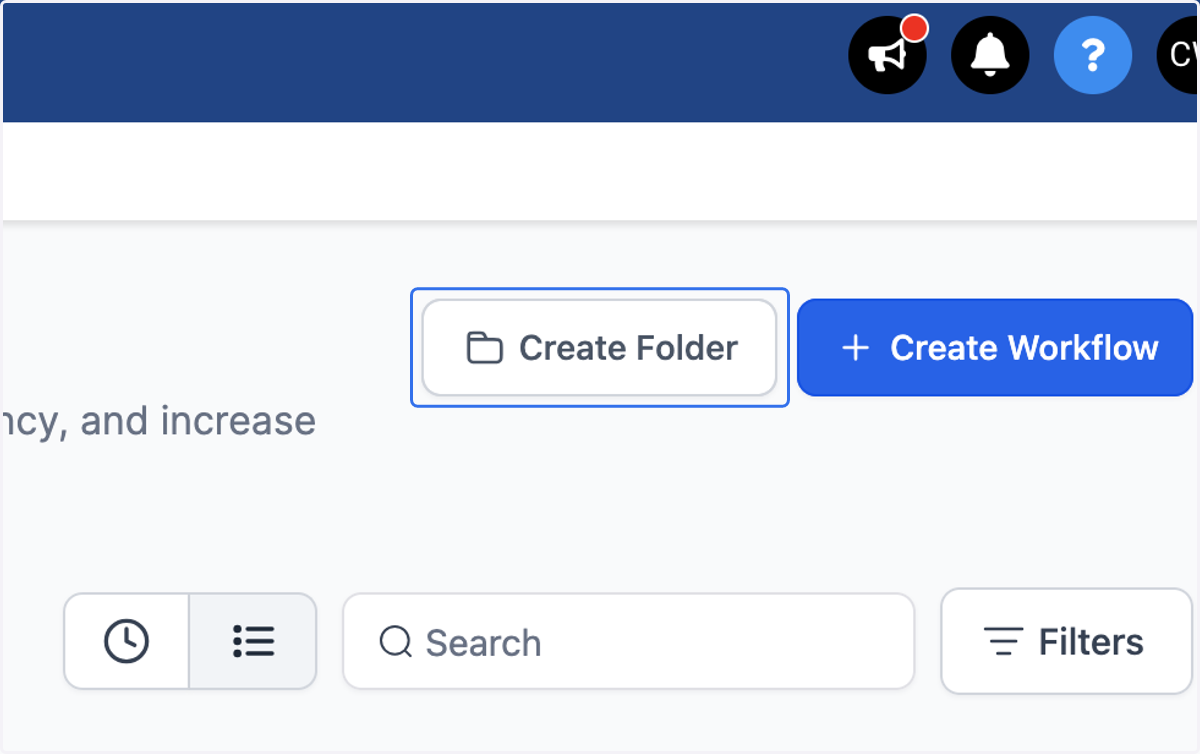
  2. 2. Click on Create Folder

    Click on Create Folder
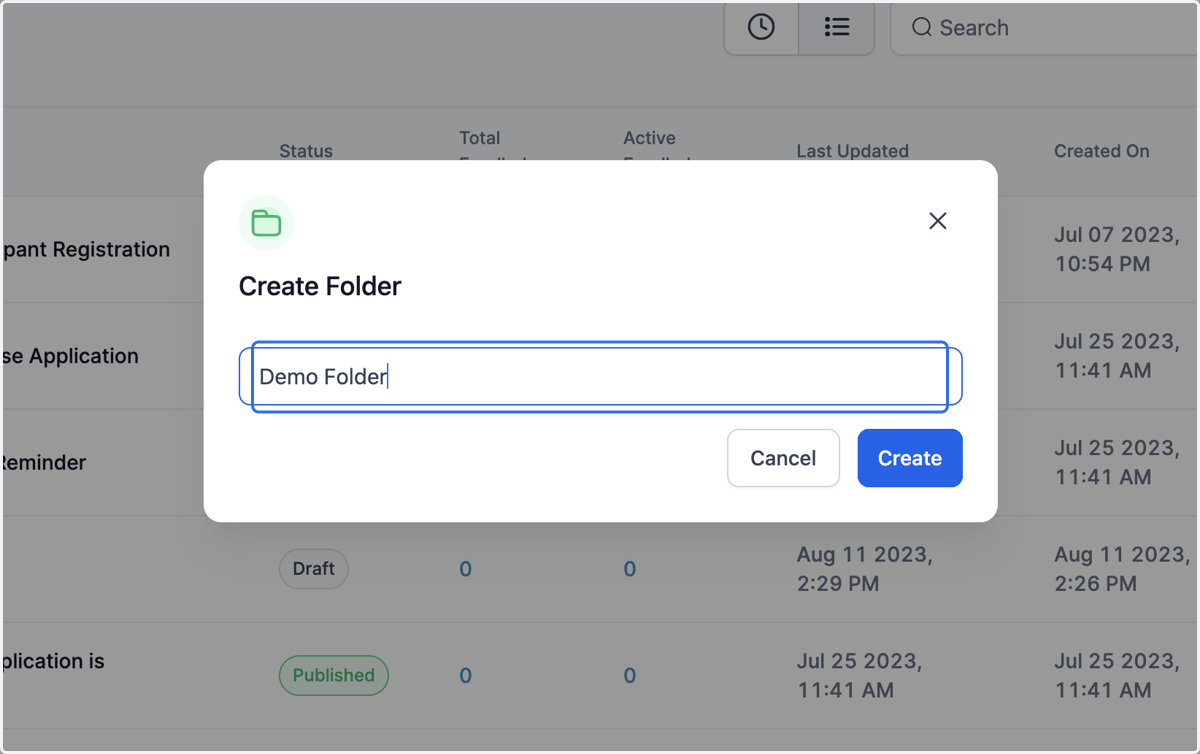
  3. 3. Name your folder

    Name your folder
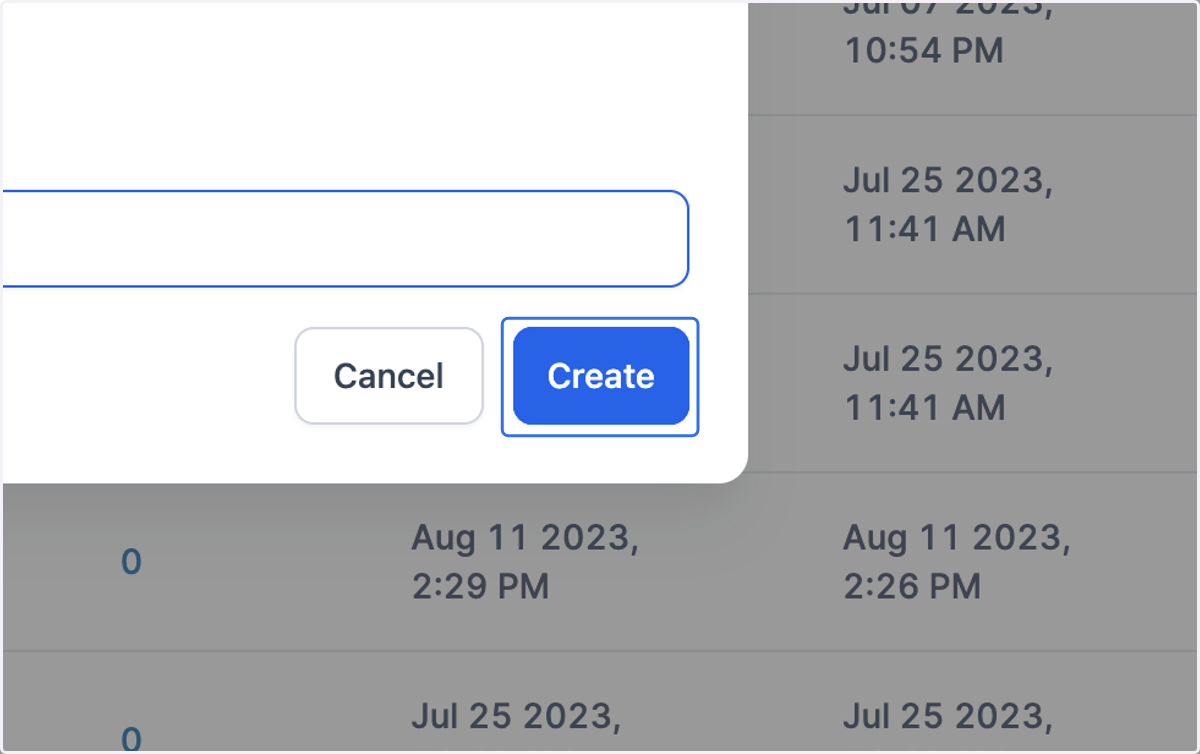
  4. 4. Click on Create

    Click on Create
  5. 5. Locate the workflow that you want to put in your new folder and click the three dots
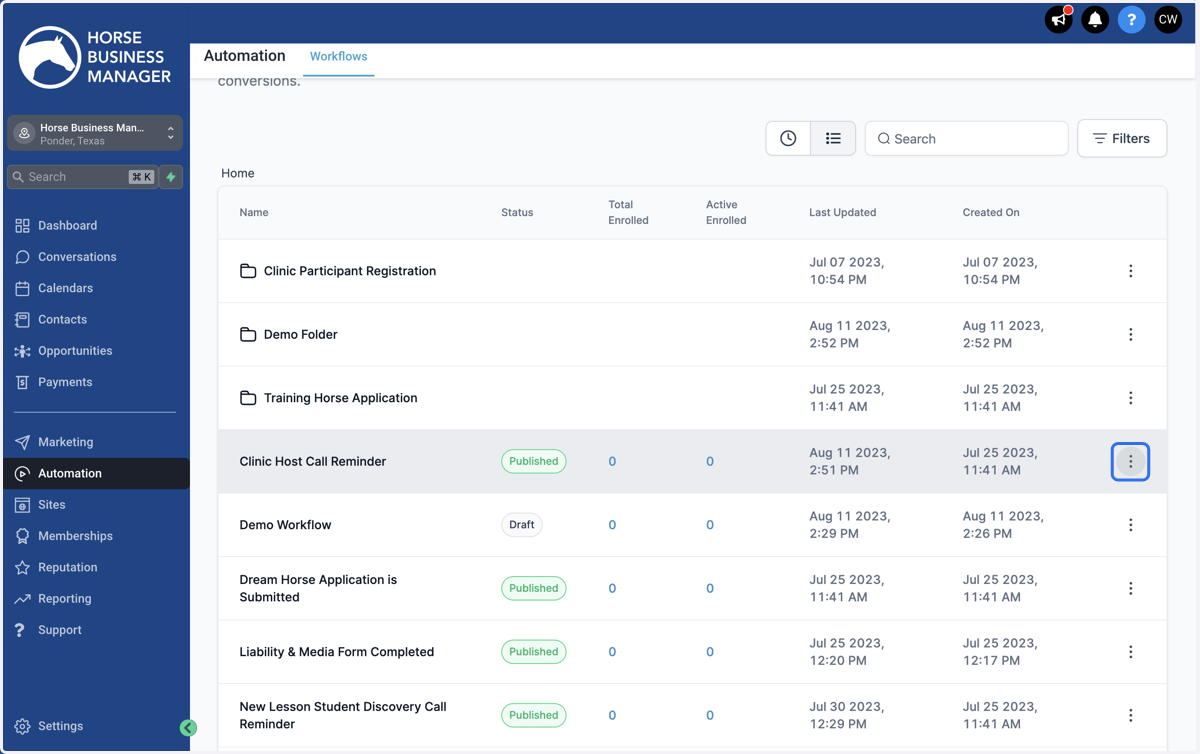
    Locate the workflow that you want to put in your new folder and click the three dots
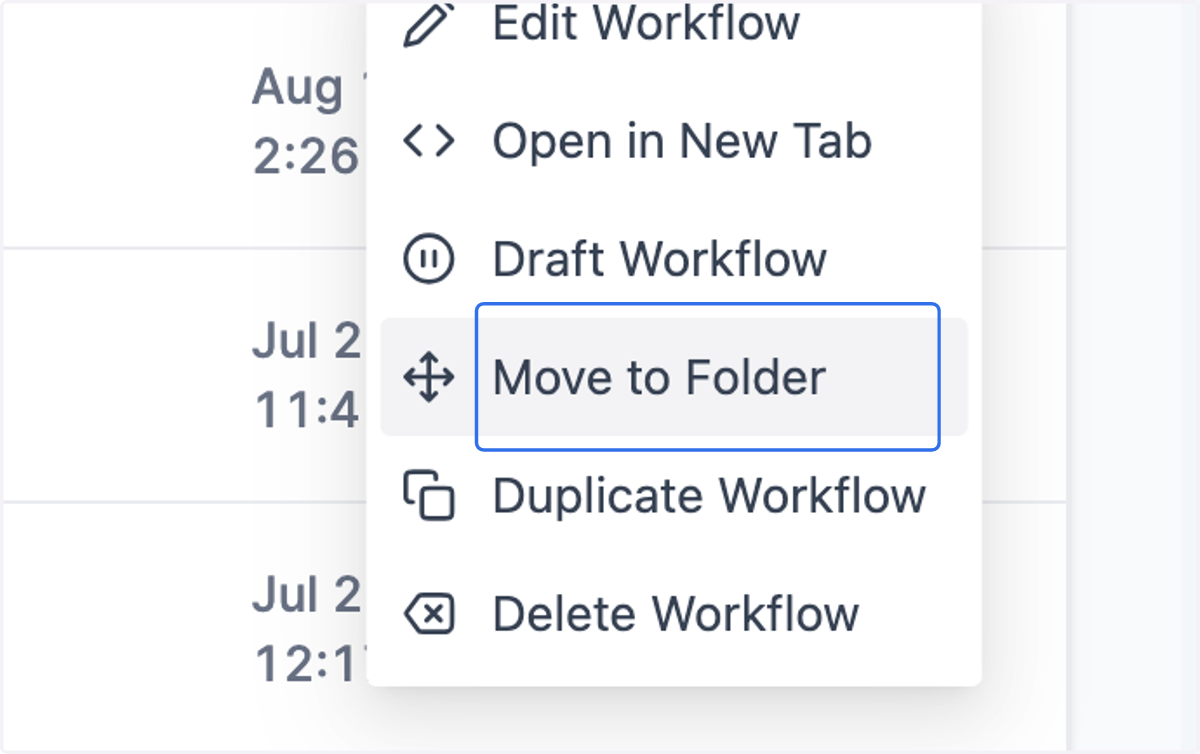
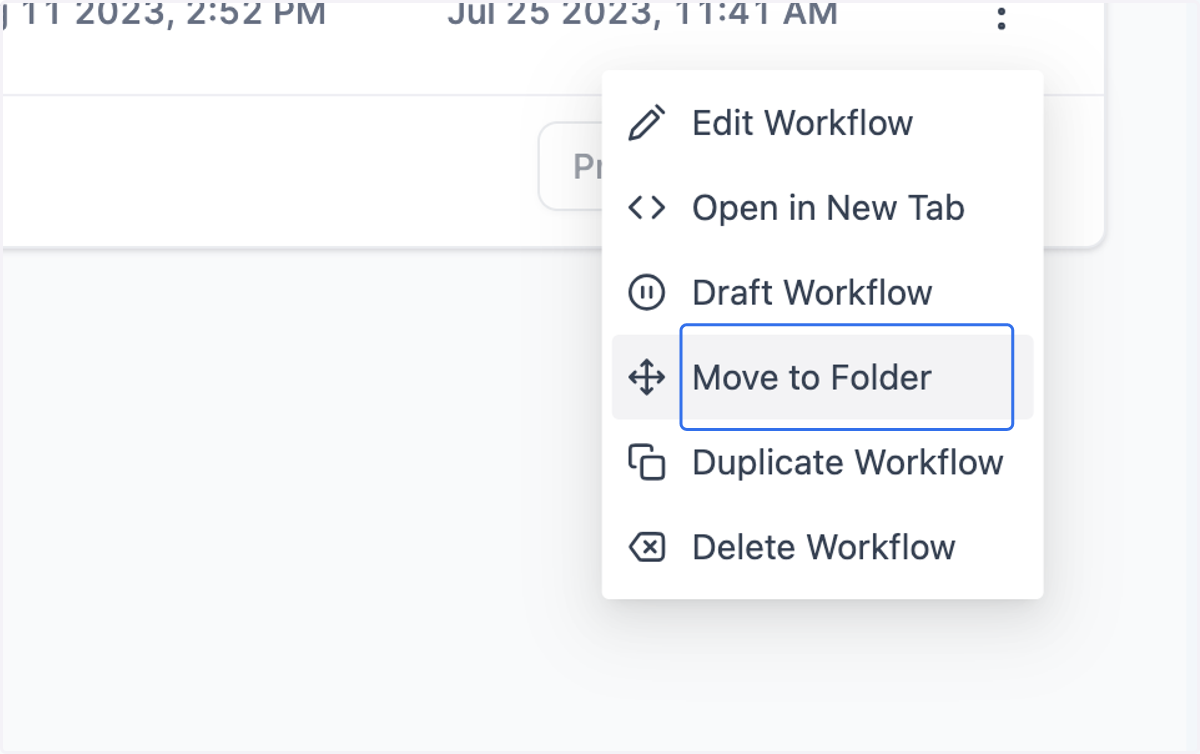
  6. 6. Click on Move to Folder

    Click on Move to Folder
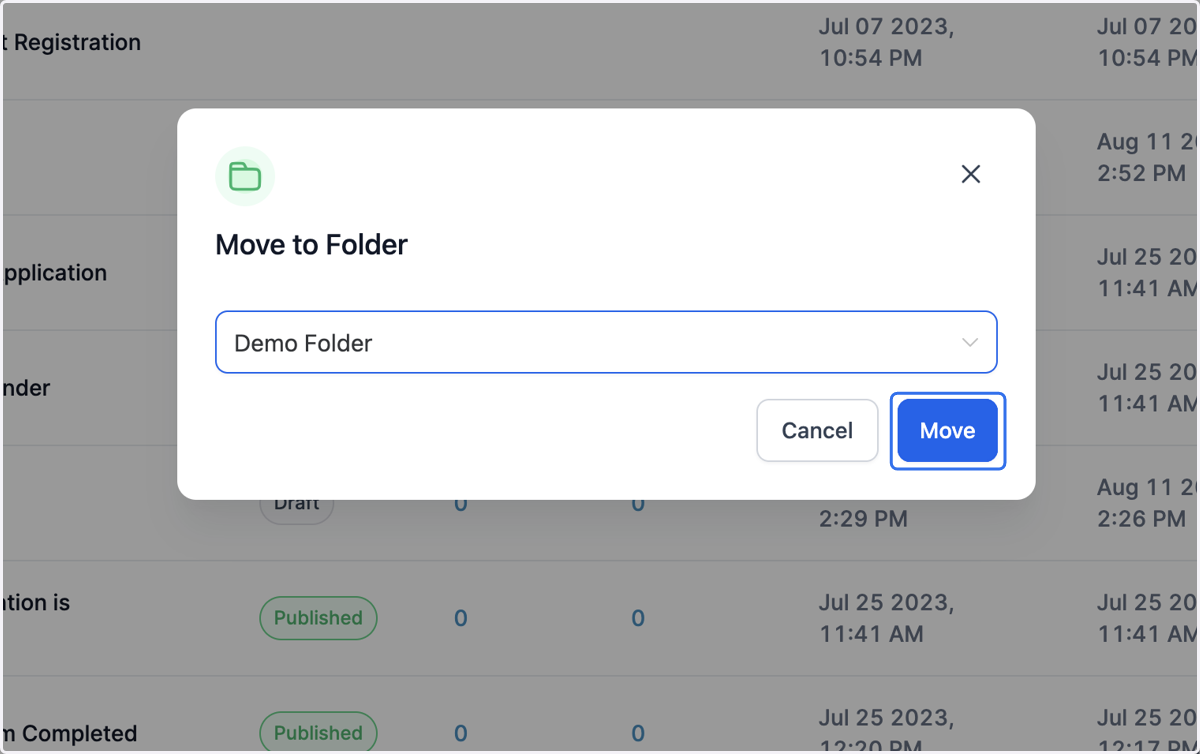
  7. 7. Use the dropdown menu to locate your new folder
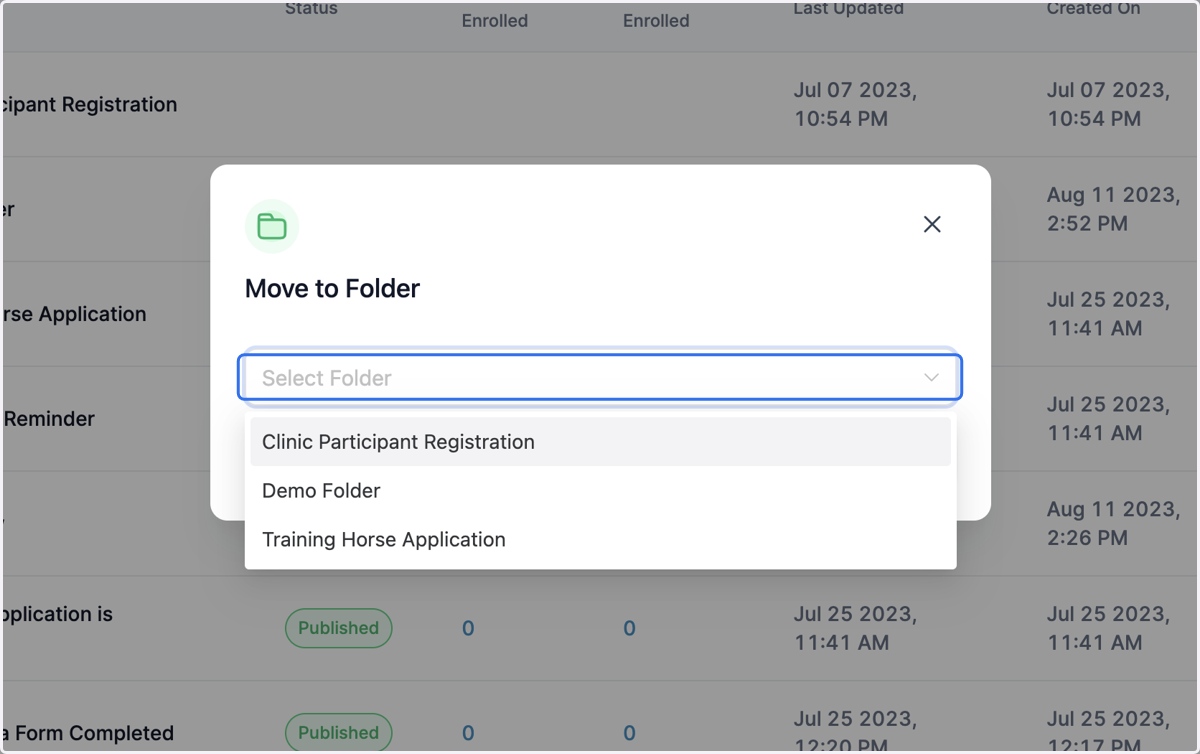
    Use the dropdown menu to locate your new folder
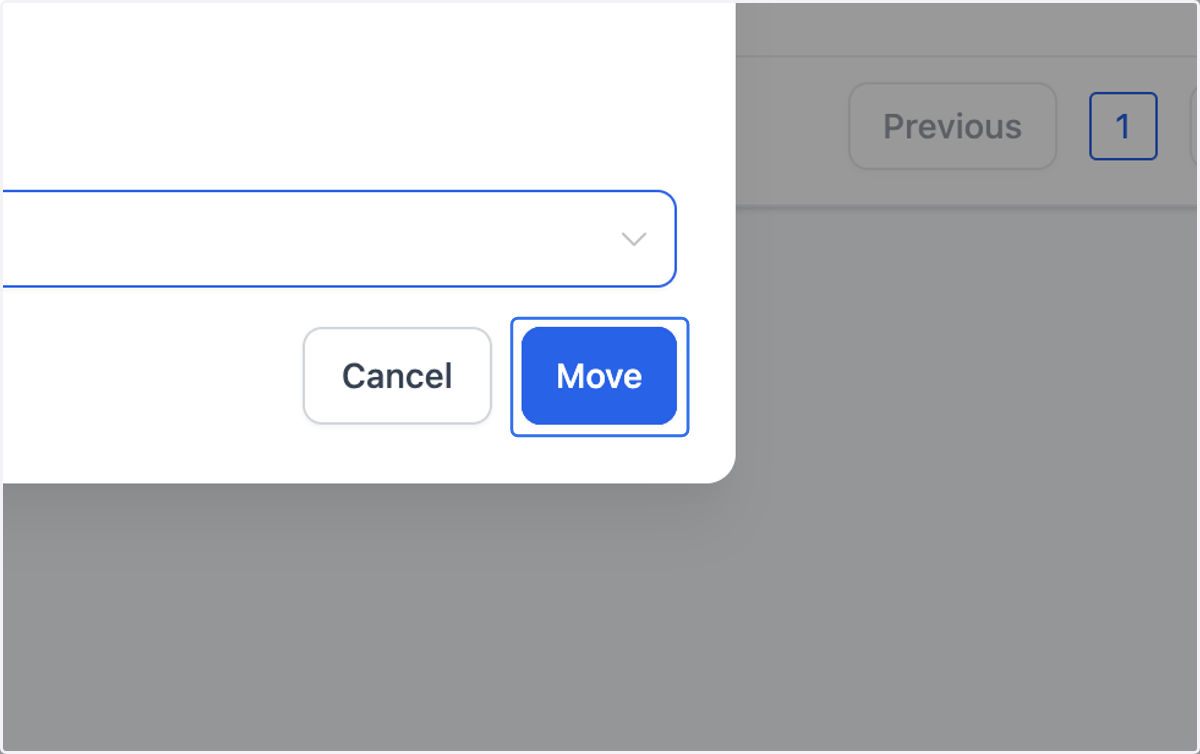
  8. 8. Click on Move

    Click on Move
  9. 9. To take a workflow out of a folder, open the folder where the workflow is located
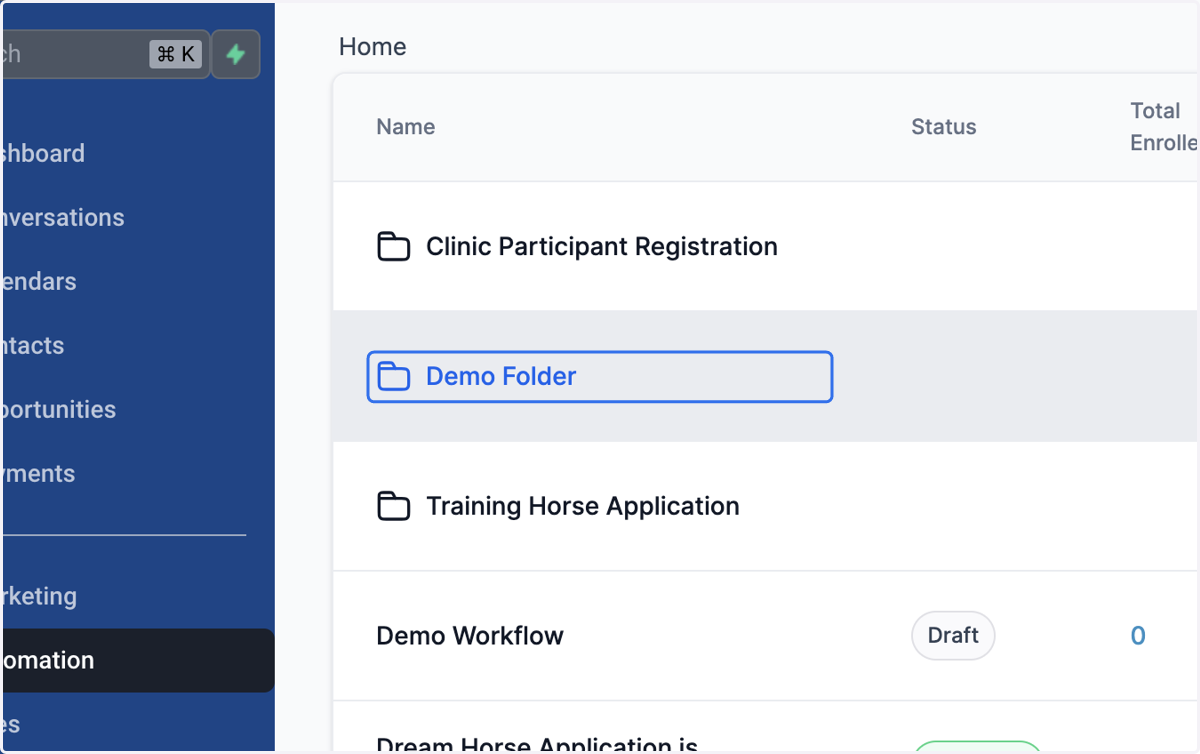
    To take a workflow out of a folder, open the folder where the workflow is located
  10. 10. Locate the workflow that you want to move and click the three dots
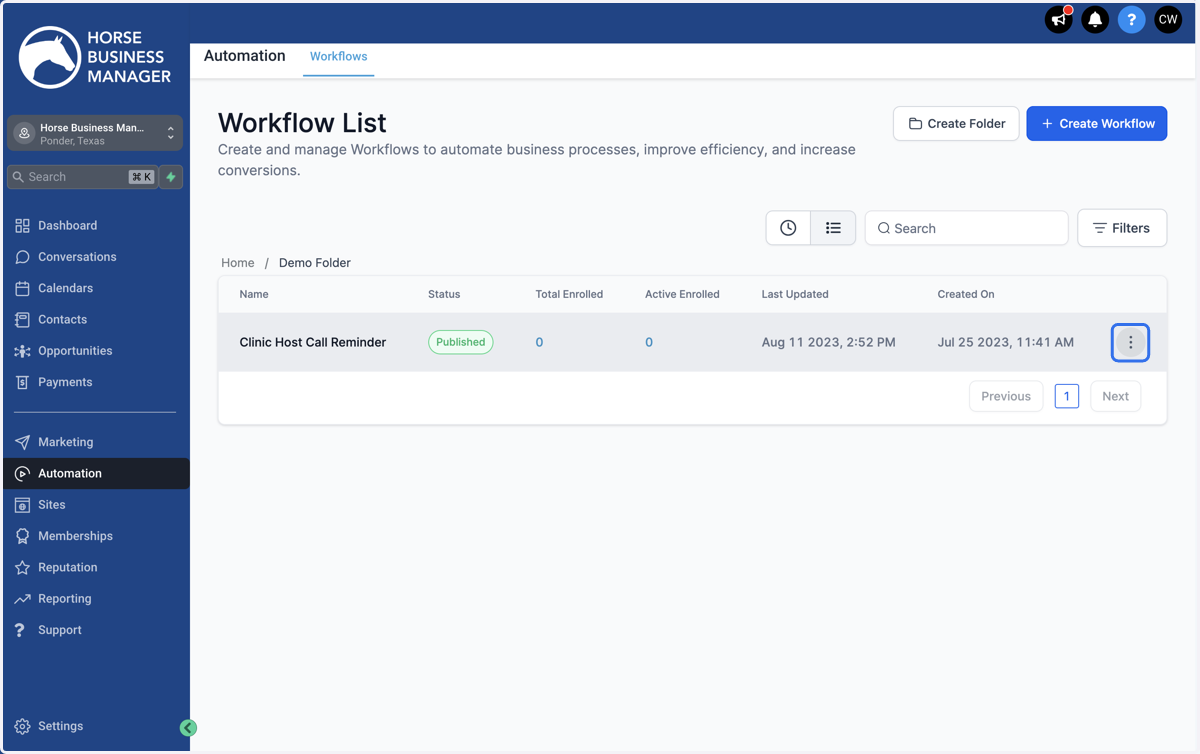
    Locate the workflow that you want to move and click the three dots
  11. 11. Click on Move to Folder

    Click on Move to Folder
  12. 12. Use the dropdown menu to select Move to Root Folder option
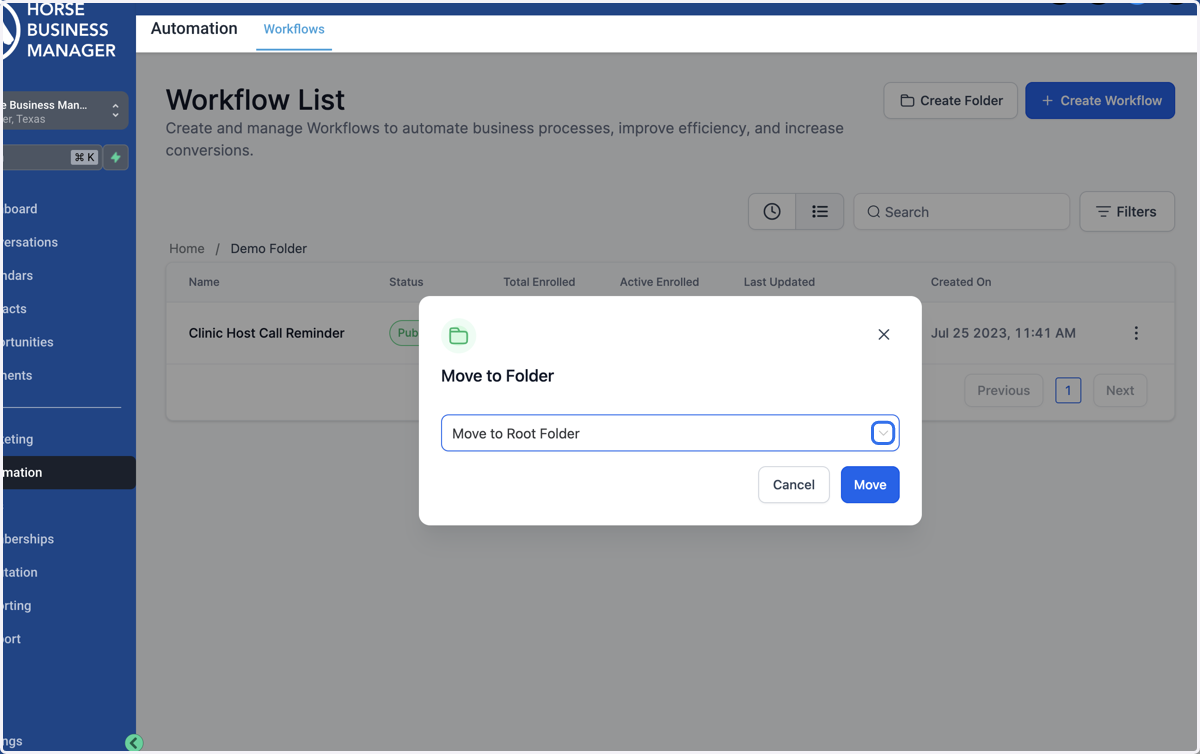
    Use the dropdown menu to select Move to Root Folder option
  13. 13. Click on Move

    Click on Move
  14. 14. Your workflow will now appear in the list of all other workflows and folders
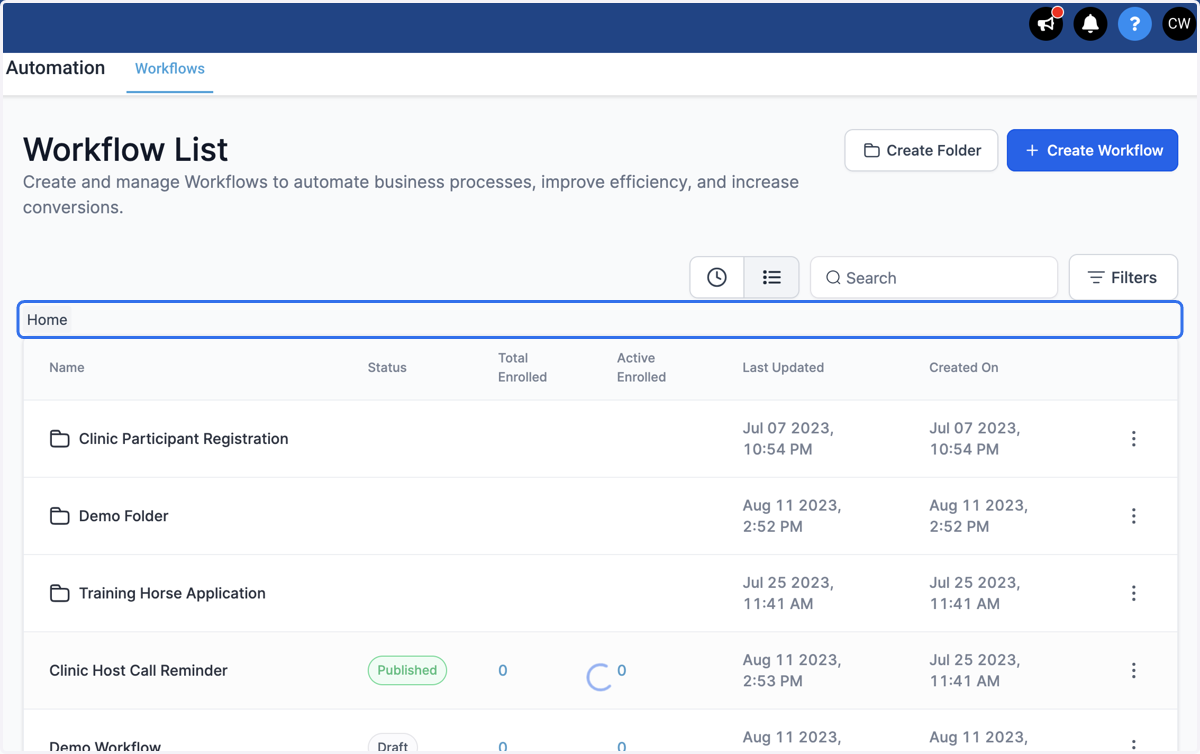
    Your workflow will now appear in the list of all other workflows and folders