Upload Linktree Snapshot to Subaccount

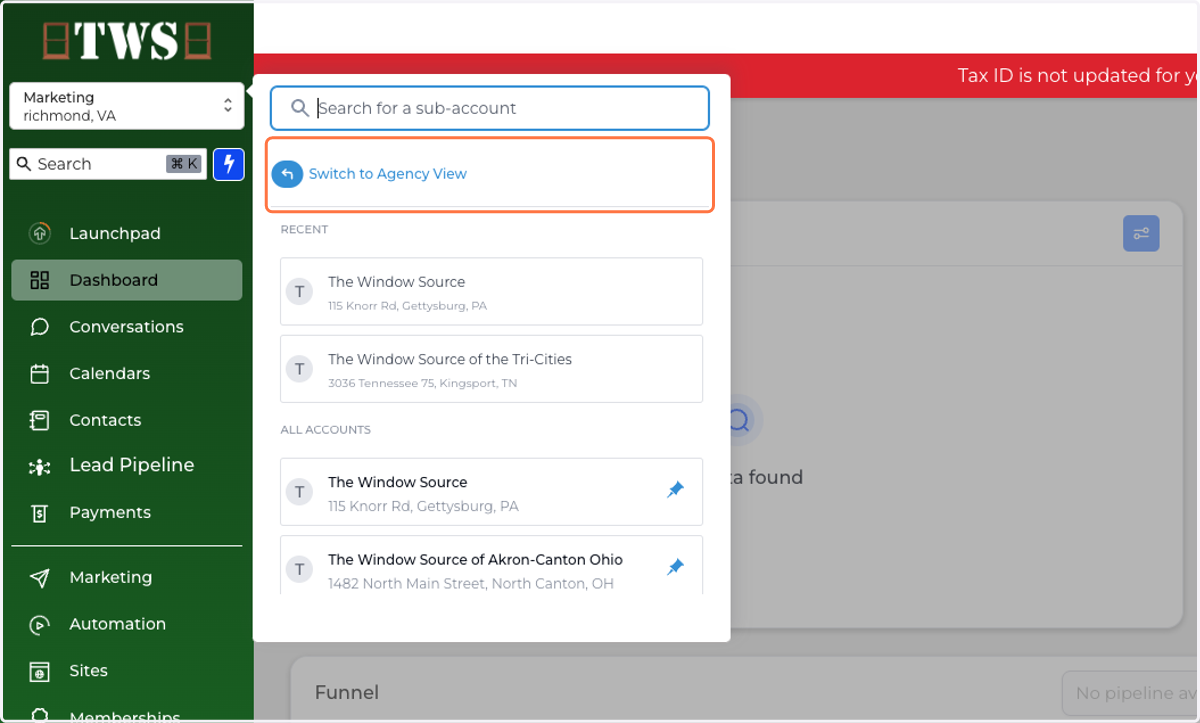
  1. 1. Click on Switch to Agency View

    Click on Switch to Agency View
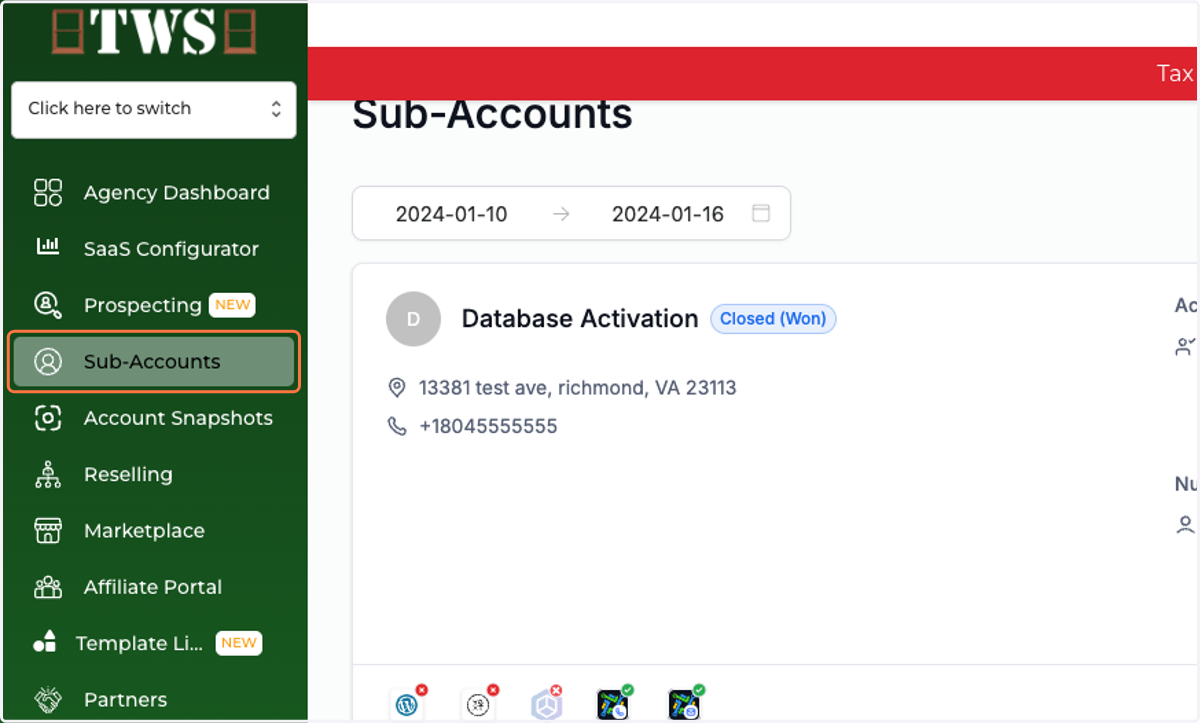
  2. 2. Click on Sub-Accounts

    Click on Sub-Accounts
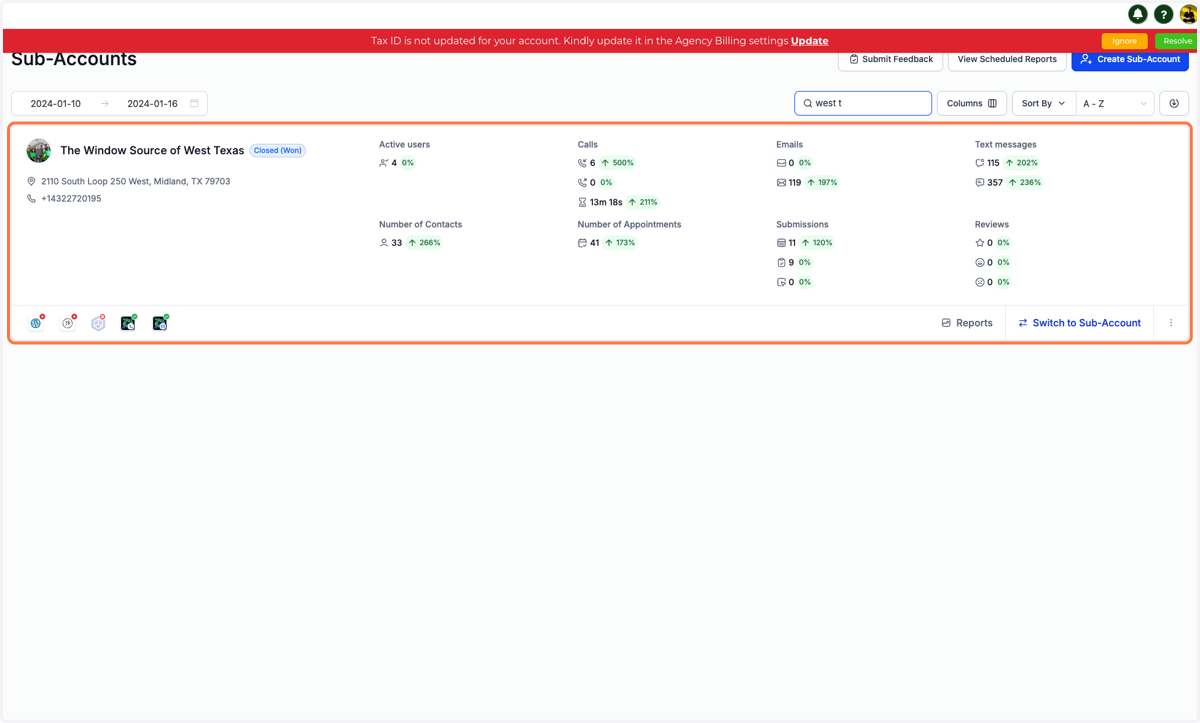
  3. 3. Type to search for the account you want
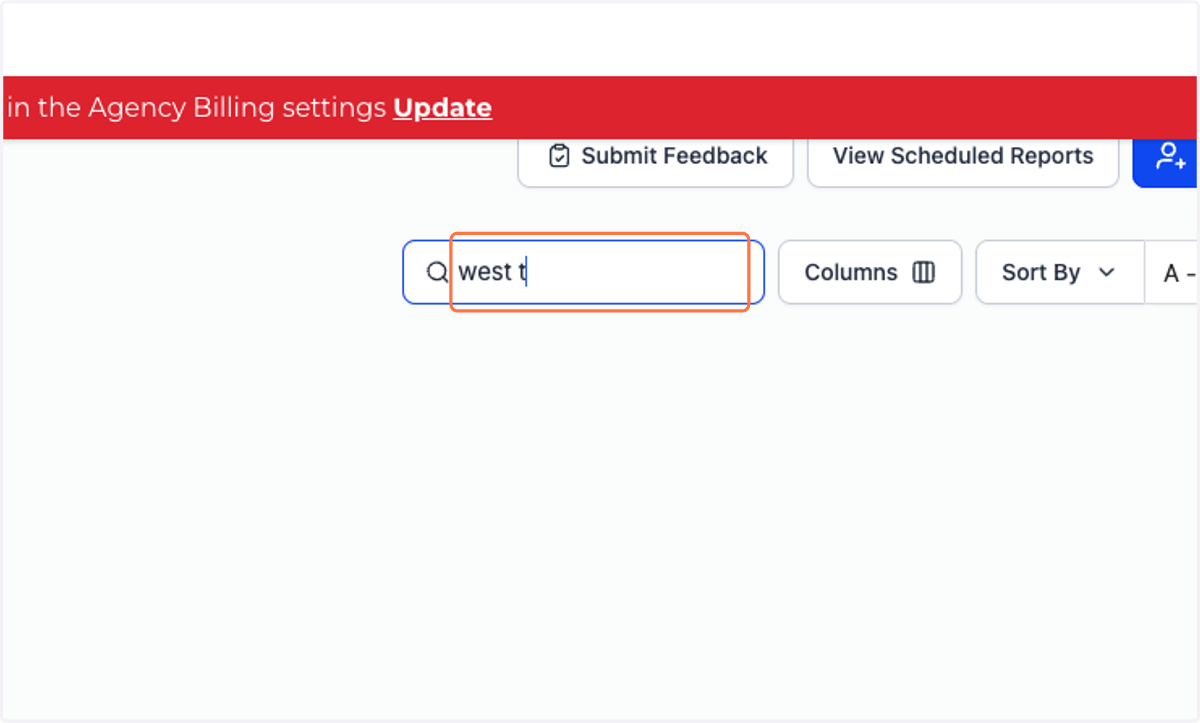
    Type to search for the account you want
  4. 4. Click on the account you want

    Click on the account you want
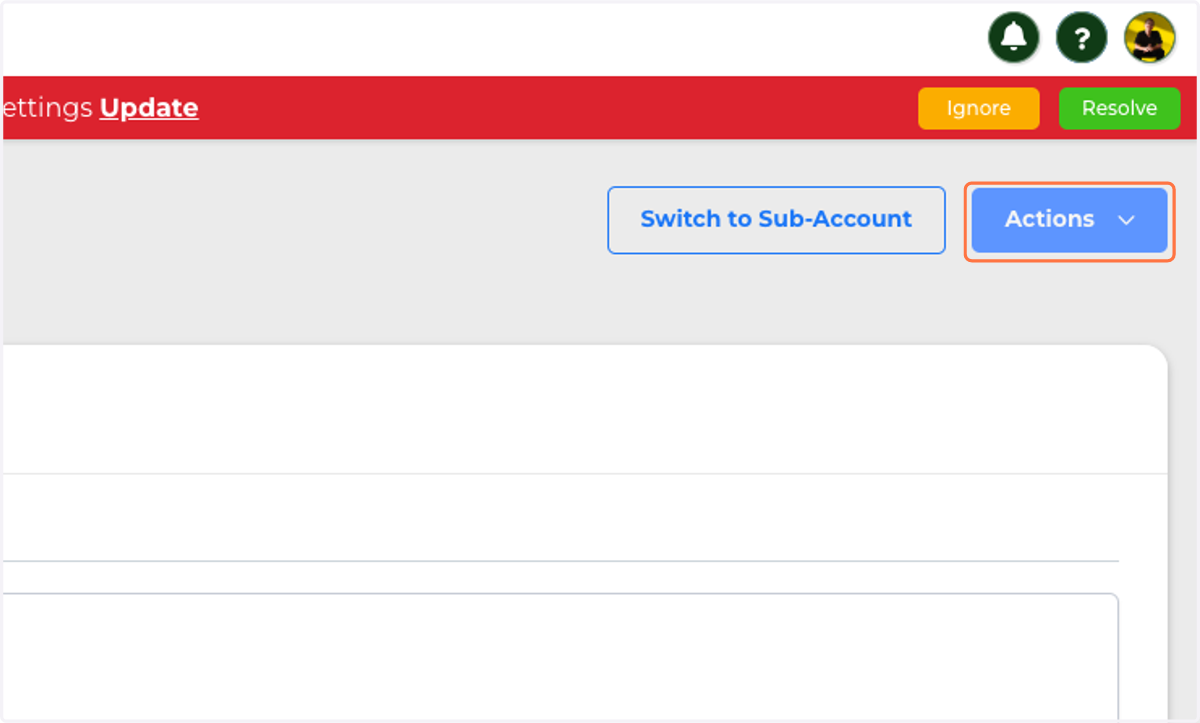
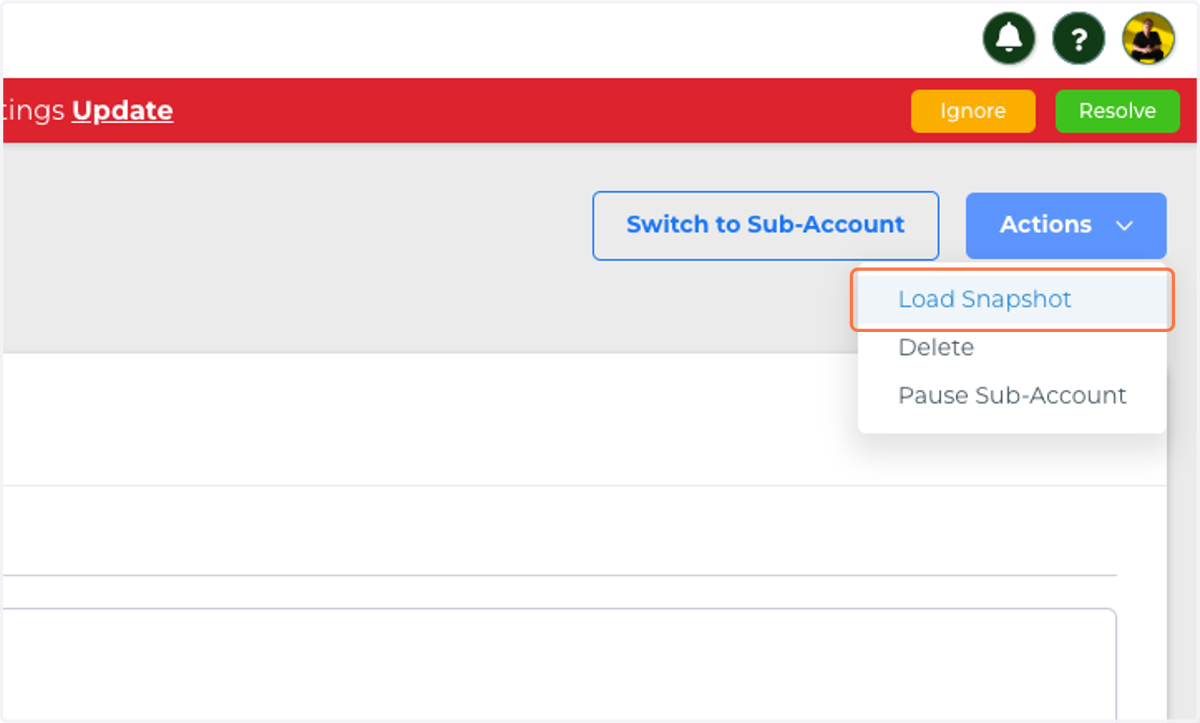
  5. 5. Click on Actions

    Click on Actions
  6. 6. Click on Load Snapshot

    Click on Load Snapshot
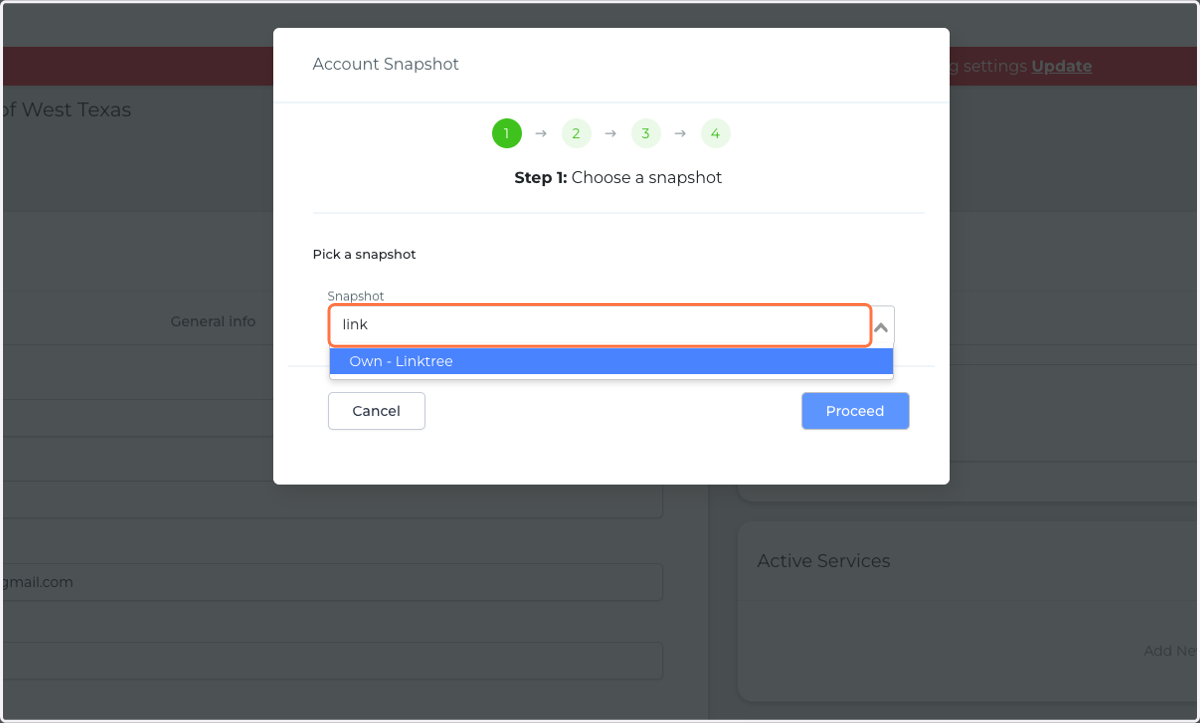
  7. 7. Type "link"

    Type "link"
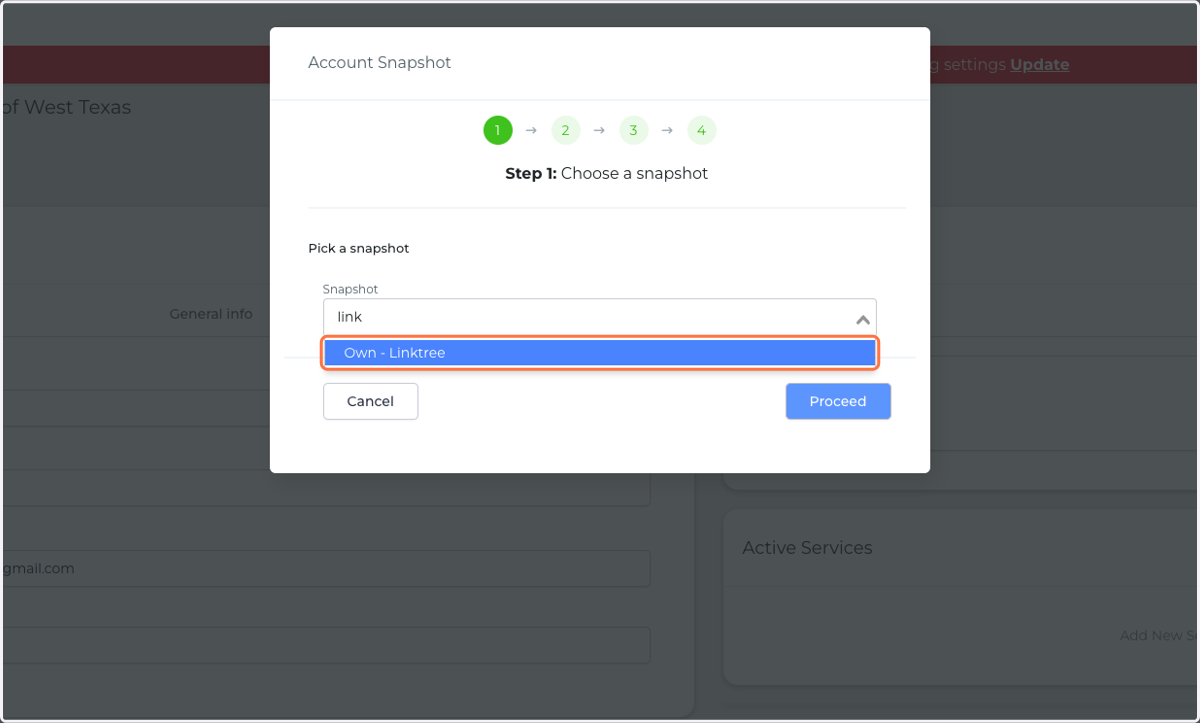
  8. 8. Click on Own - Linktree

    Click on Own - Linktree
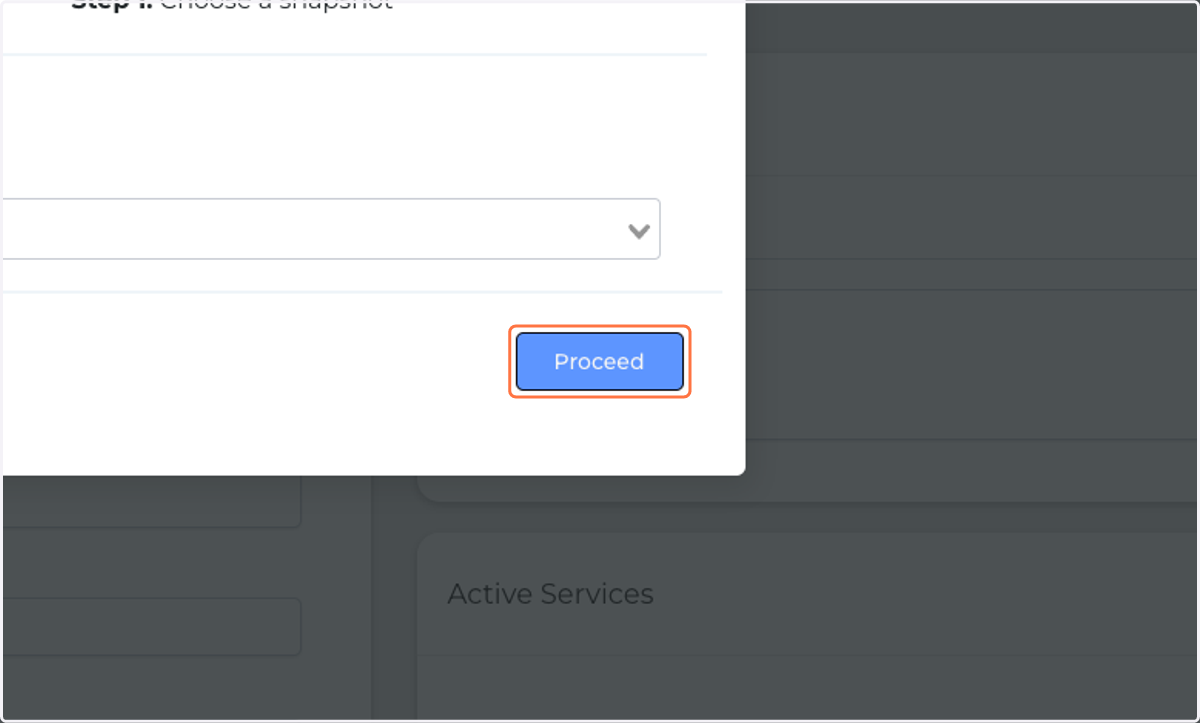
  9. 9. Click on Proceed

    Click on Proceed
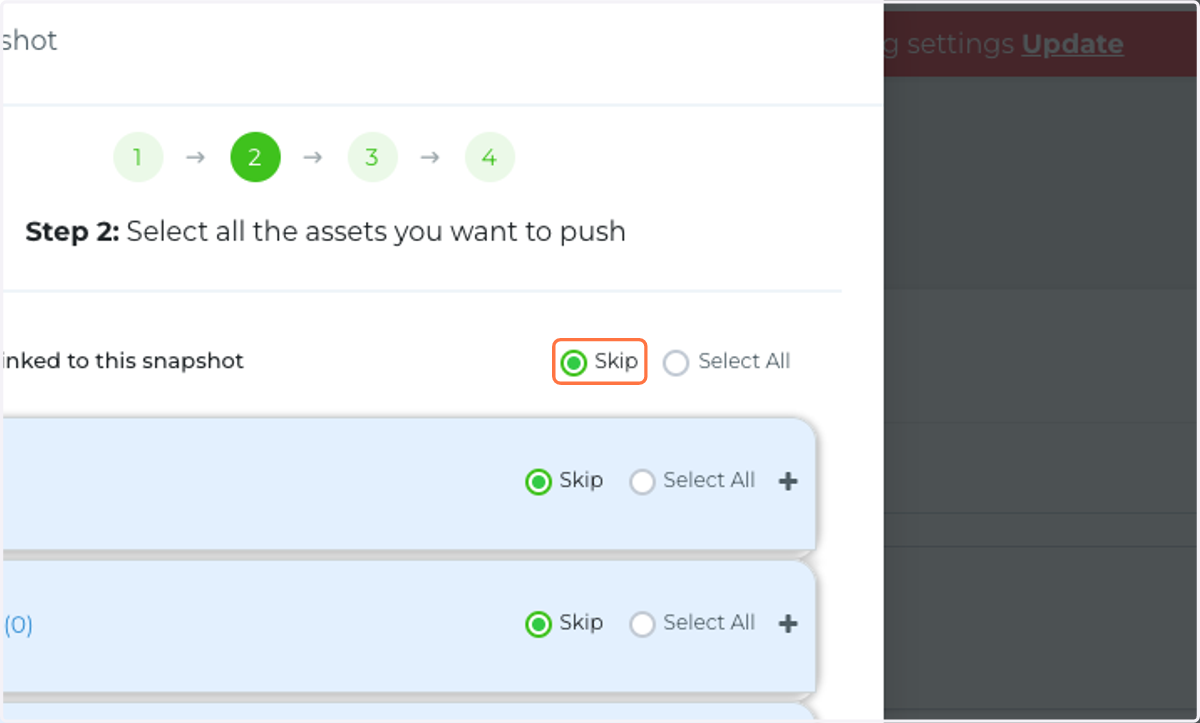
  10. 10. Select Skip (very important!)

    Select Skip (very important!)
  11. 11. Click the "+" icon to expand "custom fields"
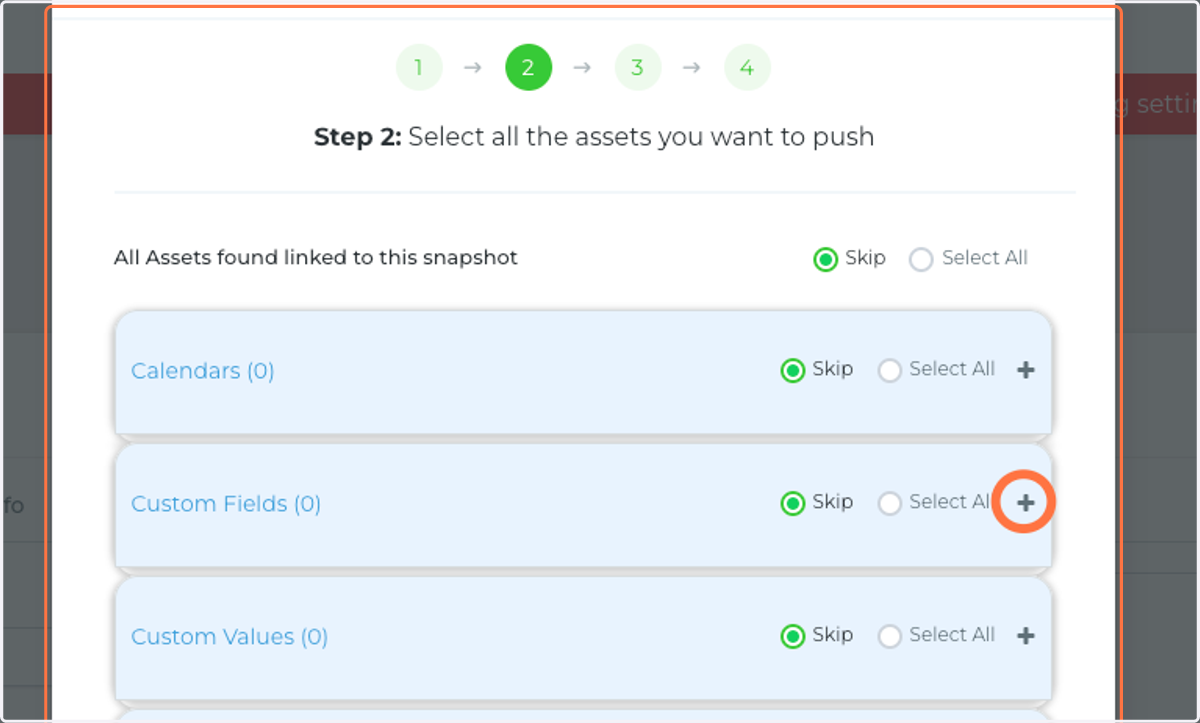
    Click the "+" icon to expand "custom fields"
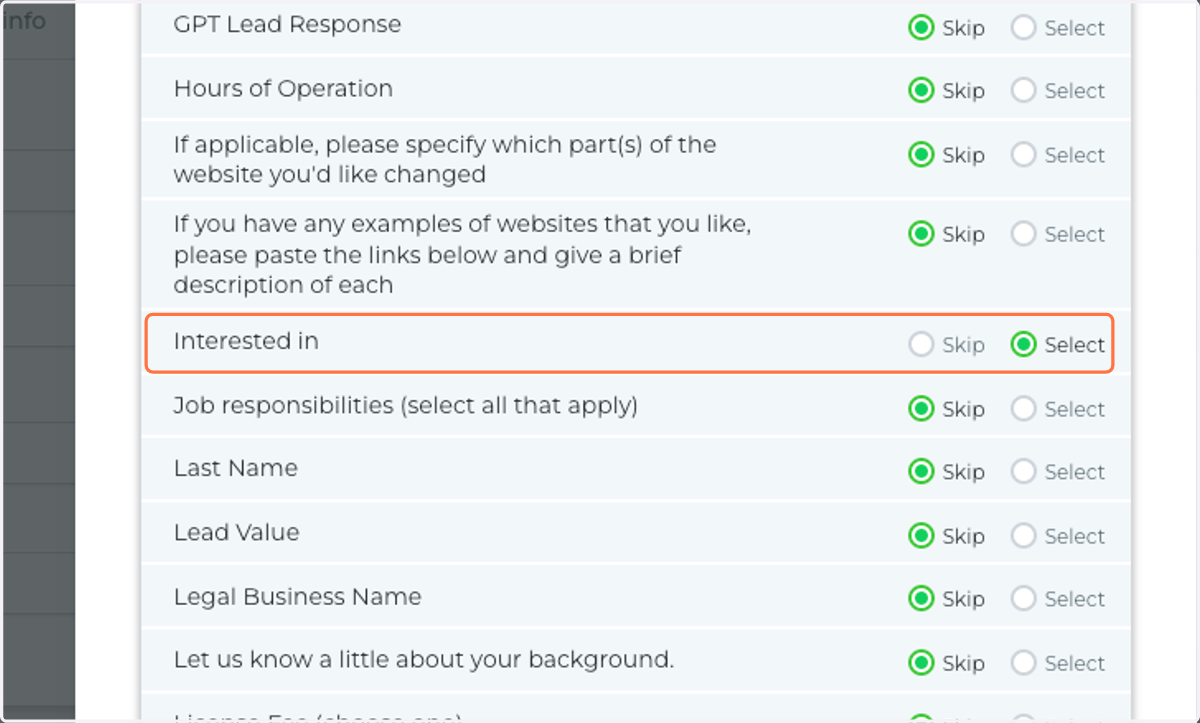
  12. 12. Select "interested in"

    Select "interested in"
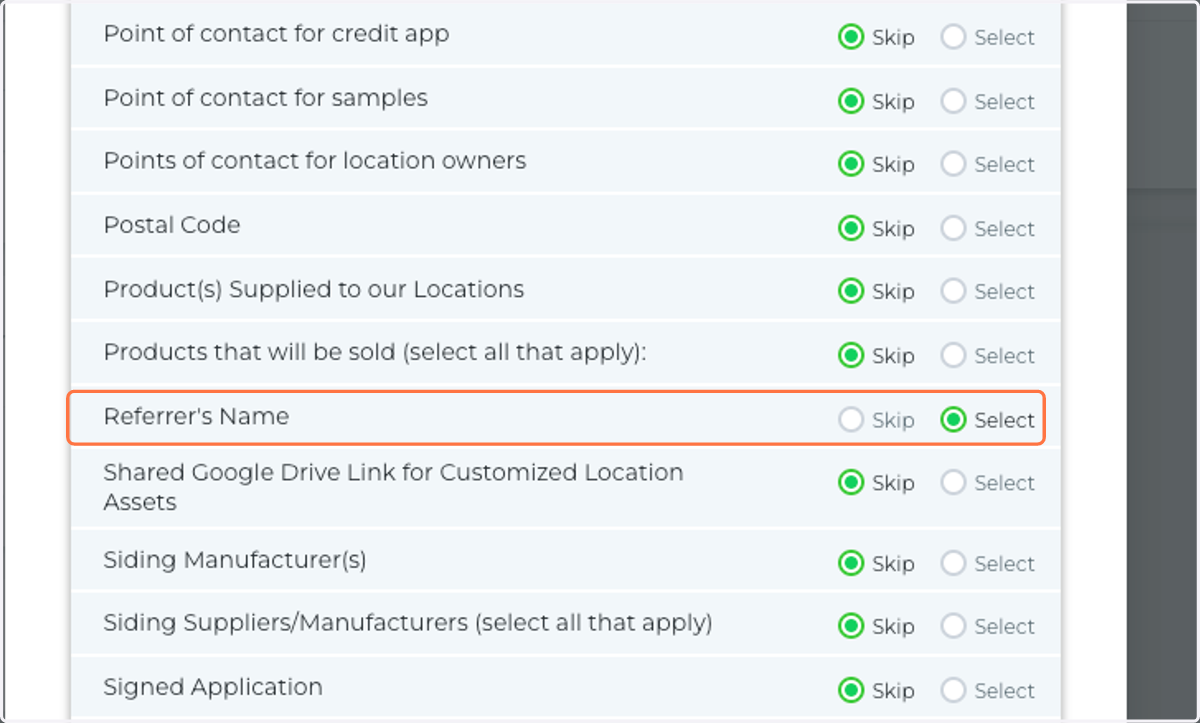
  13. 13. Select "referrer's name"

    Select "referrer's name"
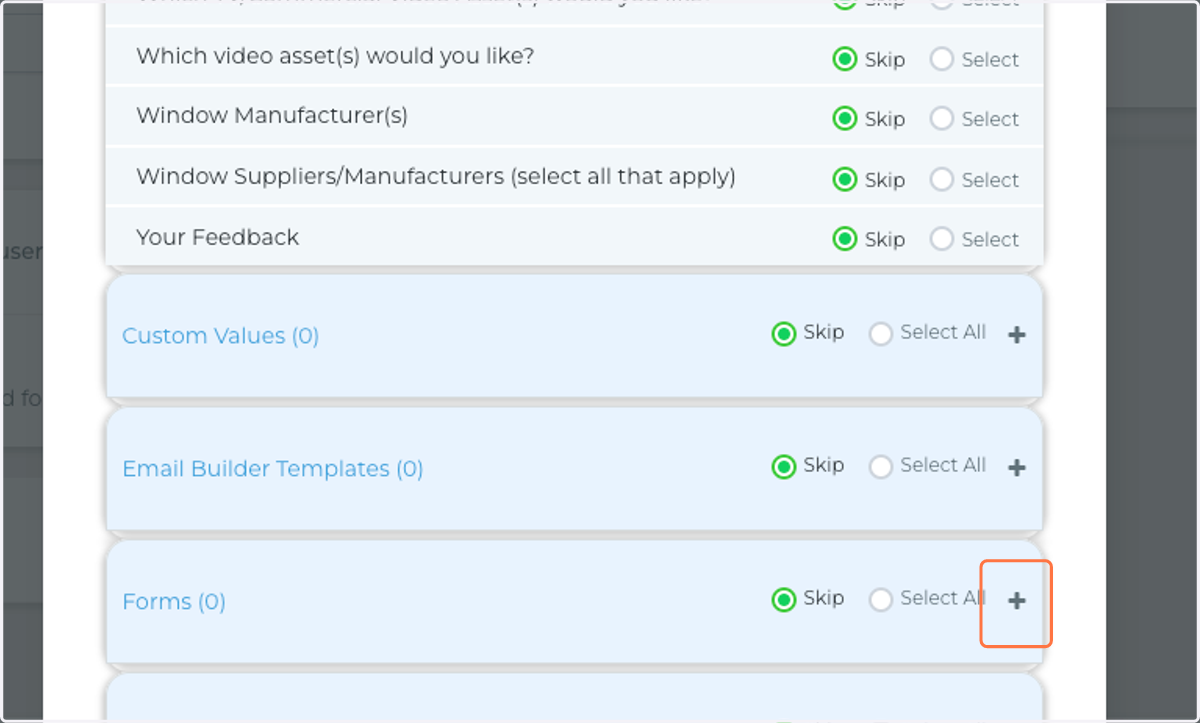
  14. 14. Click "+" to expand "Forms"

    Click "+" to expand "Forms"
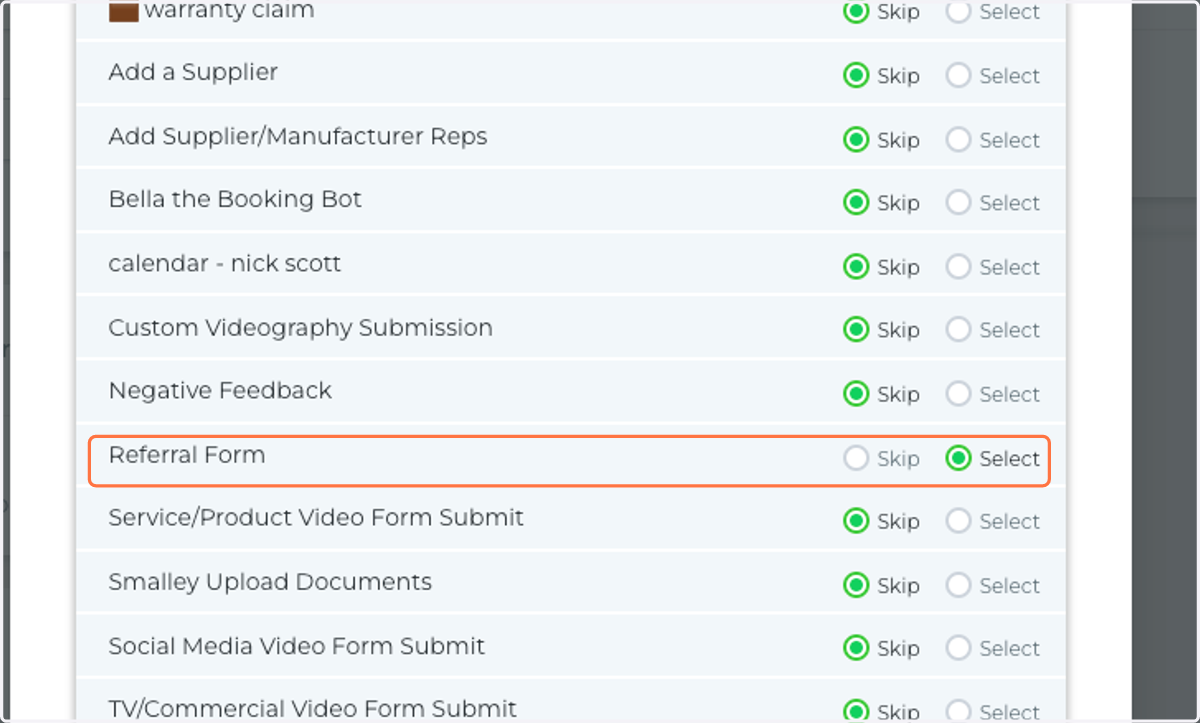
  15. 15. Select "Referral Form"

    Select "Referral Form"
  16. 16. Click "+" to expand "Funnels & Websites"
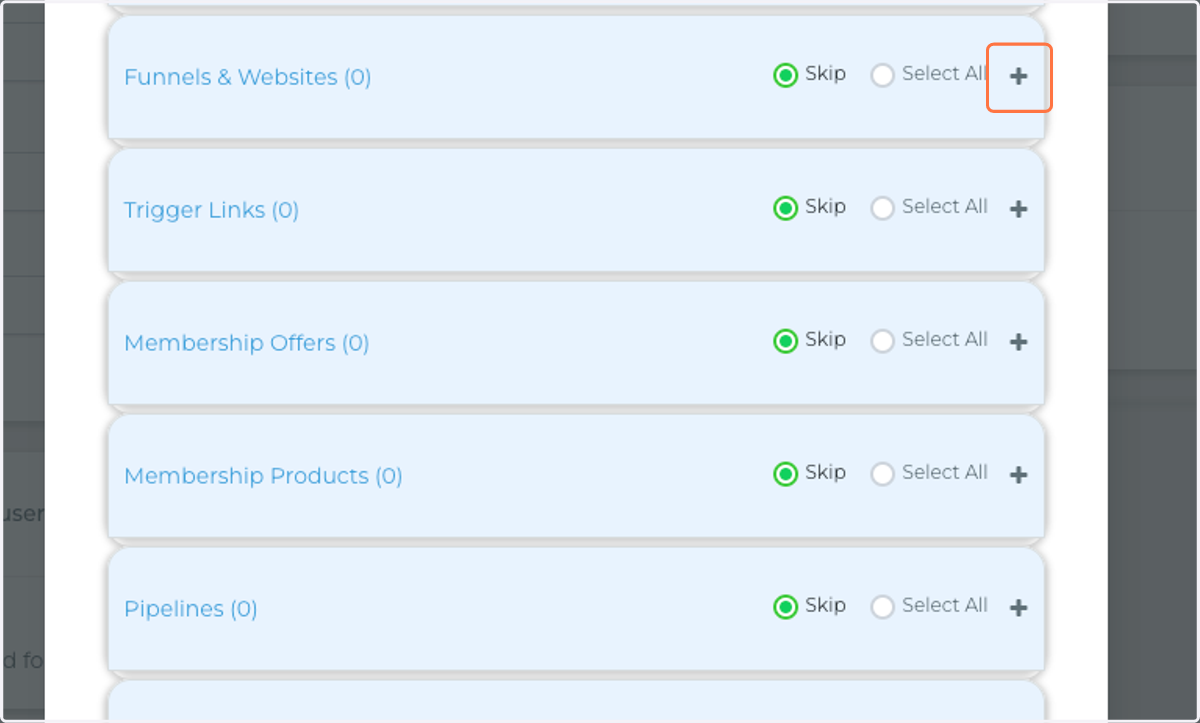
    Click "+" to expand "Funnels & Websites"
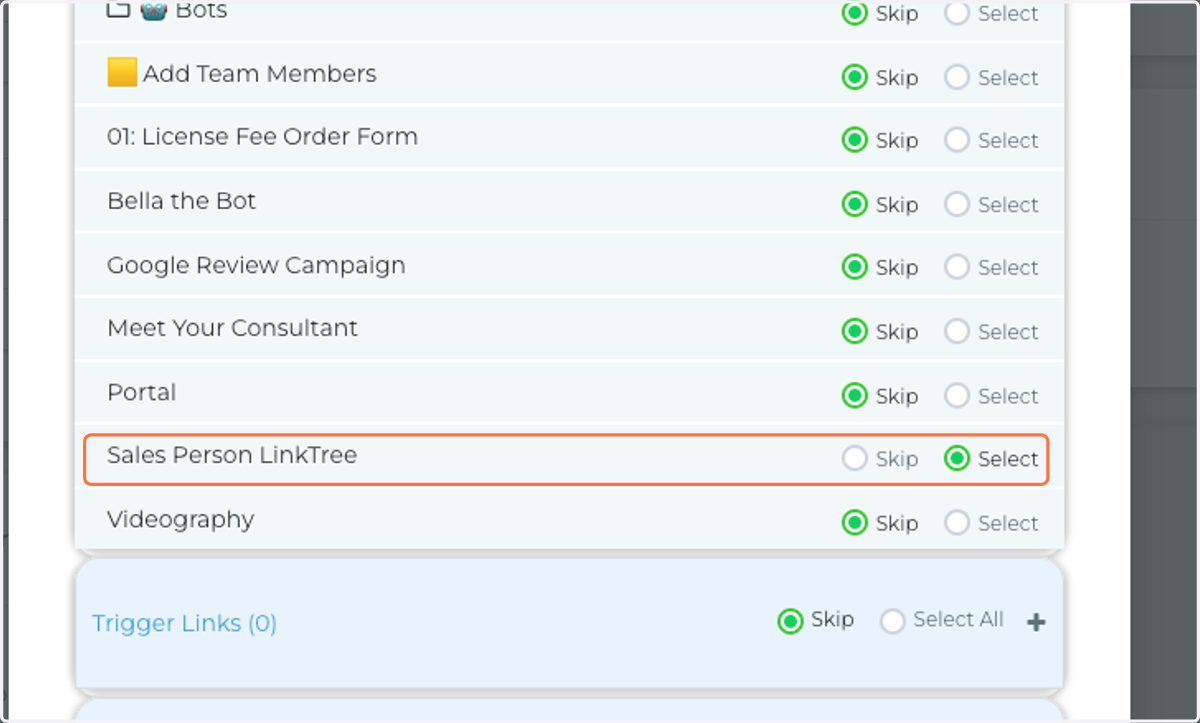
  17. 17. Select "Sales Person Linktree"

    Select "Sales Person Linktree"
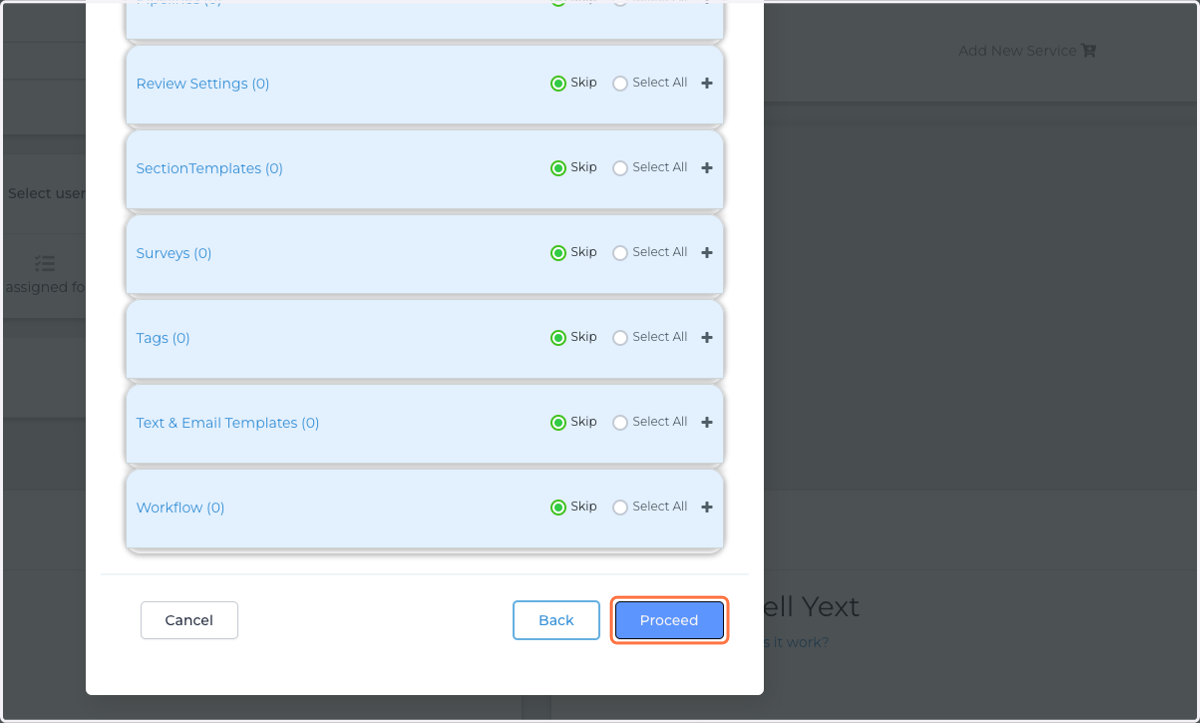
  18. 18. Click on Proceed at bottom right

    Click on Proceed at bottom right
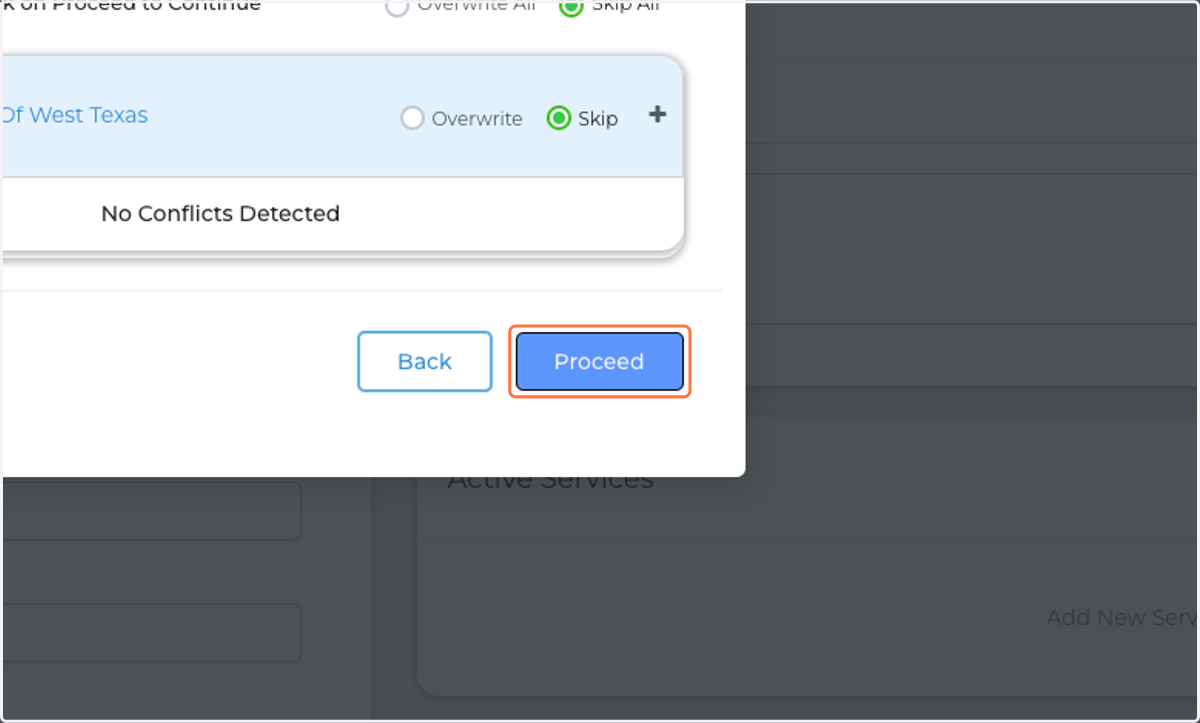
  19. 19. Click on Proceed again

    Click on Proceed again
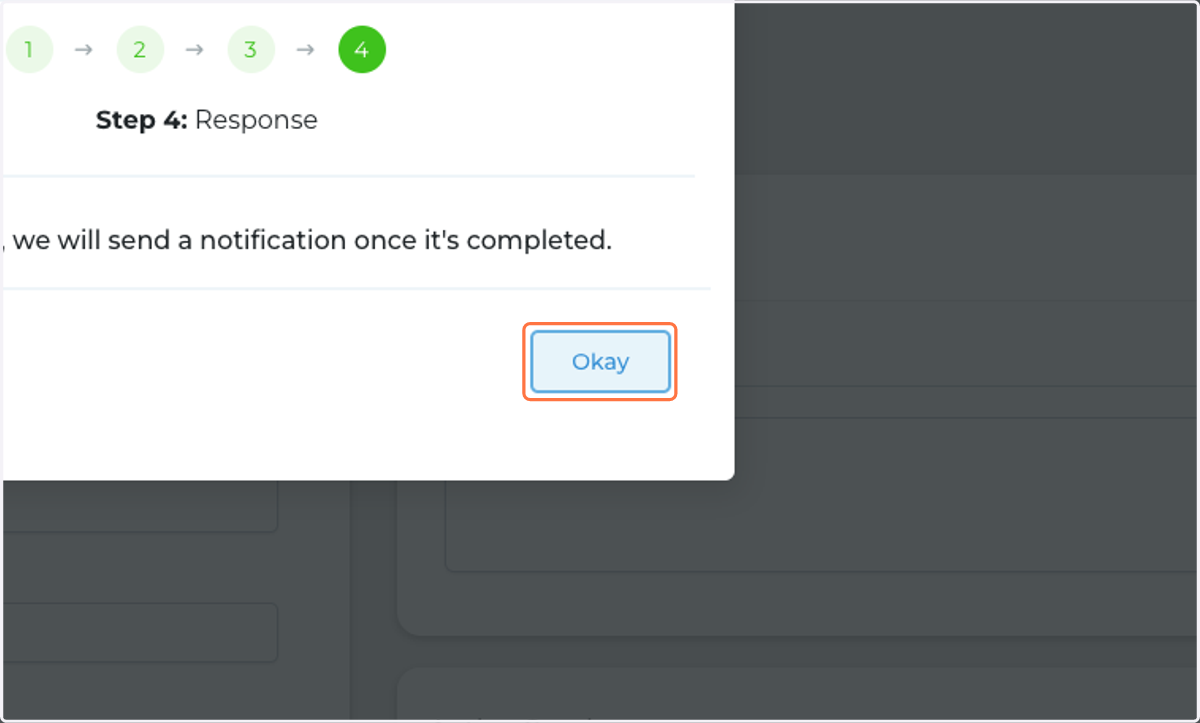
  20. 20. Click on Okay

    Click on Okay
  21. 21. Click on Switch to Sub-Account to Go to account
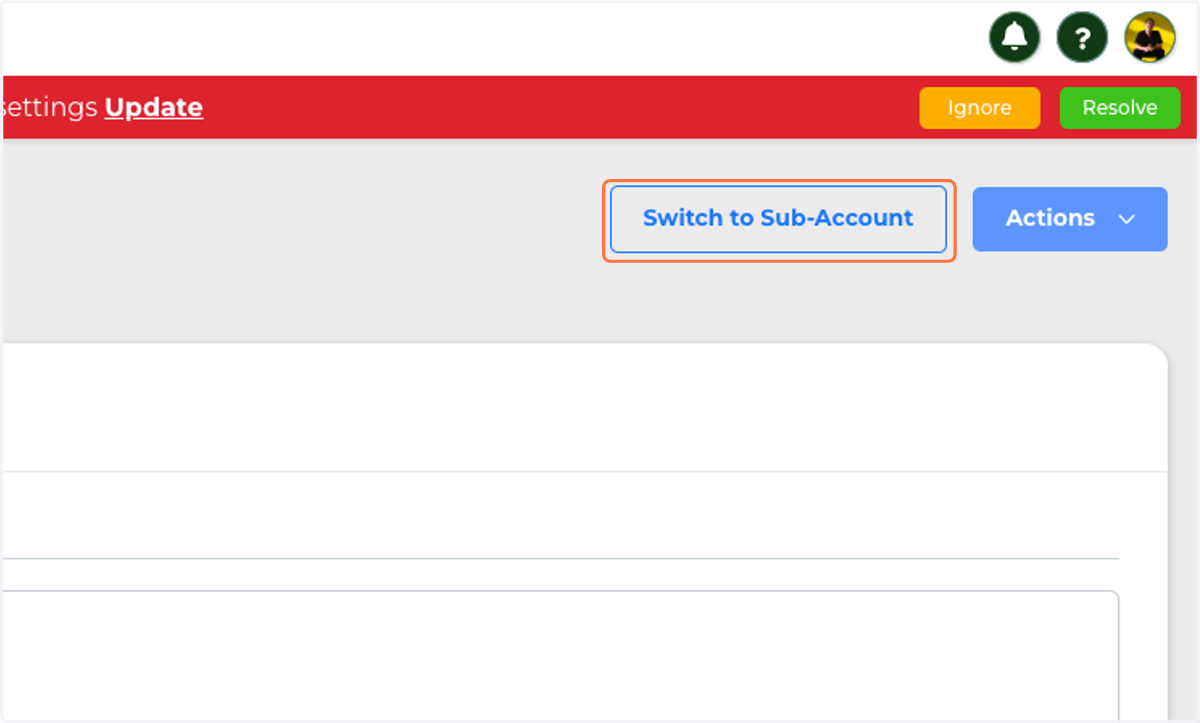
    Click on Switch to Sub-Account to Go to account