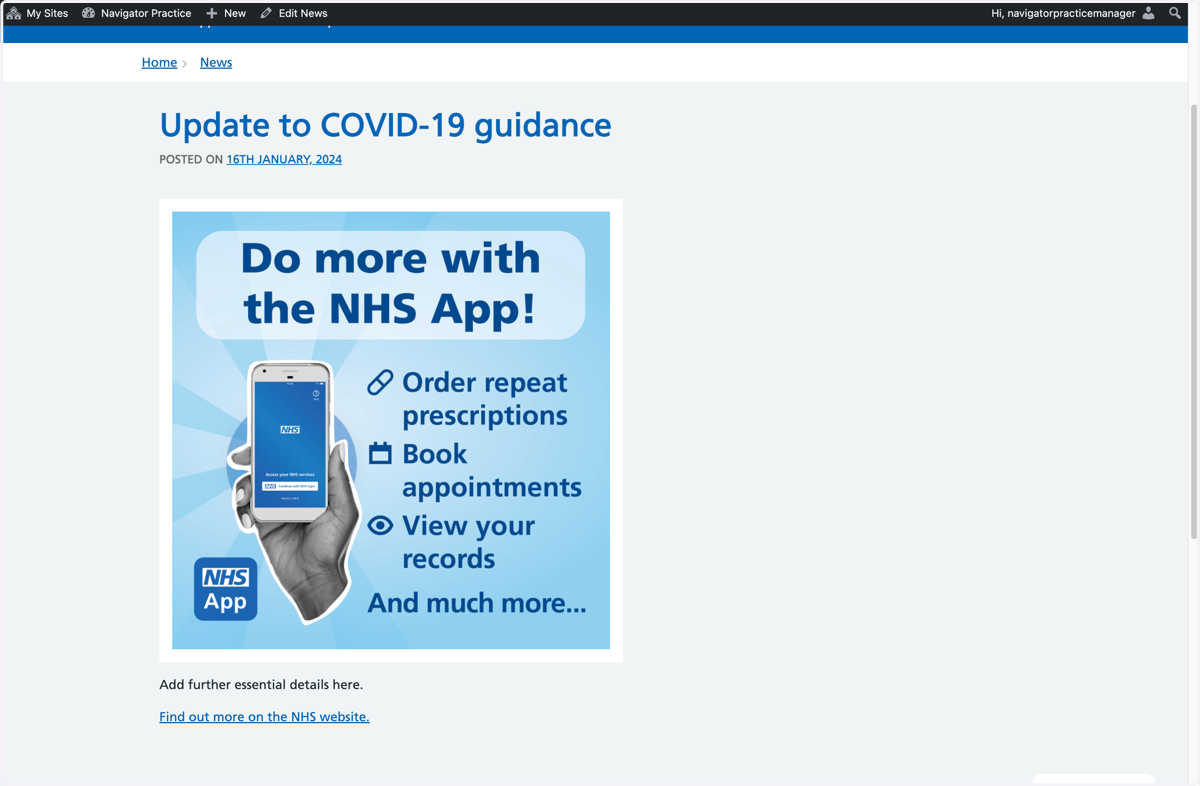
Add a news item on your Navigator website
This tutorial will show you how to add a news item to your GPsurgery.net Navigator website. You can move through the tutorial at your own pace using the Next button.
1. Ensure that you are logged into your Navigator website. The black admin toolbar will be visible at the top of the screen.
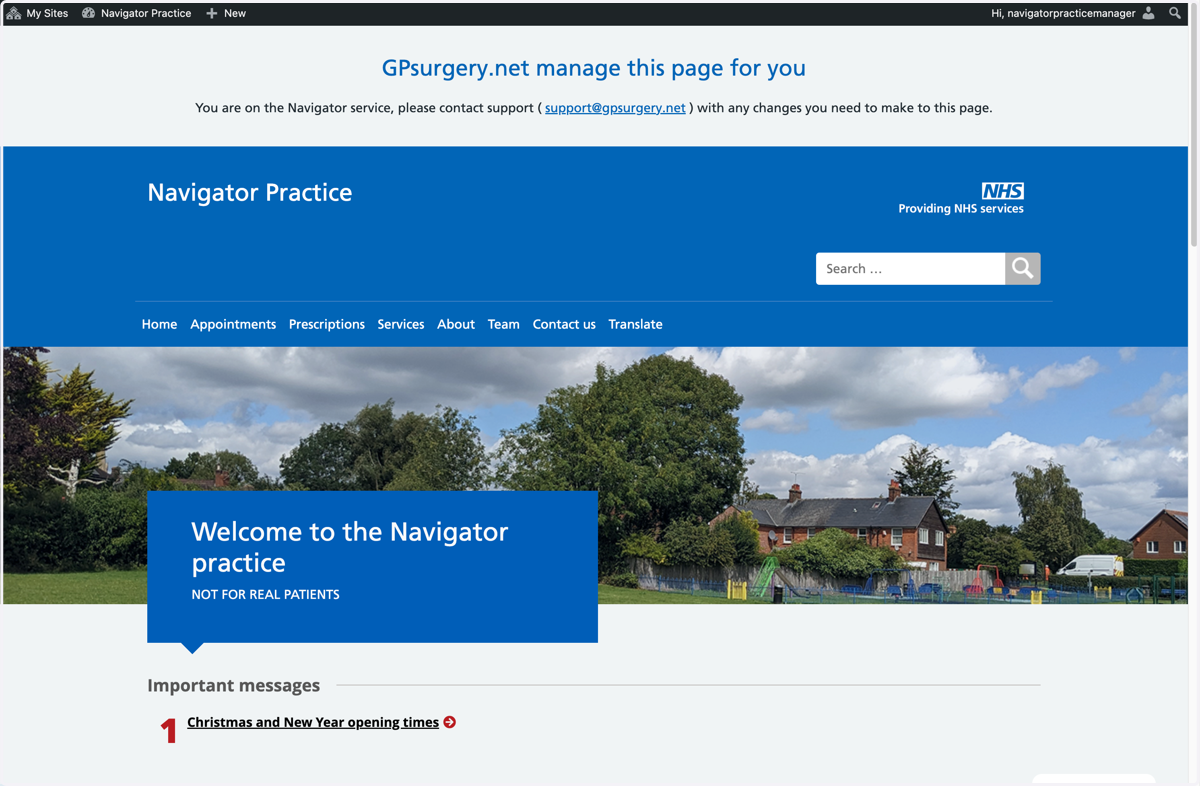
2. Hover your mouse over + New in the admin toolbar, and select News from the drop-down that appears.
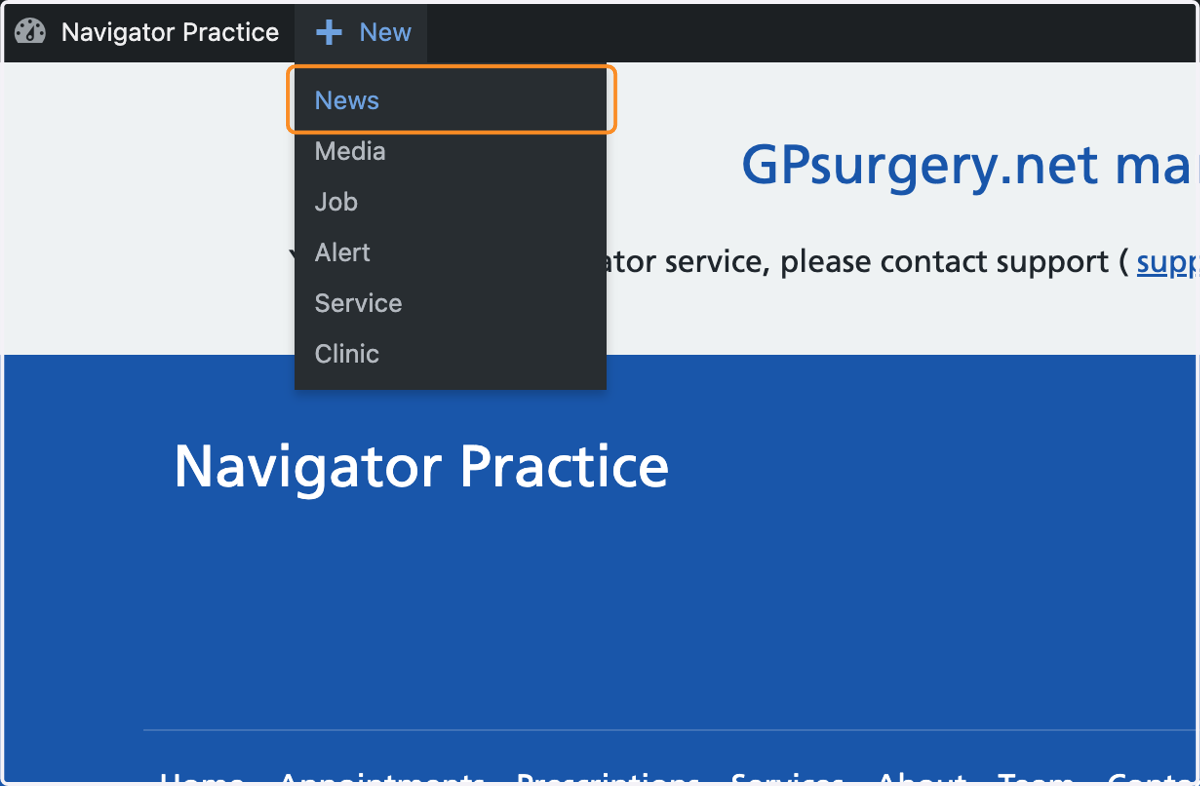
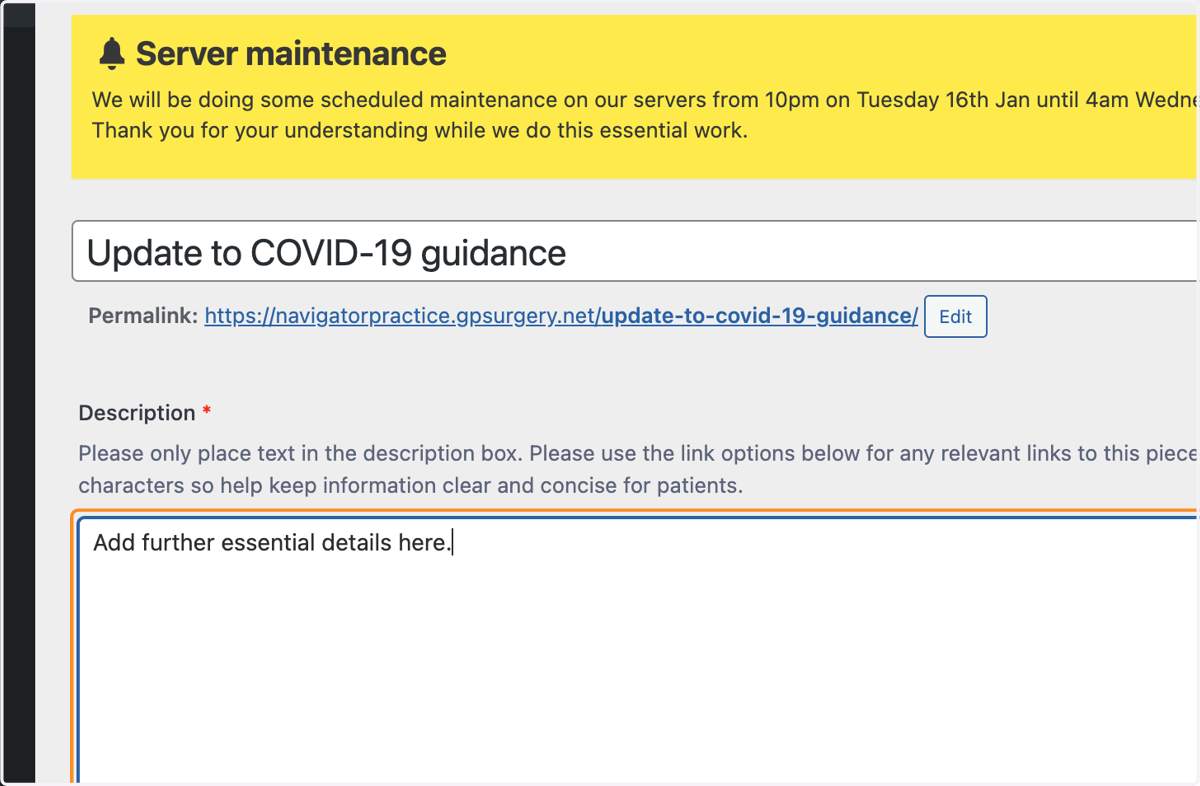
3. You are now in the Add News section of the Dashboard. Add a simple title in the Title box.
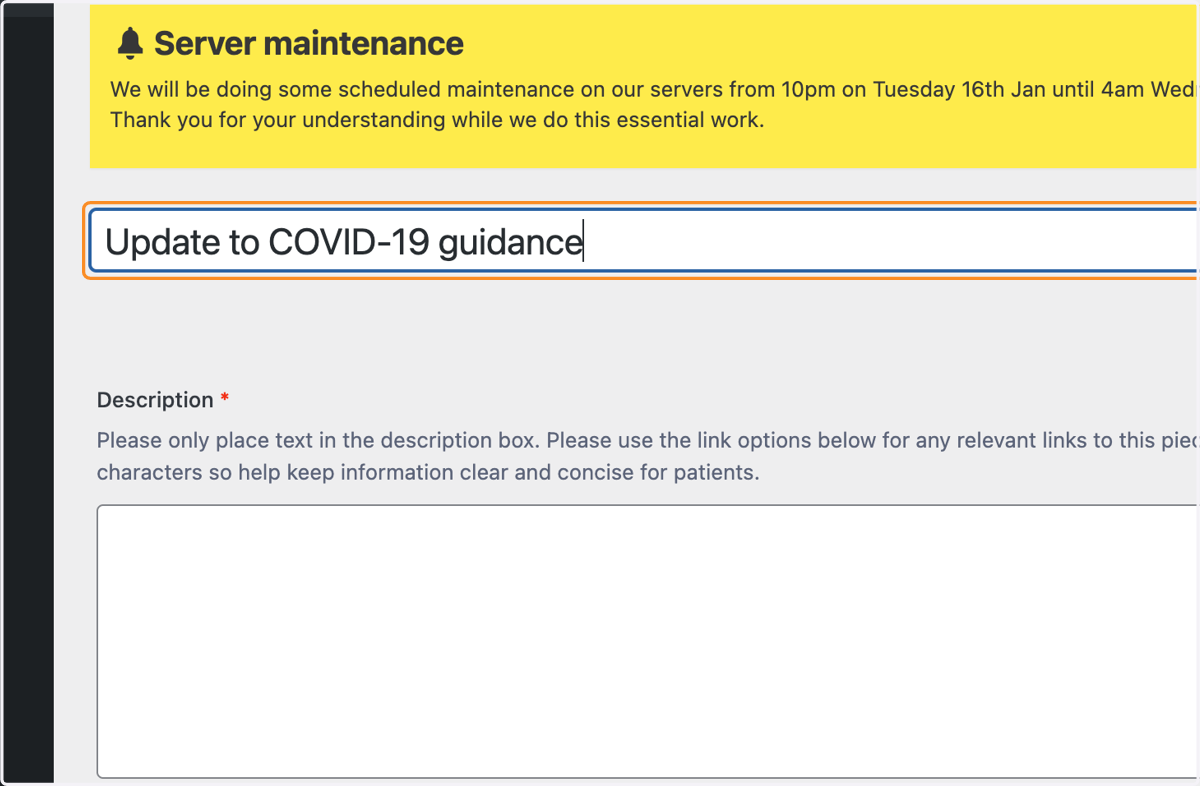
4. In the Description box, add your news.
Note: Do not add large amounts of clinical information. Instead, use the boxes below to link to reliable, external sources (like the NHS website).
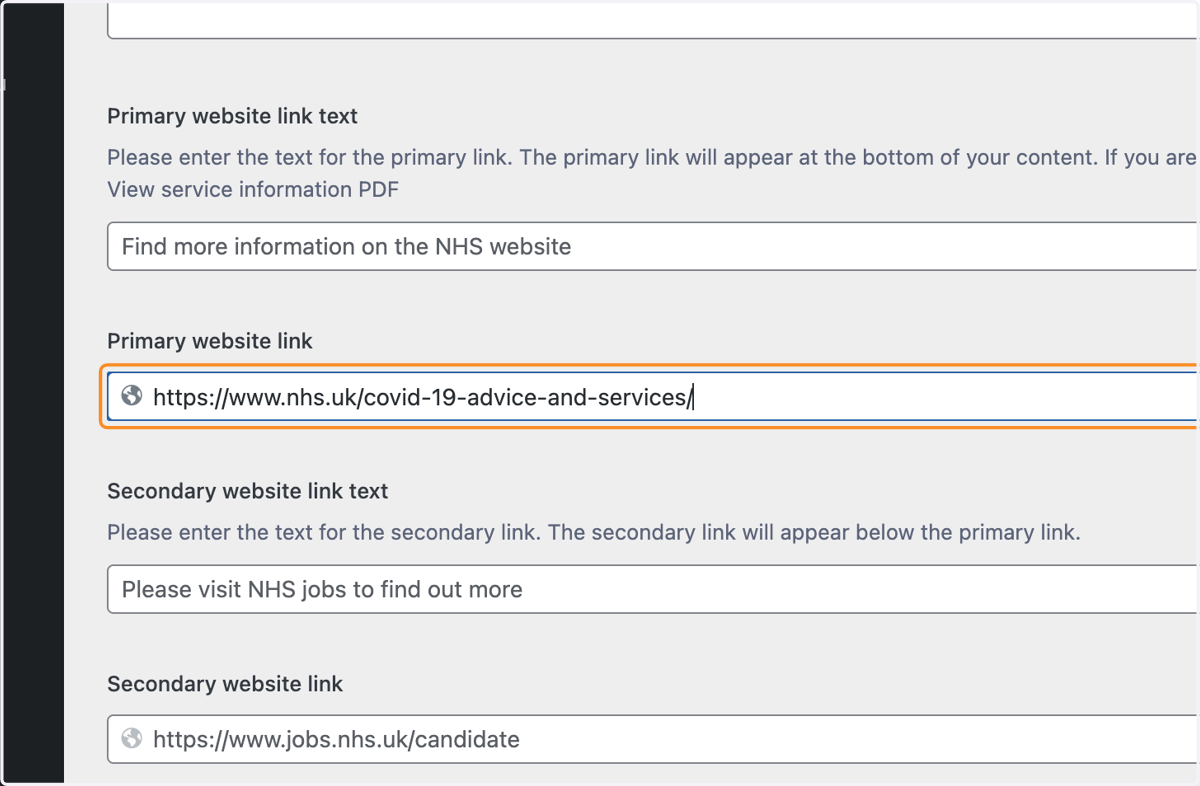
5. To add links, use the Primary website link to add the first link you would like to add.
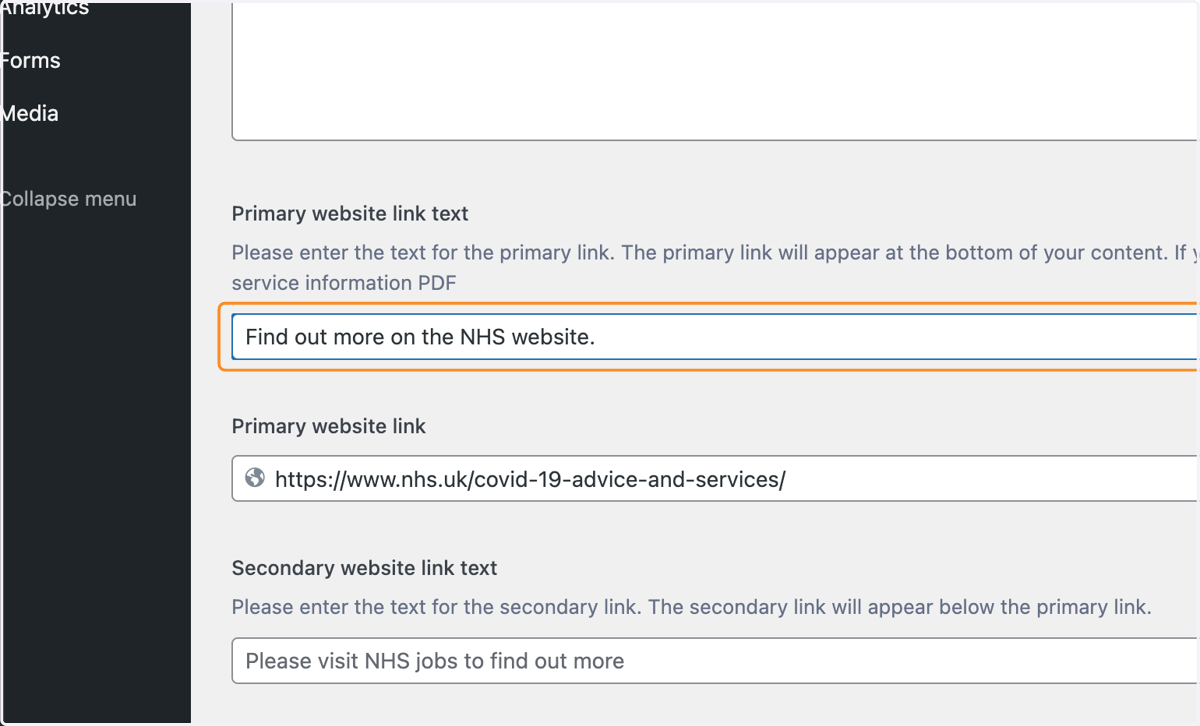
6. Then, use the Primary website link text box to add simple, accessible link text.
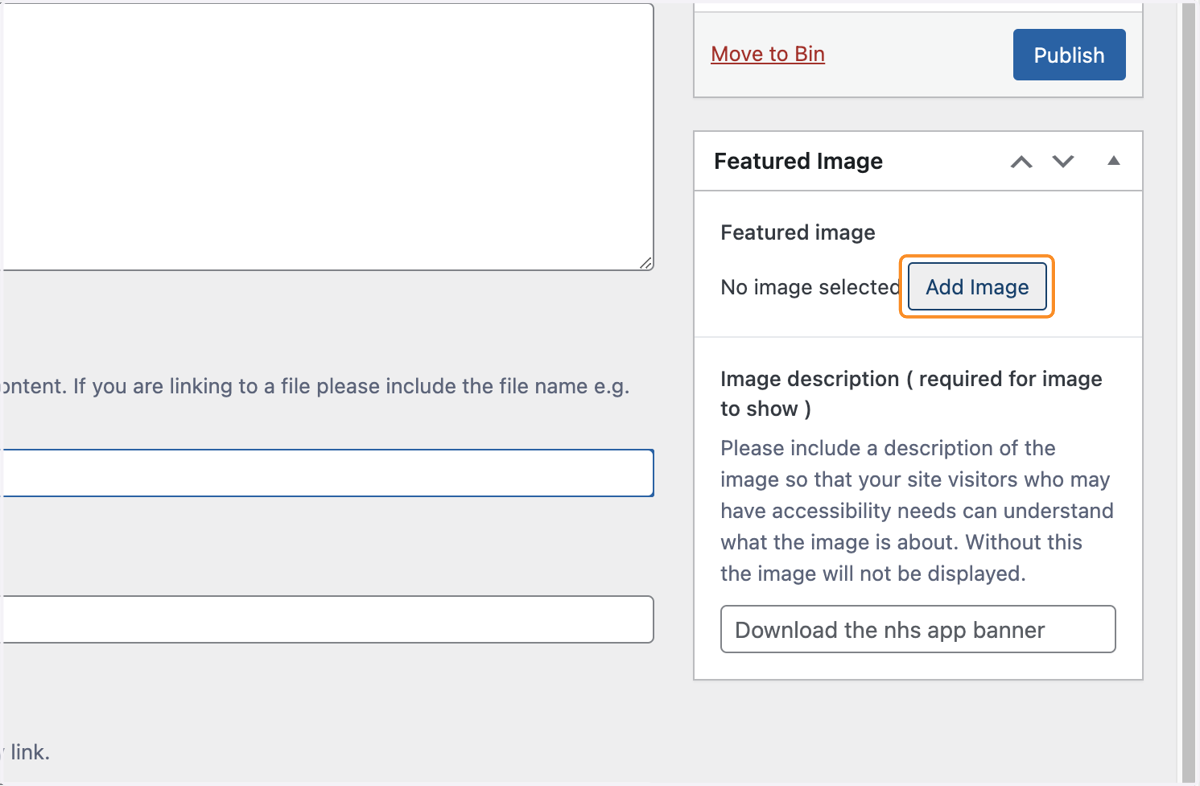
7. To add an image to your news item, select the Add Image button in the Featured Image box.
8. Use your file browser by using the Select File button, or drag and drop a new image into the Media Library.
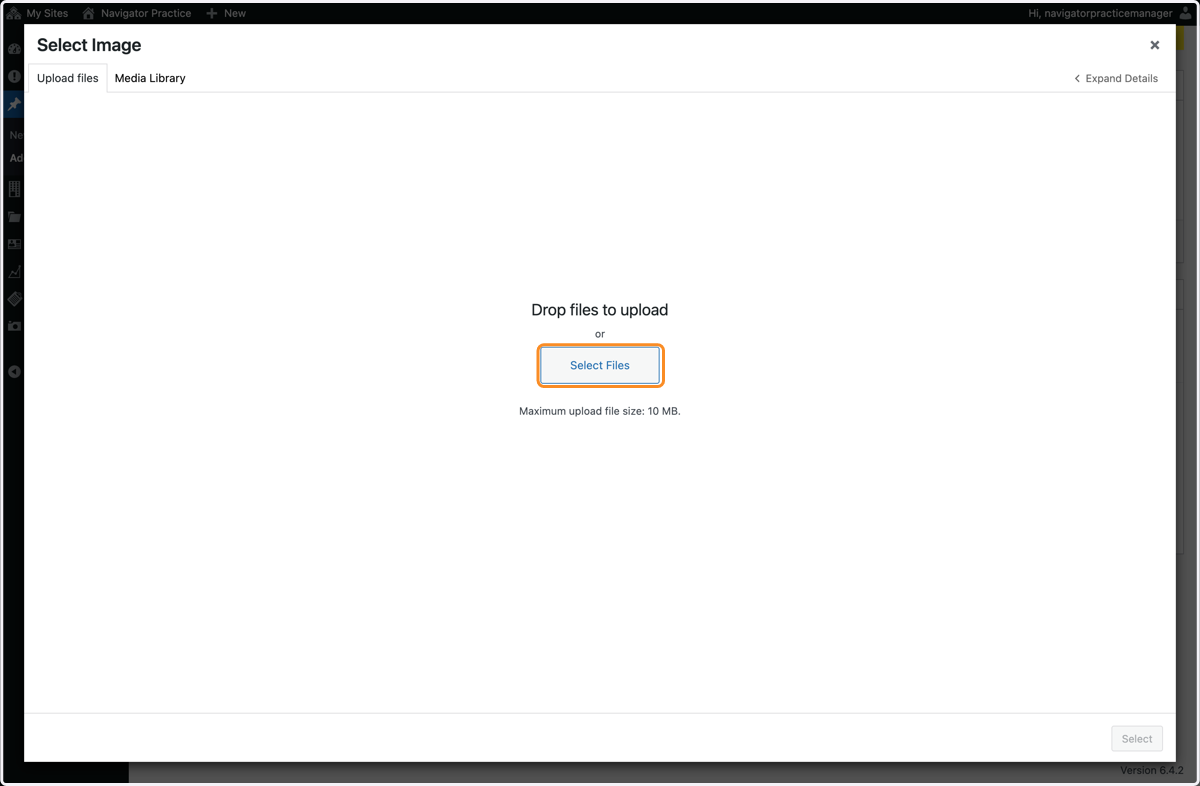
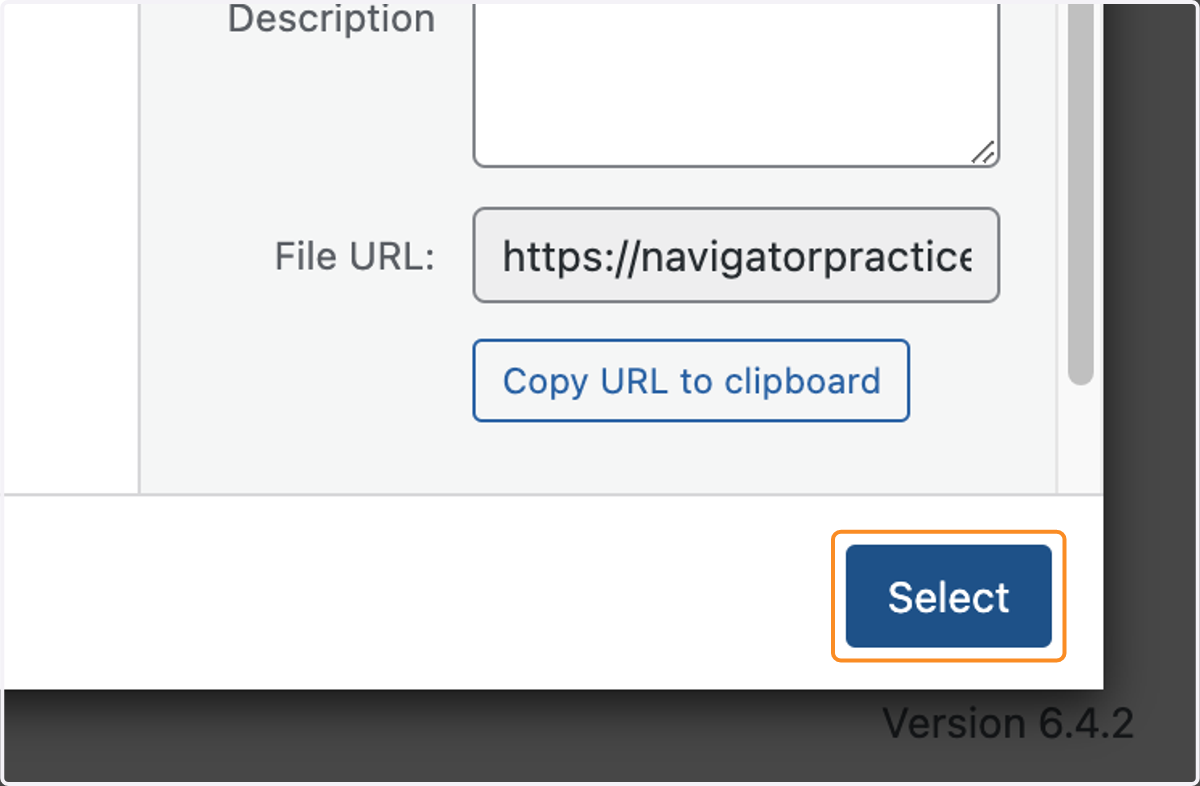
9. Once you have picked your image, use the Select button to set it as your featured image.
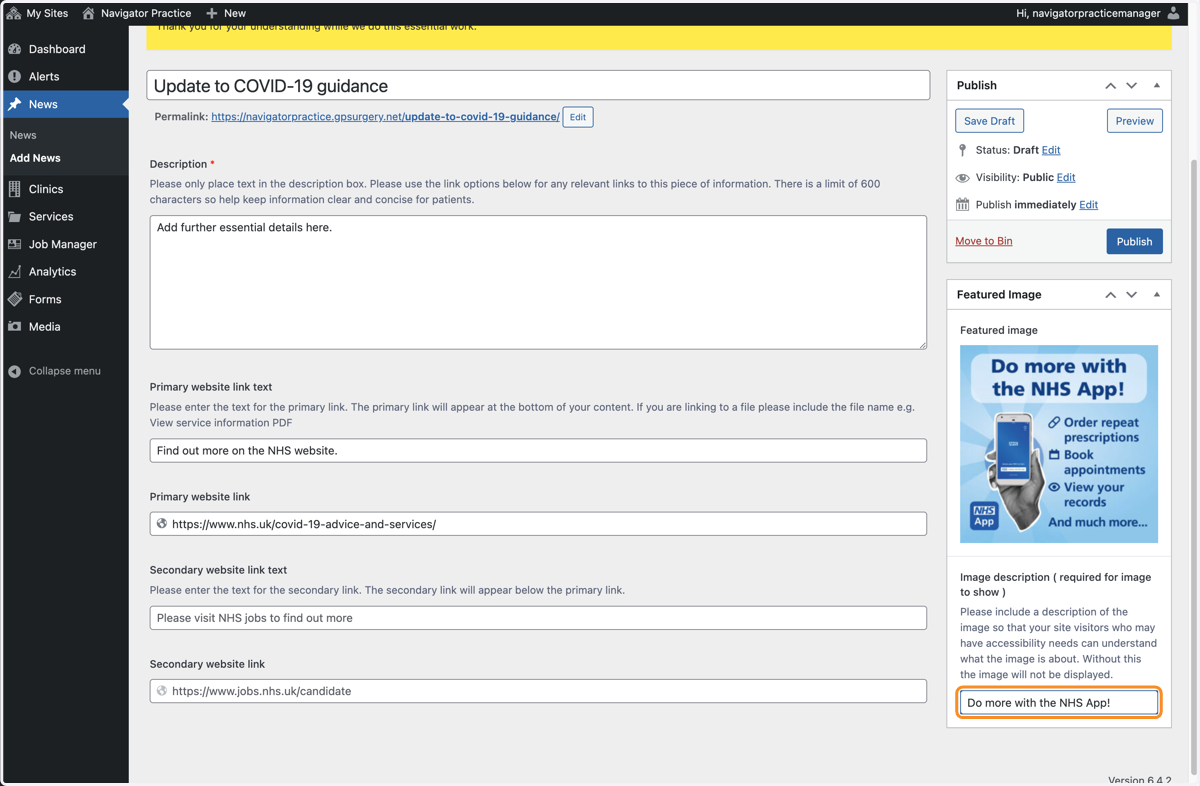
10. Now, set an image description in the featured image box. Your image will not show unless you have set alternative text.
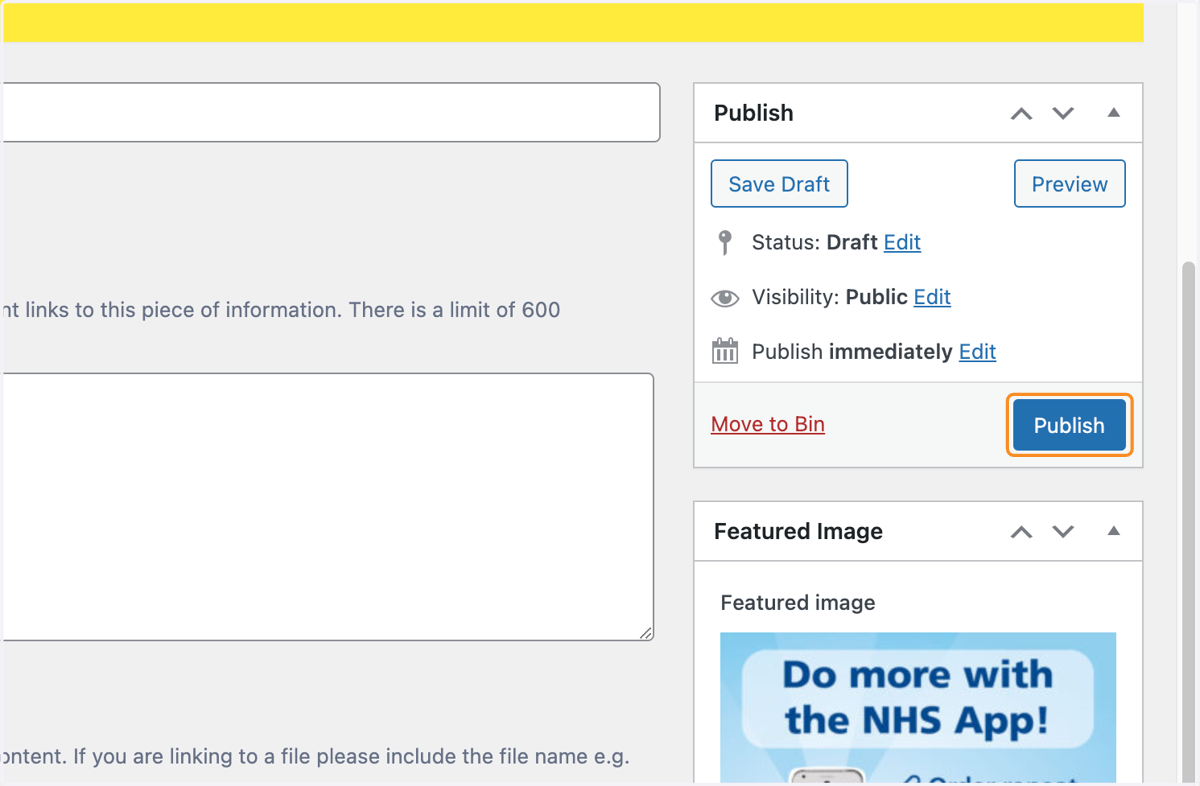
11. Once you are happy with your news item, use the blue Publish button in the Publish box to put the news item live on your website.
12. Your news item will now be posted in the News section of your website.
If you are using a news widget on your Home page, any featured image you set will display there, too.