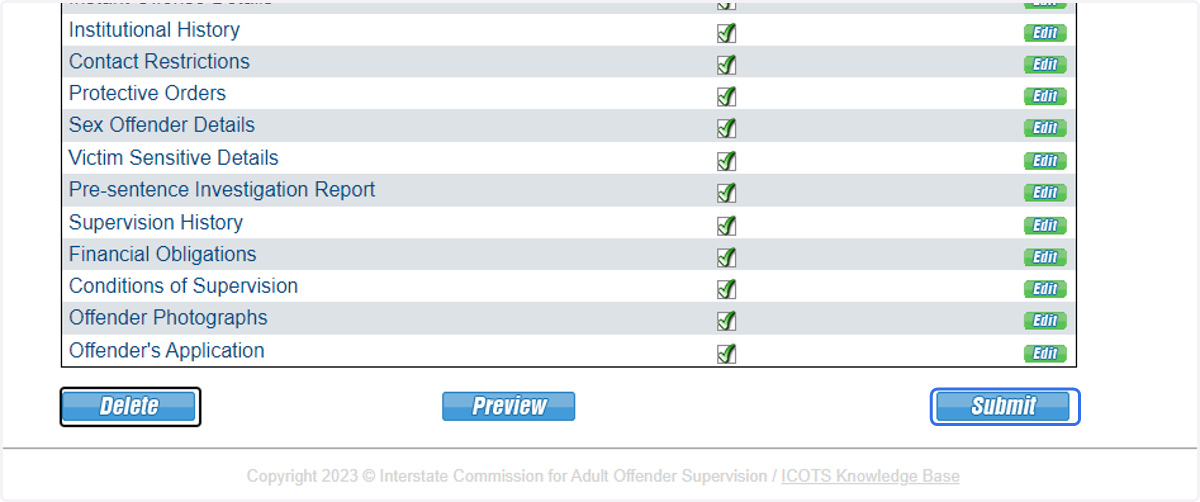
Transfer Scenario #1
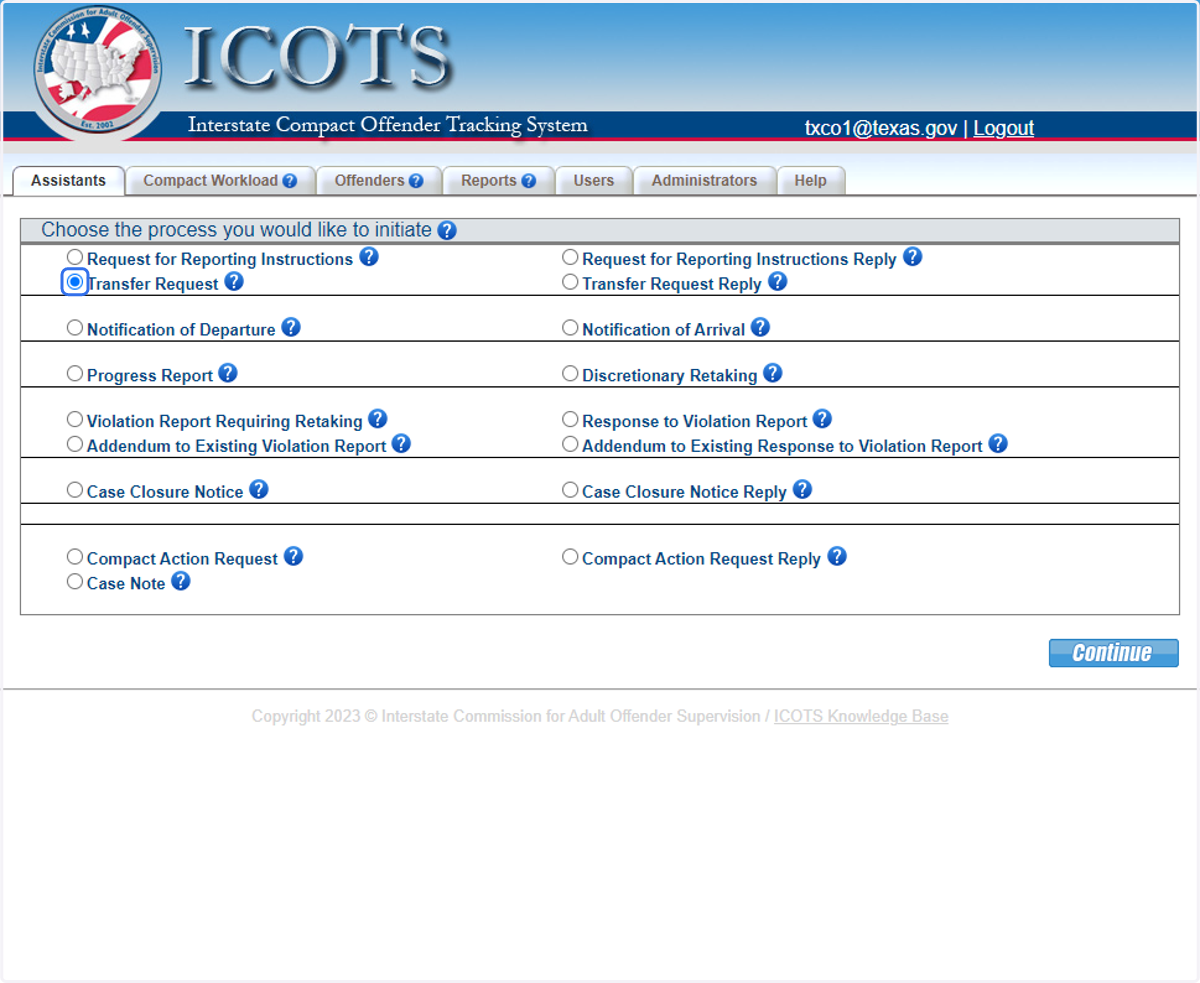
1. Select Transfer Request.
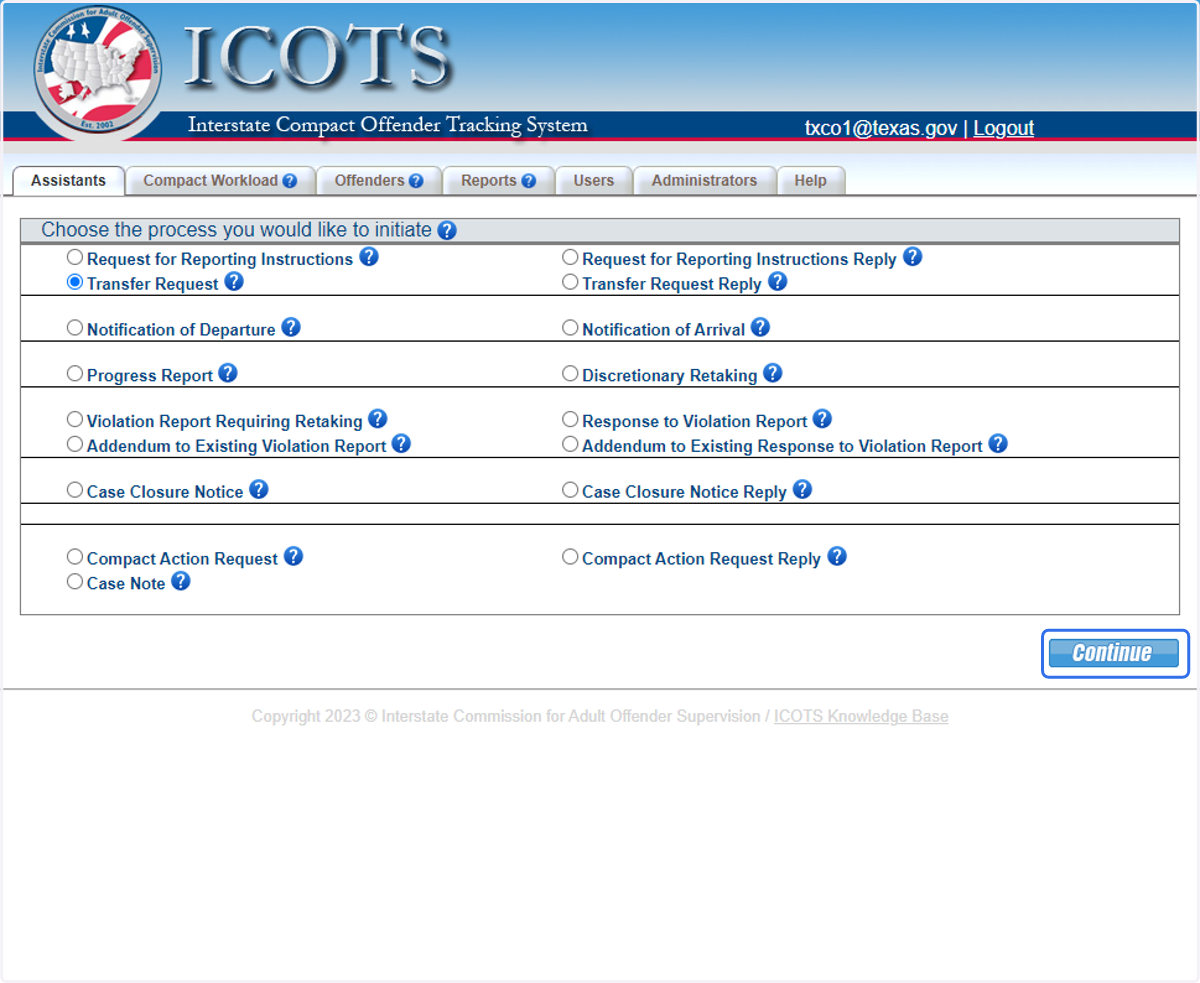
2. Click Continue
3. Select for an offender for whom no RFRI has been submitted by your state?
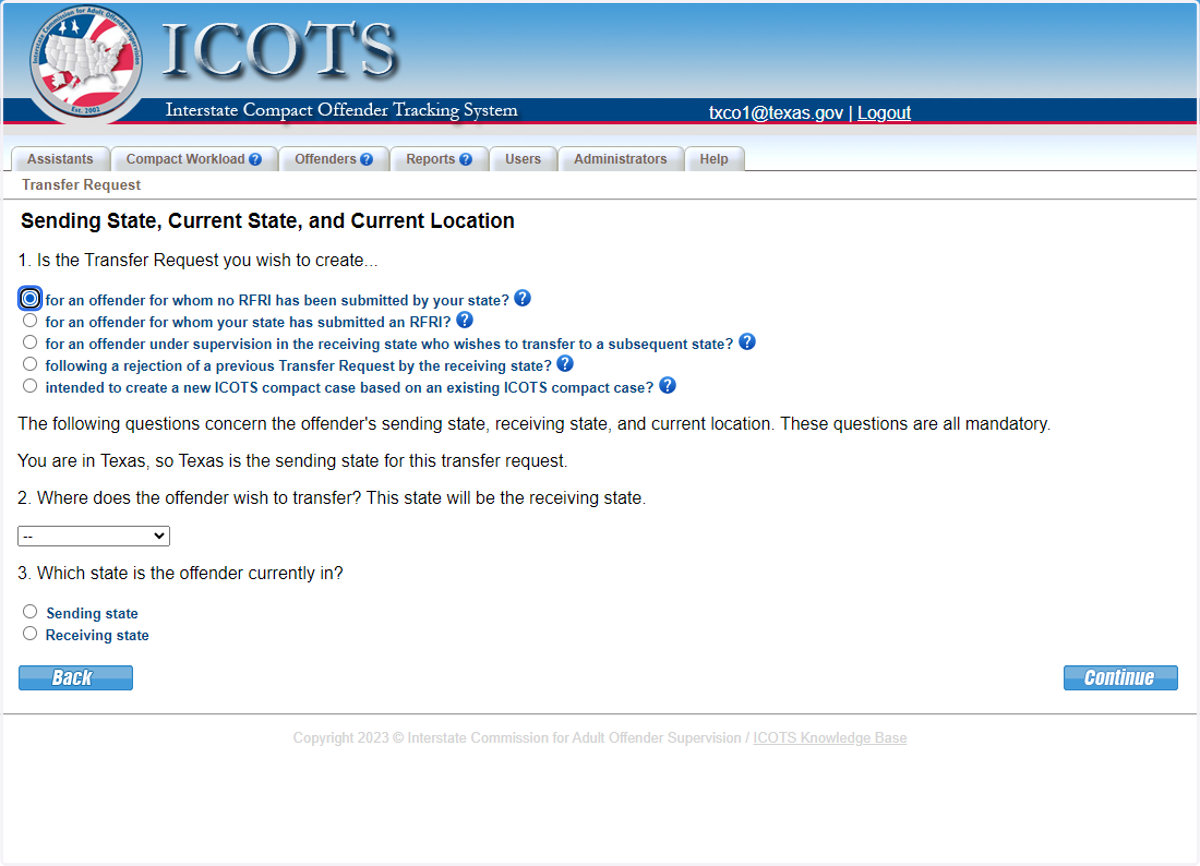
4. Select California.
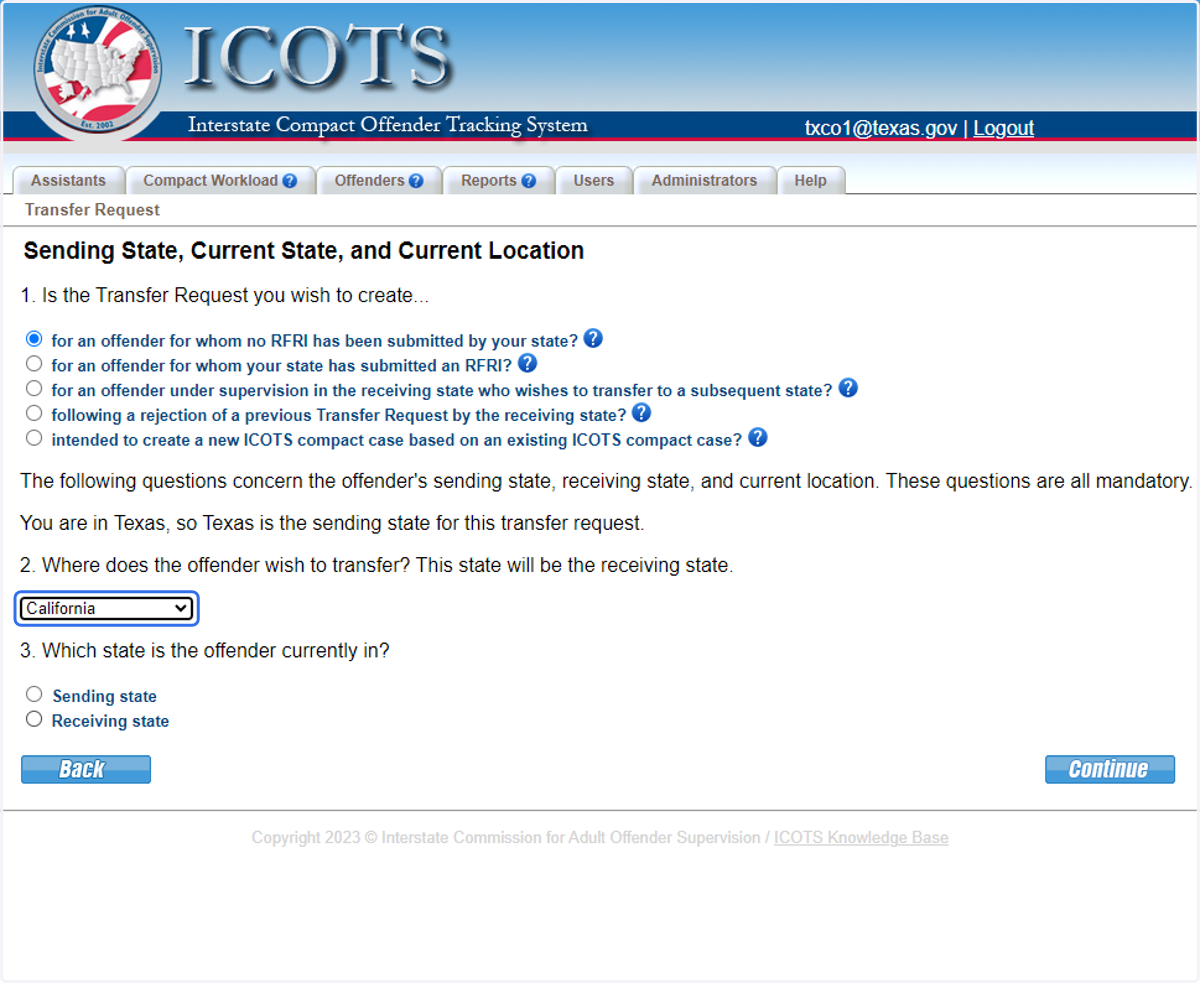
5. Select Sending state.
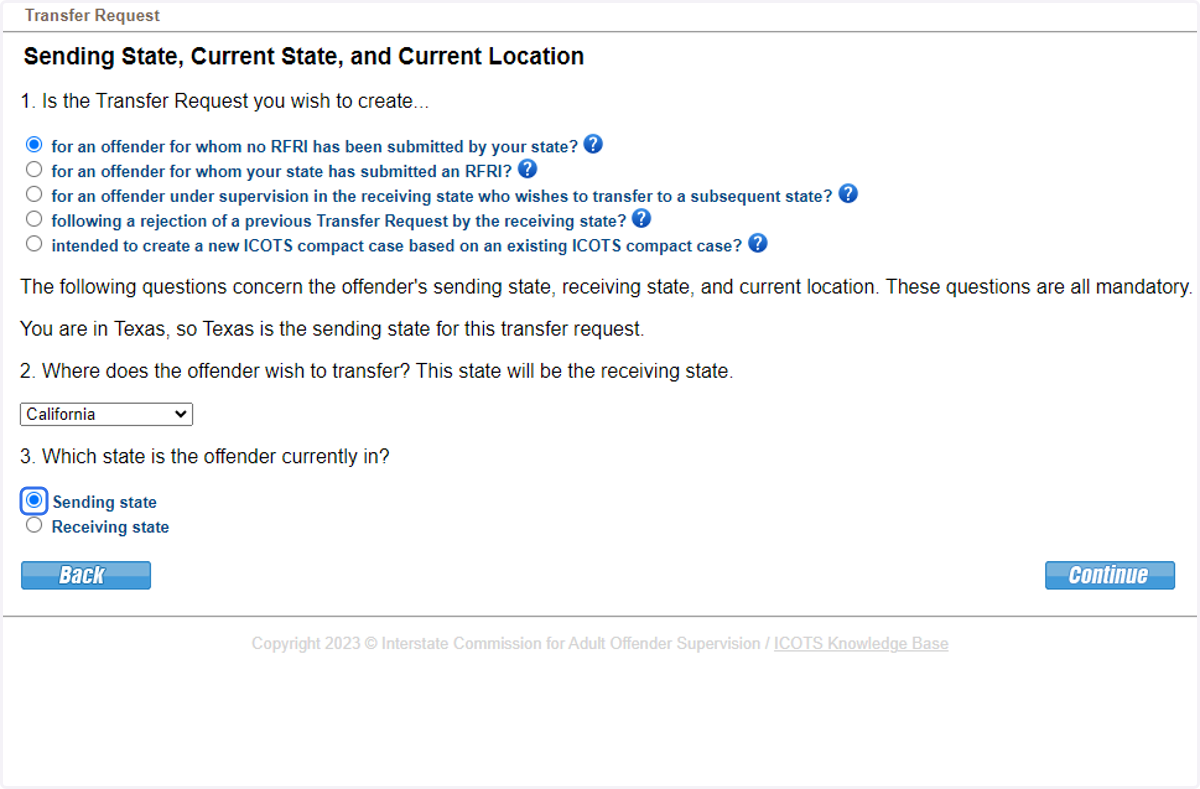
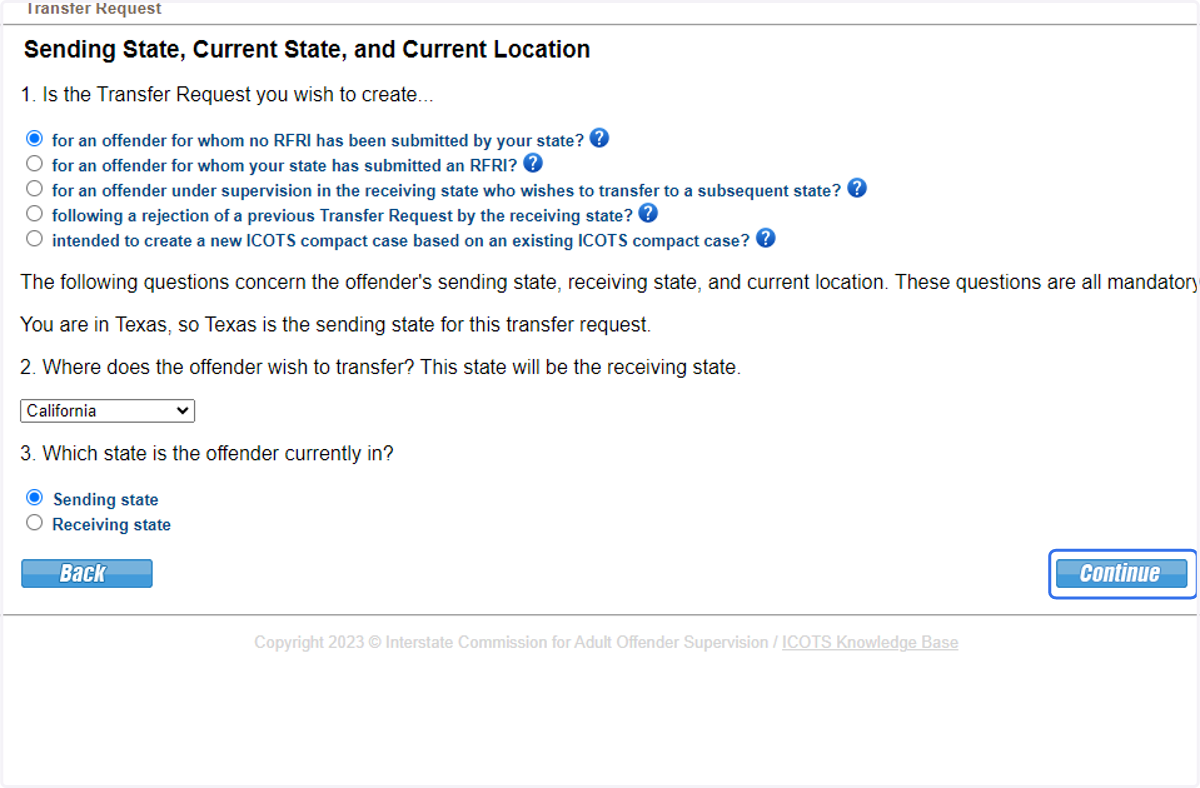
6. Click Continue.
7. Enter all known identifiers to improve search results.
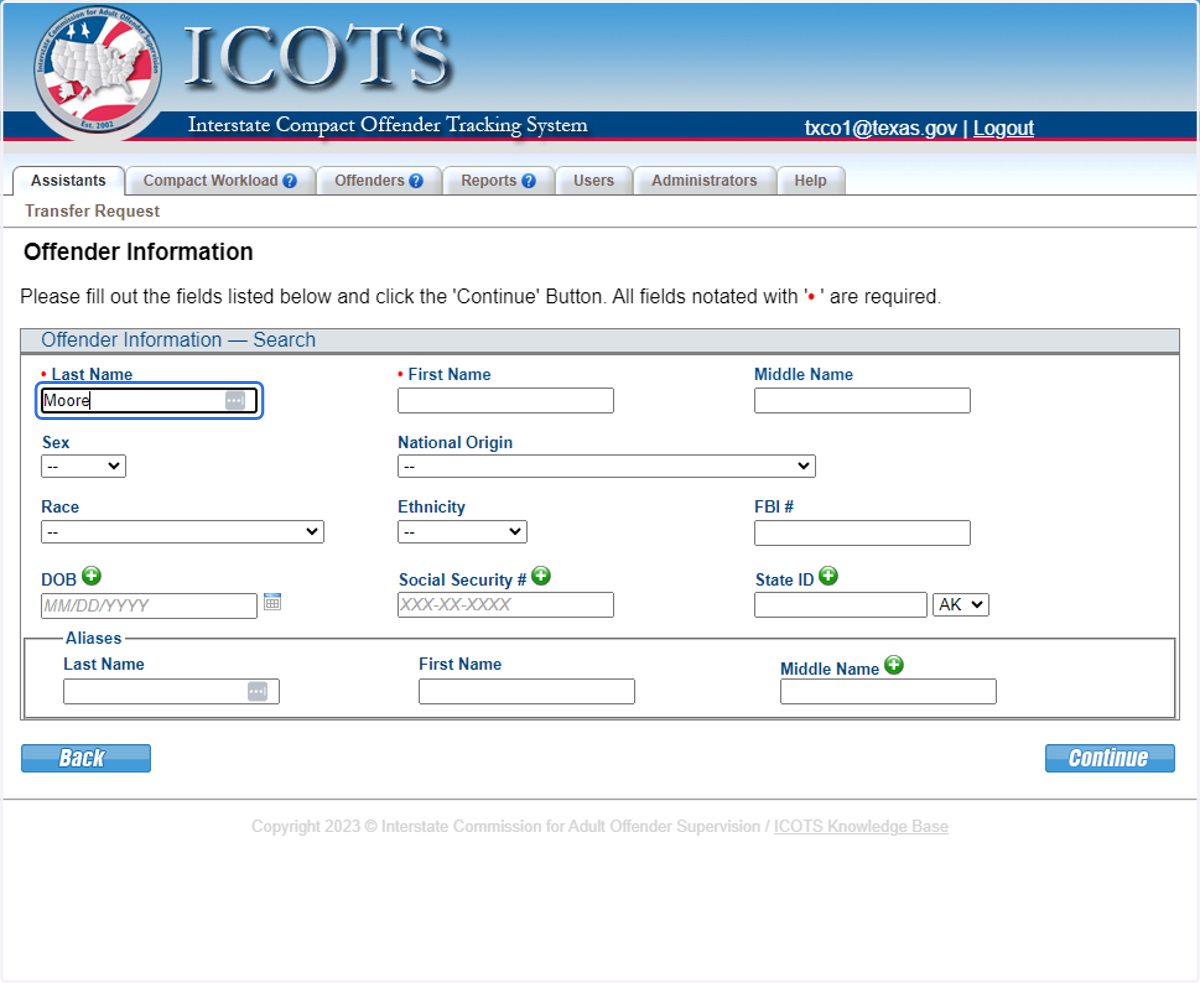
8. Enter all known identifiers to improve search results.
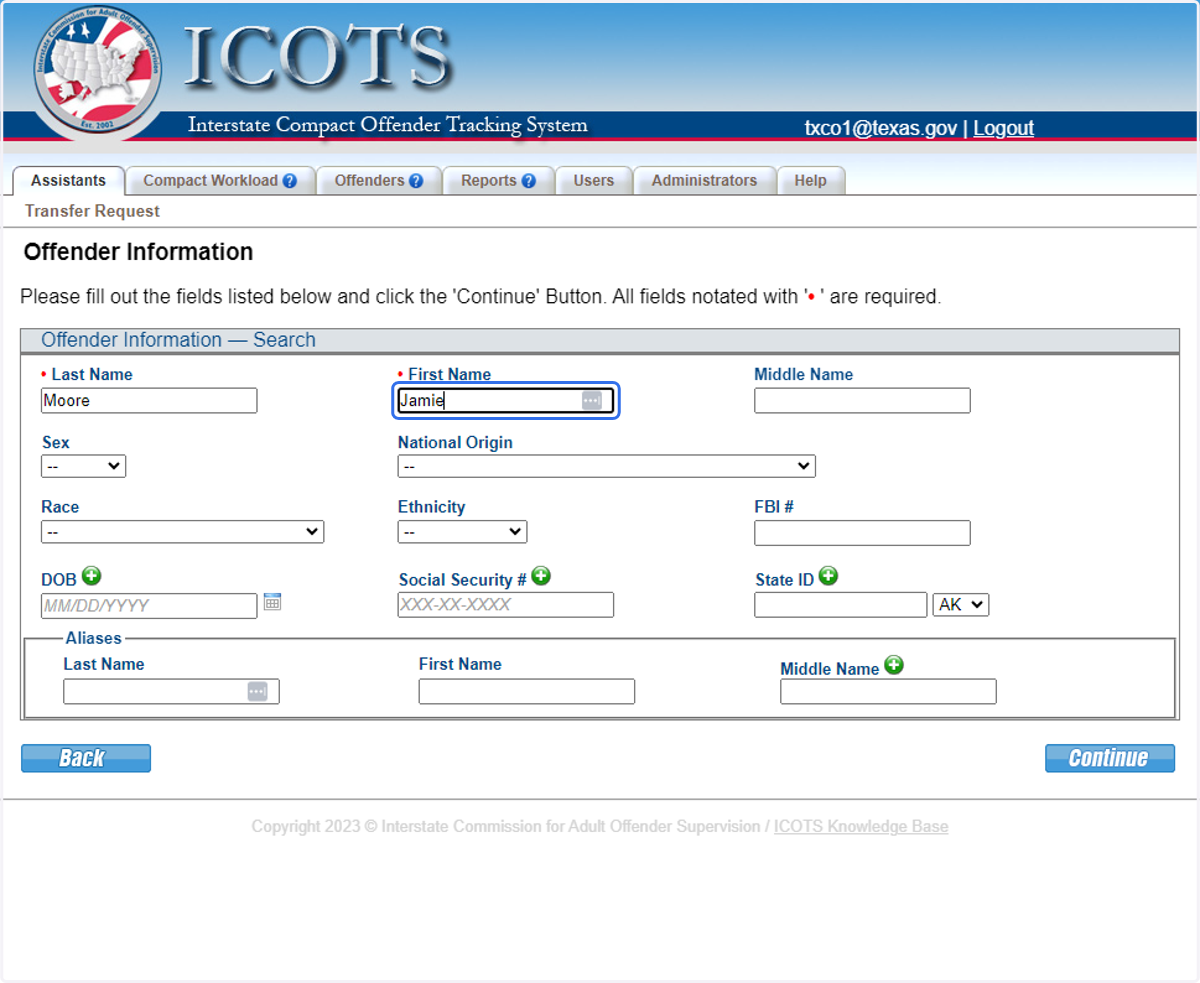
9. Enter all known identifiers to improve search results.
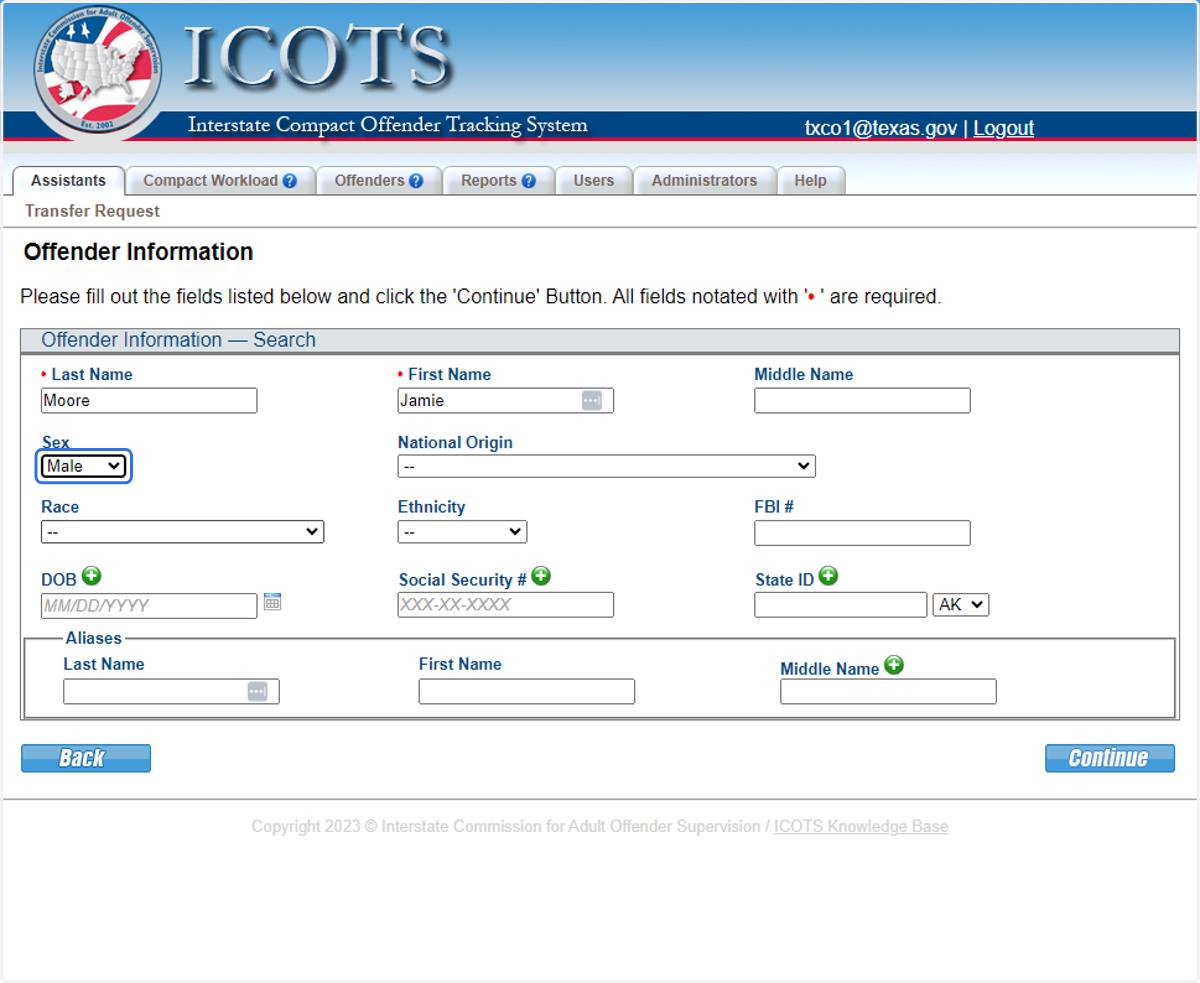
10. Enter all known identifiers to improve search results.
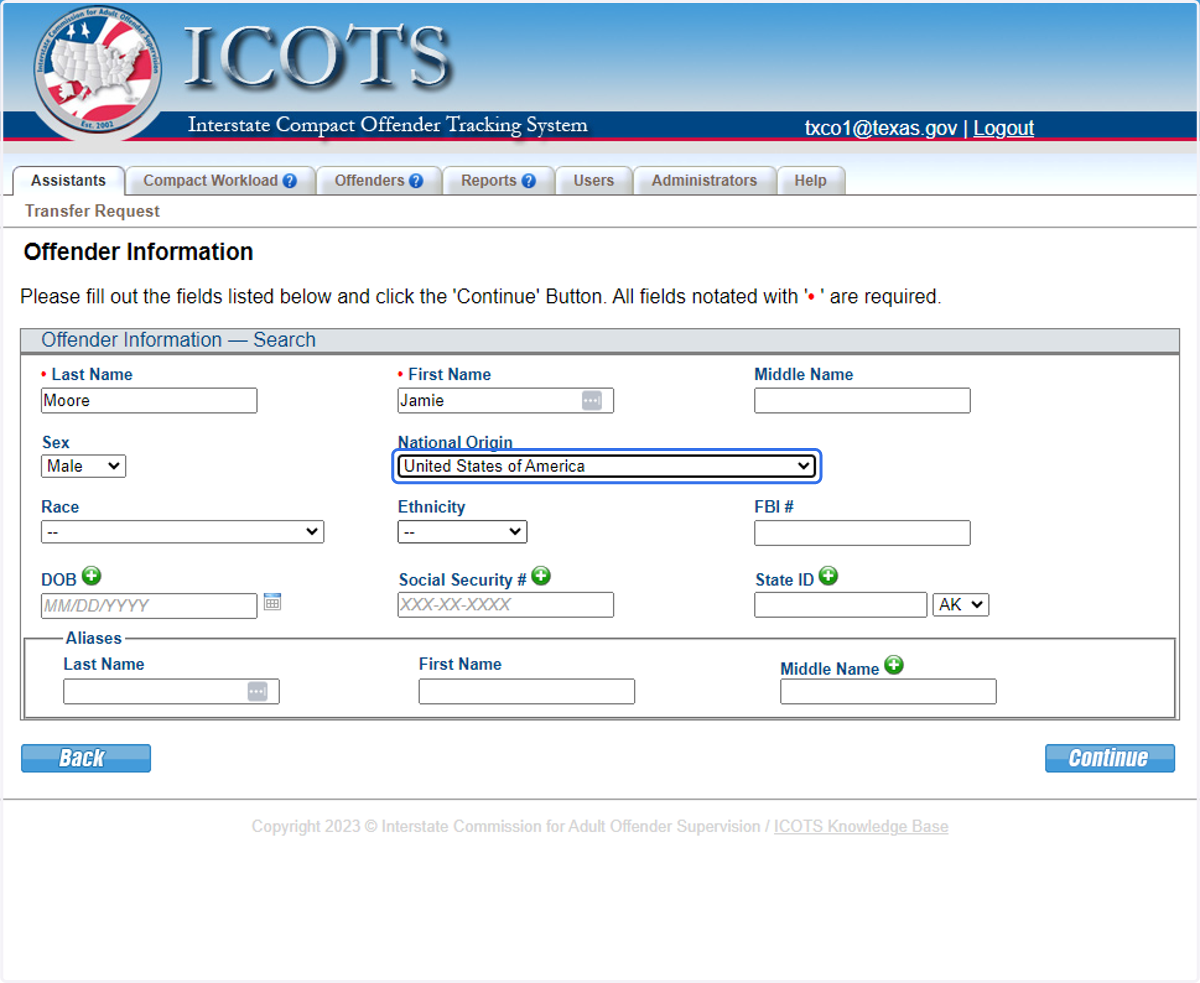
11. Enter all known identifiers to improve search results.
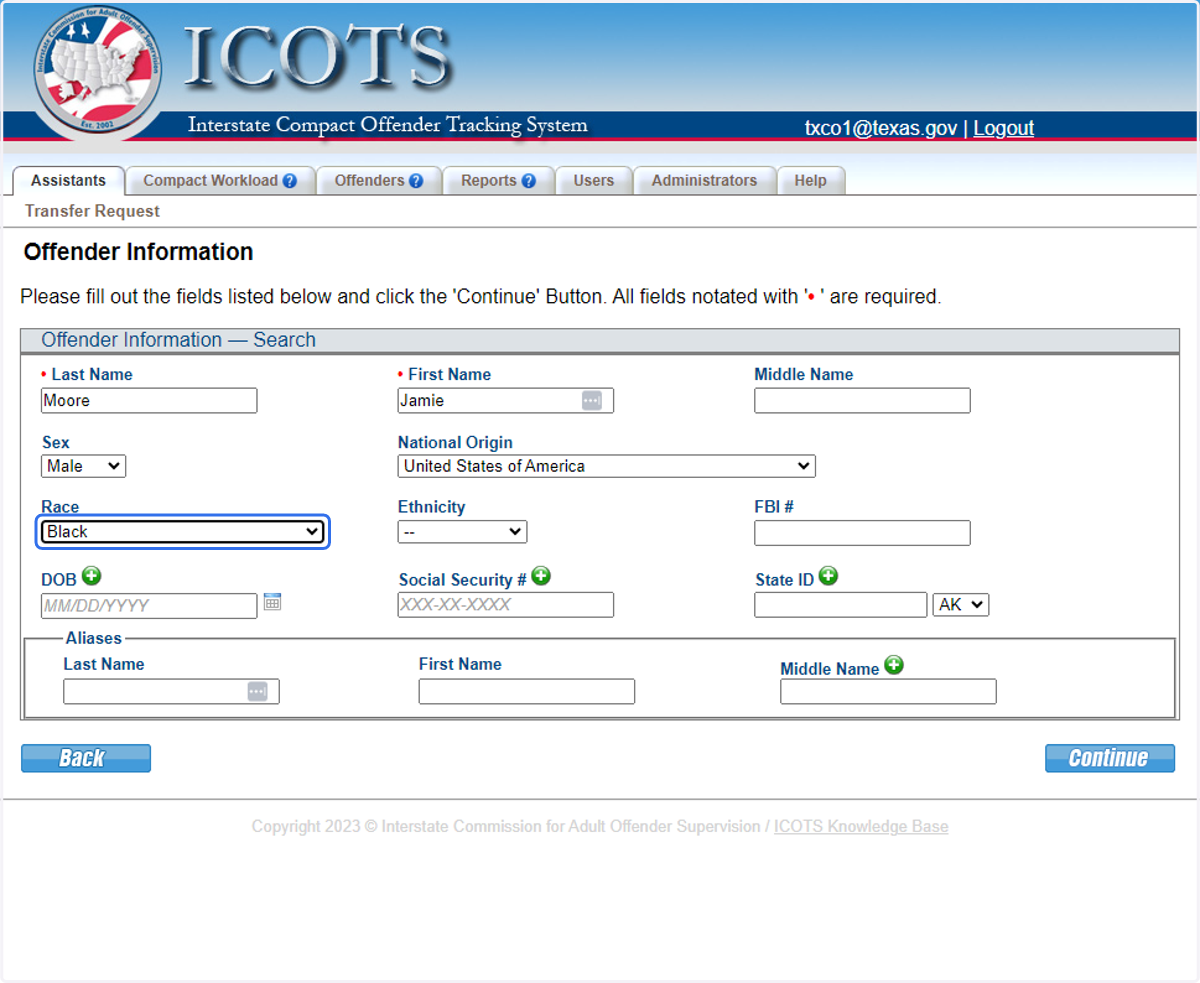
12. Enter all known identifiers to improve search results.
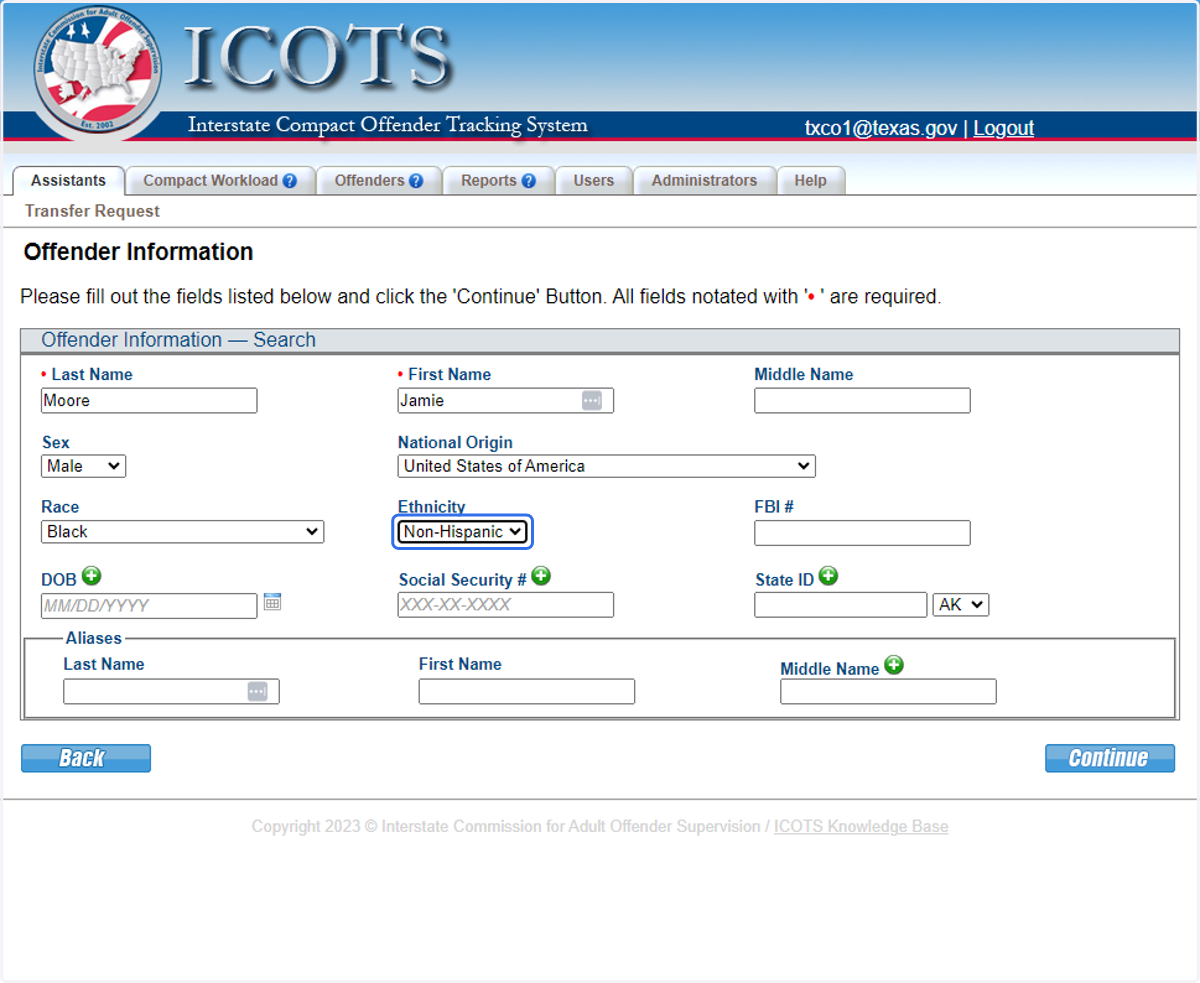
13. Enter all known identifiers to improve search results.
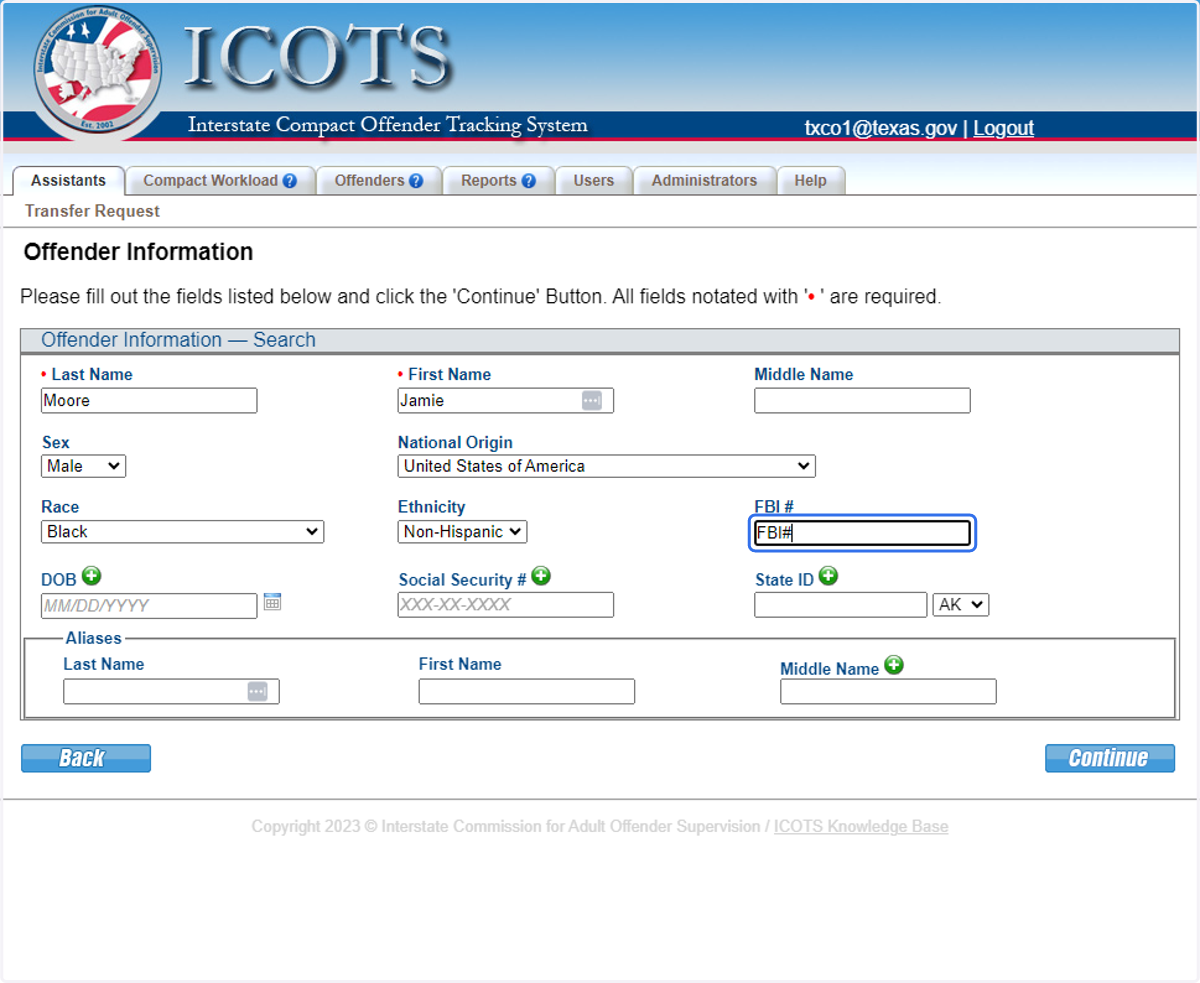
14. Enter all known identifiers to improve search results.
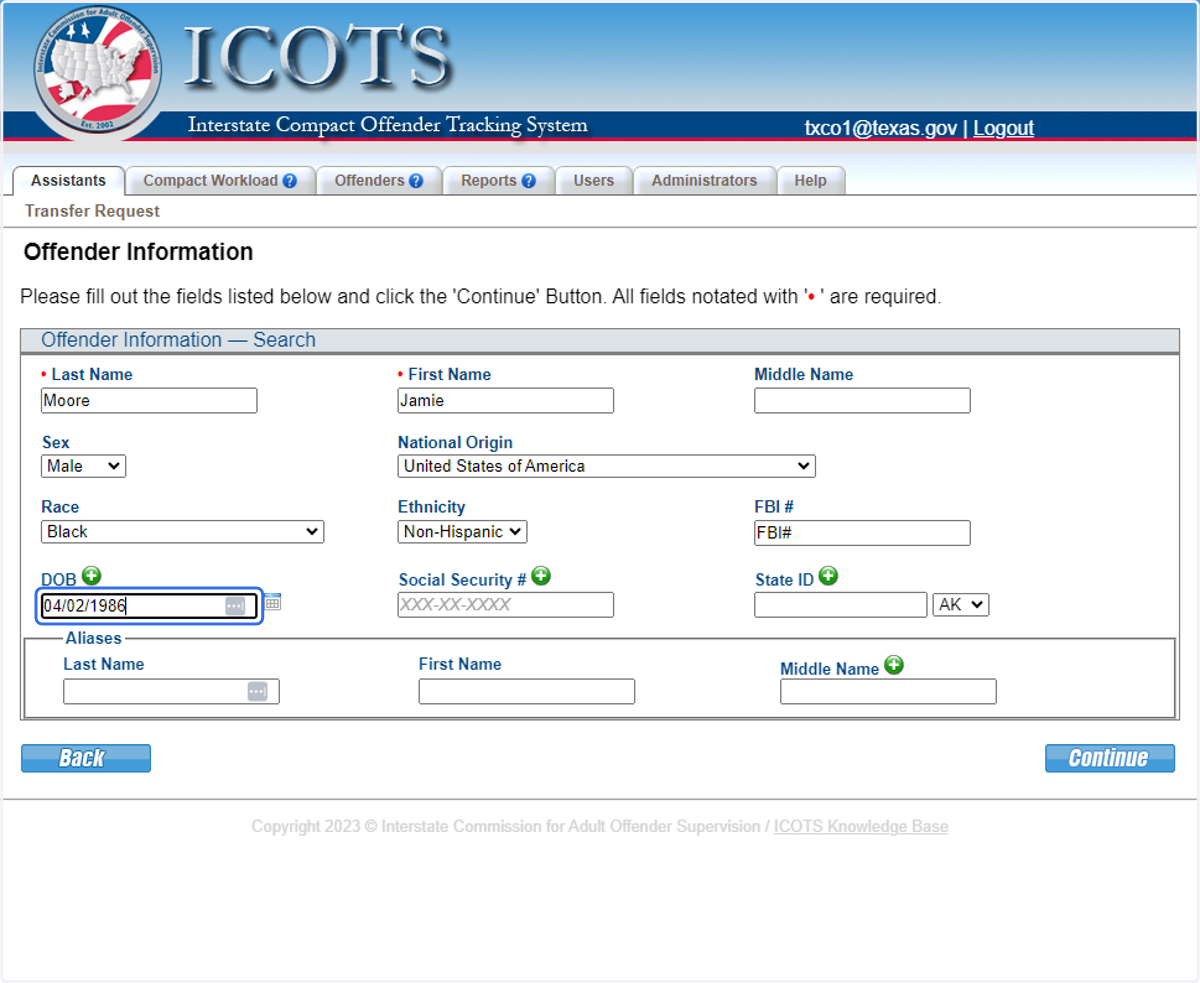
15. Enter all known identifiers to improve search results.
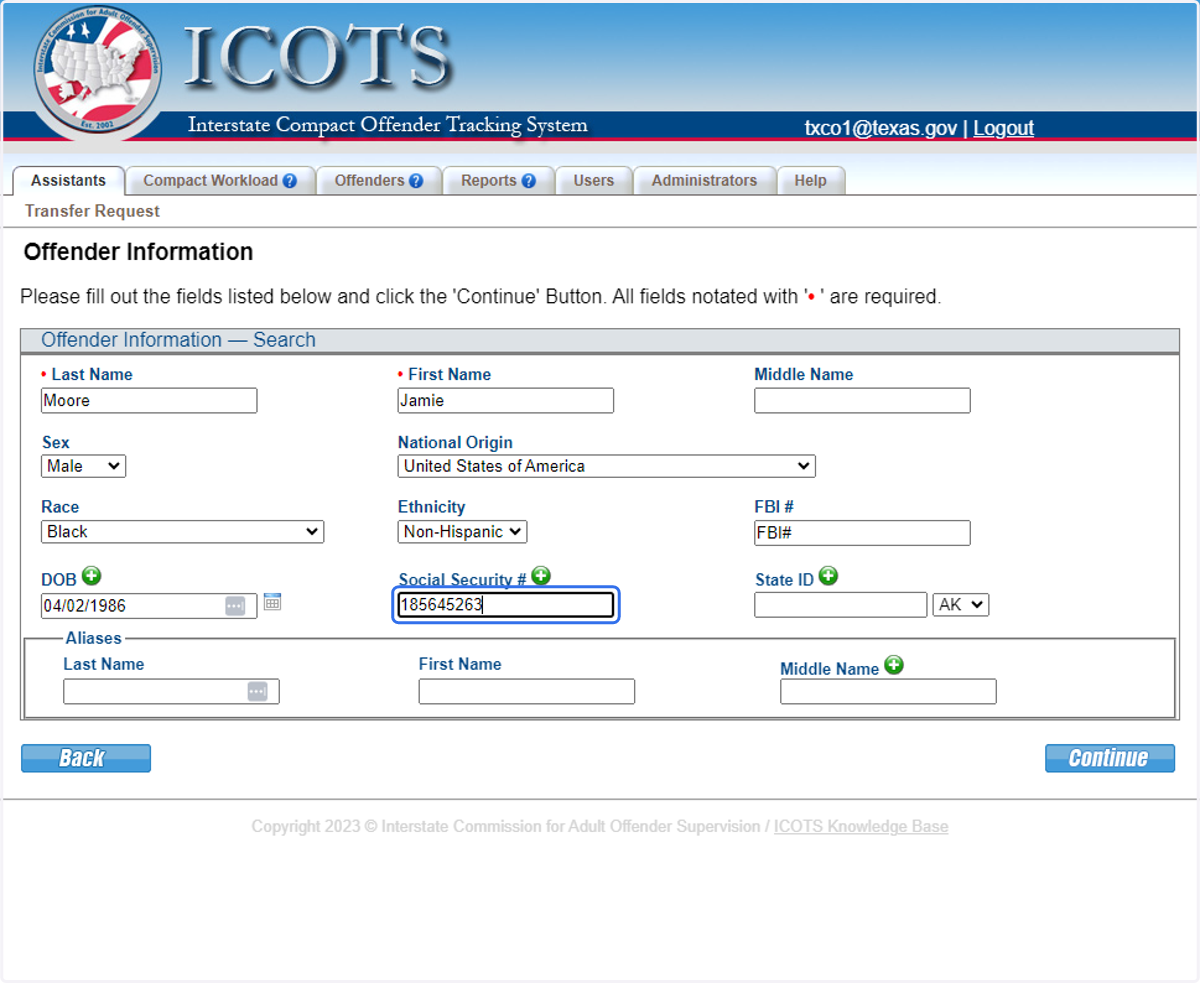
16. Enter all known identifiers to improve search results.
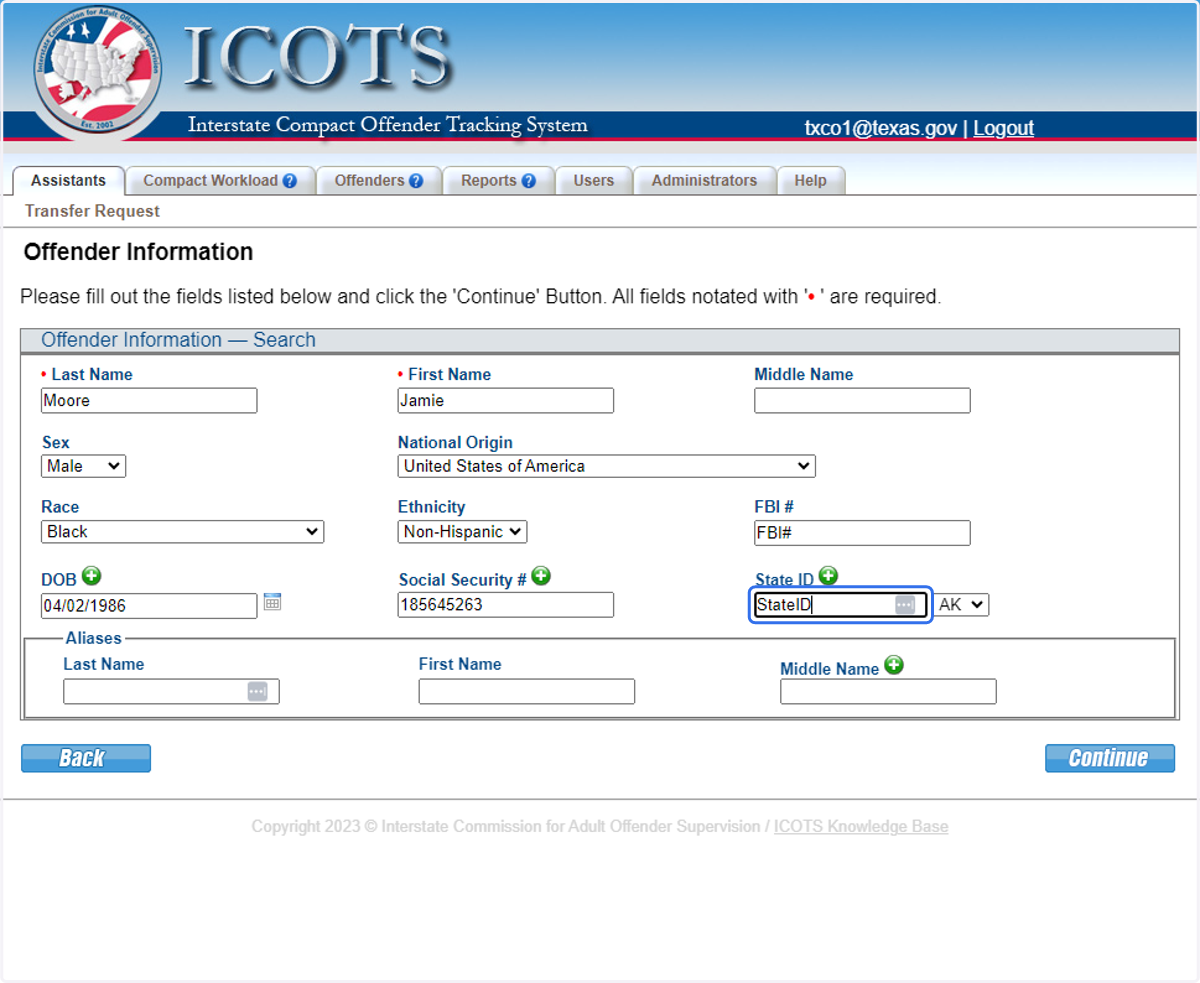
17. Enter all known identifiers to improve search results
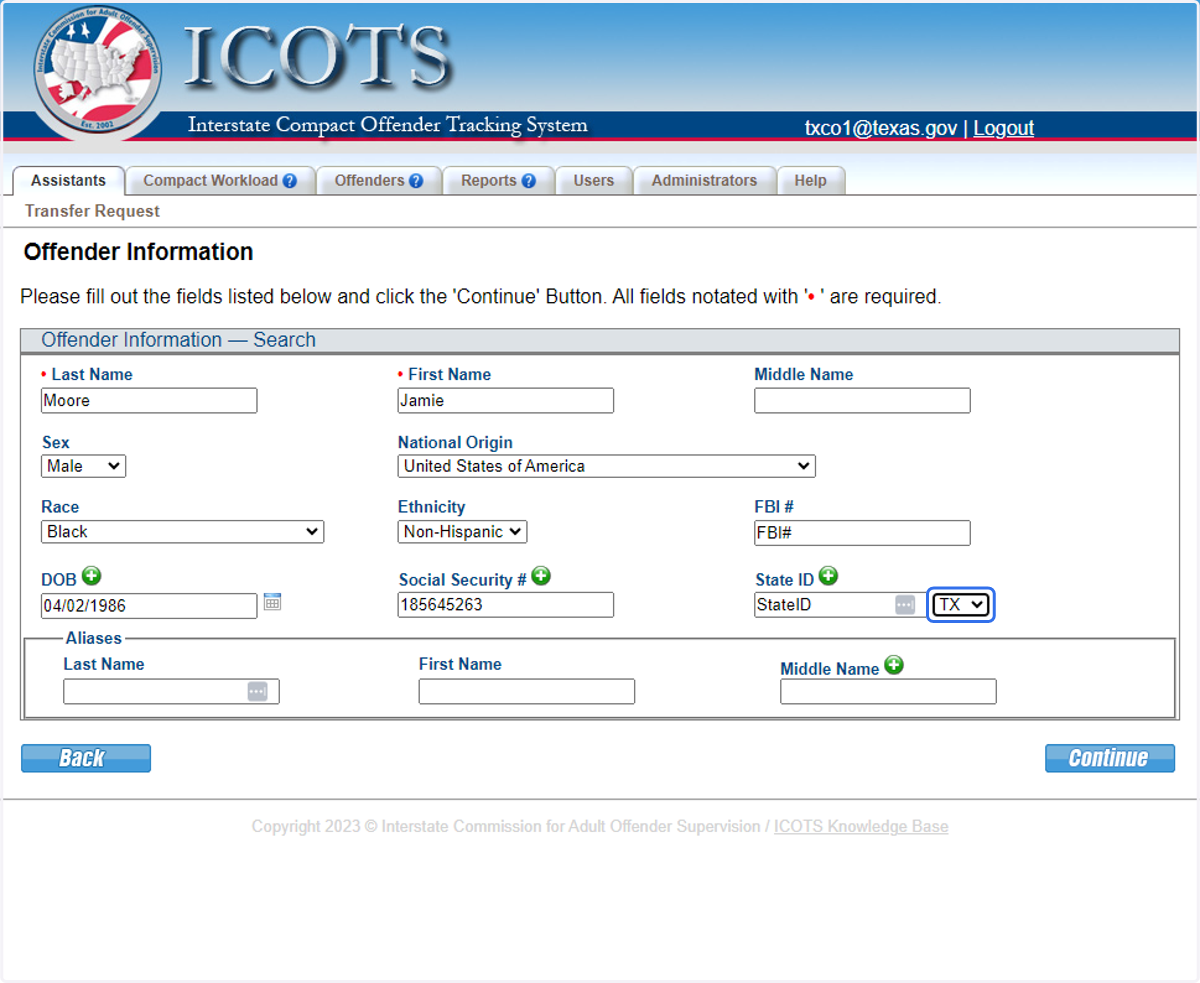
18. Enter all known identifiers to improve search results.
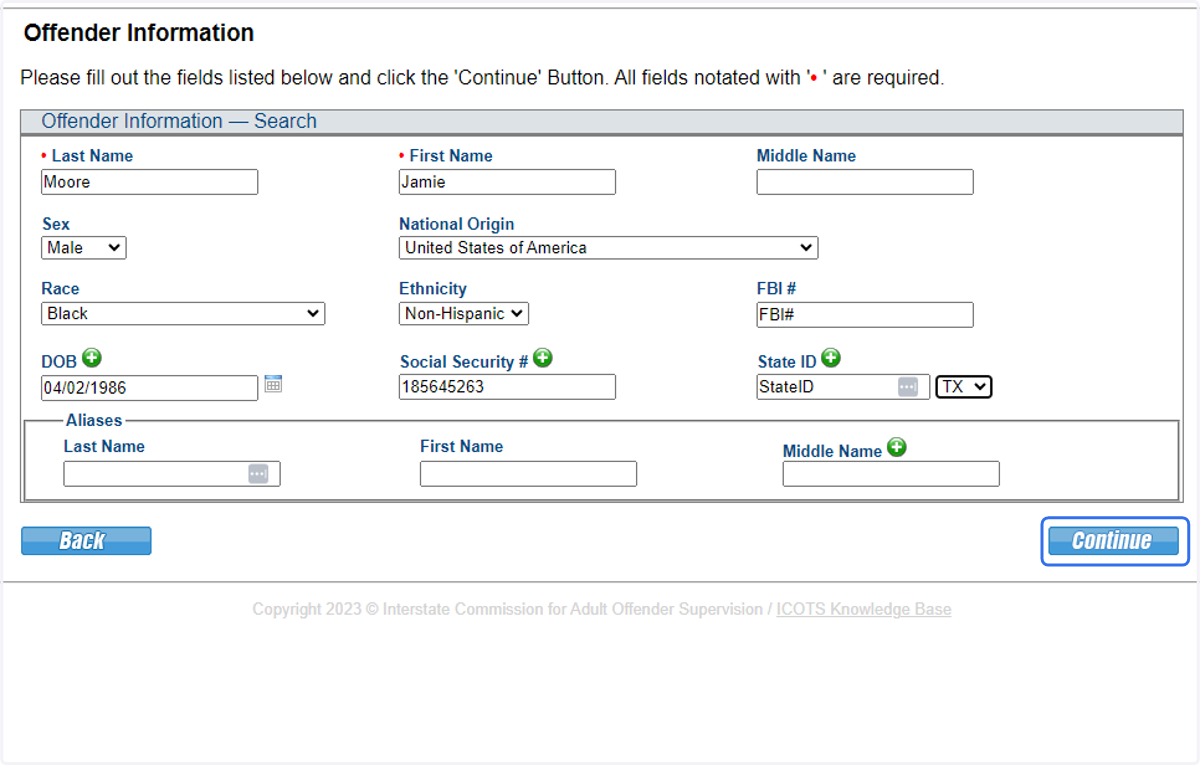
19. ICOTS searches for potential matches. After confirming no matching profile exists in ICOTS, choose 'Add.'
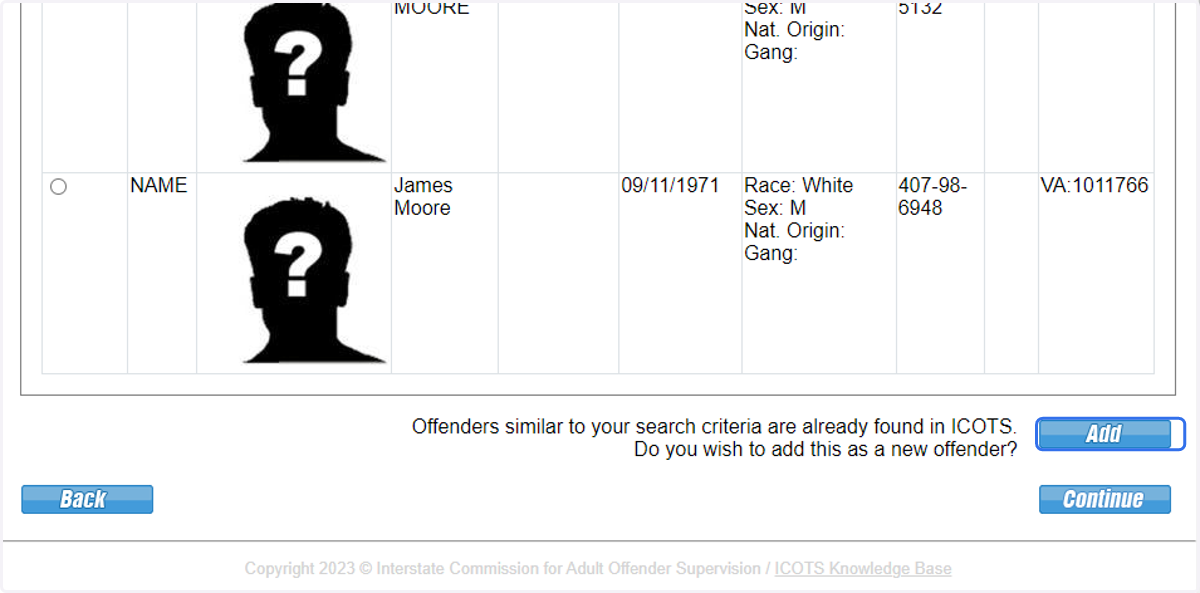
20. Clicking Save and Continue, a new profile record is created in ICOTS.
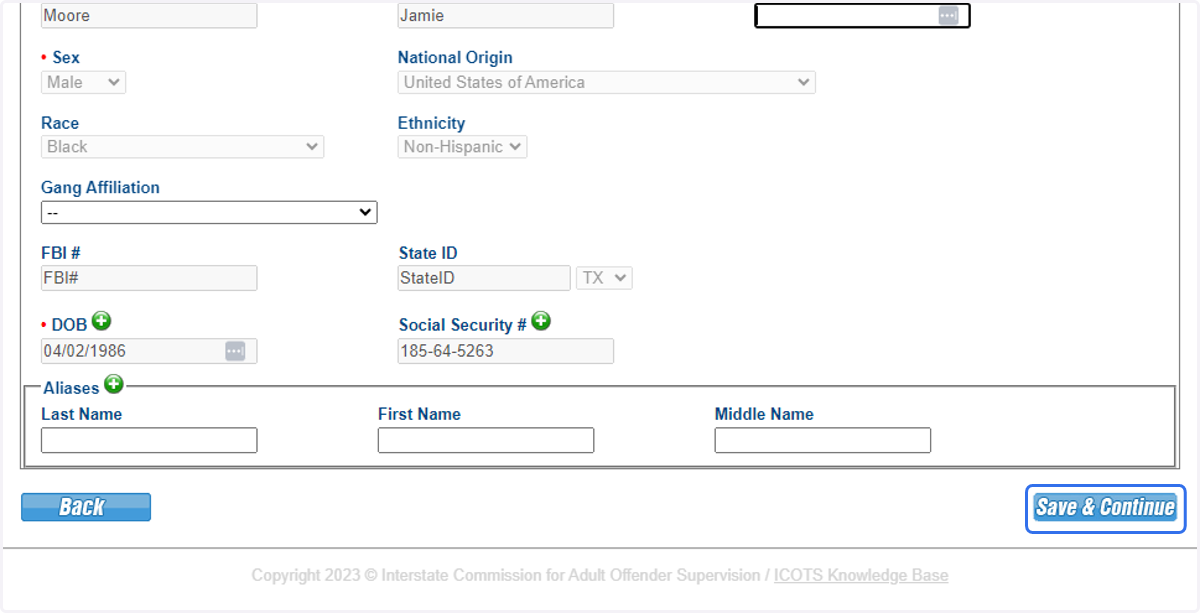
21. Proceed to Departure Date & Reason for Transfer.
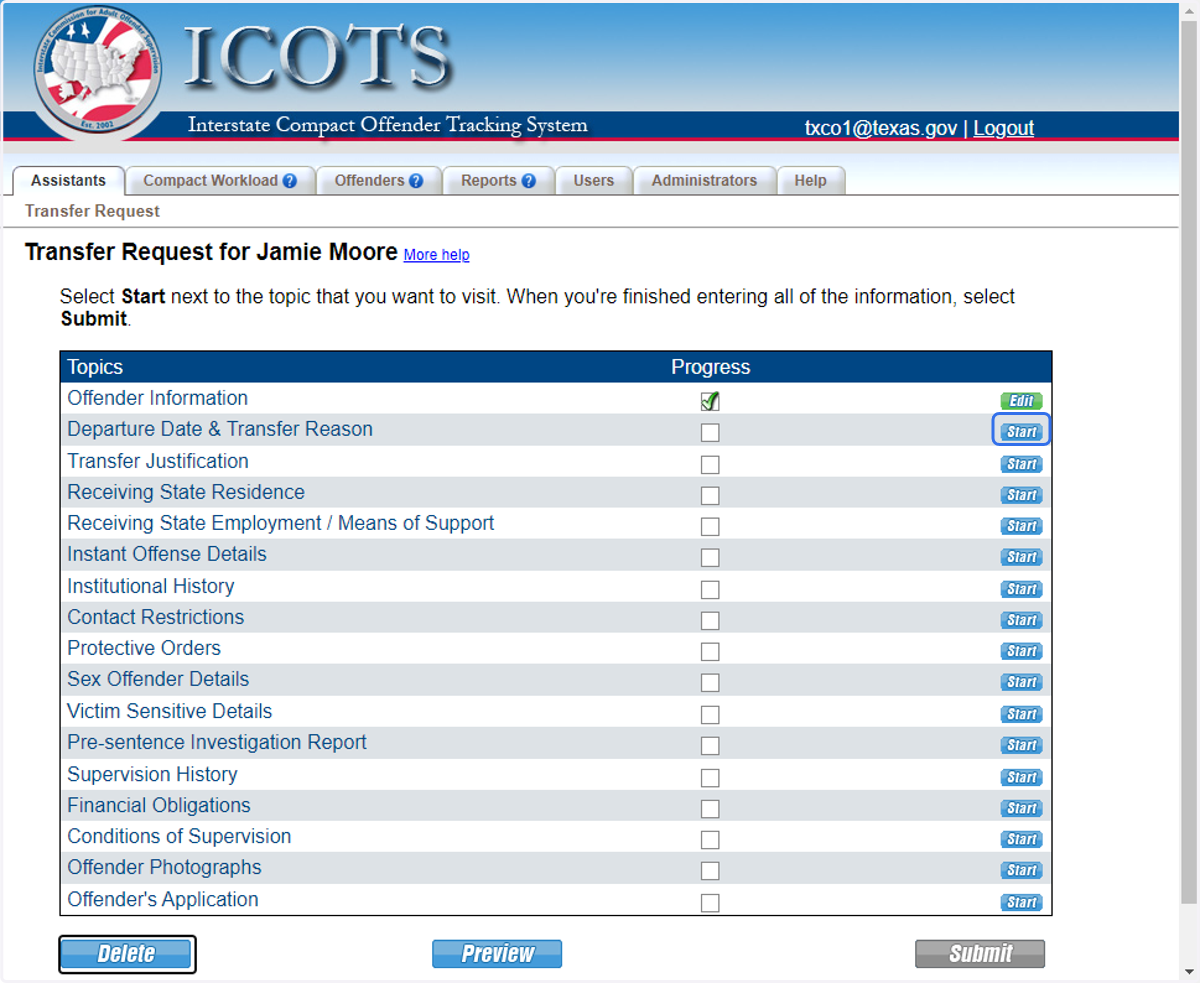
22. Enter intended departure date. For this scenario, the date will be the prison release date.
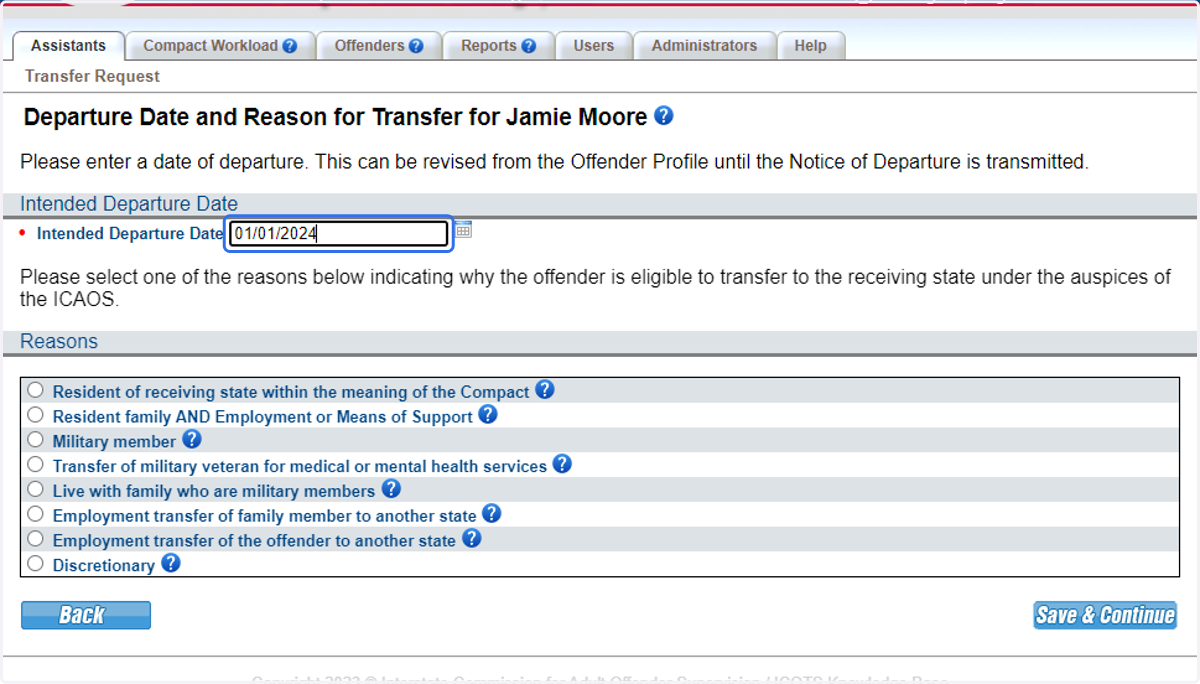
23. Select Resident family AND Employment or Means of Support as the subject plans to transfer to California where his supportive daughter resides.
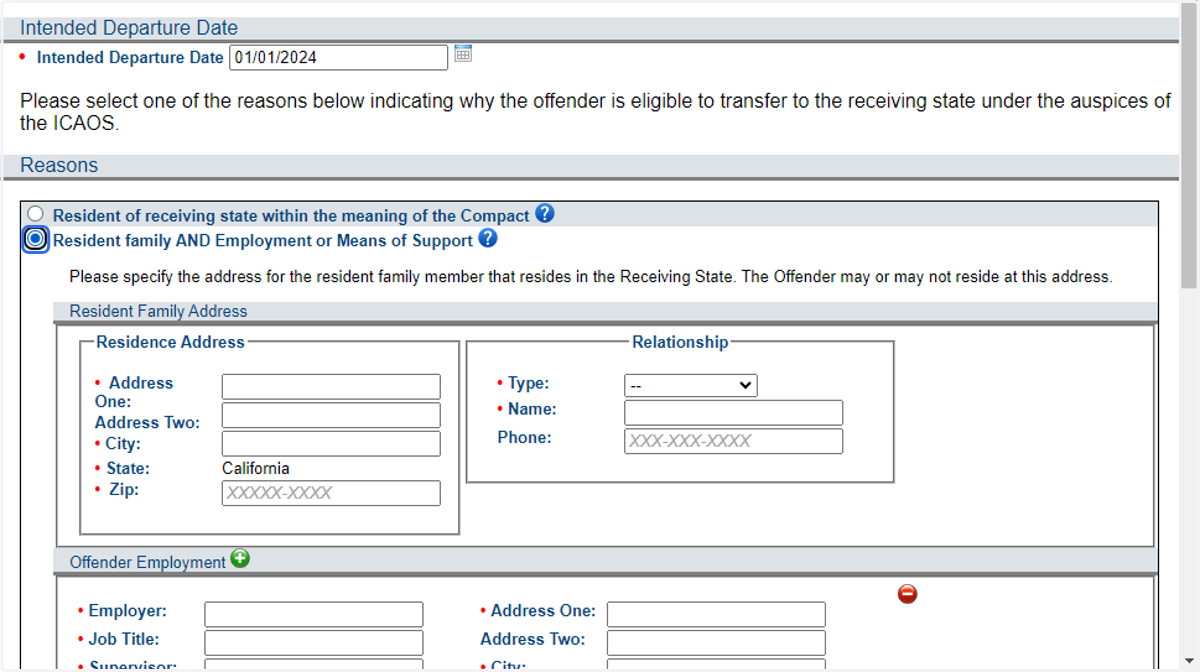
24. Provide the address information for the qualifying resident family member.
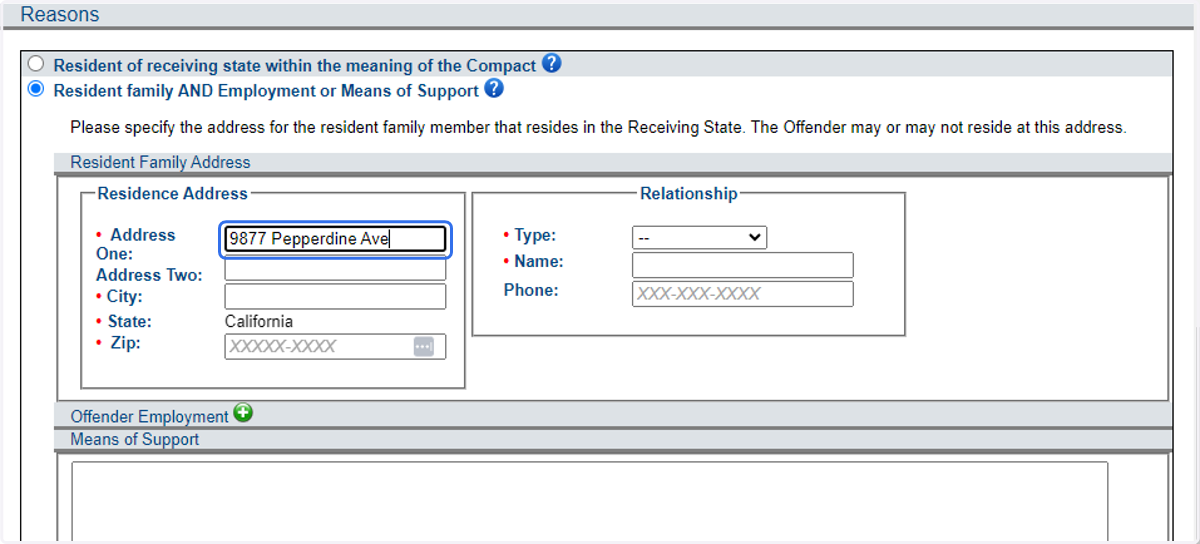
25. Provide the address information for the qualifying resident family member
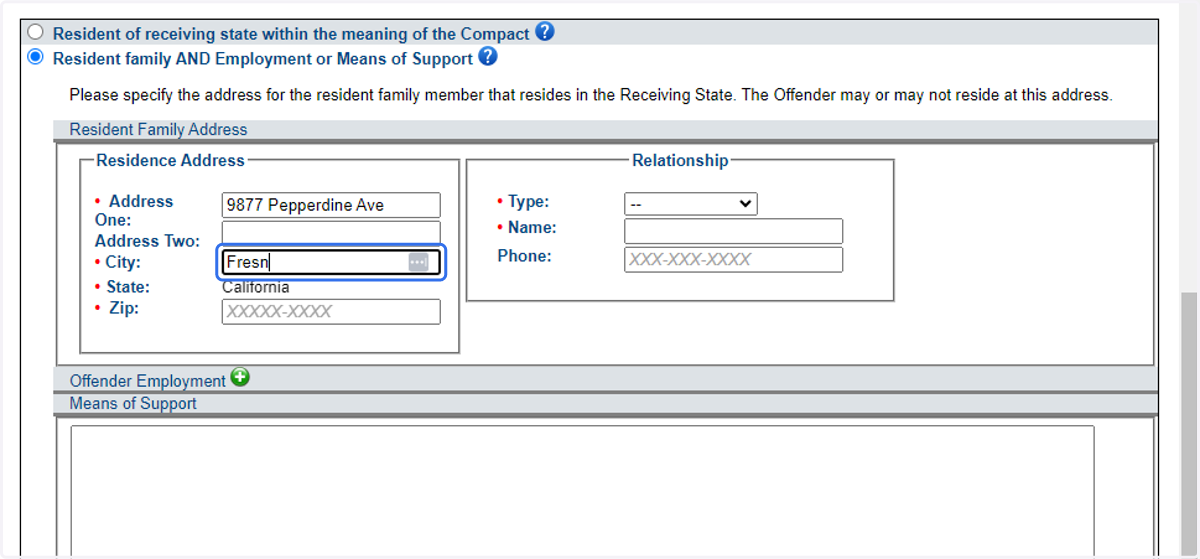
26. Provide the address information for the qualifying resident family member.
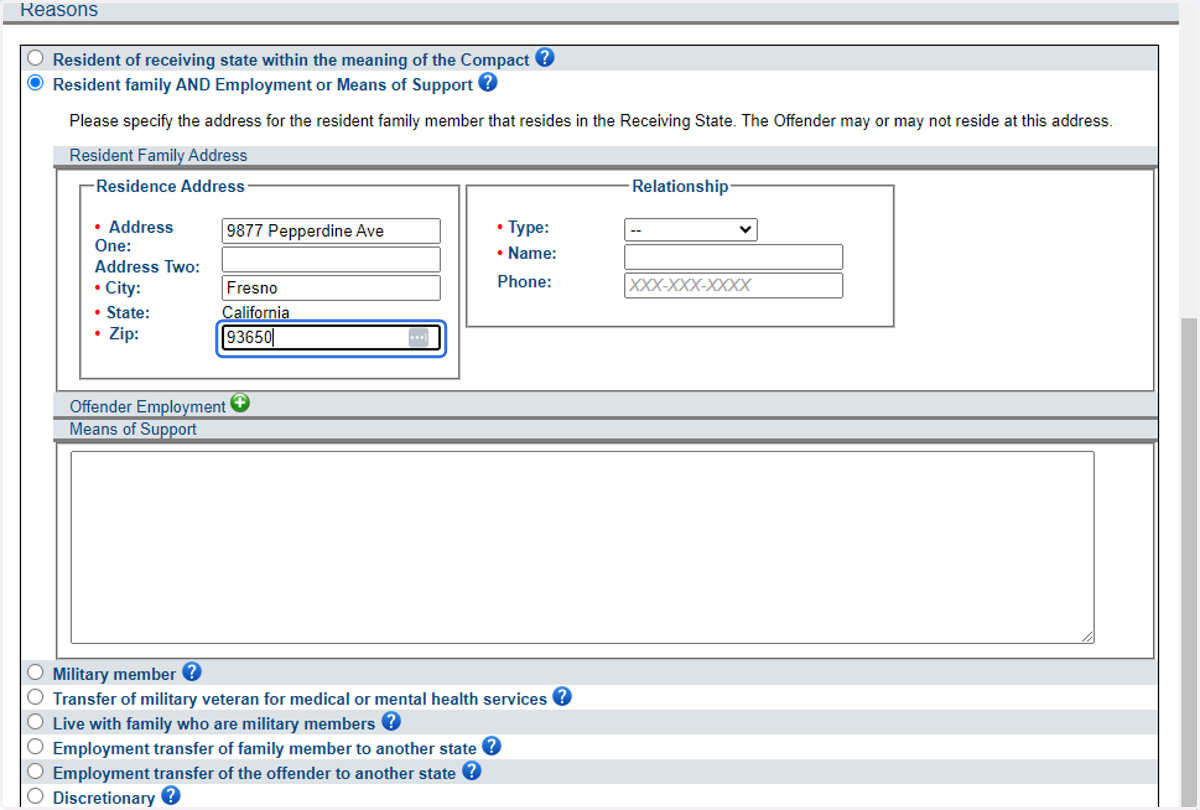
27. Provide contact information for the qualifying resident family member.
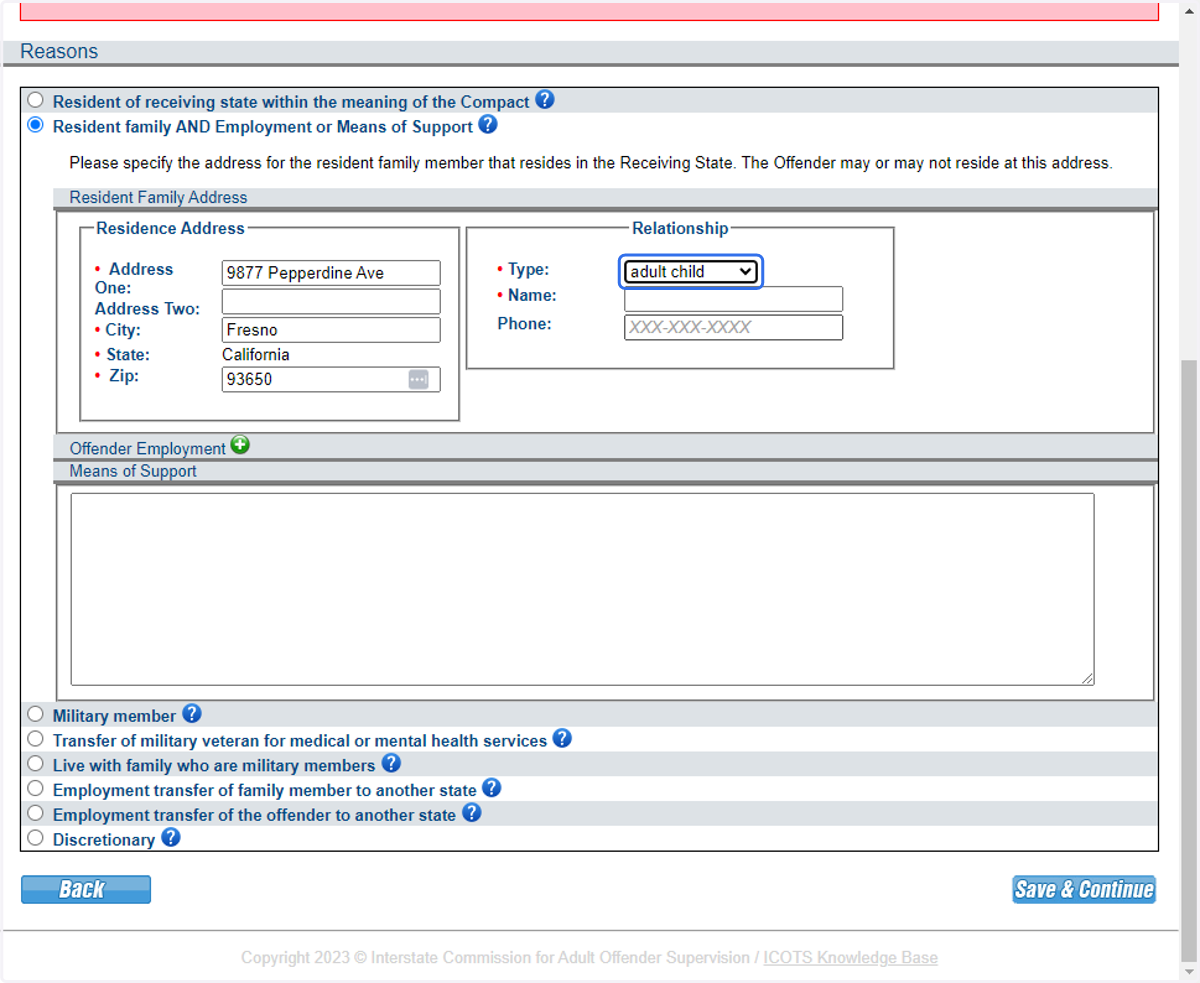
28. Provide contact information for the qualifying resident family member.
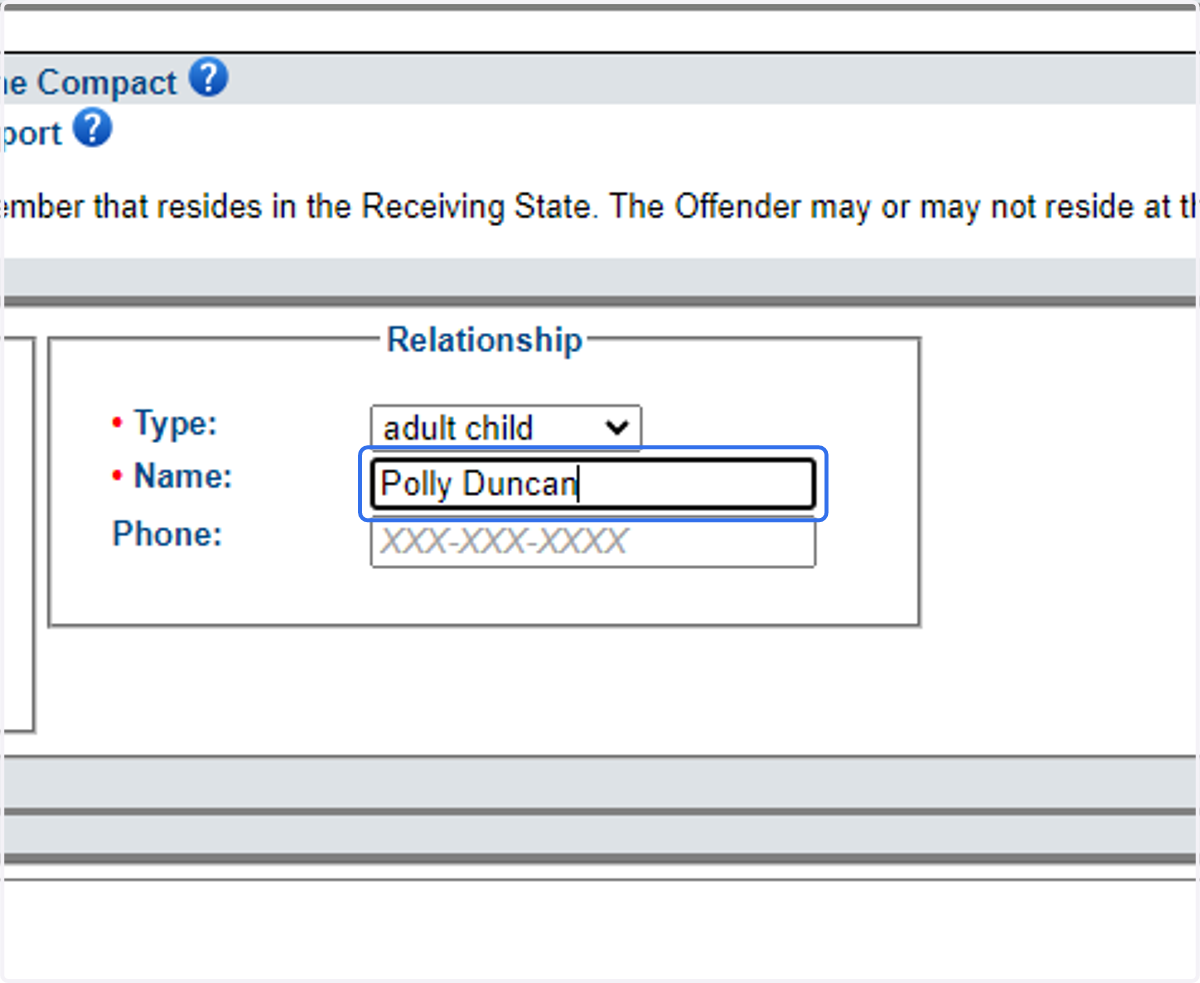
29. Provide contact information for the qualifying resident family member.
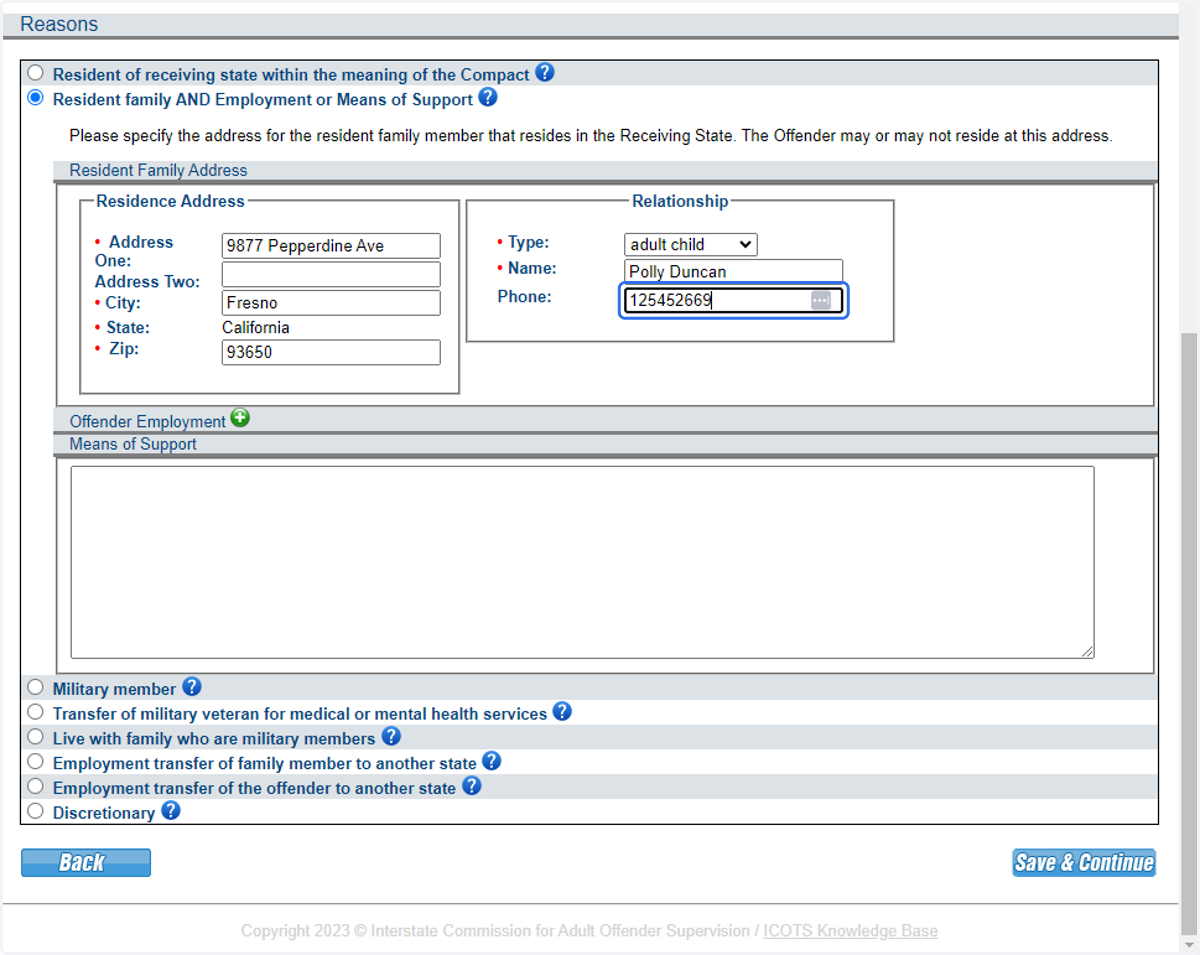
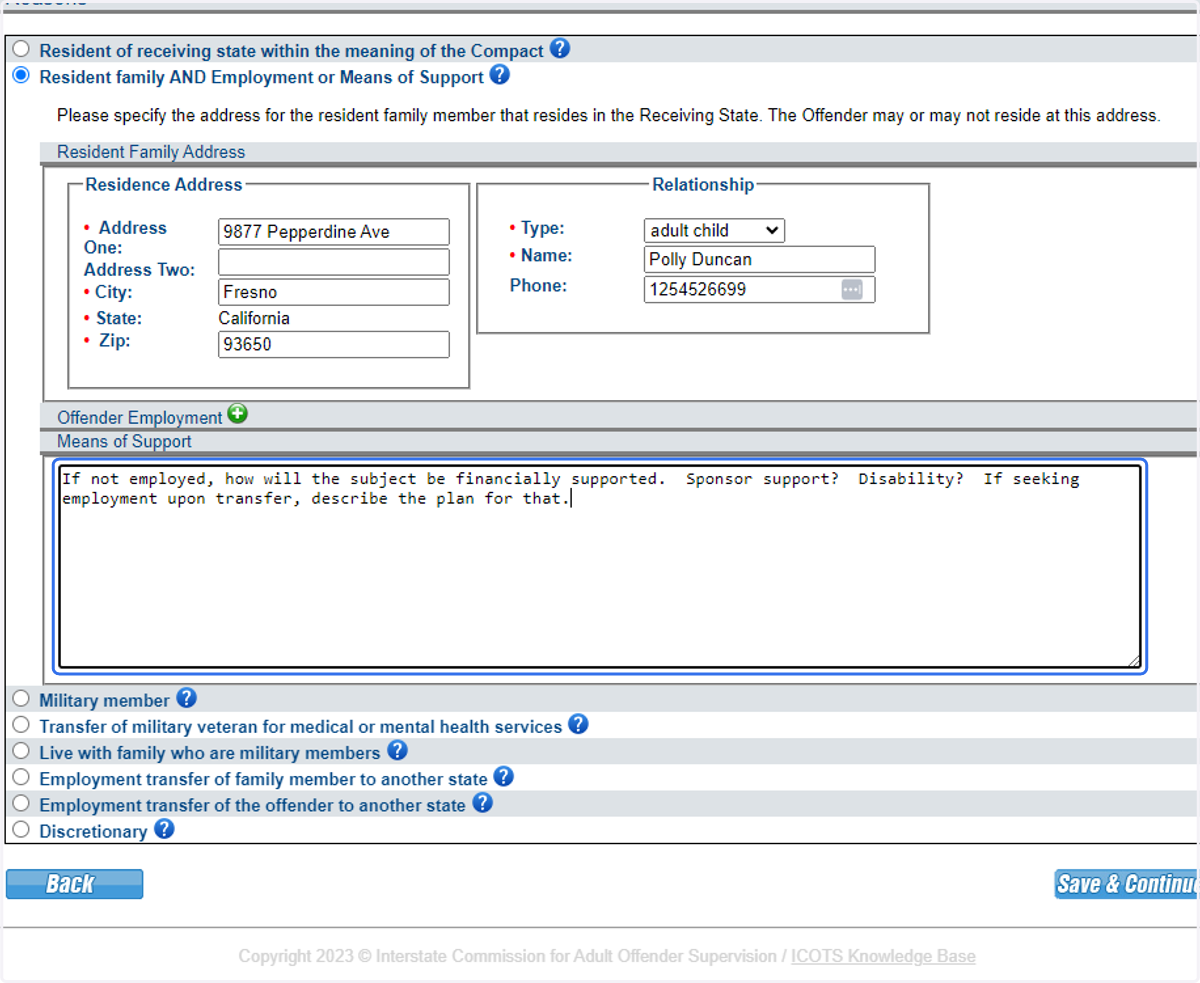
30. Employment or describe Means of Support. Be clear and detailed.
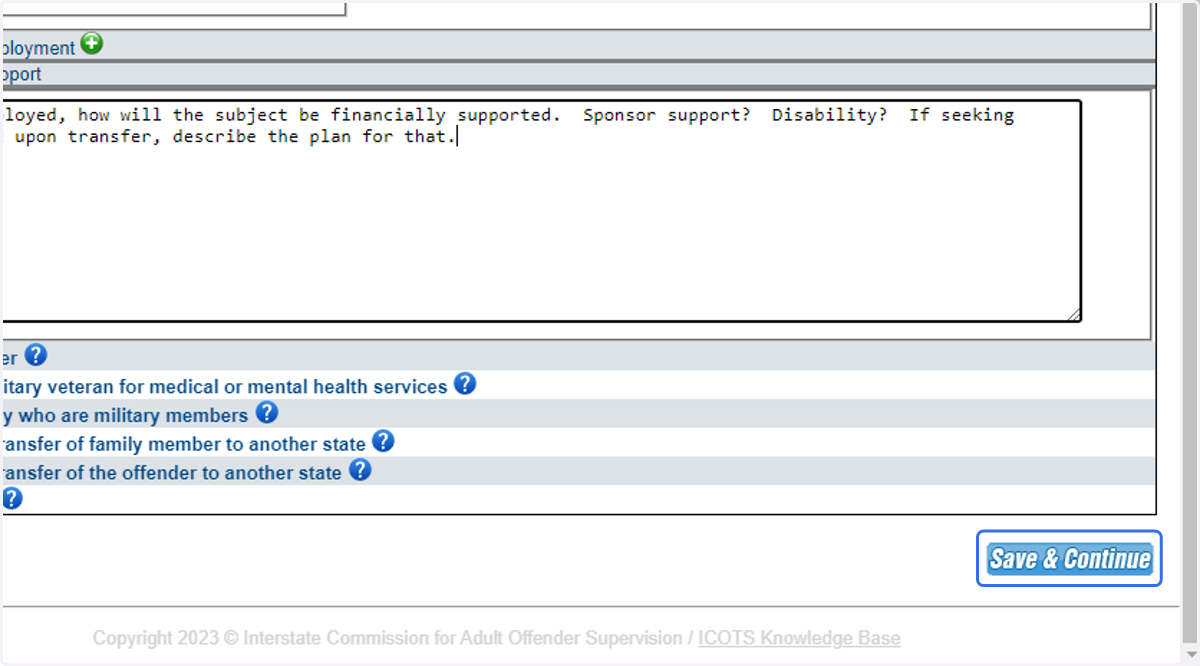
31. Click Save & Continue to proceed.
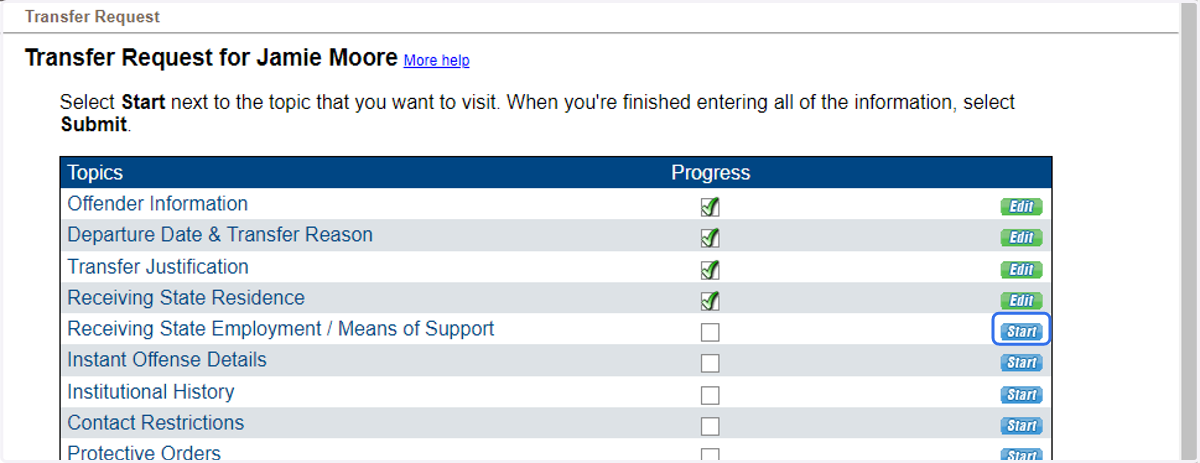
32. Proceed to Transfer Justification by clicking 'Start.'
REMEMBER: All transfers require justification regardless of the reason for transfer. Be sure to be details and verify all information provided in the justification.
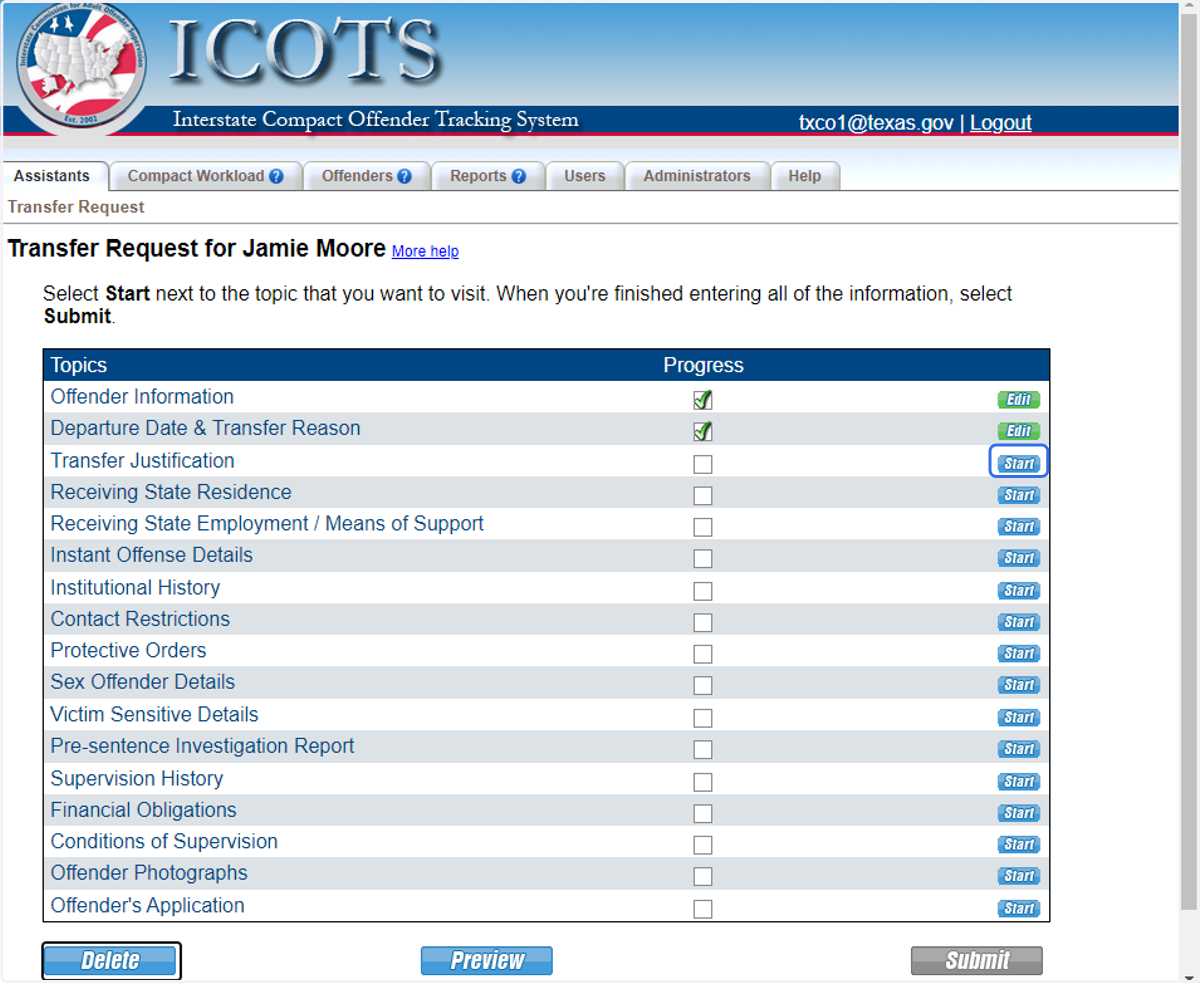
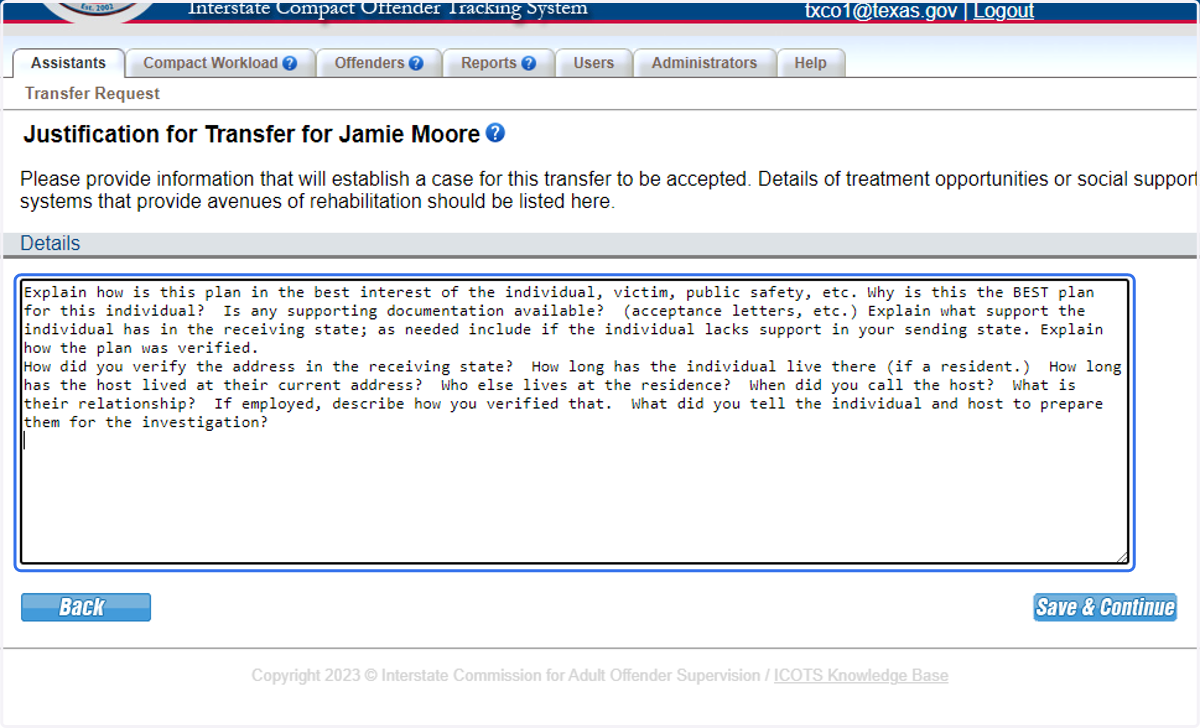
33. Provide a detailed justification for the transfer. Be specific and ensure information entered is verified.
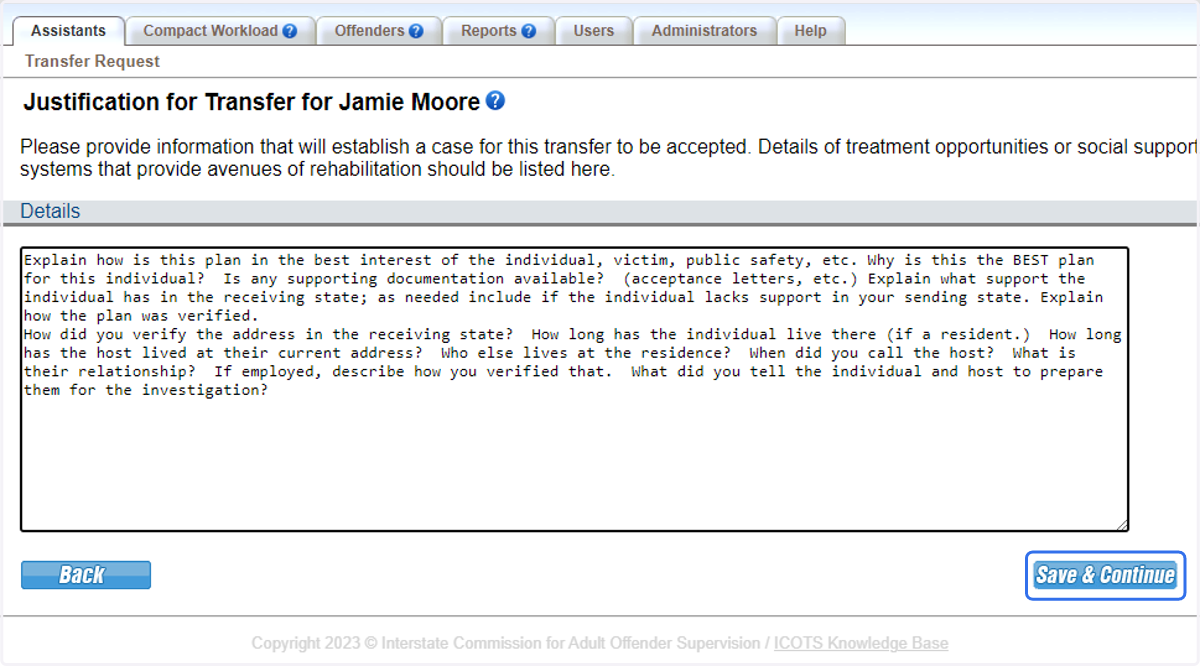
34. Click Save & Continue.
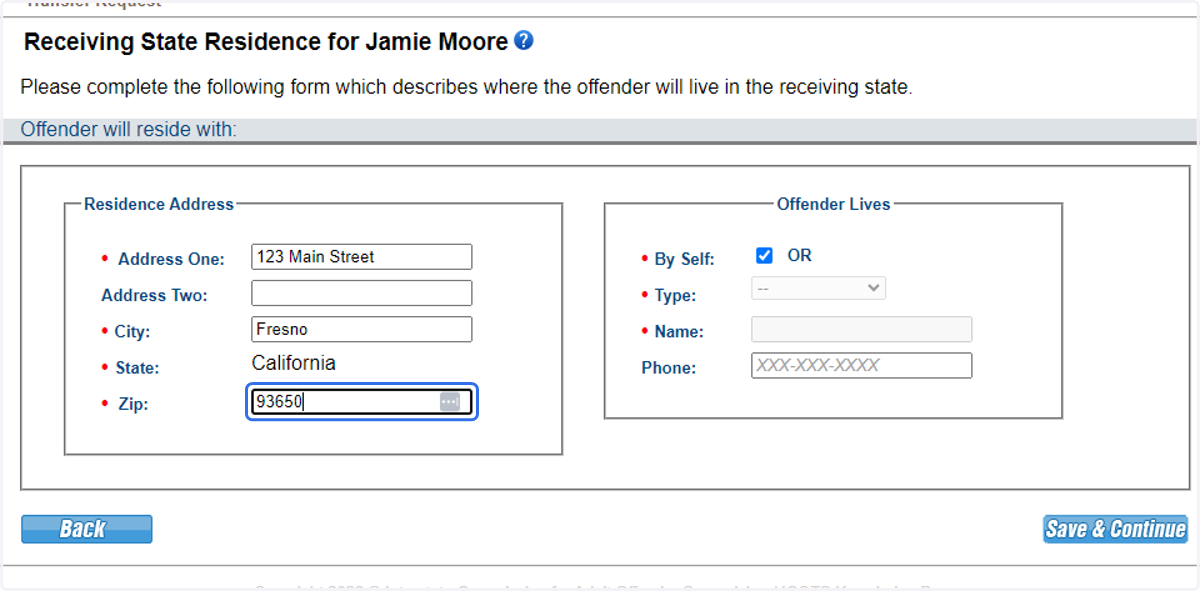
35. Proceed to Residence Information.
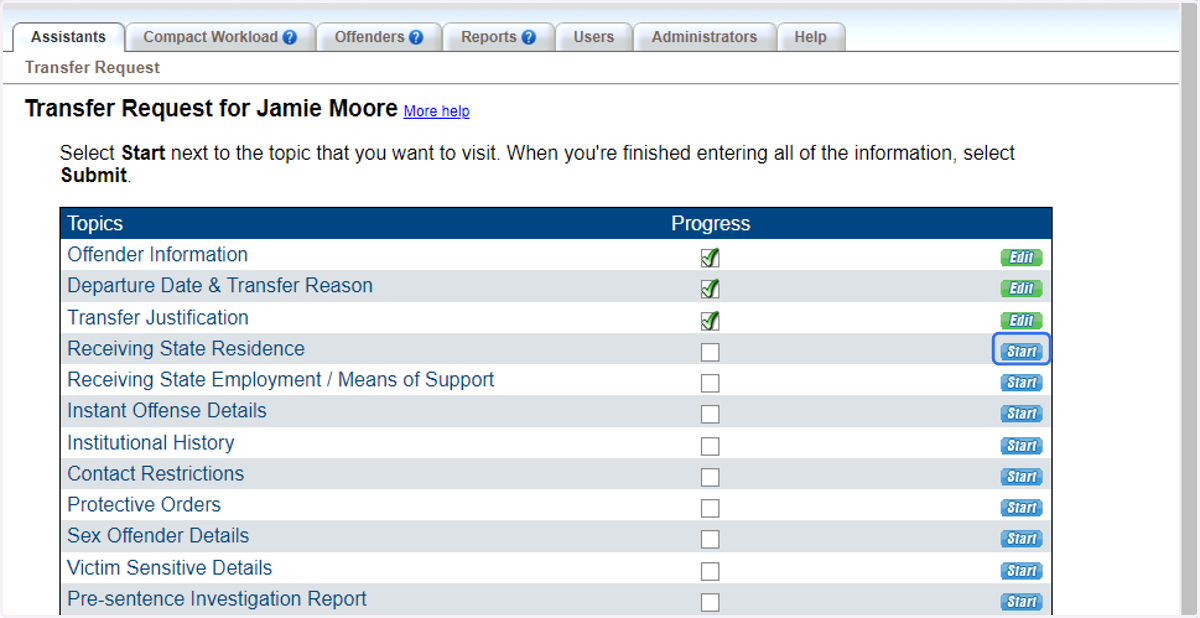
36. Provide residence information for the individual transferring. This may or may not be different from the qualifying resident or sponsor address.
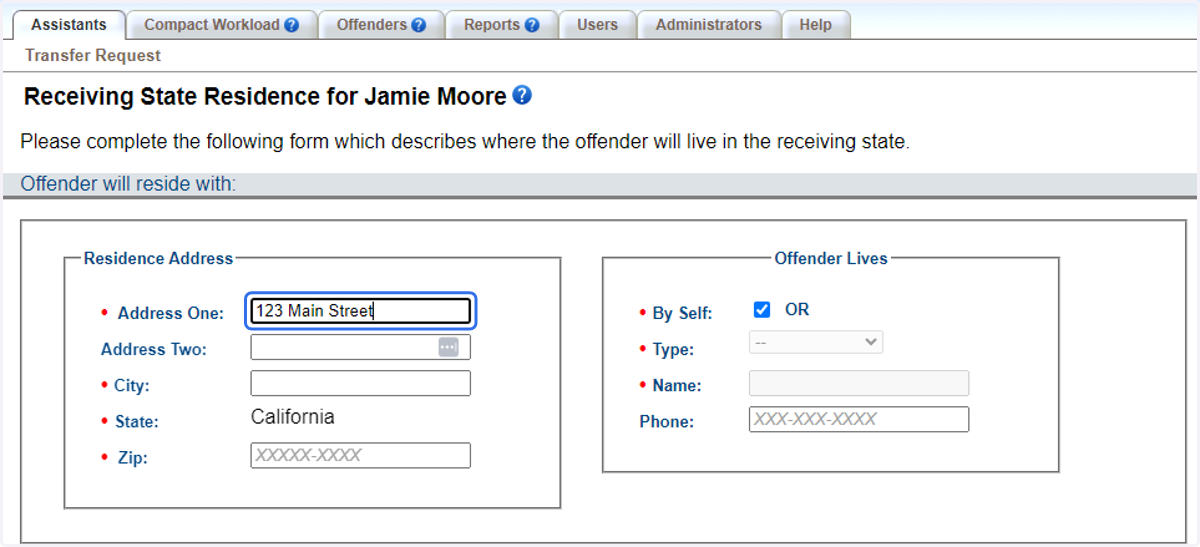
37. Provide residence information for the individual transferring.
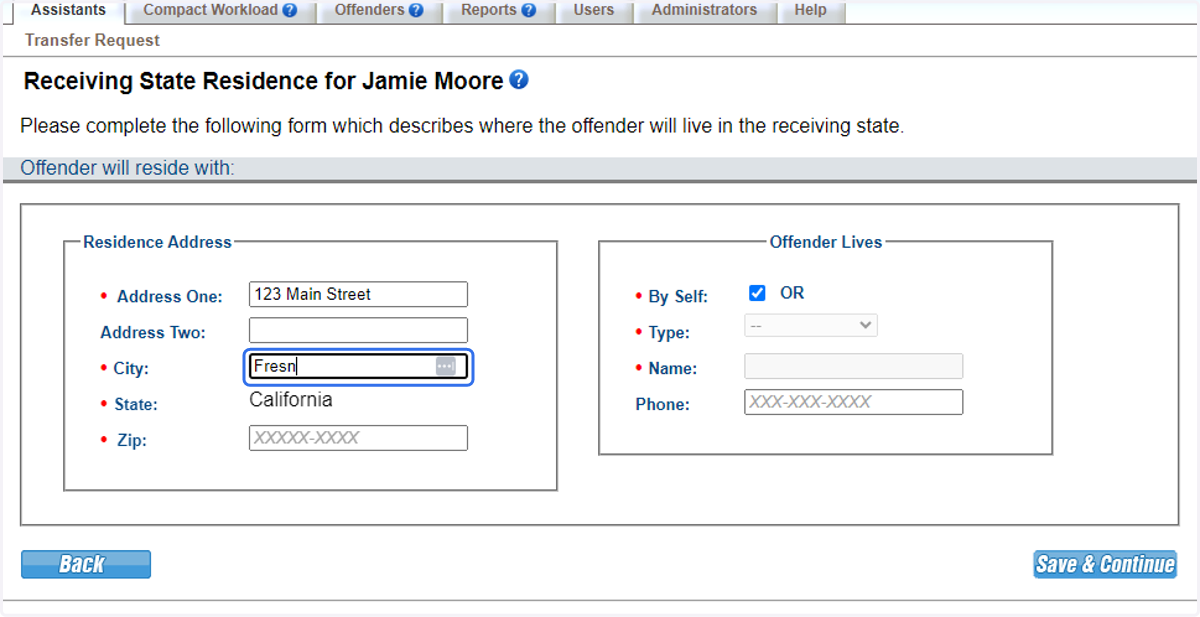
38. Provide residence information for the individual transferring.
39. Indicate whether the individual transferring lives alone or with others.
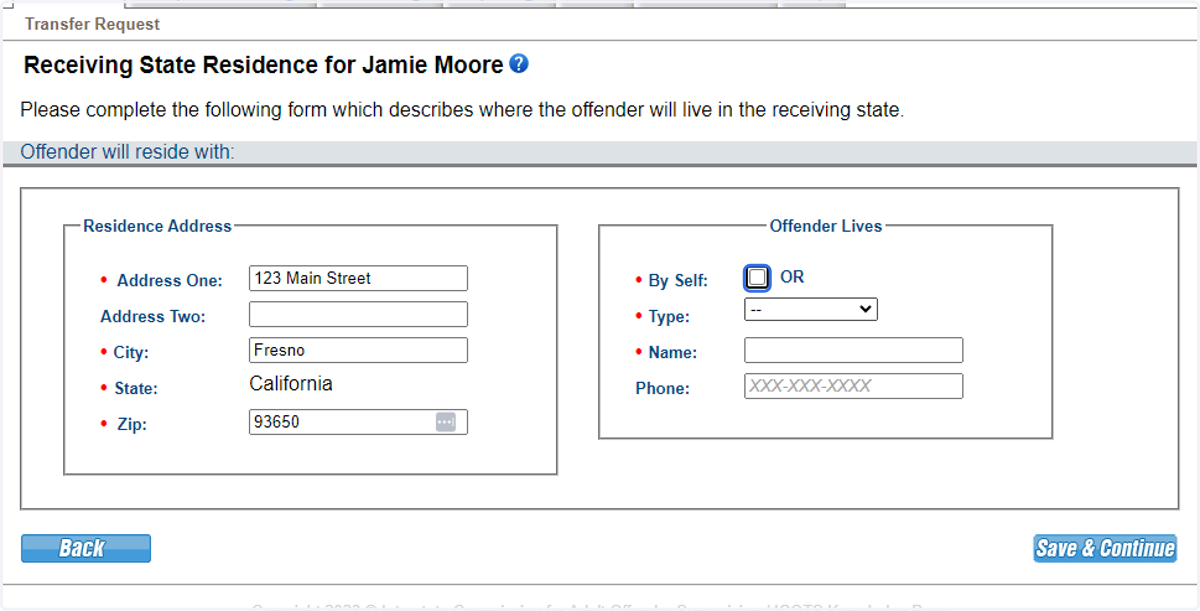
40. Note additional household members can be added via the Profile screen or by the receiving state when submitting the transfer reply.
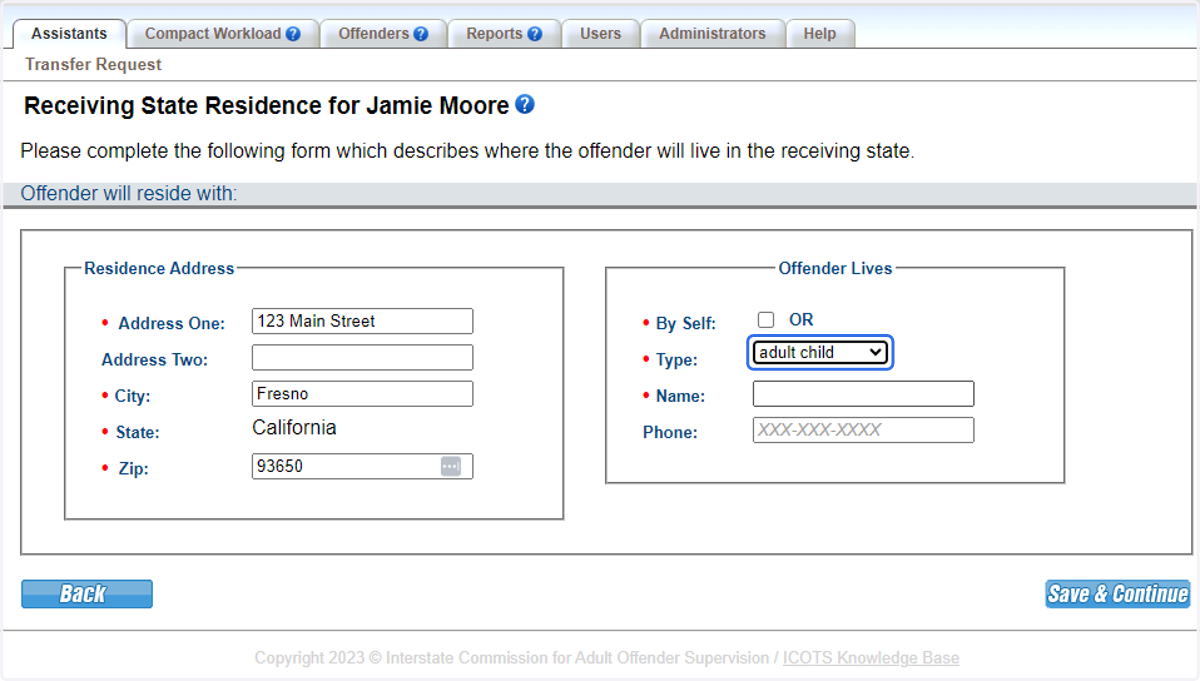
41. Note additional household members can be added via the Profile screen or by the receiving state when submitting the transfer reply.
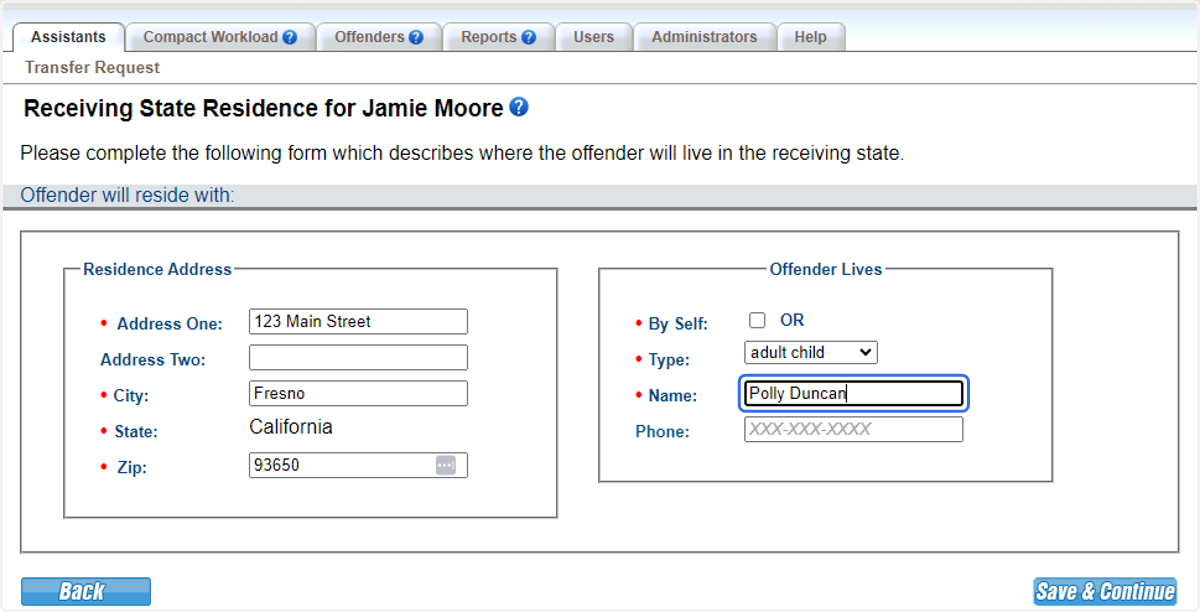
42. Note additional household members can be added via the Profile screen or by the receiving state when submitting the transfer reply.
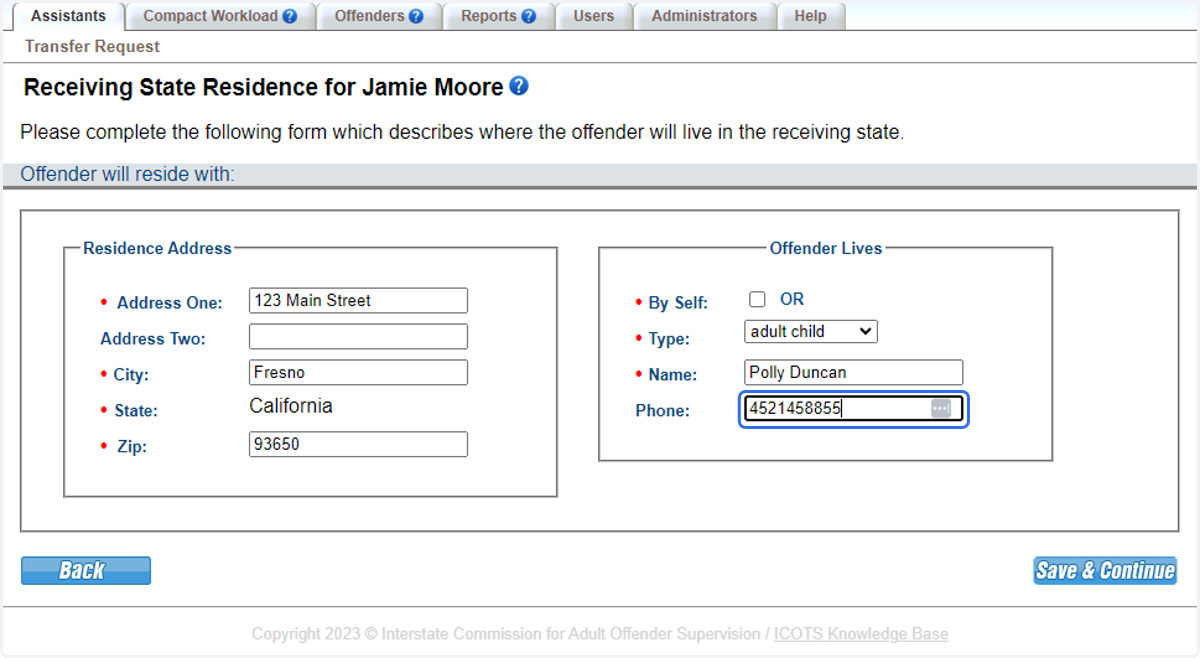
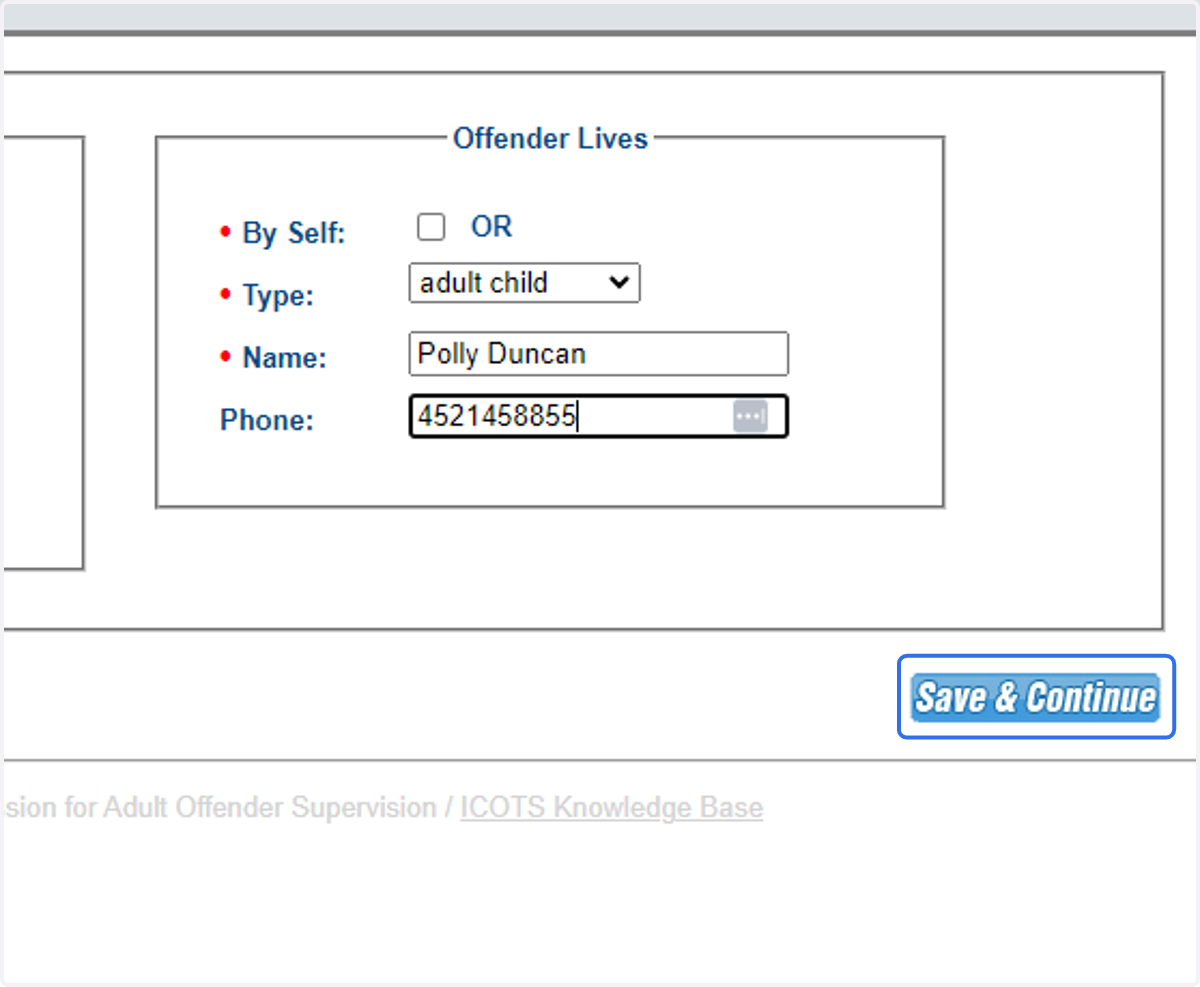
43. Once data is entered, click Save & Continue.
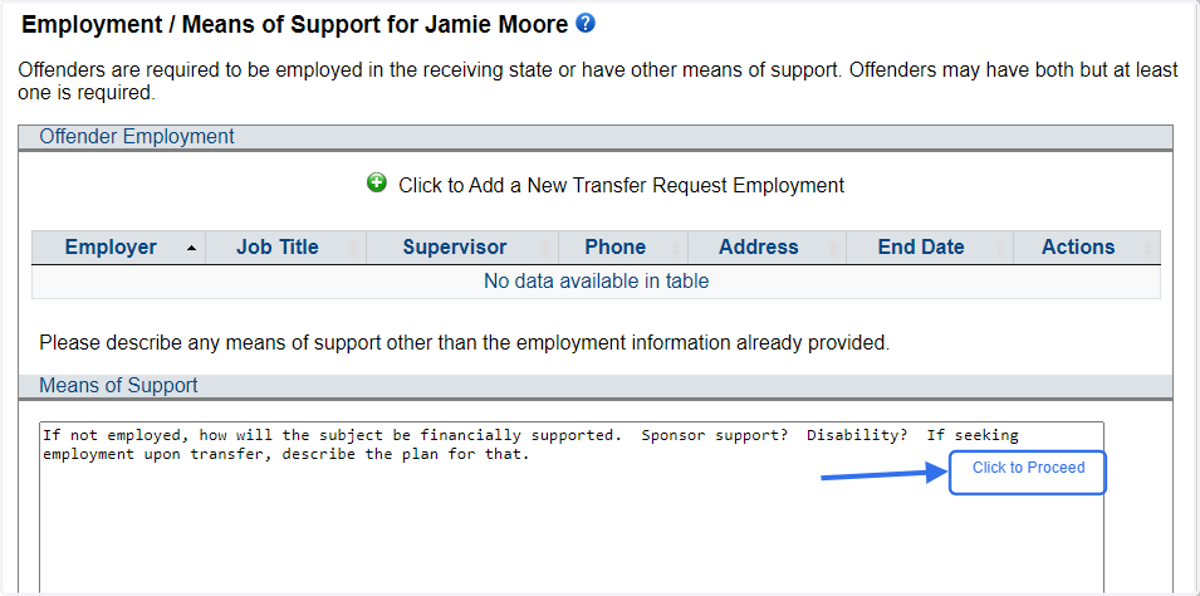
44. Proceed to Employment and Means of Support.
For those transferring under Resident Family reason for transfer, data pre-populates from the Transfer Reason screen.
45. Review the information, make corrections or additions as needed. Click the box to Proceed.
For this scenario, means of support was added via the transfer reason screen. Therefore, no changes or additions are required.
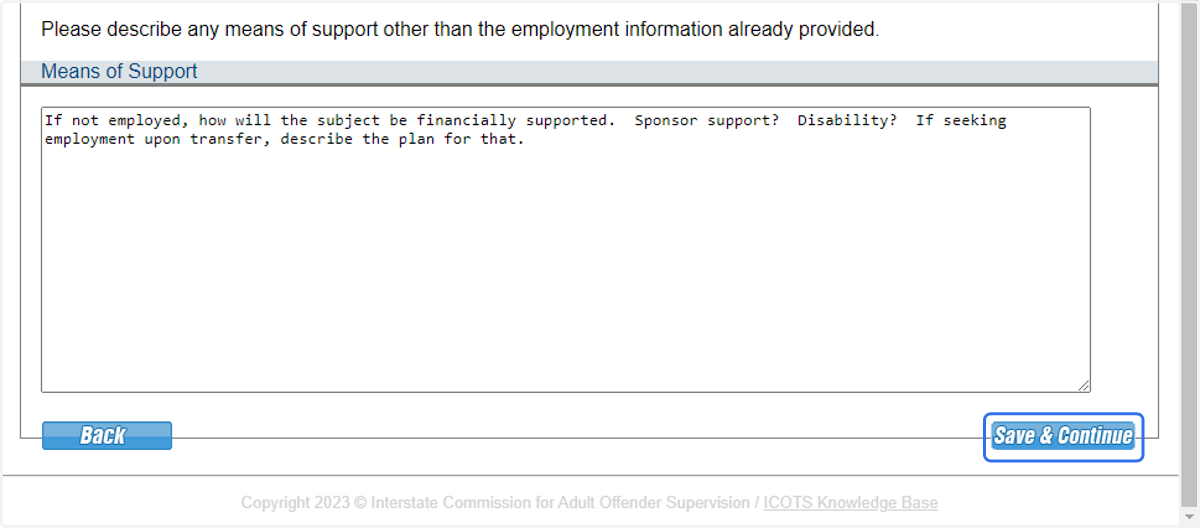
46. Click Save & Continue.
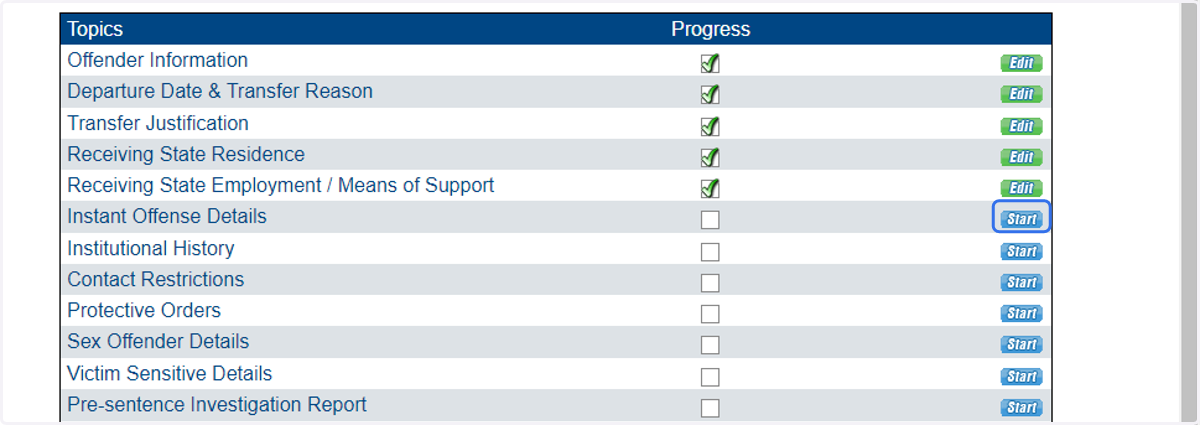
47. Proceed to Instant Offense Details.
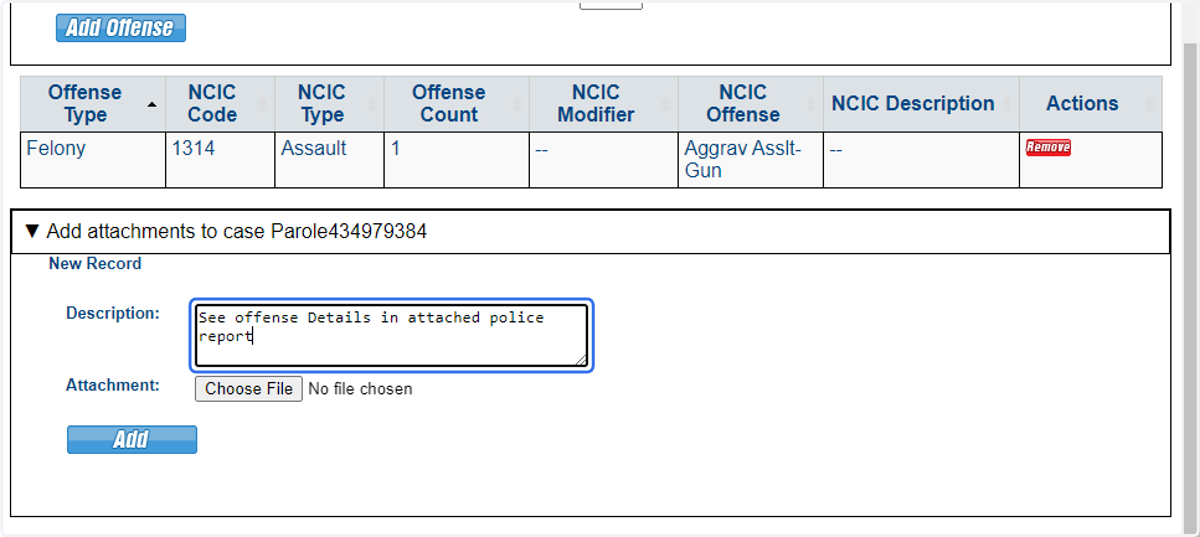
Here you will be prompted to describe details of the offense. This may be typed or an attachment such as a police report may be uploaded.
48. Provide supervision type, case details and supervision term.
Note: More than one criminal case can be added to a single compact case transfer. Repeat steps to add all cases to the record before proceeding.
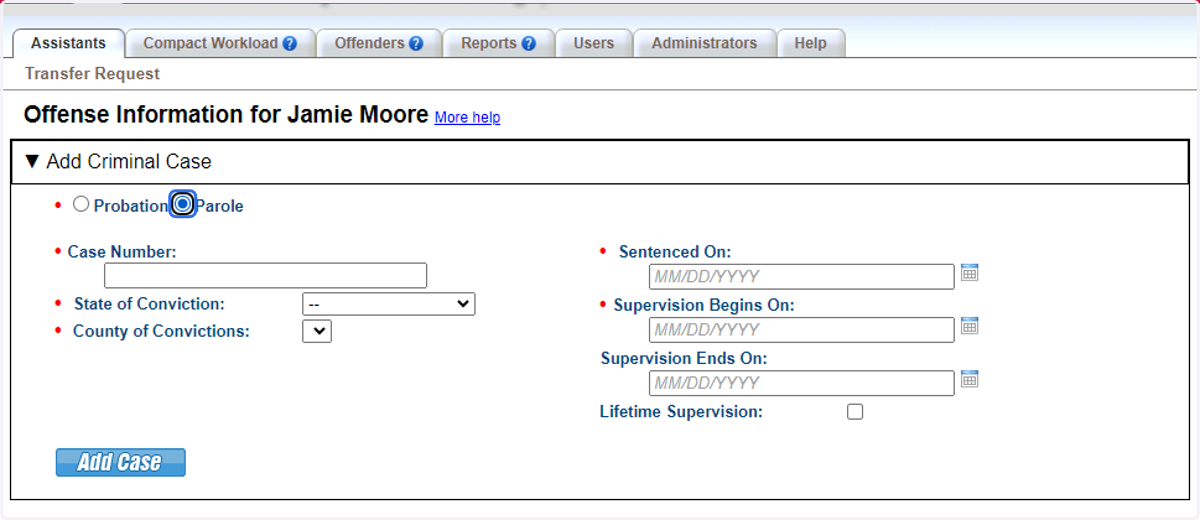
49. Provide supervision type, case details and supervision term.
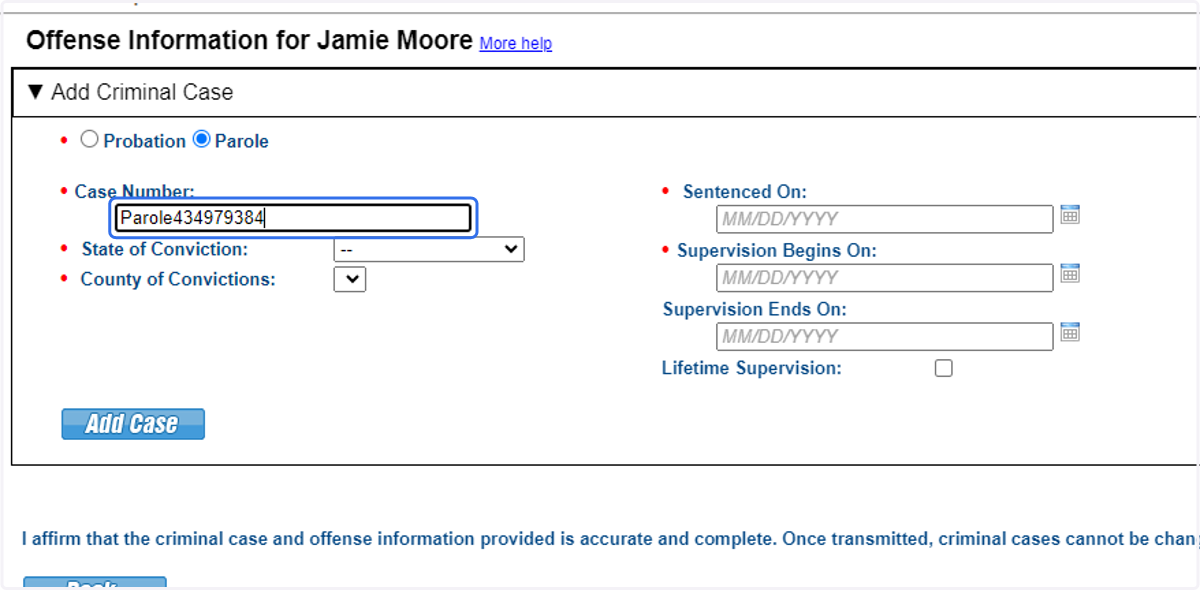
50. Provide supervision type, case details and supervision term.
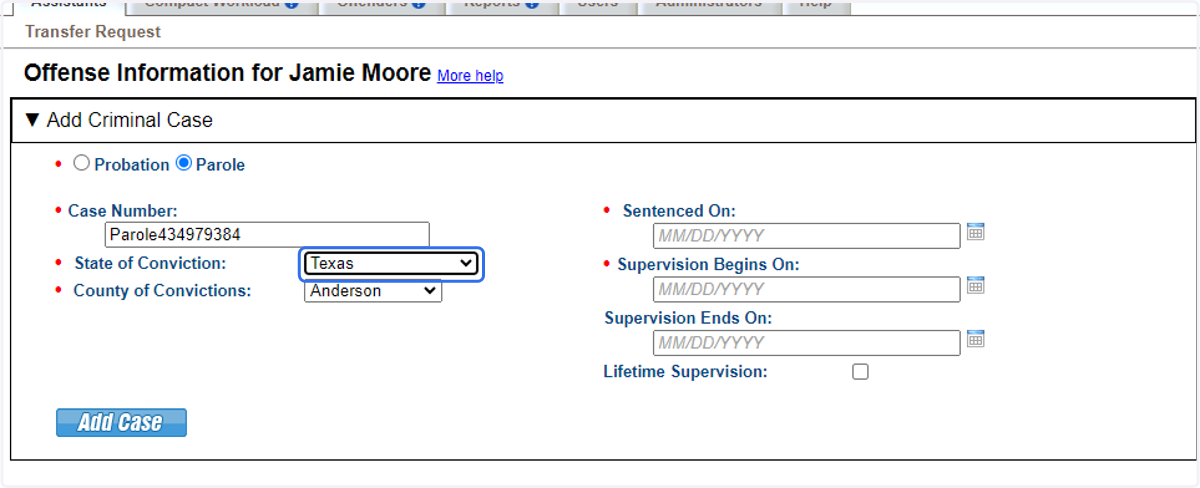
51. Provide supervision type, case details and supervision term.
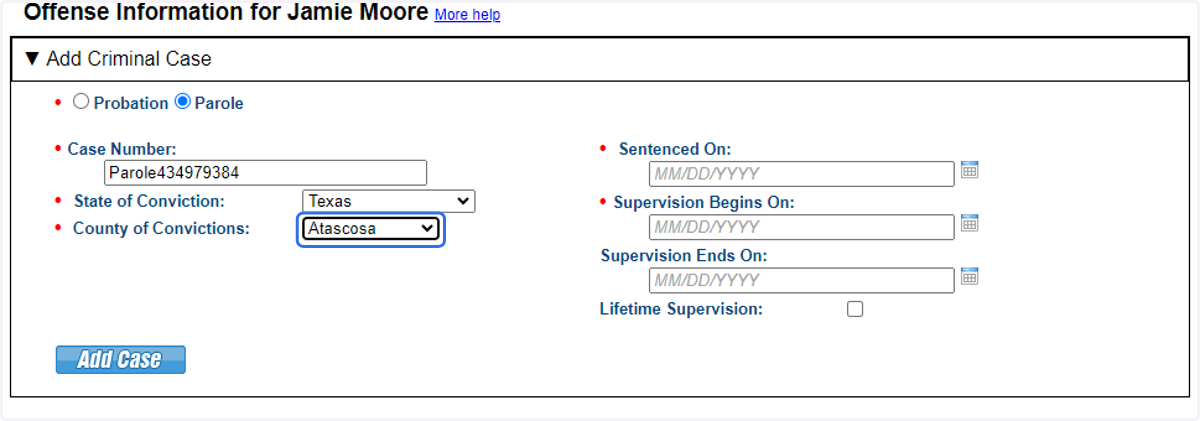
52. Provide supervision type, case details and supervision term.
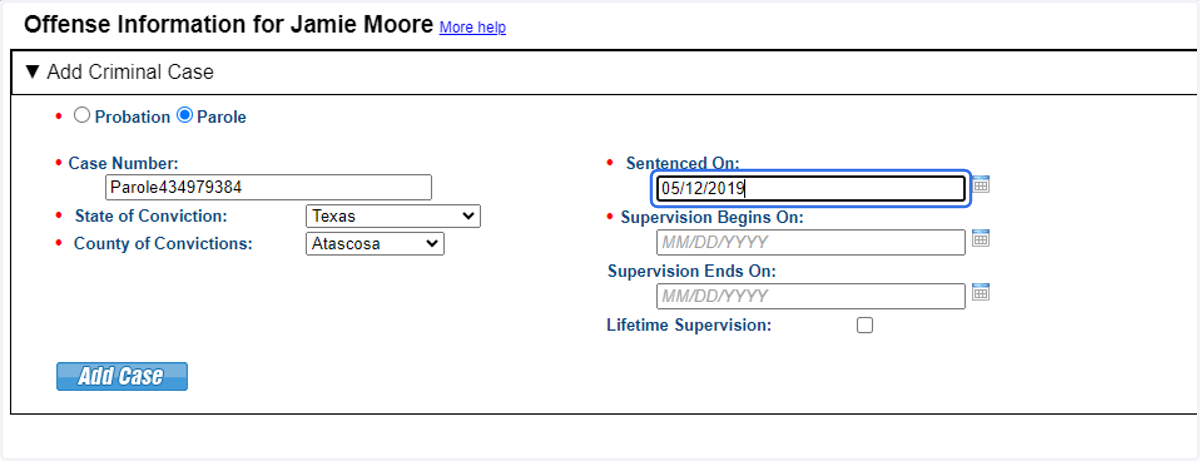
53. Provide supervision type, case details and supervision term.
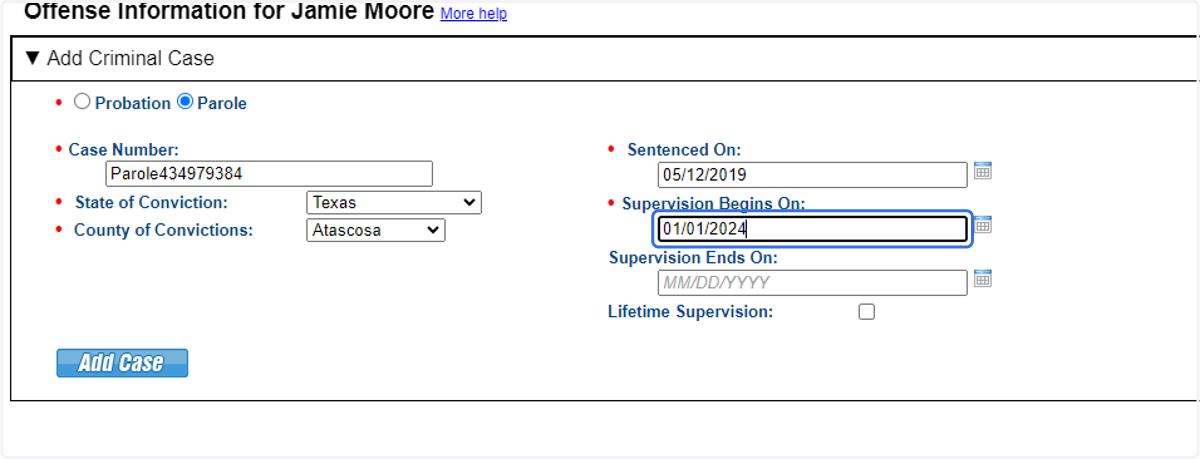
54. Provide supervision type, case details and supervision term.
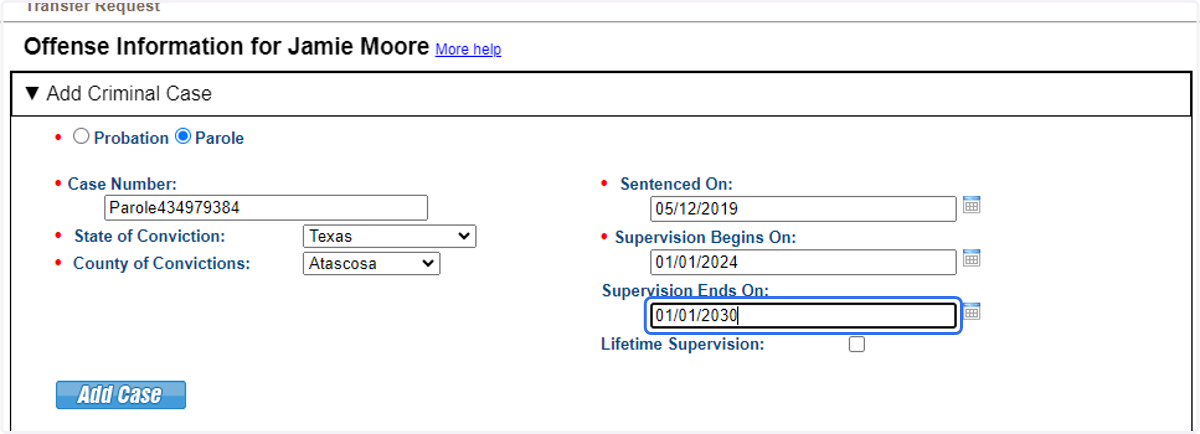
55. Confirm case details are correct and Add Case. IMPORTANT! Once a transfer request is submitted this data cannot be corrected. Be sure to double check and ensure data is accurate.
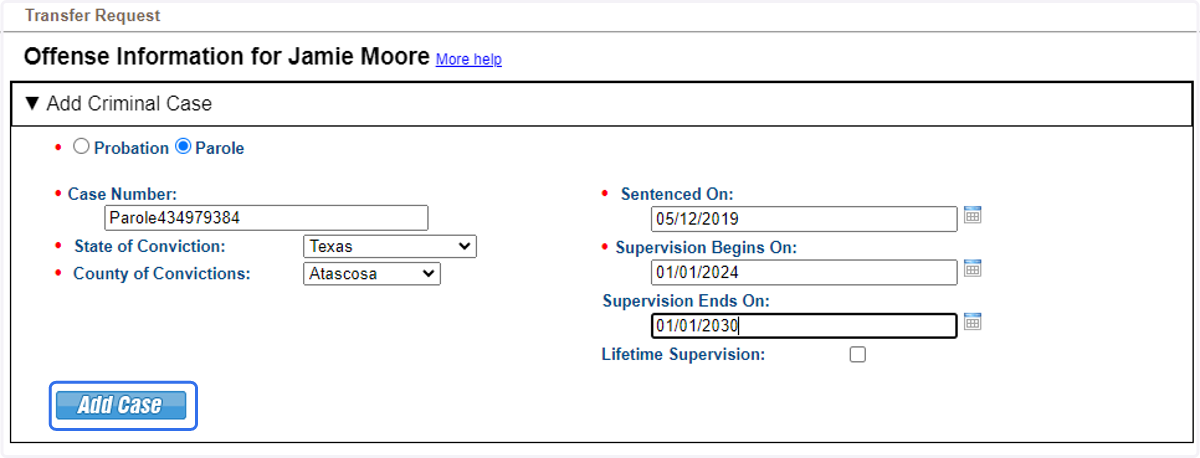
56. Select the Case to add offense information. Note each case may also have multiple offenses.
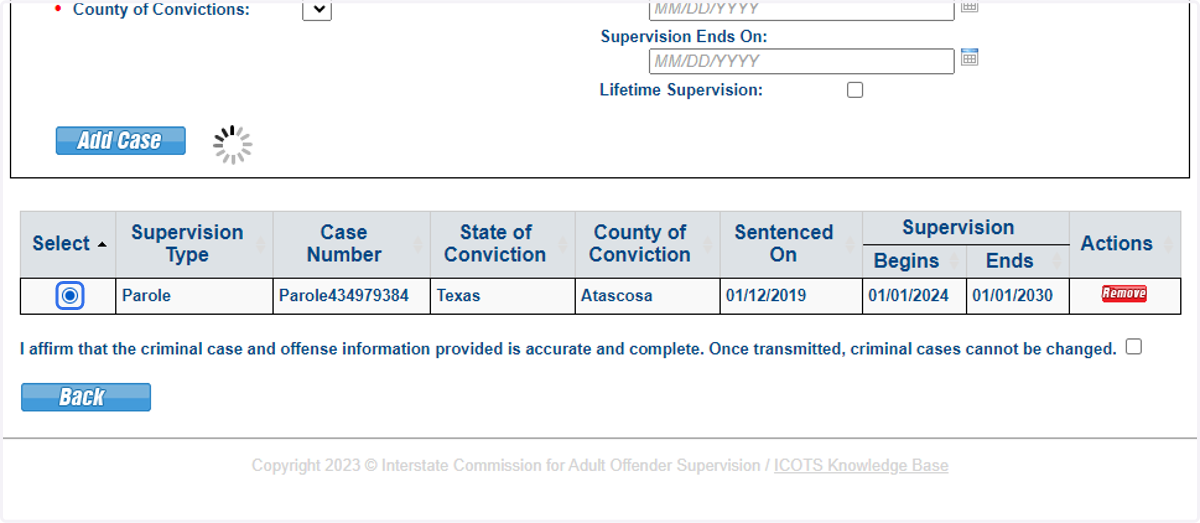
57. Choose offense type. Note each case may also have multiple offenses. Repeat steps after entering each offense or add an offense count if conviction of multiple counts of a specific offense.
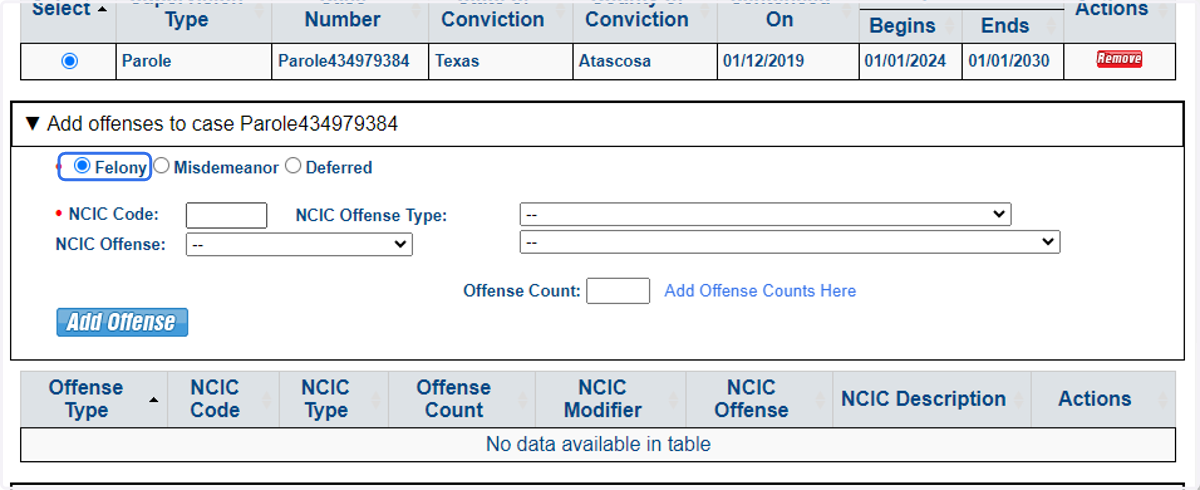
58. Add offense information. Note each case may also have multiple offenses. Enter the NCIC code if known or use the drop downs to the right to find the NCIC codes.
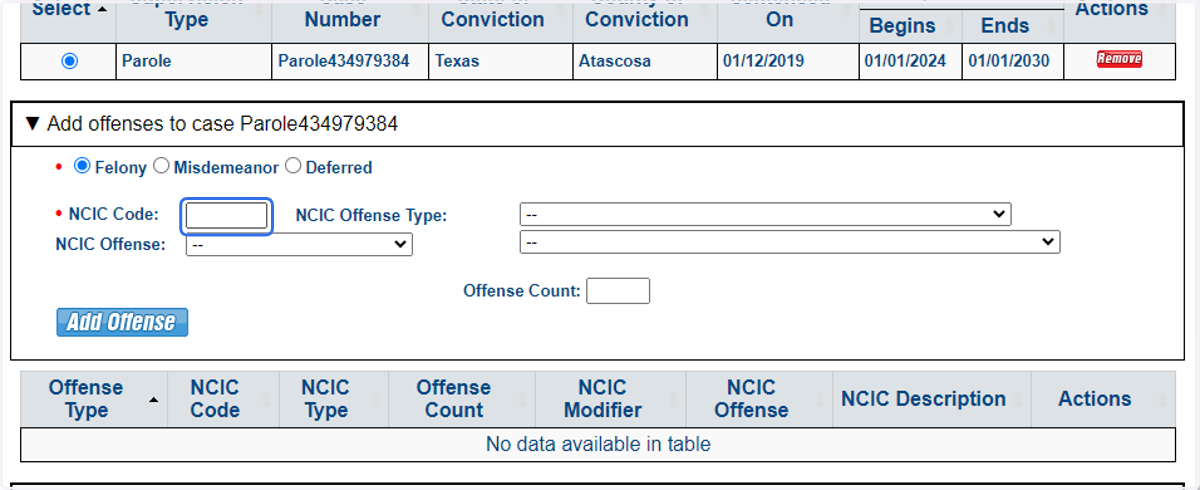
59. Add offense information. Note each case may also have multiple offenses. Enter the NCIC code if known or use the drop downs to the right to find the NCIC codes.
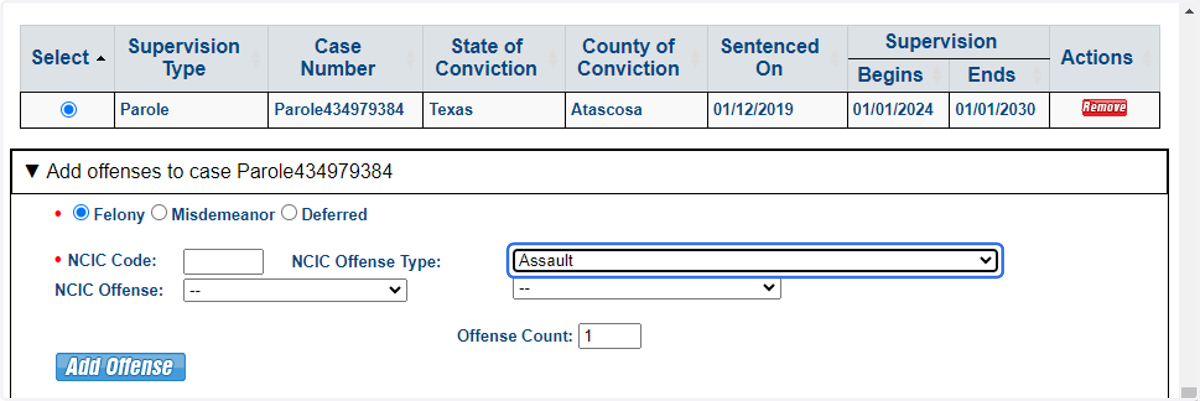
60. Add offense information. Note each case may also have multiple offenses. Enter the NCIC code if known or use the drop downs to the right to find the NCIC codes.
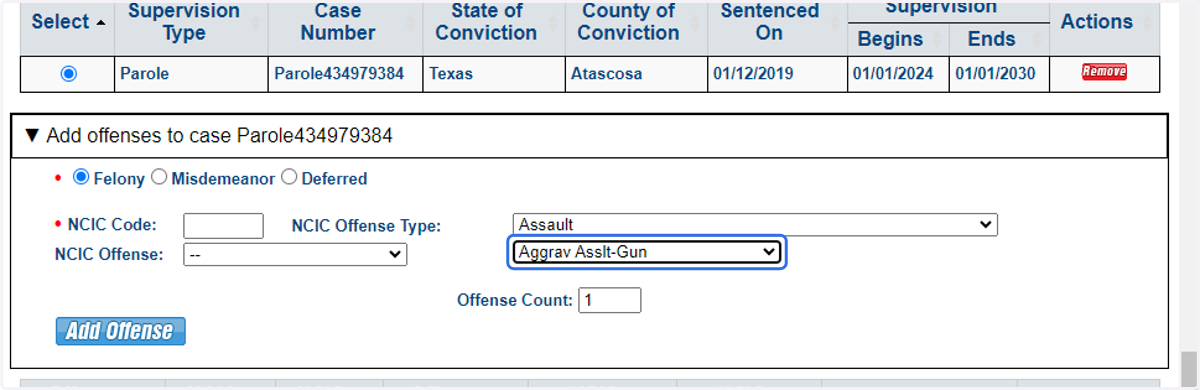
61. Add offense information. Note each case may also have multiple offenses. Enter the NCIC code if known or use the drop downs to the right to find the NCIC codes
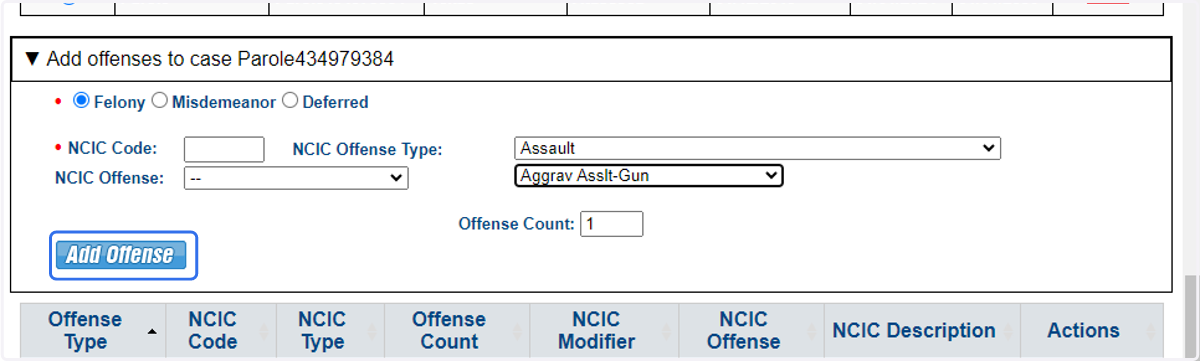
62. Details describing the offense must be provided. Users can type in the description field or provide an attachment such as a police report.
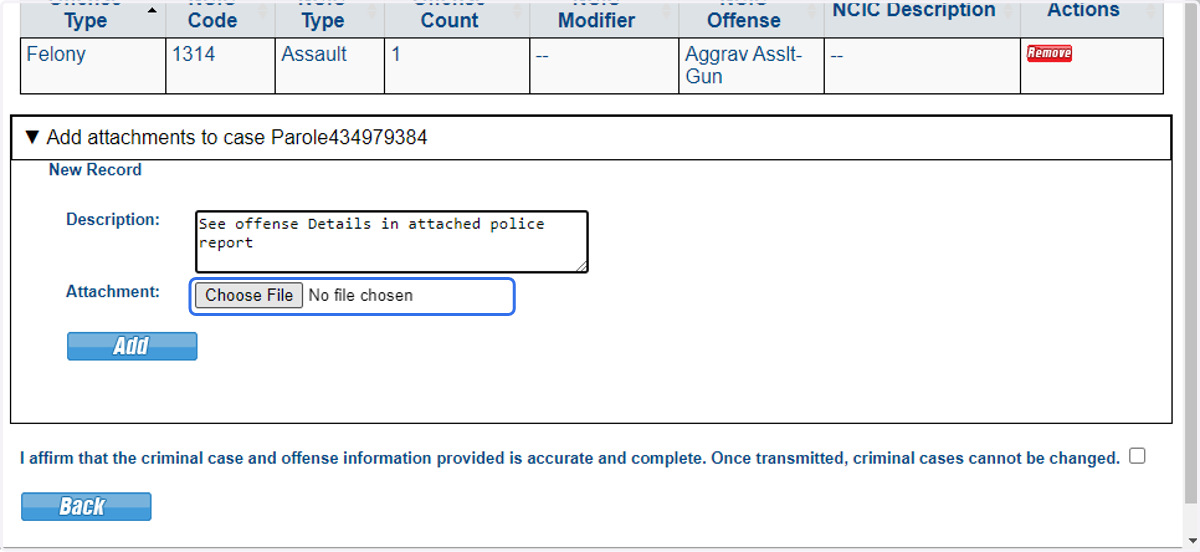
63. Details describing the offense must be provided. Users can type in the description field or provide an attachment such as a police report.
64. Details describing the offense must be provided. Users can type in the description field or provide an attachment such as a police report.
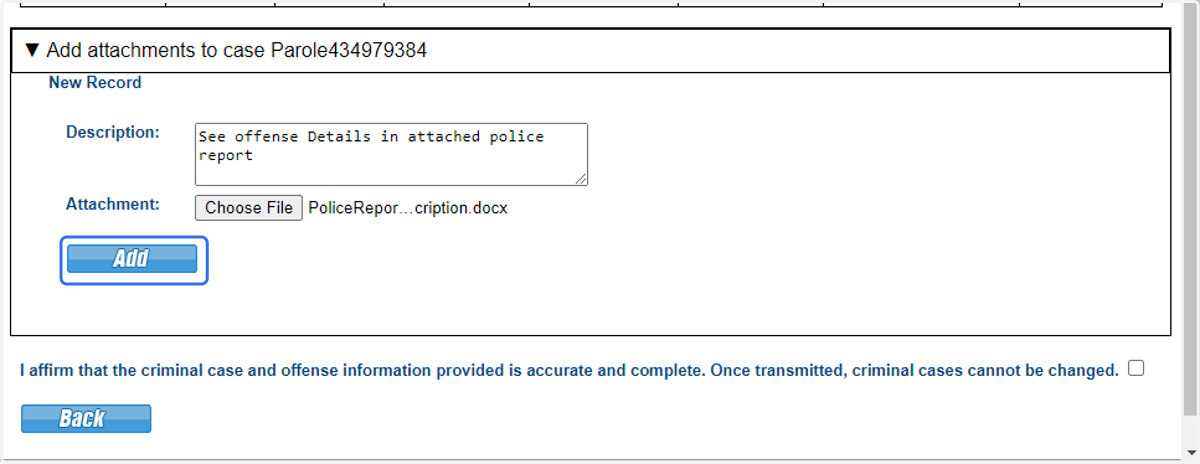
65. Add the attachment.
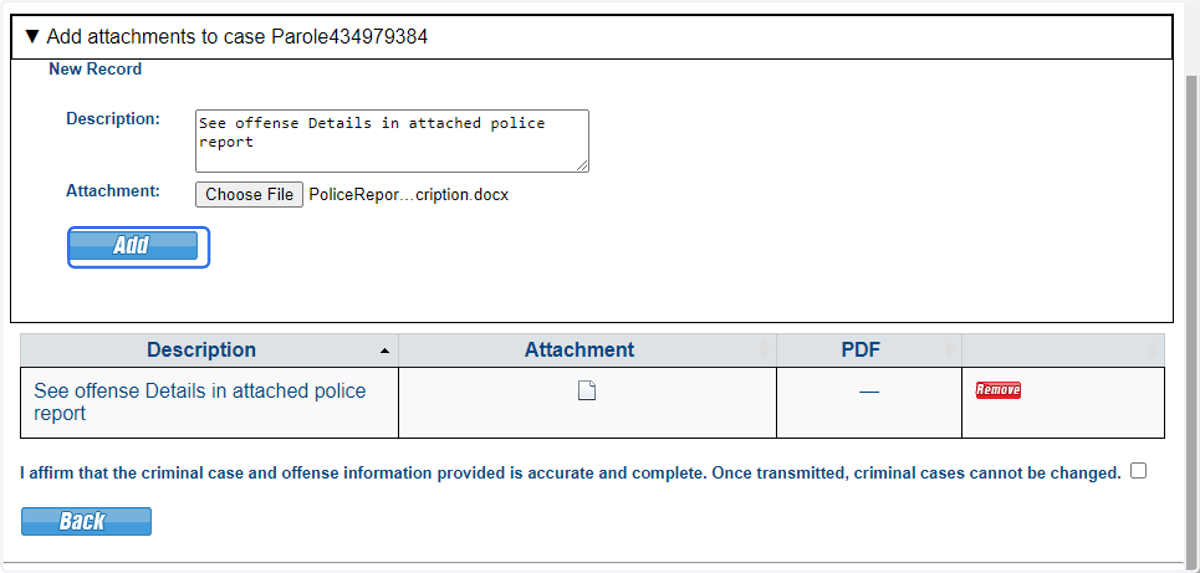
66. As offense details cannot be modified after transmission, affirm you reviewed the information for accuracy.
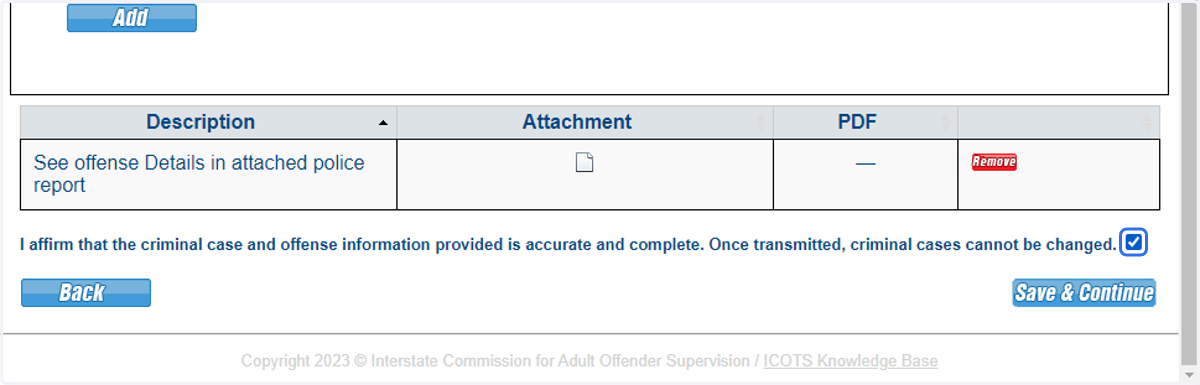
67. Click Save & Continue.
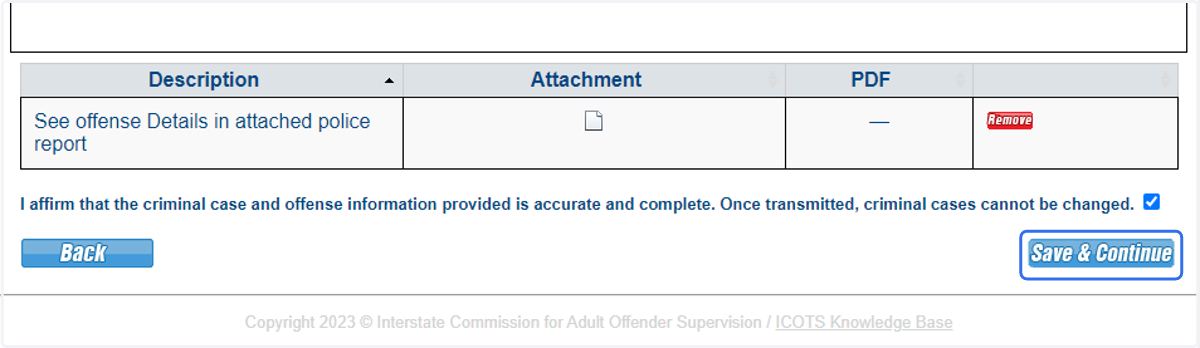
68. Proceed to Institutional History.
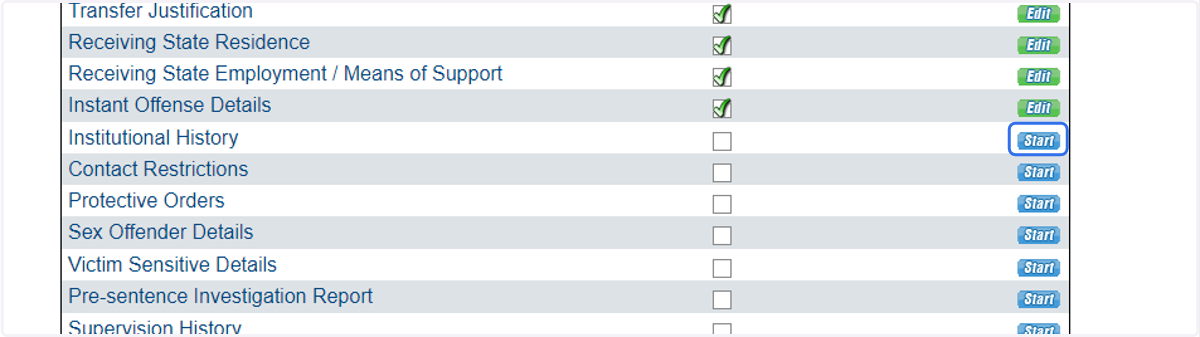
69. In this scenario the transferring individual requests to transfer upon release, it is clear he has been incarcerated within the last 2 years. Institutional discipline and mental health history provides information that may be more current than a pre-sentence investigation.
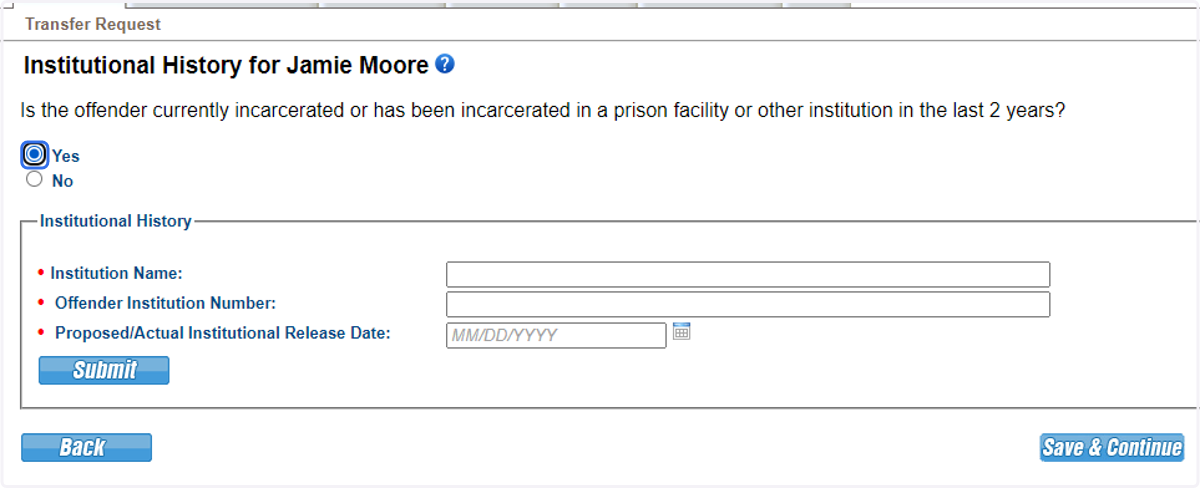
70. Provide institution information & release date.
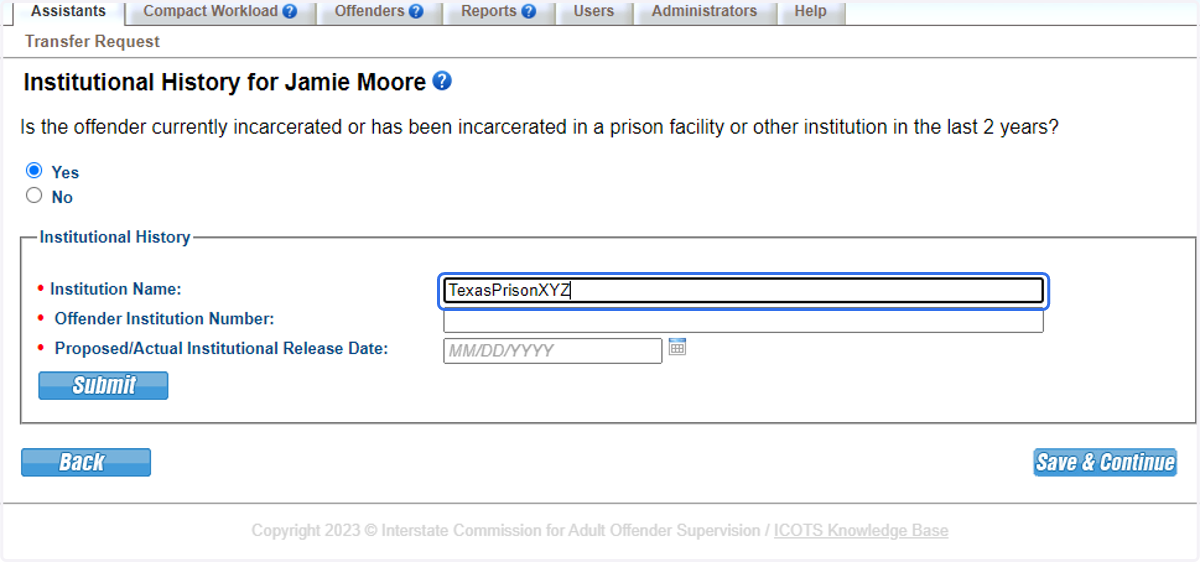
71. Provide institution information & release date.
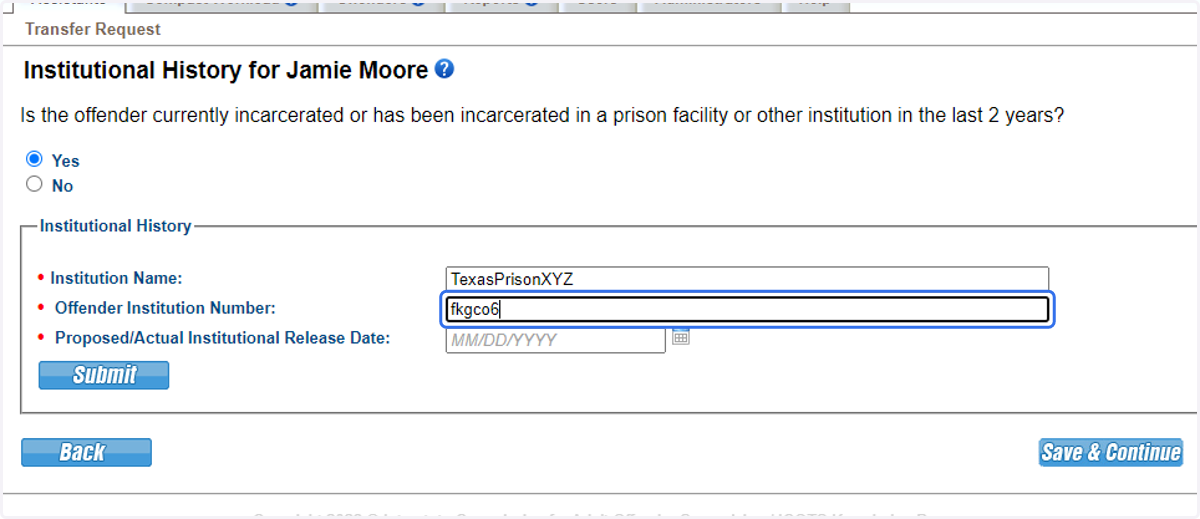
72. Provide institution information & release date.
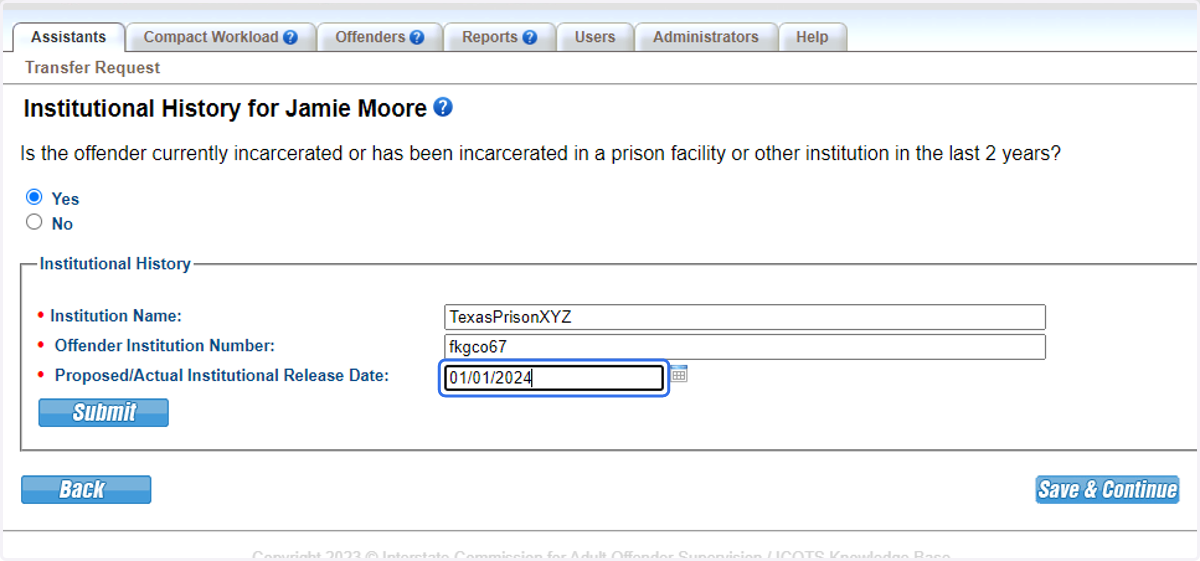
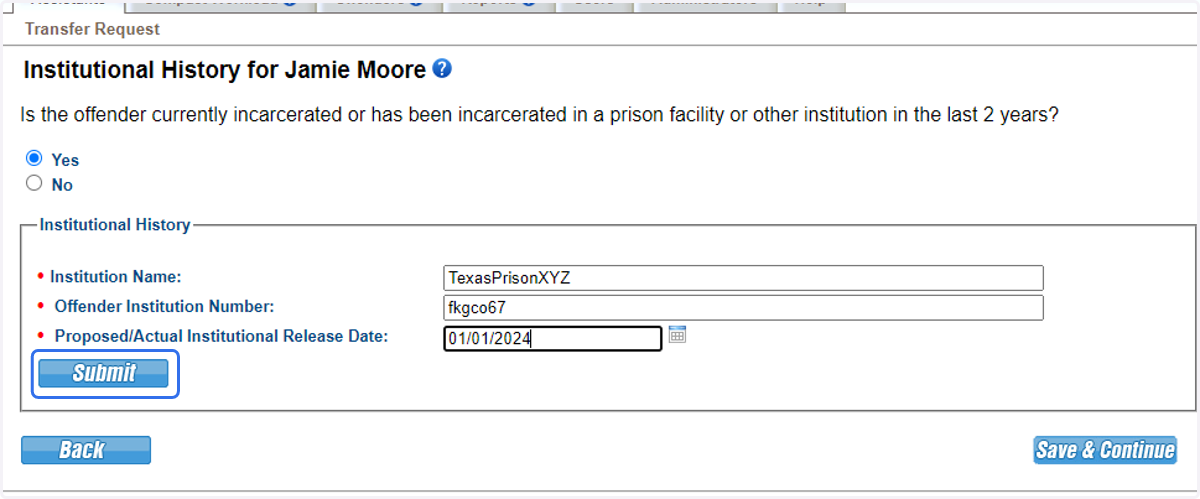
73. Be sure to click submit to save the institution information.
74. Attach the discipline and mental health history.
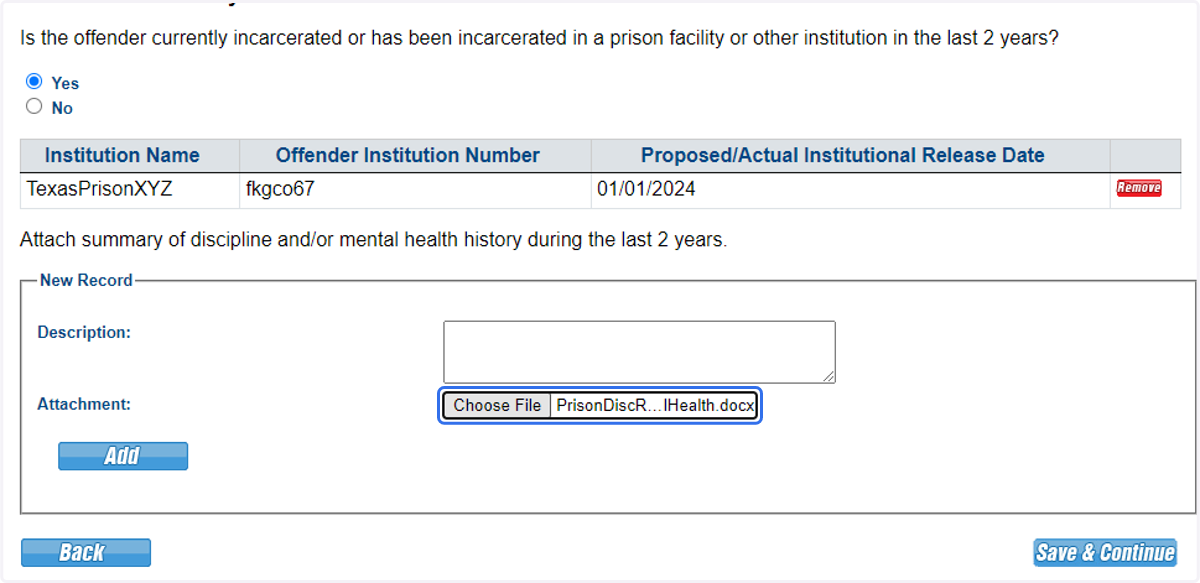
75. Attach the discipline and mental health history.
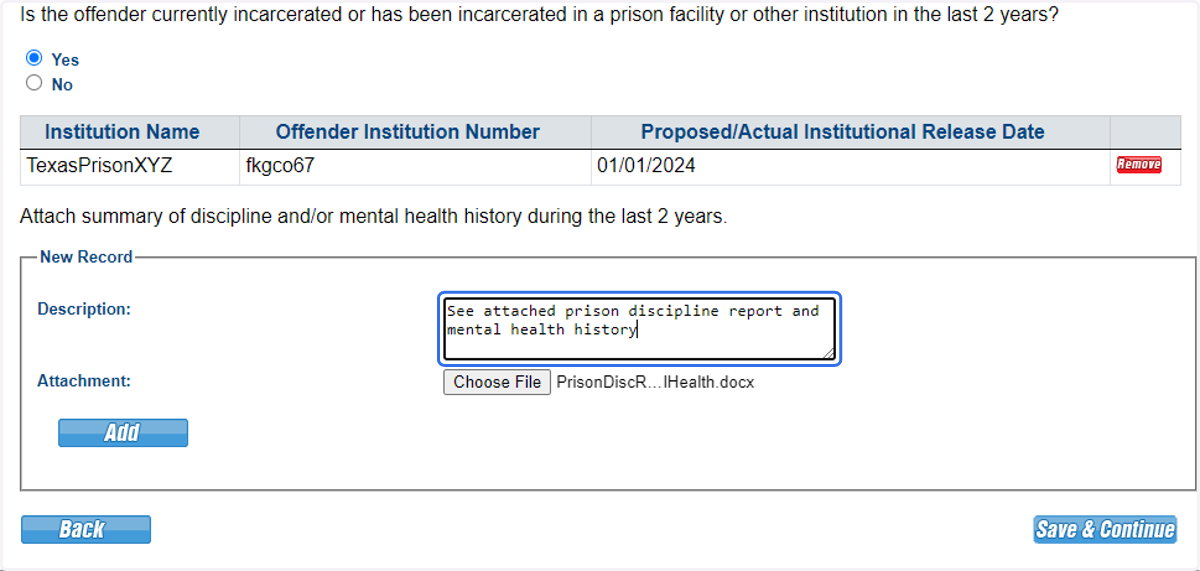
76. Click Add to upload the attachment.
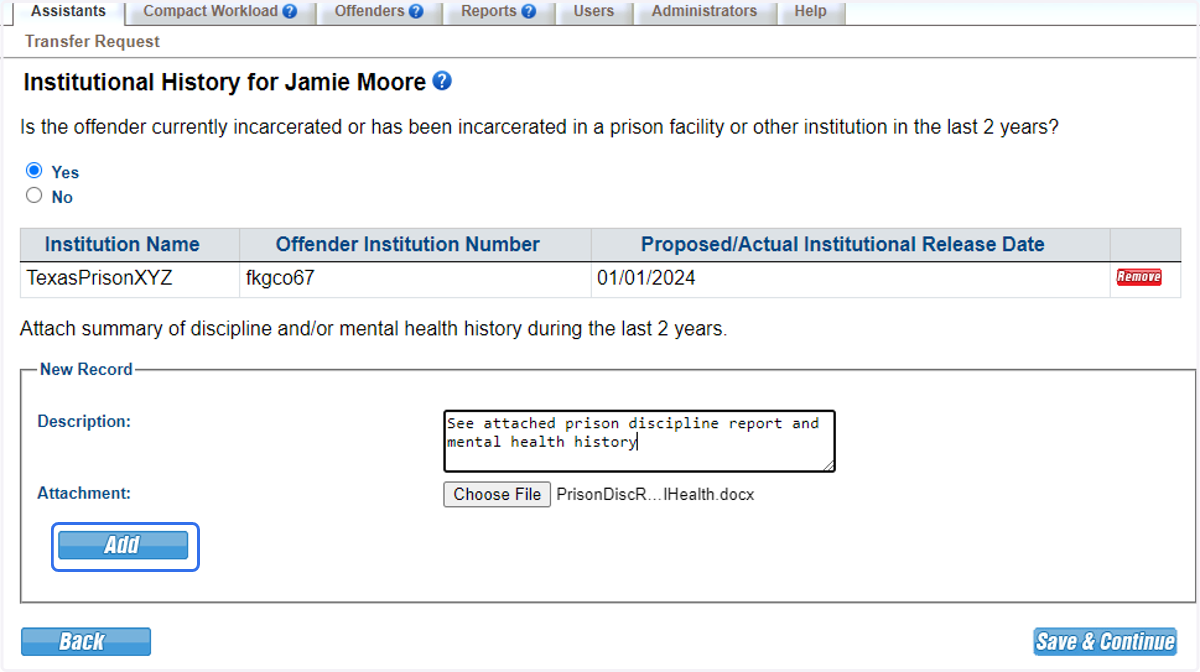
77. Click Save & Continue.
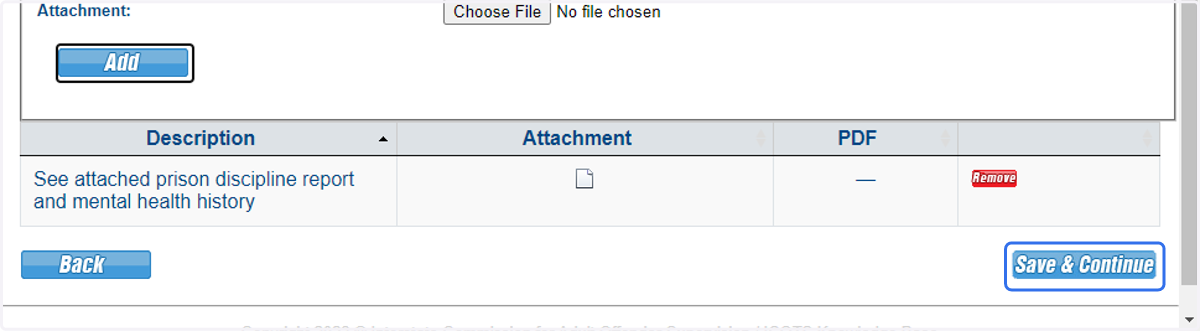
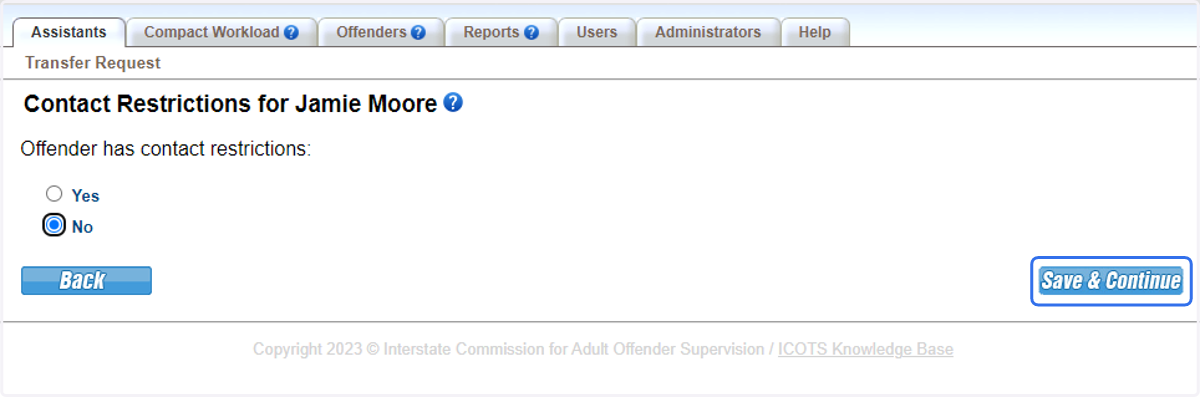
78. Proceed to Contact Restrictions
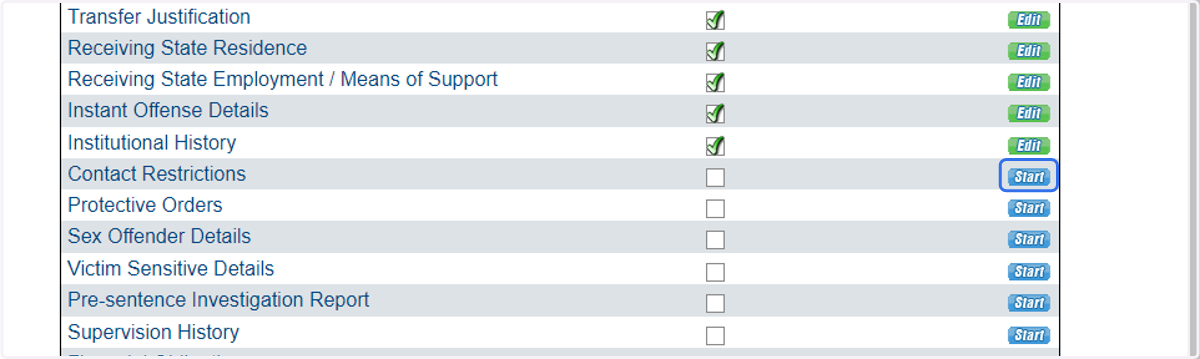
79. If there are contact restrictions, provide them here. If no contact restrictions exist, select No.
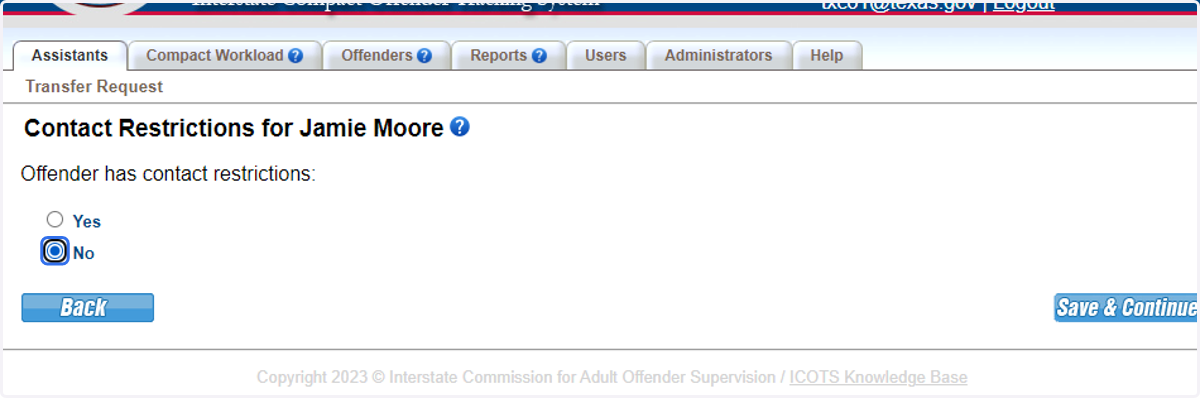
80. Click Save & Continue.
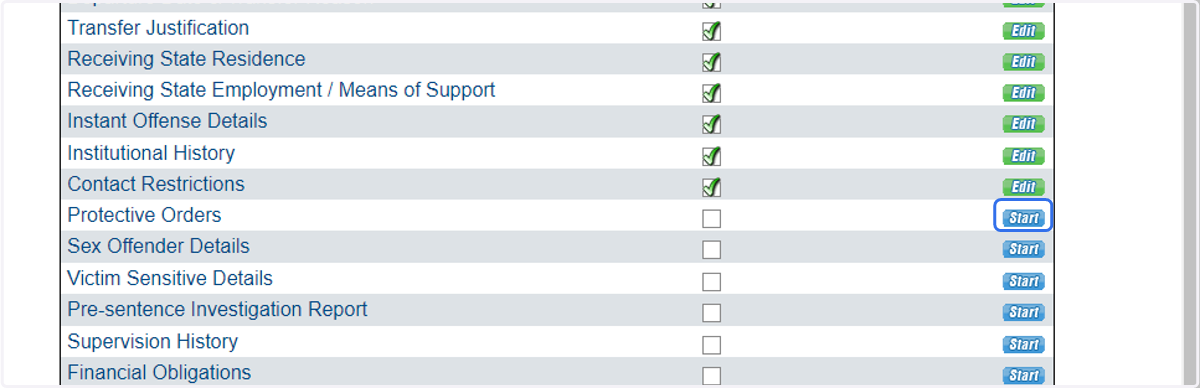
81. Proceed to protective orders.
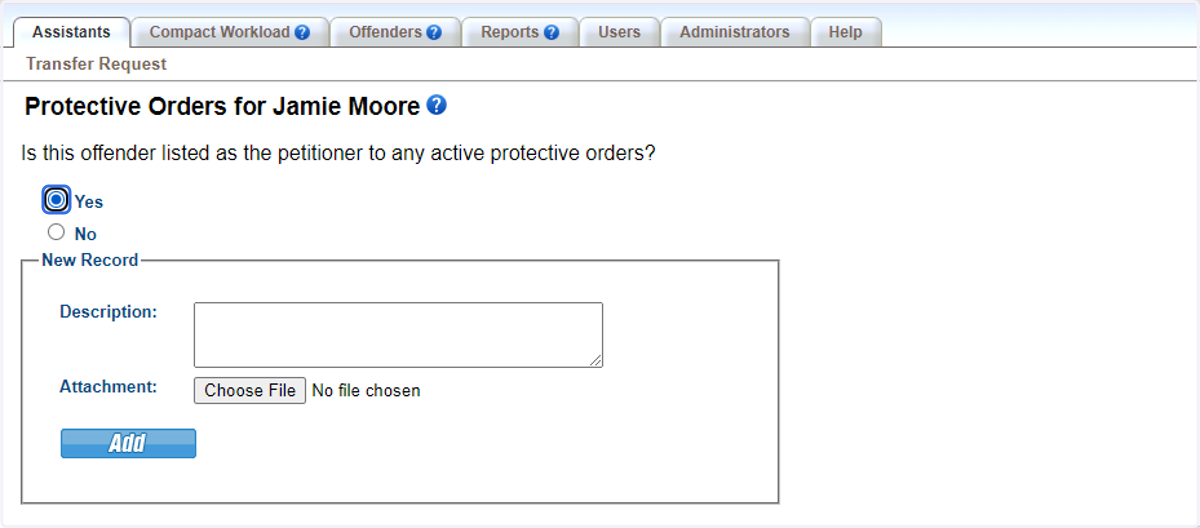
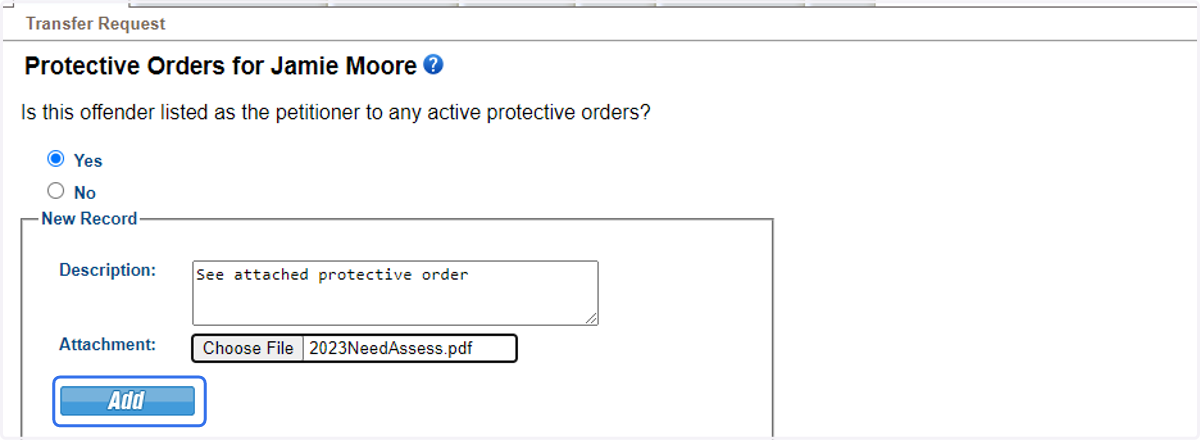
82. If there are protective orders, provide them here. If no protective orders exist, select No. For this scenario, protective orders exist. Click 'Yes.'
83. Provide a description and add the protective order documentation.
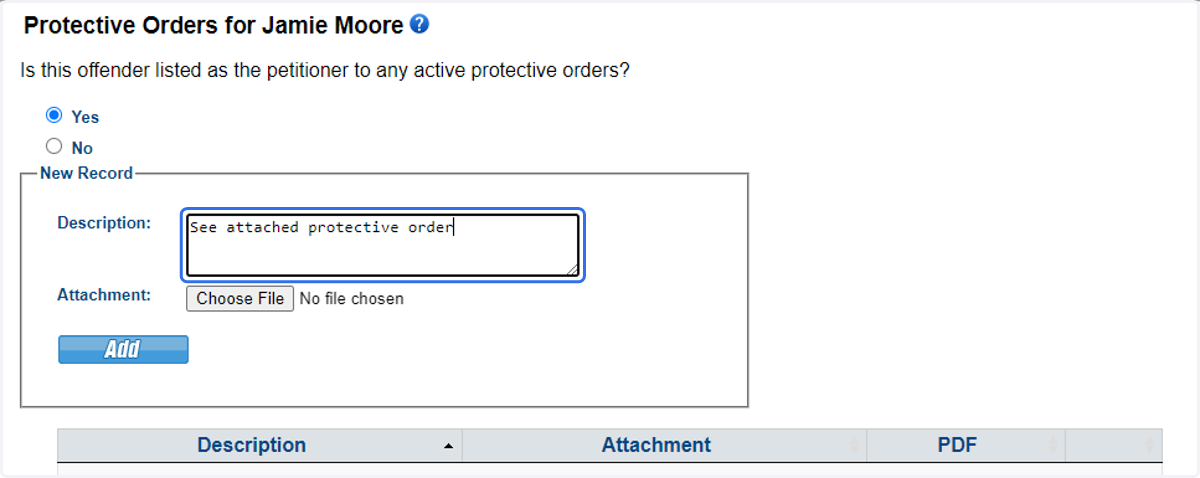
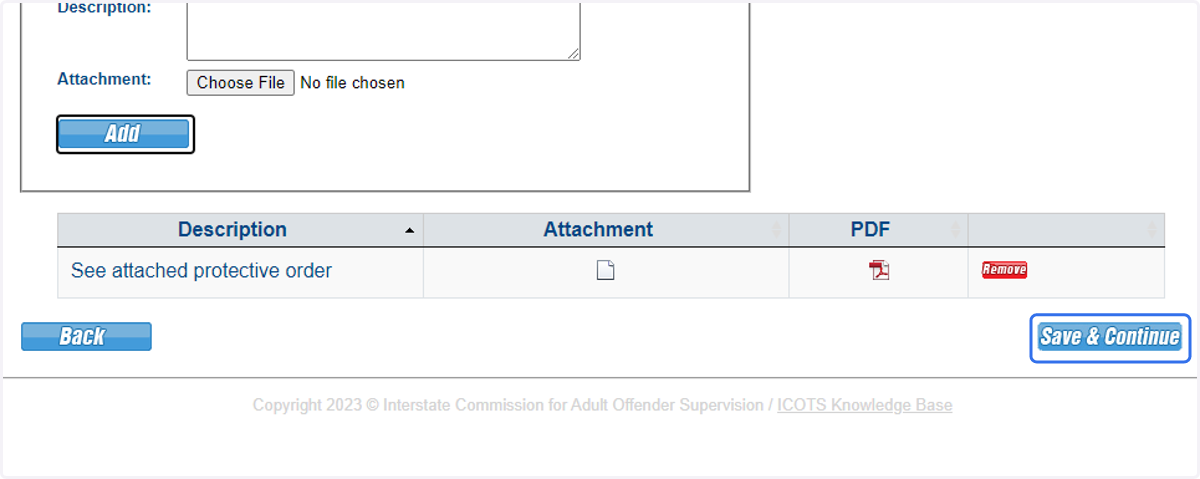
84. Be sure to click Add to upload the documentation.
85. Click Save & Continue.
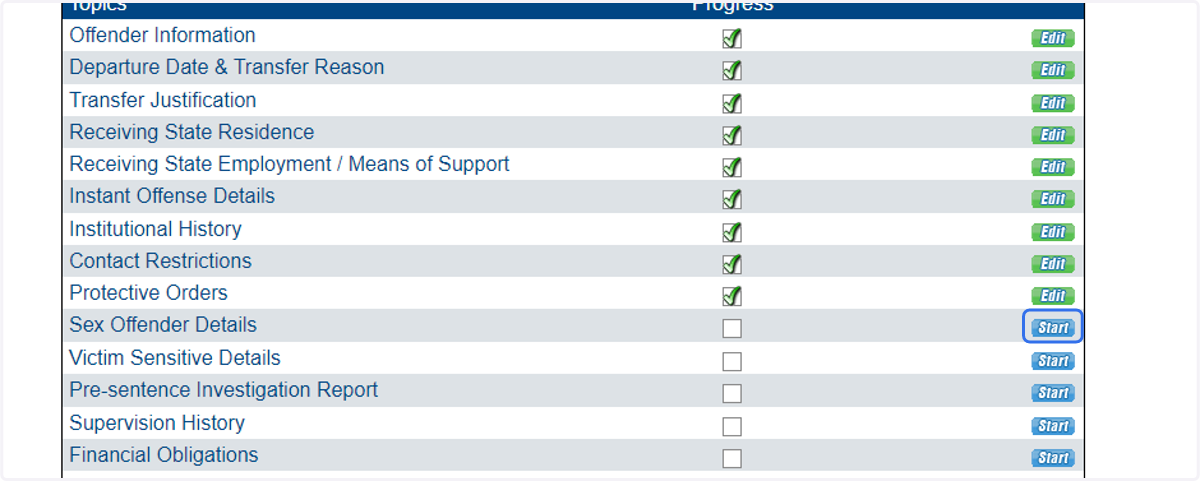
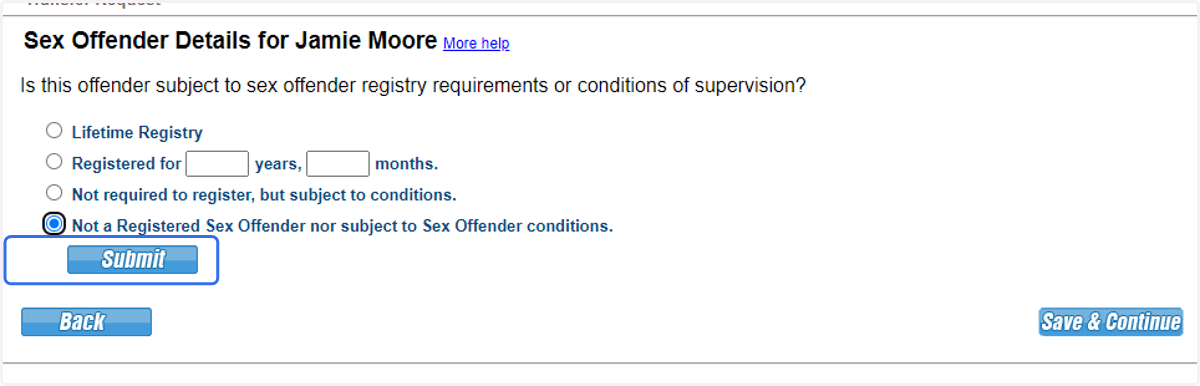
86. Proceed to Sex Offender Details.
87. Additional details are required for individuals transferring as a 'sex offender' as defined by the the compact rules (See Rules 1.101 definition of 'sex offender' & 3.101-3.) If neither apply, choose the last option.
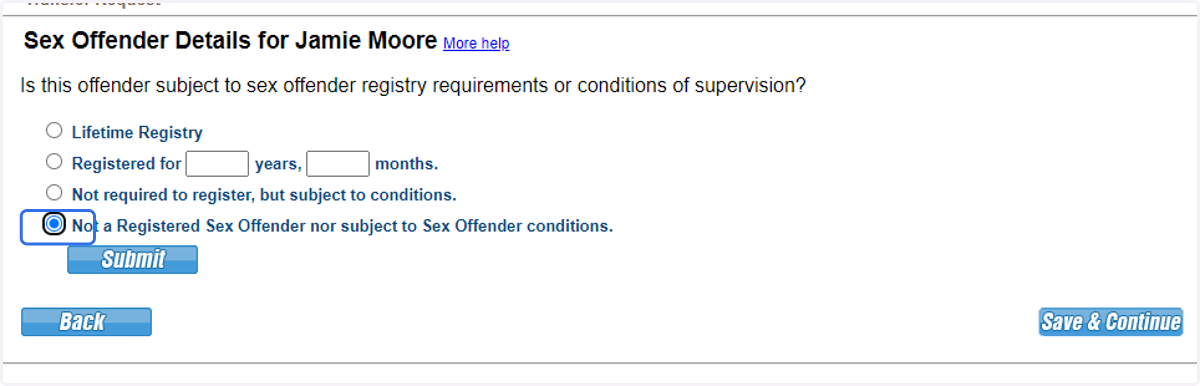
88. Click submit to save the information.
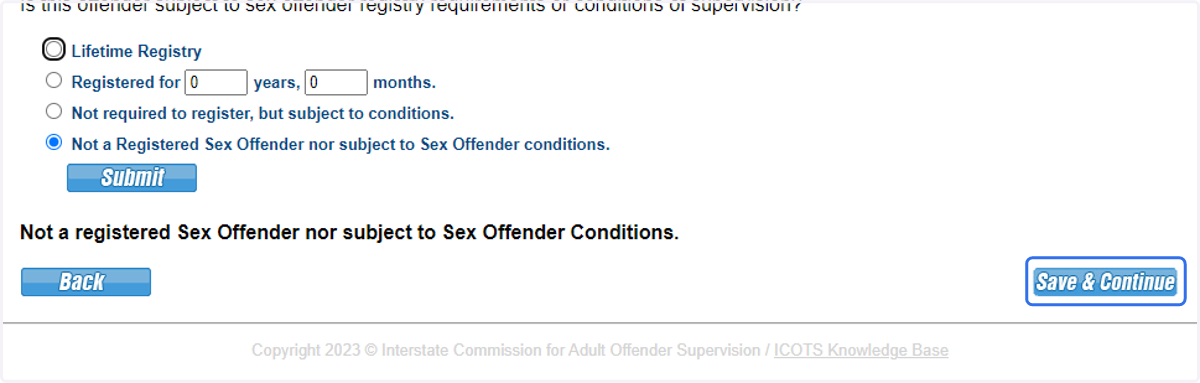
89. Click Save & Continue.
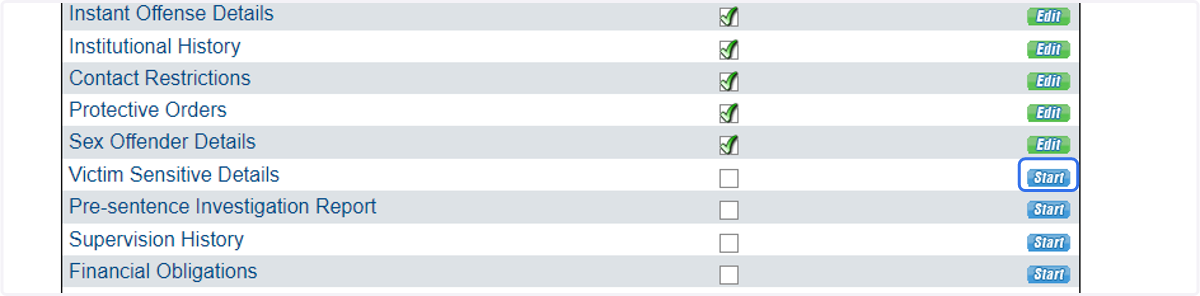
90. Proceed to Victim Sensitive Details.
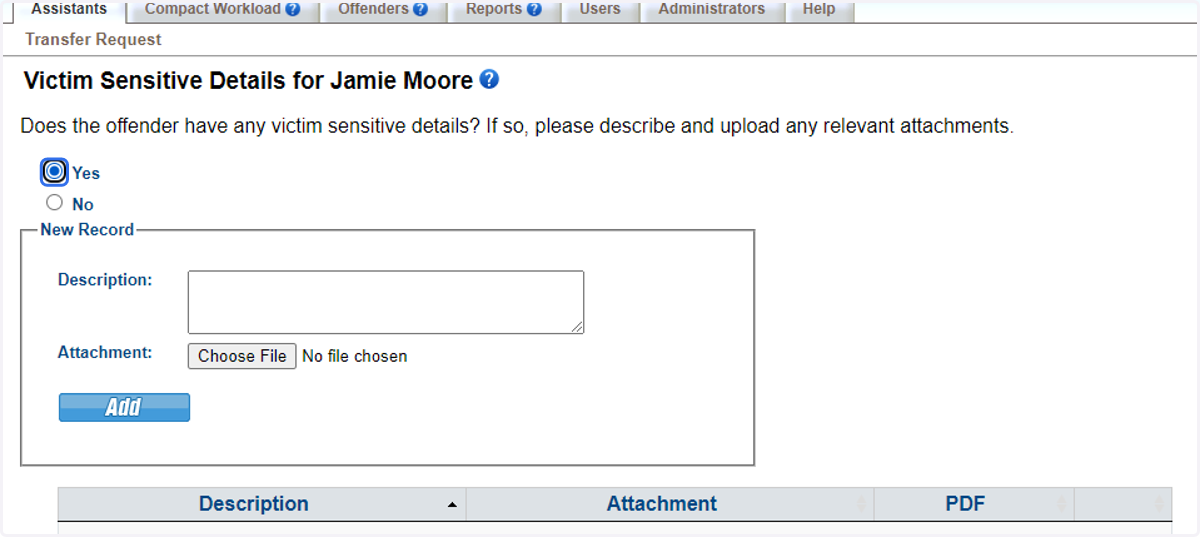
91. If there are victim sensitive details, provide those here. If no victim details exist, select 'No.' For this scenario, the case is victim sensitive. Click 'Yes.'
Selecting Yes marks the profile as 'victim sensitive.' This indicator is a data element sending state use to identify cases in which victim notifications are required in accordance with the sending state's laws and procedures.
92. Provide the victim sensitive details.
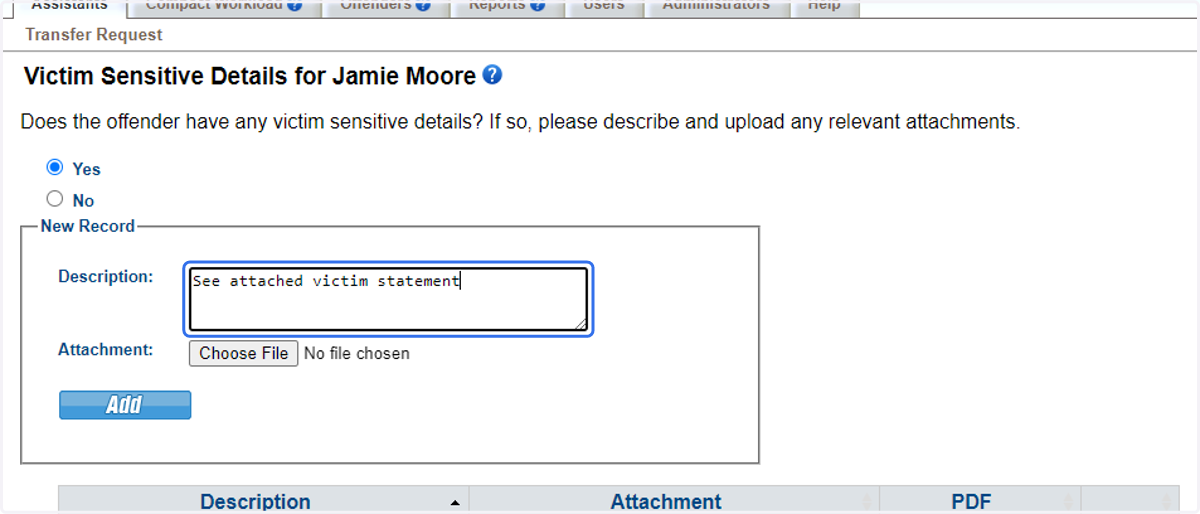
93. Provide the victim sensitive details.
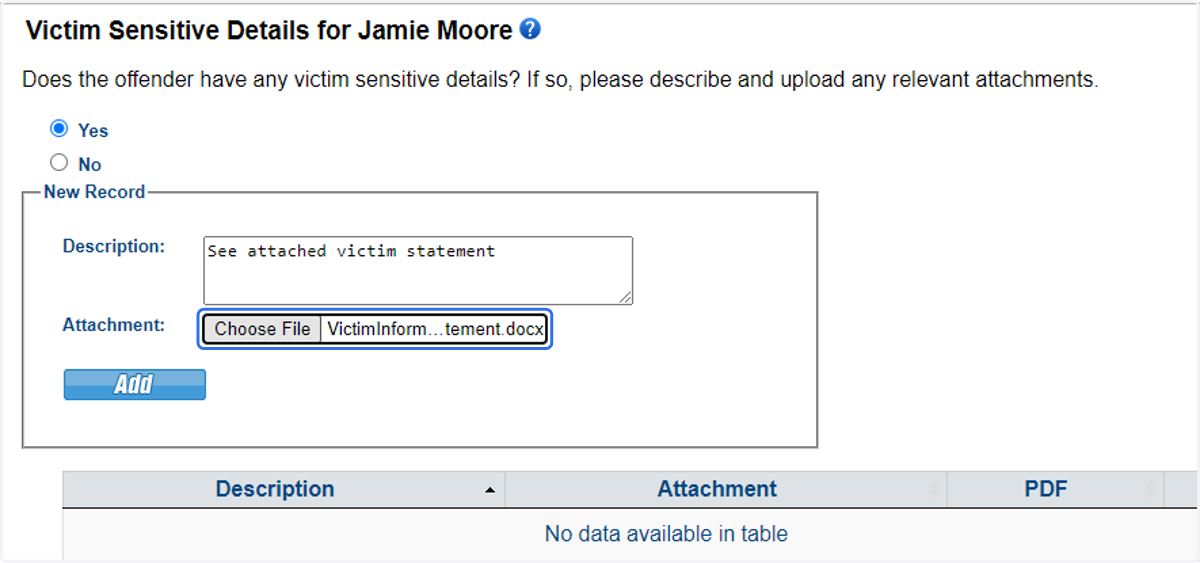
94. Be sure to click 'Add' to upload the documentation.
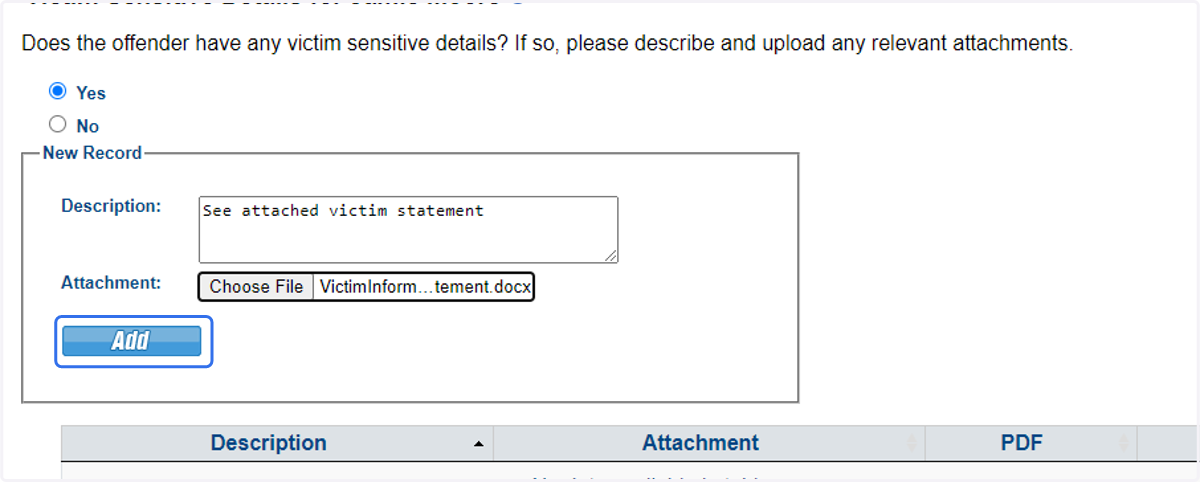
95. Click Save & Continue.
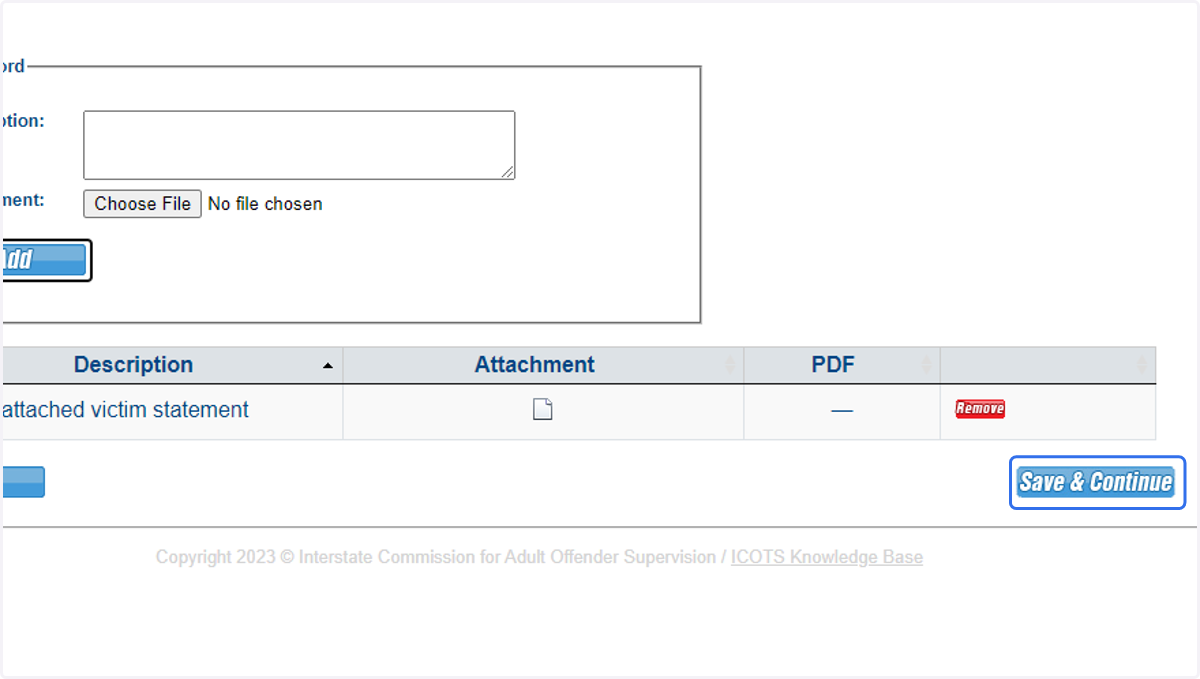
96. Proceed to Pre-Sentence Investigation Report.
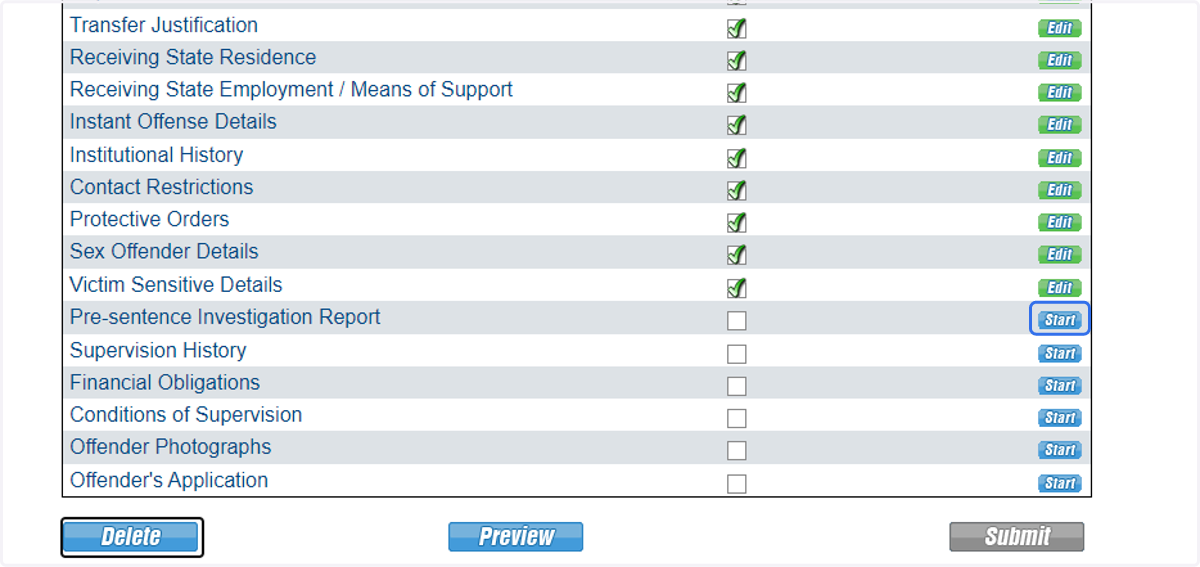
97. If a PSI exists and is available for distribution, select 'Yes' and attach it here.
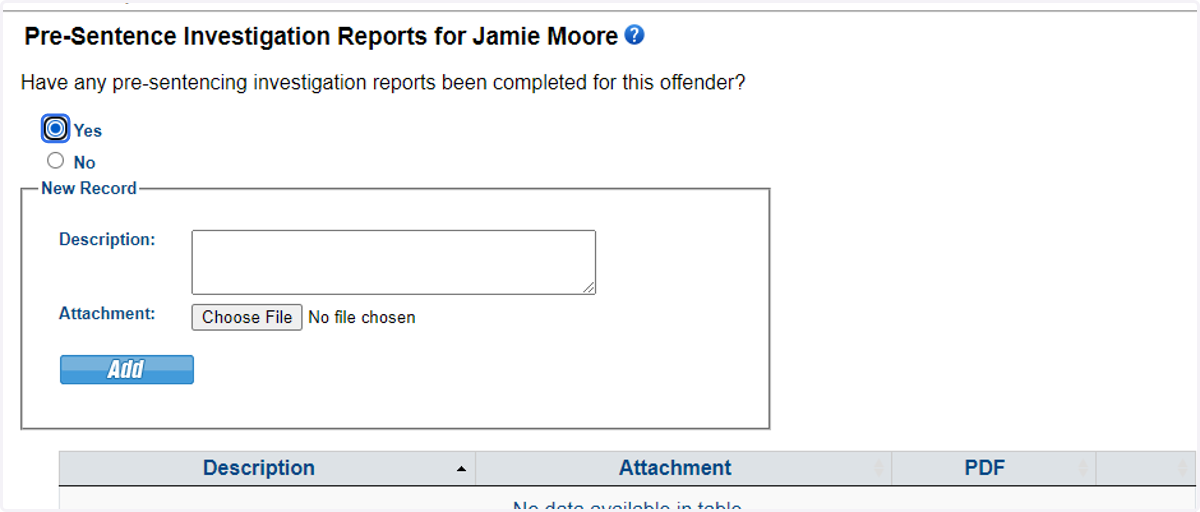
98. If a PSI exists and is available for distribution, select 'Yes' and attach it here.
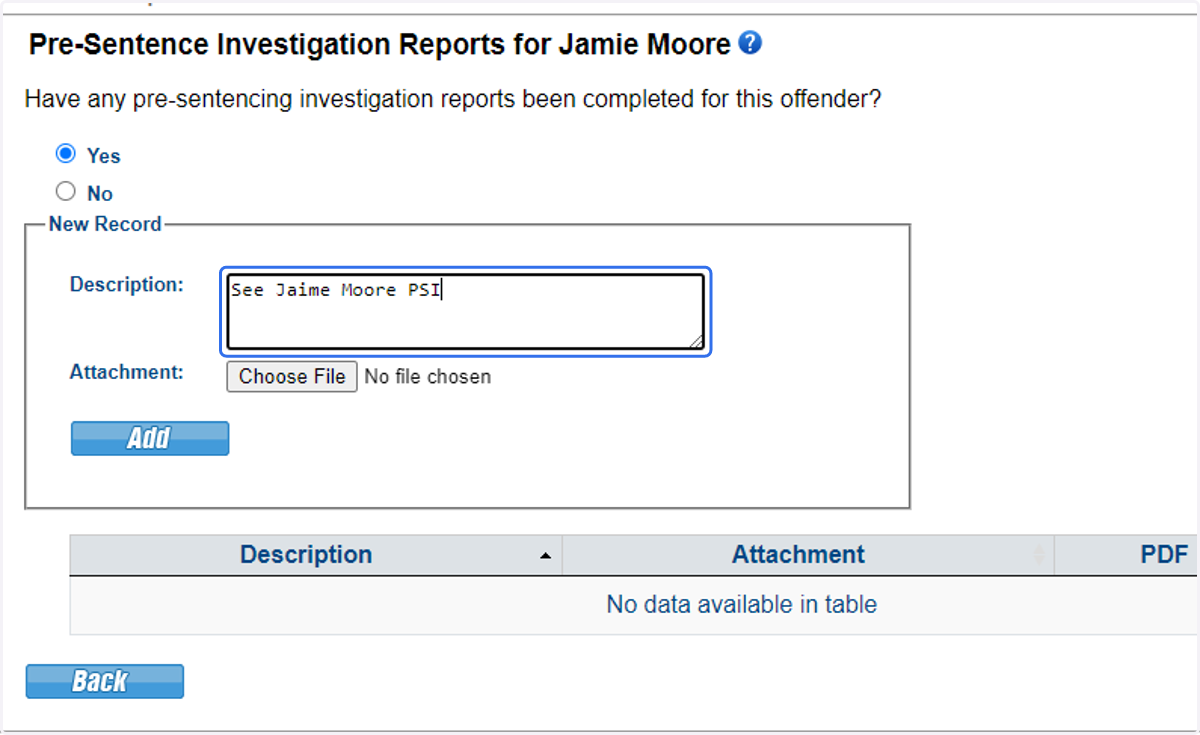
99. If a PSI exists and available for distribution, select 'Yes' and attach it here.
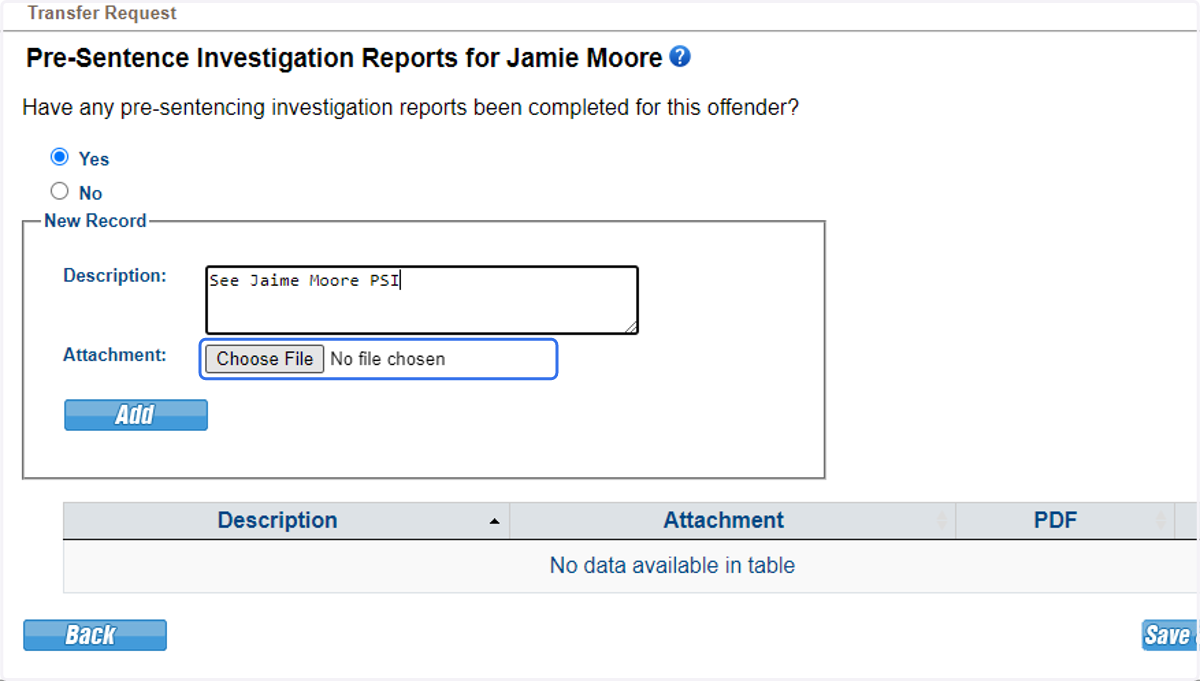
100. Be sure to click 'Add' to upload the documentation.
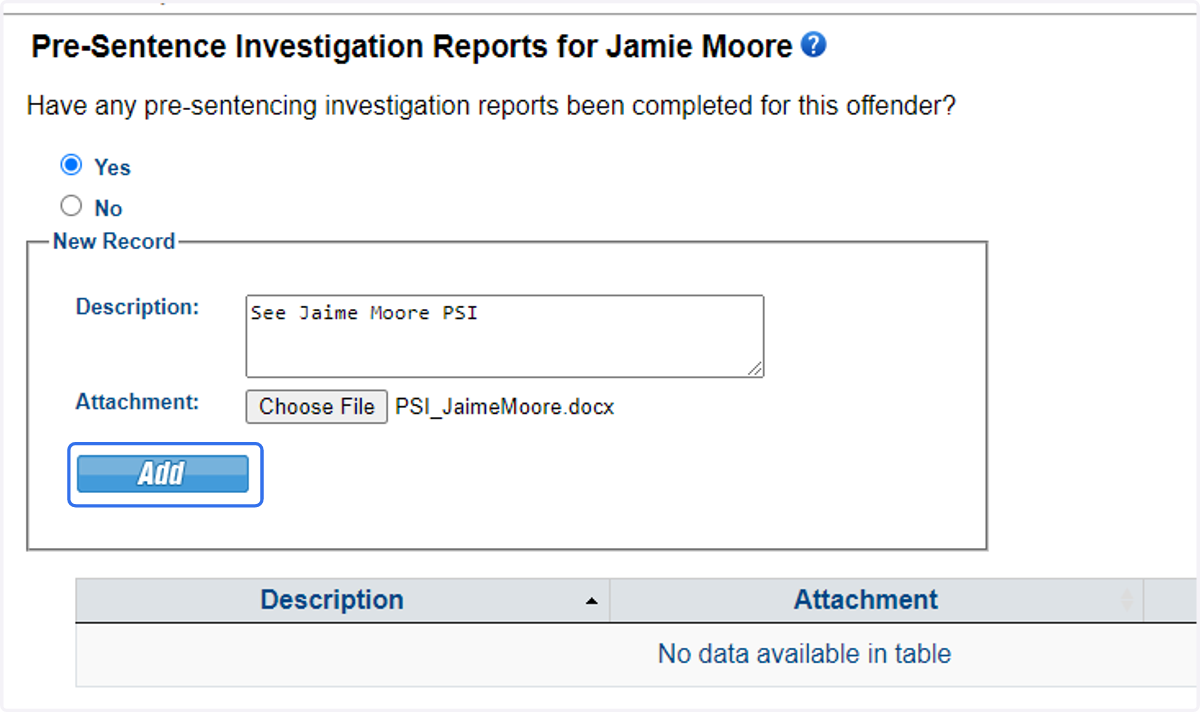
101. Click Save & Continue.
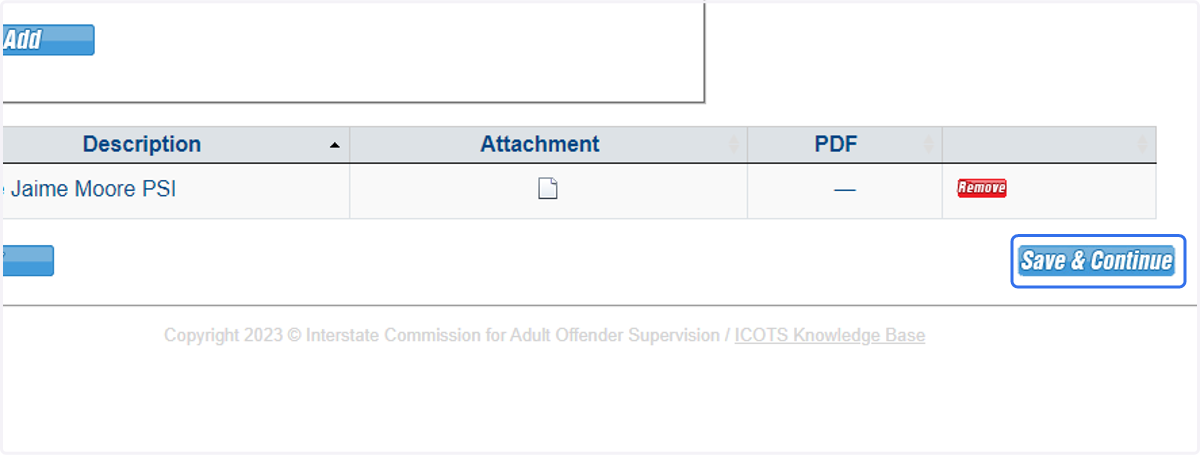
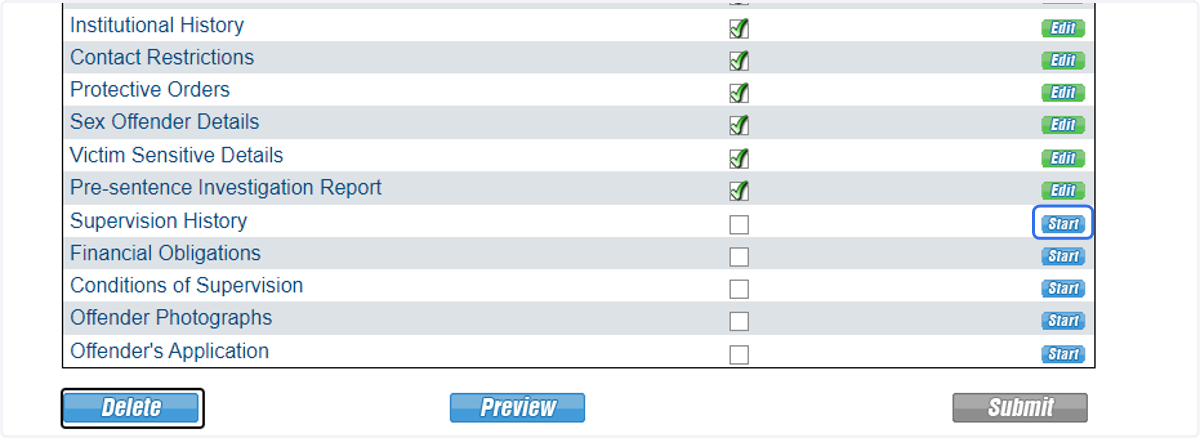
102. Proceed to Supervision History.
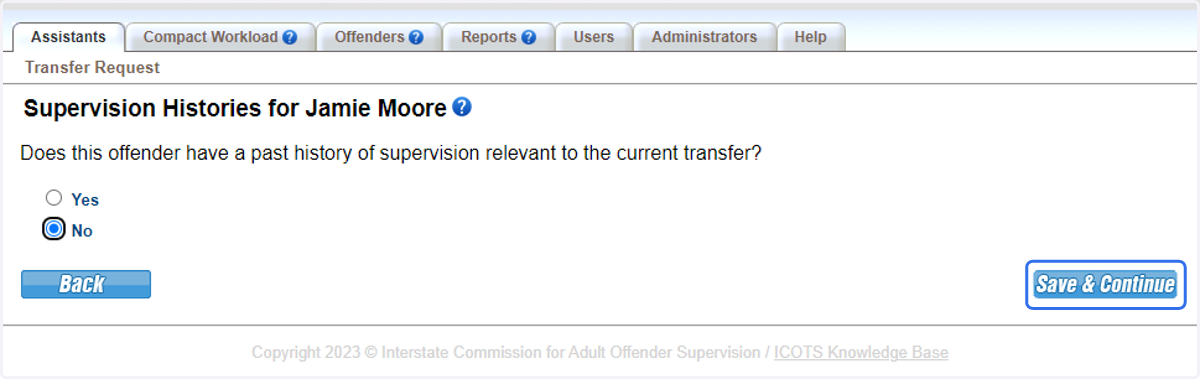
103. If an individual has been on supervision at least 30 days prior, a supervision history is required. In this scenario, the individual is transferring upon release from incarceration. Therefore, they have not been on supervision in the sending state.
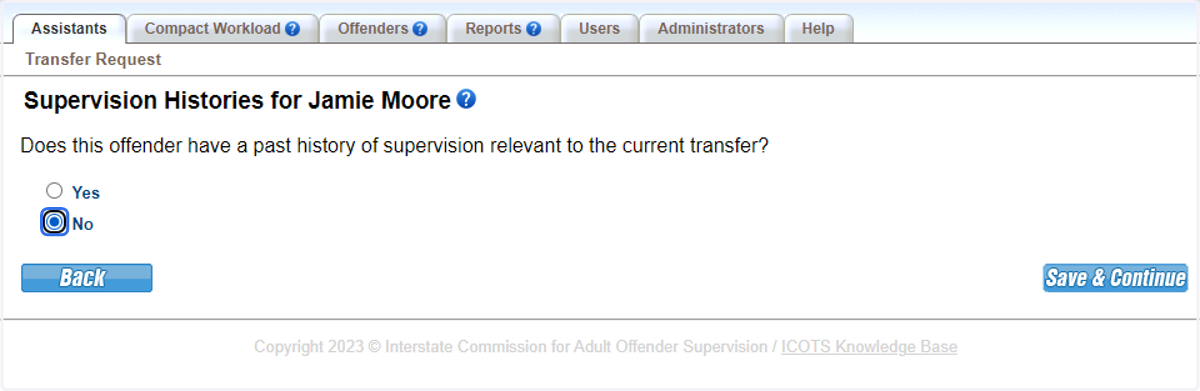
104. Click Save & Continue.
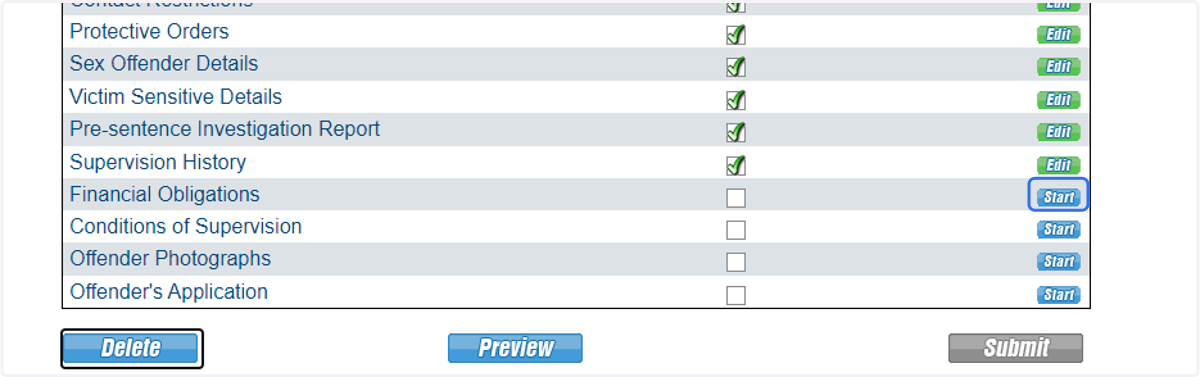
105. Proceed to Financial Obligations.
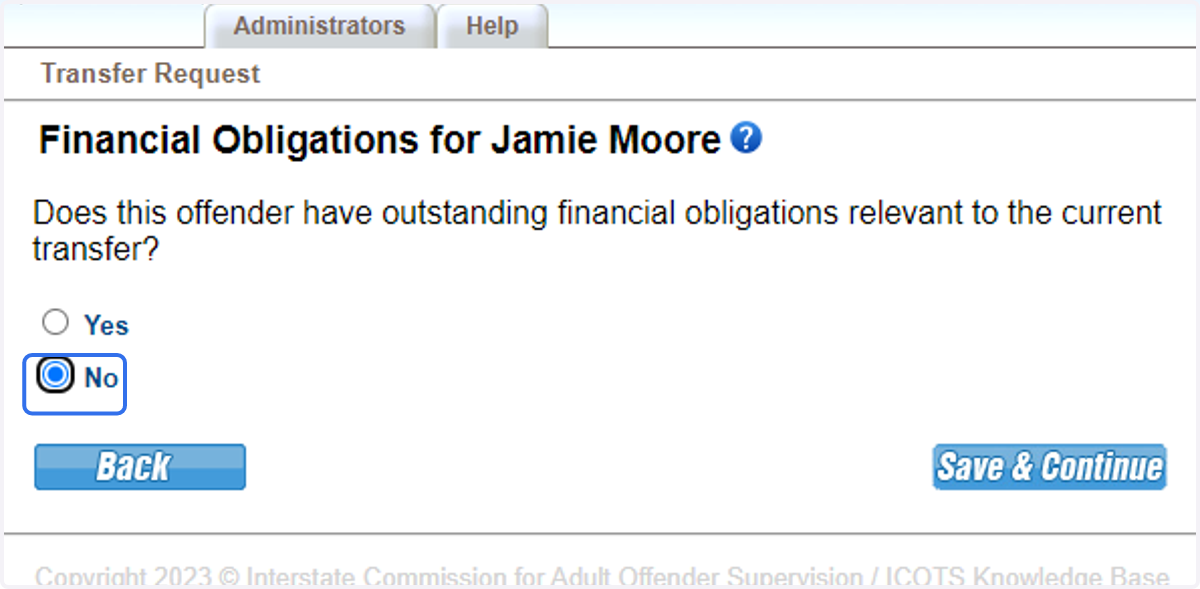
106. If financial obligations exist, provide documentation. For this scenario financial obligations do not exist.
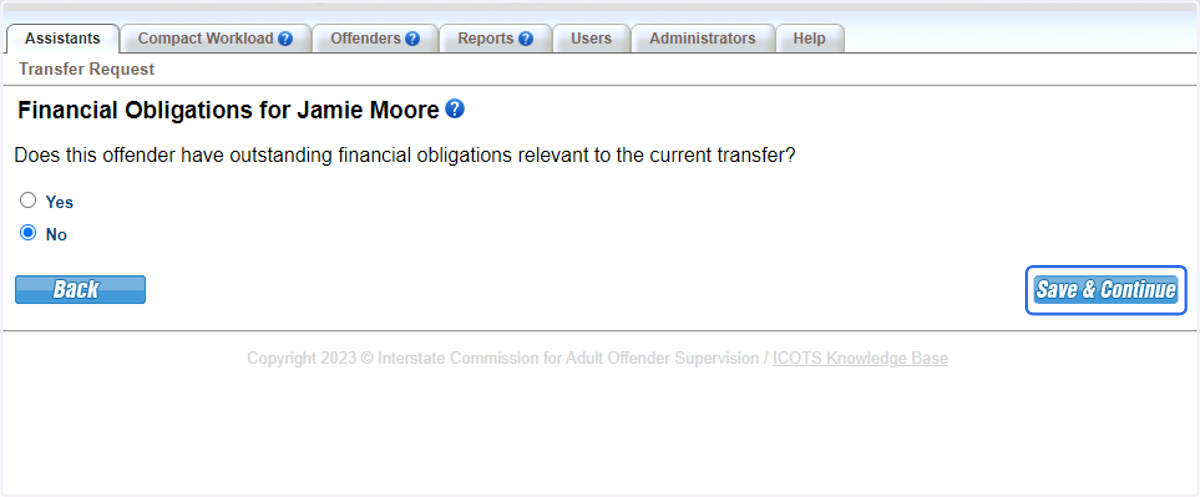
107. Click Save & Continue.
108. Proceed to Conditions of Supervision.
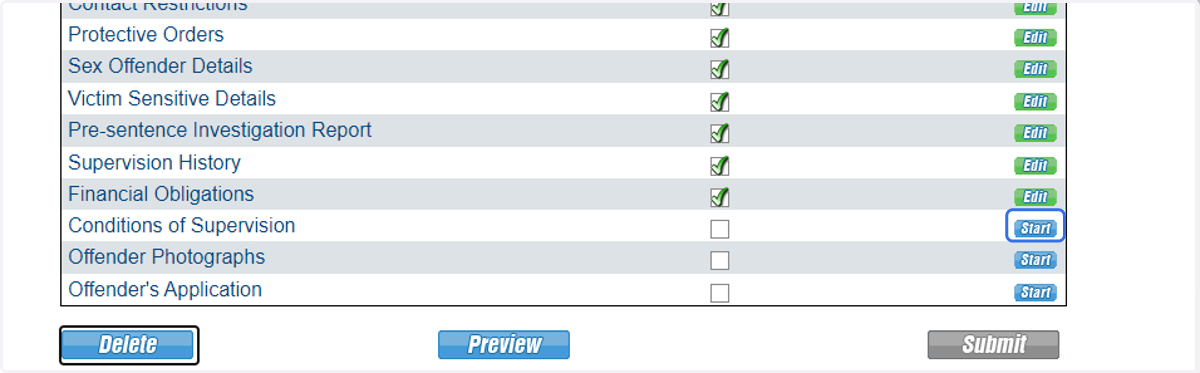
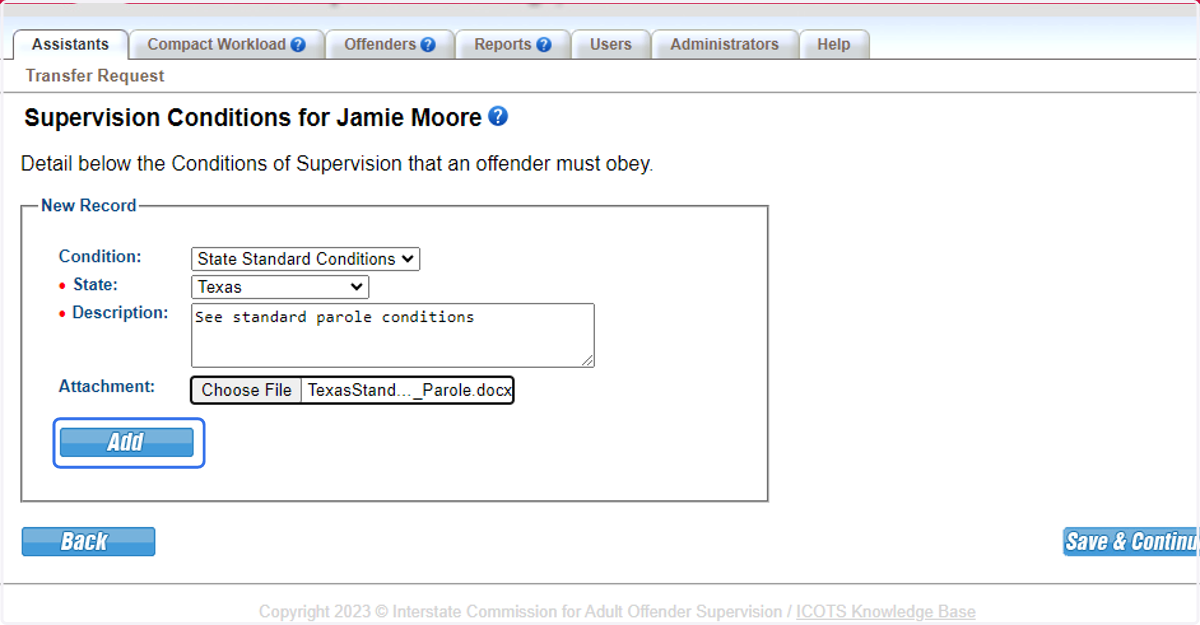
109. For this scenario, the transferring individual is subject to standard conditions, special conditions and employment readiness. Although not a required attachment, Judgement is commonly uploaded here.
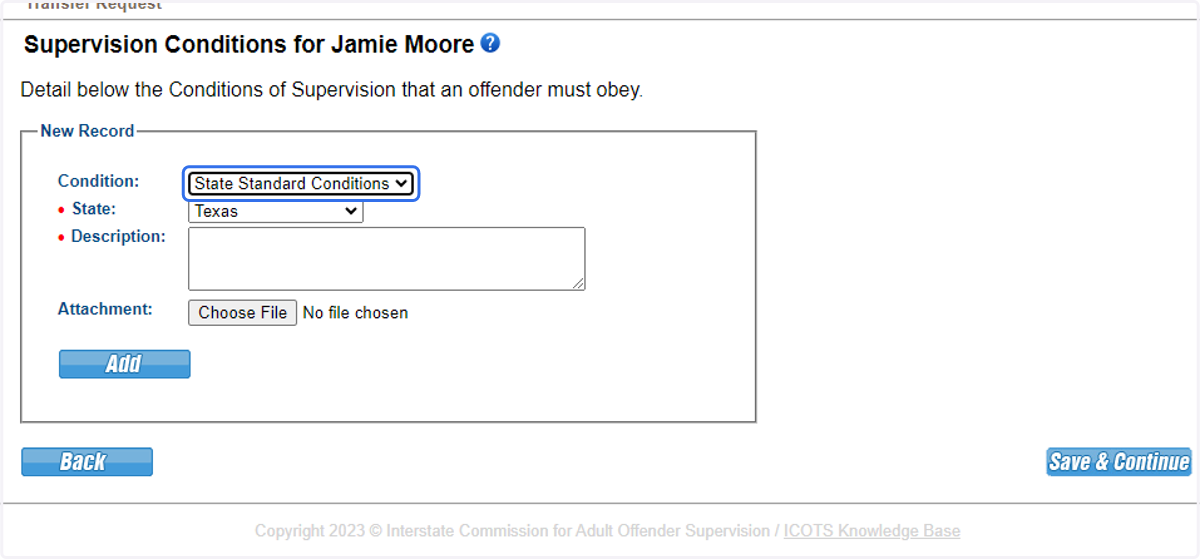
110. For this scenario, the transferring individual is subject to standard conditions, special conditions and employment readiness. Although not a required attachment, Judgement is commonly uploaded here.
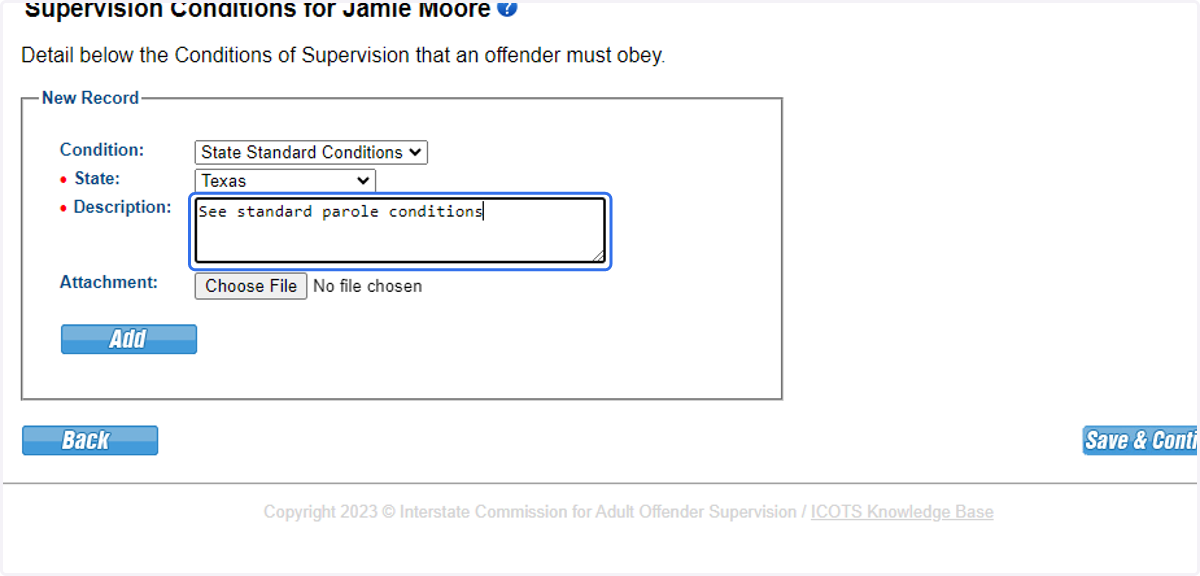
111. For this scenario, the transferring individual is subject to standard conditions, special conditions and employment readiness. Although not a required attachment, Judgement is commonly uploaded here.
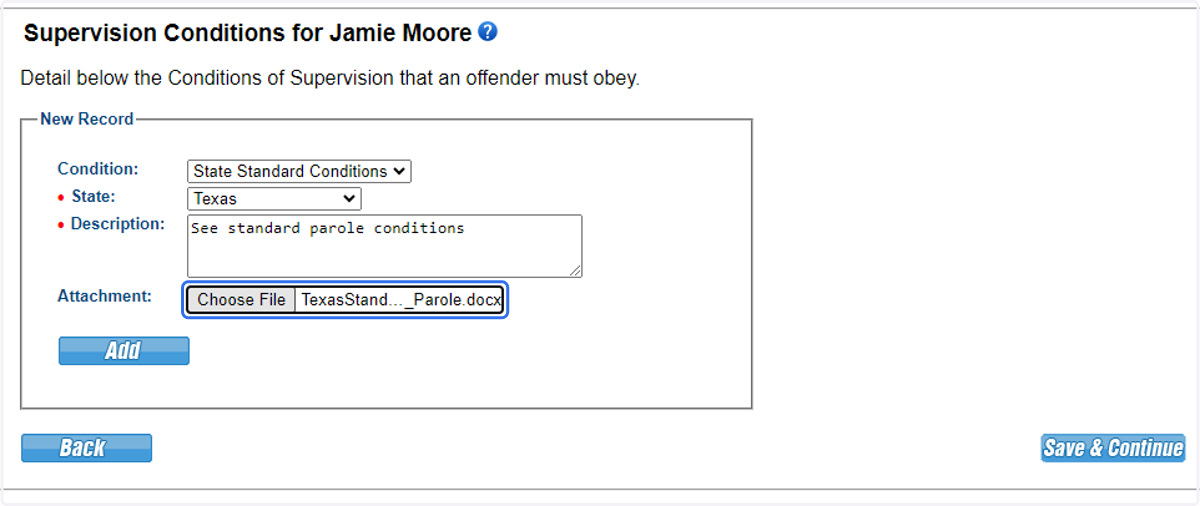
112. Be sure to click 'Add' to save the documentation.
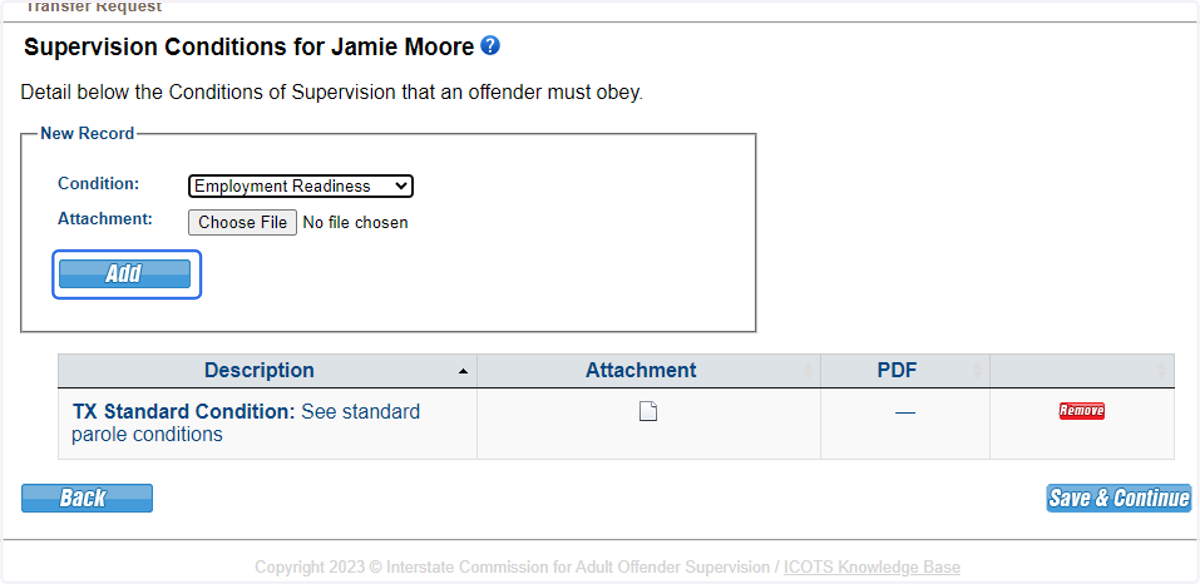
113. Select 'Employment Readiness' from the list and click 'Add.'
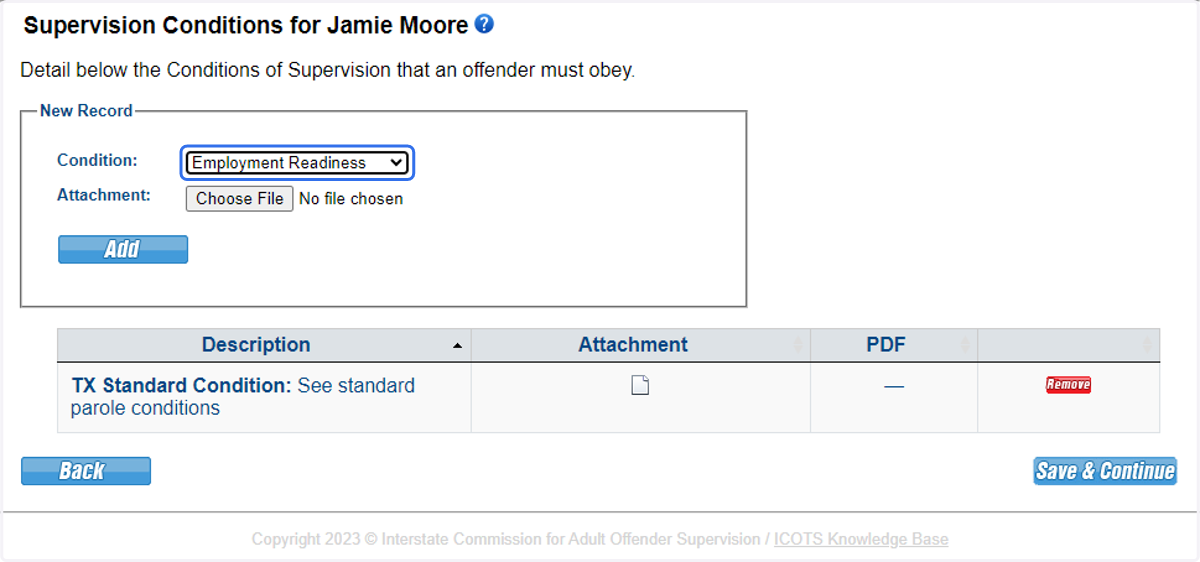
114. Select 'Employment Readiness' from the list and click 'Add.'
115. Select 'Other' to add Special Conditions.
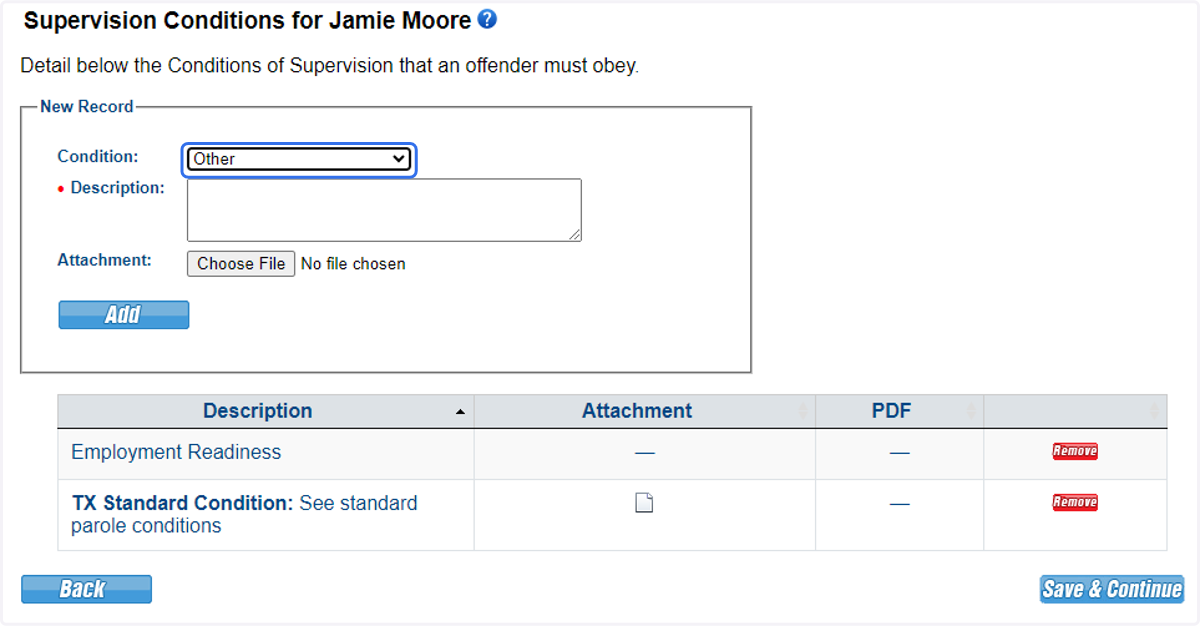
116. Describe the Special Condition document.
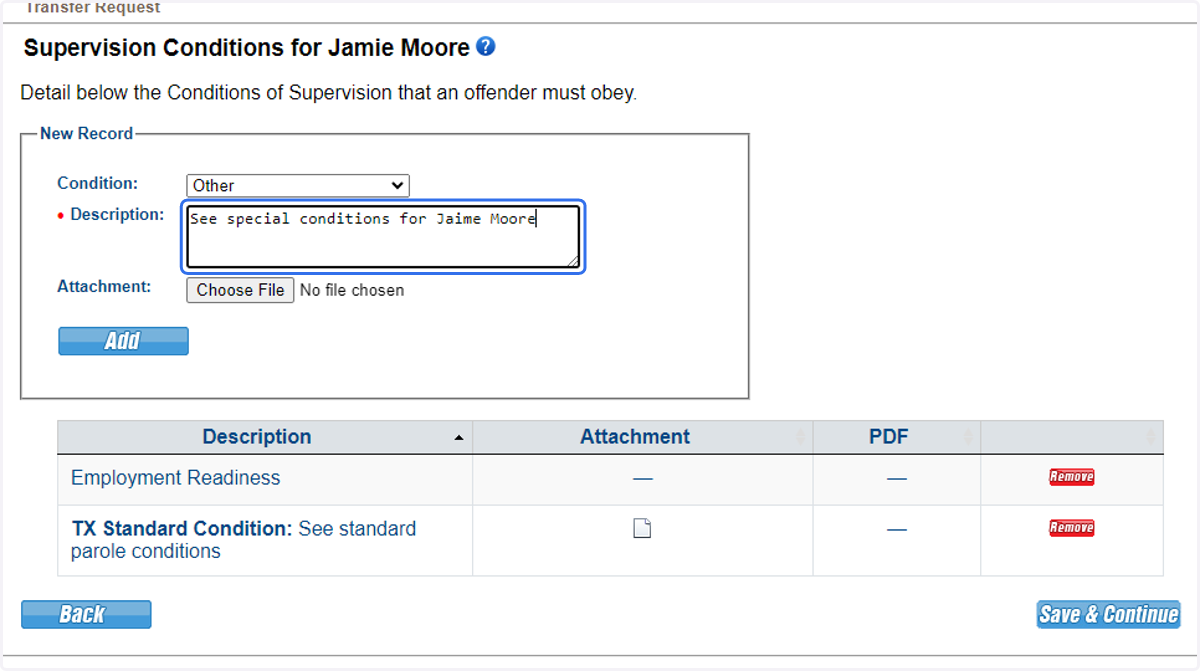
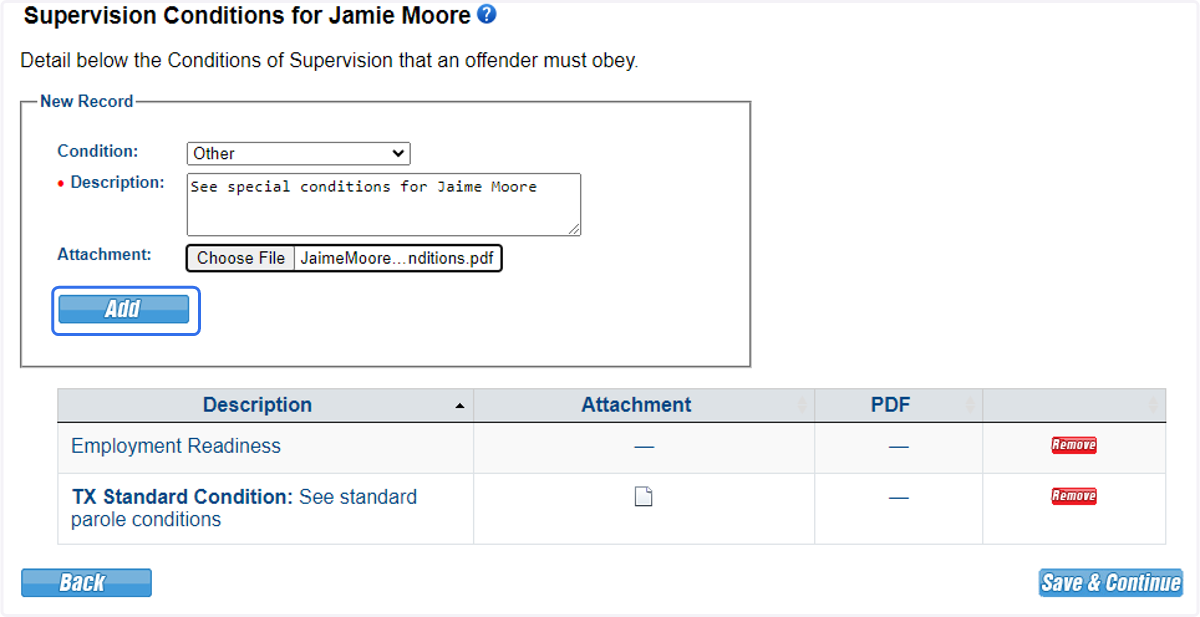
117. Attach the documentation and click 'Add.'
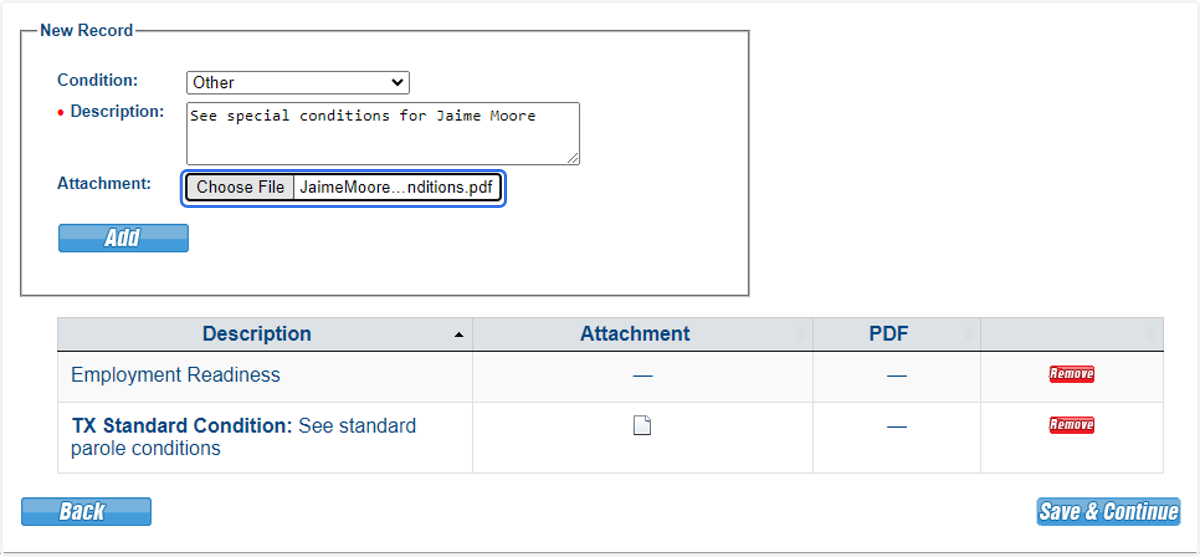
118. Attach the documentation and click 'Add.'
119. Click Save & Continue.
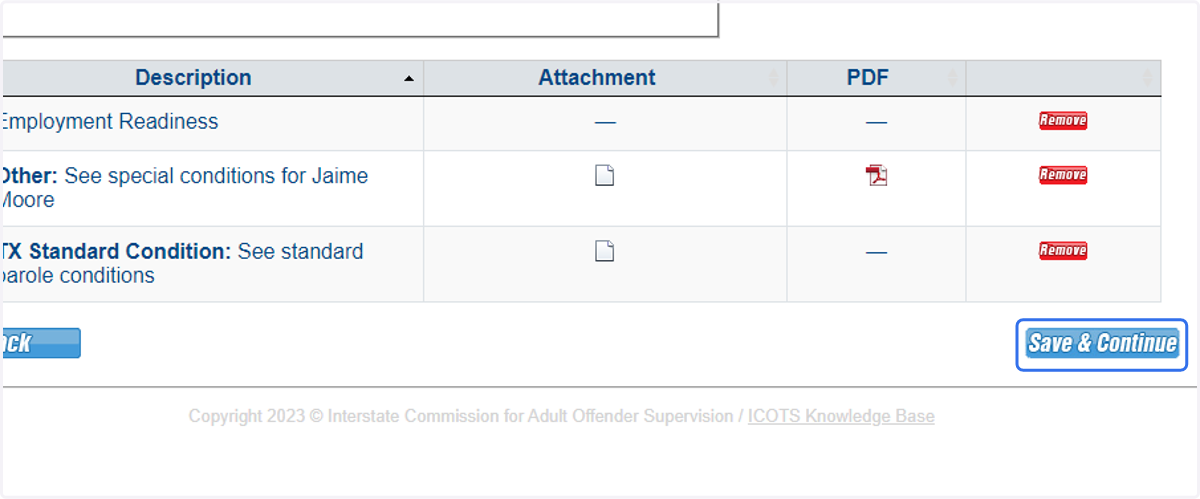
120. Proceed to Photographs.
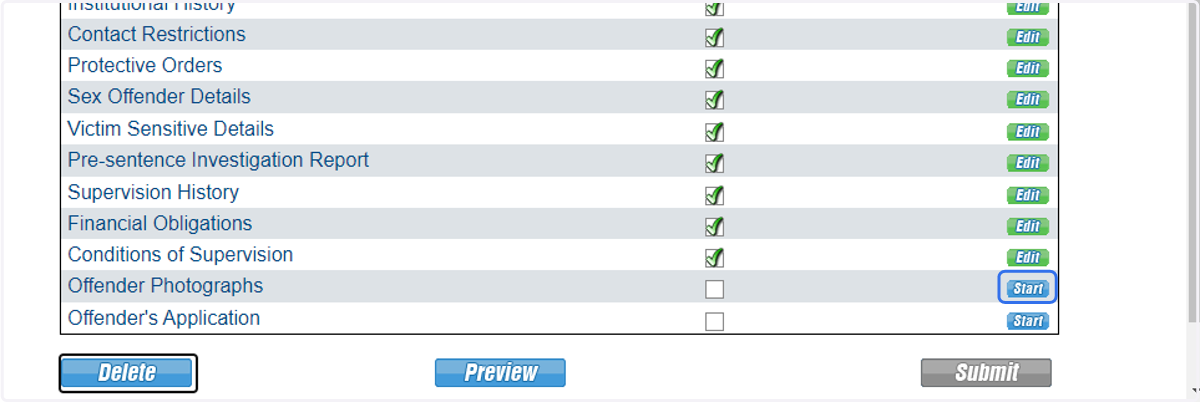
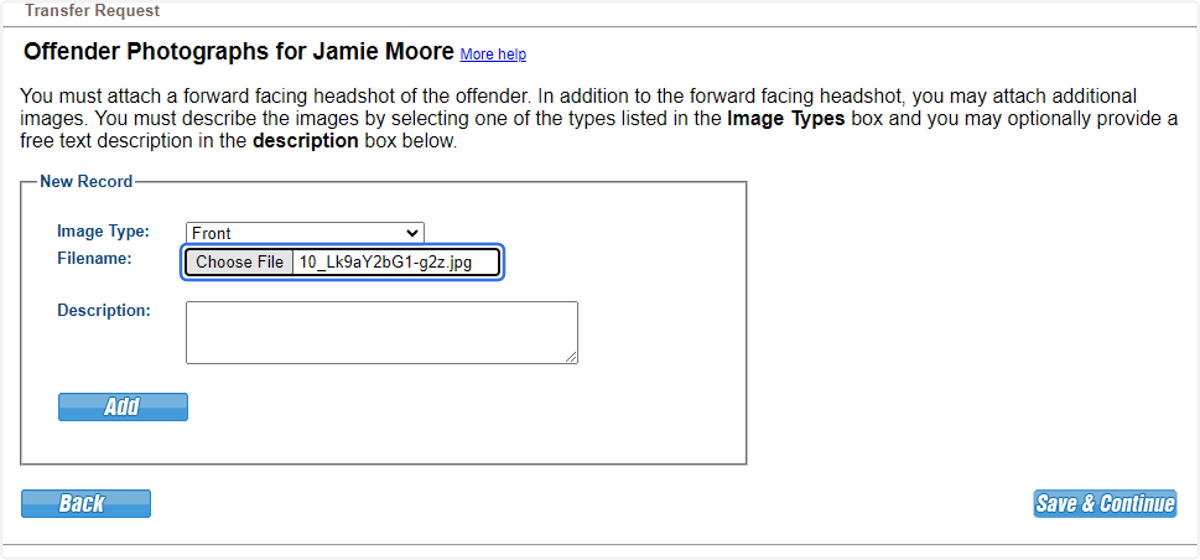
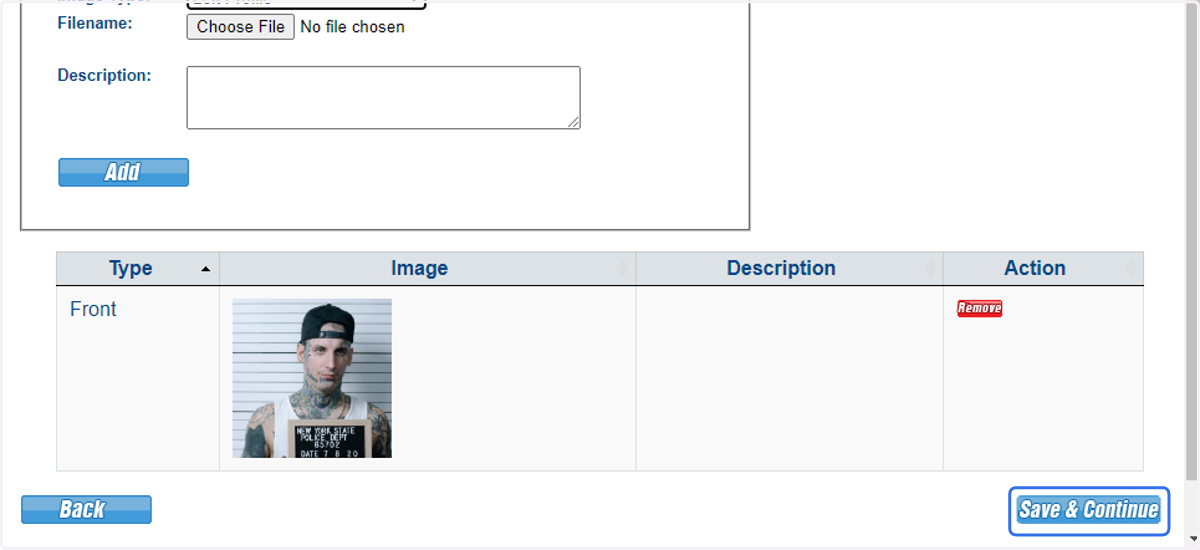
121. Upload at least one primary photograph. Other photos can be added here or later via the profile screen.
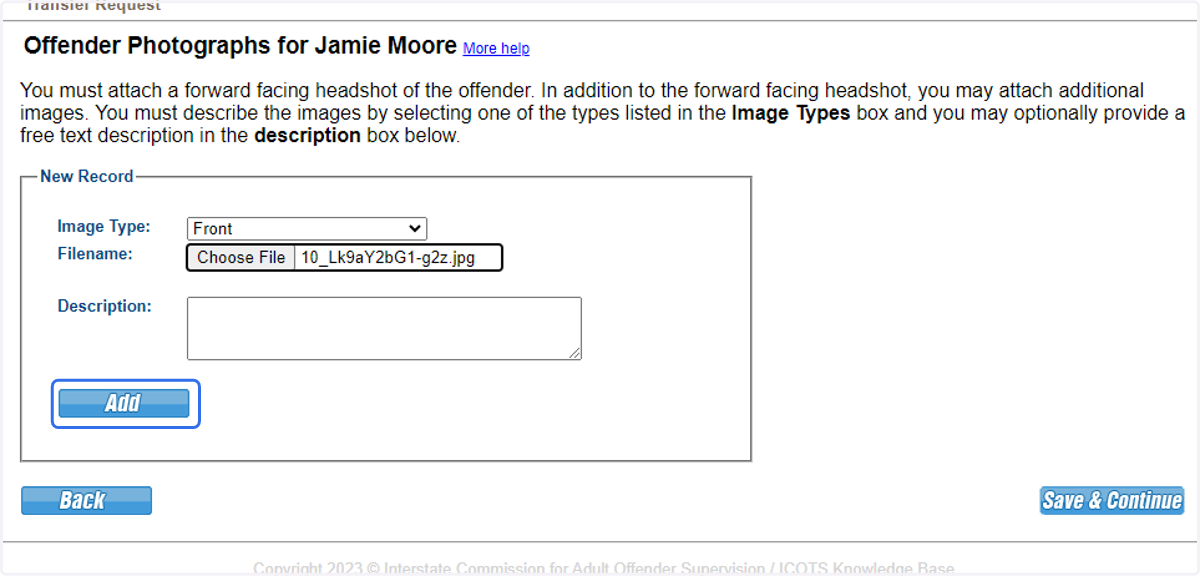
122. Be sure to click 'Add' to upload each photo.
123. Click Save & Continue.
124. Proceed to Offender Application.
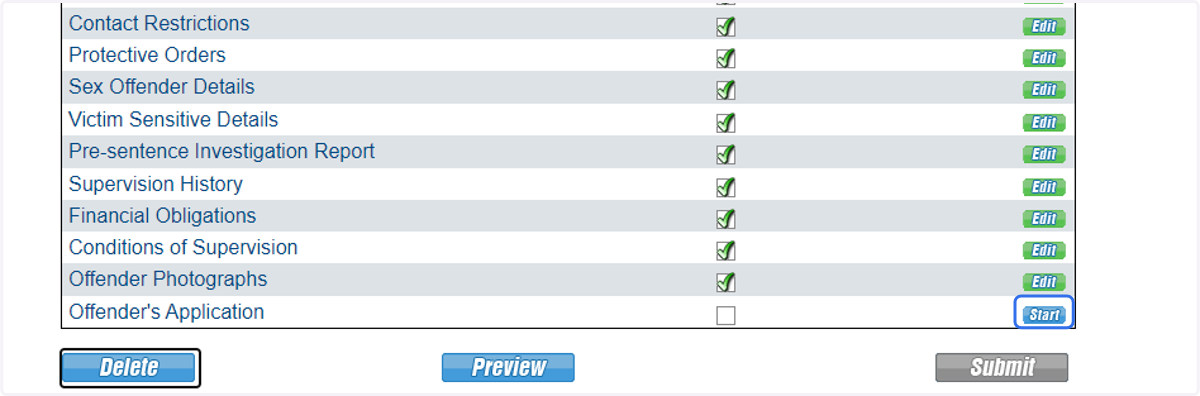
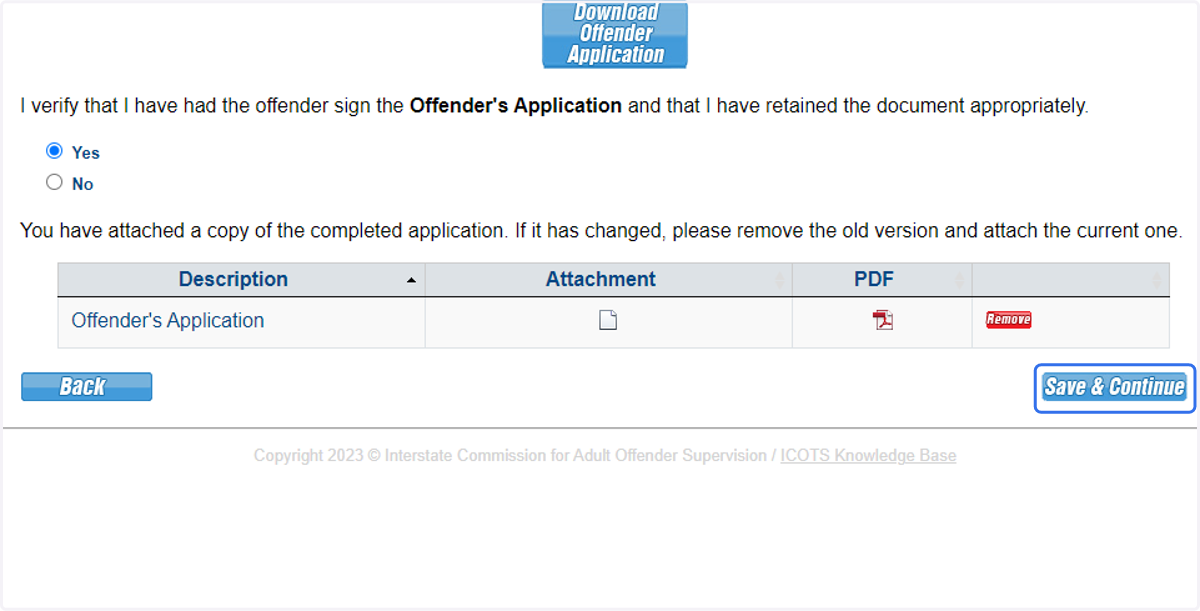
125. A pre-populated application may be downloaded here as well as uploaded once the application has been signed by the supervised individual and witnessed. The user attests that the document has been retained appropriately.
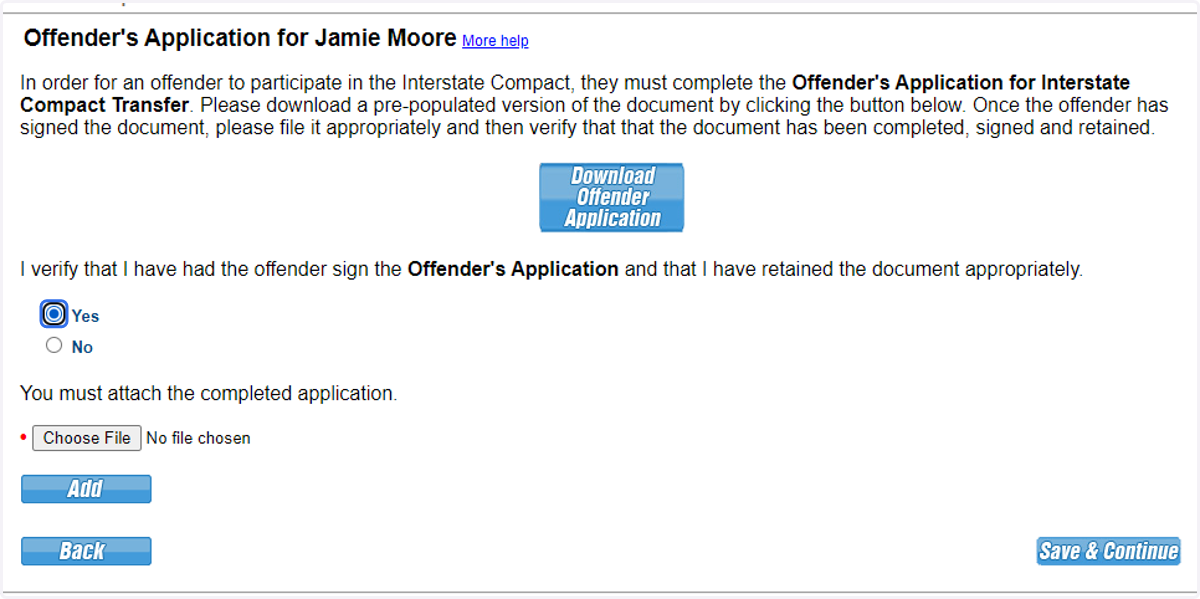
126. Attached the signed application.
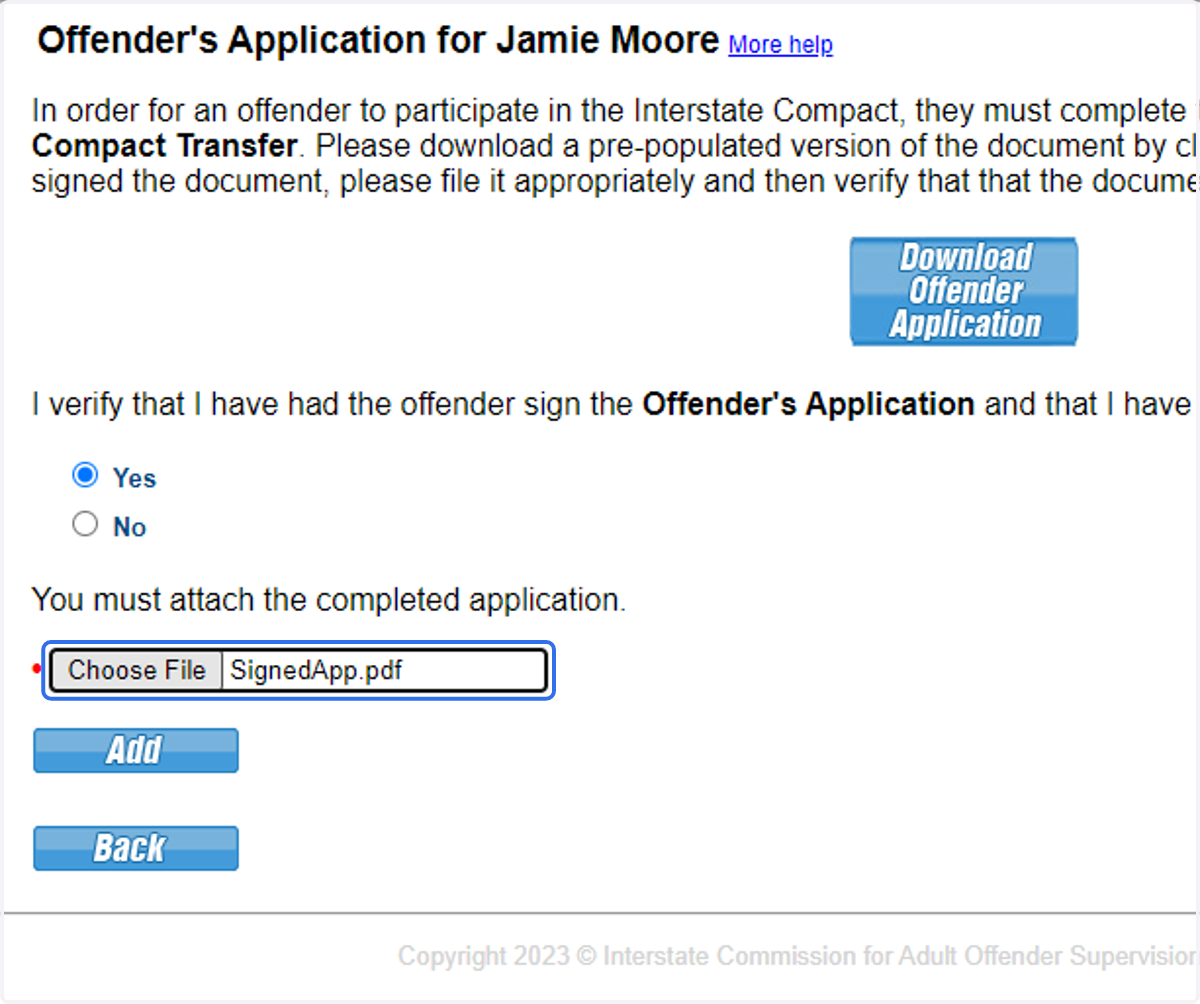
127. Be sure to click 'Add' to upload the document.
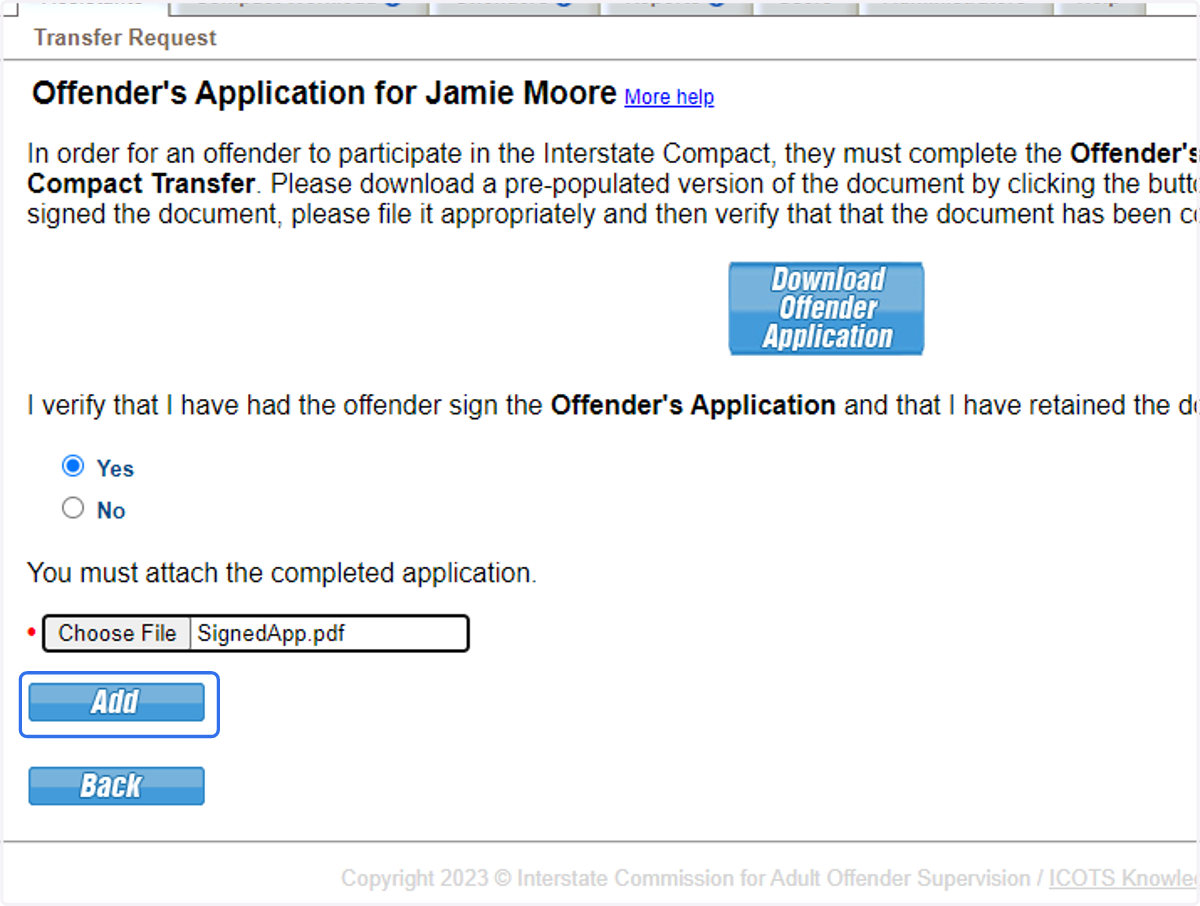
128. Click Save & Continue.
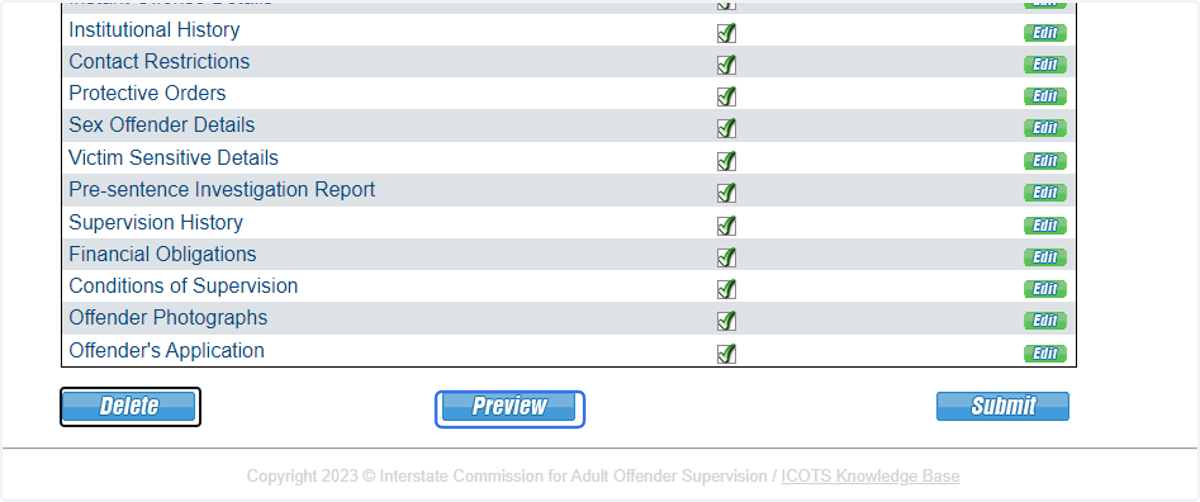
129. Once completed and ready for submission, be sure to 'Preview' the Transfer Request. This shows how the documentation will appear for review.
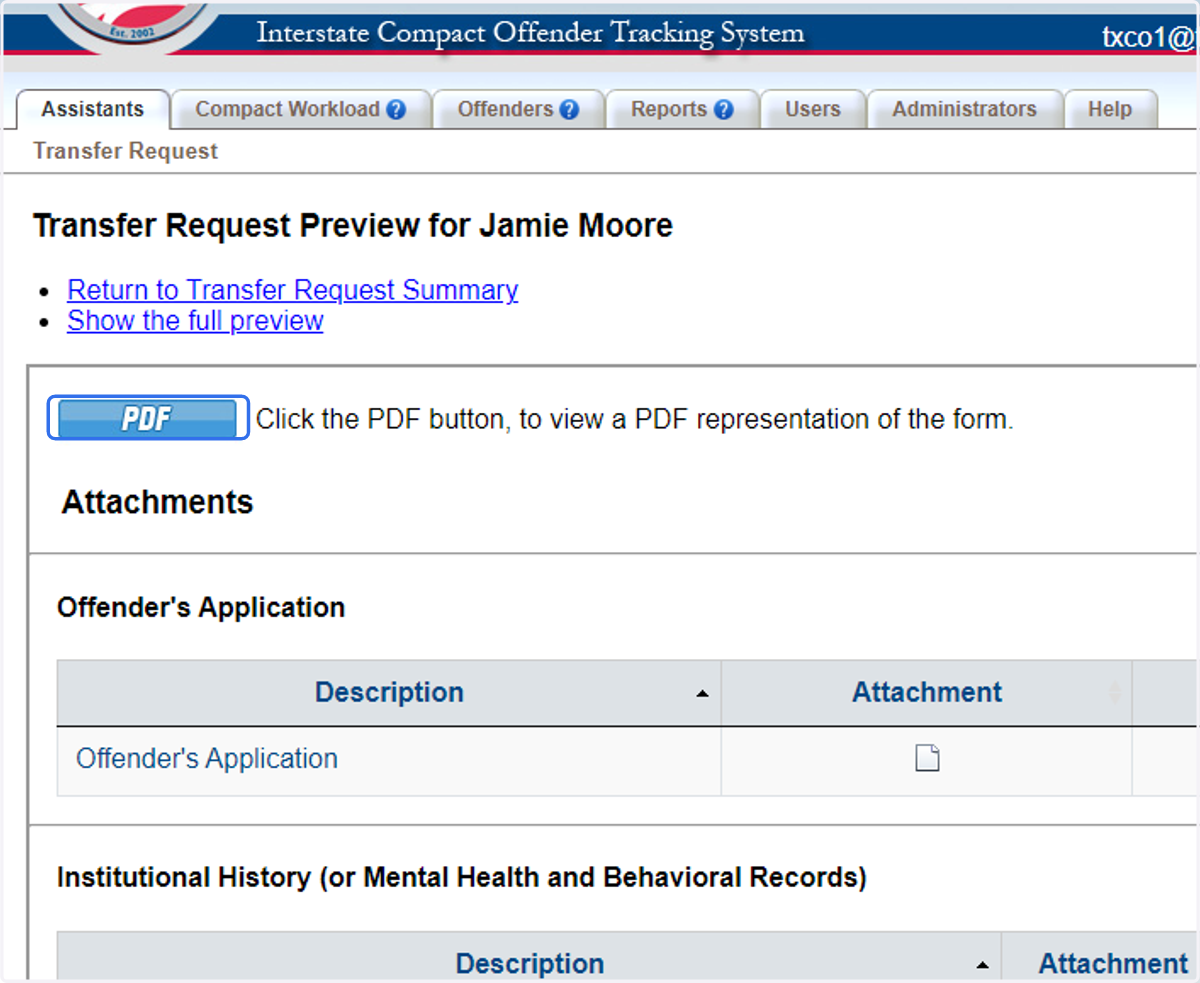
130. Click to review the generated PDF.
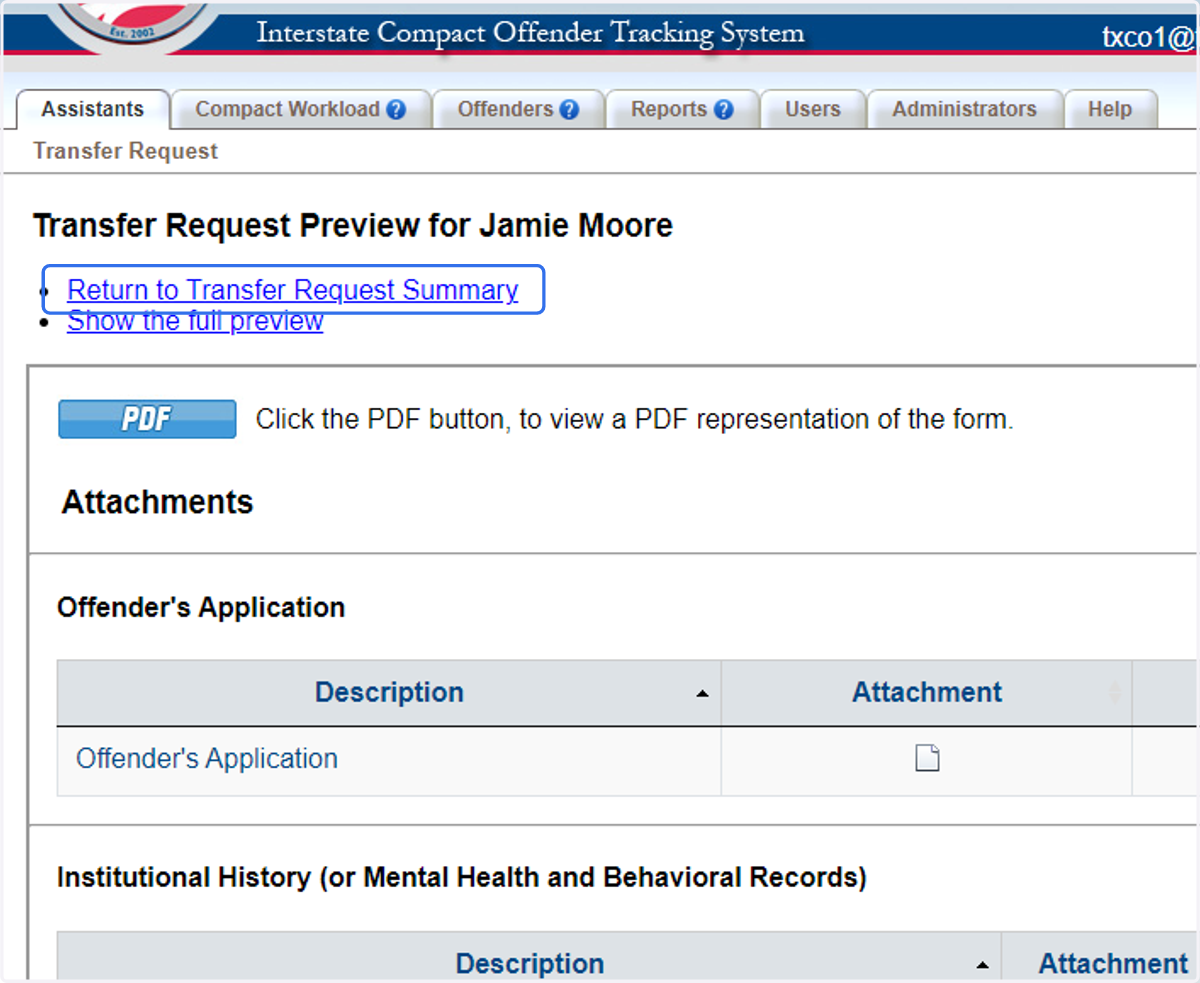
131. Return to the Transfer Request Summary to submit the transfer.
132. Once completed and ready for submission, be sure to Preview the Transfer Request. This shows how the documentation will appear for review.