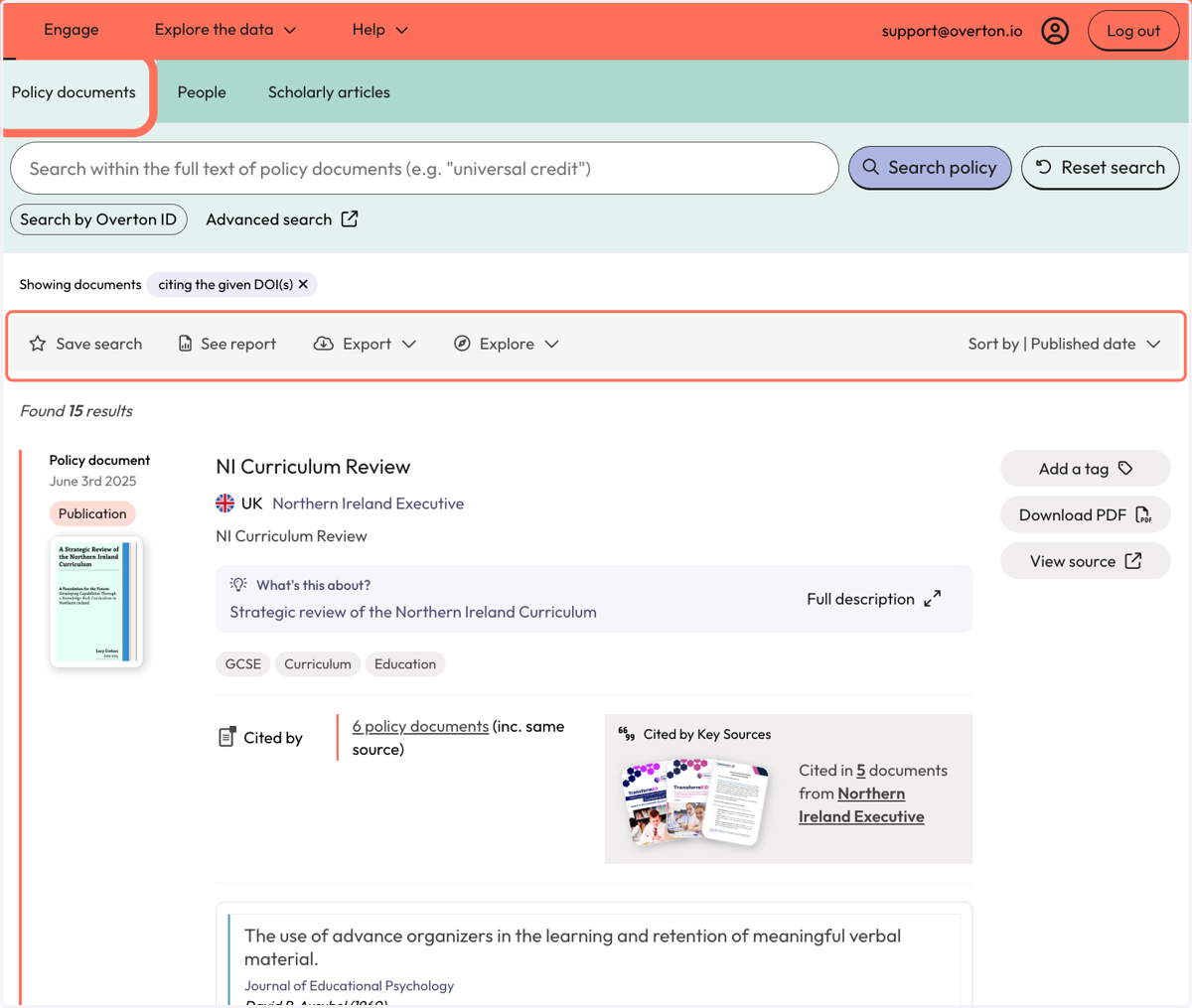
Search for a publications using keywords to find policy citations
1. Option 1: From the Start page, click on 'Scholarly articles'
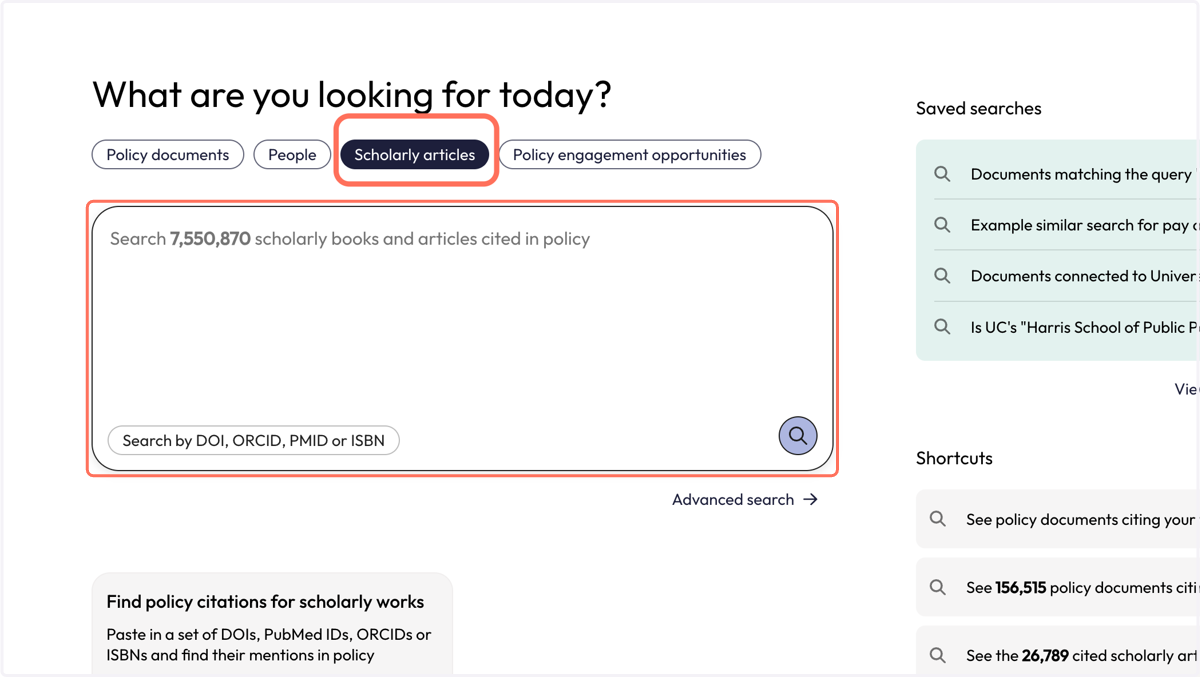
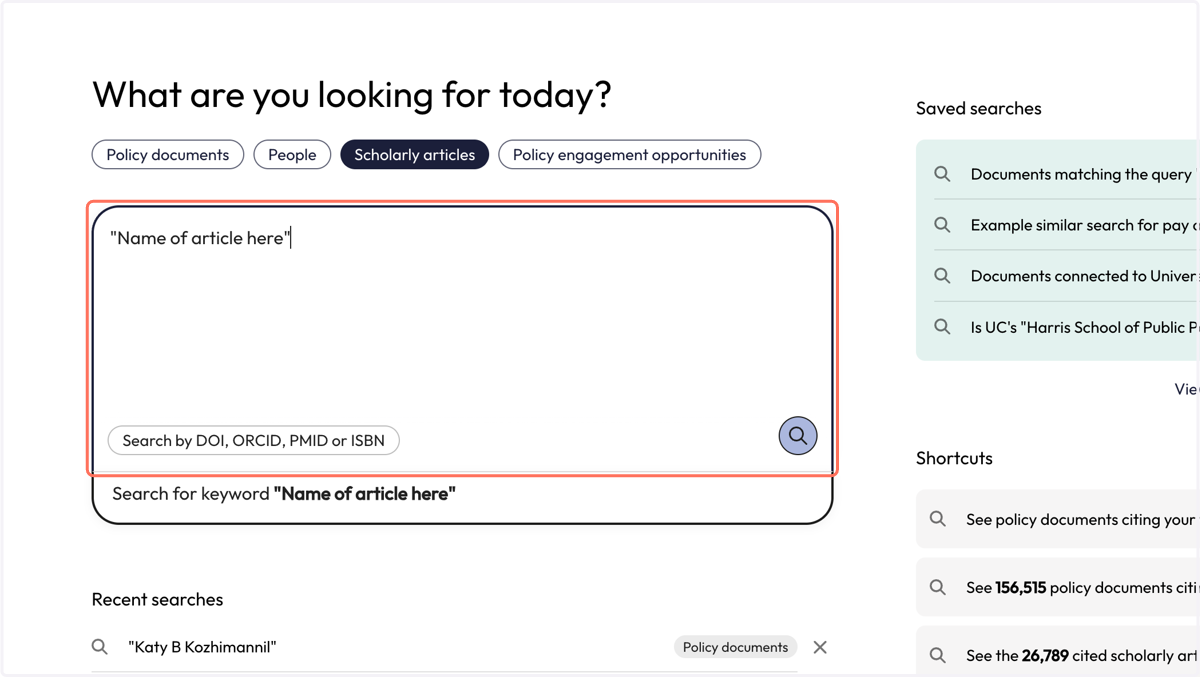
2. Enter the name of your article into the search box with quotation marks around the name (finds the exact title)
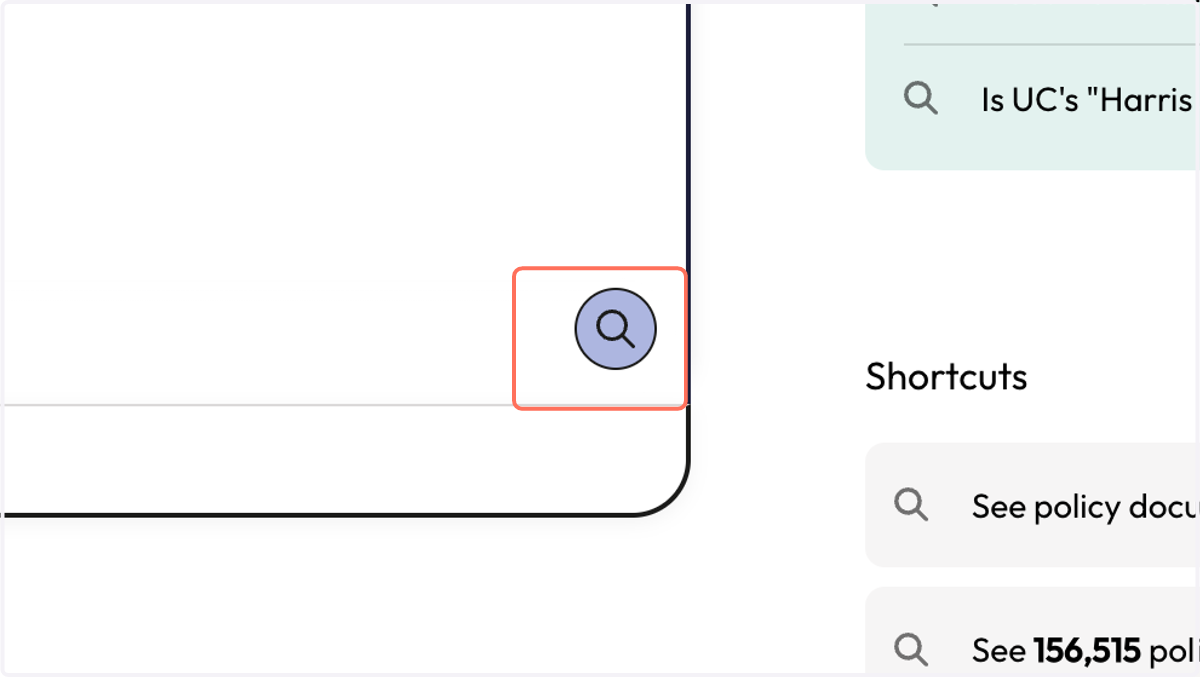
3. Search by clicking on the purple button with the magnifying glass
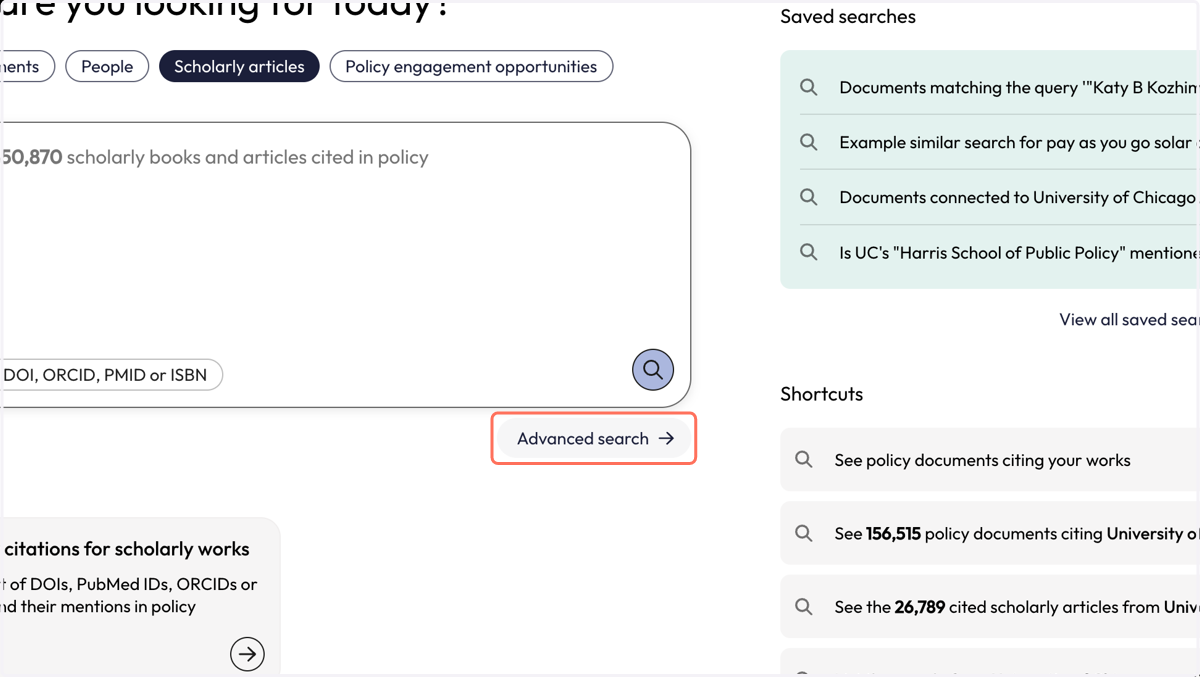
4. From the Start page, click on Advanced search'
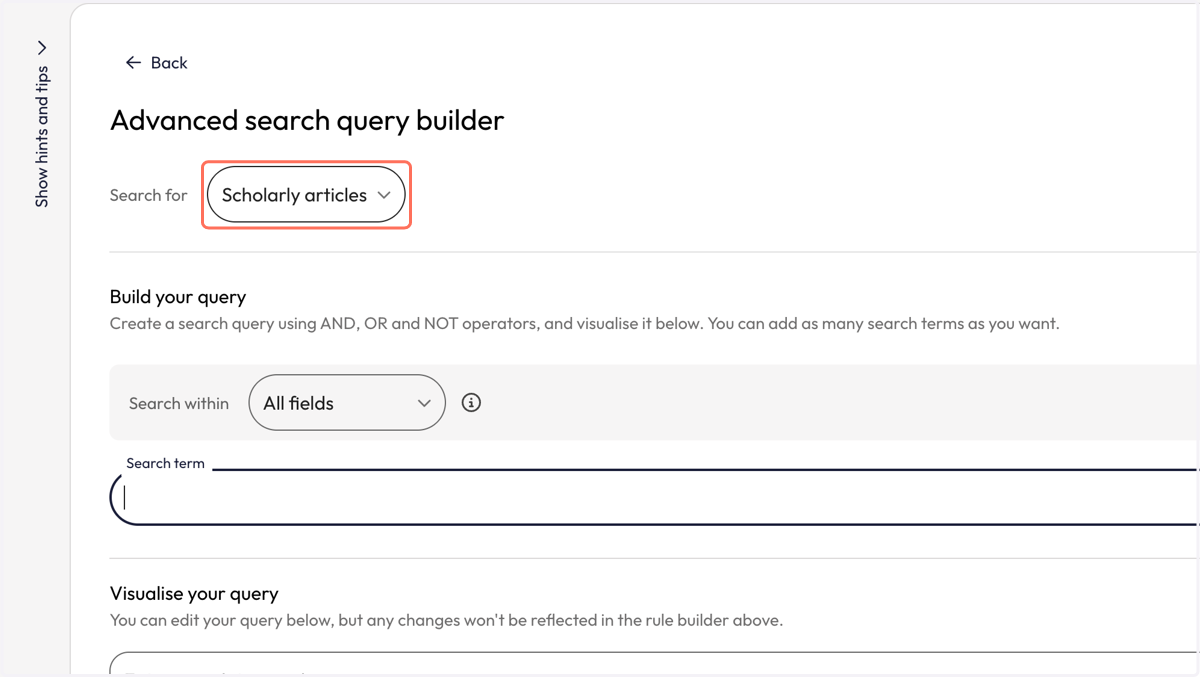
5. Select 'Scholarly articles' from the 'Search for' dropdown at the top
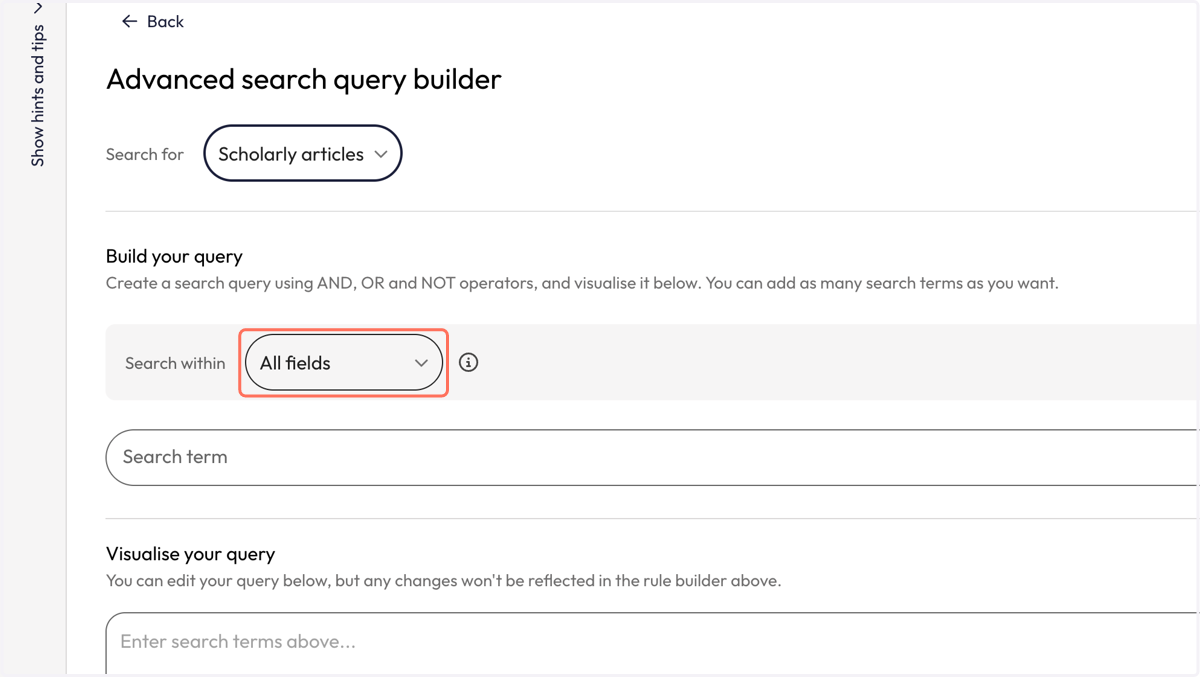
6. Select 'All fields' or 'Title' from the 'Search within' dropdown
7. Type the name of the publication into the 'Search term' box
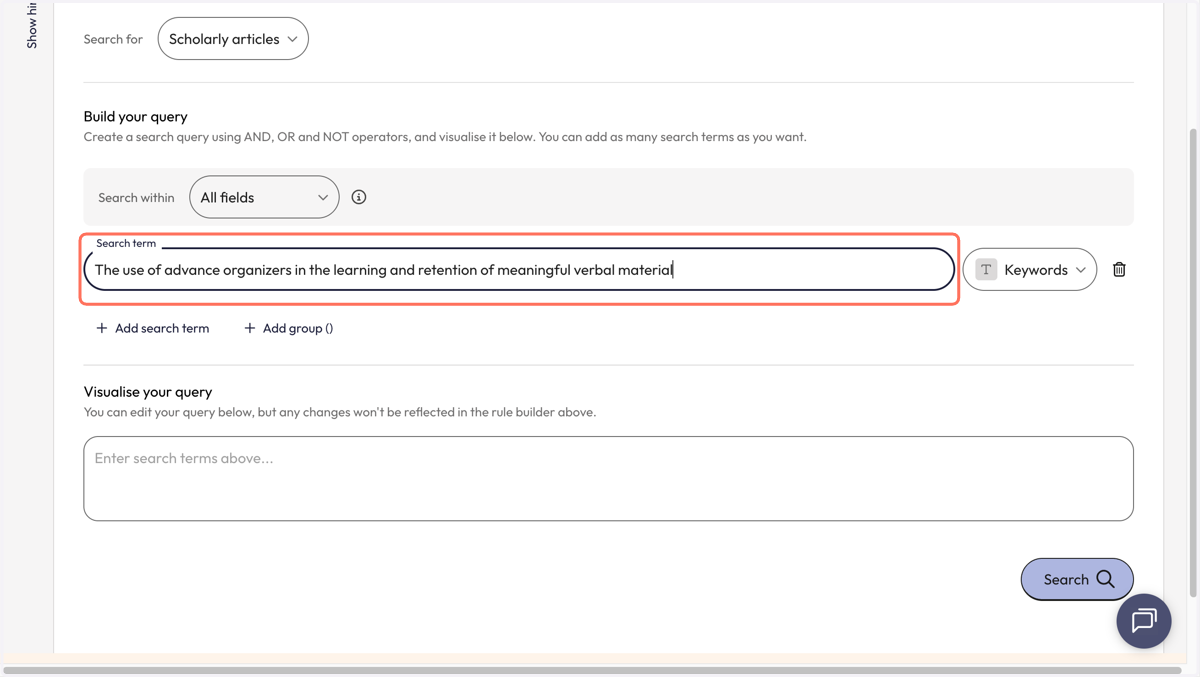
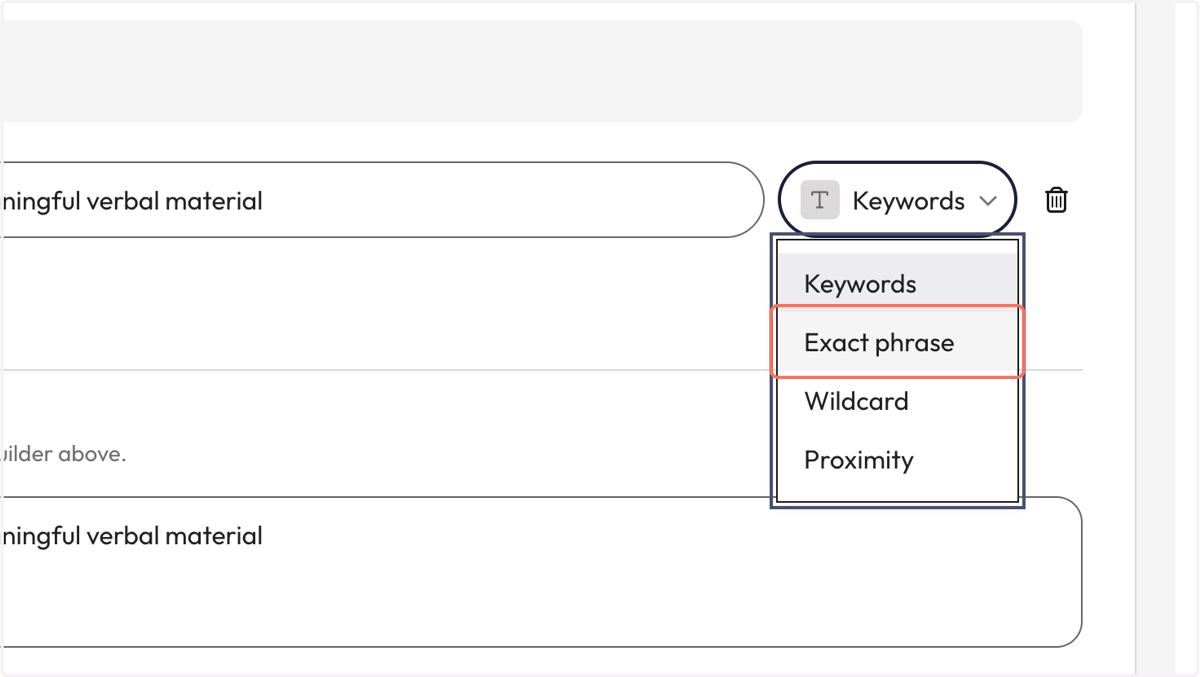
8. Click on 'Exact phrase' in the dropdown beside the search box. This search strategy is essential as it will ensure all the words in the title are searched in the exact order they are in.
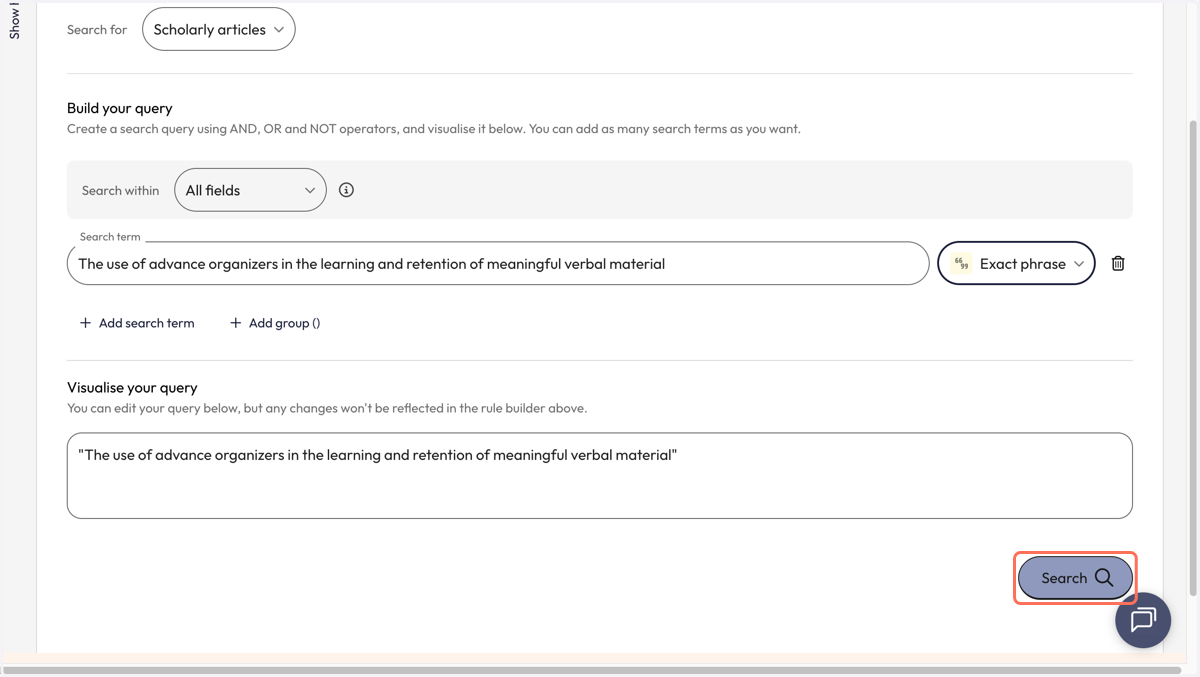
9. Click on 'Search'
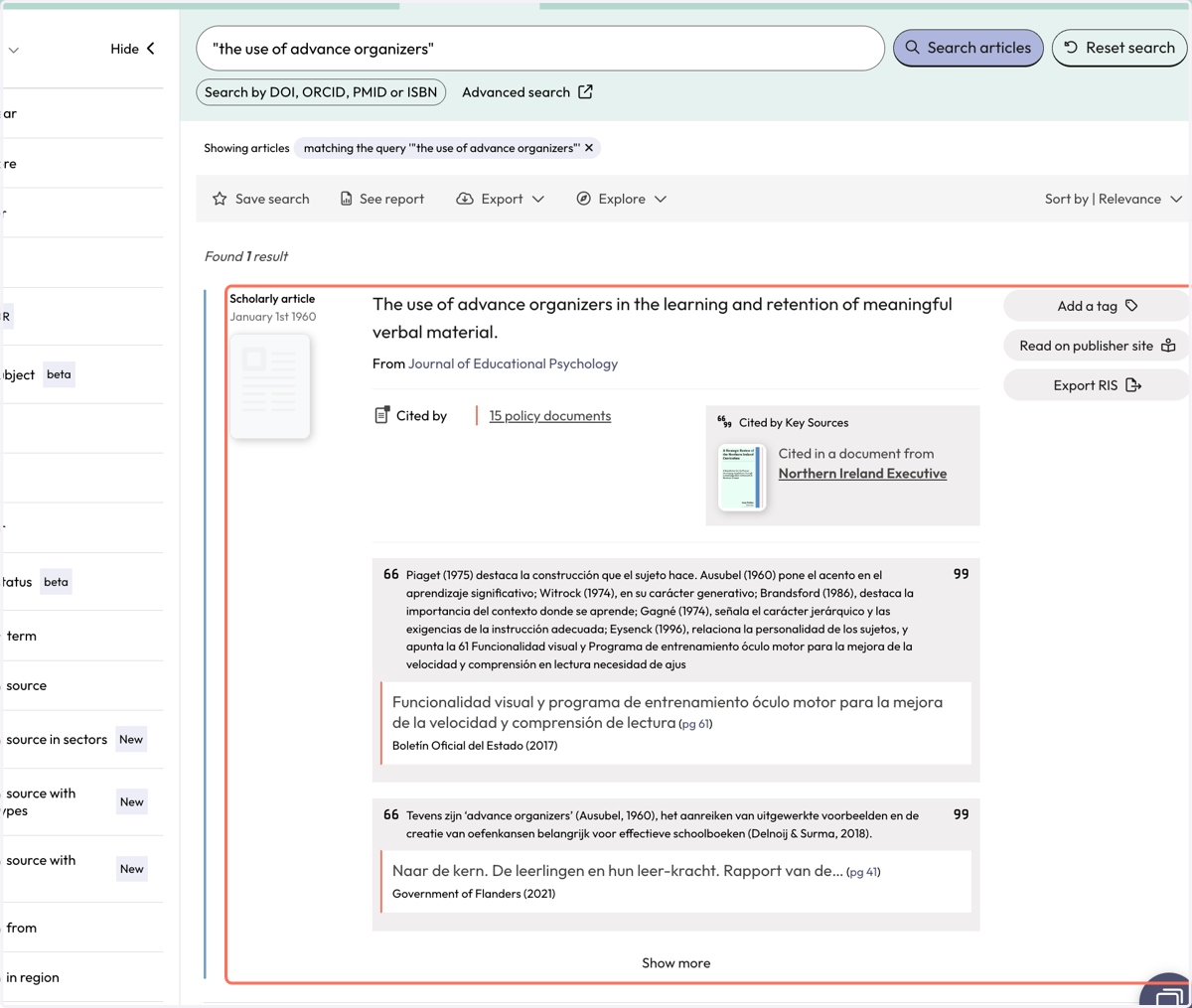
10. On the 'Scholarly Articles' page you will see a result for your publication if it has been cited in policy.
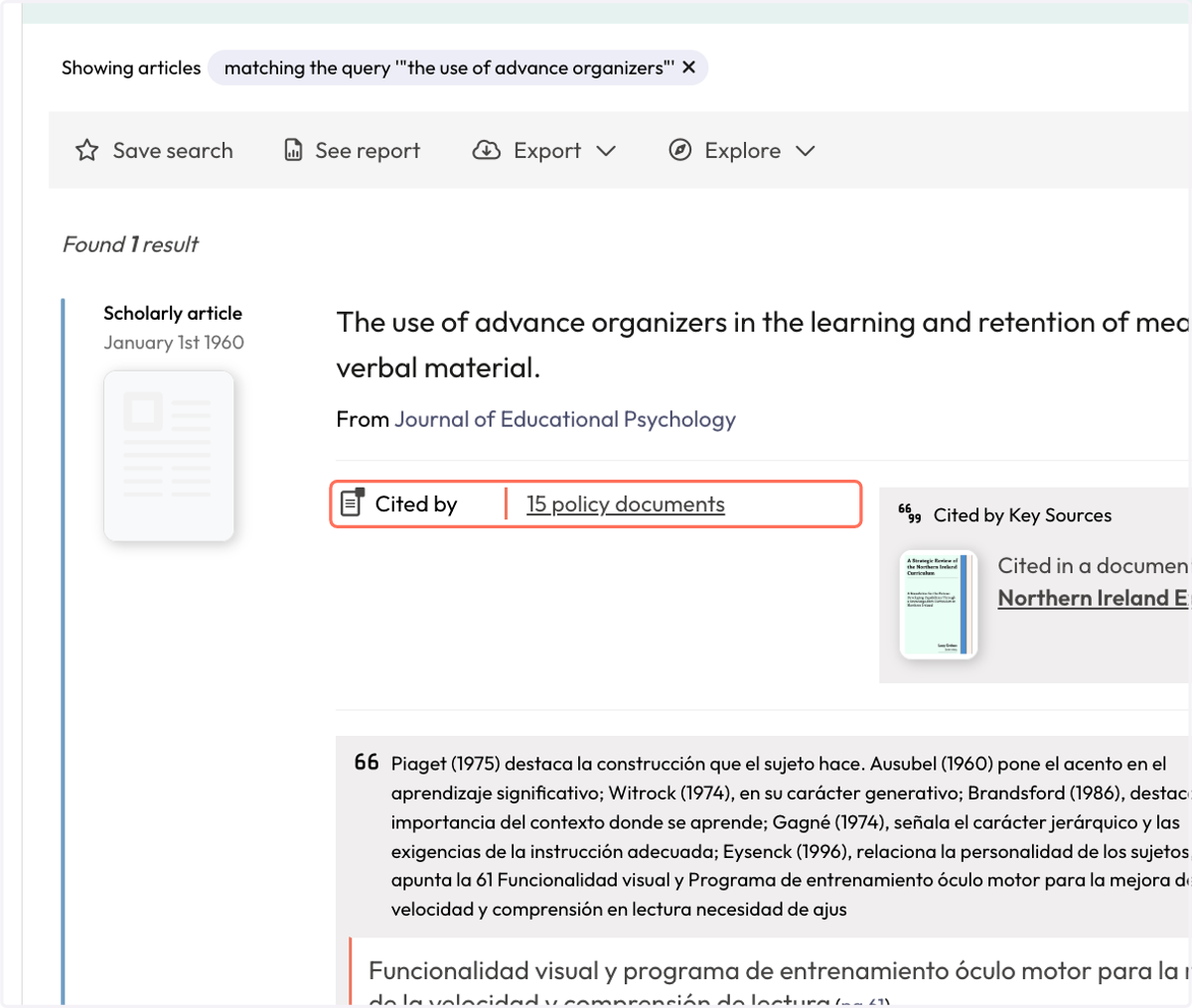
11. The 'Cited by' note under the publication information shows how many policy documents have cited the publication. In this case, 15. Click on "15 policy documents" to immediately view the citing policy documents.
12. You will be taken to the 'Search Policy Documents' search where you can view the policy documents which cited your publication. Use the grey action bar above the results to save your search, see a summary report or export your search results.