[TUTORIAL] Using the People Utility - Part 1 - Spreadsheet
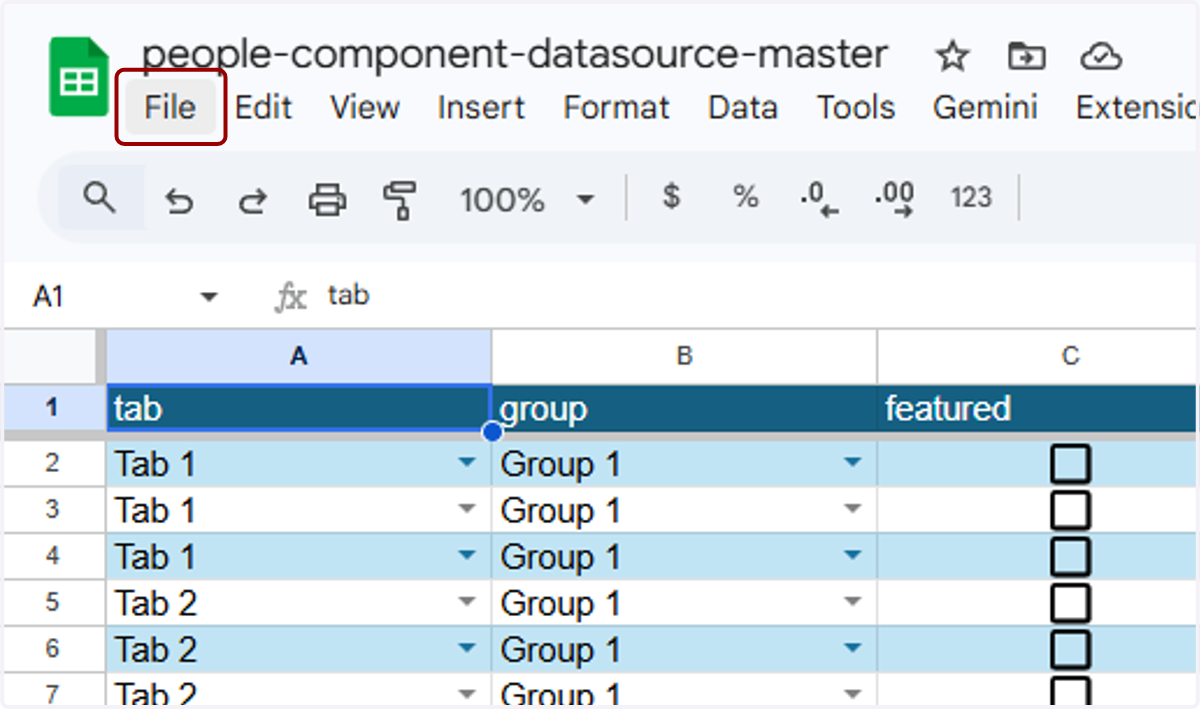
1. Make a copy of the master People Component Datasource spreadsheet. You can find it at gosbu.co/peopledata. To make a copy, go to File...
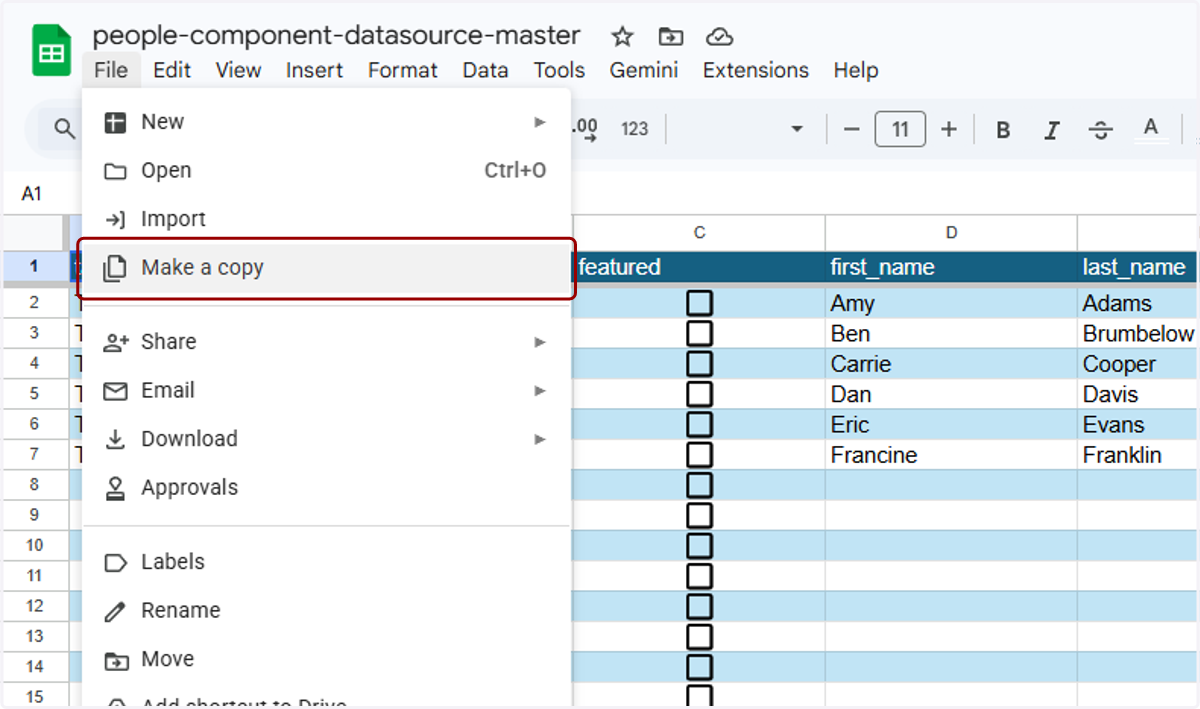
2. ...Make a copy...
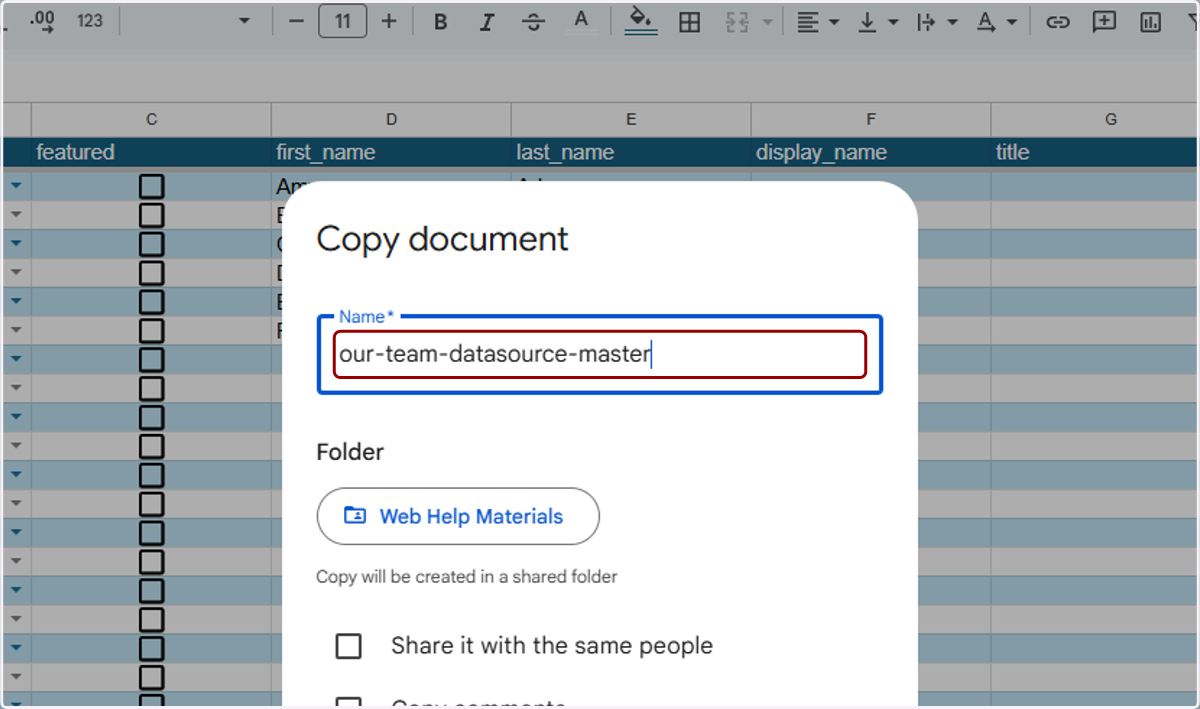
3. ...and name it something convenient for you.
4. You can also move it into a folder on your Google Drive for organizational purposes.
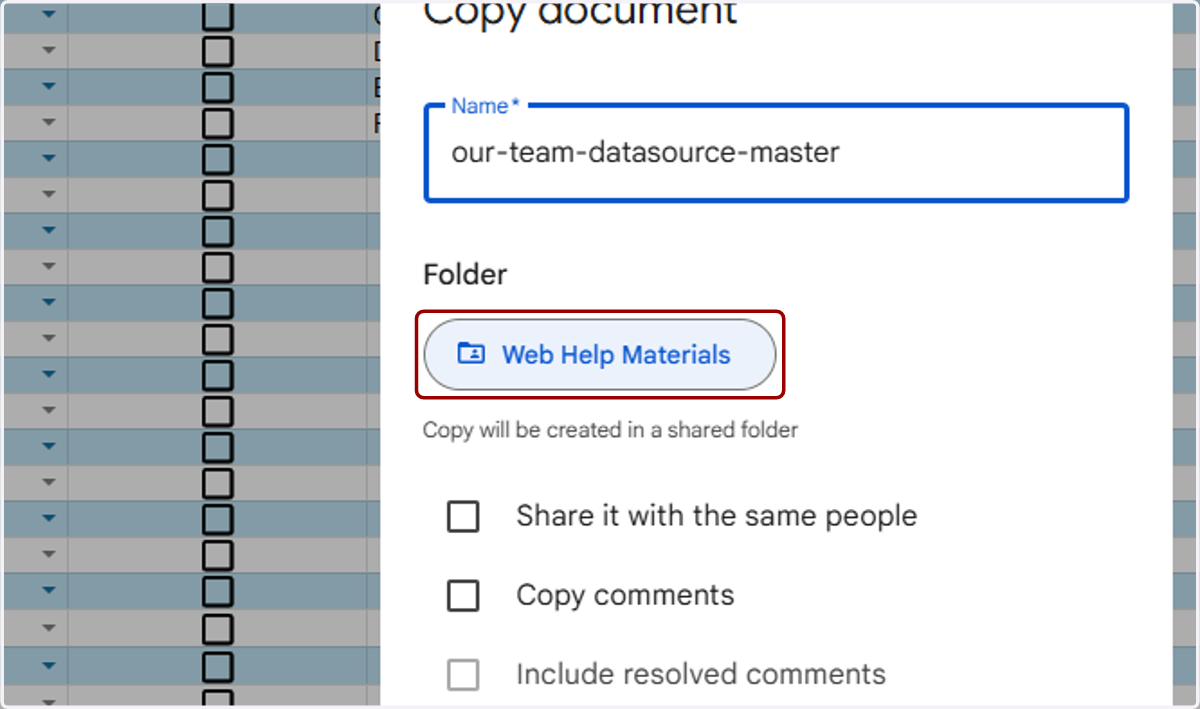
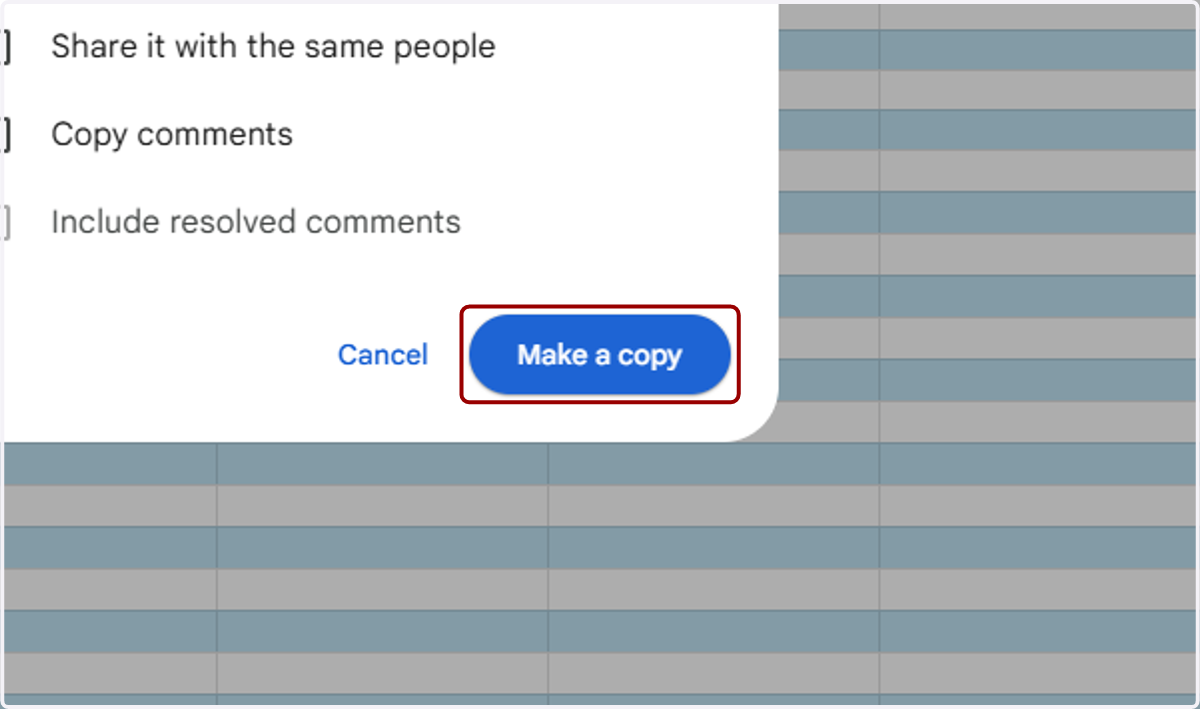
5. Click the "Make a copy" button.
6. You will work primarily in the "Data Sheet" tab (the first tab) in the document, but we will first begin with setting up the tabs you want to have across the top of your directory on the live page (if you want tabs).
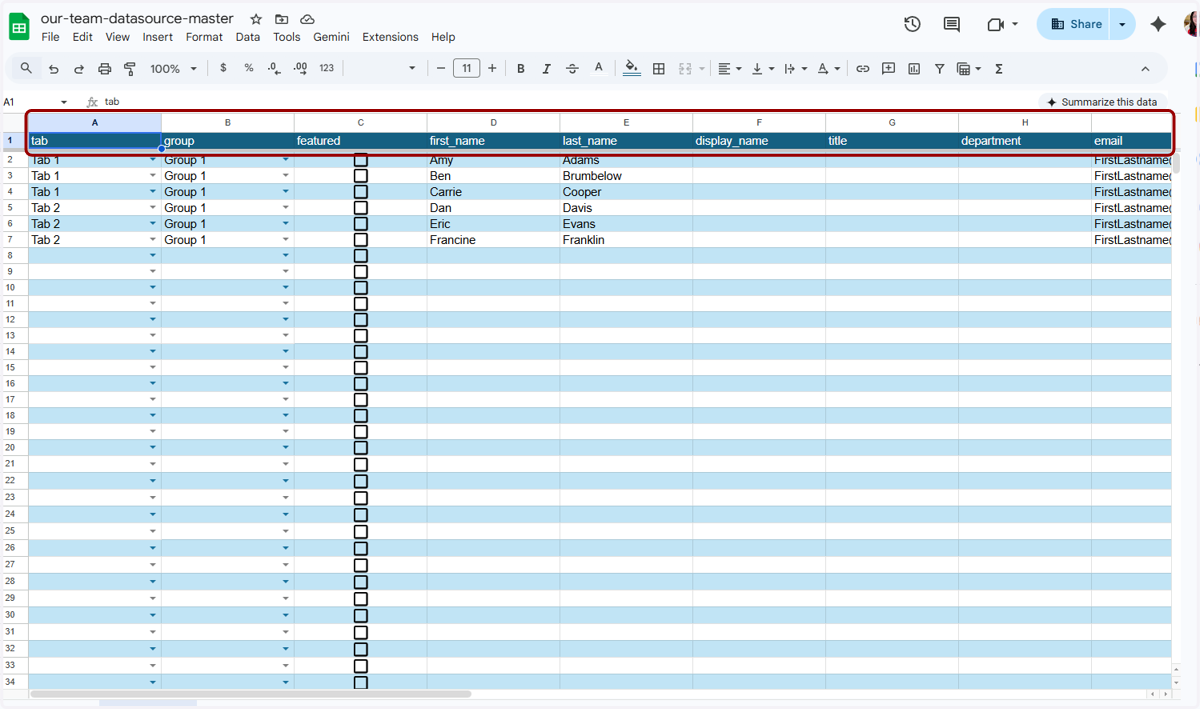
7. Here is what the tabs will look like on the live site.

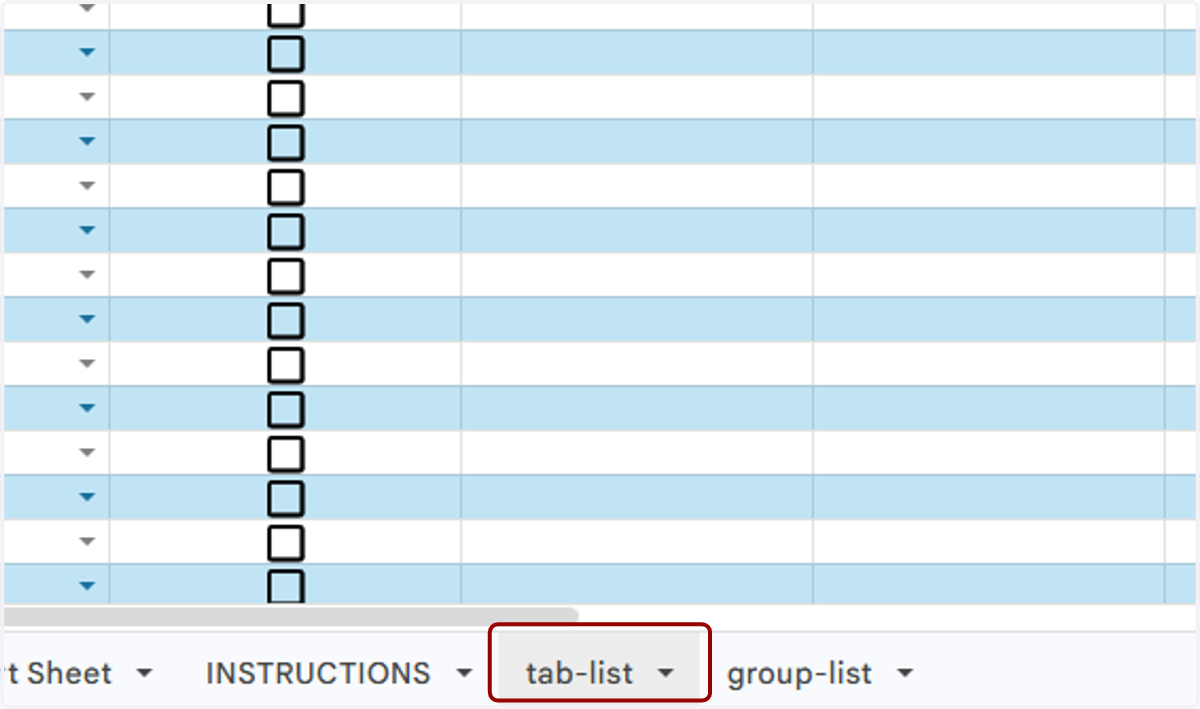
8. To manage the tabs, click on the "tab-list" tab at the bottom of the document.
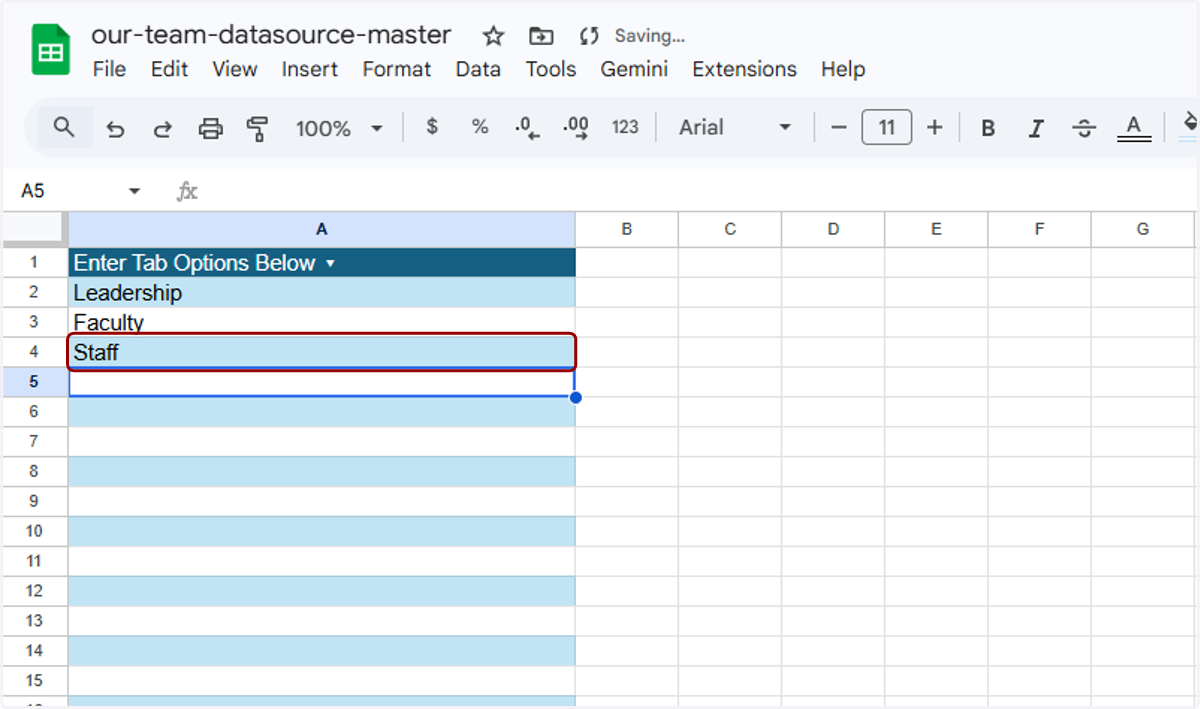
9. Here, you can overwrite "Tab 1" and "Tab 2" with the names of the tabs you want to use. You can add as many tabs to this list as you would like. Alternatively, if you do not want to split your directory into tabs, you can delete "Tab 1" and "Tab 2" and leave this section blank.
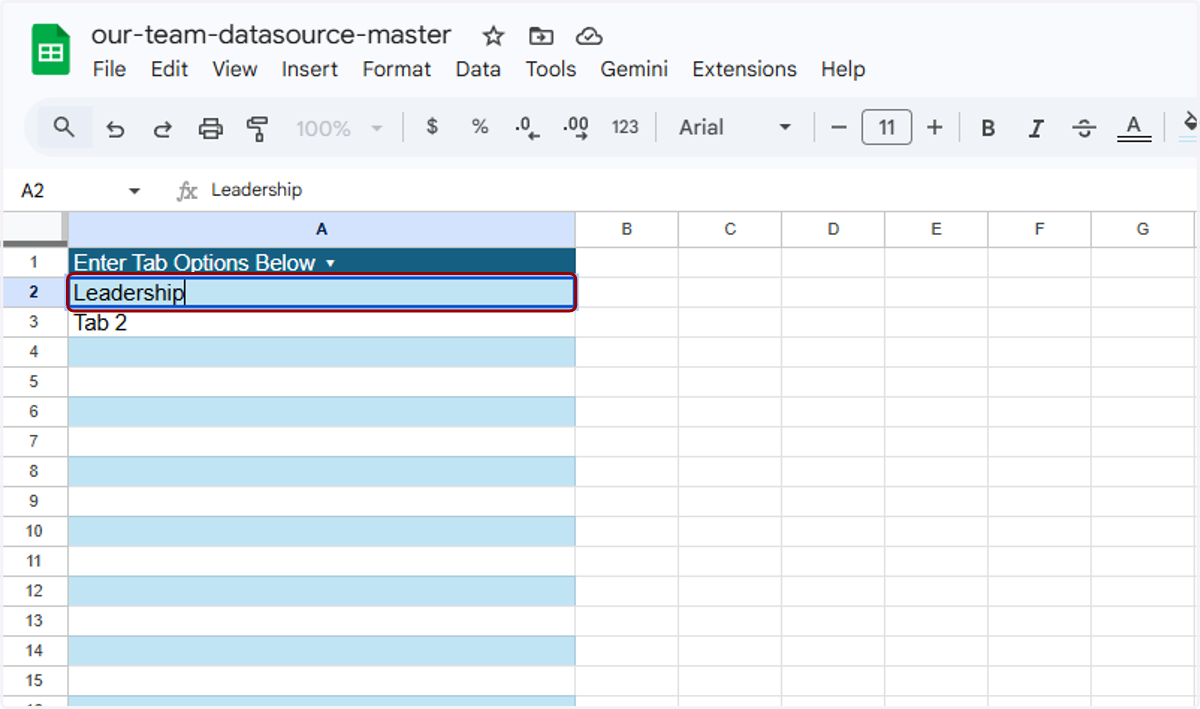
10. Here are the example tabs we will use for this demo.
11. Next, we will manage the Group List in the "group-list" tab. These will set up sub-sections on each tab. Here is what Groups will look like on the live site (the red headings separating groups of people).

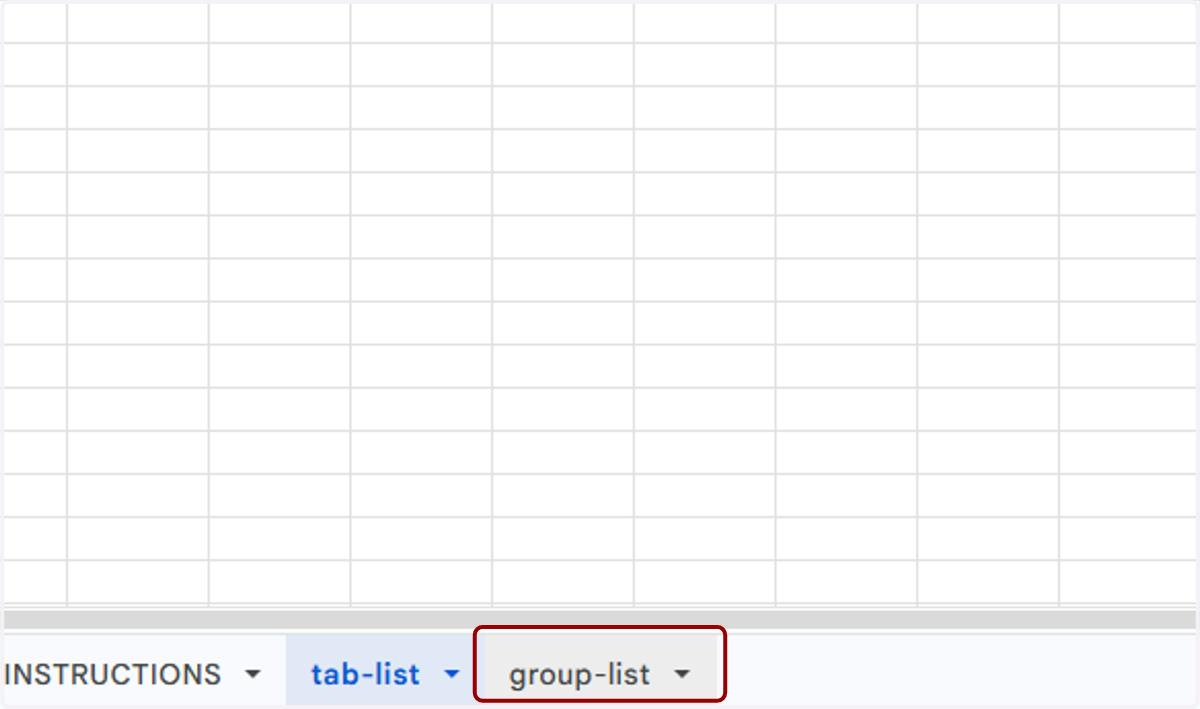
12. To manage Groups, click the "group-list" tab in the spreadsheet.
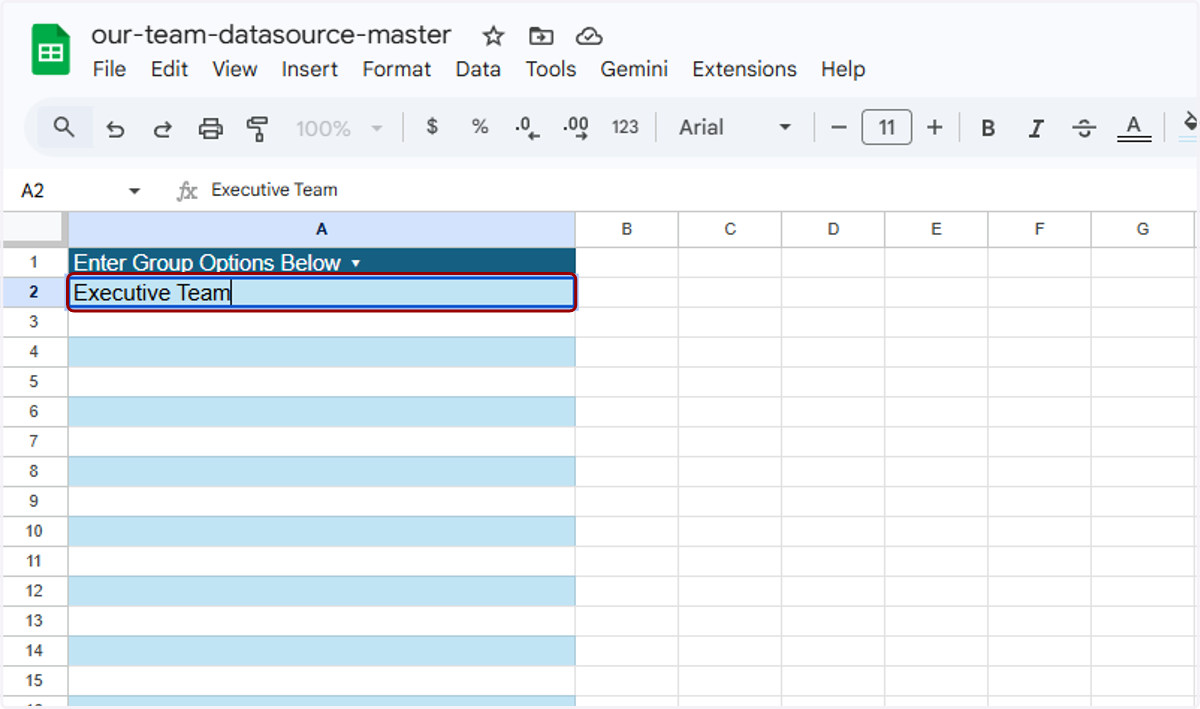
13. Overwrite "Group 1" with a Group Name you would like to use.
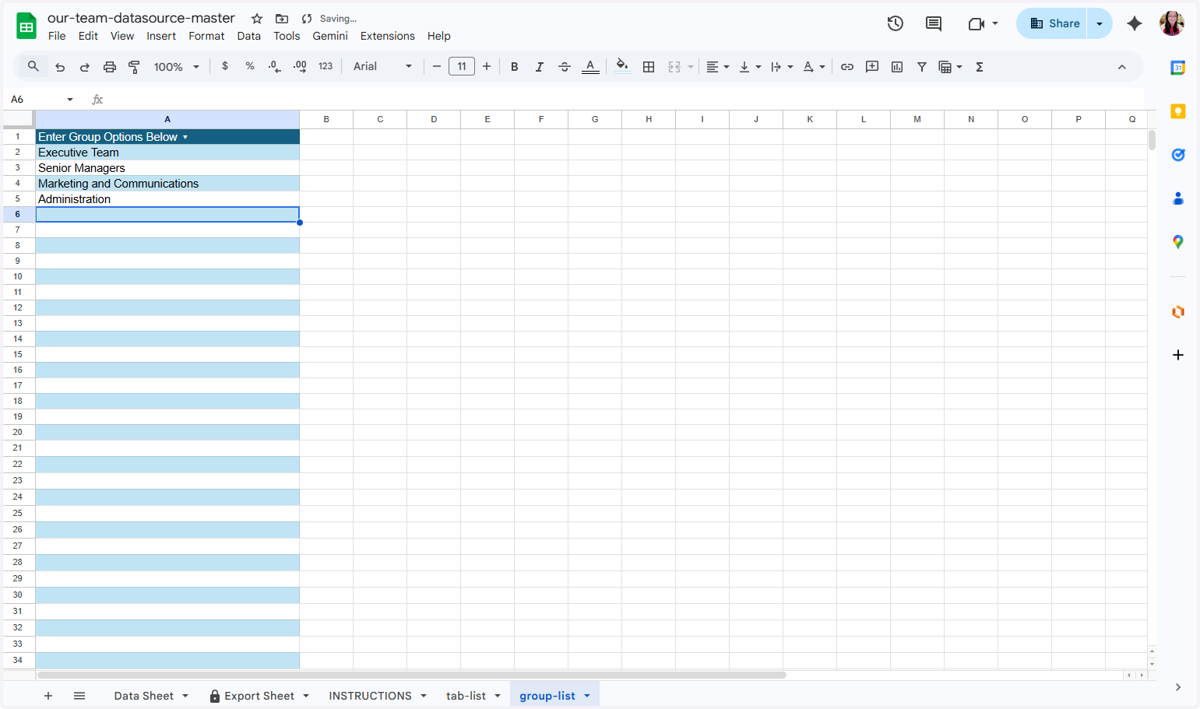
14. Even if different Groups will be displayed on different tabs, you should list all of them cumulatively here. We will associate which groups go on which tabs in a future step. I'll go ahead and put in some sample groups here.
15. After that's done, return to the Data Sheet.
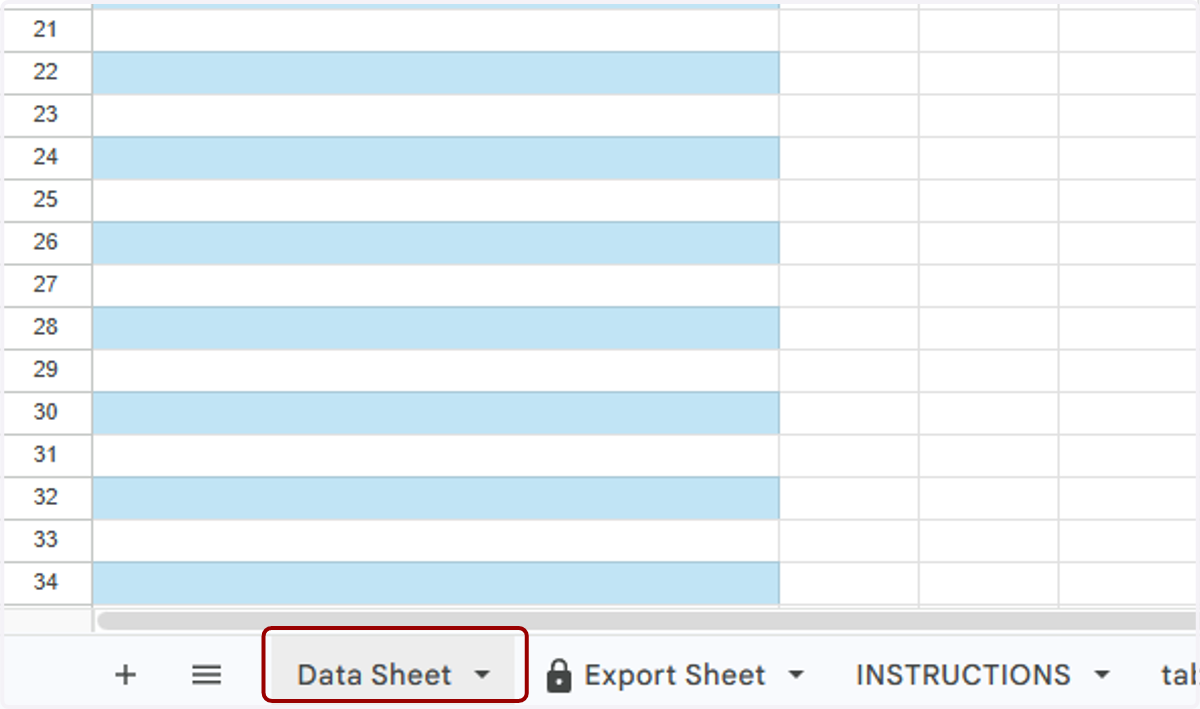
16. You'll now see in an error message that "Tab 1" and "Tab 2" are now invalid. That's because we replaced them with tab names we actually want to use, or removed them entirely.
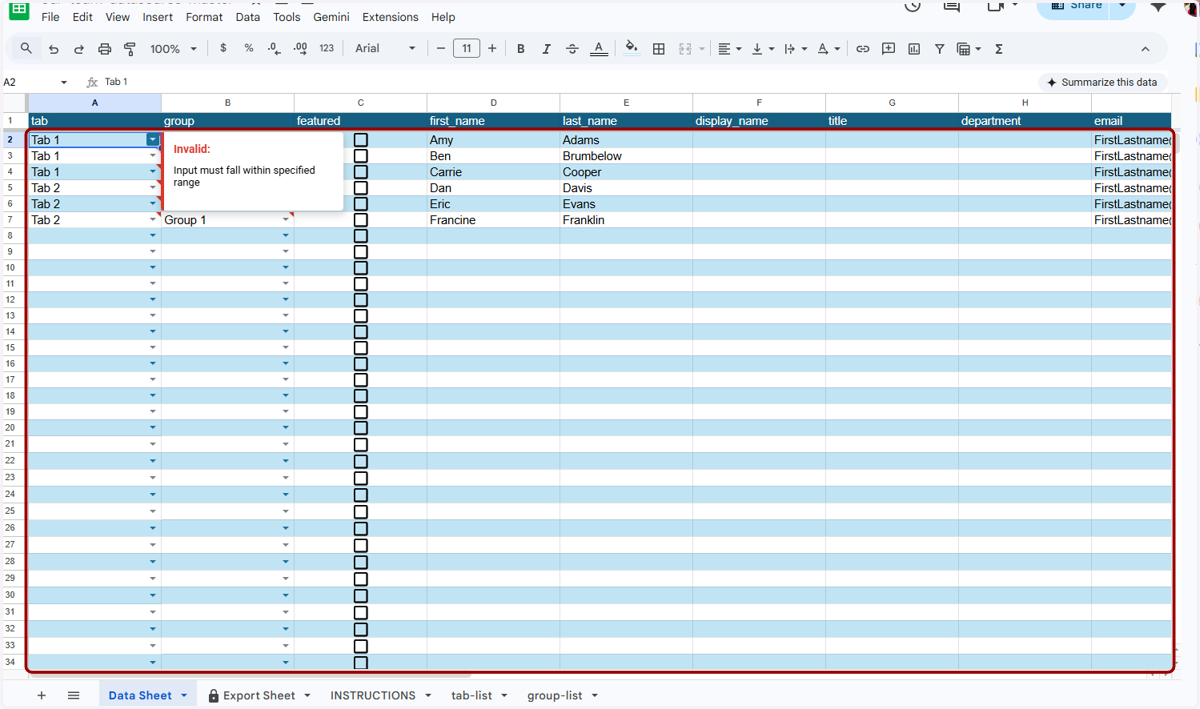
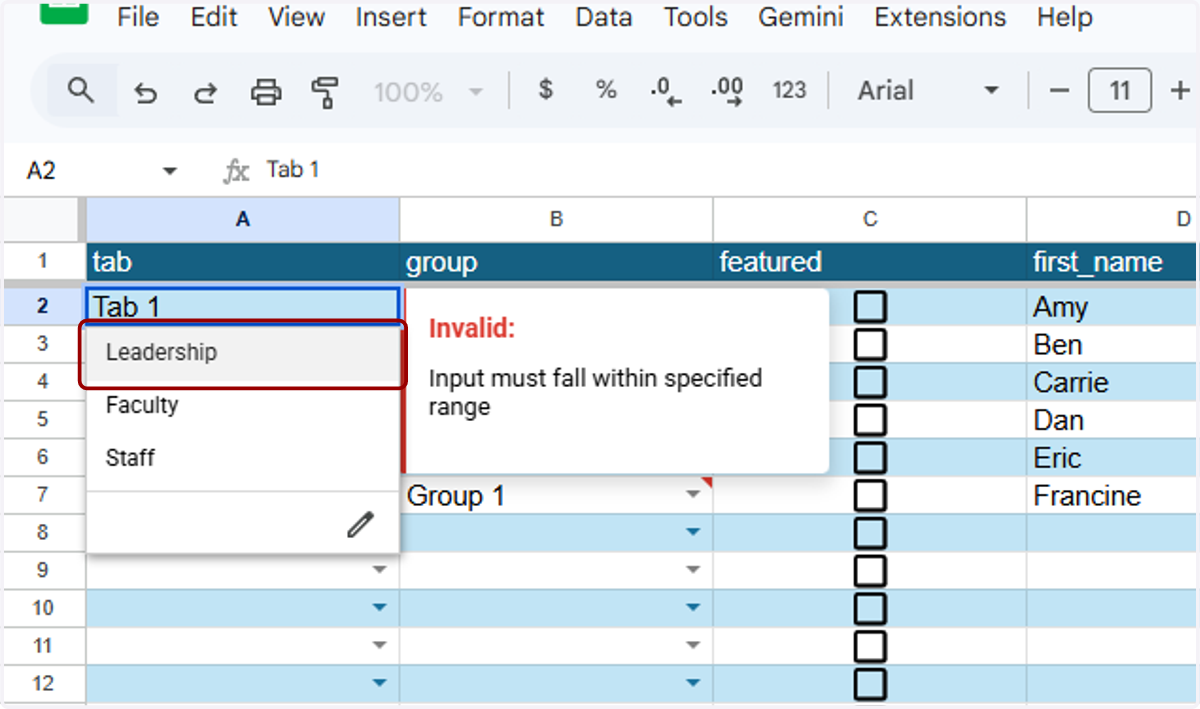
17. For this first entry, I'll hit the dropdown and select the first tab I want to show. In this case, that's Leadership.
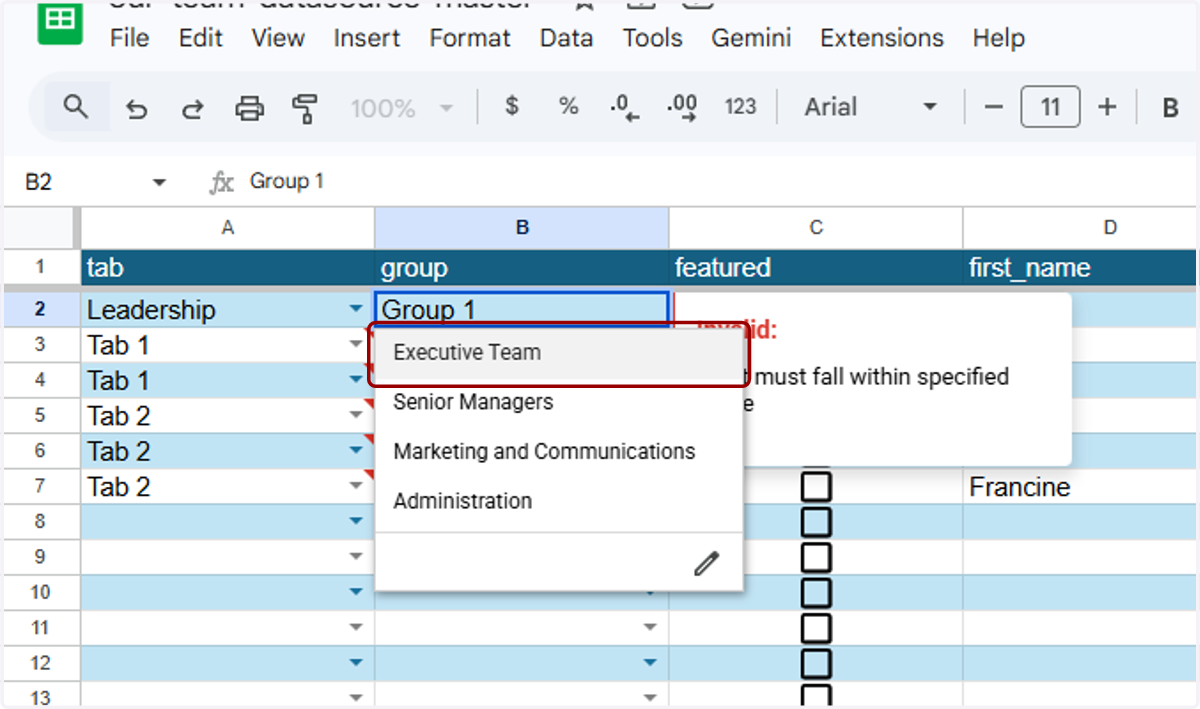
18. Now I'll select a Group. You'll see a similar error message on "Group 1." I'll hit the dropdown and select "Executive Team" instead. If you did not enter tabs or groups, highlight these entries and delete them from the sheet.
19. I'm going to work with the placeholder names that are on the sheet for this demo, but you would replace each First Name and Last Name with the actual people you would want to show.
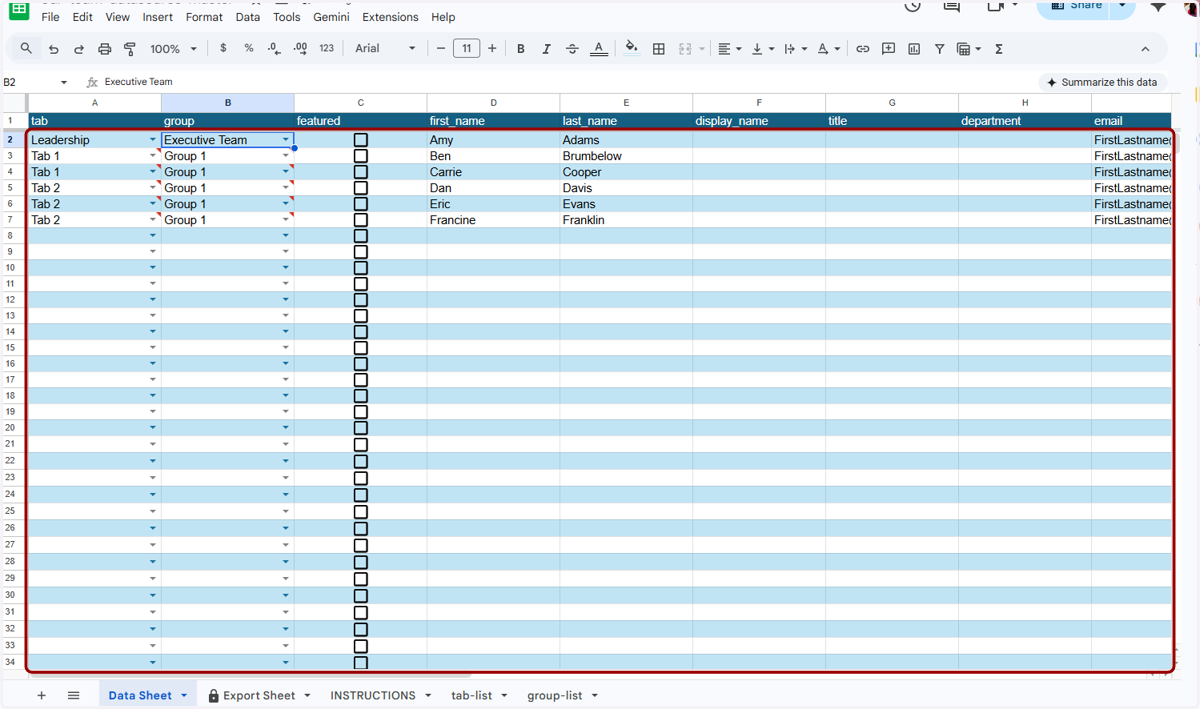
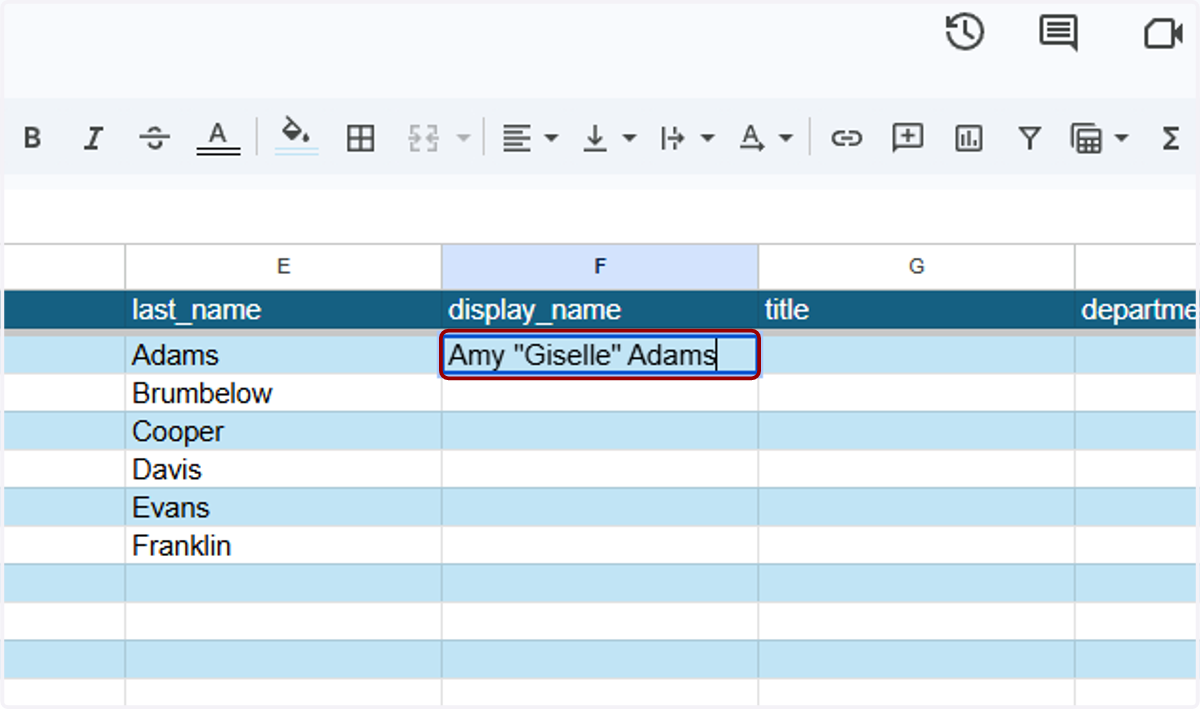
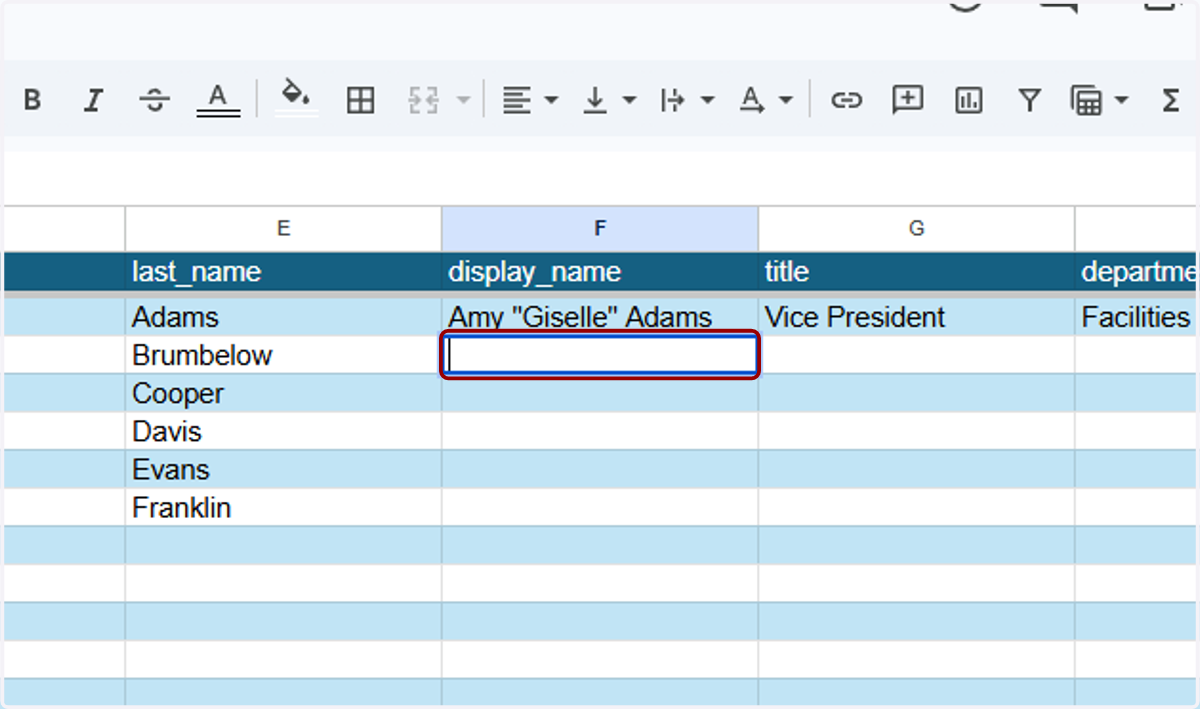
20. If someone has a nickname or display name outside of their First Name/Last Name, type the full name how you would like it to display in the "display_name" column.
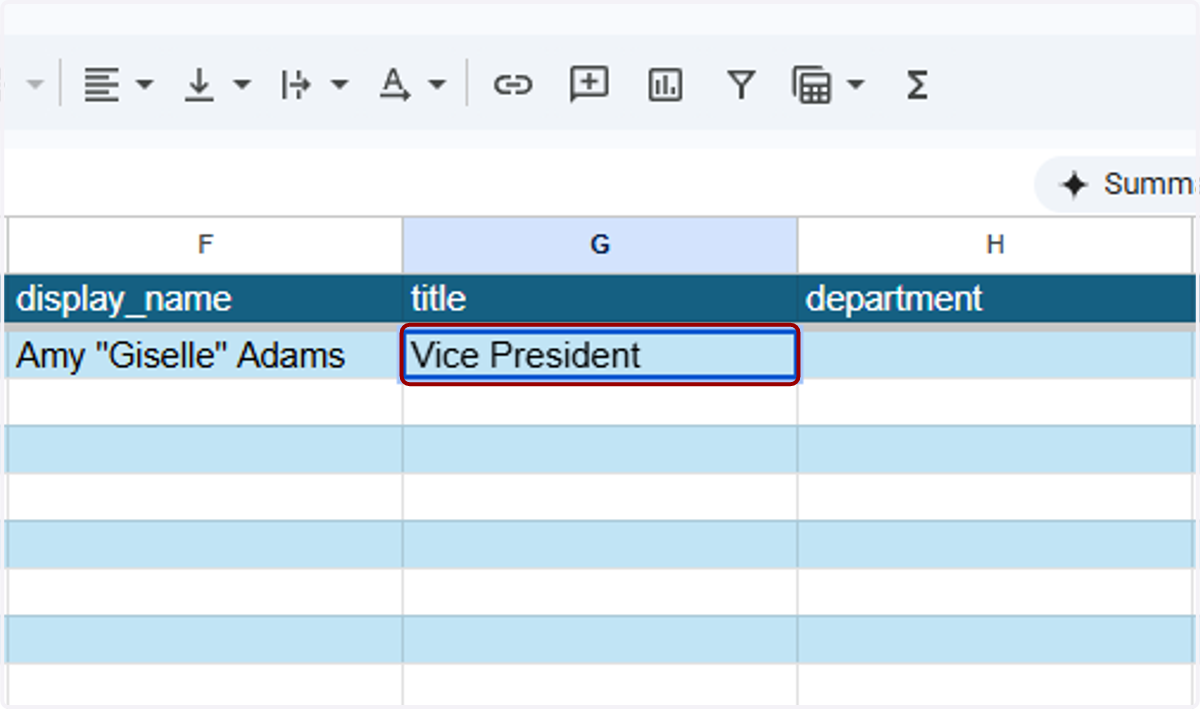
21. I'll fill out Amy's title...
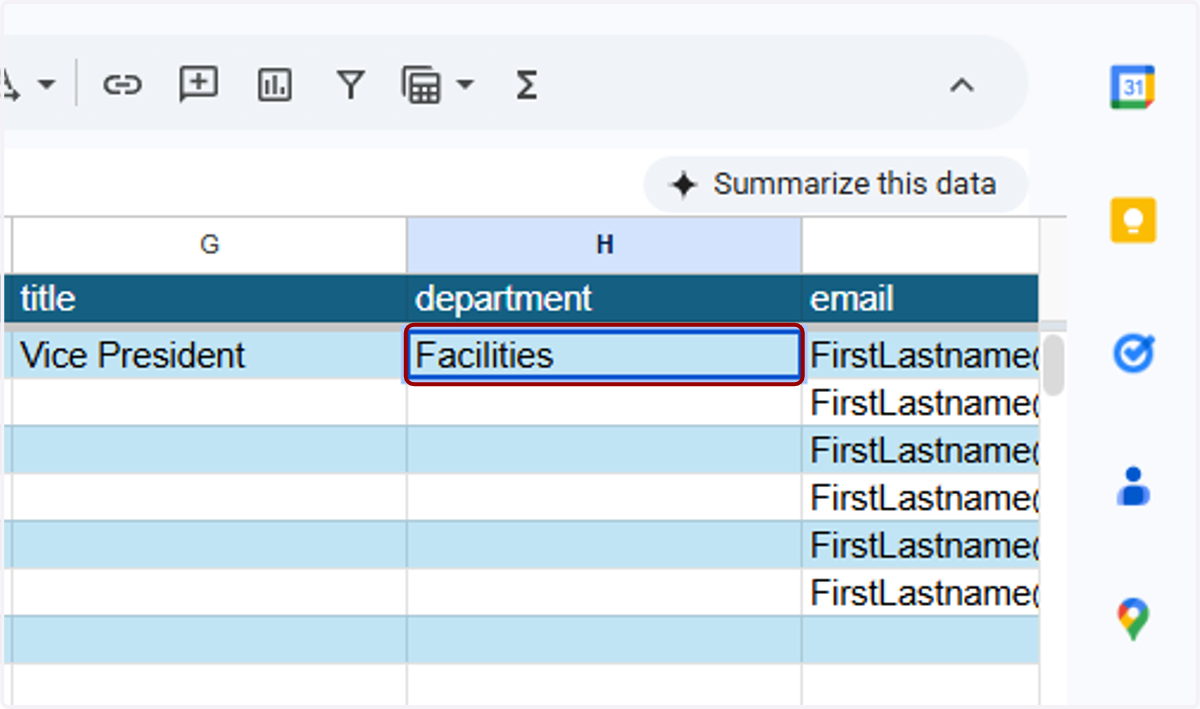
22. ...and department in the relevant columns.
23. I'll also update her email address and phone number.
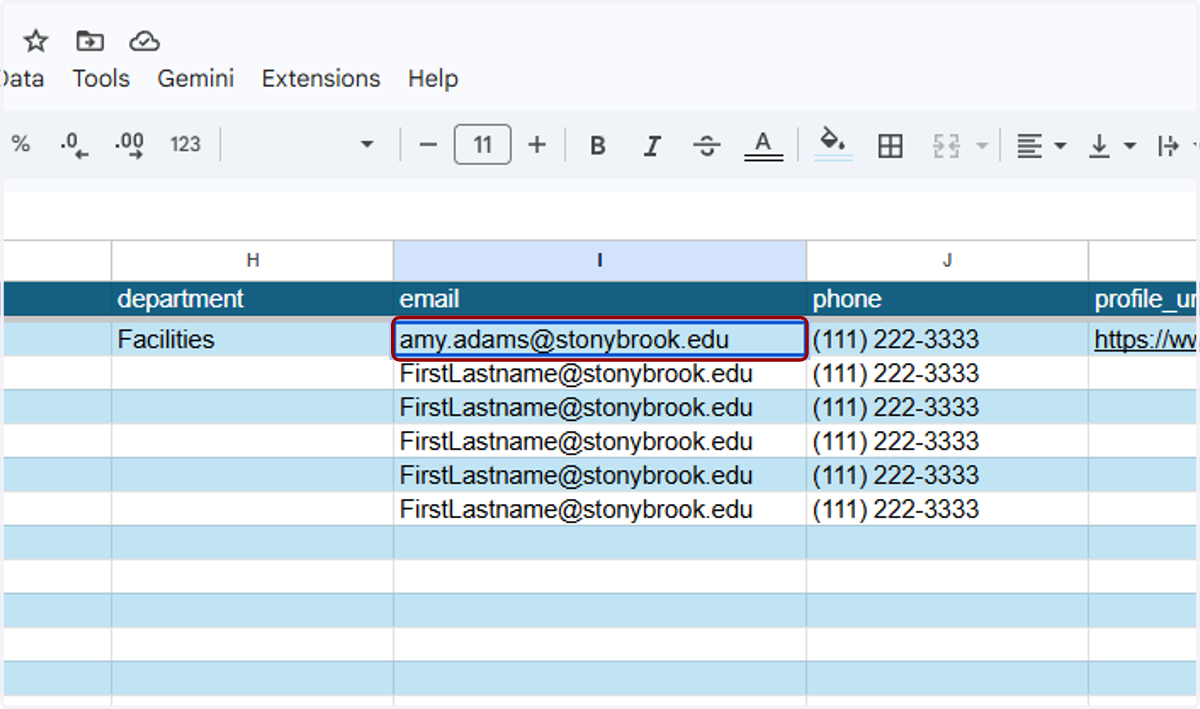
24. If Amy has a profile page, put the full URL in the "profile_url" column. The same goes for if she has a LinkedIn.
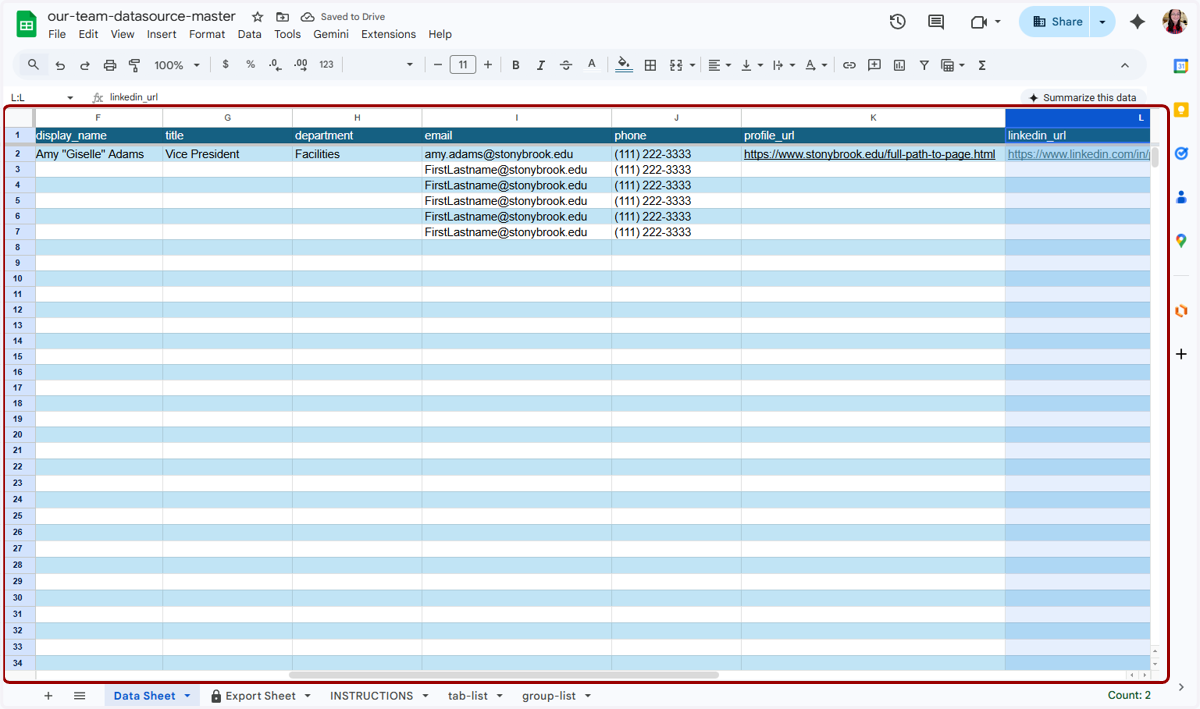
25. Repeat these steps for the rest of the people in the list. You can add as many people as you need to this sheet.
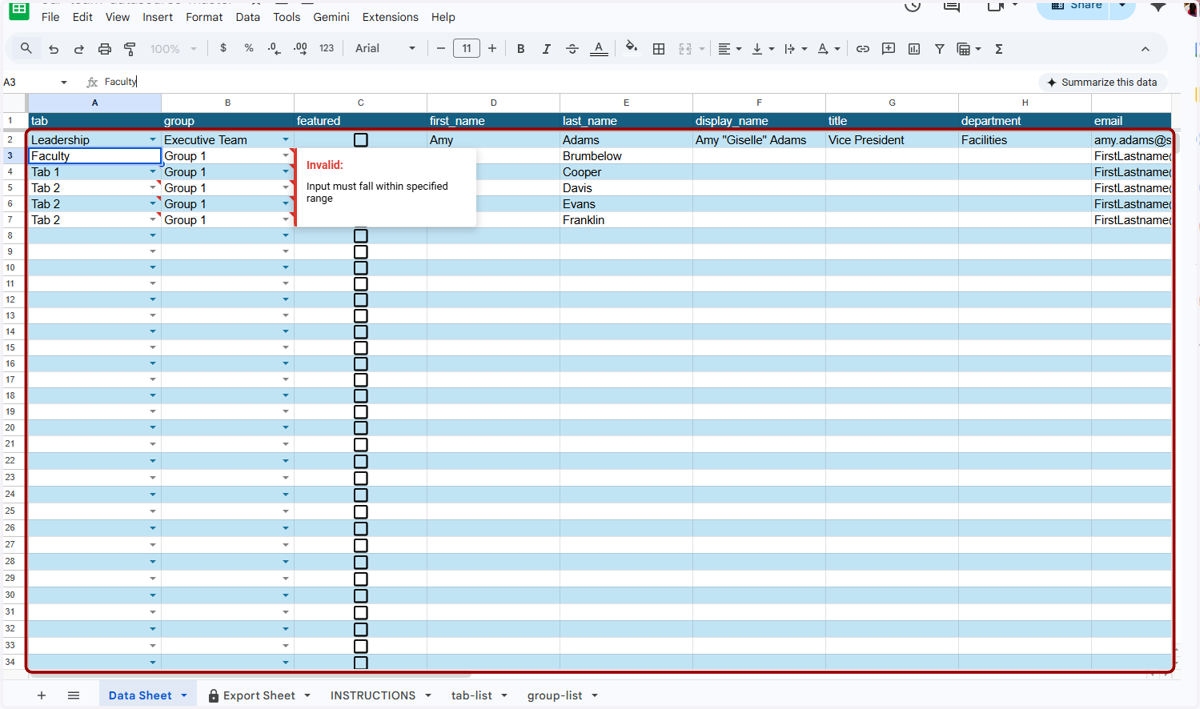
26. You can leave "display_name" blank for anyone who will be using the First Name and Last Name as-is in their columns.
27. I've now filled in all of my department's directory information. Notice that I have a Faculty tab, but left the Group blank. This is because I don't want to show sub-groups on this tab.
Note that subgroups must be applied consistently within each tab. If you use subgroups on a tab, every person listed on that tab must be assigned to a group. You cannot mix grouped and ungrouped entries on the same tab. If a tab includes even one blank (no subgroup assigned), then no one on that tab can be assigned to a subgroup.
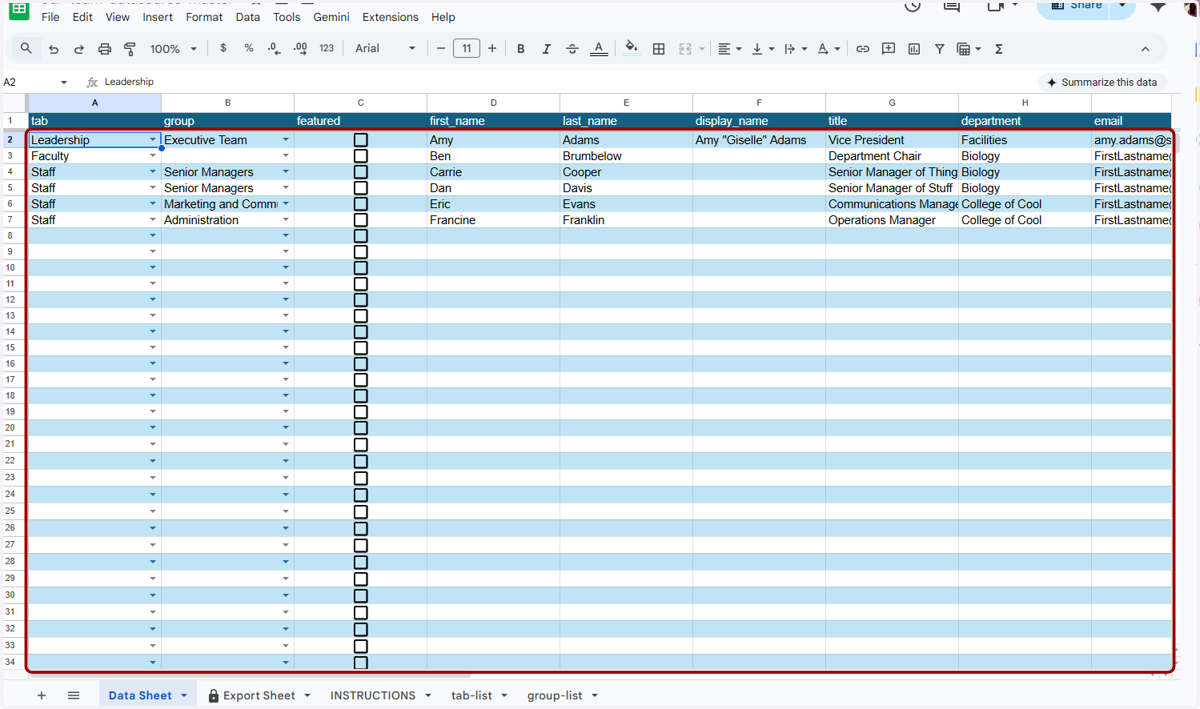
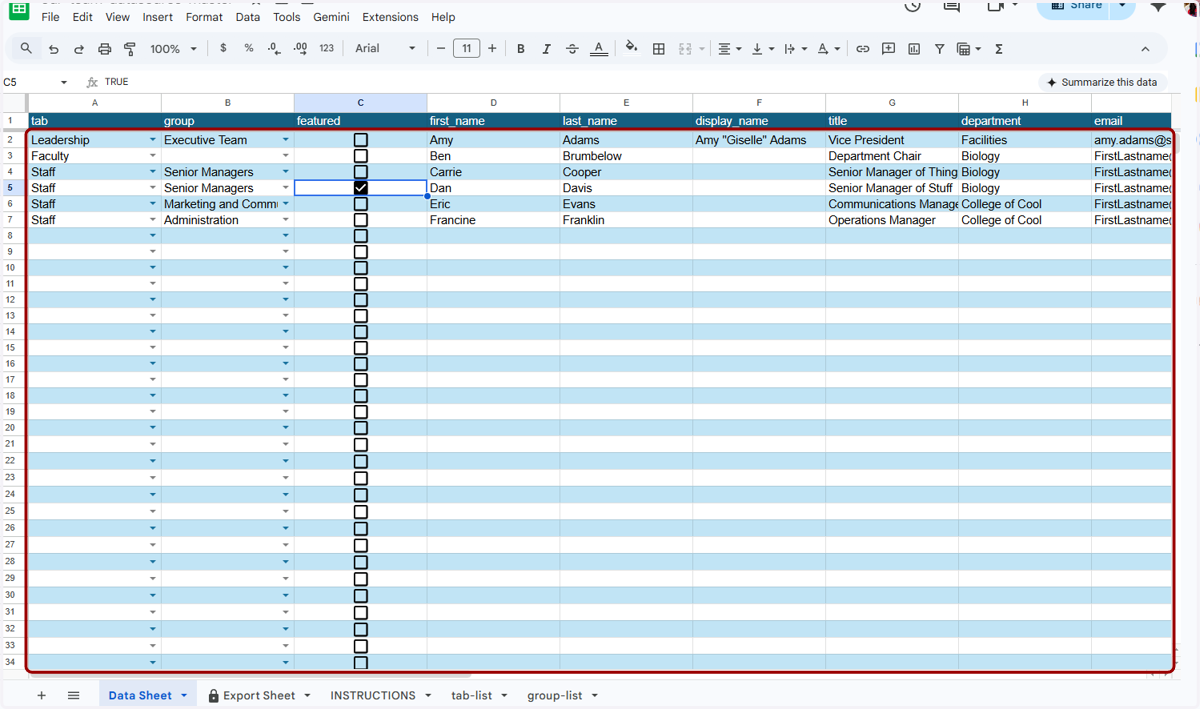
28. You can also set "Featured" people, which means they will appear first in their group while the rest of the people are listed in alphabetical order.
If you have more than one person marked as featured, they will be listed in Featured alphabetical order, and the rest will be in alphabetical order after that. In this example, Dan Davis should appear after Carrie Cooper, but he will show before Carrie now that I've checked this Featured box in the featured column.
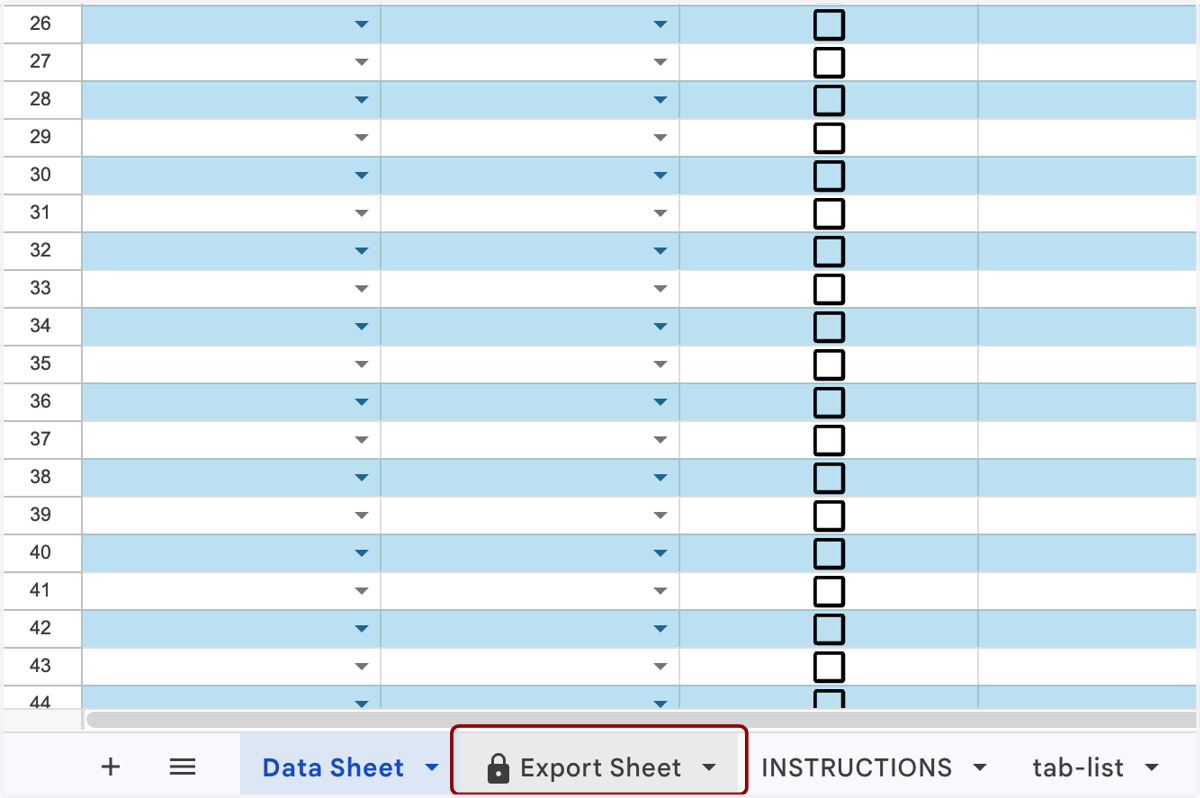
29. When you're done adding your tabs, groups, and people, and selecting your features, you're ready to export your sheet. Navigate to the Export Sheet tab, which has a lock icon on it.
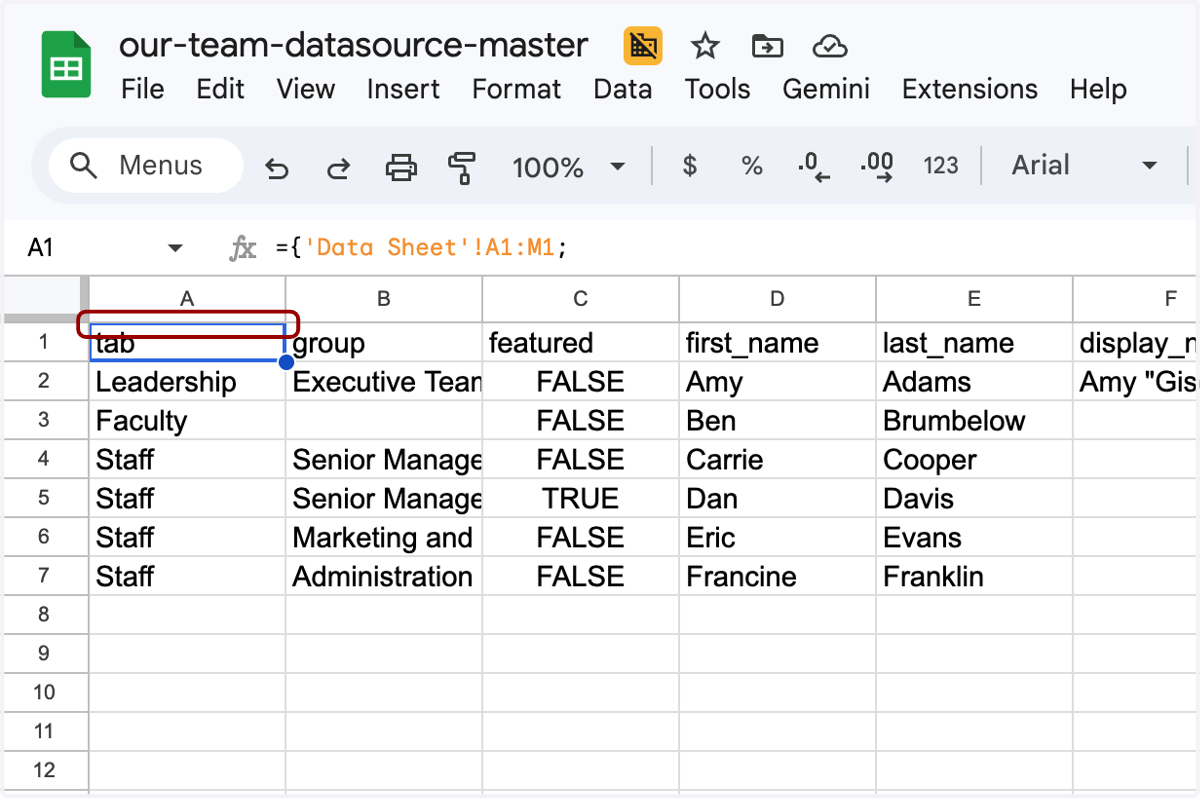
30. You'll see this sheet is a simplified version of the data you were just updating. This is the format the People Utility tool will need.
31. Don't worry about accidentally editing this tab instead of the Data Sheet. If you go to make any changes here, it will warn you that this sheet shouldn't be edited.
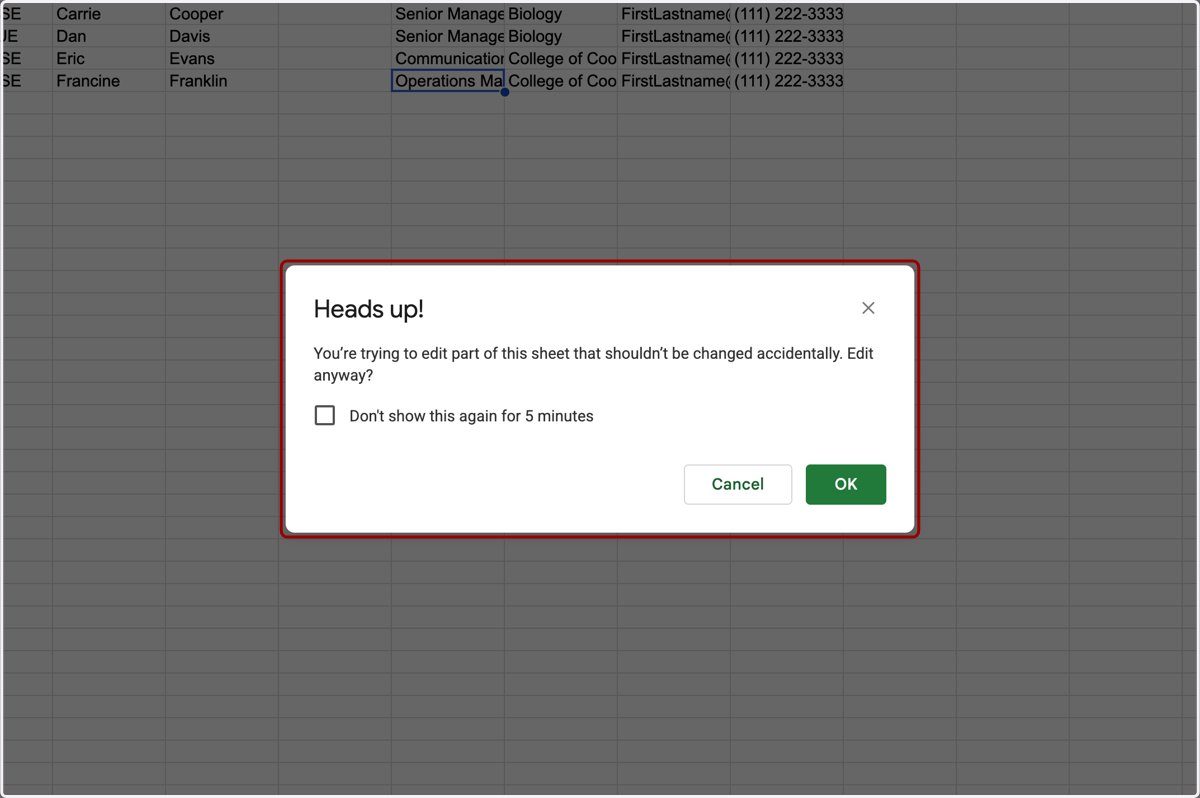
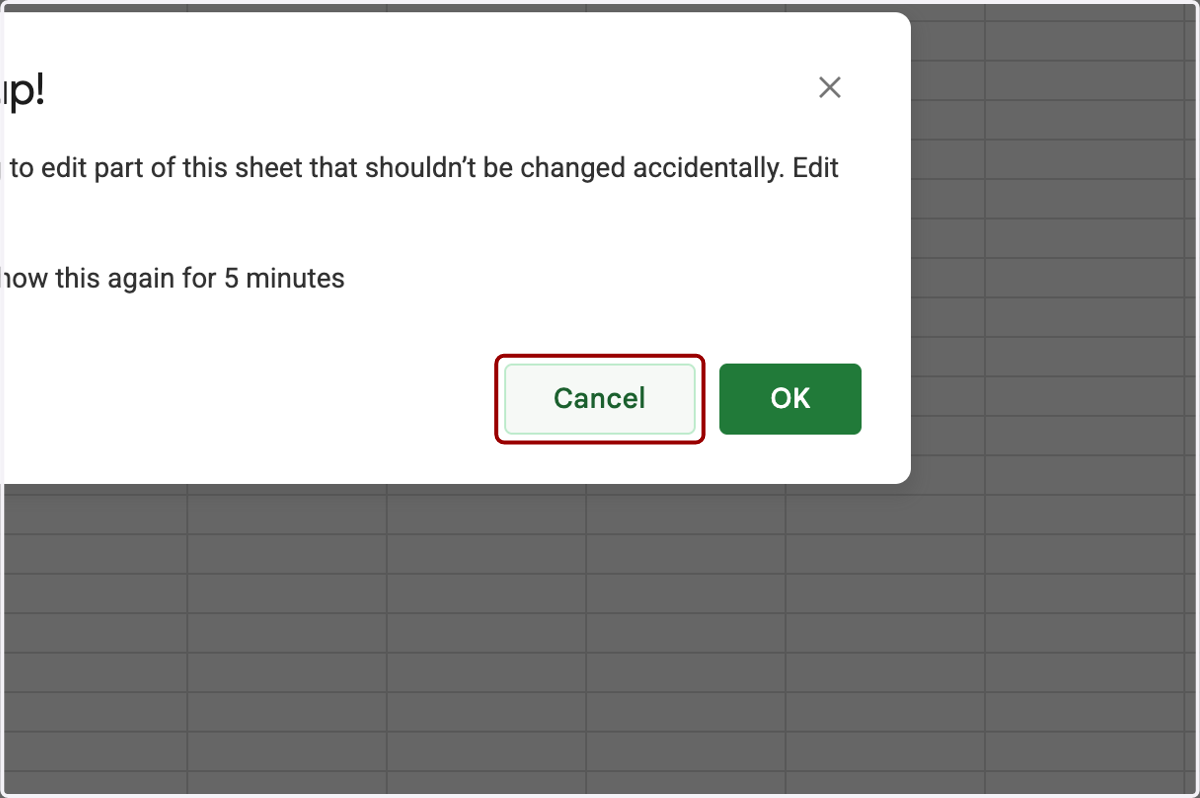
32. Simply hit cancel, and no changes will be made.
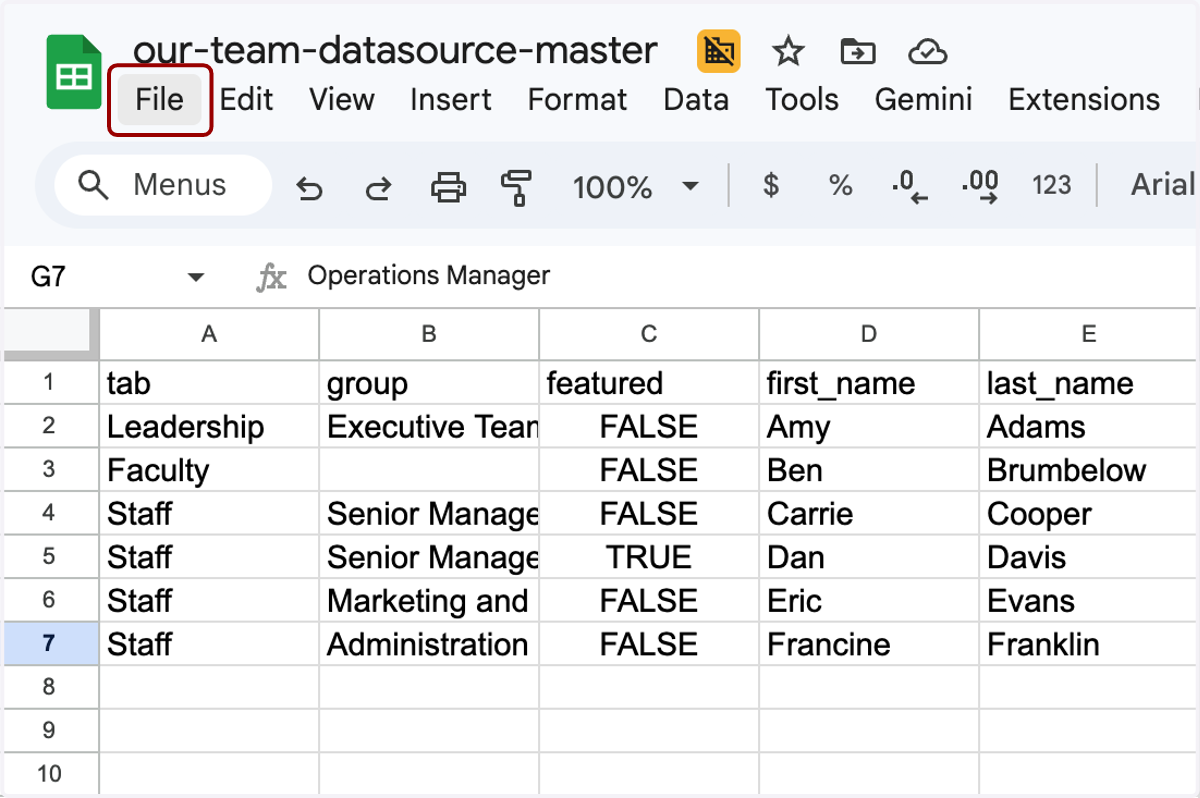
33. Now you'll export this sheet. Go to File...
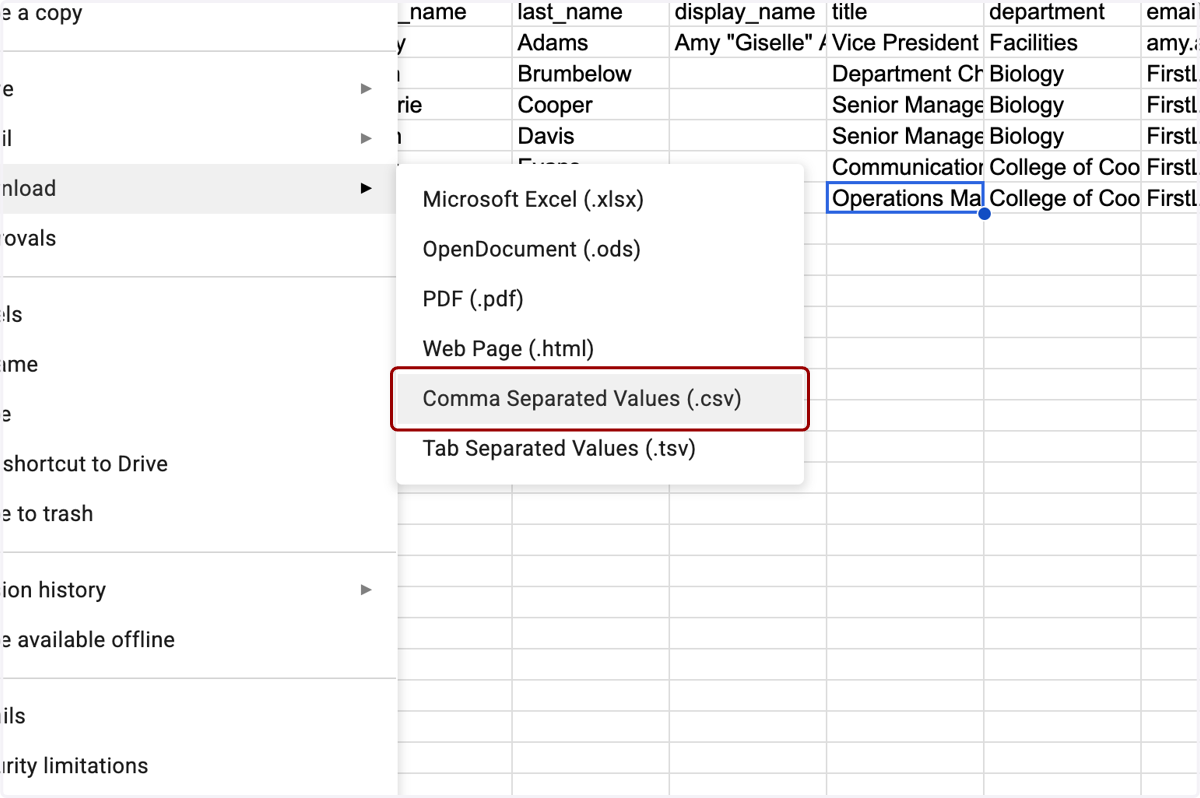
34. ...Download > Comma Separated Values to download a .csv file. By default, you should to name this file "people-directory.csv".
If you have more than one people directory file, or would prefer to use a different filename for any reason, we will show you how to process the right file in Part 2 of this tutorial.
35. That's all for the People Directory spreadsheet! See part two for how to make the sheet into a full directory on your website.