Viewing Grades and Feedback in Canvas
Follow the steps for an overview on how to view your grades and feedback from your teachers in your Canvas courses.
1. Open Canvas Course
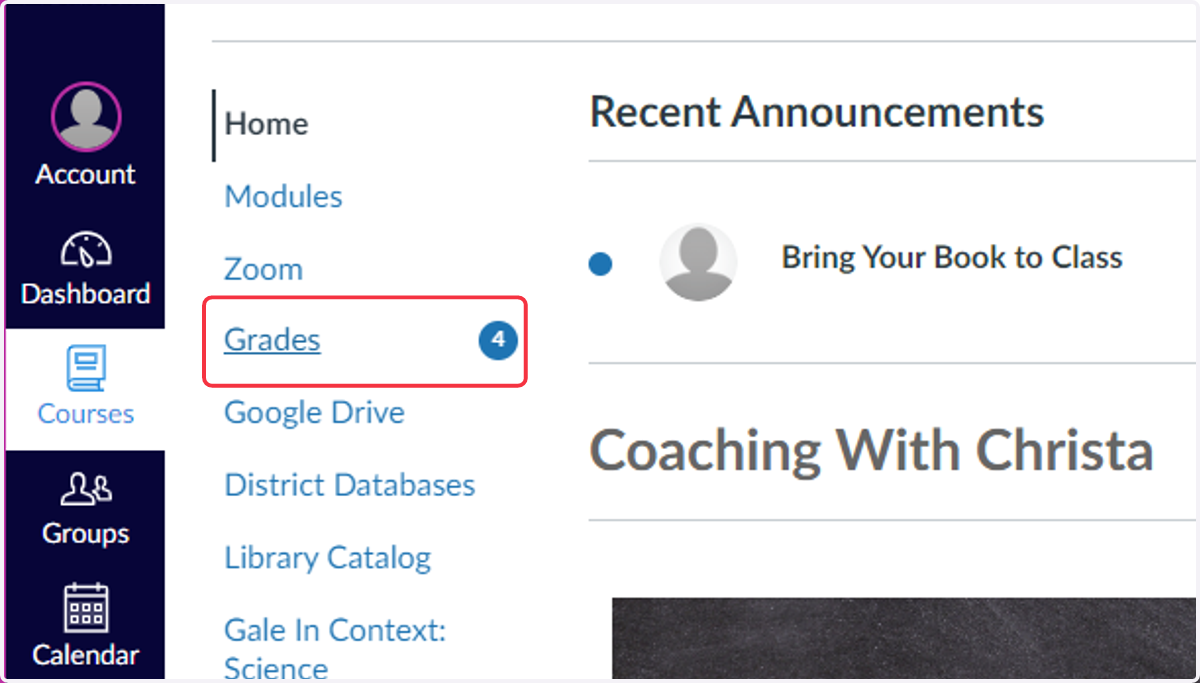
2. Click on Grades in the course navigation
The number next to Grades indicates if there is new feedback or a grade attached to an assignment.
Viewing Types of Feedback
From the Grades Page in Canvas you can access the following types of feedback:
Comment Feedback
Turnitin Feedback
Rubric Feedback
Submission Details Page: Comments and On Document Annotations and Feedback
3. Comment Feedback: Select View Comments
If there is a speech bubble next to the assignment title on the grades page, it indicates there is a comment posted. Comments can be posted prior to the assignment being submitted and after they are submitted.
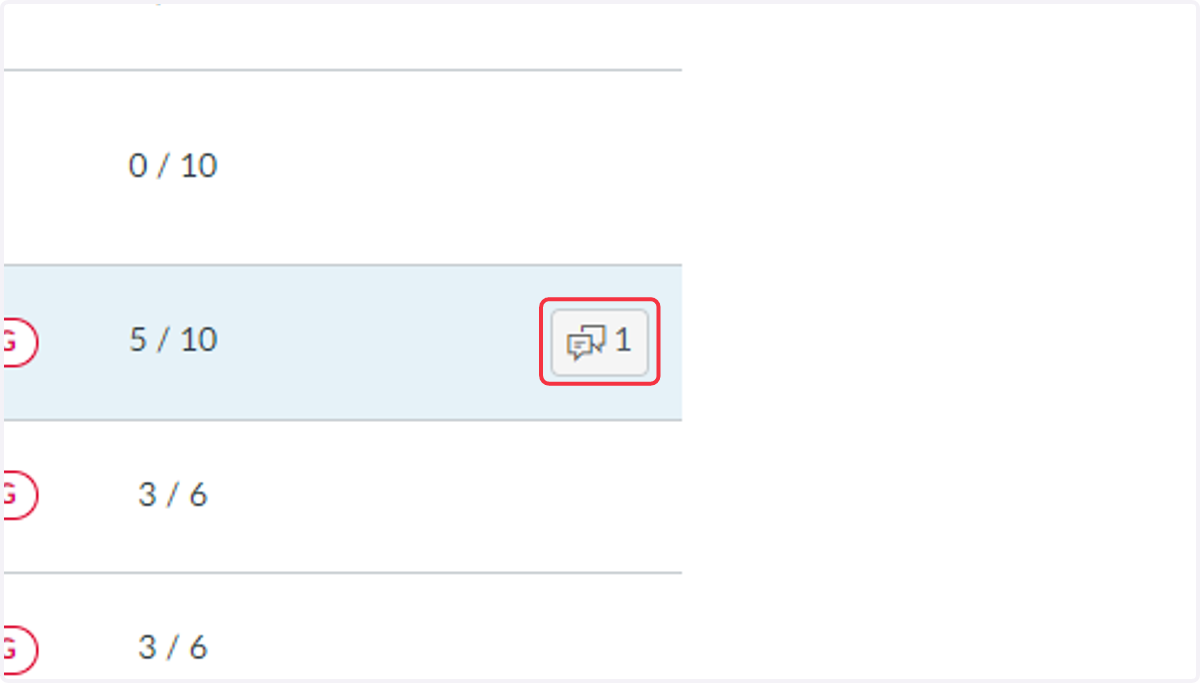
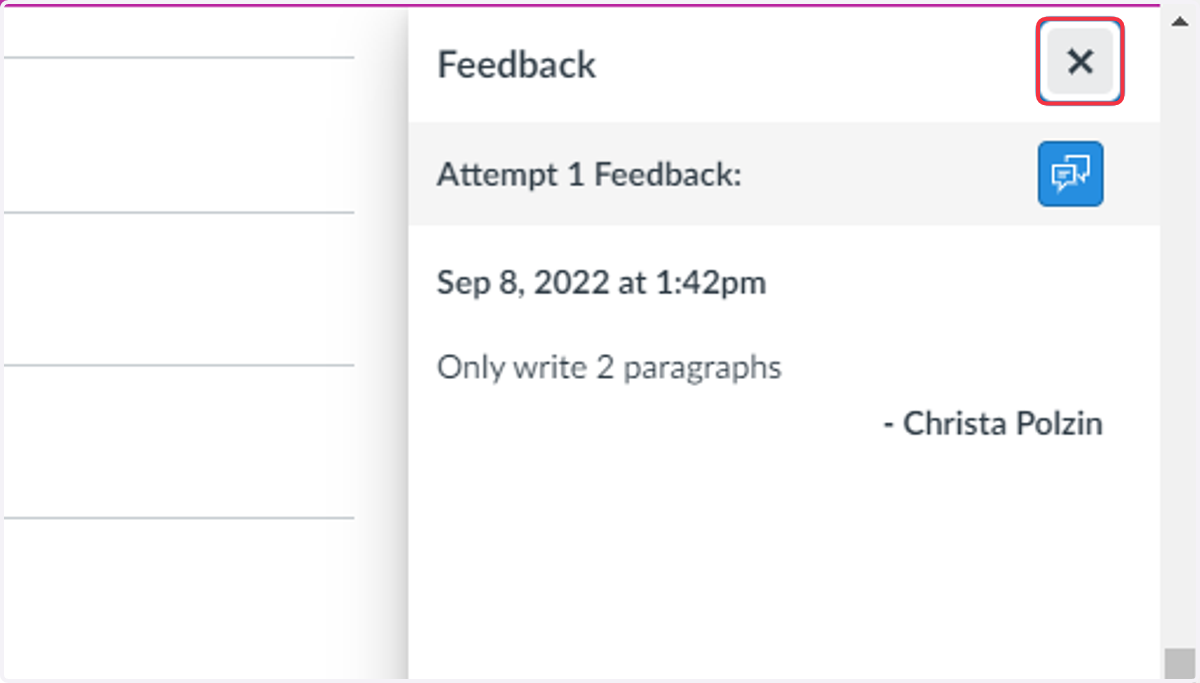
4. View Feedback Comments, then select Close.
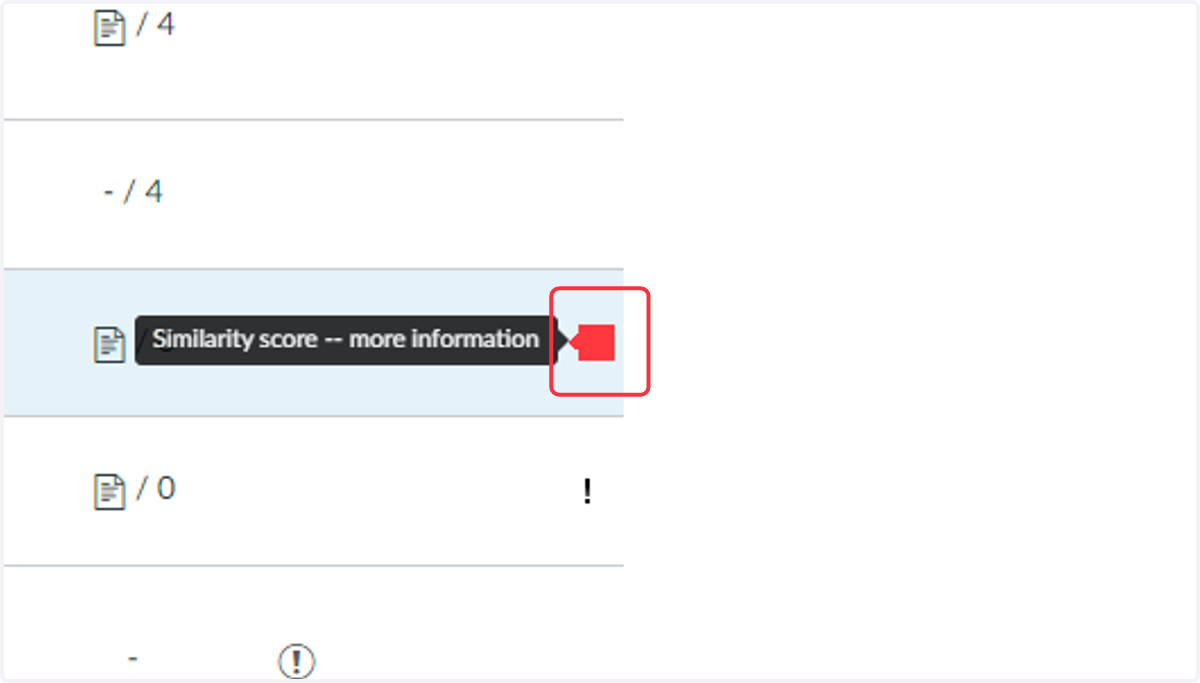
5. Turnitin Feedback: Click on Colored Flag
If there is a Similarity Score Flag next to the assignment number, click on it to view the Turnitin Feedback and similarity rating. These flags may be blue, green, yellow, red, or possibly gray. (View the section about Turnitin for more information).
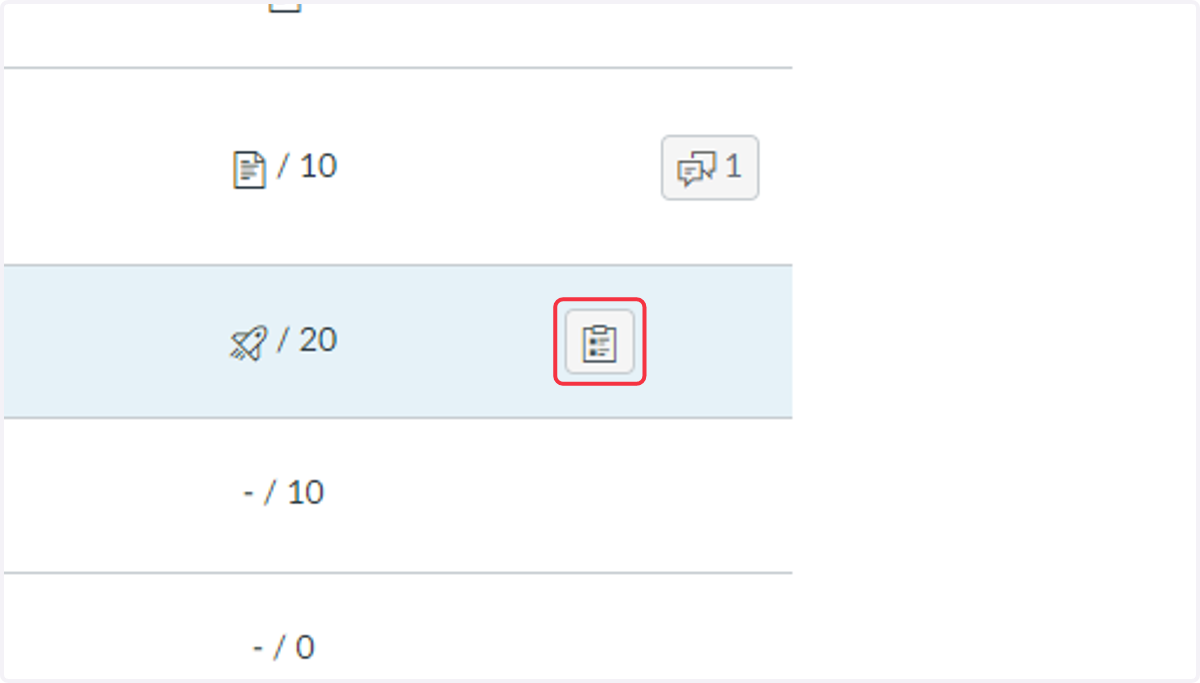
6. Rubric Results: Select the clipboard icon to see rubric results
Only assignments that included a rubric that was built in Canvas will include the option to view rubric results.
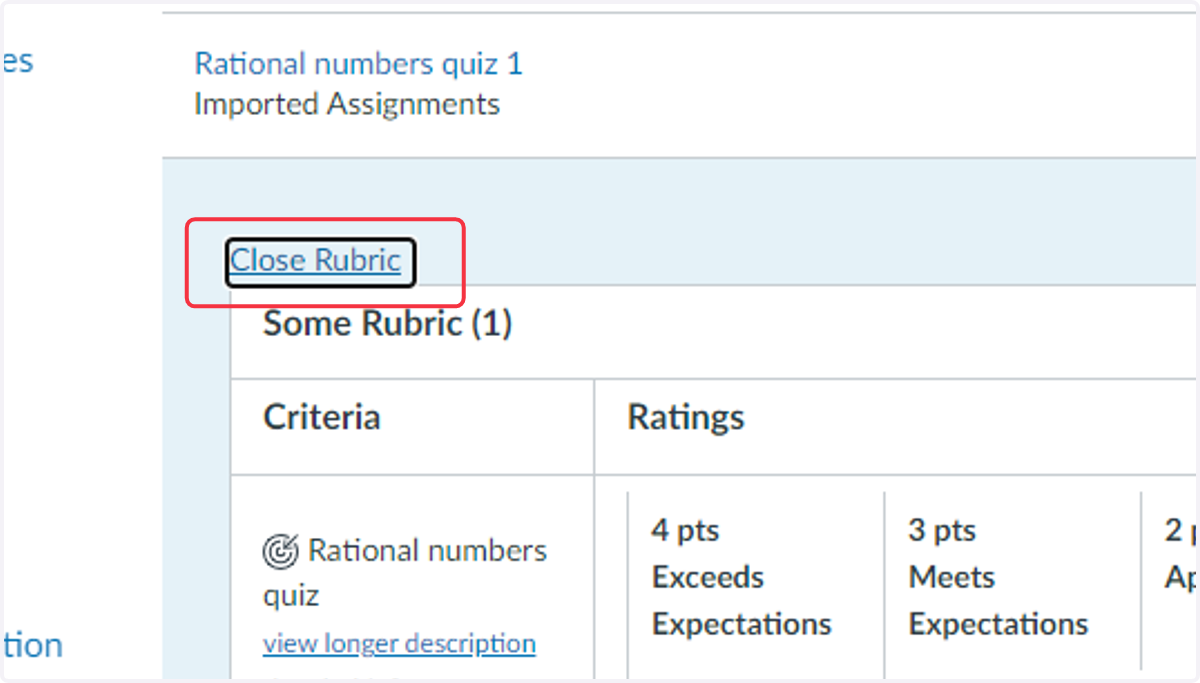
Selecting the clipboard will open the rubric directly underneath the assignment.
7. View Rubric feedback and then select Close Rubric
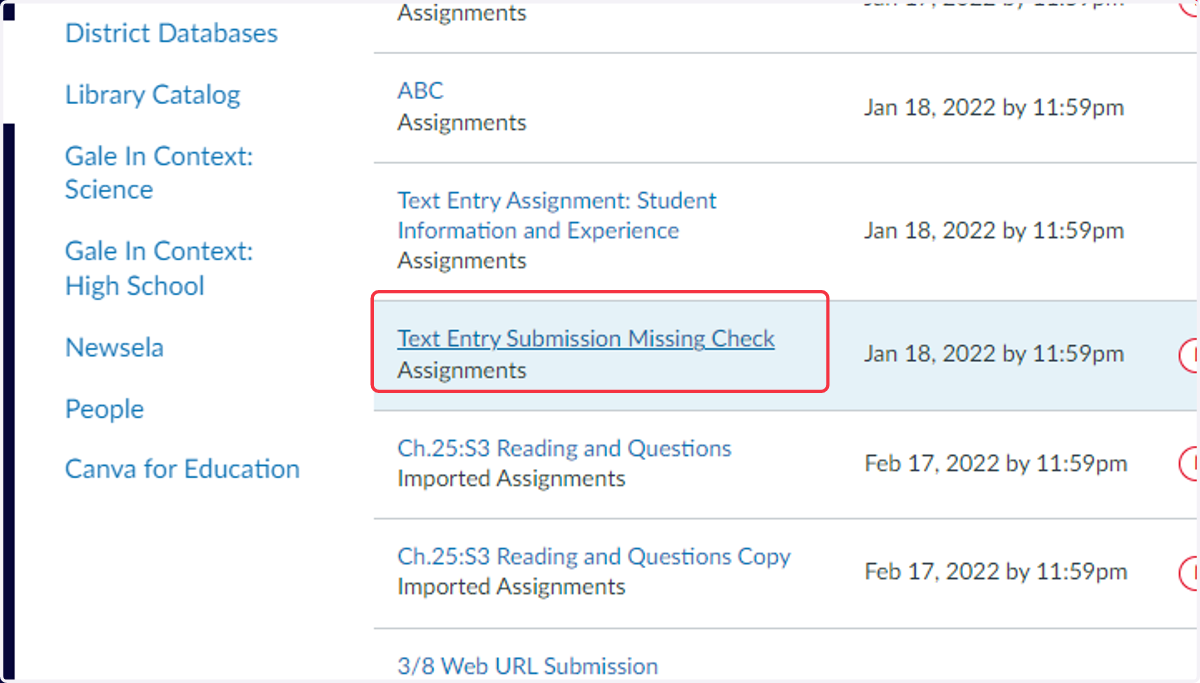
8. Assignment Feedback: Select Assignment Title on the Grades Page
9. Assignment Submission Details: View Teacher or Peer Review Comments and Add Comment to the teacher.
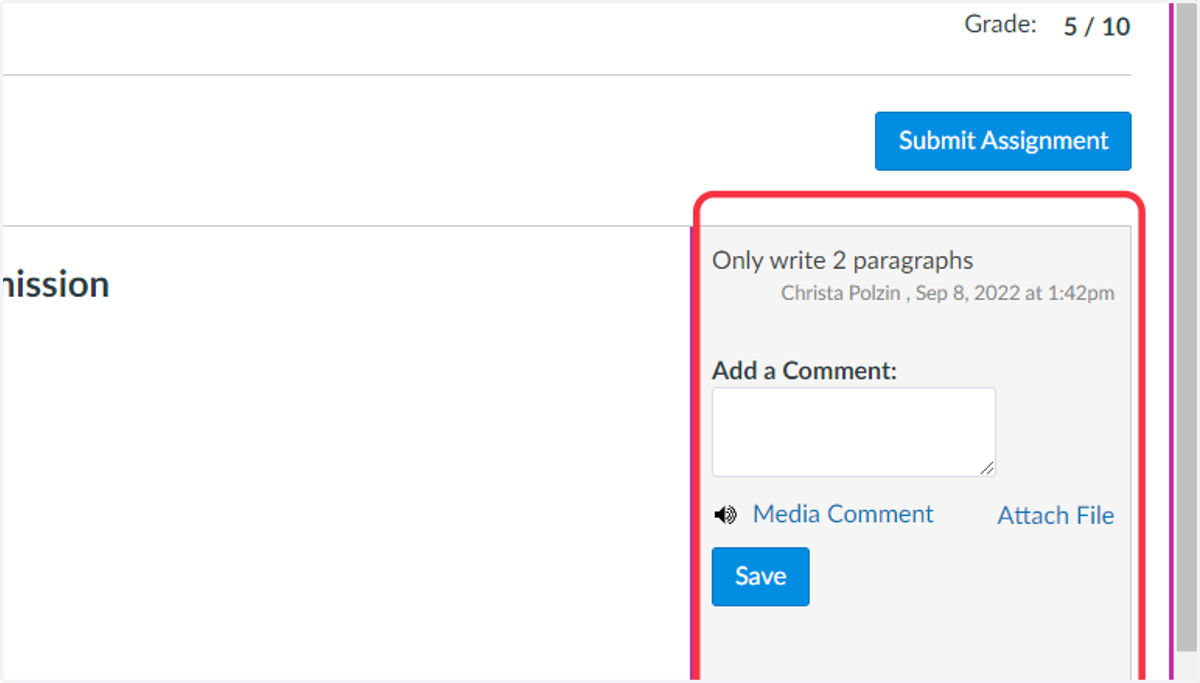
10. On Document Feedback: Select Assignment Title
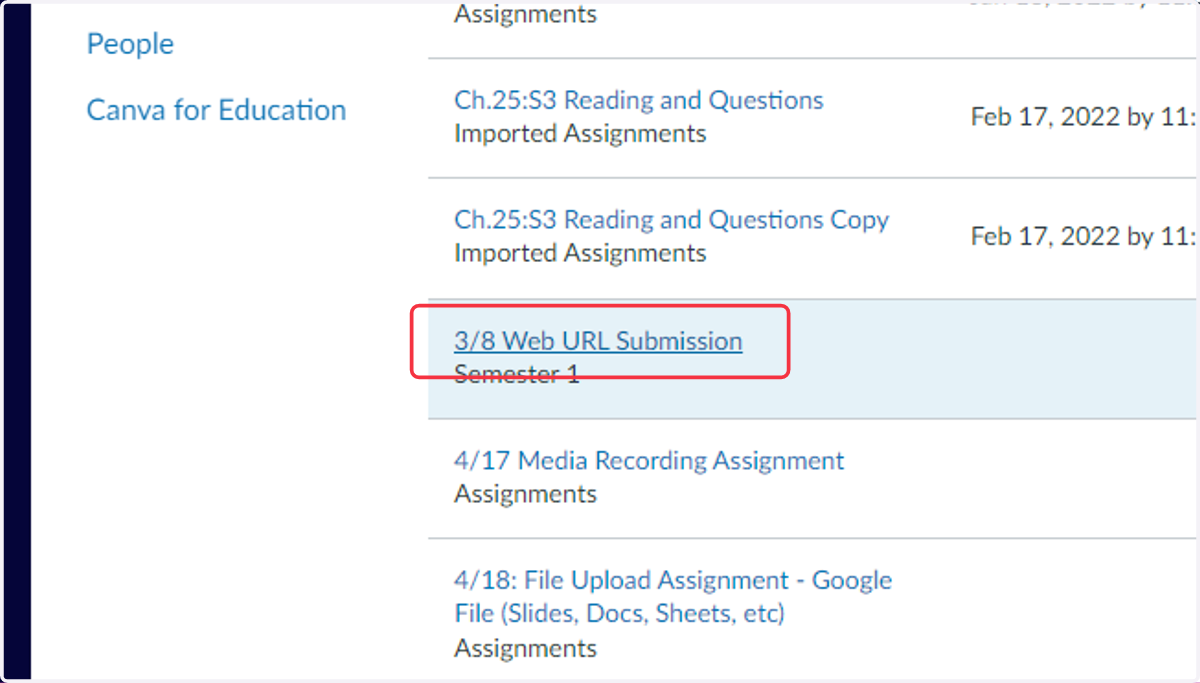
11. Select the link for the submission file
The links may look different depending on the submission type, but the link will be in the same spot on the Submission Details page.
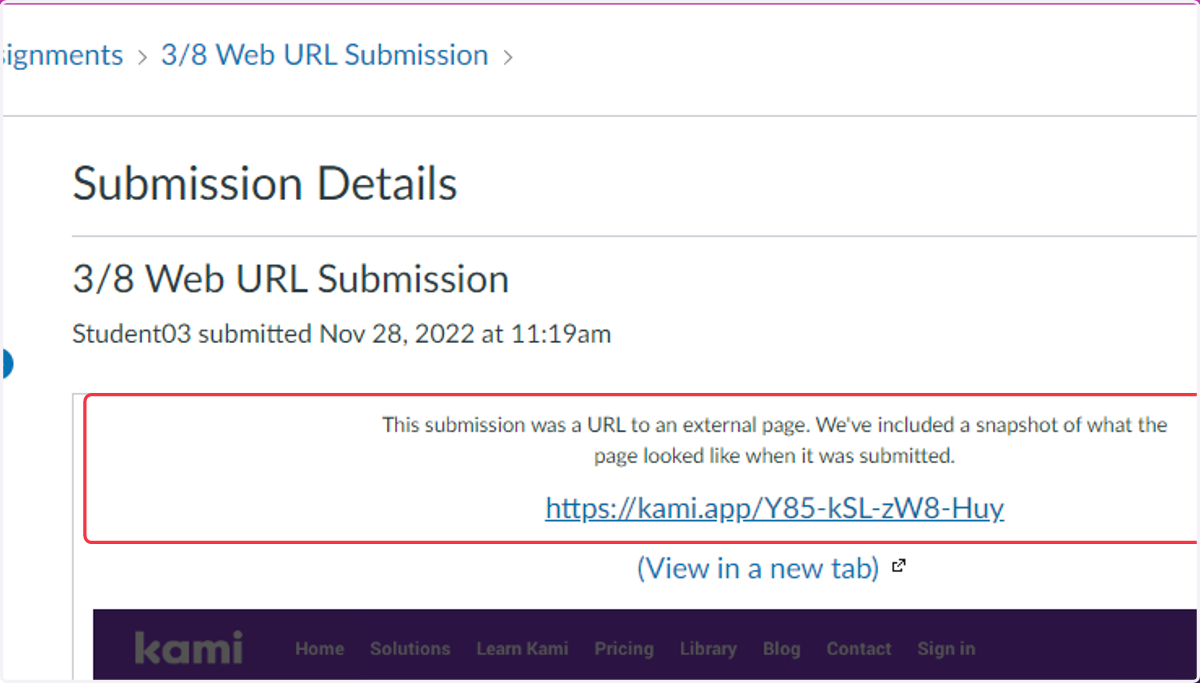
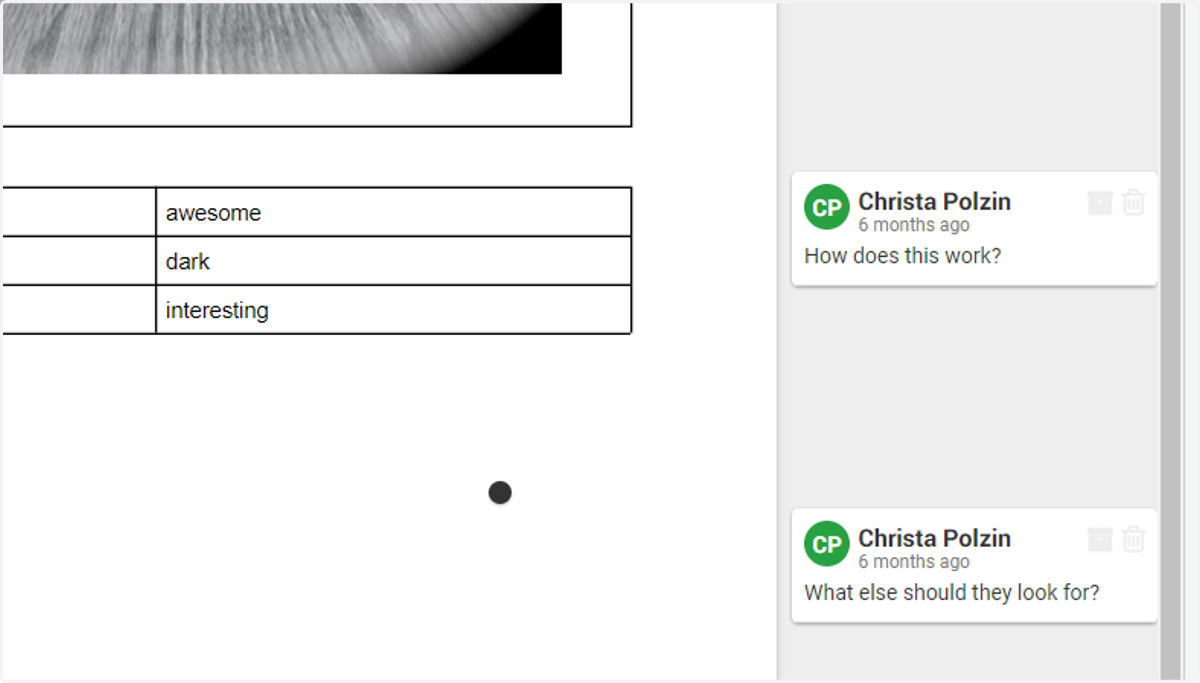
12. View Comments or Annotations