How to Update Tab Gallery Widget
This Tango will show you how to ad photos to the tab gallery widget
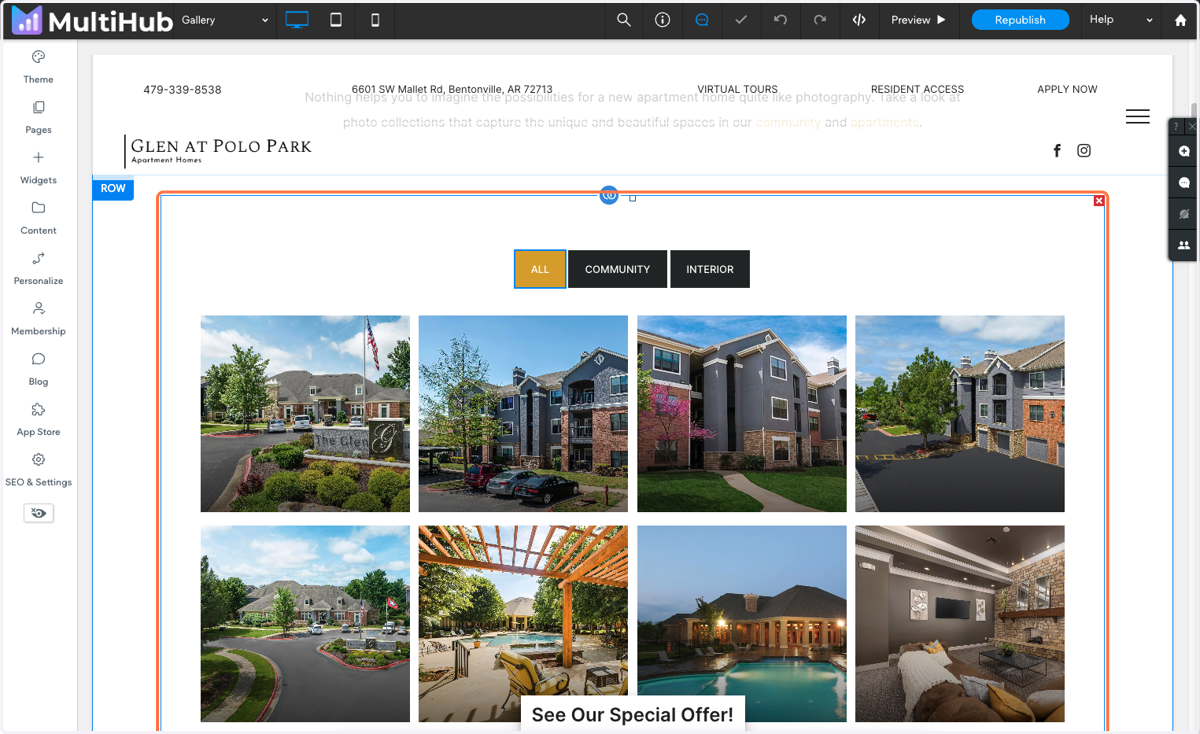
1. In the site editor, navigate to the Gallery page
Once on the page, click on the gallery widget
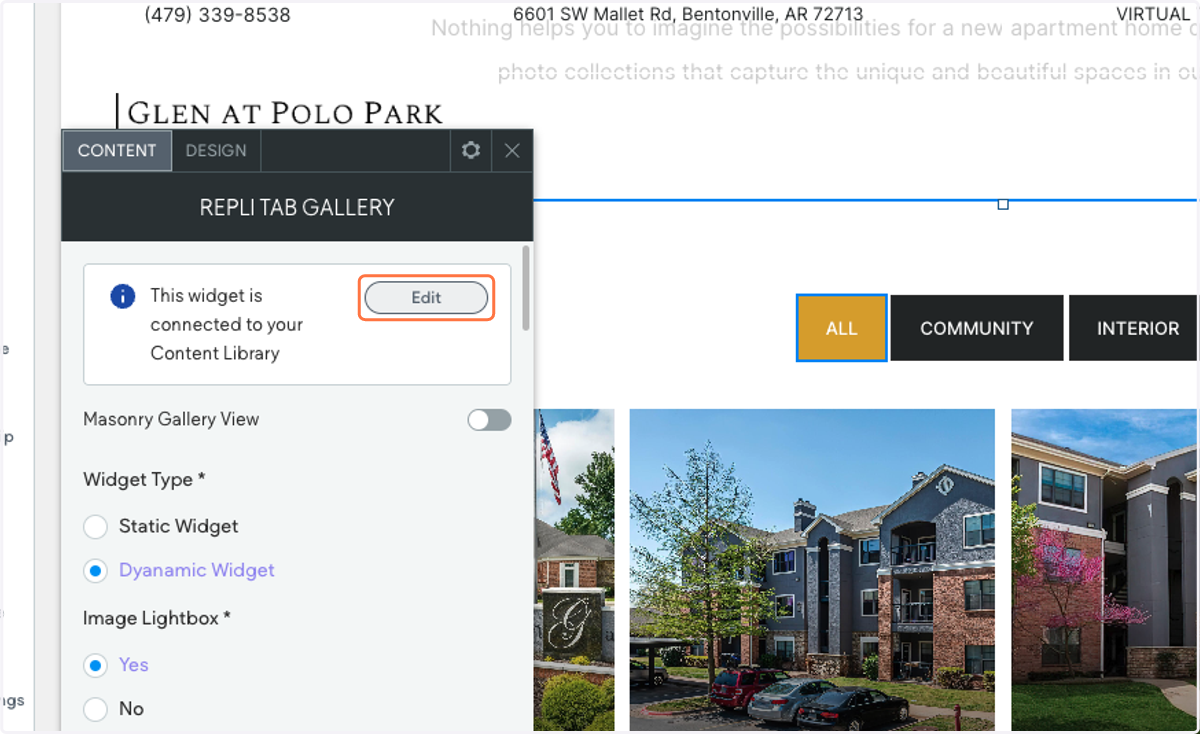
2. Settings popup should appear
Click on Edit
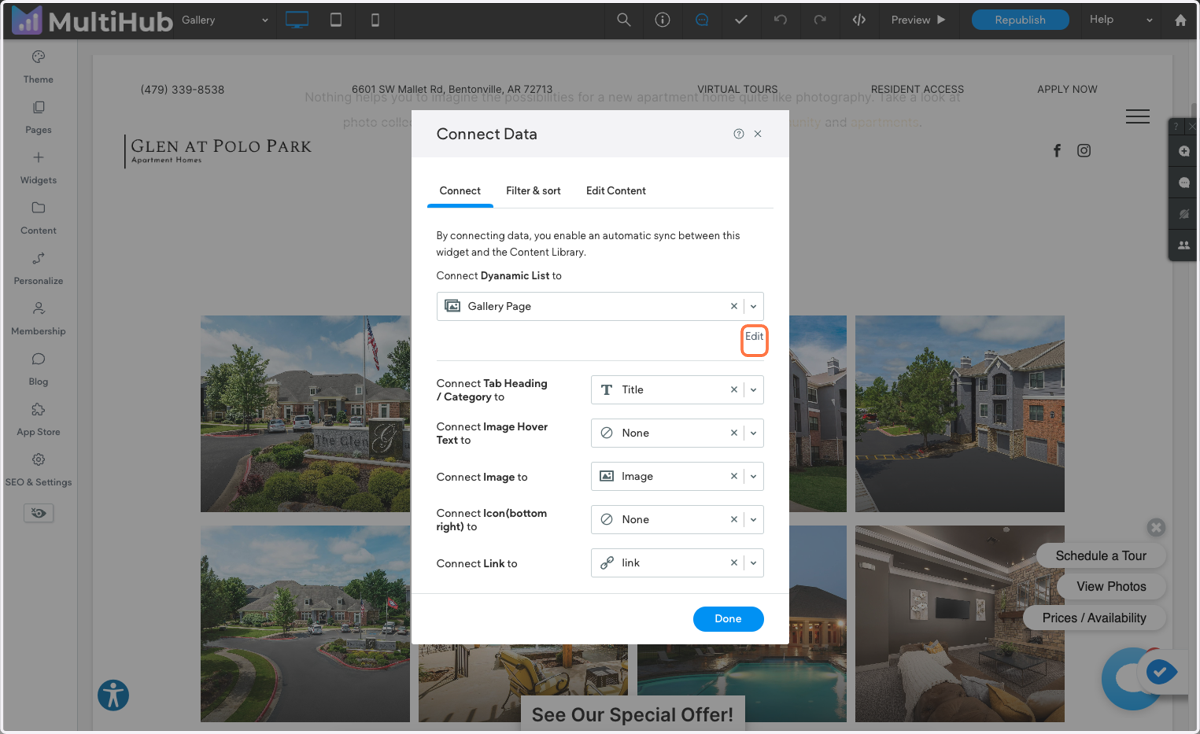
3. Click on Edit
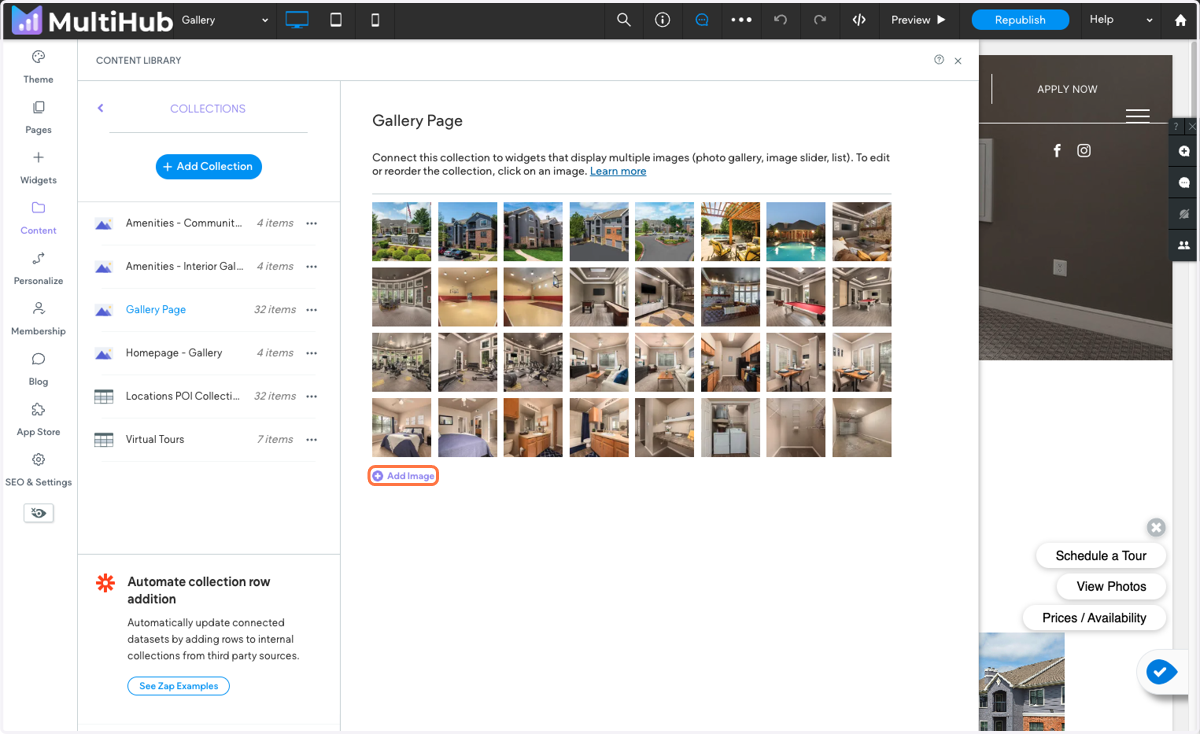
4. Click on Add Images
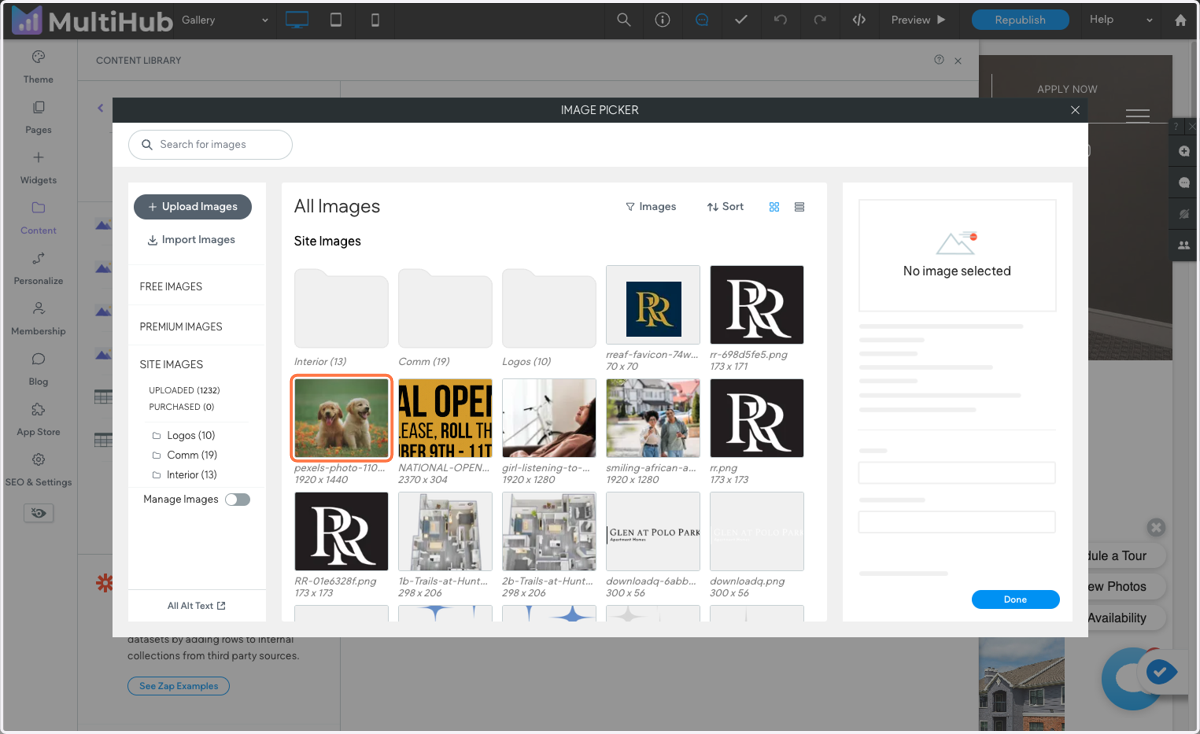
5. Select the photo you want to add
6. Click on Done
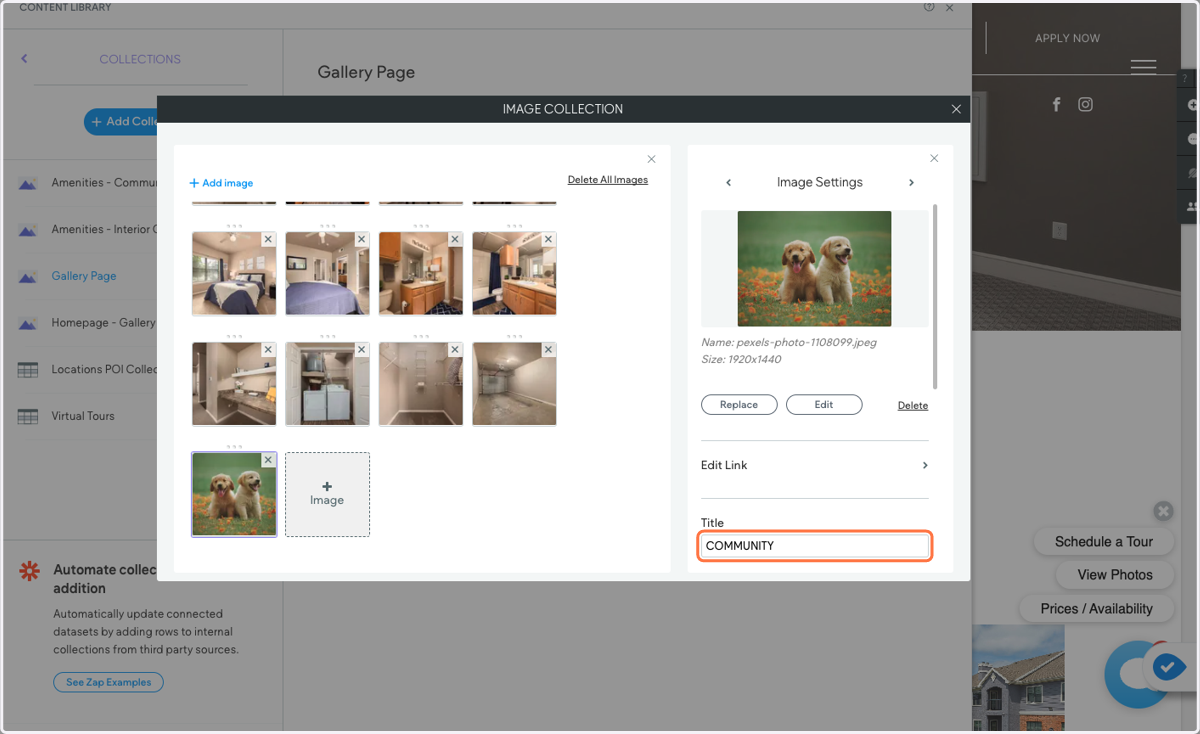
7. In the "Title" field, add in the category you want it to appear under
Note: Make sure the title is formatted the same for every image
8. close out of this window
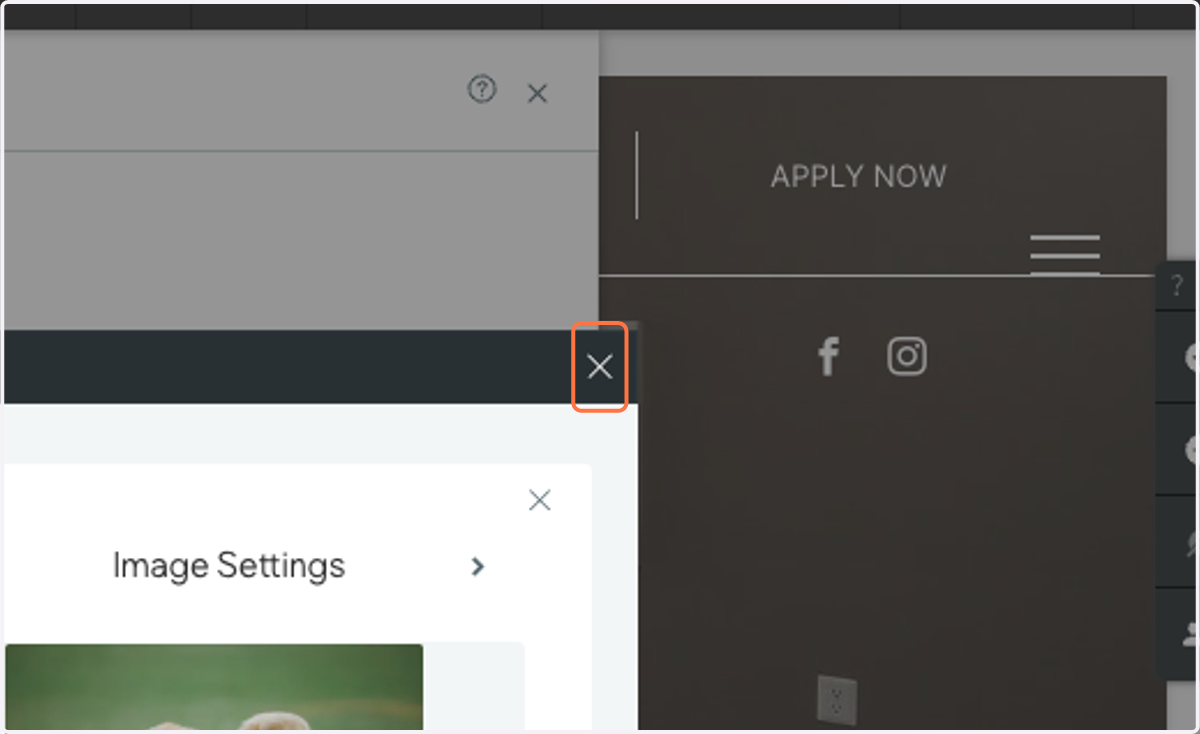
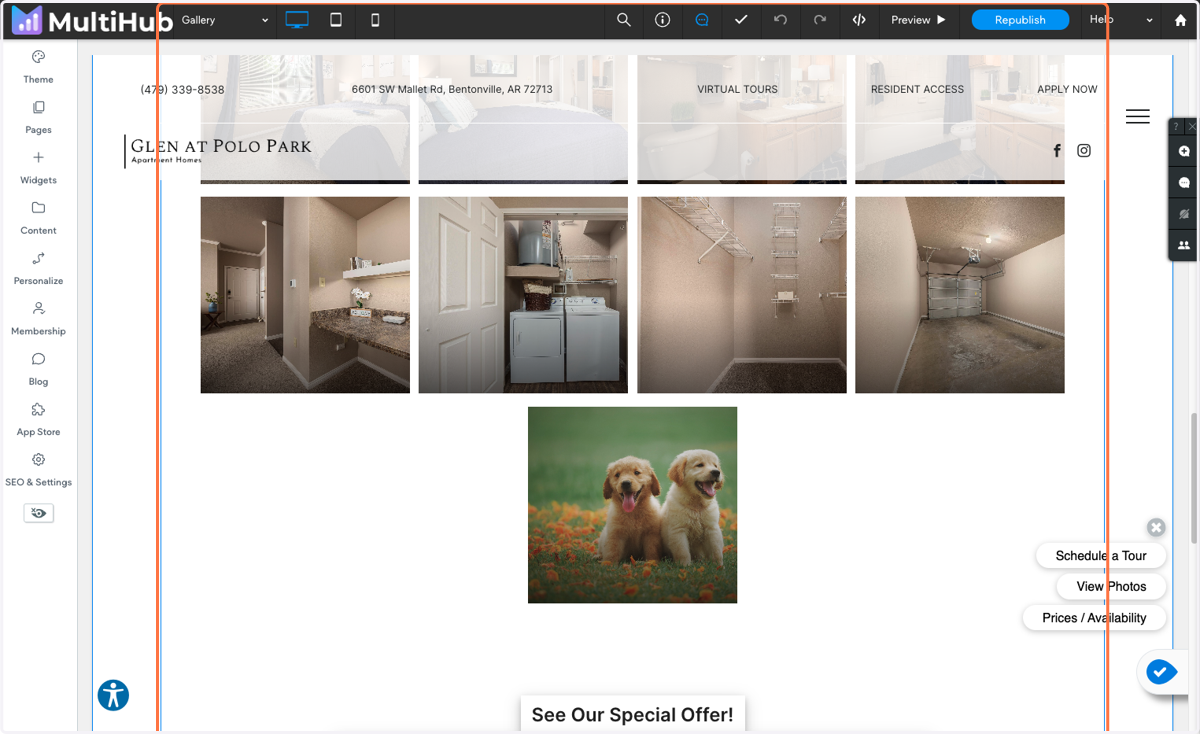
9. Go back to the Gallery page
The new image should now be under the ALL tab
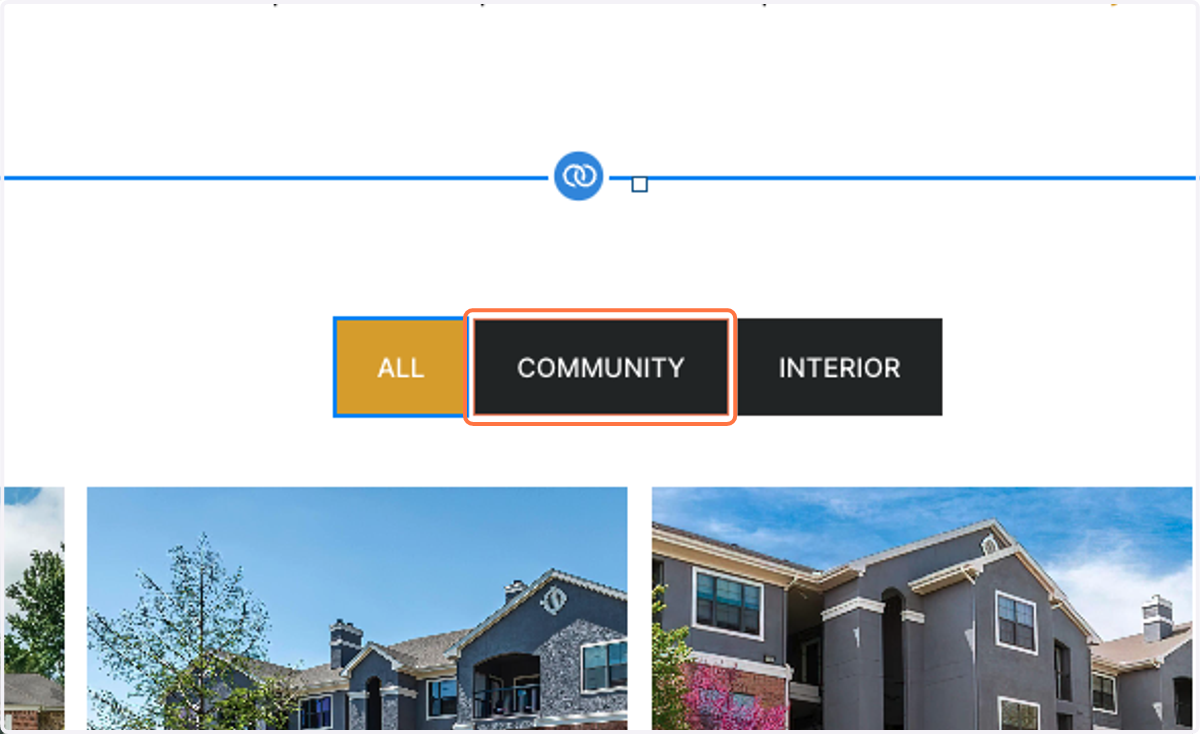
10. Click on COMMUNITY
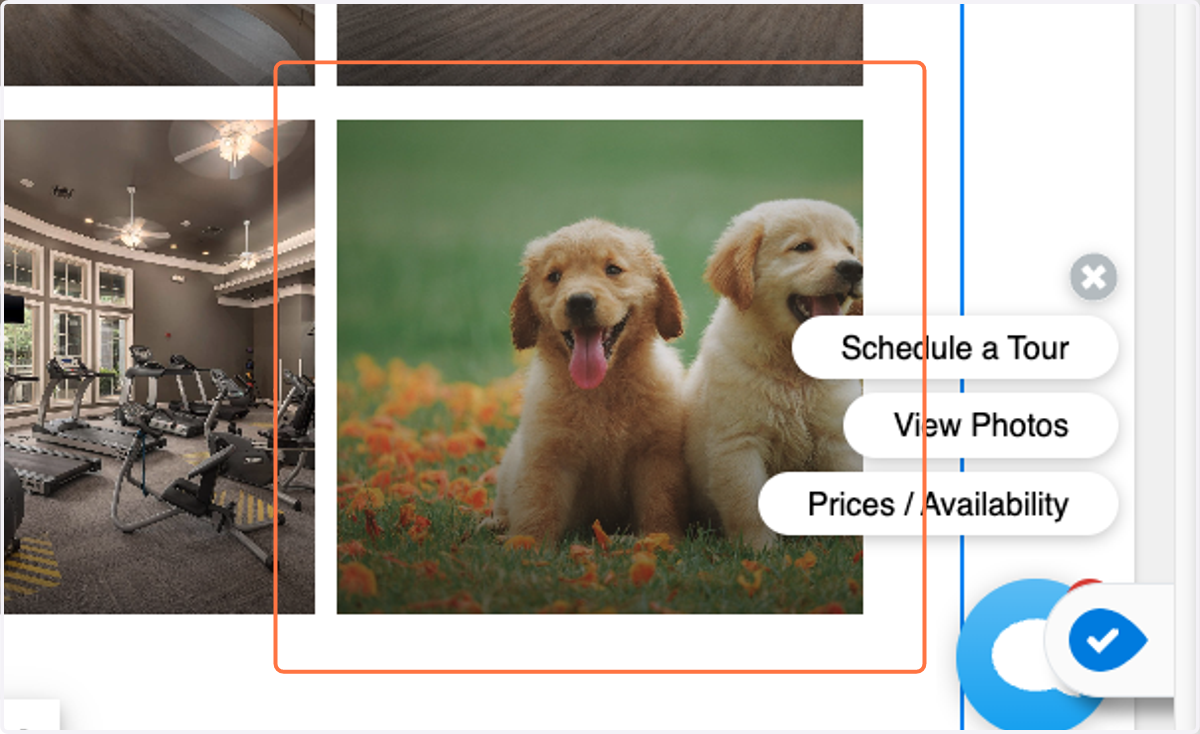
11. It will also be under the tab you titled it as too
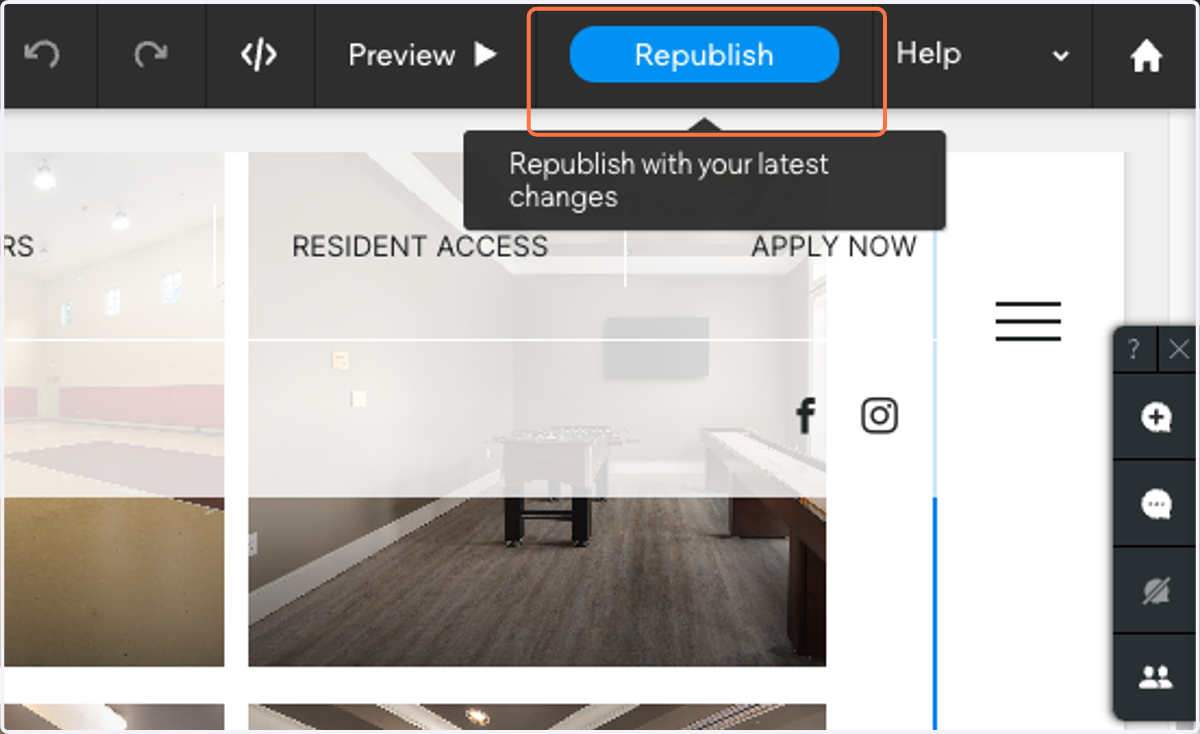
12. Click on Republish