3.2 How to configure Sales Tax
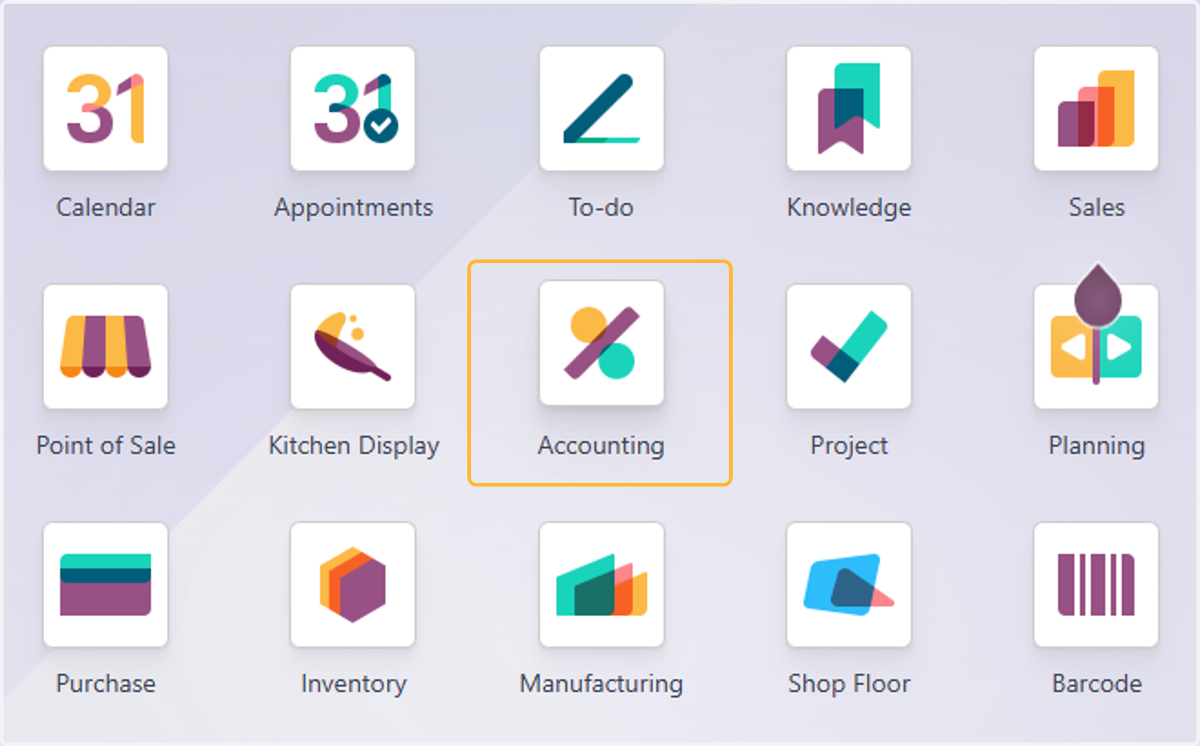
1. Click on Accounting
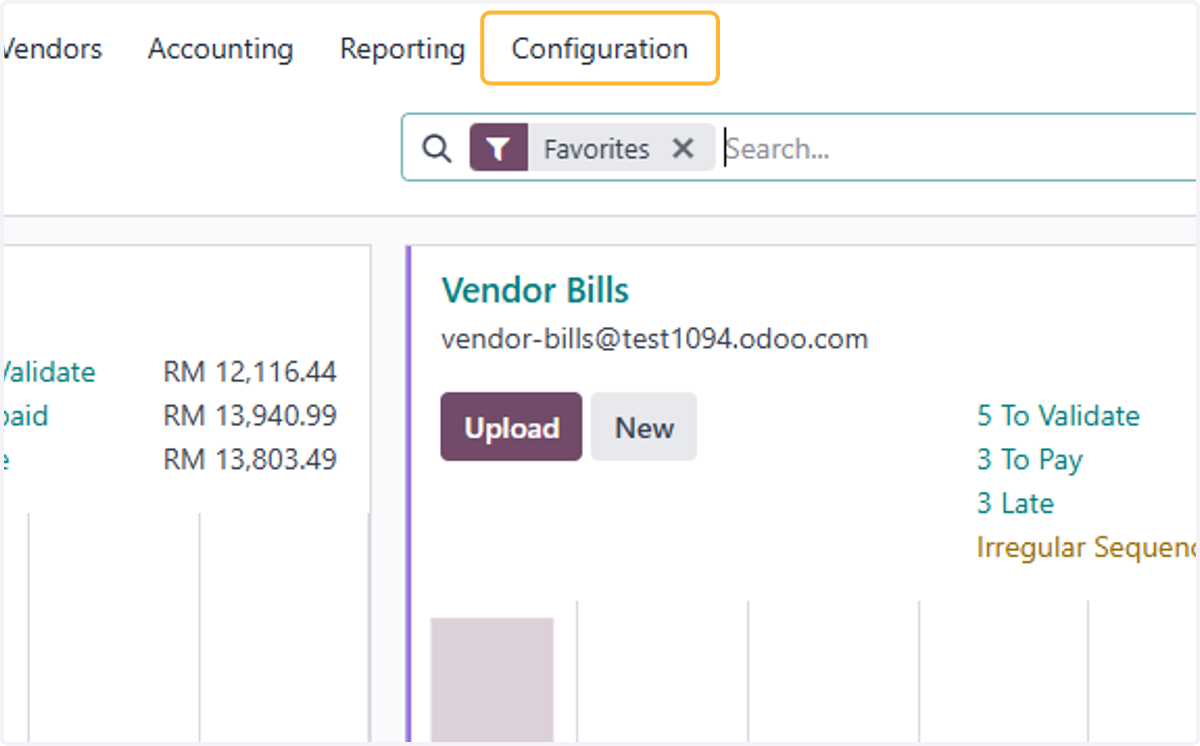
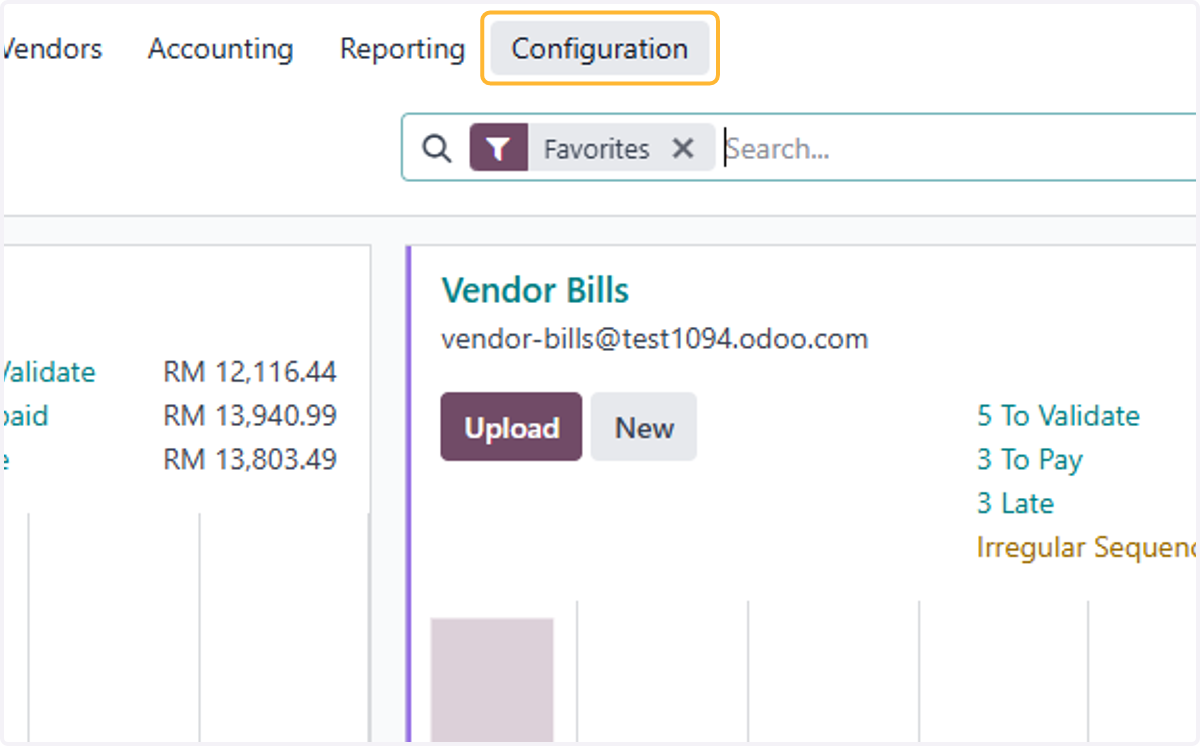
2. Click on Configuration
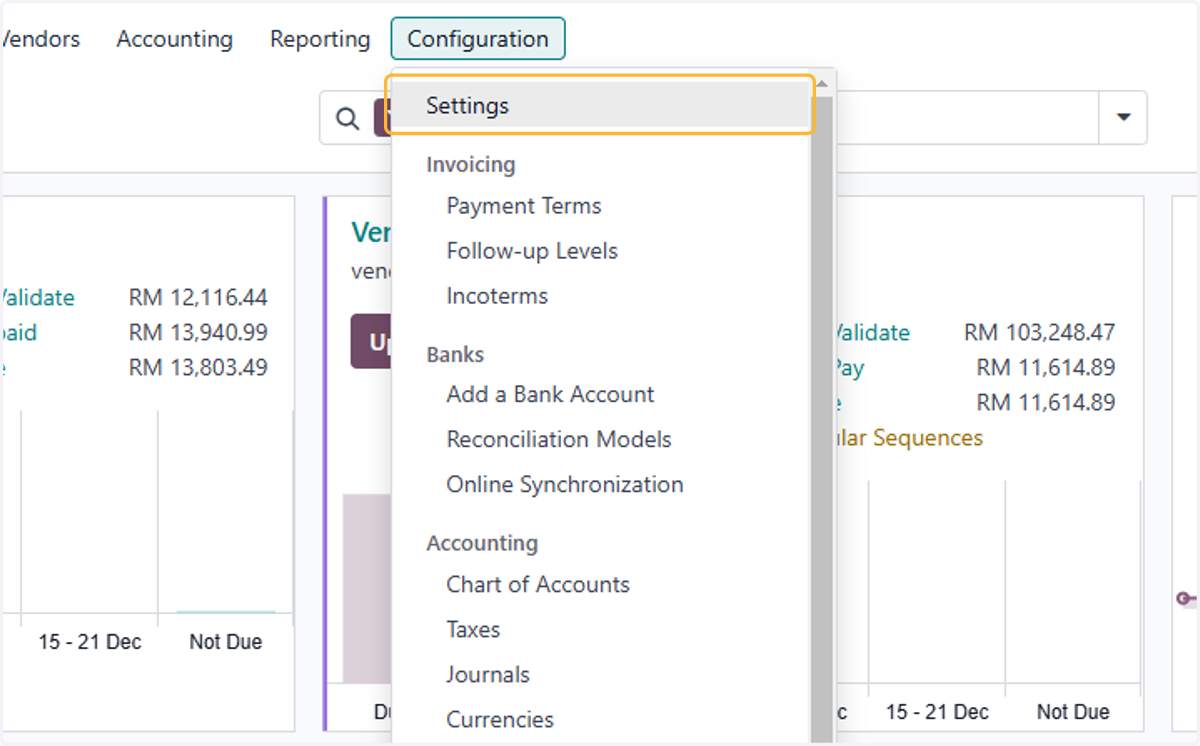
3. Click on Settings
4. By default, Fiscal country is set the same as Company's Fiscal Localization.
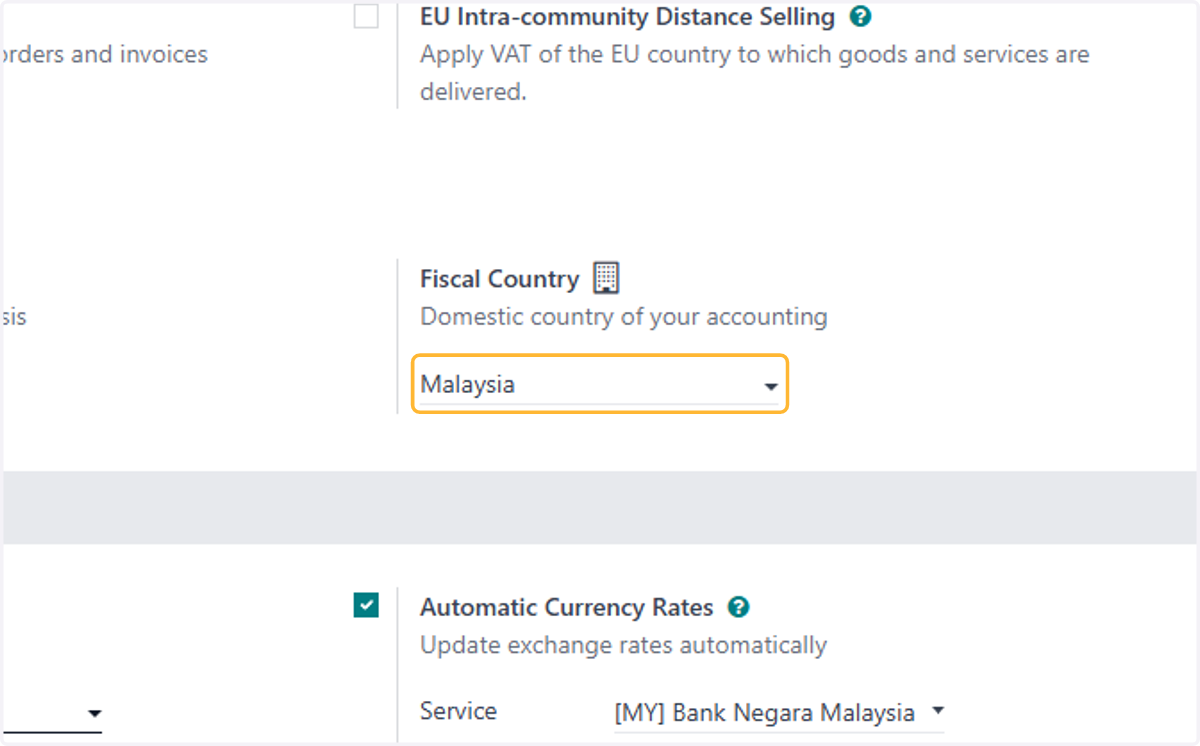
5. Default Taxes accounts are automatically created based on your localization.
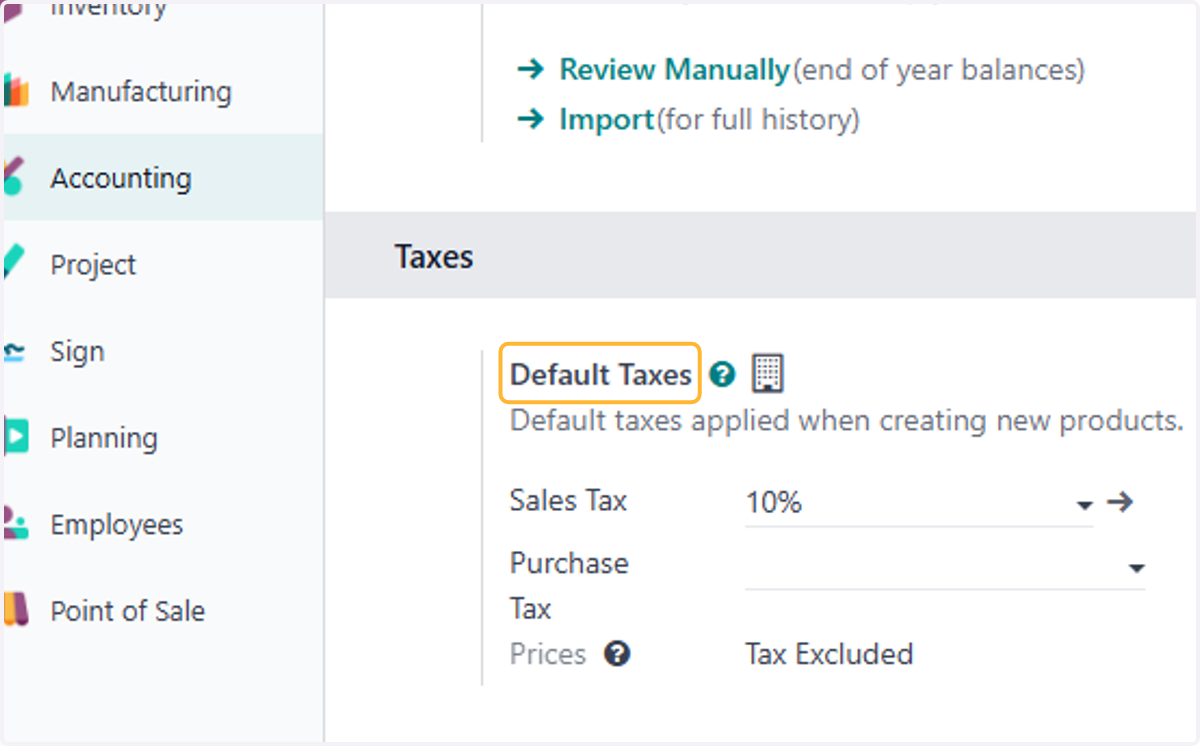
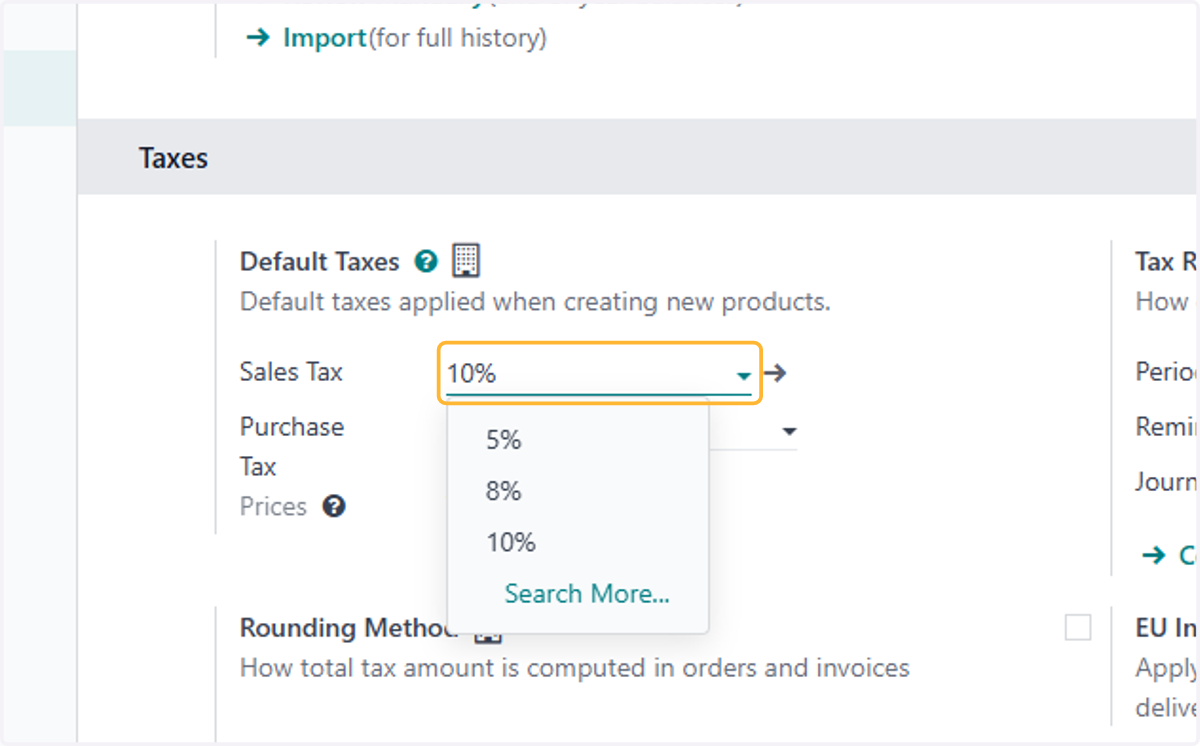
6. Select applicable Tax as default
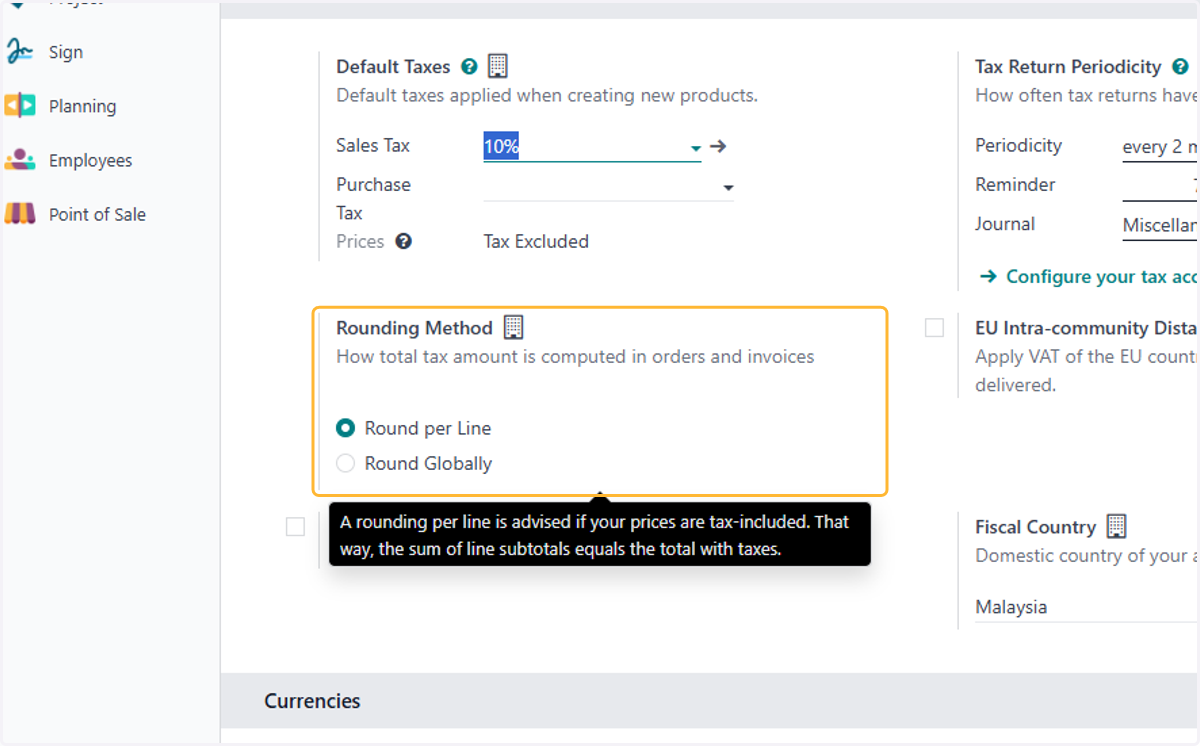
7. Select relevant rounding method
8. Click on Configuration
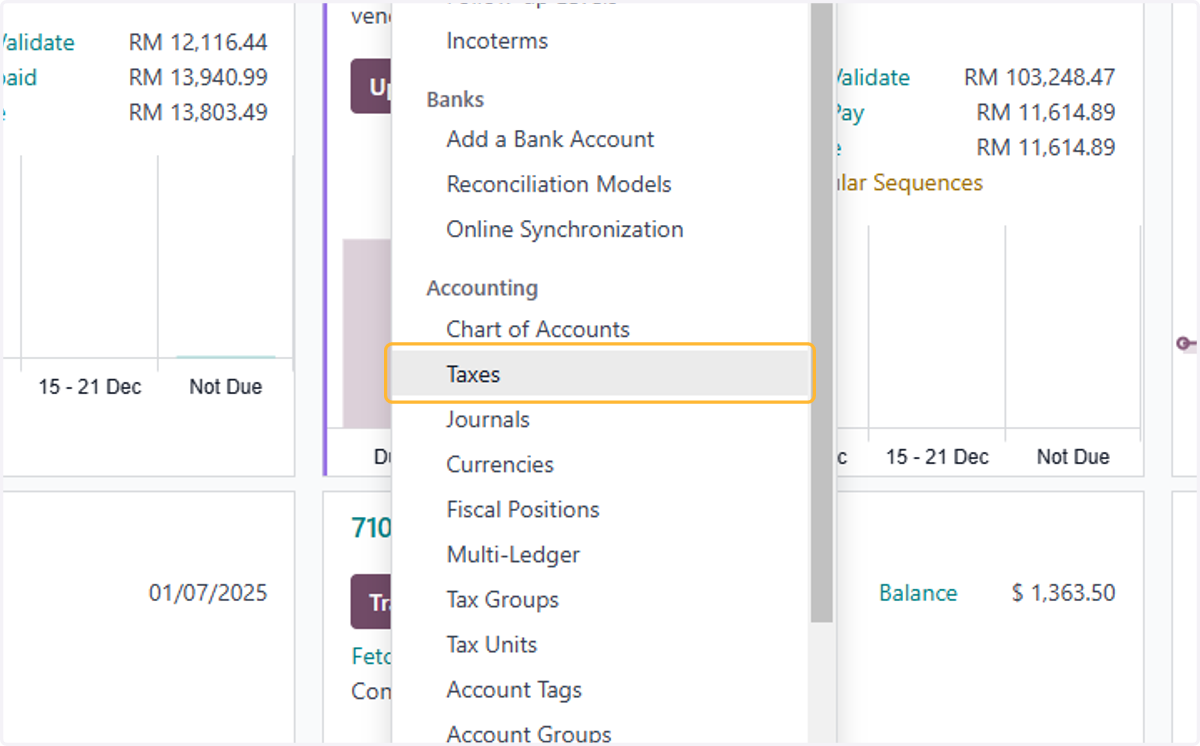
9. Click on Taxes
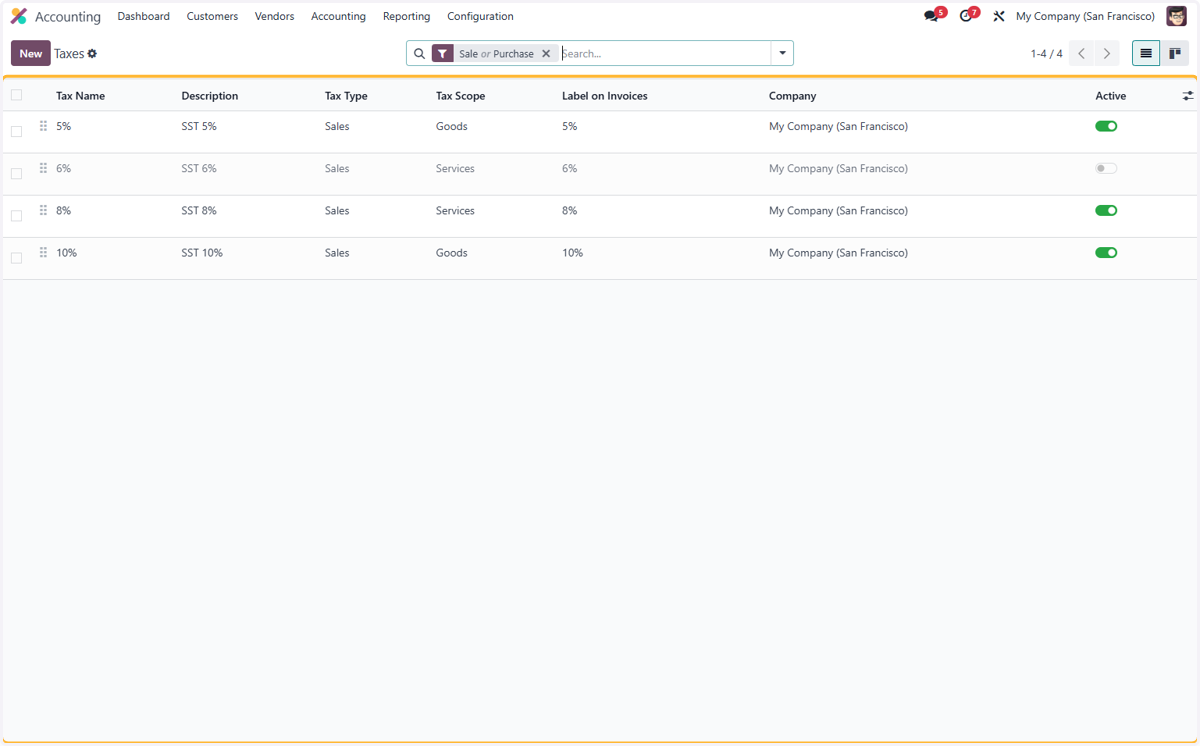
10. List of all available taxes, Active & inactive.
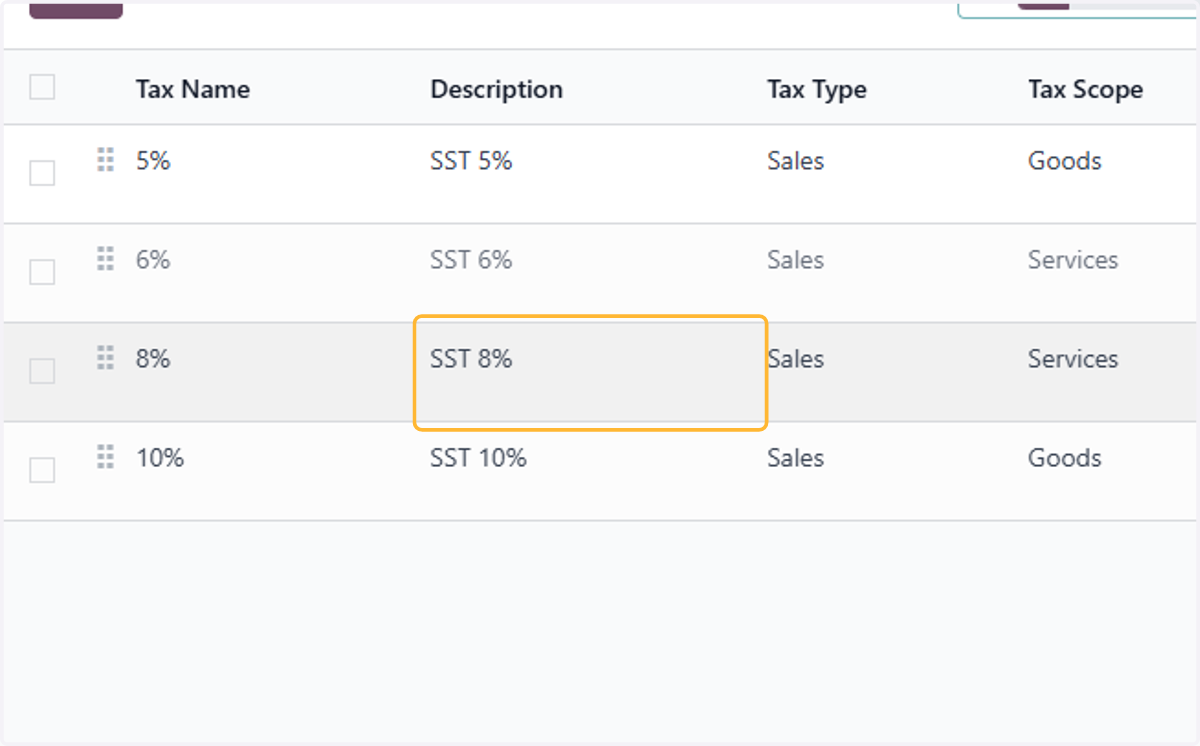
11. Select Tax to ammend
12. Fill in desired Tax Name
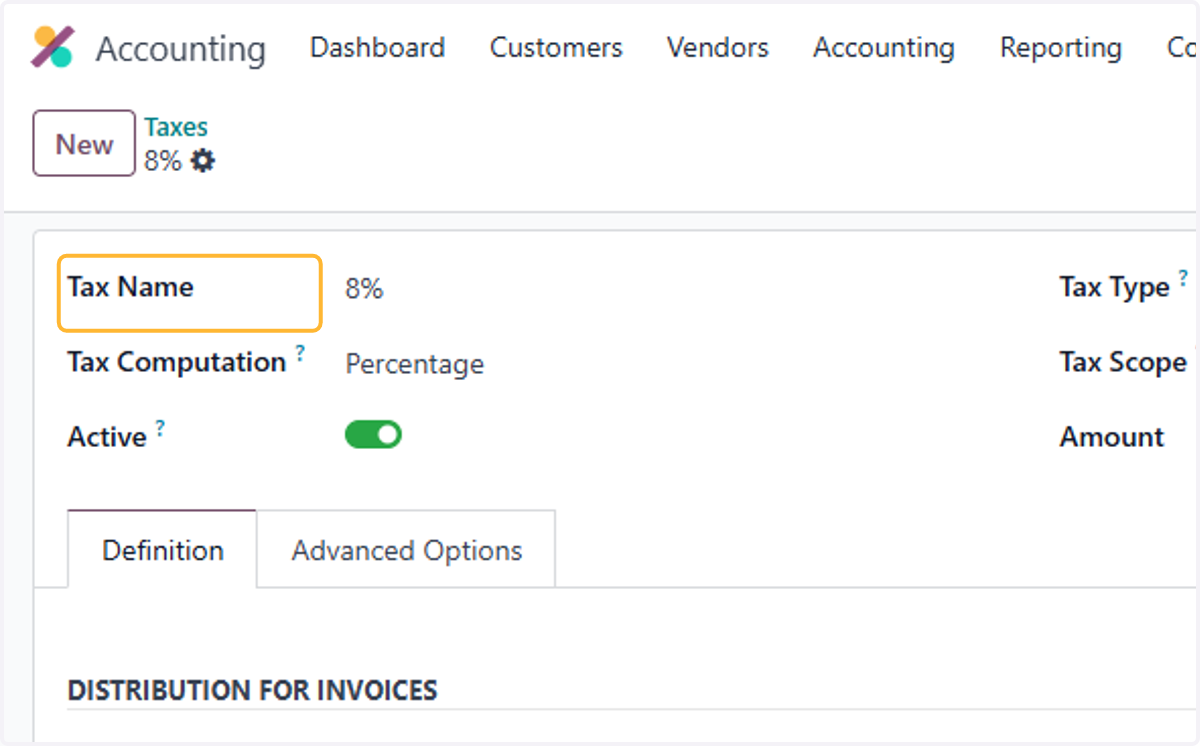
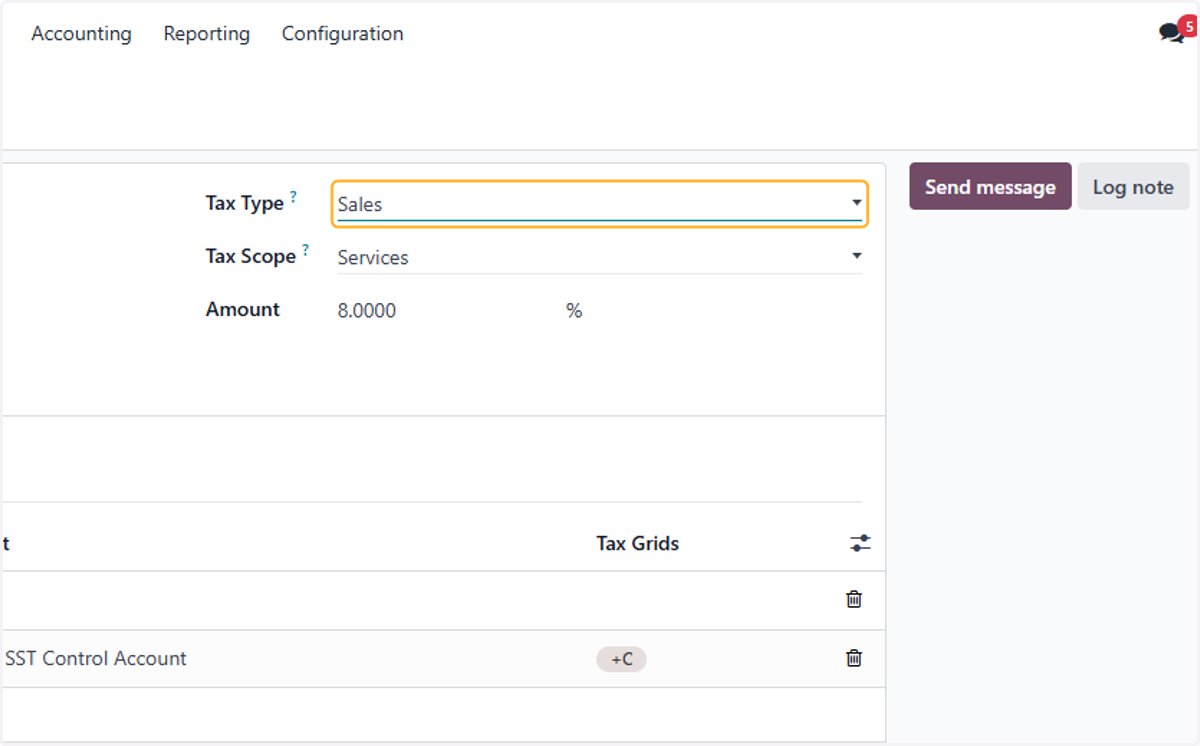
13. Select Tax Type.
There are 3 types: Sales, Purchase & None
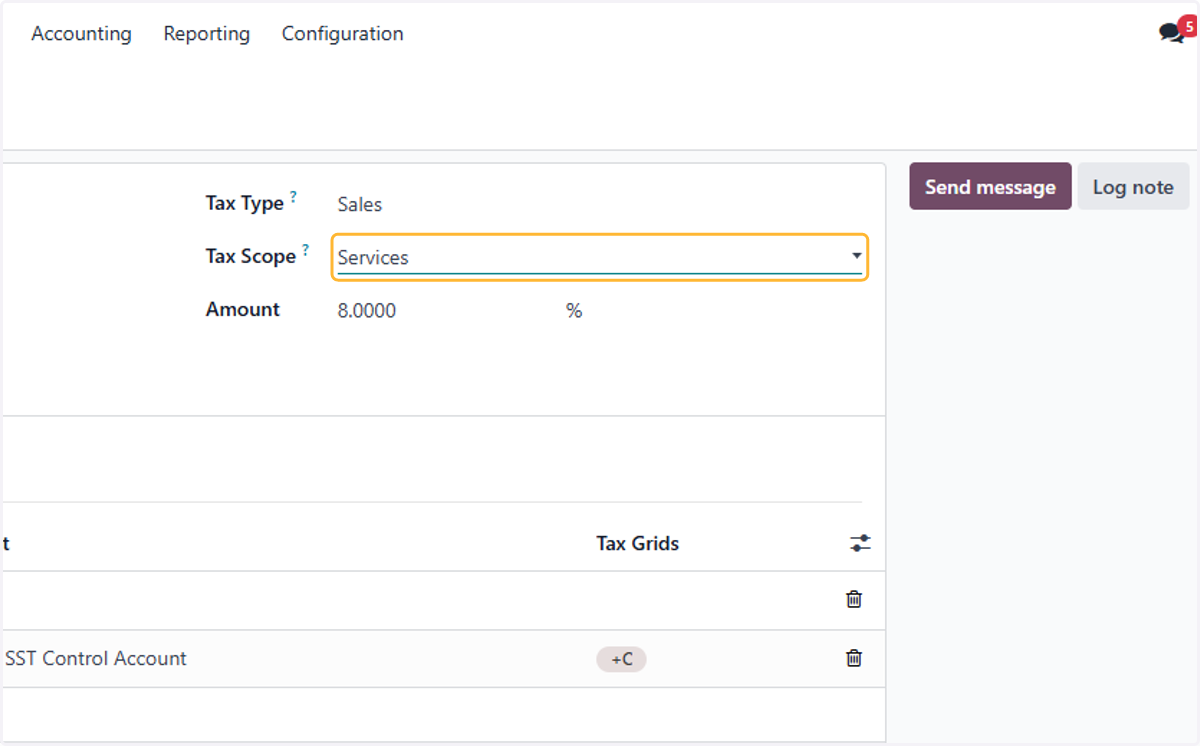
14. Select Tax Scope
Select relevant scope of the tax. There are 3 types: Services, Goods & blanks for both
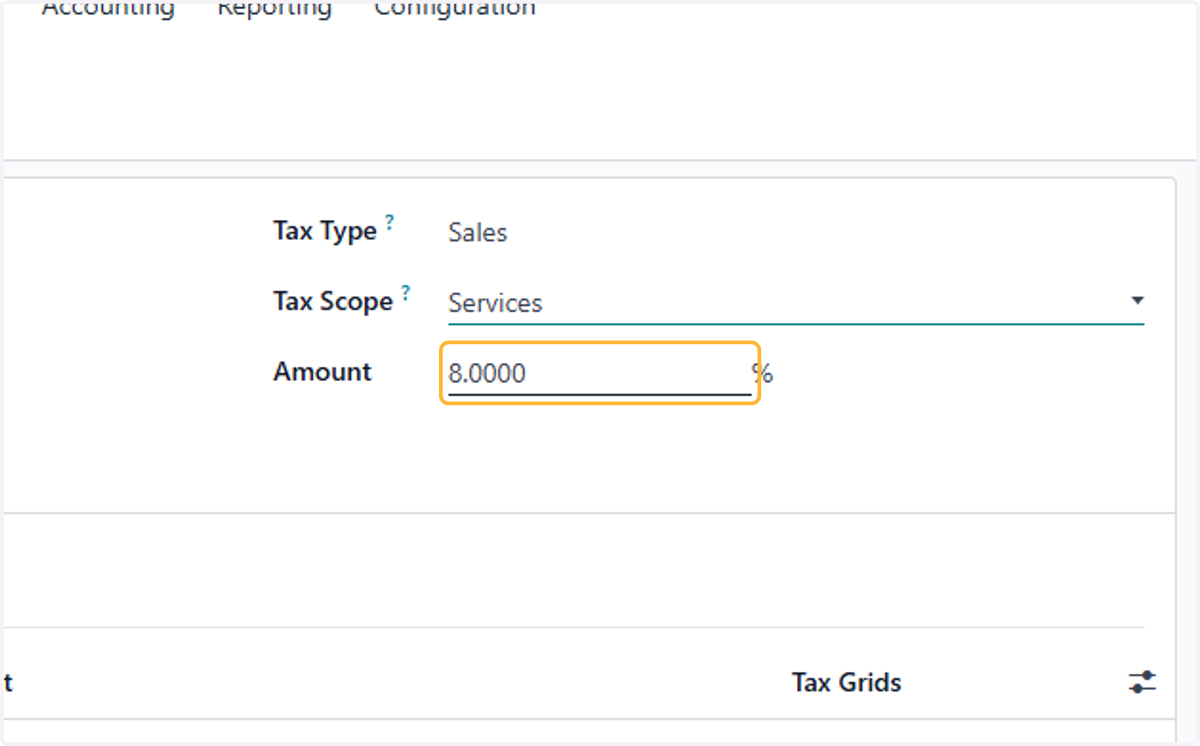
15. Fill in tax percentage
16. Select Percentage from Tax Computation
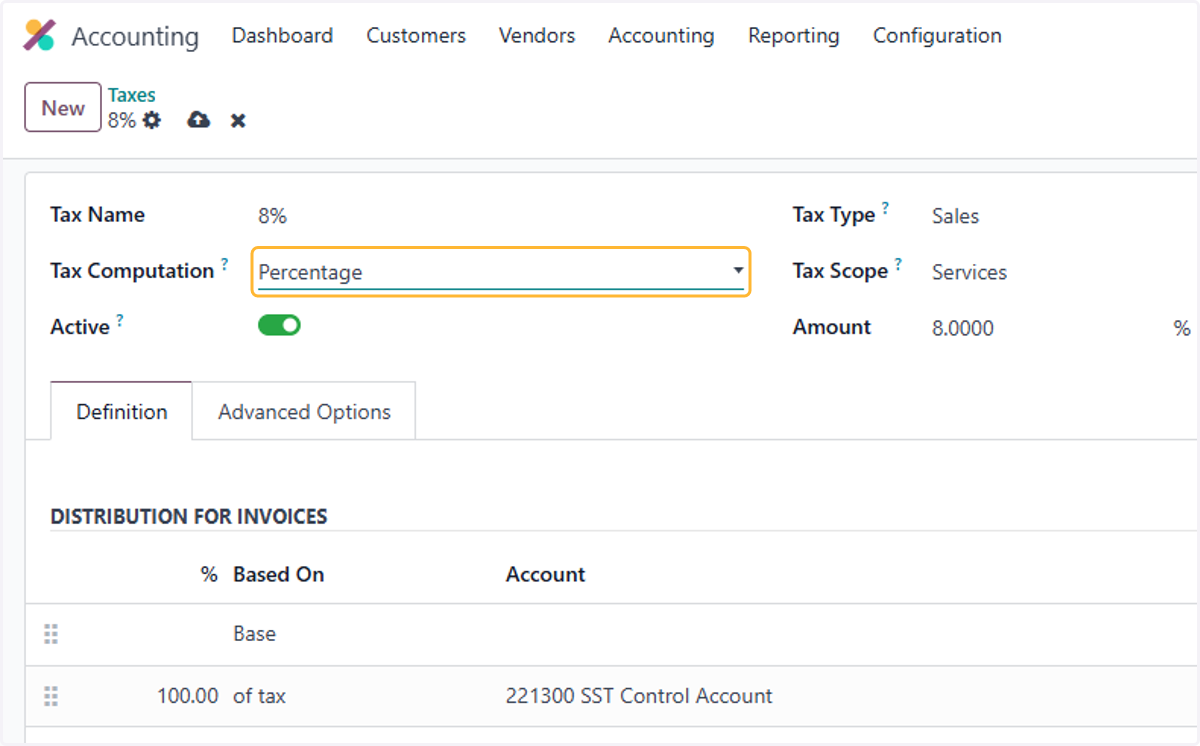
17. Details for DISTRIBUTION FOR INVOICES
Here you can set distribution of taxes to separate/multiple accounts if applicable.
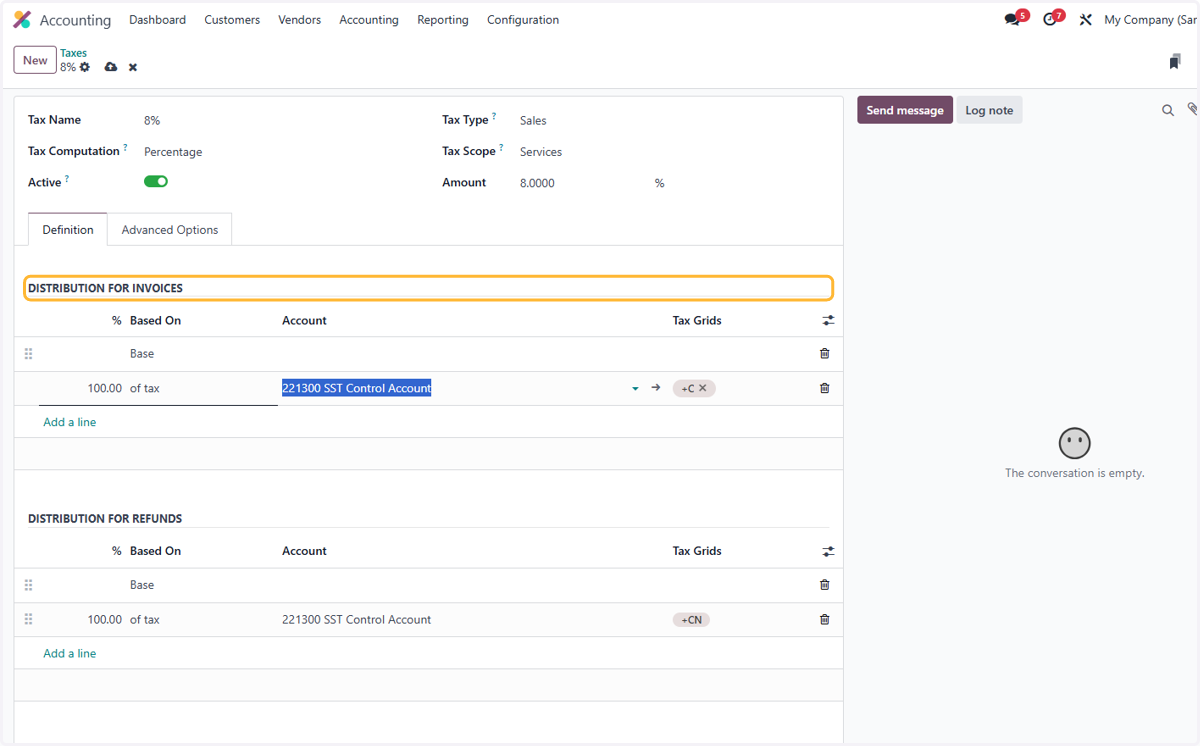
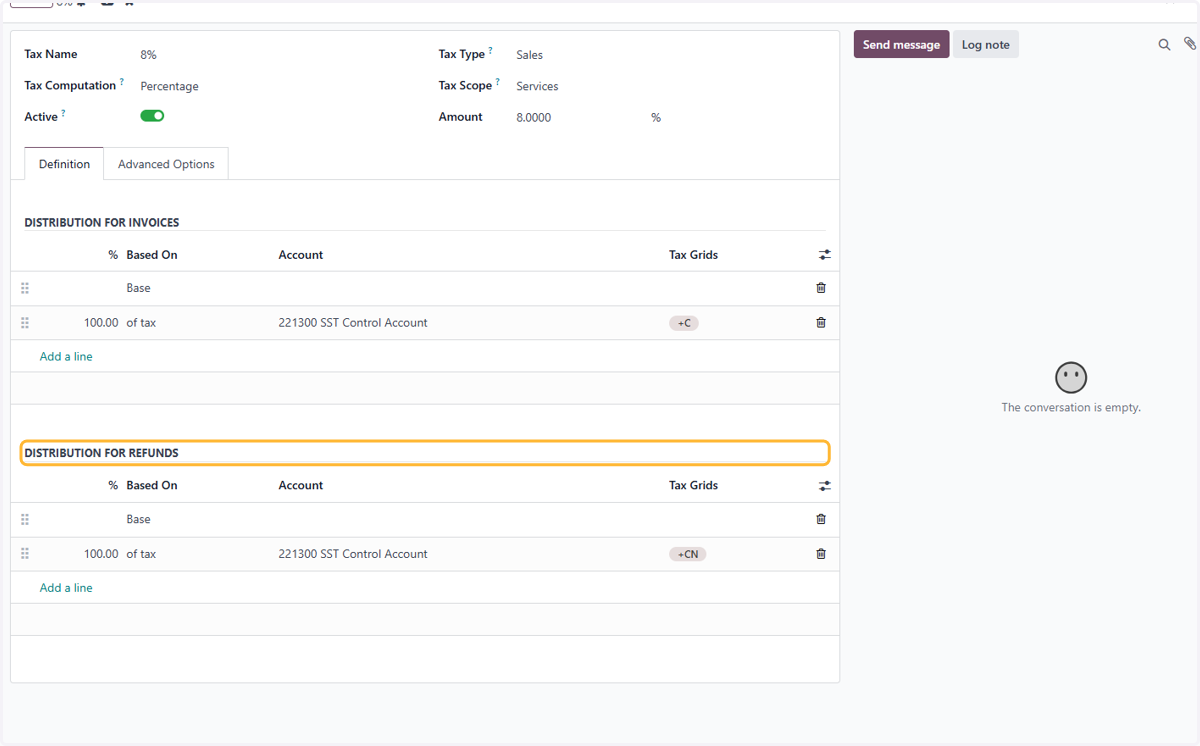
18. Details of DISTRIBUTION FOR REFUNDS
Here you can set distribution of taxes when refunding to separate/multiple accounts if applicable.
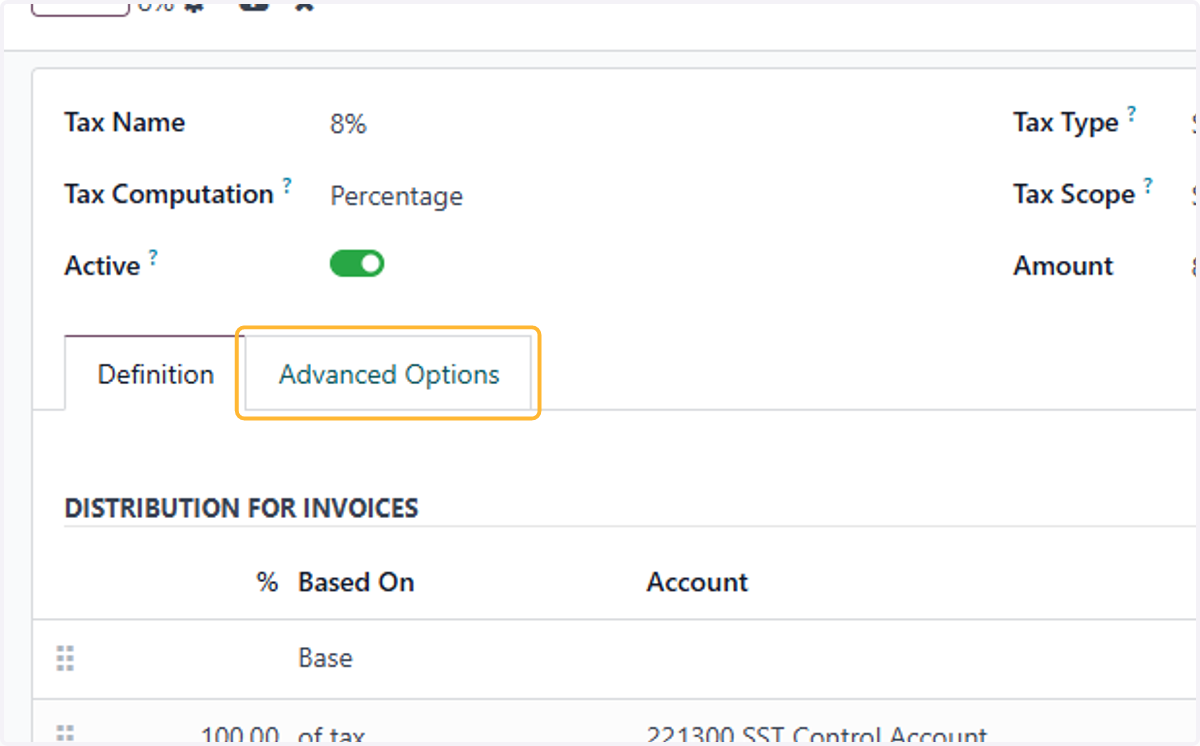
19. Click on Advanced Options
20. Label on Invoices is will be displayed in the invoice line
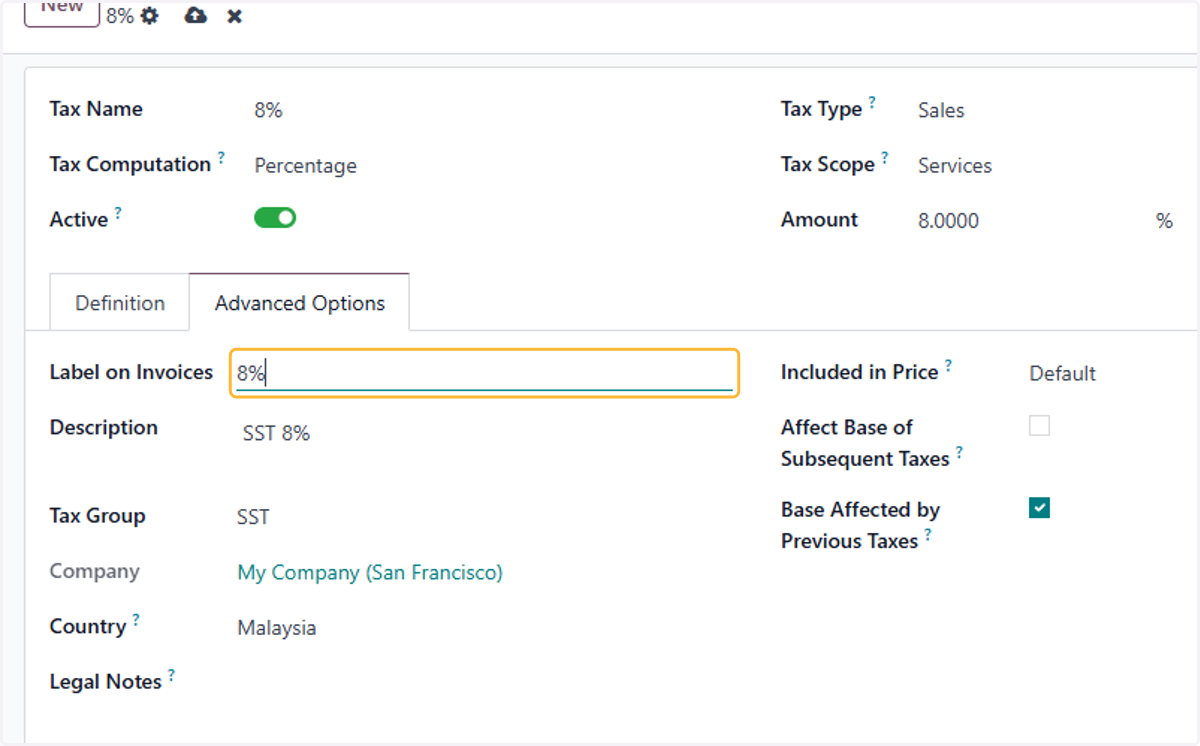
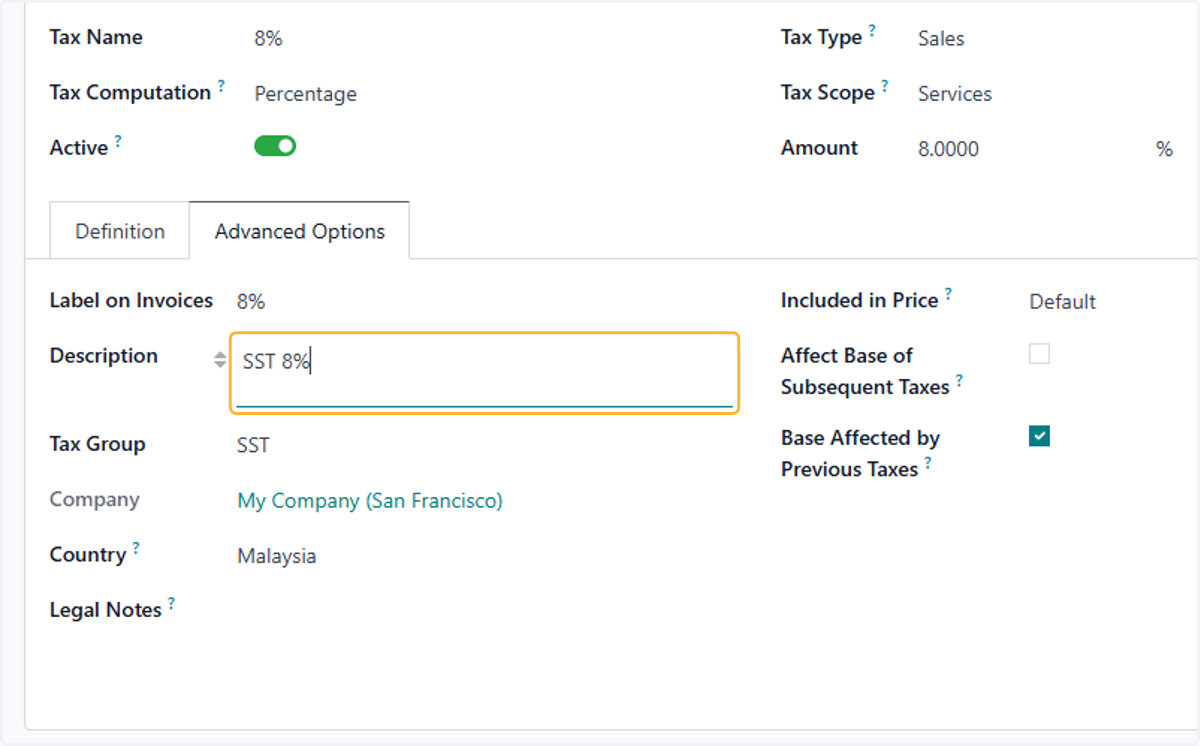
21. To set a description of the taxes if applicable
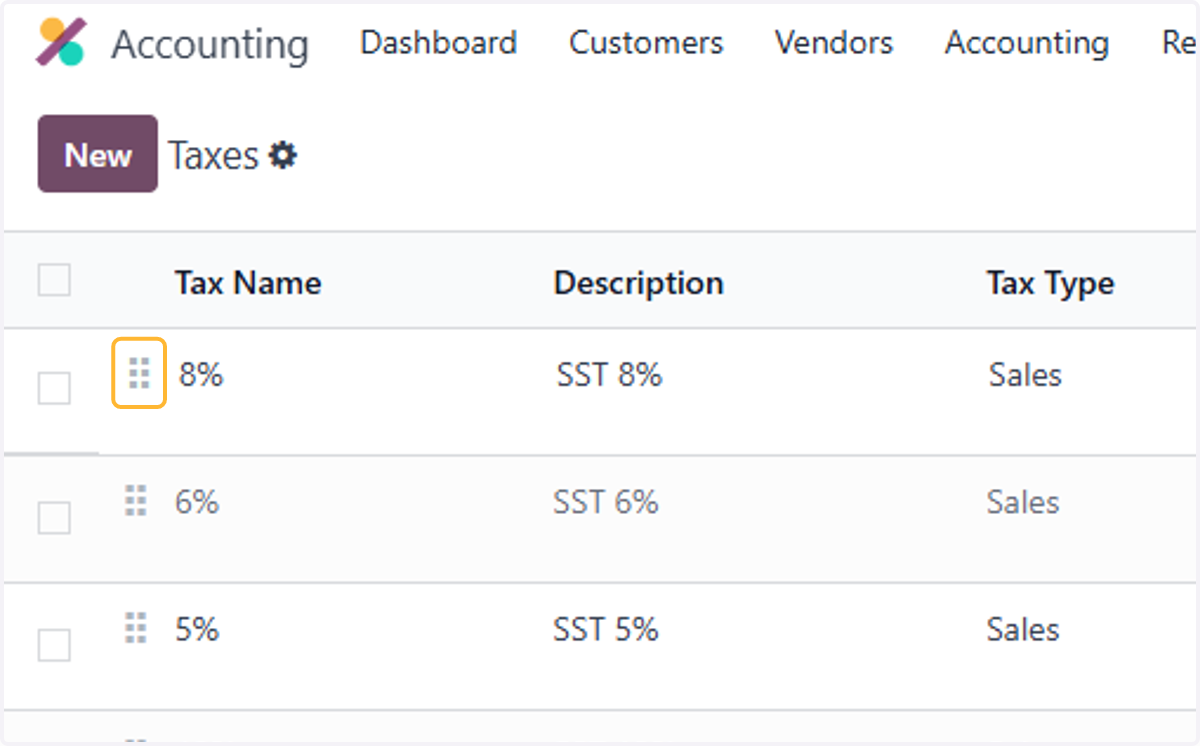
22. The placement in this list is the order in which the tax will be displayed on your invoices
By dragging the selected tax from up or down.
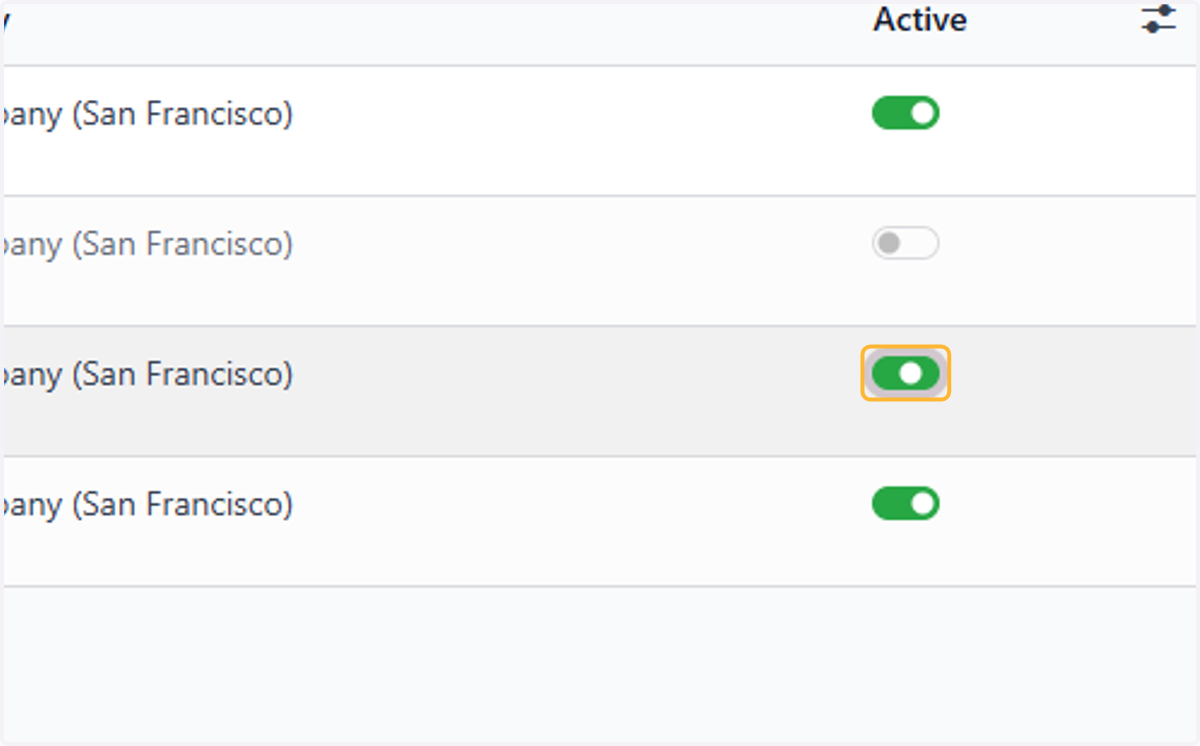
23. Activating or Deactivating taxes
Applying tax rates to the products
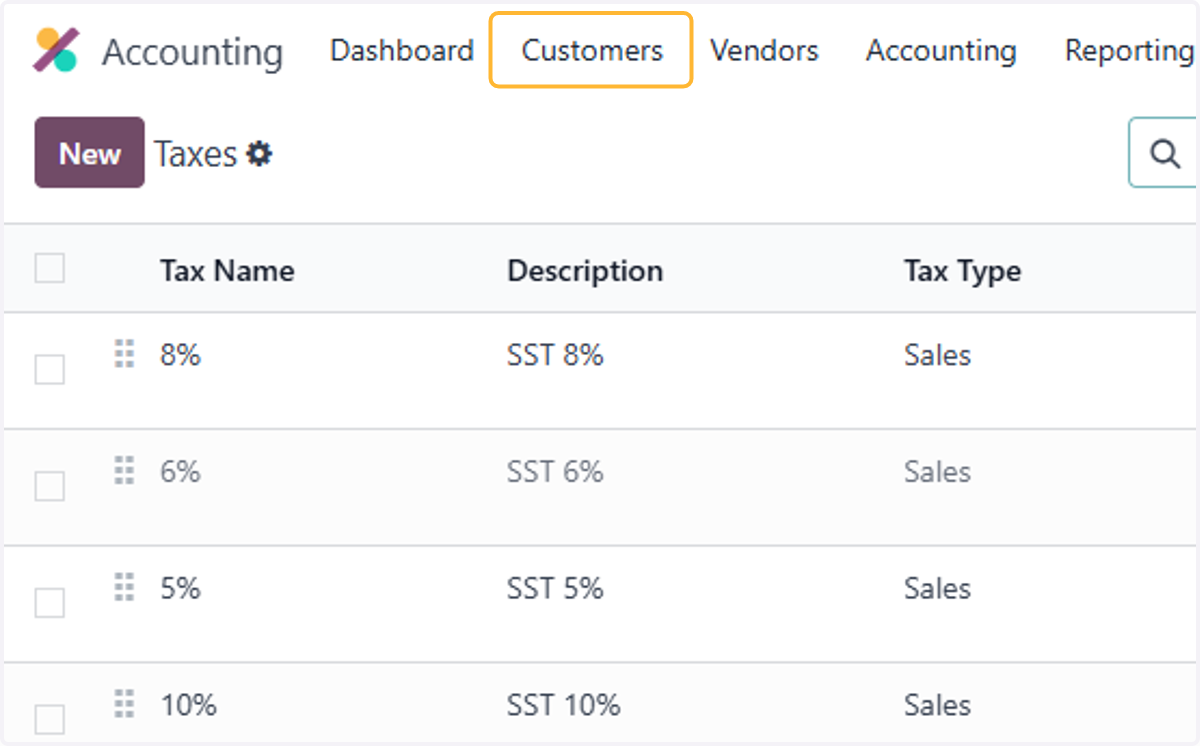
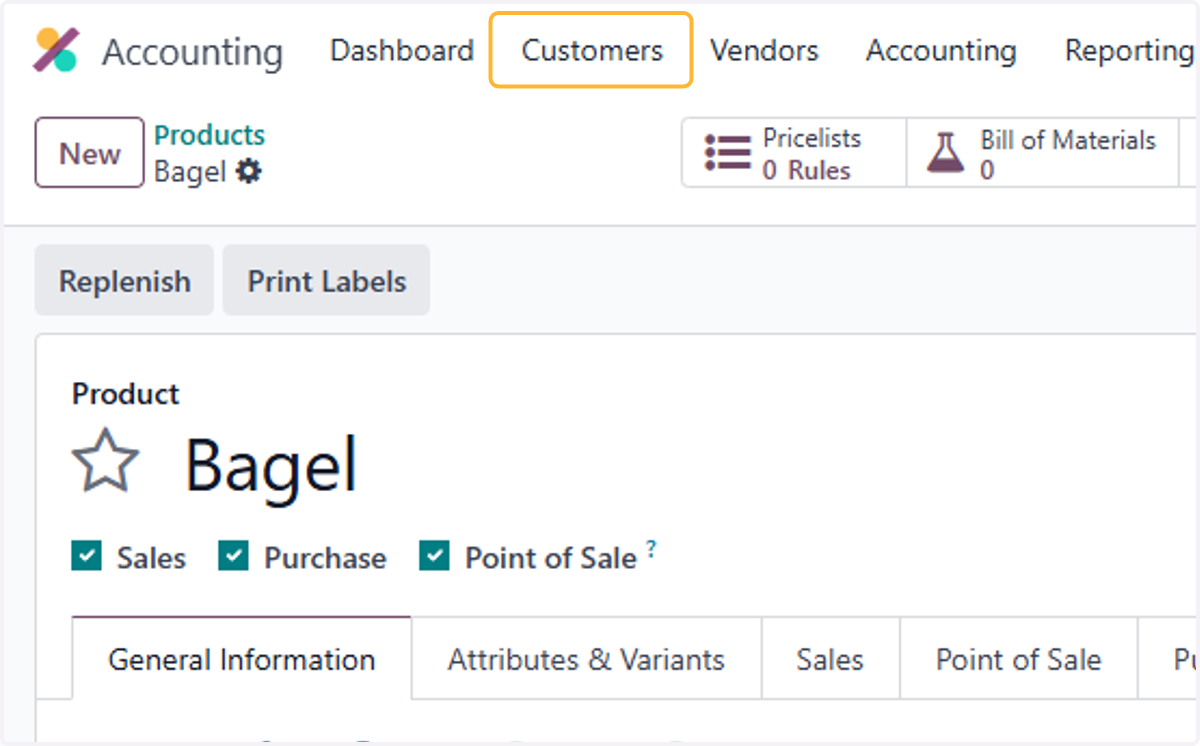
24. Click on Customers
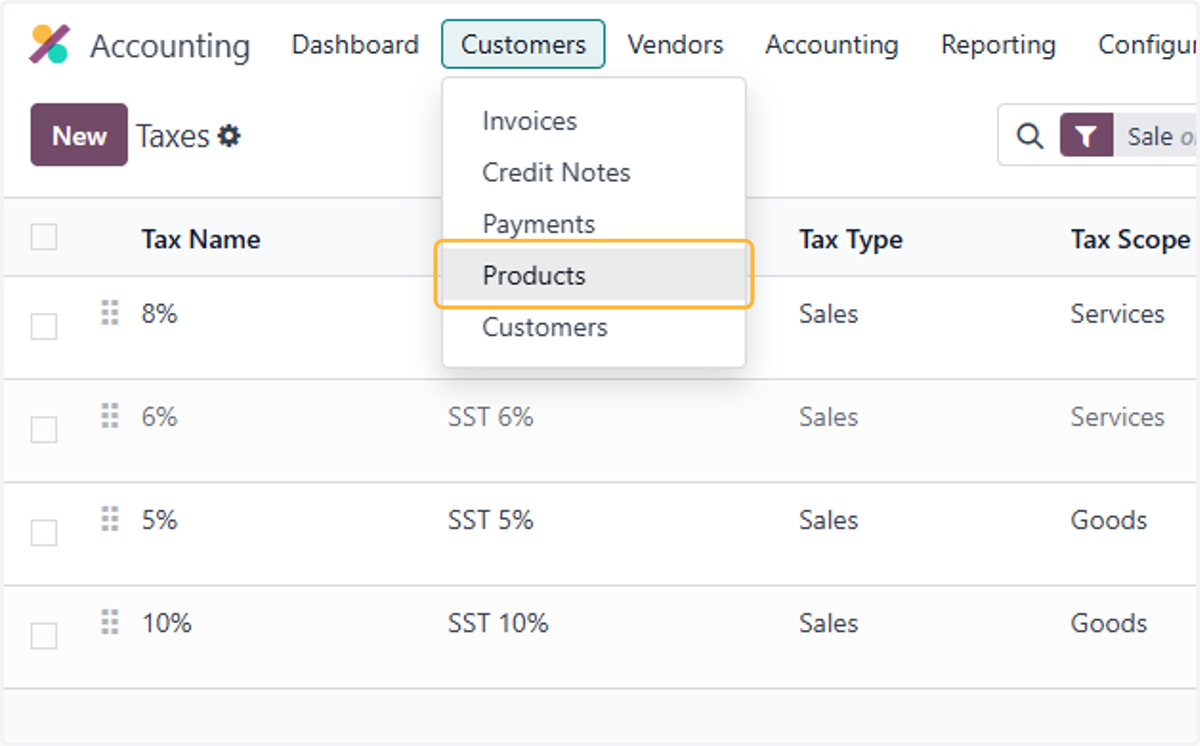
25. Click on Products
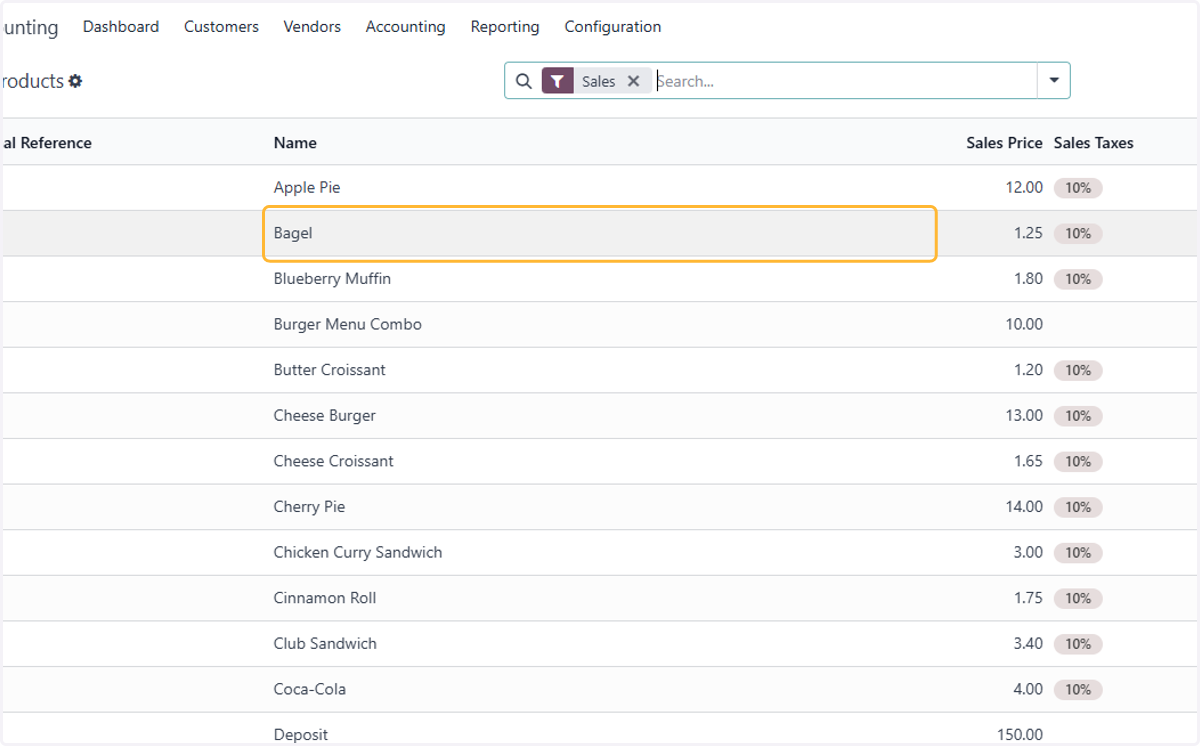
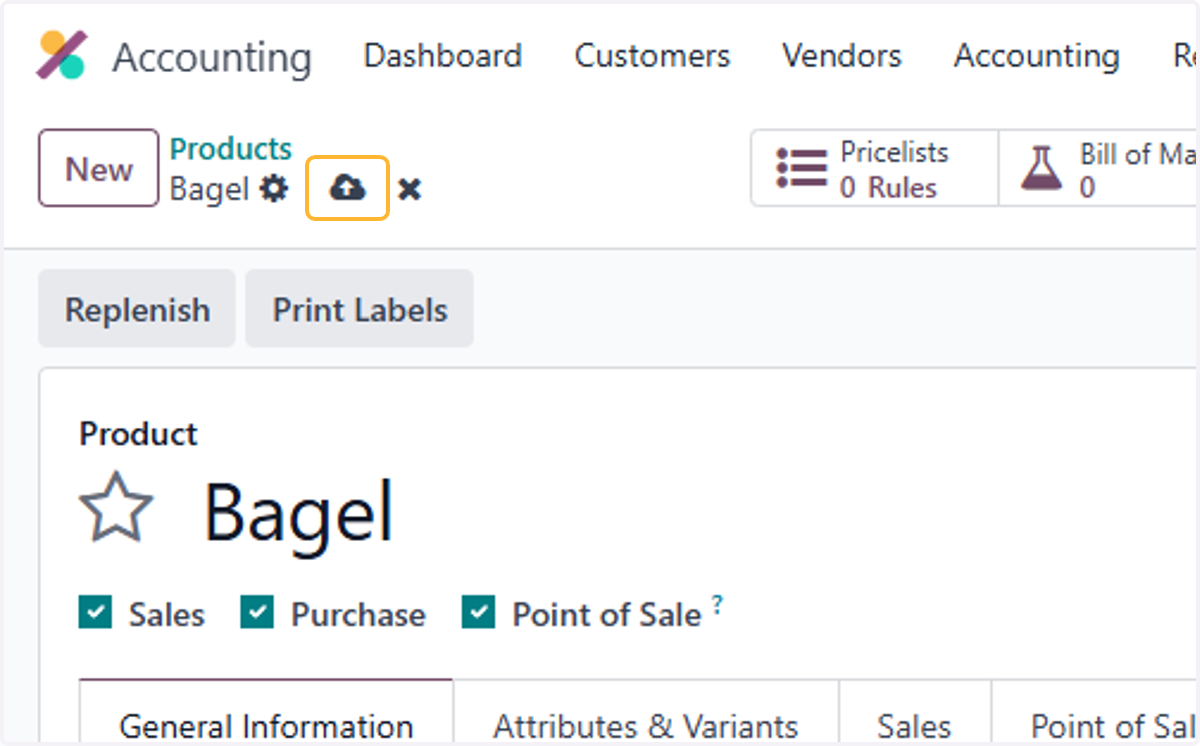
26. Select relevant product. For example, Bagel
27. Sales Taxes can be set for each product
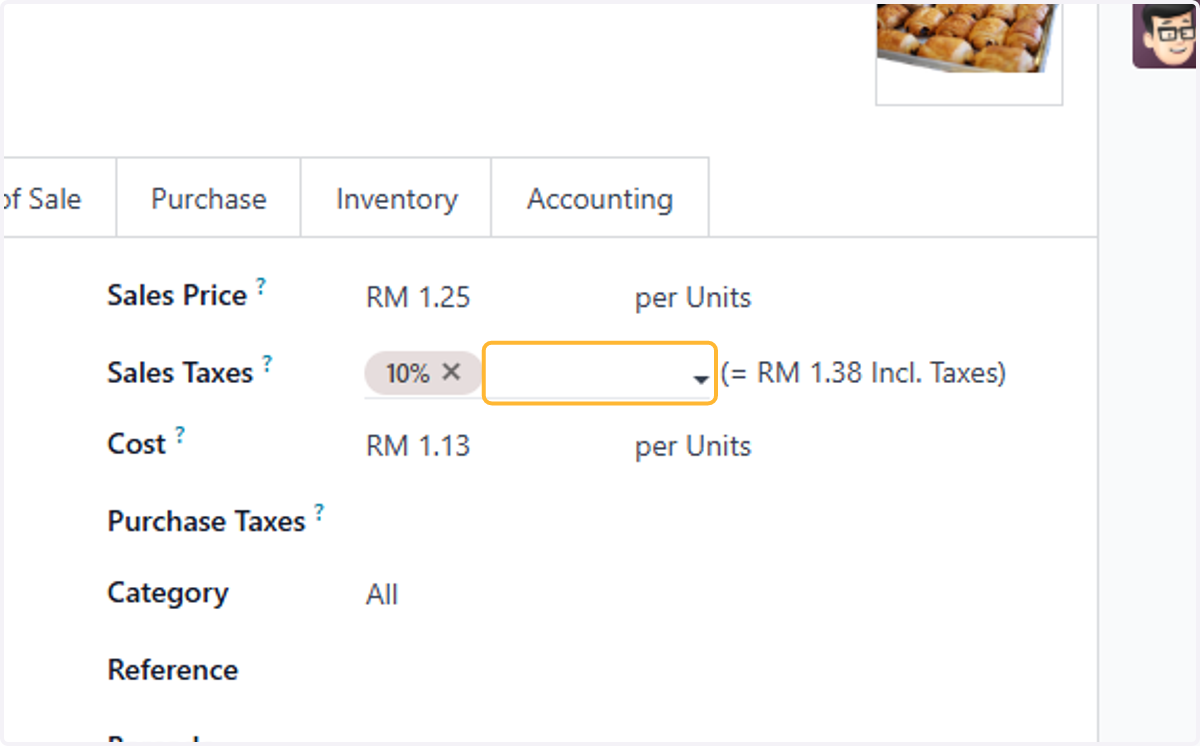
28. Purchase Taxes can be set for each product
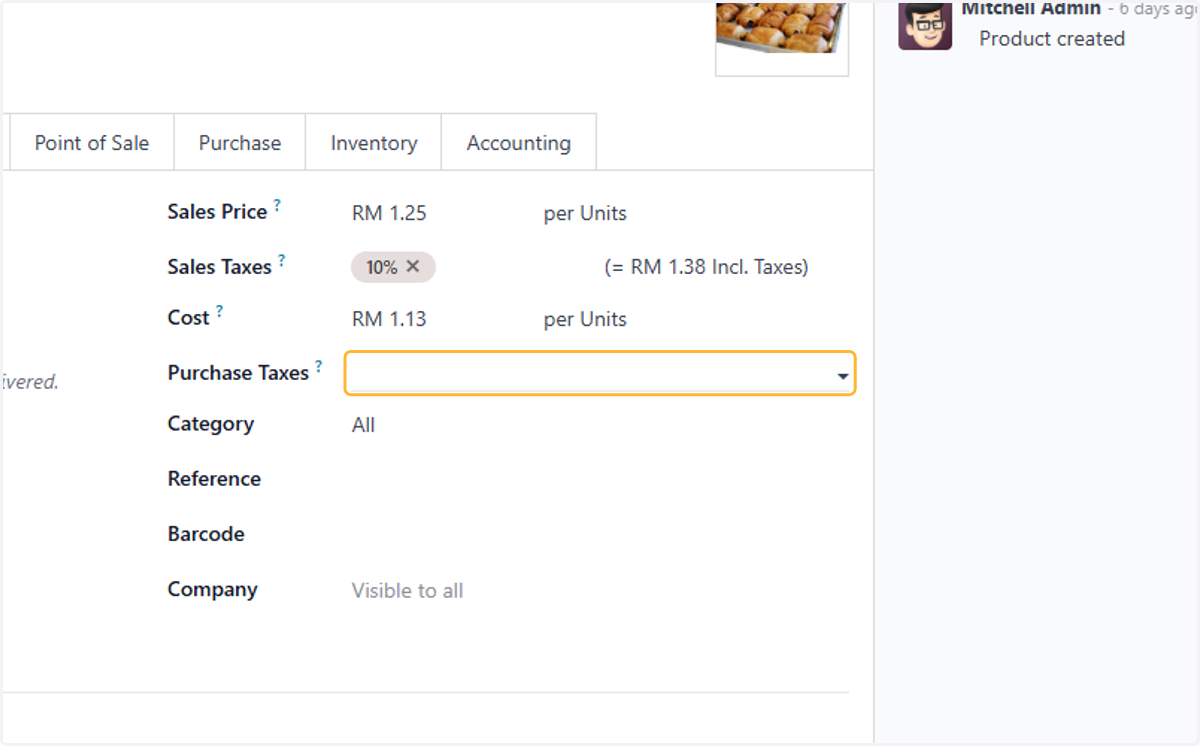
29. Click on 10%P
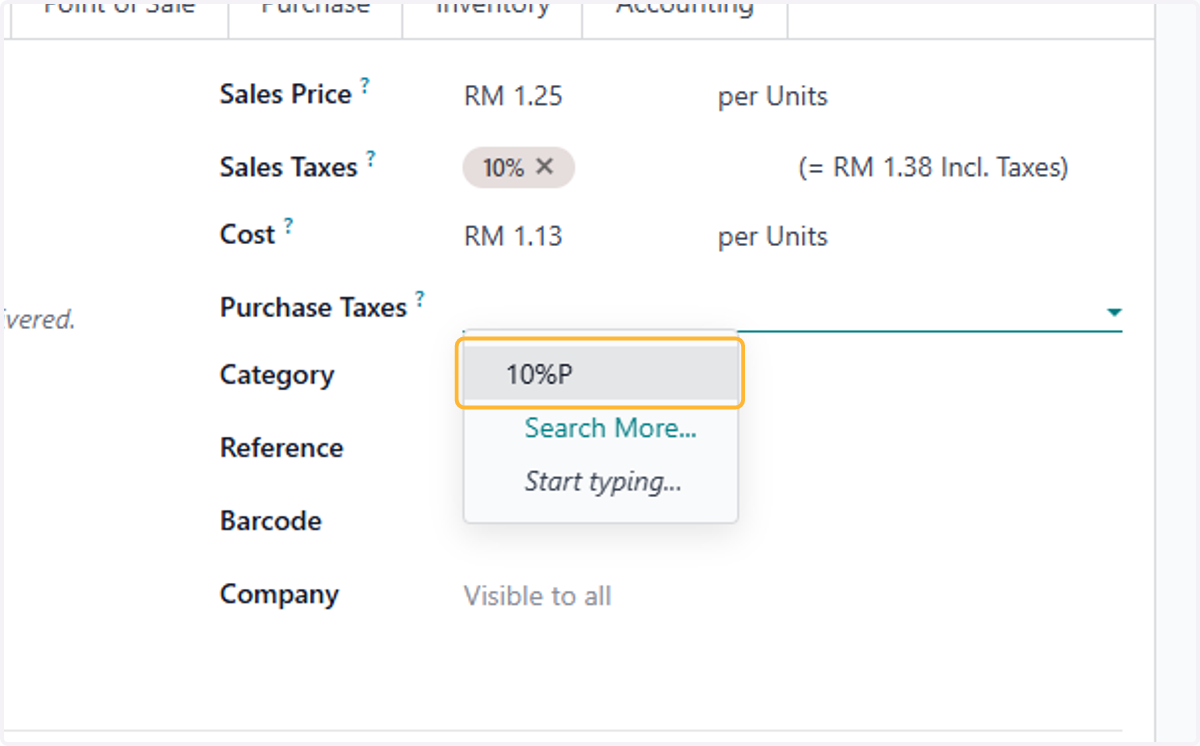
30. Click on Save manually
Example of taxes in the invoice
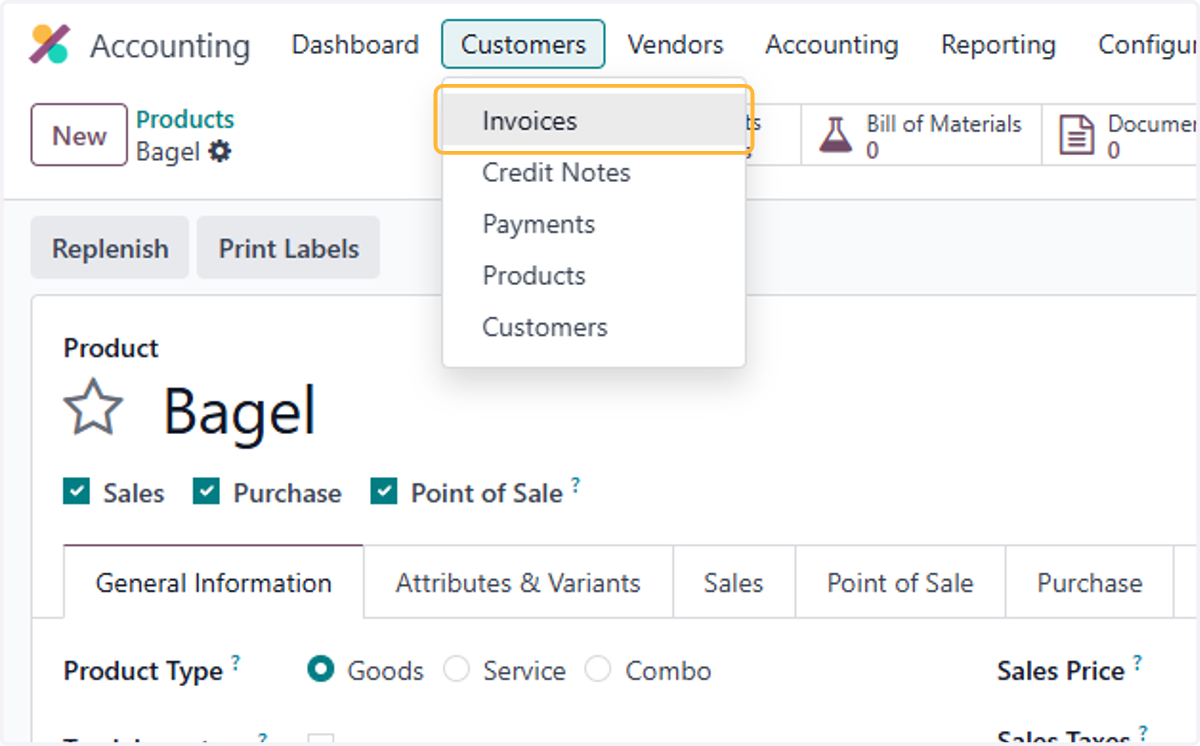
31. Click on Customers
32. Click on Invoices
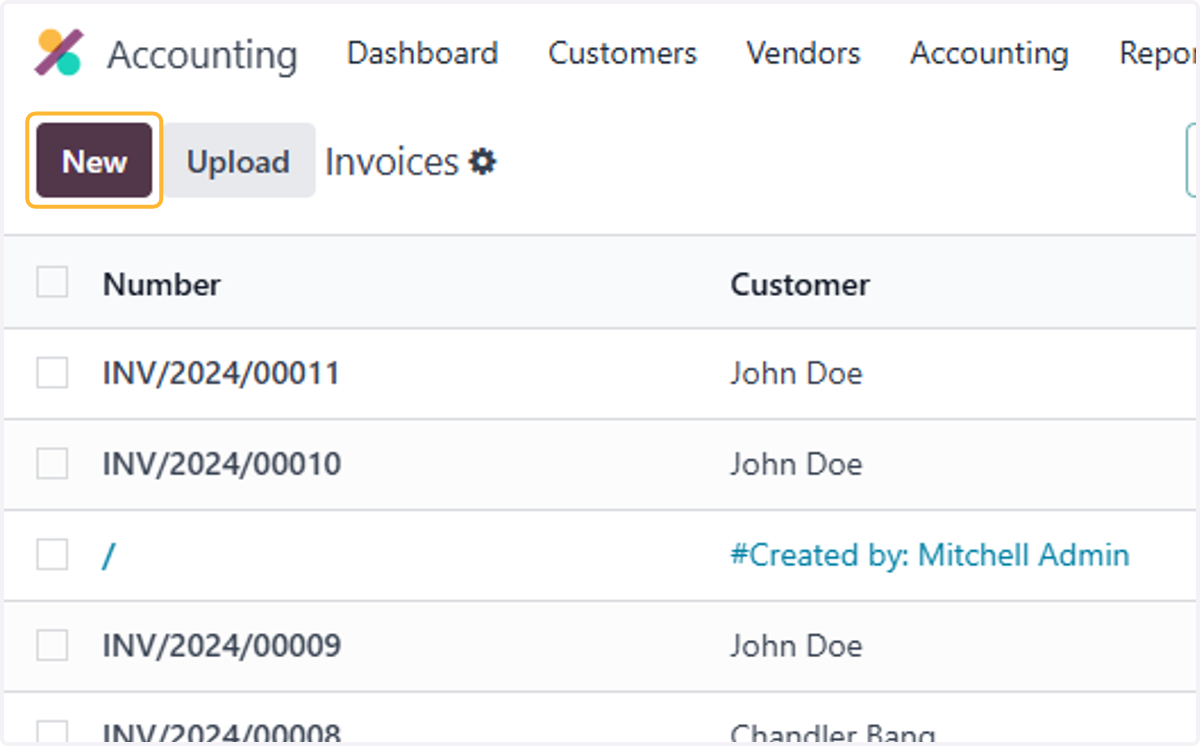
33. Click on New
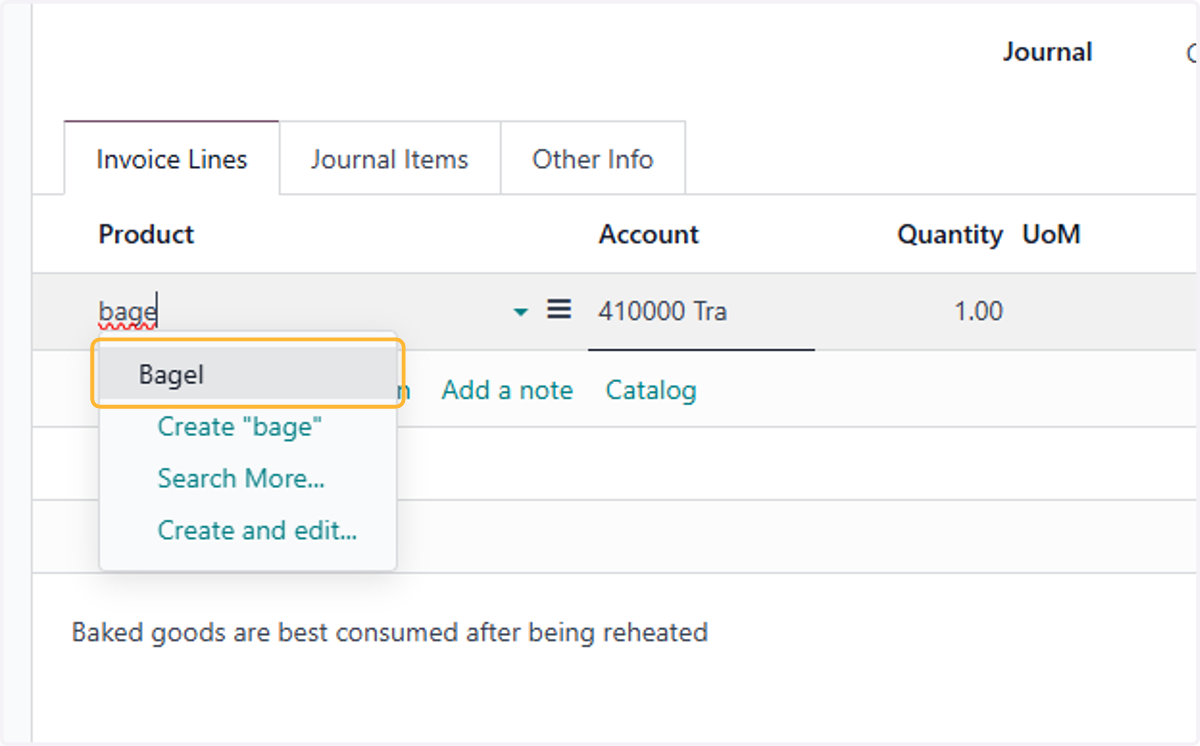
34. Click on Bagel
35. Taxes applicable per line
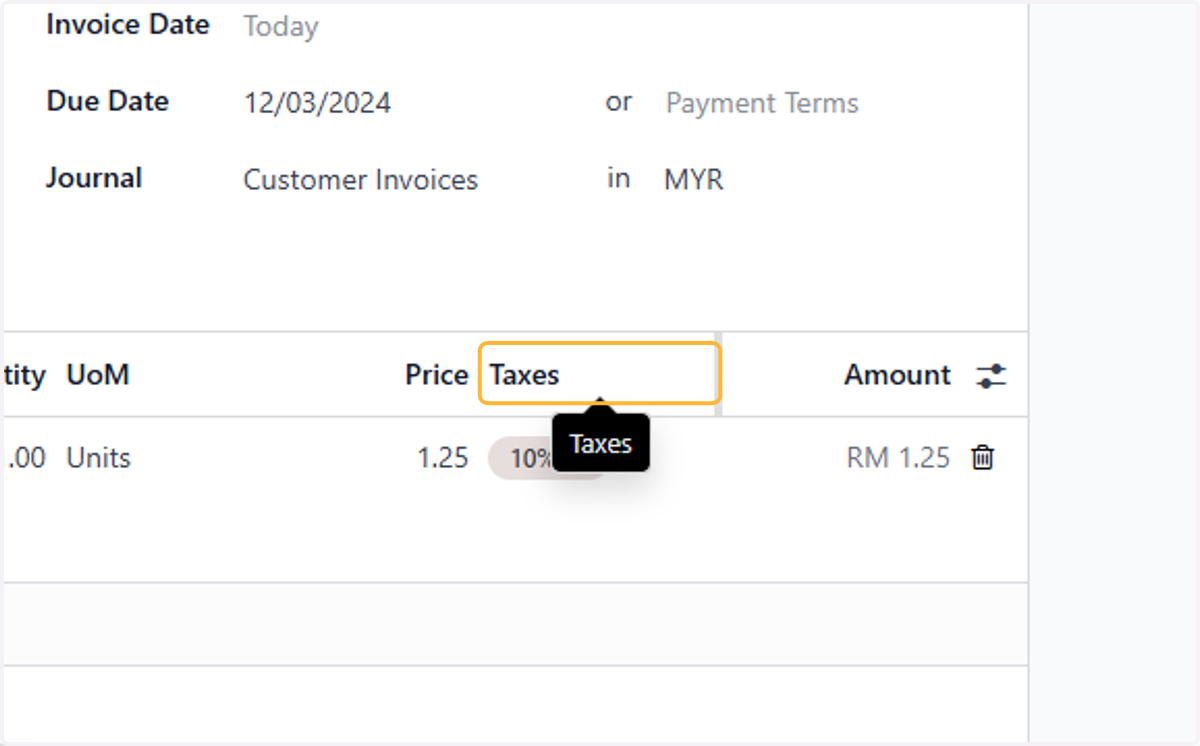
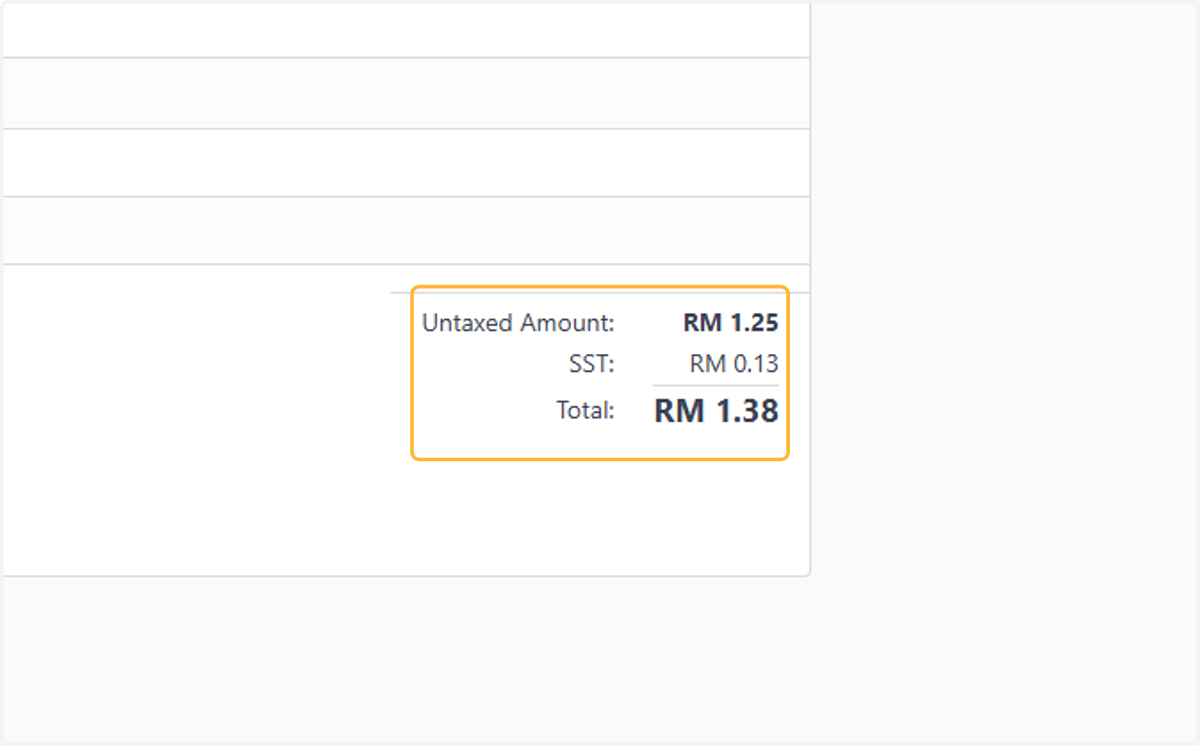
36. Total Taxes applied on this invoice
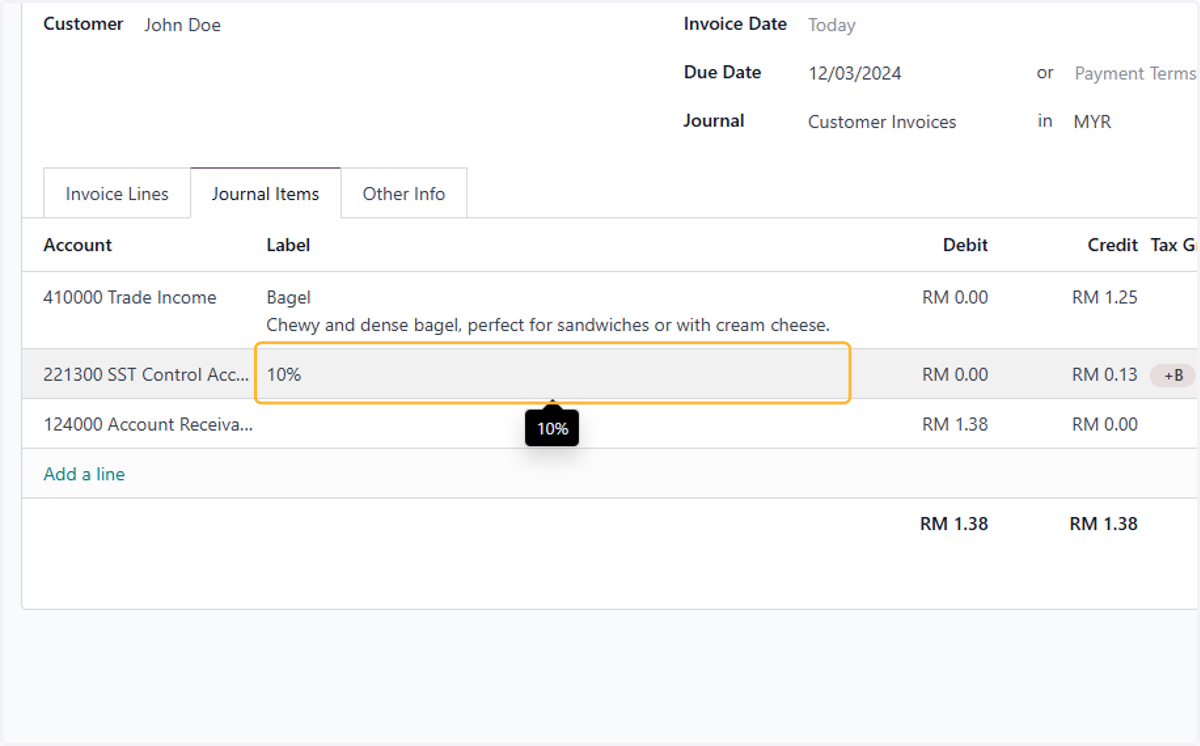
37. Click on Journal Items
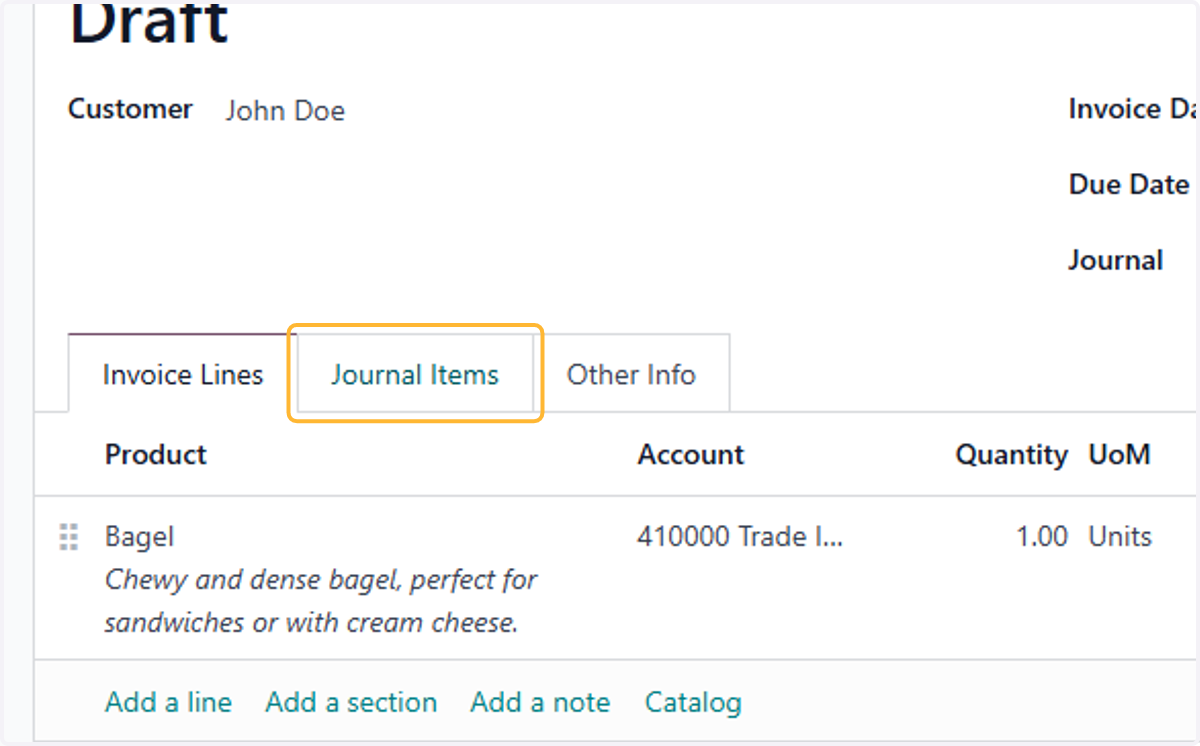
38. Entry for Tax is automatically created with the invoice