Create a Club Booking Product Offering
Club Director
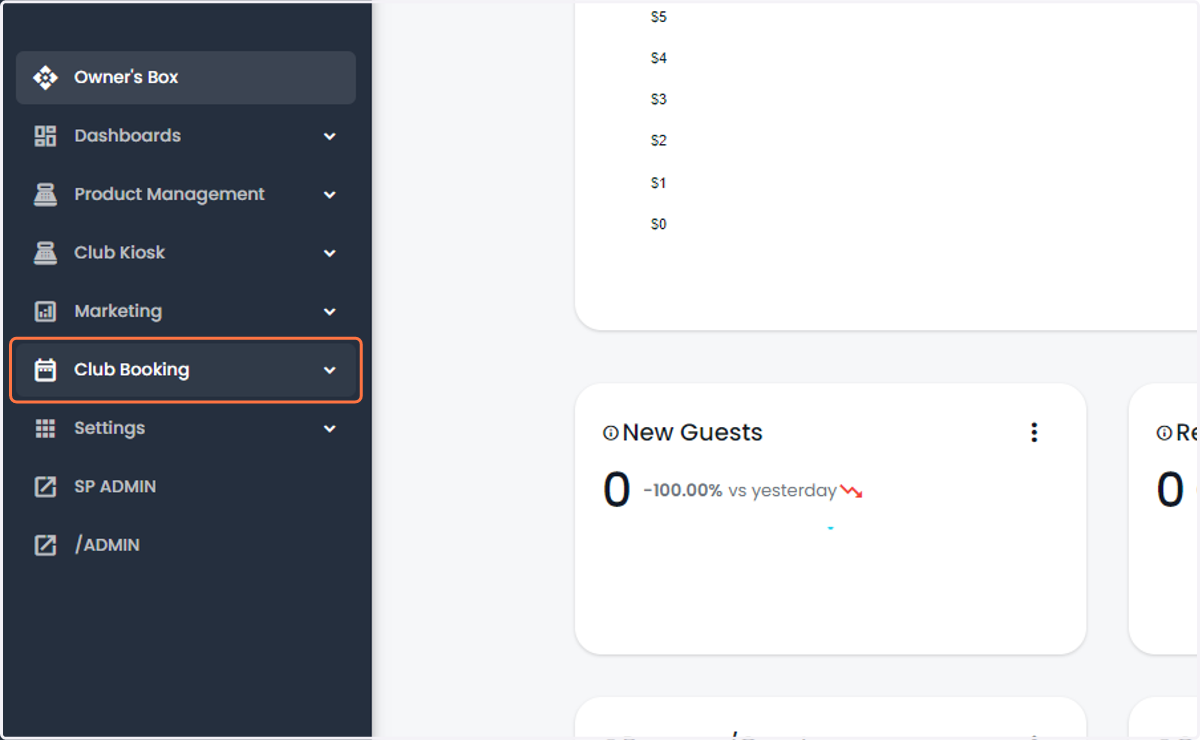
1. Click on Club Booking
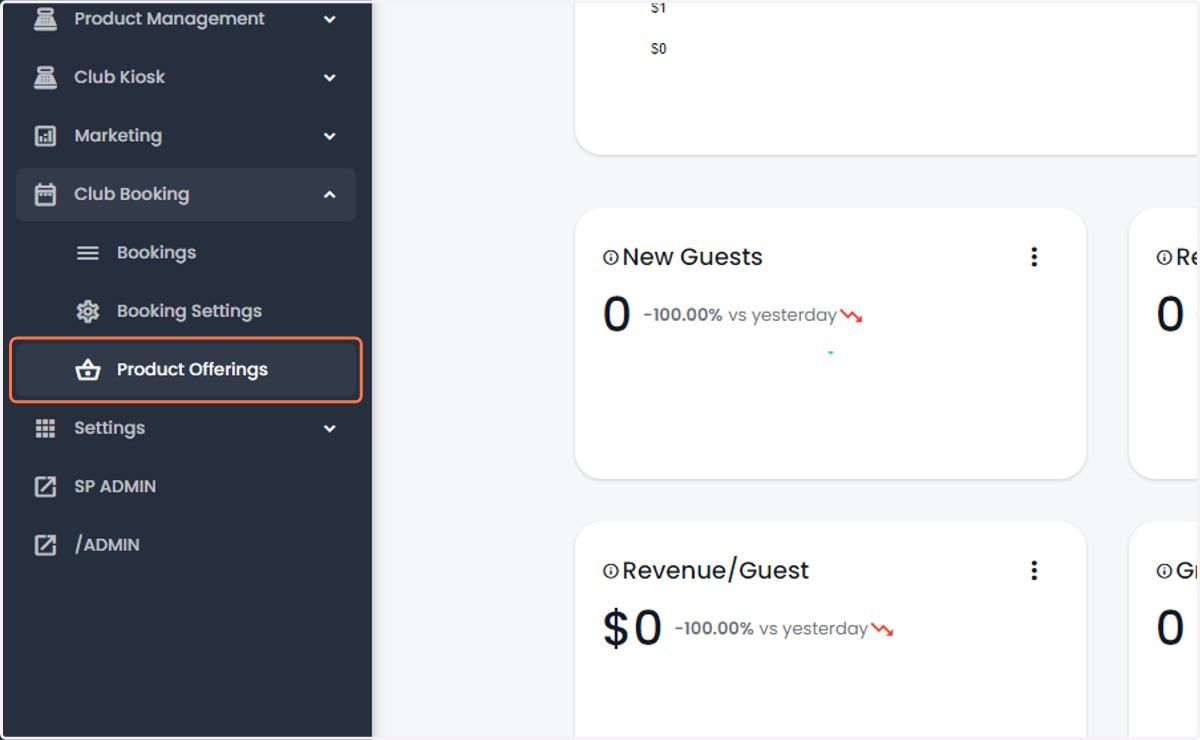
2. Click on Product Offerings
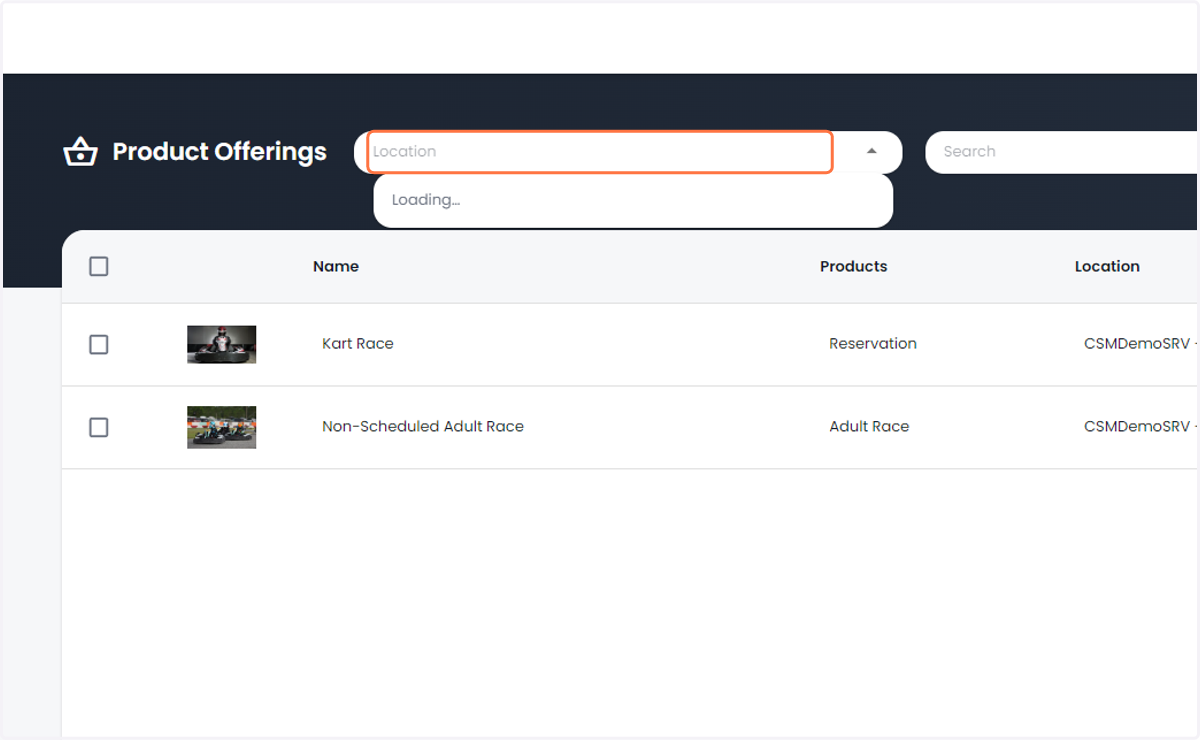
3. Select the Location you are adding to if multi location
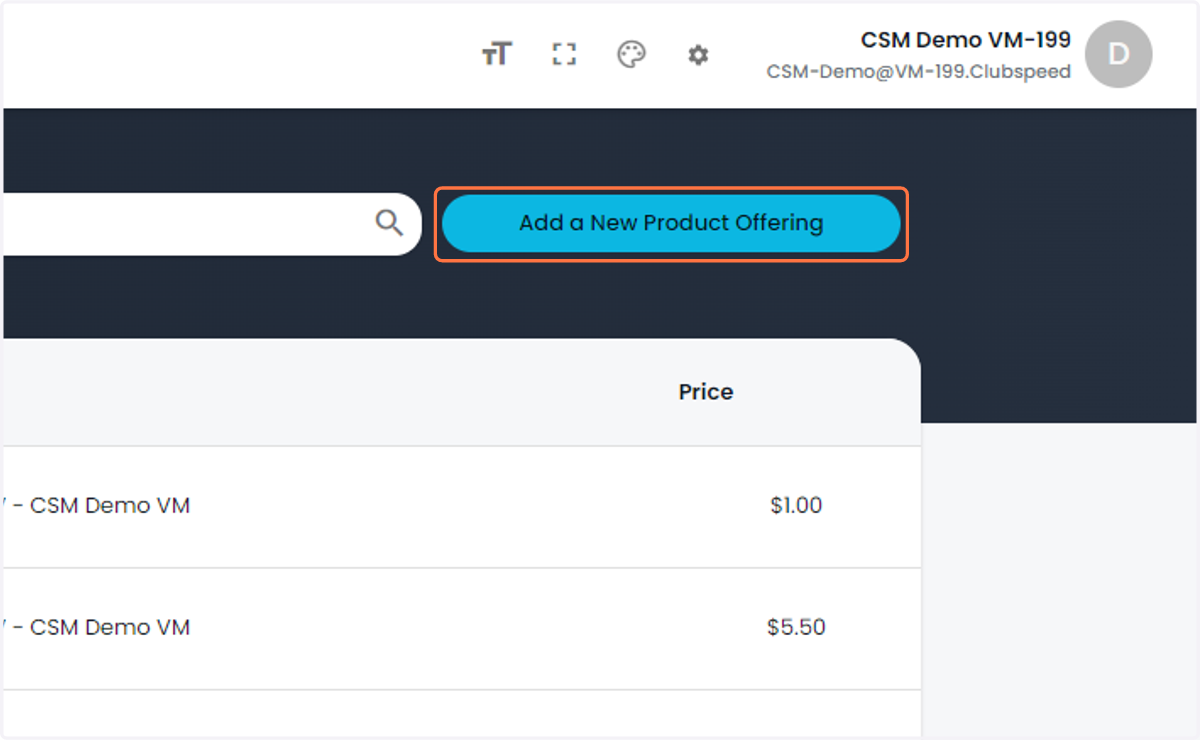
4. Click on Add a New Product Offering
5. Update Offering info (This will be what the guest see's)
Name - What you want to call the offering.
Display Order - What order it shows on the shop page.Description - Tell the guest what they are getting.
Image - Upload and image or GIF of your choosing.
Capacity - Minimum and maximum. Note*: Activity capacity overrides this field.
Filters - Apply a filter to this deal for easier navigation.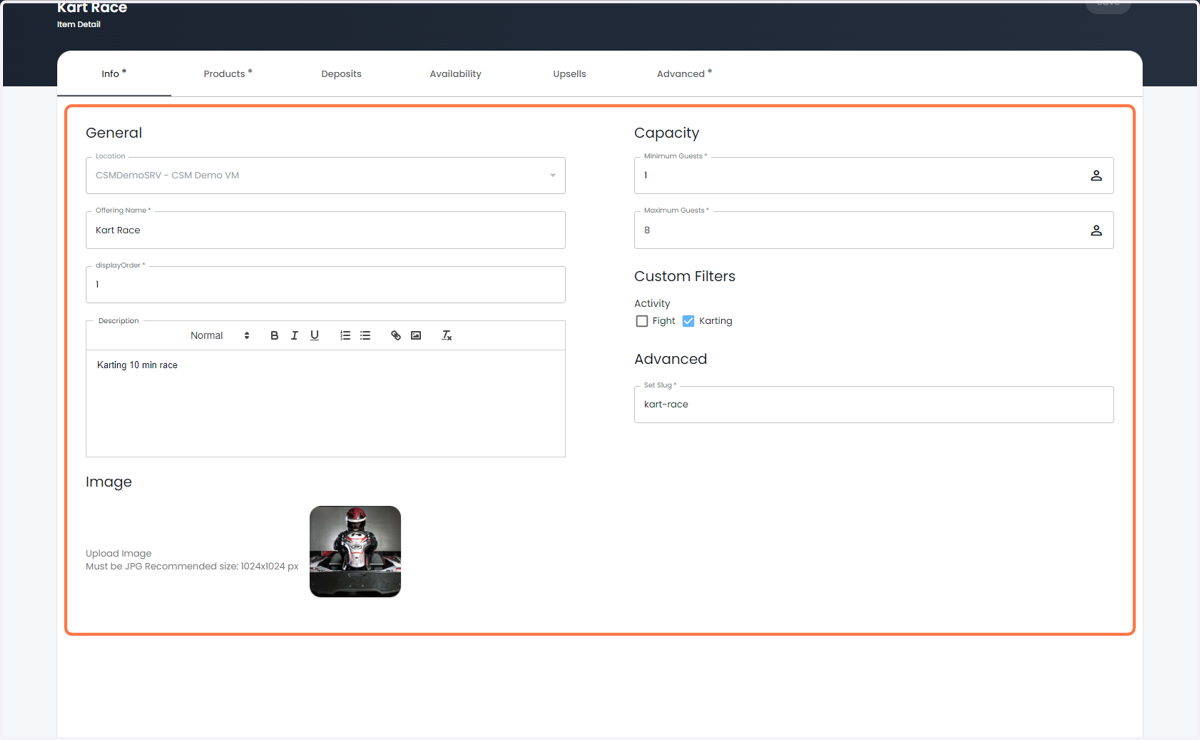
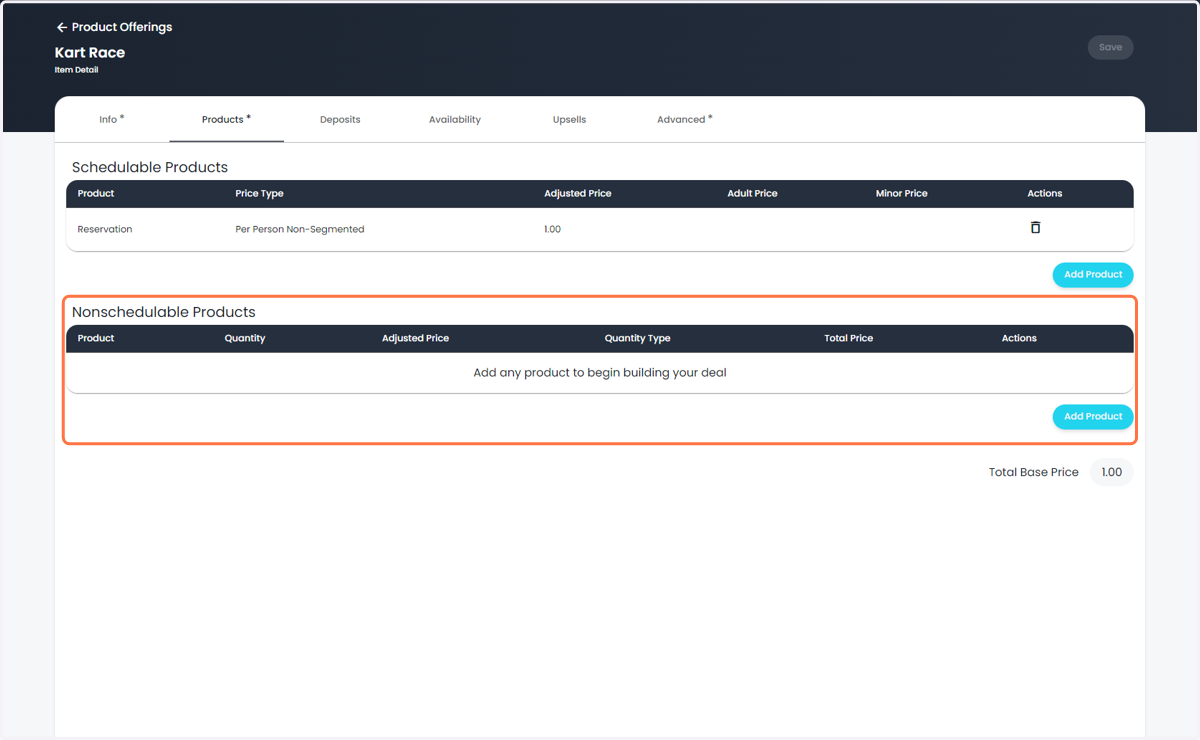
6. Update the products being sold.
Schedulable will add a preconfigured activity to the venue as well as add an item to the invoice.
Nonschedulable will just be added to the invoice.
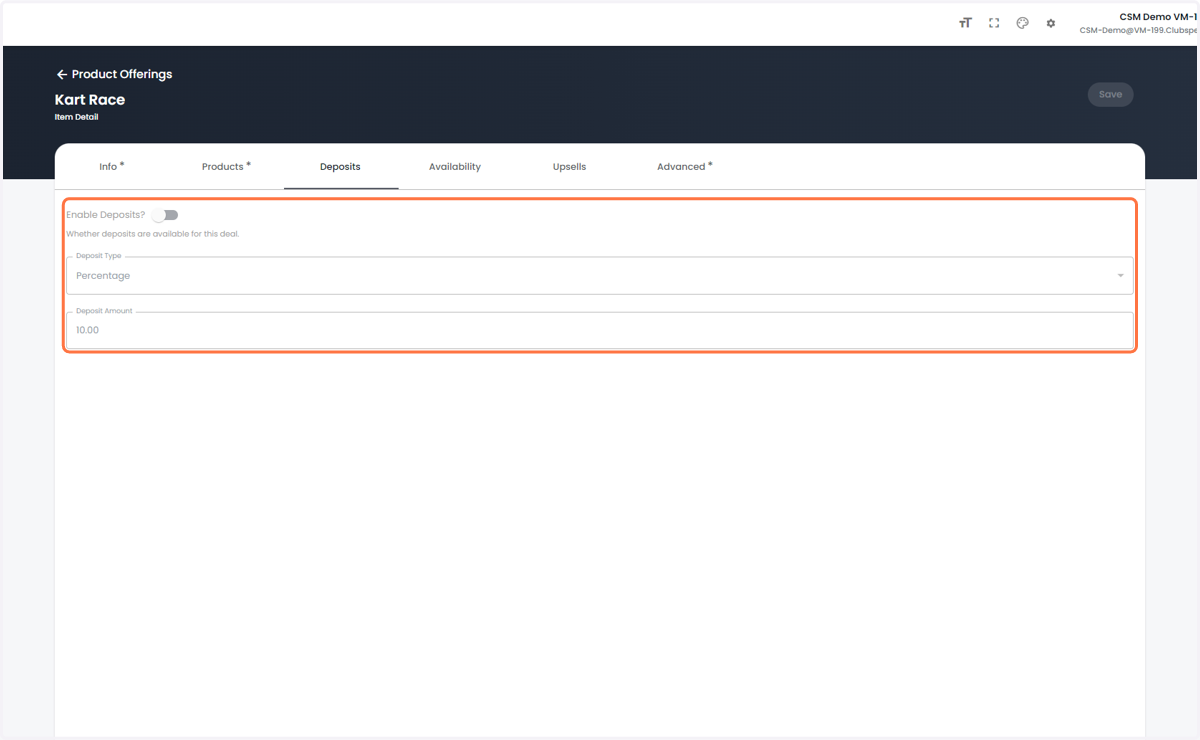
7. (Optional) - Enable Deposits
This will allow guests to partially pay for the booking in advance.
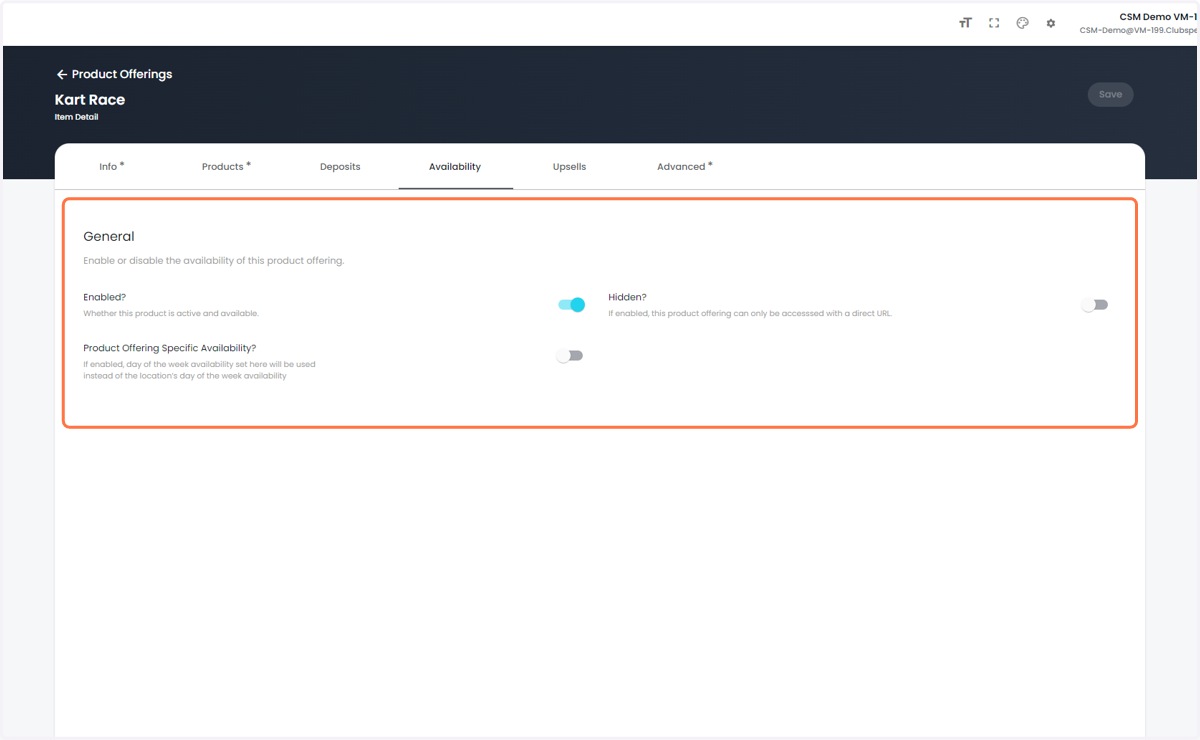
8. Update the Availability for this Offering
This is unique to this product. Otherwise it will go based off your hours of operations
9. Click on Open
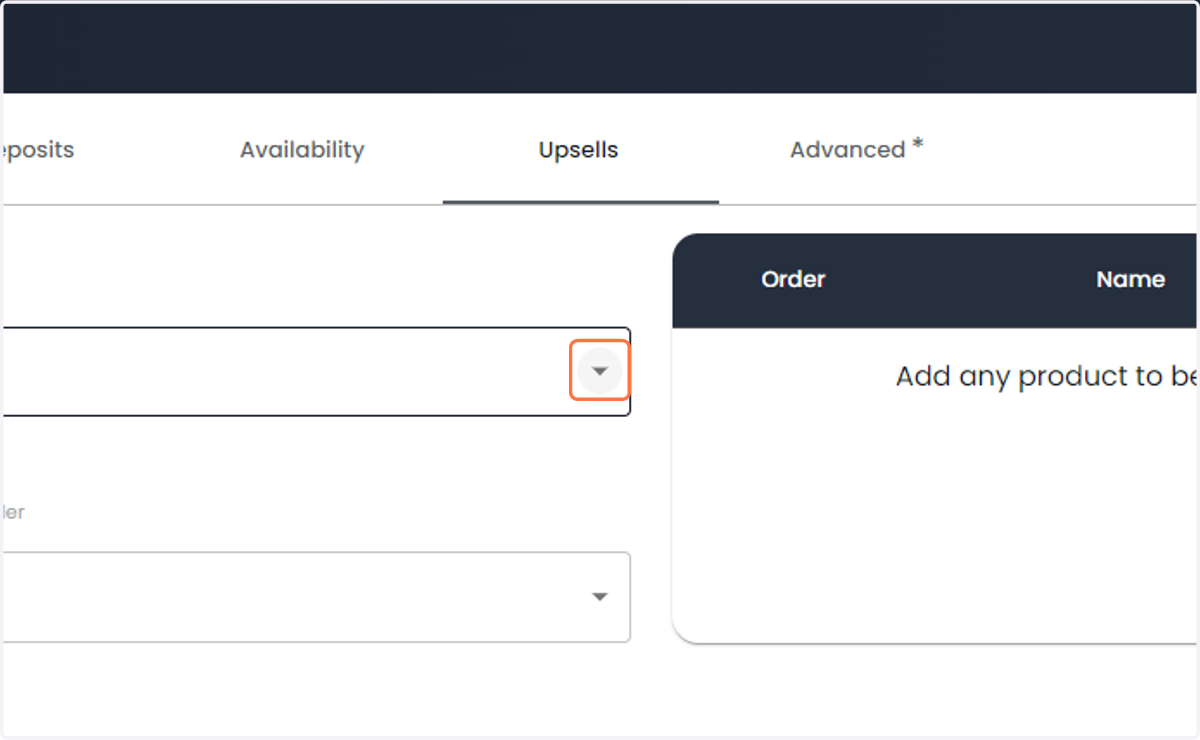
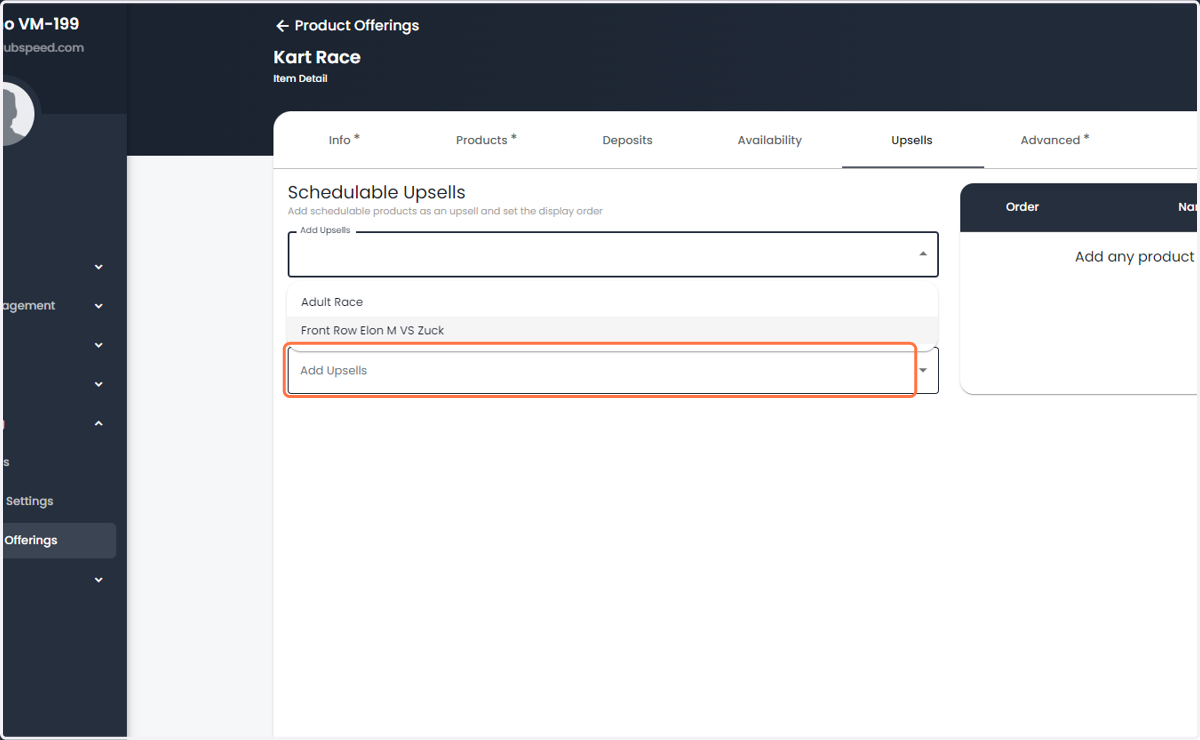
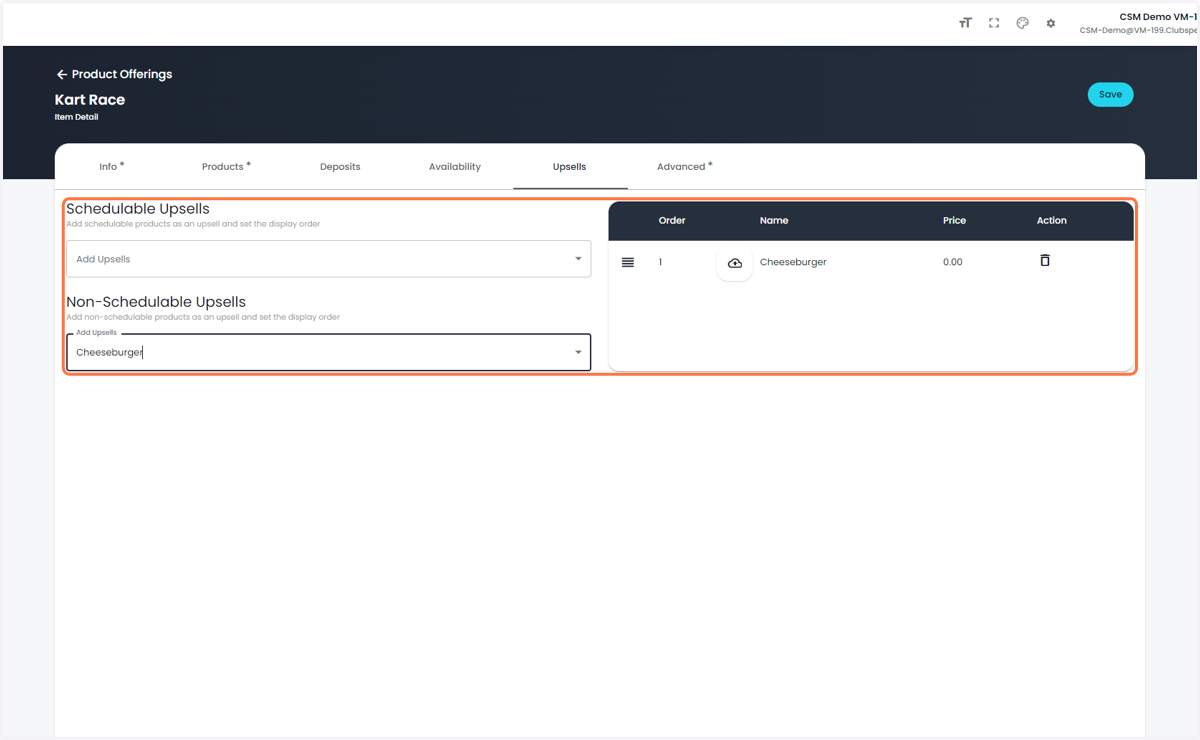
10. Click on Add Upsells
11. Click on Cheeseburger
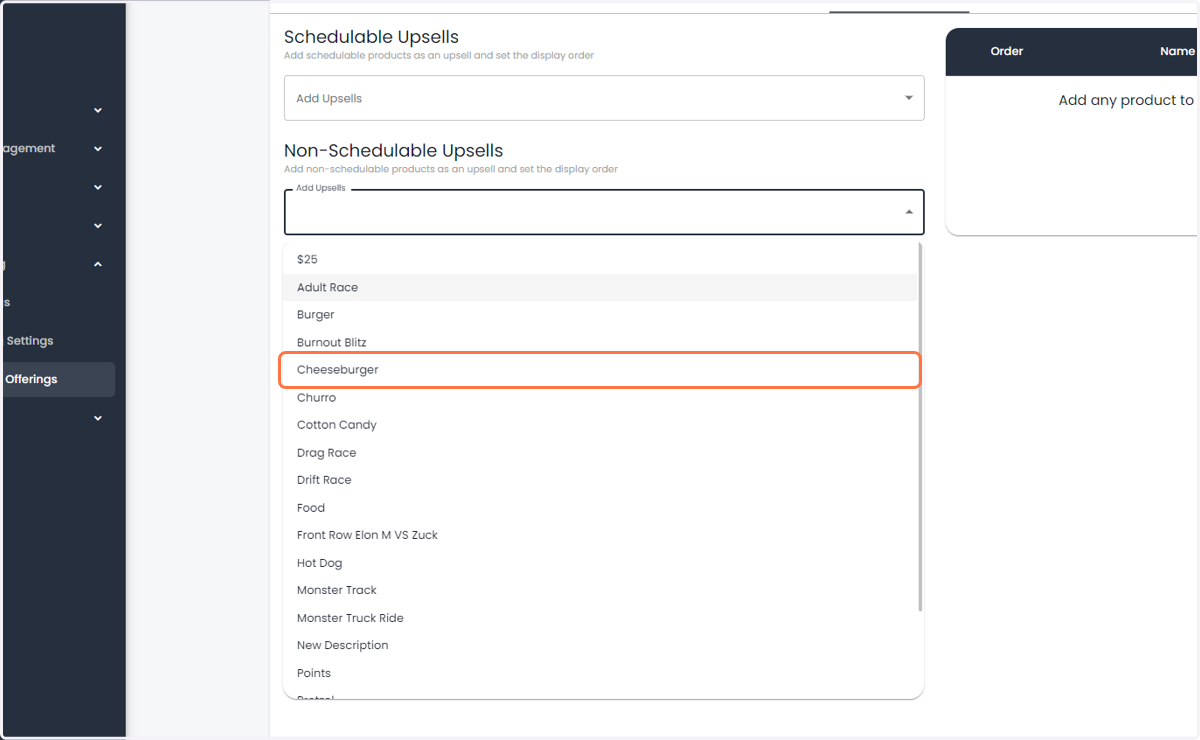
12. (Optional*) Enable Up-Sells
Add additional schedulable items, as well as generic products for bundle options such as a lunch special.
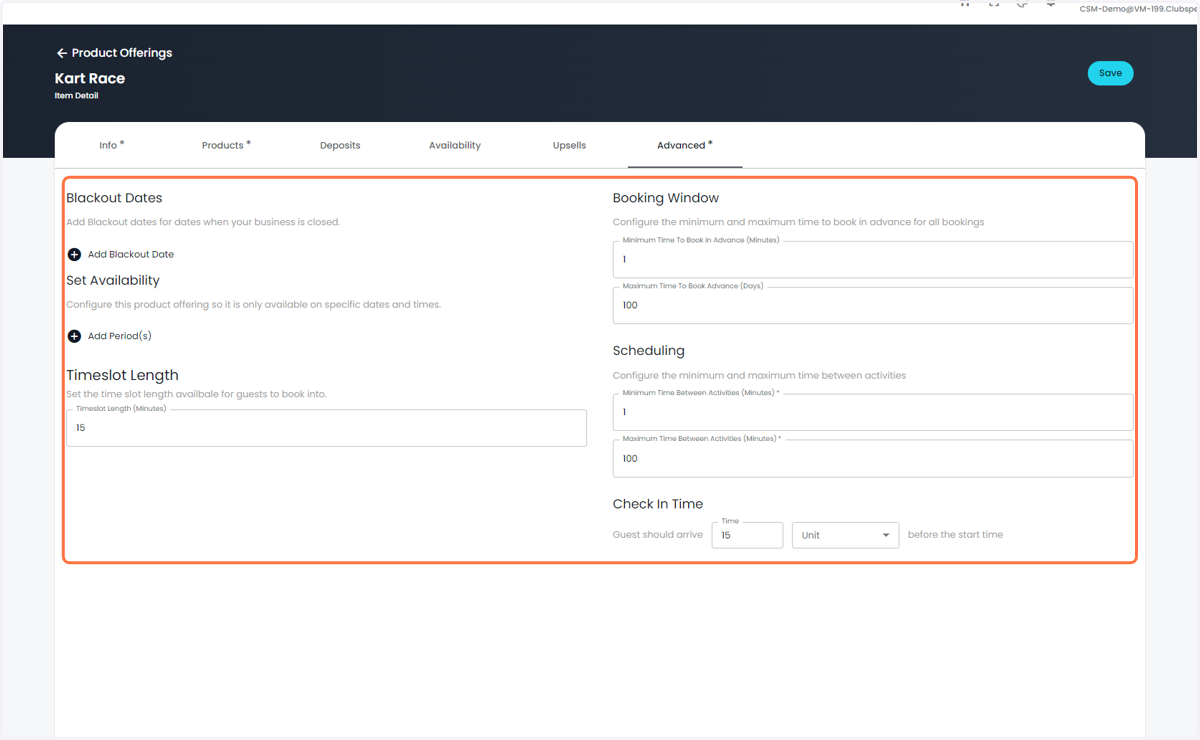
13. Update advanced options
Blackout Dates - Block of specific dates for just this deal
Set Availability - Enable this package for only a certain window (New Year's Day Special)
Timeslot length - Intervals the guest will see to book (Every 15 minutes for example)
Booking Window - How early a guest can book for a package, and how far out they can book.
Scheduling - If booking a 2-activity pack, minimum time and maximum time between activities.
Check-in Time - Added to the confirmation email to let guests know to show up early.
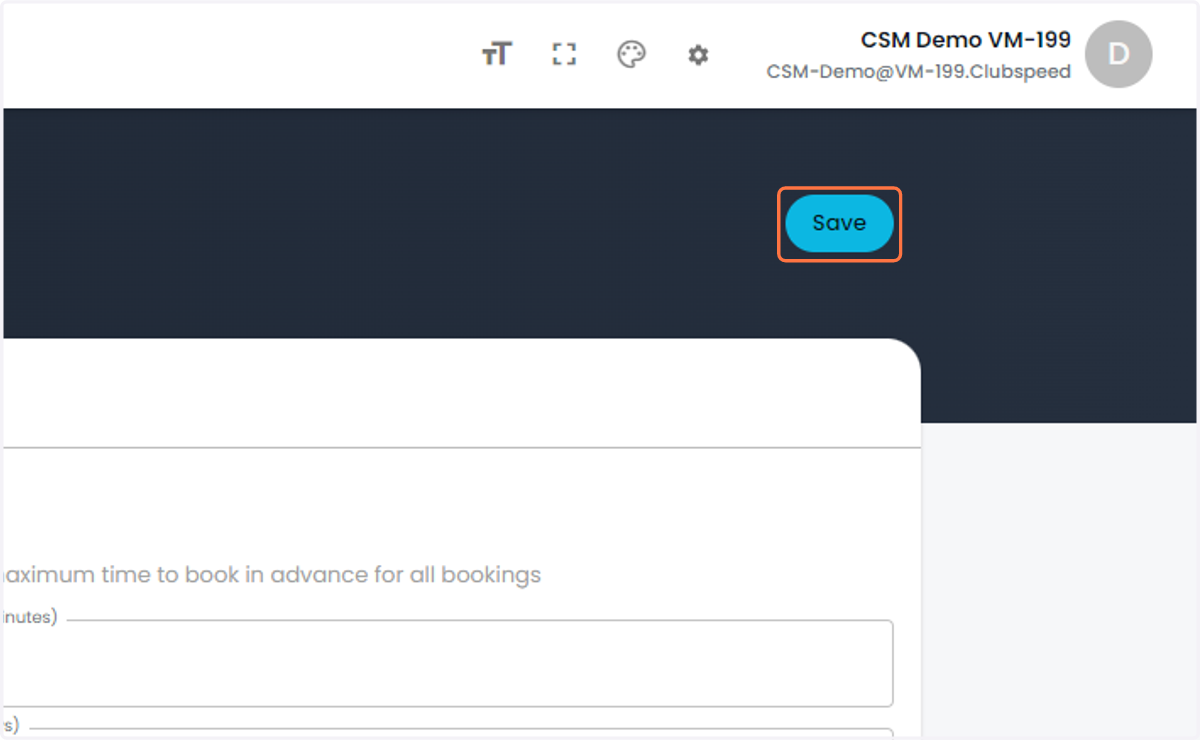
14. Click on Save