Registration cancellation for a credit note

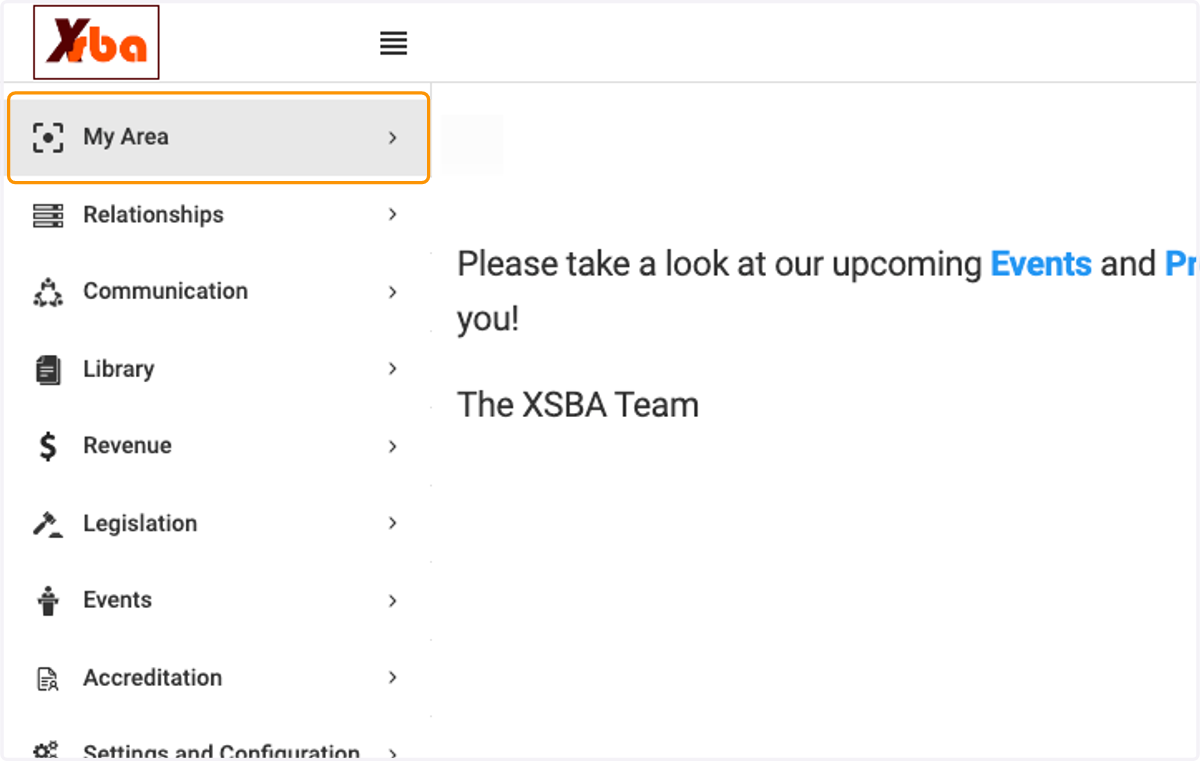
  1. 1. Click on My Area

    Click on My Area
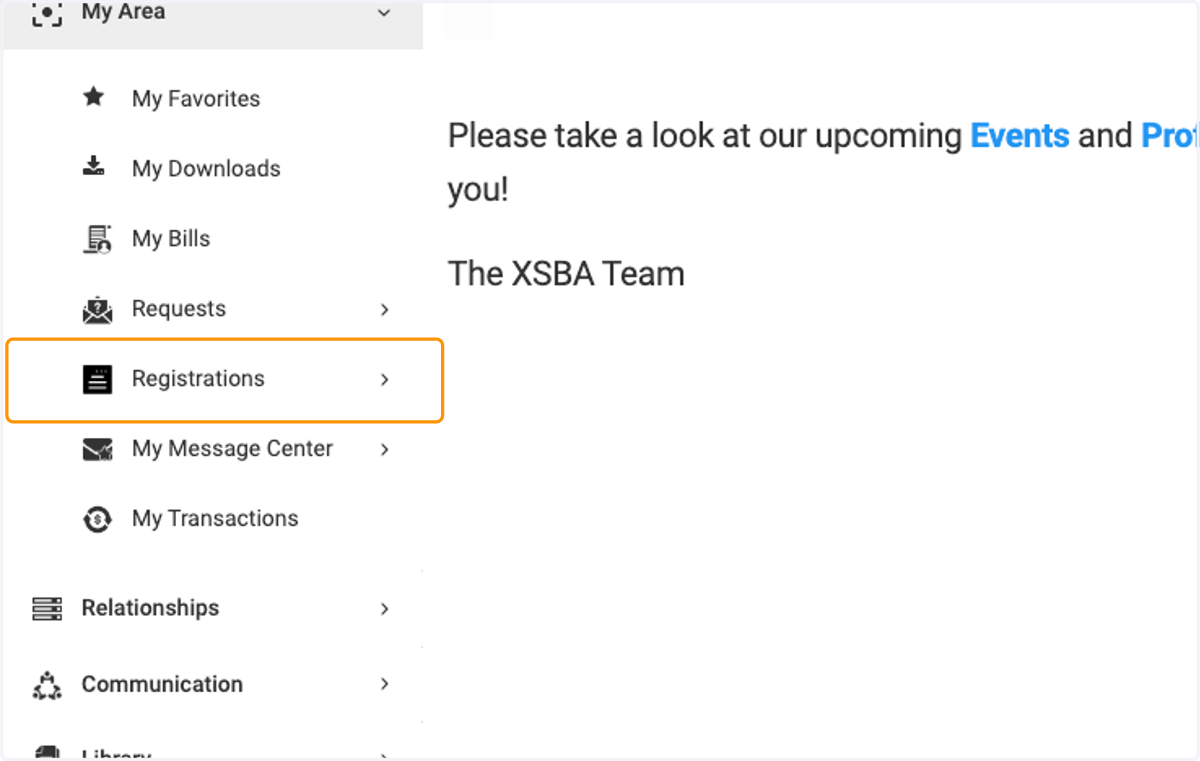
  2. 2. Click on Registrations

    Click on Registrations
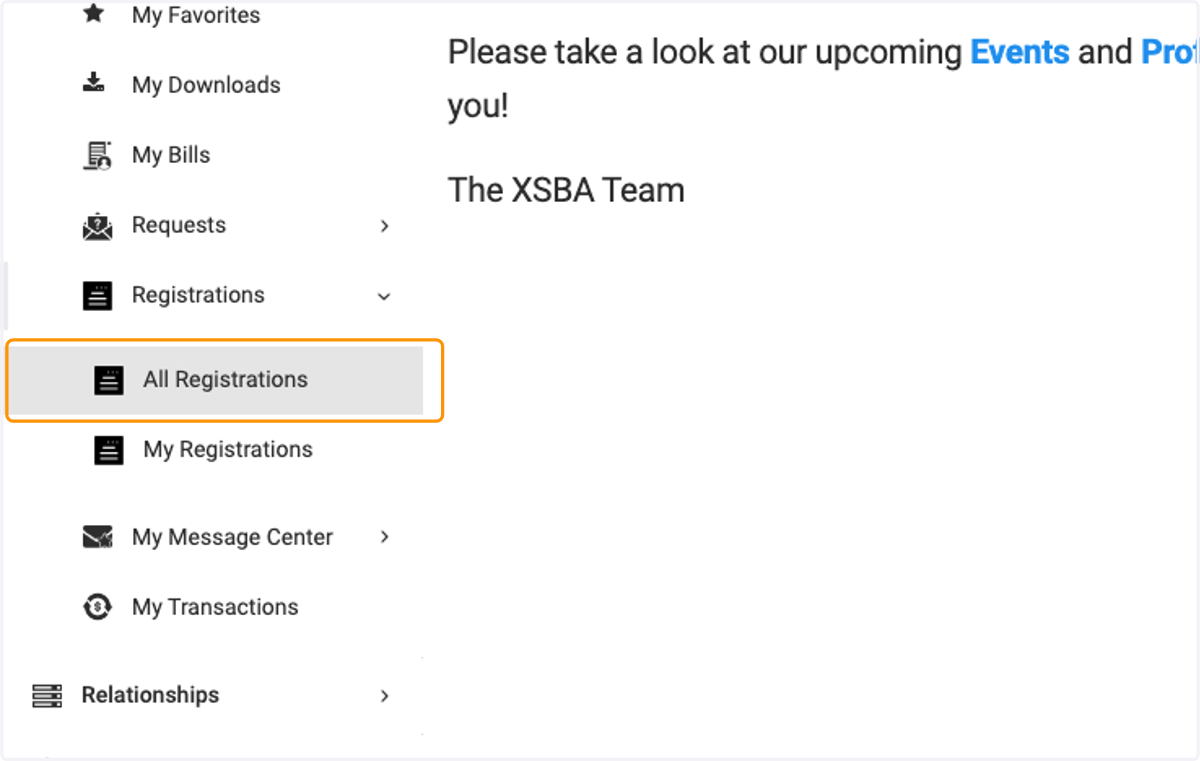
  3. 3. Click on All Registrations

    Click on All Registrations
  4. 4. Can search by registration or group id, event or registrant name. Click on id for intended registration.
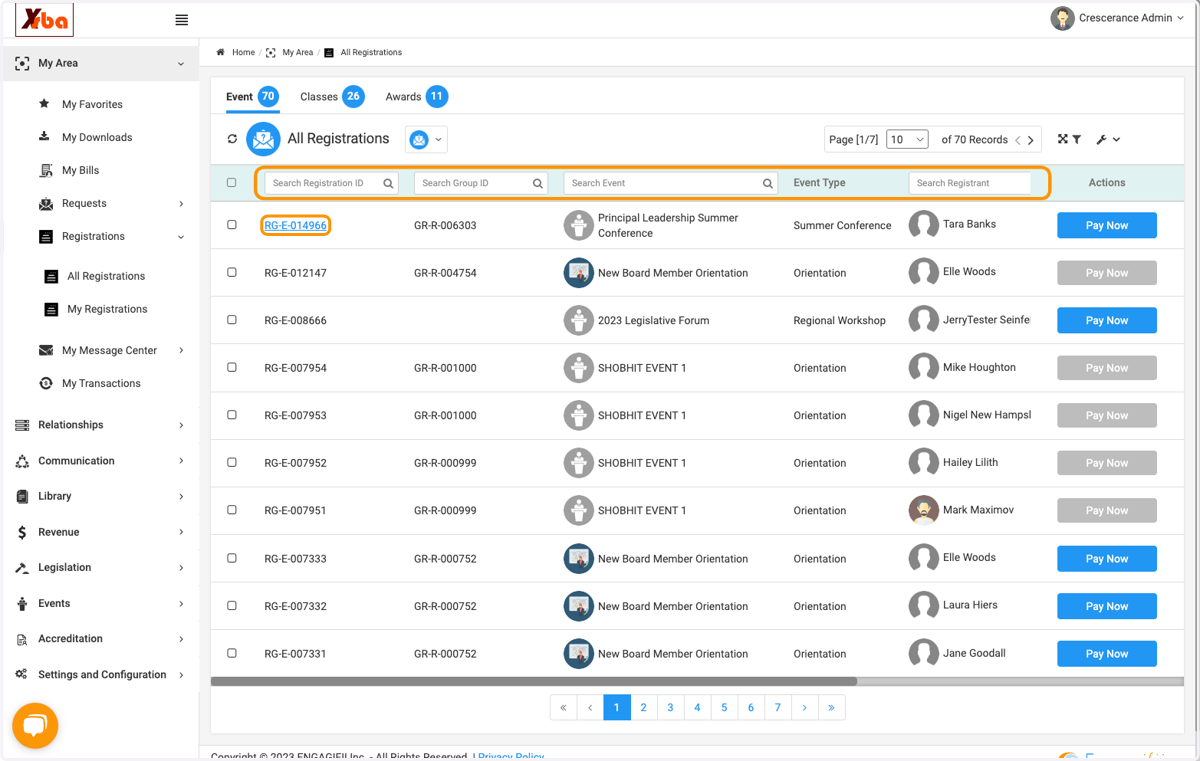
    Can search by registration or group id, event or registrant name. Click on id for intended registration.
  5. 5. Click on three dots and then select Cancel Registration
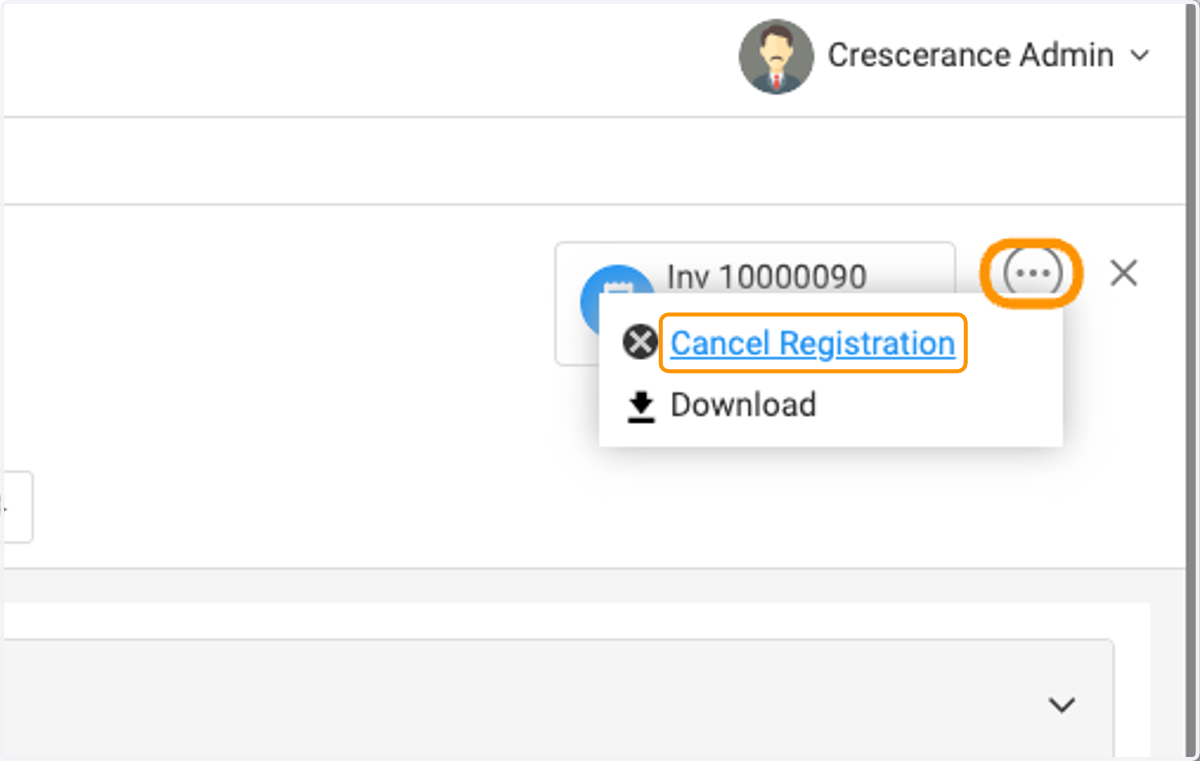
    Click on three dots and then select Cancel Registration
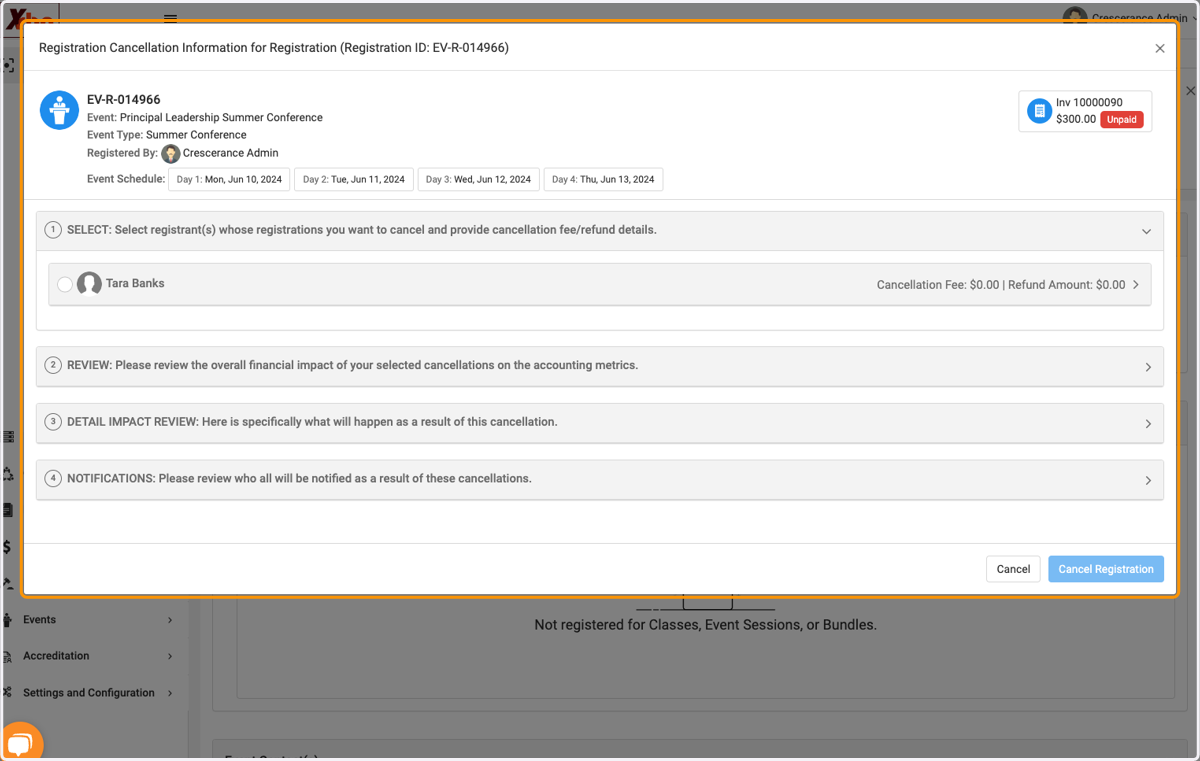
  6. 6. Select individual(s) to cancel

    Select individual(s) to cancel
  7. 7. Click on Registration Cancellation Reason
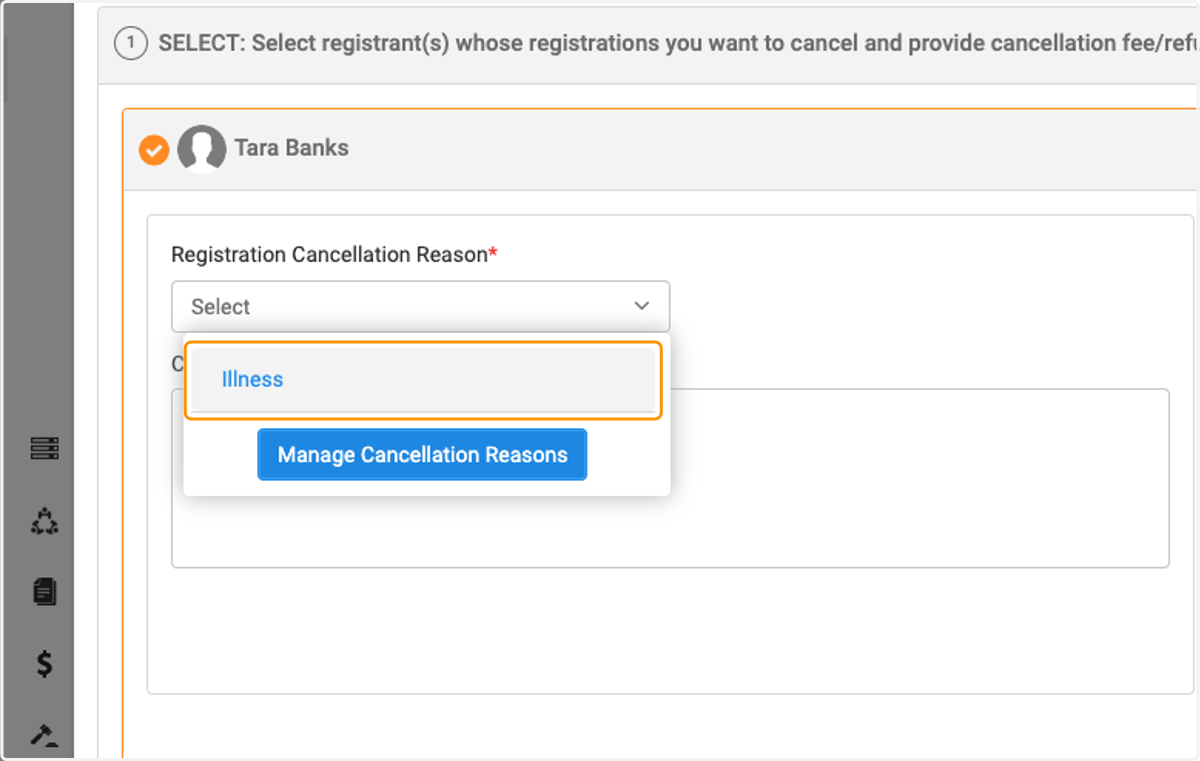
    Click on Registration Cancellation Reason
  8. 8. To create a credit note, leave refund amount at $0.00 and click on Save and Proceed
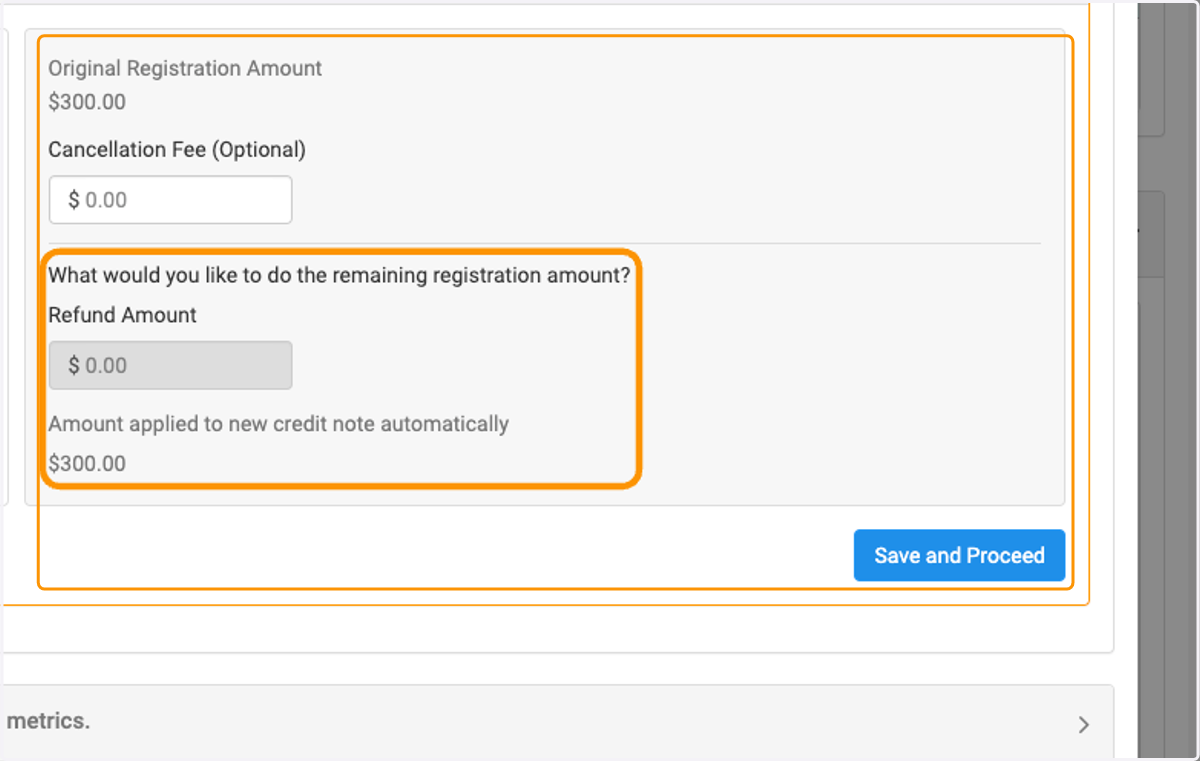
    To create a credit note, leave refund amount at $0.00 and click on Save and Proceed
  9. 9. Review Financial details and click on Proceed
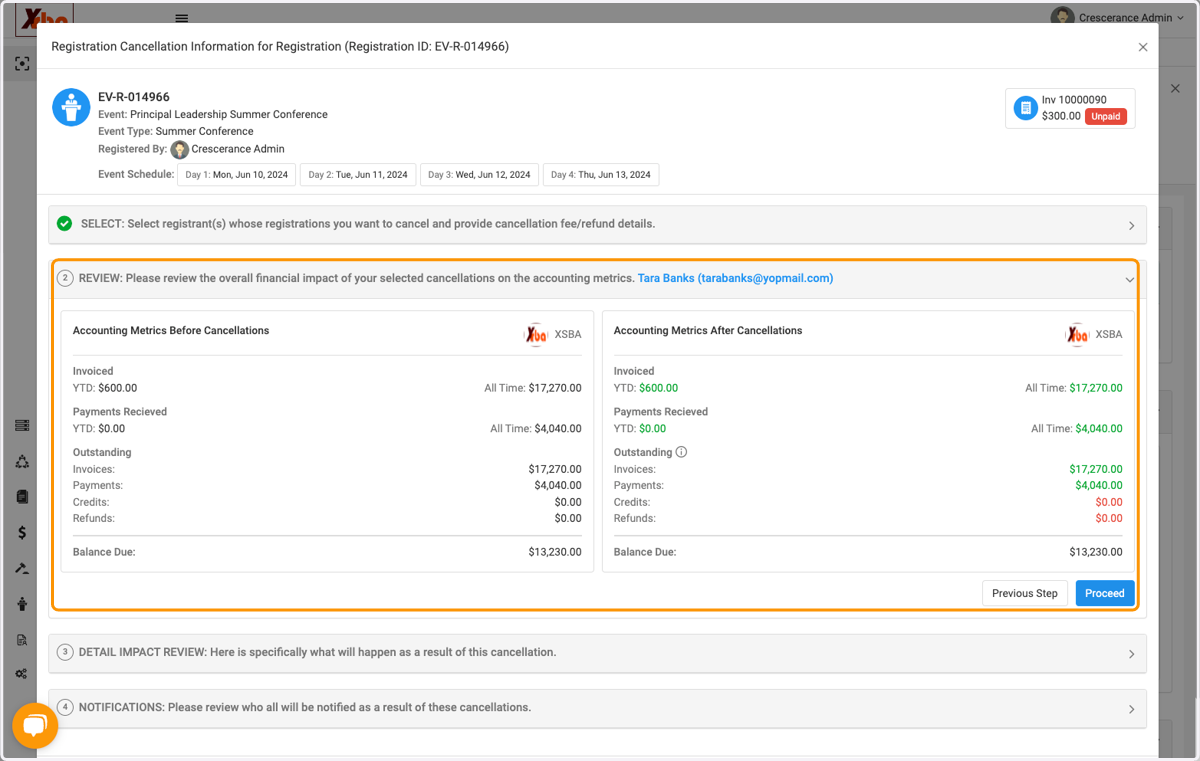
    Review Financial details and click on Proceed
  10. 10. Review cancellation impact and click on Proceed
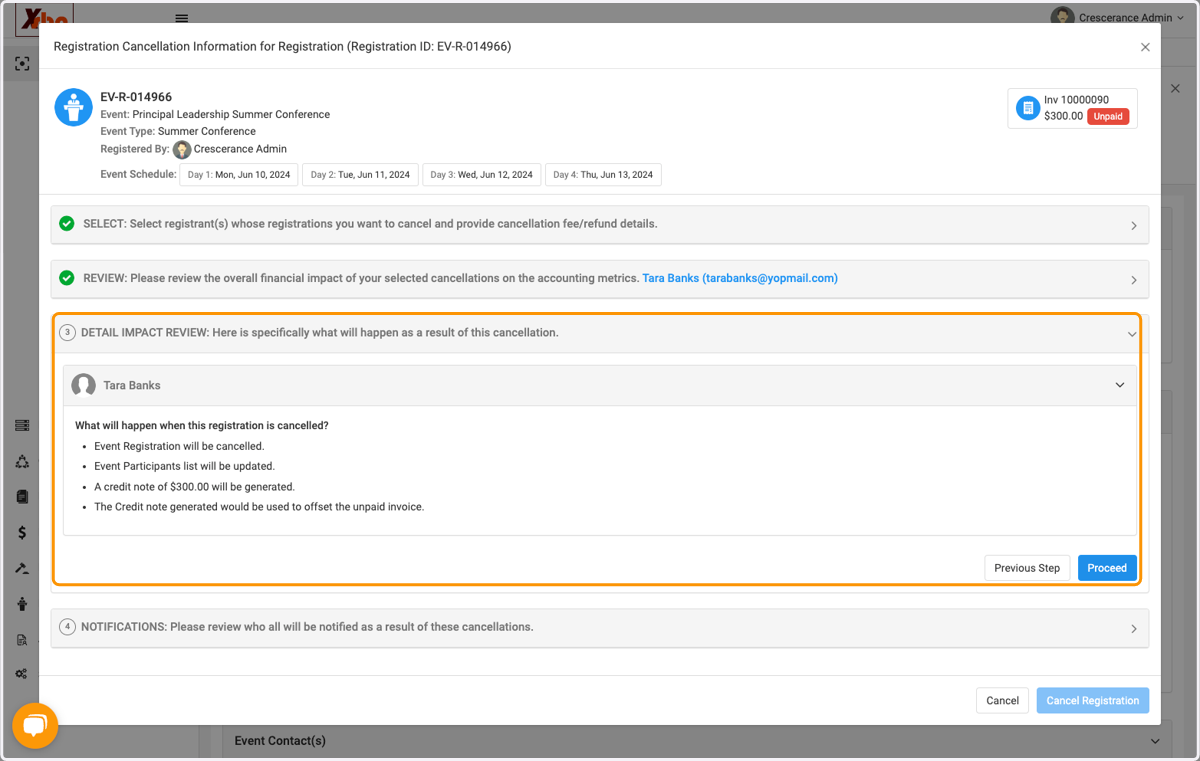
    Review cancellation impact and click on Proceed
  11. 11. Review notifications and click on Finish
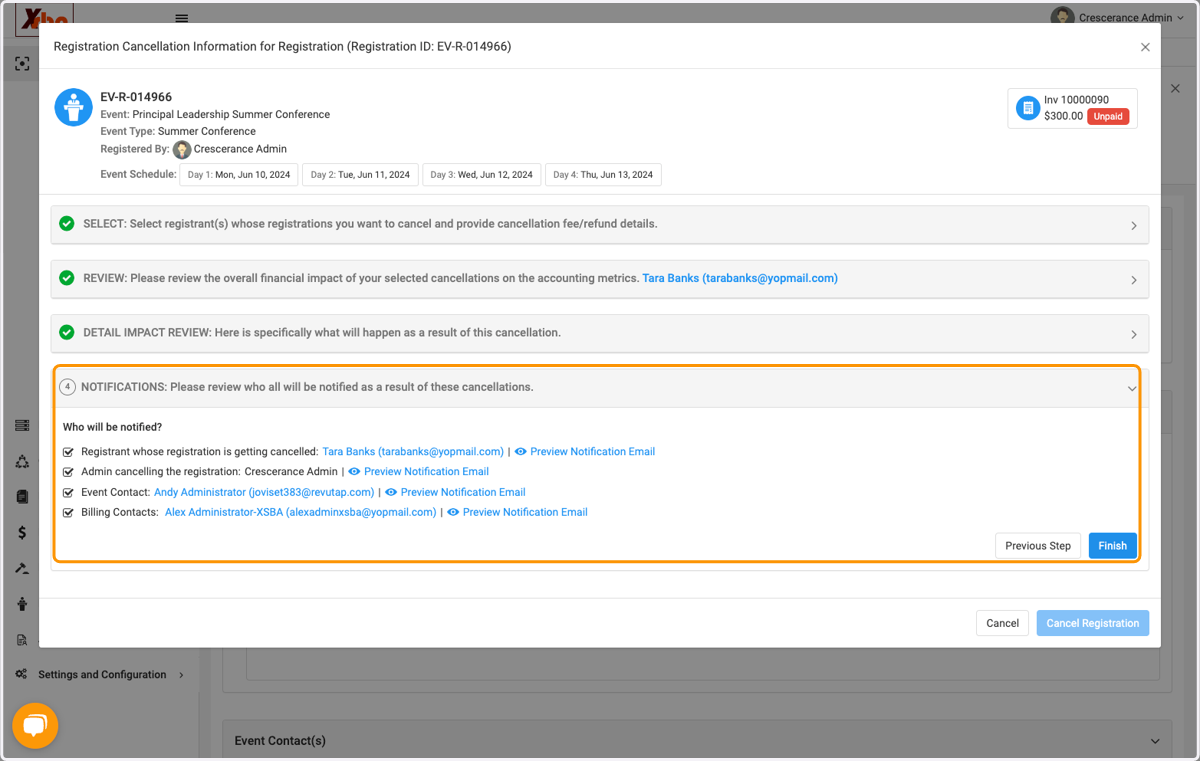
    Review notifications and click on Finish
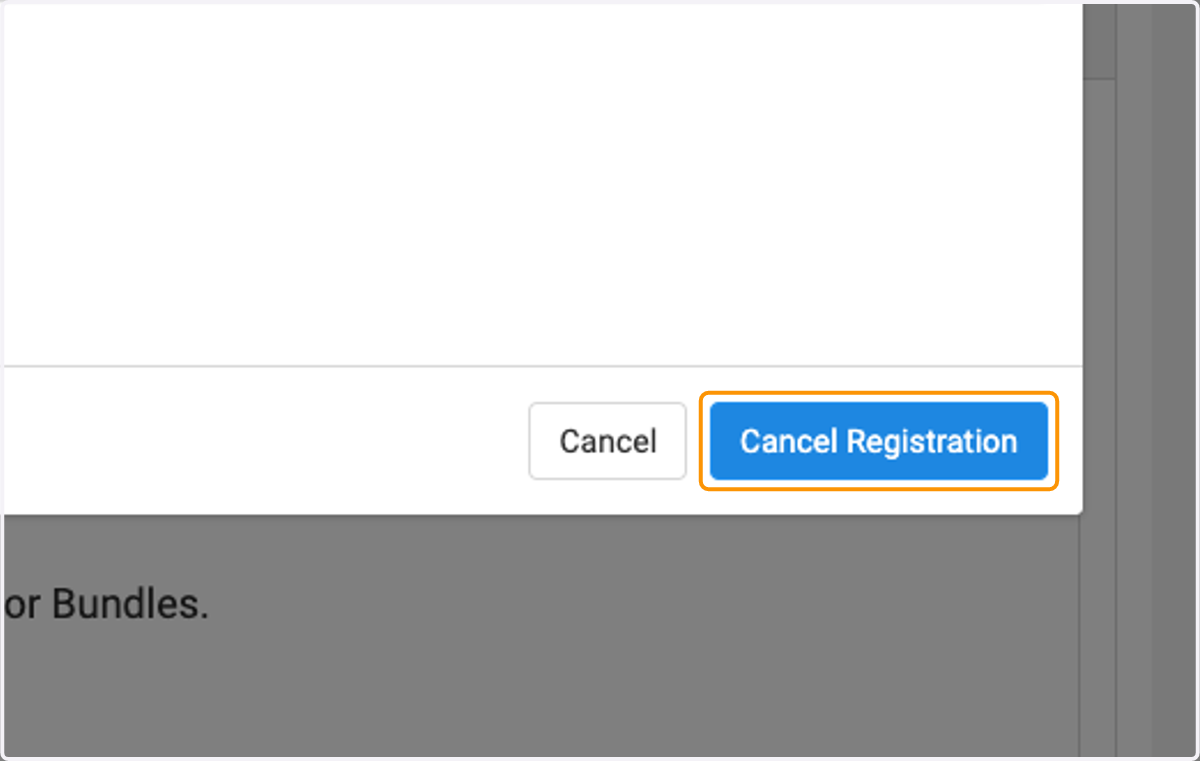
  12. 12. Click on Cancel Registration

    Click on Cancel Registration
  13. 13. Click on Yes, Cancel Registration
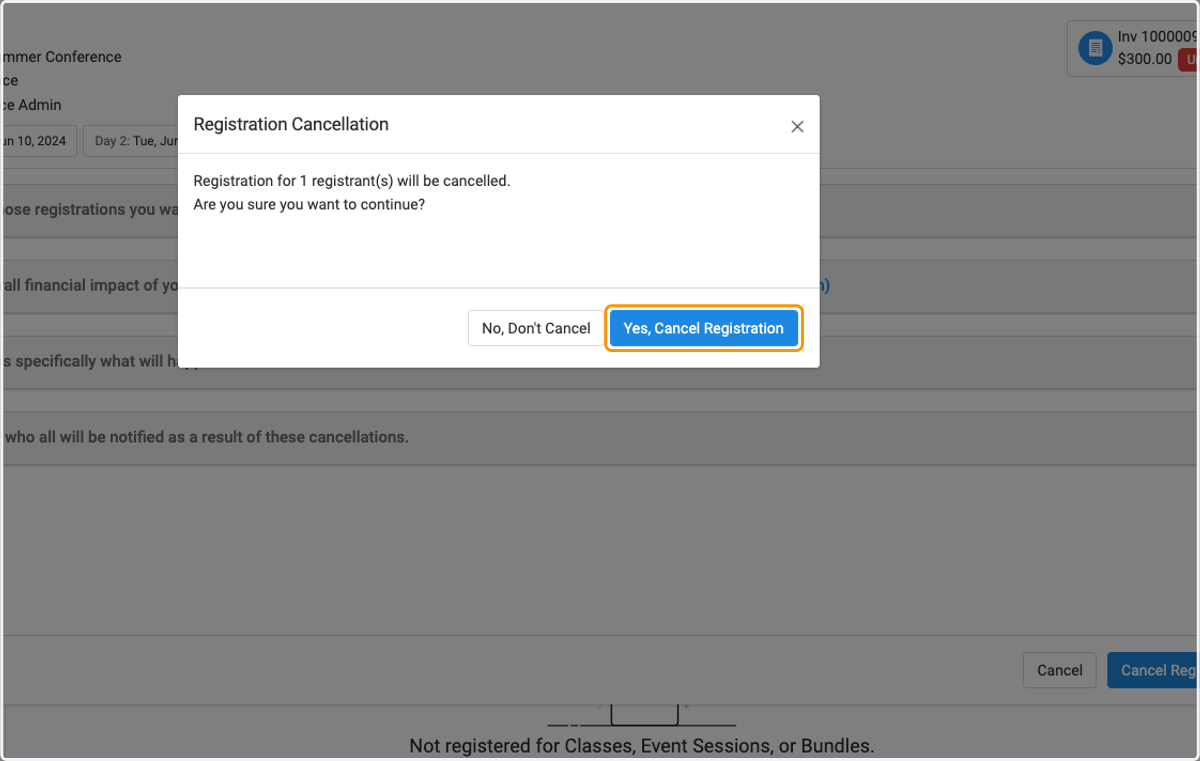
    Click on Yes, Cancel Registration
  14. 14. Now you have created a credit note to be applied to another unpaid invoice
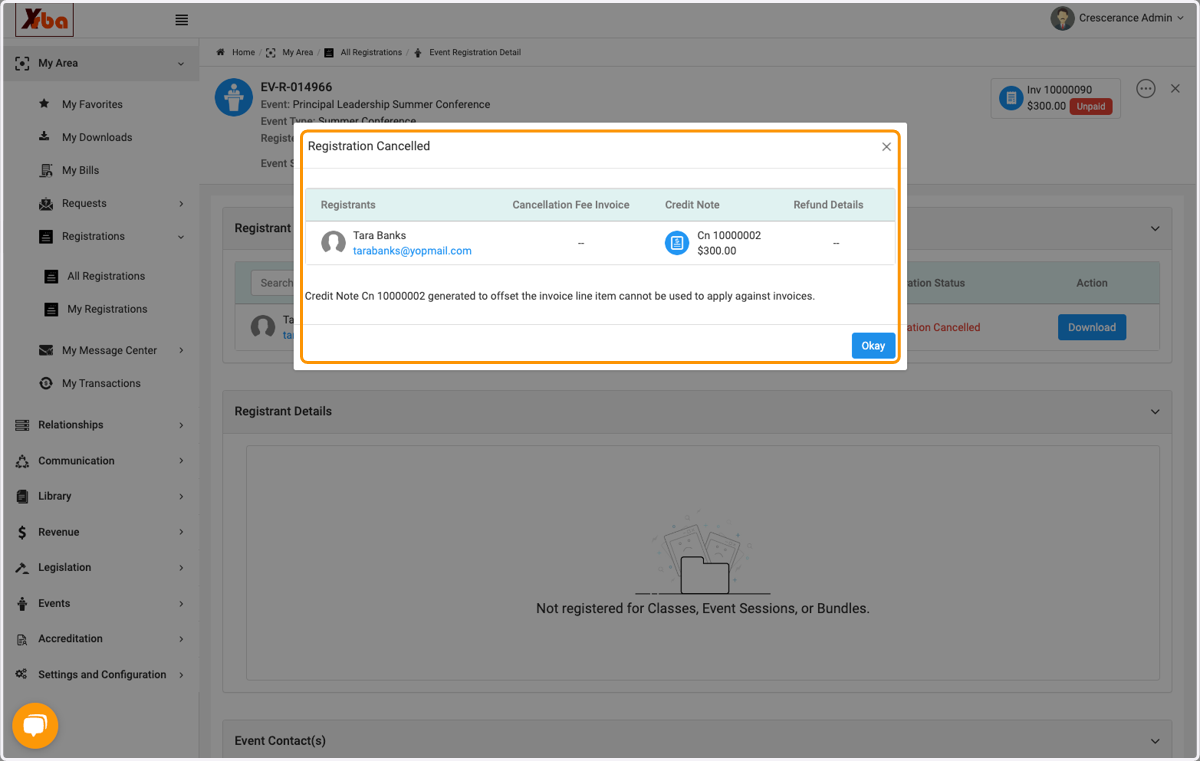
    Now you have created a credit note to be applied to another unpaid invoice