LTI Connection Setup and Testing Guide
Preperations and assumptions
This guide will show you how to test your LTI tool in by using the Platform Emulator, hosted bij Saltire. To make testing easier, we will be testing a LTI 1.1 legacy tool. As there are less steps involved in connecting to the tool.
If you haven't done so, please start by creating a LTI tool in your platform.
Feel free to use our Sample SCORM for testing.
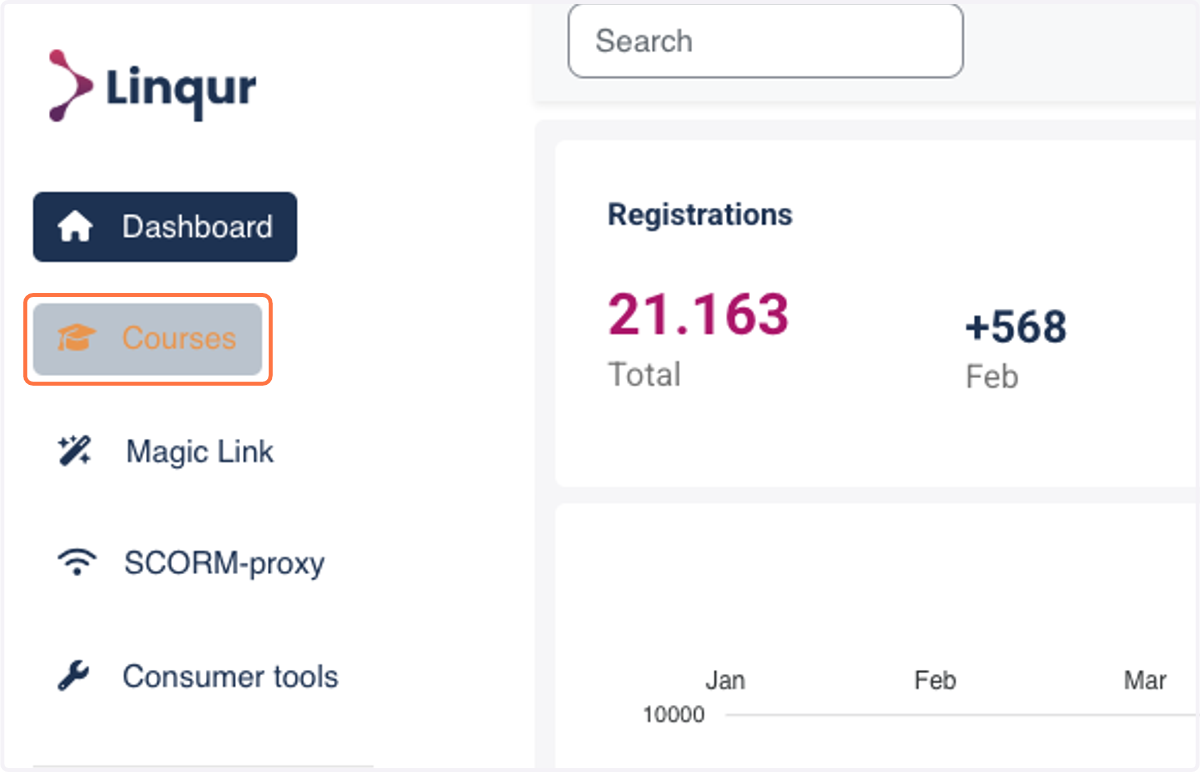
1. Assuming your LTI tool is ready for use, navigate to "Courses"
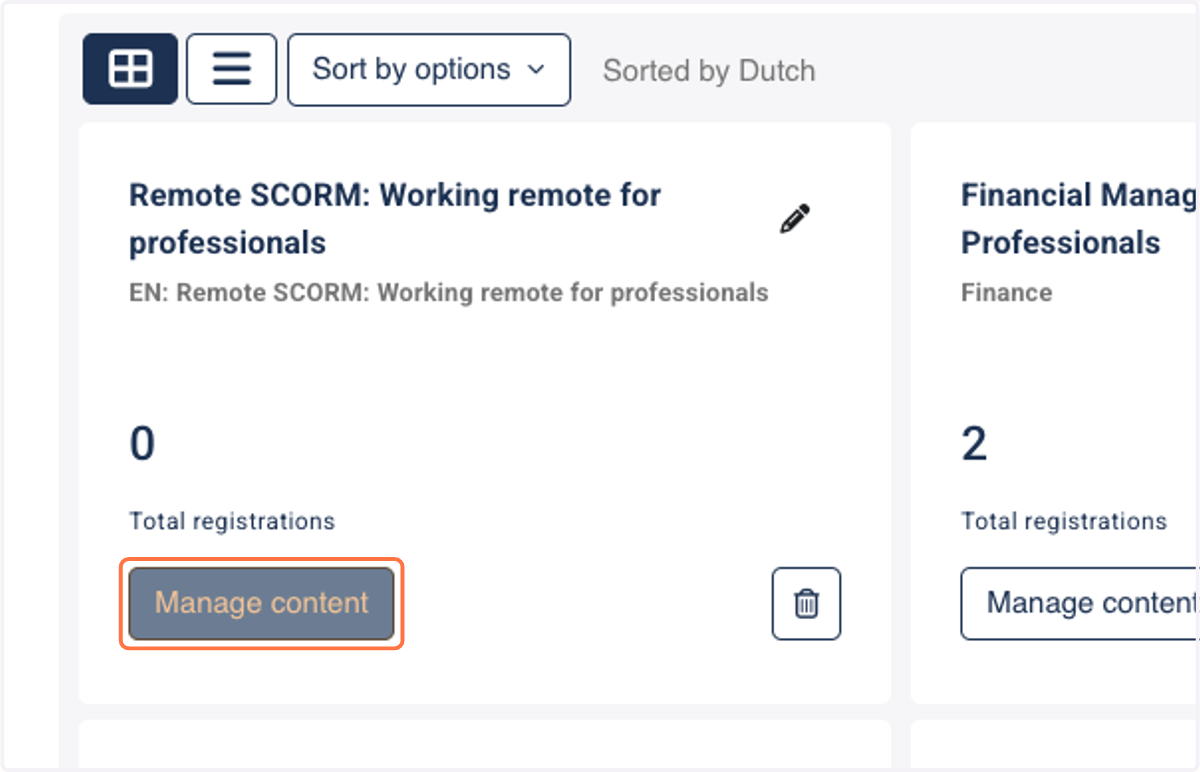
2. Click on Manage content
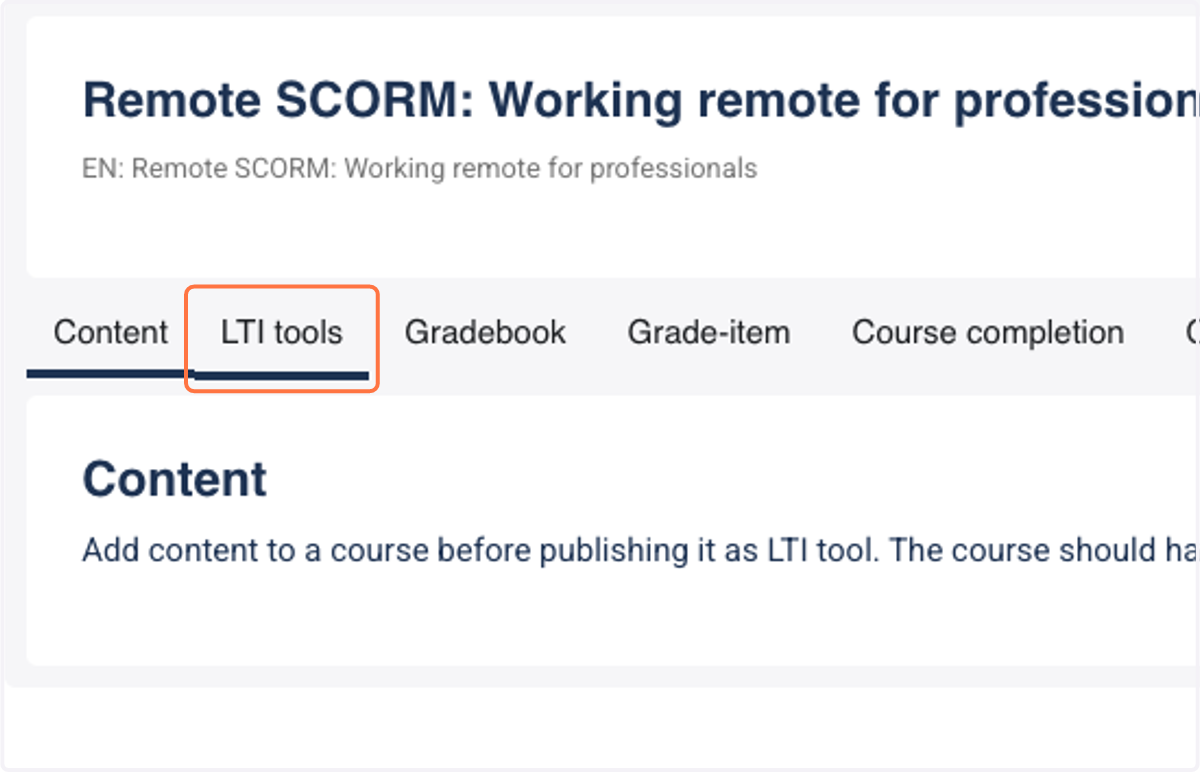
3. Click on the LTI tools tab in your course
4. Click on the LTI tool you want to use for testing.
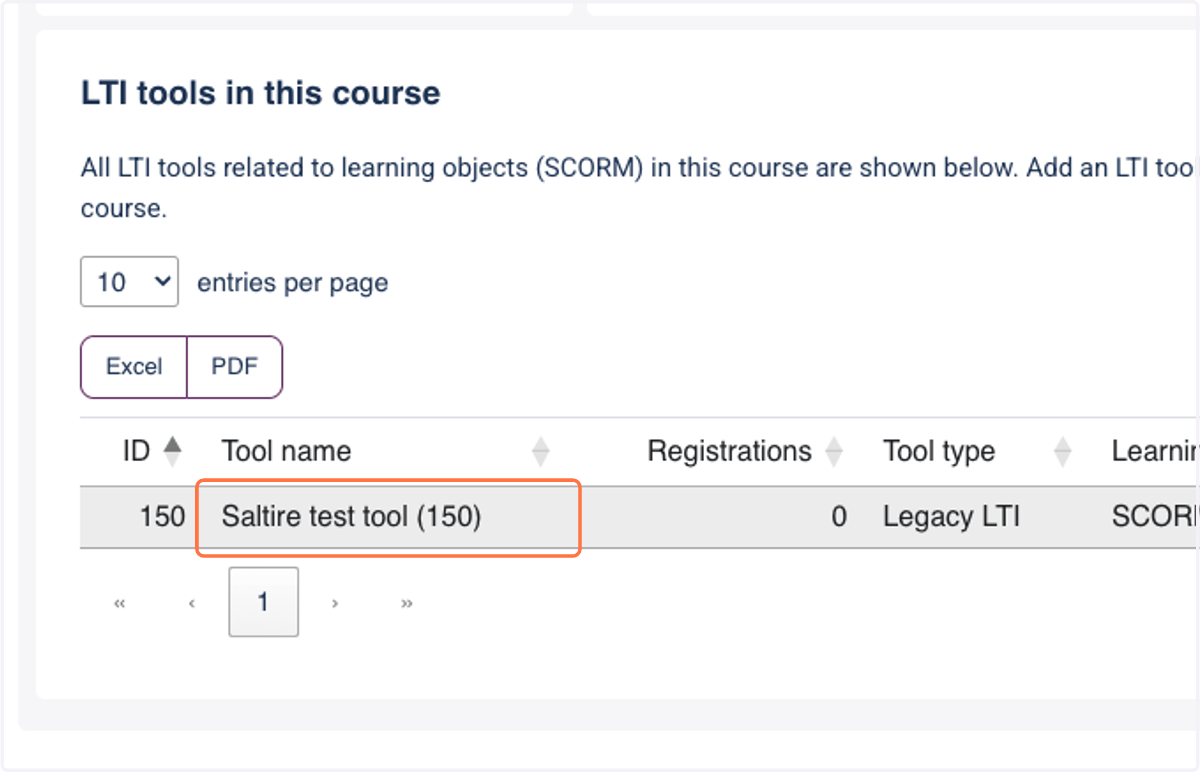
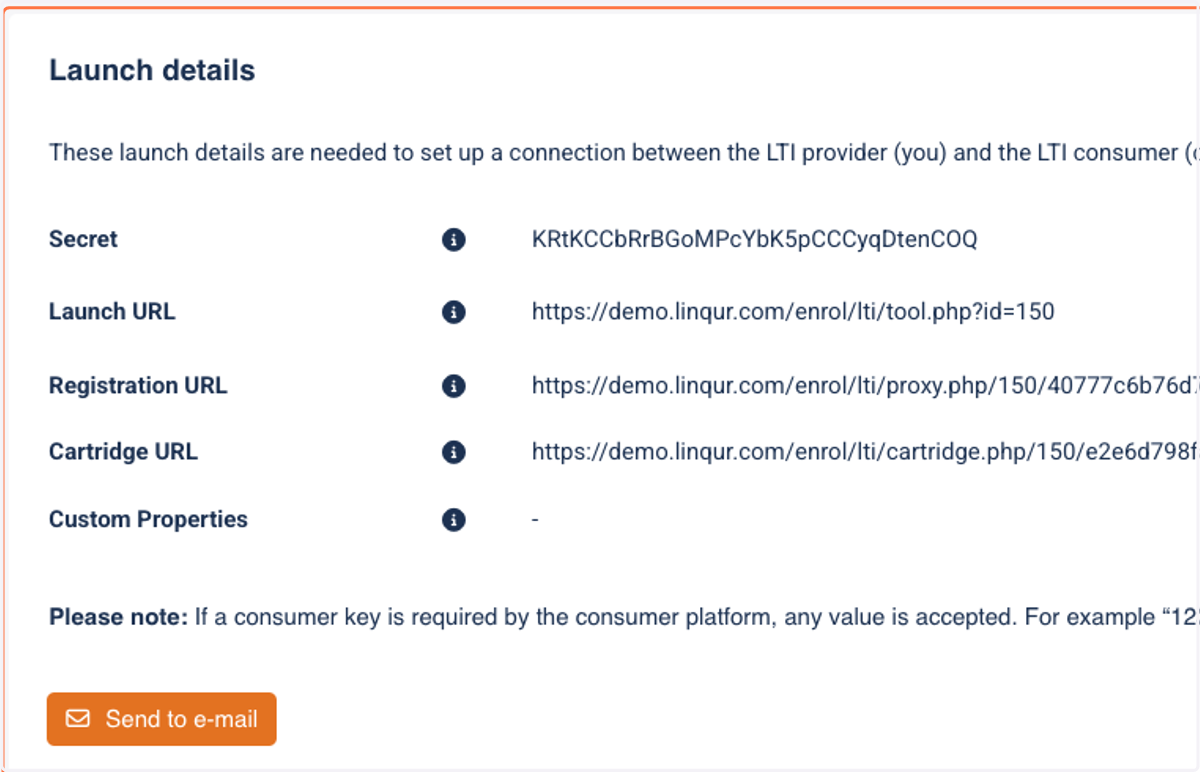
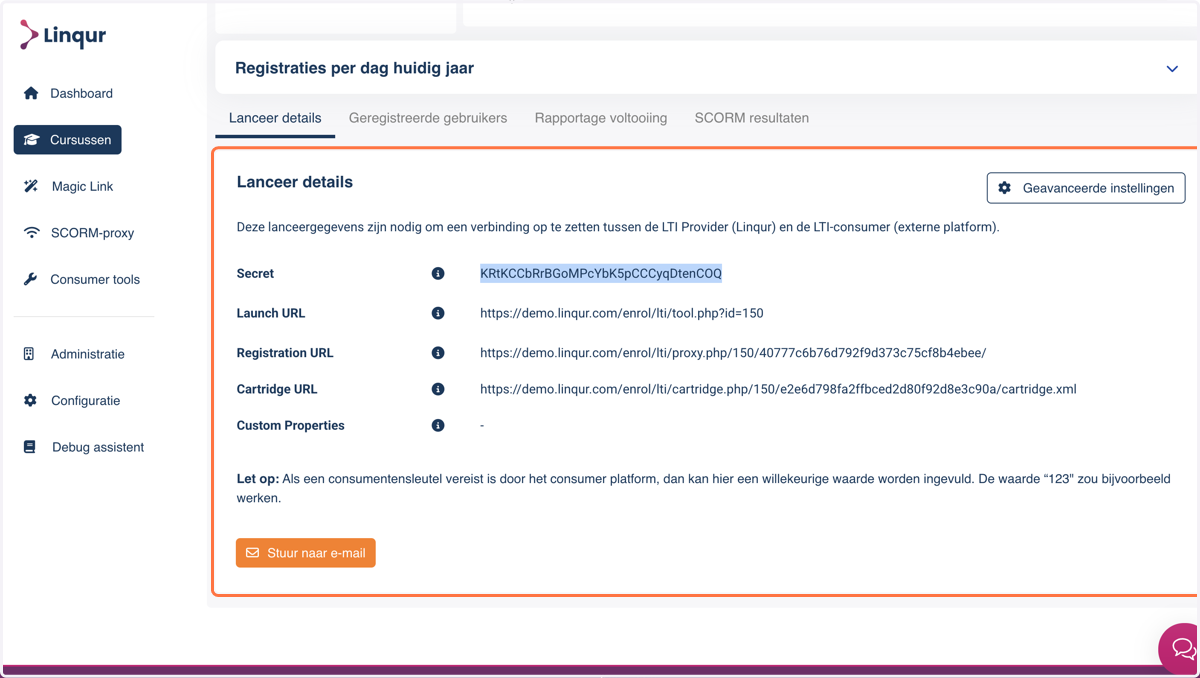
5. Here you will see your Launch details. This is the information needed to connect to the tool.
6. Now open a new browser window in "Incognito mode".
This is an important step. You will be loggin in to the platform as LTI user. For security reasons you will not have access to admin features. To prevent errors, make sure you open "Incognito mode", also called "Private browsing".
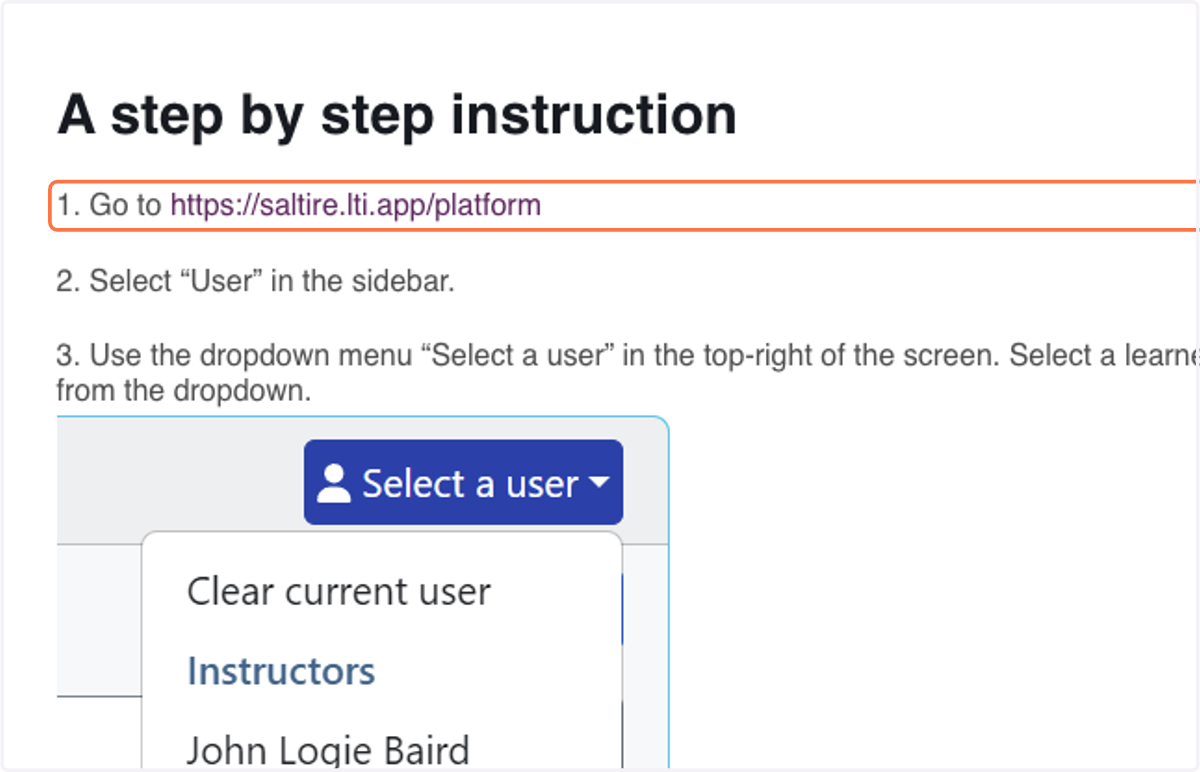
7. In your "incognito" browser, navigate to saltire.lti.app/platform to open the platform emulator.
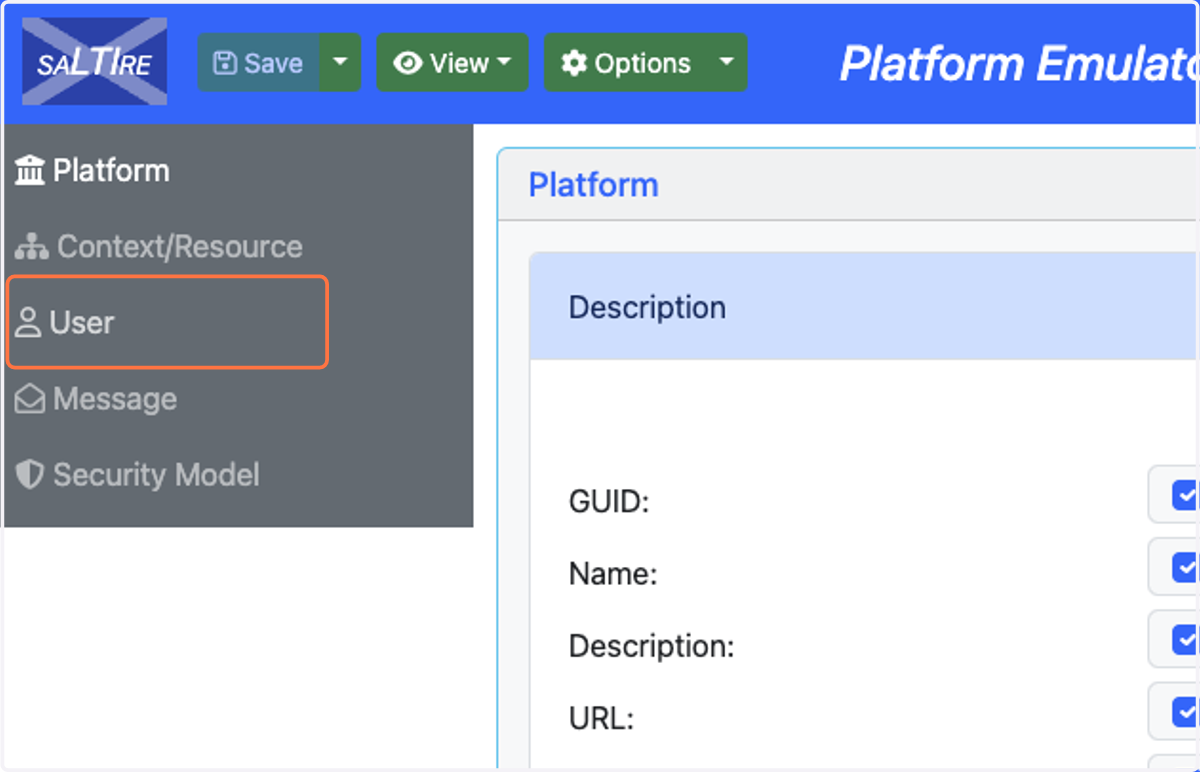
8. Click on User
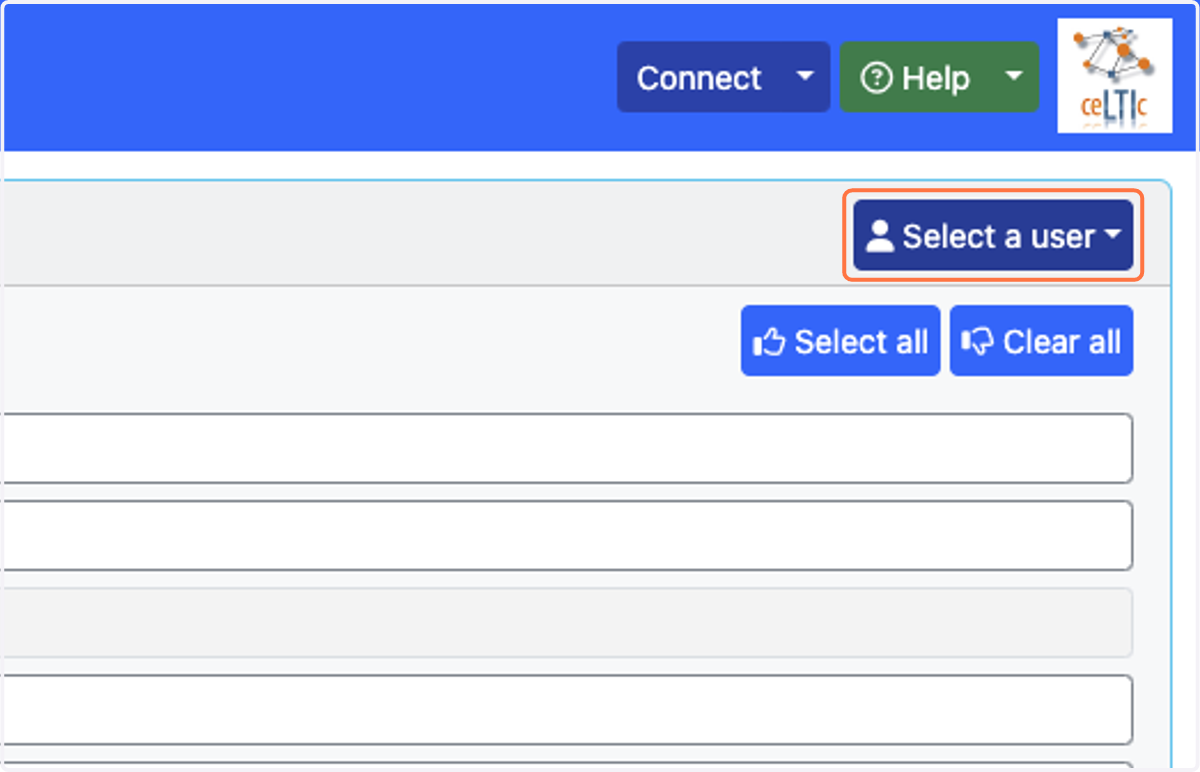
9. Click on Select a user
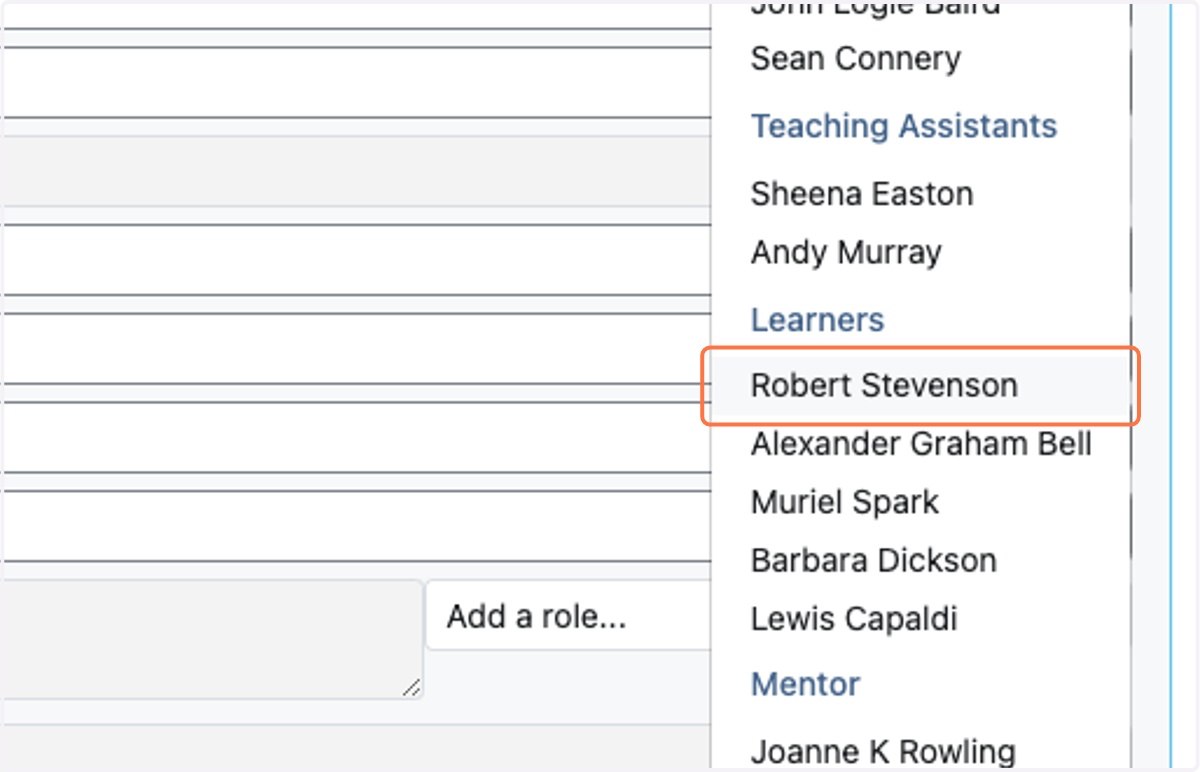
10. Click on Robert Stevenson
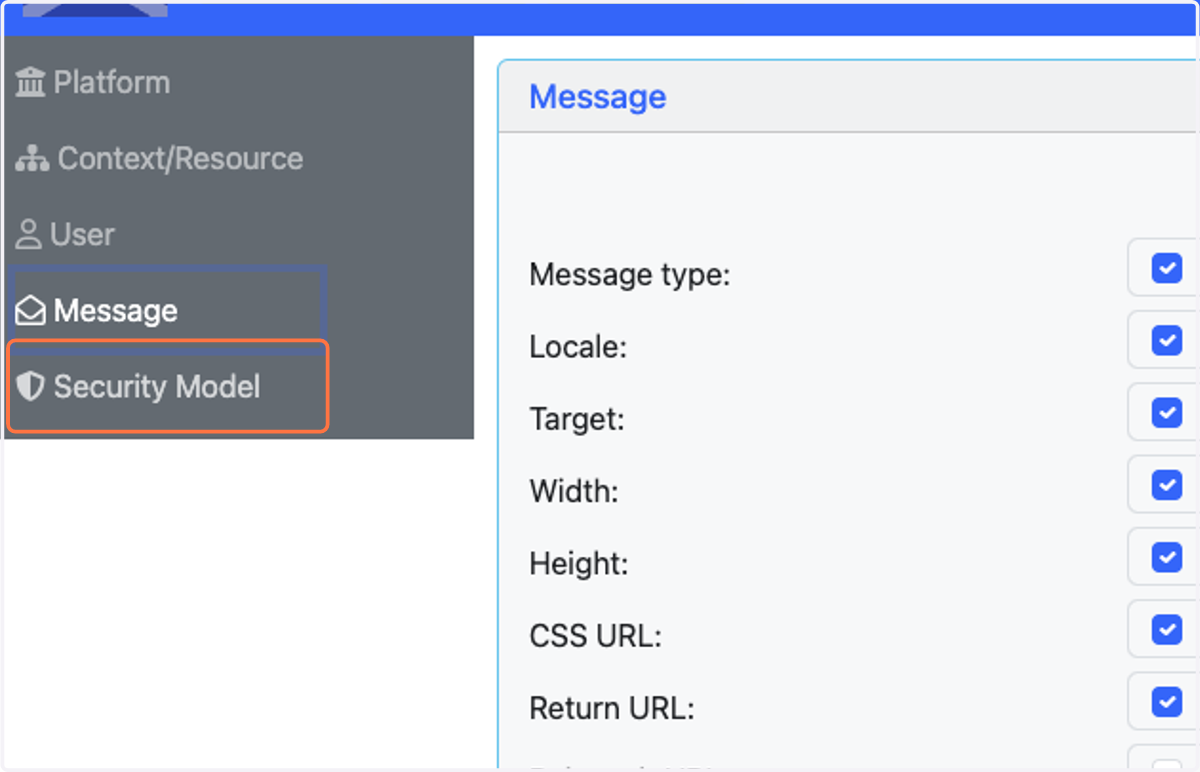
11. Click on Security Model
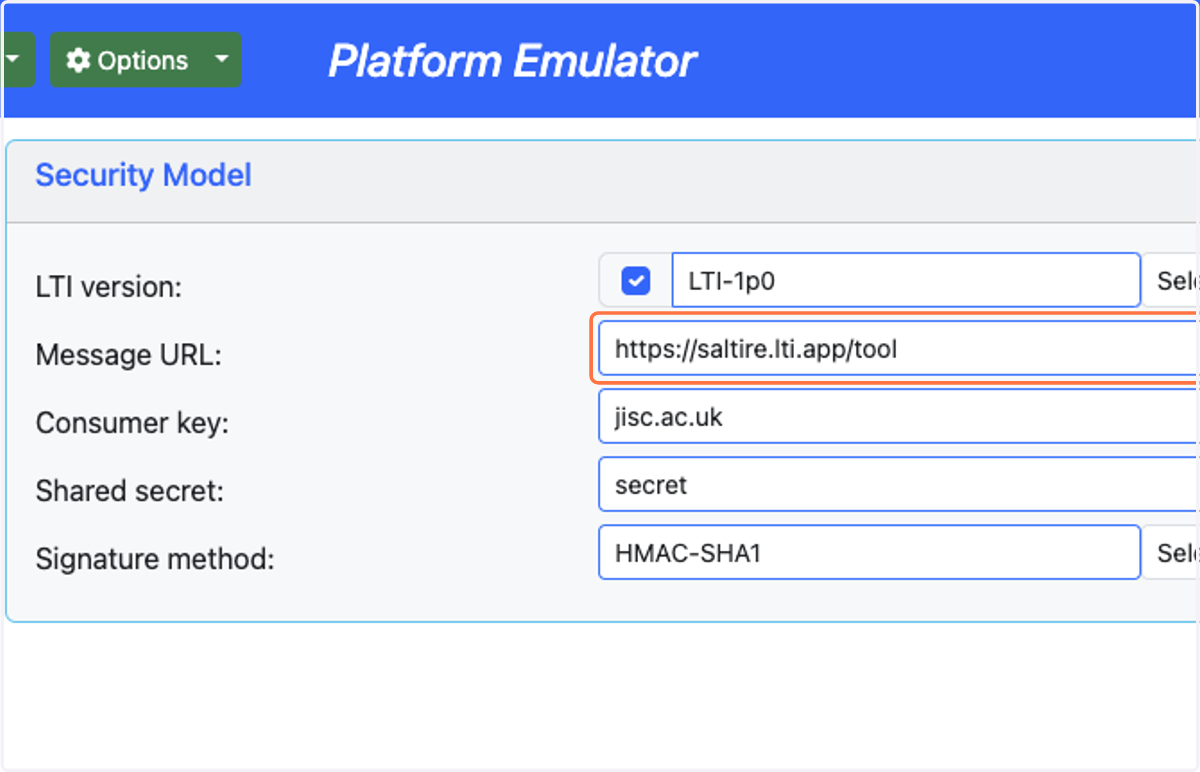
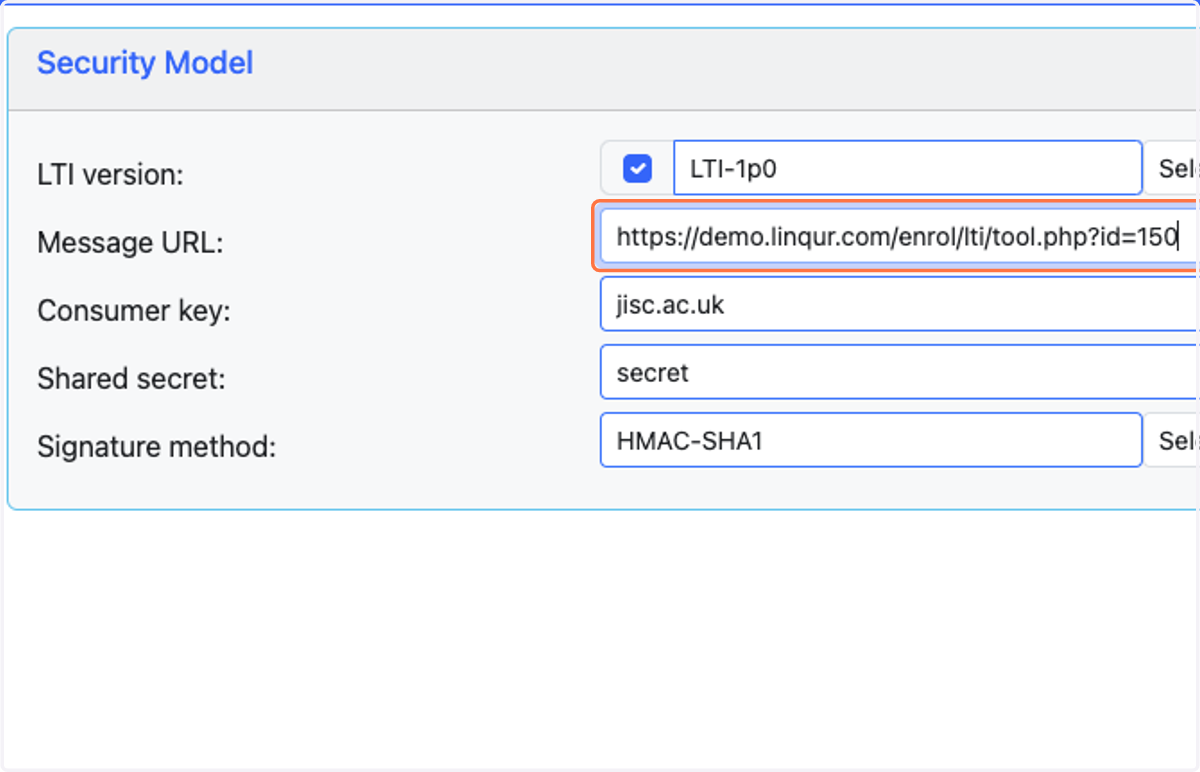
12. We will be replacing the Message URL to the Launch URL related to our tool.
13. Copy the Launch URL from your Launch details tab.
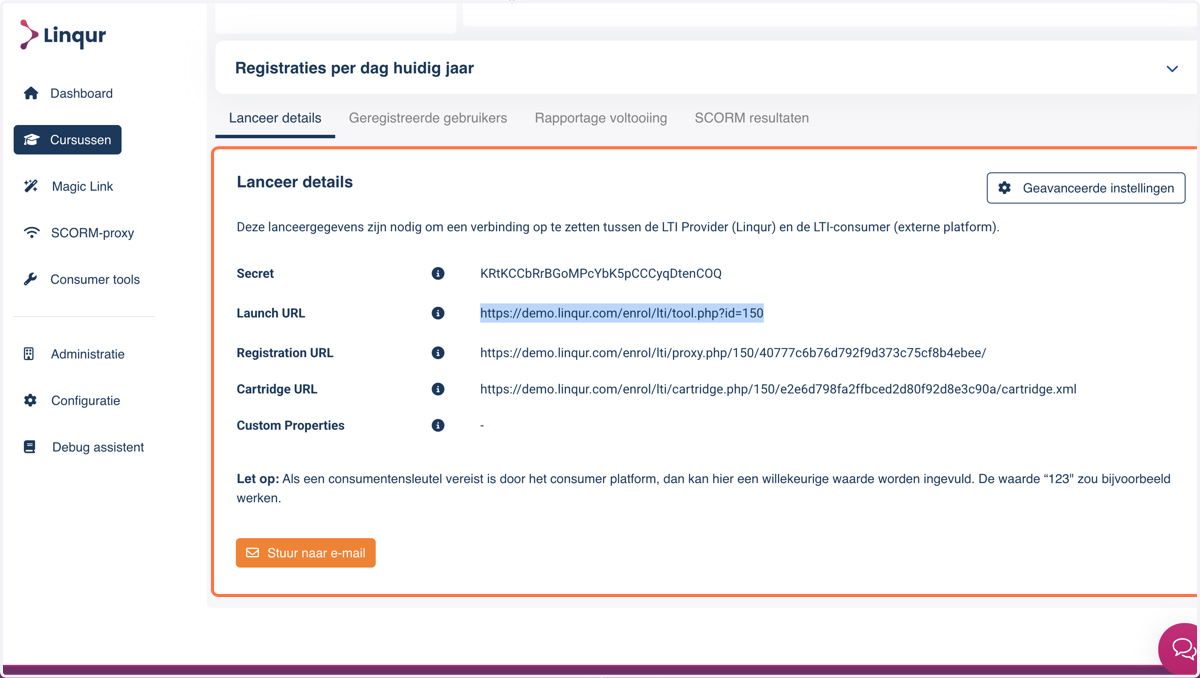
14. Paste the Launch URL in the Message URL input field.
15. Go back to your Launch details to copy the Secret.
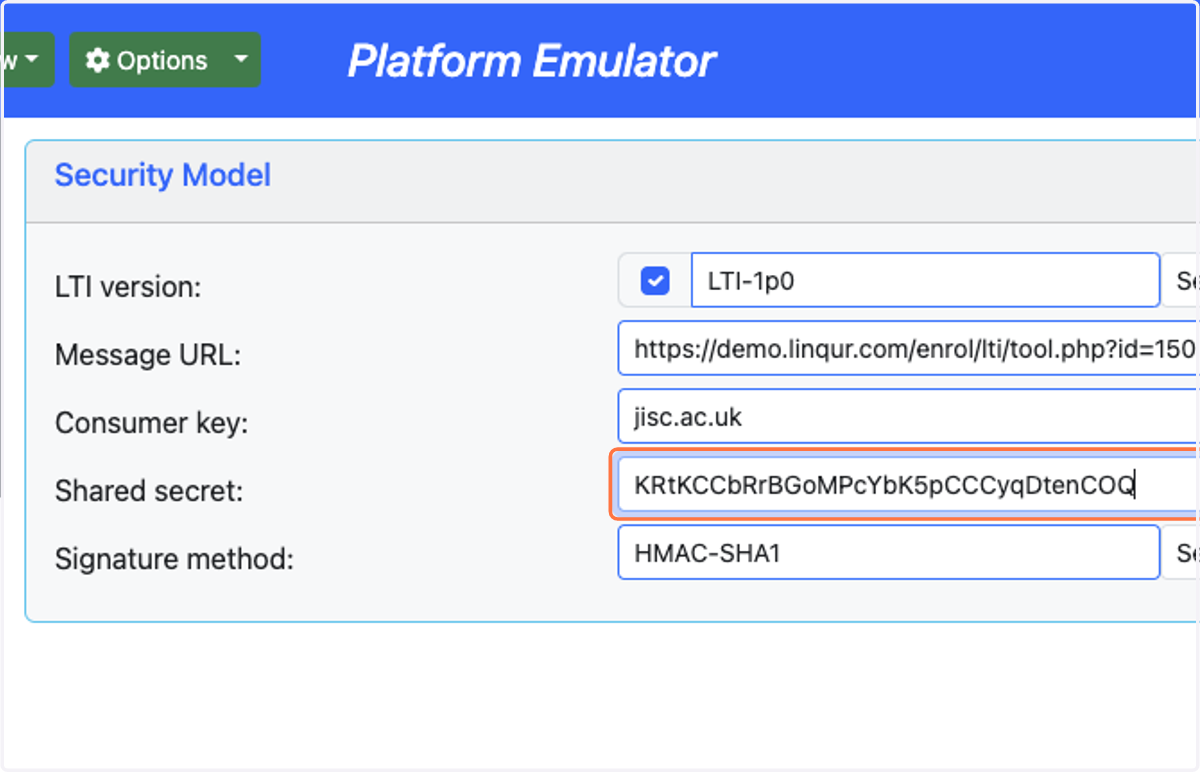
16. Paste the Secret in the "Shared secret" input field.
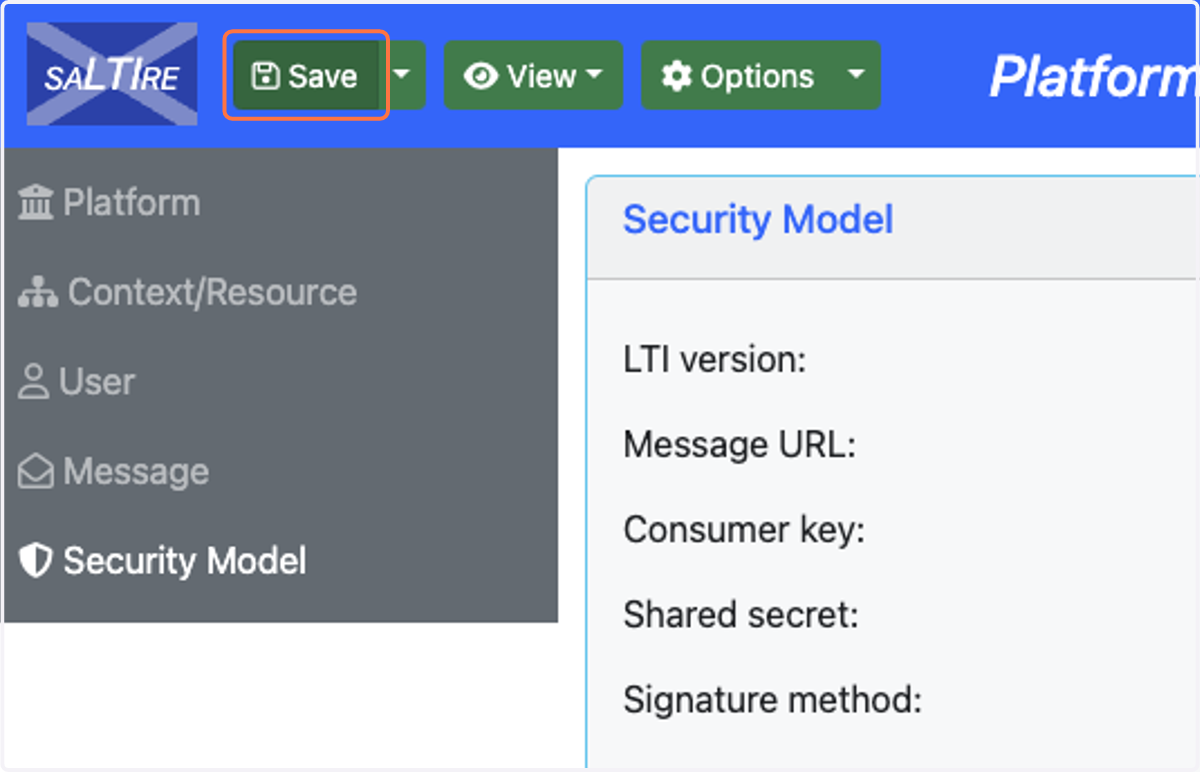
17. Click on Save
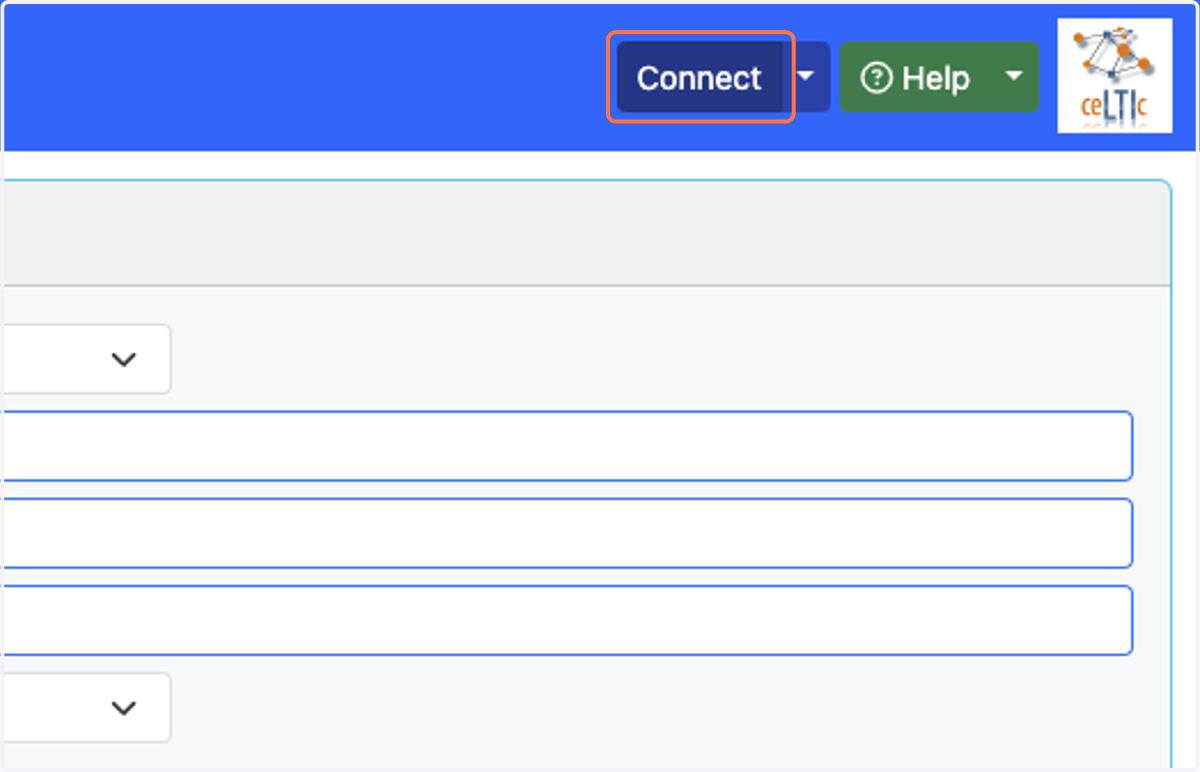
18. Now click on Connect to test your tool.
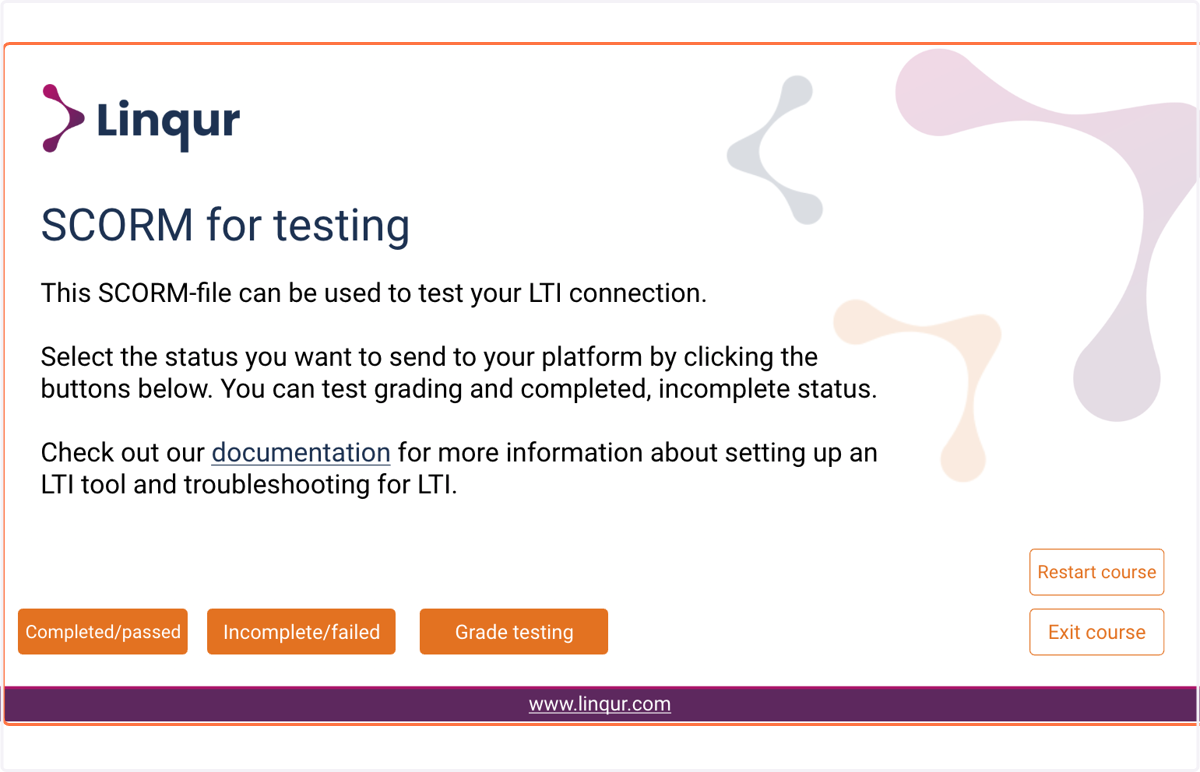
19. A new browser tab will open, showing your e-learning content. If you see your content, the connection is working!
20. To test if your LTI tool is sending a grade via LTI, make sure to trigger a grade or completion in your e-learning content.
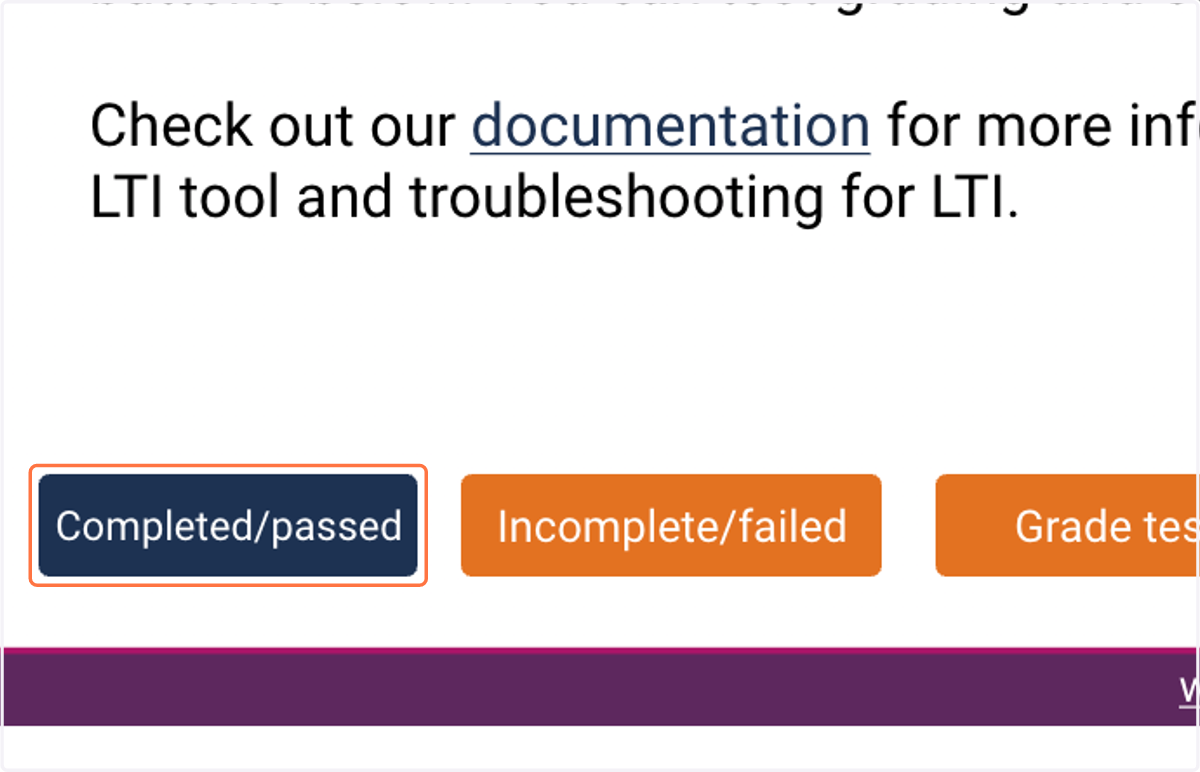
21. Once a grade has been triggered in your e-learning, the LTI tool will synchronize the grade within one minute.
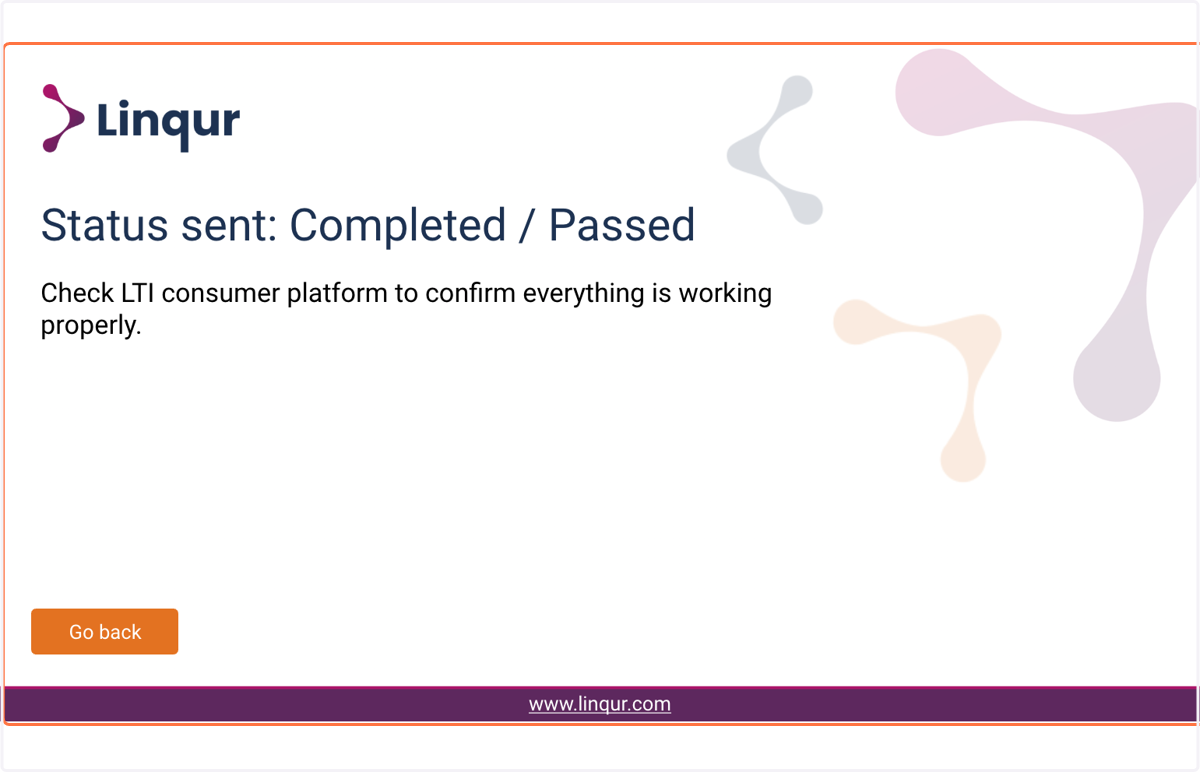
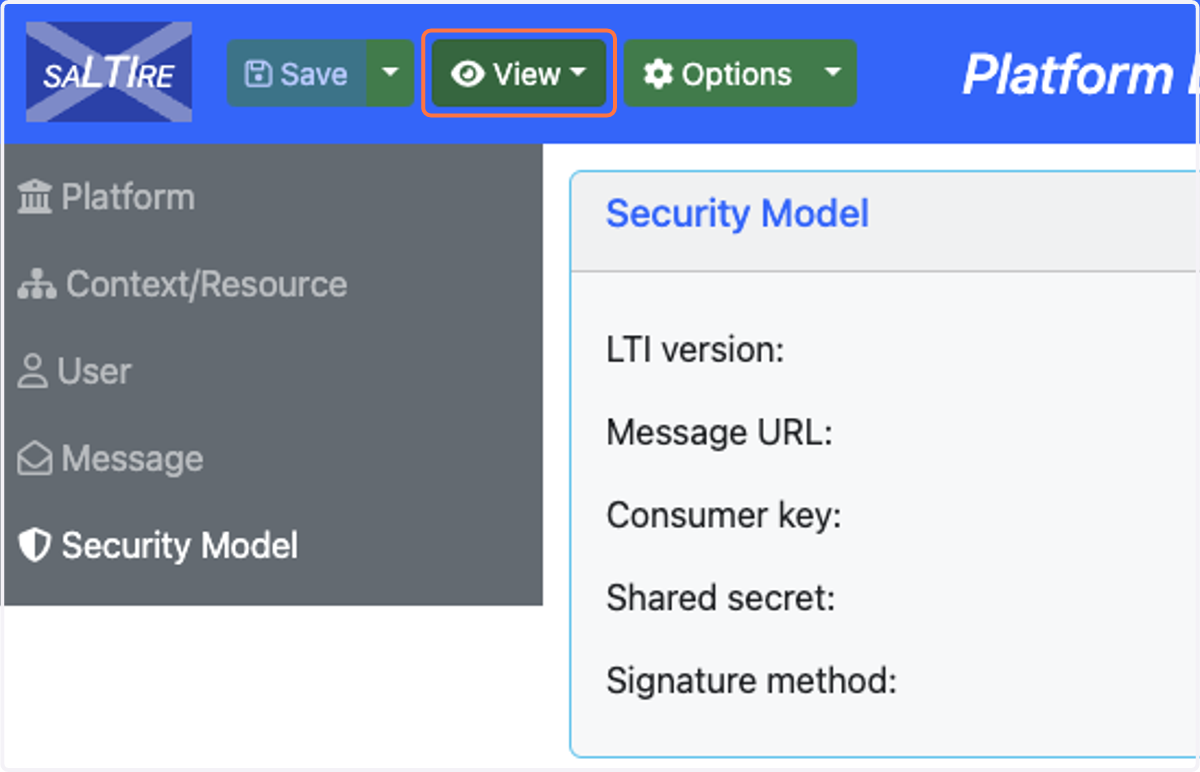
22. After waiting for one minute, switch back to the saLTIre: LTI Platform emulator tab and click on View
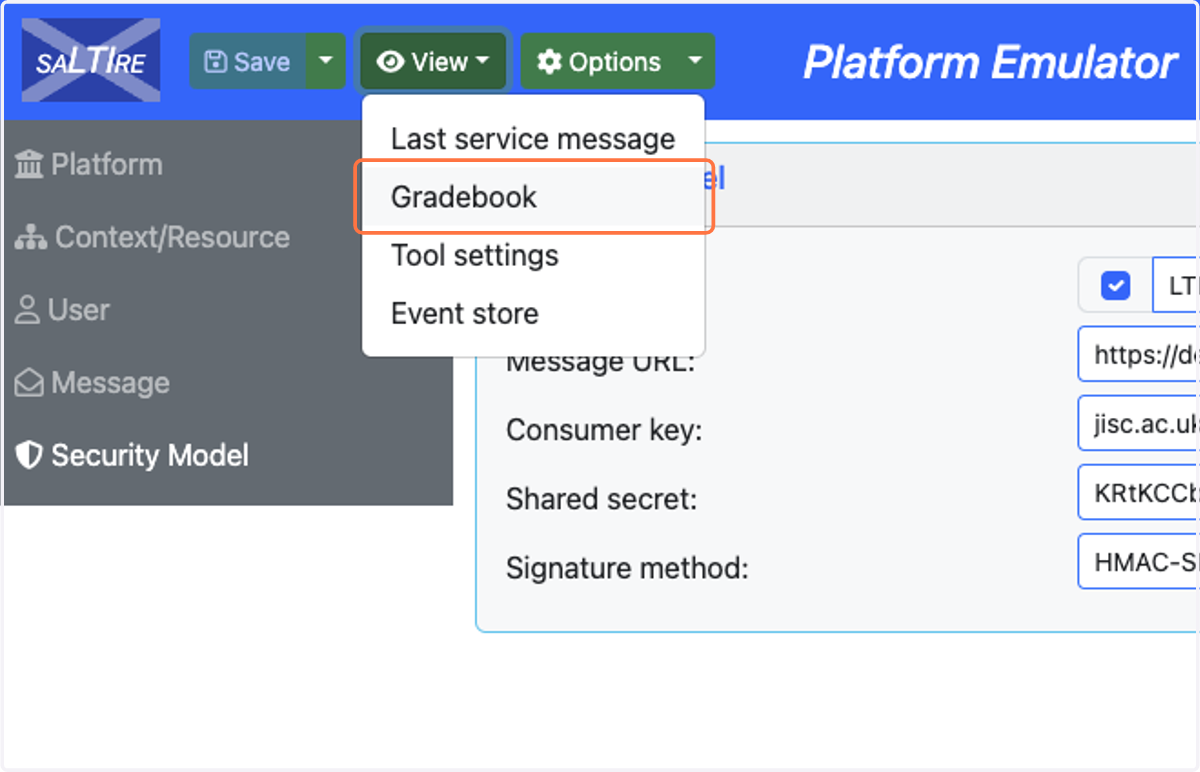
23. Click on Gradebook
24. In the gradebook you will should see a score, status and activity progress.
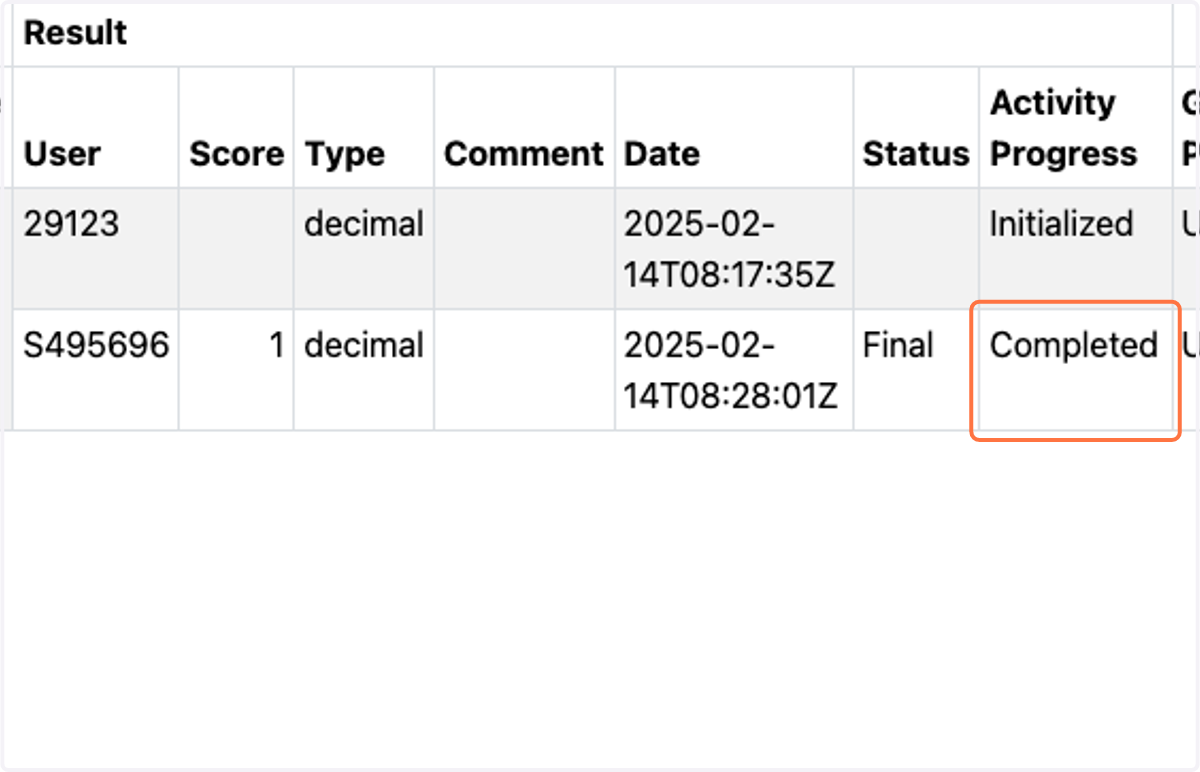
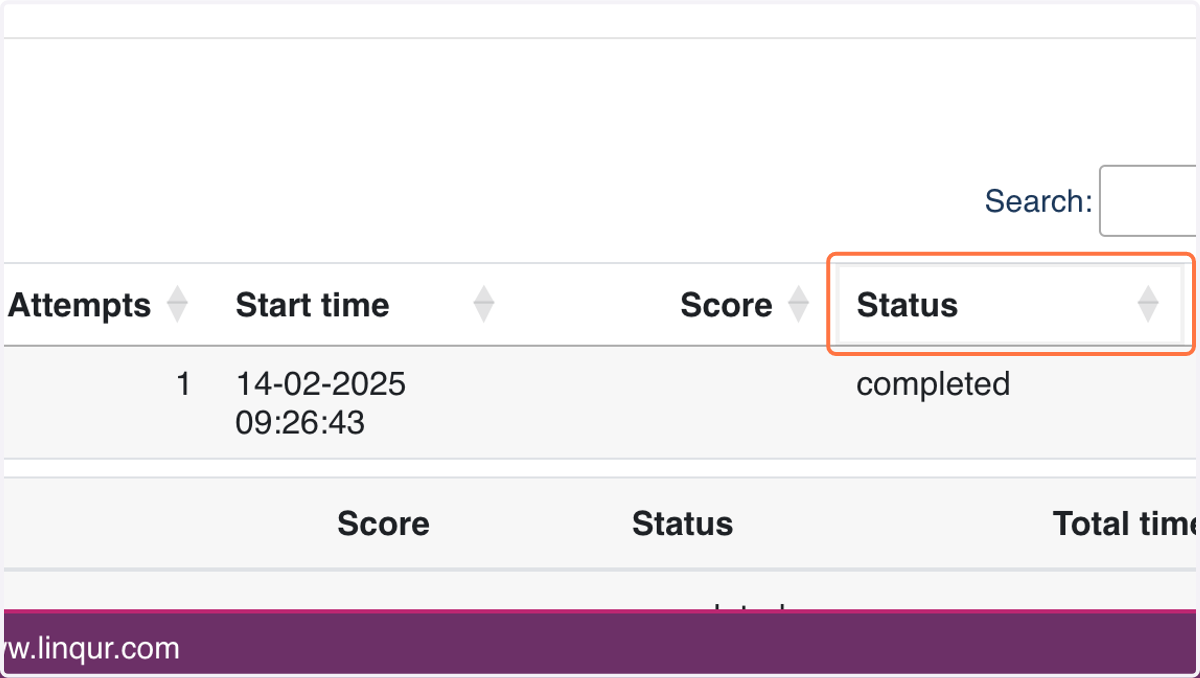
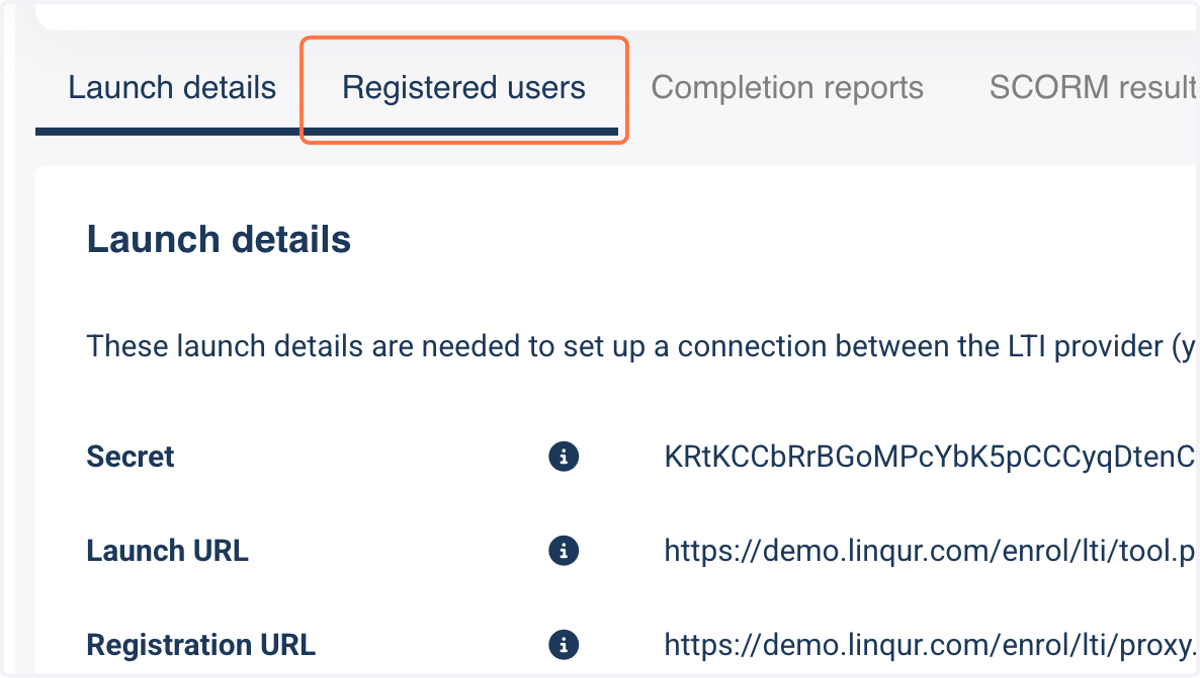
25. If the grade is sent to Saltire, you will also be able to find it in your Linqur platform. Click on Registered users to view your user registration and grade sync value.
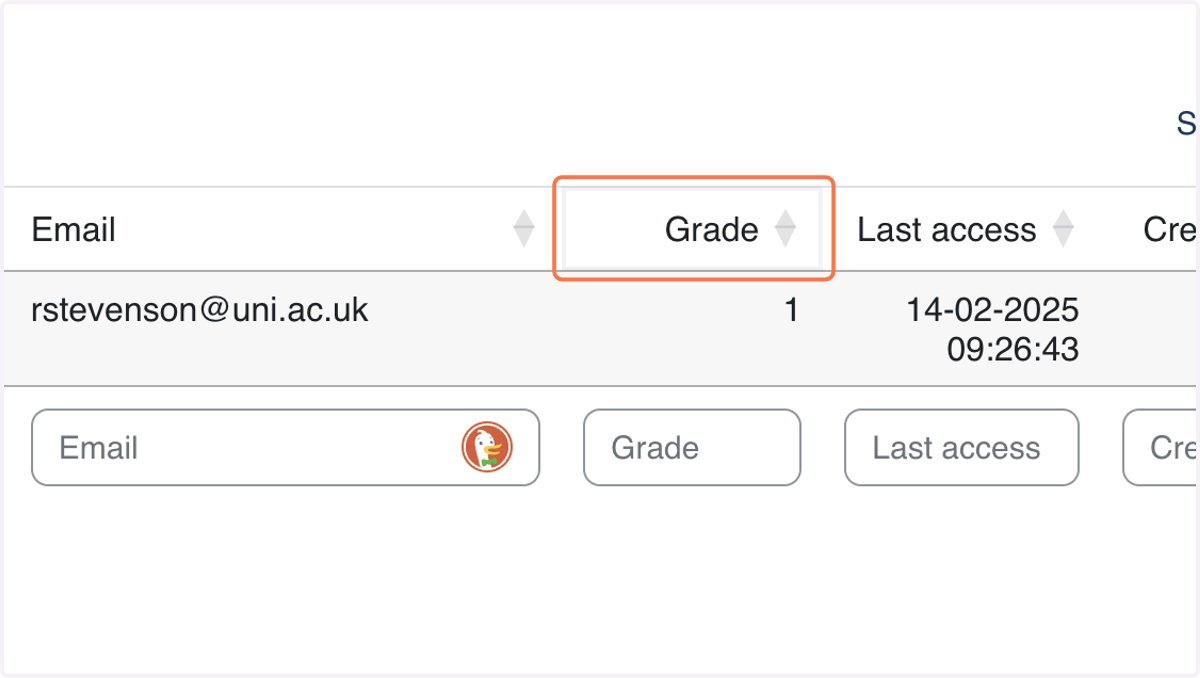
26. The "Grade" column will show the actual grade that has been sent via the LTI tool.
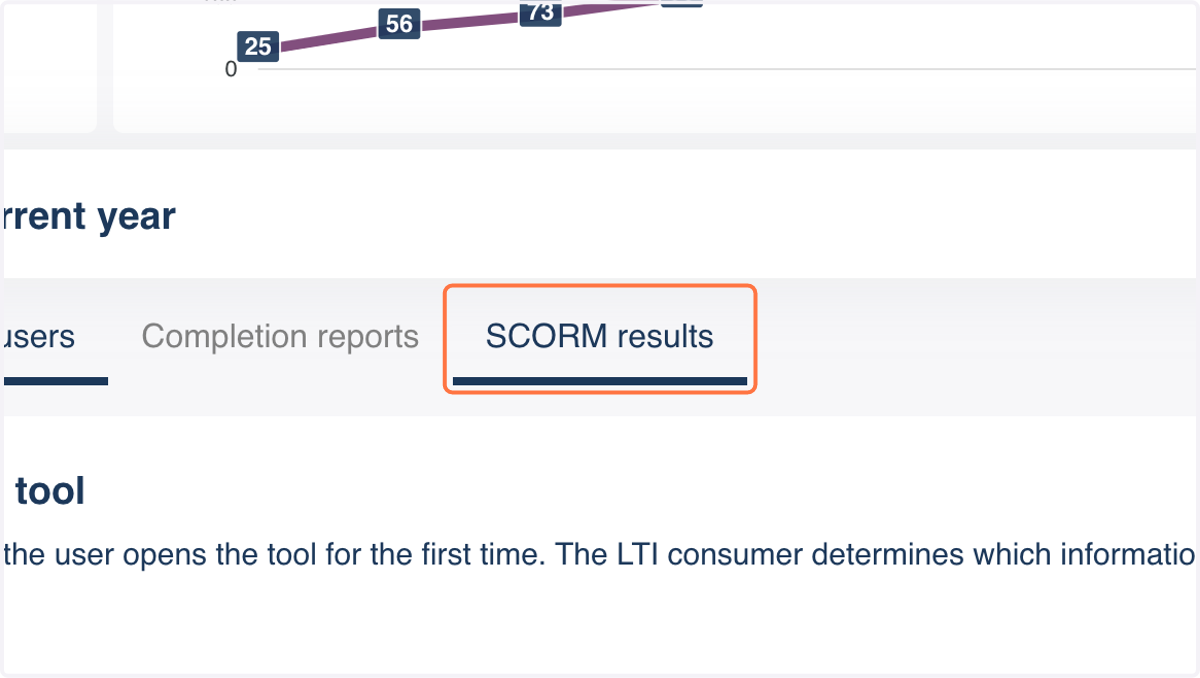
27. If you have shared a SCORM package via this LTI tool, you will be able to check the SCORM results tab. This tab will show you the actual grade that has been recorded by the SCORM file.
28. If the status has been changed, or a score has been recorded, but this is not reflected in your LTI Consumer gradebook, that indicates there is a synchronisation problem.