Change GL Code in Bulk in a Requisition in BV Marketplace

Requisition: REQ002651 - Req. 6/3/2025 (Draft): Brightview

  1. 1. Check the rows that you want to code to the same GL

    Check the rows that you want to code to the same GL
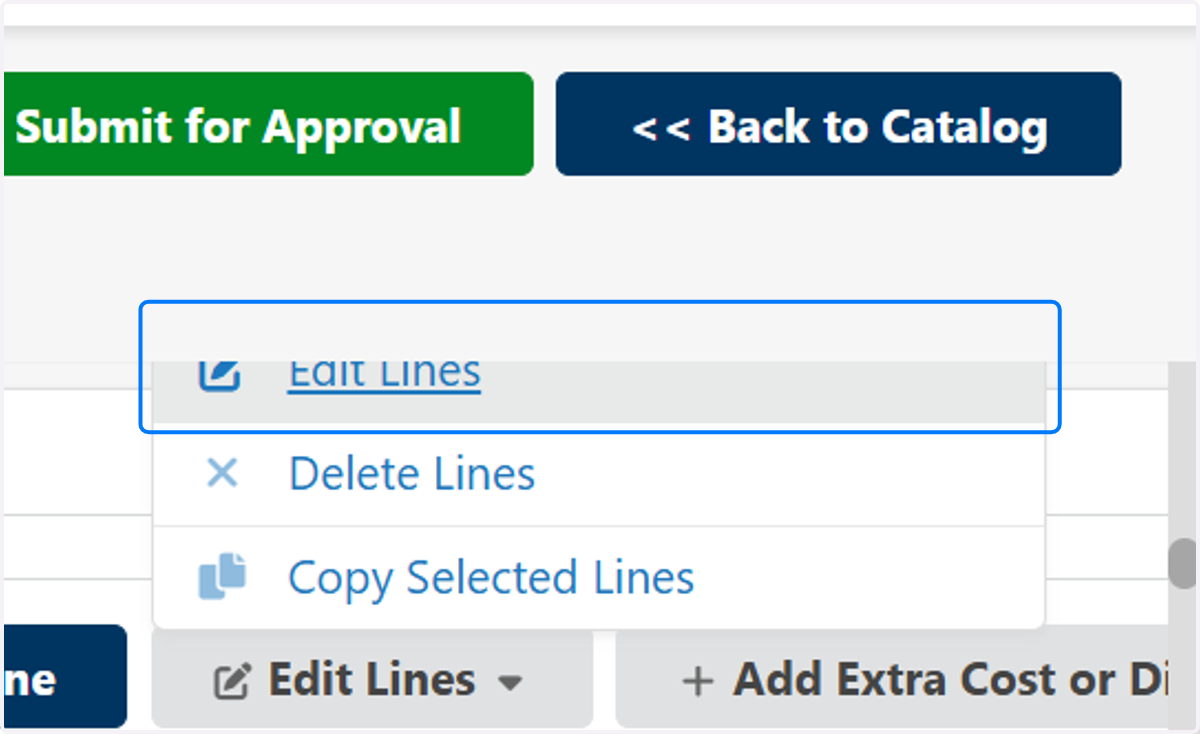
  2. 2. Click on Edit Lines

    Click on Edit Lines
  3. 3. Click on Edit Lines

    Click on Edit Lines
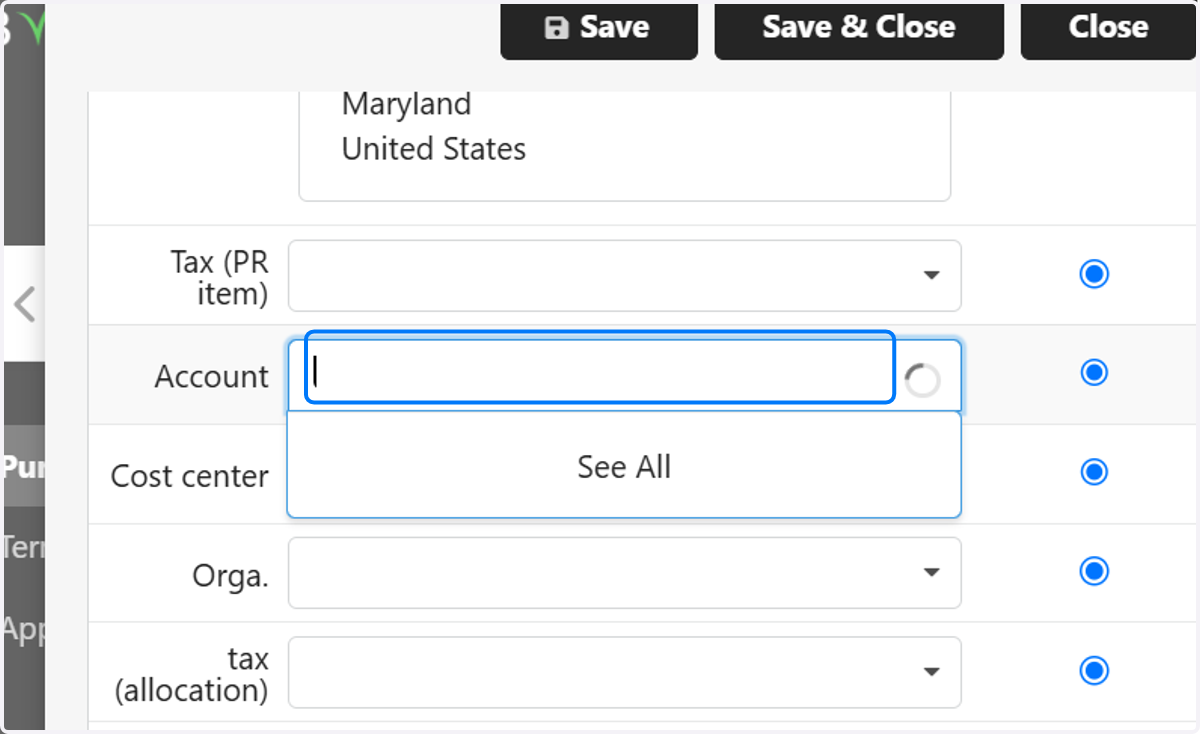
  4. 4. Svroll down and Click in Account

    Svroll down and Click in Account
  5. 5. Choose your GL you can scroll down to find your GL or Type the number or description in the field
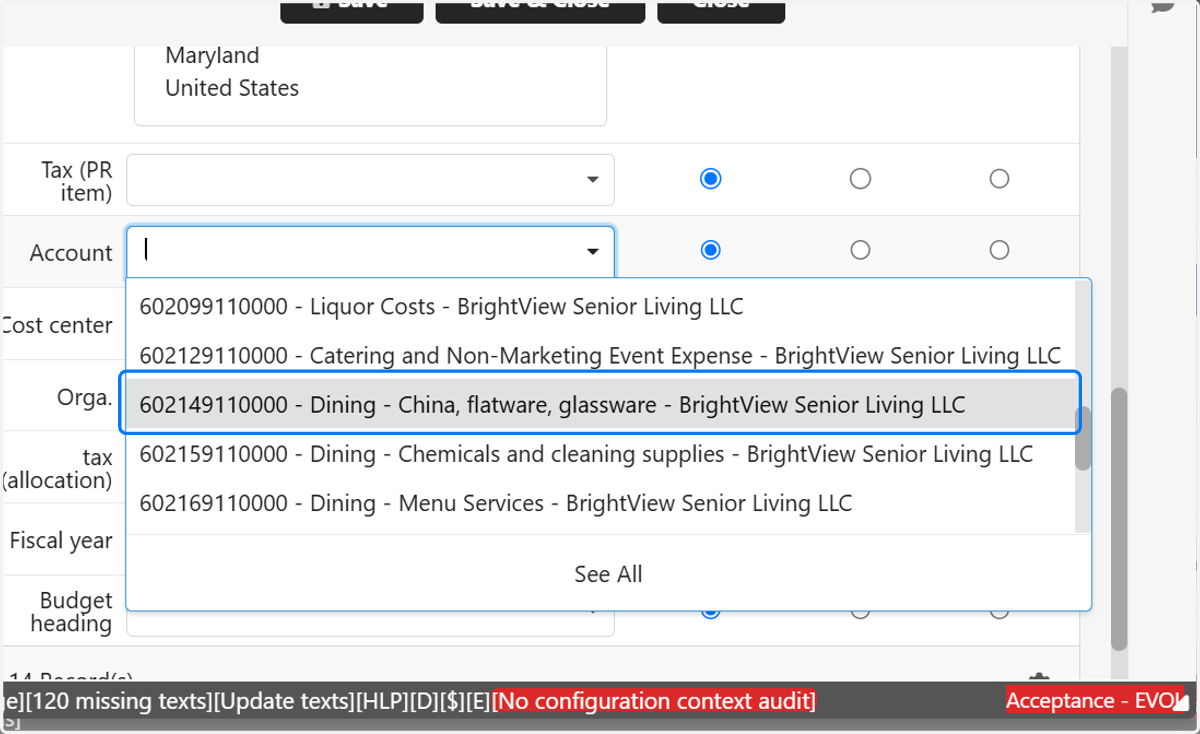
    Choose your GL you can scroll down to find your GL or Type the number or description in the field
  6. 6. Select the last checkbox so the GL code will replace any GL code previously if the GL code is blank you can choose the 2nd checkbox

    Select the last checkbox so the GL code will replace any GL code previously if the GL code is blank you can choose the 2nd checkbox
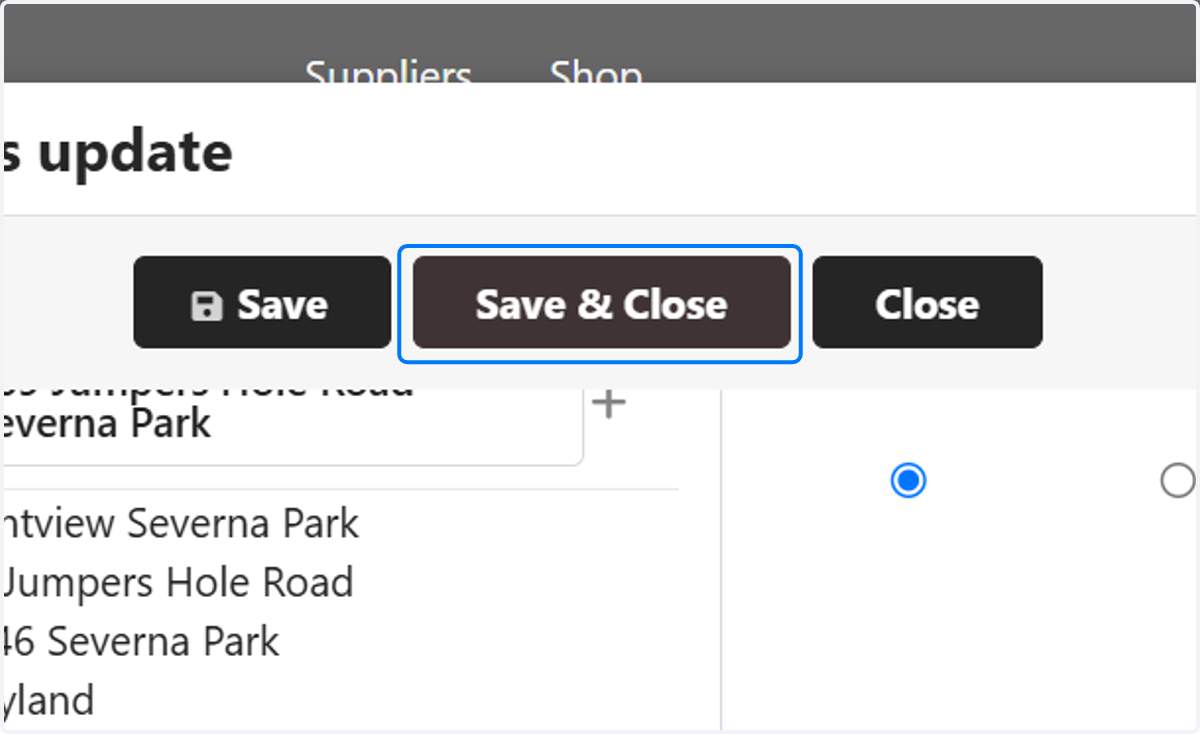
  7. 7. Click on Save & Close

    Click on Save & Close
  8. 8. You can see on the line item and under allocations where the GL code has been changed
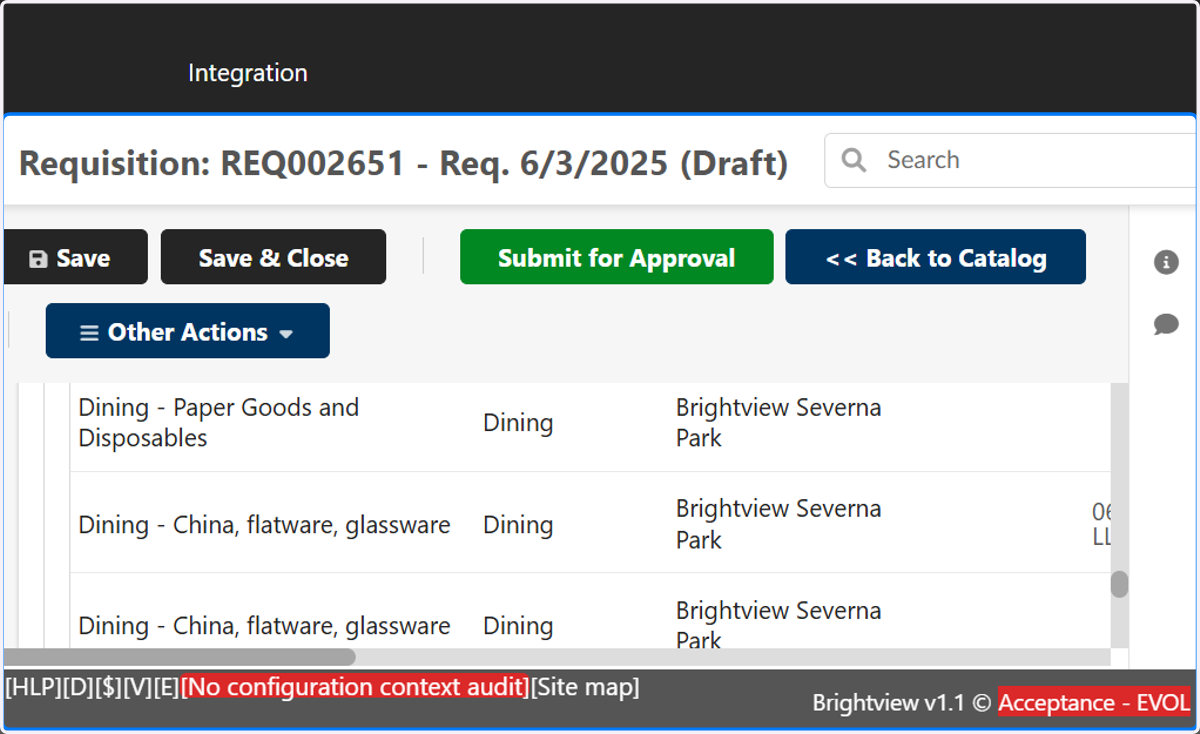
    You can see on the line item and under allocations where the GL code has been changed