Uploading Department Chair Documents
The steps below will show you how to upload your documents for Step 1 of the review process (Department Chair Documents).
Interfolio
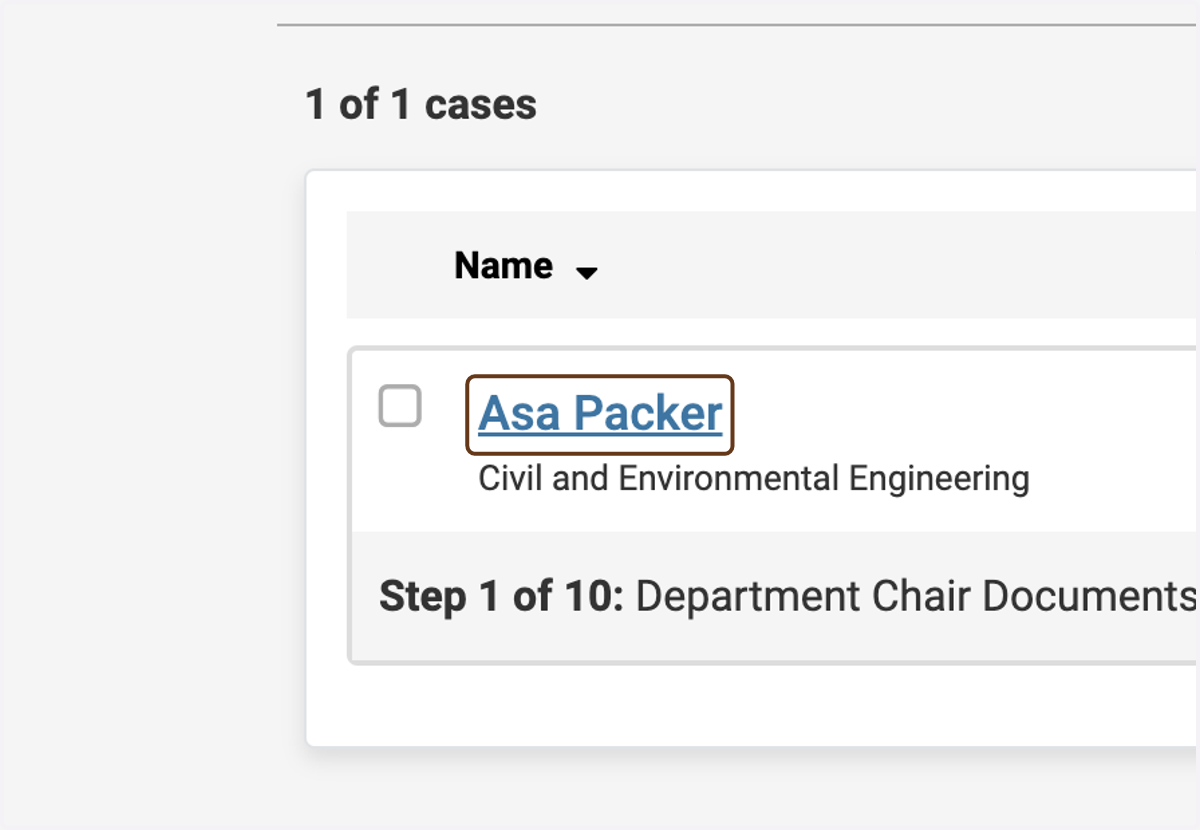
1. Click on the candidate's name to open the case
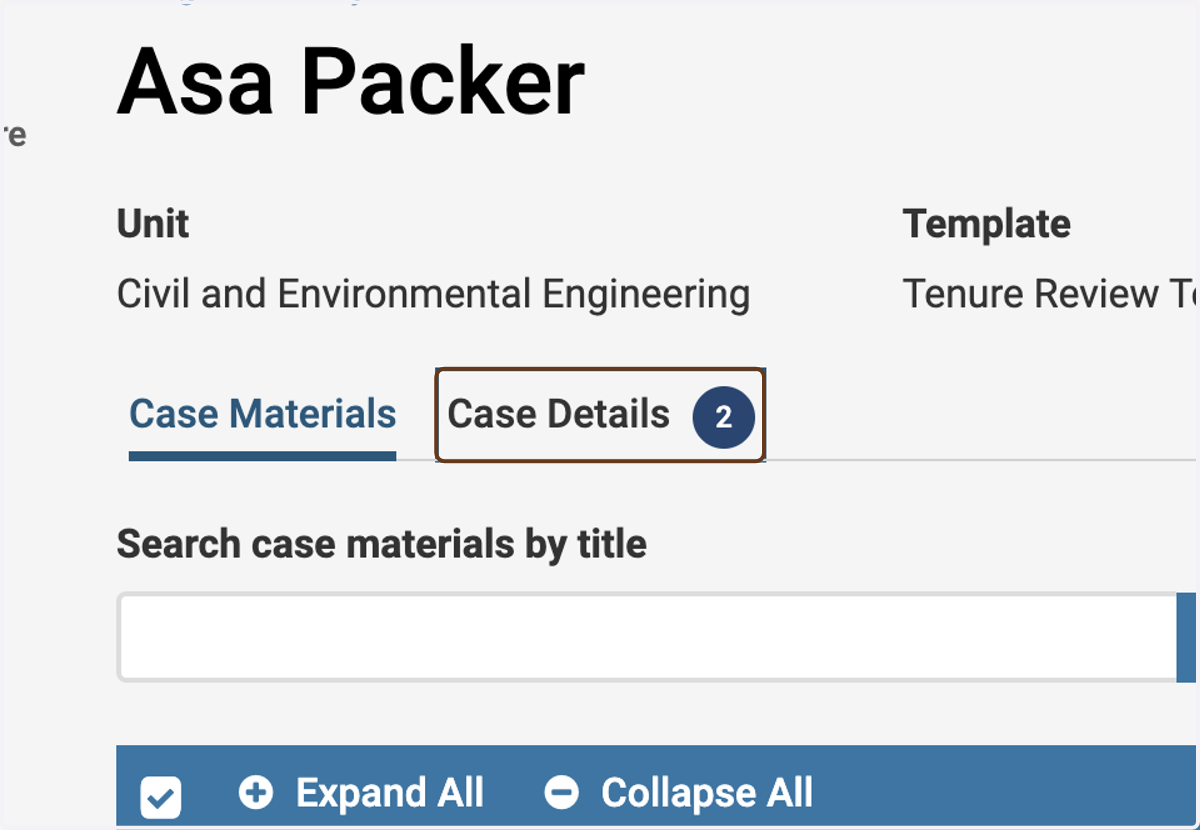
2. Click on the Case Details tab
The ② next to the name of the tab tells you that you have 2 required items to complete.
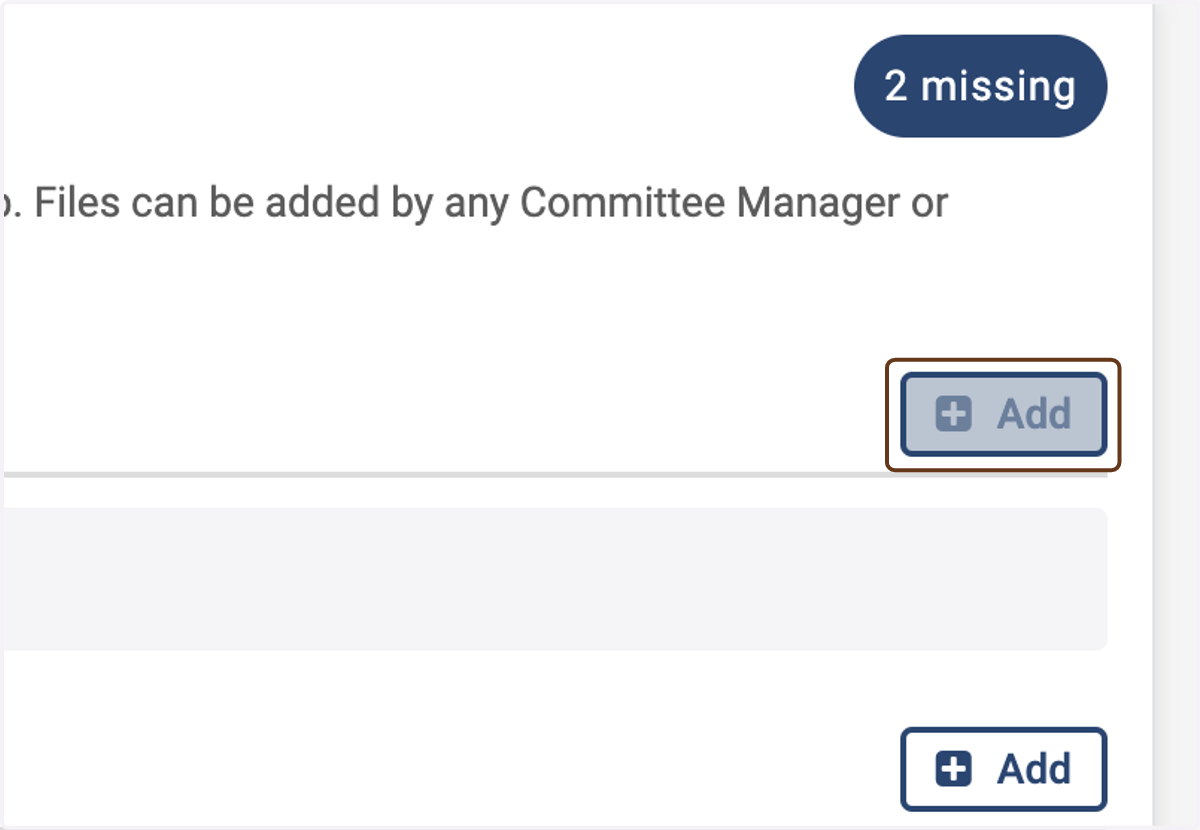
3. Click Add next to Finalized List of External Evaluators
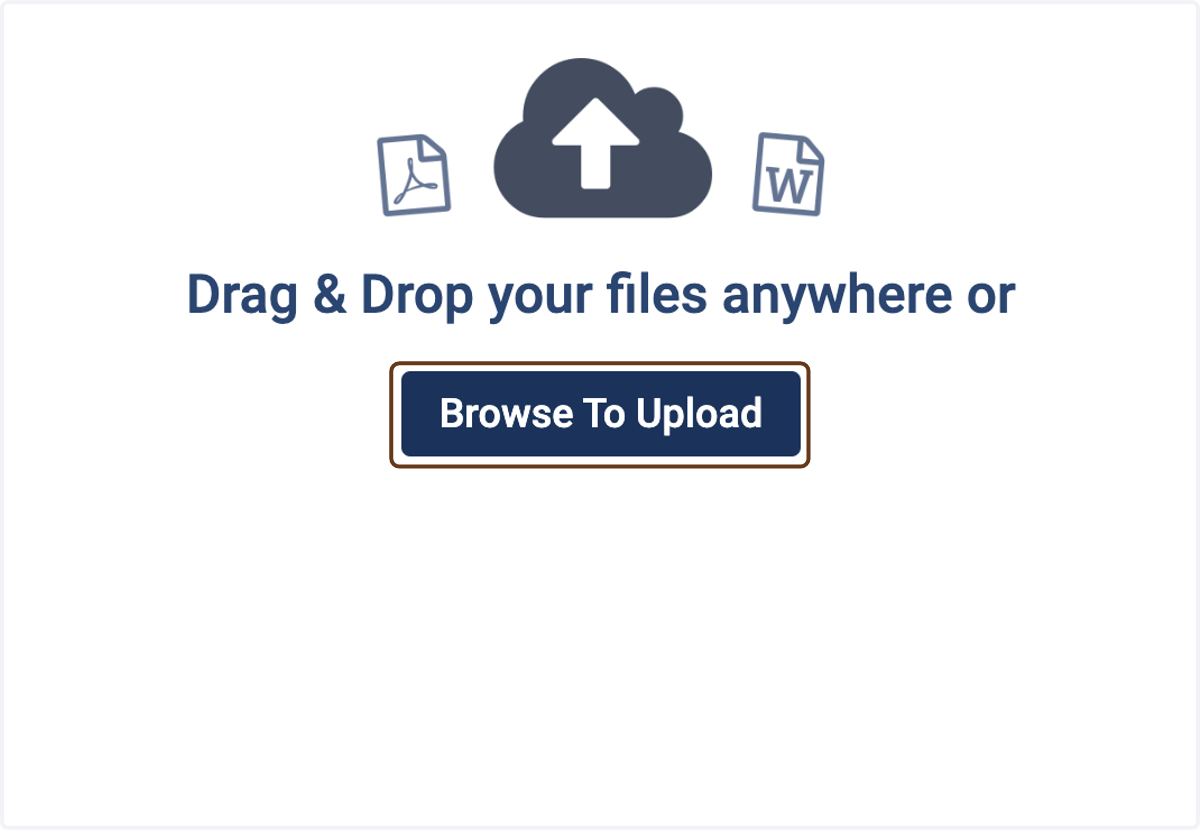
4. Click on Browse To Upload
(or drag and drop)
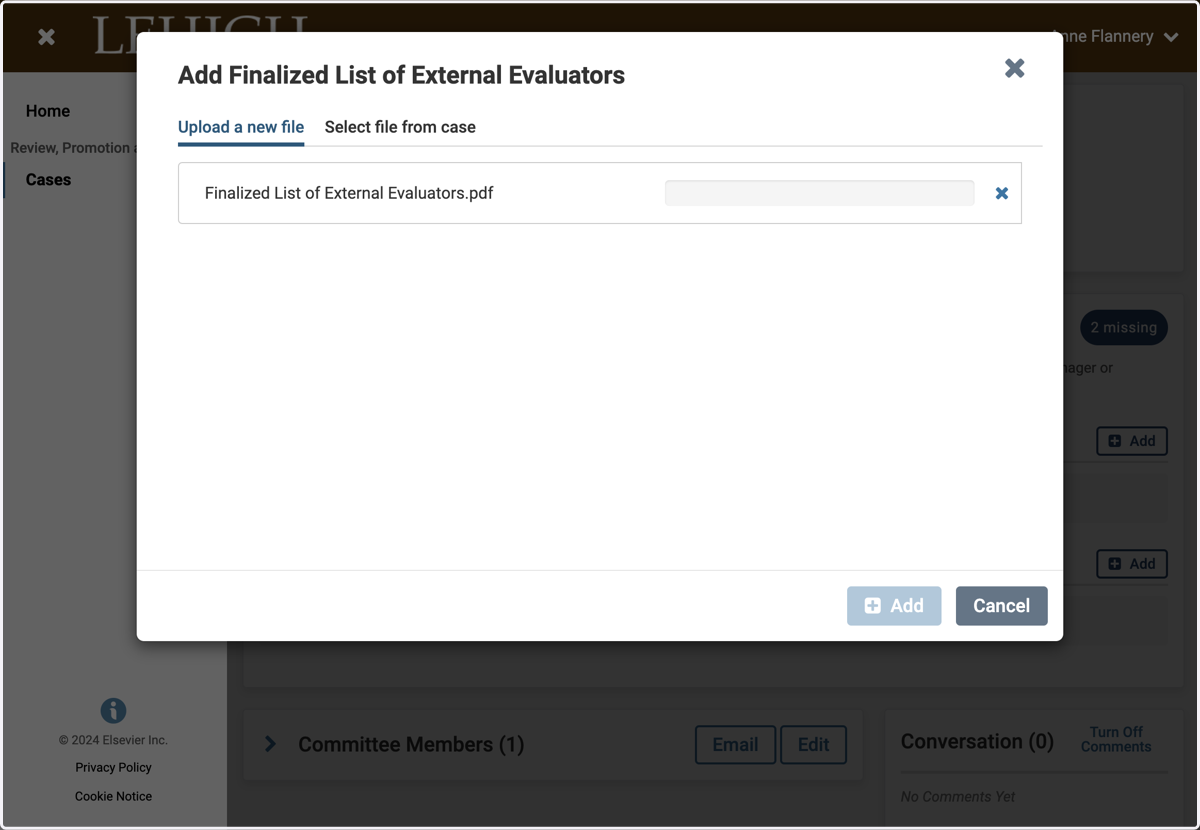
5. Select a file from upload menu
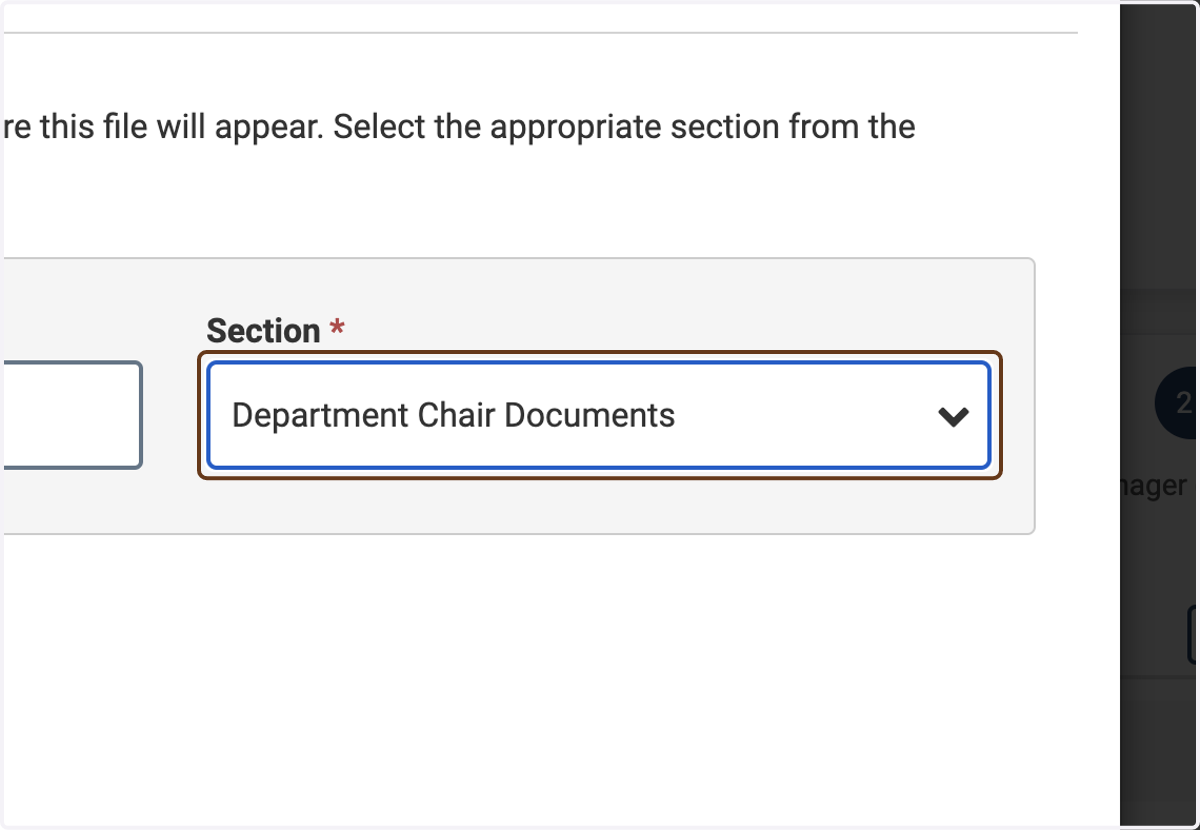
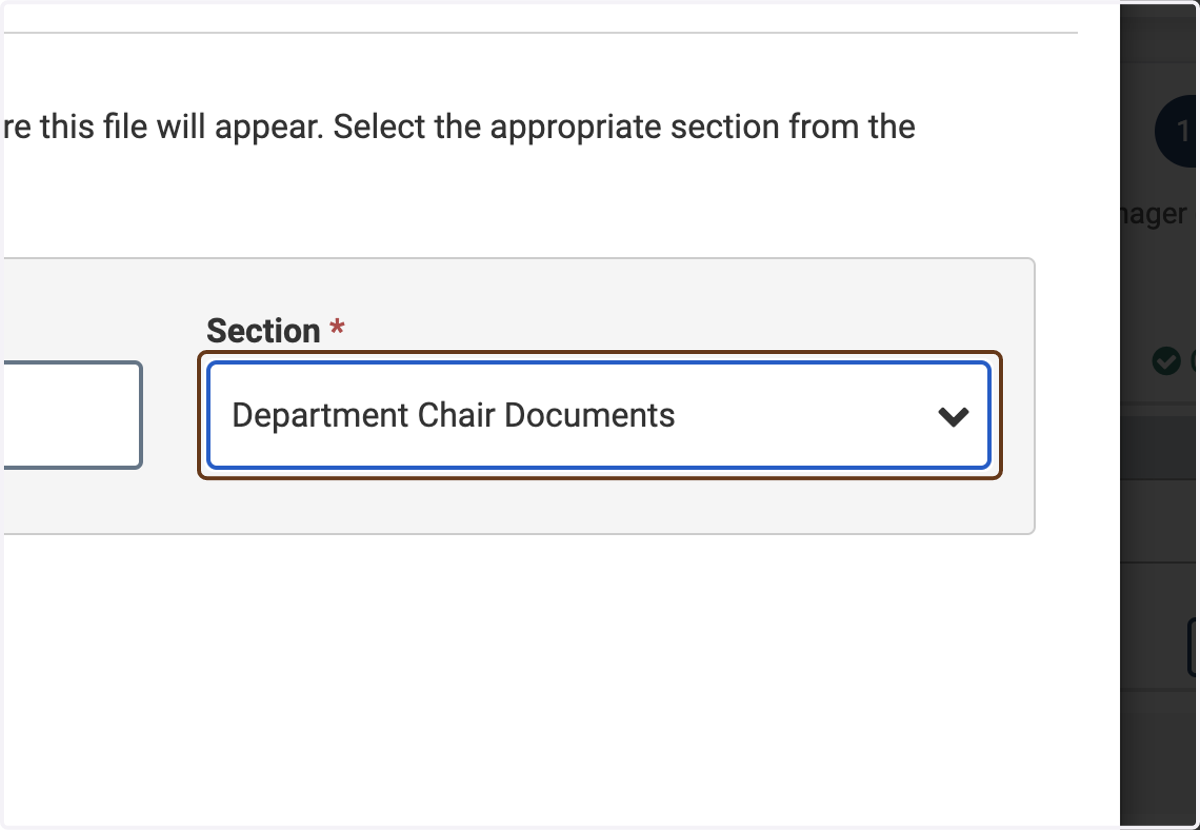
6. Select Department Chair Documents
Important: Under Section, choose "Department Chair Documents." This will ensure that the document is stored in the correct section of the case.
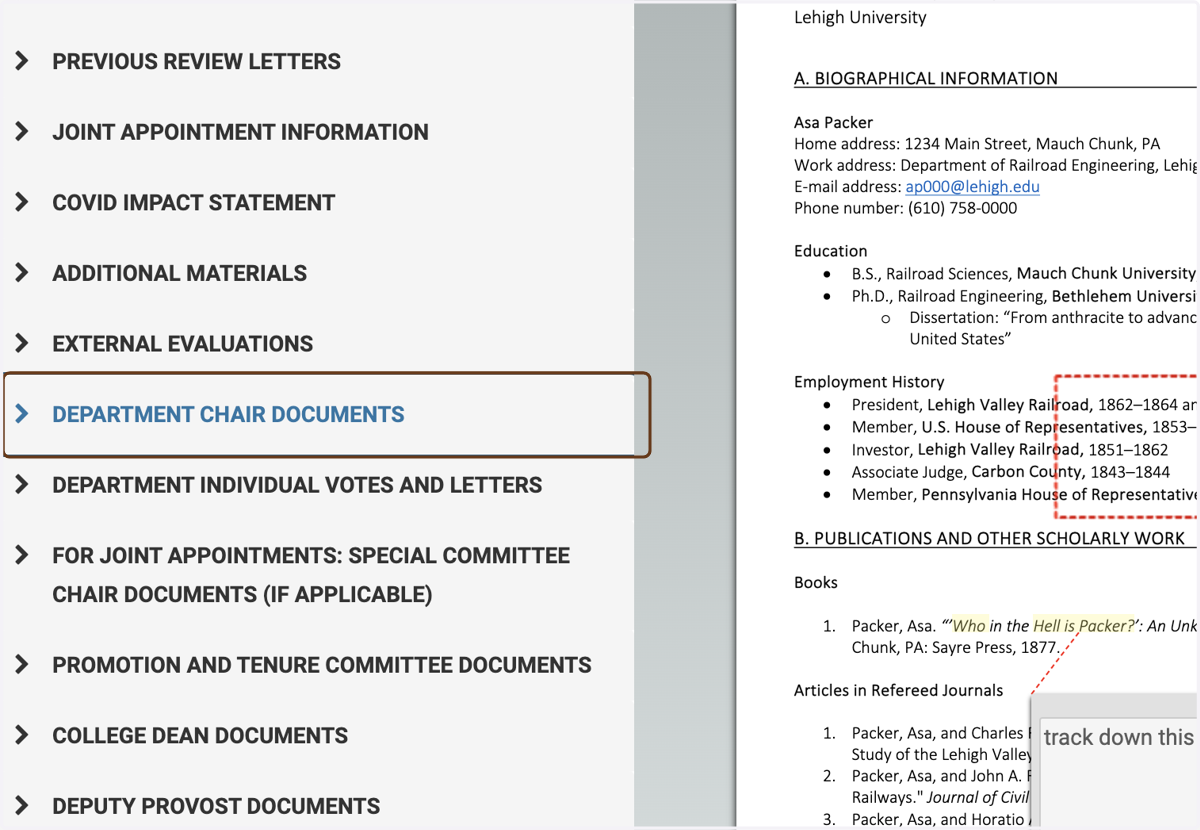
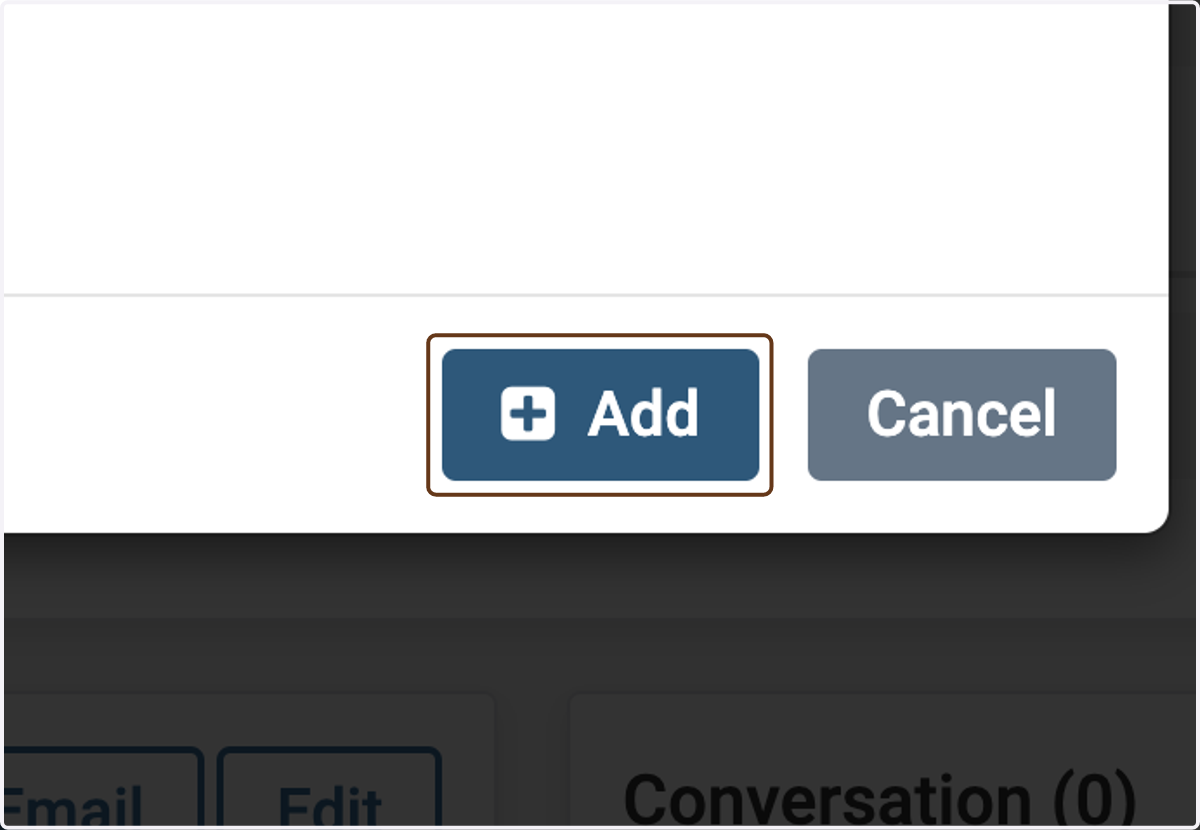
7. Click on Add
8. Repeat the process, but for Sample Letter to External Evaluators
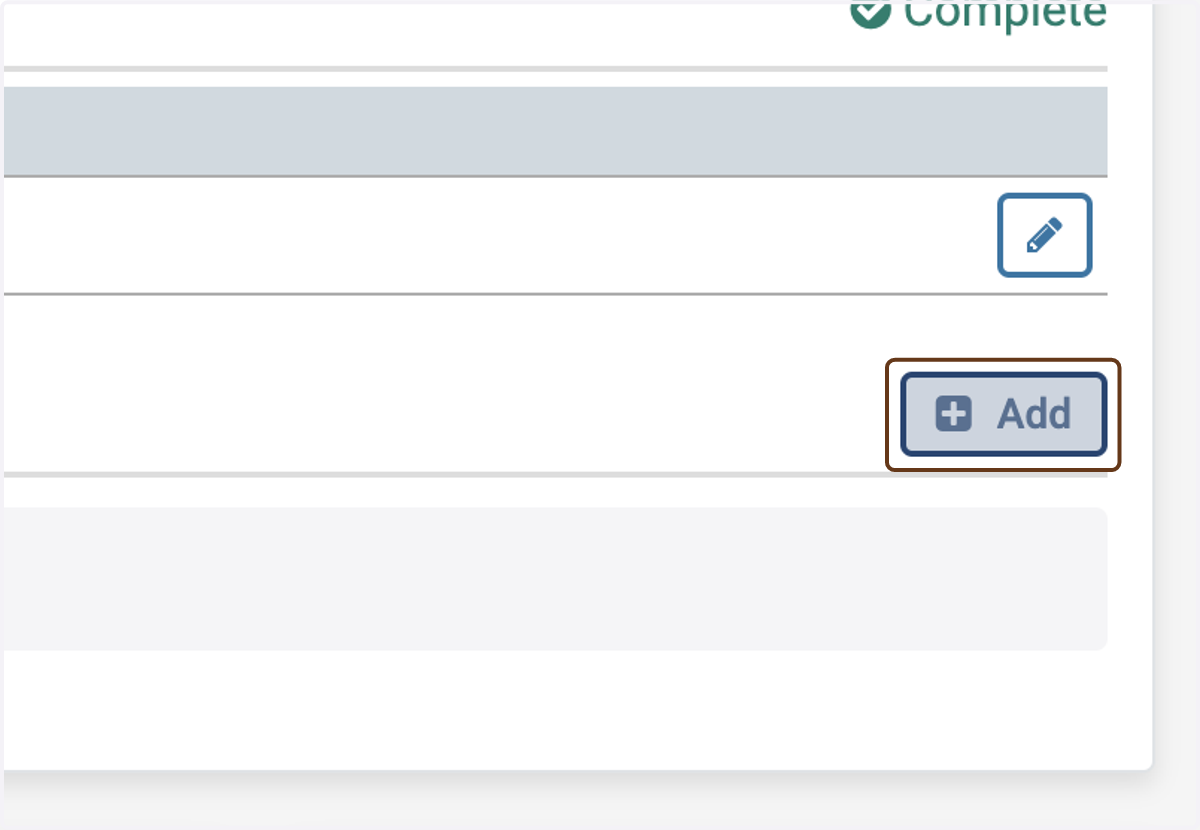
9. Again make sure to choose the "Department Chair Documents" section
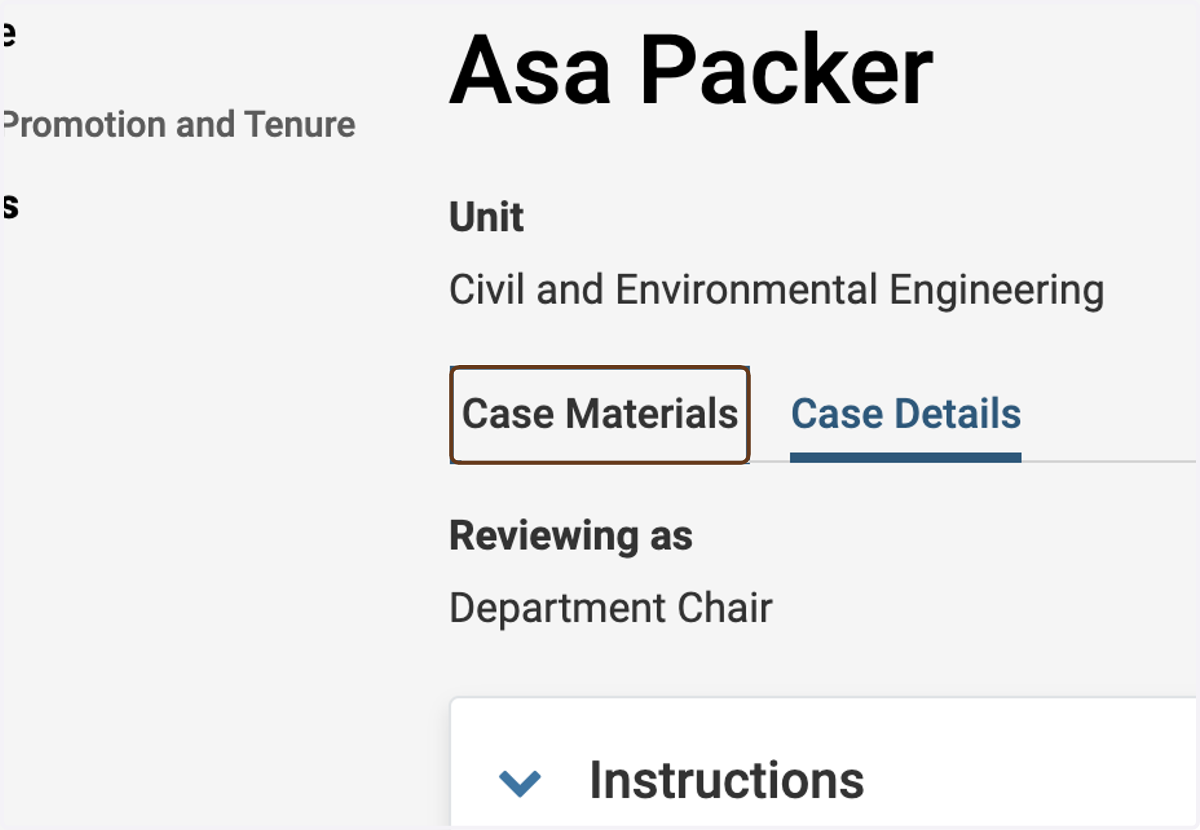
10. To confirm that the documents are now part of the case, go back to the Case Materials tab ...
11. ... and click on Read Case
12. You'll see the documents in the left-hand navigation menu