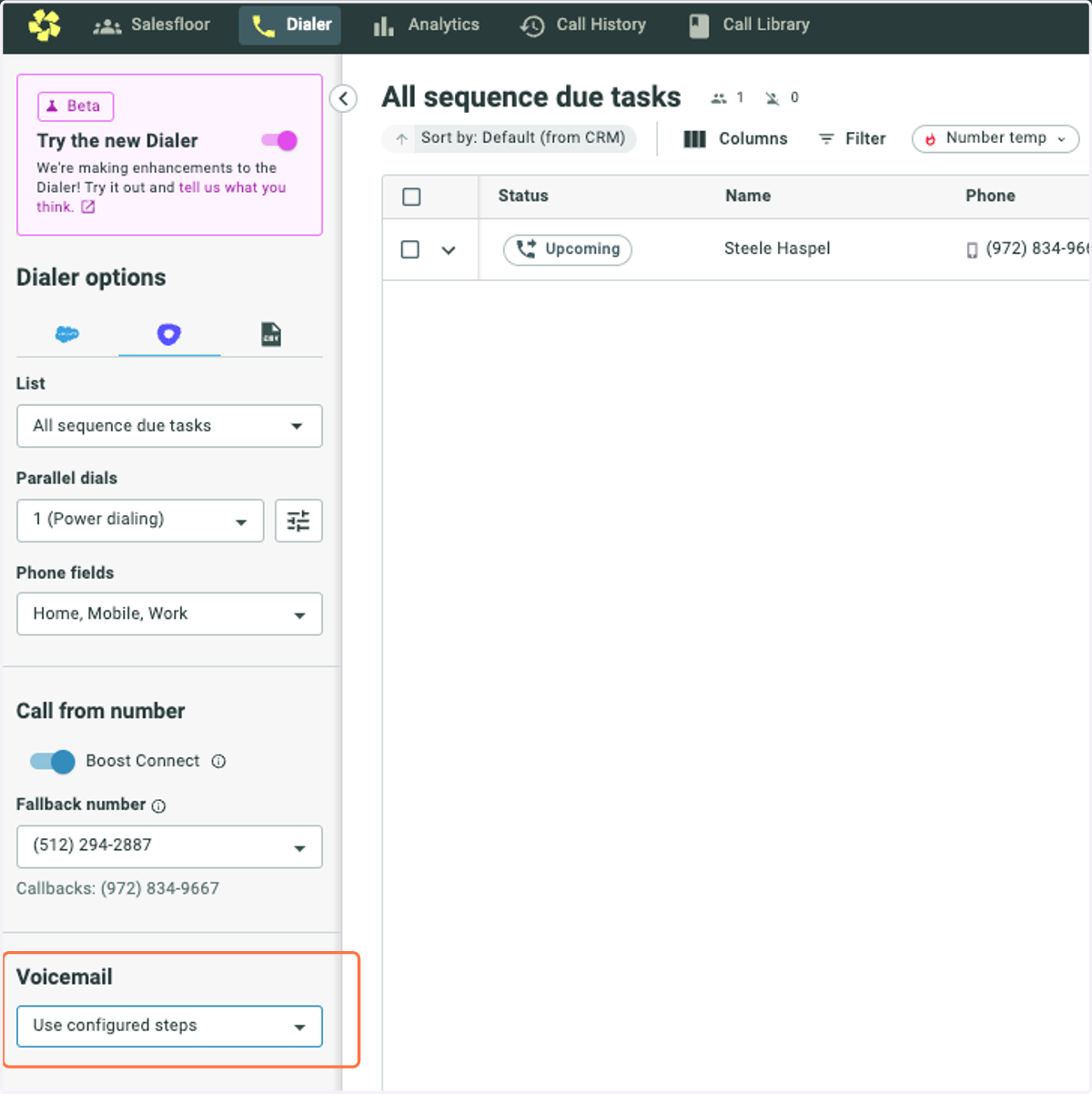
[Orum]: Setting up the Voicemail Sequencer from All Sequence/Cadence due
This guide will help you set up your Voicemail sequencer that will auto drop your own pre-recorded voicemails to prospects in specific sequence steps. Note: this guide covers how to do so from your "All Sequence/Cadence" List in Orum.
Orum - Dashboard
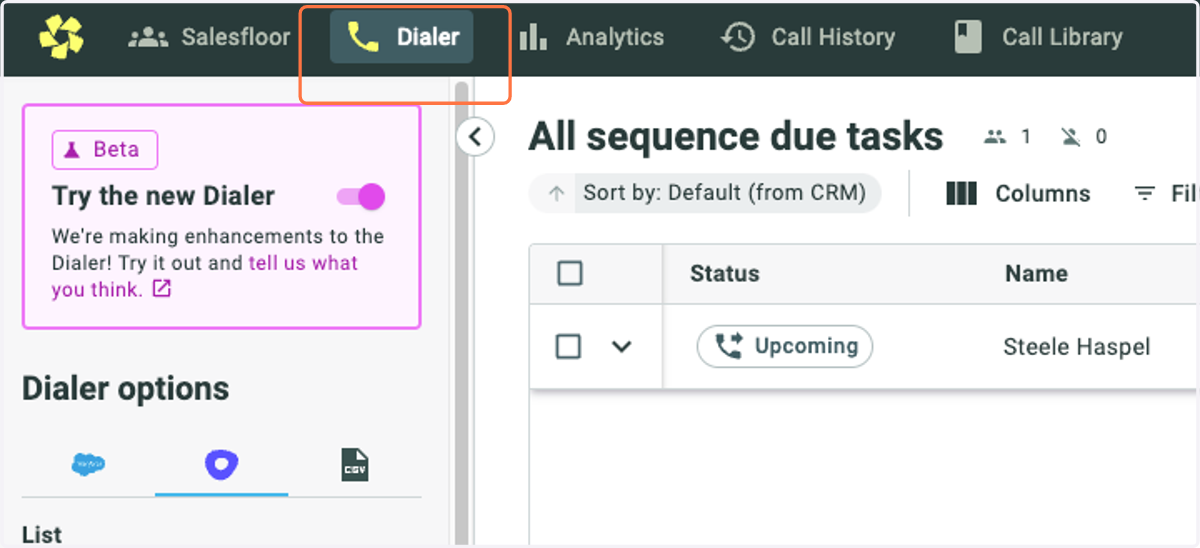
1. Start in the Dialer Tab
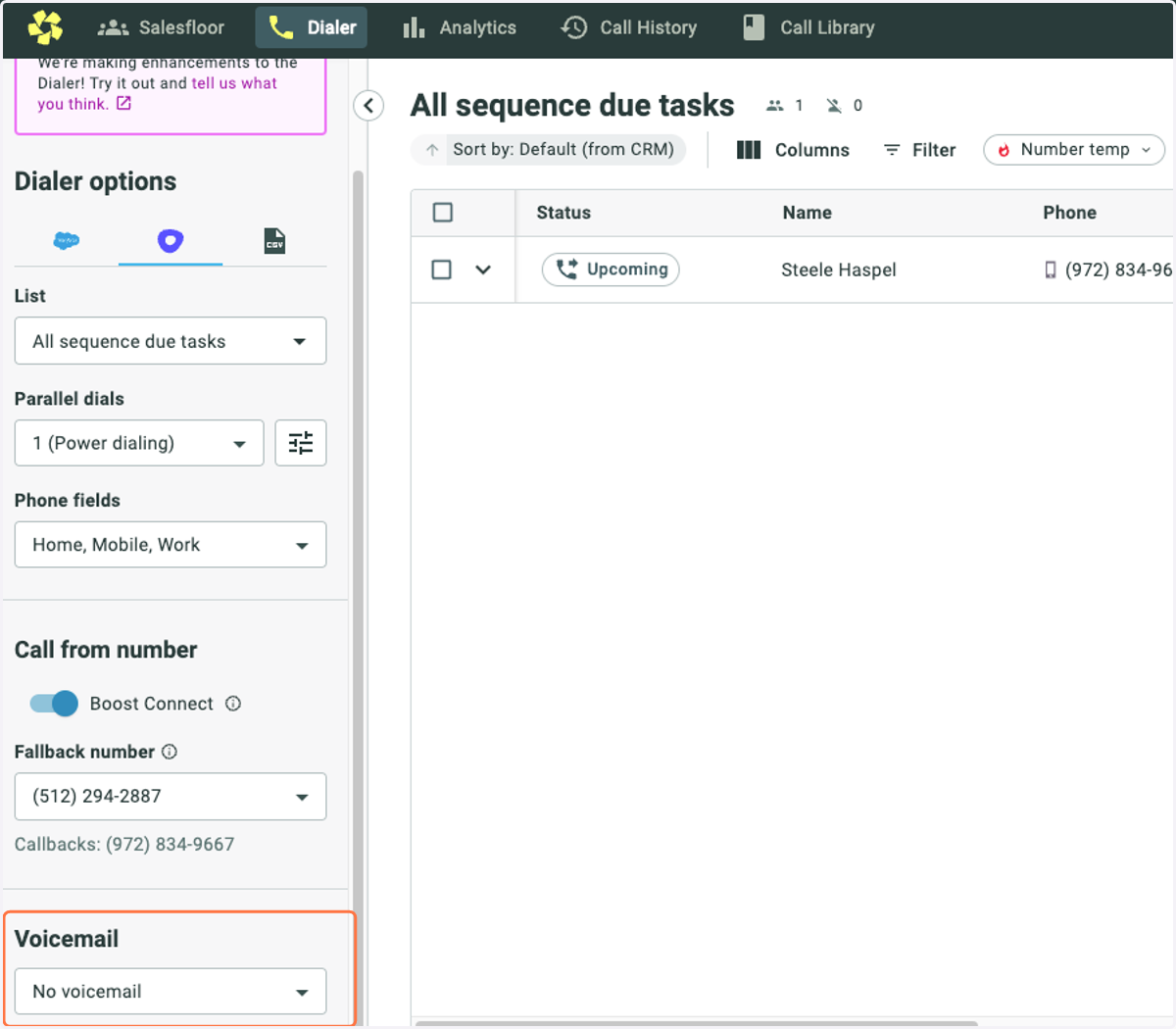
2. Select the dropdown in the bottom left corner under the Voicemail header. NOTE: If you are not in the "All Sequence/Cadence" list, you will not see this option. Select the + icon instead and skip to step 5.
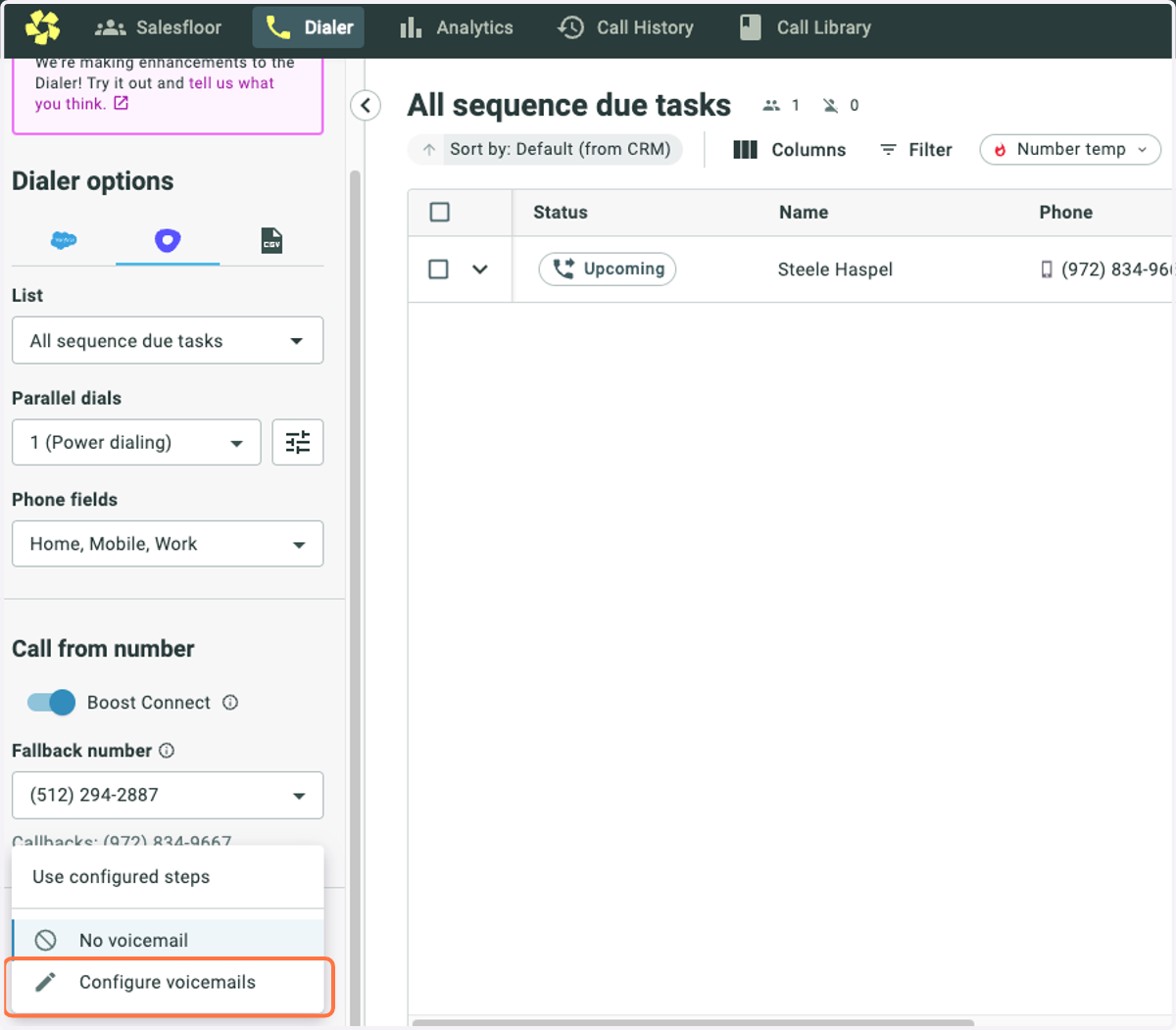
3. Select Configure Voicemails
4. Select the List to configure voicemails for.
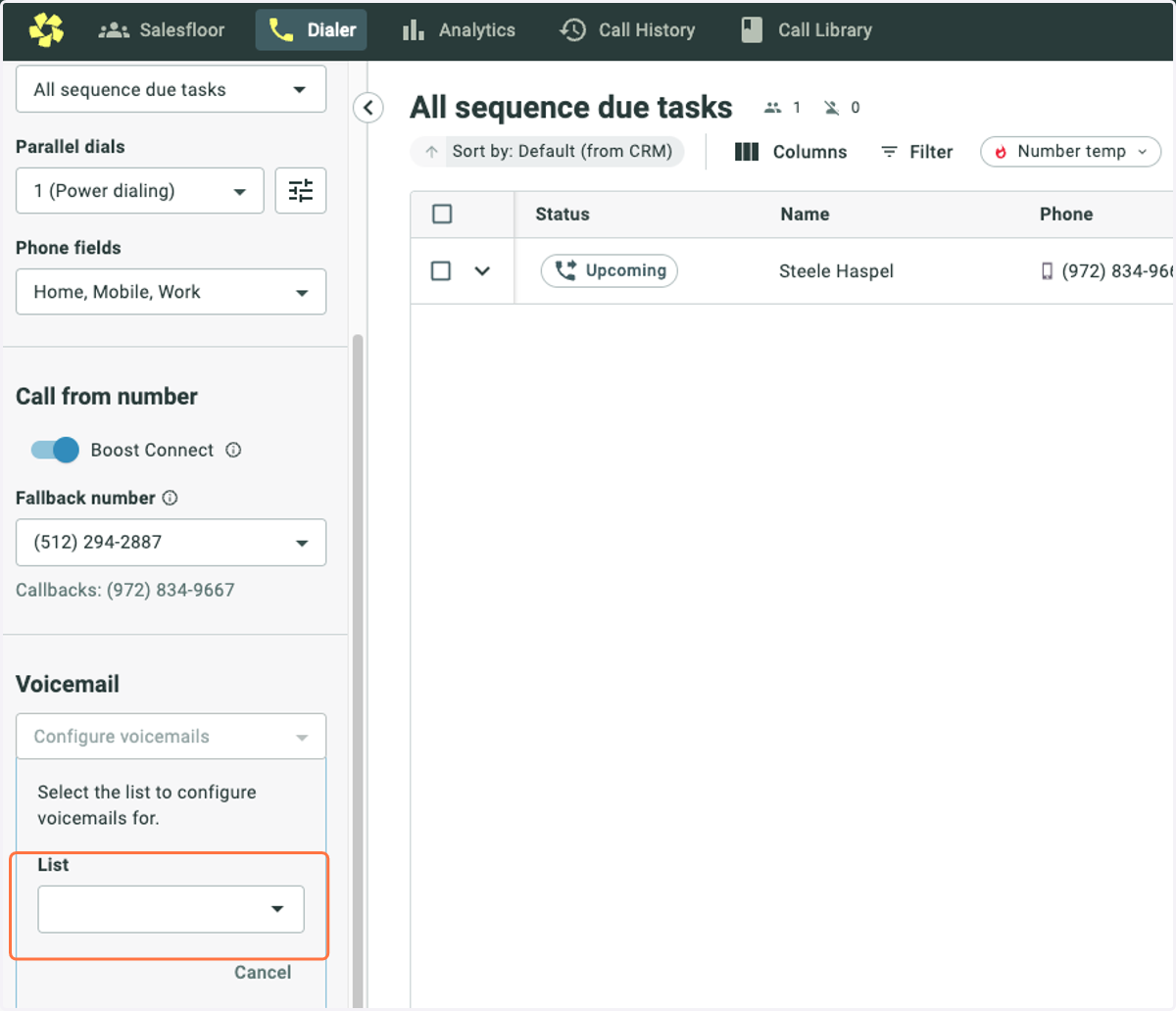
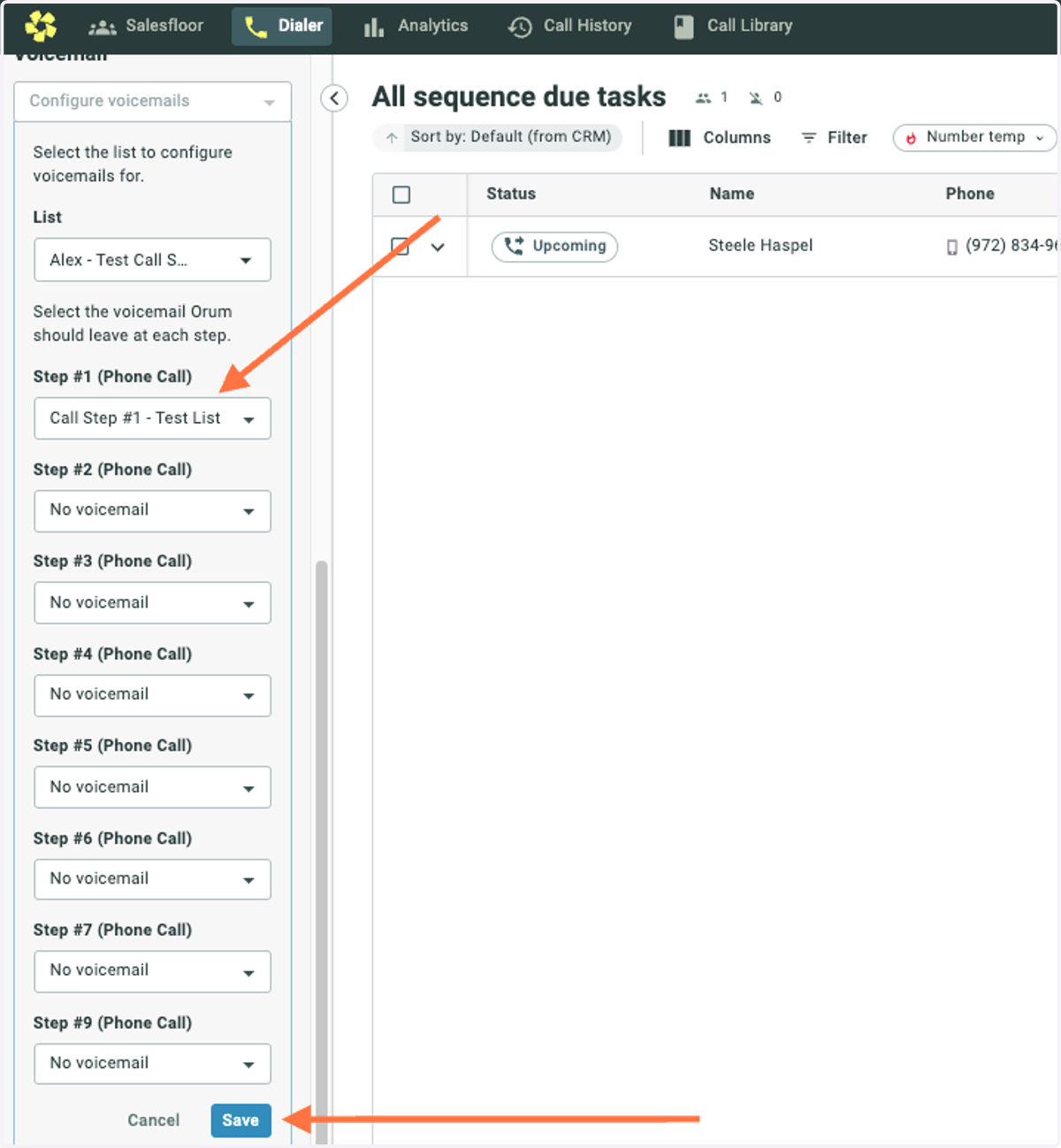
5. Once the List has loaded, select the Step you would like to program a Voicemail for. In this example, we selected Step #1.
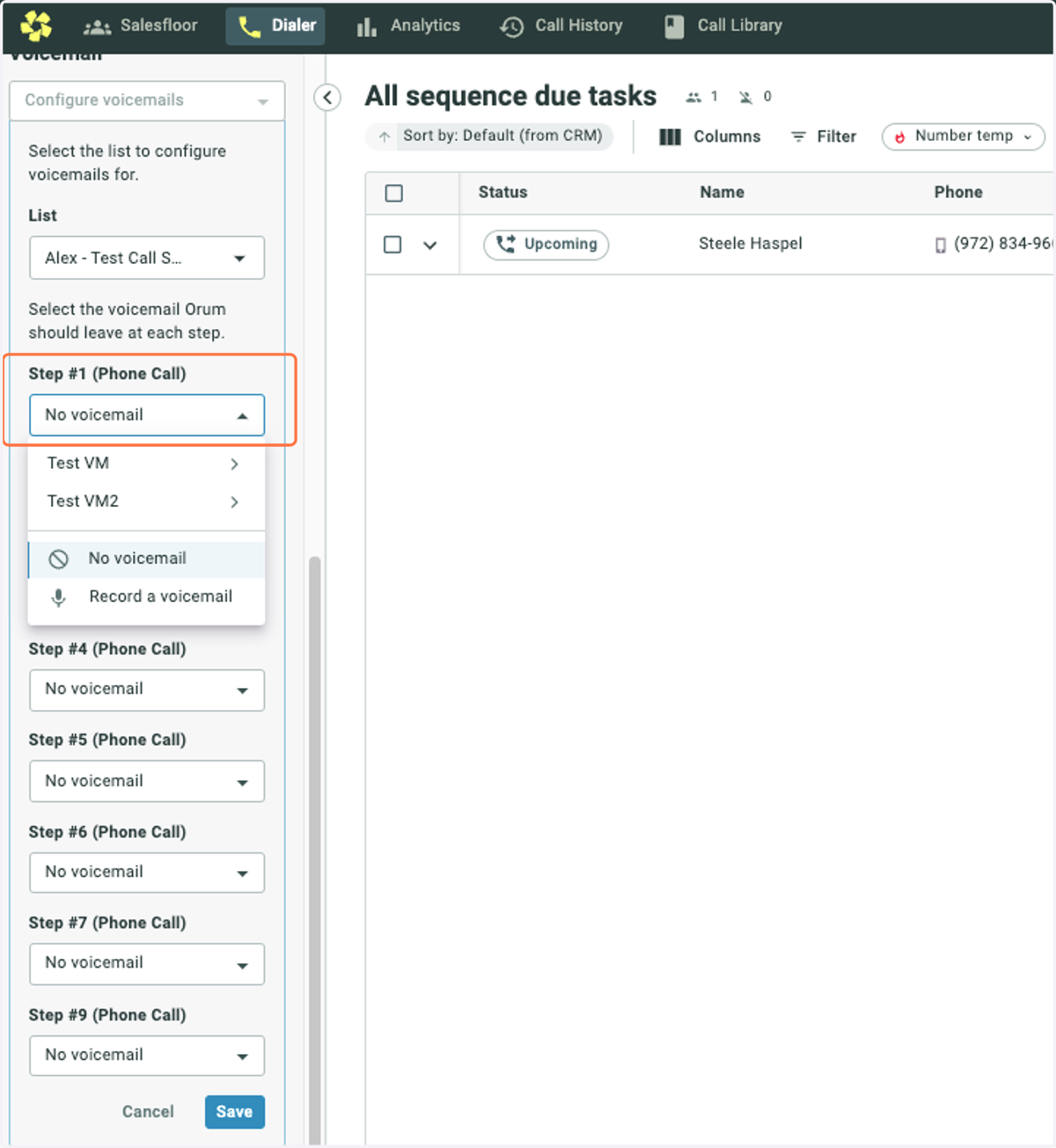
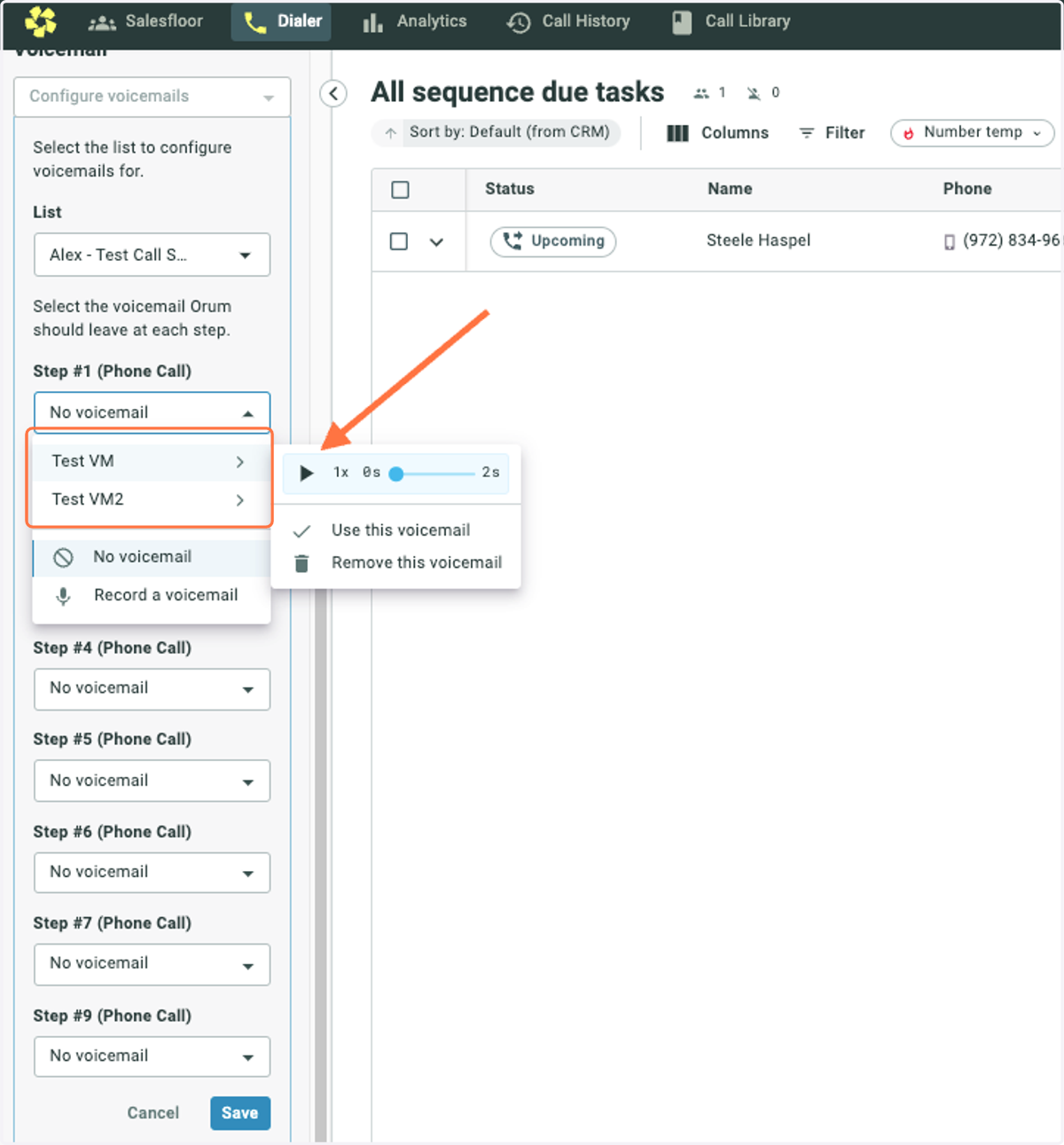
6. Within that Step, select a preexisting Voicemail if one exists. You can preview existing Voicemails by hovering over them and selecting the play button. If a preexisting voicemail does not exist, proceed to next step.
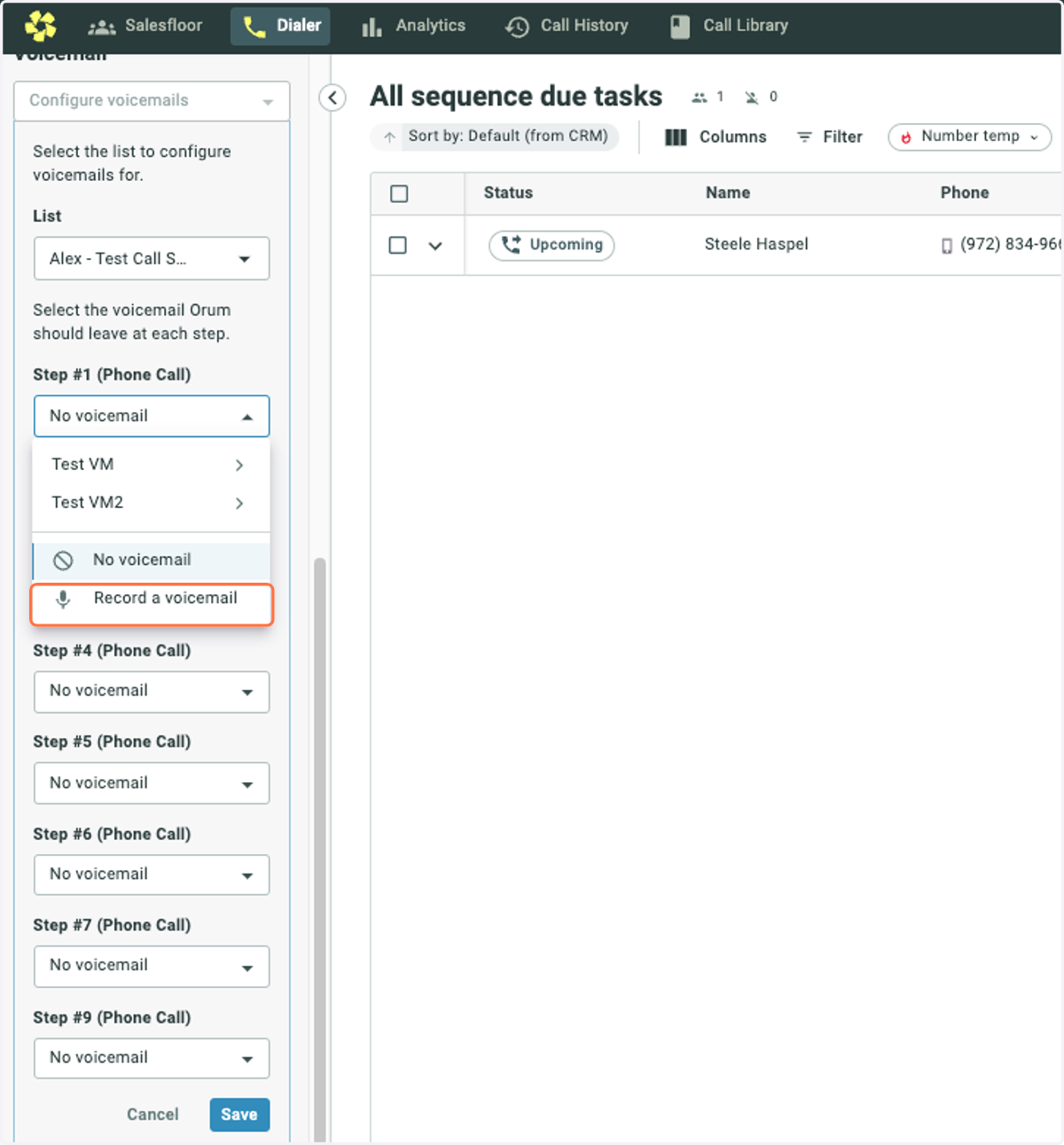
7. Select Record a voicemail to record a new voicemail.
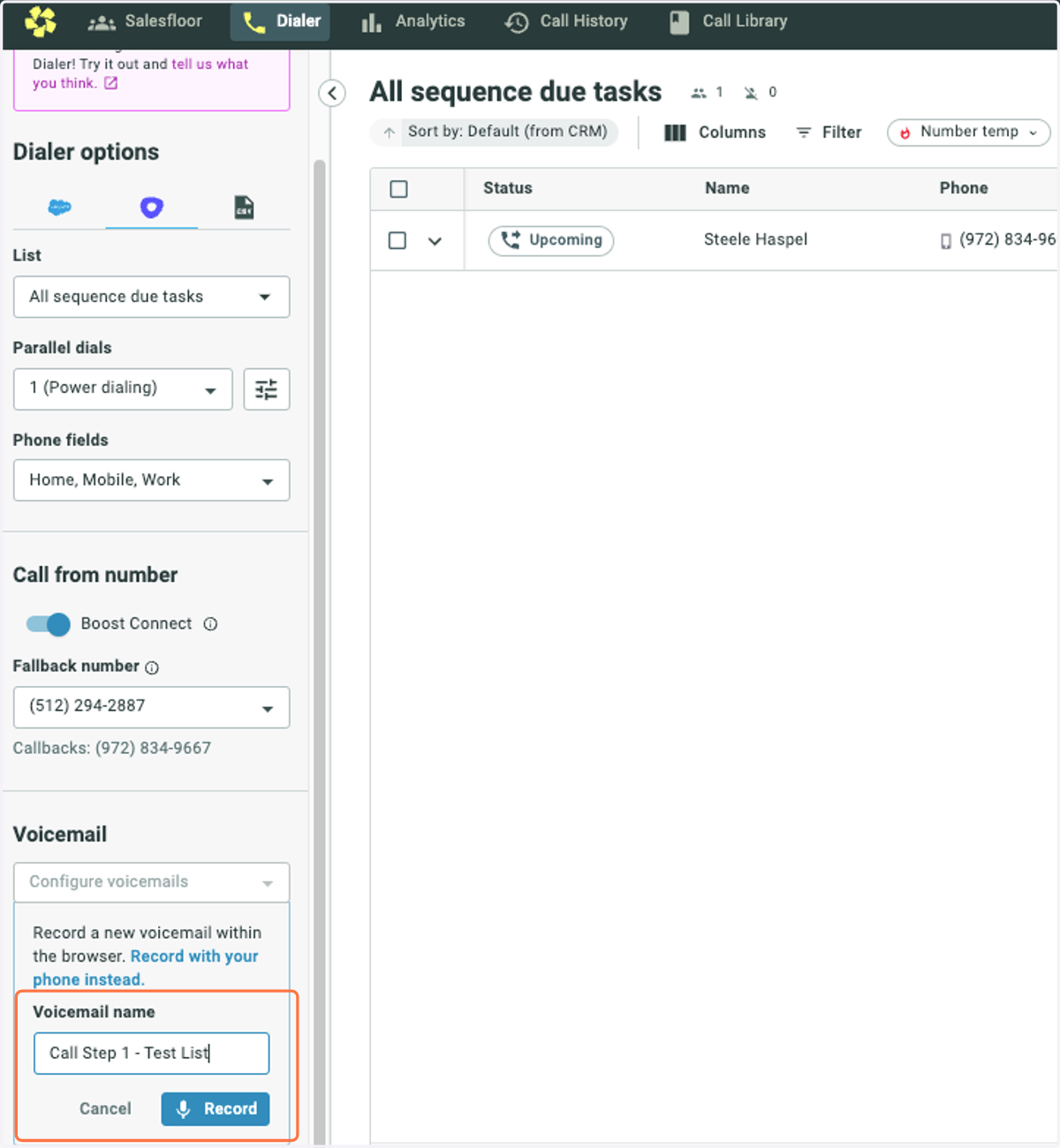
8. The Voicemail section will shrink. In the field provided, name the Voicemail you are about to record. We recommend something specific to that list or step. When you are ready to record, click Record.
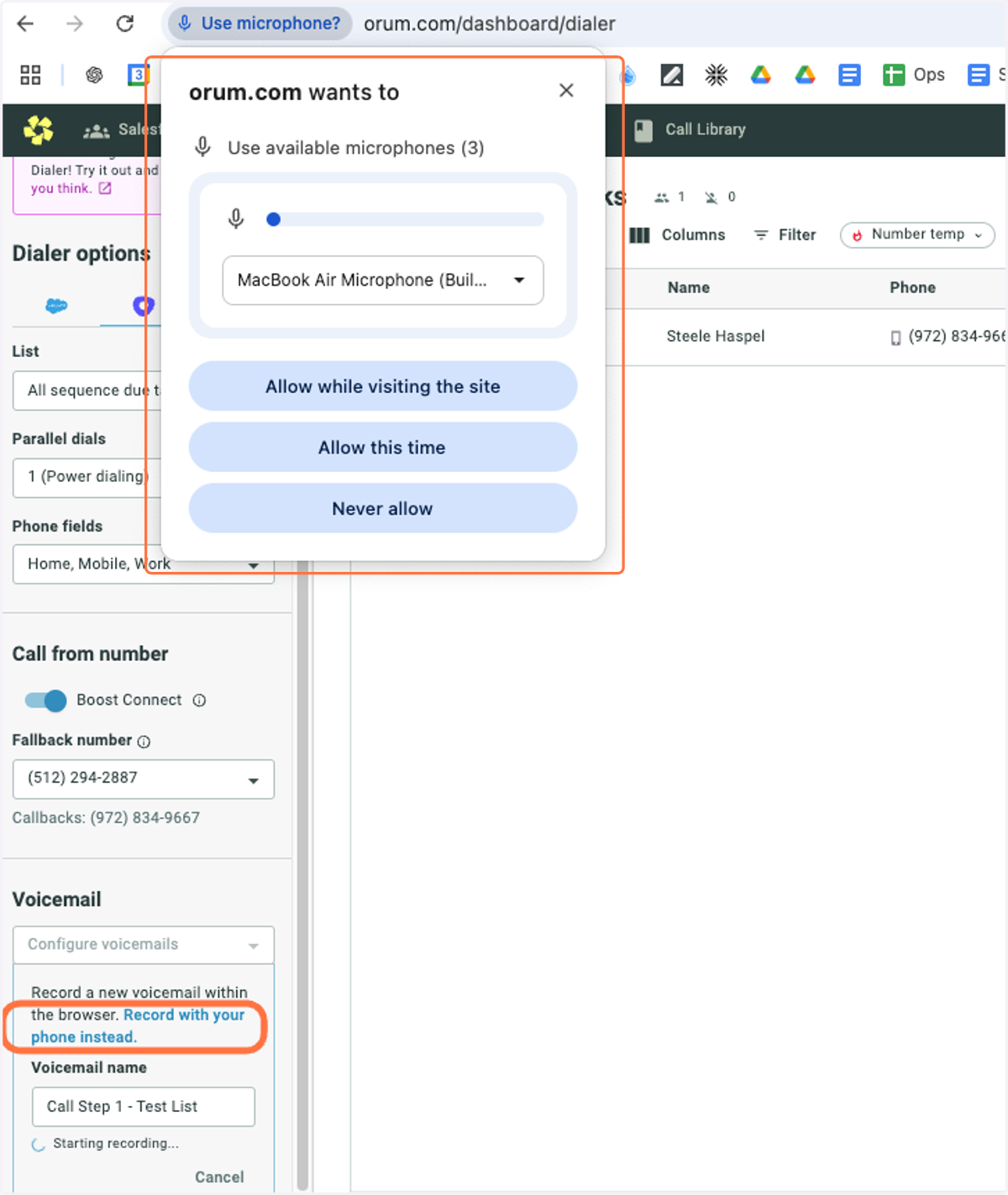
9. If you haven't already, give Orum website permission to use your microphone. If you do not wish to do so, you can record your Voicemail using the phone method instead.
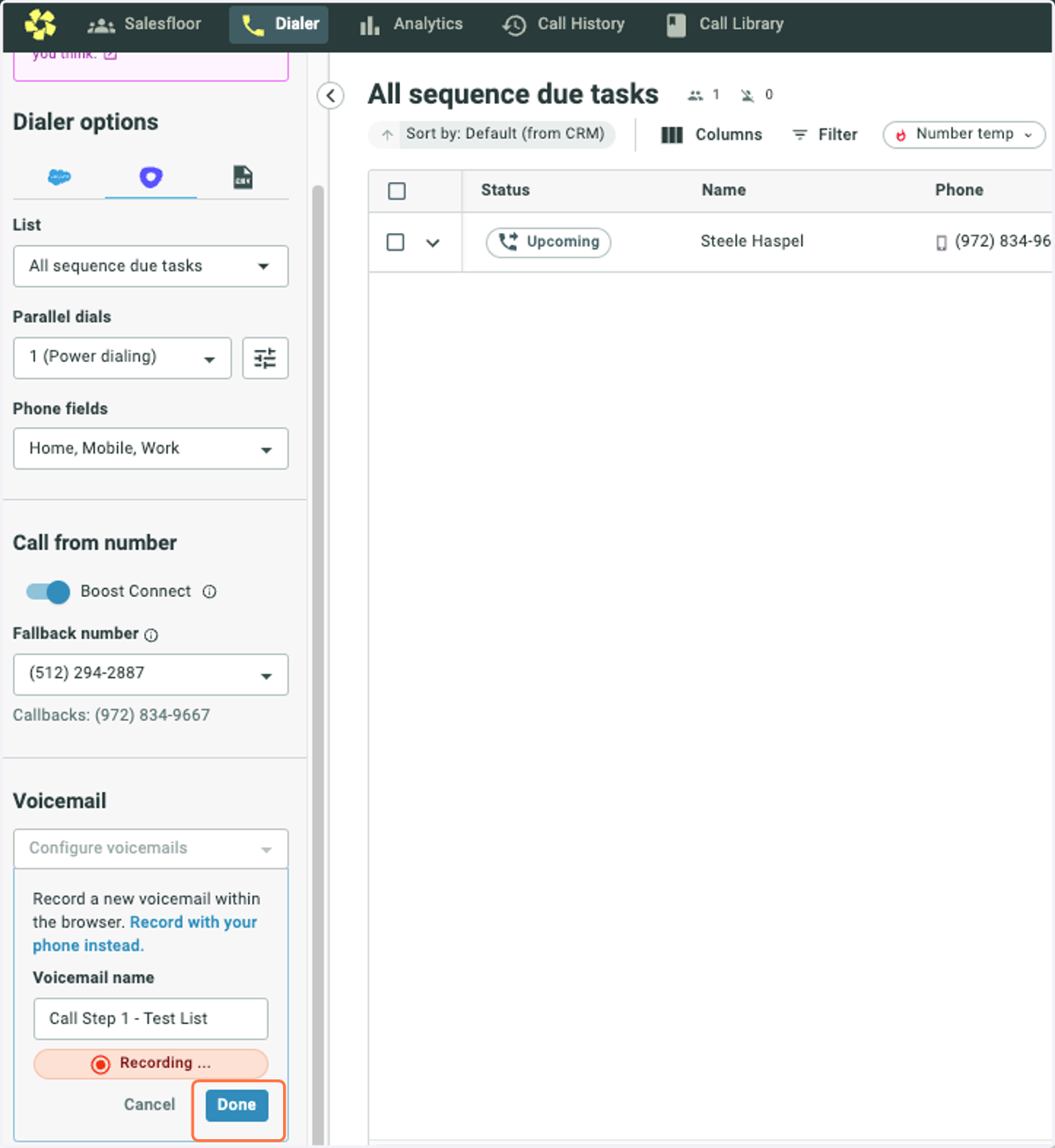
10. Once you have finished recording, click the Done button.
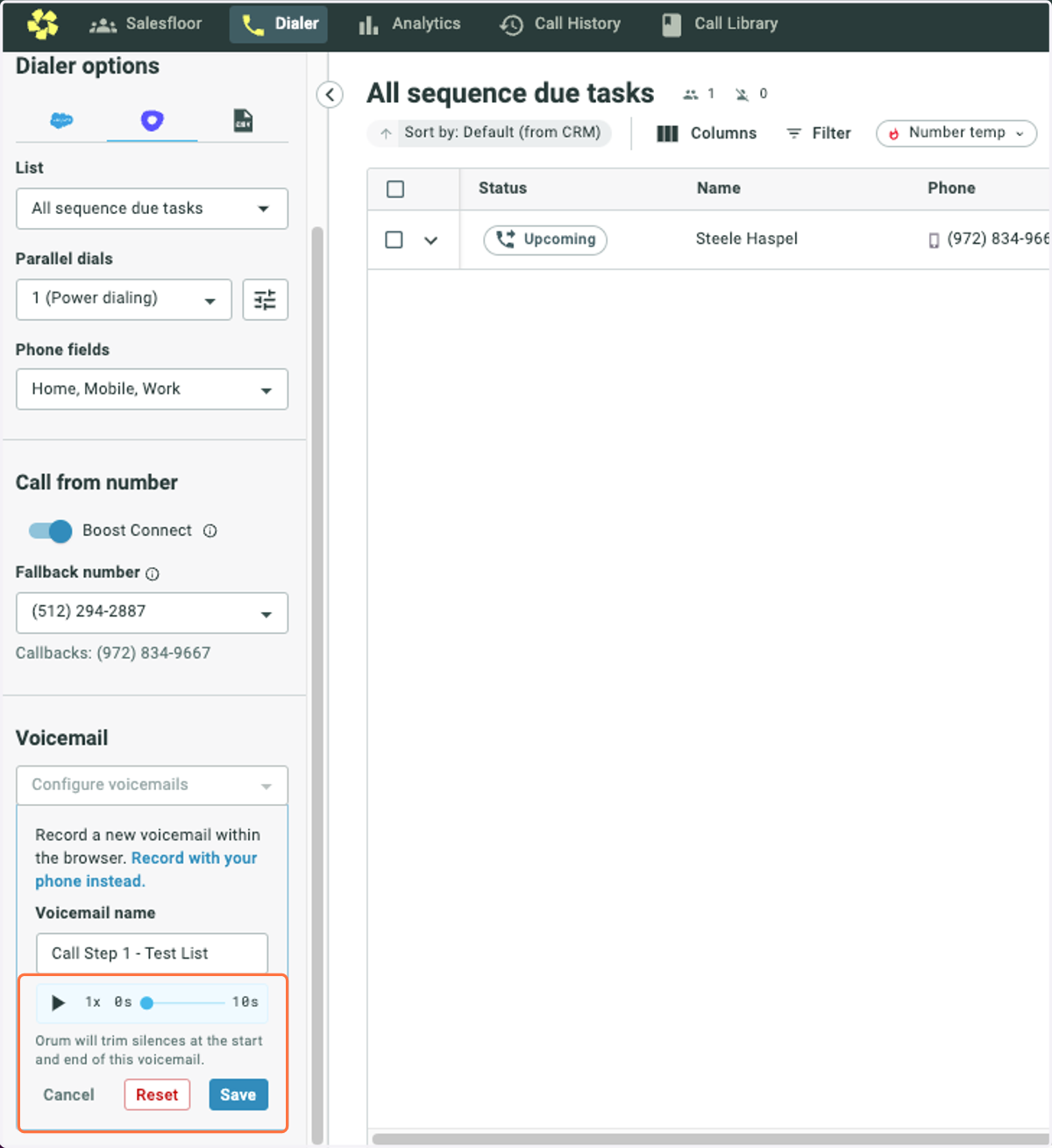
11. You can then listen back to your recording. Click Save.
12. You will then see that the Step has been configured. Repeat the process for remaining Steps as desired. When finished, click Save at the bottom.
13. In order to activate and use your newly programmed Voicemails, make sure the Voicemail option is set to Use Configured Steps