Processing a submission (Jersey)
This guide will show you how to process a CER return to the Jersey Government.
Before you begin the submission process, please ensure your payroll data is complete and accurate.
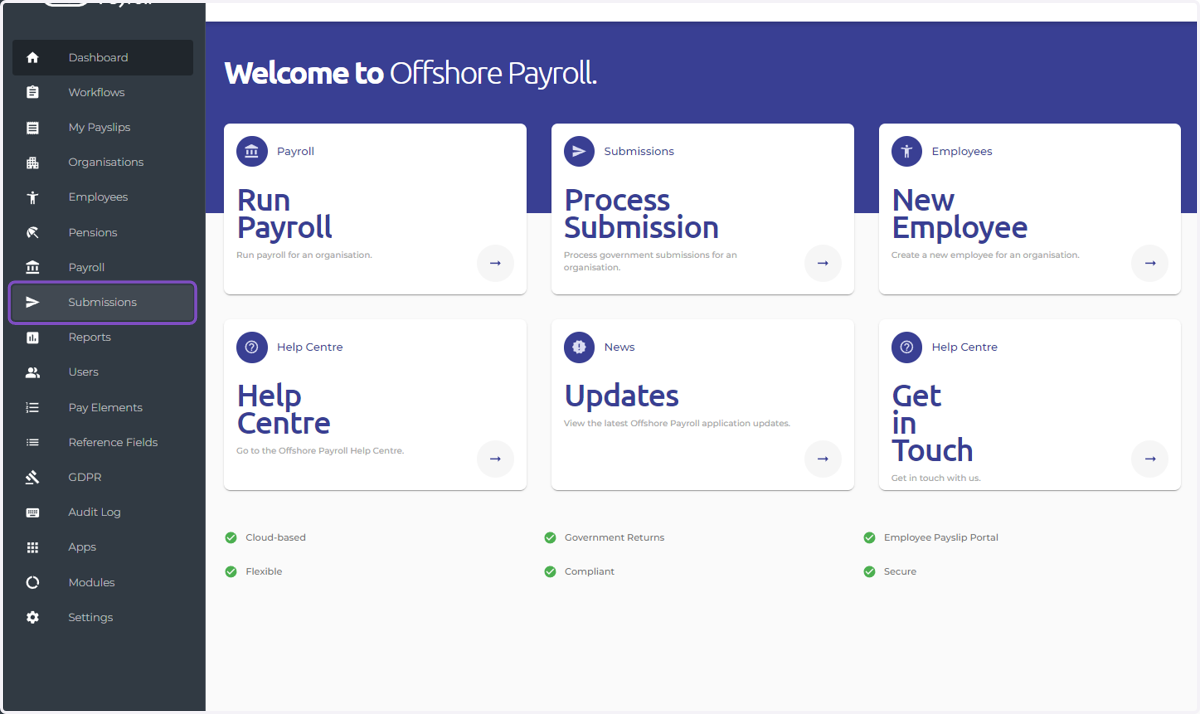
1. 1. Navigate to the Submissions module from the main dashboard
2. Pending Submissions Tab
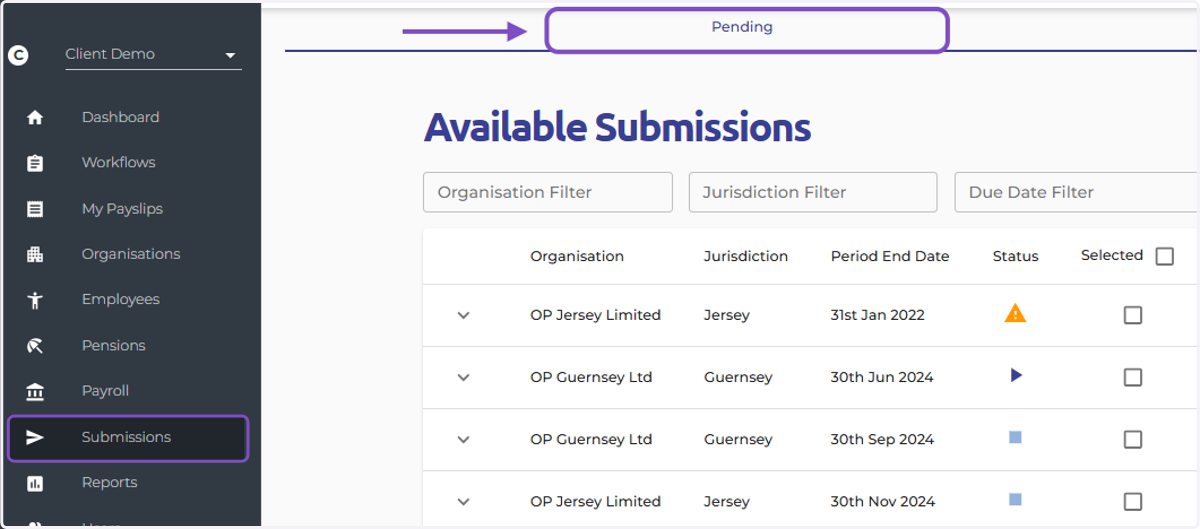
Select the "Pending Submissions" tab, this displays submissions awaiting your action.
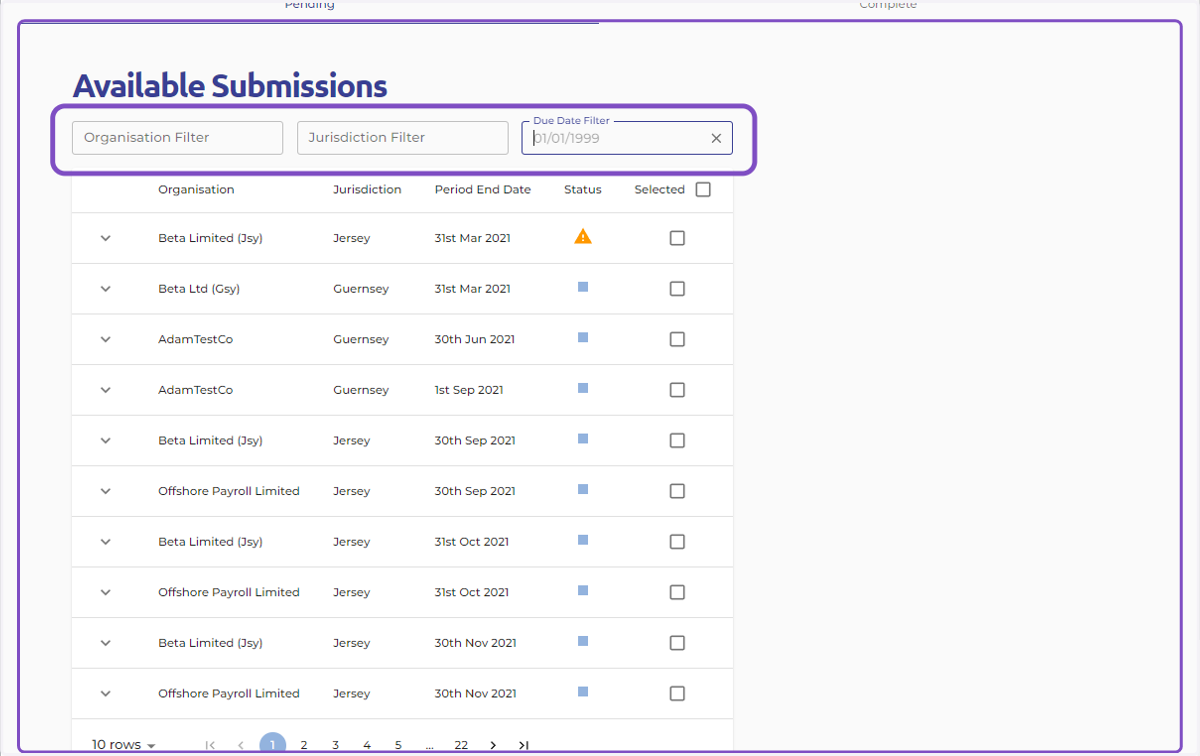
3. Filtering (Optional) -Use the filters available to find required submissions faster. This is particularly helpful if you manage multiple organisations or have many pending submissions.
Organisation: Select the organisation
Jurisdiction: Choose Jersey
Due Date: Specify a date range
4. Review Individual Submissions:
Click the arrow icon next to each pending submission to check the details of the submission; e.g. 'Submit By' date. This is crucial for avoiding penalties from government agencies.
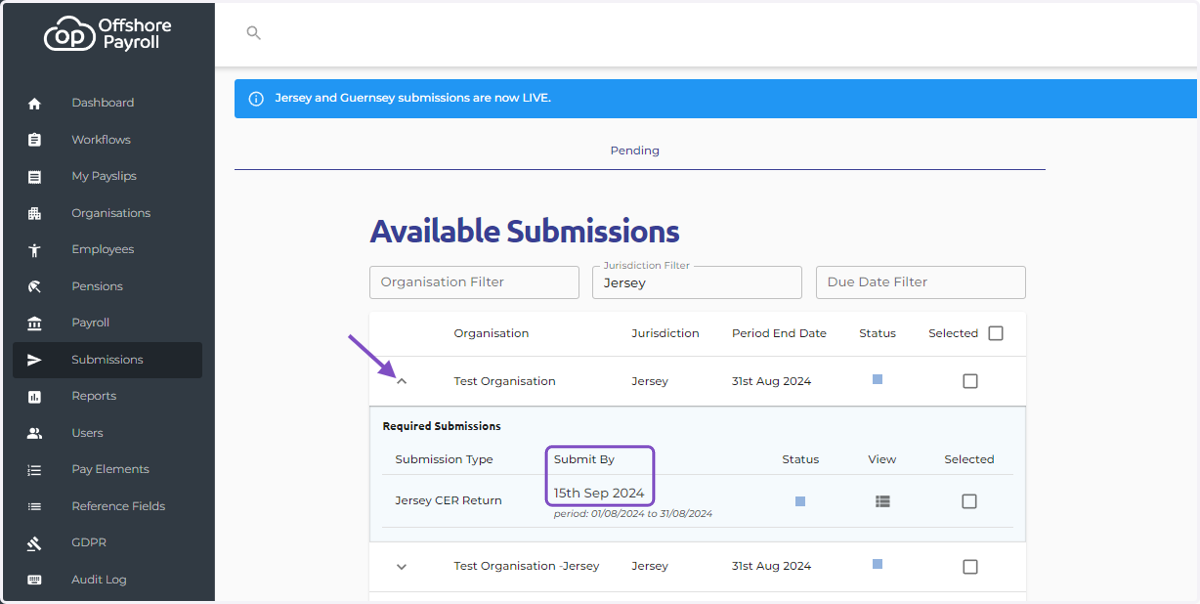
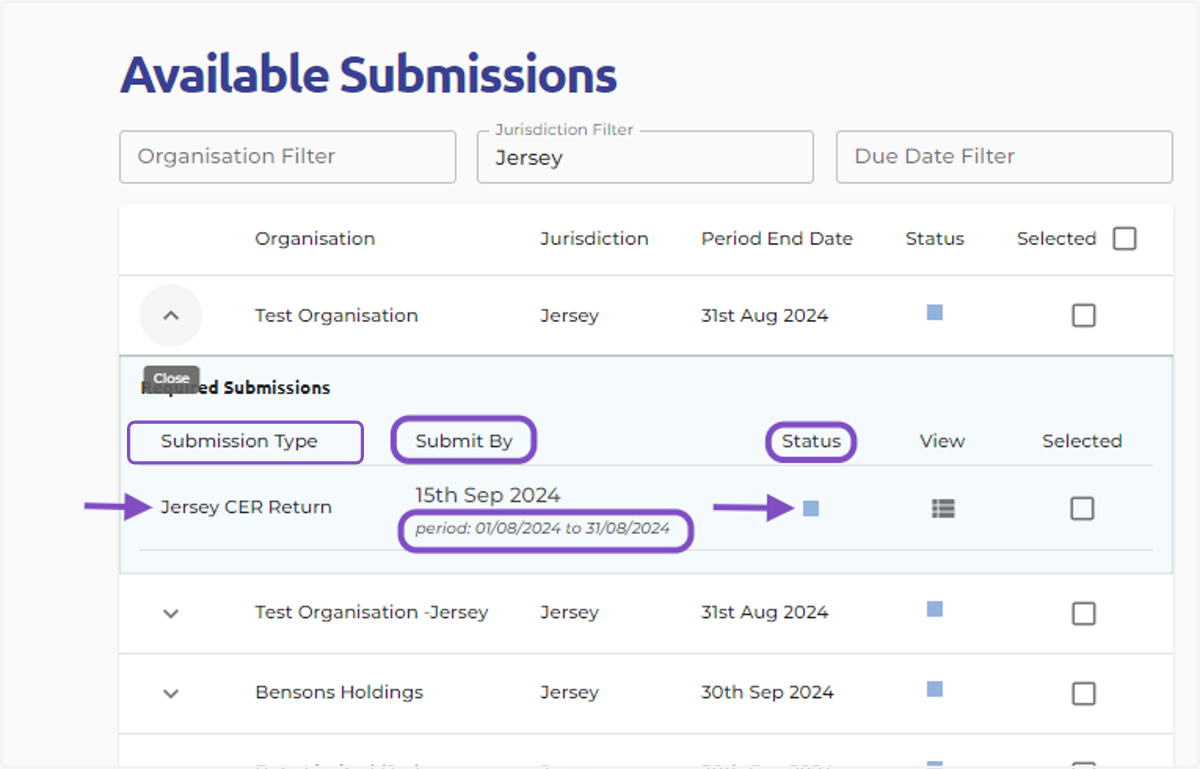
5. Each submission shows:
Submission Type: (Jersey CER Return)
Submit By Date: The government-mandated deadline for submission
Period: The reporting period covered by the submission
Status: Indicates whether the submission is ready to be submitted
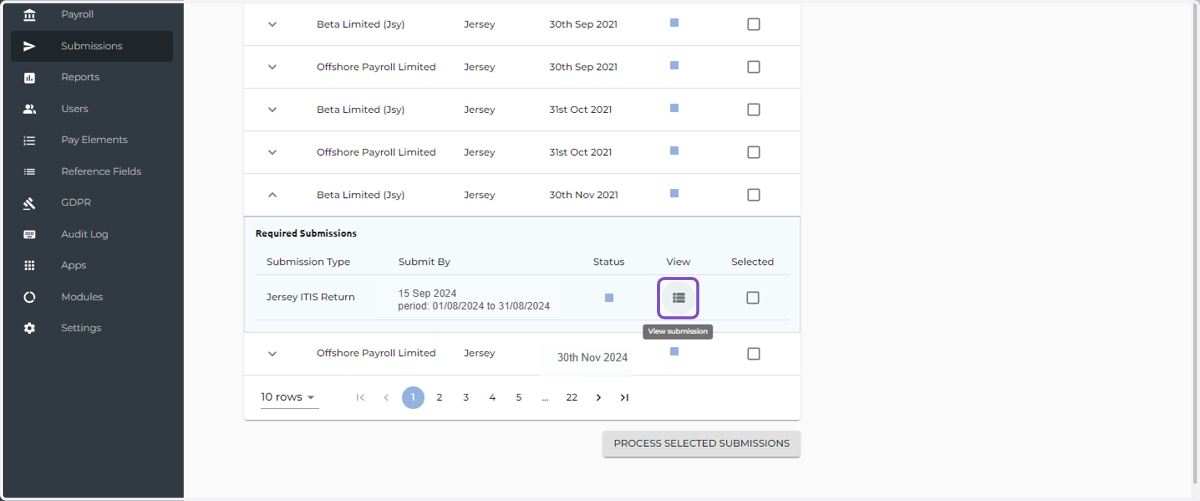
6. View submission
- Clicking the View icon allows for a final check for accuracy
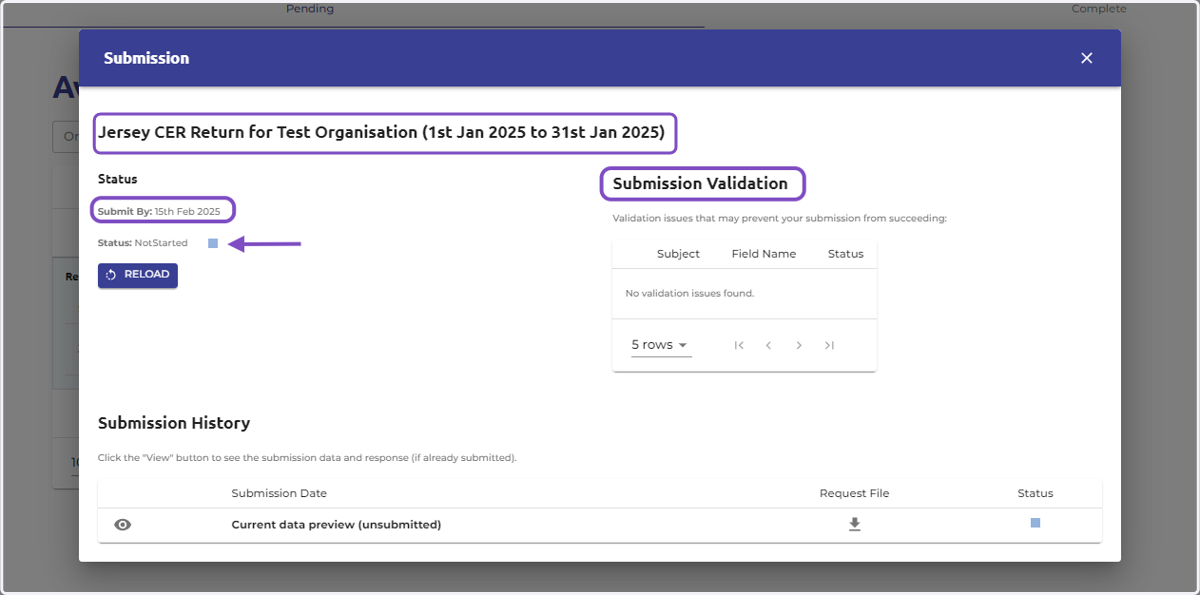
7. This view provides:
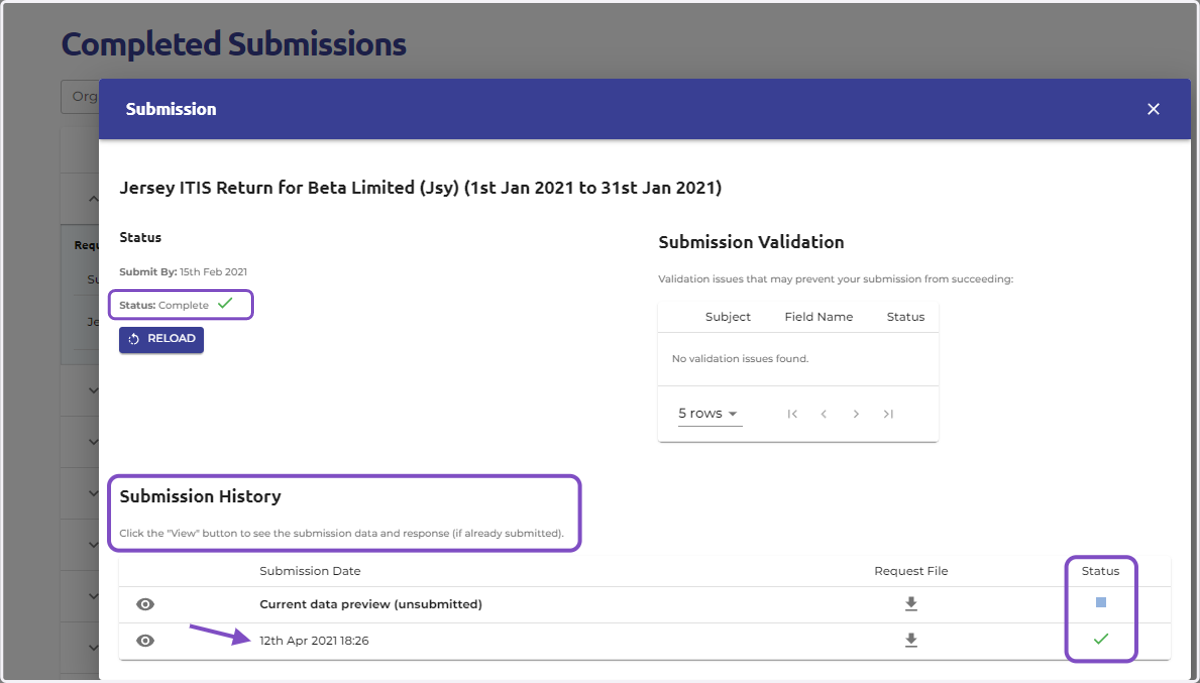
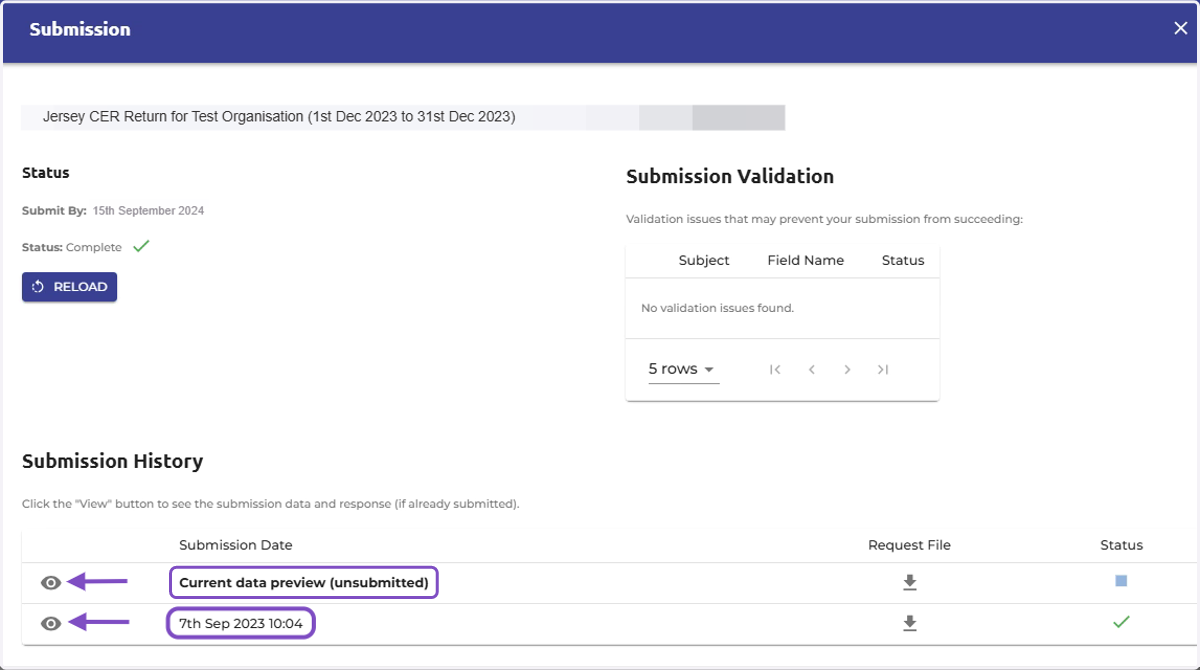
Submission Details: The main section displays essential submission information, including the submission type, the relevant period, and the submission due date.
Submission Validation: This section shows Offshore Payroll's internal validation checks. Any potential issues that could prevent your submission are highlighted here, such as missing data. It does not show government errors; only internal validation.
8. Submission History
Clicking the eye icon next to the return with the date and time, show the details of previous submitted data. In this case the CER return was submitted on the 7th September 2023 at 10:04am.
Clicking the eye icon next to the return with 'Current Data Preview (Unsubmitted) will show the details of the current submission data, which has not been submitted to the Government.
9. Request File
The "Request File" button provides access to a downloadable file containing the submission data (e.g. a CSV file). This file is typically in a format suitable for the relevant government authority.

10. How to Submit:
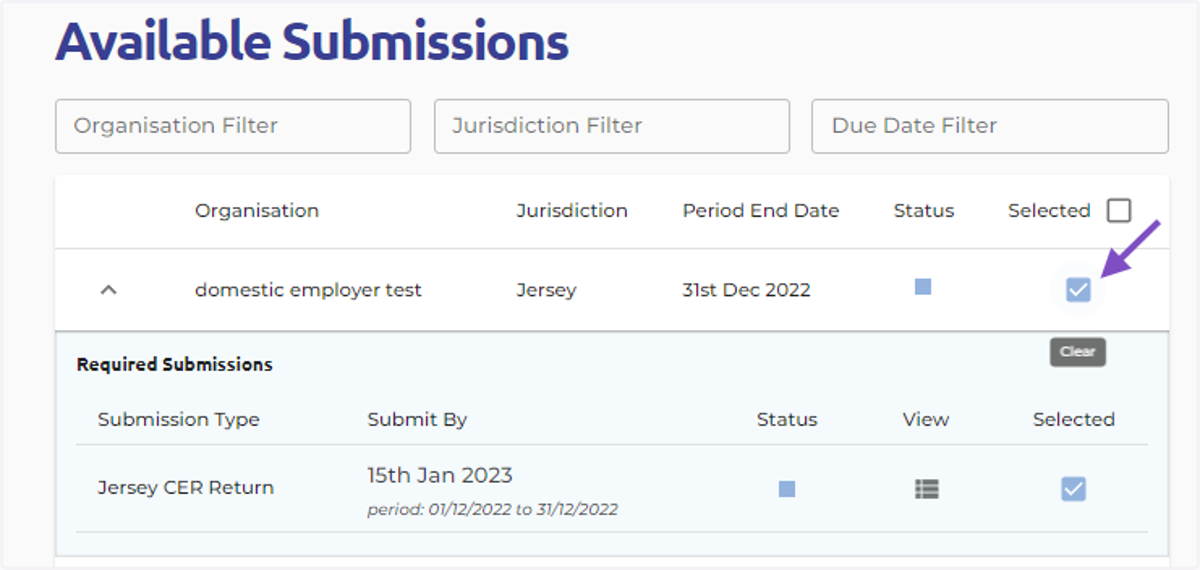
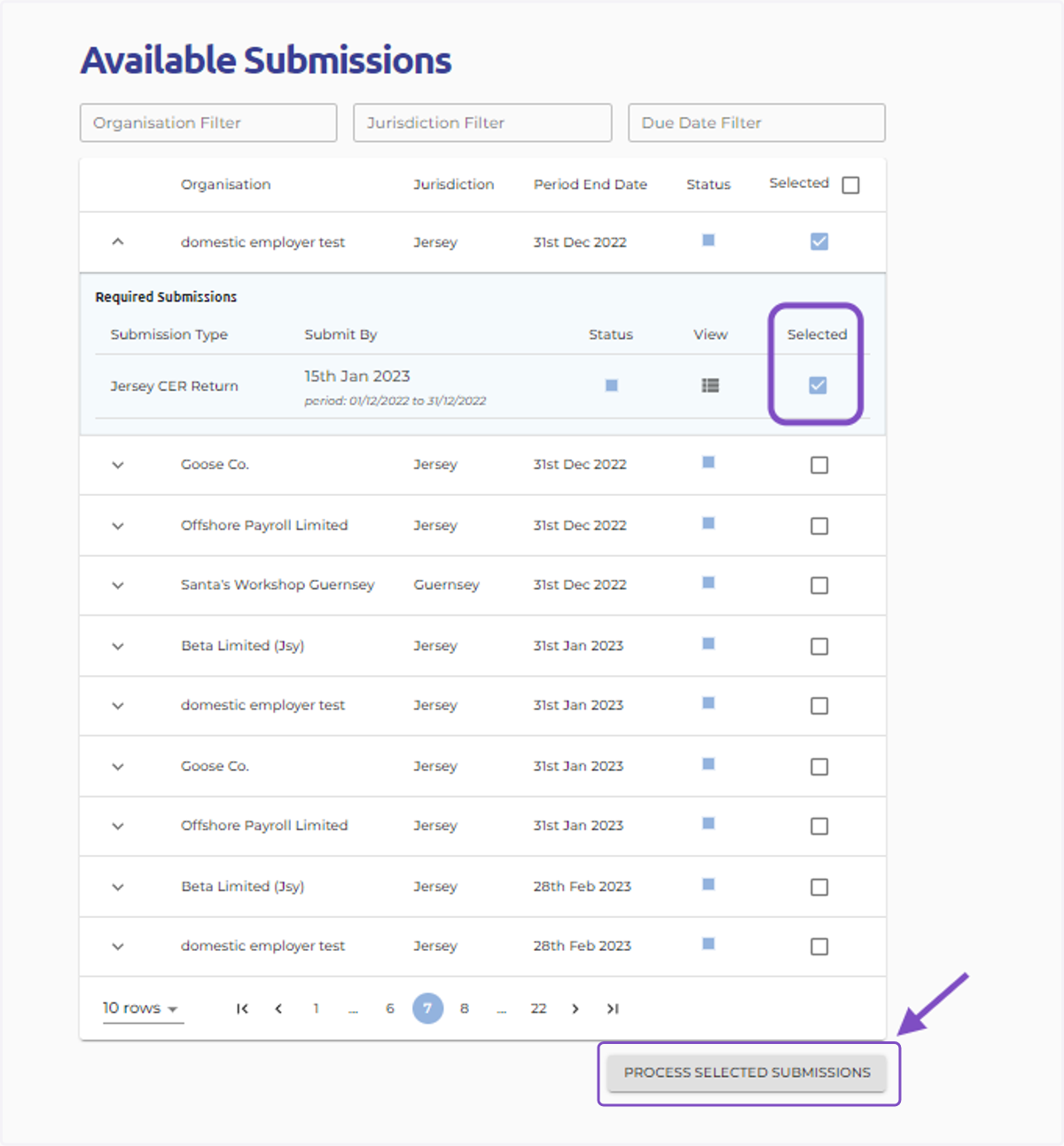
Once you have reviewed and confirmed the accuracy of the data in a pending submission, select the checkbox next to it.
11. Click the "Process Selected Submissions" button.
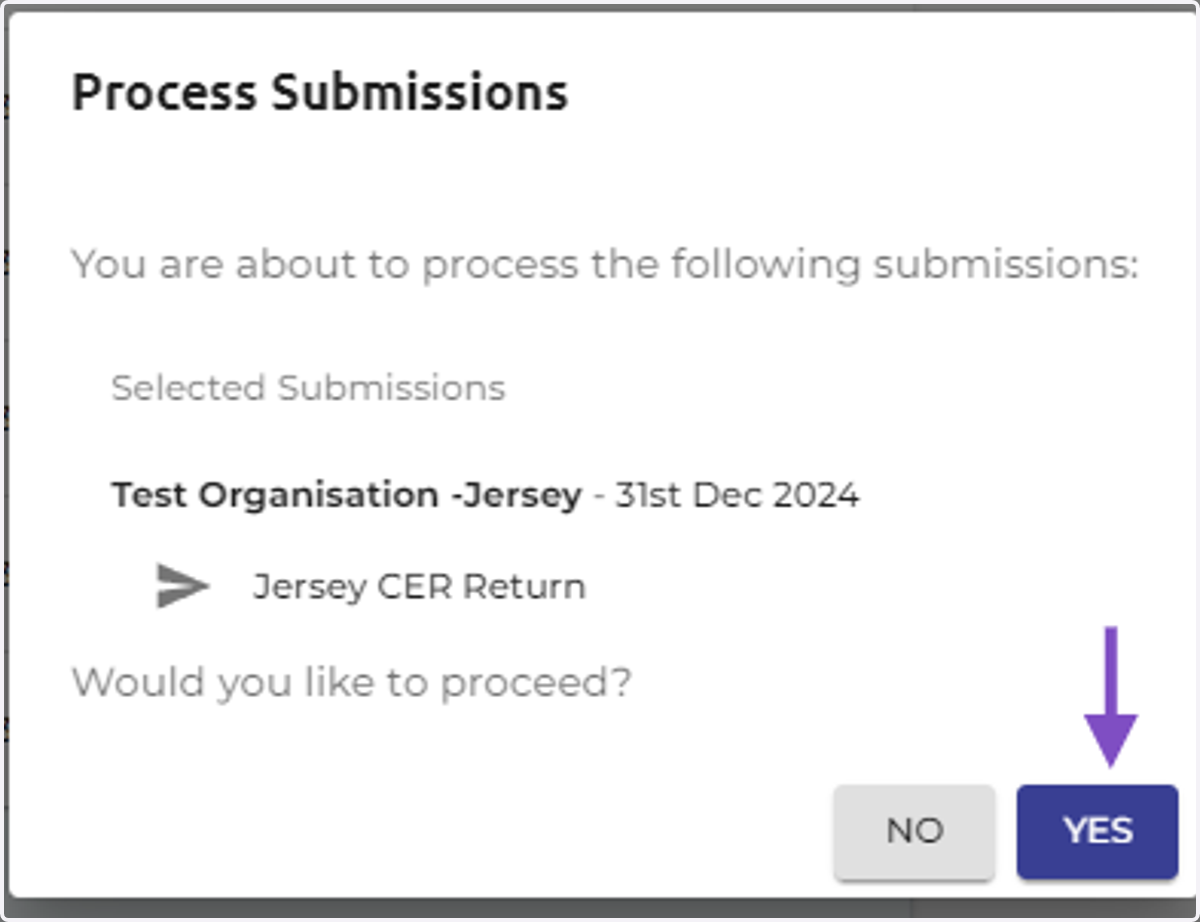
12. Click " YES"
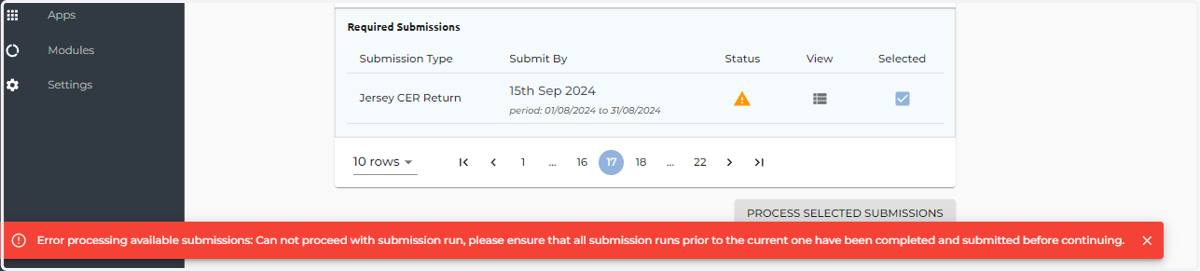
13. If the system confirms the submission. You'll receive a message on screen indicating success or failure
14. Verify Submission Status
Once submitted, go to the Completed Submissions tab to check the status of the completed return.
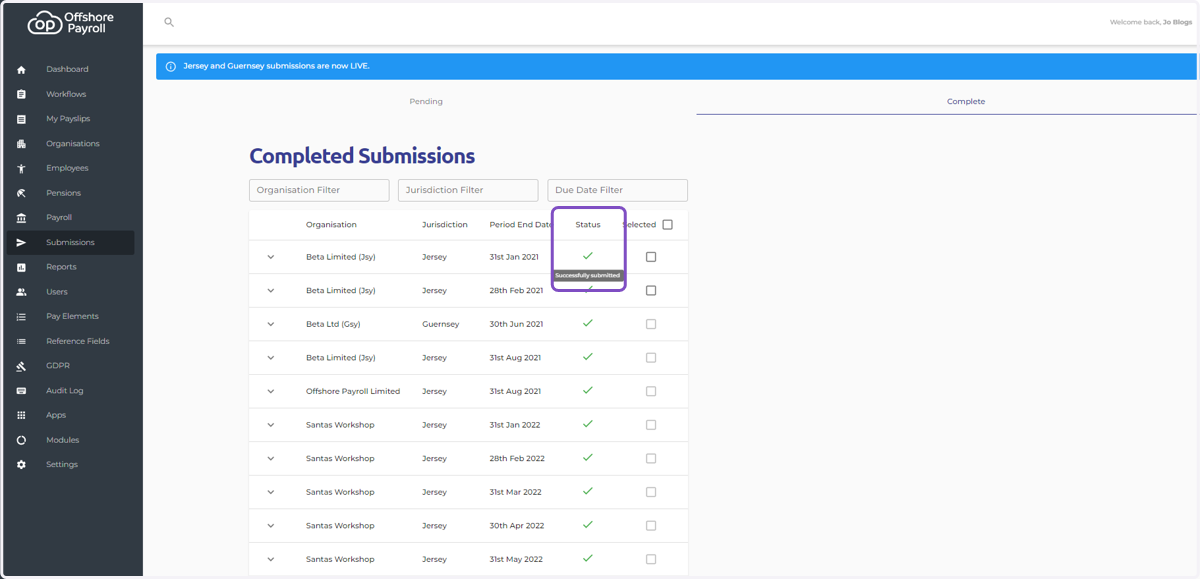
15. Select the "View" icon to review submitted return(s) details.
- Status will change to "Complete"
- Return submission date and time stamp.