Importing Data in LoadAi by Optym
A brief walkthrough to bulk import or bulk update files in LoadAi
LoadAi by Optym
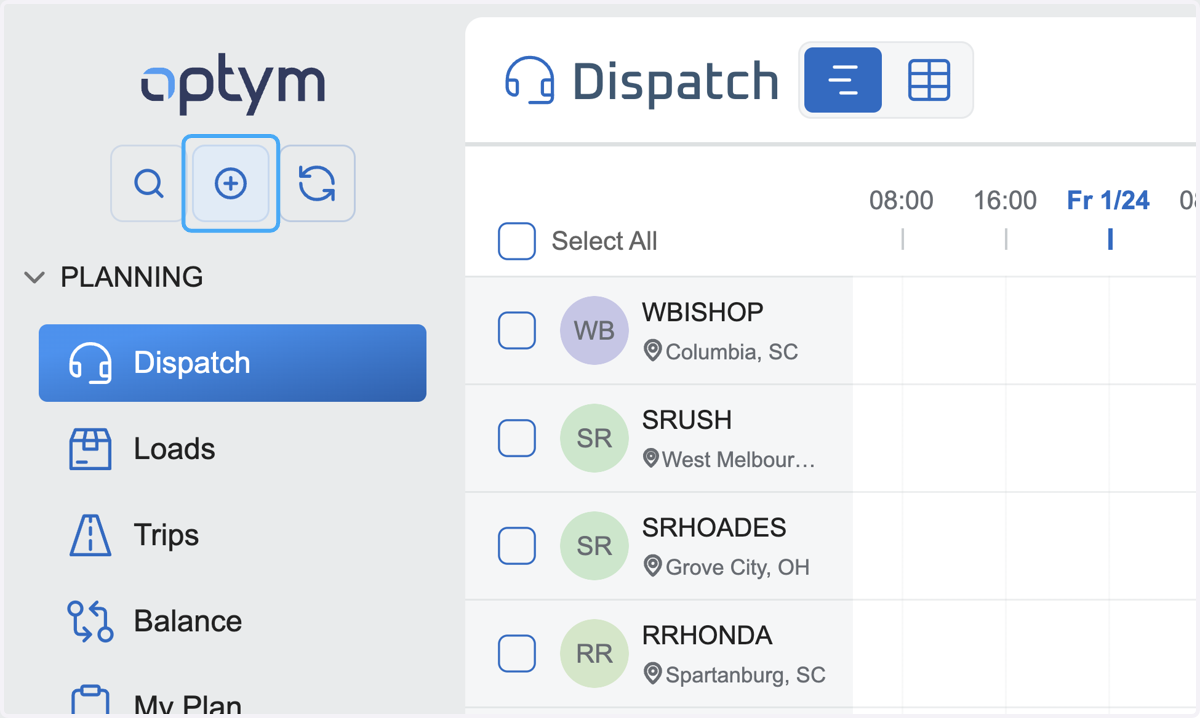
1. Start by Clicking on the Add Button in the Navigation Bar
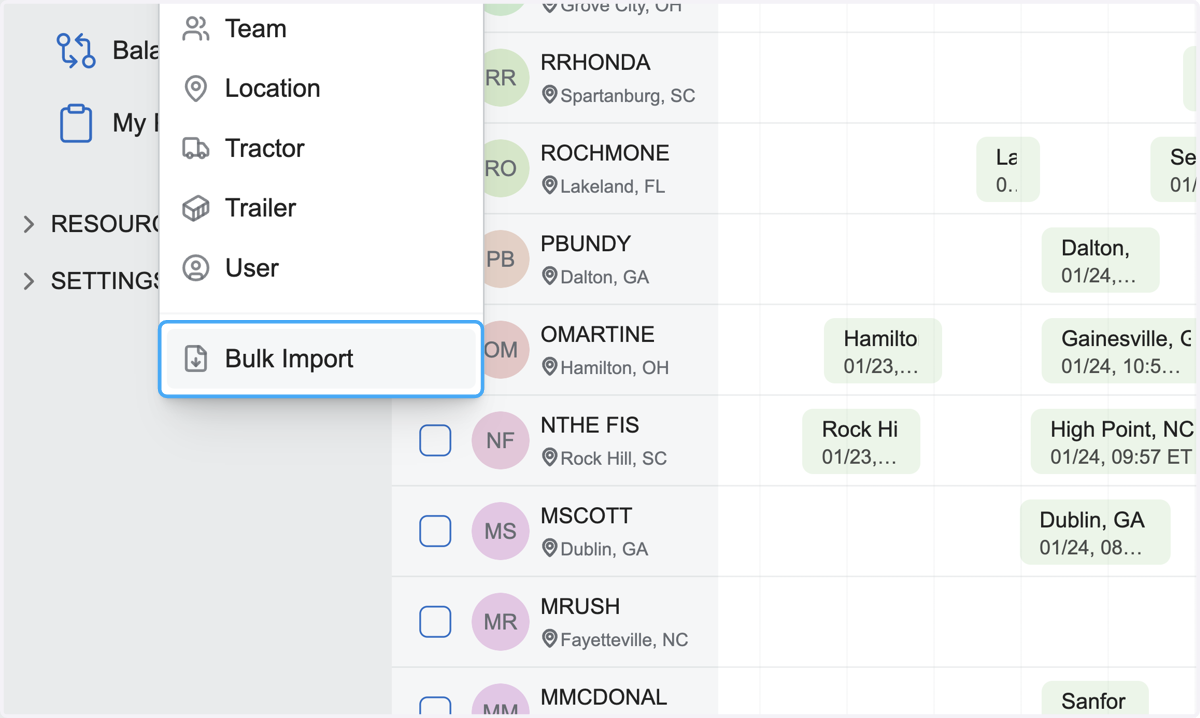
In this menu you can add individual items or access the Bulk Import Module
2. Click on Bulk Import
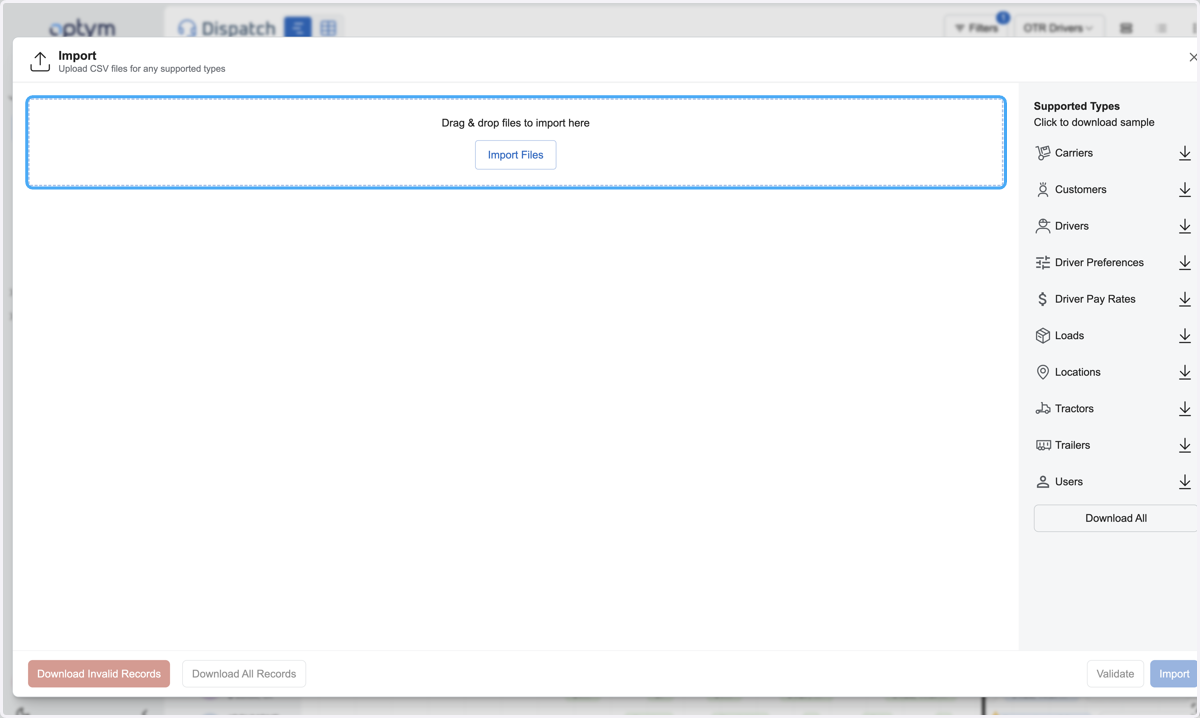
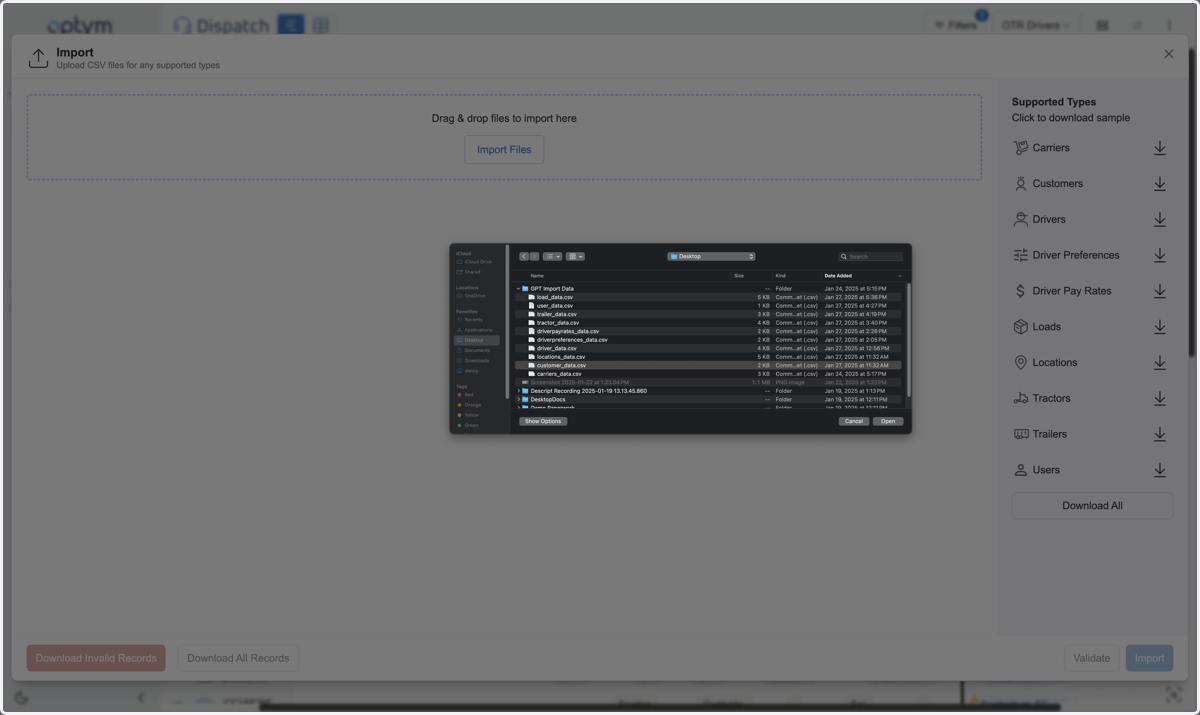
3. Upload or Drag & drop files to import…
This can be a sample template you have downloaded or your own csv you would like to custom map
4. Select the file you want to import
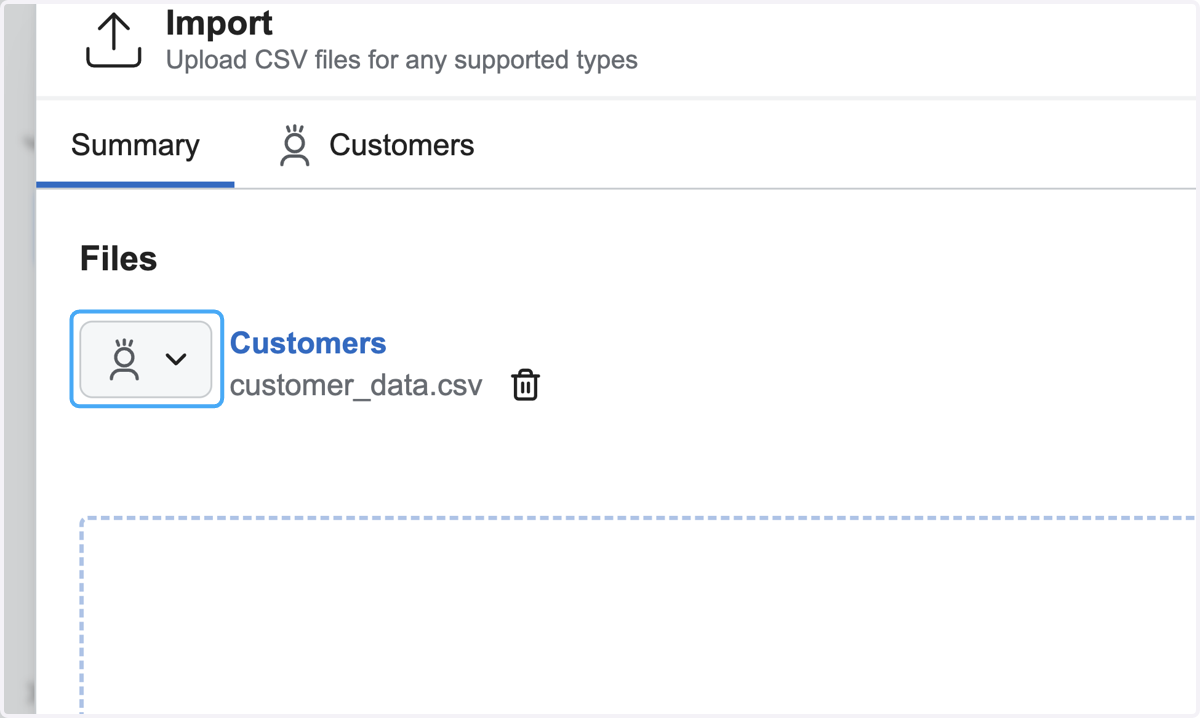
5. Select the object you are importing if it is not auto-mapped
System templates should auto-recognize but you can custom select the object you want to import
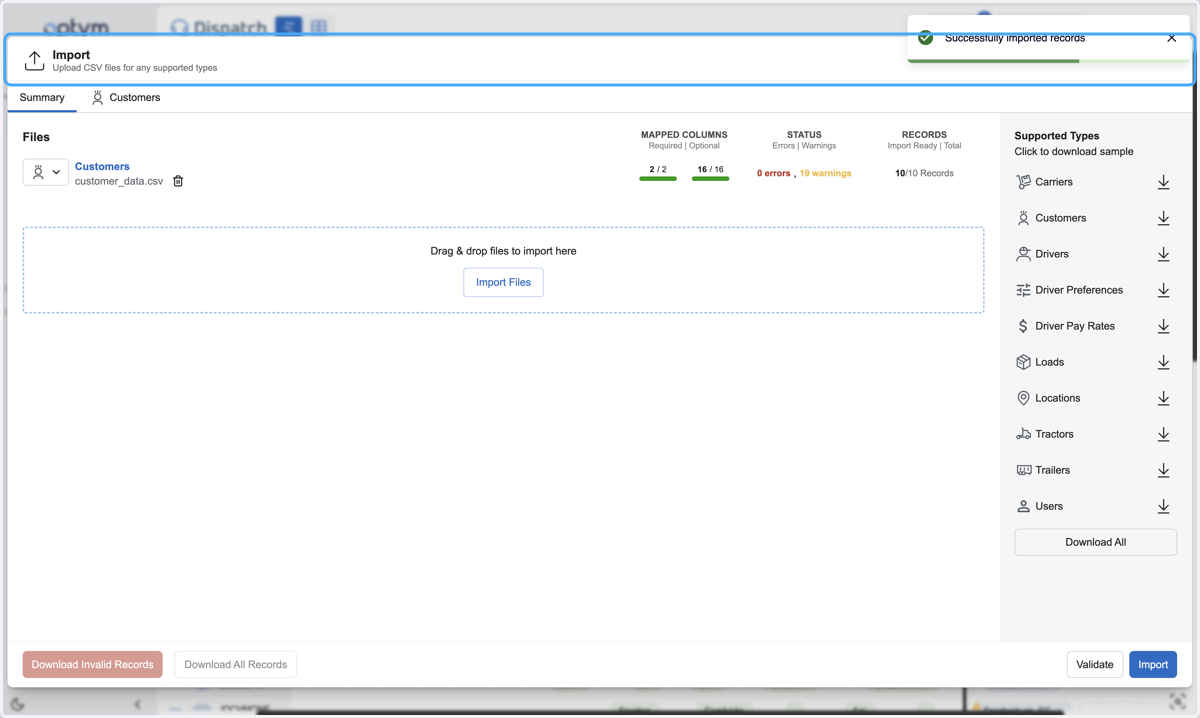
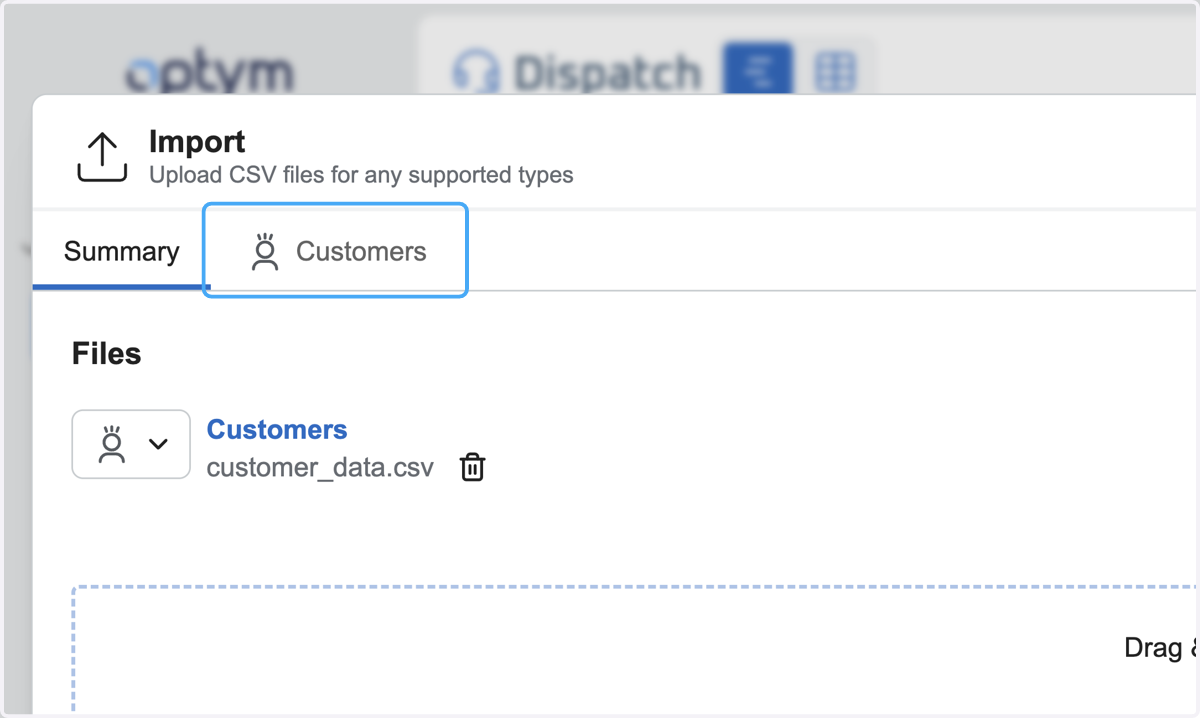
6. Click on the object tab to review the data
You can import multiple object simultaneously so repeat this process if you are uploading multiple files
7. Review the column mapping and make sure all required columns are mapped prior to validation
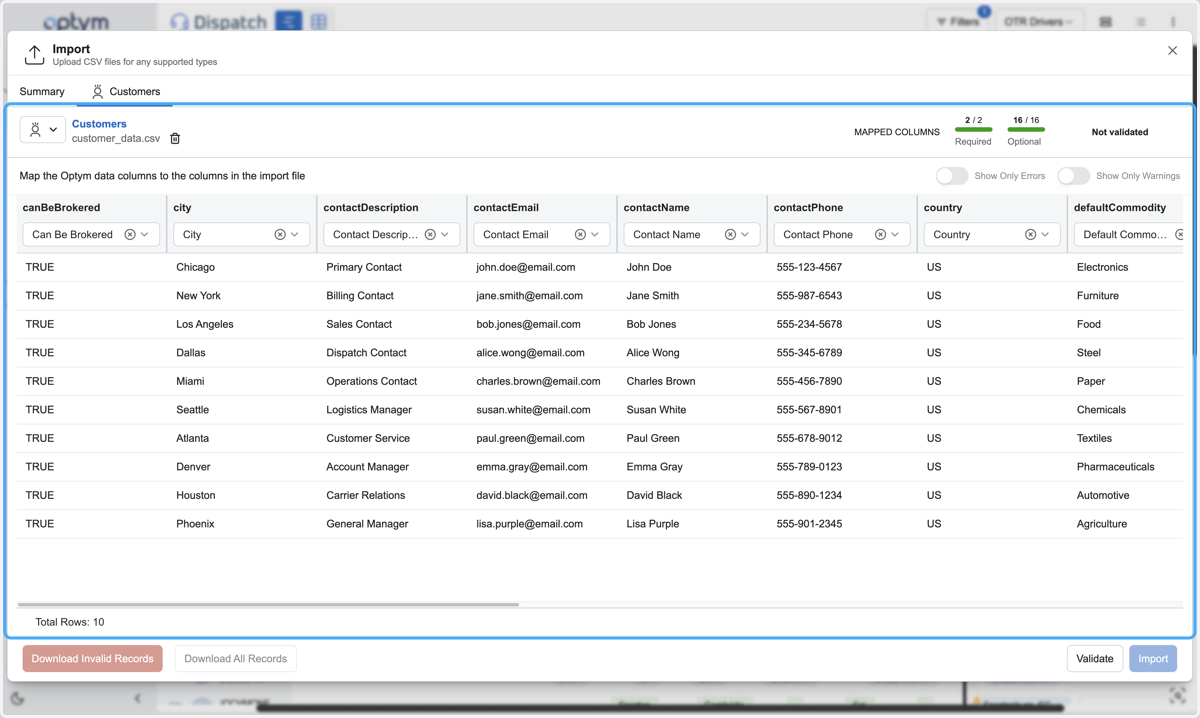
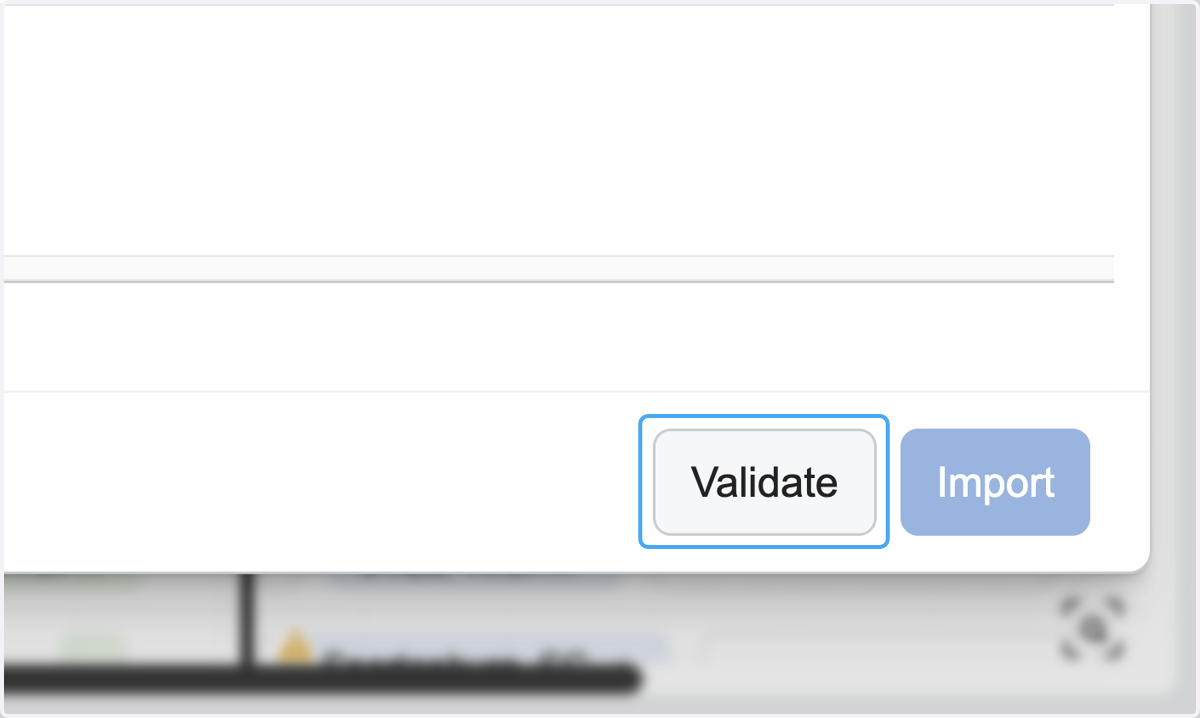
8. Click on Validate
This will analyze the content and formatting for each mapped column. Unmapped columns will be ignored.
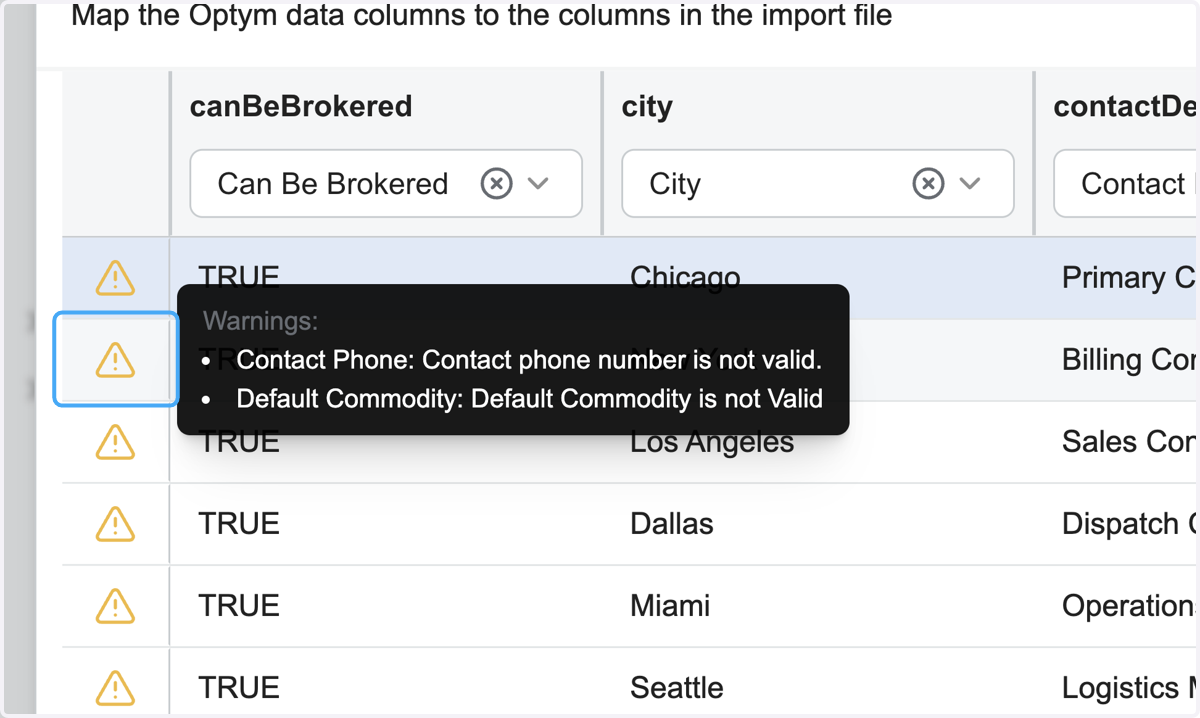
9. Review Warnings and Errors
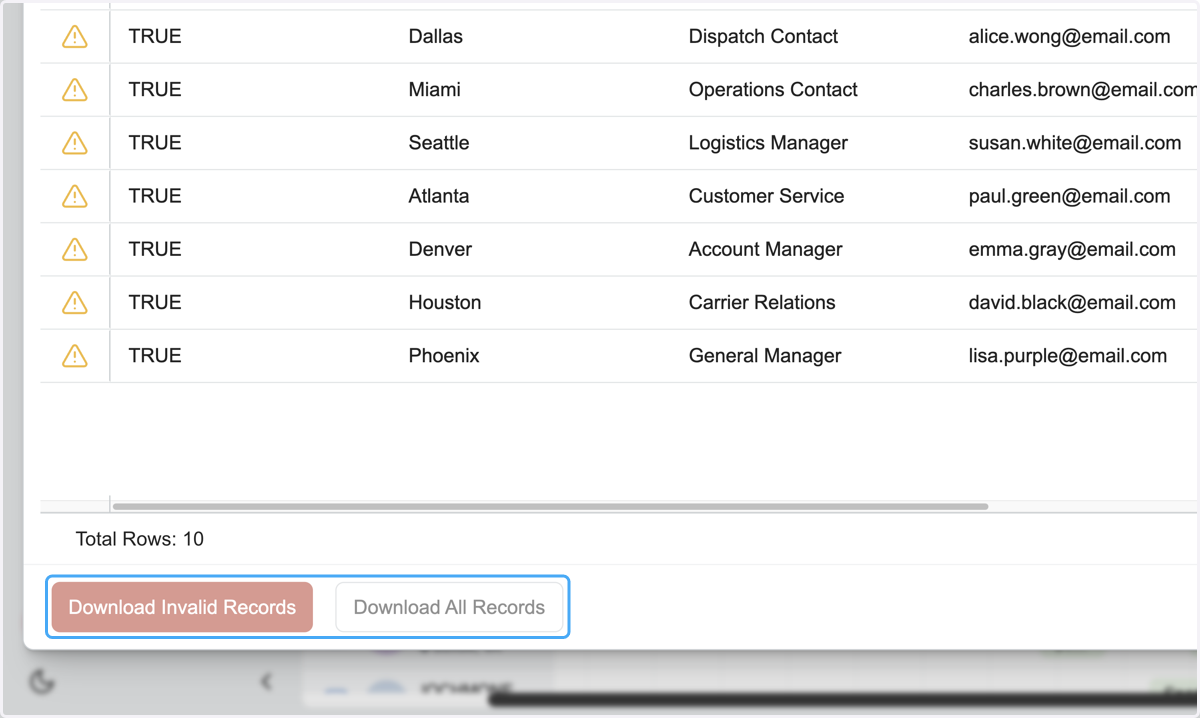
At this point you may want to download the report or go back to your template to make edits if errors exist.
10. Reports can be downloaded at the bottom of the window
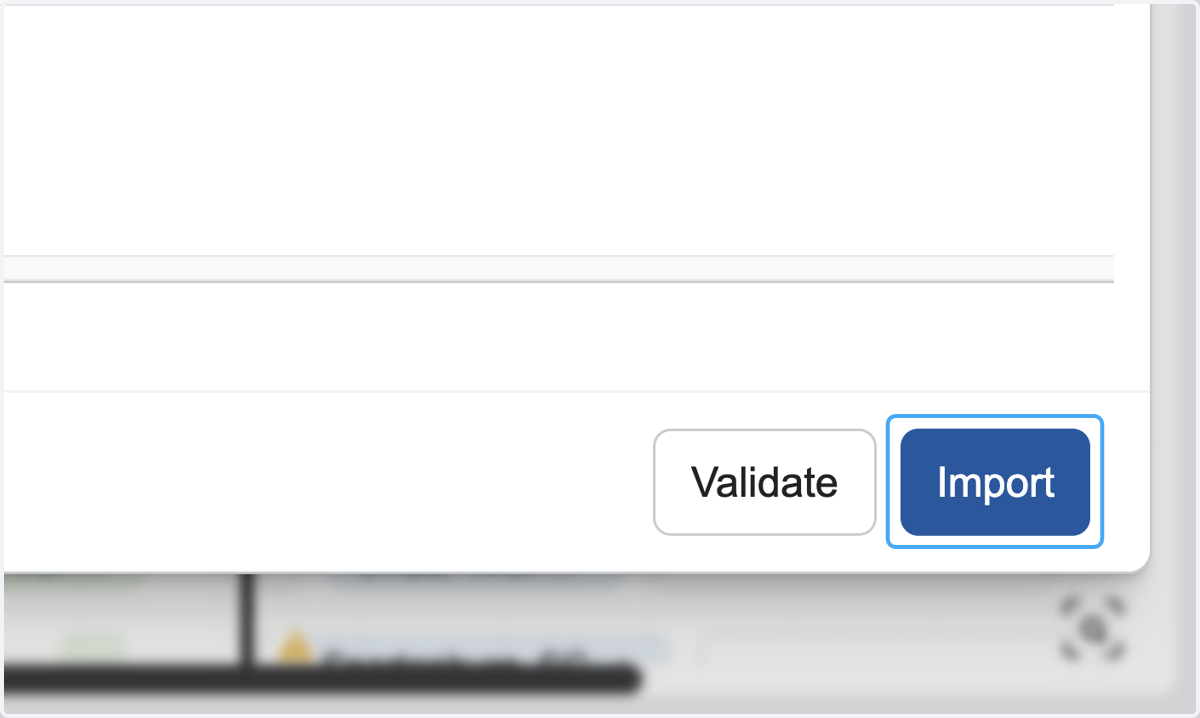
11. Click on Import
Once you have a valid import free of errors and warnings, you can import the files. Data with warnings will be ignored, rows with errors will not be imported.
12. You will receive a status message when the import is complete