How to Analyze Export Purchase Order Reports in Odoo -iLines iProcurement

Odoo

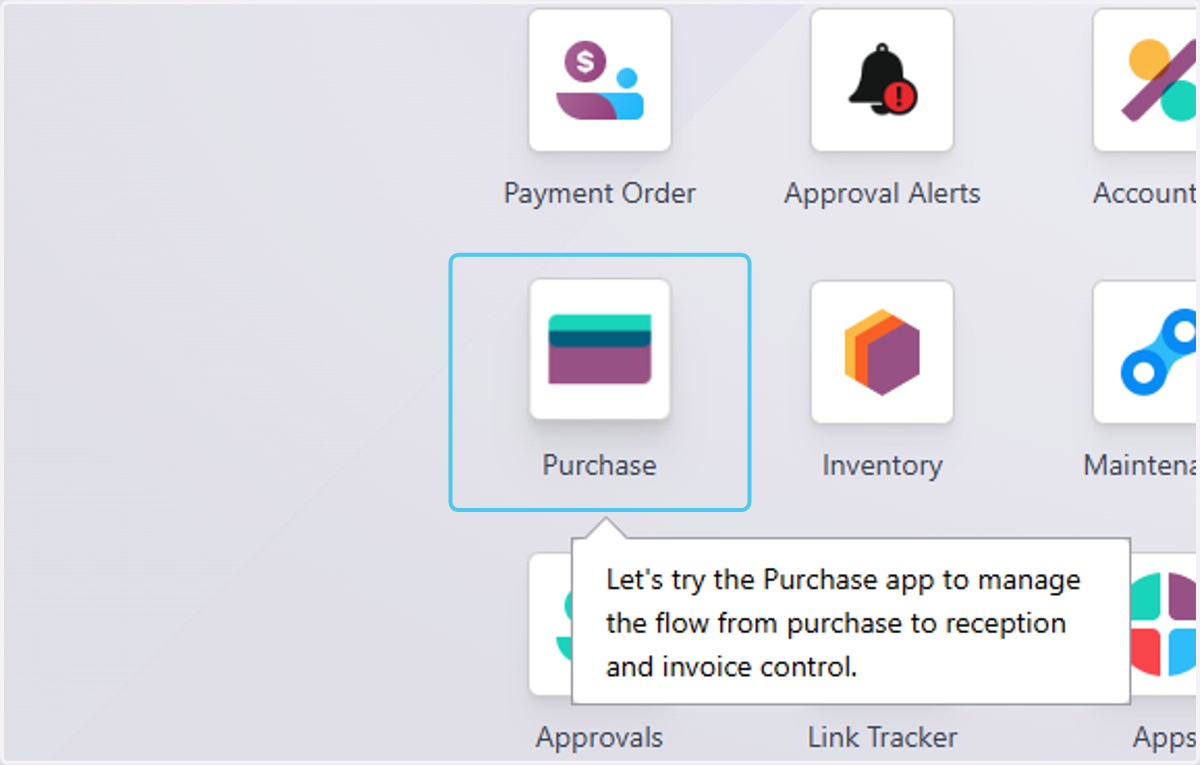
  1. 1. Click on Purchase

    Click on Purchase
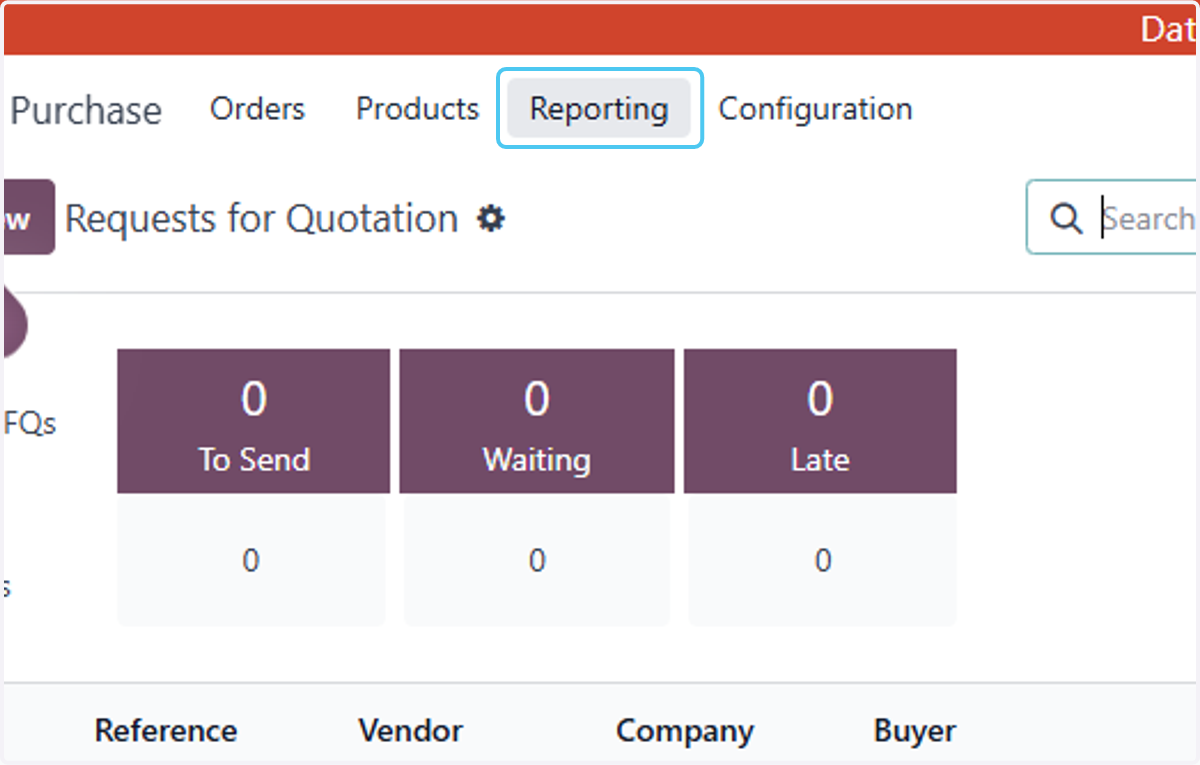
  2. 2. Click on Reporting

    Click on Reporting
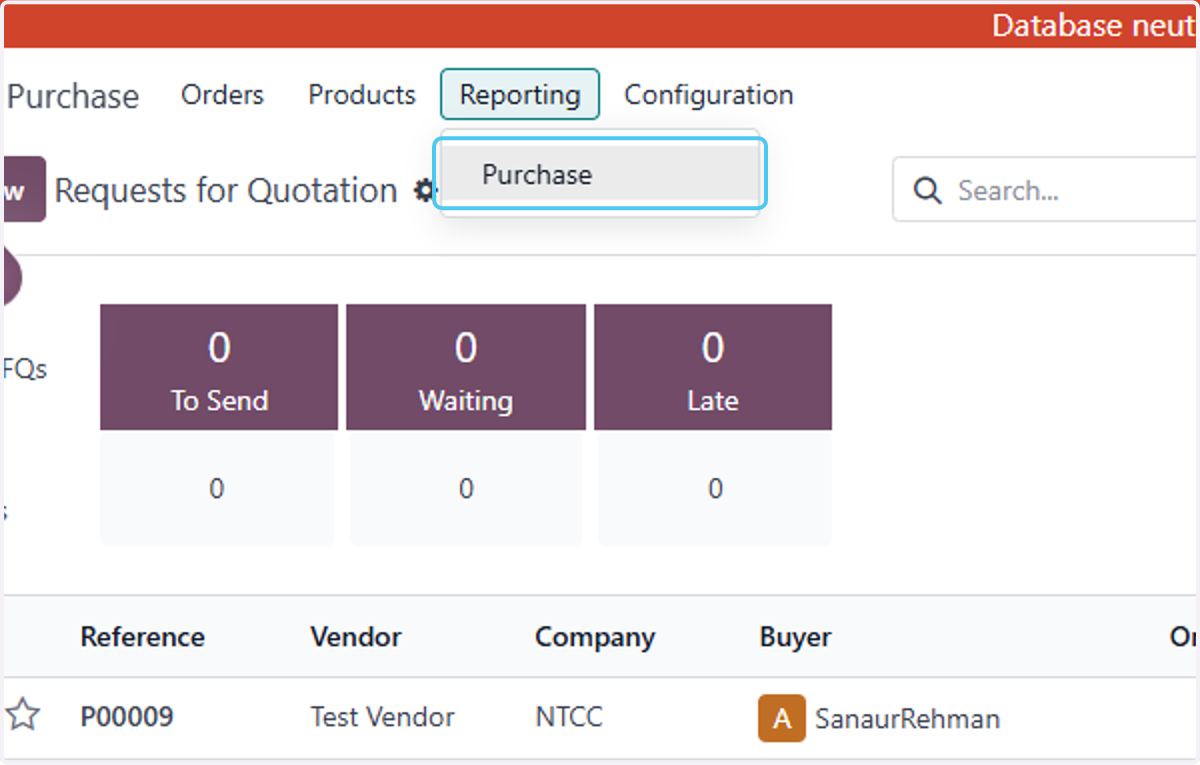
  3. 3. Click on Purchase

    Click on Purchase
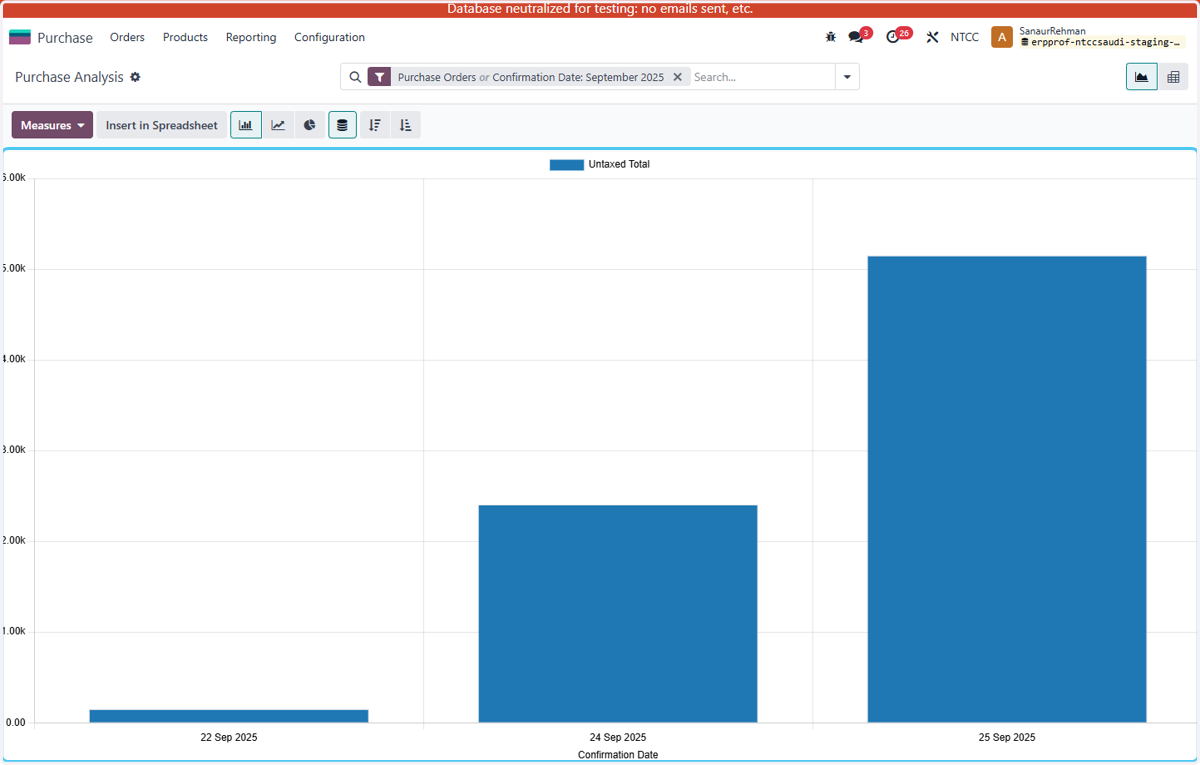
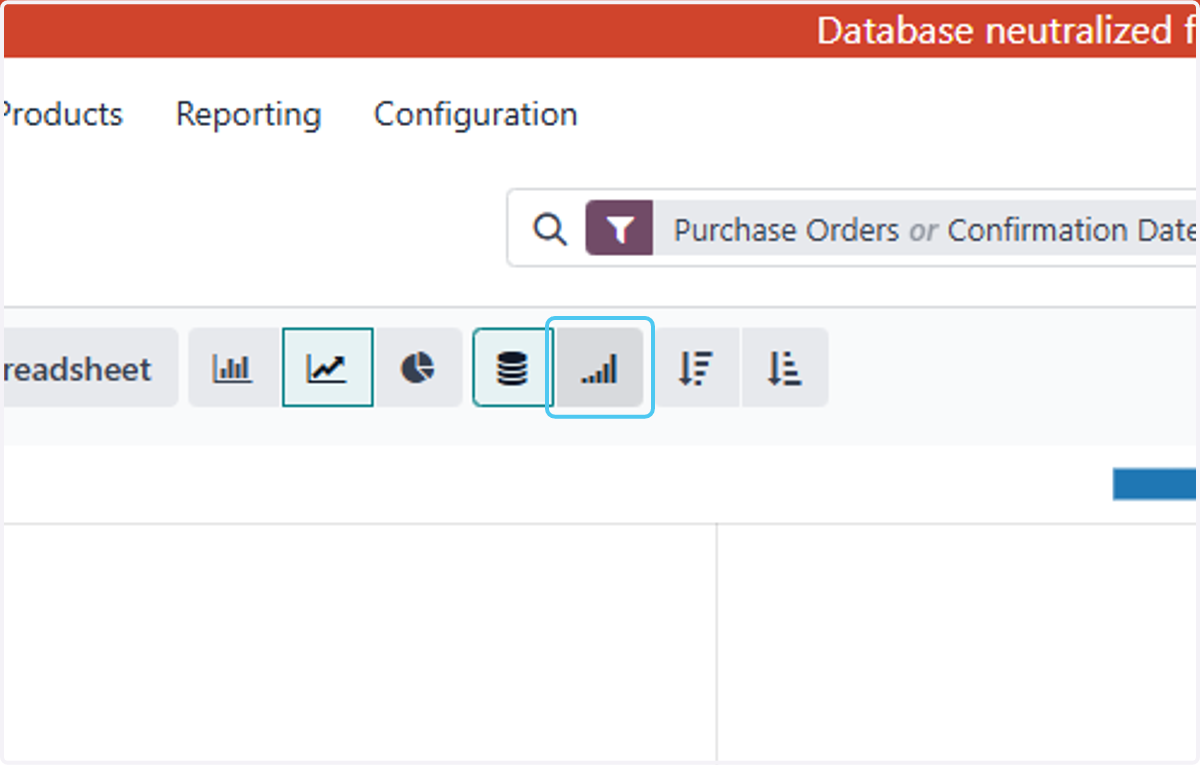
  4. 4. Click on Bar Chart to see the details in bar chart
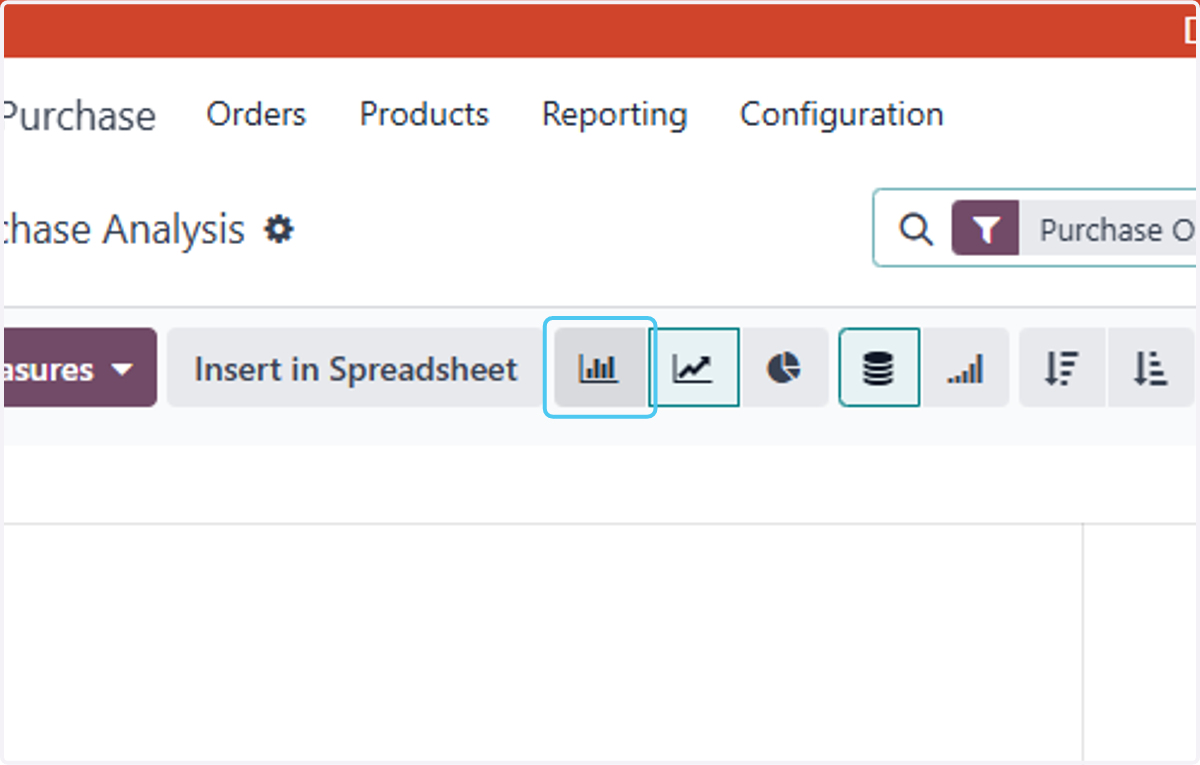
    Click on Bar Chart to see the details in bar chart
  5. 5. Click on highlight

    Click on highlight
  6. 6. Click on Cumulative

    Click on Cumulative
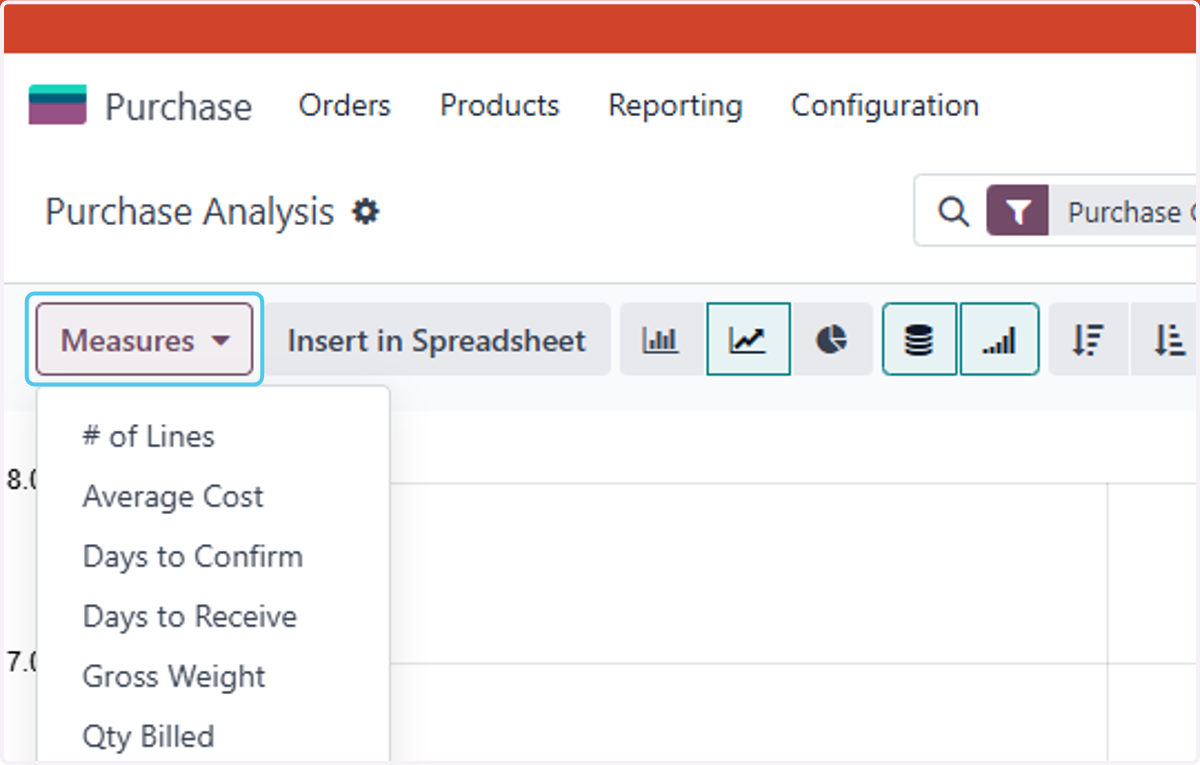
  7. 7. Right click on Measures

    Right click on Measures
  8. 8. Click on Measures to filter it by the given fields
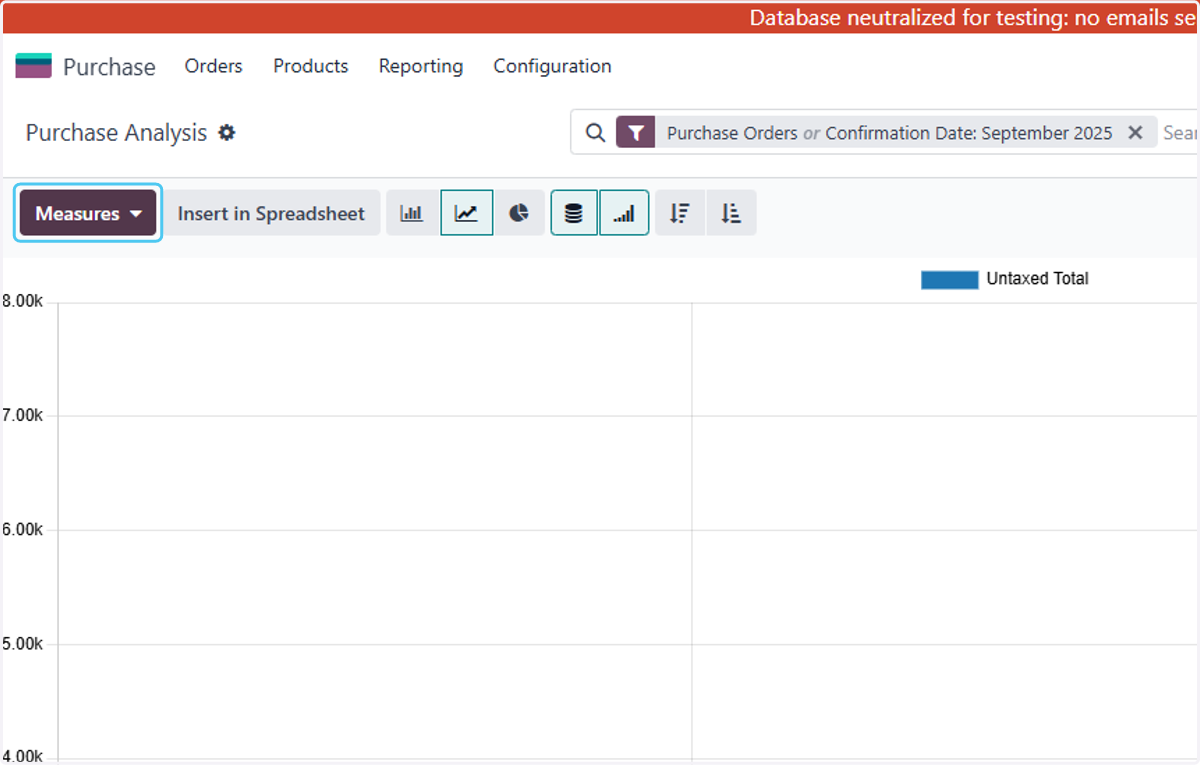
    Click on Measures to filter it by the given fields
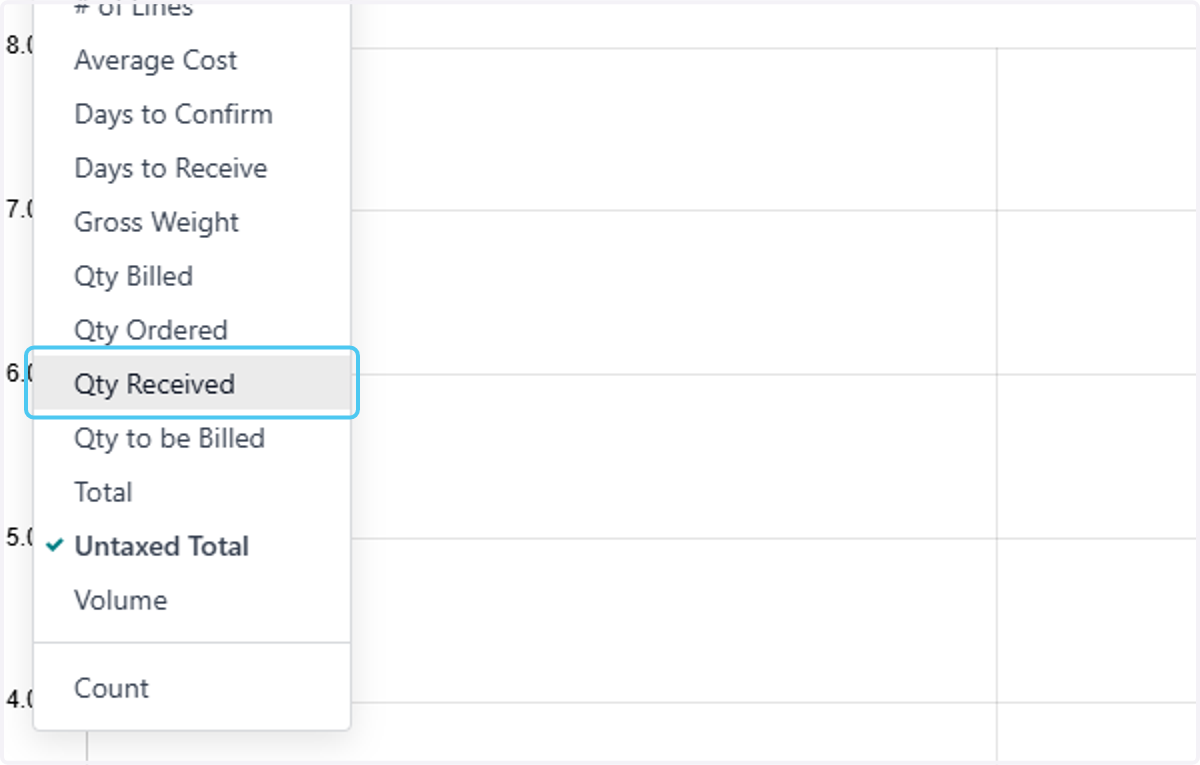
  9. 9. Click on Qty Received

    Click on Qty Received
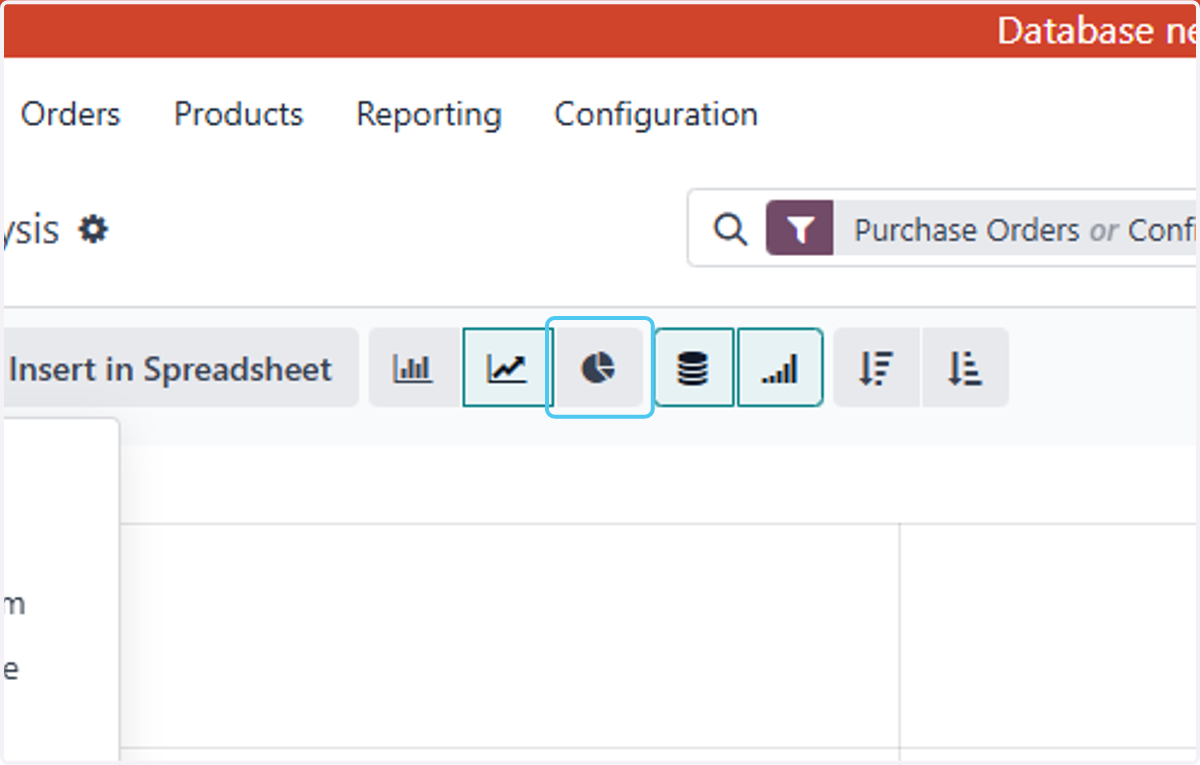
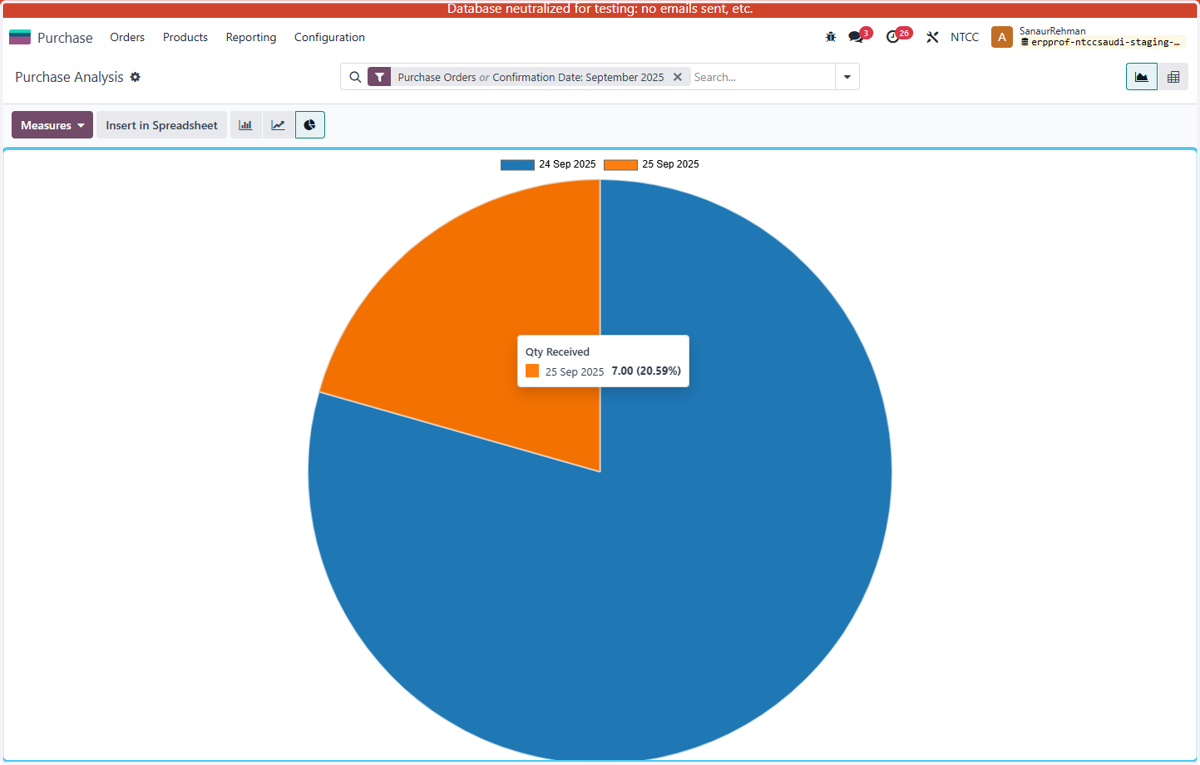
  10. 10. Click on Pie Chart

    Click on Pie Chart
  11. 11. Right click on Qty Received…

    Right click on Qty Received…
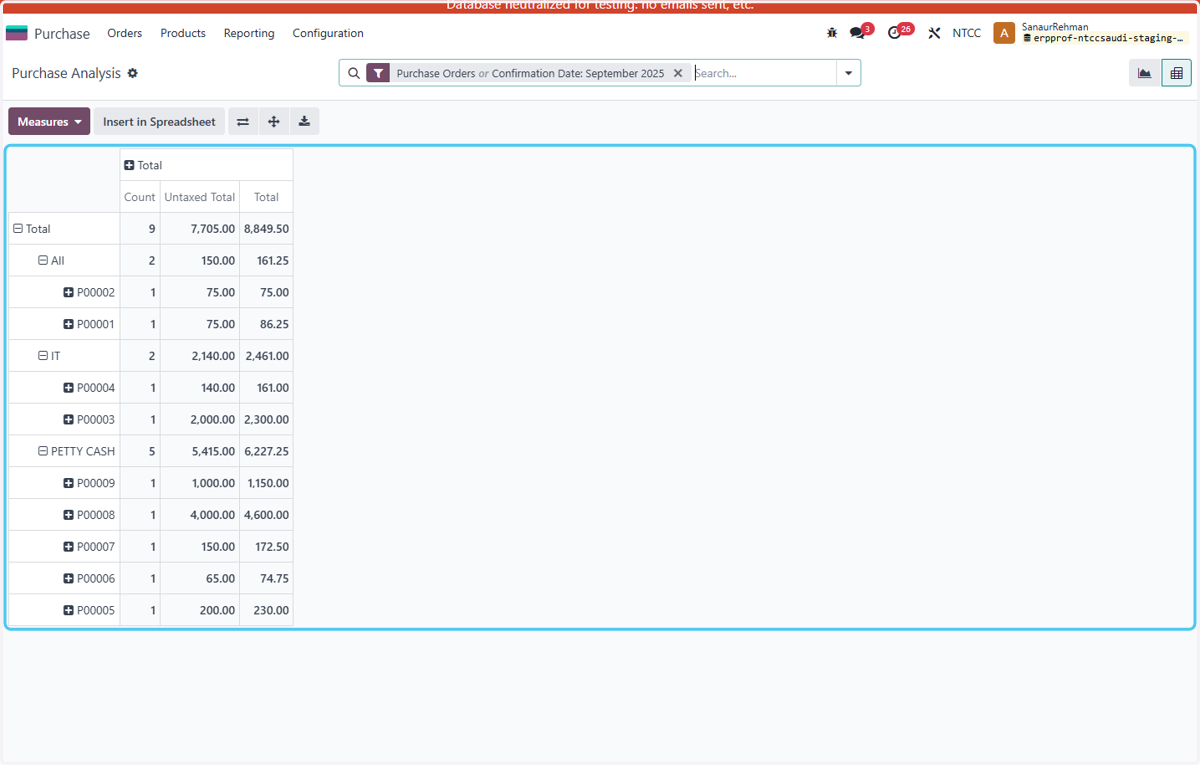
  12. 12. Click on highlight to view that in Pivot form
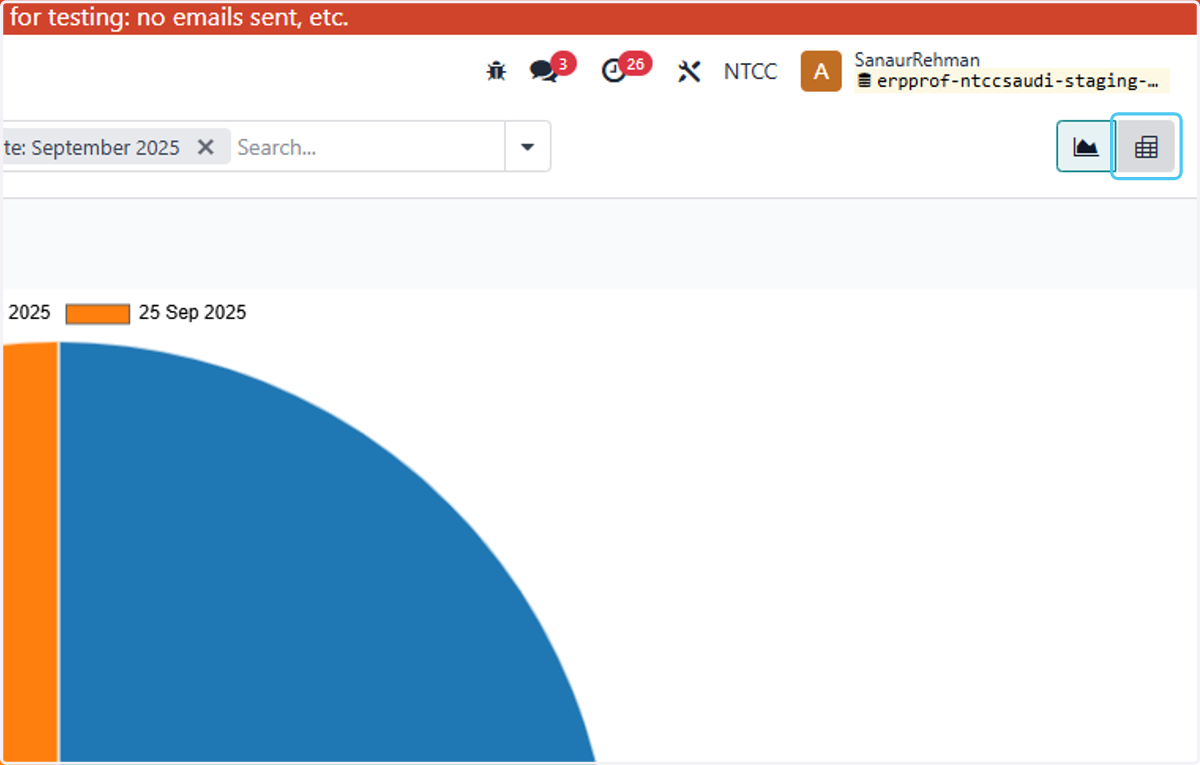
    Click on highlight to view that in Pivot form
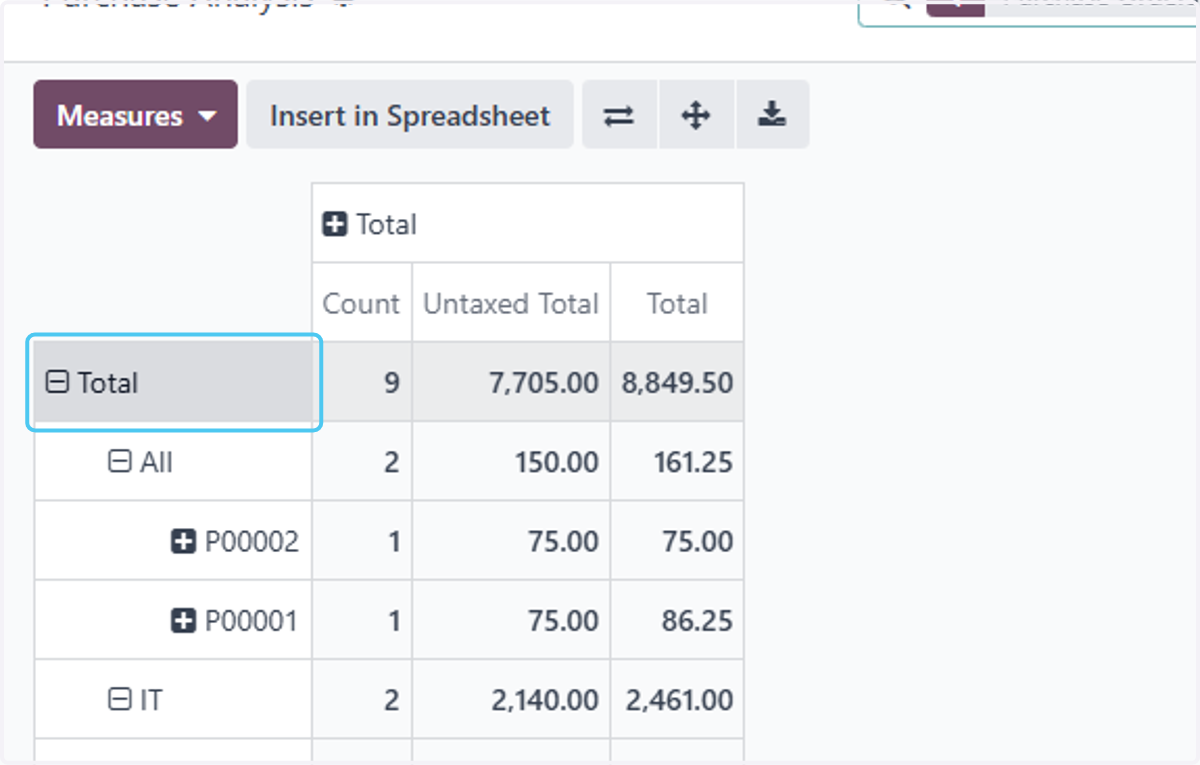
  13. 13. Click on Total…

    Click on Total…
  14. 14. Click on Total

    Click on Total
  15. 15. Click on Vendor to filter by vendor
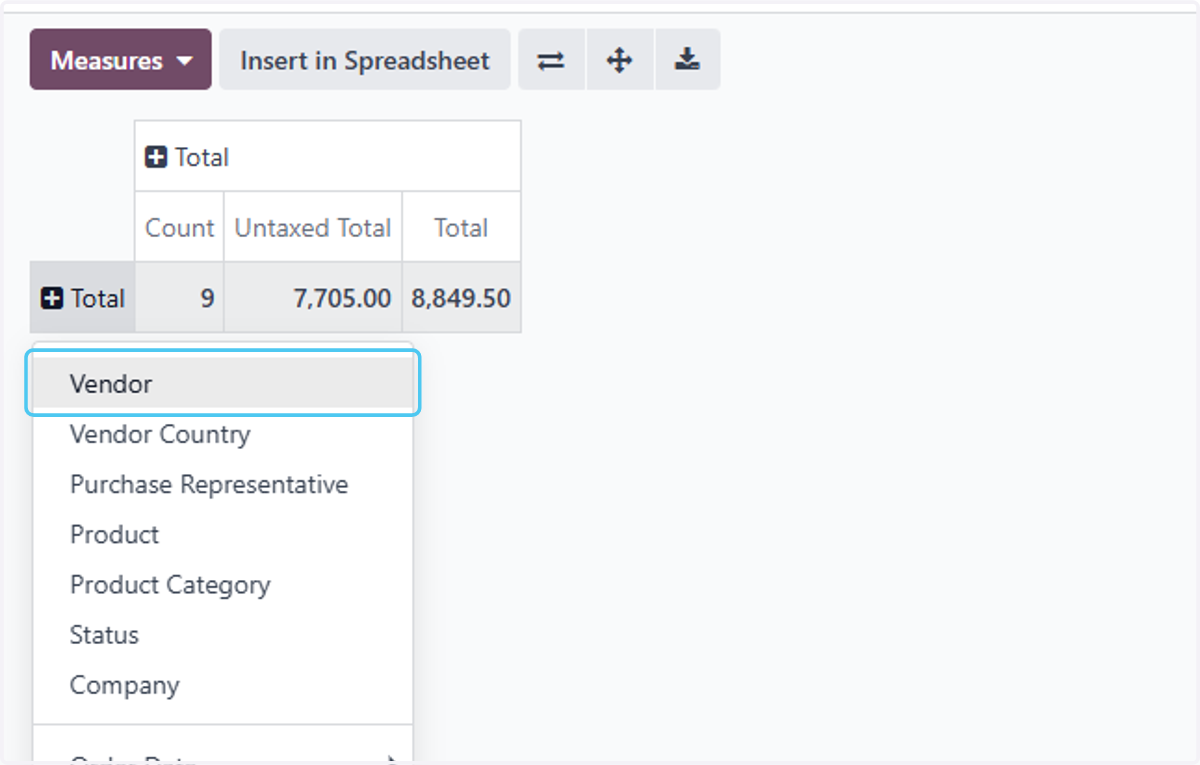
    Click on Vendor to filter by vendor
  16. 16. Click on Total and add the filter according to your need.
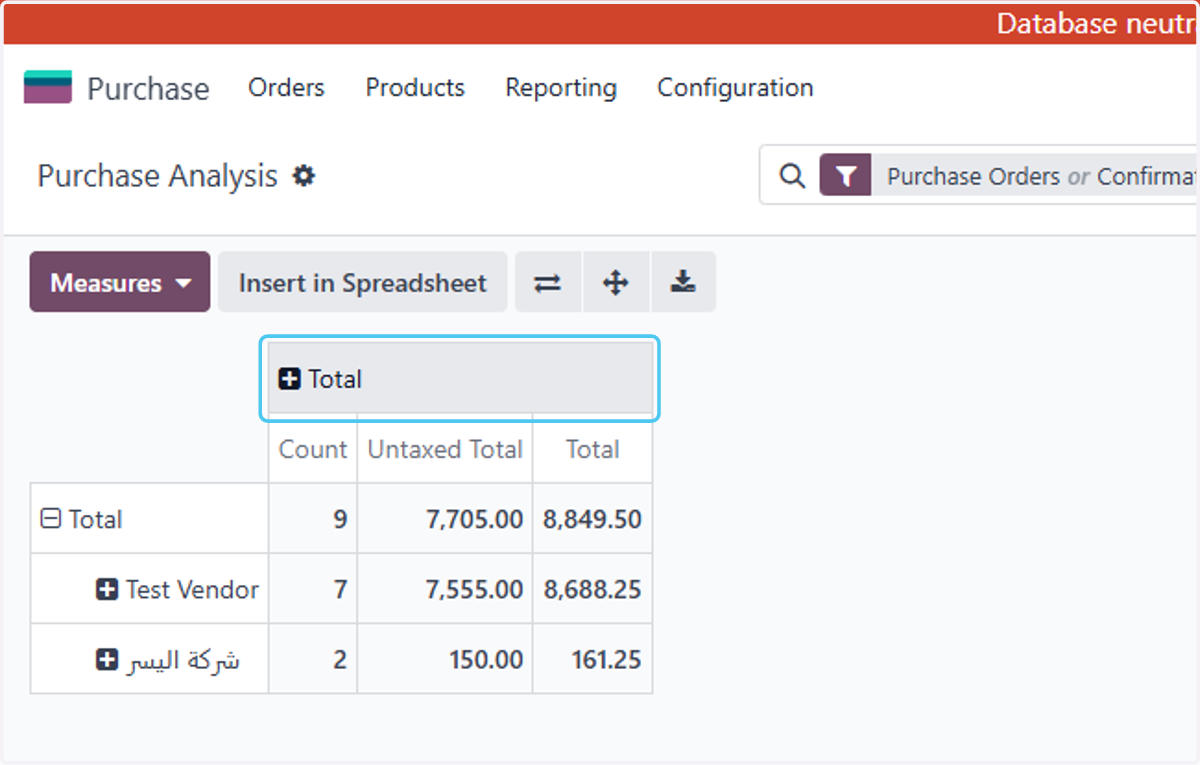
    Click on Total and add the filter according to your need.
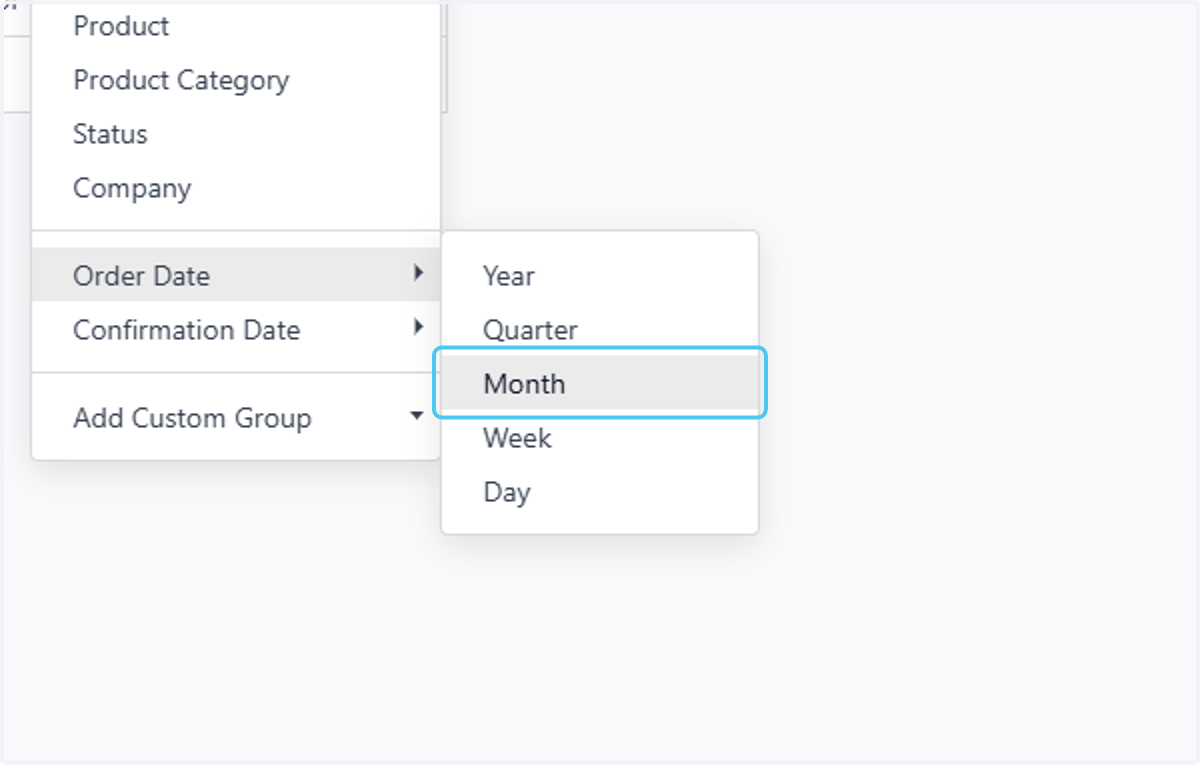
  17. 17. Click on Month

    Click on Month
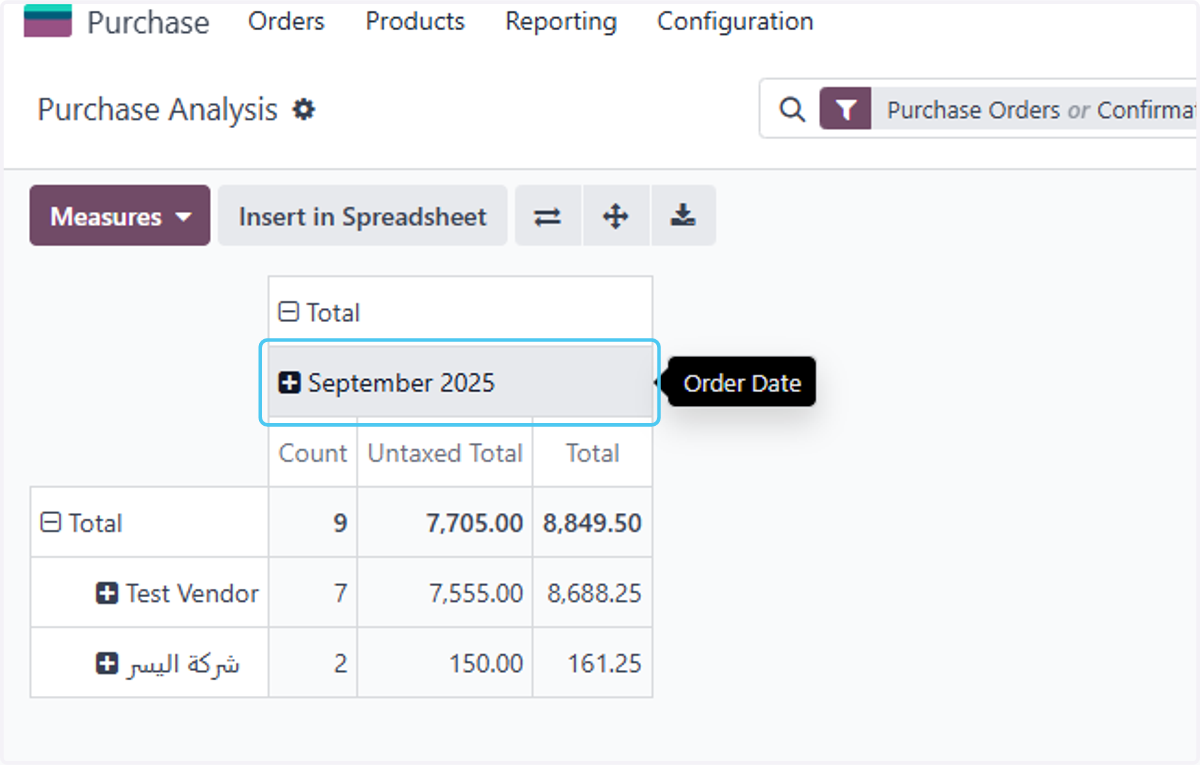
  18. 18. Click on September 2025

    Click on September 2025
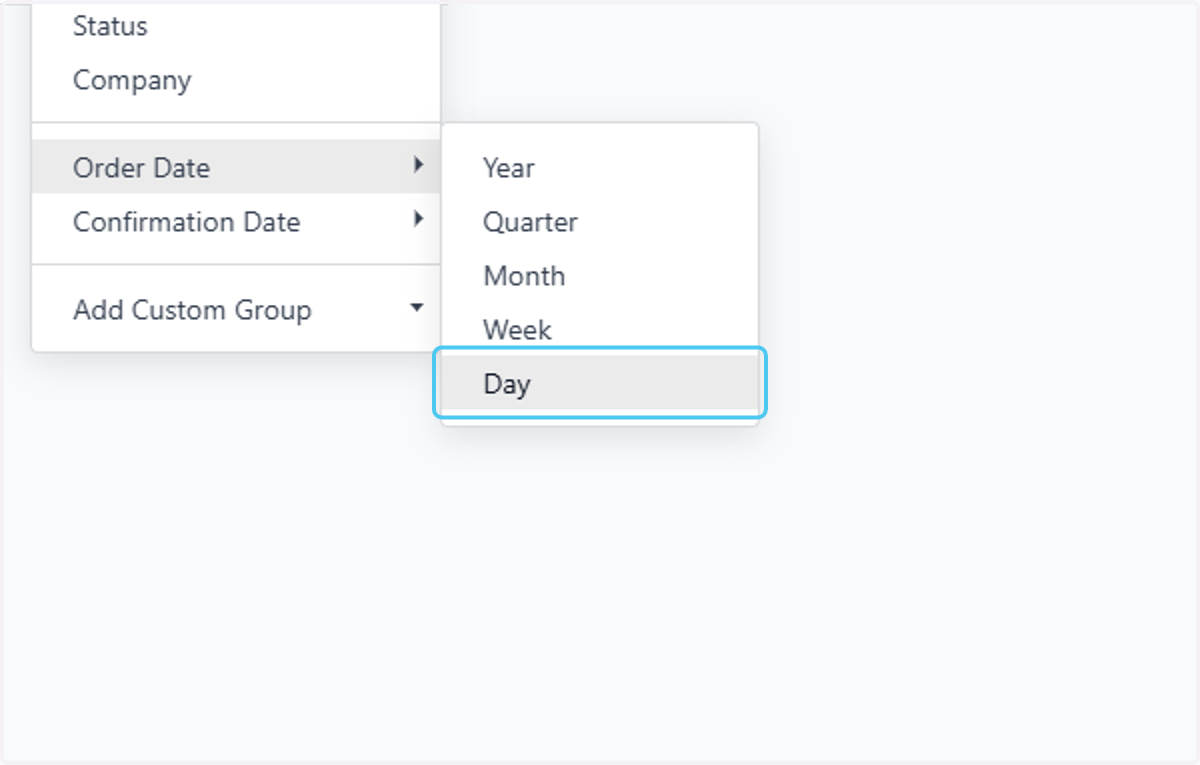
  19. 19. Click on Day

    Click on Day
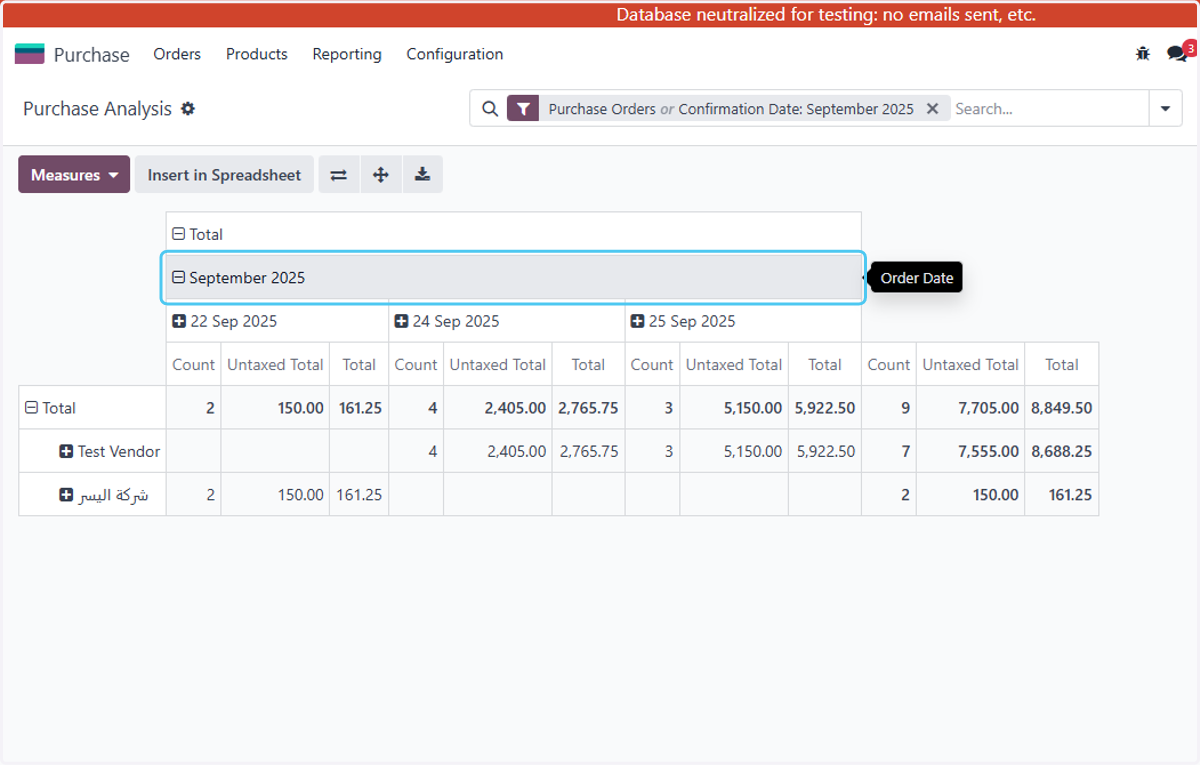
  20. 20. Click on September 2025

    Click on September 2025
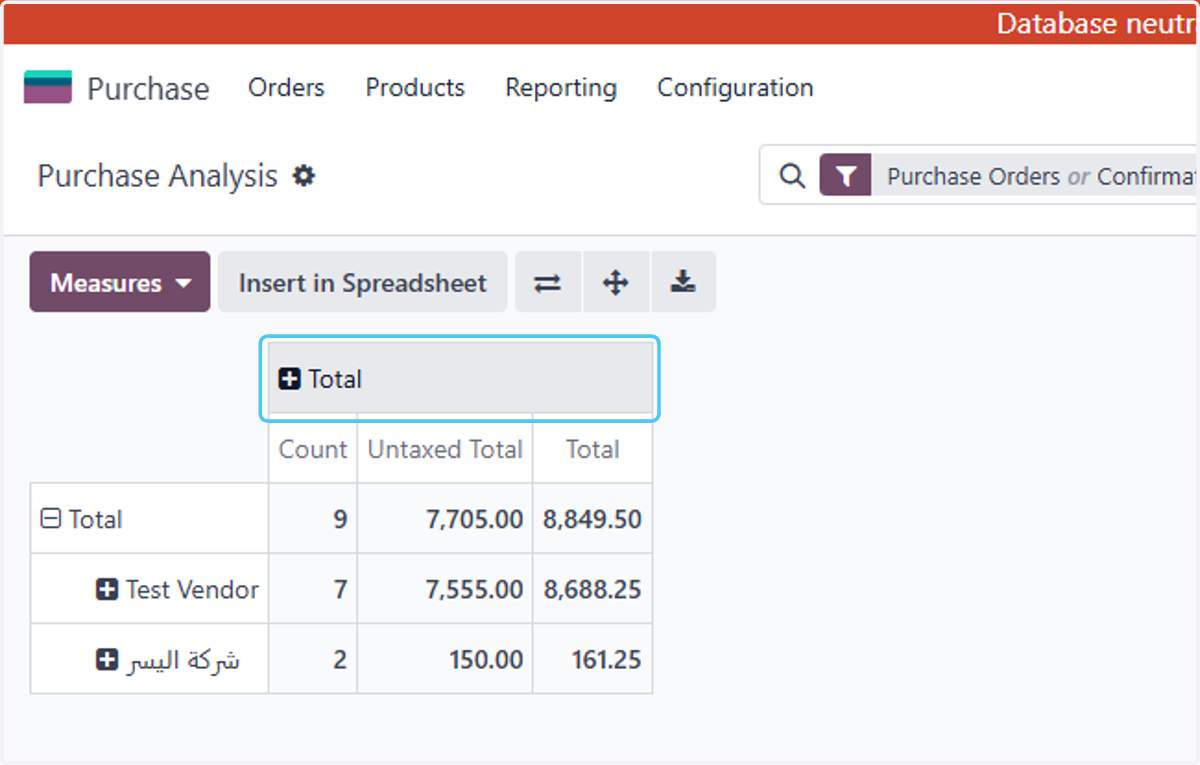
  21. 21. Click on Total

    Click on Total
  22. 22. Click on Product to filter by the product
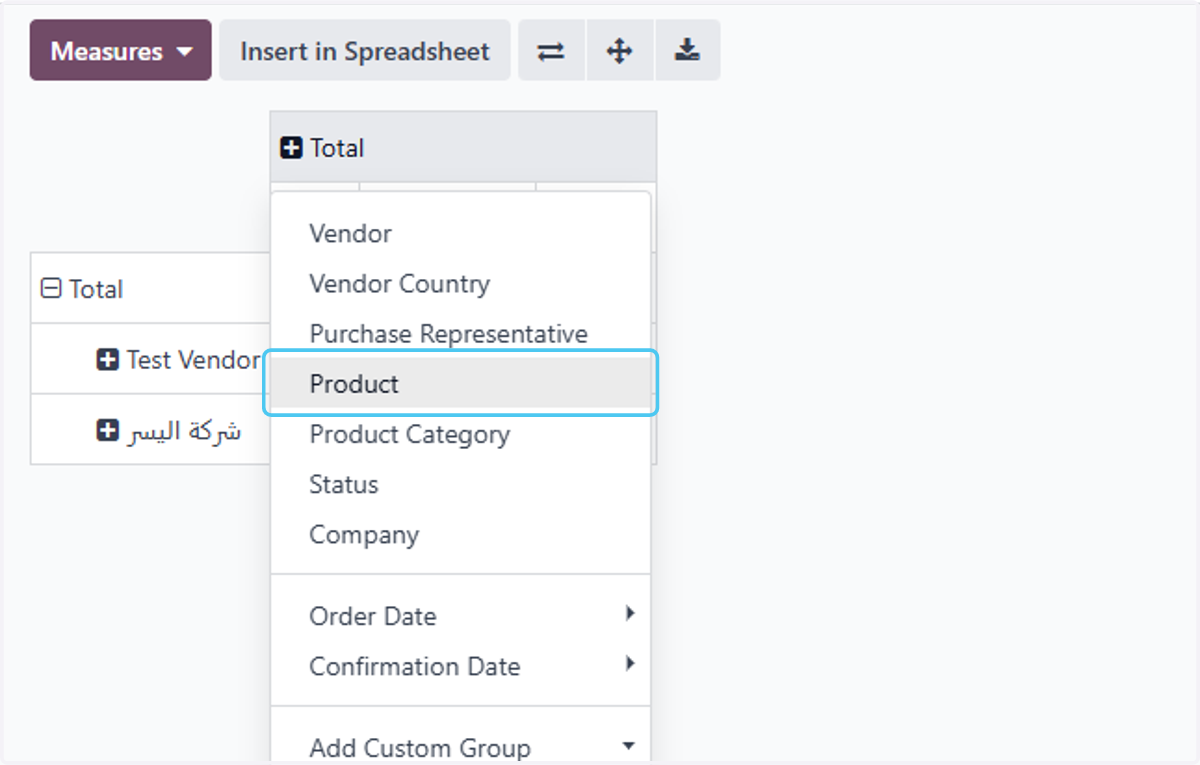
    Click on Product to filter by the product
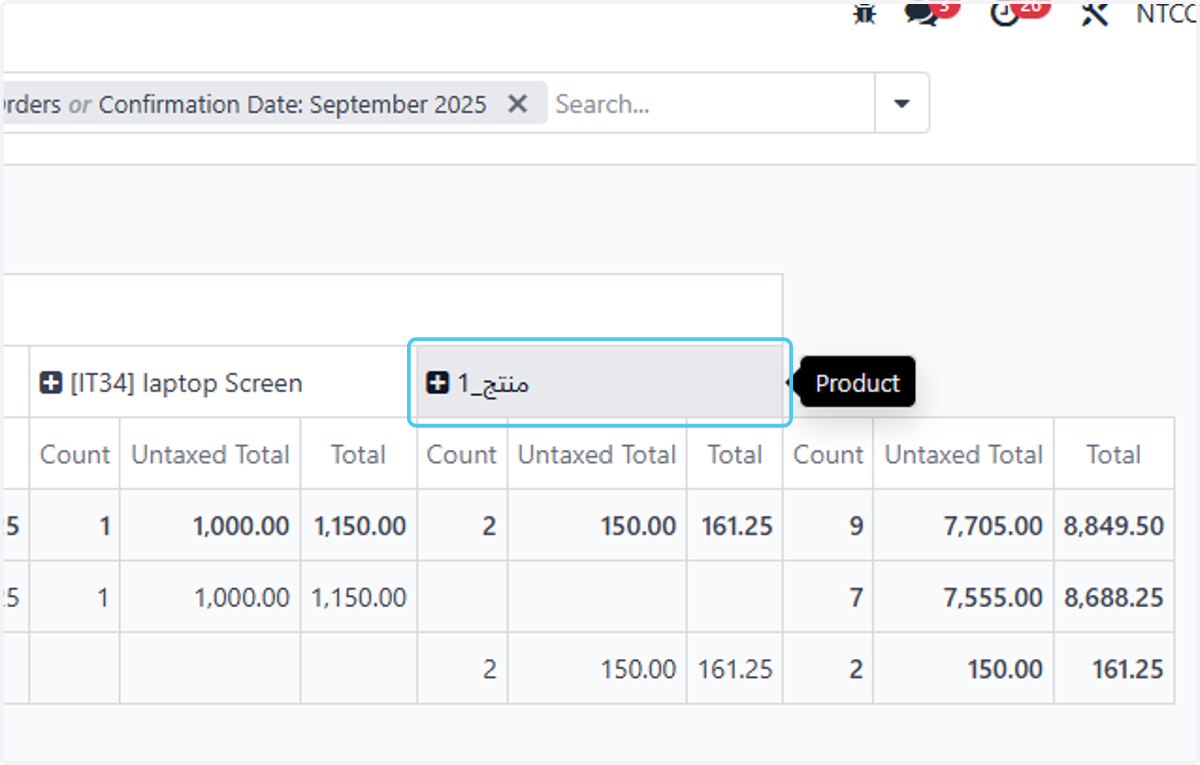
  23. 23. Click on منتج_1

    Click on منتج_1
  24. 24. Click on Download xlsx to download it in excel form
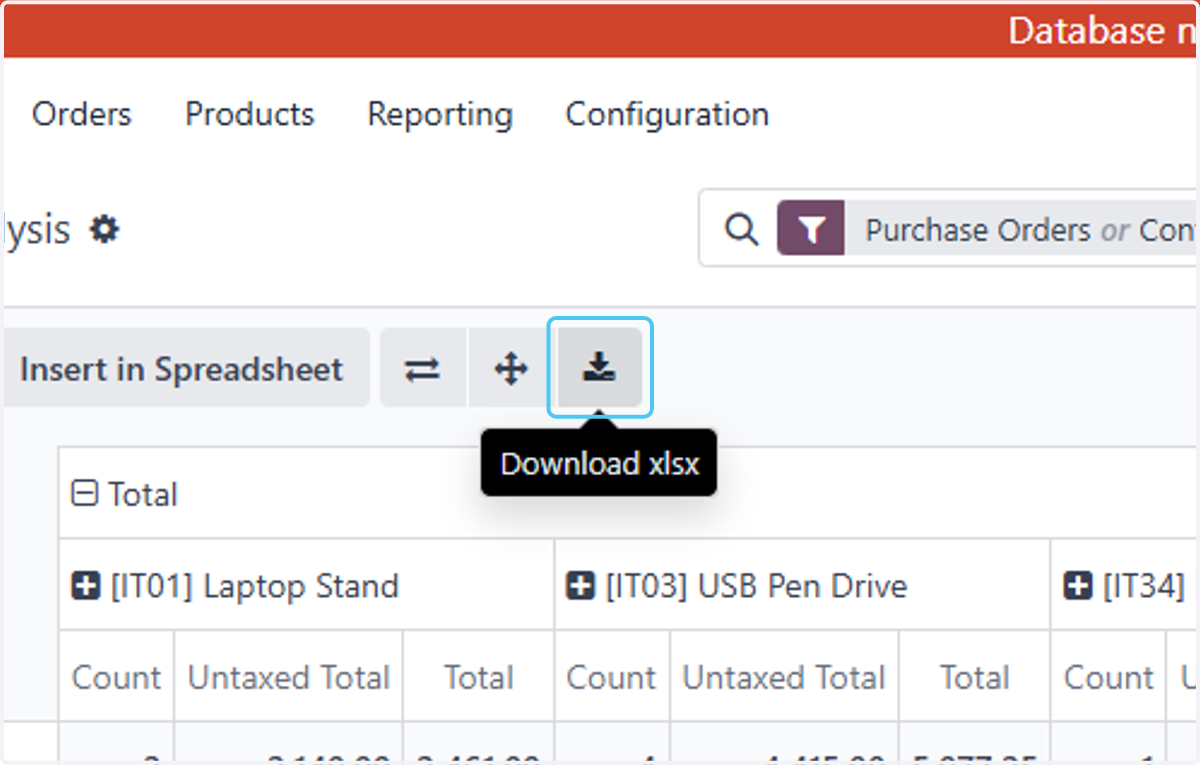
    Click on Download xlsx to download it in excel form