AI Assisted Resume Writing with KickResume
Kickresume
1. Go to www.kickresume.com (the next steps are required to create your FREE KickResume.com account)
2. Click on Log in with Google
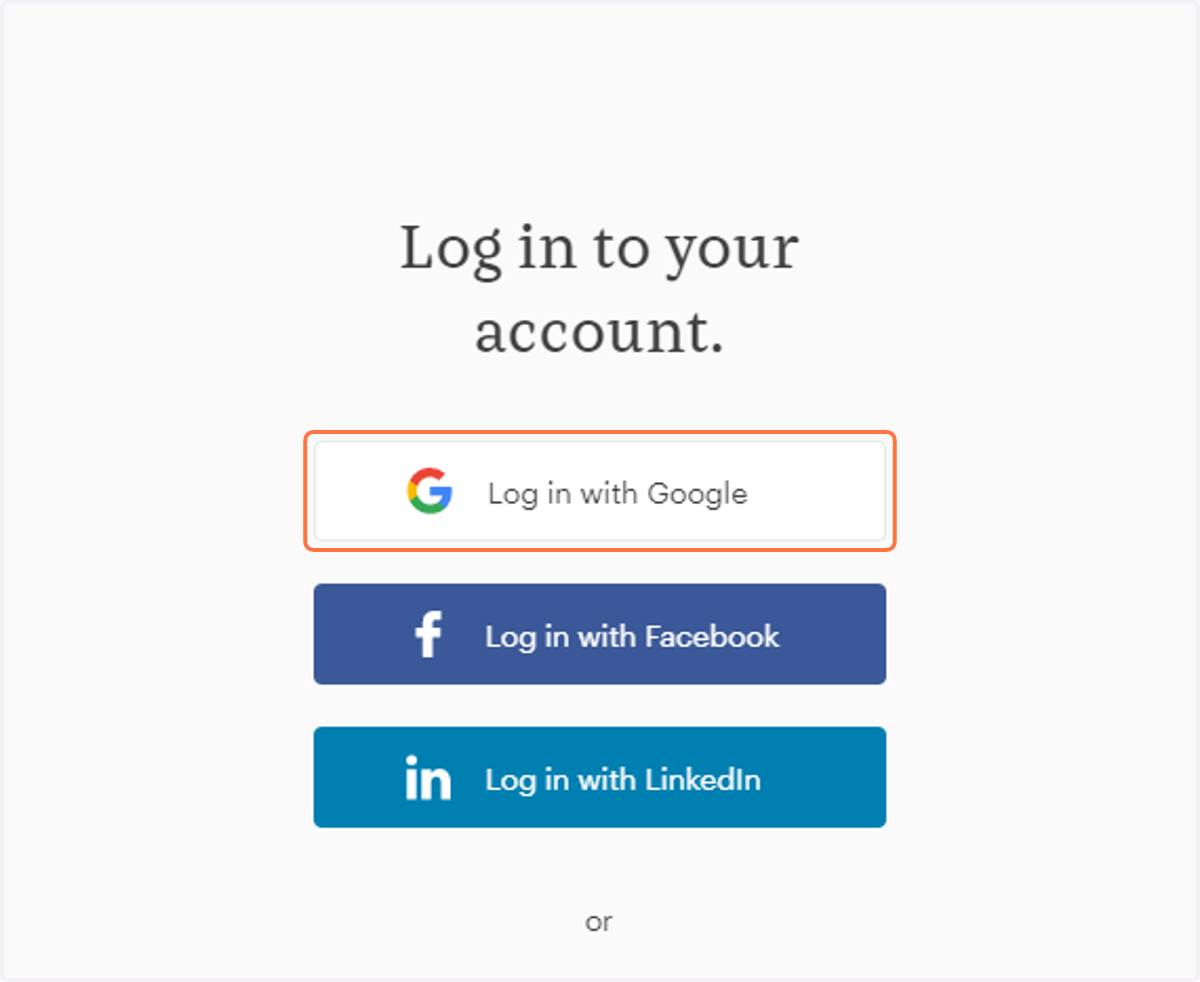
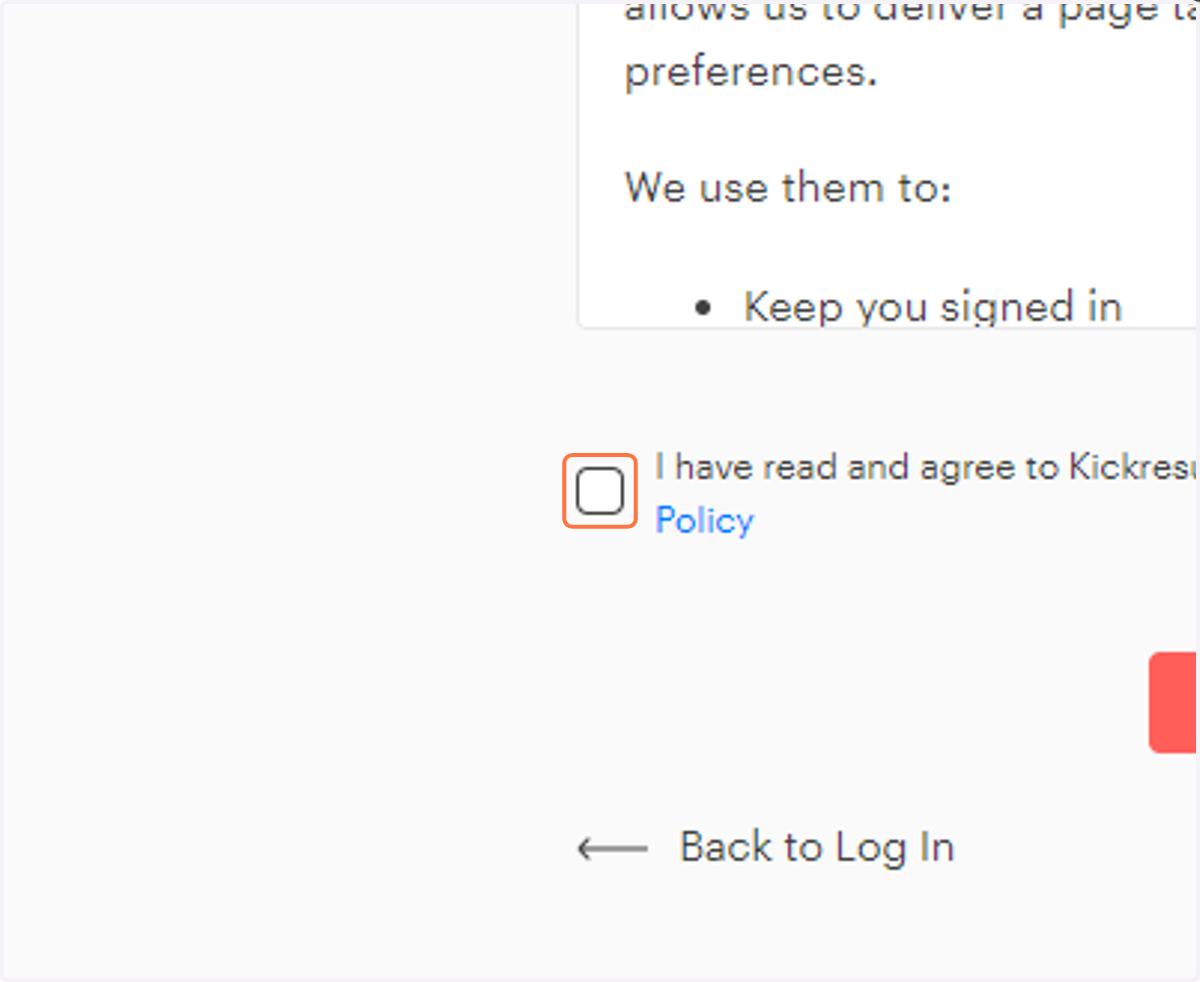
3. After you are successfully authenticated (e.g. via Google, as shown), you should return to the KickResume app and continue.: Click to acknowledge the terms, and continue.
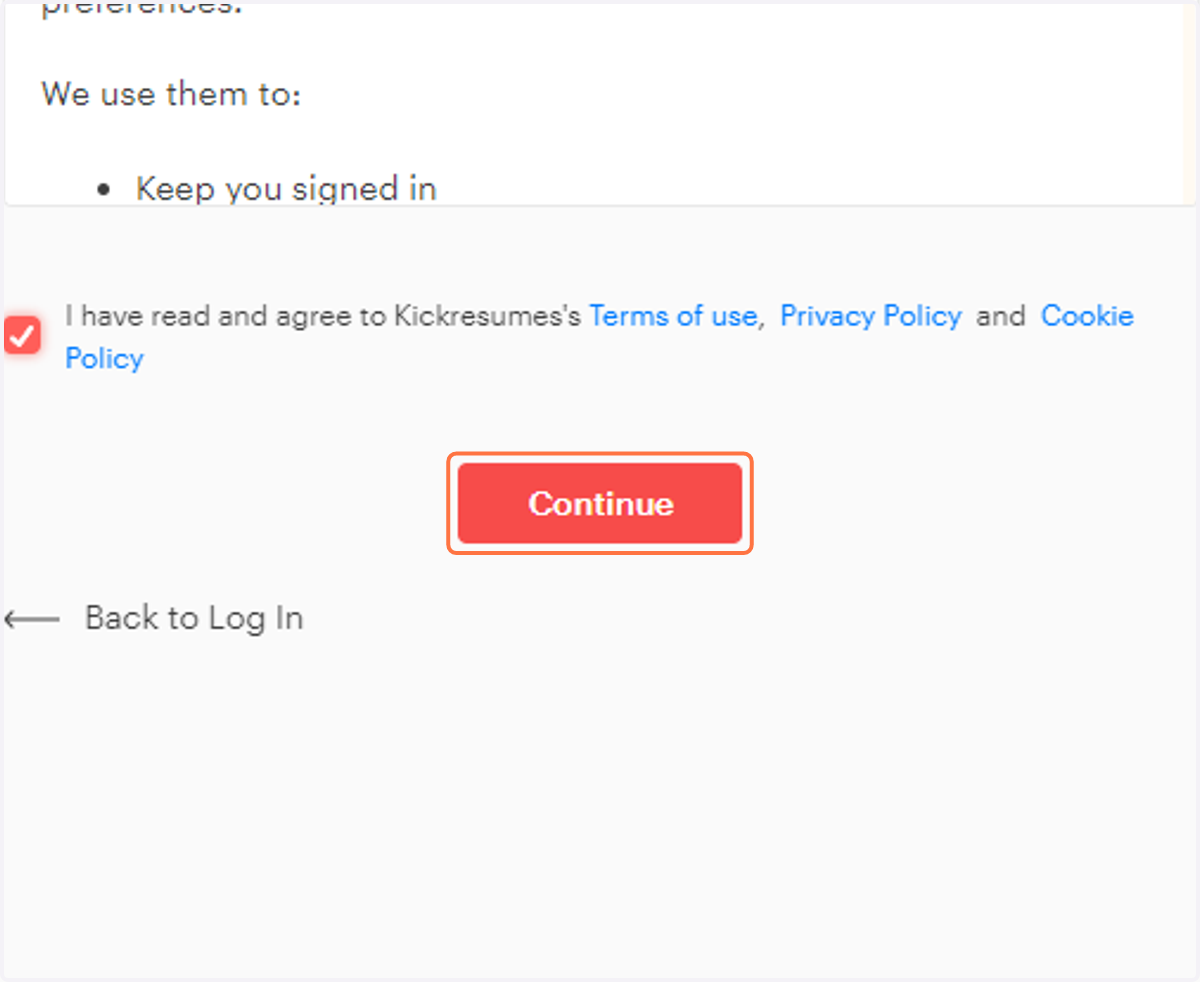
4. Click on Continue
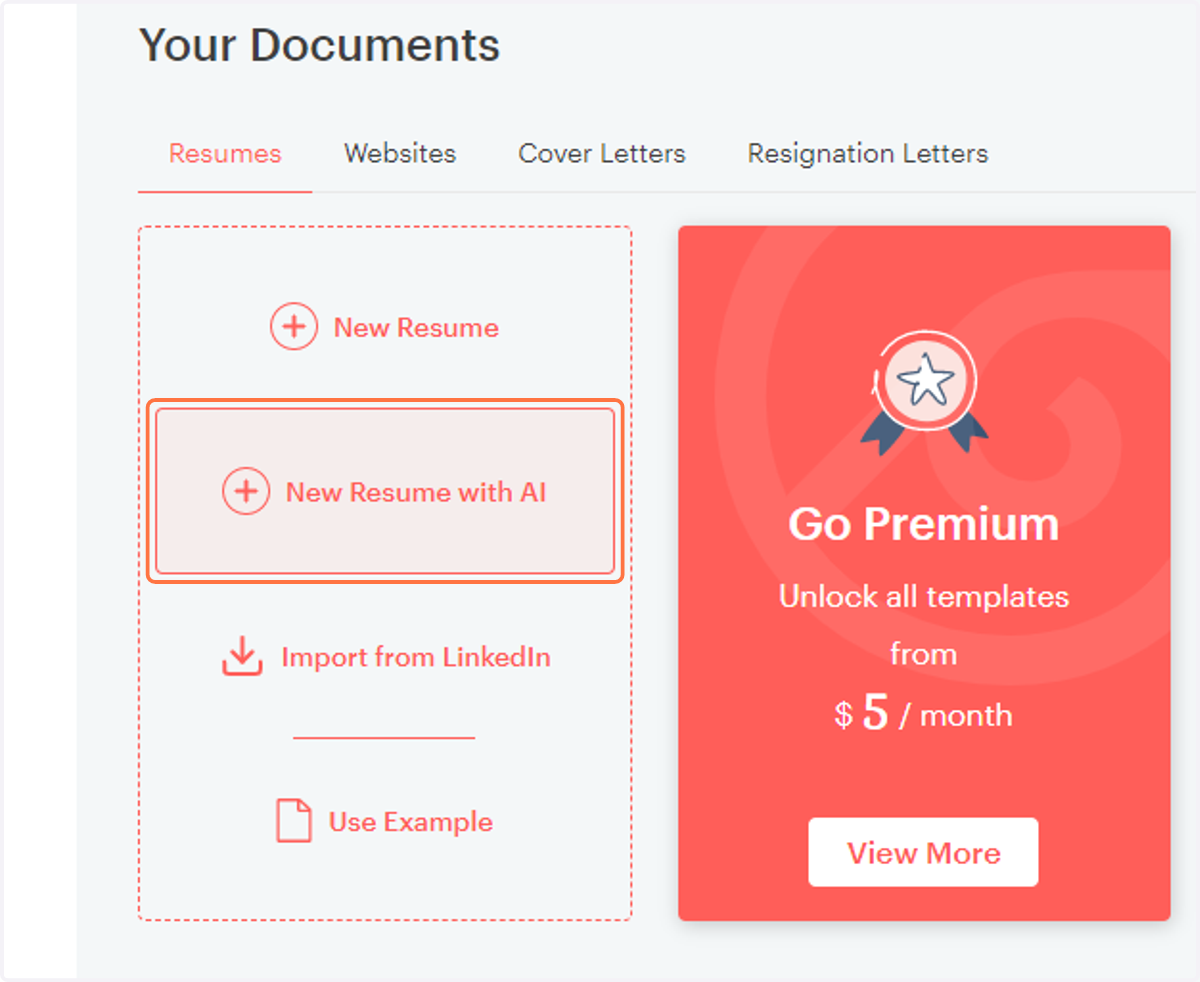
5. Click on New Resume with AI
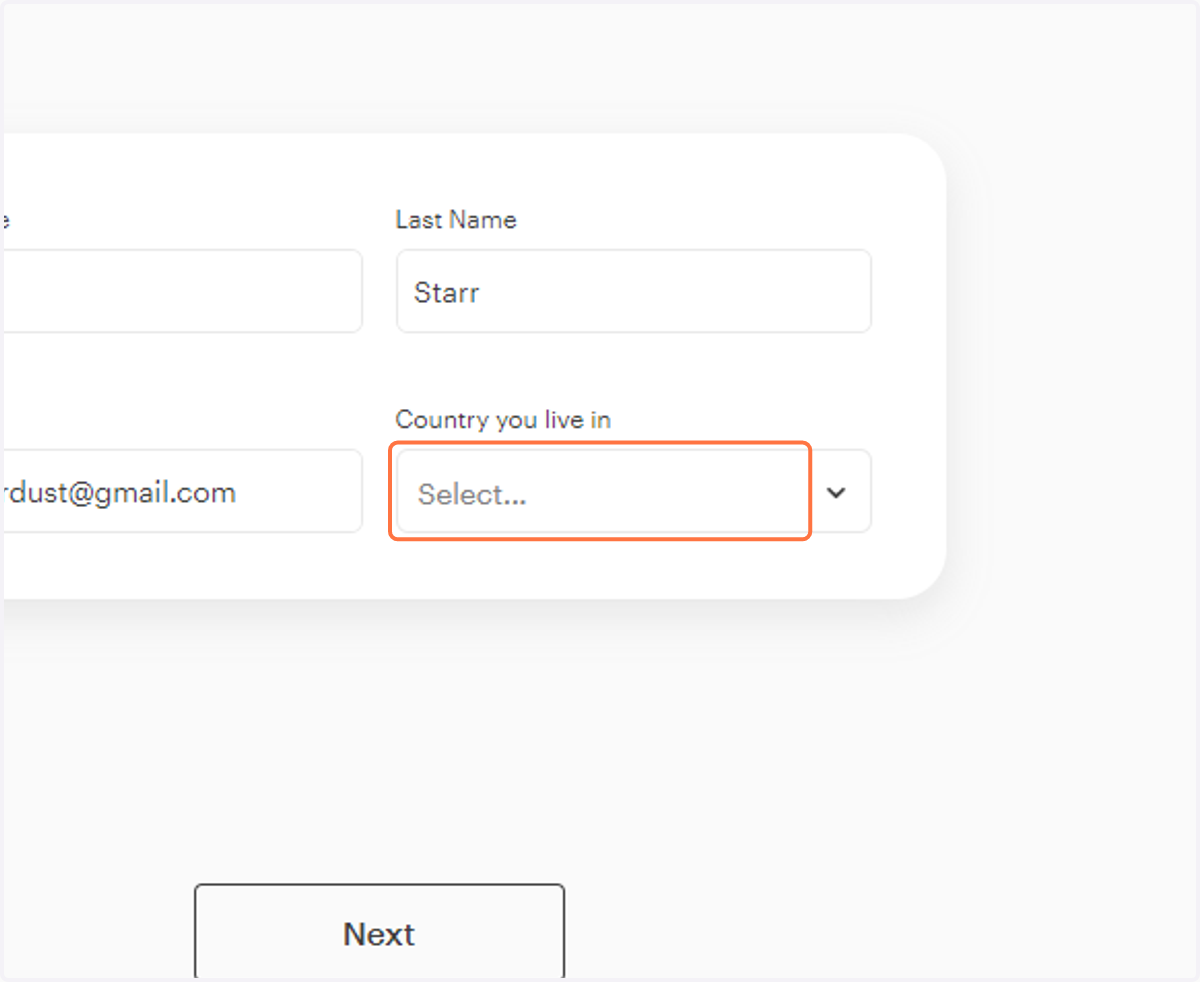
6. Click on Select...
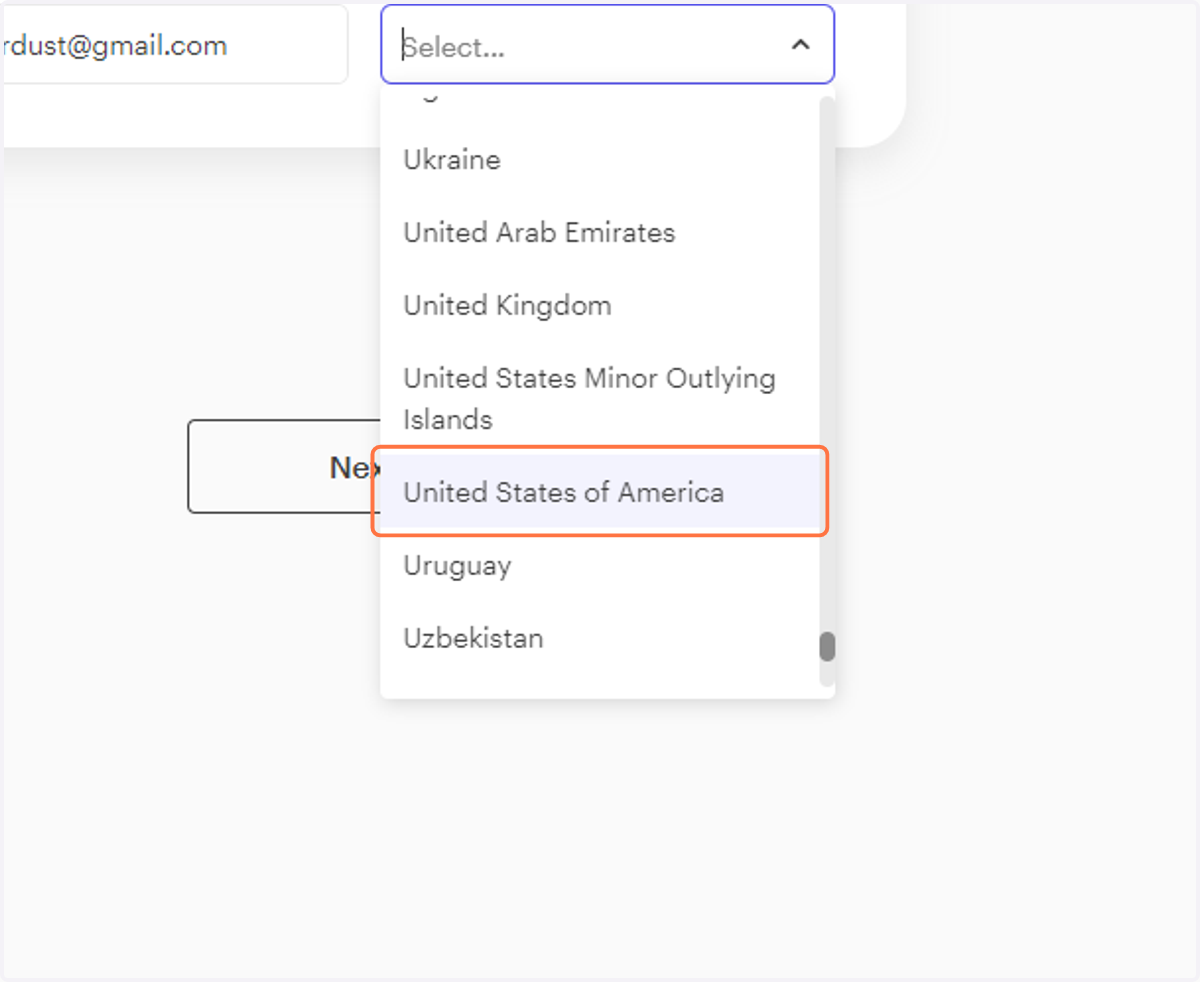
7. Click on United States of America
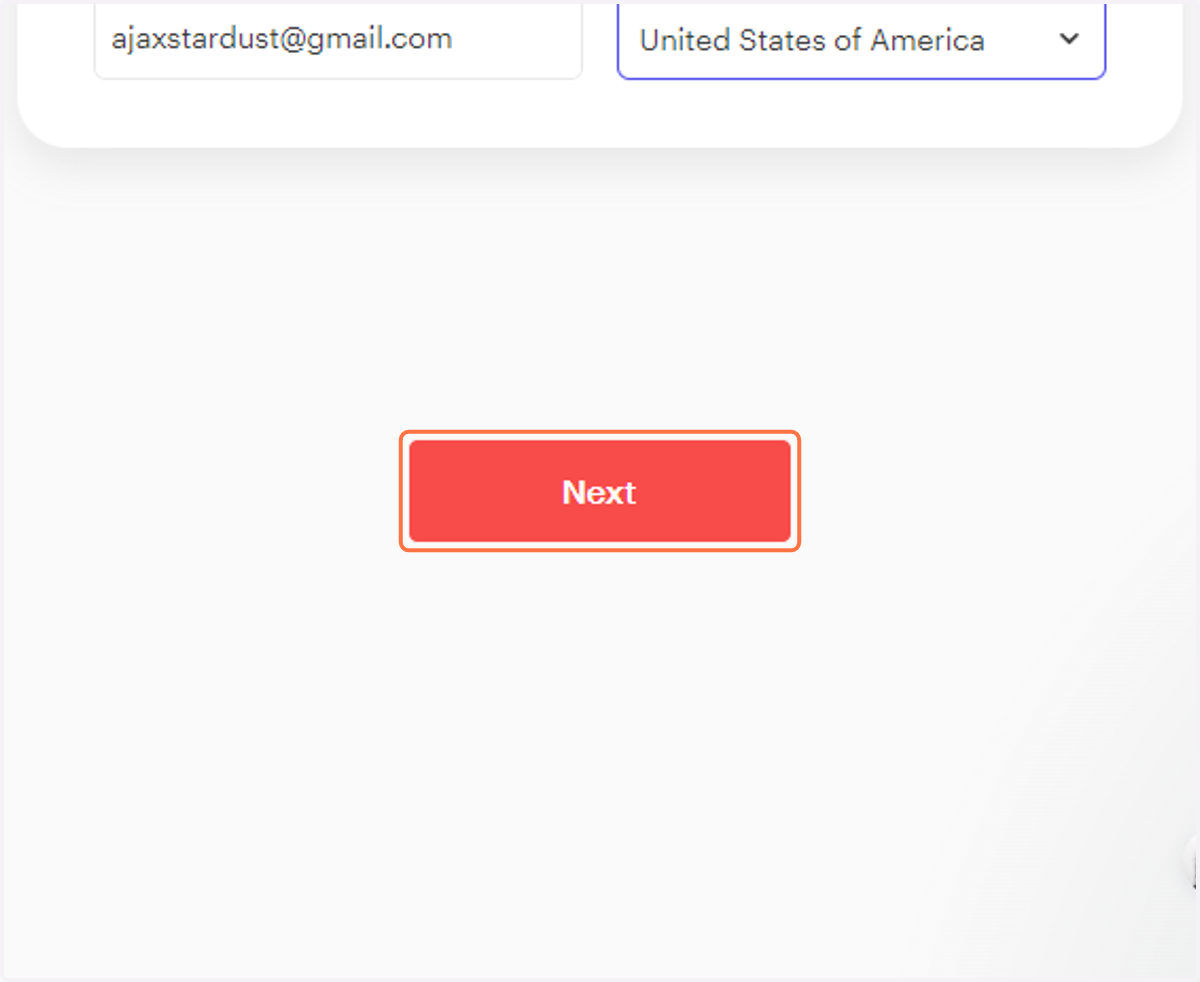
8. Click on Next
9. Enter Your Employment History
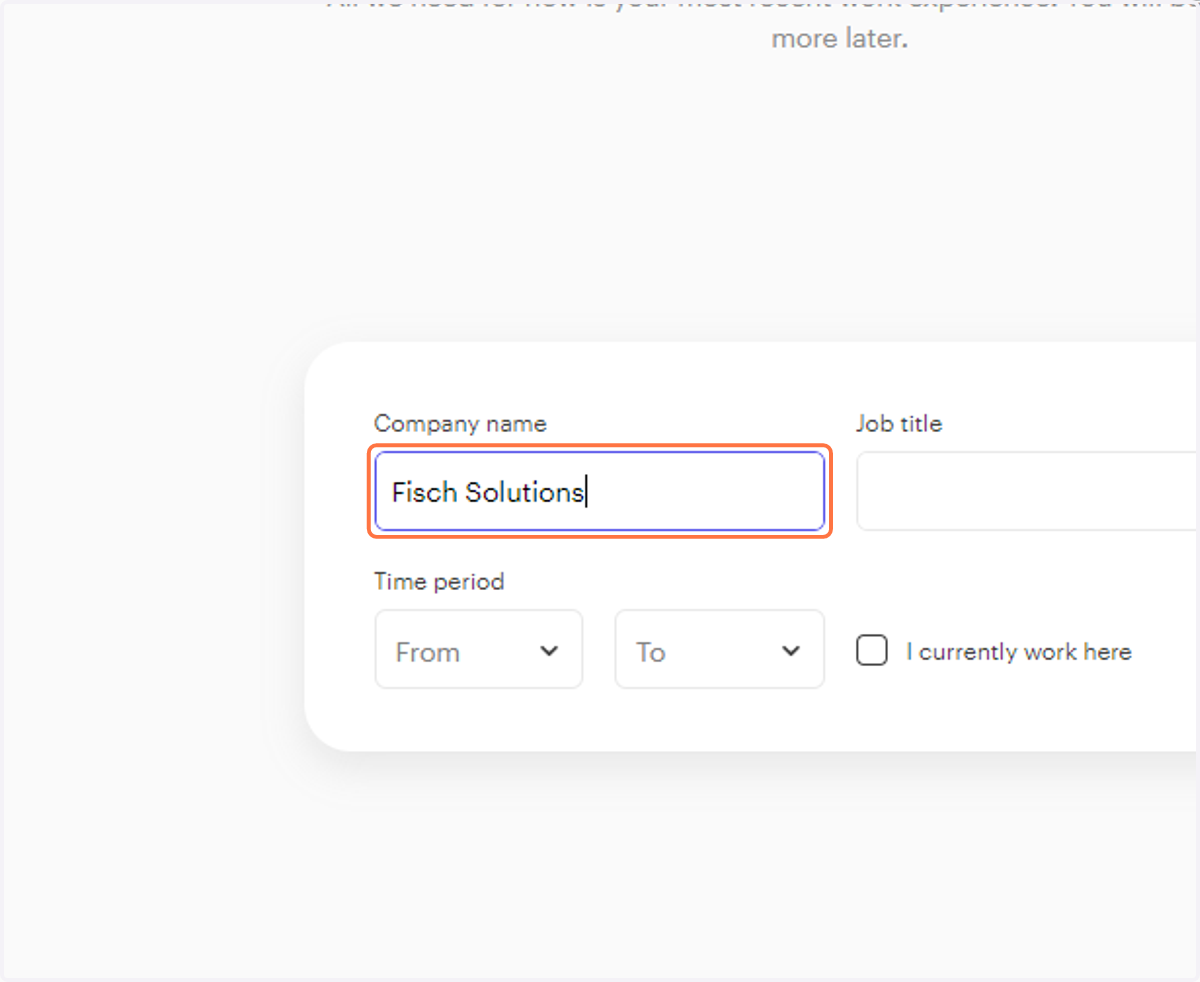
10. Enter Employment Dates.
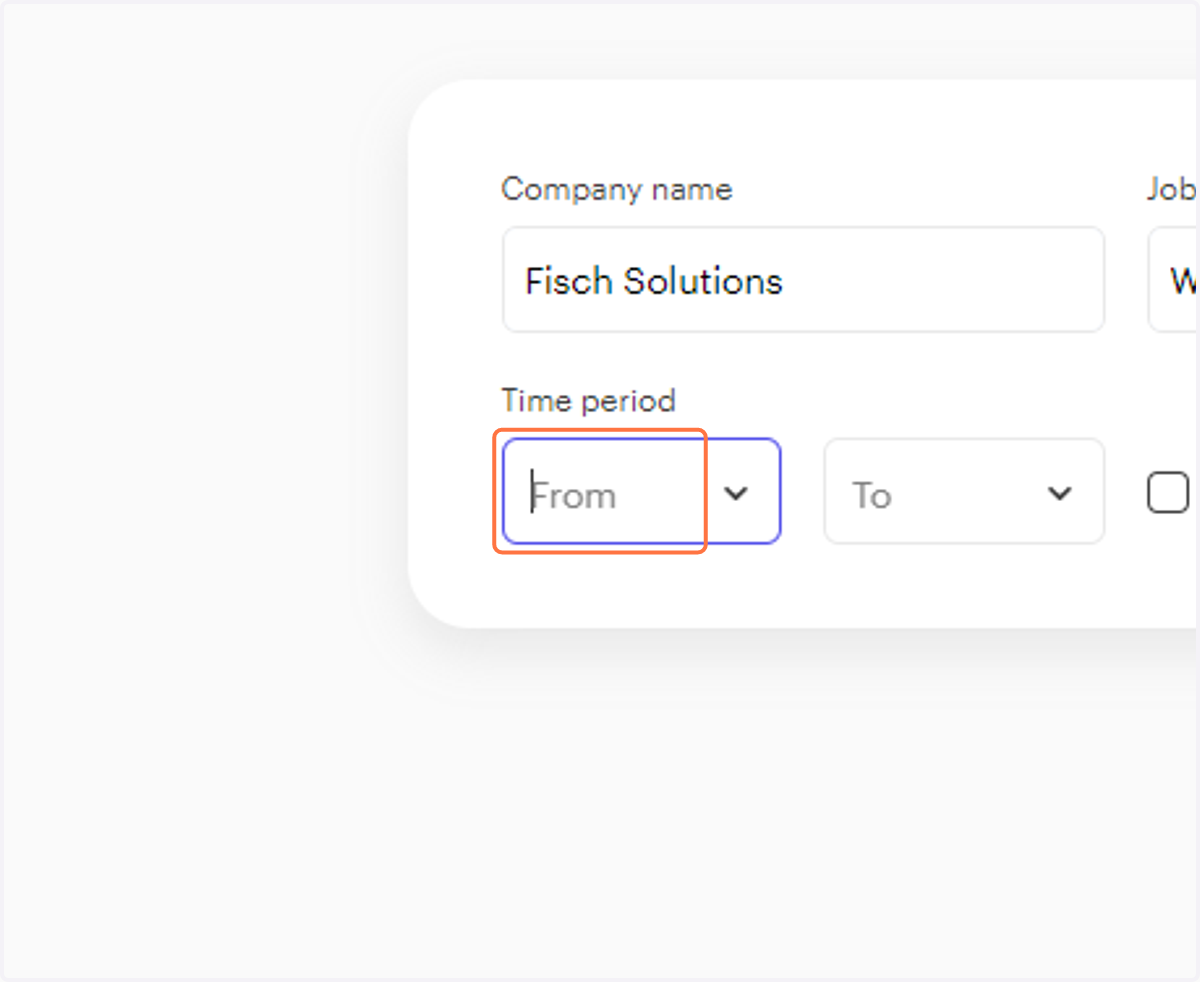
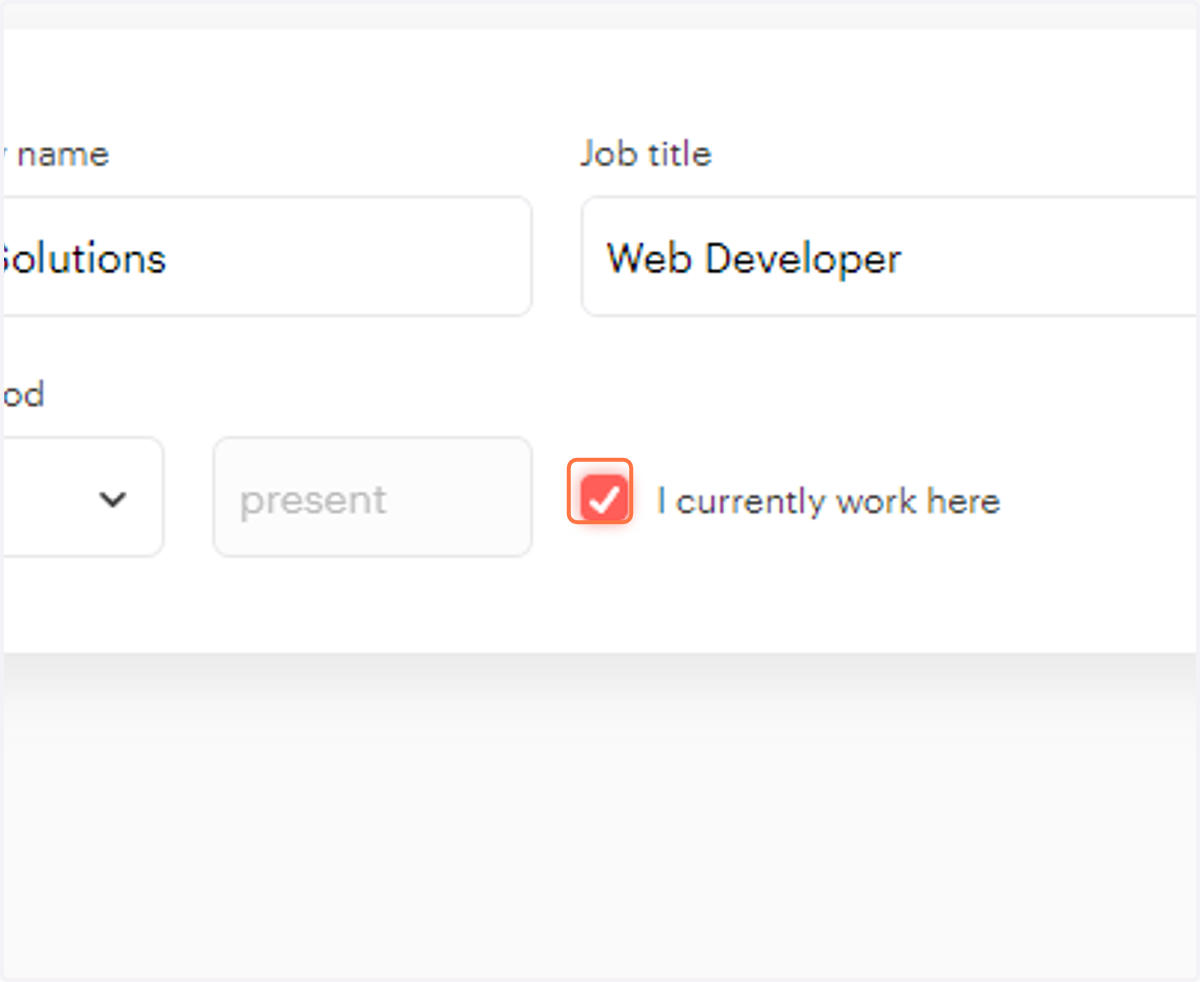
11. Do you still work there?
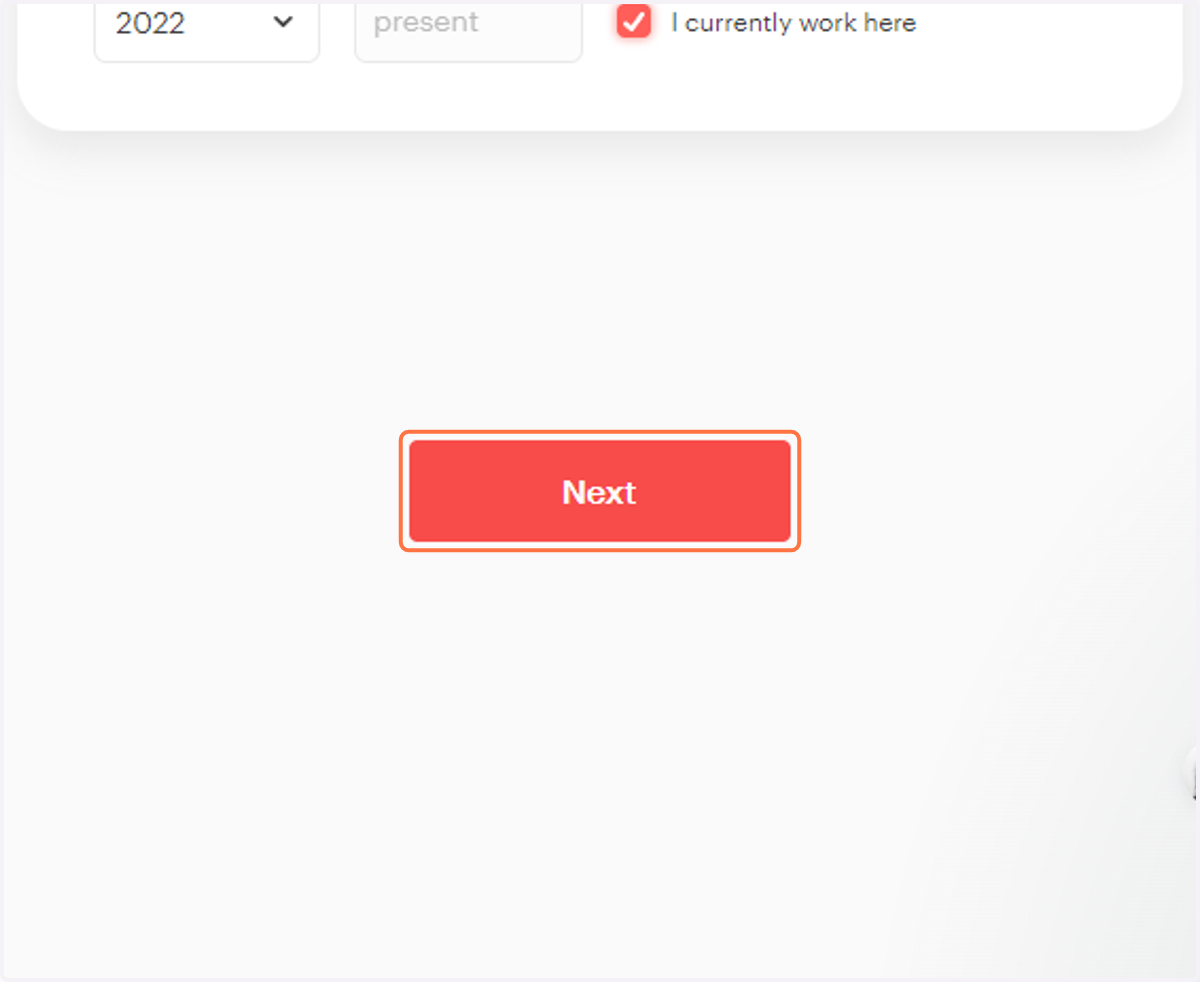
12. Click on Next
13. Enter your Education
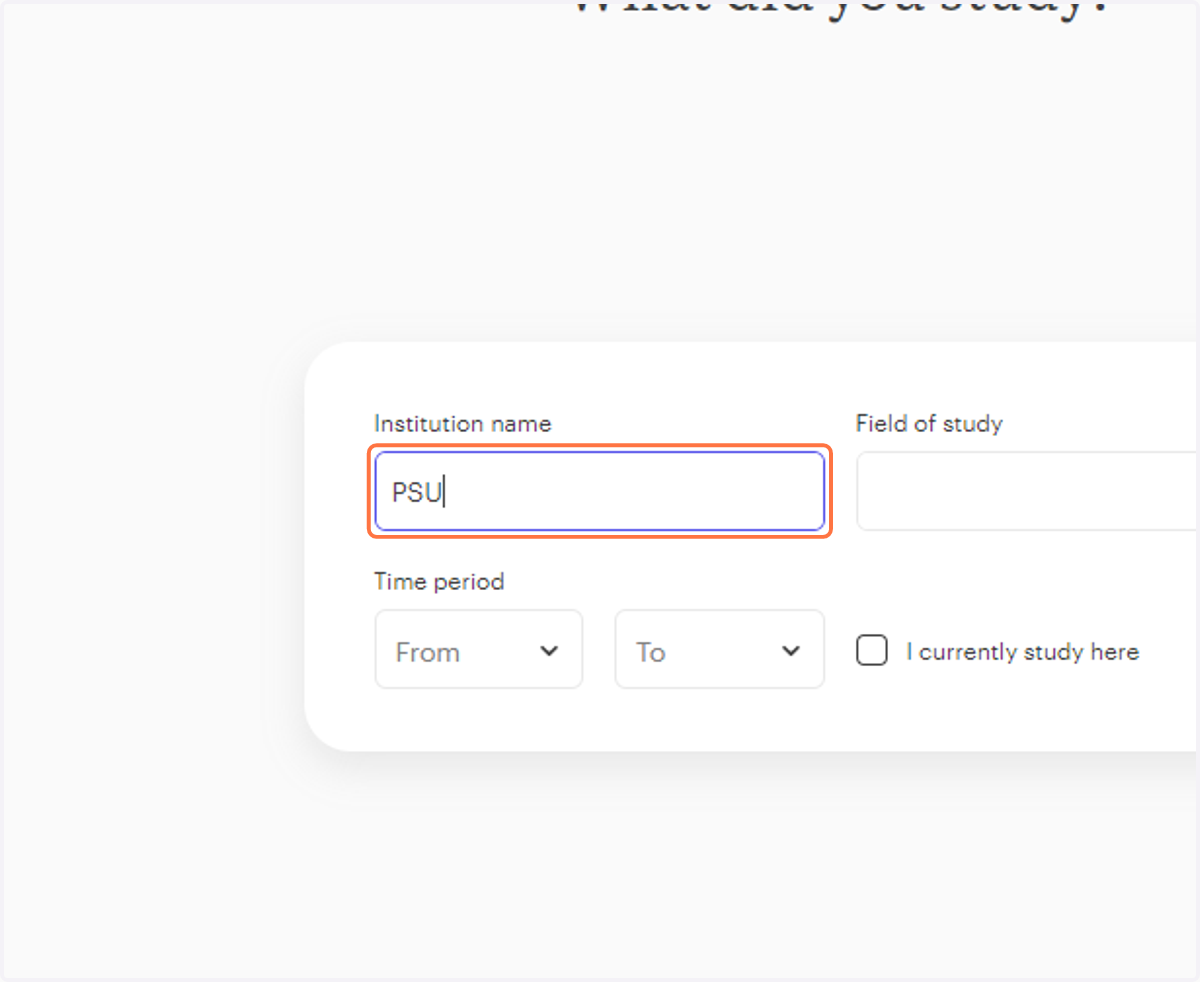
14. Click on Next
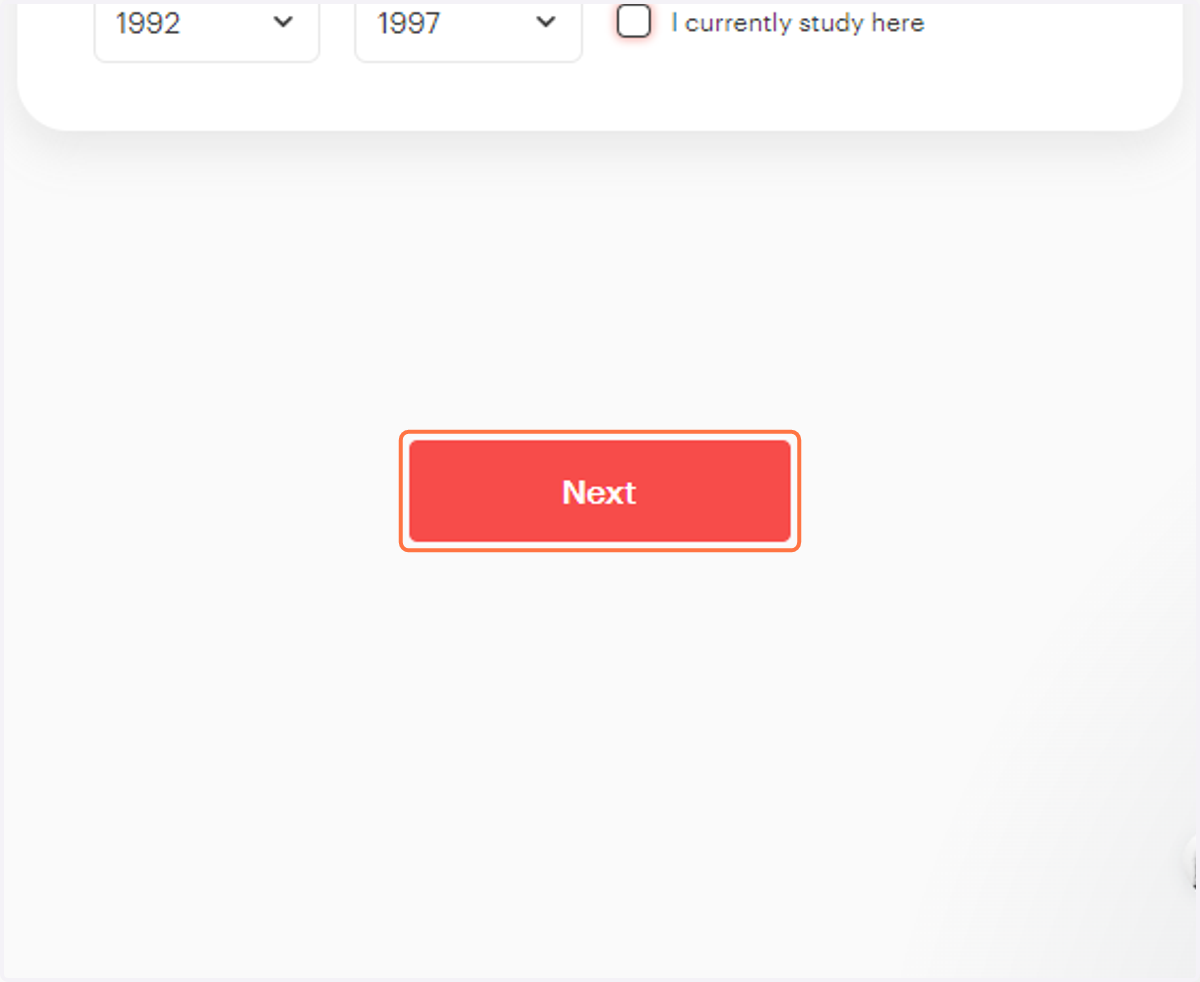
15. Click on "Type something" - type ONE skill then press ENTER (no commas). Repeat
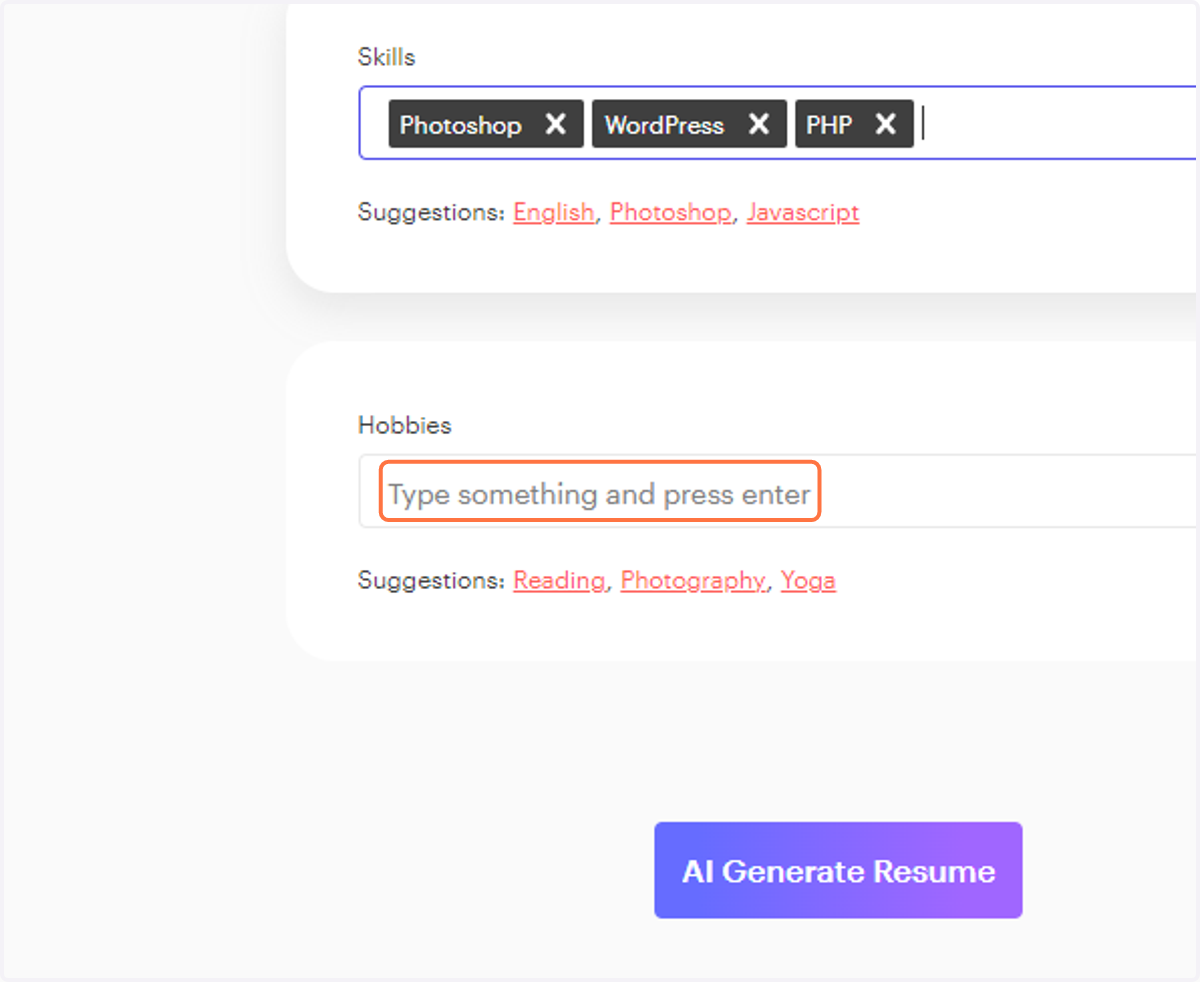
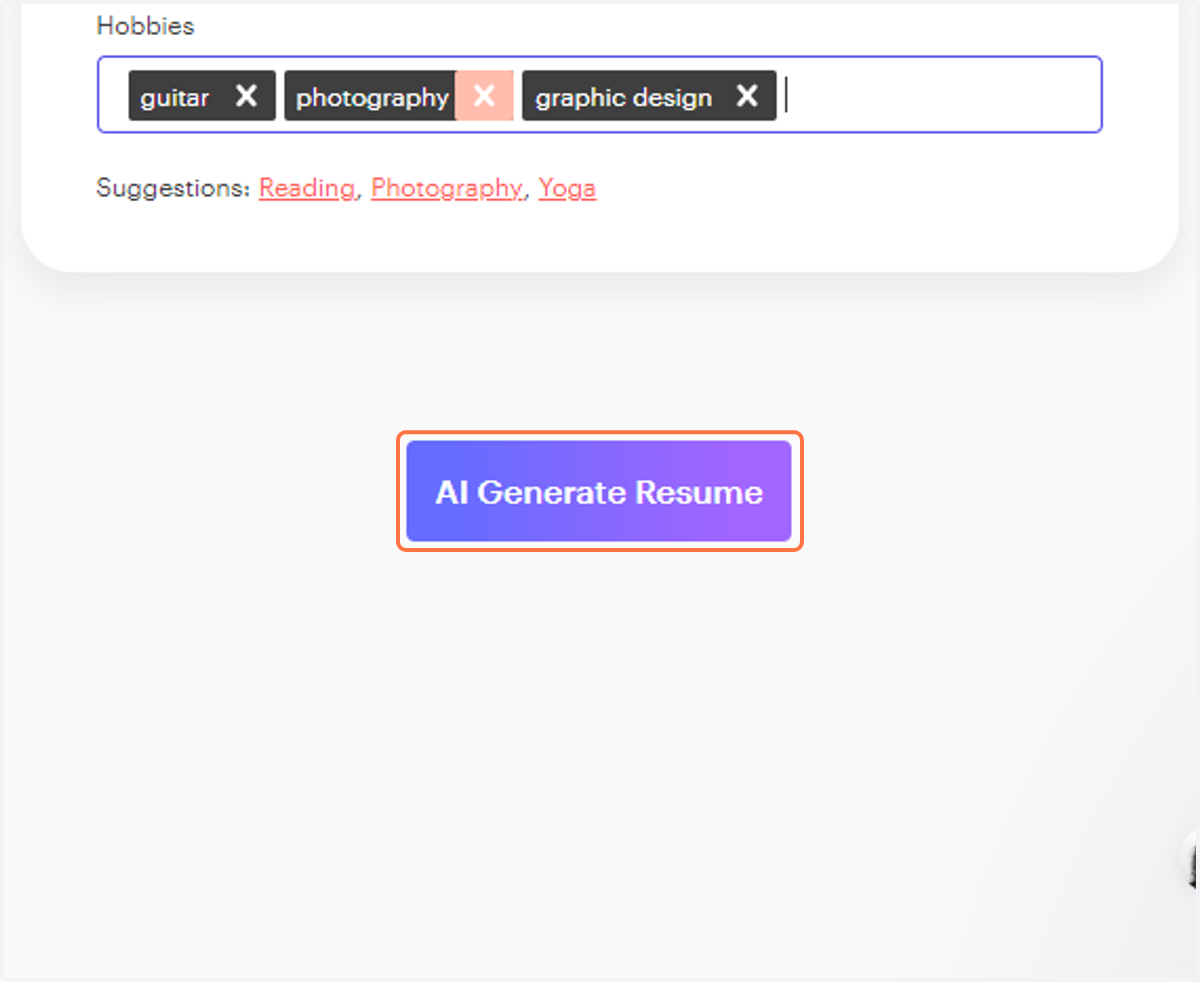
16. Enter a few hobbies.
NOTE: The AI assist didnt work until I entered 3 Skills and 3 hobbies. You might need to adjust yours if it doesnt on your first try.
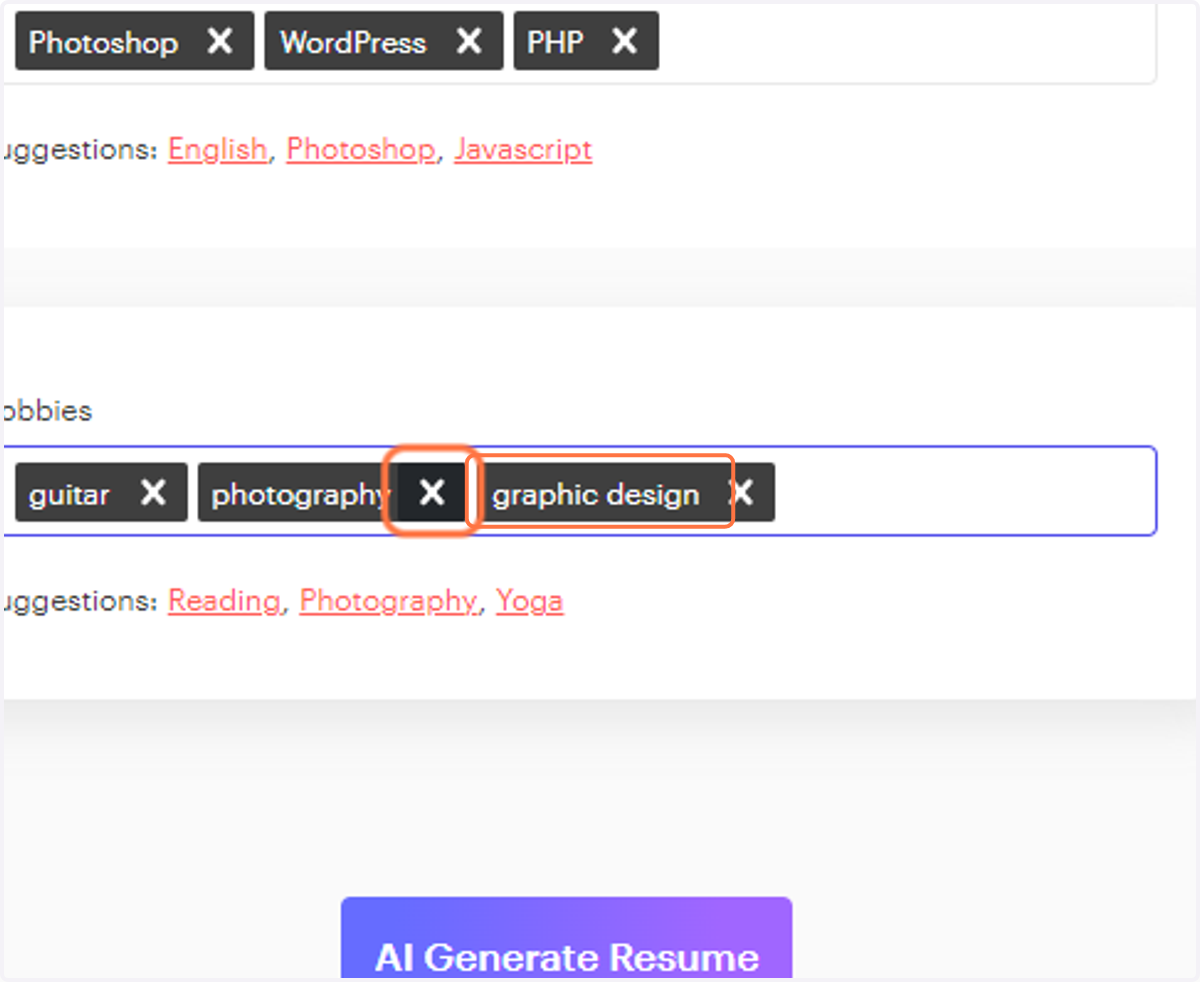
17. Click on AI Generate Resume
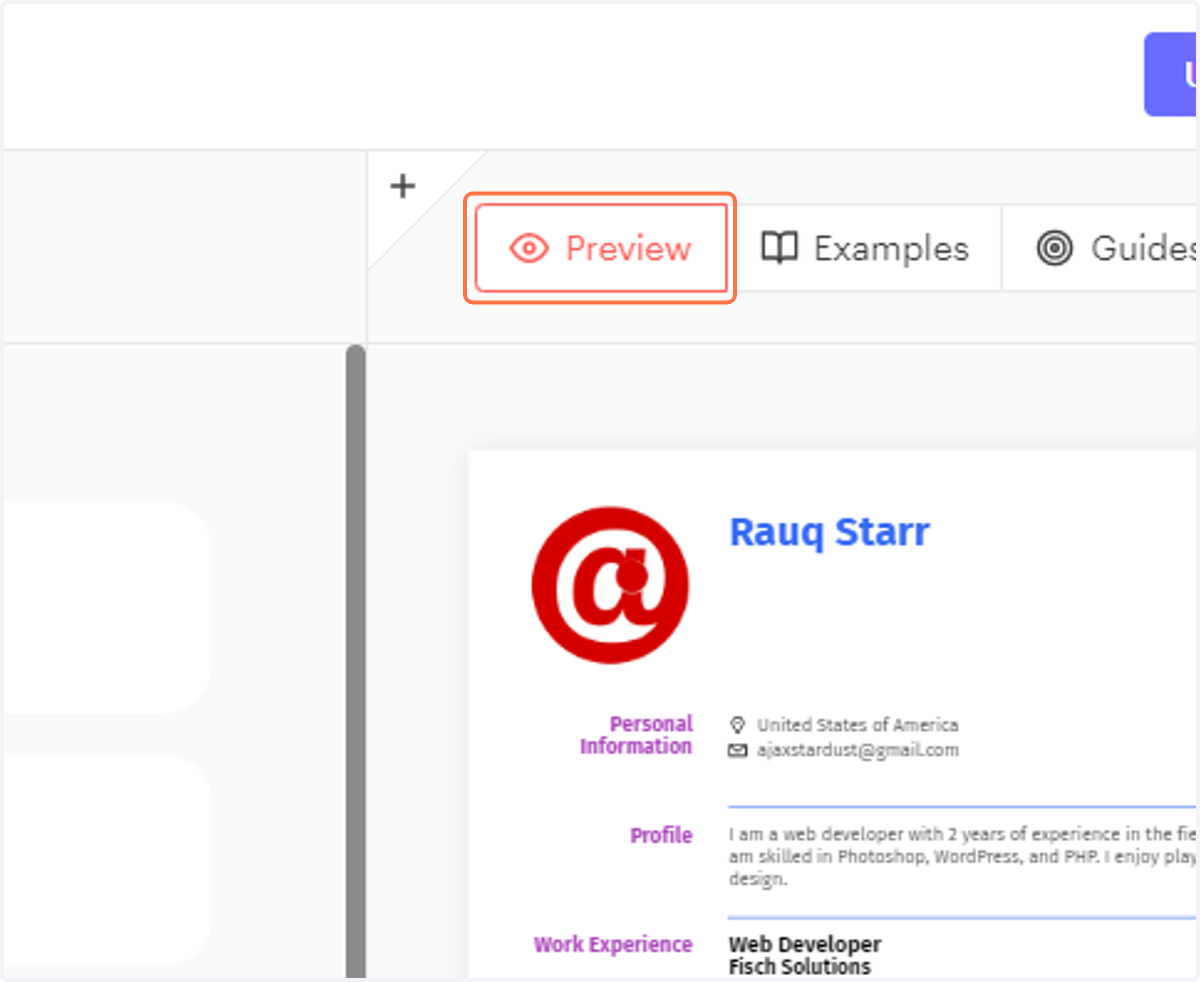
18. Click on Preview
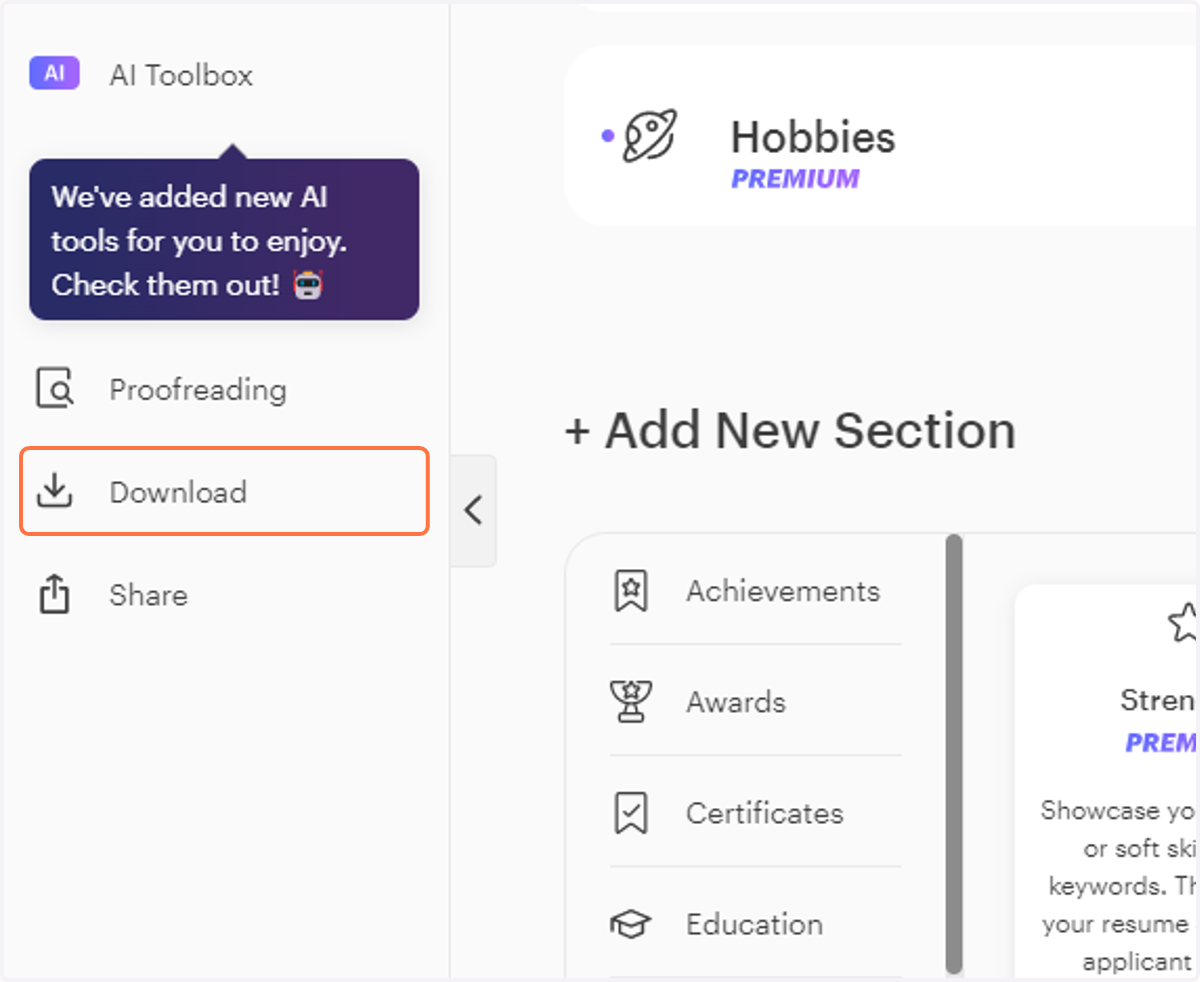
19. Click on Download
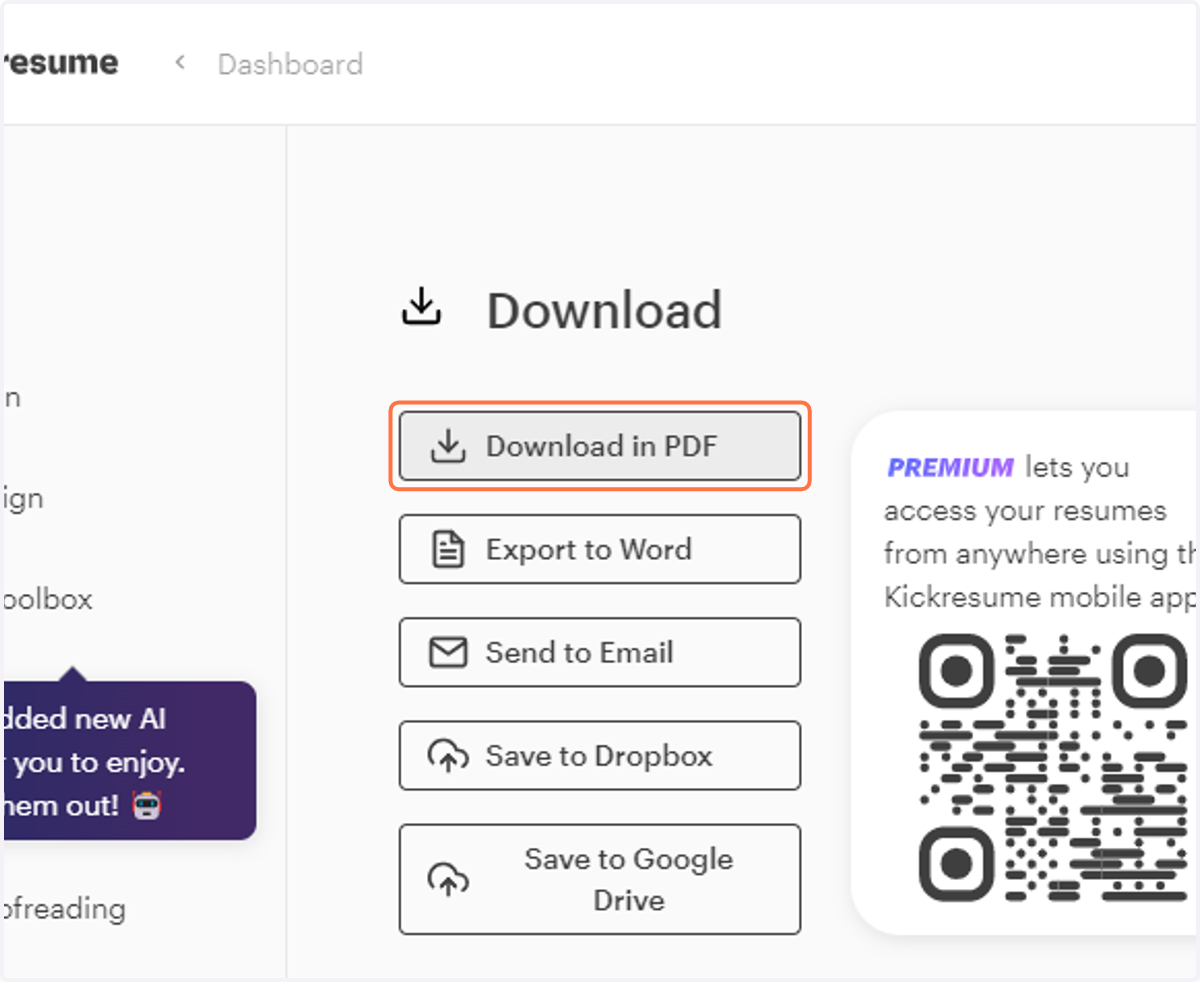
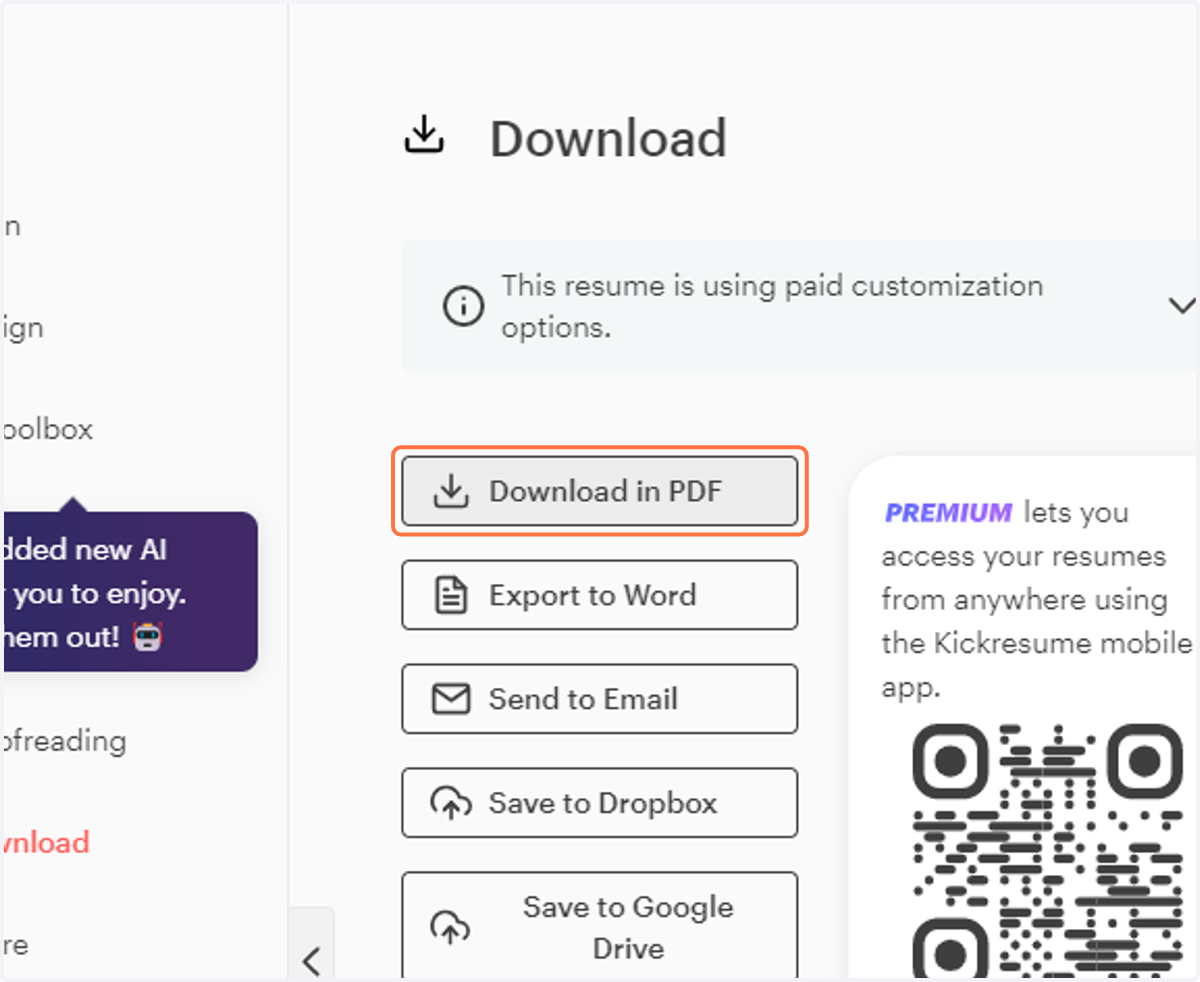
20. Click on Download in PDF
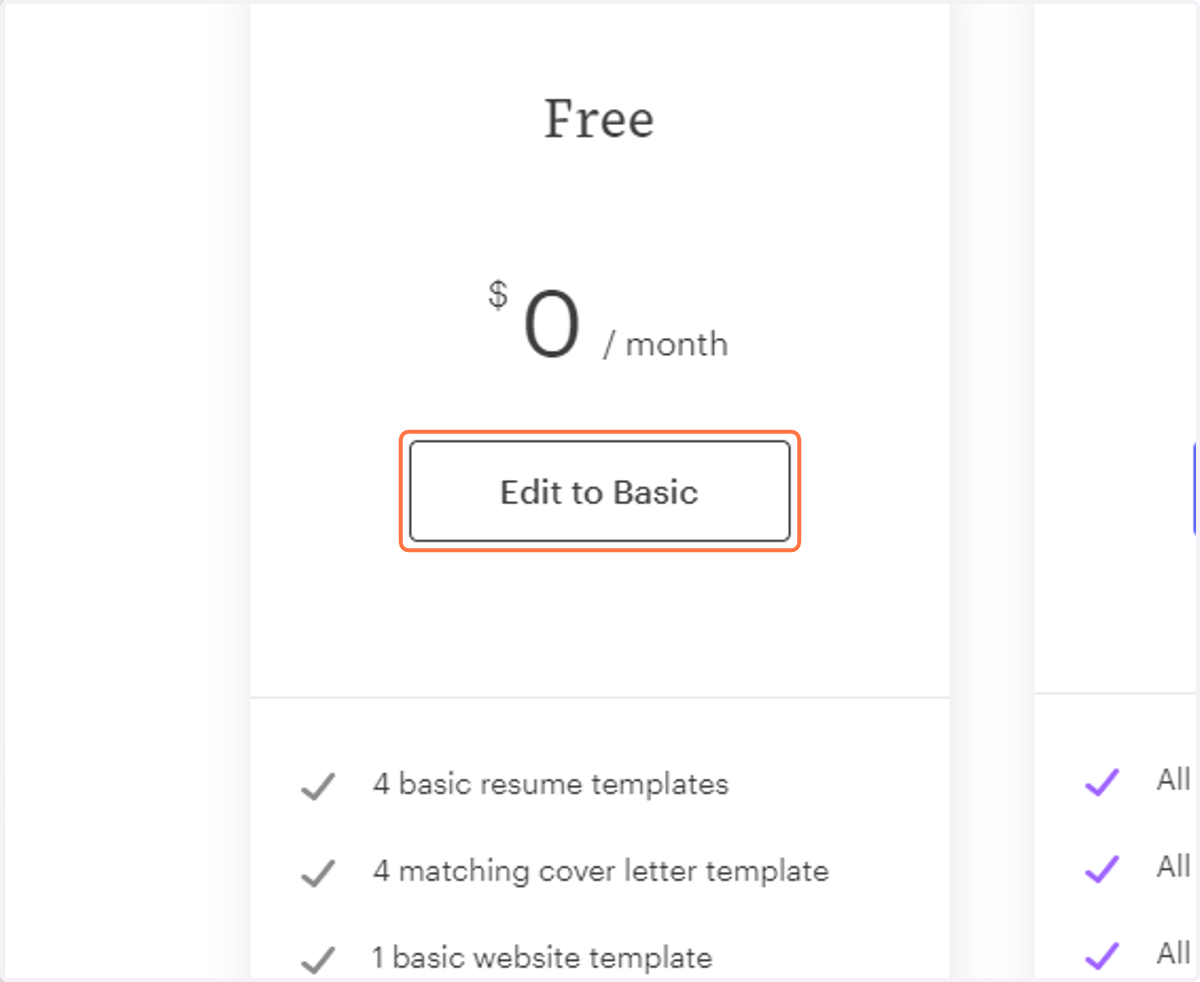
21. Click on Edit to Basic
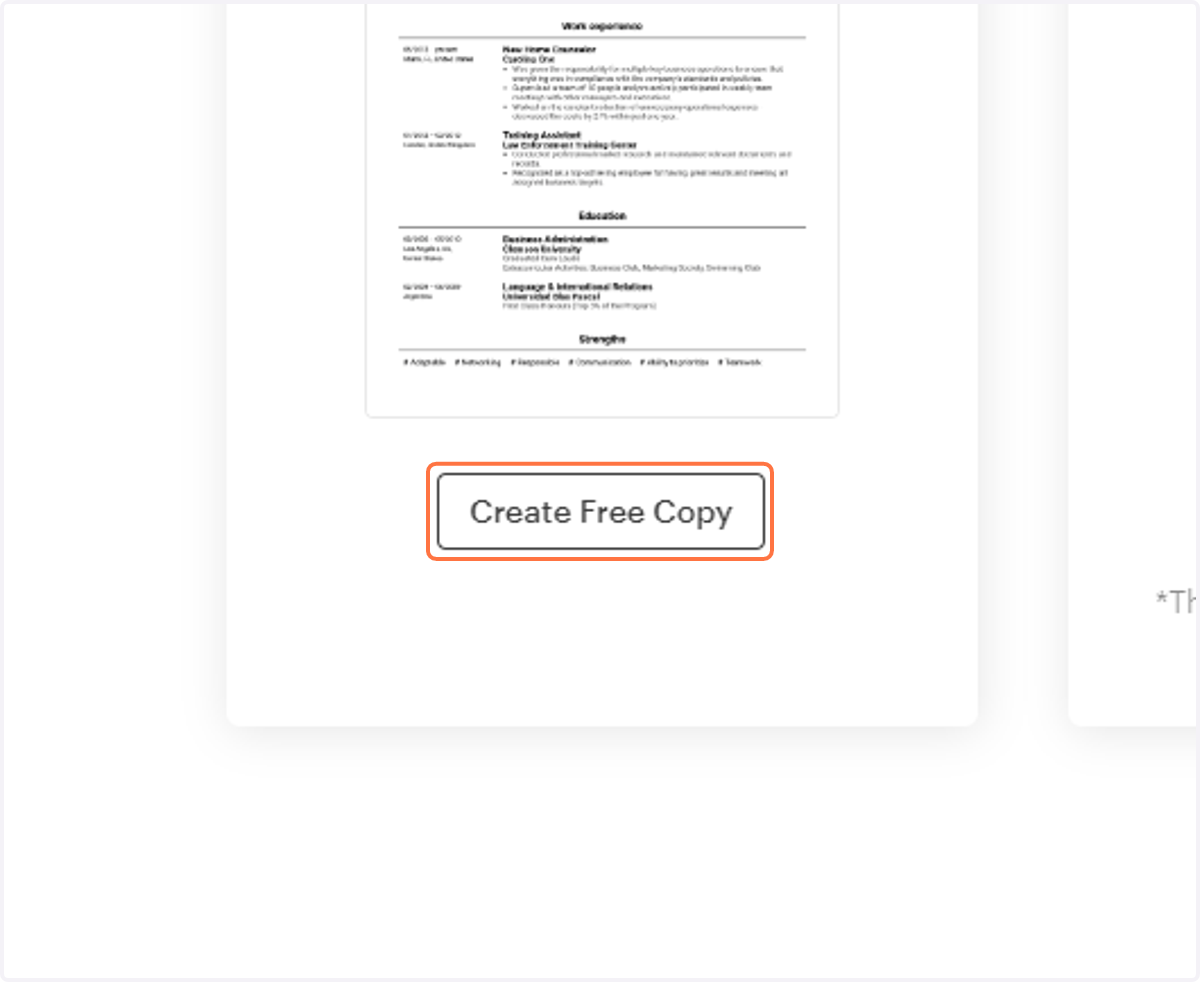
22. Click on Create Free Copy
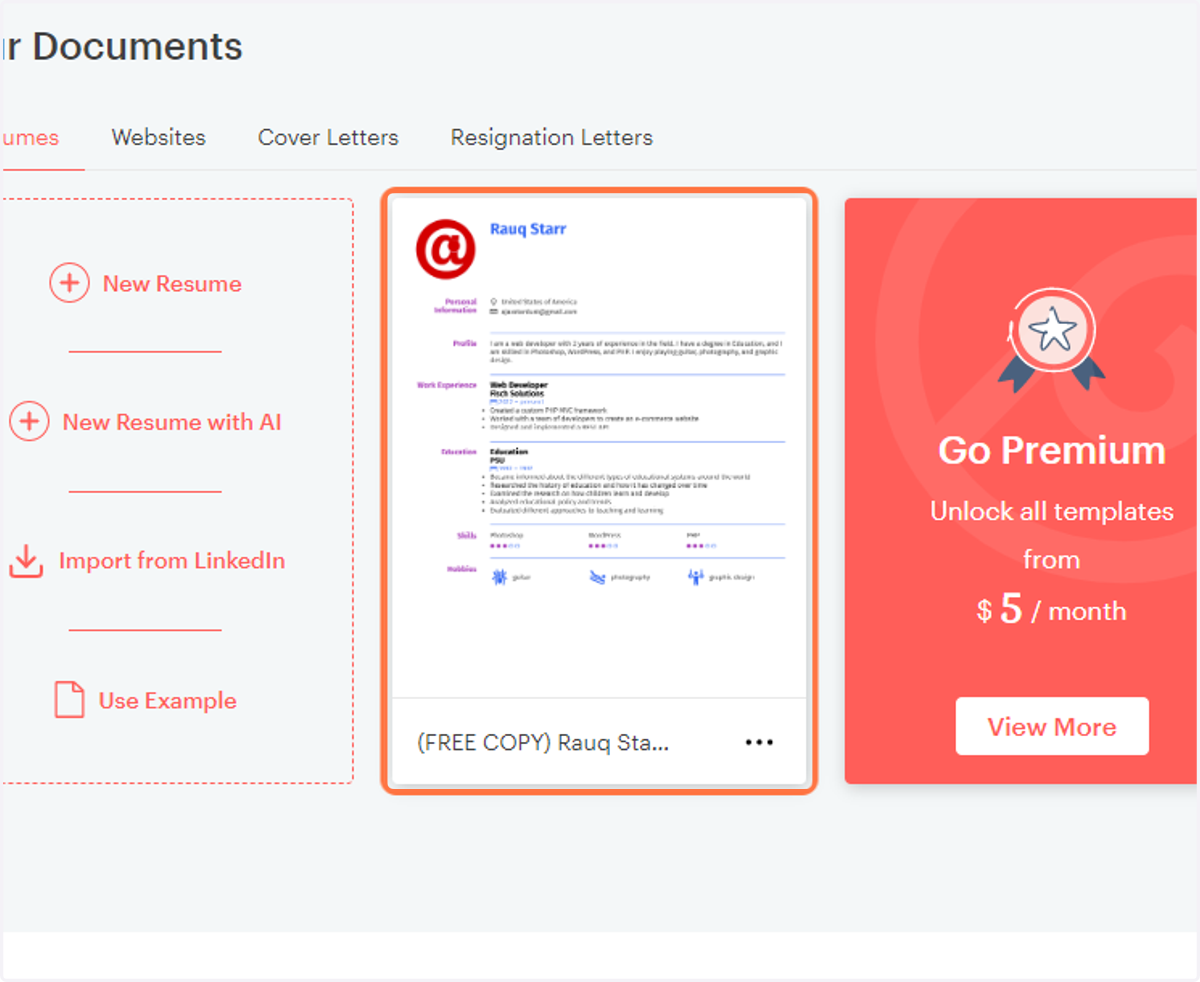
23. Click on thumbnail
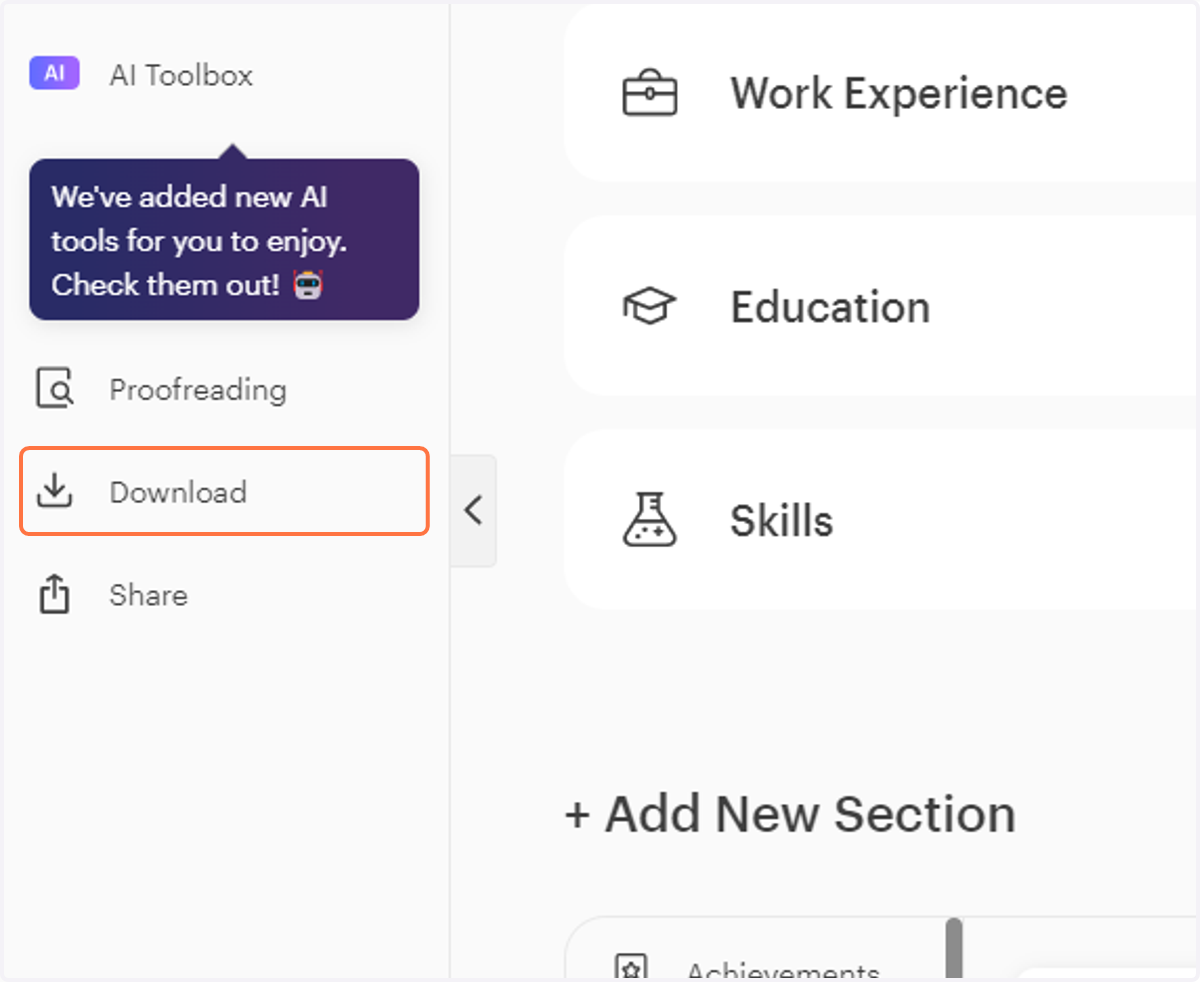
24. Click on Download
25. Click on Download in PDF