How to Configure Material Request Type in Odoo - iProcurement iLines
Odoo
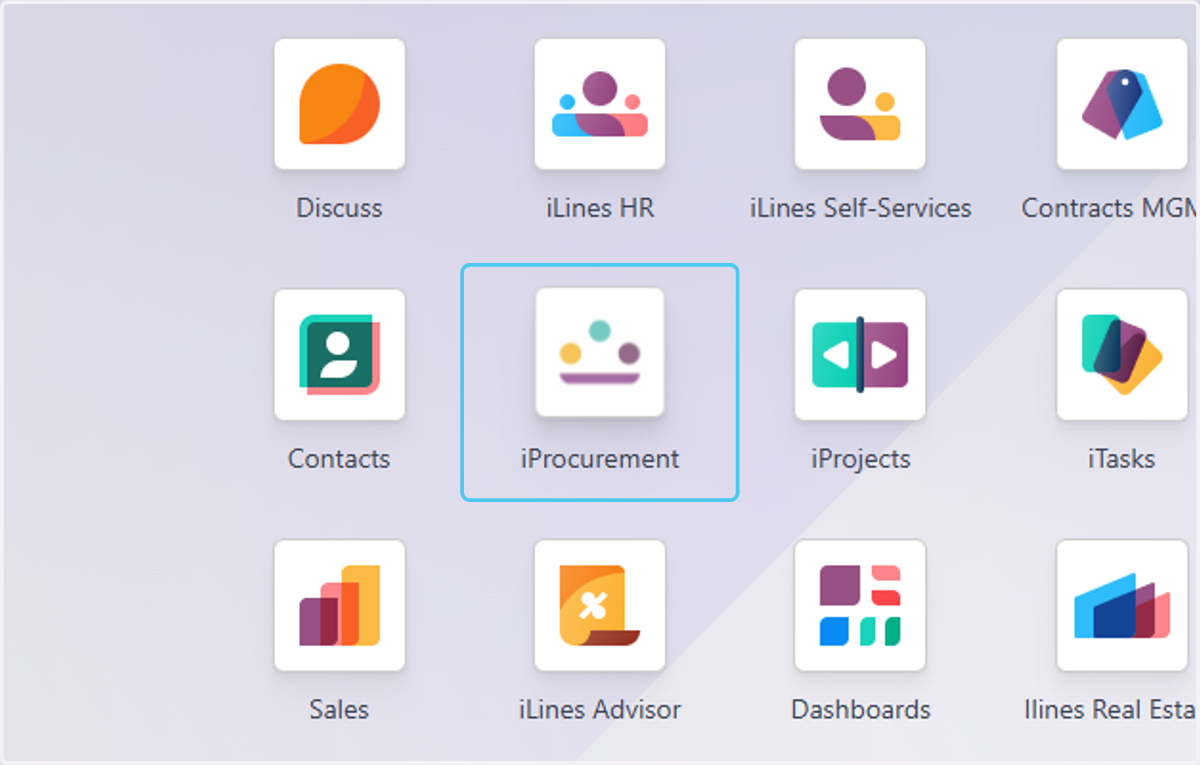
1. Click on iProcurement
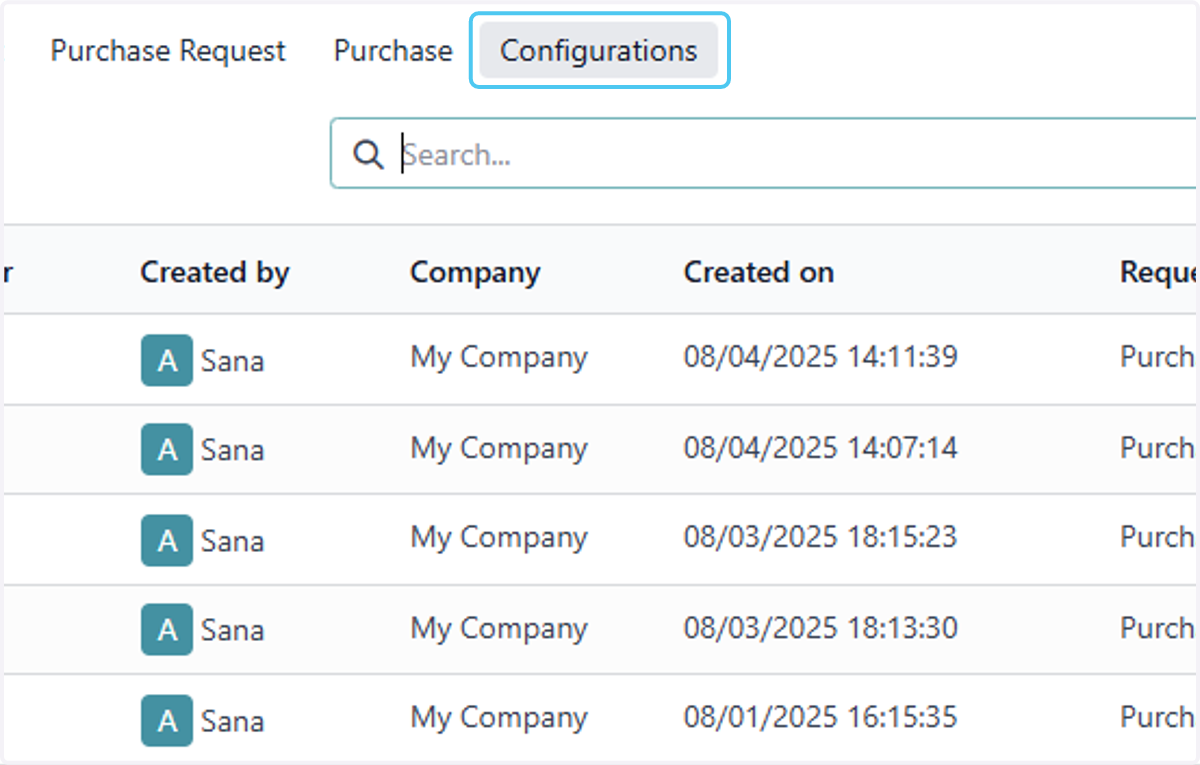
2. Click on Configurations
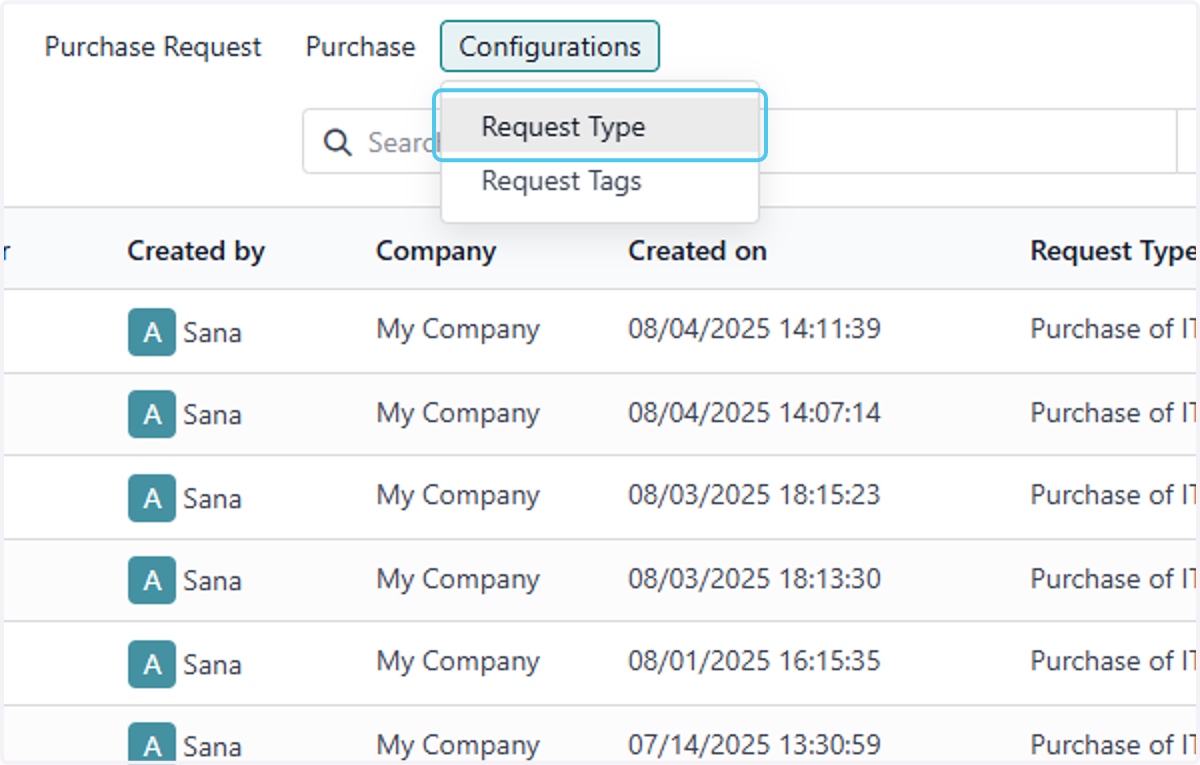
3. Click on Request Type
4. Click on New
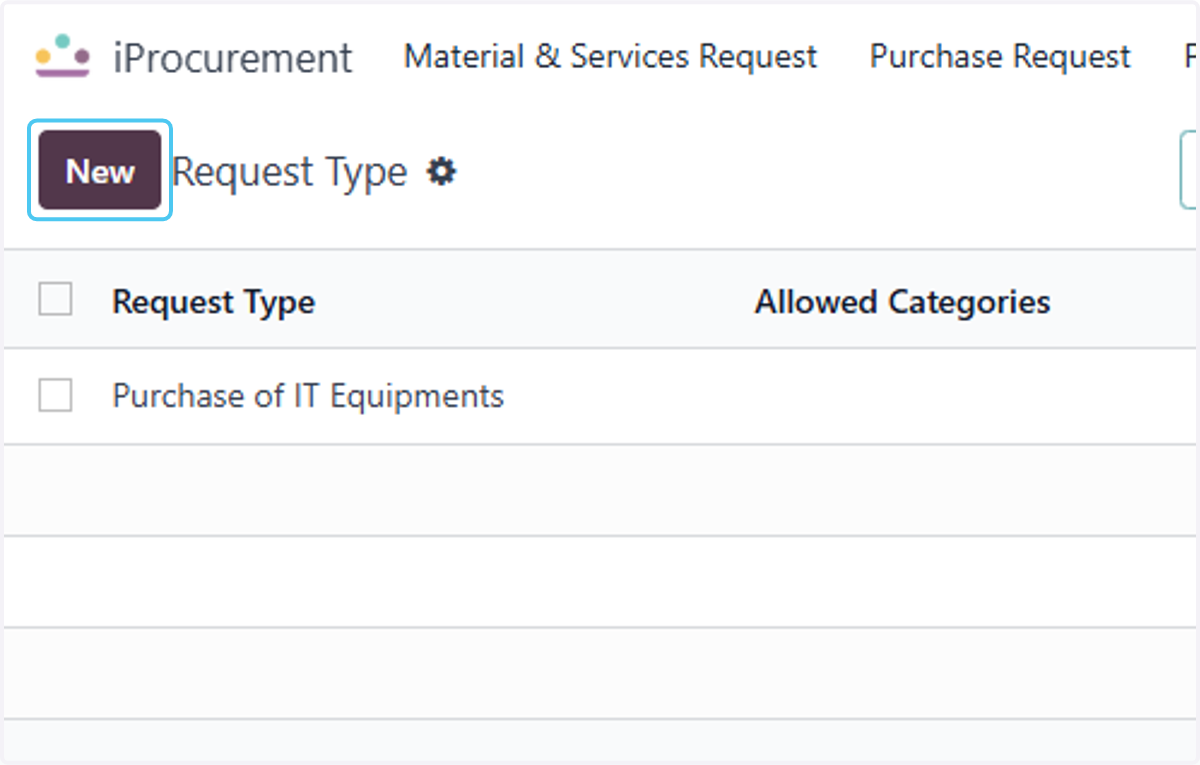
5. Click on Request Type..
Enter the Request Type Name
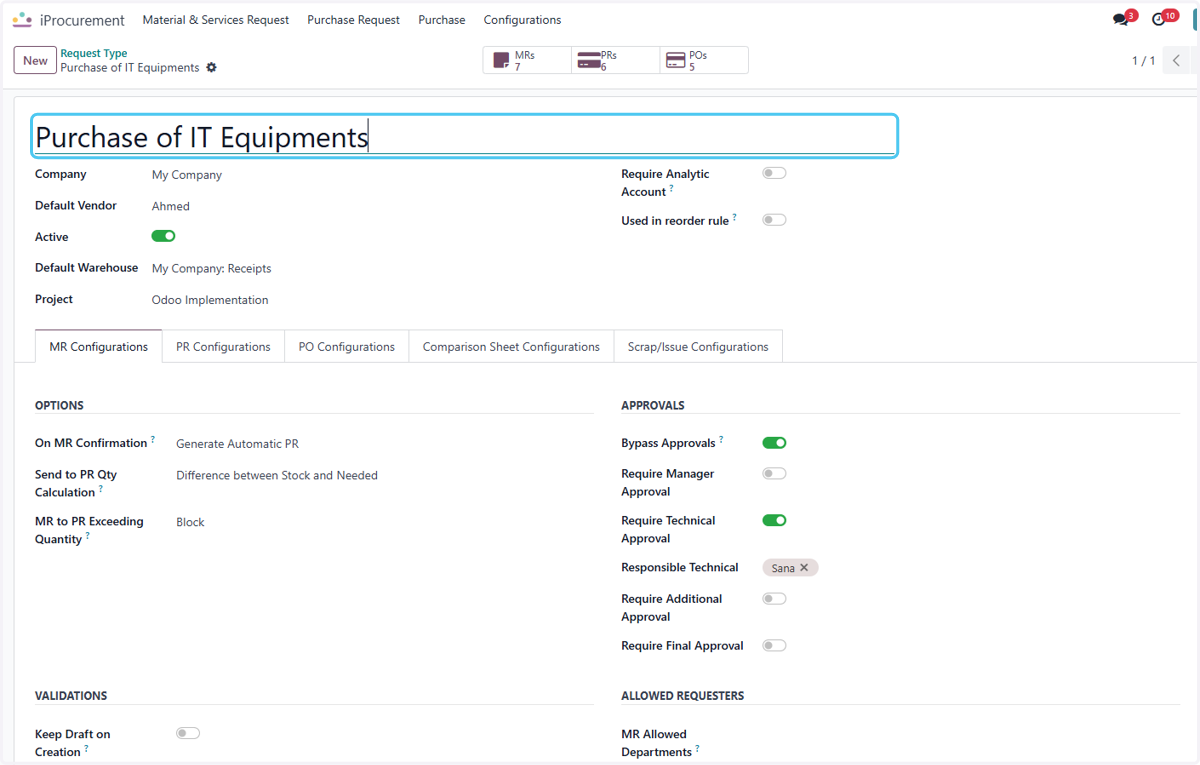
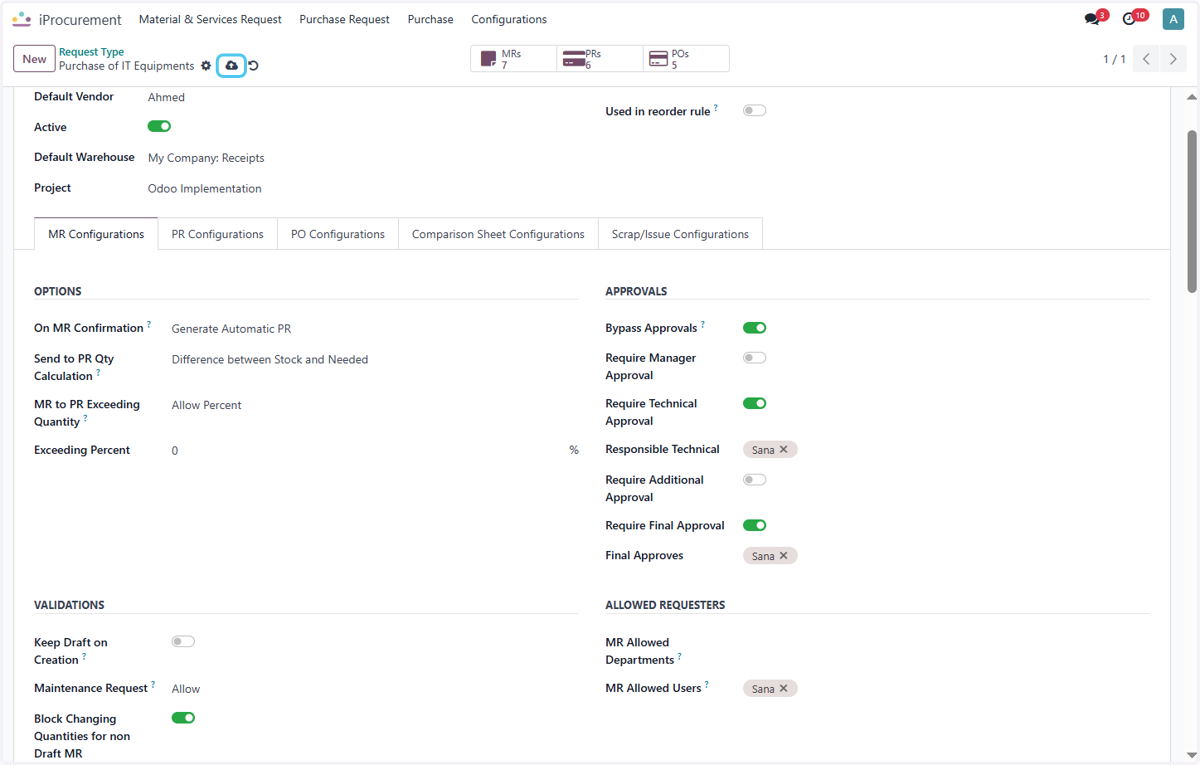
6. Check Require Analytic Account?
Enable Require Analytic Account if You want to set the Aanlytic account feild to be mendatory in Material Request
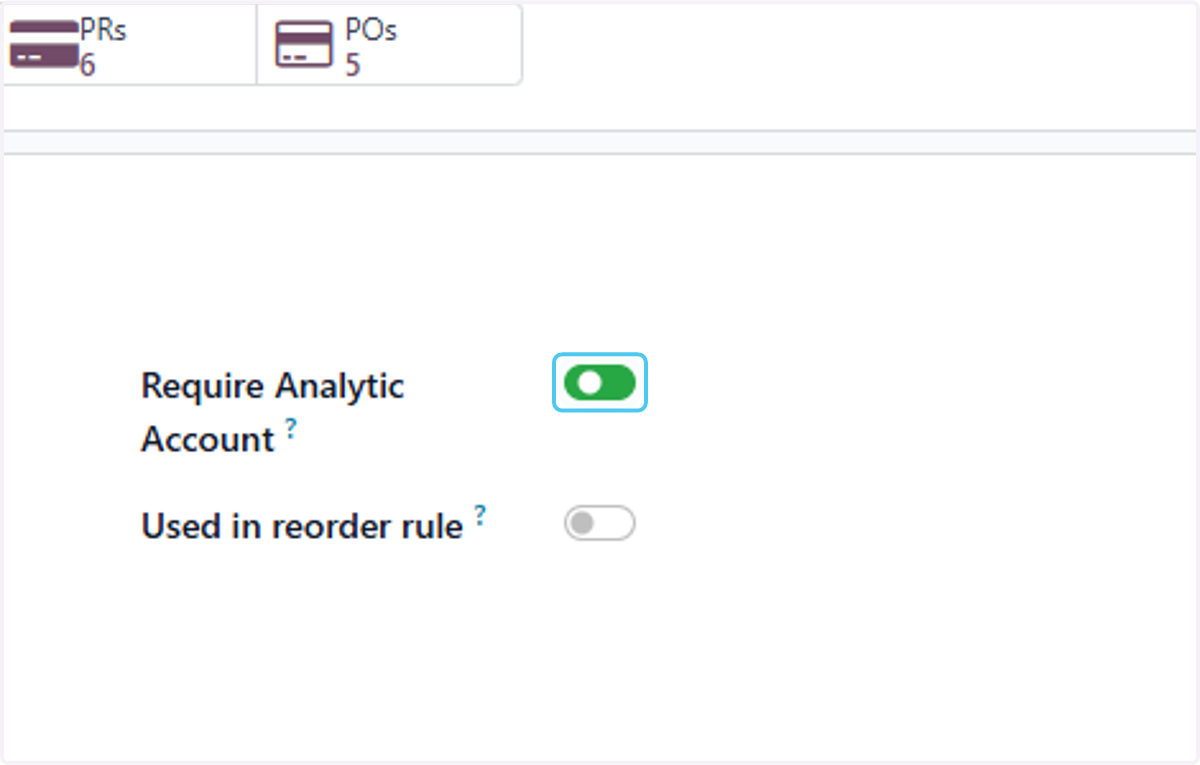
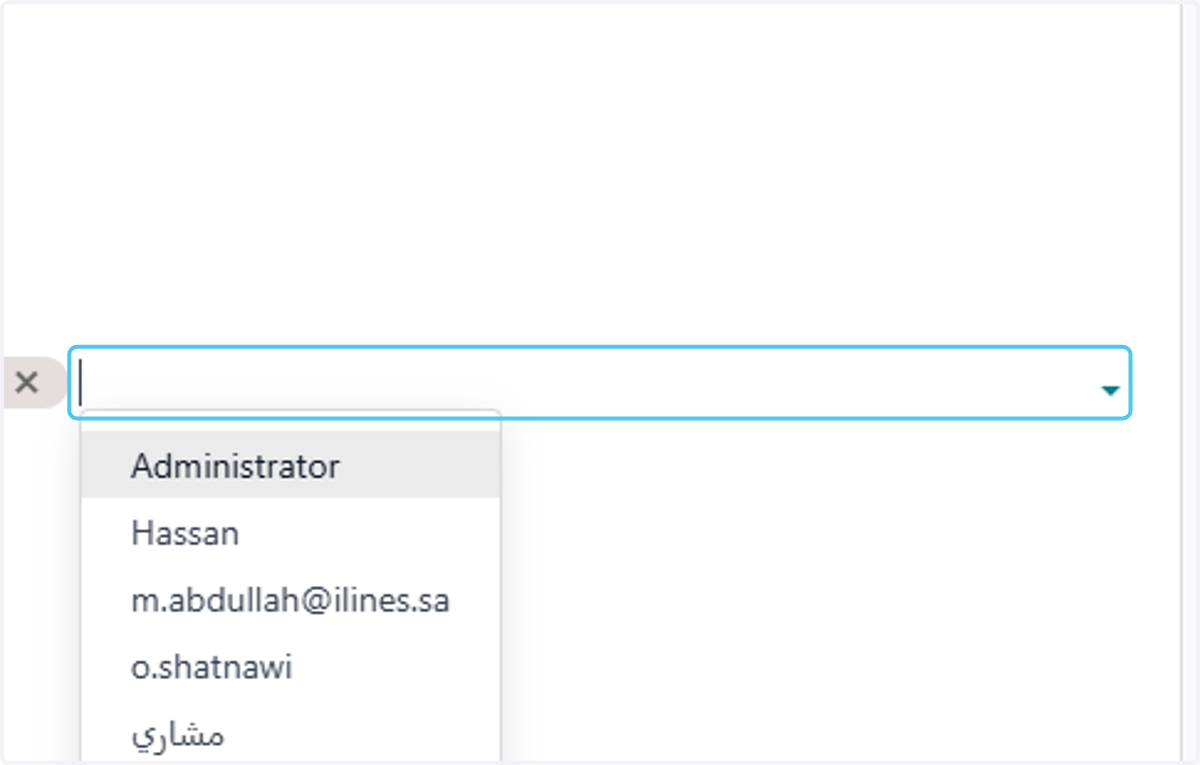
7. Click on Responsible Technical
You can add the Technical Approval person from this and If you want to bypass the approvals of Material Request you can enable the bypass approval
8. Click on OPTIONS…
On these Mr Confirmation you can set the PR to be auto generated or to set it only to draft state
2.Send to PR qty calculation: In this you have different option of selecting the qty like full qty or the diffrence of the qty in stock and the required
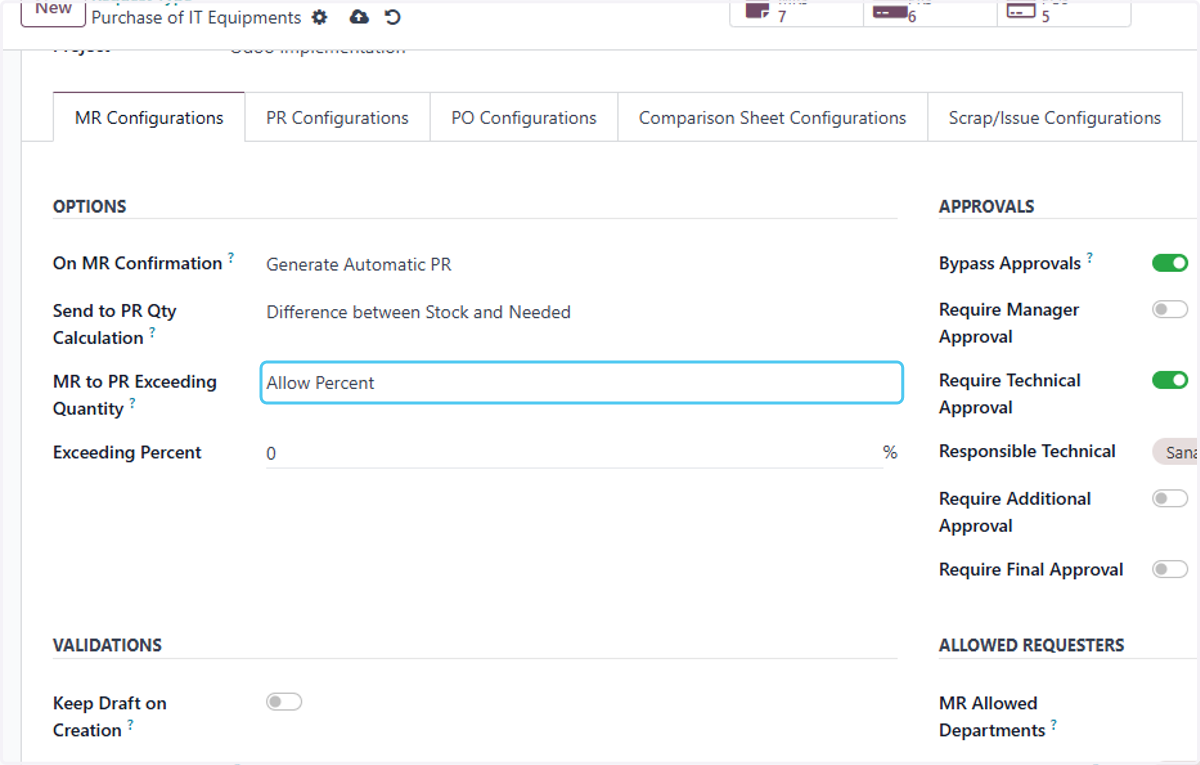
3.MR to PR exceding : If you want to block exceding qty the user will not be able to add the qty which is above the mr and it also has the option to allow the precentage to addtion.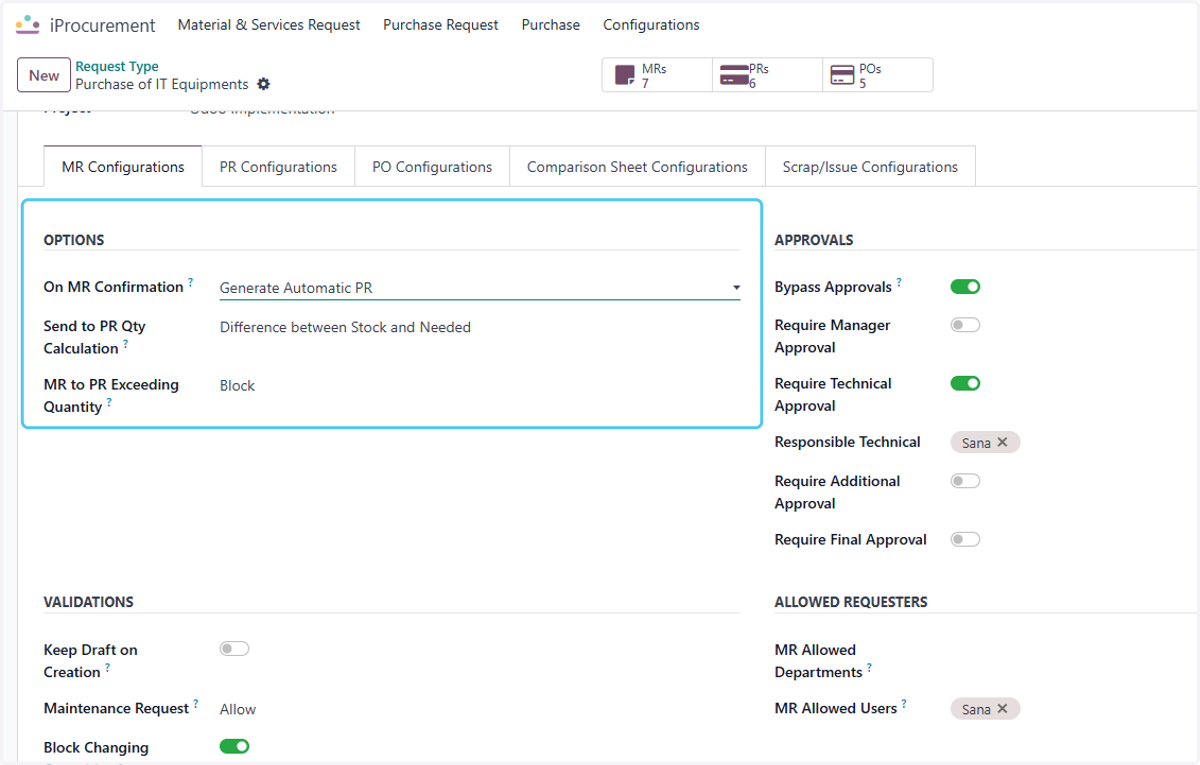
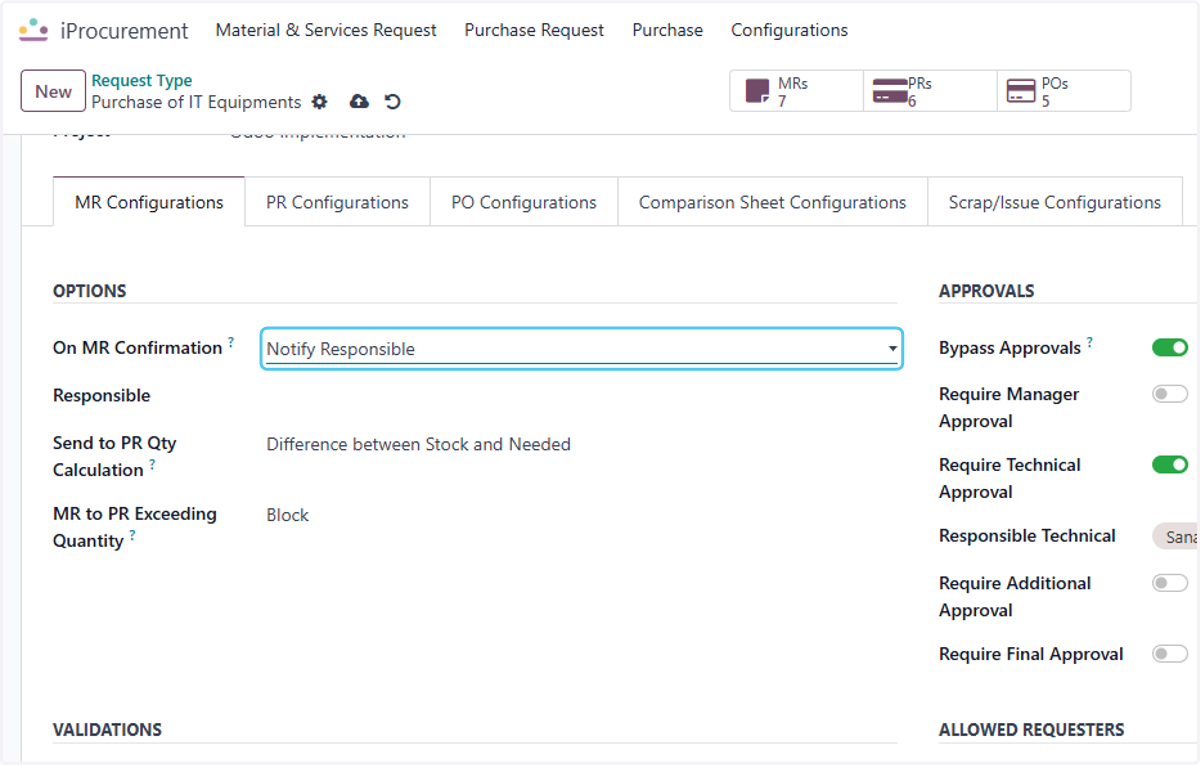
9. Select Notify Responsible from On MR Confirmation?
You can select the person who is responsible for this type of MR creation.
10. Select Allow Percent from MR to PR Exceeding Quantity?
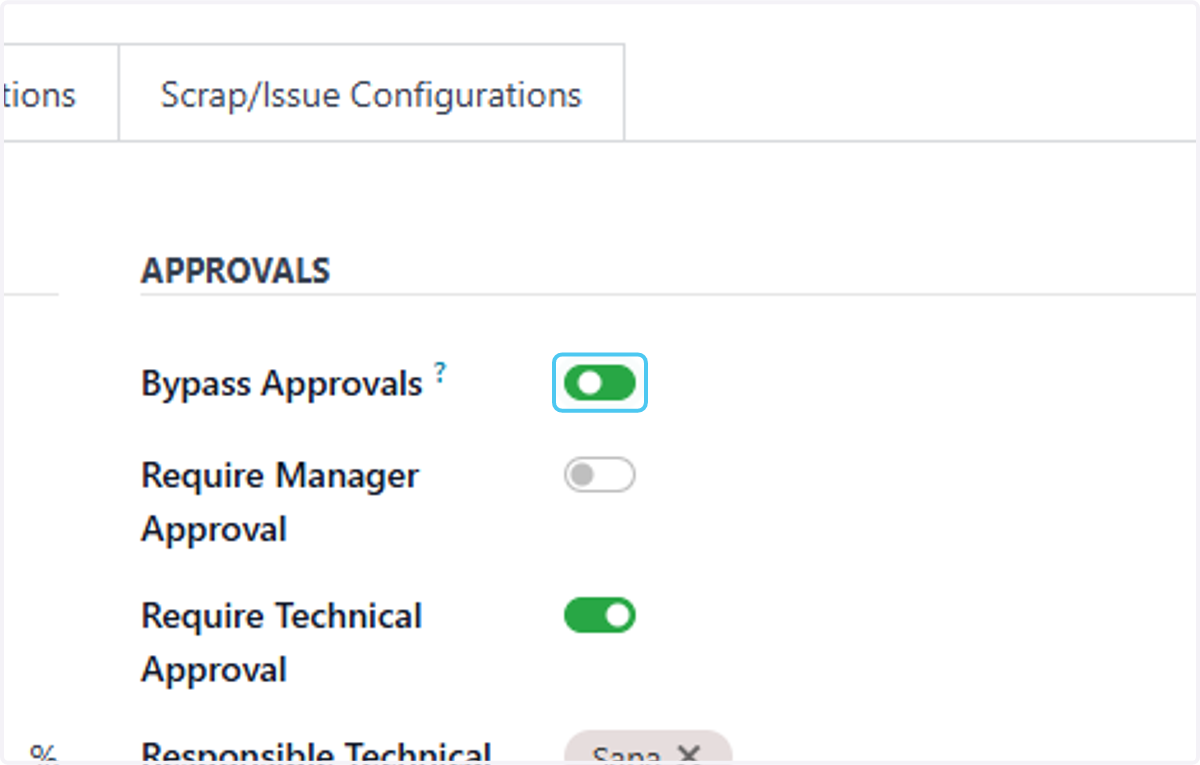
11. Check Bypass Approvals?
This option enables user to bypass any of the approval of this Material Request type.
12. Uncheck Require Manager Approval
If you want to require the Manager to approve this request type you can add a person by enableing this button
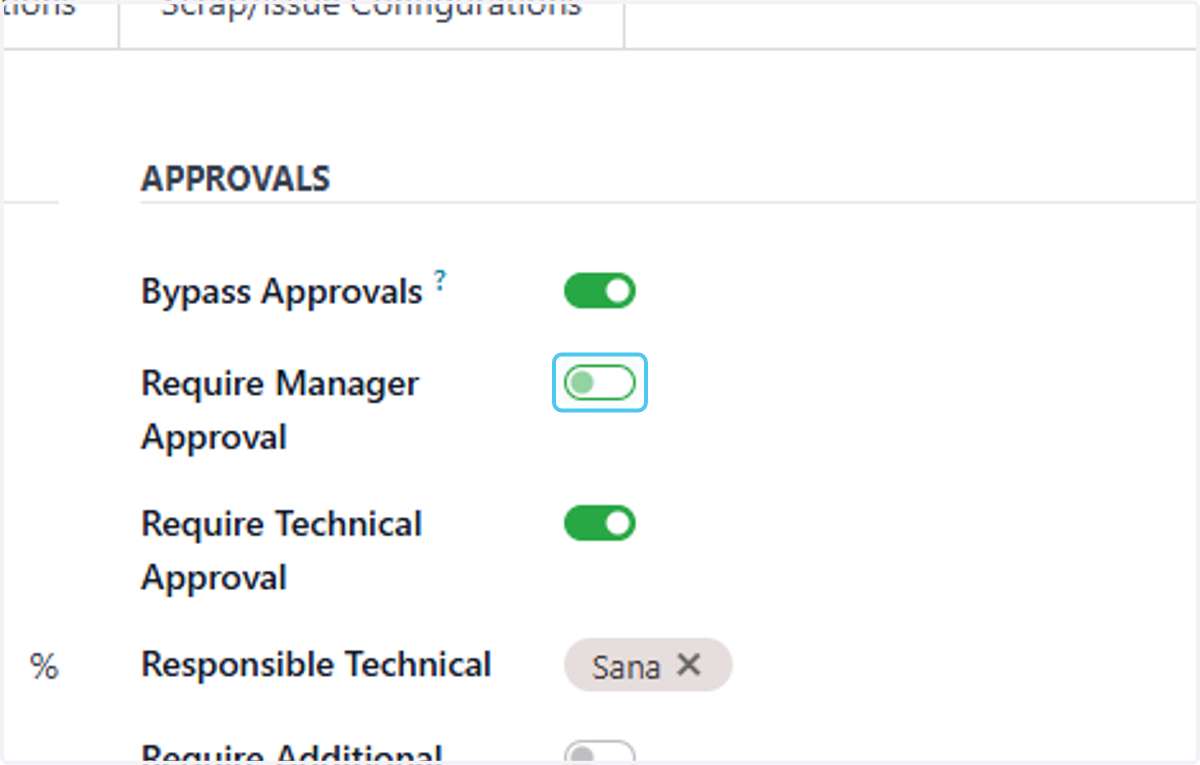
13. Check Require Technical Approval
If you want to add a techinical person to apporve the request you can enable this and add user
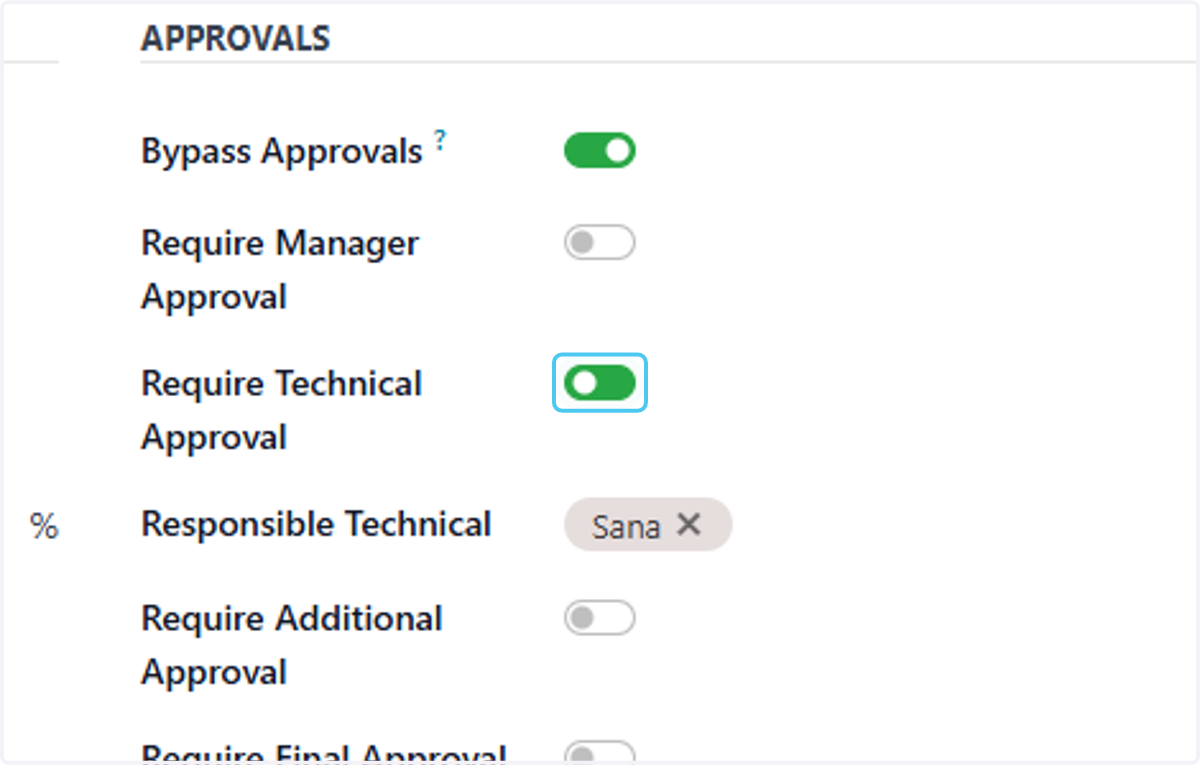
14. Click on Responsible Technical
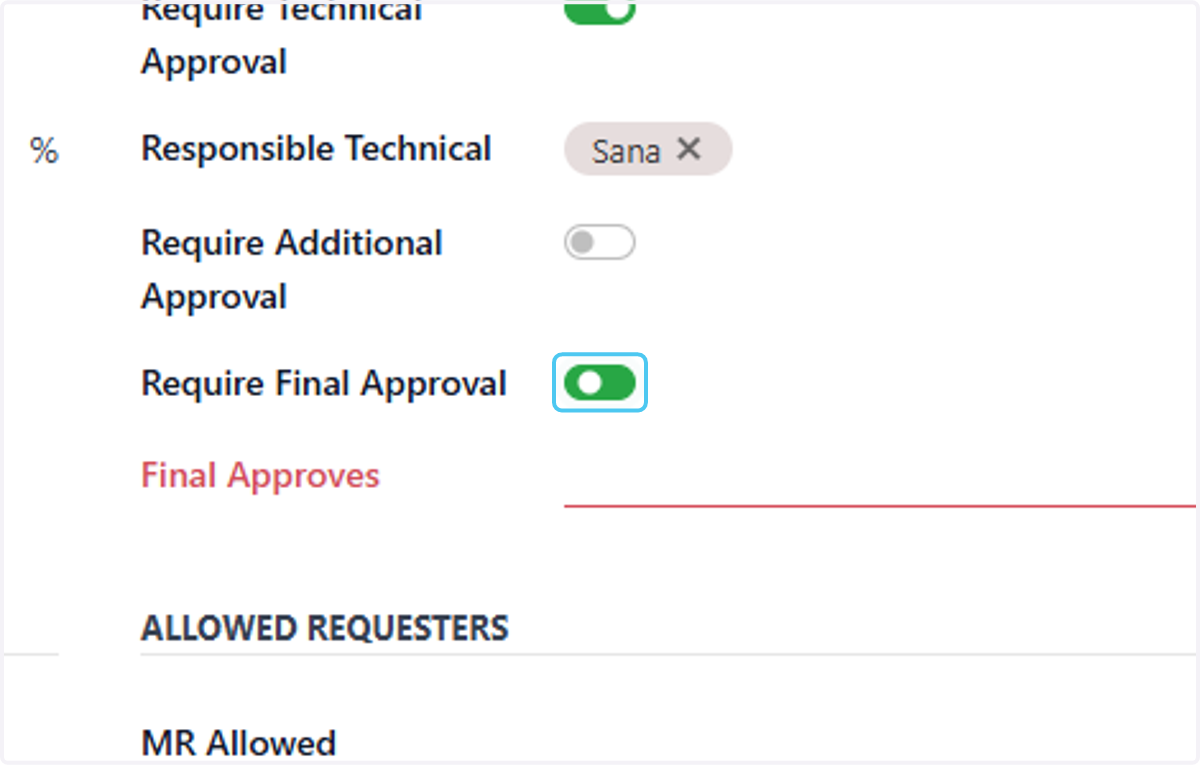
15. Click on Require Additional Approval
If the user requires additional approval for the request creating he can also add him by enableing this button
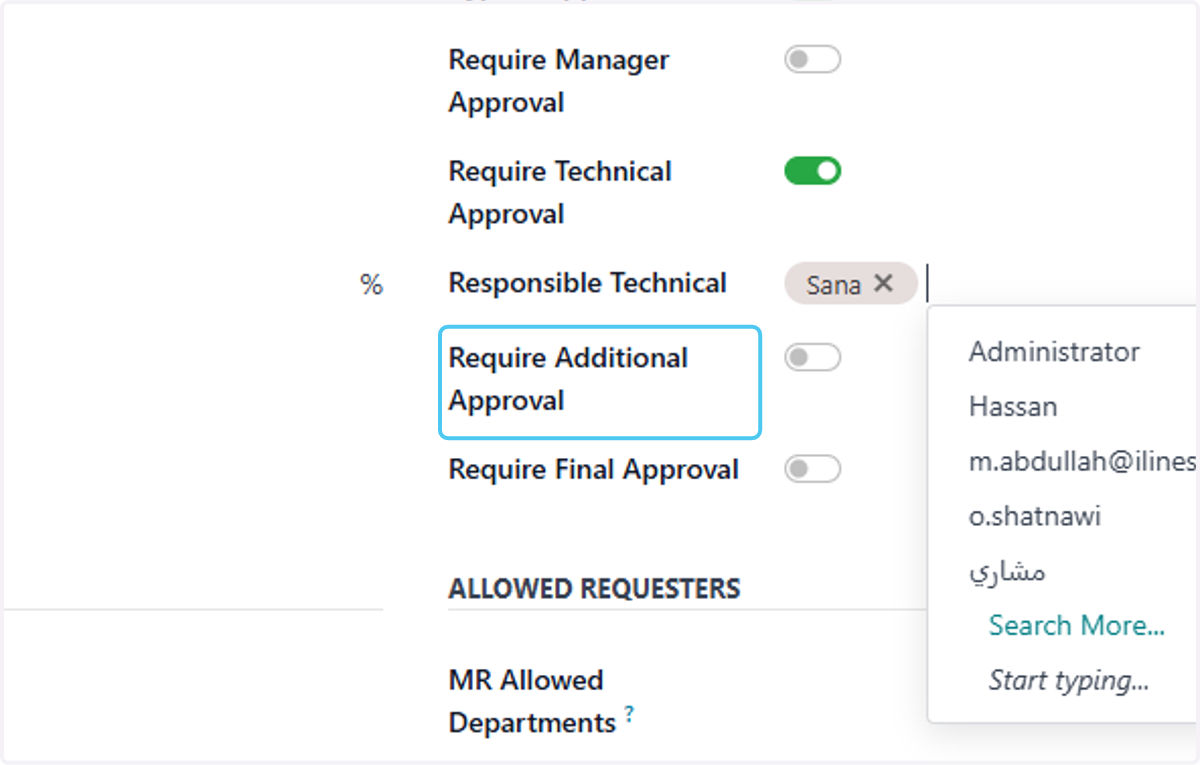
16. Check Require Final Approval
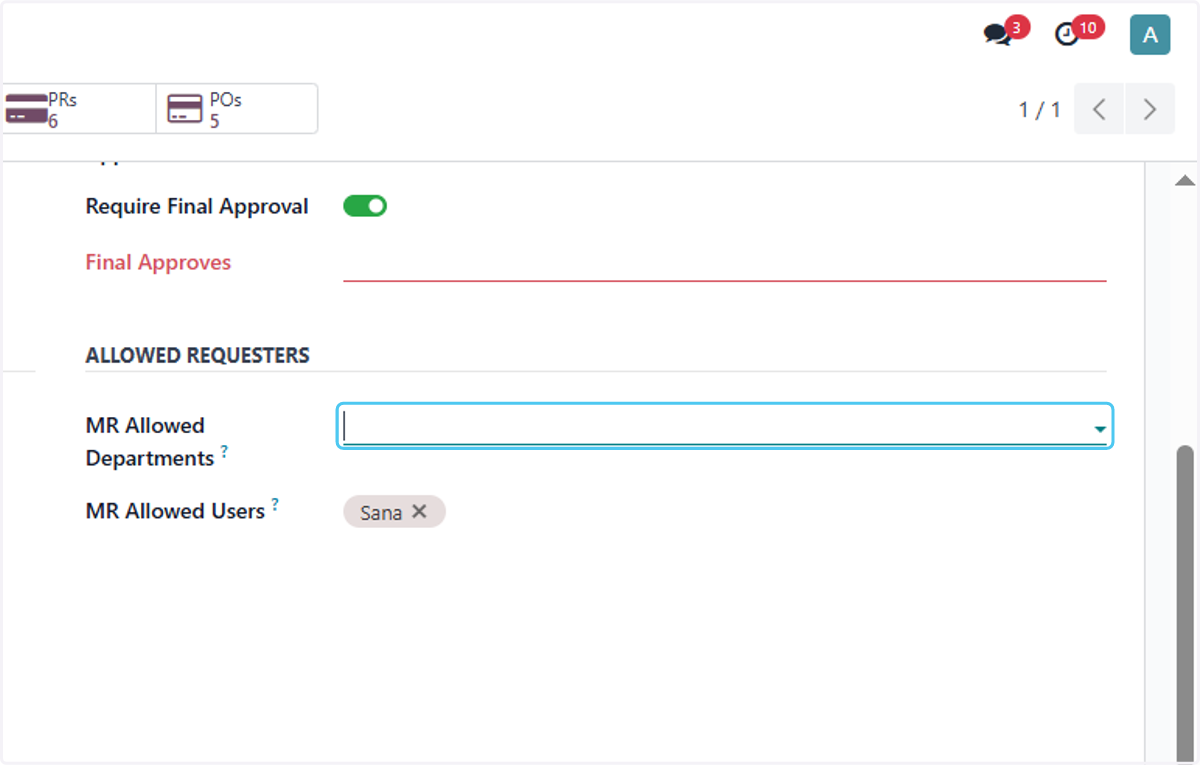
17. Click on MR Allowed Departments?
User can also add the departments for the specific request type only the selected department can create the material request.
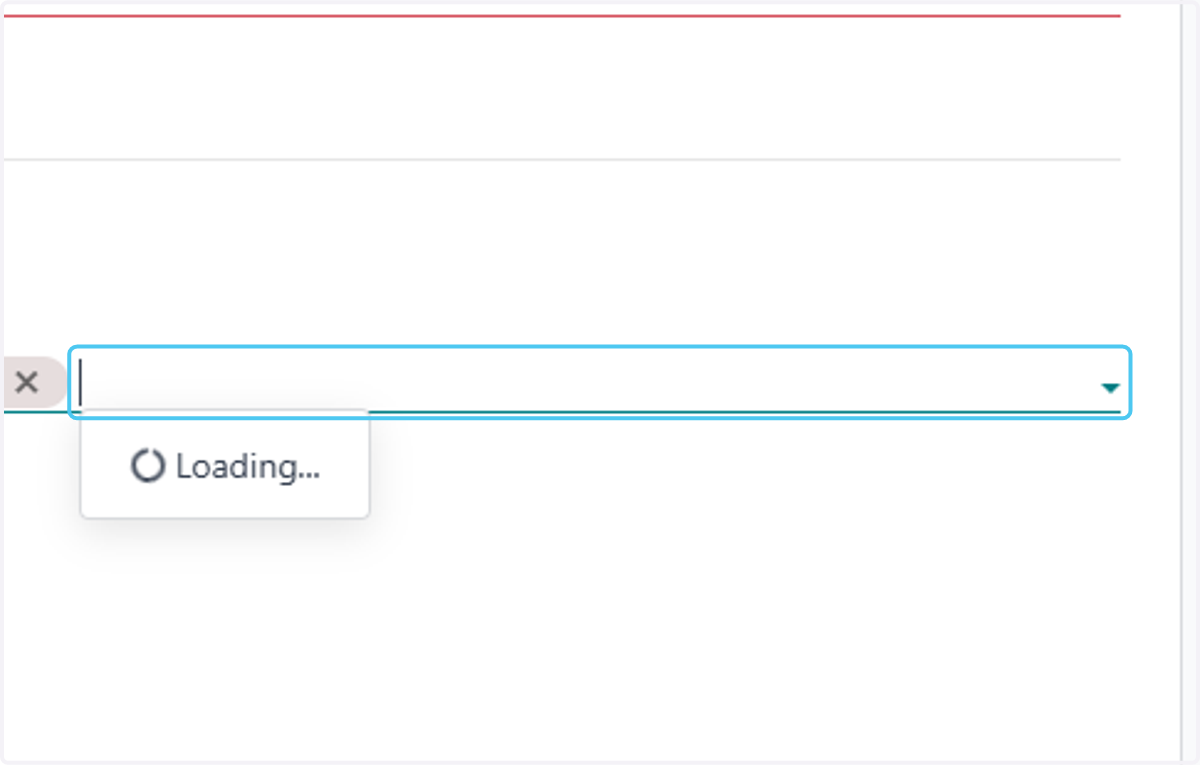
18. Click on MR Allowed Users?
The users can Also restict the user for creating the request just by adding the relevant person in this Menu
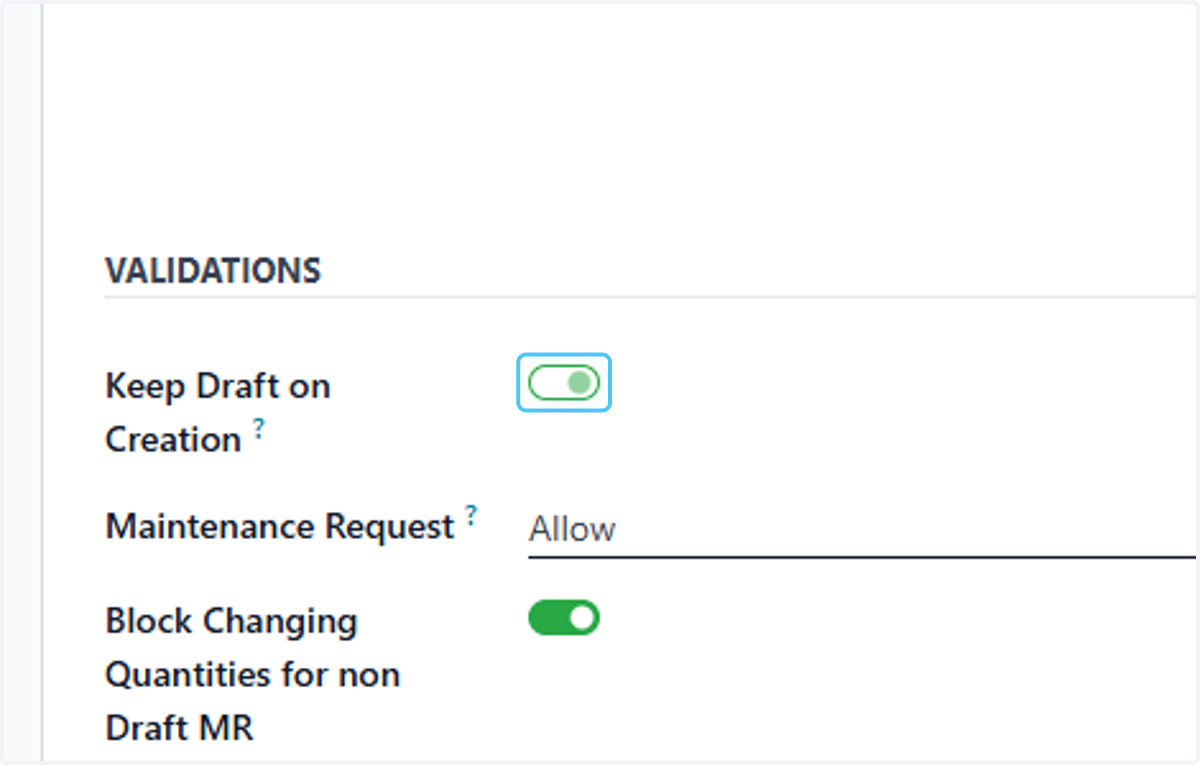
19. Uncheck Keep Draft on Creation?
By enabling this the MR will be on Draft stage after creation
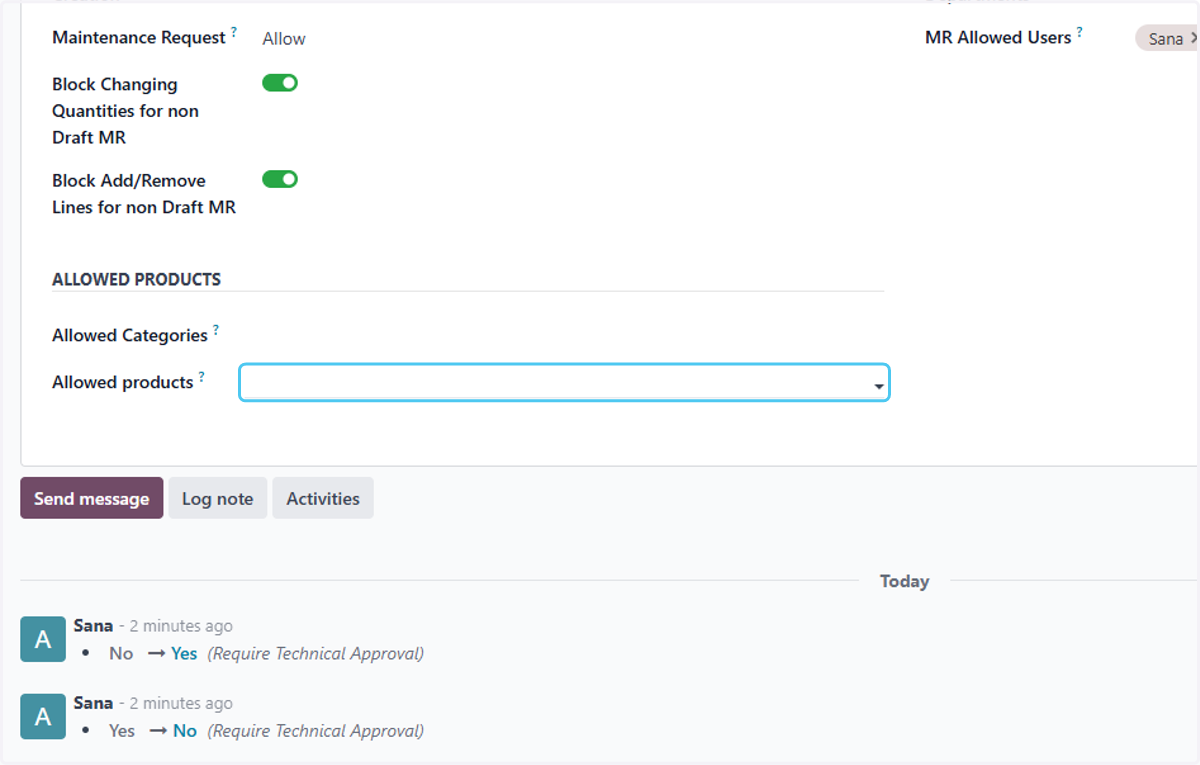
20. Select Allow from Maintenance Request?
This button allows the Maintenance Department to create a Material Request or makes it mandatory before proceeding.
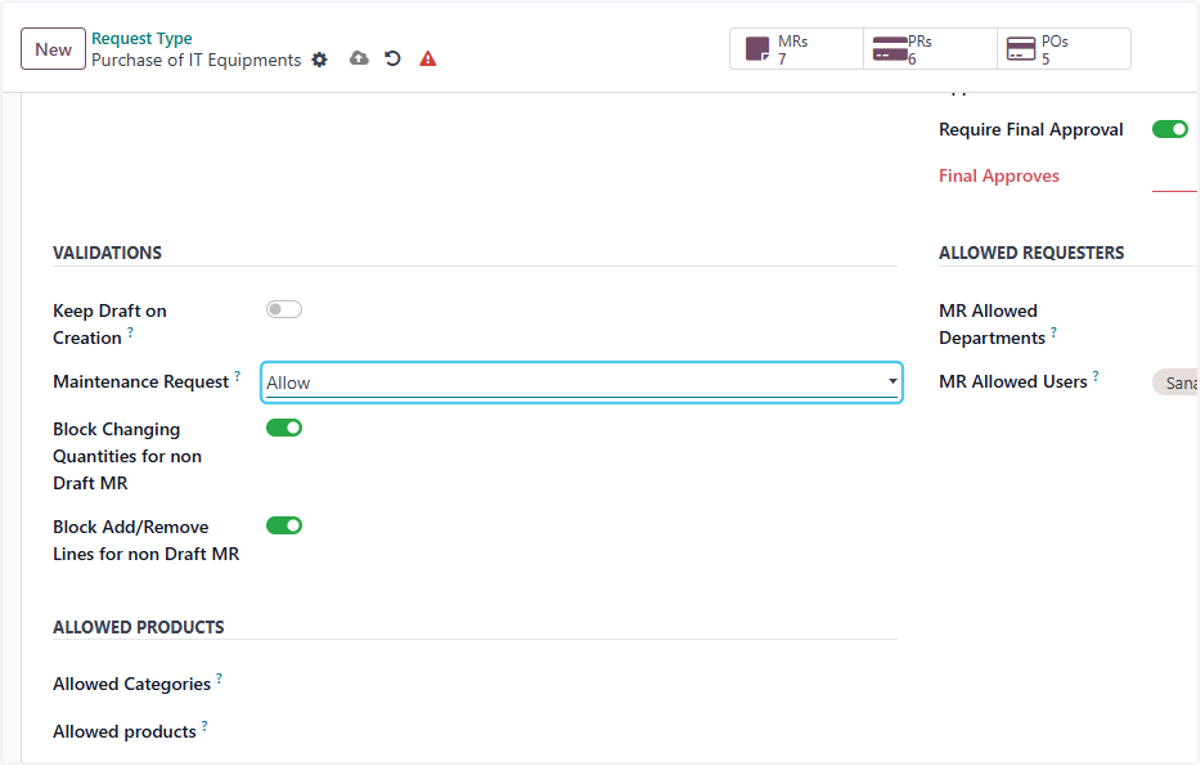
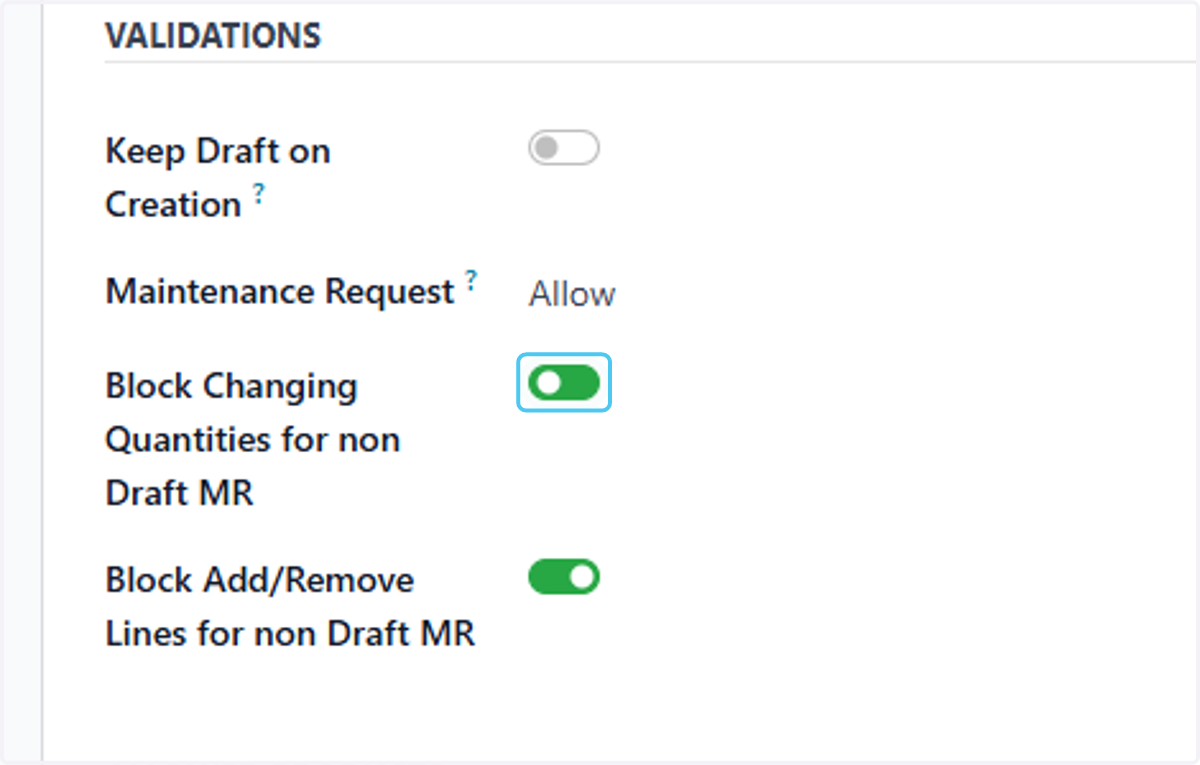
21. Check Block Changing Quantities for non Draft MR
This button is used to block any changes to the product quantity in a Material Request. Once the request moves to the next stage, users will no longer be able to modify the product quantities
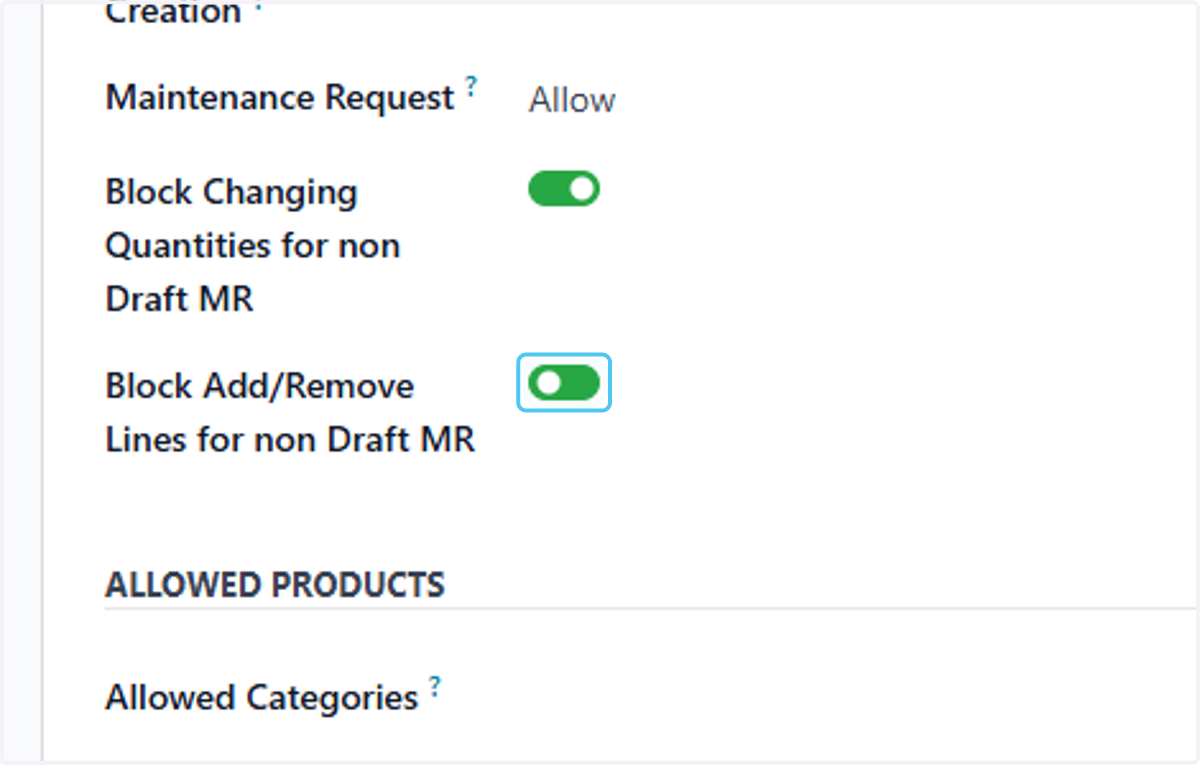
22. Check Block Add/Remove Lines for non Draft MR
This button is used to block any changes to the product lines in Material Request
23. Click on Allowed Categories?
This option enables users to associate specific product categories with individual Material Requests
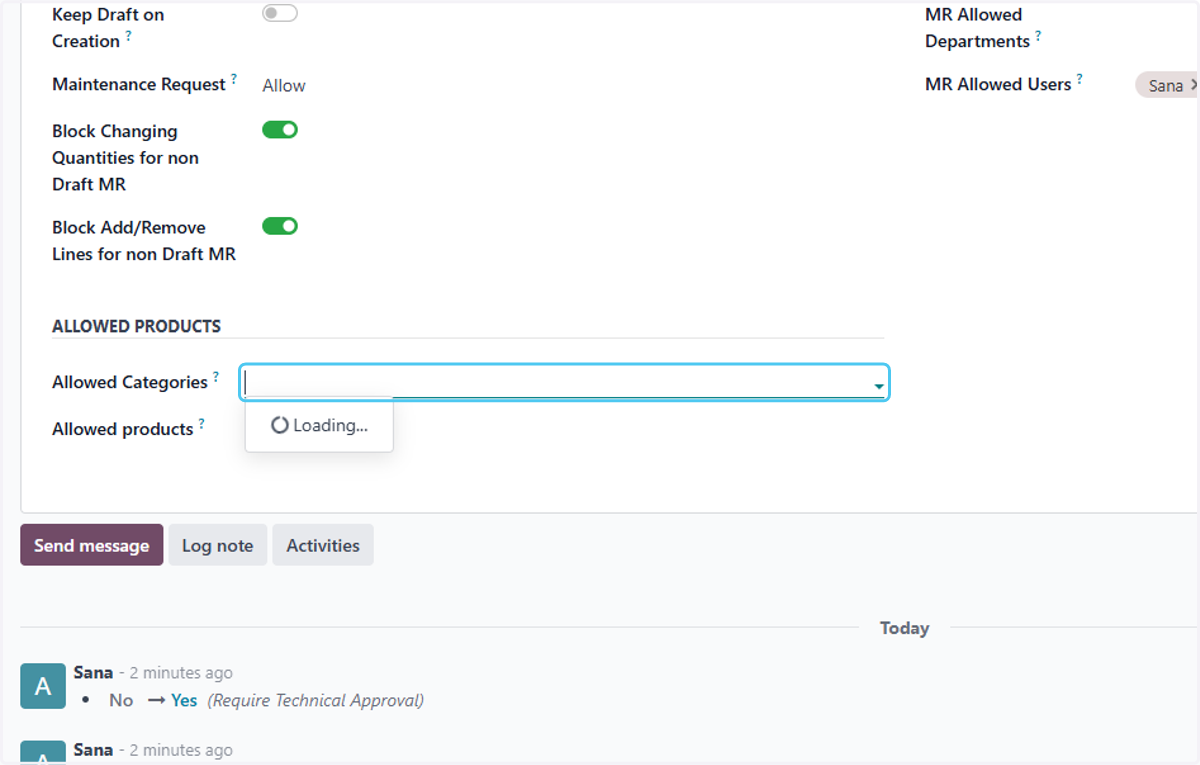
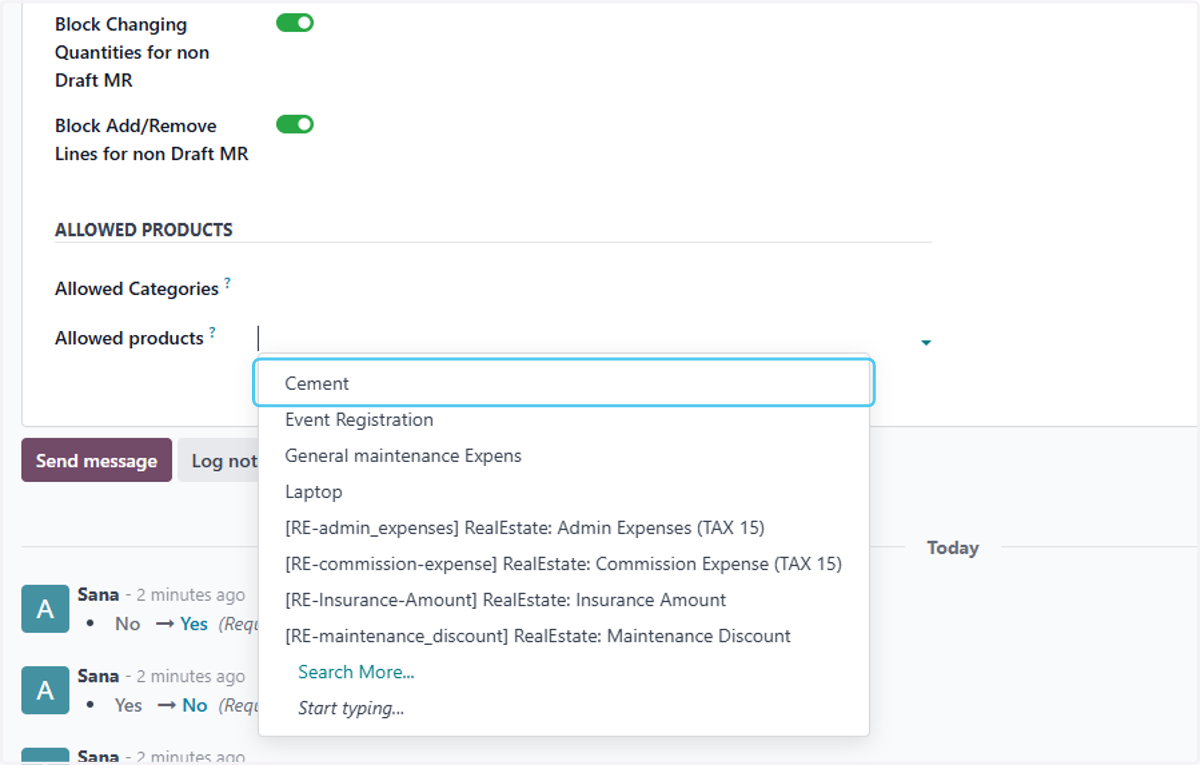
24. Click on Allowed products?
This option enables users to associate specific product with individual Material Requests
25. Click on Cement
26. Click on Save manually
After entering details user will save the Request