How To Connect Common App with Schoolinks
The Common Application is used by 1000+ colleges as their application platform. Schoolinks is the platform that Sycamore uses to send school documents to colleges. Connecting your two accounts will allow you school team to send the needed documents to the schools to which you apply.
Follow the steps below to link your two accounts.
Schoolinks
1. Go to SchooLinks
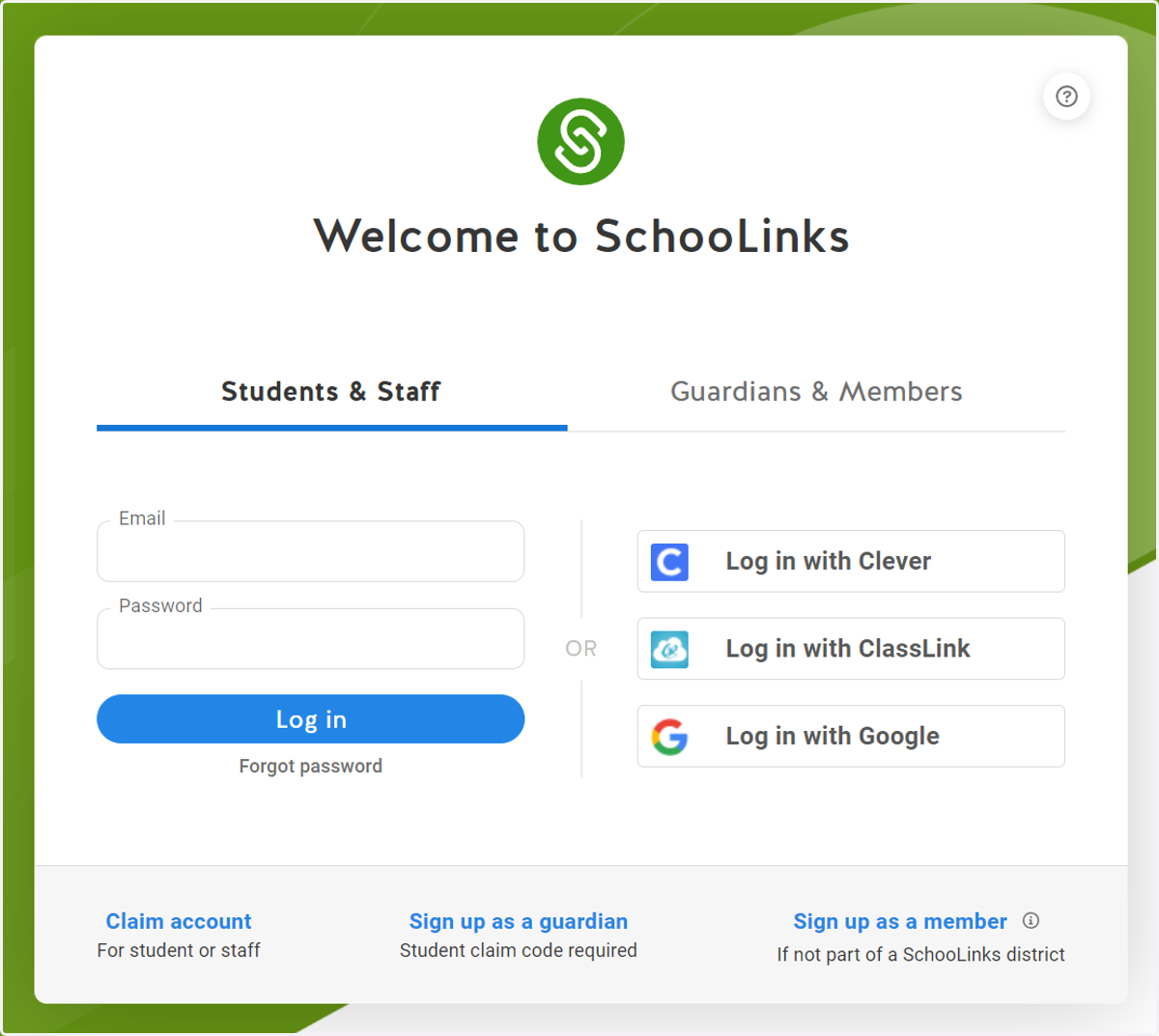
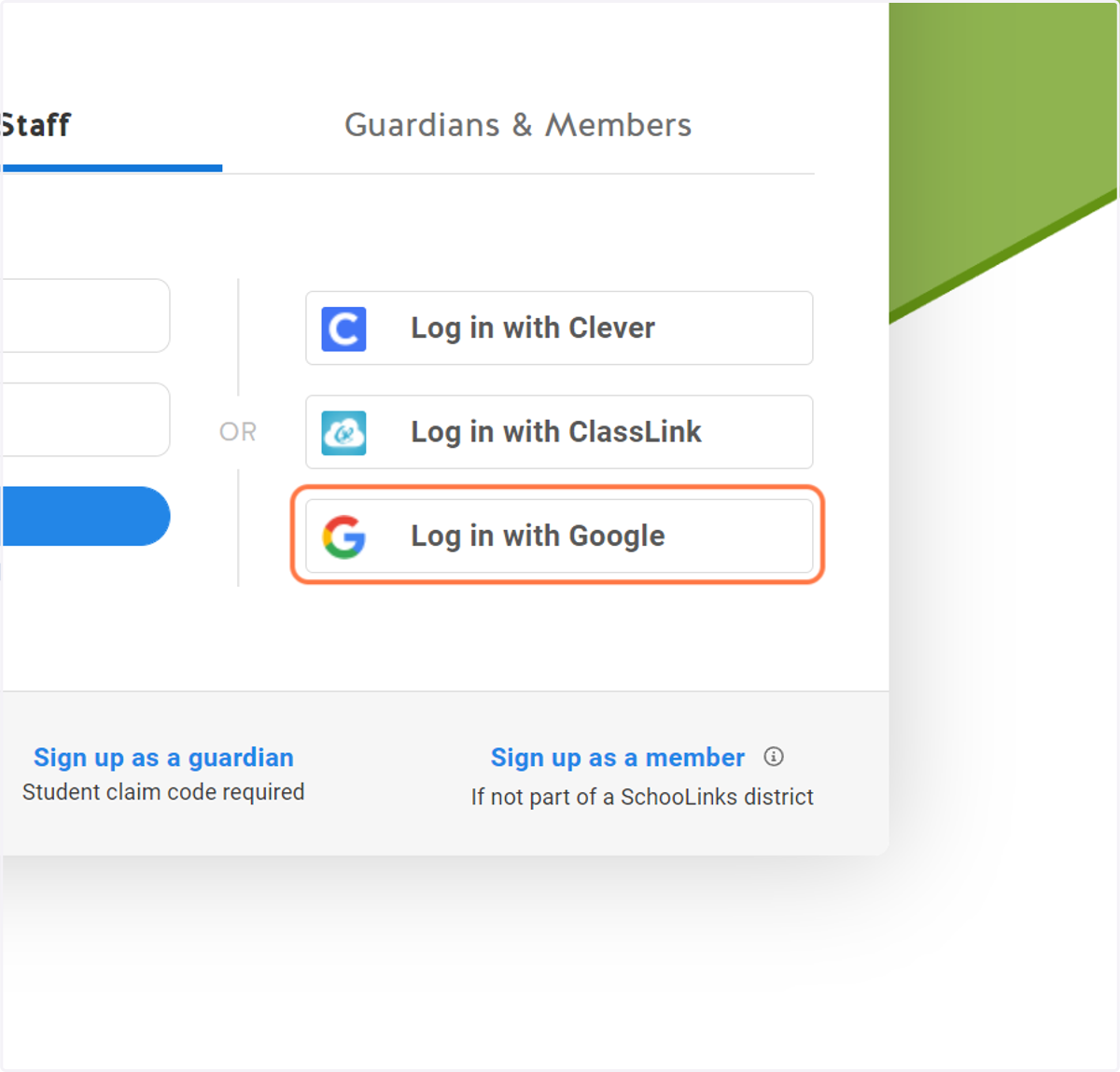
2. Click on Log in with Google
Use the single sign on option to login with your Sycamore Google Account
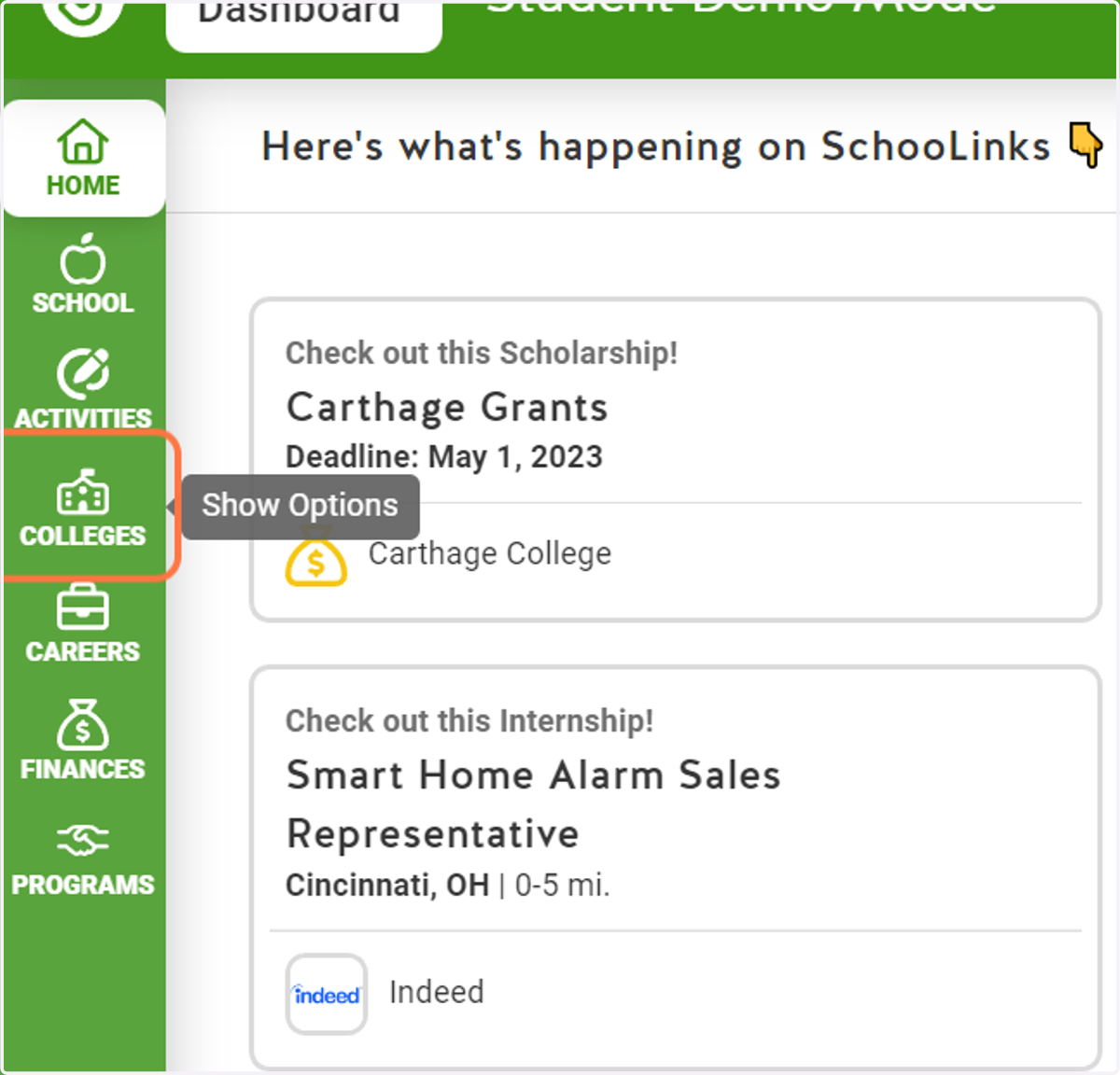
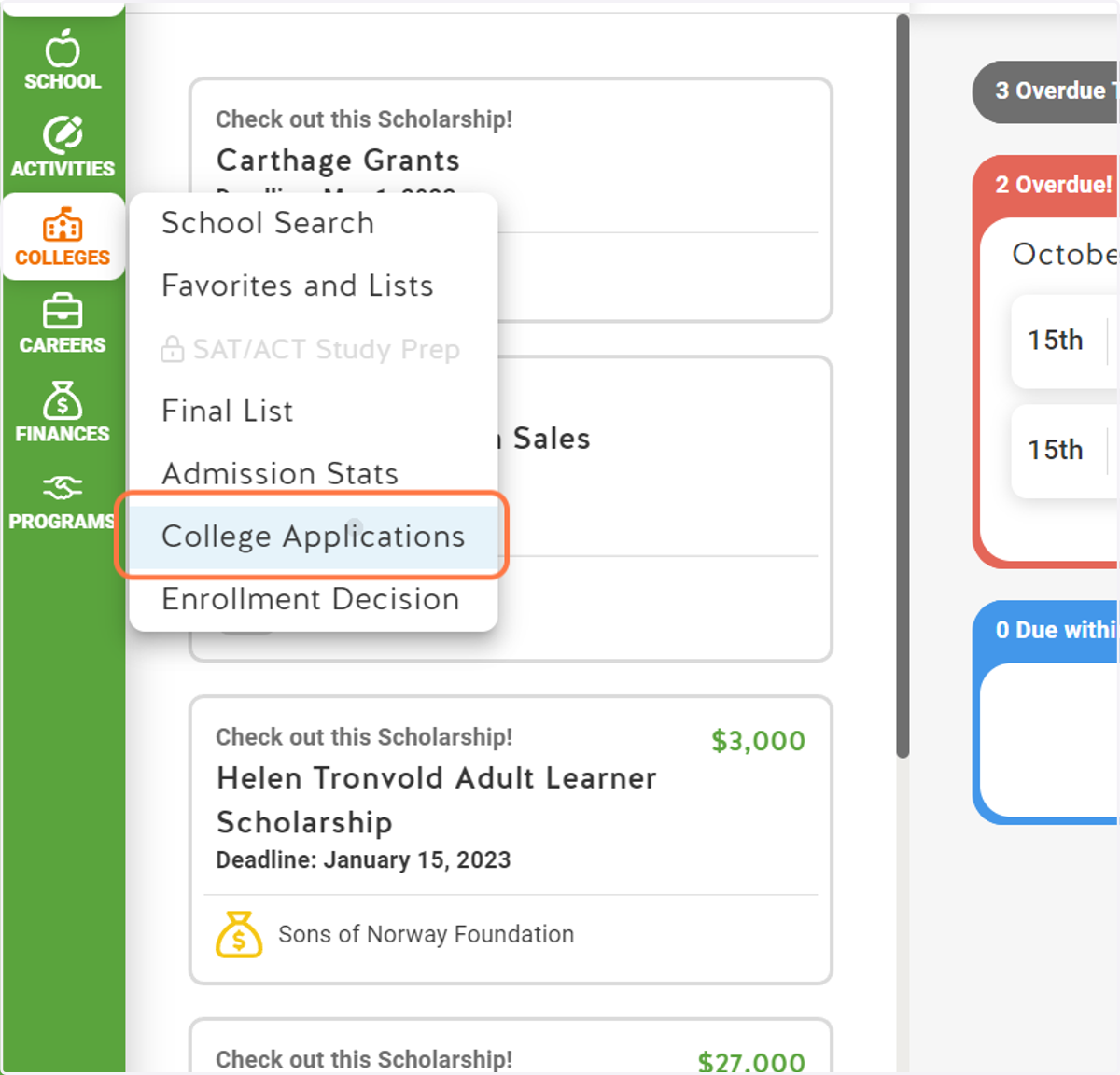
3. Click on Colleges
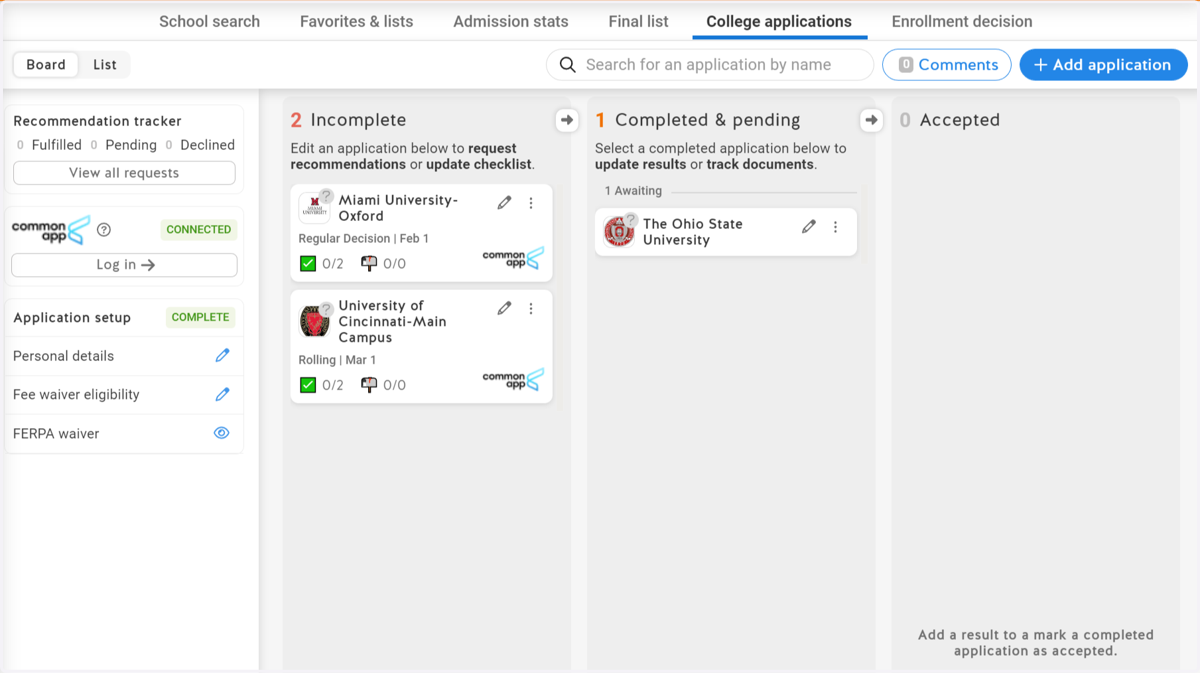
4. Click on College Applications
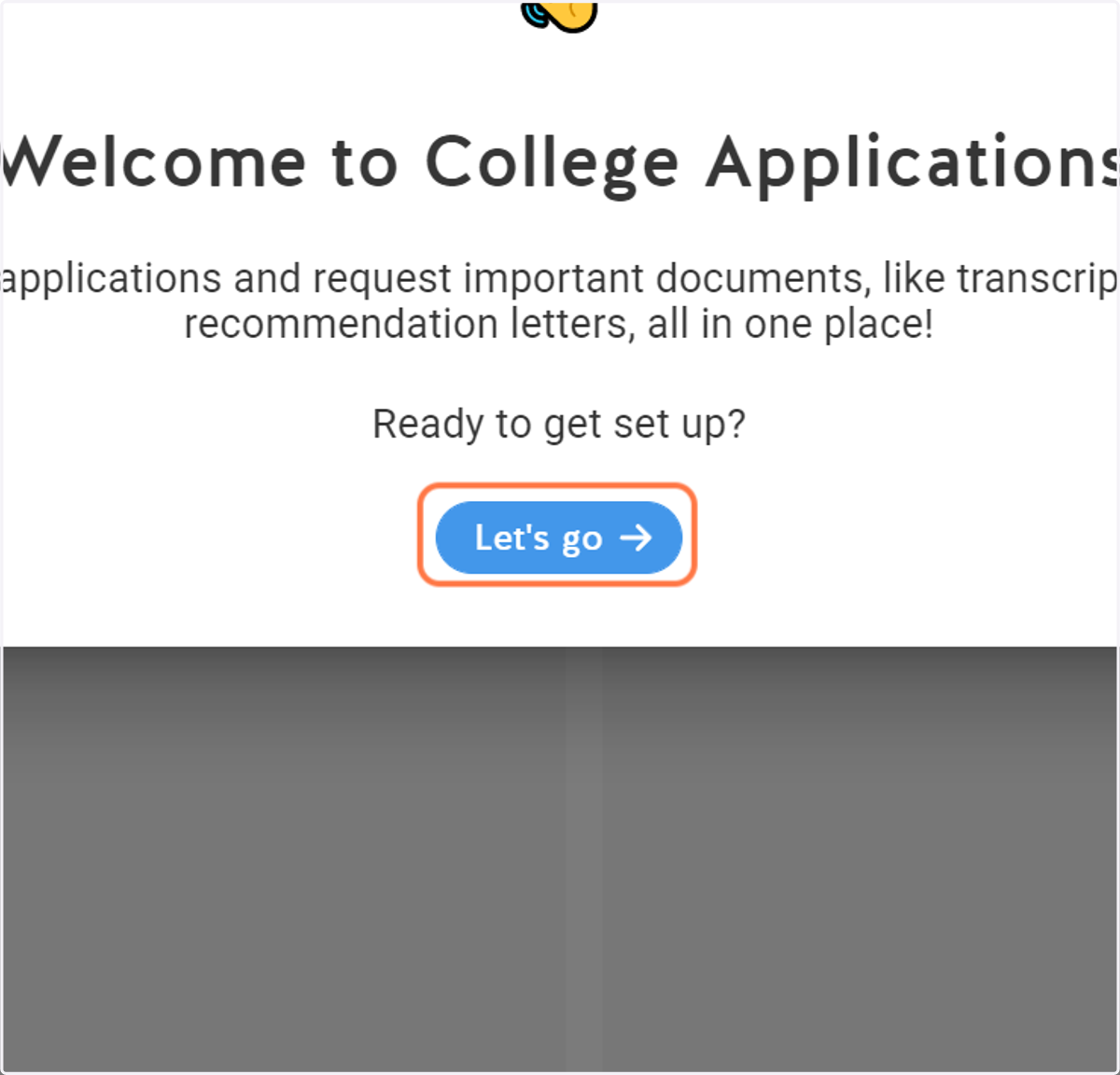
5. Click on Let's go
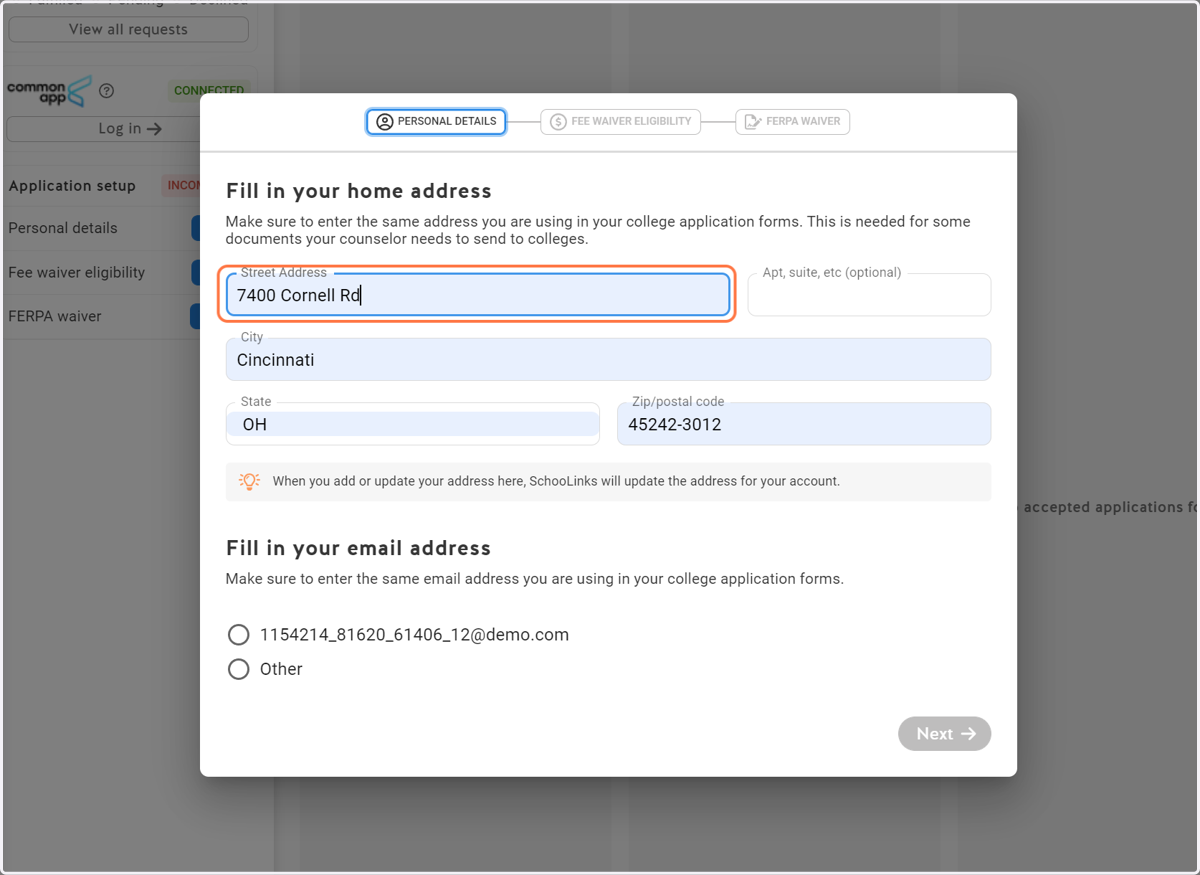
6. Complete the needed information
Then type in your address and the email you used in your applications. Then click Next.
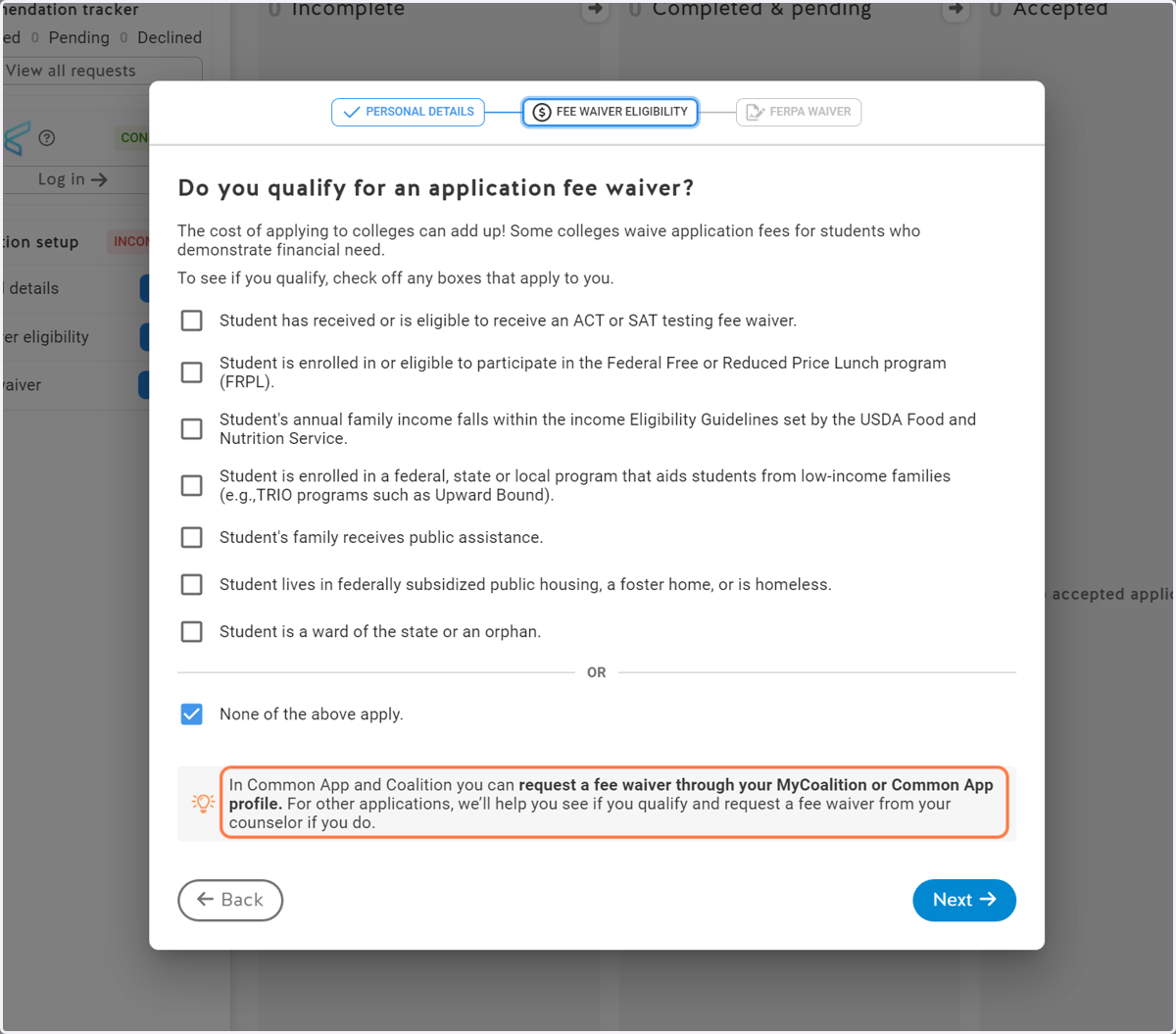
7. Check Fee Waiver Eligibility
Check off any boxes that apply to you and click next.
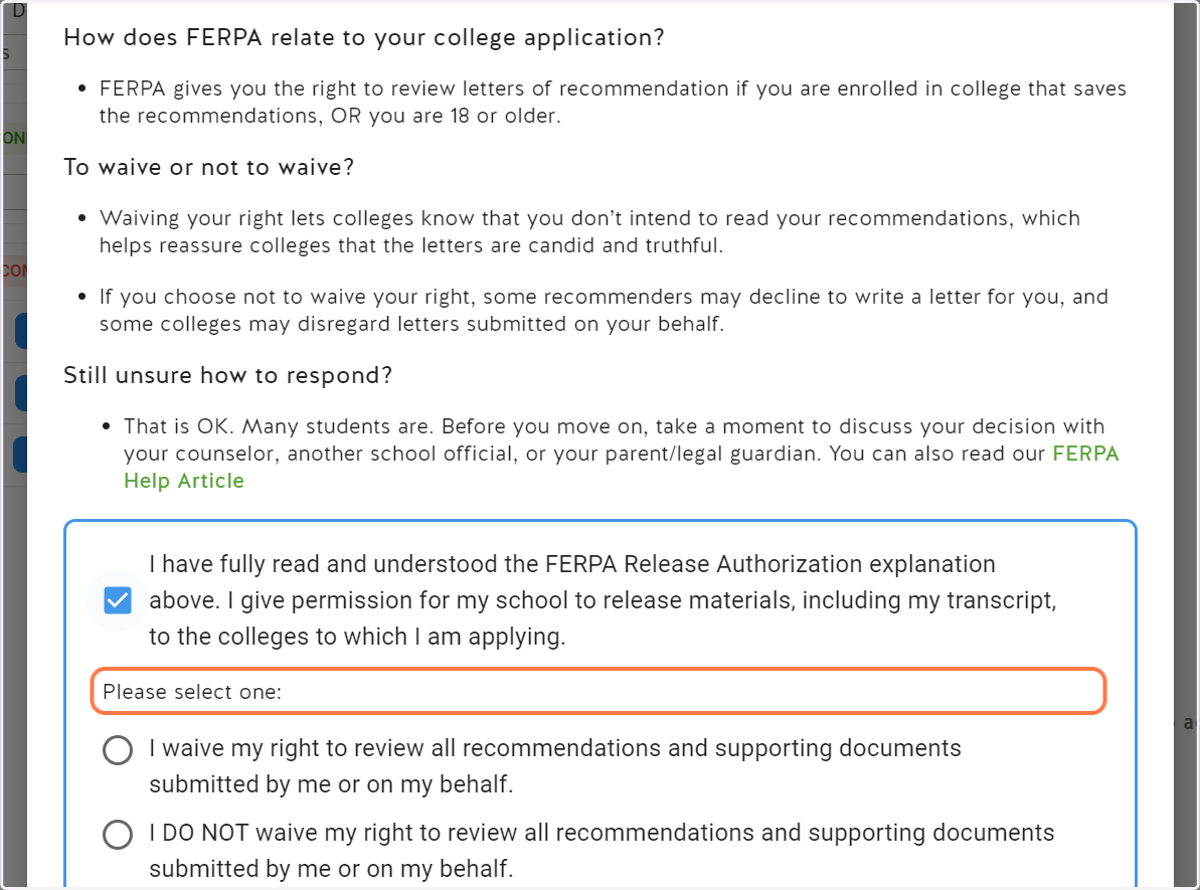
8. Complete the FERPA Authorization
Check I have fully read and understood the FERPA Release Authorization explanation above.
Choose whether you waive or do not waive your right to read your recommendations.
9. Electronic signature
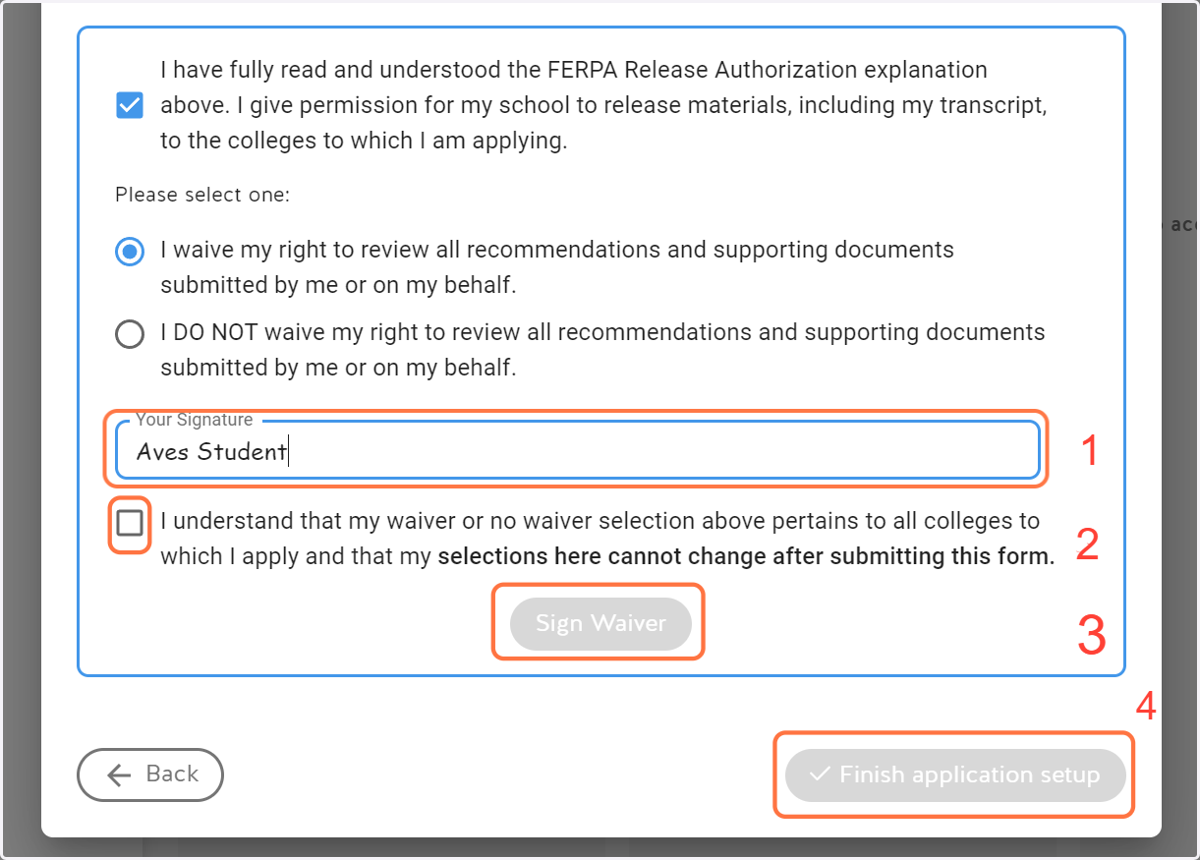
Type in your electronic signature and check the box that you understand that your selections cannot be changed after submitting this form.
Click Sign Waiver & Finish applicatoin setup.
10. Click on CONNECT to link to your Common App account
Follow prompts to log into your account.
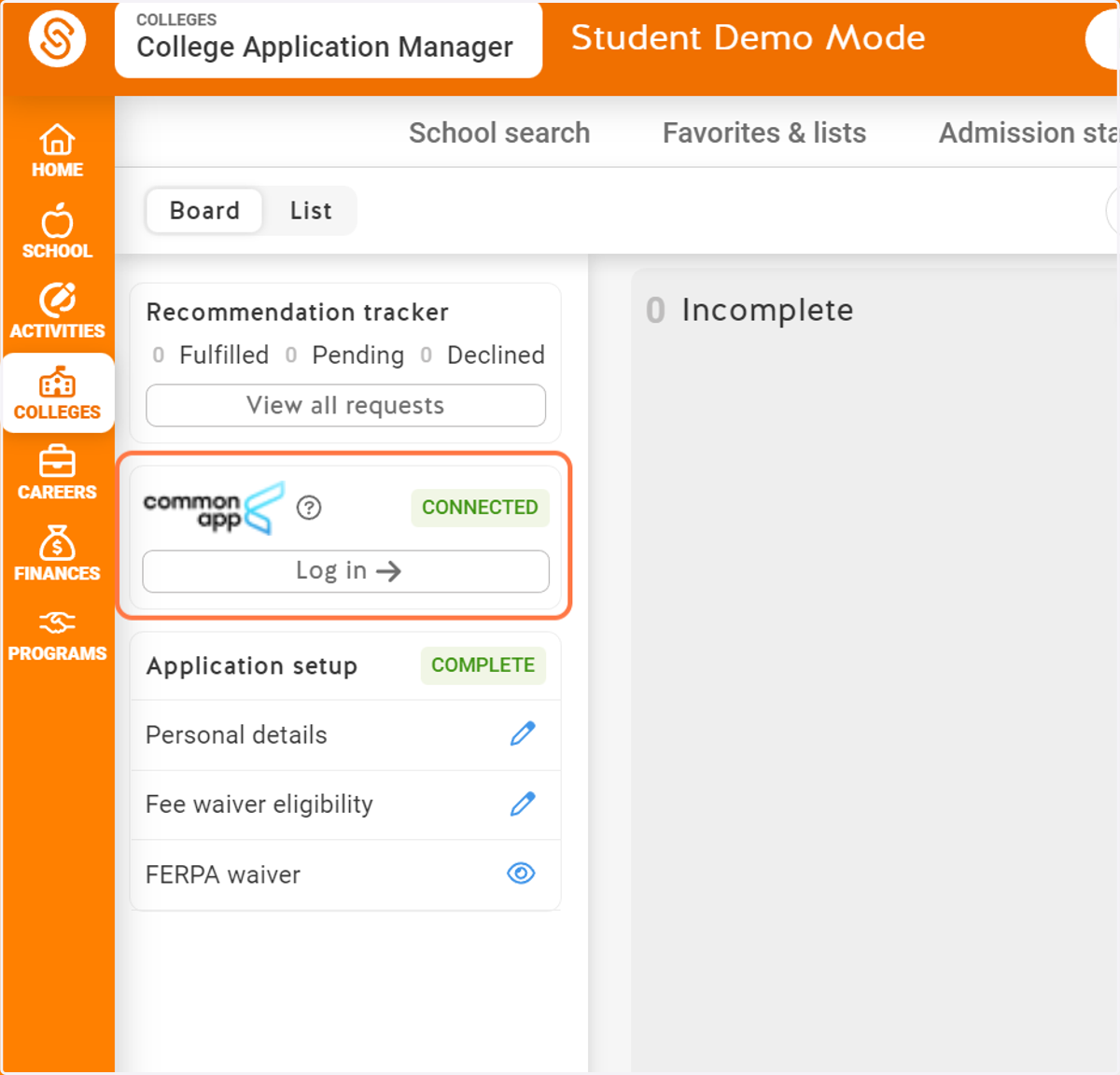
11. Finished! The schools you have added in Common App should now show on Schoolinks.
Follow steps to request teacher letters of recommendation.